[Bonus] Visualise your Profile using APIs
In this exercise, you’ll use Postman and Adobe I/O to query Adobe Experience Platform’s APIs to view your own real-time customer profile.
In the Real-time Customer Profile, all profile data is shown alongside event data, as well as existing segment memberships. The data shown can come from anywhere, from Adobe applications and external solutions. This is the most powerful view in Adobe Experience Platform, the experience system of record.
The Real-time Customer Profile can be consumed by all Adobe applications, but also by external solutions like call centers or in-store clienteling apps. The way to do this is to connect those external solutions to Adobe Experience Platform’s APIs.
Your Identifiers
As we have seen, on the REAL TIME CUSTOMER PROFILE panel on the website, you can find multiple identities. Every identity is linked to a namespace.
Identity | Namespace |
|---|---|
EXPERIENCE CLOUD ID | 83433386964176742472712675204149950968 |
PHONE NUMBER | +447929141042+2004-1 |
We can use any of these identifiers to look up a profile.
Set up your Adobe Developer Project
This section is for information purpose only. We have already done it for you and have packed it up in the Postman collection and environment you installed.
See the Information Section for more details.
In order to use APIs to create a profile, look up your profile, create an audience, i.e. do anything programmatically against Adobe Experience Platform, you need to setup an integration project in the Adobe Developer Console.
Such a project takes care of setting up the integration, and more importantly, the authorization and authentication. To maintain the security of your applications and users, all requests to Experience Platform APIs must be authenticated and authorized using standards such as OAuth.
For more information on how to gather the required credentials and authenticate Platform API calls, you can refer to our authentication tutorial.
Luckily, we have all done this for you already. Result is a ready-to-use integration configuration you can use with Postman.
Authenticate using Postman
To follow this part of the hands-on-lab, ensure you have:
- installed Postman;
- downloaded the ZIP file containing environment and collection;
- configured Postman environment.
See Introduction Section for more information.
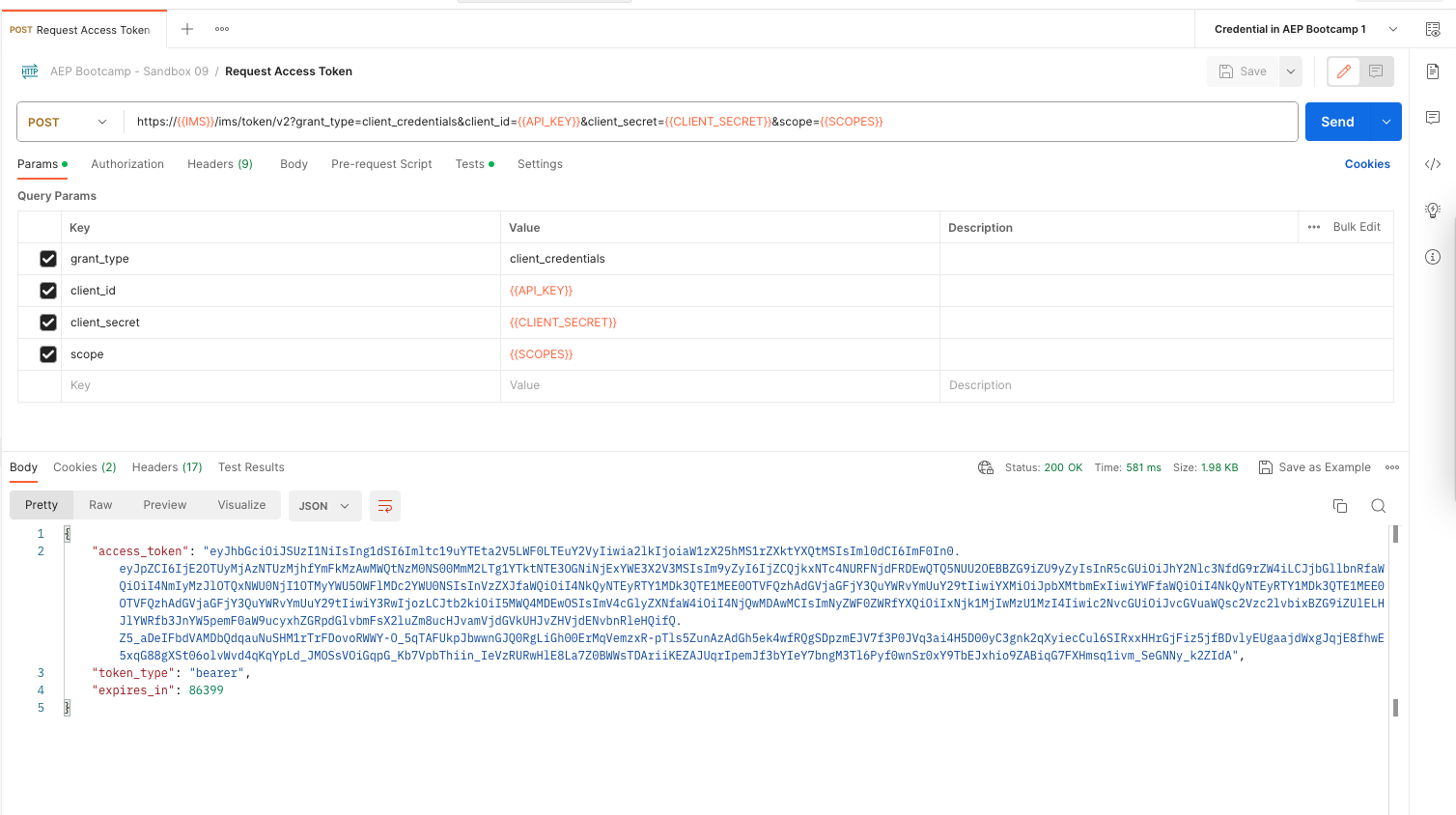
Before we can visualise a profile using the API, we first need to authenticate. To do so:
- Open the AEP Bootcamp collection.
- Ensure that the correct Environment DEMO POT EMEA - sb03 is selected from the top right environment drop down.
- Select POST Request access token. It will now be displayed in the middle of your screen.
- Click on Send.
You will see a response displayed in the Body section. You will see an access token with a specific value and expiration window (expires_in). The token is automatically saved in your environment to be reused in the next API calls.
The token that we've received is valid for 24 hours. This means that after 24 hours, you will have to generate a new token by running this request again.
Real-time Customer Profile API
Profile Request
Now that you have authenticated, you can go ahead and send your first real request to AEP's Real-time Customer Profile API's.
- Ensure you have opened the AEP Bootcamp collection.
- Open the Real-time Customer Profile API folder.
- Select the GET Retrieve a Profile by Entity Id and Namespace request.
For this request, there are three required query parameters, as visualised in the Params section.
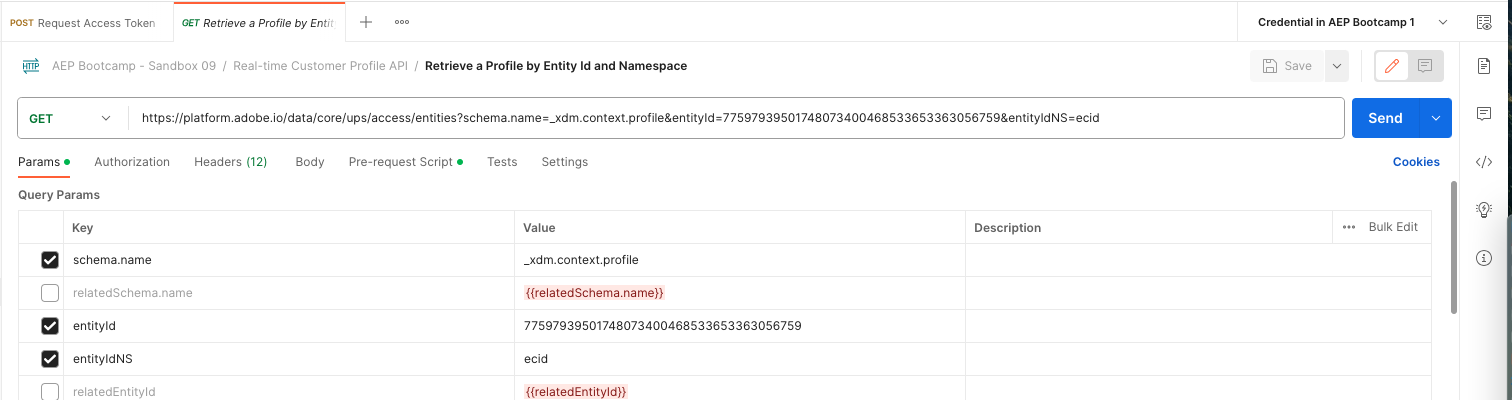
Key | Value | Definition |
|---|---|---|
entityId | id | the specific customer ID |
entityIdNS | namespace | the specific namespace that is applicable to the ID |
schema.name | _xdm.context.profile | the specific schema for which you want to receive information |
If you want to ask Adobe Experience Platform’s APIs to give you back all Profile information for your own ECID, you will need to configure the request as follows:
Key | Value |
|---|---|
entityId | [your own ECID] |
entityIdNS | ecid |
schema.name | _xdm.context.profile |
You should also verify the header fields of your request.
- Click on Headers tab in Postman.
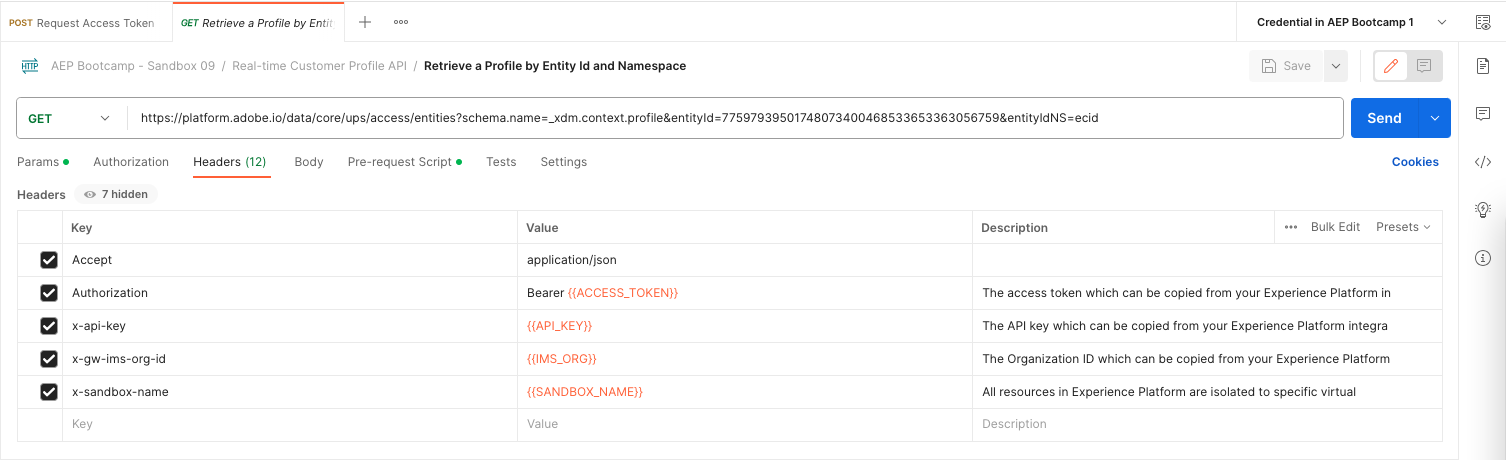
You should see the definition of Header fields, most of them originating from the configuration of your environment. To check this for example:
- Click on the icon next to your selected environment DEMO POT EMEA - sb03 (top right).
- Scroll to the bottom of the list.
- You will see SANDBOX_NAME defined as sandbox03.
Ok, now we are finally going to send the request. To do this:
- Go to the demo website:
- Open the REAL TIME CUSTOMER PROFILE panel.
- Copy one of the Experience Cloud ID from the panel.
- Back in Postman
- Select the Params tab.
- Paste the copied value from above in the VALUE field for KEY entityId. E.g. 32798133887524551242776951782811676614.
- Click on Send.
You should get an immediate response from AEP, showing you something like:
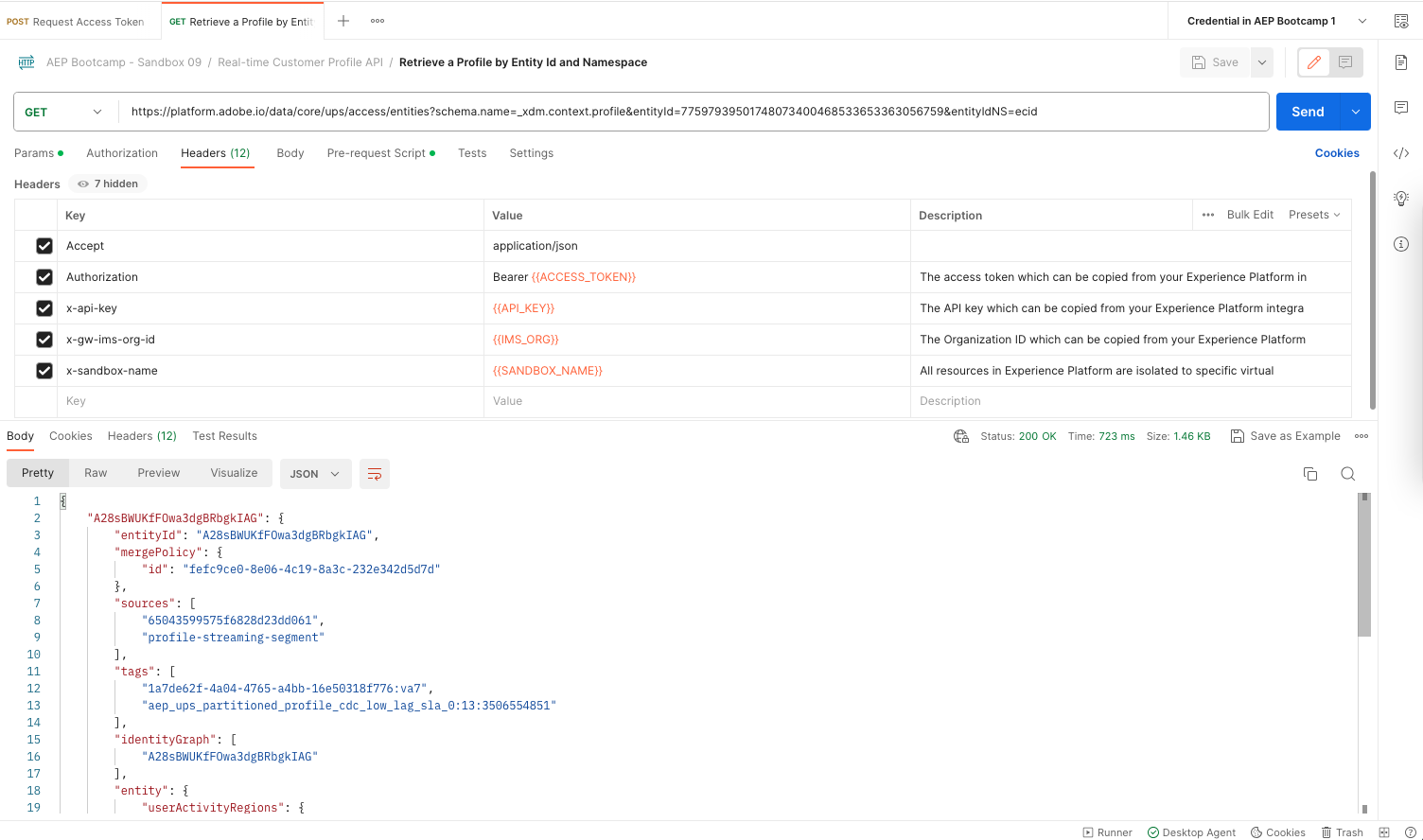
This is the full response from AEP
{
    "A28sBWUKfFOwa3dgBRbgkIAG": {
        "entityId": "A28sBWUKfFOwa3dgBRbgkIAG",
        "mergePolicy": {
            "id": "fefc9ce0-8e06-4c19-8a3c-232e342d5d7d"
        },
        "sources": [
            "65043599575f6828d23dd061",
            "profile-streaming-segment"
        ],
        "tags": [
            "1a7de62f-4a04-4765-a4bb-16e50318f776:va7",
            "aep_ups_partitioned_profile_cdc_low_lag_sla_0:13:3506554851"
        ],
        "identityGraph": [
            "A28sBWUKfFOwa3dgBRbgkIAG"
        ],
        "entity": {
            "userActivityRegions": {
                "IRL1": {
                    "captureTimestamp": "2023-09-19T07:48:10.288Z"
                }
            },
            "identityMap": {
                "ecid": [
                    {
                        "id": "77597939501748073400468533653363056759"
                    }
                ]
            },
            "segmentMembership": {
                "ups": {
                    "0ca531ff-35a1-4c8a-a151-bf7c2c6a0716": {
                        "status": "realized",
                        "lastQualificationTime": "2023-09-19T10:26:52Z"
                    }
                }
            }
        },
        "lastModifiedAt": "2023-09-19T10:50:52Z"
    }
}
This is currently all of the available profile data in AEP for this ECID.
You’re not required to use the ECID to request profile data from AEP's Real-time Customer Profile; you can use any ID in any namespace to request this data.
- Go to the demo website.
- Open the REAL TIME CUSTOMER PROFILE panel.
- Copy your email address from the panel.
- Back in Postman
- Select the Params tab.
- Ensure you specify email as the VALUE for KEY entityIdNS.
- Paste the copied email address from above in the VALUE field for KEY entityId. E.g. [email protected].
- Right click in the VALUE field with the email address and select EncodeURIComponent from the context menu. This will encode the email address when sending the request eg.sacker%2B31042023%40adobetest.com.
- Click on Send.
You should see similar results as with the earlier request.
Experience Event Request
After having queried Platform’s APIs successfully for profile data, let’s now do the same with experience event data.
For such a request, there are four required parameters:
Key | Value | Description |
|---|---|---|
schema.name | _xdm.context.experienceevent | The specific schema for which you want to receive information. In this case, we’re looking for data that is mapped against the ExperienceEvent schema |
relatedSchema.name | _xdm.context.profile | While we’re looking for data that is mapped against the ExperienceEvent schema, we need to specify an identity for which we want to receive that data. The schema that has access to identity is the Profile-schema, so the relatedSchema here is the Profile-schema. |
relatedEntityId | id | The specific customer ID |
relatedEntityIdNS | namespace | The specific namespace that is applicable to the ID |
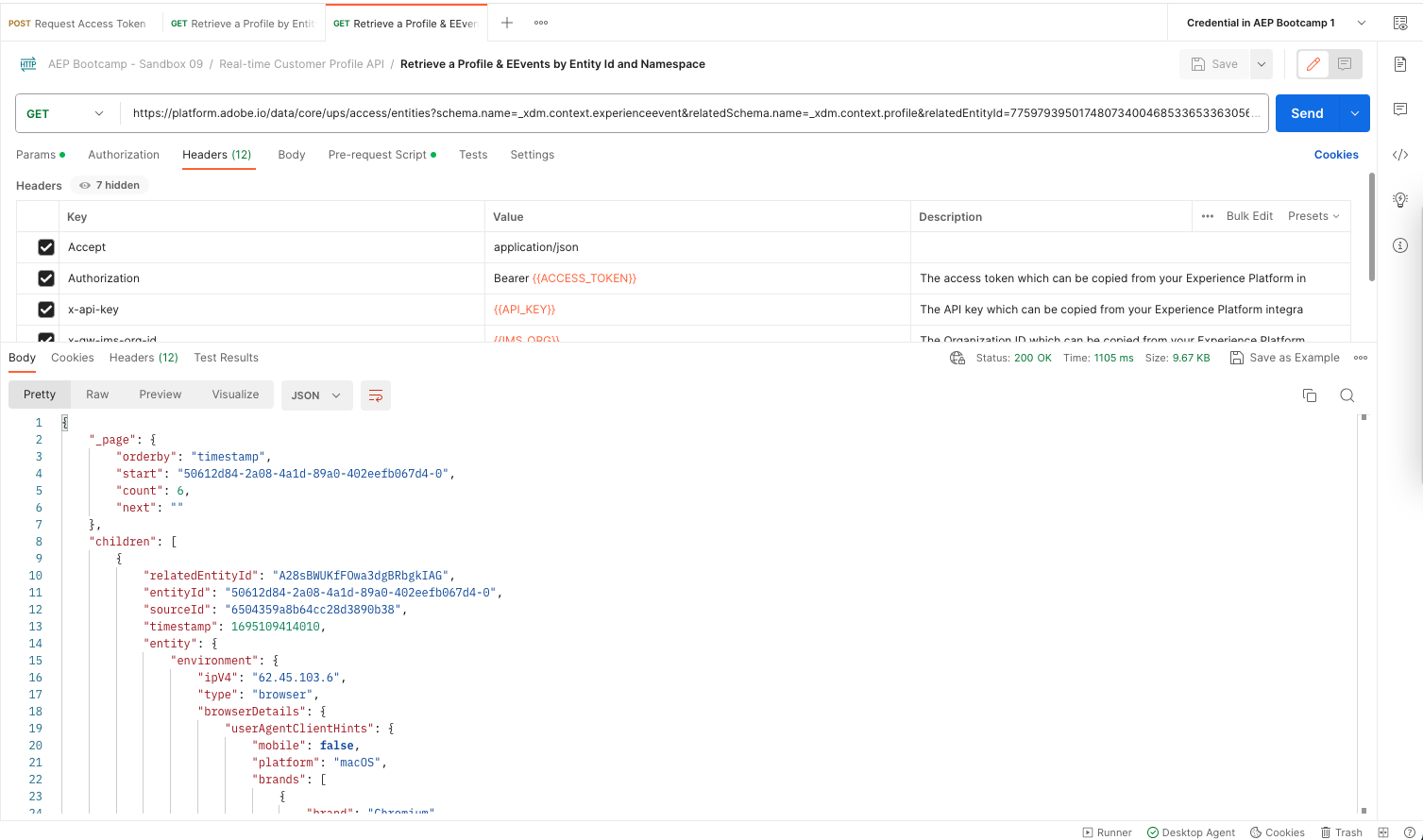
- In Postman, select the GET Retrieve a Profile & EEvents by Entity Id and Namespace.
- In Params tab, copy the email address you used earlier as VALUE for KEY relatedEntityId.
- Ensure the value is encoded:
- select the VALUE field for relatedEntityId ;
- click on the three-dots icon that appear;
- select EncodeURIComponent.
- Click on Send.
You should get an immediate response from AEP. Details are shown in the Body section. In that response you will find your experience events:
You have now successfully looked up a customer profile using the Adobe Experience Platform API's.