Email Designer
This lab will walk through the steps to create an Email in Adobe Journey Optimizer.
NOTE: Some exercises may vary during the actual Hands on Lab versus what is listed in the Archbee Page, due to industry setup and / or Presenter preferences.
Create a New Message
Within the Basic Journey, click on Email action node
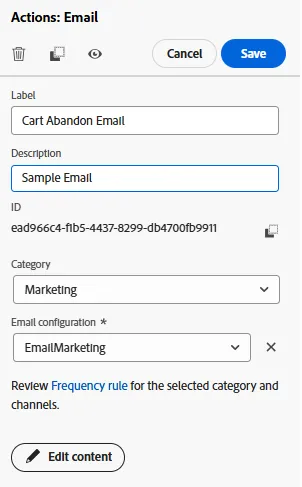
- Enter a Label and Description for the message.
Choose Marketing for Category and select EmailMarketing:
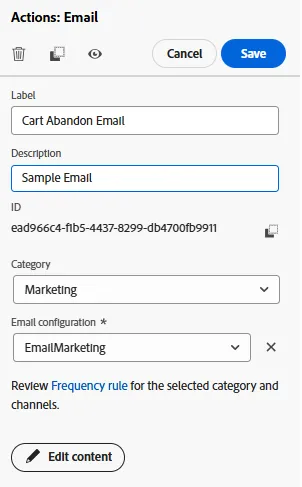
Click on Edit Content
Creating a Subject Line with Personalization
- Once you are inside the email designer - click on the Subject Line on the right side and give your email a Subject. We selected "You Forgot Items in Your Cart!":
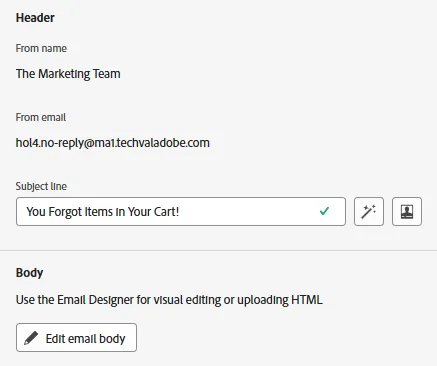
- NOTE: You can click on the Personalization Dialog to add Personalization if you would like, but it is not required.
- Click on the "Edit email body" button when you are ready to edit the Email Content:
Using Content Templates in an Email
NOTE: Due to time constraints, we will be creating the email content from a Template in this exercise.
For an accelerated and improved design process, you can create standalone templates to easily reuse custom content across Journey Optimizer campaigns and journeys.
This functionality enables content-oriented users to work on templates outside campaigns or journeys. Marketing users can then reuse and adapt these standalone content templates inside their own journeys or campaigns.
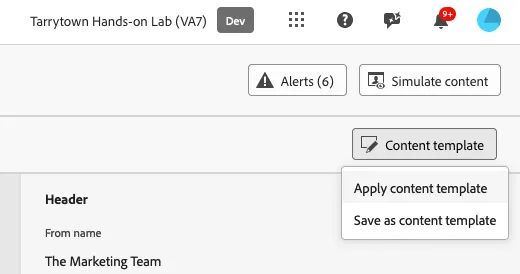
- Click on Content Template on the top right of your screen.
- Select Apply Content Template.
3. Select the pre-saved Email Template. Select the "Blank Email Template".
4. This will give you a starting point to design your email. Alternatively, you can choose to build each block manually
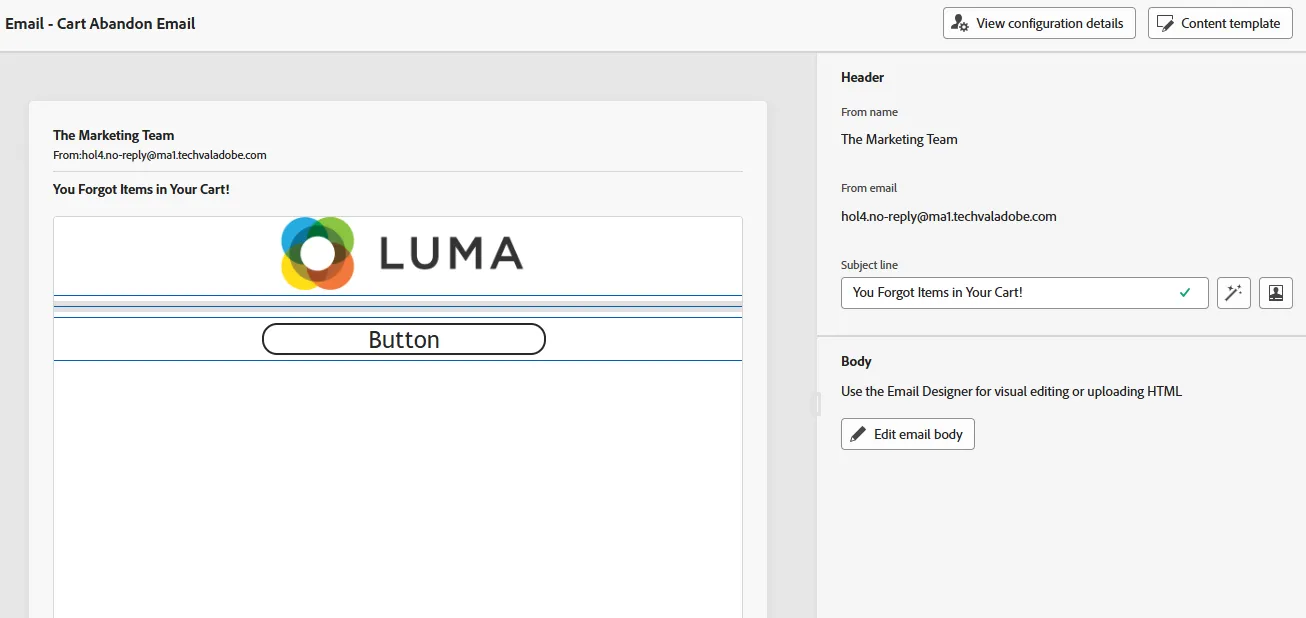
5. Review the different sections of the template added.
Update Content Design
- Click on Edit Email Body
Update text content with Personalization
- In the first section, click on the "Browse" button to select an image of your choice:
- We chose a sports equipment image:
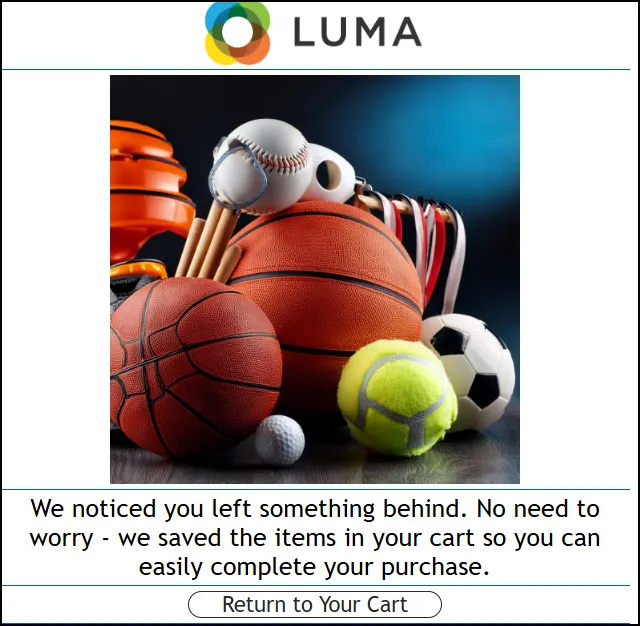
- Add a Text Content Block to the next section. You can add any test you like. We chose, "We noticed you left something behind. No need to worry - we saved the items in your cart so you can easily complete your purchase." Set the style and font to your choice.
- Change the text on the Button to read "Return to Your Cart".
- Click Save
Adding an Offer Decision Block
- Insert a Offer Decision Content Block into your Email:
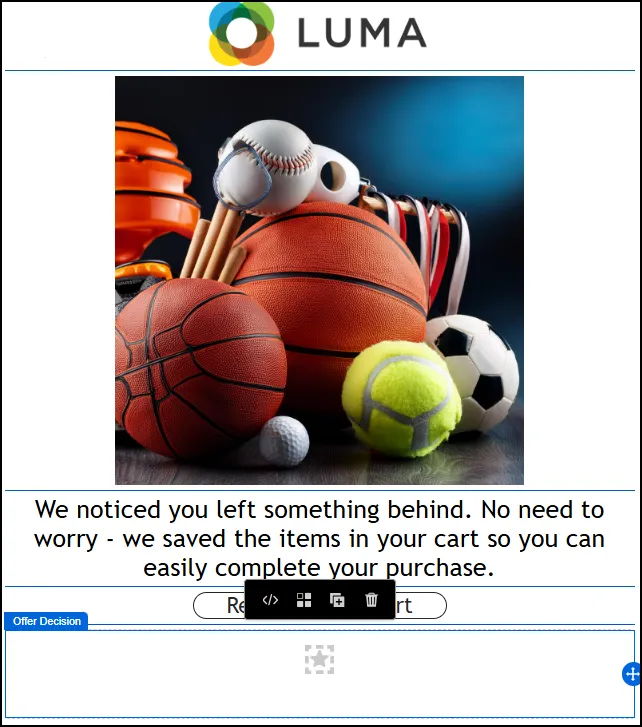
- Click on the Add button within the Offer Decision content block
- Click on the Select Offer decision button on the right panel
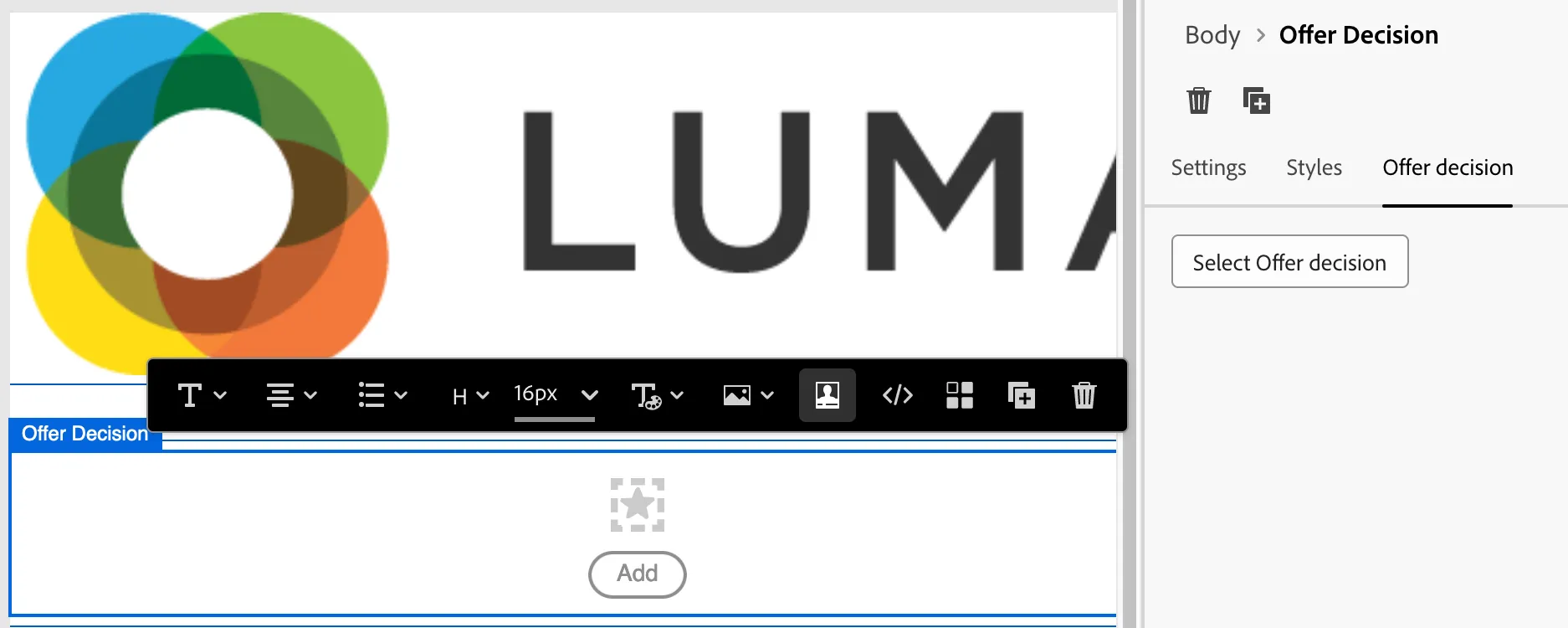
3. Choose Email - Image as your Placement from the dropdown.
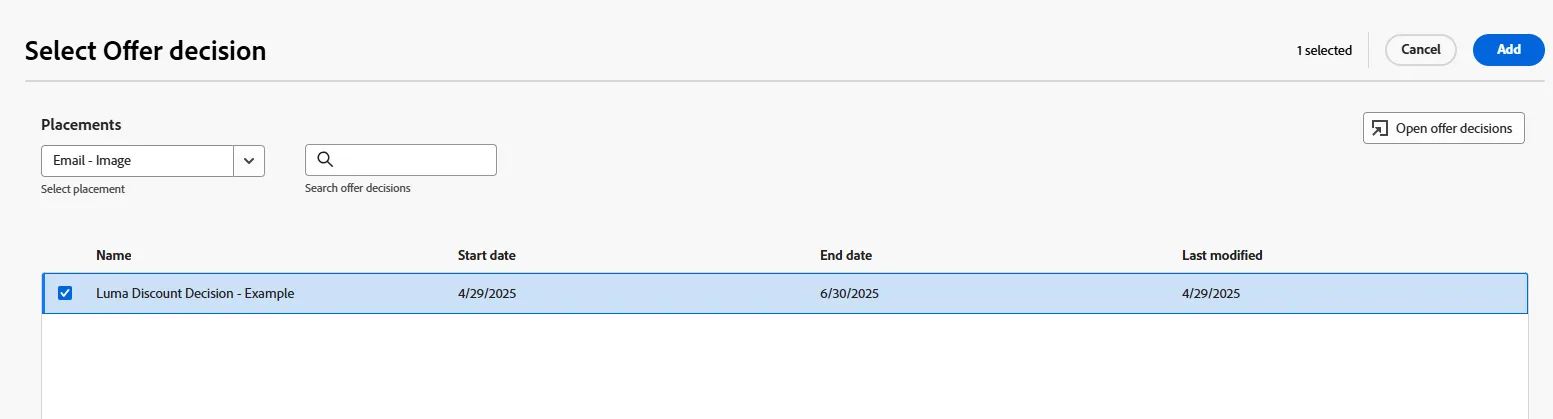
4. Select the Offer Decision you created in the previous section. You can search using your initials.
5. Click Add. Review the preview for the peronalized and the fallback offers
6.
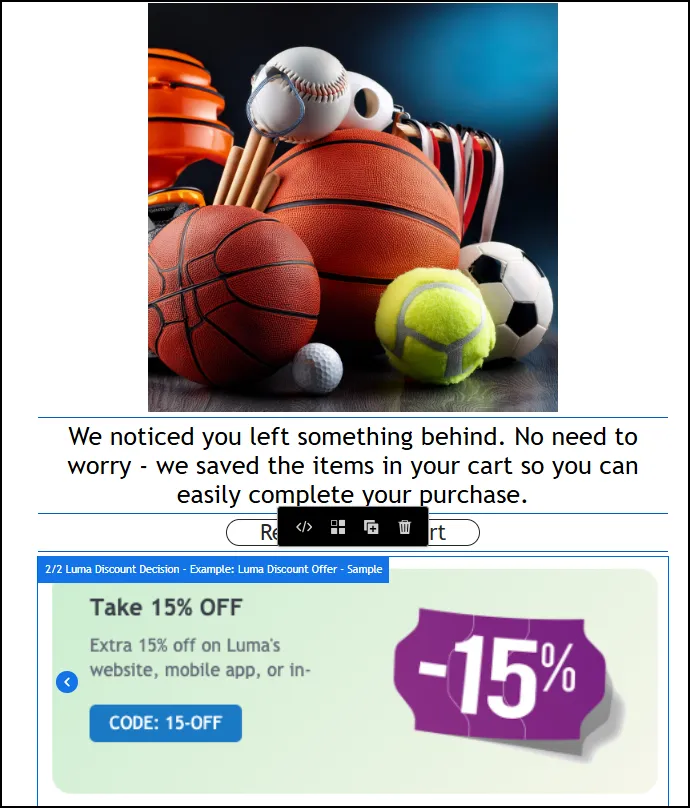
7. You can review your Offer Previews as well.
Use AI to generate Image Content
- Click on an Image in your email.
- Click on the AI Assistant on the right rail:
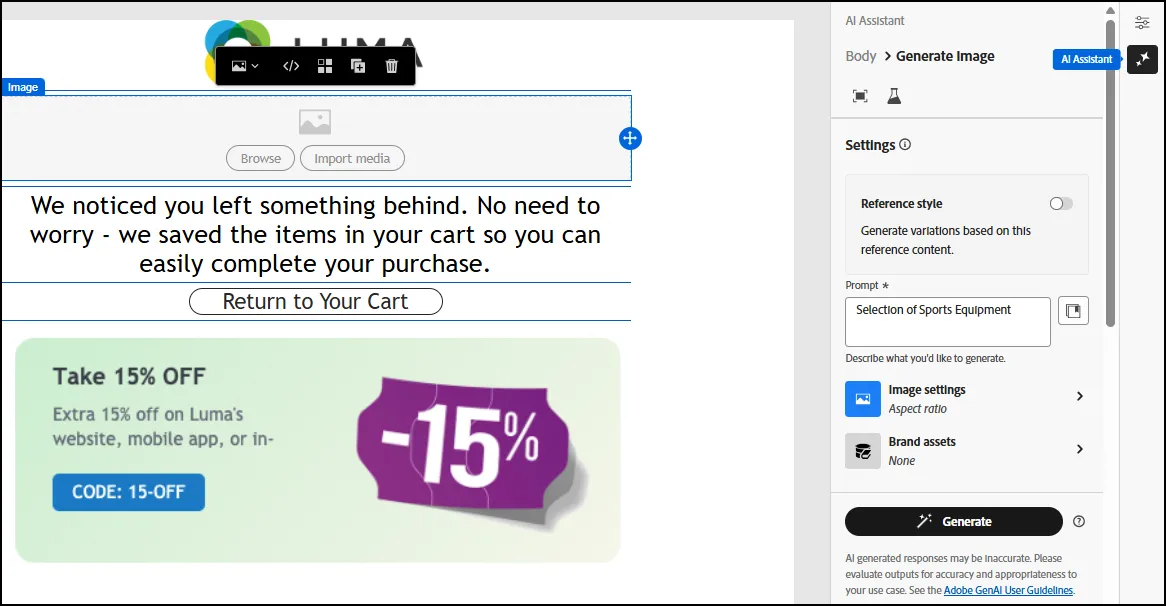
- Type a prompt to generate an image that meets the shopping cart use case story. Example: "Selection of Sports Equipment"
- Click on Generate
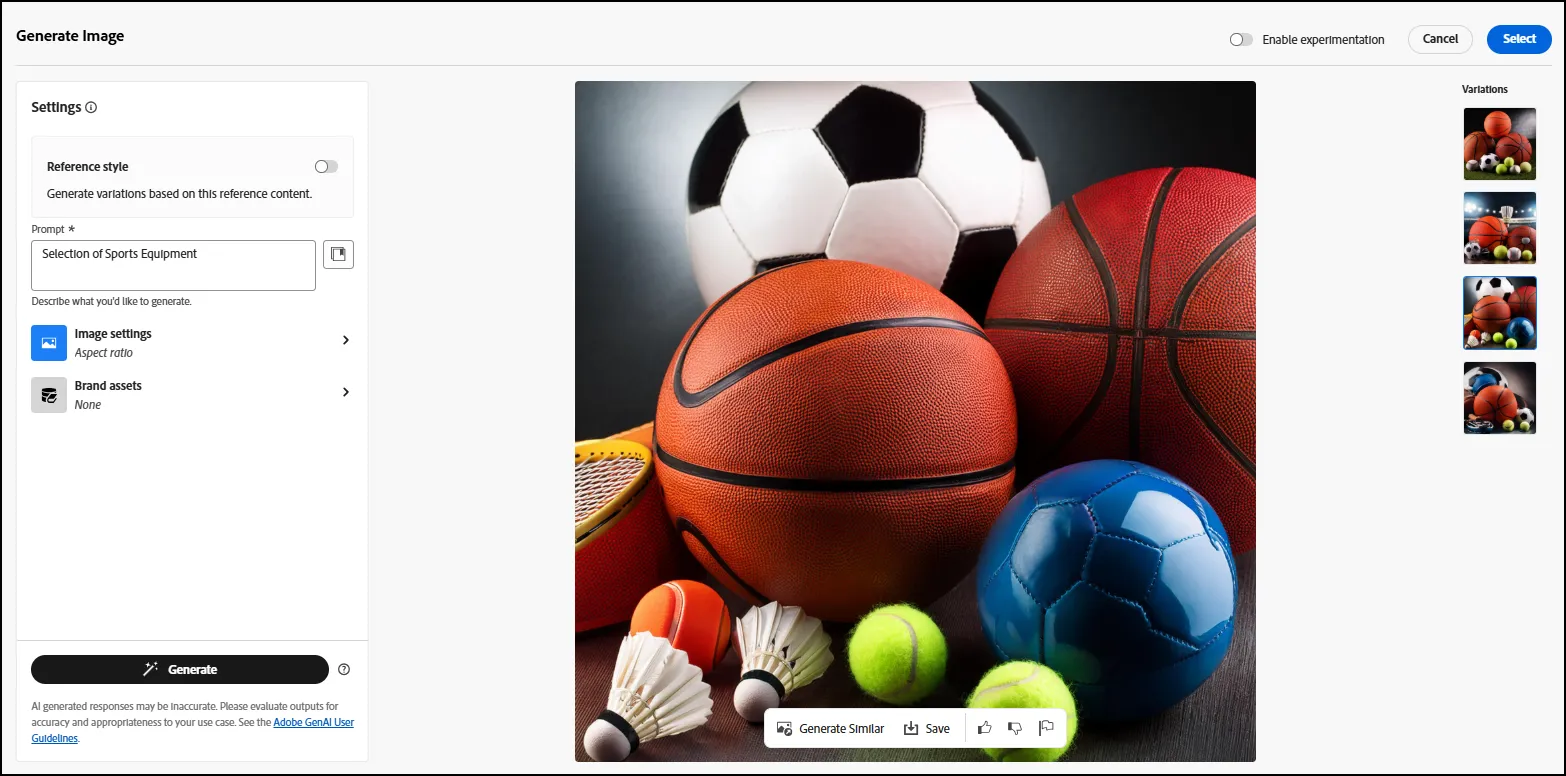
- Click on "Preview" to view your image results.
- You can select the one you want. Additionally, you can save it to your Asset repository, by clicking the Save Button:
-
Clickable Link
- Click on the Button content block.
- Edit the label in the right panel to "Return to Cart".
- Choose button type: External Link. Add a value of choice.
Fragments
A fragment is a reusable component that can be referenced in one or more emails across Journey Optimizer campaigns, journeys or content template.
- Click on the Fragments icon on the left panel.
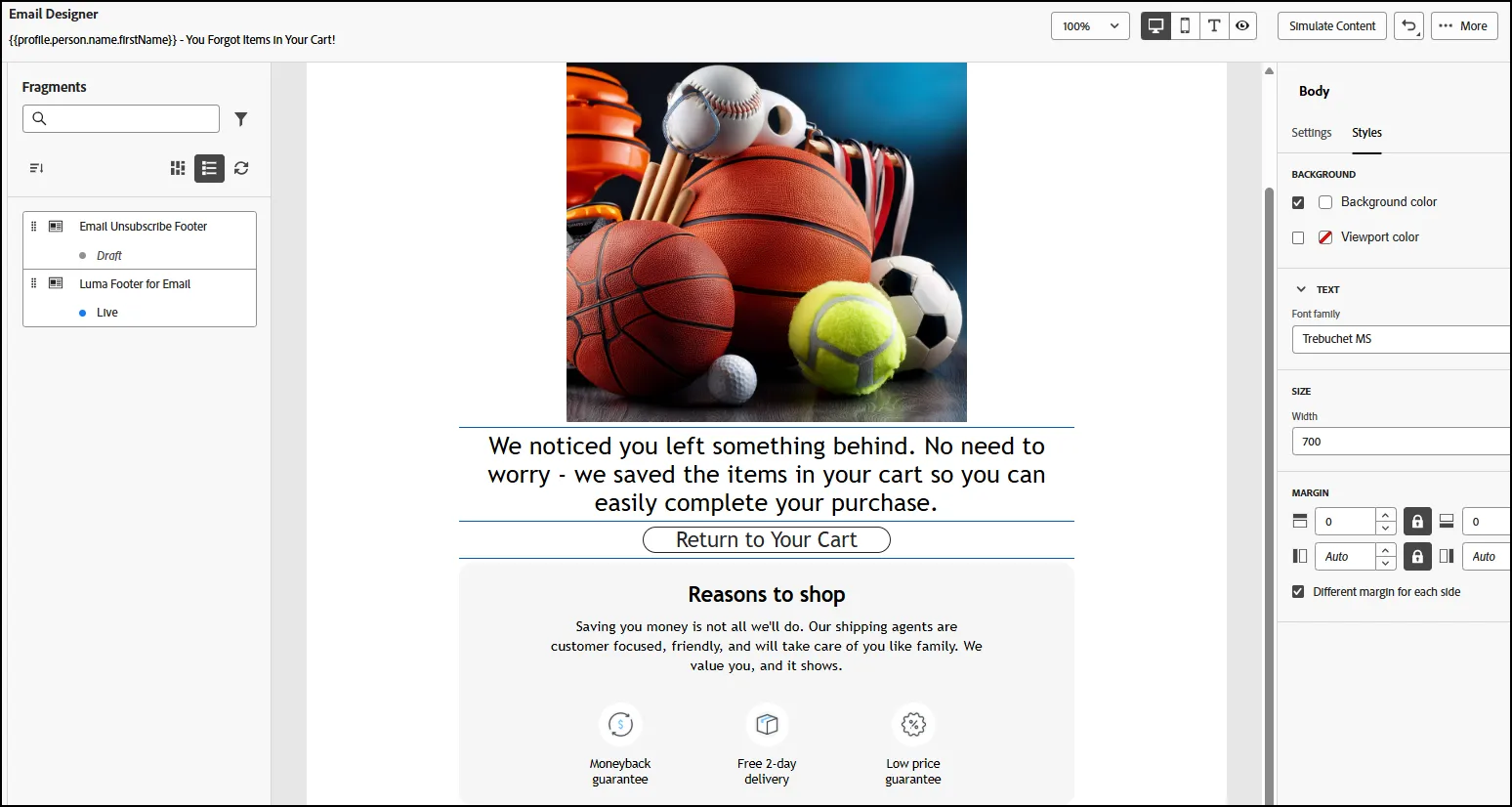
- Drag the "Luma Footer for Email" and the "Email Unsubscribe Footer" into your Email.
- Your email footers should now appear in the sections:
- Click Save.
Using AI to define a Subject Line
- Click on the back arrow to land on the Subject Line Screen
- Click on the AI Assistance icon.
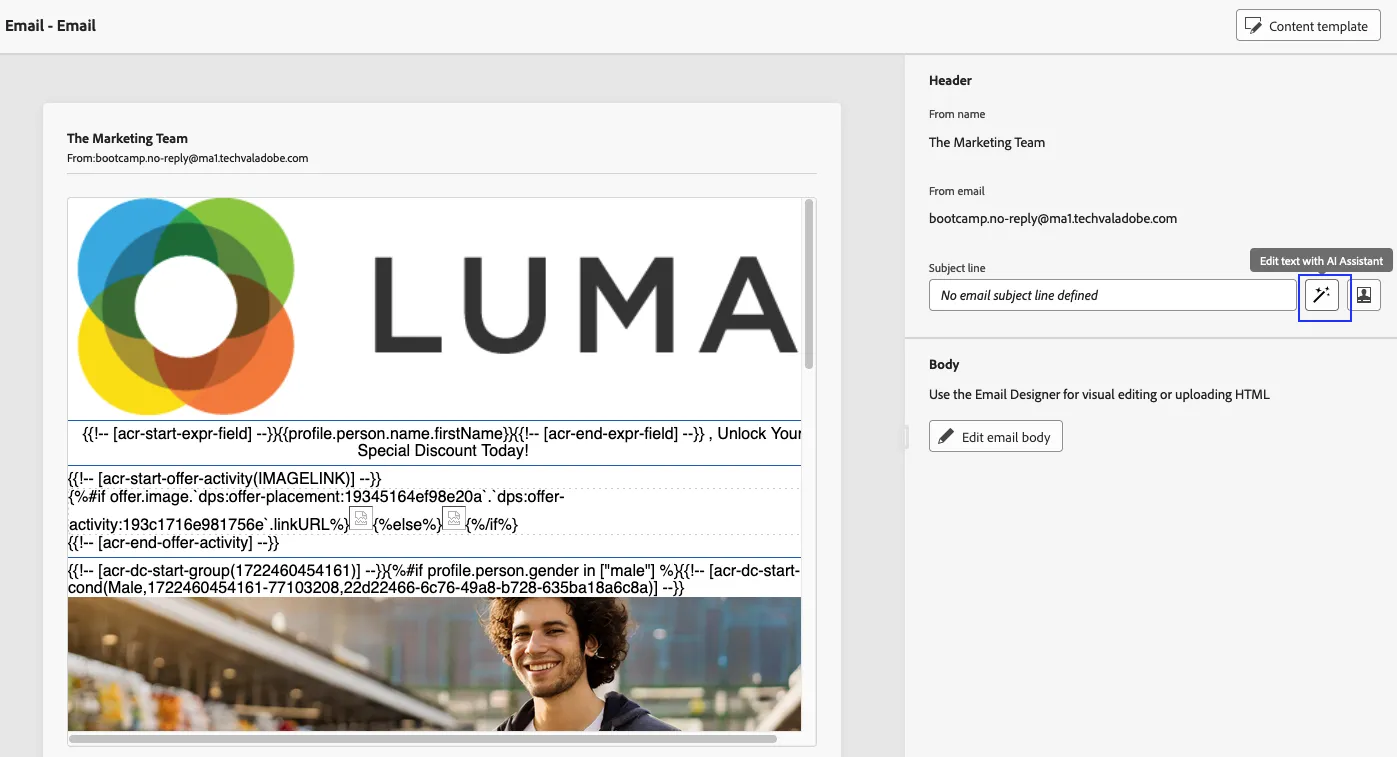
3. Provide a relevant prompt to meet the purpose of the emai. Example: Email subject line for return to cart nudge with discounts inside
4. Select a suitable variation and click Save.
Simulating for sample profiles
- Click the Simulate content button and select Simulate Content option anytime during the process to simulate for specific profiles
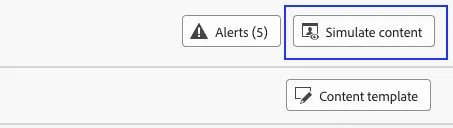
2. Click on Manage profiles
3. Use the below two profiles for simulations
Note: if you recieve a warning, simply check what it is on the button View Configuration Details. The error means we have no data on specific fields on the channel configuration, but this is fine. This is expected and part of the lab to showcase the level of protection accross the workflows.