Push Message Designer
3 min
This lab will walk through the steps to create a Push Message in Adobe Journey Optimizer.
NOTE: Some exercises may vary during the actual Hands on Lab versus what is listed in the Archbee Page, due to industry setup and / or Presenter preferences.
Create a New Message
- Within your Journey, click on the Push action node you added to the canvas.
- Enter a Label and Description for the message.
- Select Marketing for Category and PushNotifications for Push Surfaces
- Click on Edit Content.
Design Push Message
- Work within the iOS tab.
- Use the AI Assistant to generate a suitable Title and Body for the Push message.
Try playing with the "Tone" feature within the AI Assistant module
3. Choose image to be displayed along with the message by clicking on the "Add Media".
5. Simulate using test profiles added in the email designer exercise.
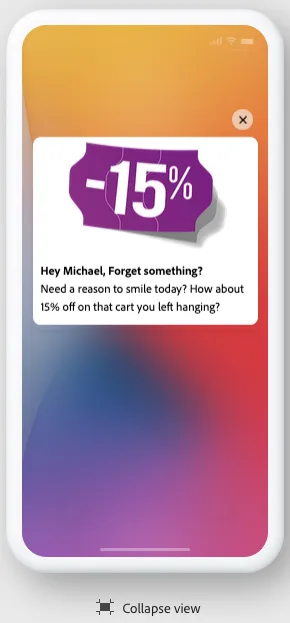
6. Your Push message simulation should look somethig like this.