SMS Designer
2 min
This lab will walk through the steps to create an SMS Message in Adobe Journey Optimizer.
NOTE: Some exercises may vary during the actual Hands on Lab versus what is listed in the Archbee Page, due to industry setup and / or Presenter preferences.
Create a New Message
- Within your Journey, click on the SMS action node
- Enter a Label and Description for the message.
- Select Marketing for Category and SMSMarketing
- Click on Edit Content
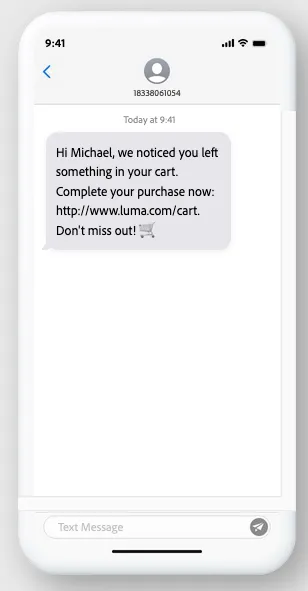
Define the SMS Message
- Use the AI assistant to generate the text for the SMS.
- Add personalizaation (use First Name to address the customer).
- Add a URL to click through. Example: https://dsn.adobe.com/web/arex-V1NB/cart
- Simulate using test profiles added in the email designer exercise.
- Exit the designer after composing the message.