Build a Journey with Federated Audience Data
[Hands on keyboard!]
Build a journey in Adobe Journey Optimizer with a Federated Audience
In this next section, you'll learn how a federated audience can be used in journeys within AJO. This includes using queried attributes from Federated Audience Composition to personalize messaging.
For the next lab exercise, you will
- Build a journey using a federated audience
- Personalize email using federated enrichment attributes
To continue on the SecurFinancial customer story and solve for the customer retargeting and personalization use case, we will orchestrate a journey for prequalified customers. The goal is to send a personalized email based on attributes federated from SecurFinancial's data warehouse.
If you did not finish building your federated audience, no problem! Continue reading to build your journey using an existing federated audience.
Build a Journey with a Read Audience
Navigate to Journeys portal, click the Create Journey button
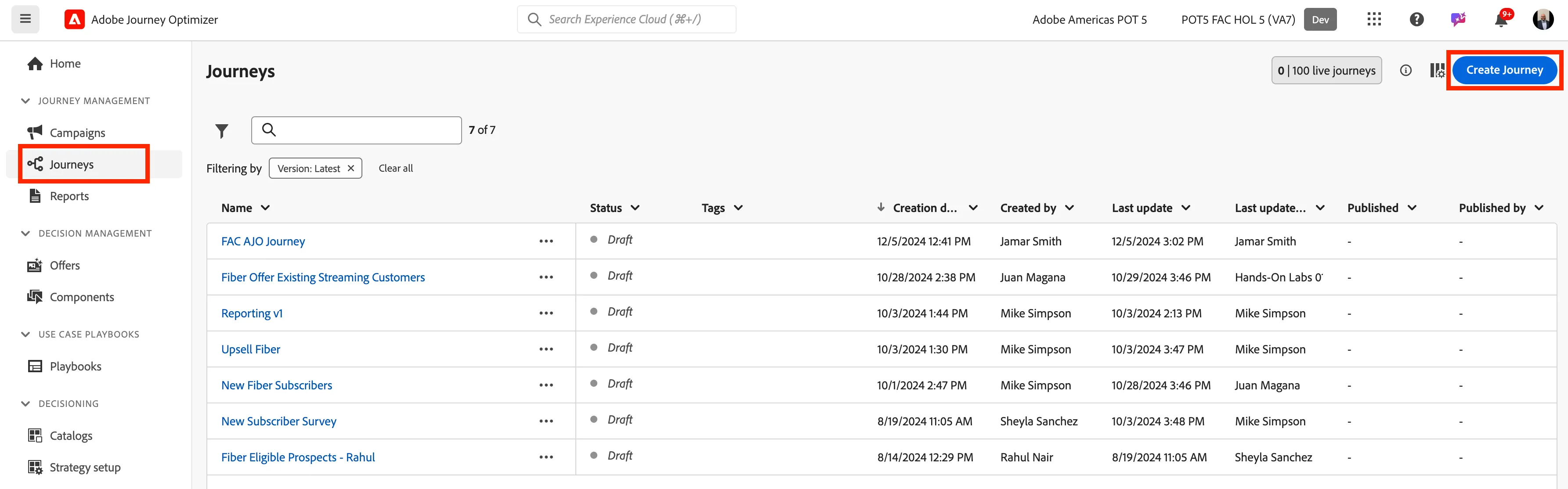
Update the Journey Properties with a new name SecurFinancial - Home Loan Offer - and add your lab user ID
Click on Orchestration then drag and drop the Read audience tile to the canvas
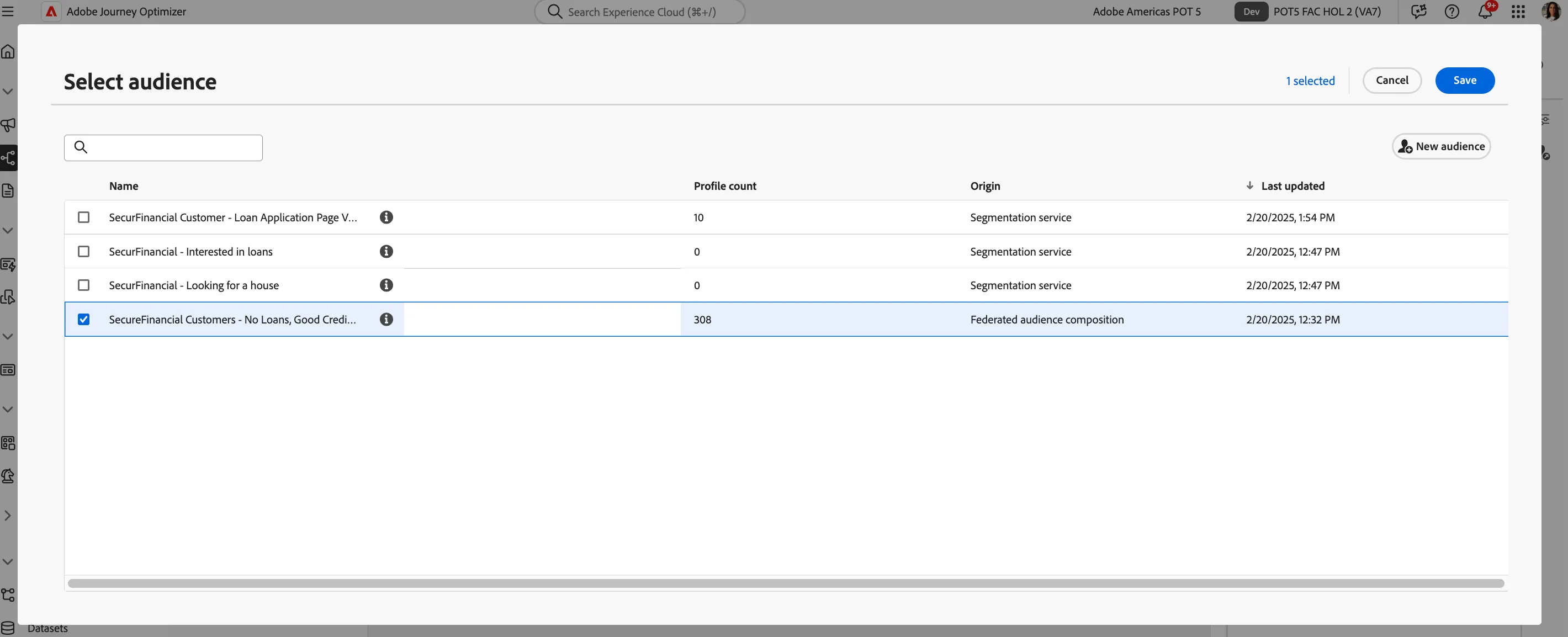
Then click on the pencil icon next to Audience box on the right side of the screen
In the search bar, search for your [Do Not Modify] SecurFinancial Customers - No Loans, Good Credit then click Save
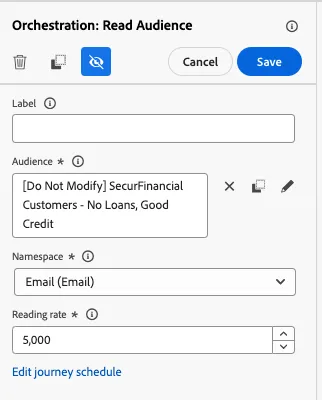
Leave all the settings as default in the right side menu and then click Save
Personalize Email
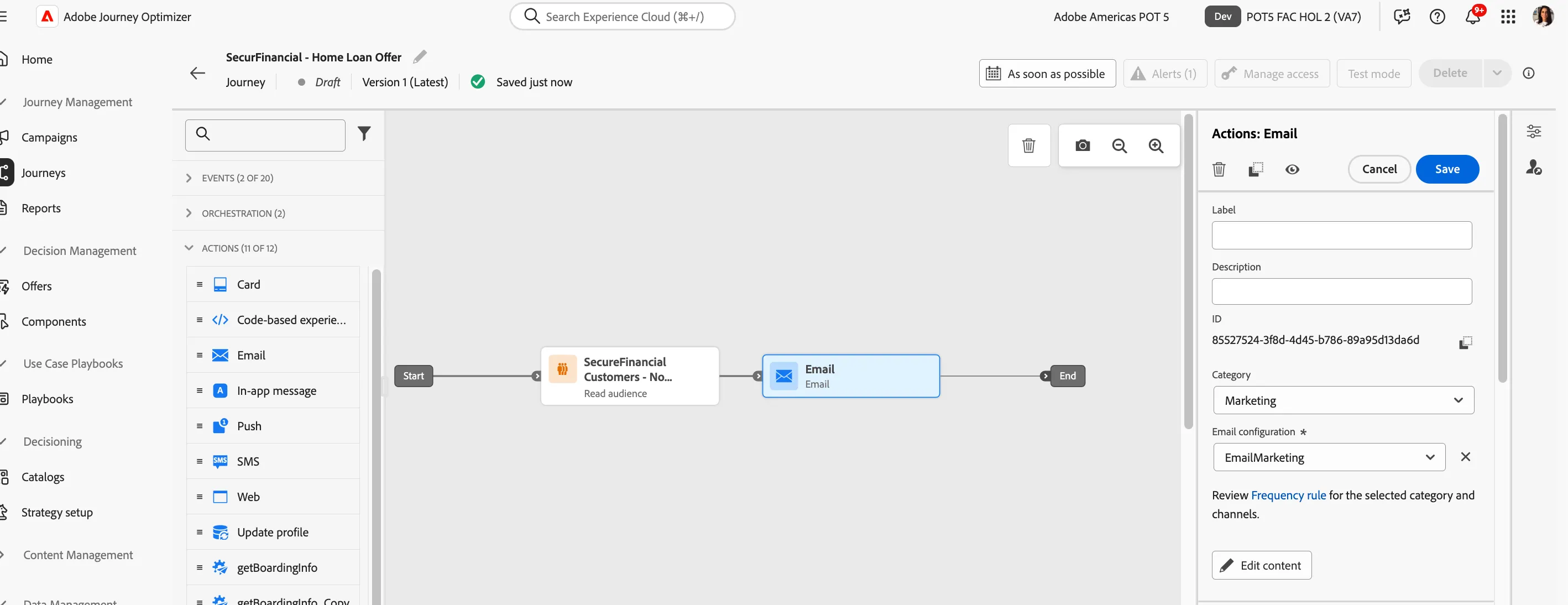
Click on Actions and then click and drag the Email tile to the canvas
On the right side menu, click on Email configuration and select EmailMarketing. Then click on Edit content
In the subject line add Learn more about SecurFinancial Home Loan. Then click on Edit email body
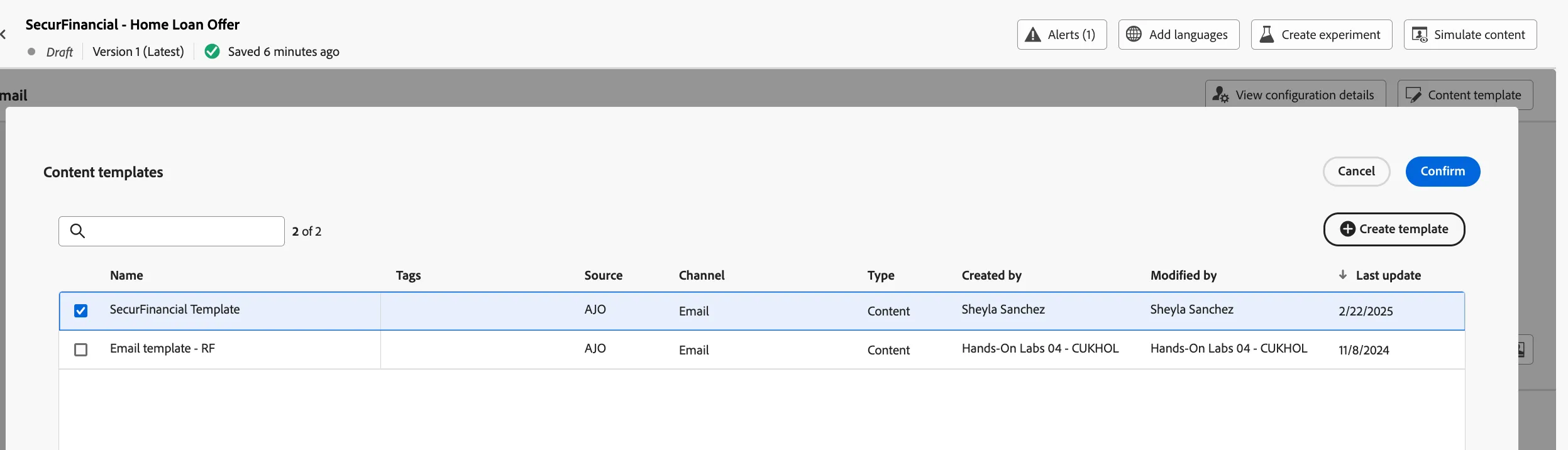
Click the Content template button in top right corner. Find and select SecureFinancial Template then click Confirm
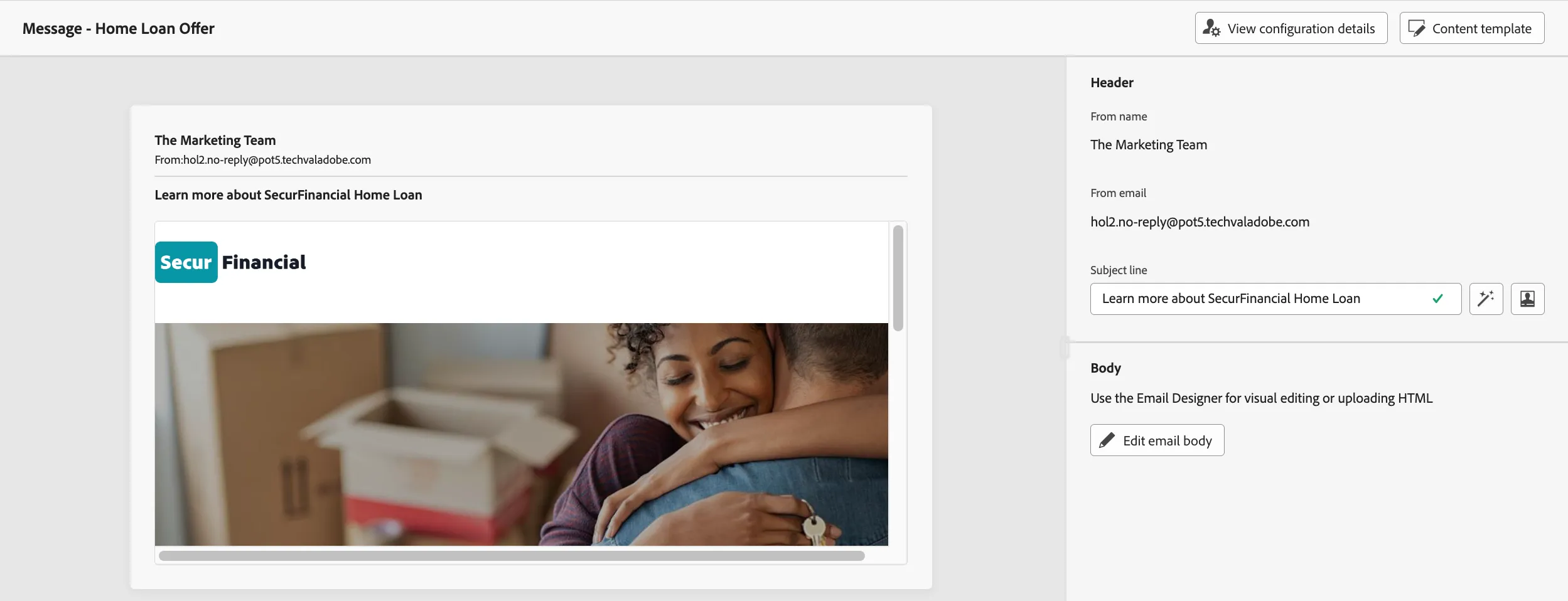
Review the template and click Use Template
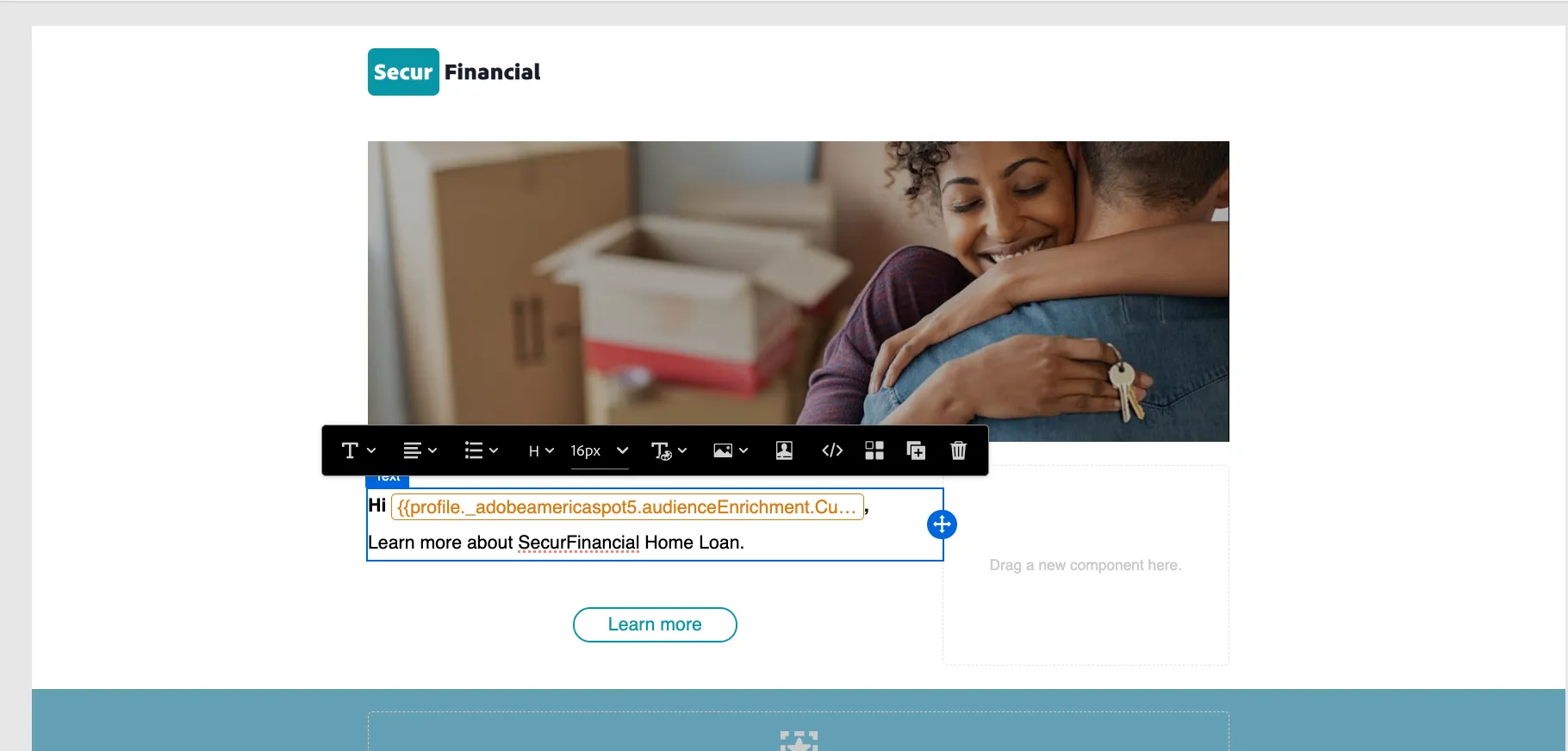
- You will now be in the Email Designer. Hover over the {{profile.person.name.firstName}} macro and click the personalization avatar
- In the personalization window, drill down to the following folder path
_adobeamericaspot5 > audienceEnrichment > CustomerAudienceUpload
- Click into the read audience folder
- The enrichment attributes from your federated audience can be found here
- Select the First Name attribute to the expression builder
- The email will dynamically express the first name value of the customer to personalize the email
- Click Save
Now that the first name personalization has been added, add Hi, in front of the personalization variable. Then click Save
Click on the Back button twice and this will take you back to the journey canvas. Then in Action: Email menu to the right, click Save
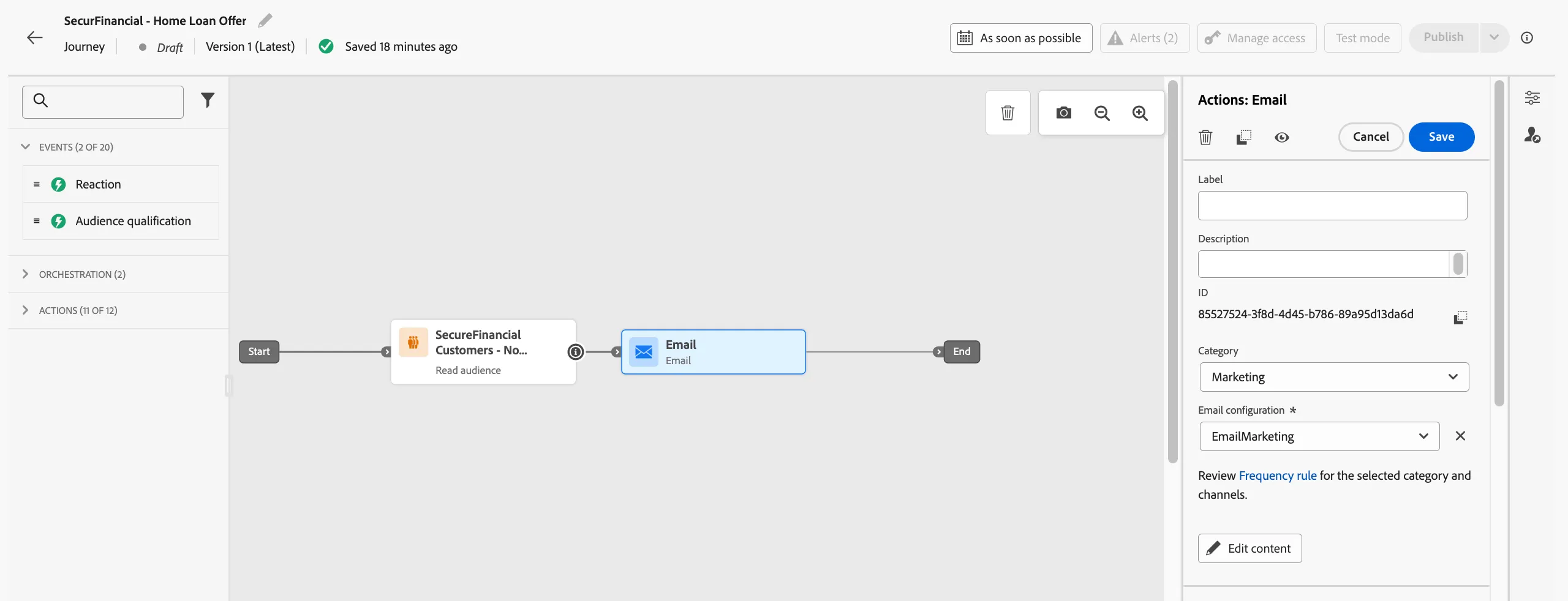
Congratulations, you have created a journey in AJO using a federated audience and federated enrichment attributes. We will not publish this journey, but it has been saved.