Ex1: Access Lab Environment
Time to get set up! In this chapter, you'll arrange your workspace, log in to the Experience Modernization Console, and get familiar with the interface.
Step 1 — Access AEM Coder
To follow the lab efficiently, you'll want the workbook and the EMA side-by-side. To set this up, you'll use macOS window tiling:
- Open the Console in a new tab: https://aemcoder.adobe.io/

Right-click the following link and select "Open Link in New Tab": aemcoder.adobe.io.
- Login with your provided Adobe ID:
On the first login, the environment will be created, so it can take up to 10min. Depending on the lab account, this step has already been done.
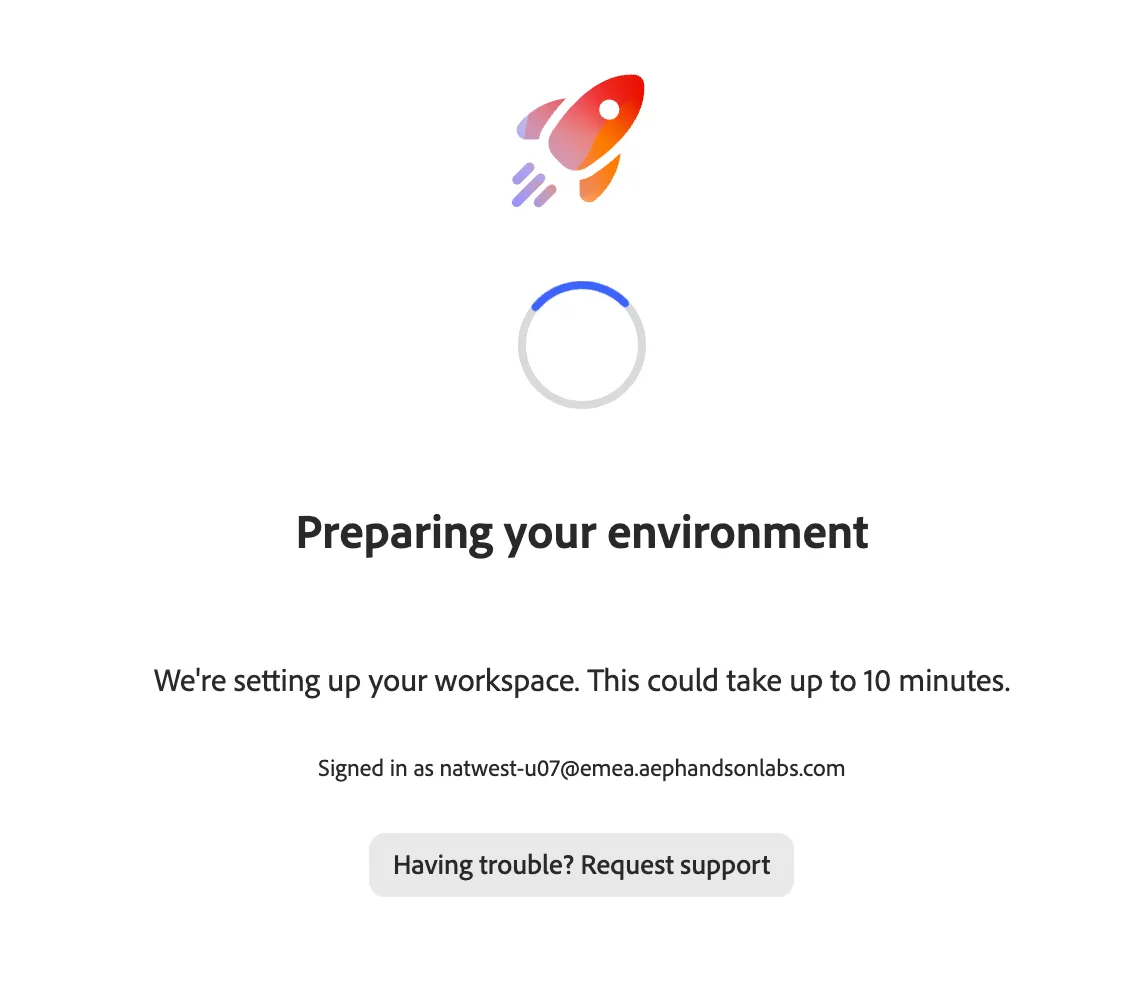
- You will see this page:
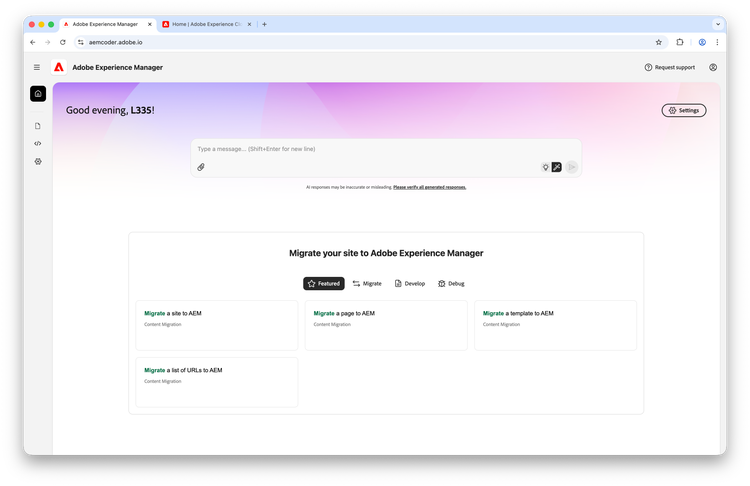
Step 2 (optional) — Set windows side-by-side
For more convenience in this lab, you can set lab instructions in one side, and aem coder in the other side.
- Separate the workbook into its own window:
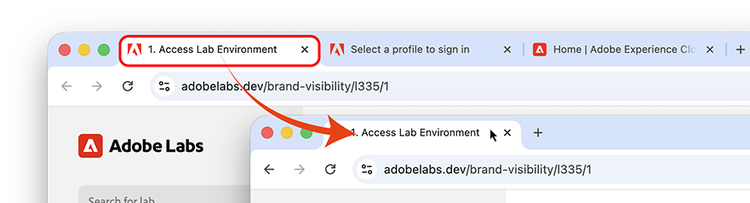
- Tile both windows side by side:
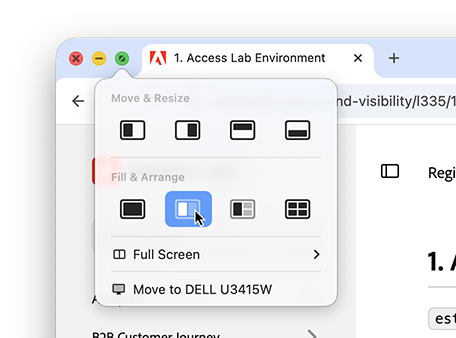
- Adjust the split:
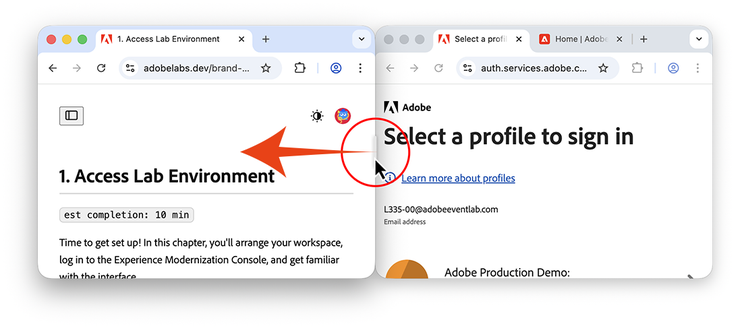
- Have 1/3 of the screen for the lab content, and 2/3 for the EMA.
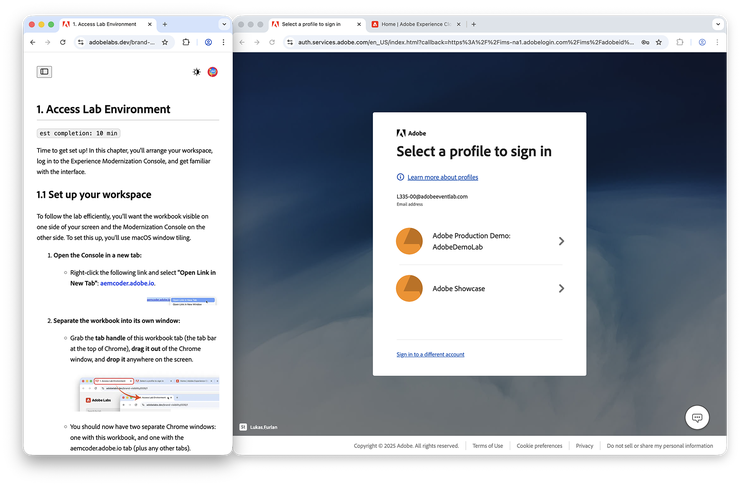
You are now set to start the EMA lab!