Ex4: Edit your page in DA
Introduction
In this exercise, you will enhance your FAQ page by creating a new FAQ block, adding a heading, inserting a Cards Icon block from the library, and adding an asset. You will then preview the completed page to verify that all content and blocks are displayed correctly.
Step 1 — Add a block on your own
We want to add an faq block similar to what we had in the template.
- First, place your cursor right after the faq table, and let's add a Section to divide our Blocks:
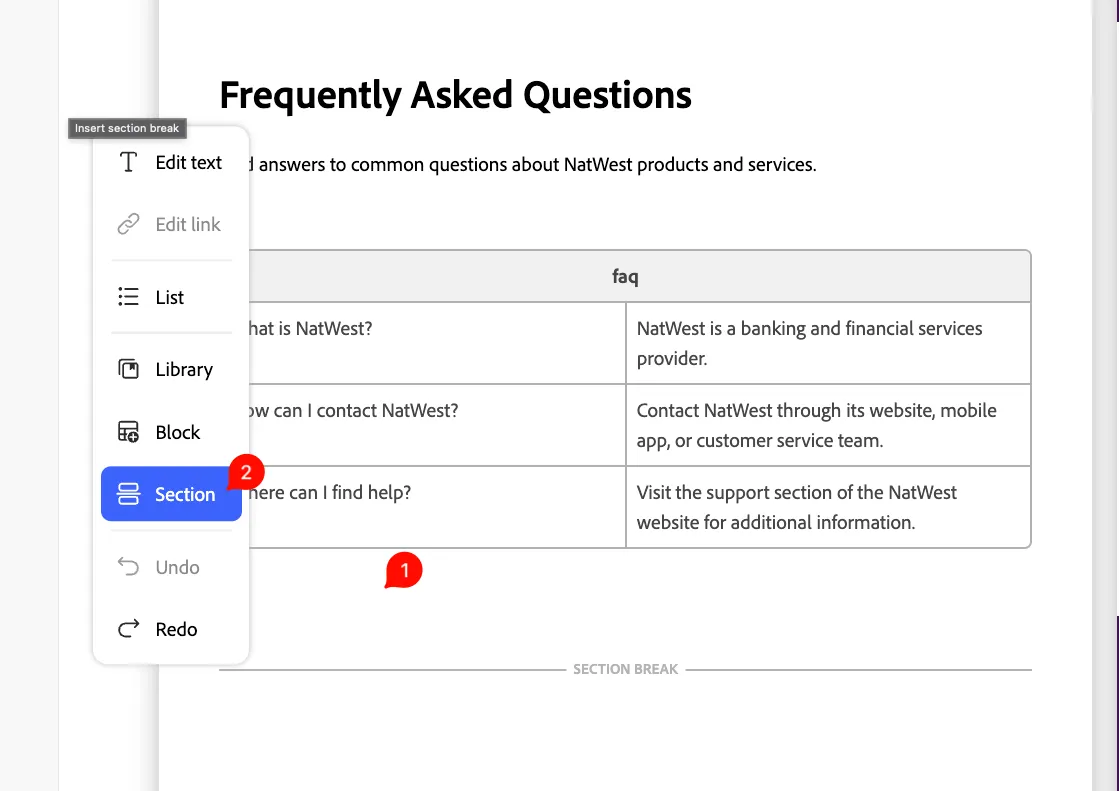
- This will create a new section. Place the cursor in between the two sections:
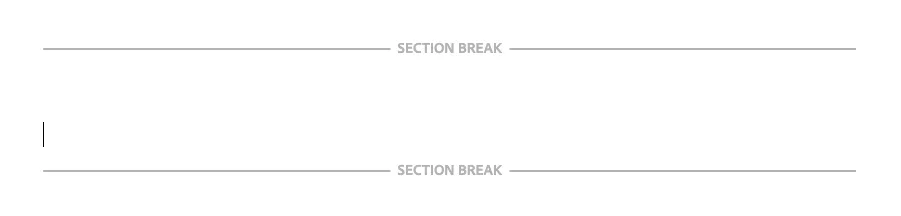
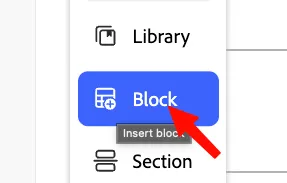
- Click on Block to insert a new Block in the page:
Blocks are created using tables. The first row (1) of the table identifies the block. Block content is in (2)
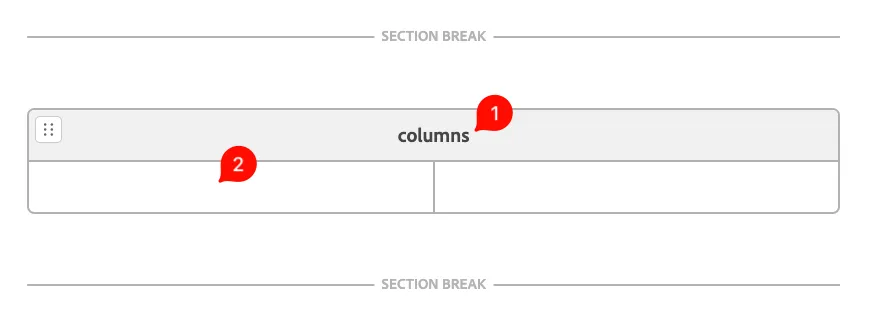
- Rename columns to faq:
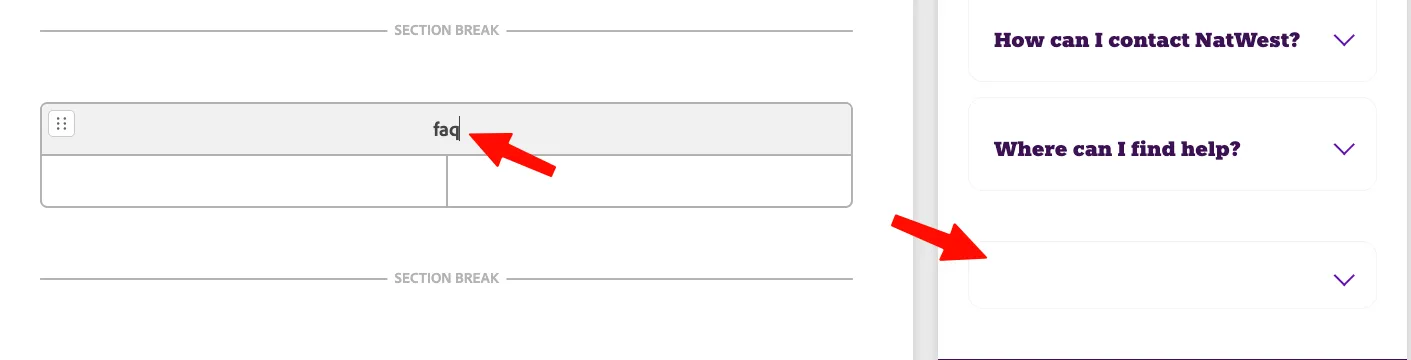
That way, DA knows that this table corresponds to the faq block; you can see it rendered on the right.
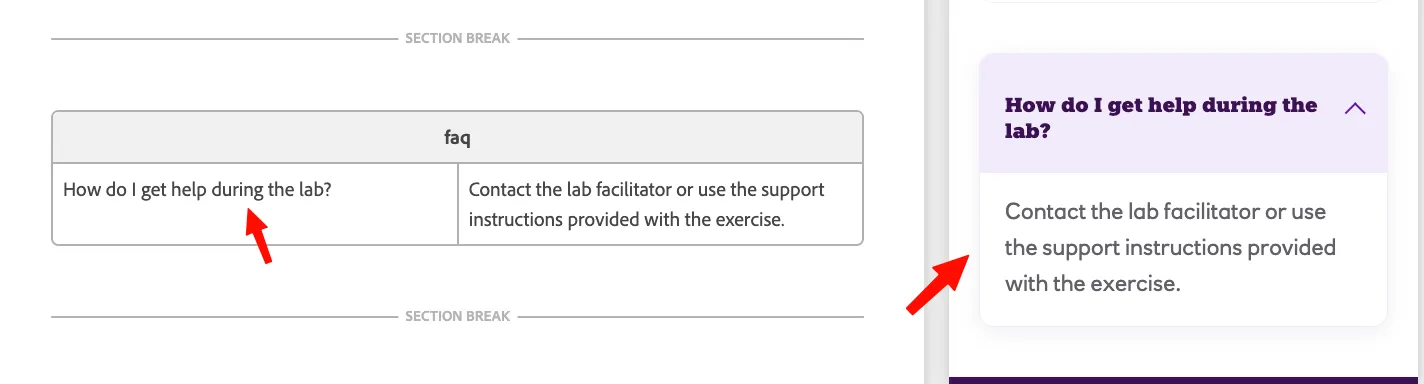
- Add the following question and answer:
How do I get help during the lab? | Contact the lab facilitator or use the support instructions provided with the exercise. |
|---|
Step 2 — Add some text to the page
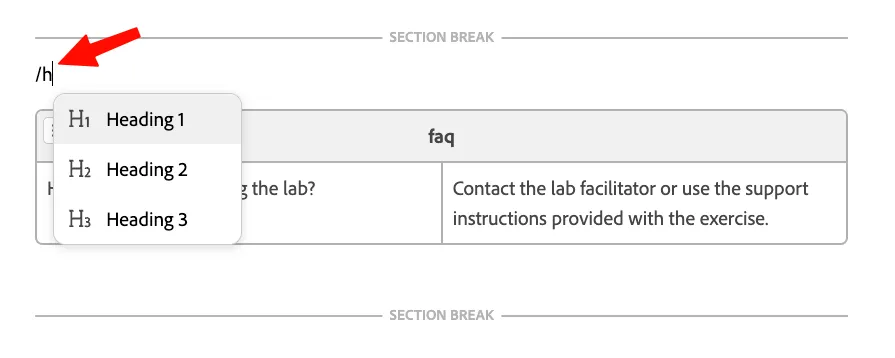
- Place your cursor above the faq table, and type/hto select and insert Heading 2:
If you don't have a space above faq, click on Section, and hit Enter:

This will create a space for your cursor.
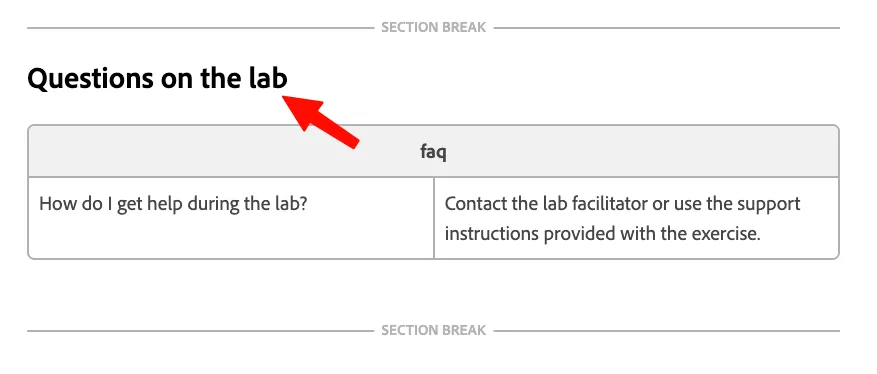
- Write the title: Questions on the lab
Step 3 — Add a block from library
We want to add some links at the end of our faq page.
- First, let's add a Section. Place your cursor under the faq block, and type /sec and hit Enter:
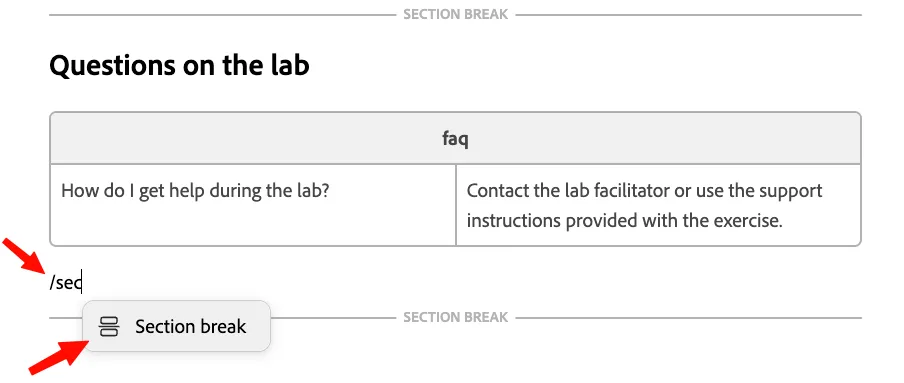
If you don't have a space under faq, click on the edge, and a horizontal cursor will appear, take anything to get the space:
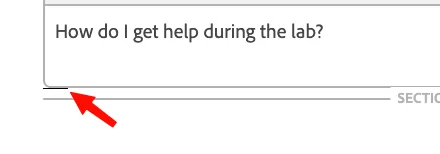
- Place your cursor in between the 2 sections:

- Go to Library, and click on the second Blocks:
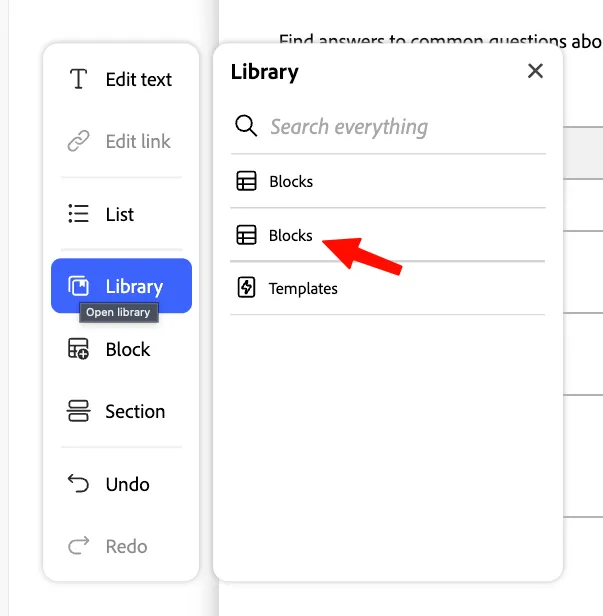
First Blocks are default blocks available in EDS. Second Blocks contain all the blocks that we created for NatWest using the Experience Modernization Agent.
- Search for Card Icon, and click on the preview button:
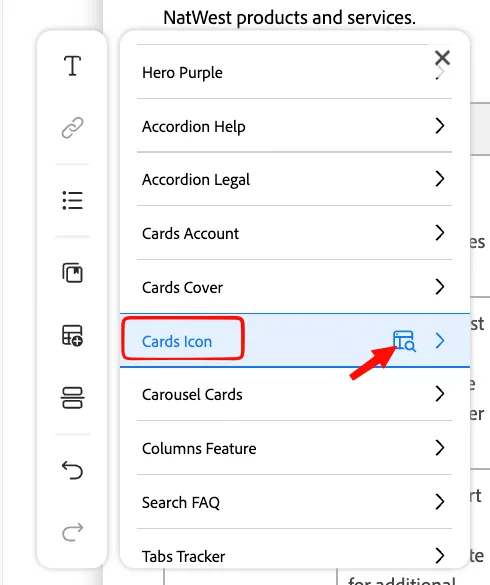
- This will let you preview the block:
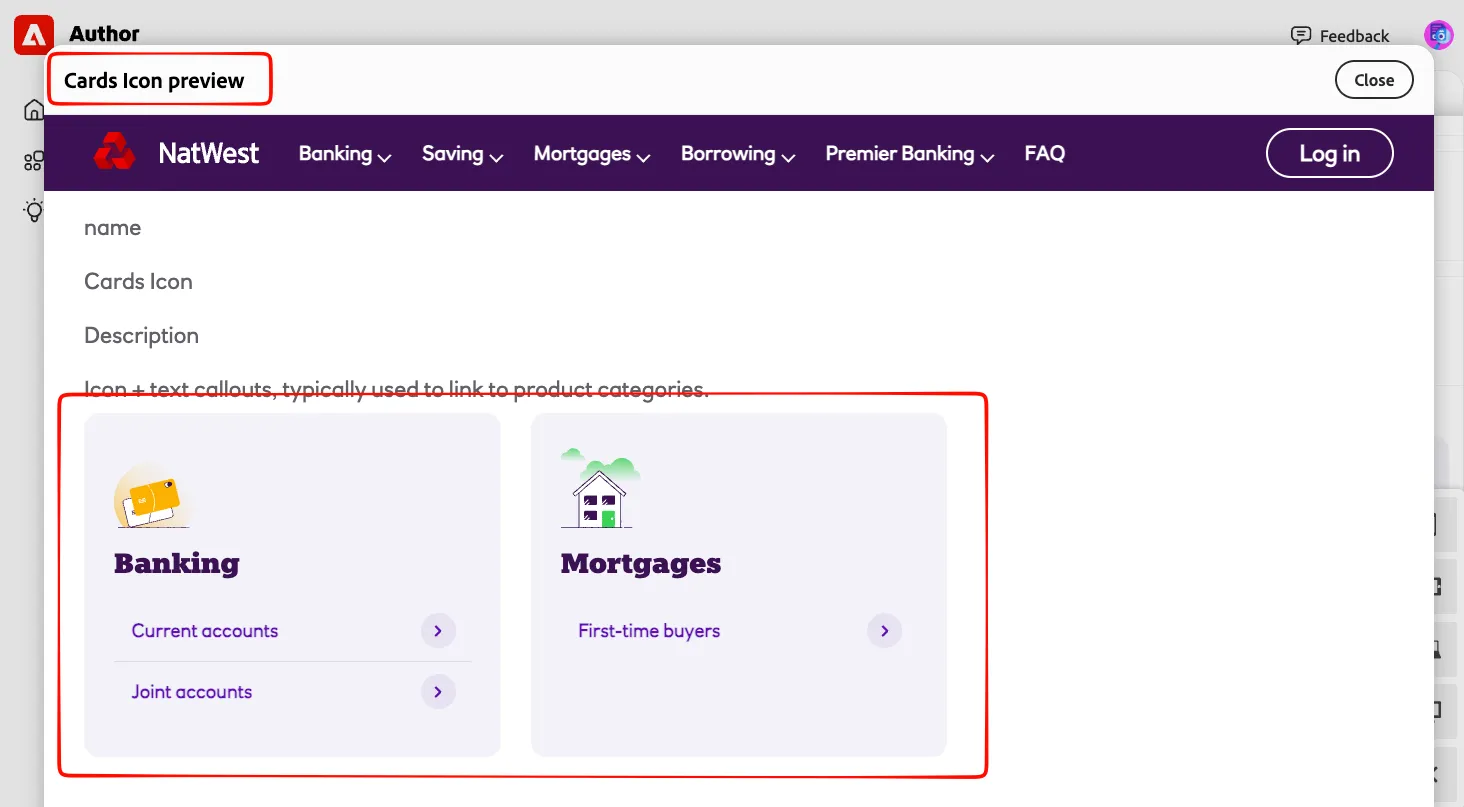
- Click on Close to close the preview. You can also take a moment to preview a few of the other blocks that have been created.
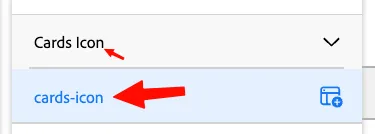
- Click on the Cards Icon, and cards-icon to add the Block element to the page:
- Close the Block Library, as we don't need to add other blocks yet:
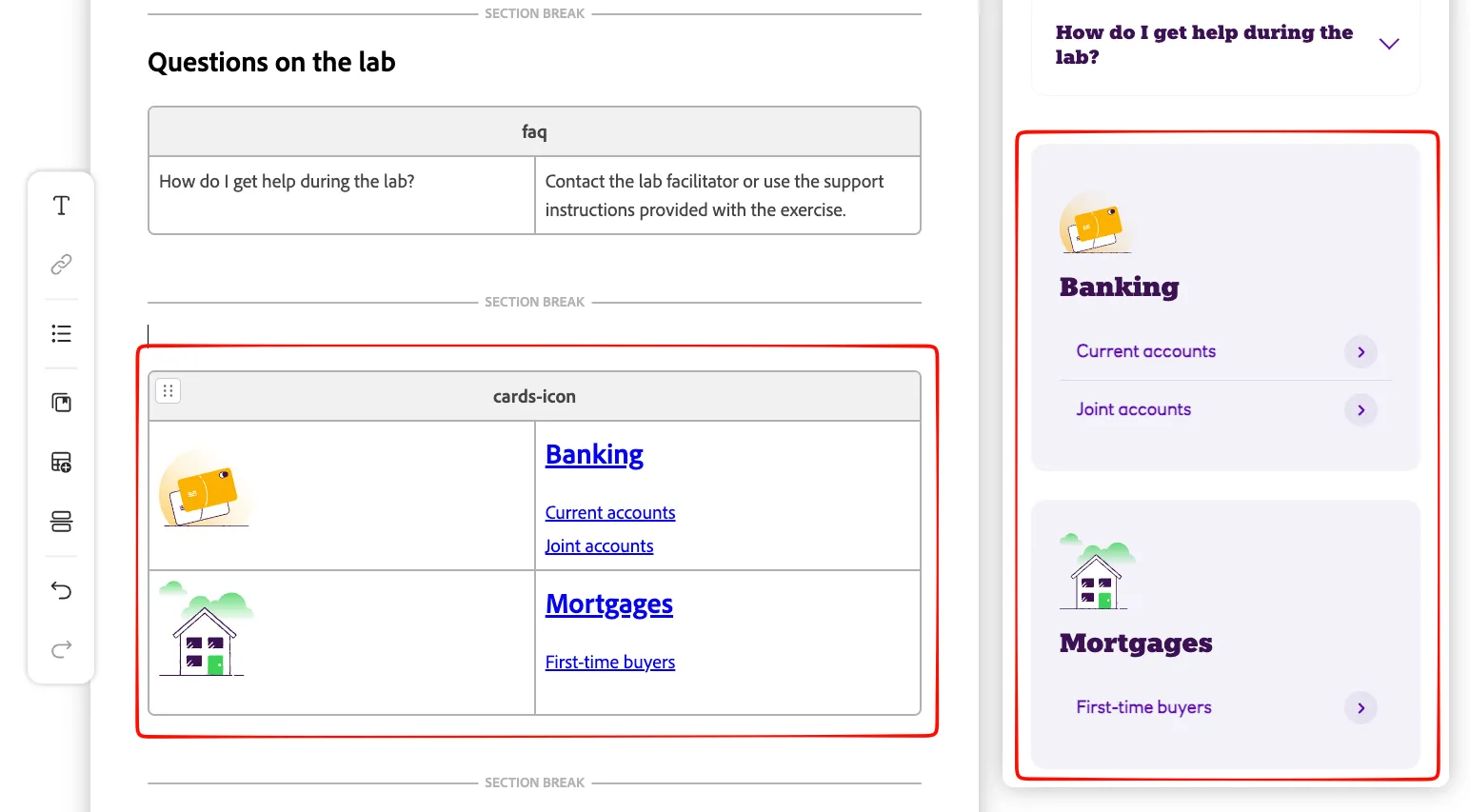
- See our cards icon that has been added, with hyperlinks:
Step 4 — Add an asset
We are missing some illustrations on our page, don't you think? Let's add one.
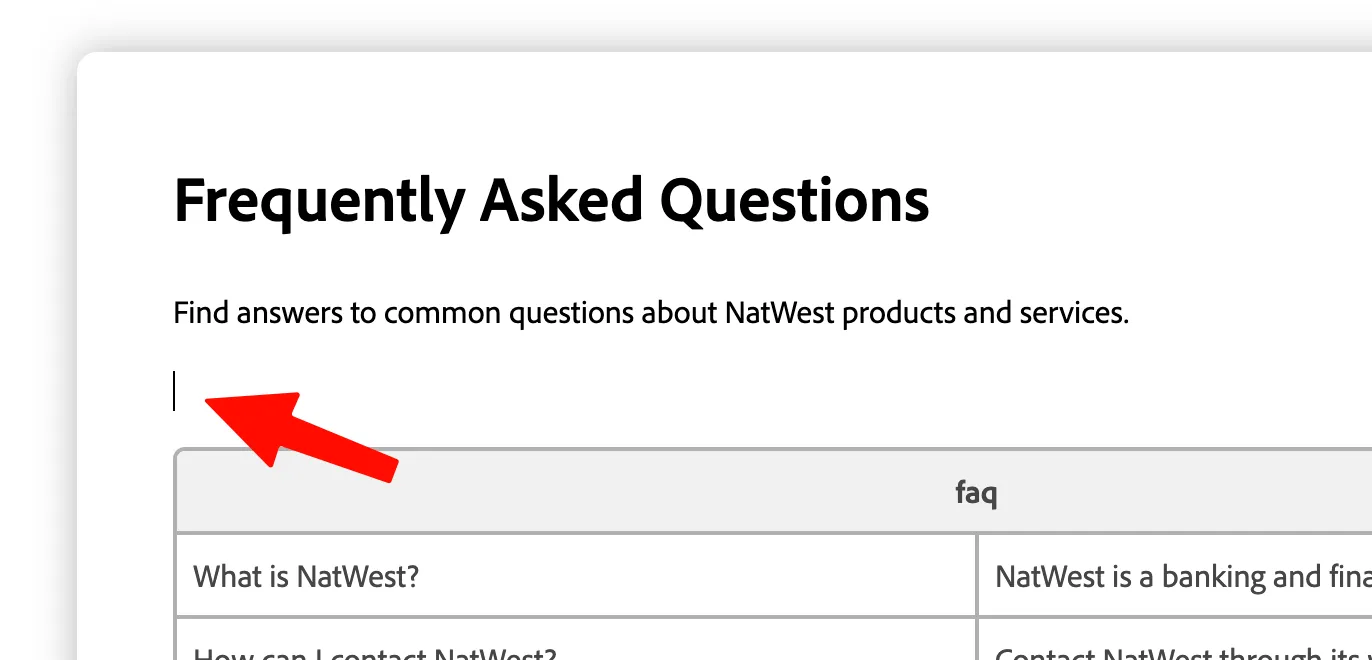
- At the top of the page, place your cursor after the paragraph:
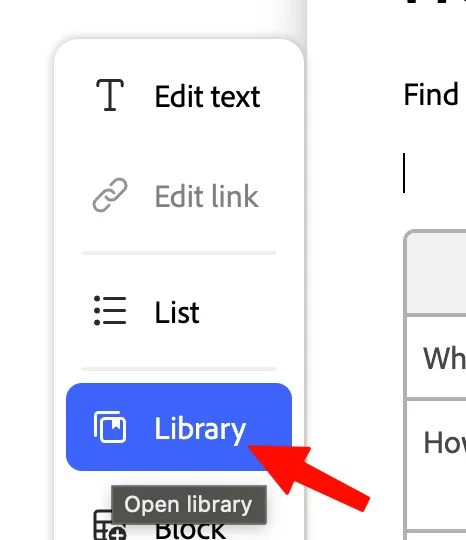
- Then click on Library:
- And click on AEM Assets:
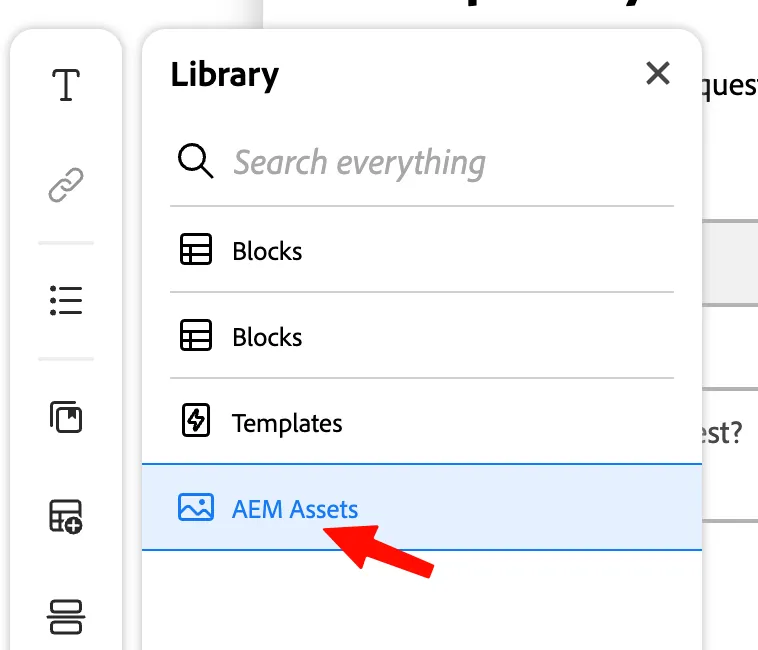
- This will open the Content Advisor we already know, and allow us to browse and add content directly from our AEM Assets.
- Go to the Natwest-xwalk folder, if not already in:
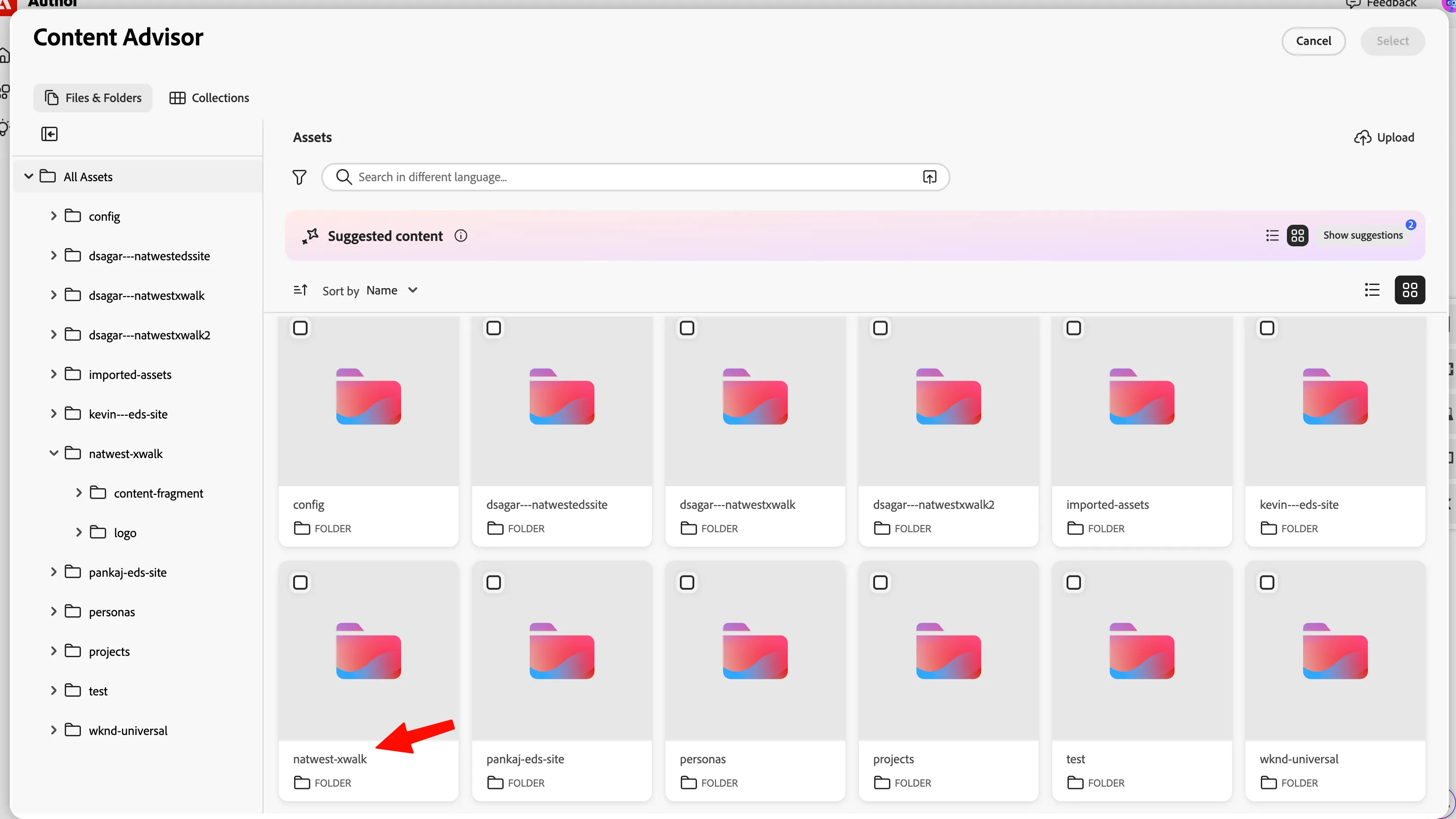
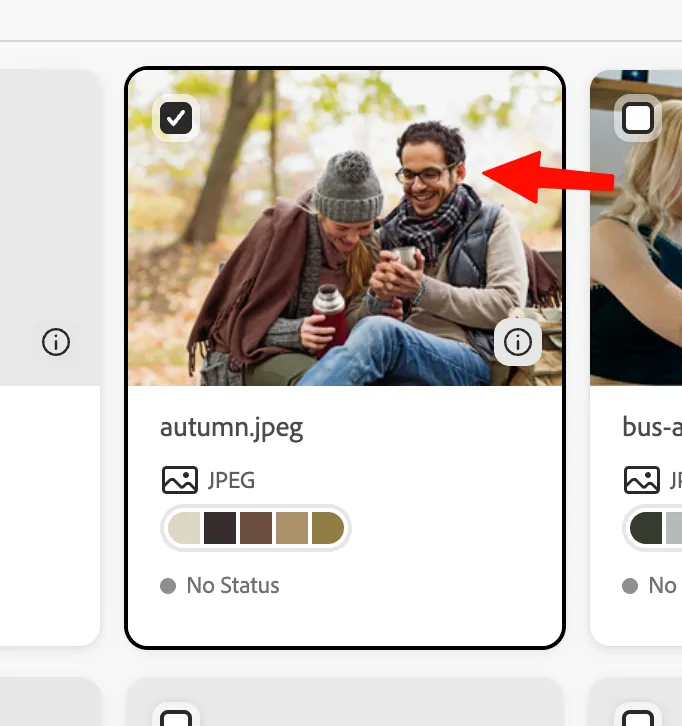
- Browse, search, and click on one asset you like:
- On the top right, click select:
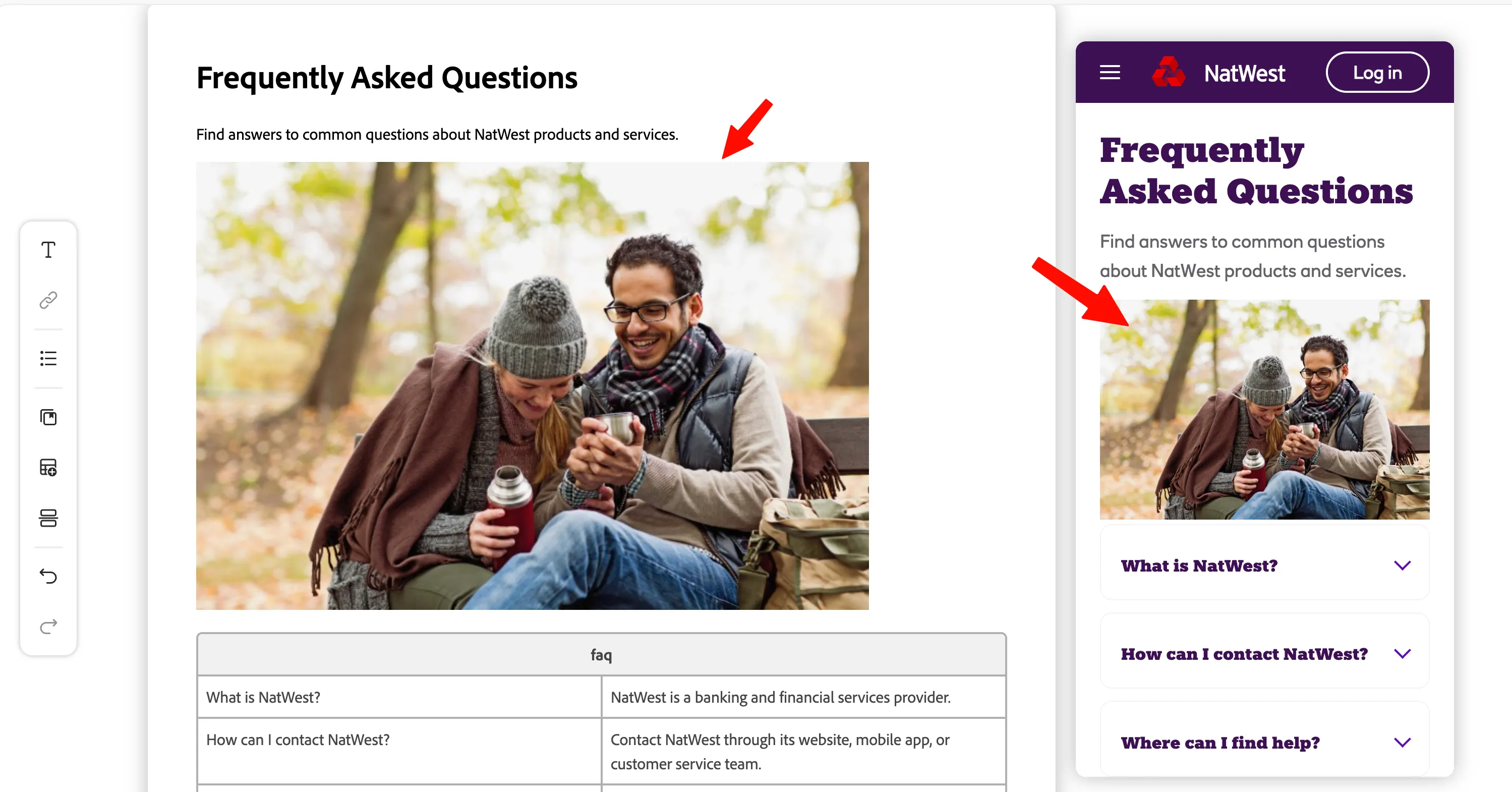
- Here you have your page full, with a nice asset also displaying!
Step 5 — Preview the FAQ page
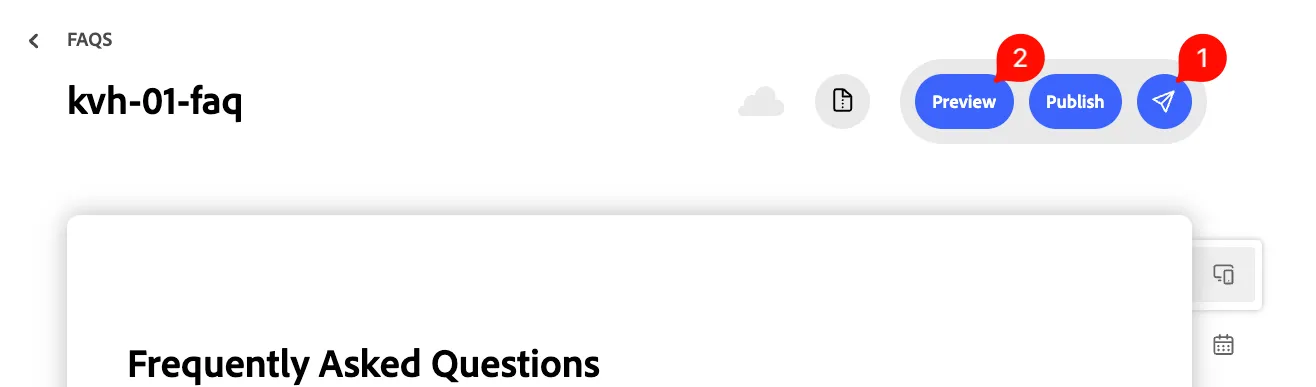
- When all content of the faq page is ready, click the send icon and click Preview:
- This will open a new tab for our page to preview:
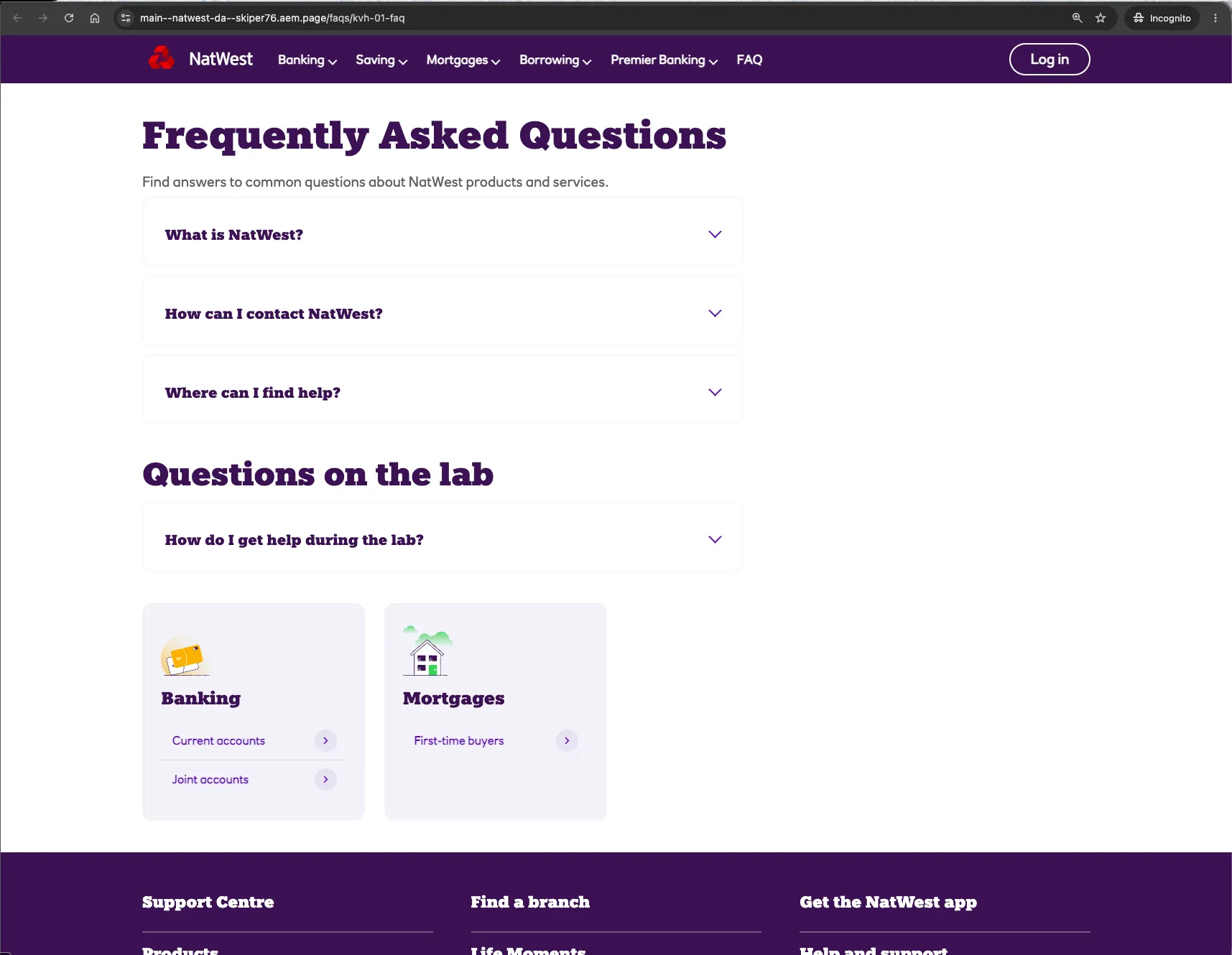
Congratulations!
You have successfully created a structured FAQ page in Document Authoring. You used standard document content for the page title and introduction, then used a table-based block to organize reusable question-and-answer content. You also previewed the page and validated its content, structure, and presentation.
You are now ready to create additional pages and experiment with other blocks in the sandbox.
Want to know more about Document Authoring's latest updates? → Click Here