Ex3: Create your page in DA
Overview
In this exercise, you will create a new Frequently Asked Questions (FAQ) page using Document Authoring (DA). You will work in the NatWest demo site sandbox, add structured page content, create an FAQ block using a table, and preview the finished page.
Scenario
The NatWest demo site needs a new FAQ page to help visitors find answers to common questions.
Step 1 — Create FAQ Page
- Sign in using the Adobe ID provided for the lab.
- Create a new Document:
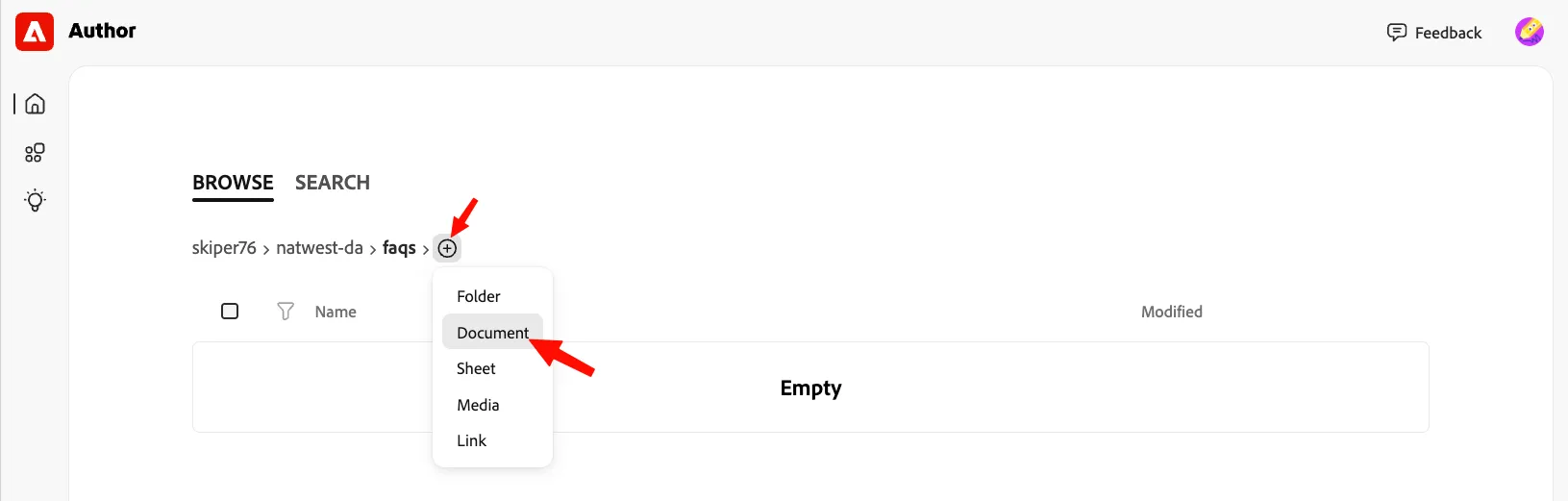
- Name the document: {{CUSTOMER_NAME}}-{{USER_NUMBER}-faq
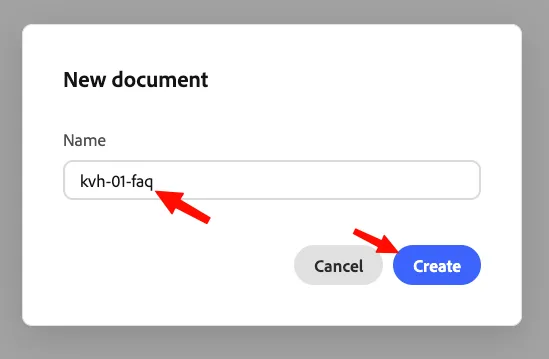
- Click Create.
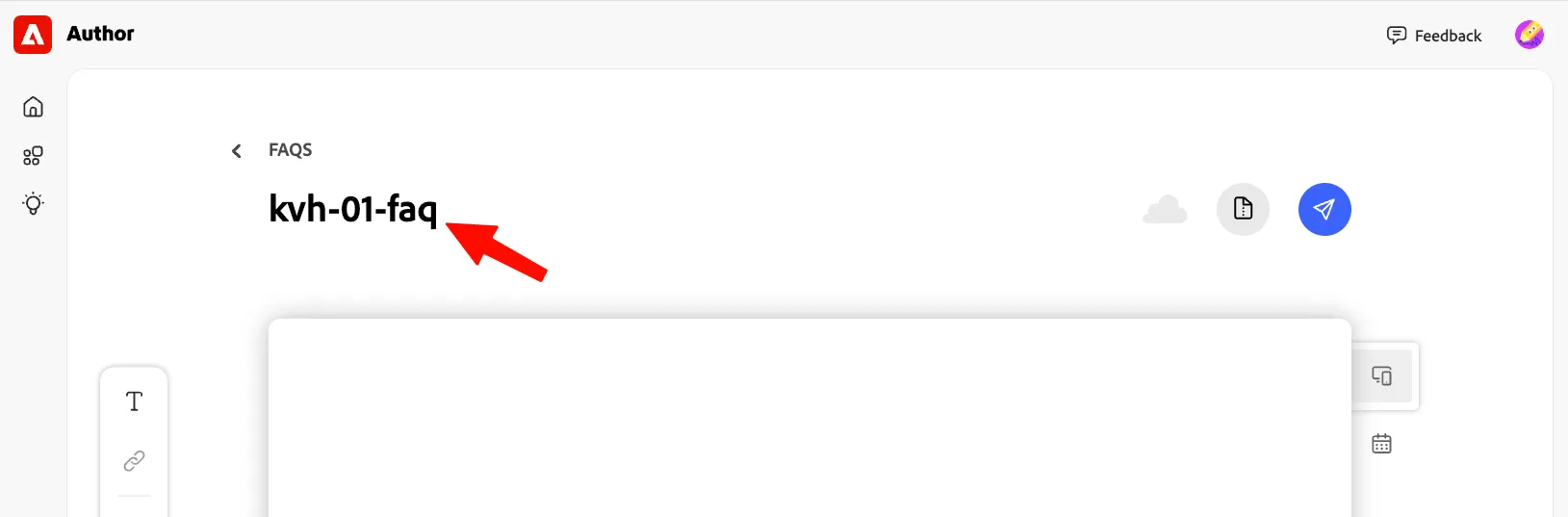
- This will take you to the DA authoring environment of your page:
Step 2 — Start from FAQ template
We have prepared an FAQ template to start our page from.
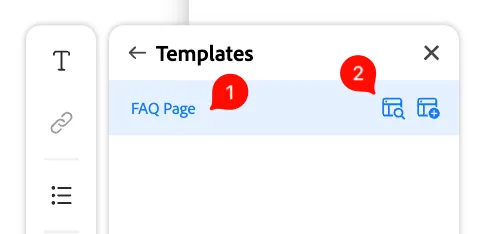
- Go to Library, then Templates:
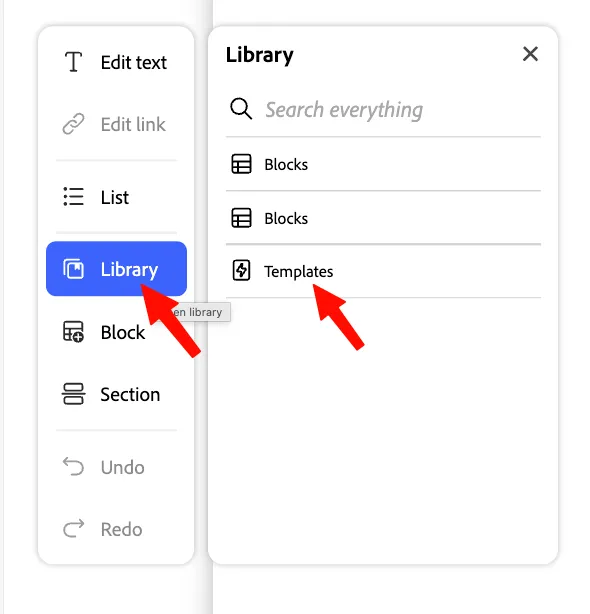
- You can preview the FAQ Page template by clicking on (2). Click on FAQ Page (1) to add the template to our page:
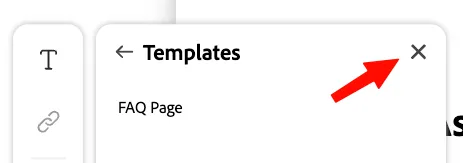
- Close the Templates view:
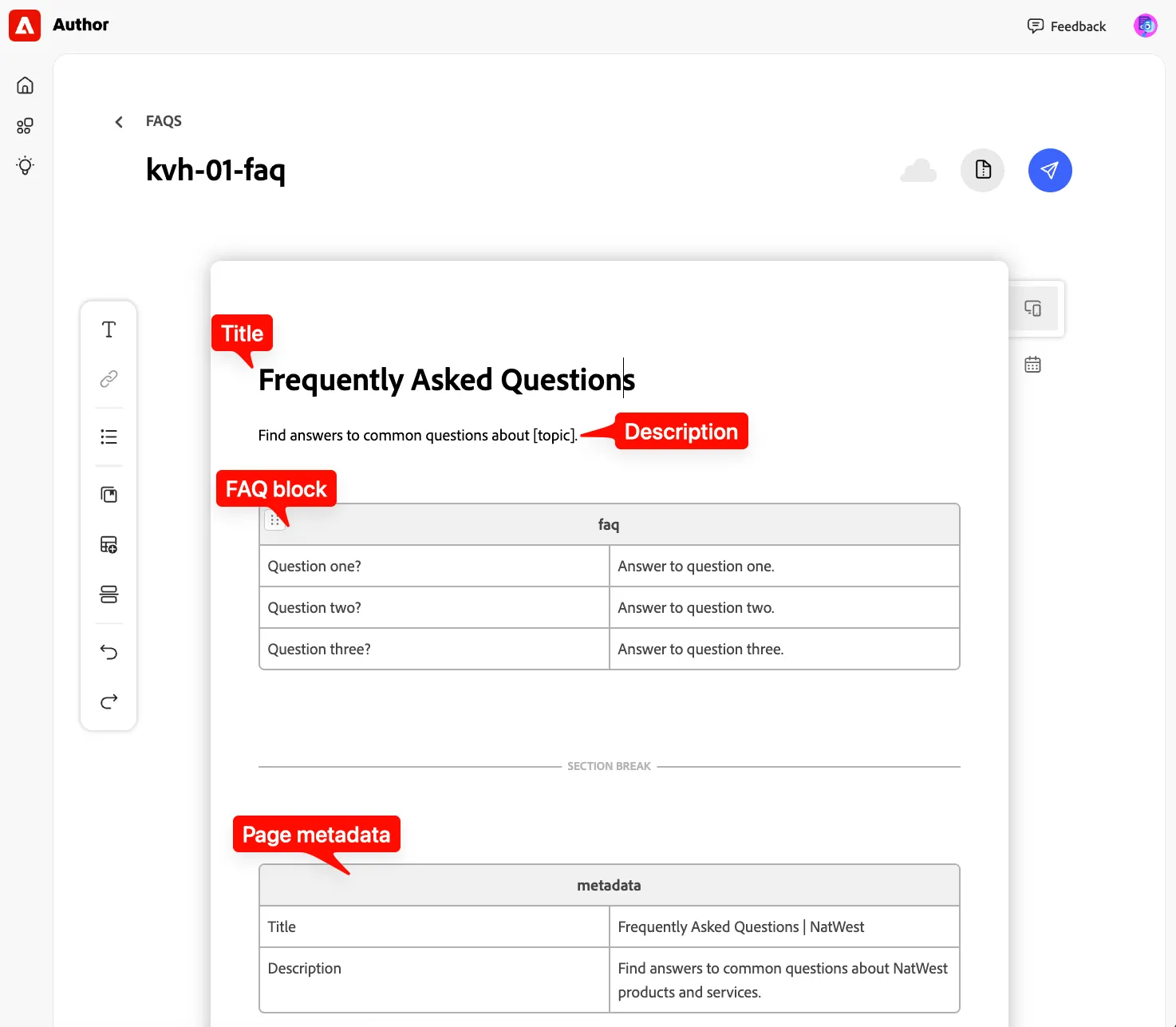
- You can see that a few elements have been added to our page:
Step 3 — Preview the page while authoring
DA lets you preview while you are authoring.
- On the right of the document, click on the preview:
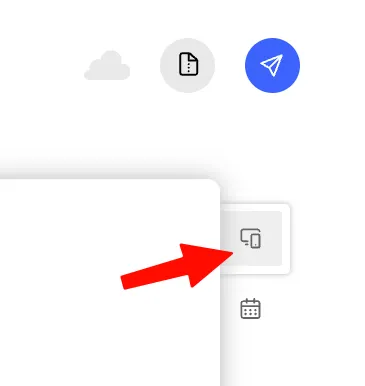
- This will open the page preview on the side; you can choose preview type (mobile, tablet, laptop,...), take a look at the site preview:
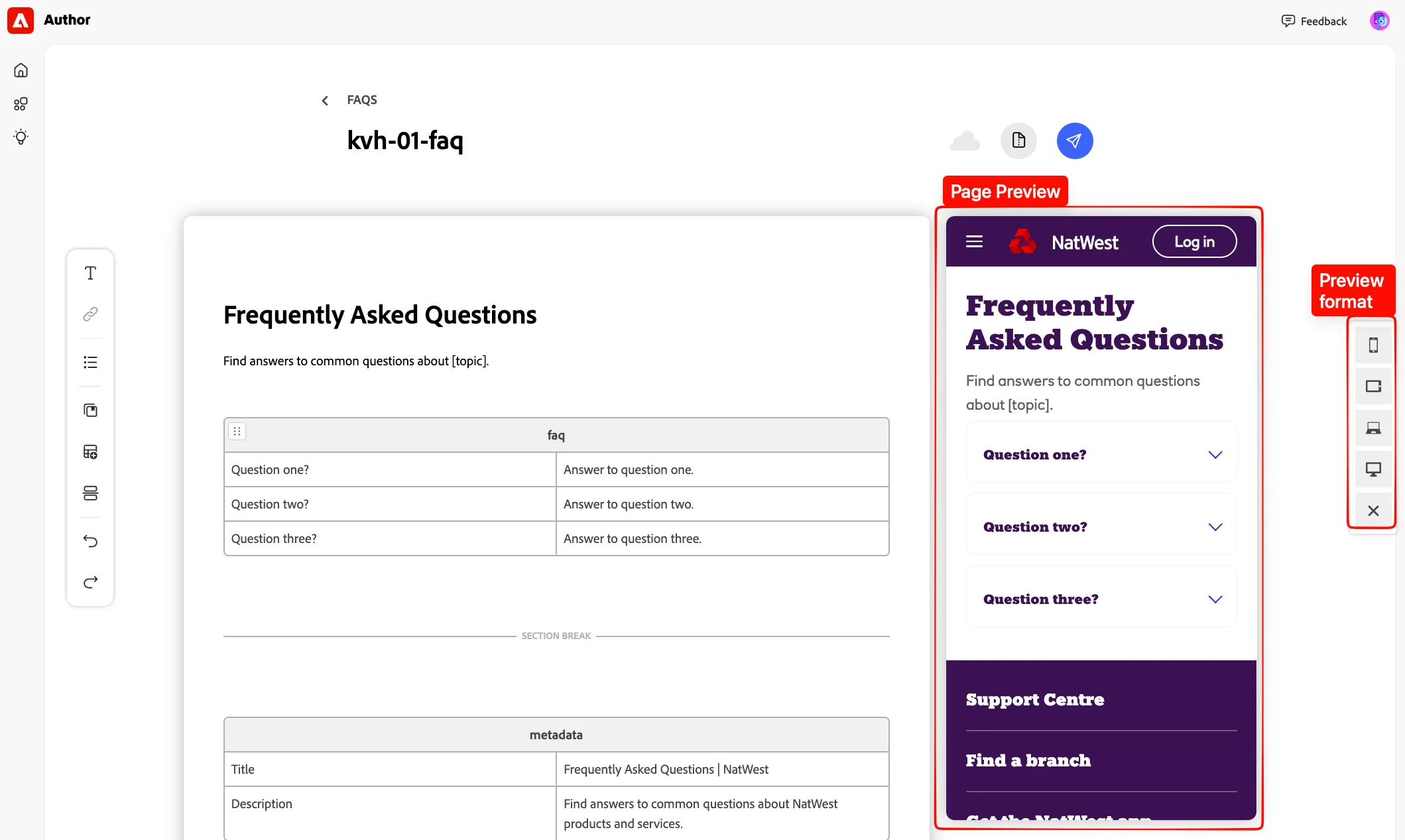
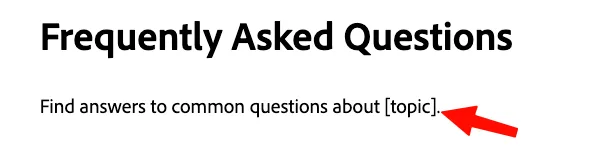
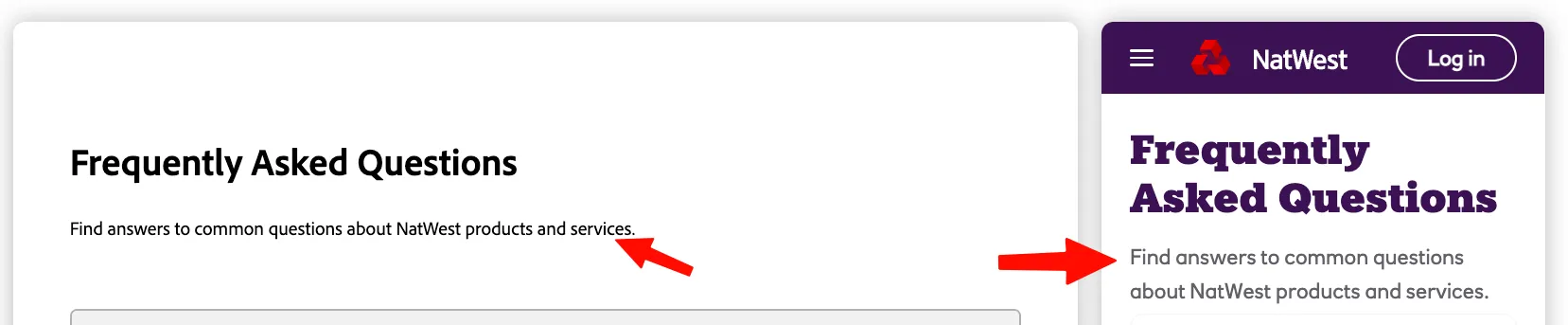
- Add the page topic by replacing [topic] to NatWest products and services.:
Notice the preview reloaded live to reflect your change:
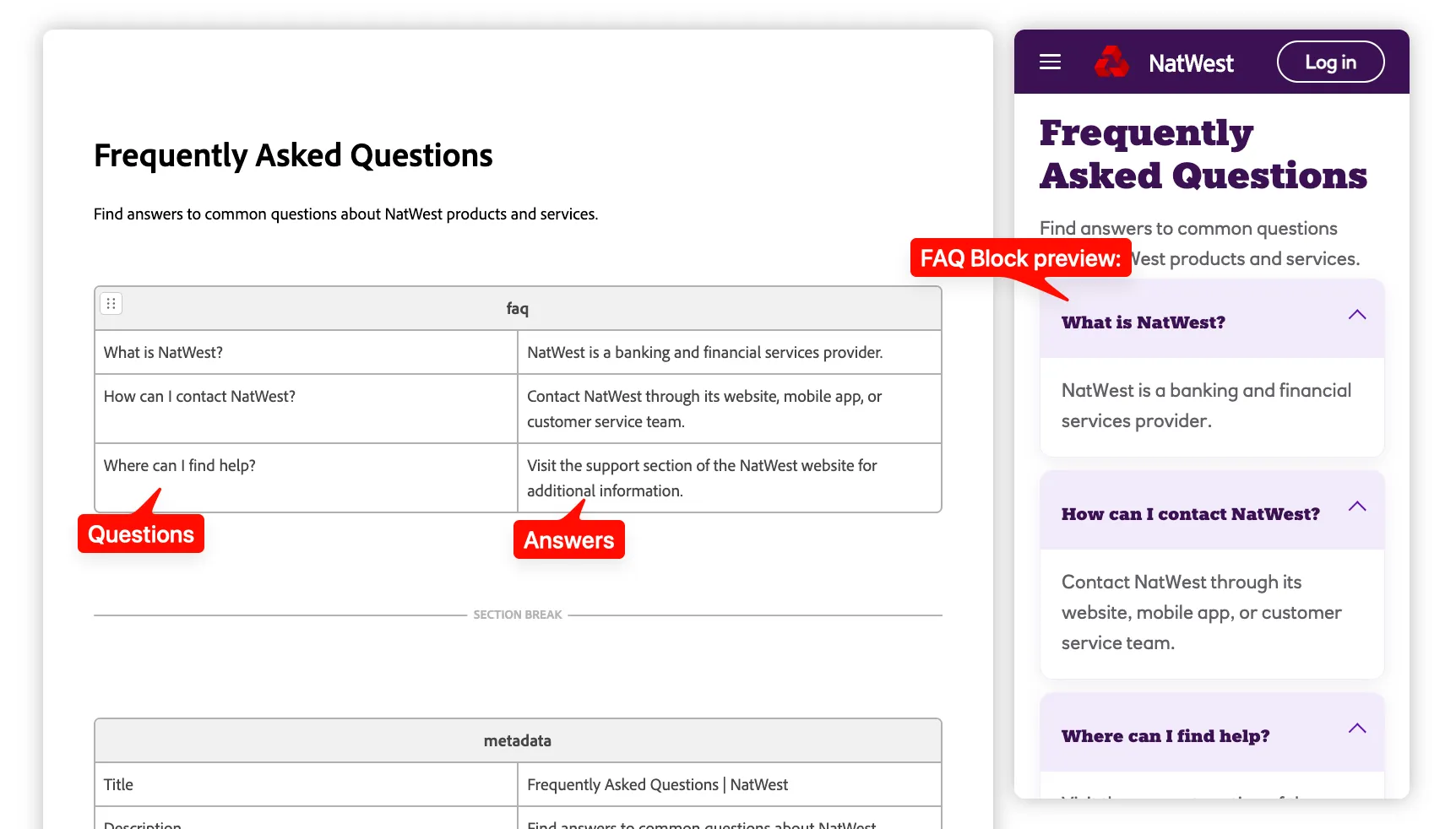
- Fill in the table with the questions and answers of the FAQ block:
What is NatWest? | NatWest is a banking and financial services provider. |
|---|---|
How can I contact NatWest? | Contact NatWest through its website, mobile app, or customer service team. |
Where can I find help? | Visit the support section of the NatWest website for additional information. |
Conclusion
In this exercise, you created a new FAQ page in Document Authoring for the NatWest demo site.
This exercise demonstrated how Document Authoring enables users to create structured content quickly, reuse templates, and preview updates in real time before making the page available to visitors.
Do not close the DA page, as we will need it in the next exercise.
Next In the next exercise, we will author some content on the page we just created.