Campaign Planning
Description
Once in Workfront Planning, Claire examines the status of each campaign, ensuring that all tasks are on track and deadlines are being met. She also reviews the creative references linked from Adobe Experience Manager Assets, which provide valuable insights into the content being produced for the campaigns. By examining these records, Claire can make informed decisions about resources and timelines, ensuring that the WKND team's marketing efforts are well-coordinated and effective.
Navigating the Workspace
Claire uses the WKND Workfront Planning workspace to manage and review upcoming marketing campaigns. This workspace provides comprehensive visibility into operational details, allowing Claire to create custom views and calendars for campaigns, events, and deliverables.
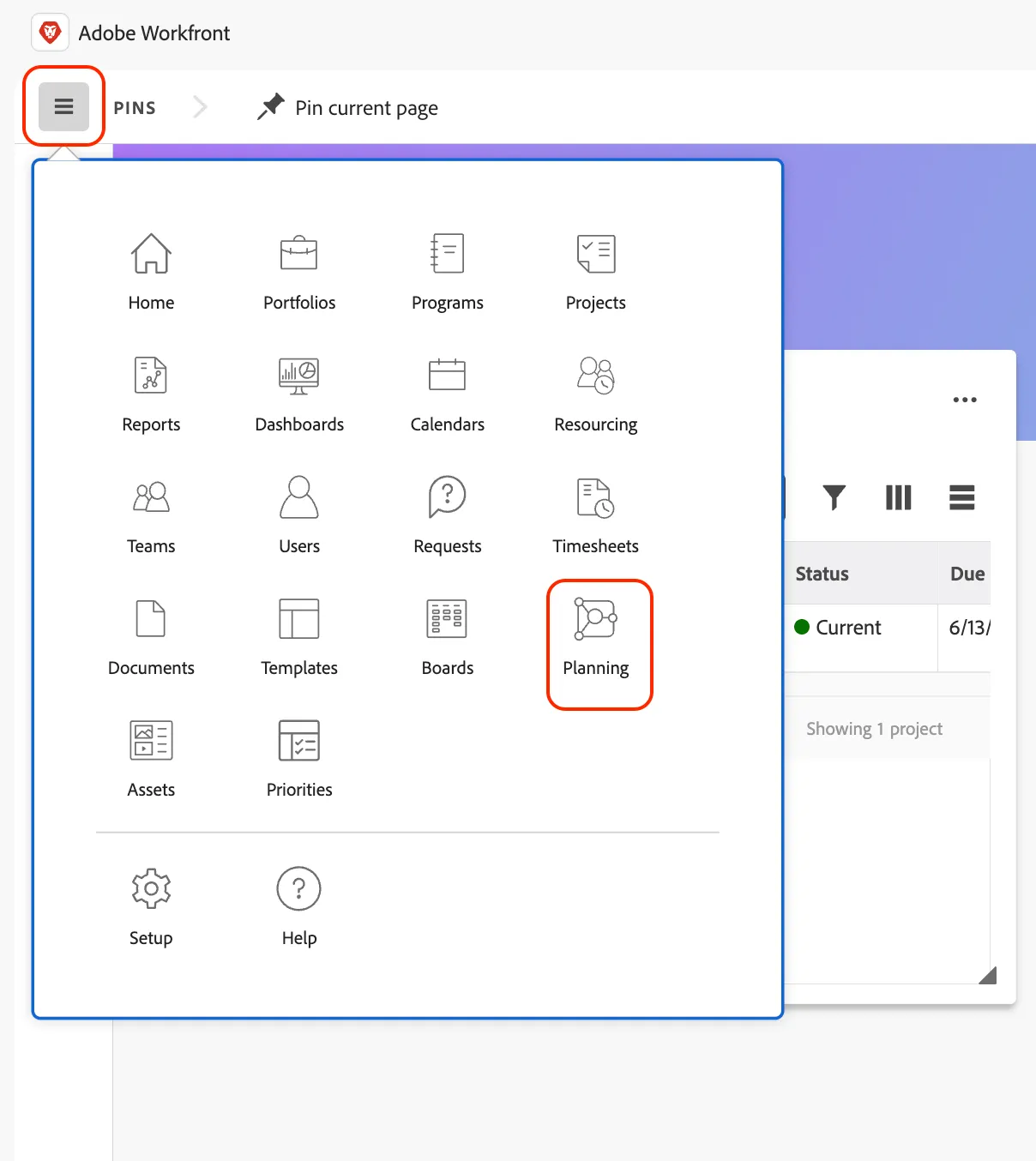
- Begin by clicking on the main menu button and selecting the Planning module.
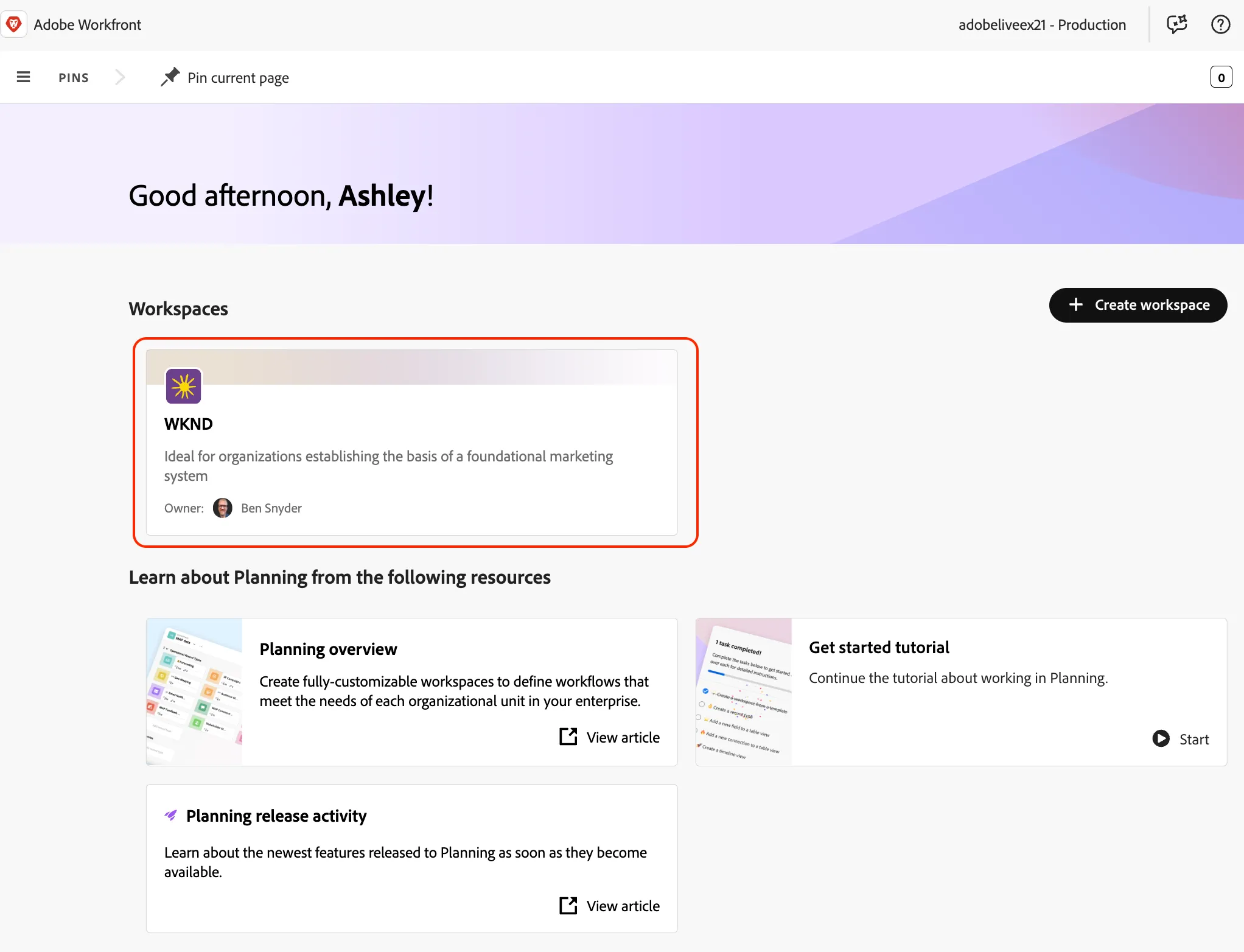
- In the Planning module, you can have shared Workspaces for different teams. Click on the WKND workspace to enter it.
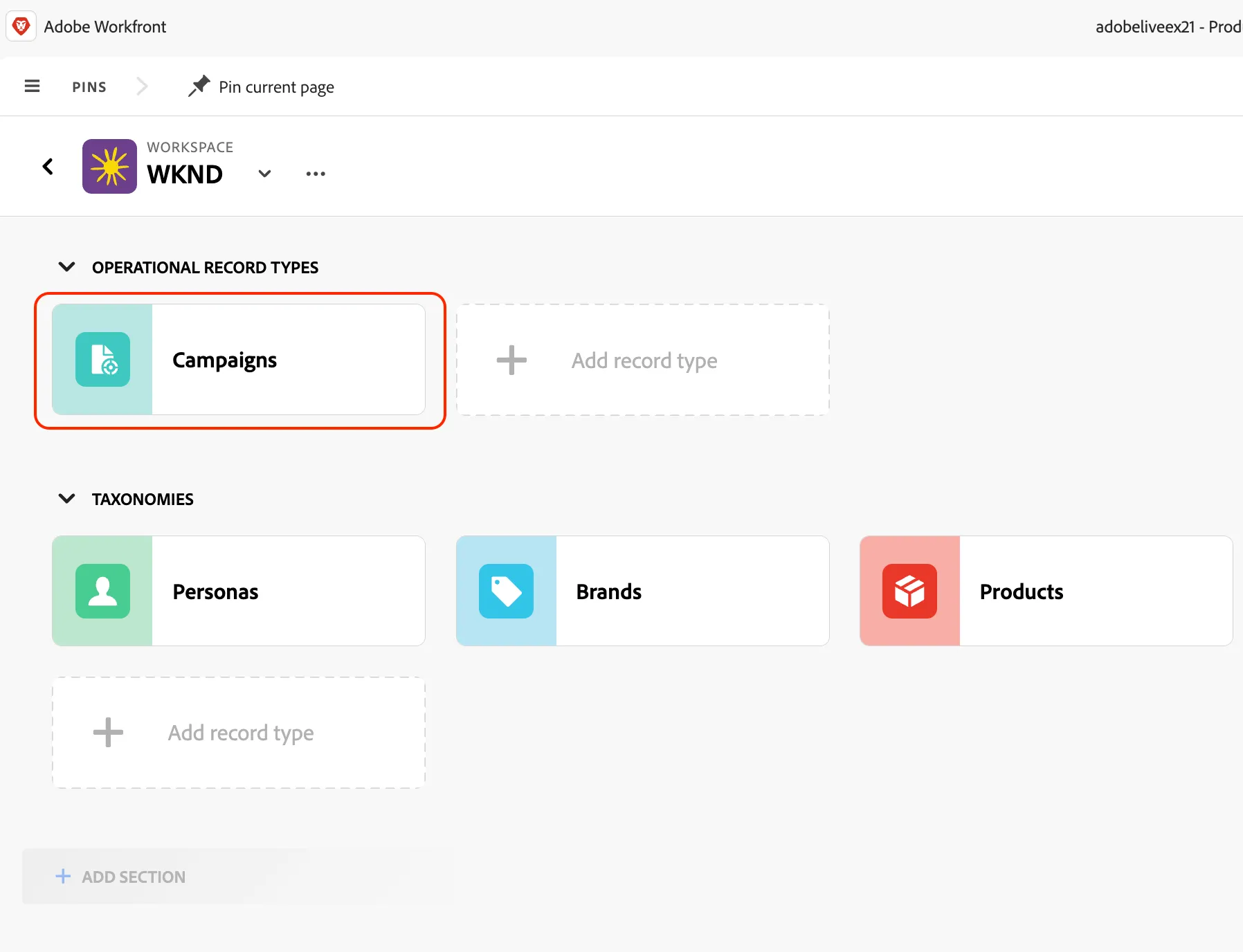
- In the WKND workspace, click on Campaigns under the Operational Record Types section.
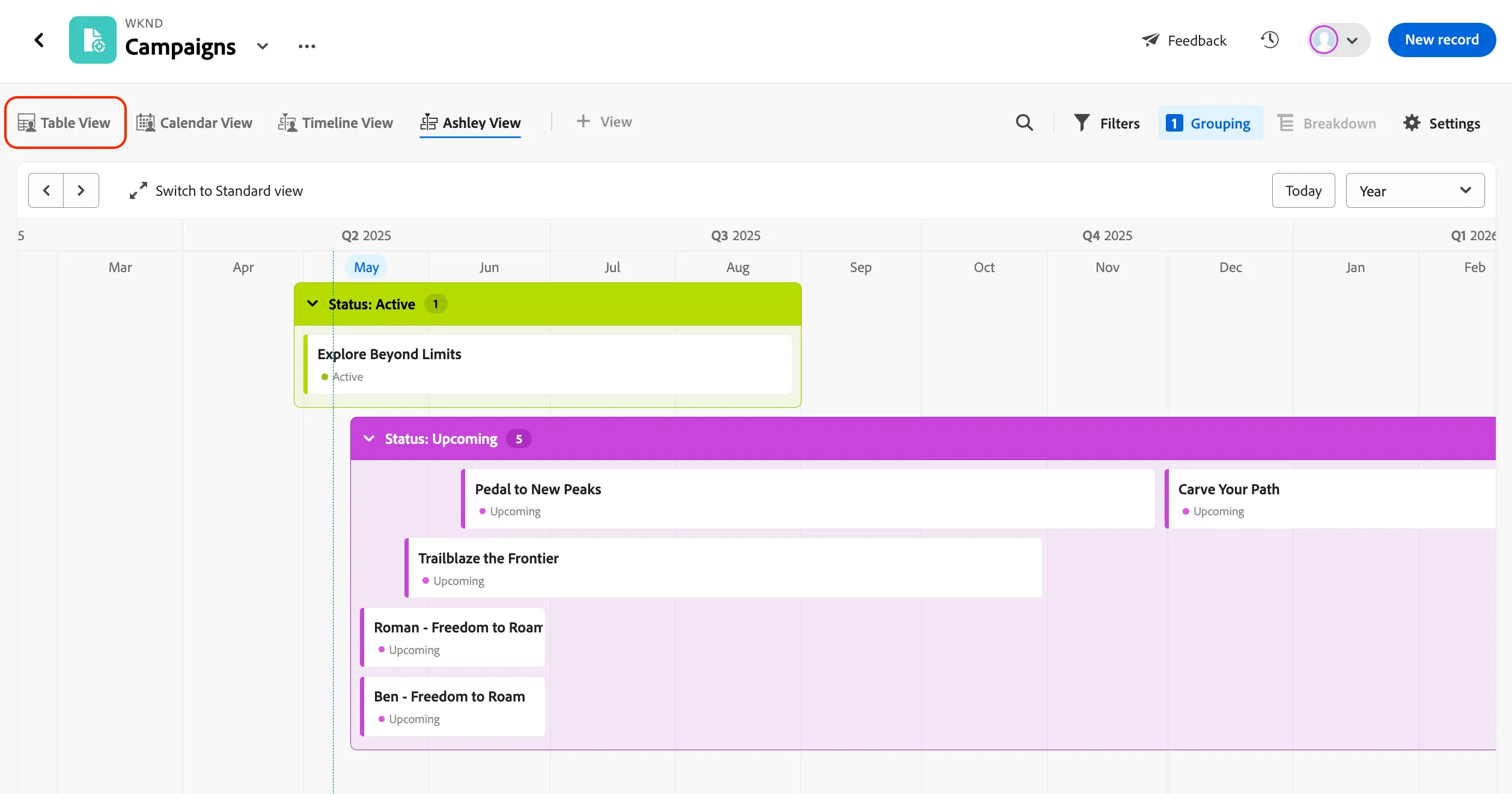
- The main two areas you will focus on are the View options at the top and the Records in the middle for each Campaign.
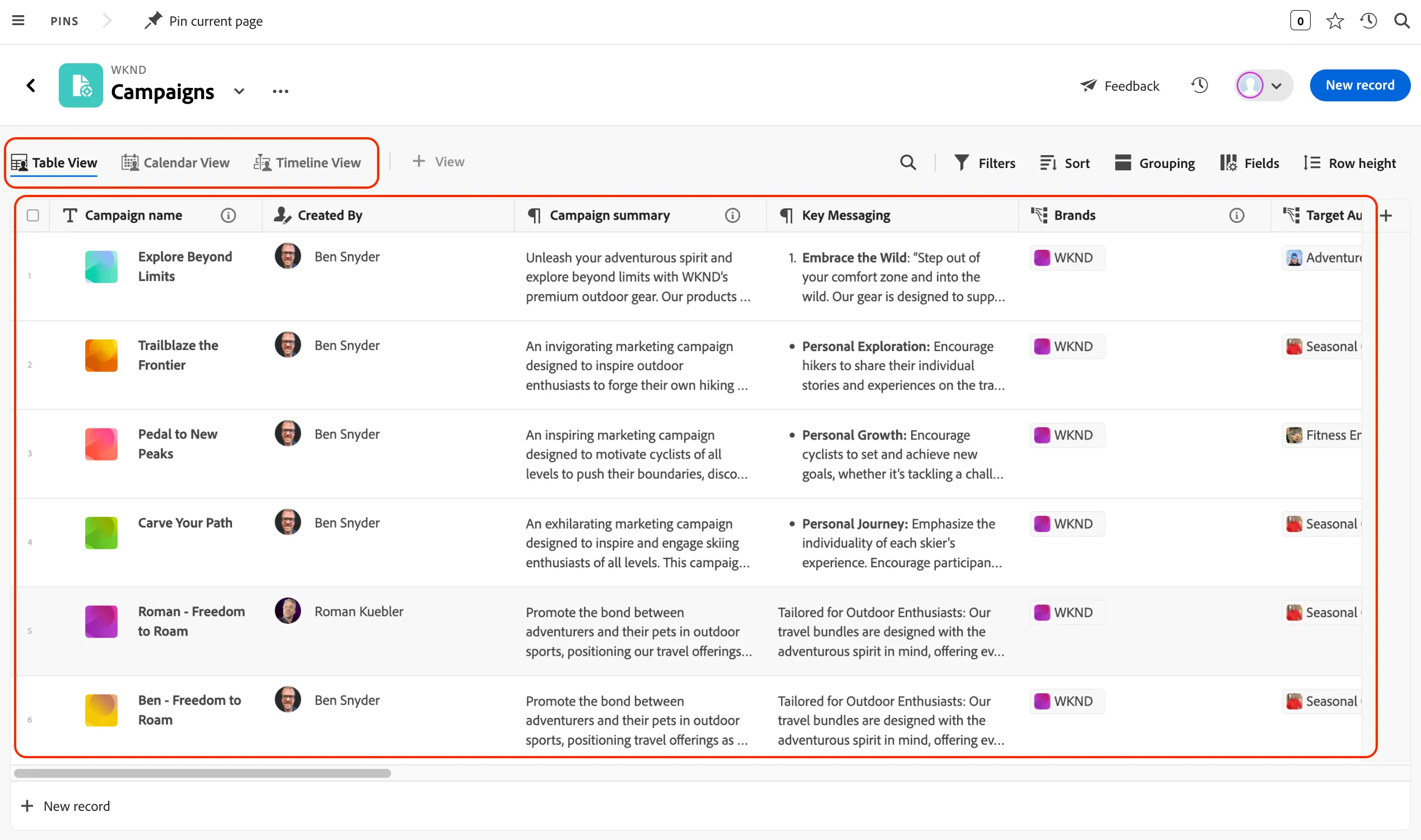
The view you'll begin with is called Table View and lists all the records that currently exist in the WKND workspace.
- Begin by clicking on the “Explore Beyond Limits” campaign name to view its Details.
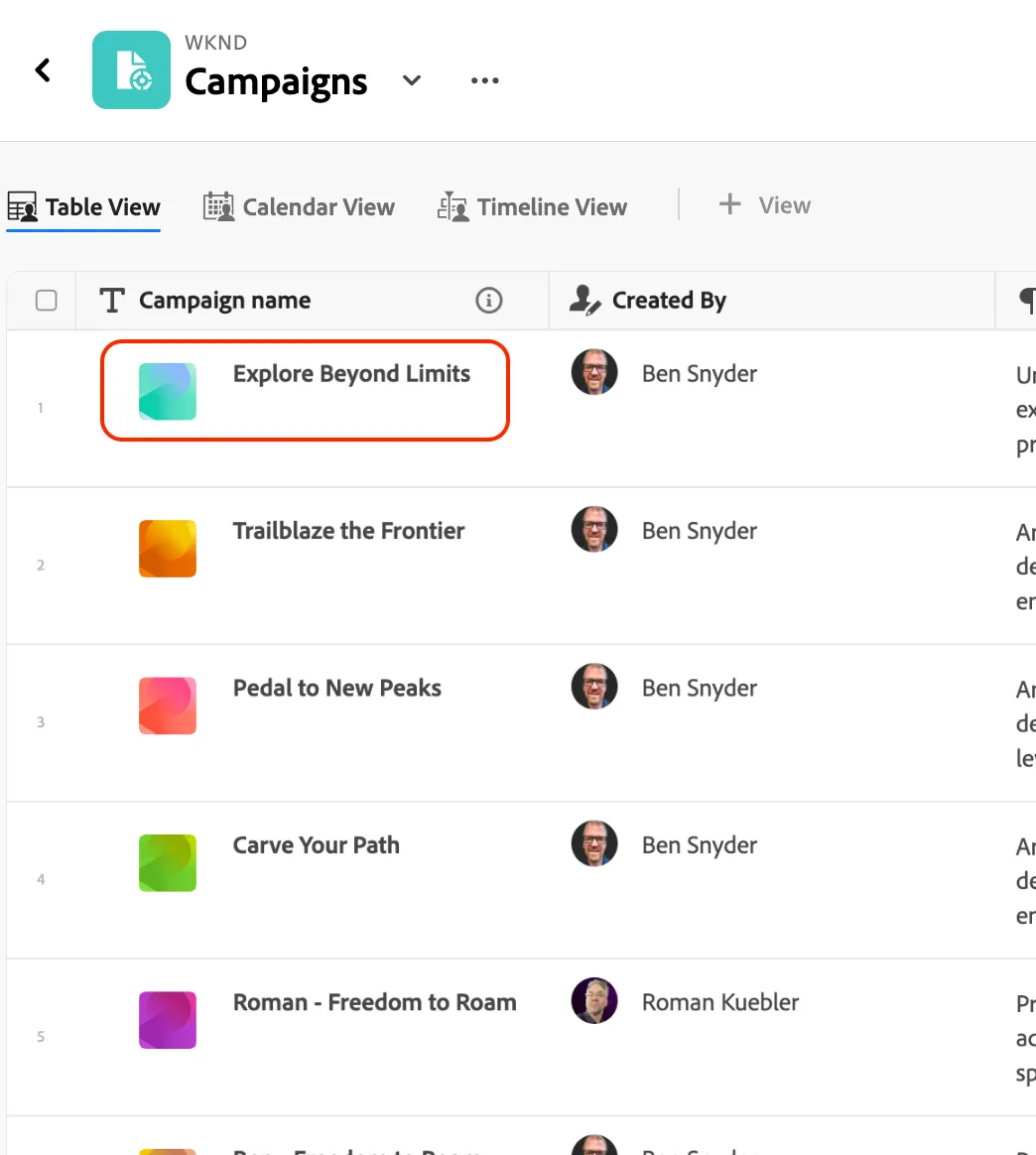
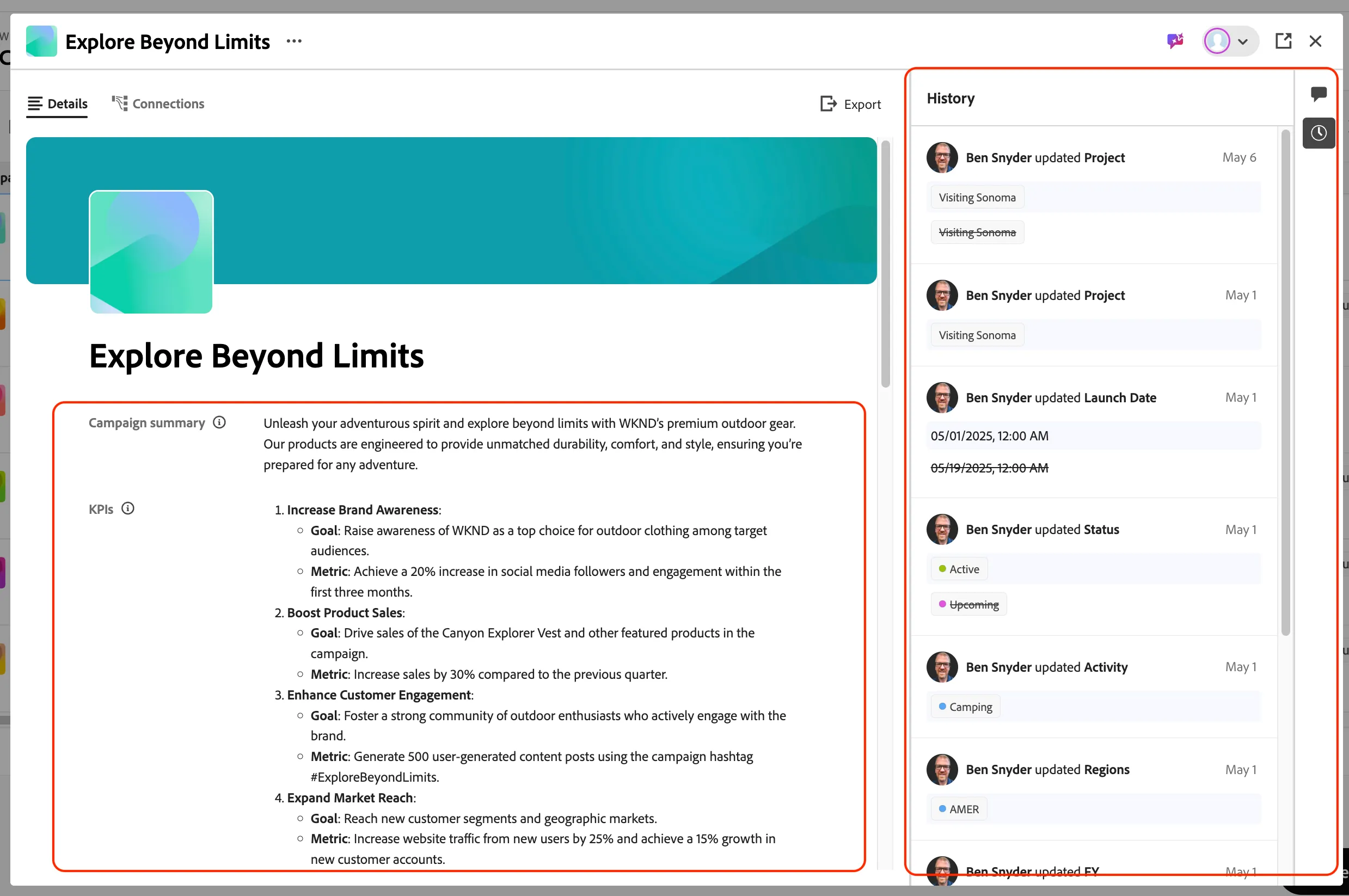
- Scroll through to read details about this campaign along with the ability to see comments and history on the right-side panel.
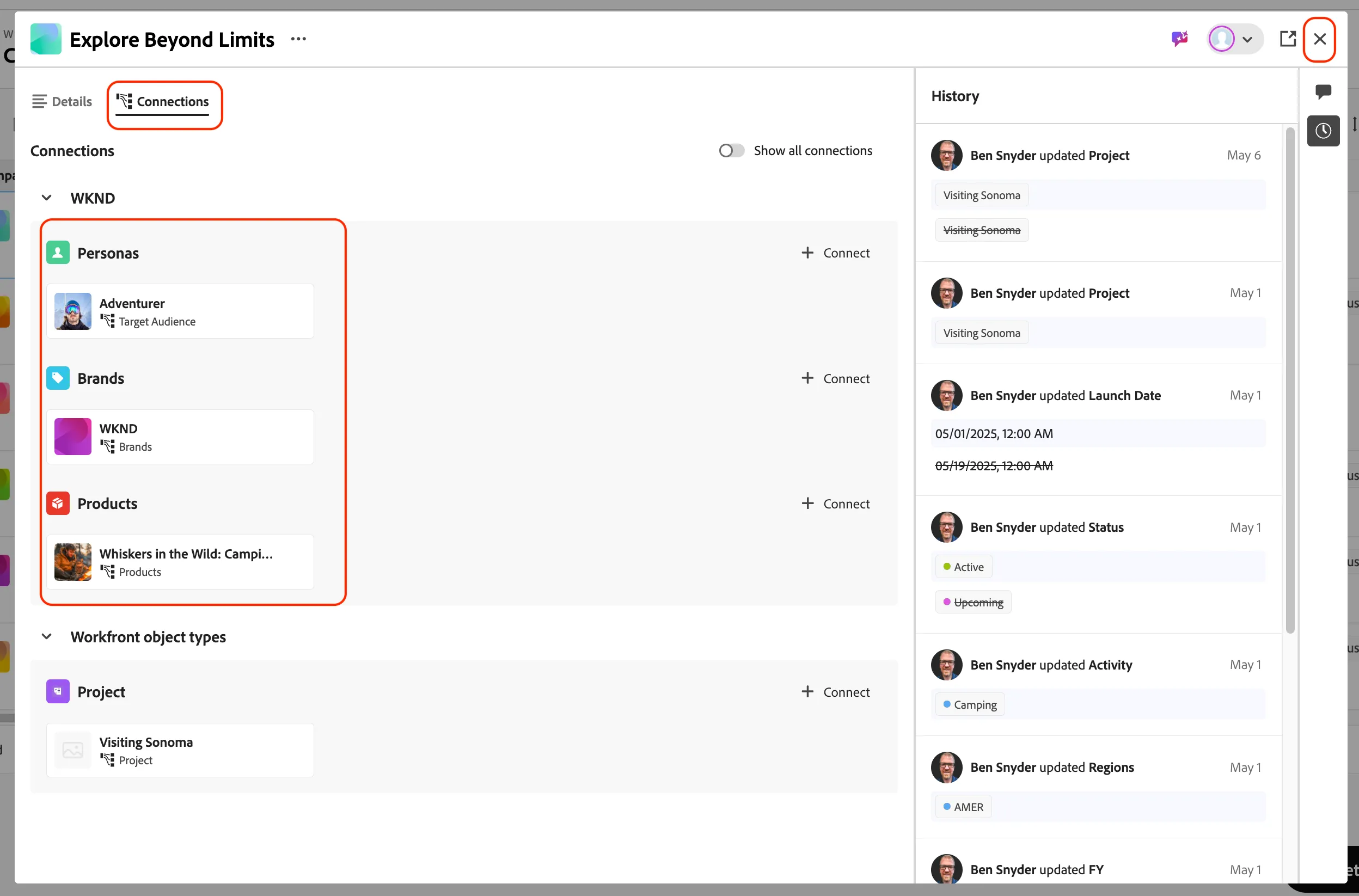
- Click on Connections at the top left to see how this campaign record is linked to other Planning records in this workspace: Personas, Brands, and Products.
- Click on the X button at the top right to close the details window for this campaign record.
Planning Views
Claire can create custom views tailored to her team's needs. For example, she can set up views that display specific fields relevant to campaign performance, such as budget, timelines, and target audiences. This customization helps her focus on the most critical information without being overwhelmed by unnecessary data.
- Underneath the Campaigns header, you will see options for changing the view of the campaign records. Currently, you are viewing it in Table View.
- Click through to try out the Calendar View and Timeline View to see the other types of views that are available.
These views can be customized and shared with your team. All current views in the WKND workspace are configured to be accessible to anyone with workspace access.
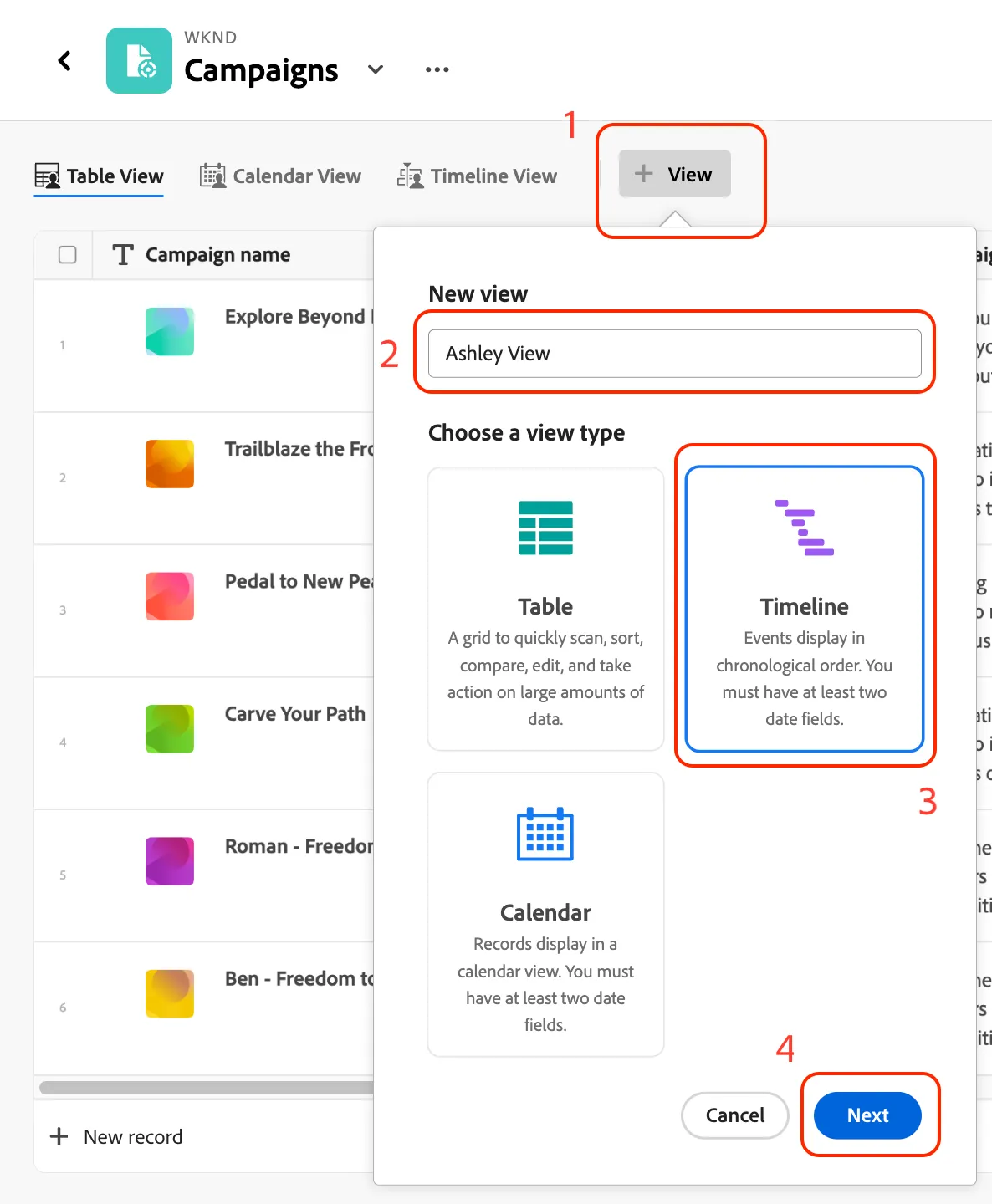
- Click the + icon to create a new view, and enter a name of FirstName View. (1 & 2)
- Select the Timeline view type, and click the Next button. (3 & 4)
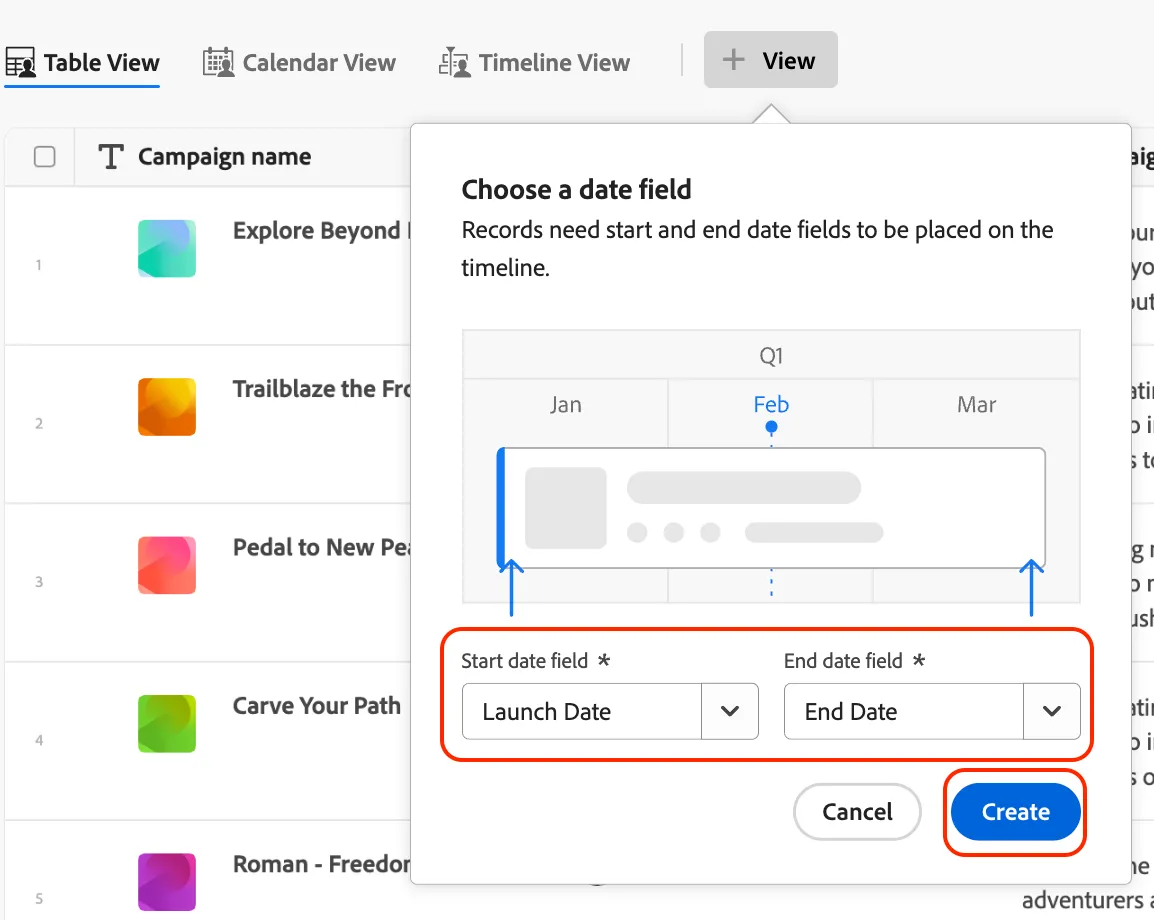
- Set the start date field to Launch Date, and the End date field to End Date.
- Click the Create button to finalize your view.
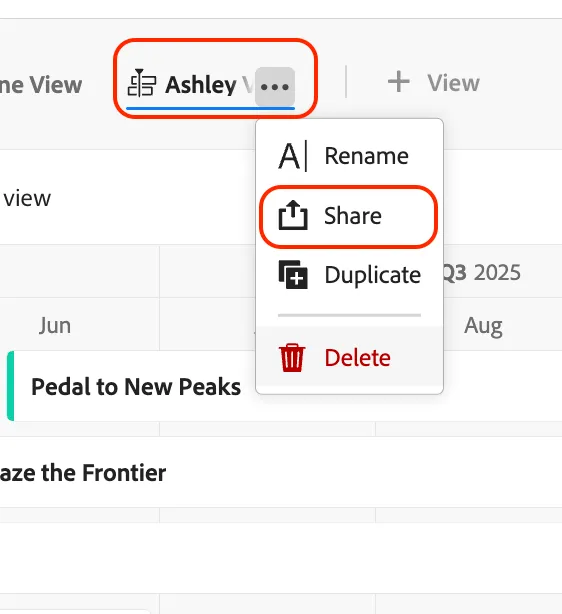
- Hover over your newly created view and click the three ellipses button that appears, then select Share in the menu options.
- Confirm your view is setup to only allow invited people to access, and click the Save button.
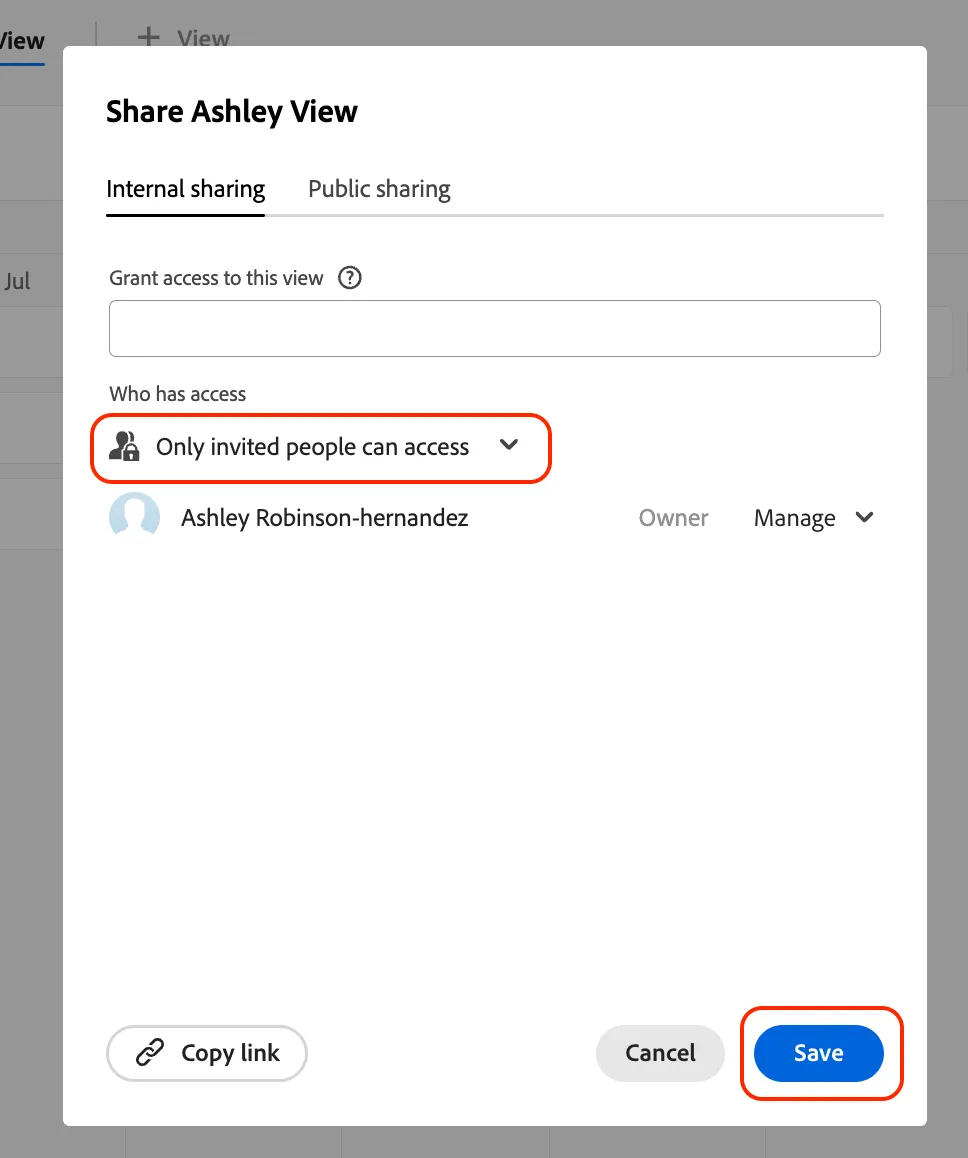
By default your view will only be accessible by you the creator, but you can add additional people from this Share screen.
- Click on the Grouping button.
- Click on the Choose a different field link.
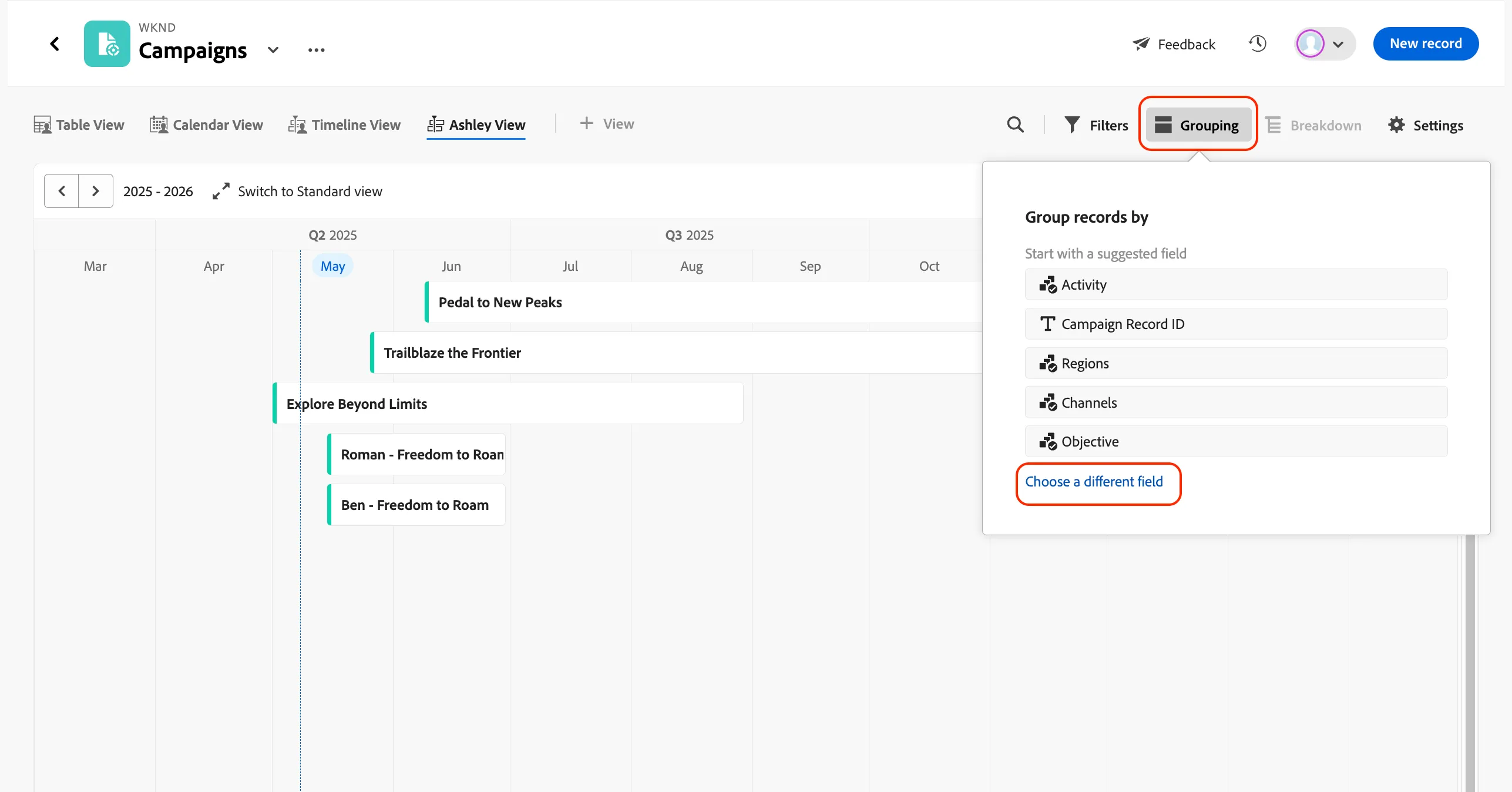
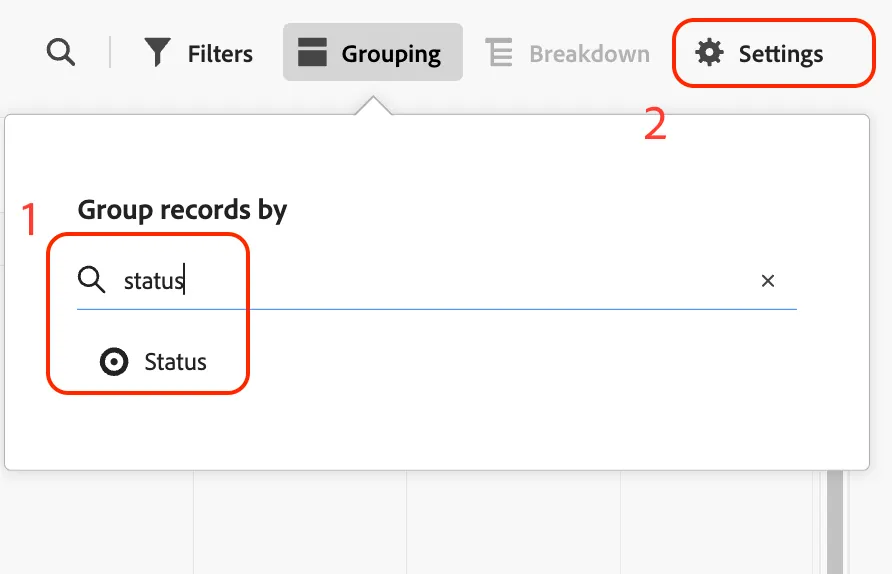
- Search for Status and choose this as the field grouping option. (1)
- Click on the Settings button at the top right of the View. (2)
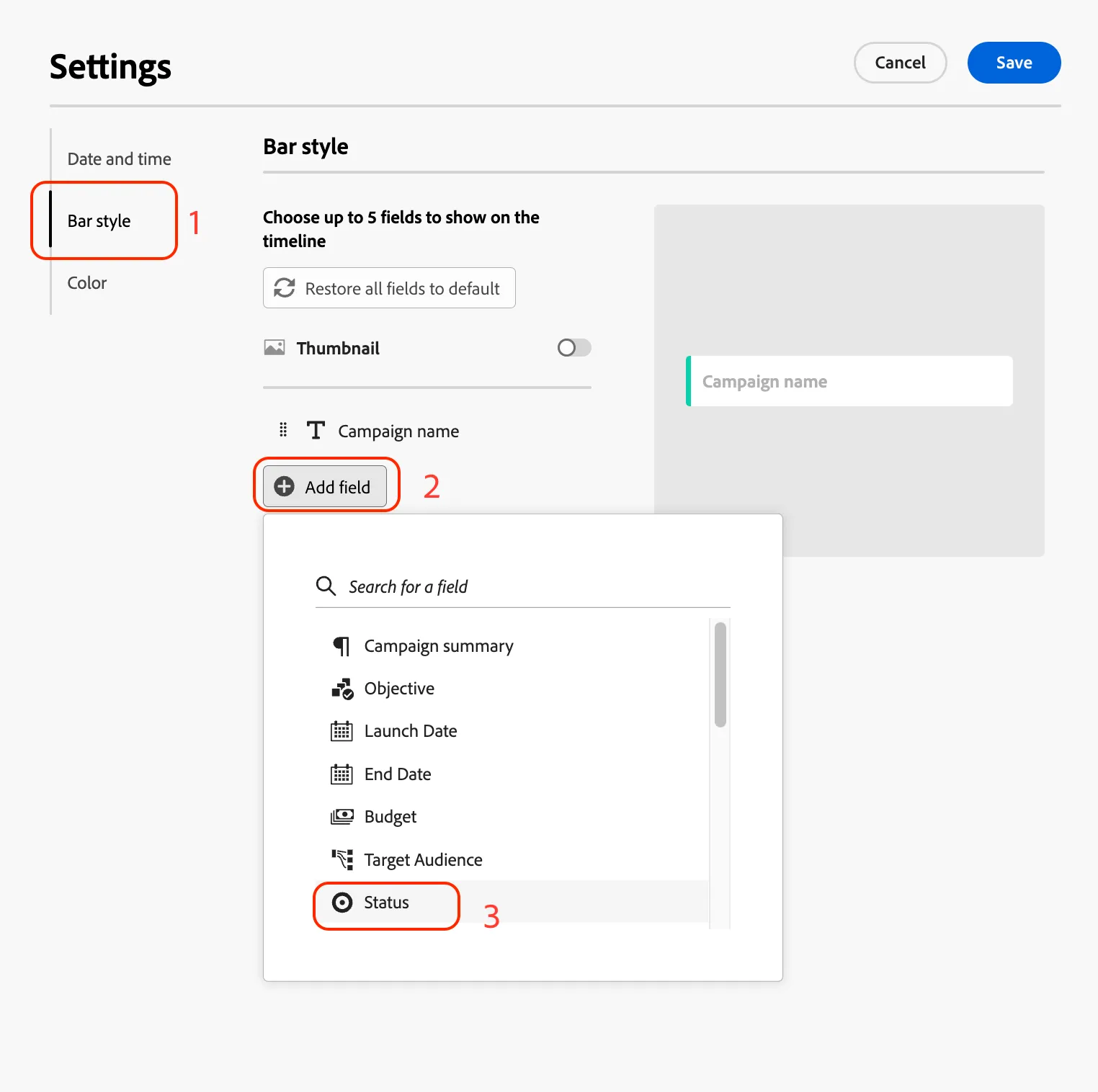
- Click on the Bar style tab (1), and then on the Add field button (2).
- Click on the Status field to add it to the timeline. (3)
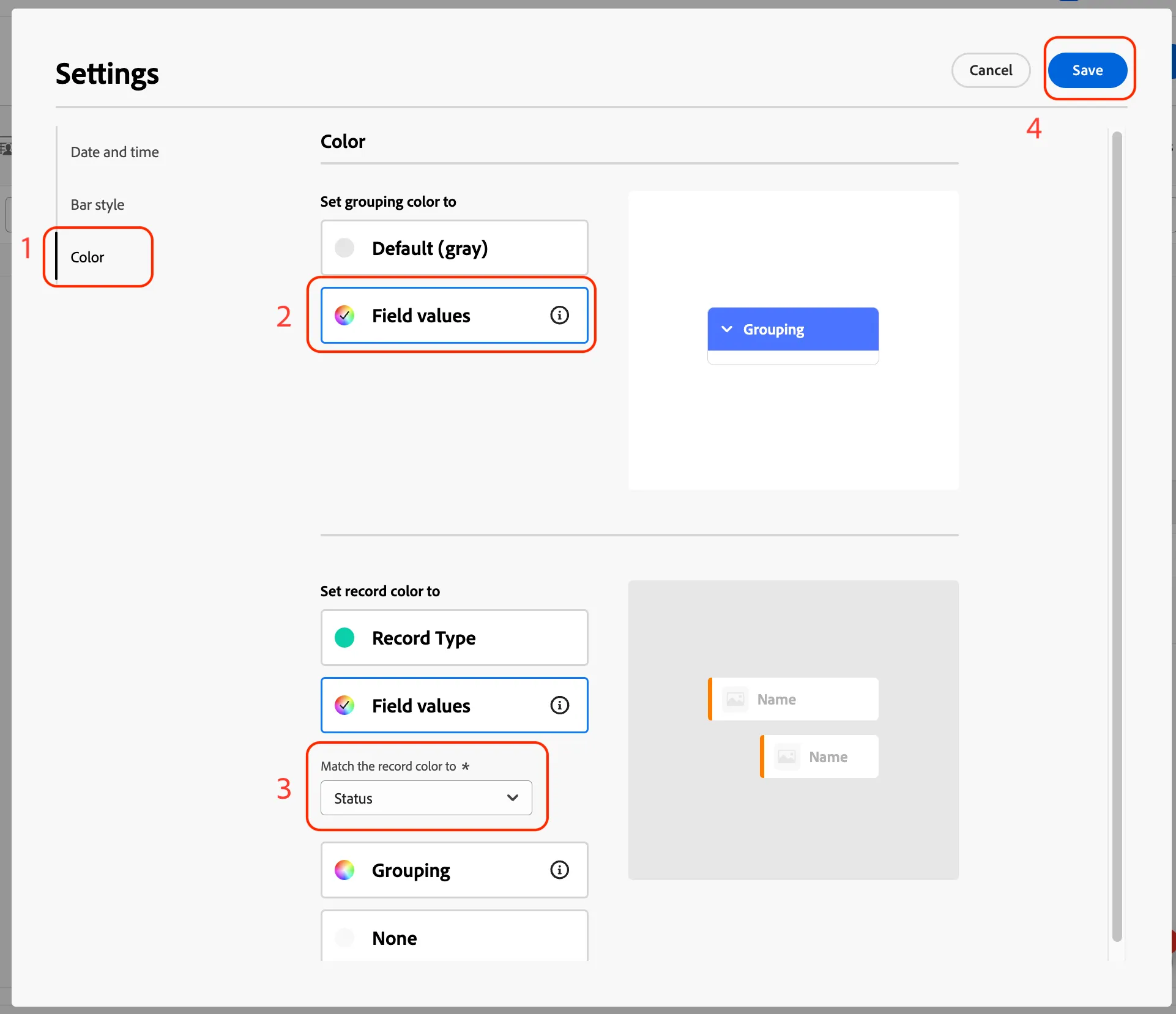
- Click on the Color tab, and select Field values for the grouping color. (1)
- Select the Field values option for record color. (2)
- Select Status in the "Match the record color to *" dropdown. (3)
- Click the Save button to update the settings of your view. (4)
- "__yourFirstName__ View" table will update with the new settings. Navigate back to Table View.