Create a Journey
Create the Journey
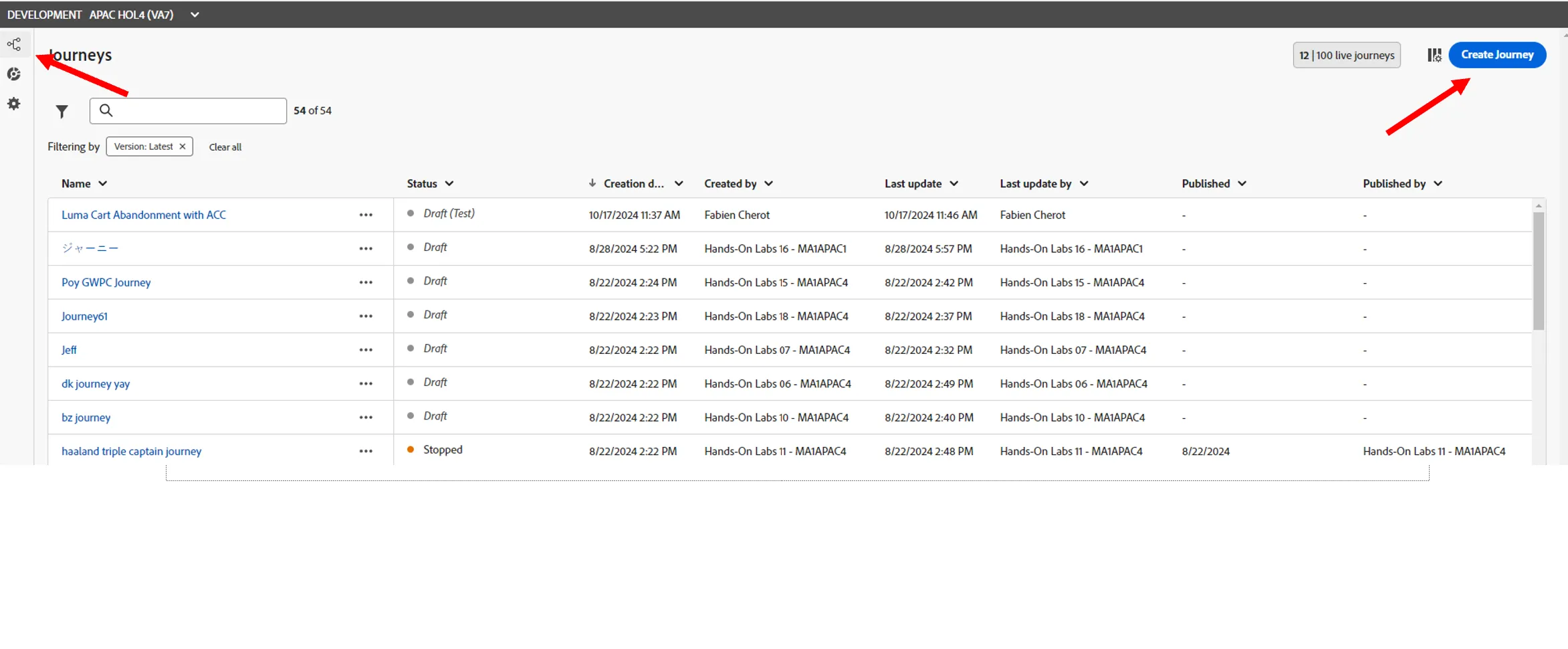
Navigate to Journeys and click to Create Journey.
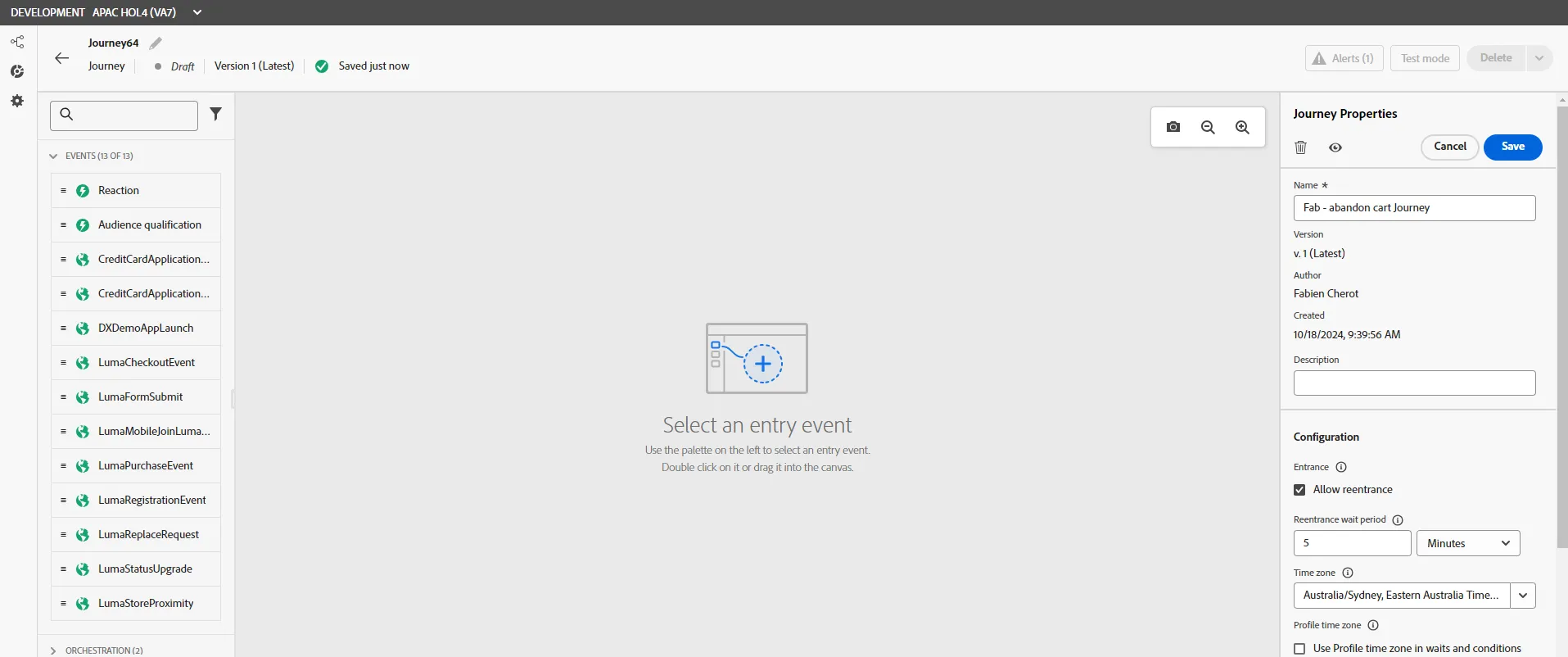
Give your journey a name that you will recognise later, eg. [Your name] - Abandoned Cart Retargeting. Click Ok.
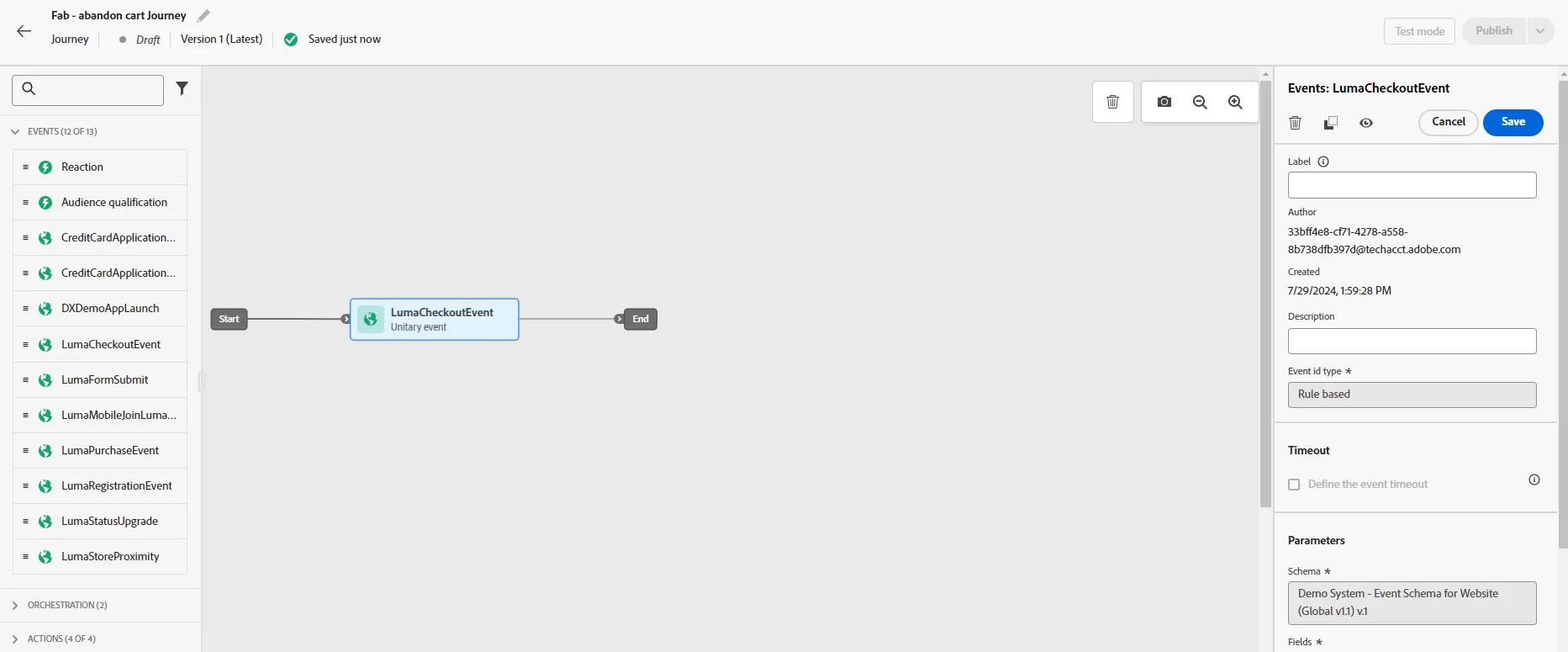
Under Events, drag the LumaCheckout event to the canvas. Click Save.
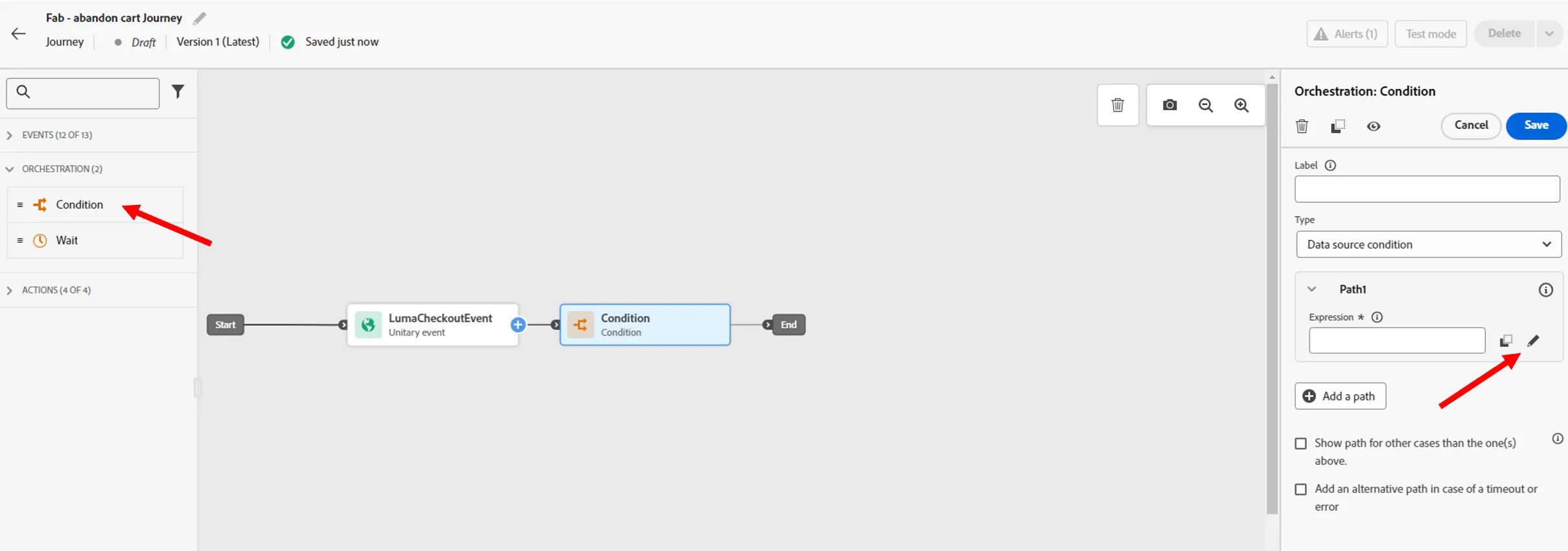
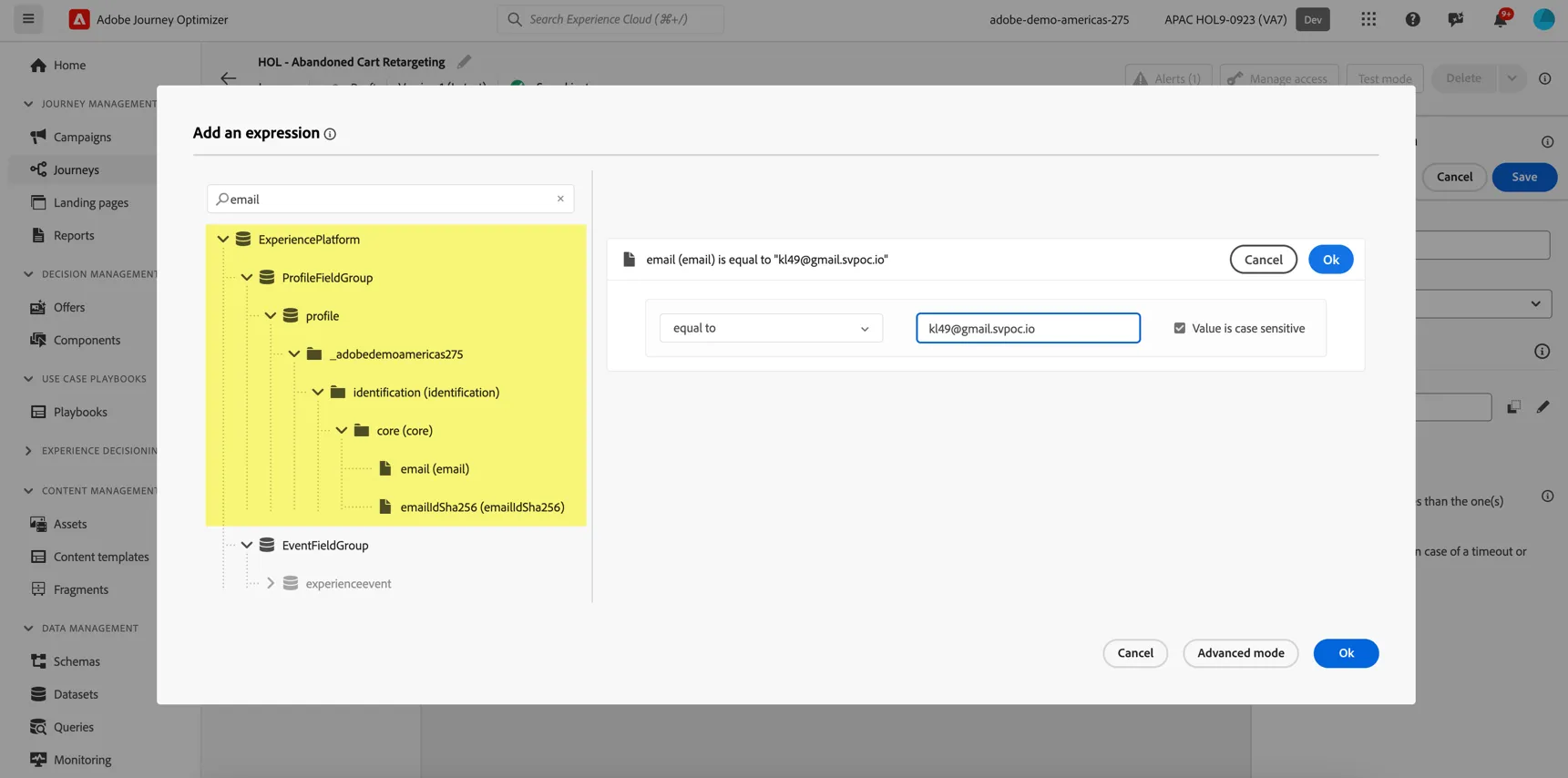
Now, we can add some condition to decide if we want to send specific communication to our customer. For this exercise, let's filter to include only your profile record. We can do this using a condition. Drag a condition activity to the canvas, then click in the properties to edit the condition expression
Search for email. Select the email field under ExperiencePlatform/ProfileFieldGroup/profile. Add a condition that the email equals the customer email address you've been using for the lab.
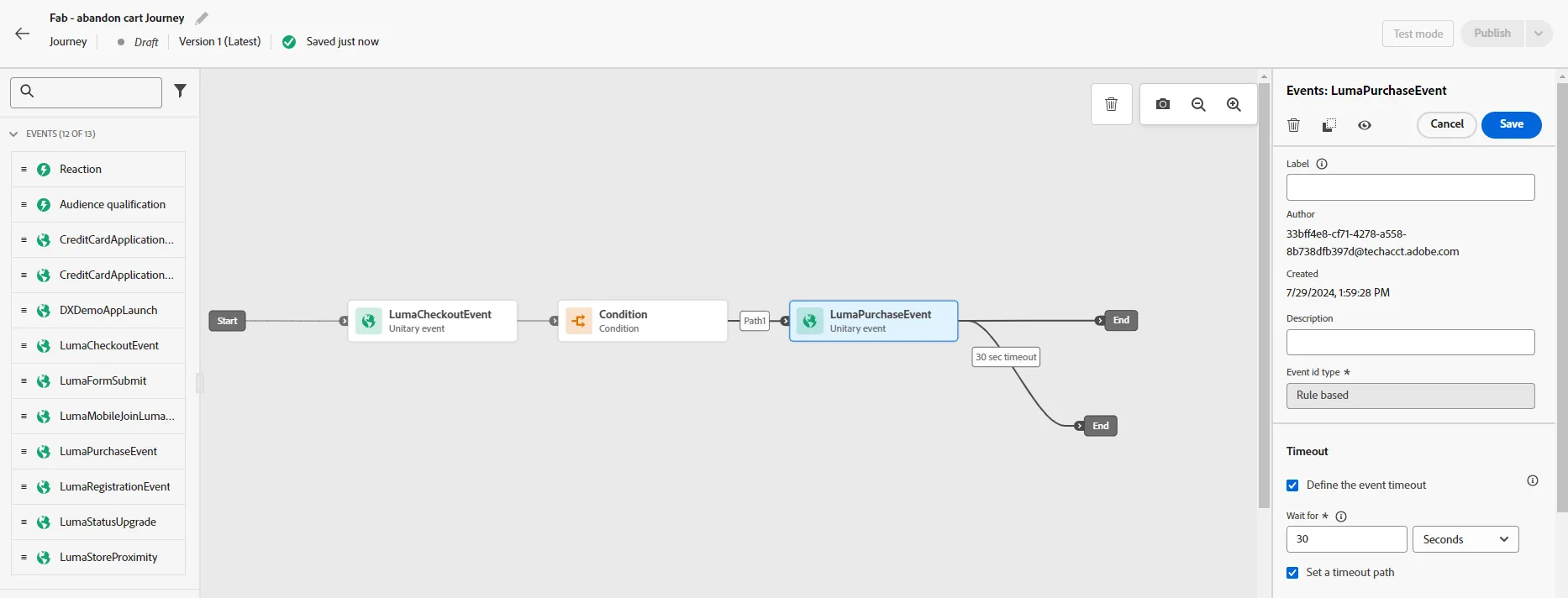
Now drag the LumaPurchase event to canvas. In the Event properties, tick the Define the event timeout checkbox, set the wait time to 1 mn and tick the Set a timeout path. Click Ok.
Send a Message
We can send message using Adobe Campaign, but we can also extend the list of available channel leveraging external API. This is what we will illustrate here.
Under Actions, drag an WebPushSimulator activity onto the timeout branch. That will call call an external API to send a message in real time.
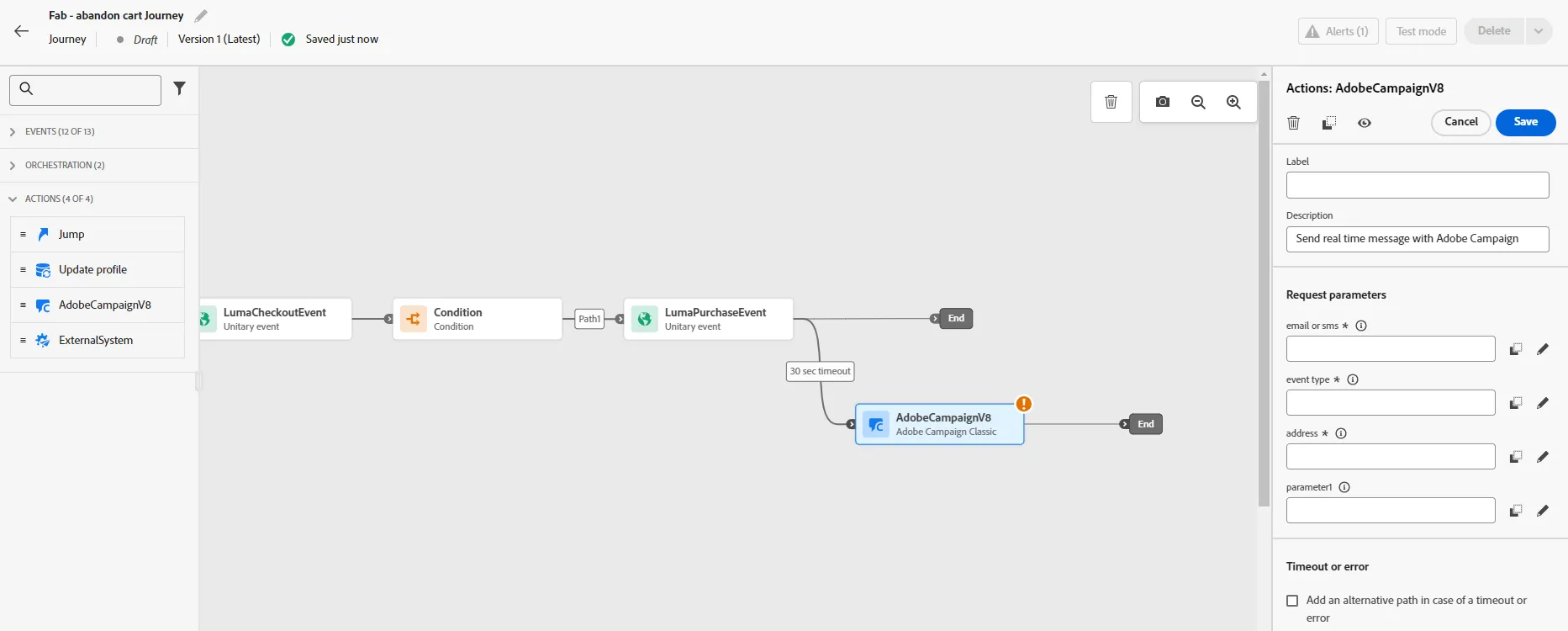
We just have to specify some information on message you want to send.
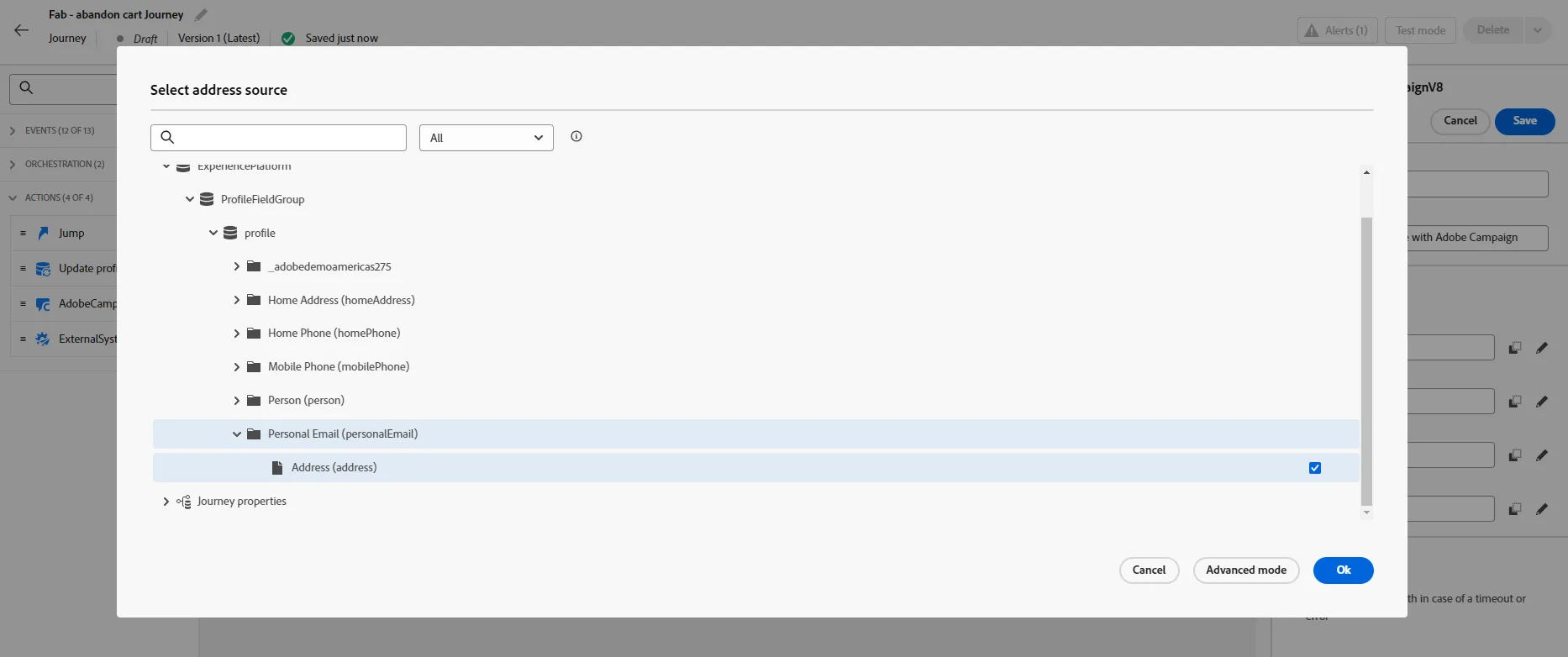
First, Edit the "ID" field, and select the customer peronal Email address as you've done on the test activity
Now edit the message. Click on advance mode, and type any text you want between double quote. for example "cartAbandonment". Click on OK then save.
You've completed creating the journey.
Publish the Journey
Click to publish the journey
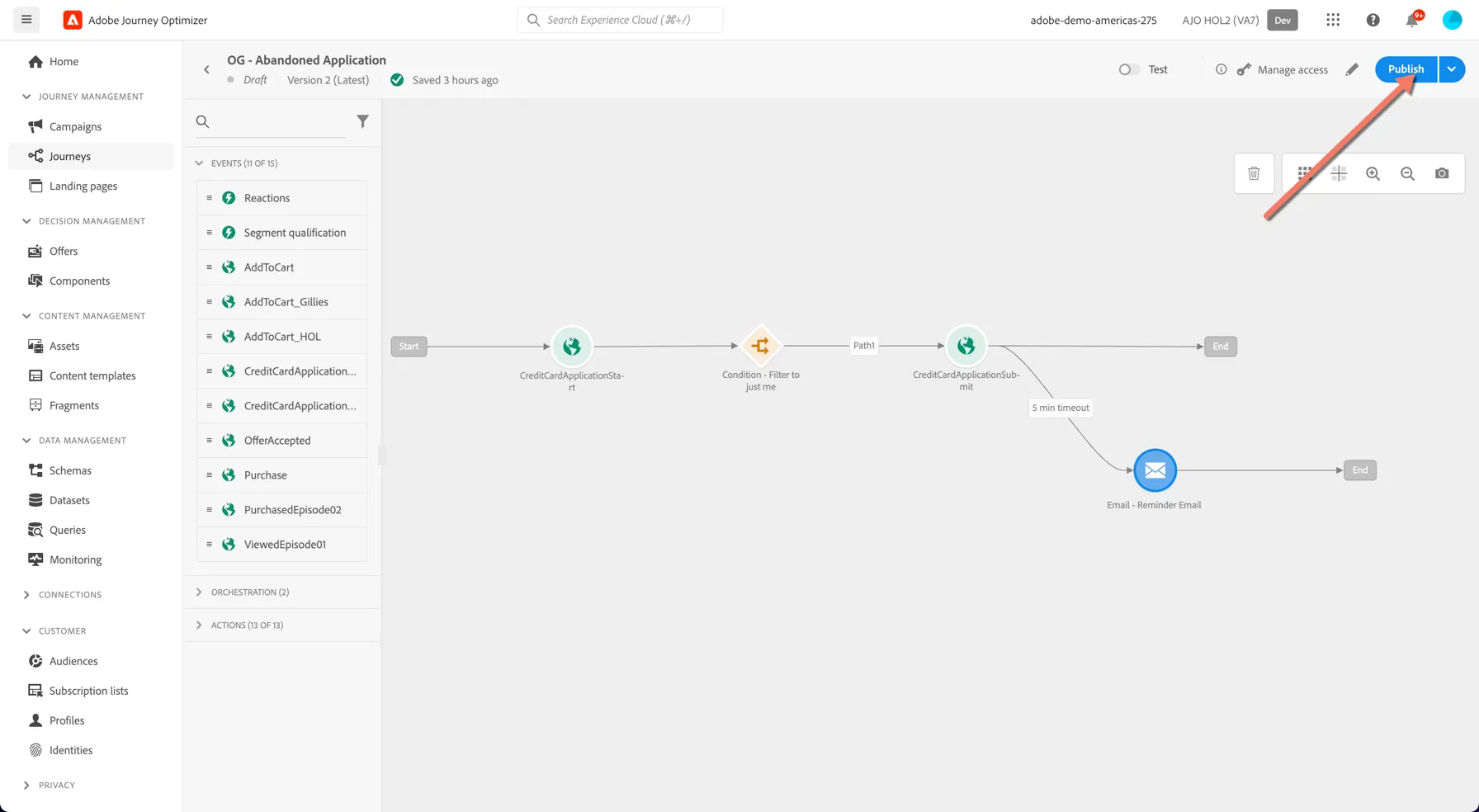
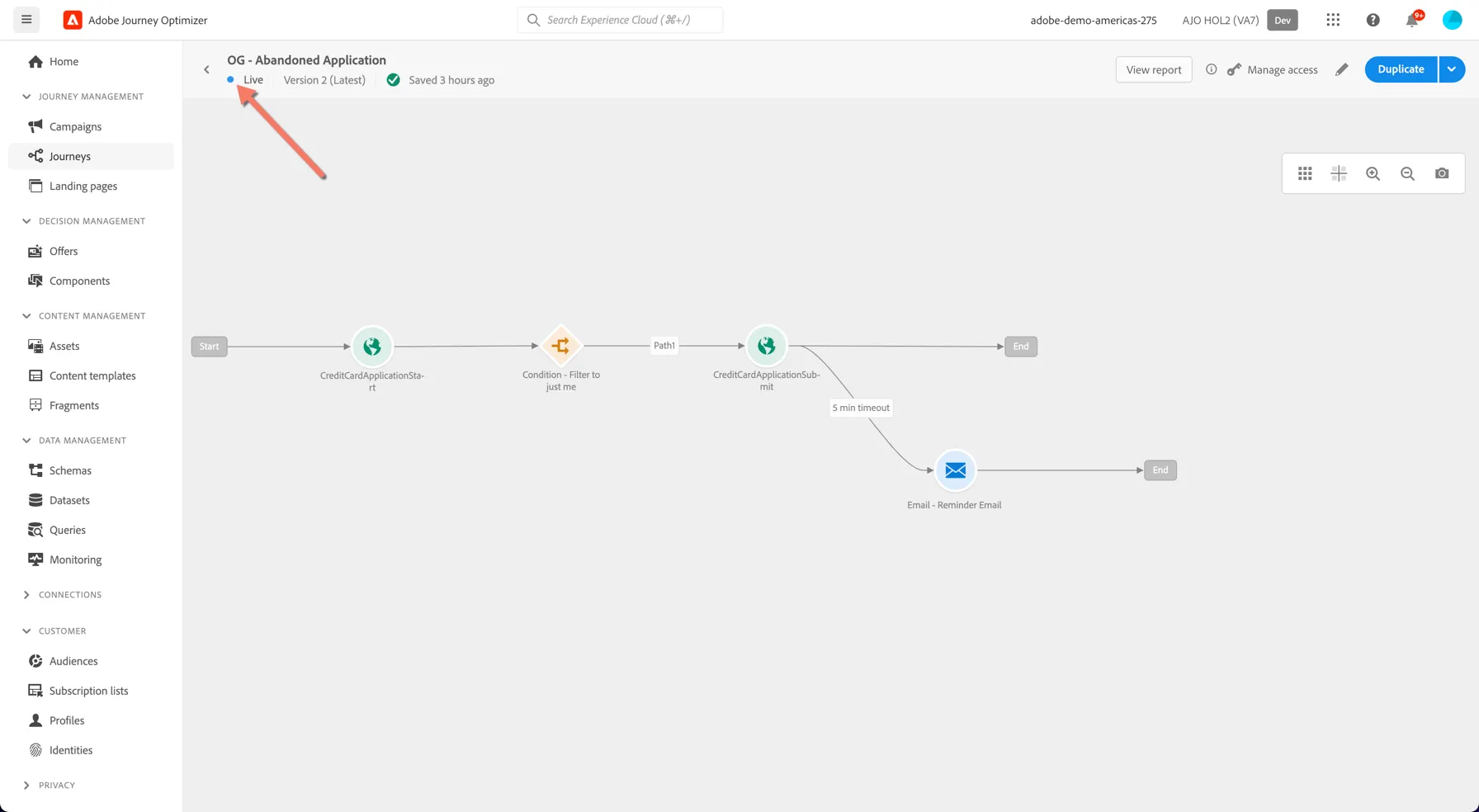
Confirm to publish in the popup. Your journey should now be Live.
Trigger your Journey
Switch to your Customer Profile for this exercise.
- Go back to the demo website and add a product to your cart. Click on checkout, but odn't complete your purchase. Sending this event will trigger the journey and we should receive a message shortly.
- We don't have implemented real push on this web site, but we can test our message has been successfully sent.
- For that, open a new tab on your web browser and go to https://webhook.site/#!/view/d7c3a936-5bdb-4693-bdbf-e65353b24996
You should see if your message has been sent.
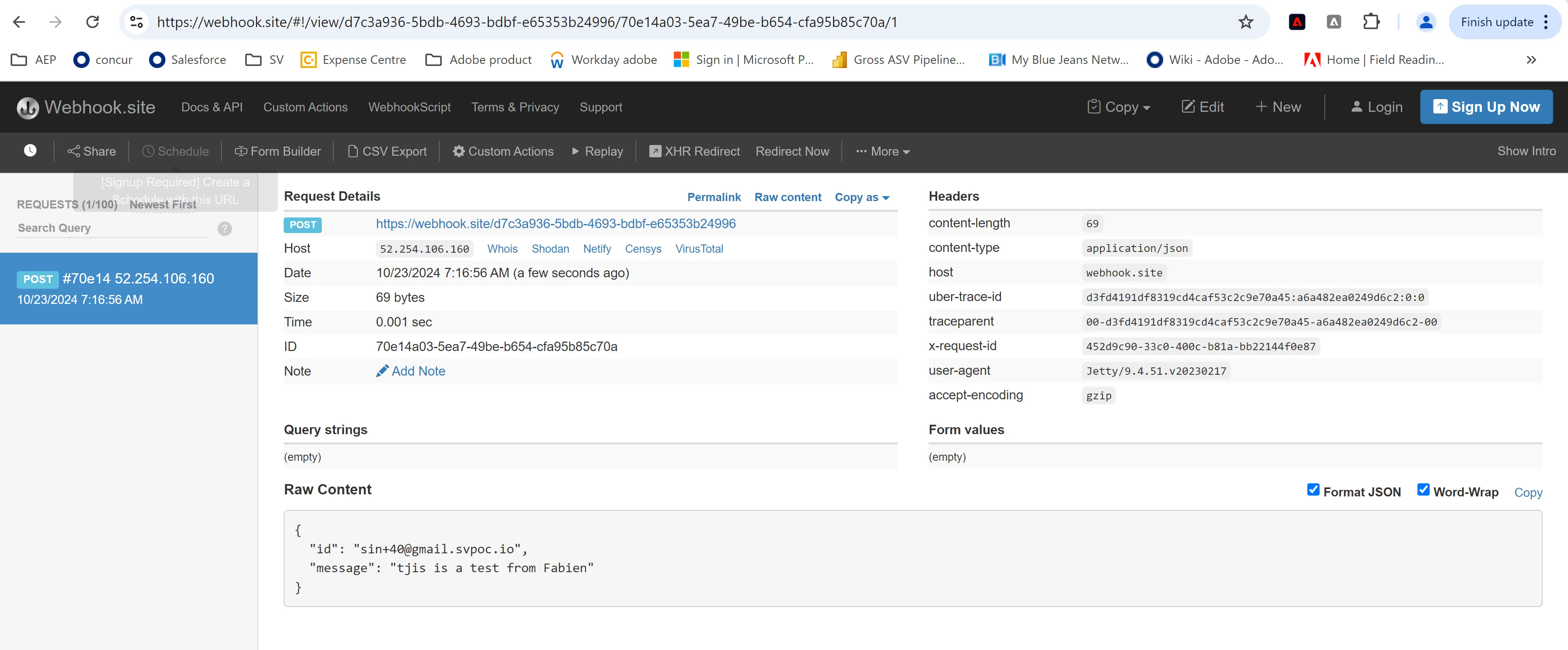
You've now created a real-time journey and successfully triggered it from the customer website.