Data Ingestion
8 min
Download sample CRM data in the .csv file.
This data is a sample representation of the CRM fields you would ingest to feed your business cases.
Ingesting .csv data in Adobe Experience Platform
- Navigate to the Workflows section in the left panel
- Click on the Map CSV to XDM schema card
- Click Launch in the right panel

4. Select the Existing Dataset option
5. Search and select your dataset by name from the dropdown
6. Enable Partial Ingestion. Set threshold to the default 5%
7. Update the Dataflow to include your initials
8. Enable all alerts
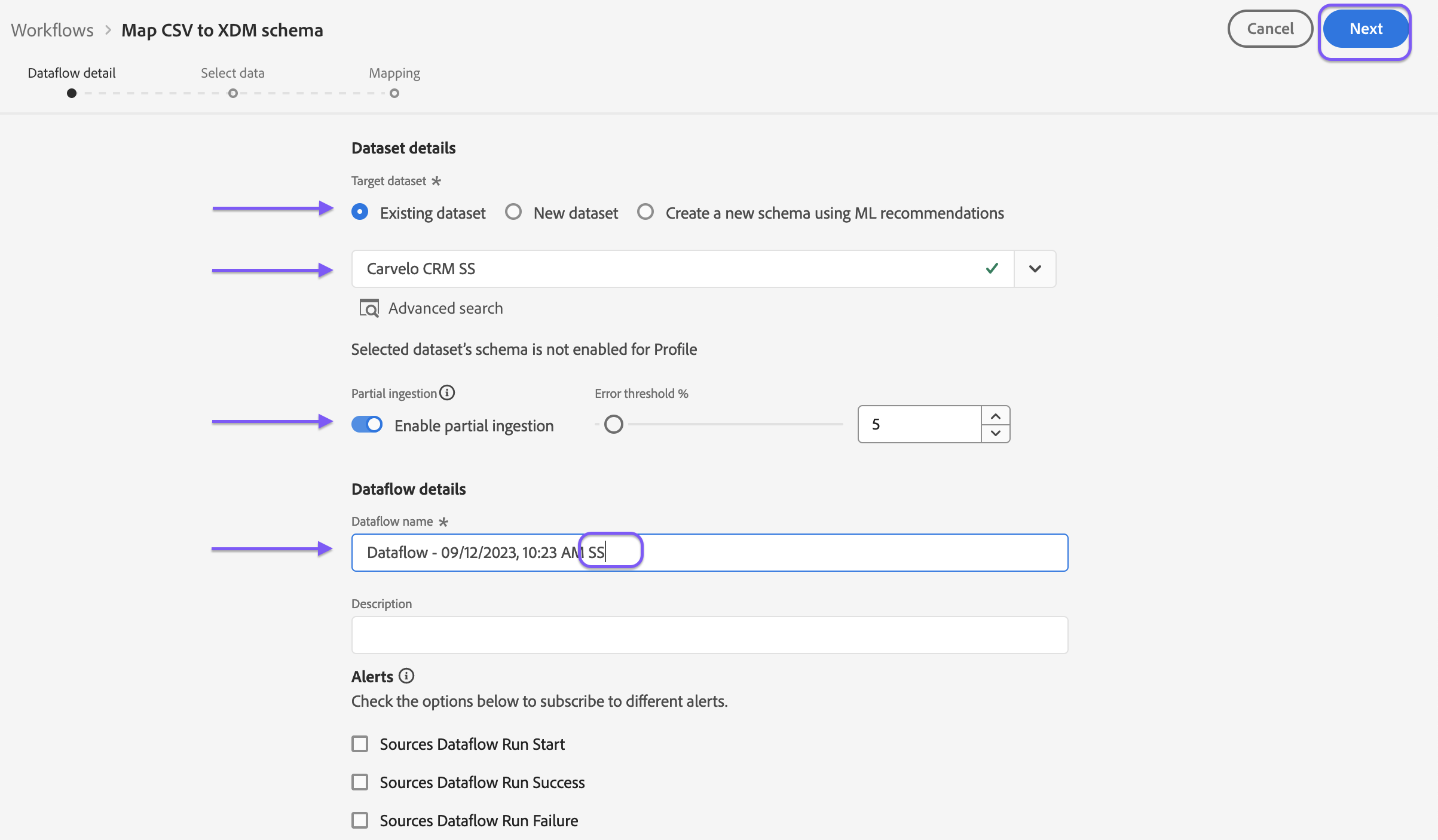
9. Click Next
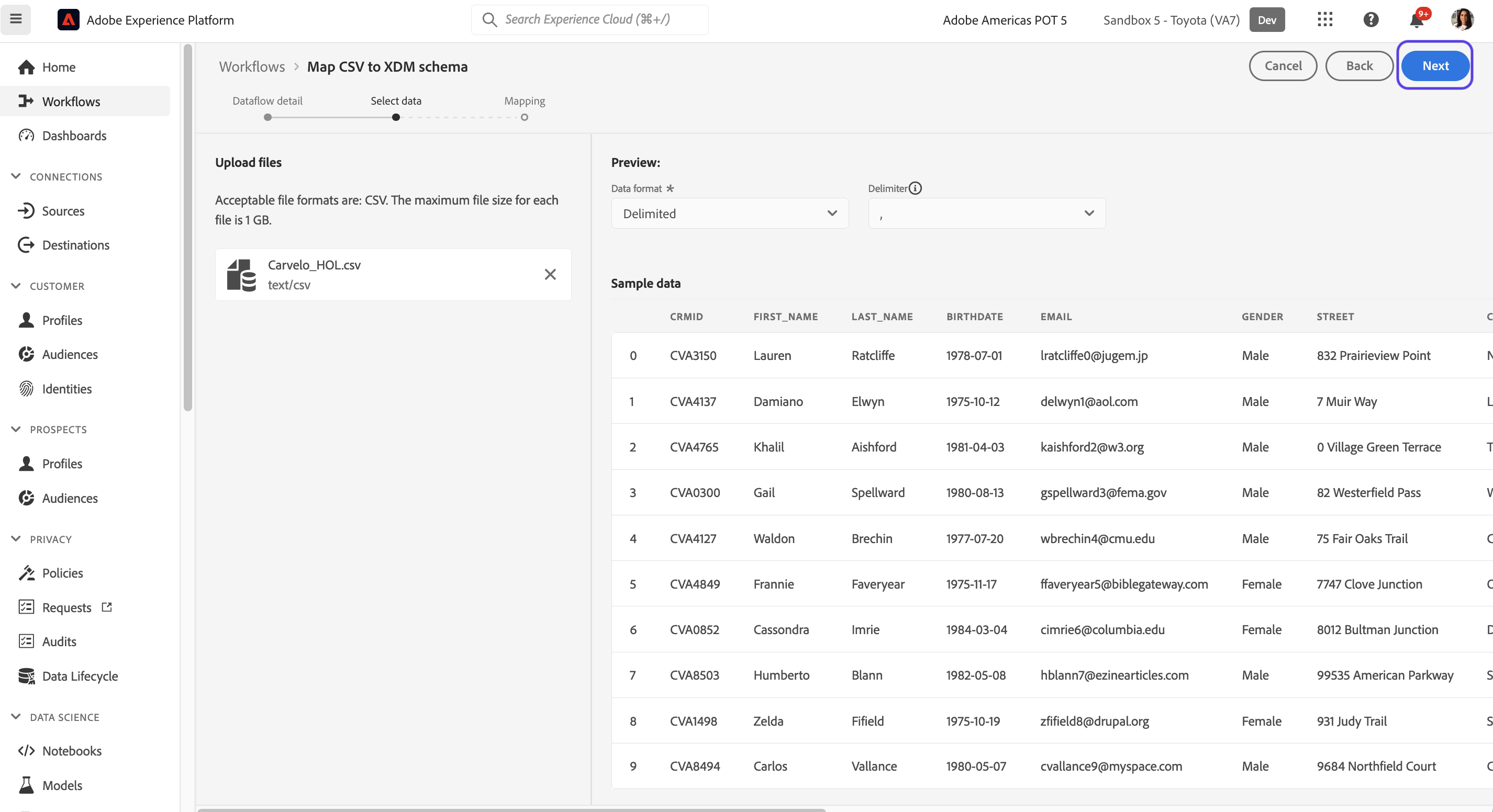
10. Upload the .CSV file downloaded from your local machine. Drag & Drop or click Choose files to upload and click Next in the upper right
Mapping source columns to XDM schema fields
- As you proceed into the field mapping step, a couple of things to note;
- This mapping step is a requirement to ingest delimited files ONLY. Parquet and JSON formatted files can be dragged and dropped into the appropriate dataset since they are key value pairs and do not need to be explicitly mapped.
- Adobe Experience Platform's AI has correctly mapped most of the source fields to the best matched XDM schema field.
- Fix the ones that are not mapped as desired.
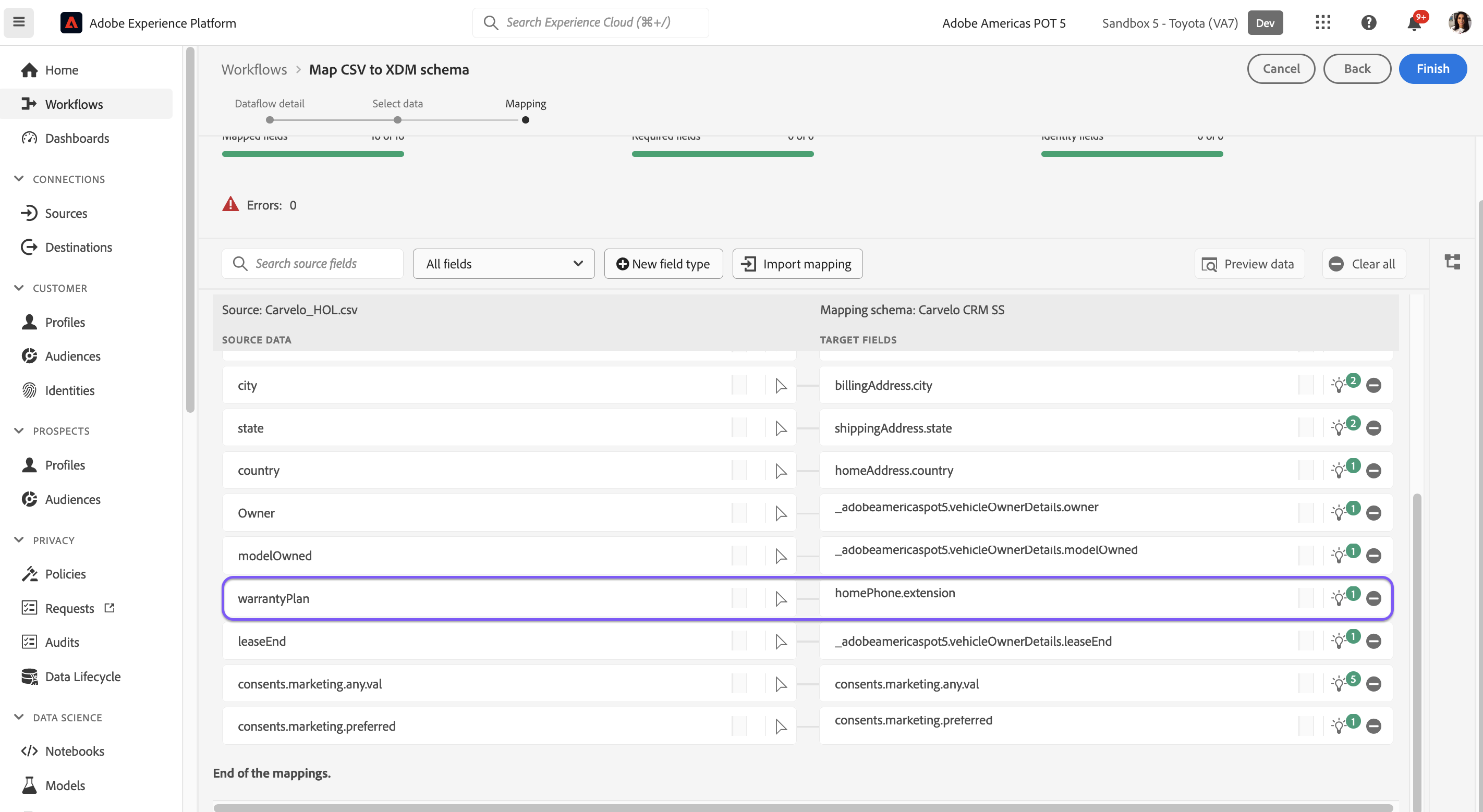
- Add a New Field We want to do a custom mapping to one of our added field.
- Click the New field type (+) button and choose Add new field
- Select crmind from the source scema
- Map to crmid to crmid in the custom object we added in the Schema exercise
- Add a Calculated Field We will add a new field in the field mapping workflow using data prep functions. Data engineers can use calculated fields to perform in-row calculations that can be assigned to XDM attributes.
- Click the New field type button and choose Add calculated field
- Paste in this code: concat(loyaltyTier,"-",loyaltyPoints)
- Click the Preview button
- Click Save
- Map to the loyatyTierPoints field in the custom object we added in the Schema exercise
- Click Finish in the upper right
Validating the ingestion workflow
- Navigate to Datasets
- Search and select your newly created dataset
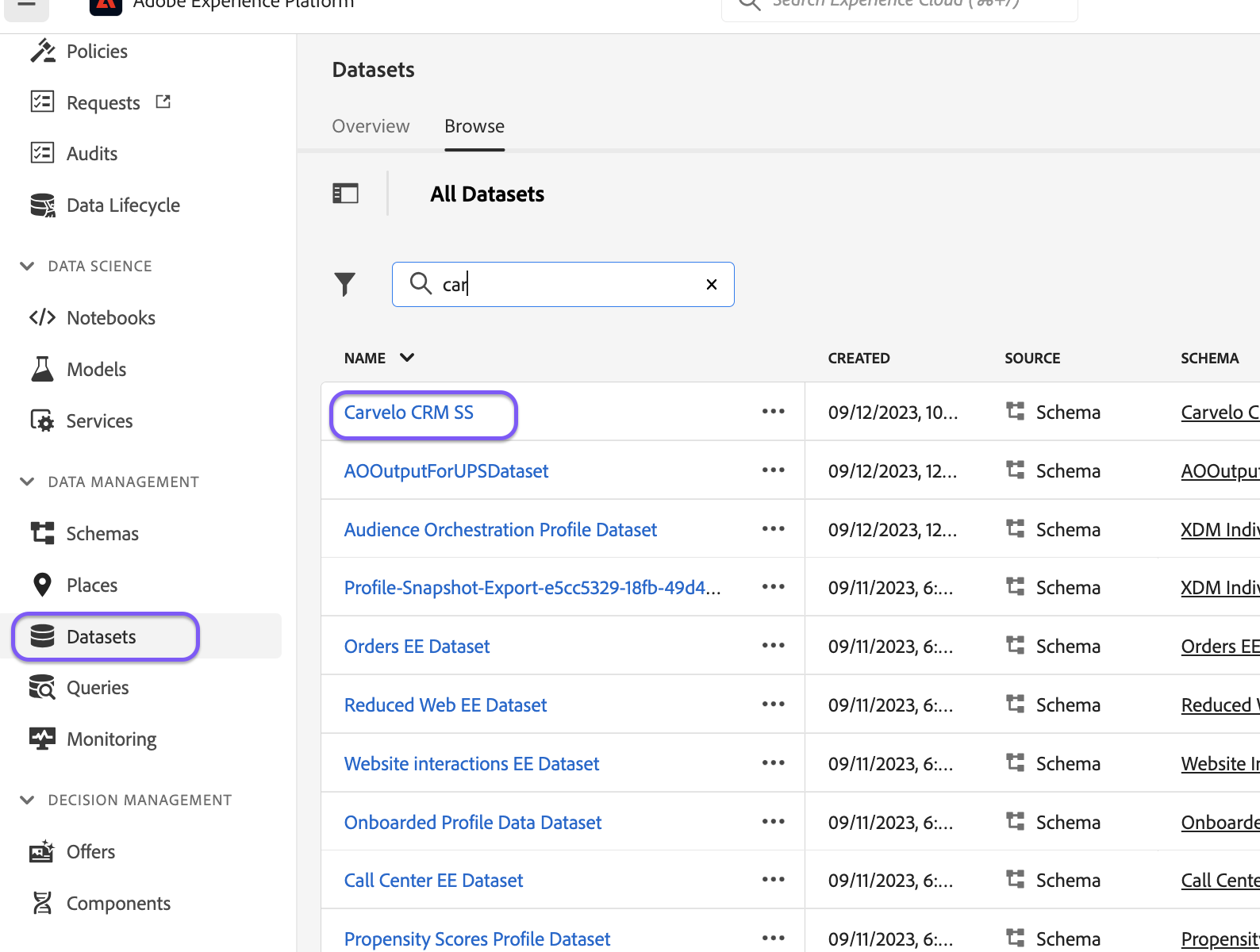
- Notice a batch is created as a result of the ingestion workflow that was triggered
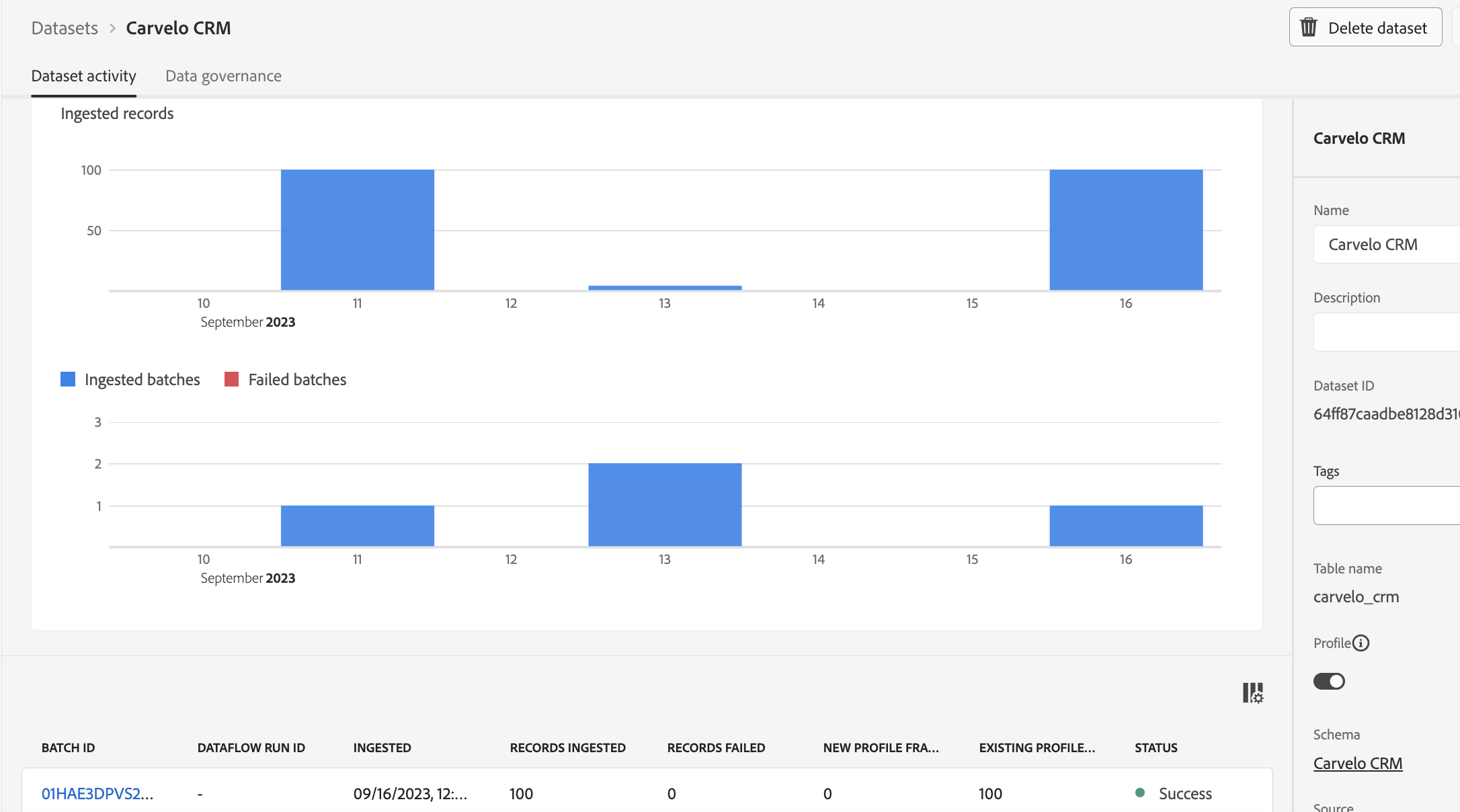
- Once the status for the batch says "Success", click on the Preview Dataset button on the top right of your screen. This allows for validation of source columns to XDM schemas with the corresponding values.