Email Designer
This lab will walk through the steps to create an Email in Adobe Journey Optimizer.
NOTE: Some exercises may vary during the actual Hands on Lab versus what is listed in the Archbee Page, due to industry setup and / or Presenter preferences.
Create a New Message
Within the Basic Journey, click on Email action node
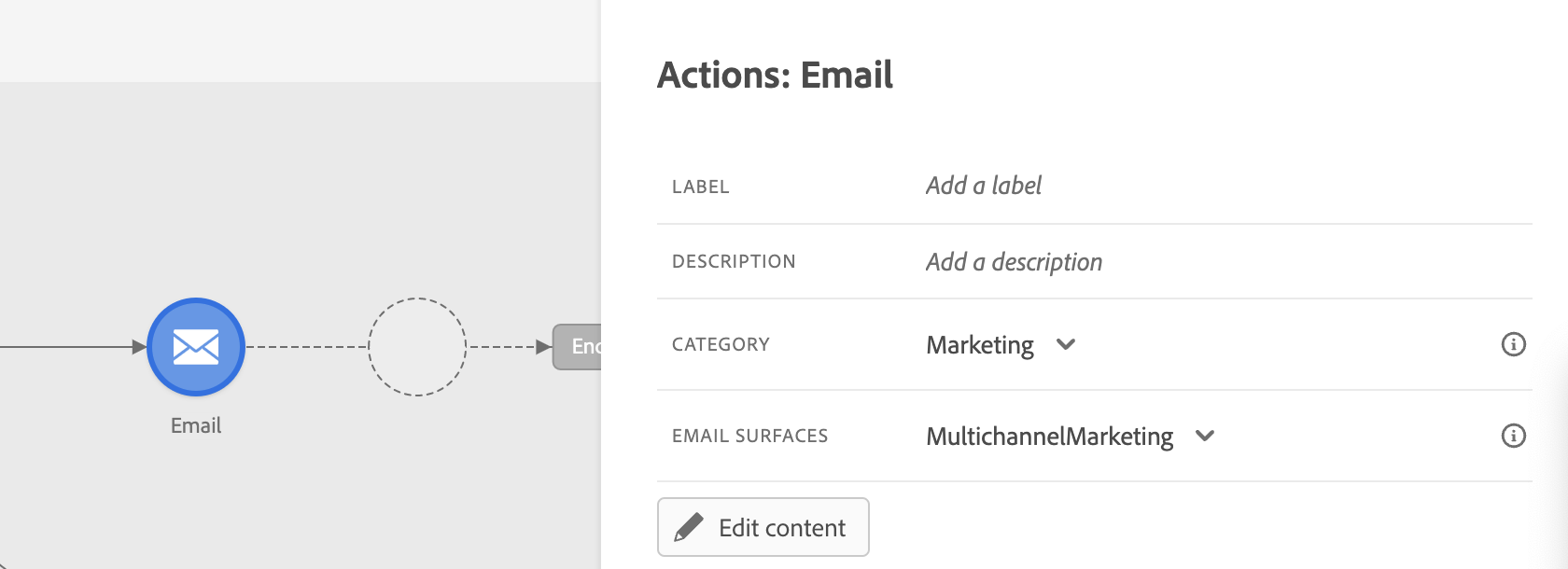
- Enter a Label and Description for the message.
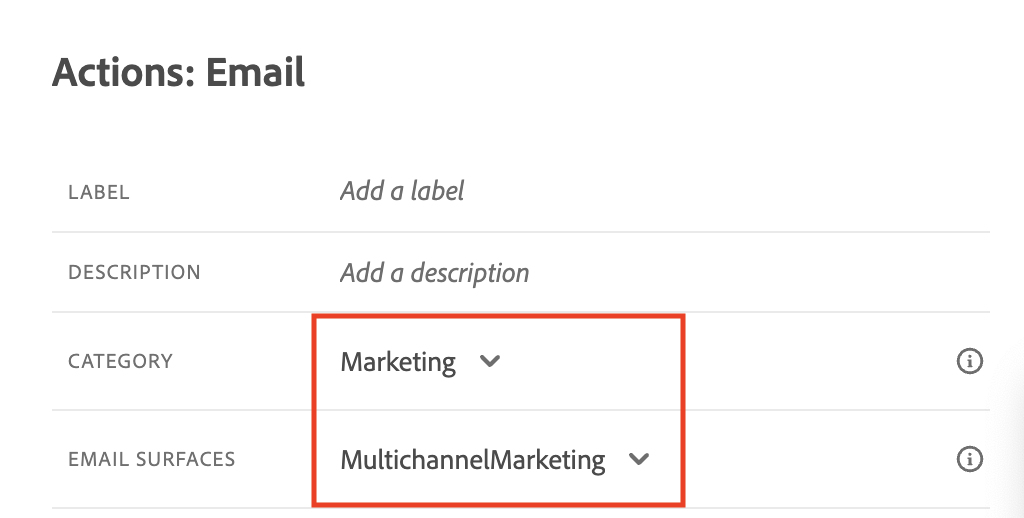
Choose Transactional for Category and MultiChannelTransactional for Email Surfaces. (Note Channel Surfaces for your Sandbox may differ slightly.)
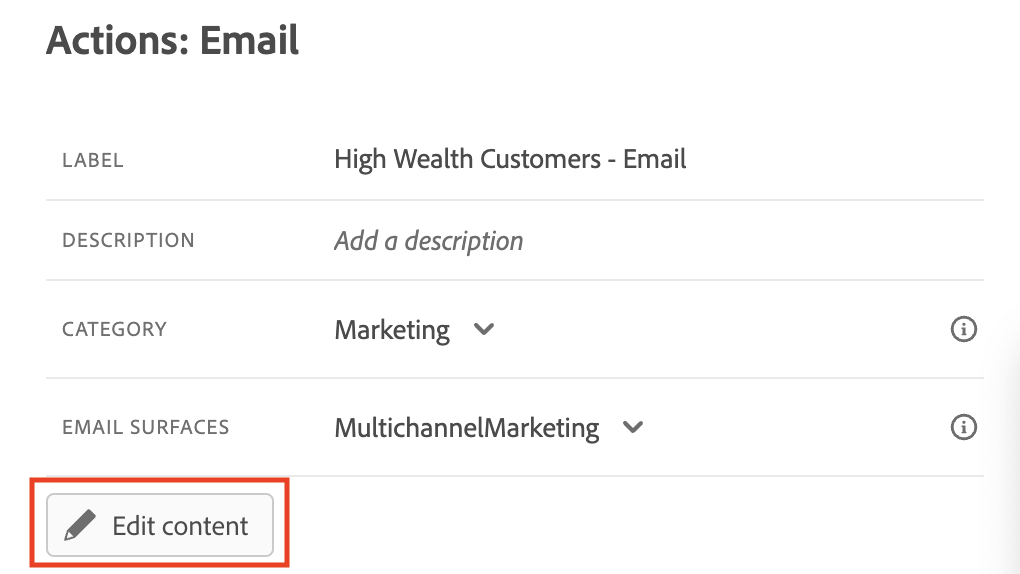
Click on Edit Content
Define a Subject Line
Enter a Subject Line.
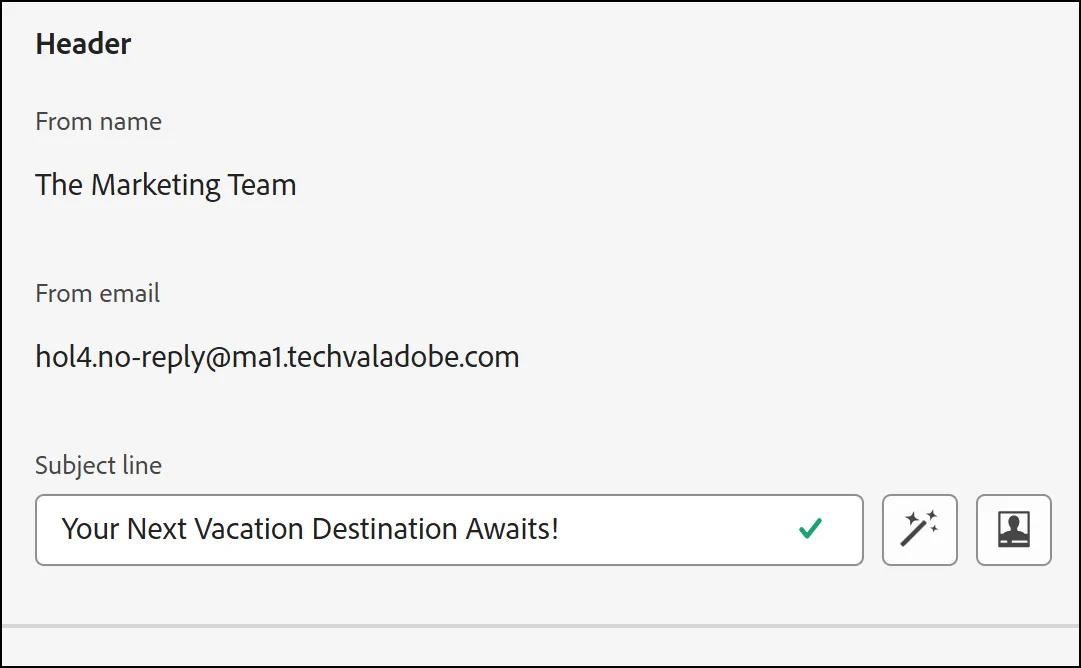
Click on the Personalization icon to add personalized data available for customer record.

To add personalization, place your cursor where you want the personation added. Search for first name by searching for "first" and clicking the plus sign. Click Save.
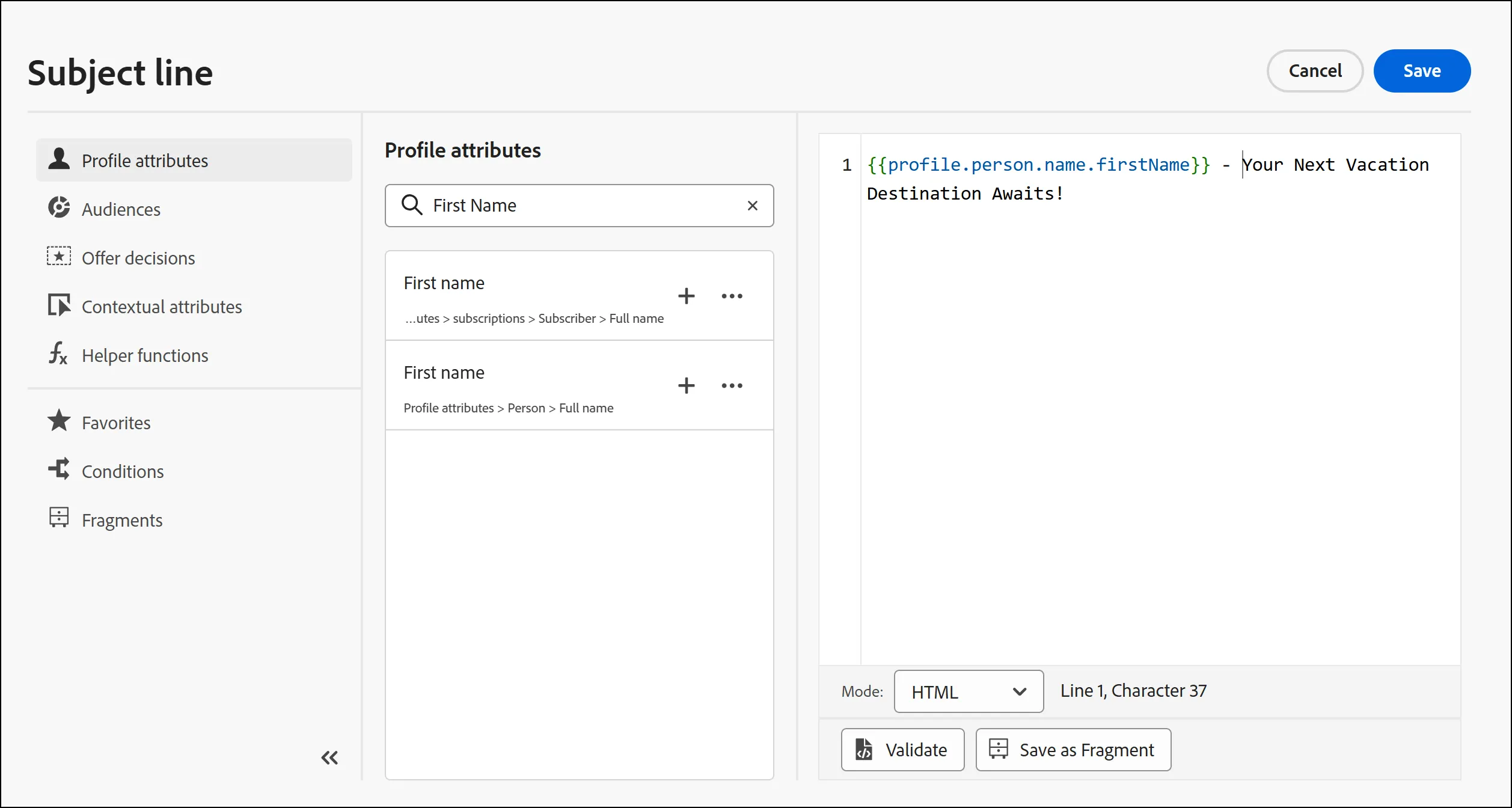
- You subject line should read something like:{{profile.person.name.firstName}} - Your Next Vacation Destination Awaits!
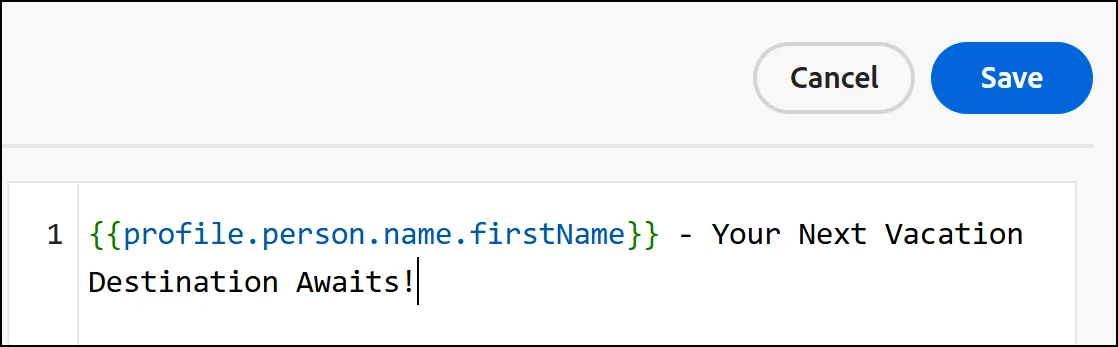
Design Email
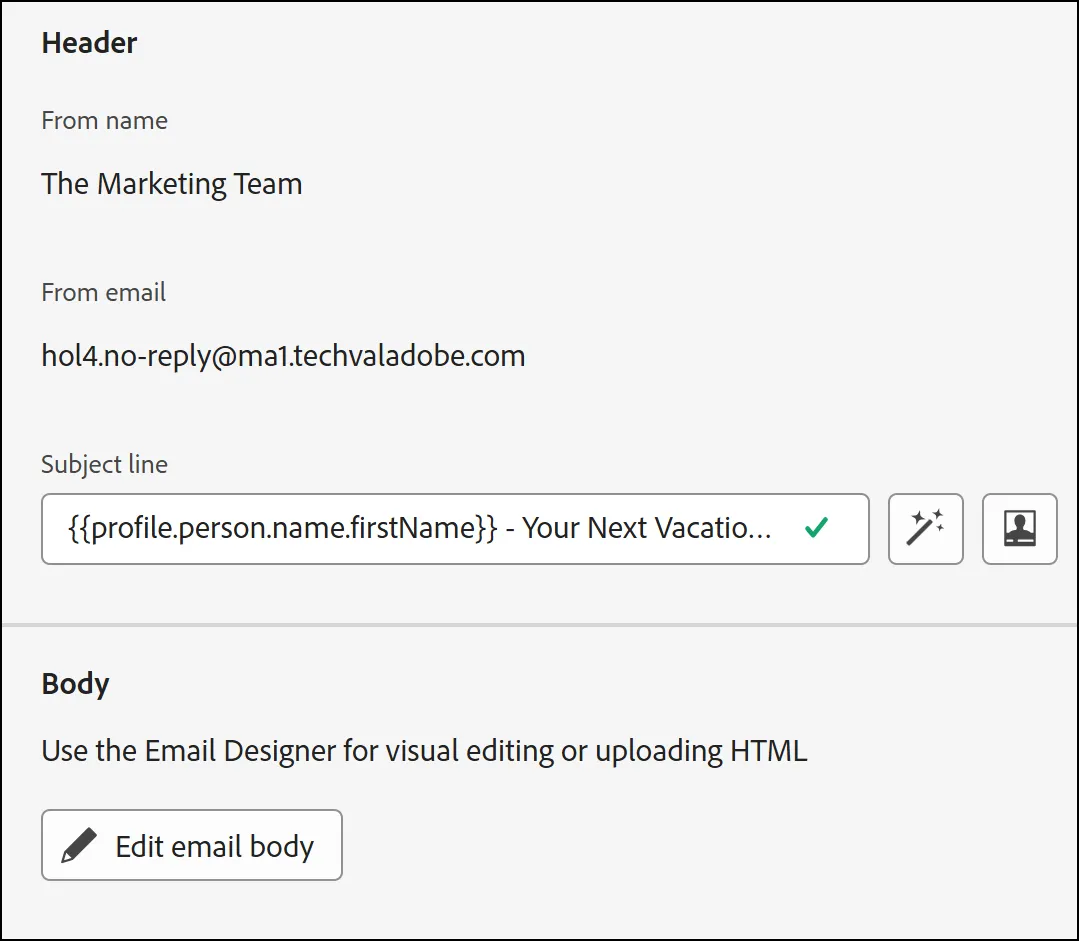
Click Email Designer button:
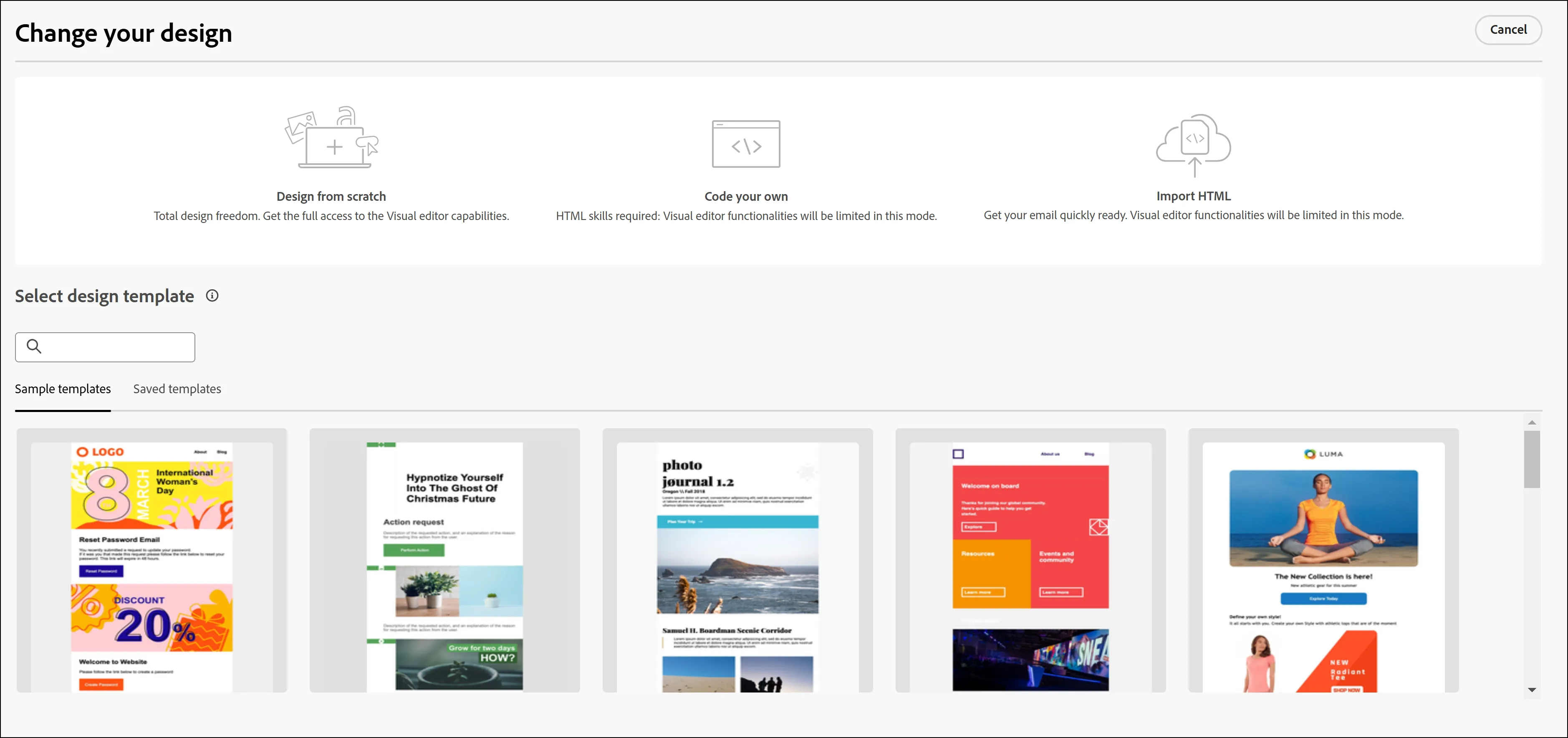
Select “Design from Scratch”
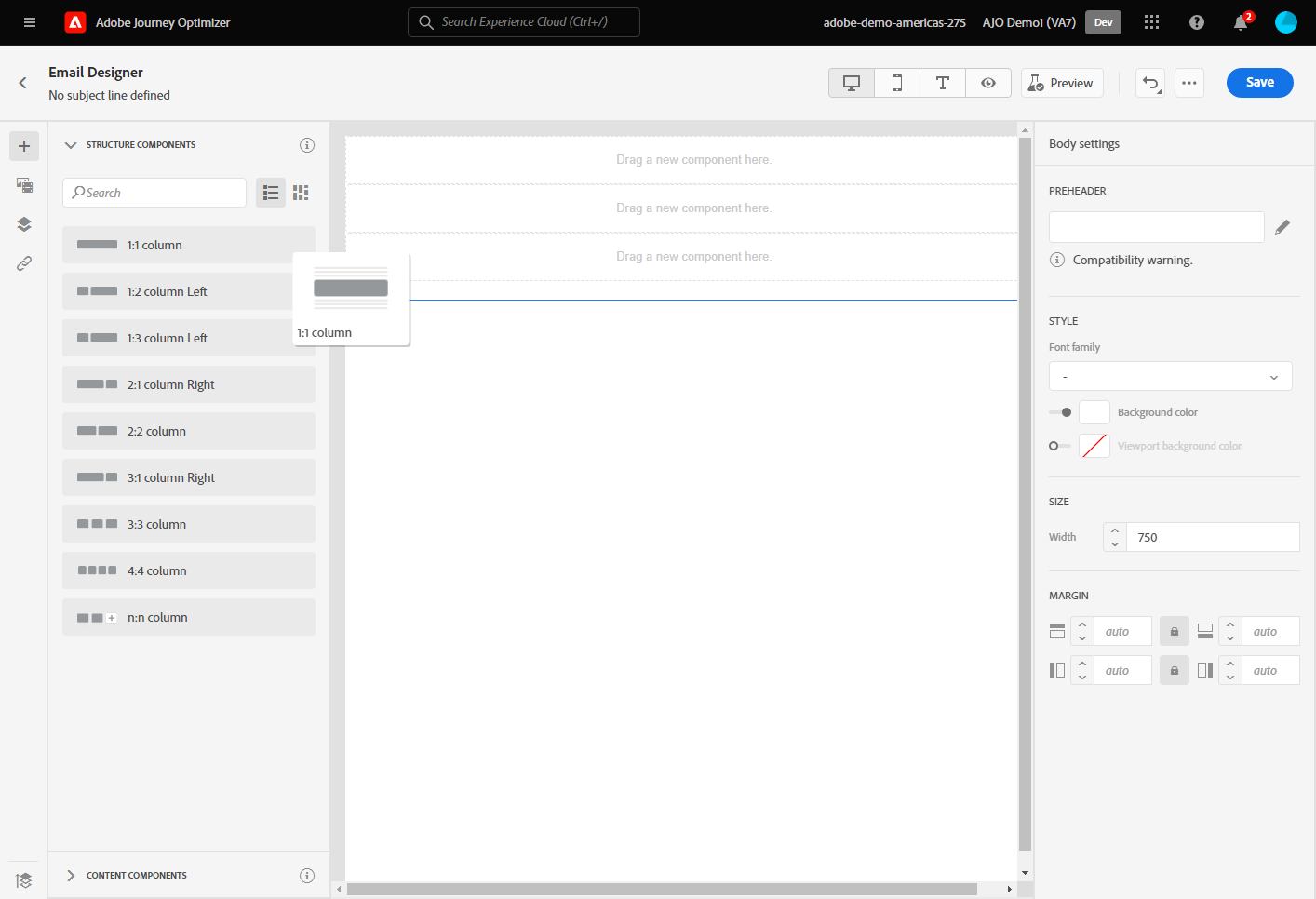
Click on the 1:1 Column. Drag it 10 times onto the Canvas.
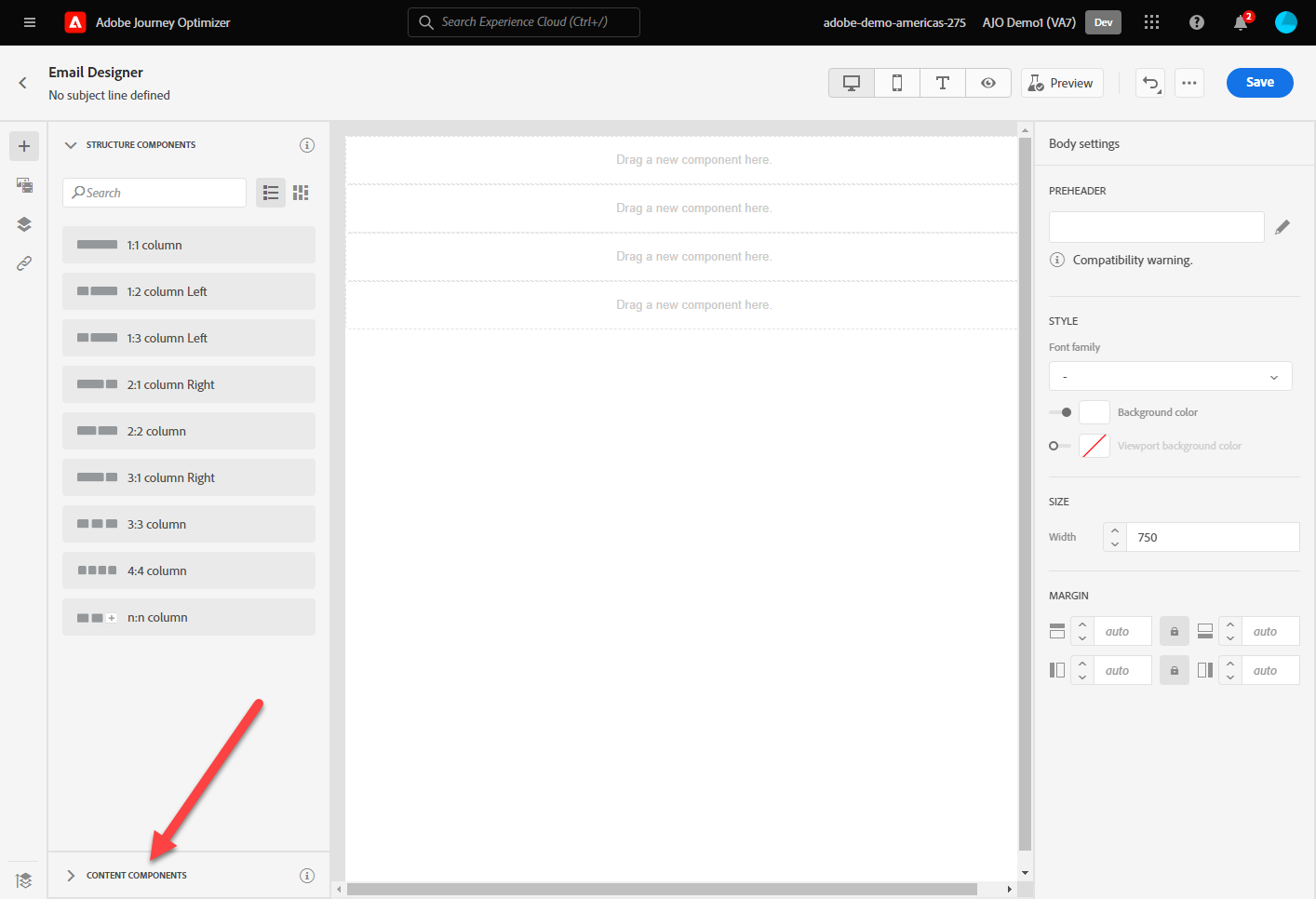
Select Content Components
- Add an Image Component in the first 1:1 Content Structure
- Add a Divider in the Second Component
- Add a Text Component in the Third Content Structure
- Add a Divider in the Fourth Content Structure
- Add an Image in the Fifth Content Structure
- Add a Divider in the Sixth Content Structure
- Add an Offer Decision in the Seventh Component
- Add a Divider in the Eight Content Structure
Add Social in the 9th Content Structure
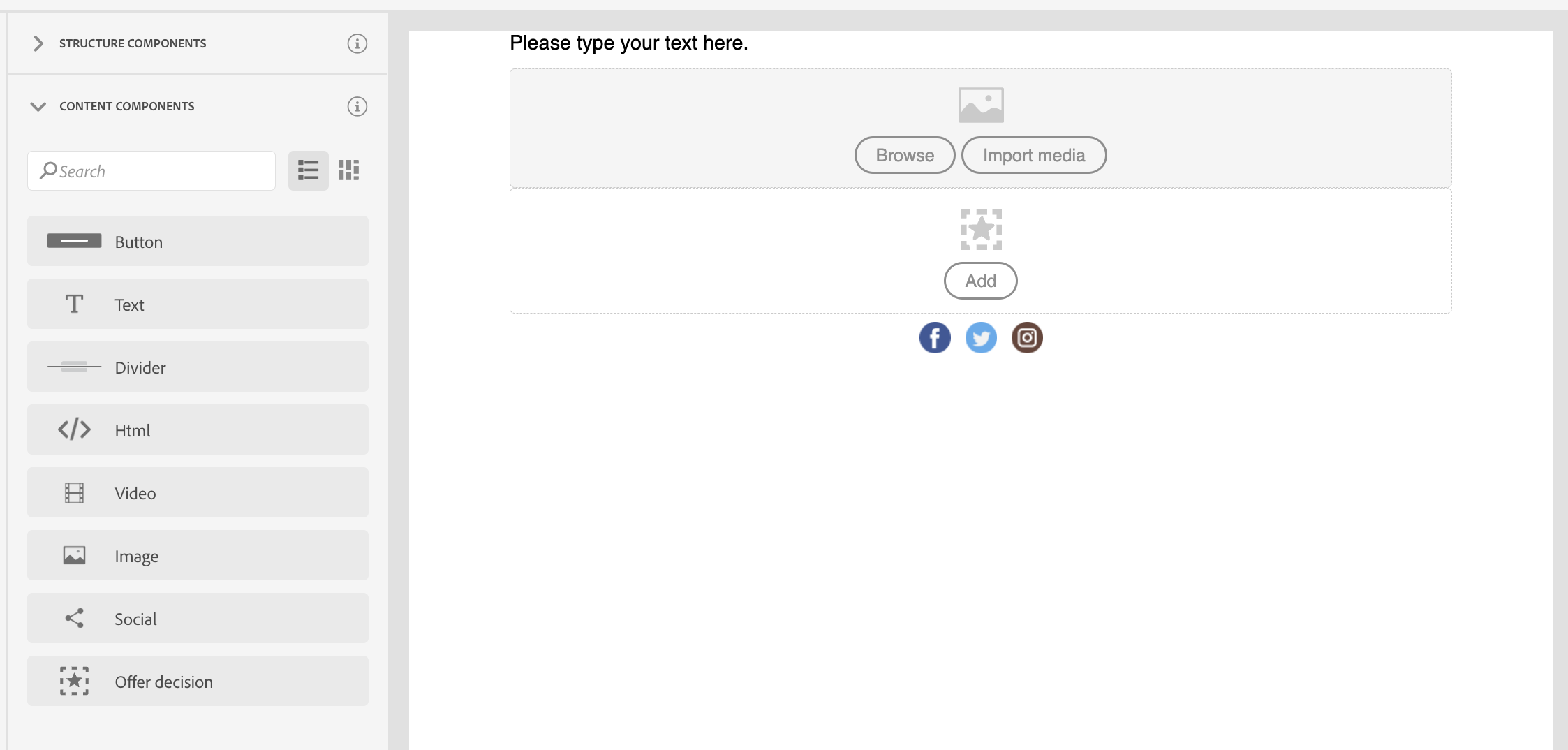
- Add a button on the last content structure
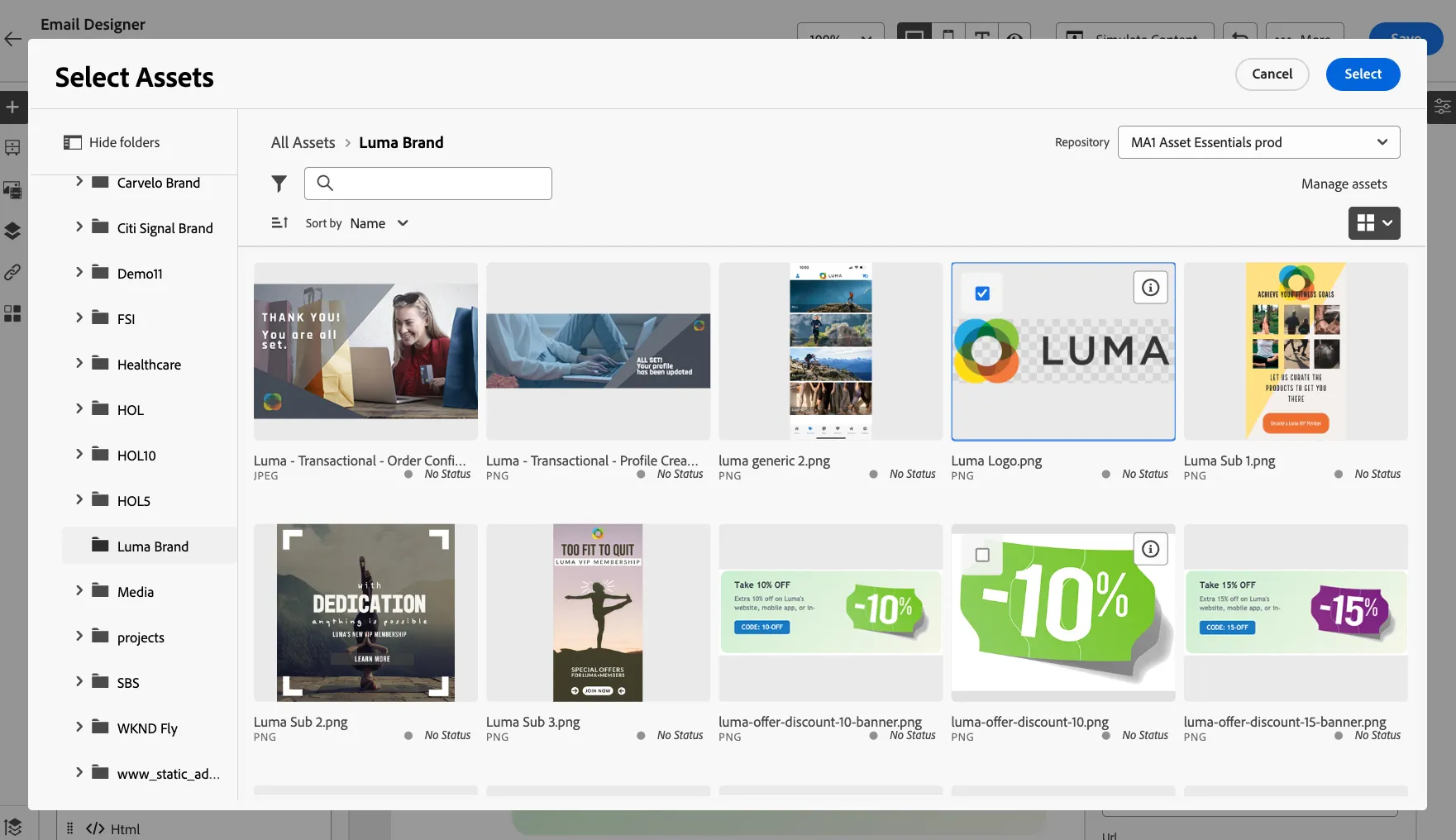
Select Browse to select an image. Go to the Luma Brand Folder (Note: Folder in Assets may vary by HOL and Sandbox used.) and look for the Luma Logo. Resize as necessary using the Styles menu.
- The type and center align the following text: "Check out our new products at Luma!!"
- Add a hero image to the email message for our new Radiant Tee.
Click on the Offer Decision component. Then choose Email-Image as Placement type
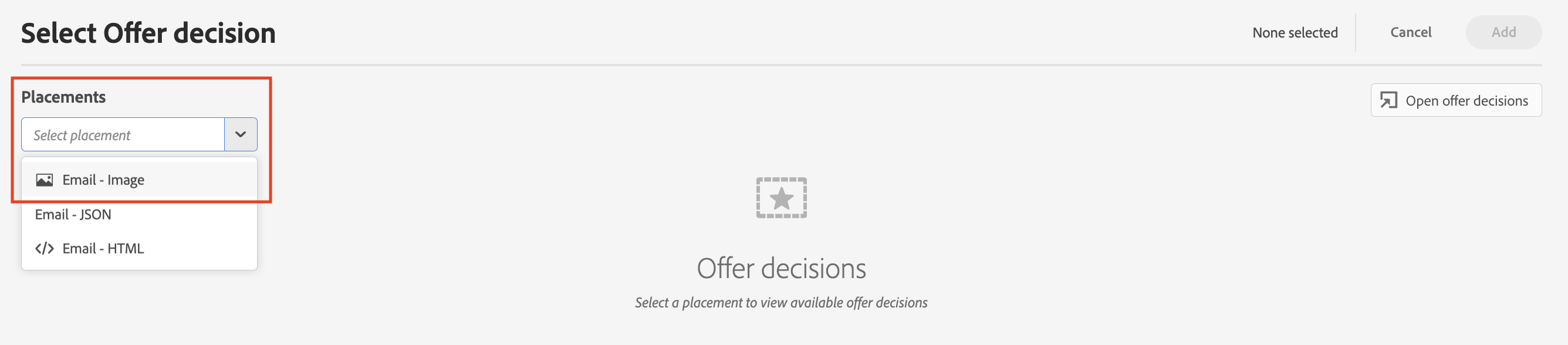
Choose the desired offer from the Offers Library. Click Add.

- Next, click on the button at the bottom of the email, change the text to "unsubscribe", then select the link type as OneClick Opt-out.
- Click Save to save the message and then exit out of the Designer.