Add a new data connection and audience(s)
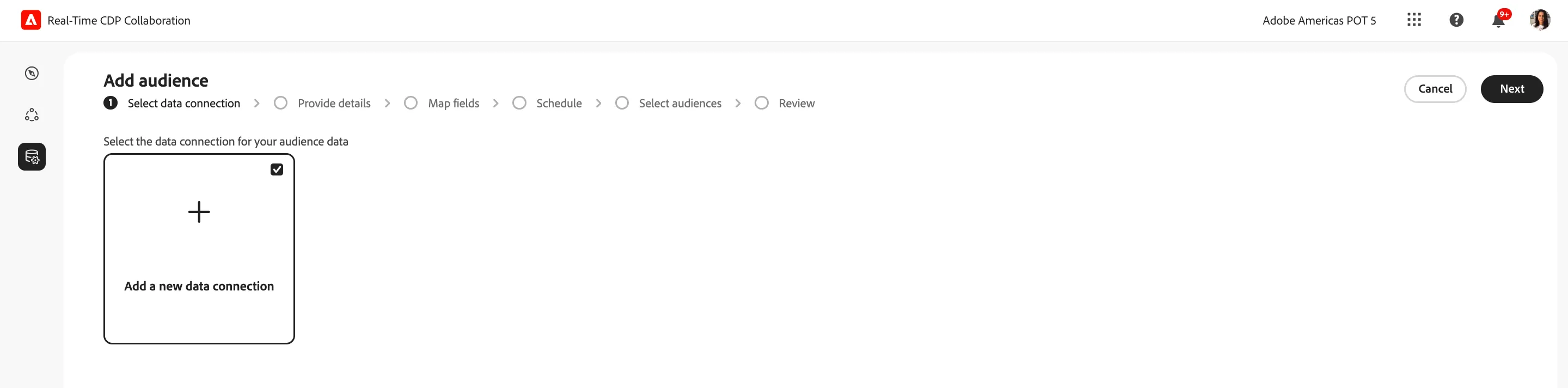
Select the Add a new data conection button and hit Next
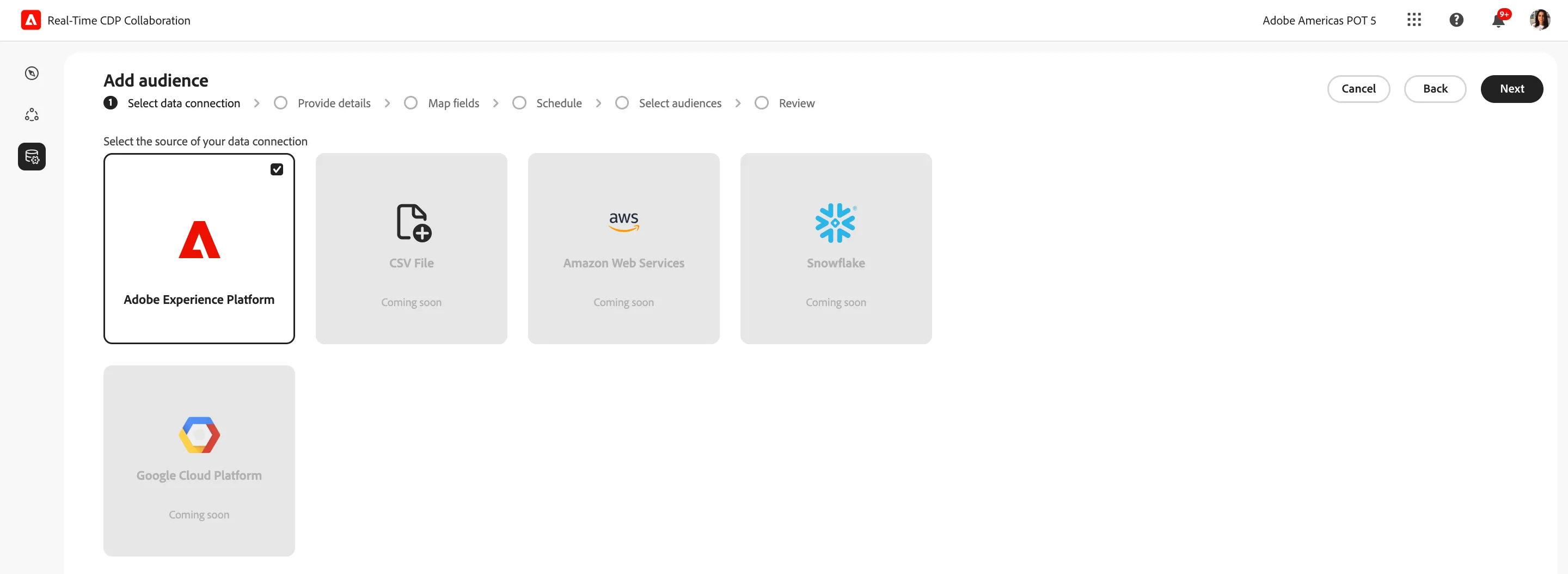
Select the Adobe Experience Platform data connection and hit Next
A list of sandboxes should appear. Find and select the appropriate sandbox where your audience(s) is stored. Hit Next
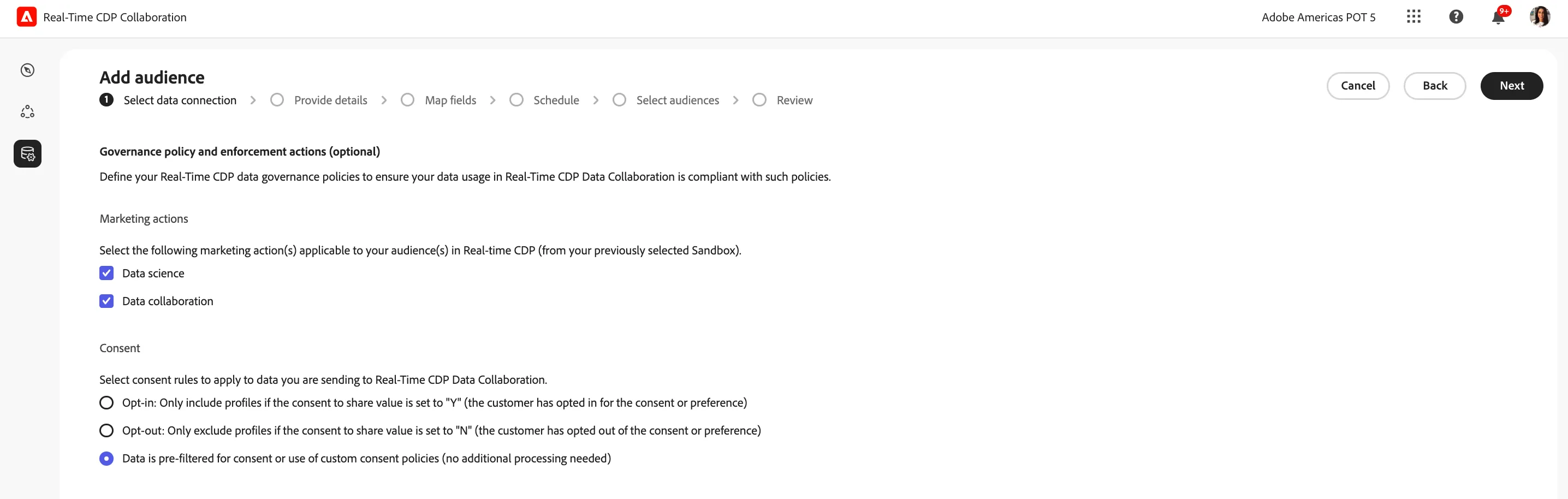
The following step allows you to set governance controls around your audience data
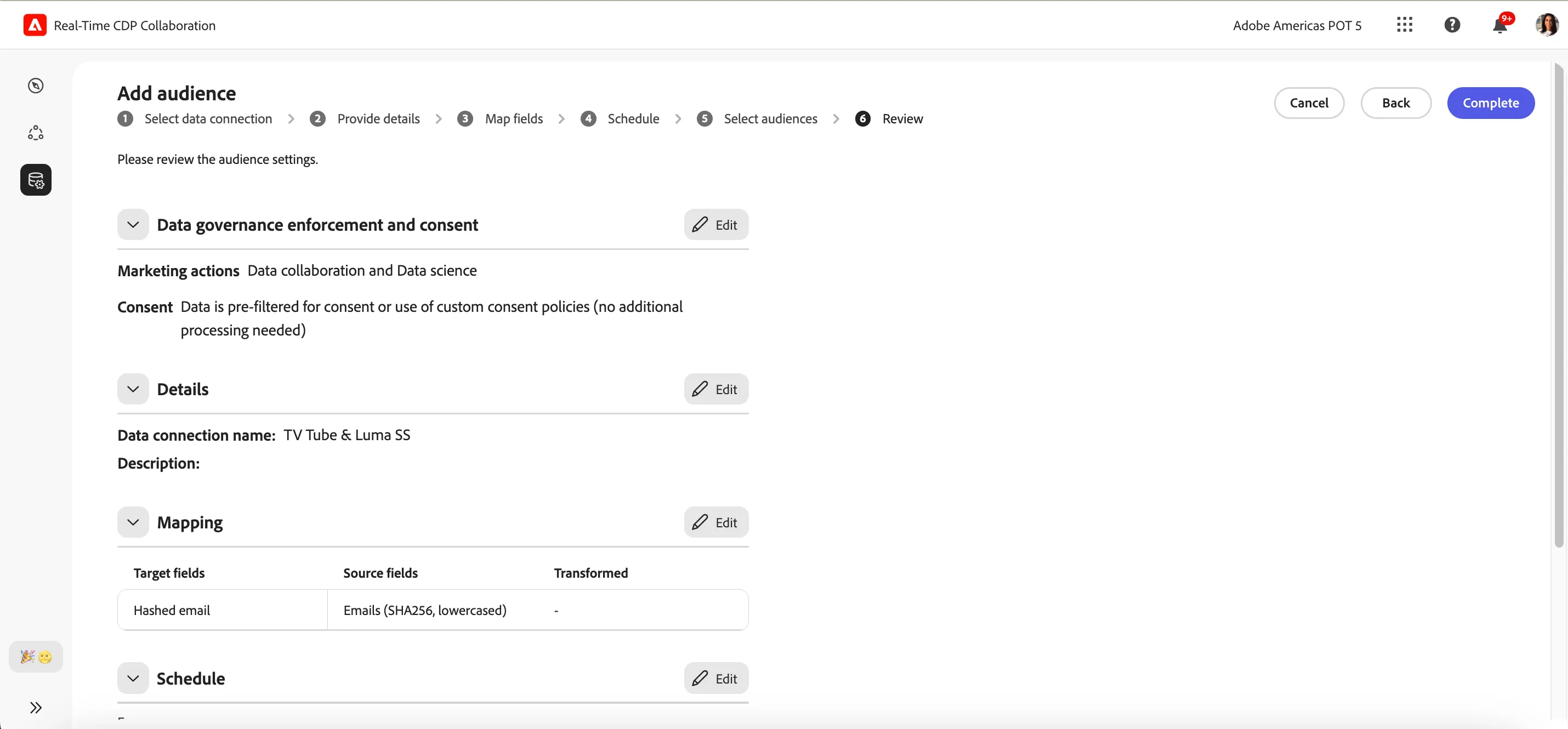
- Select the appropriate marketing action
- select Data Science and Data Collaboration
These marketing actions work with the application of data usage labels in your AEP datasets. The labels applicable here are C4, C5, and C9 data usage labels.
- Select the consent rule
- select "Data is pre-filtered for consent..."
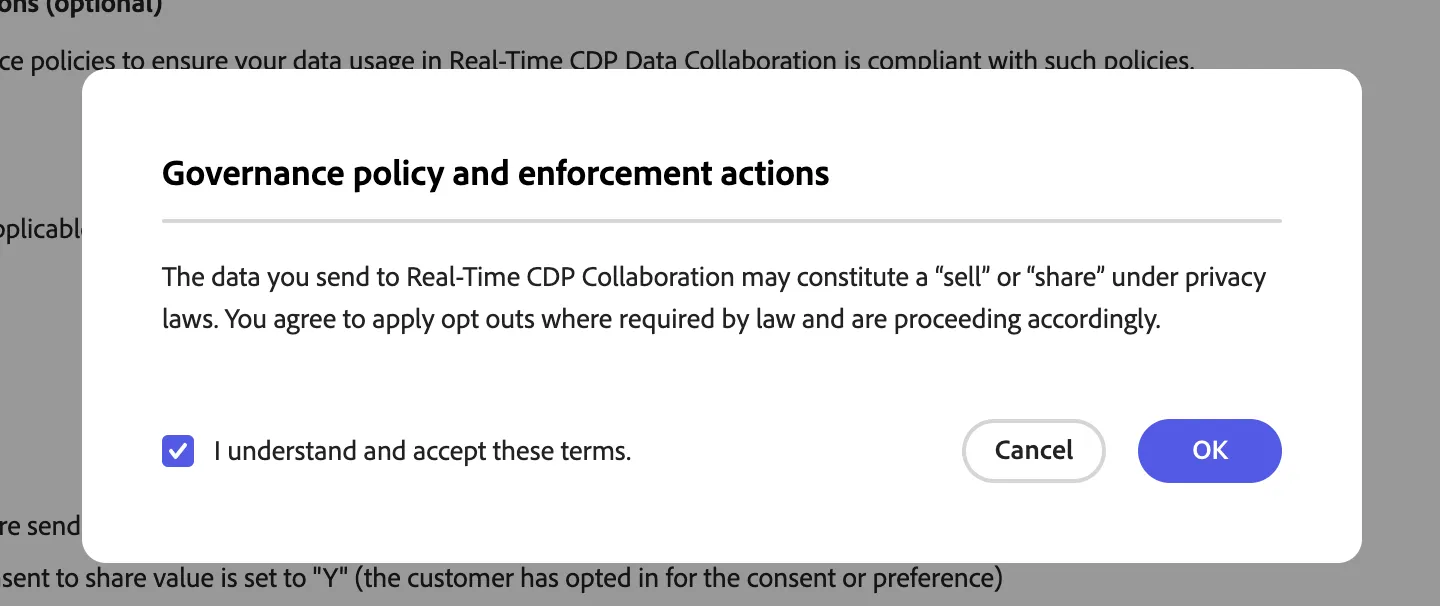
Agree to the following terms and hit Next
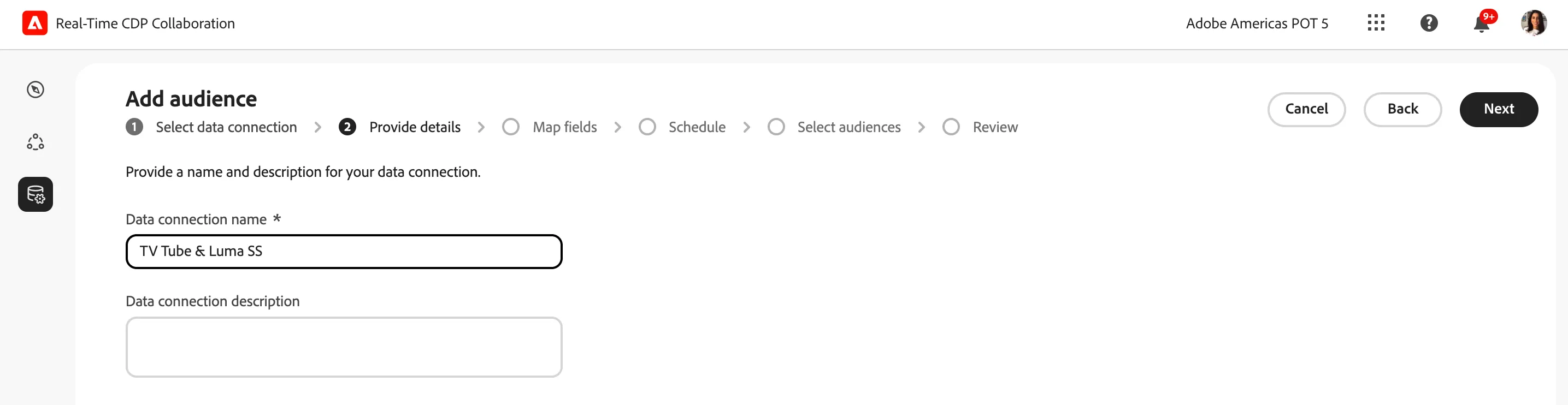
Name your data connection: This can match the name of your sandbox
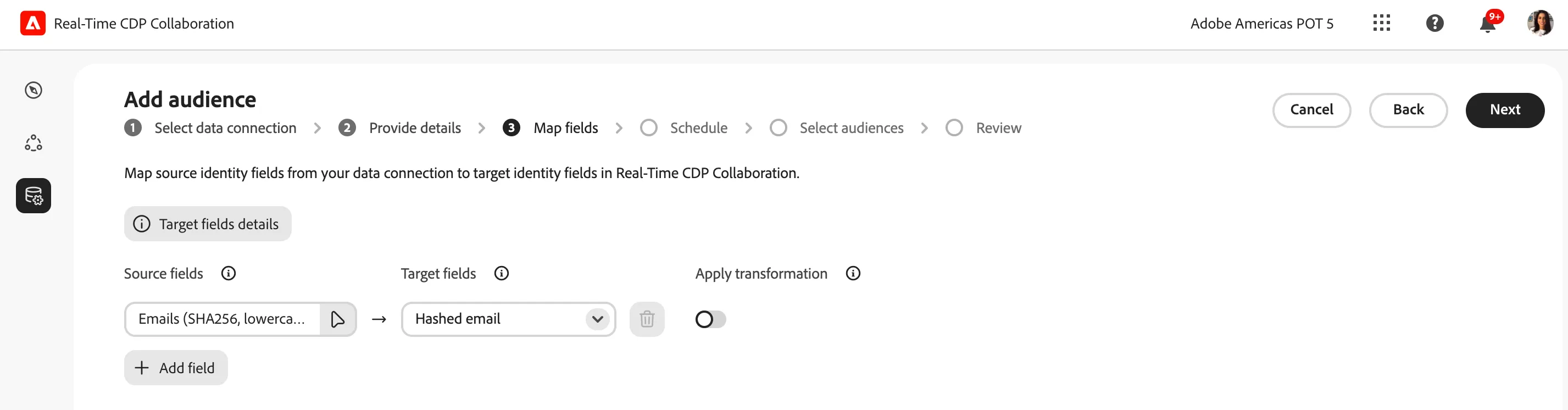
In the following step, add a mapped source field for the expected match key of hashed email. To do so, find and search for the corresponding identity namespace. Hit Next
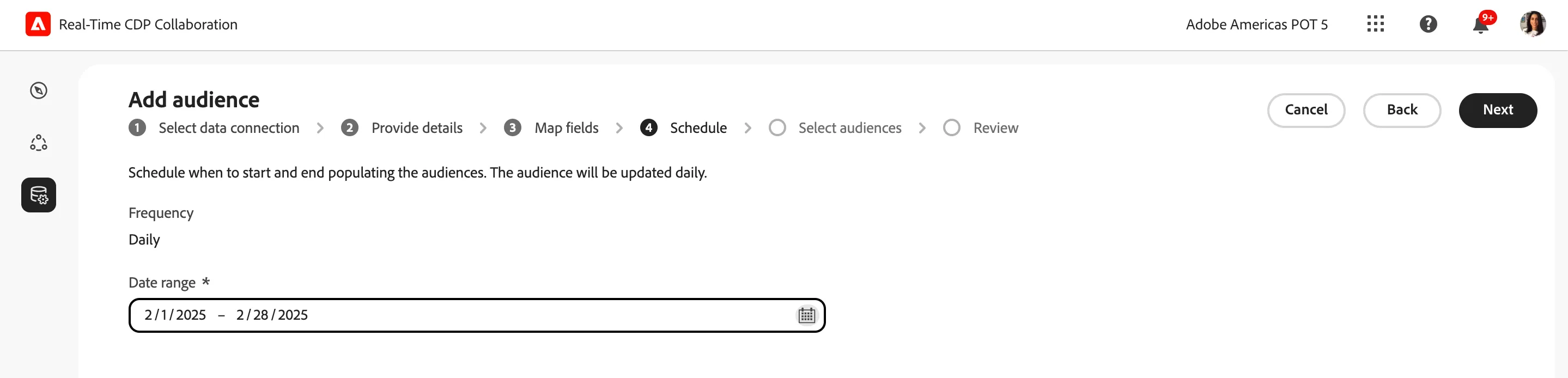
Schedule your data connection: add the current data through the desired end date. Your imported audience will be available in RTCDP Collaboration for the selected length of time.
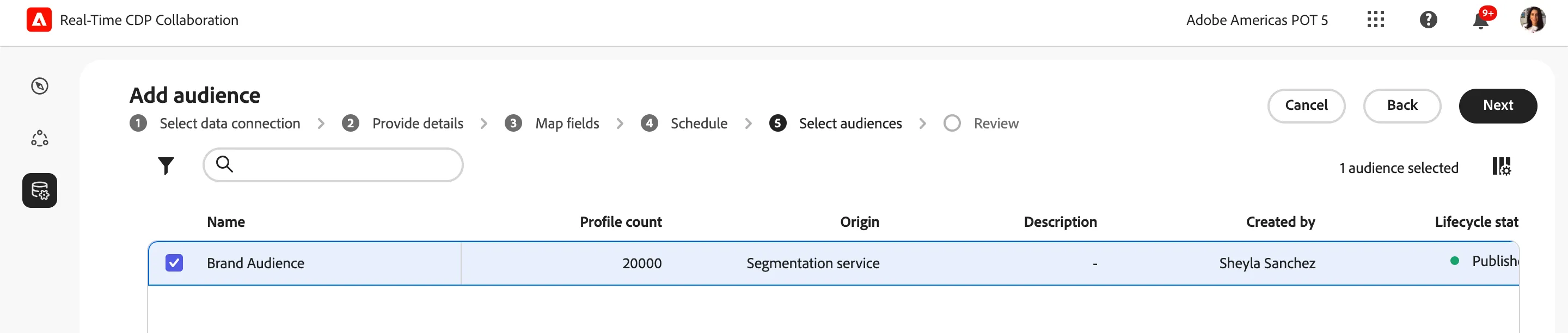
Find and select the audience to share then hit Next
Review your configuration and hit Complete
Your data connection setup is complete. Click Manage data connections to view the details to be shared with your collaboration partner