Use case 1 - Prospect On-site Personalisation
In this exercise you will learn how Adobe Real-time CDP works with Adobe Target to personalise website experiences in real time.
You will experience as a customer:
- Visit the website and search for undergraduate study or study in 2025
- See events ingested in real time based on browsing behaviour
- Return to home page where your experience is personalised to promote registration for the upcoming open day
You will learn as a marketer:
- How to create an Edge segment in Adobe Real-time CDP
- How to activate that segment to Adobe Target for personalisation
We won't cover how to create the experience in Target since this is assumed knowledge.
Visit the Website
On the website homepage, and any other page, you can get access to the REAL TIME CUSTOMER PROFILE VIEWER.
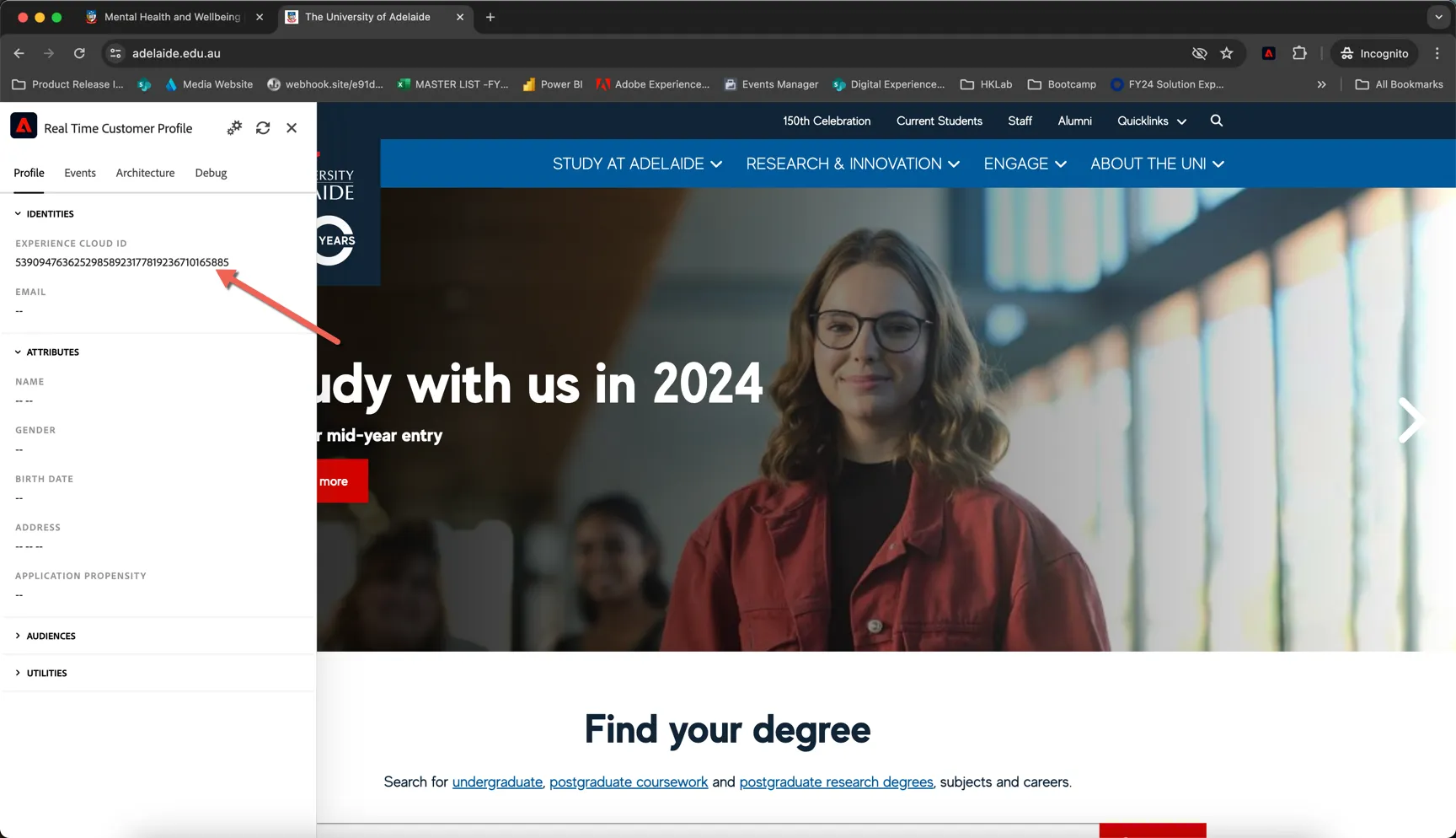
- Click the Adobe logo icon in the top left corner of your screen to open the REAL TIME CUSTOMER PROFILE viewer.
- Have a look at the panel: Notice the Adobe Id within IDENTITIES. This is the Experience Cloud ID (aka ECID).
Let's behave as a typical customer now.
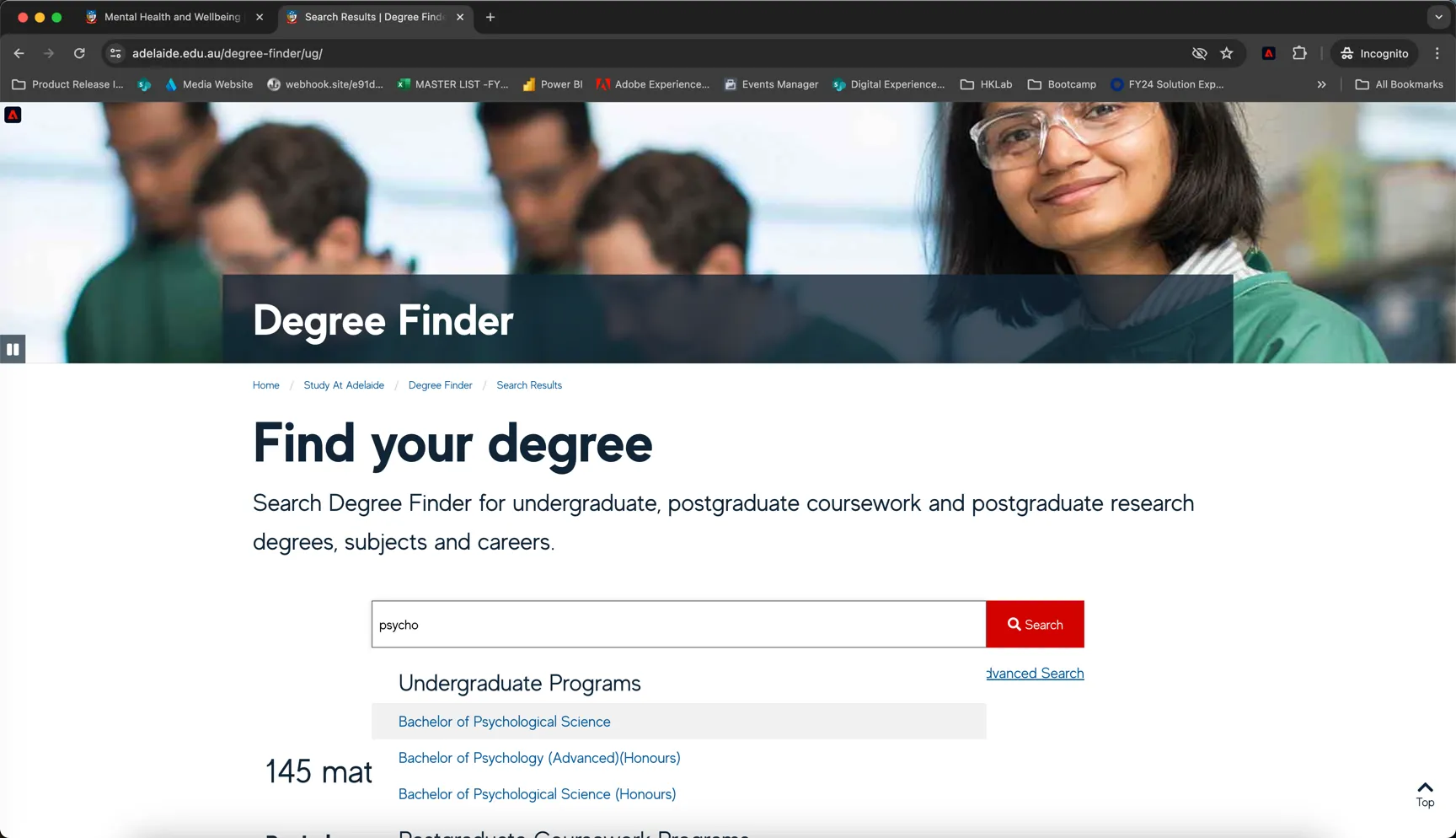
- Click to seach for undergraduate degrees
- Search for Psychology and click through to the Bachelor of Psychological Science
Every interaction on the site is being tracked you can see these events as they're recorded through the profile viewer widget:
- Open the REAL TIME CUSTOMER PROFILE panel by click on the adobe icon.
- Take a look at the EXPERIENCE EVENTS.
You will see the interactions you have had with the demo web site.
If you don't see the events appear, tap on the refresh button at the top of the panel. Note that the panel is querying the Experience Platform hub not the Edge Network which is where the realtime actions are being processed, as such it can be slightly slower to reflect the updates.
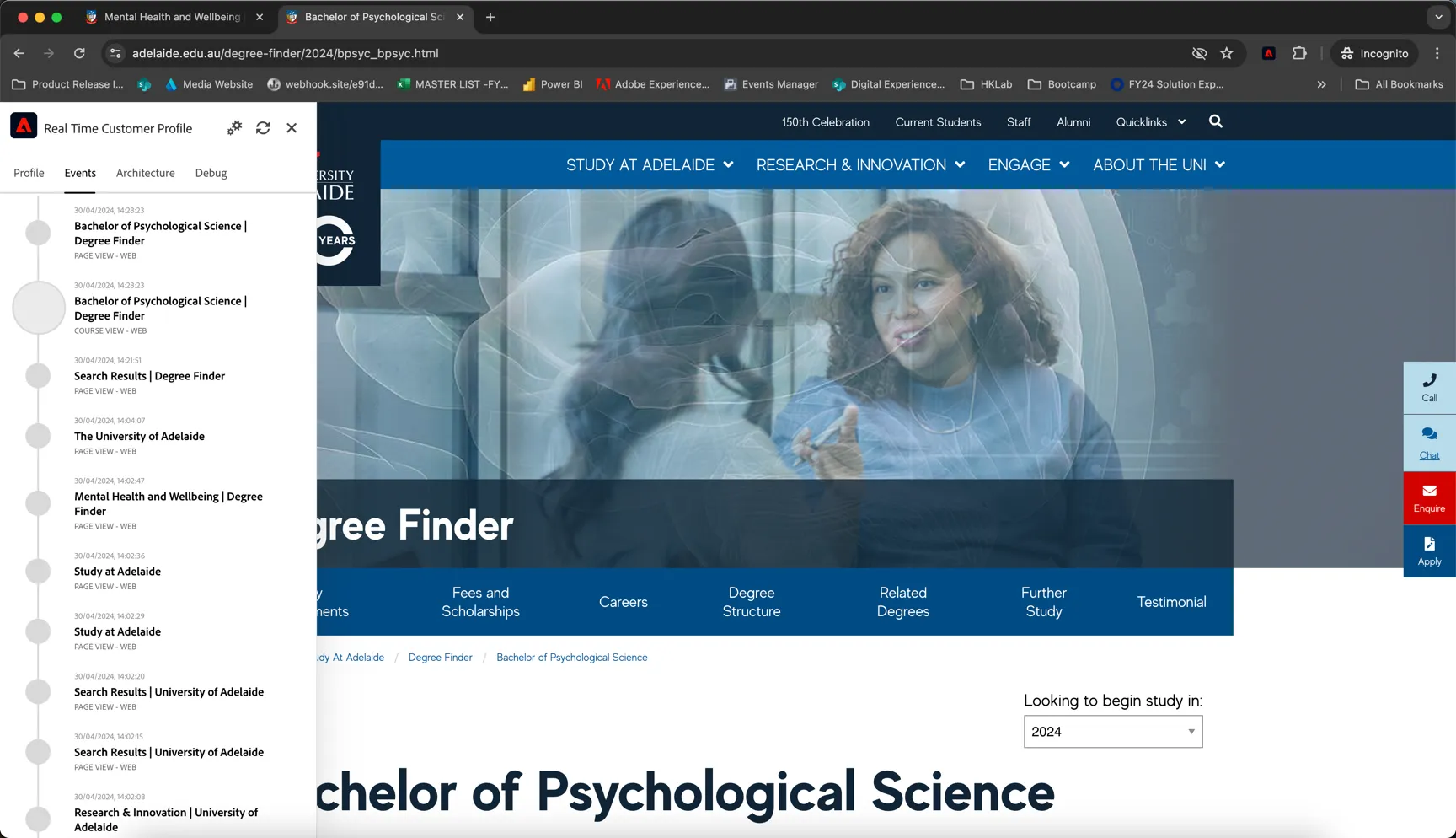
While the behaviour is anonymous, we’re able to track every click and store it in Adobe Experience Platform and we can use that information to personalise the experience.
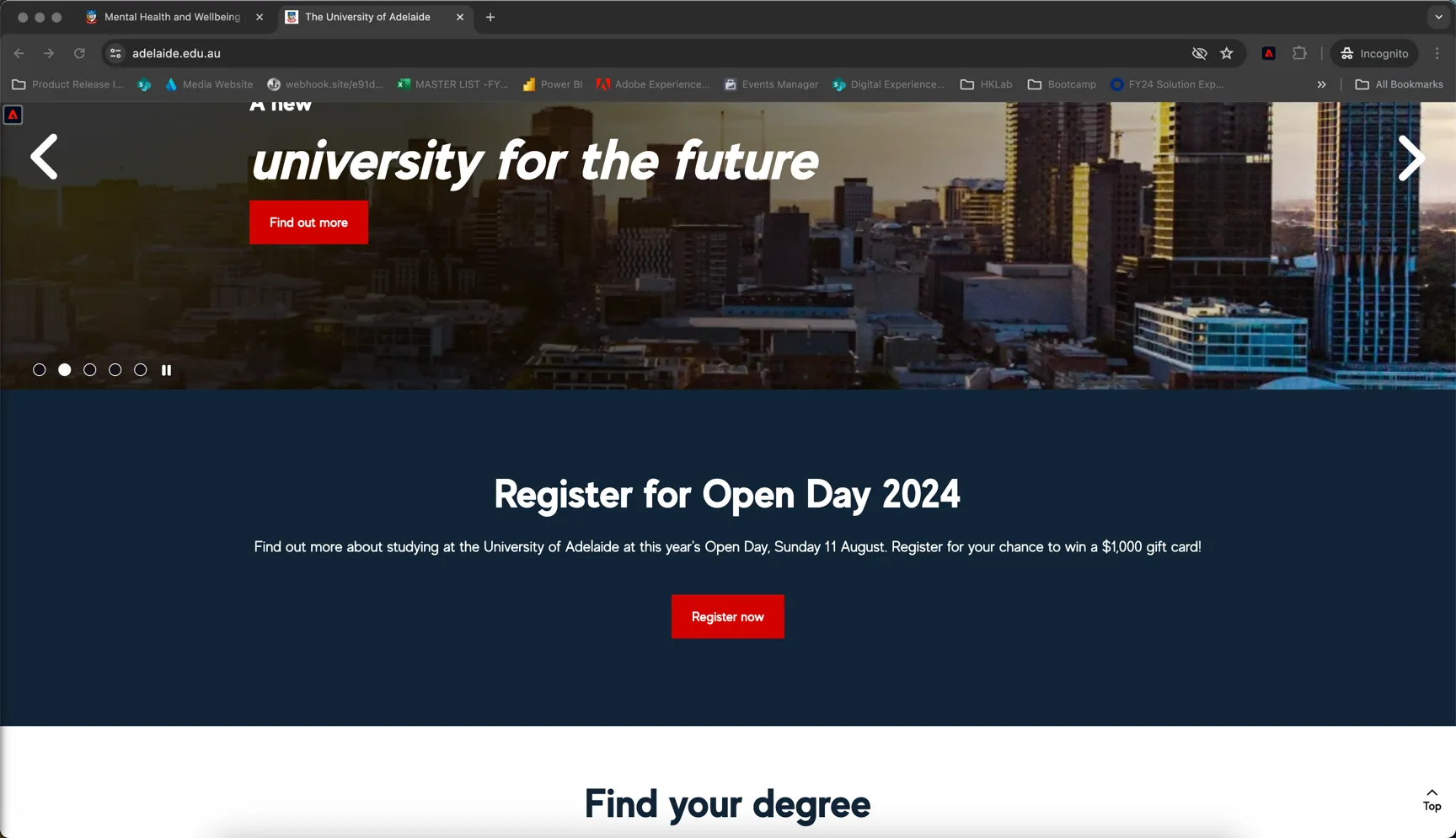
- Return to the home page
We've used Adobe Target to personalise the experience and promote the upcoming open day if we've determined you're interested in future study.
Visualise your Profile
In Adobe Experience Platform, all profile data is shown alongside event data, as well as existing audience memberships. The data shown can come from anywhere, from Adobe applications and external solutions. This is the most powerful view in Adobe Experience Platform, the true experience system of record.
Every identity that is ingested into Adobe's CDP is linked to a namespace. For the moment the only identity we have for your profile is Adobe's cookie Id or ECID. This is what we refer to as a pseudonymous profile - we can track your behaviour online but we don't yet know who you are.
To view a pseudonymous profile from the UI:
- In the left rail, click on Customer -> Profiles
- On the Profiles tab, click on Browse
- For the field Identity Namespace, select ECID
- For the field Identity Value enter the ecid value from the real time profile viewer widget on the site.
- Click View. You'll see your profile in the list.
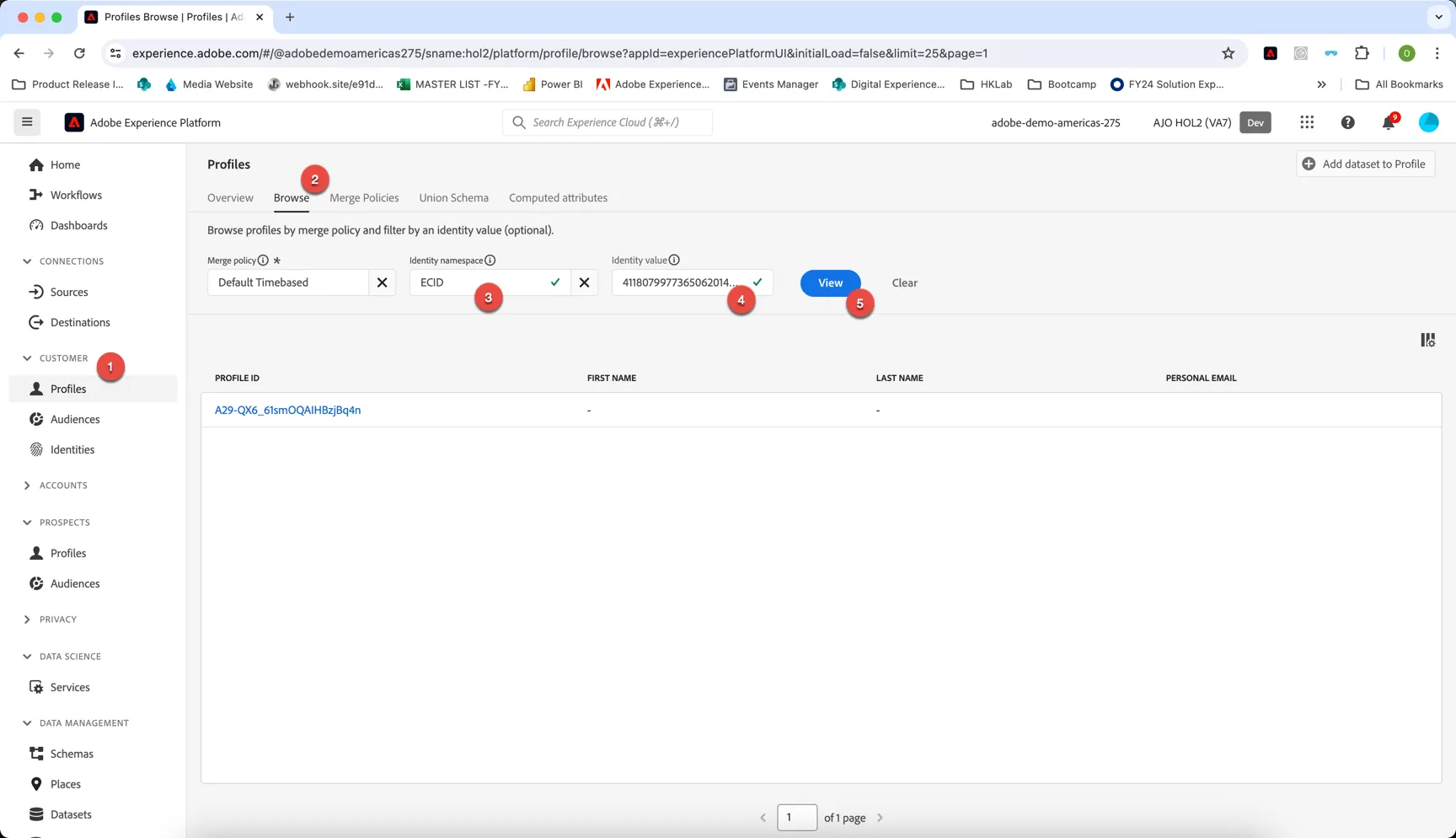
- Click the Profile ID to open your profile.
You'll notice there is not much known about your customer yet, but you can see the event history and the audience memberships.
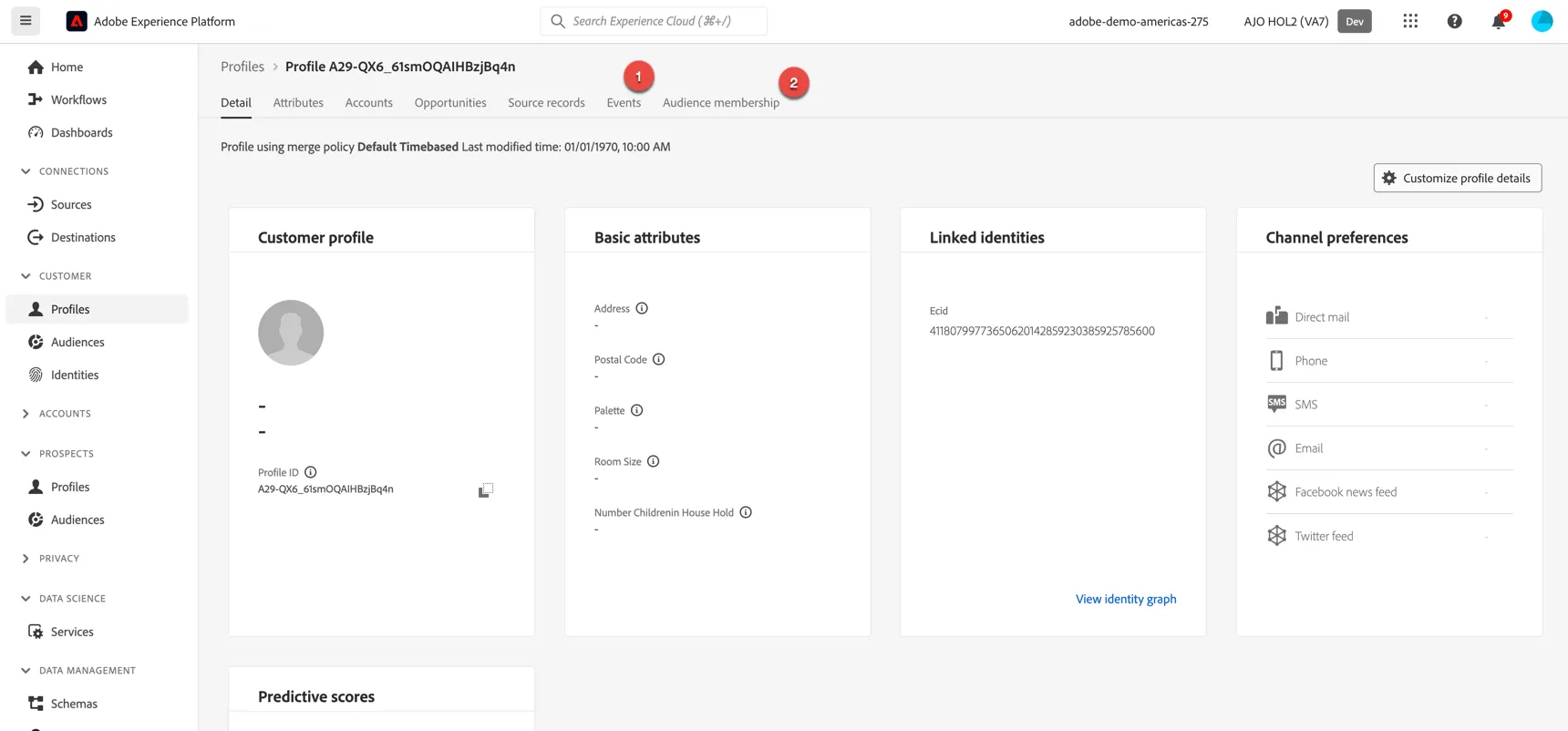
Keep this tab open in your browser we will come back and refresh the profile view as we got through the use cases to see how your profile changes over time.
Create an edge segment
Edge segments are designed for real time personalisation use cases occuring on your website or app. The open day banner appearing on the home page was controlled by an Edge segment. This exercise will show you how to create one.
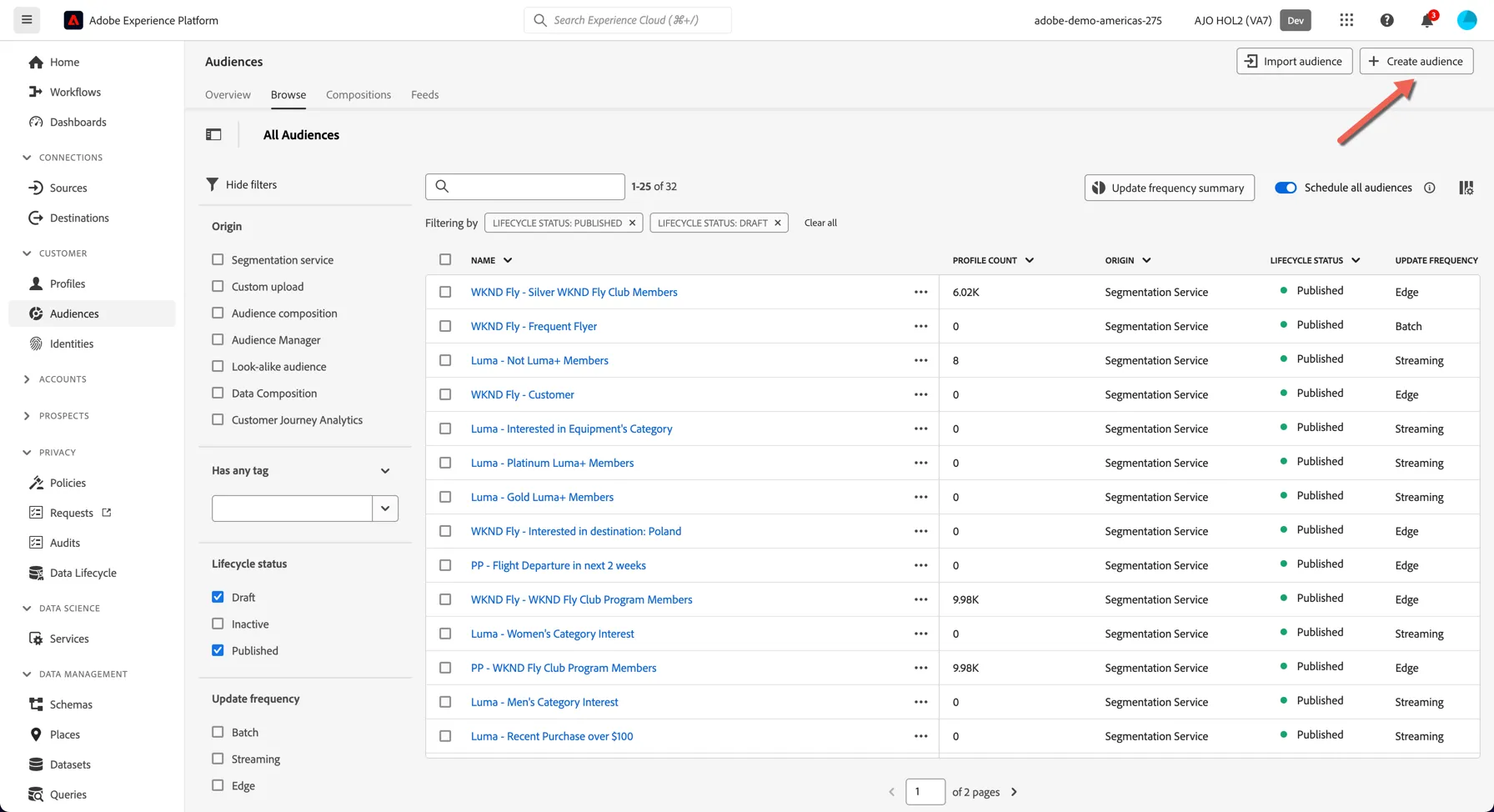
To create an edge segment visit the Audiences page in the left hand navigation and click to create a new Audience.
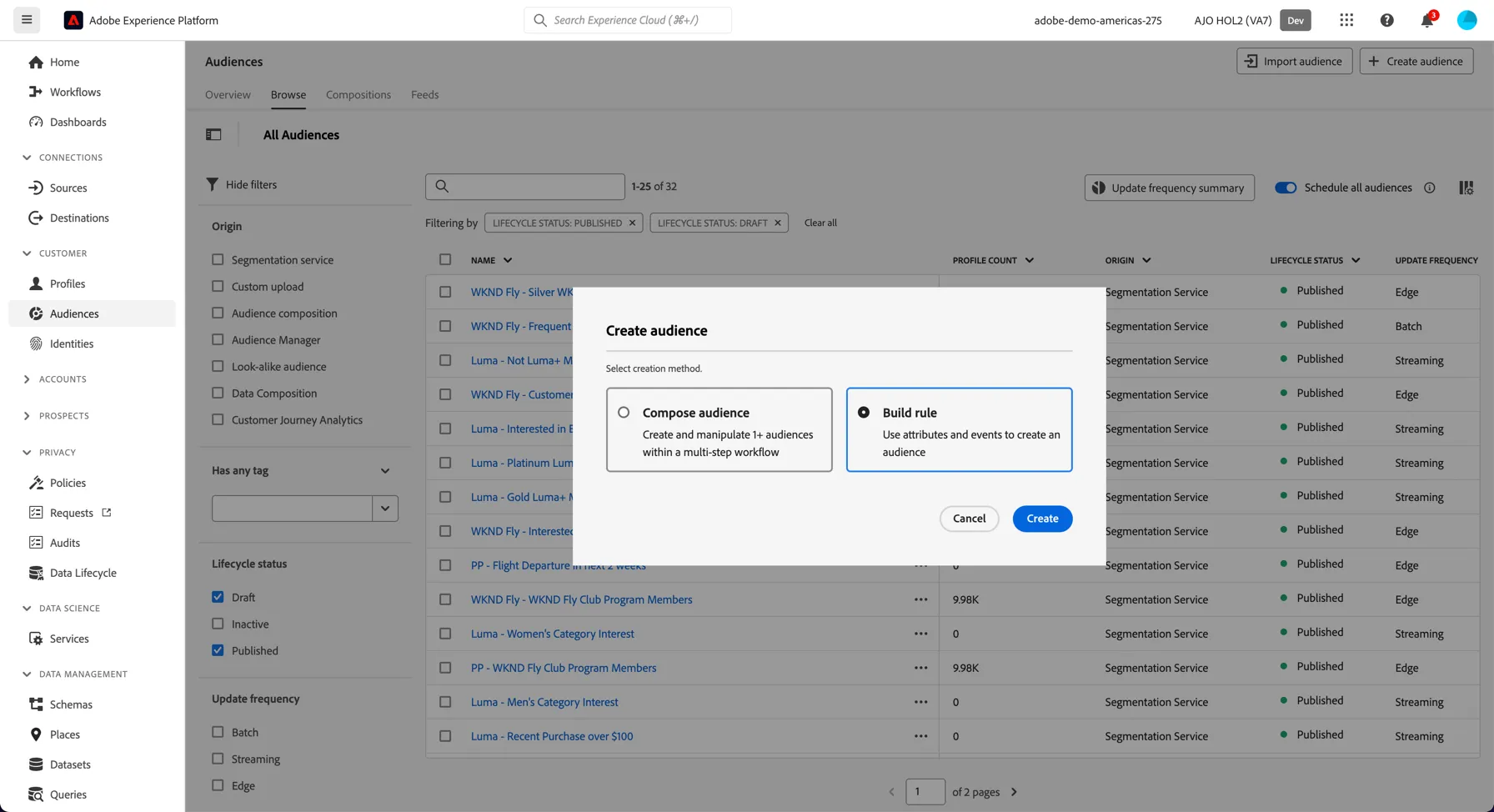
Select to build a rule based audience:
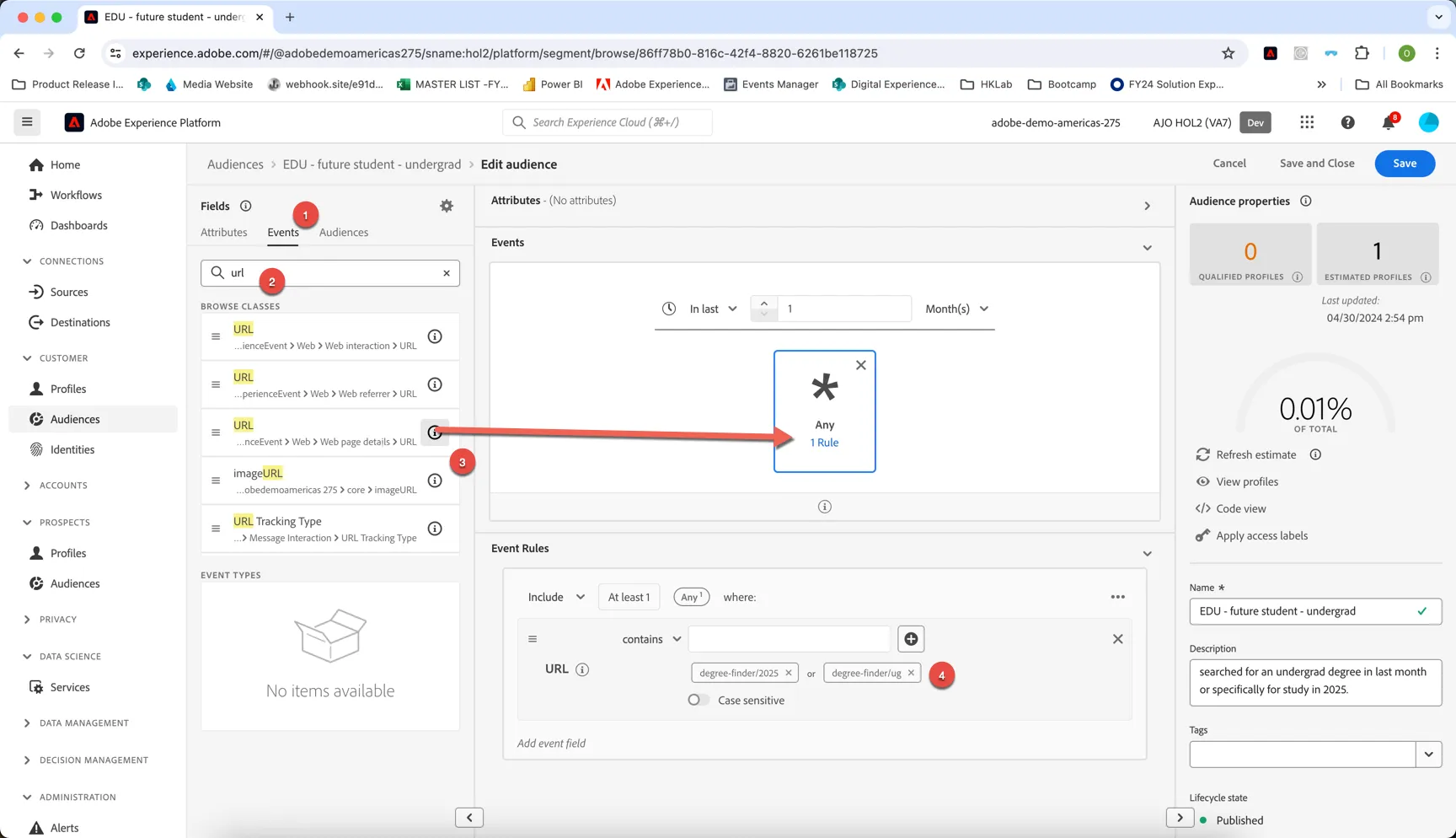
In the segmentation builder you have access to all of the csutomer profile attributes and events.
- Change to the events tab to create a segment based on a real time event.
- Search for url and
- Drag the webPageDetails/url attribute into the canvas.
- Set the rule to contains values degree-finder/ug or degree-finder/2025
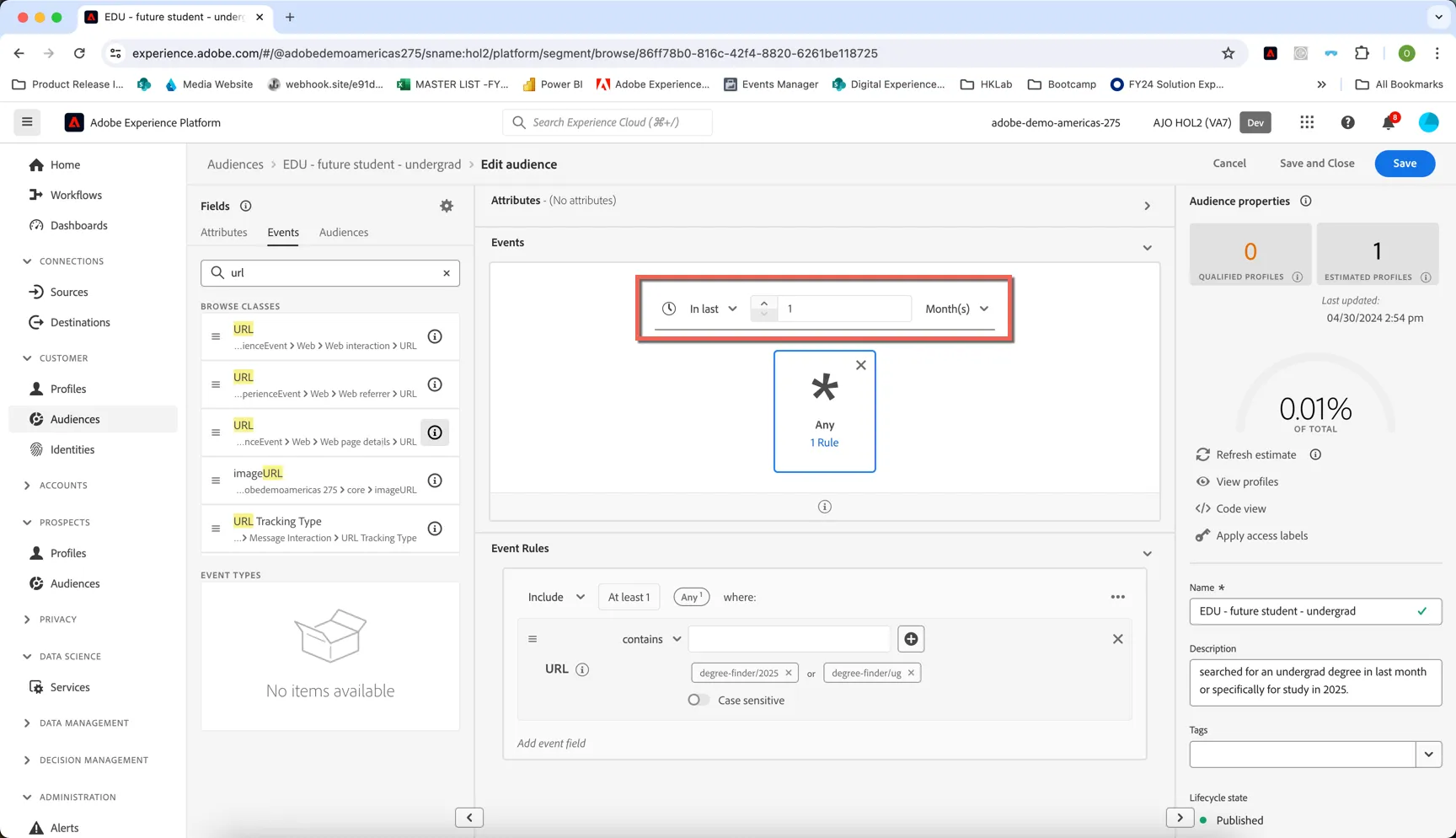
Add a timeframe for your qualification to In last 1 month.
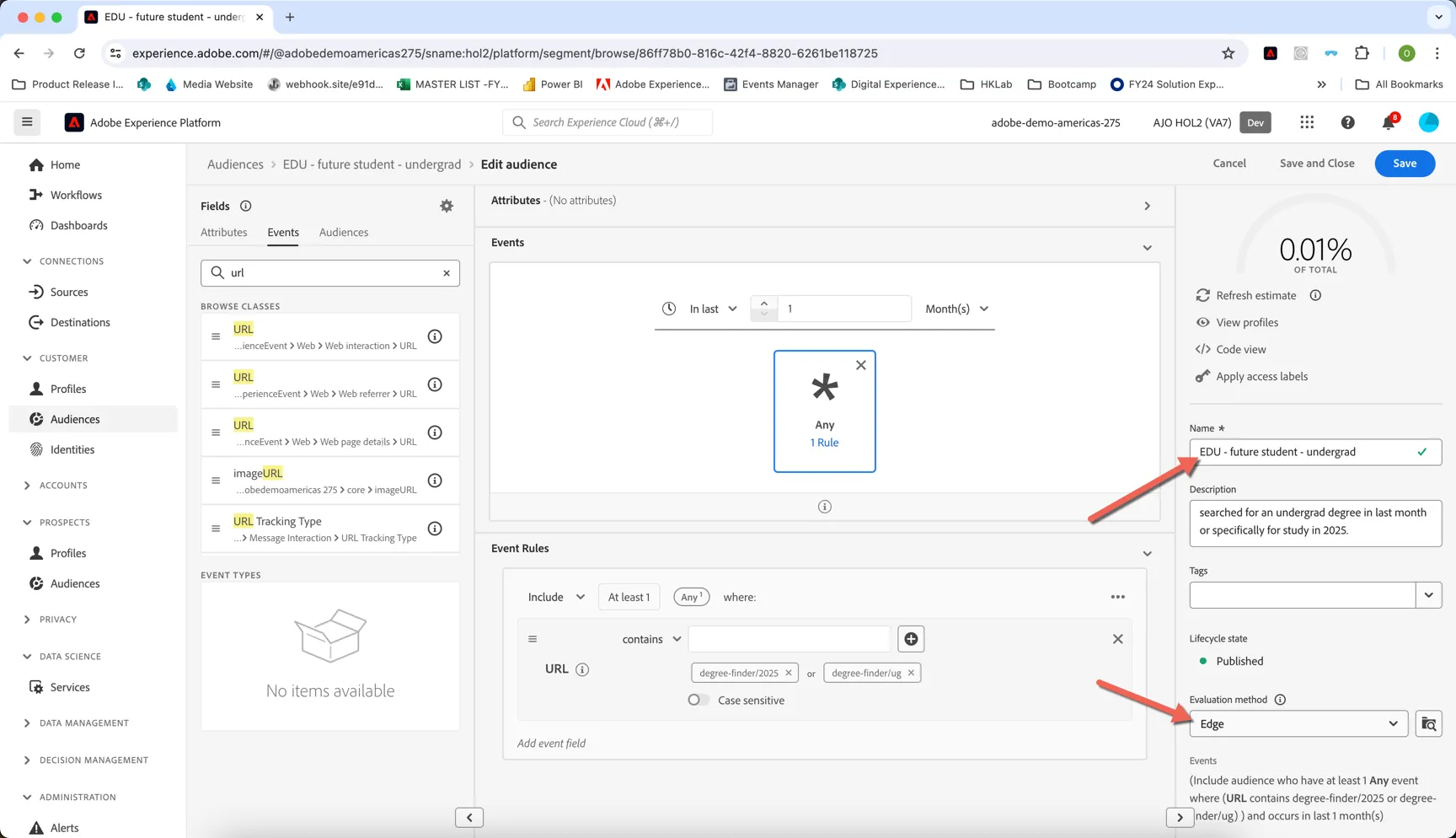
Now let's give your segment a name - add a prefix to your segment, something unique to distinguish your segment from everyone else! eg. your last name Eg. EDU gillies - Prospect future student
Now set the Evaluation method to Edge. This specifies that the audience can be calculated on the edge for qualification within milliseconds.
Click Save and Close.
Activate your audience to Target
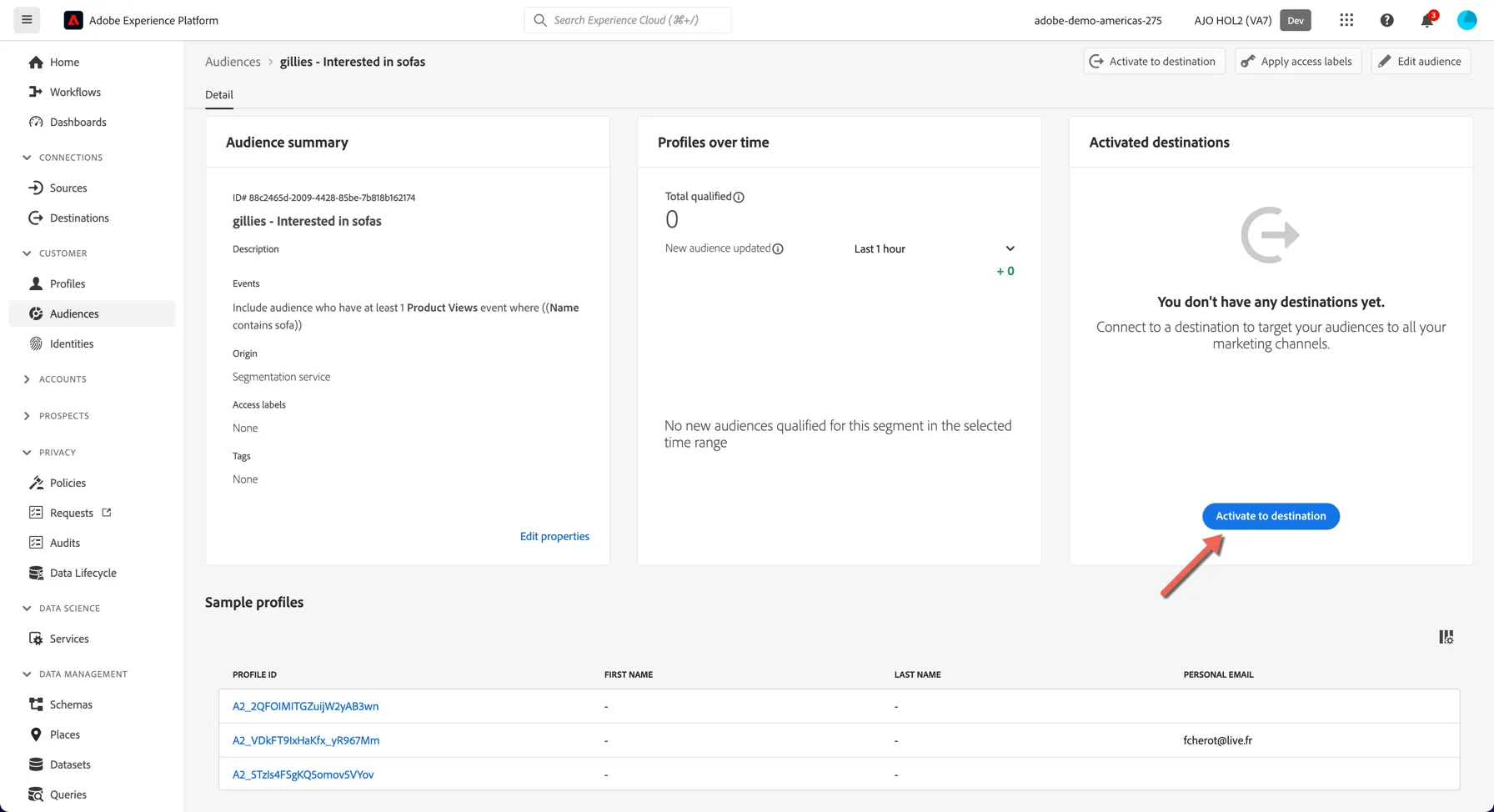
You should now see the details of your segment. Since the audience is brand new there are no qualified profiles yet.
The counts reported on this page update at intervals even though profiles will qualify for the audience in real time. Total qualified count will update nightly, the new audience updated count will update each hour.
Click on the Activate to destination button.
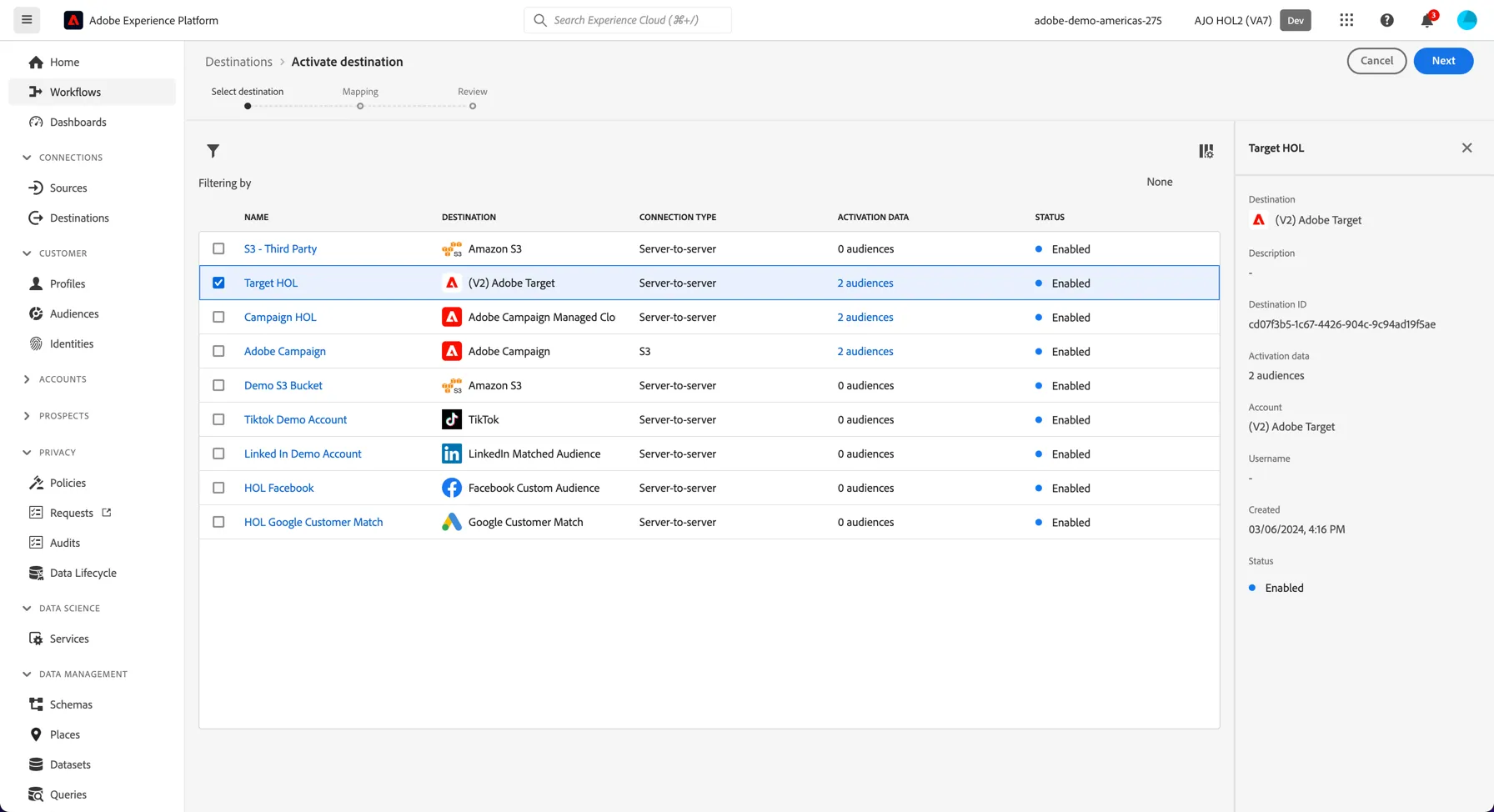
Here you can see all of the destinations that are currently connected to this instance for Activation. Select Target HOL and click Next.
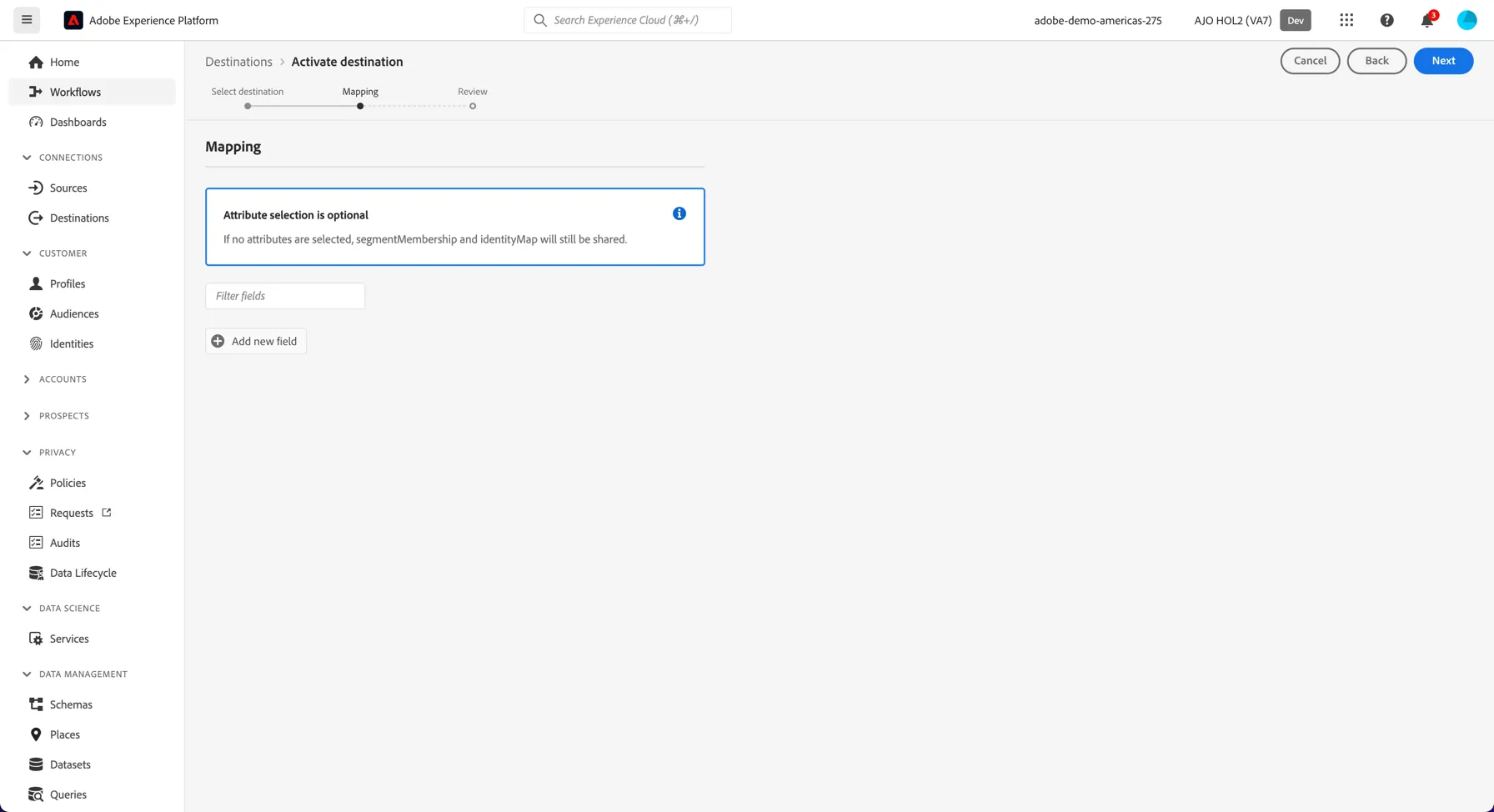
The mapping step allows you to share profile attributes from Adobe RTCDP to Adobe Target for inclusion in your Target experiences. Eg. we could share the customer's first name and show this on the site through Target. For this use case though, no attributes are required so we can simply skip this step by clicking Next.
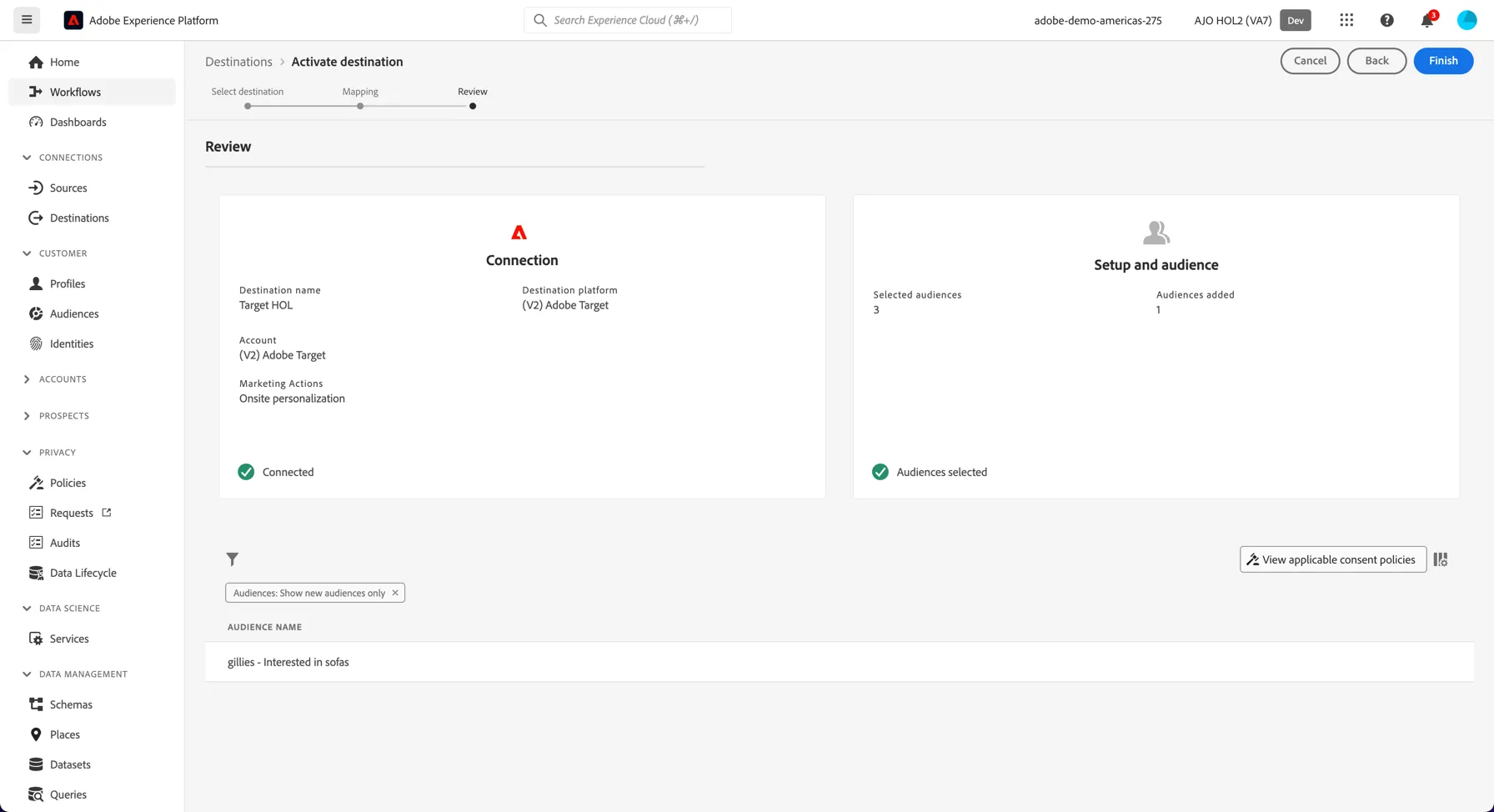
Review the activation details and click Finish to connect your audience with Adobe Target.
The interface does not expect multiple users to be activating audiences to the same destination at the same time. If you get an error that looks like:
Close the error window and start the activation wizard again.
Once your segment is successfully activated, click the product switcher to open Adobe Target.
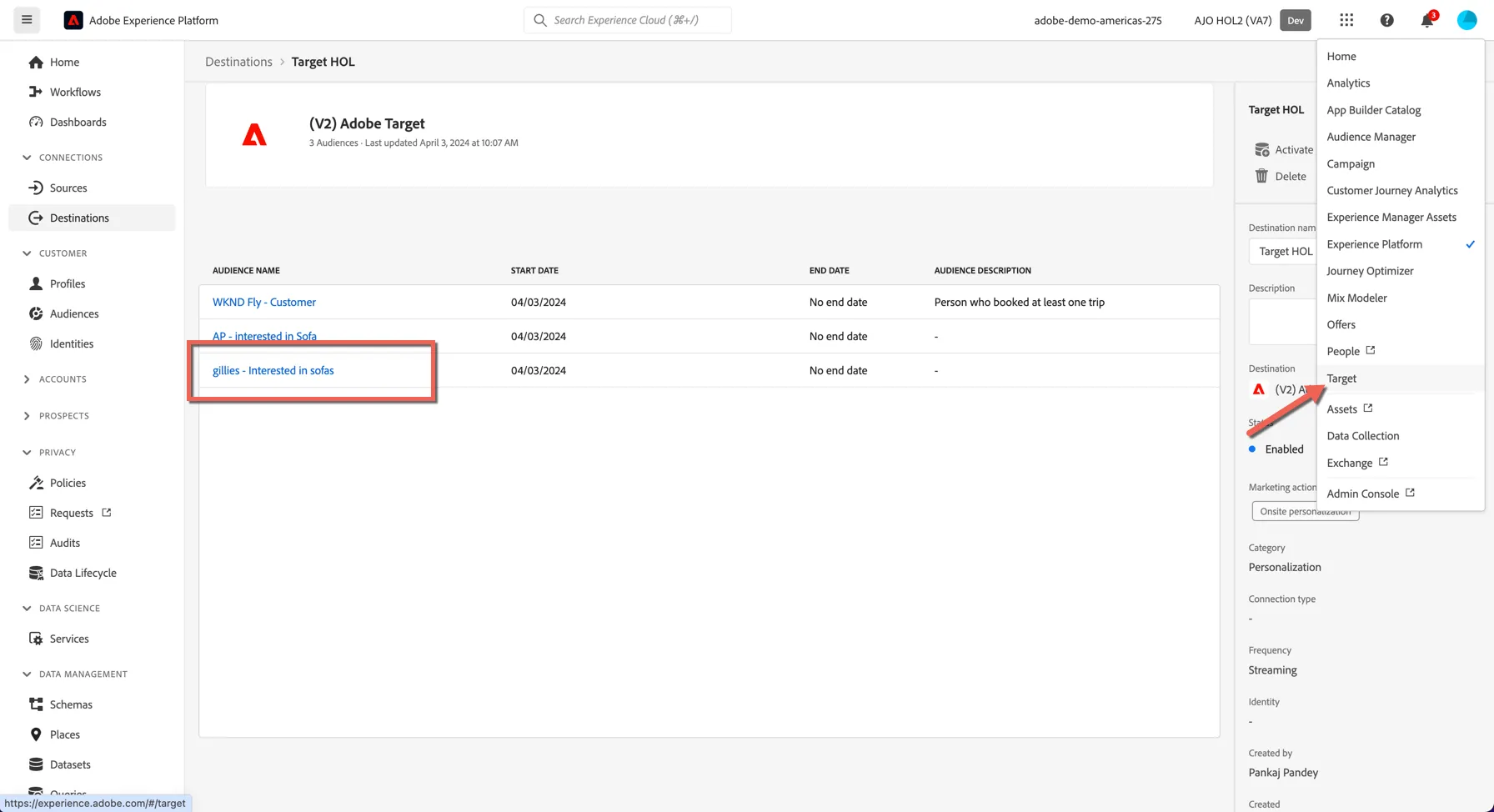
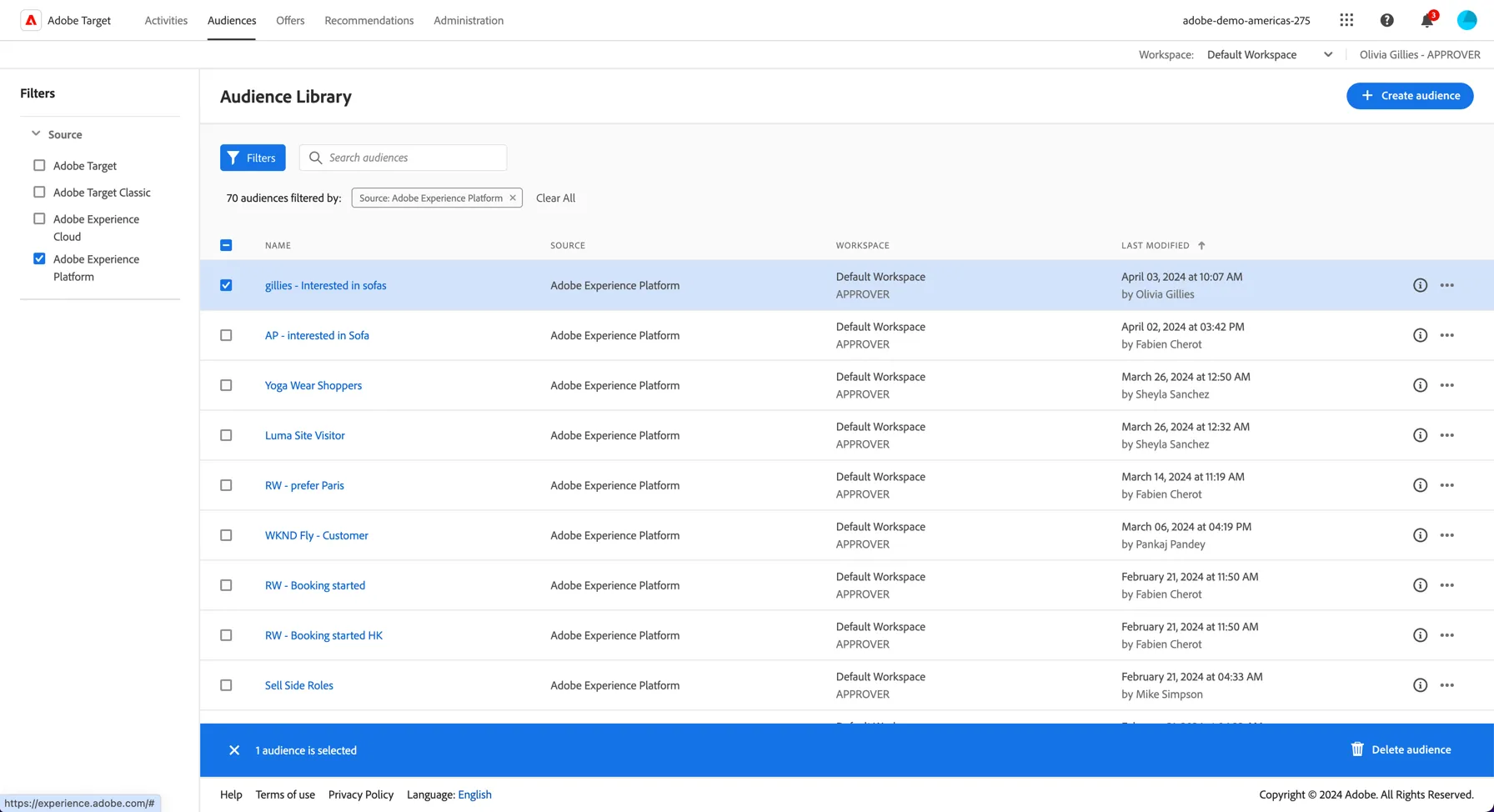
Switch to the Audiences tab in Target and filter to view Adobe Experience Platform audiences. You'll see your audience is available natively and ready to be used within a personalisation activity.
This completes the exercise on real time personalisation.