Use case 2 - Registration for open day
In this exercise you will learn how your profile attributes can be ingested from online forms and used to enrich the anonymous browsing data. You will learn how Adobe Journey Optimizer can trigger journeys in real time from events happening online. In this case the form submission but a journey can be triggered from any inbound event, originating on the web or any other connected channels.
You will experience as a customer:
- Registering for open day on the site
You will learn as a marketer:
- How to configure content in Adobe Journey Optimiser
- How to build and test a journey triggered from an inbound event
Once the anonymous customer becomes known, we will be able to stitch the anonymous profile to any known profile information we have, and we'll be able to retarget the customer across devices.
Submit the form
Return to the browser window with your website open from use case 1.
- Click on the Register Now button in the banner that is displayed on the home page. (if you didn't complete exercise 1, go to https://www.adelaide.edu.au/openday/)
- Enter your customer profile email address and phone number. Note: Don't provide your own details here, this is a demo instance.
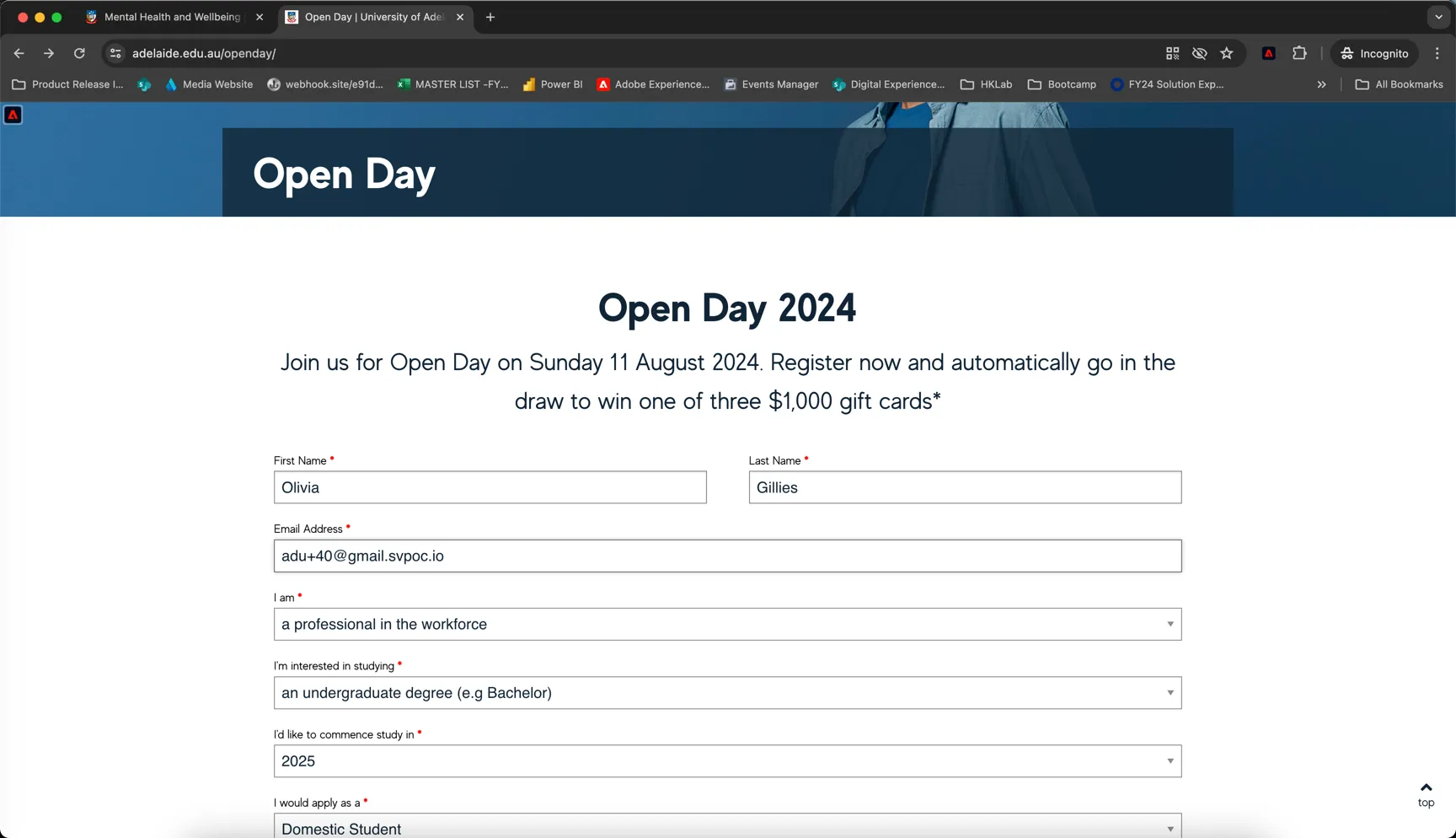
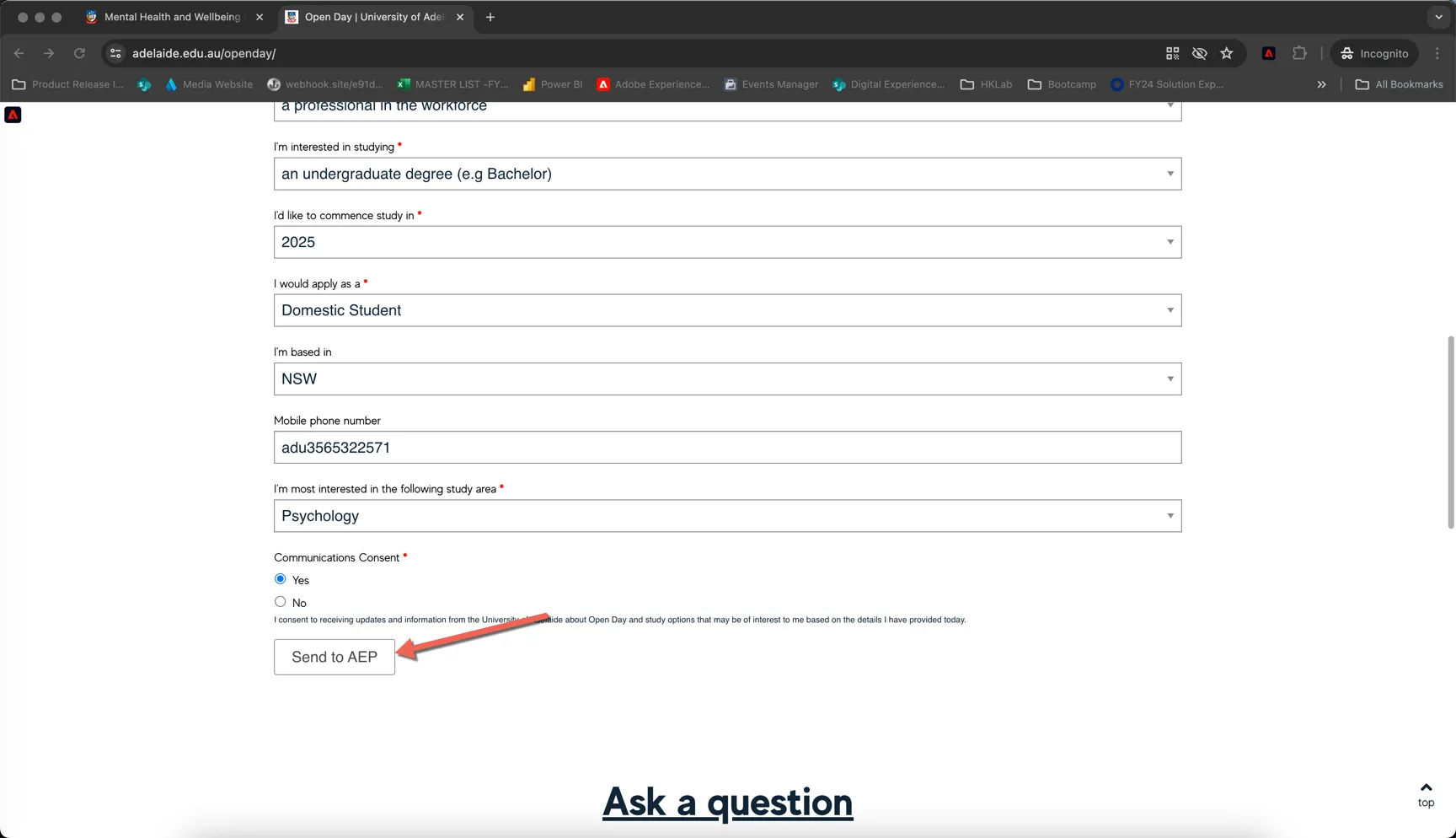
In future forms like this one will be designed in and delivered by Adobe Experience Manager Forms. Managing these forms is not covered in this lab, but consolidating all data collection forms will help to ensure consistency and alignment across marketing initiatives and faculties. For the purpose of the lab we have implemented data collection into Adobe Experience Platform from your pre-existing eloqua form which is already on the page. You'll notice the button text has changed from "submit" to "send to AEP", this is us intercepting the form submission so we can route it to Adobe instead of really registering for your open day.
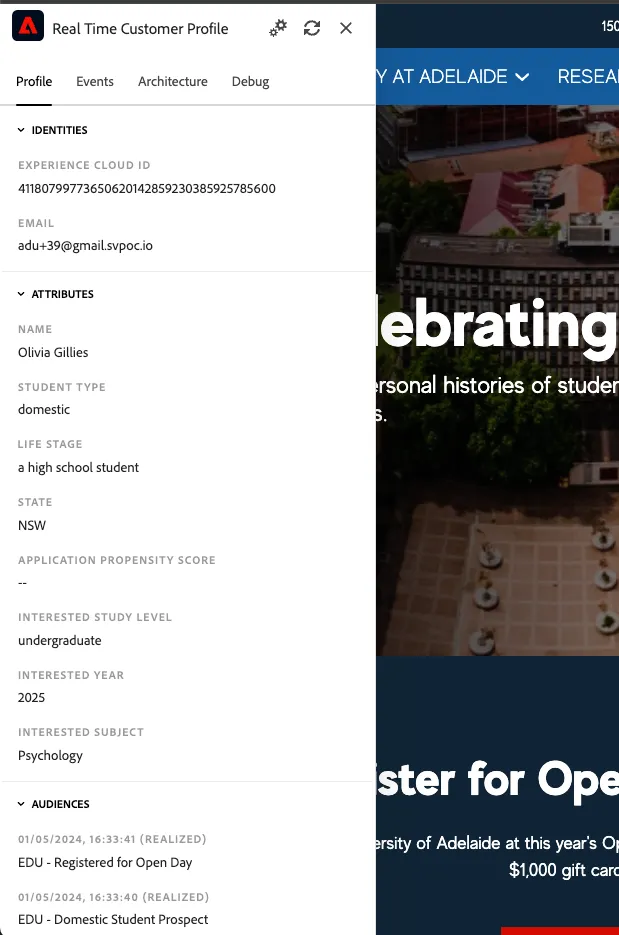
Submitting the form has sent an event to Adobe CDP containing both the ECID and the EMAIL address. This event can be used to trigger a journey. In this case the journey simply sends a confirmation email but we could also imagine it triggering a journey including a complex sequence of actions.
You will see the form data has also been stored as attributes against the customer profile. These can be used for segmentation to further understand your prospect. The profile has also qualified into some additional audiences (note, these might be delayed slightly since they are streaming audiences not edge audiences). Refresh the profile viewer on the site or refresh the profile screen within the Adobe Experience Platform UI to see the updates.
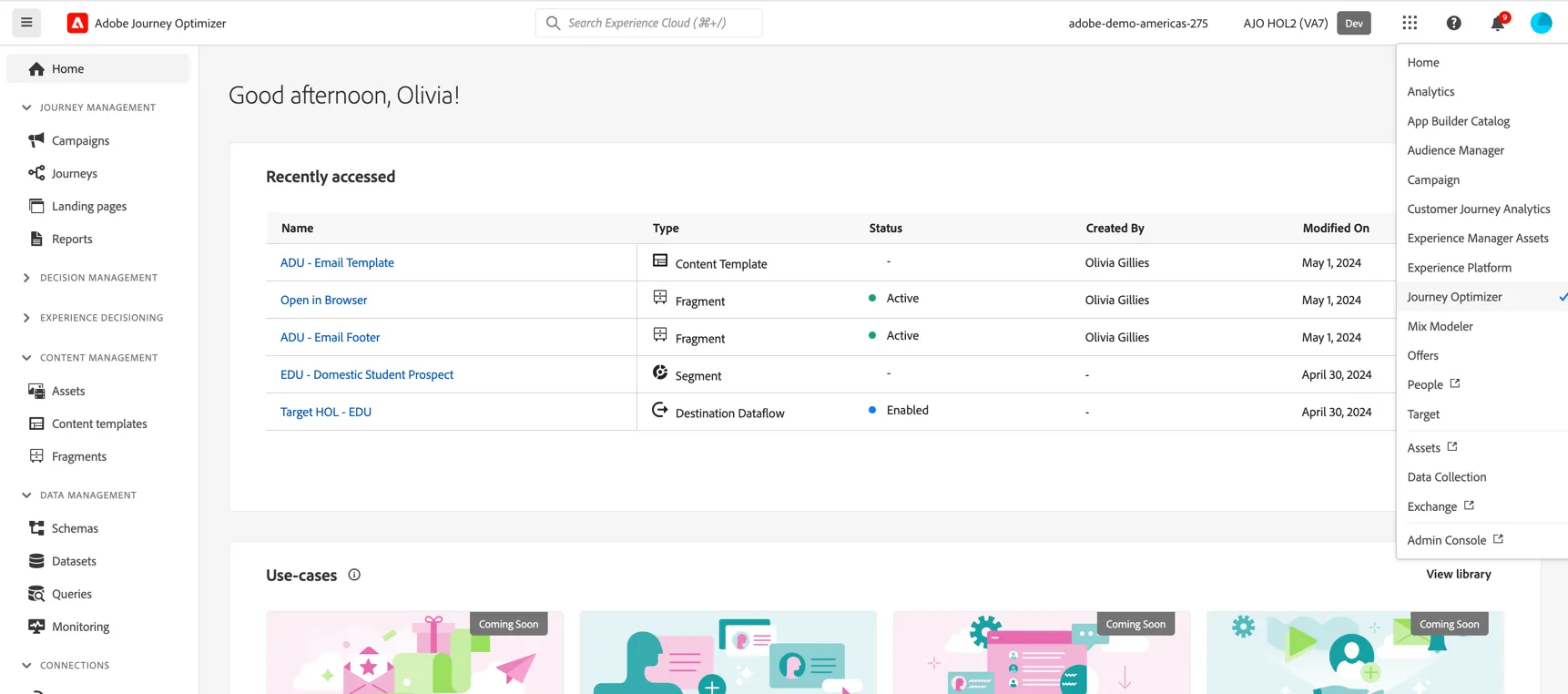
For the next few exercises we will use Adobe Journey Optimizer. Switch the UI using the product switcher in the top right.
Content Management
Assets
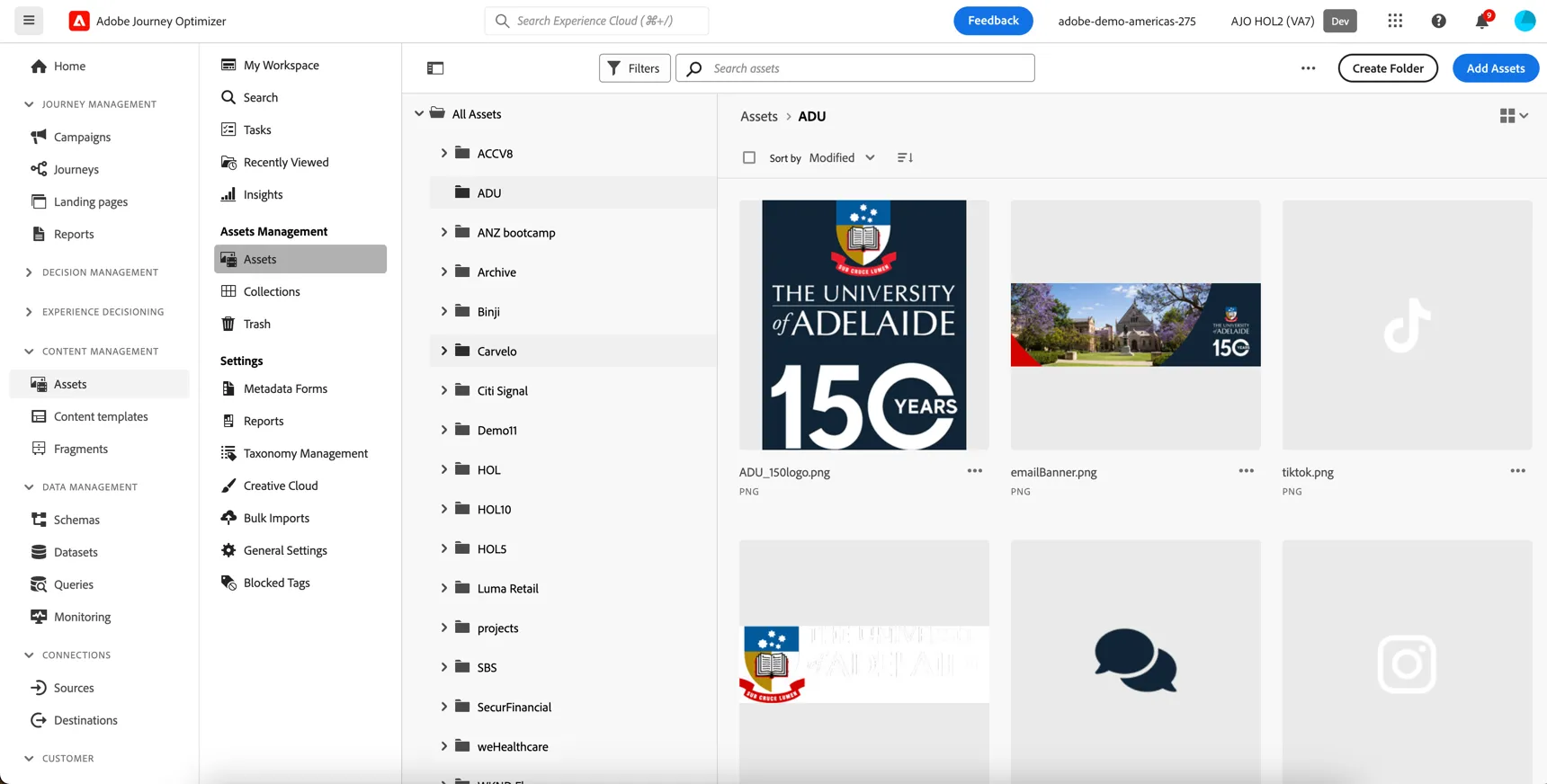
Click to open the Asset explorer under Content Management in the left hand navigation. Here you can manage the assets in your Adobe Experience Manager instance.
Click on the ADU folder to see the assets available. You can add new assets from your local machine if you want.
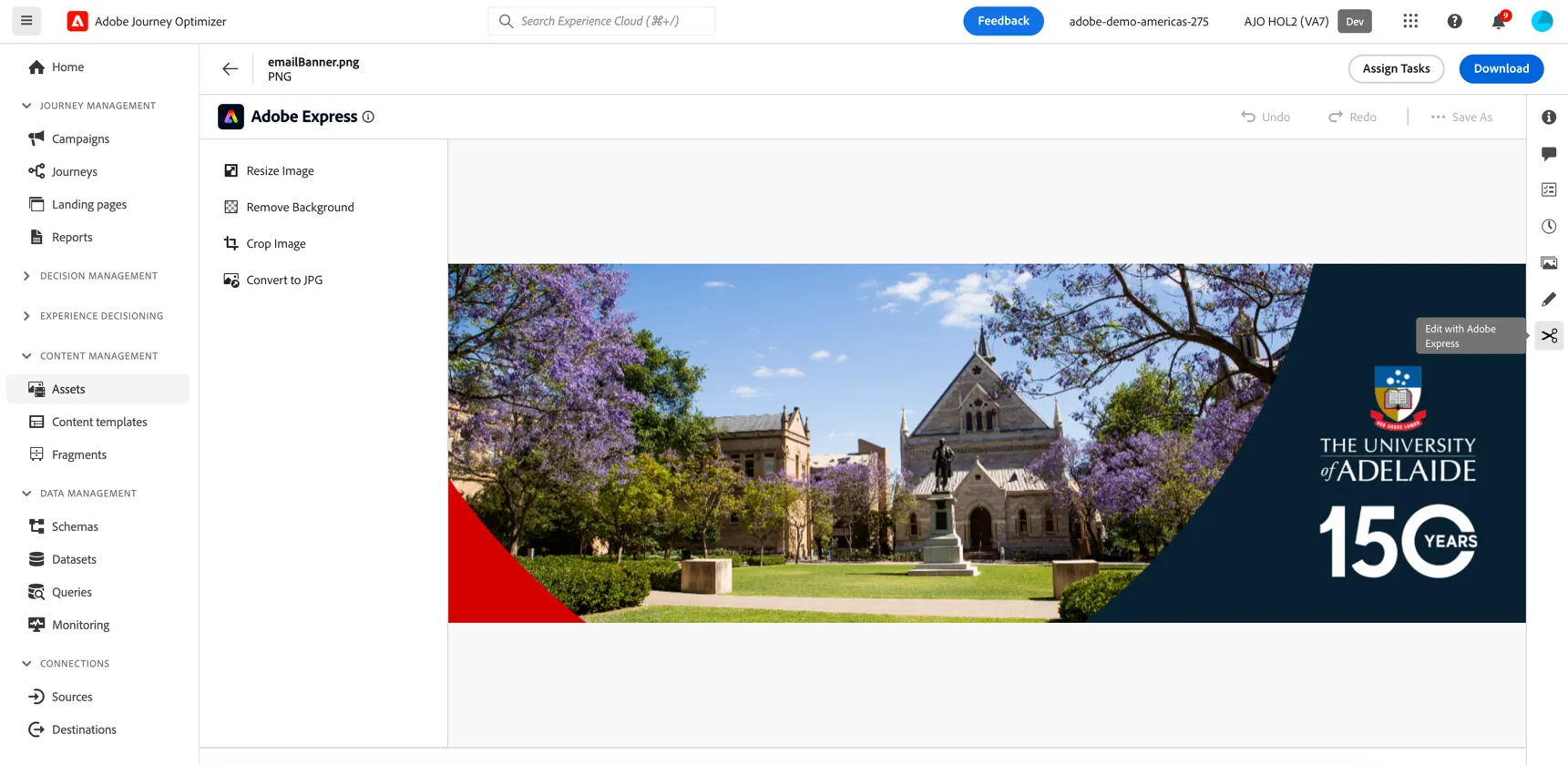
Select an asset and click on details. Here you can see information about the asset, including smart tags, versions, comments and tasks. You can even edit the asset directly in the Journey Optimizer UI using Adobe Express.
Content Fragments and Templates
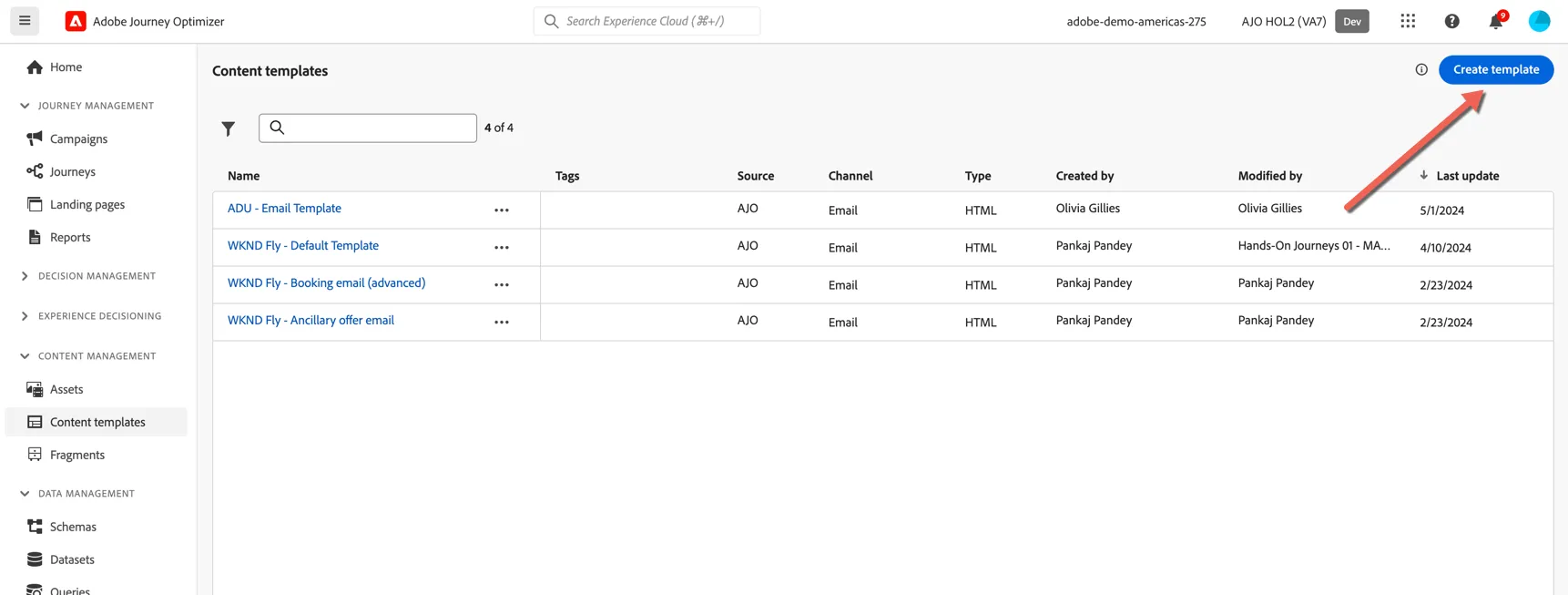
Templates can be created to store partially configured messages for any supported channel: Email, SMS, Push, InApp or Direct Mail. Once leveraged in a Campaign or Journey message the template is disconnected and updates to the template will not impact the .
Fragments can be created to store partially configured HTML or Personalisation Expressions. Fragments can then be included in templates or messages in Campaigns or Journeys. Updating a fragment will update the content everywhere it is used. For this reason you can explore where the fragment has been referenced before making any updates.
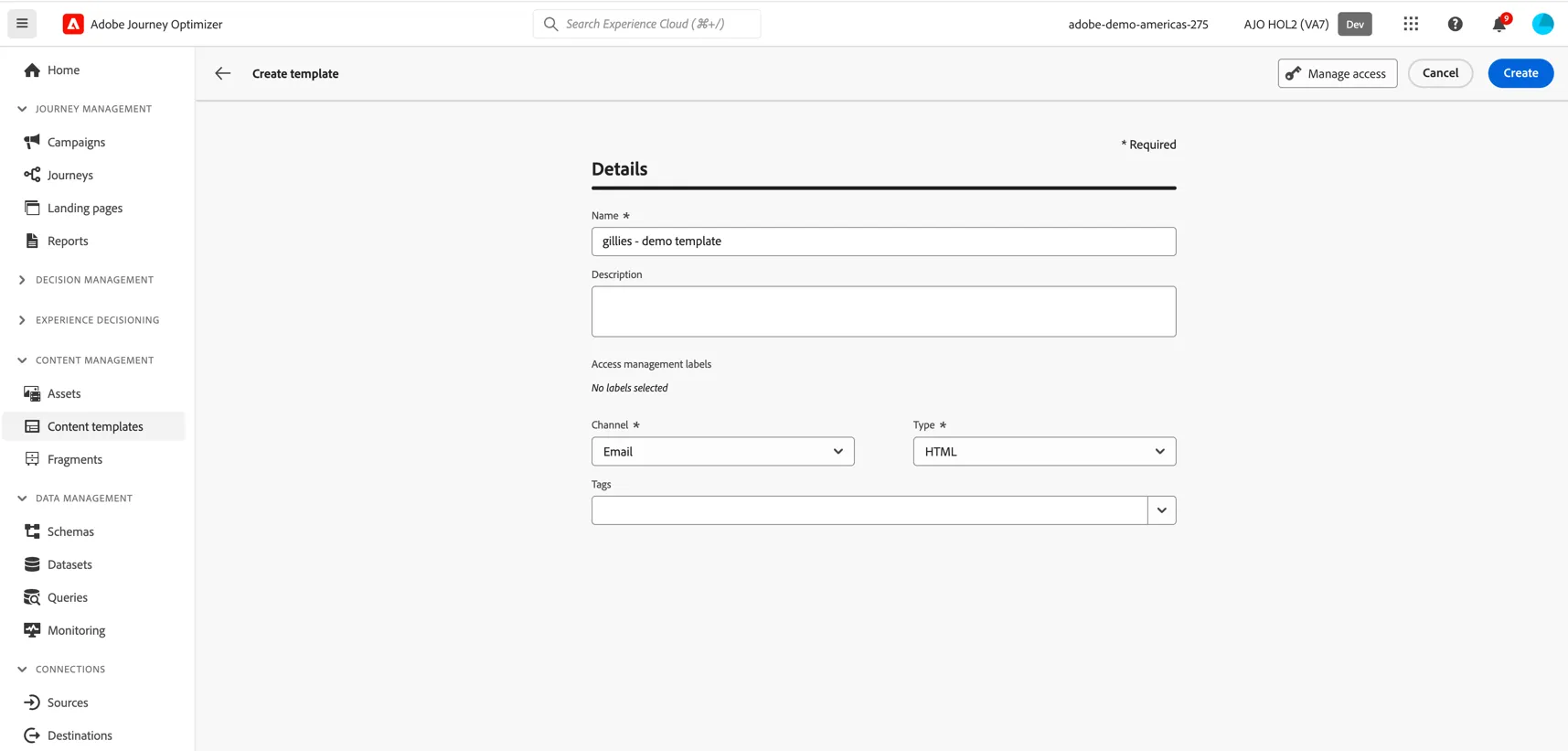
Create a new template by clicking on the Create Template button.
Give your template a name - something unique to you so you can distinguish it from your colleagues. Select Channel as email and Type as HTML.
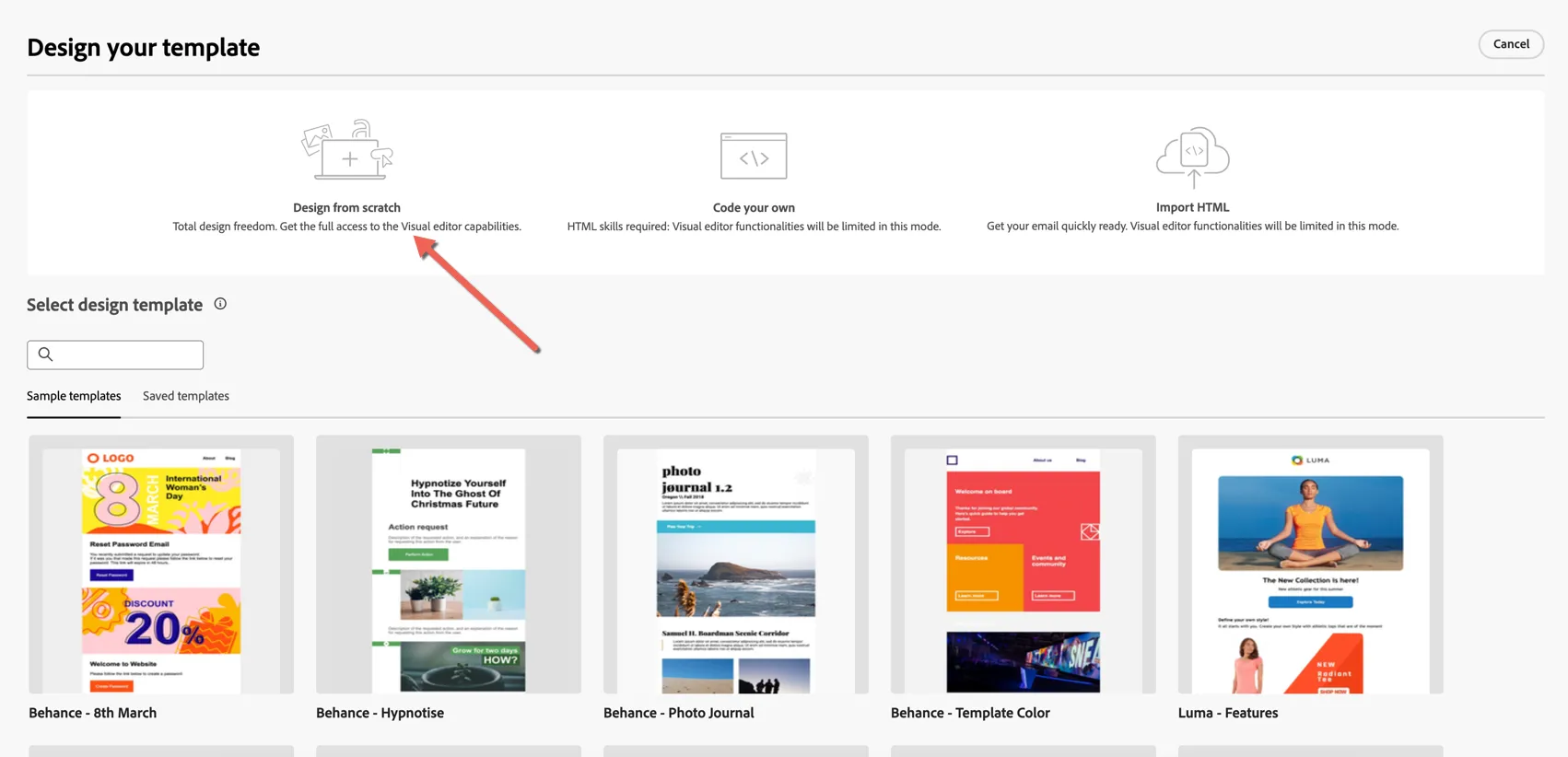
We can create templates from existing samples or templates, or you can build your own, either through the visual editor or by direct access to HTML code. For this exercise choose to Design from scratch.
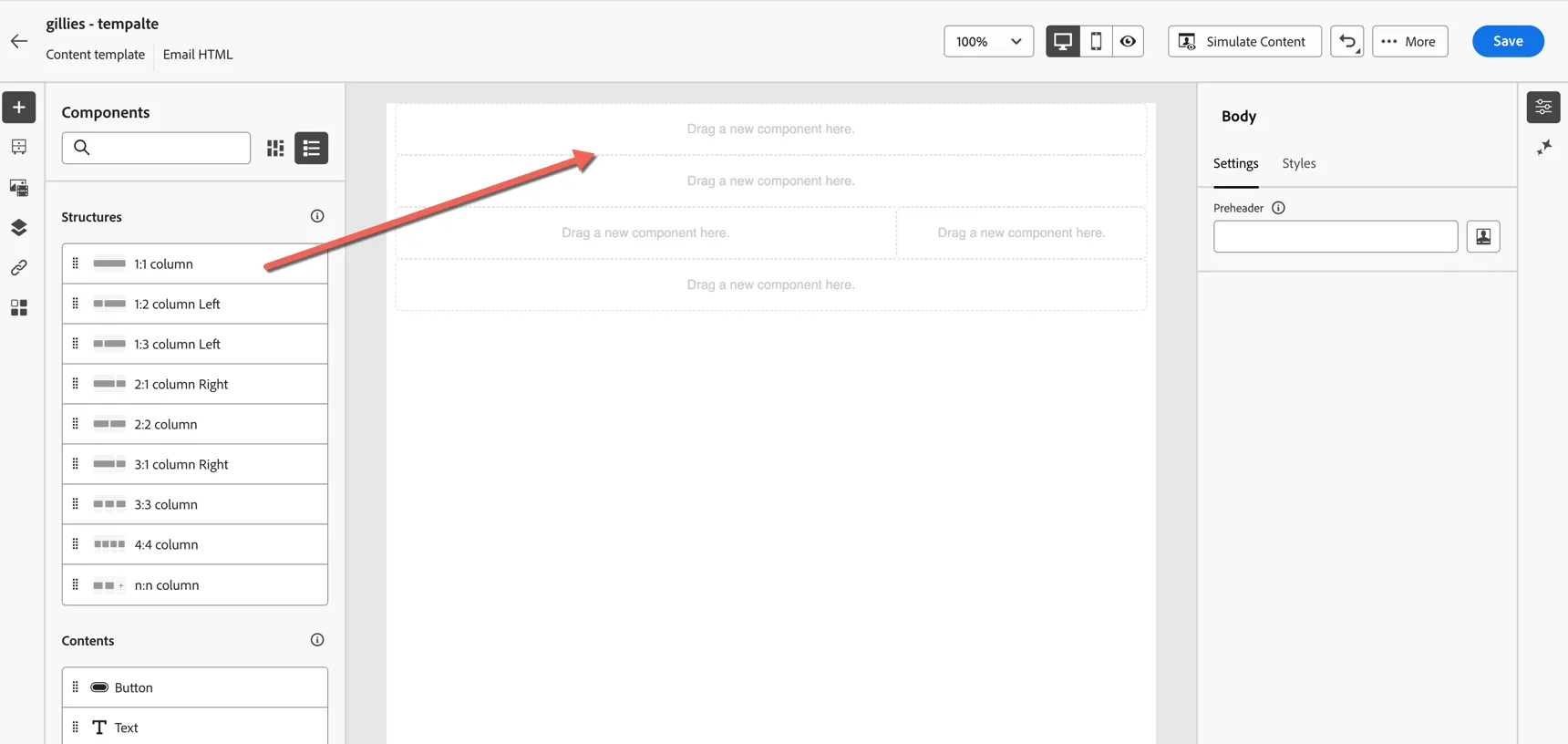
On the left hand side you have structural and content Components which control the layout of your email.
Drag 2x 1:1 column structures into your content, add a 2:1 column right then another 1:1 column.
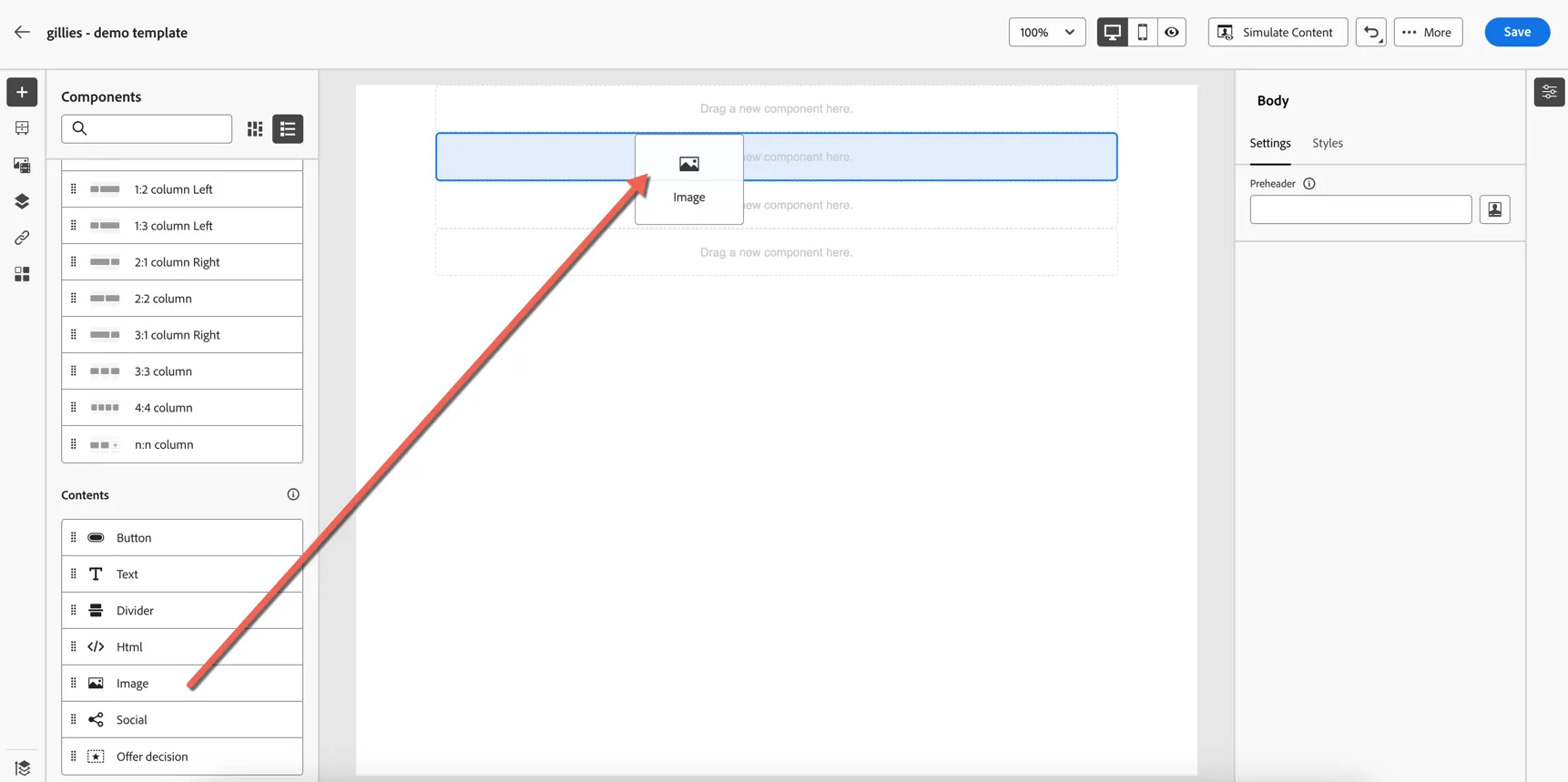
In the second component slot, drag across an image content block.
In the third component slot, drag across a text content block.
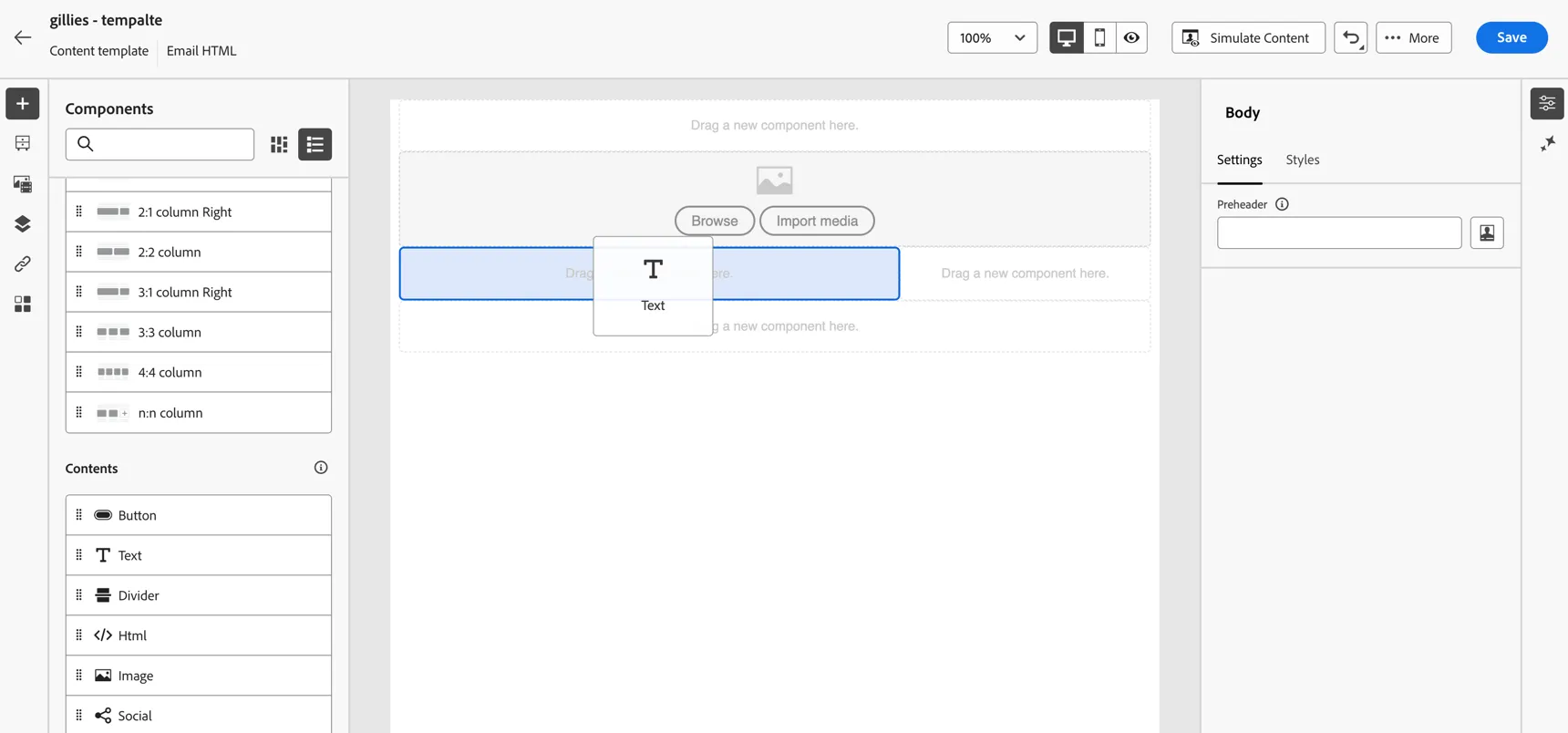
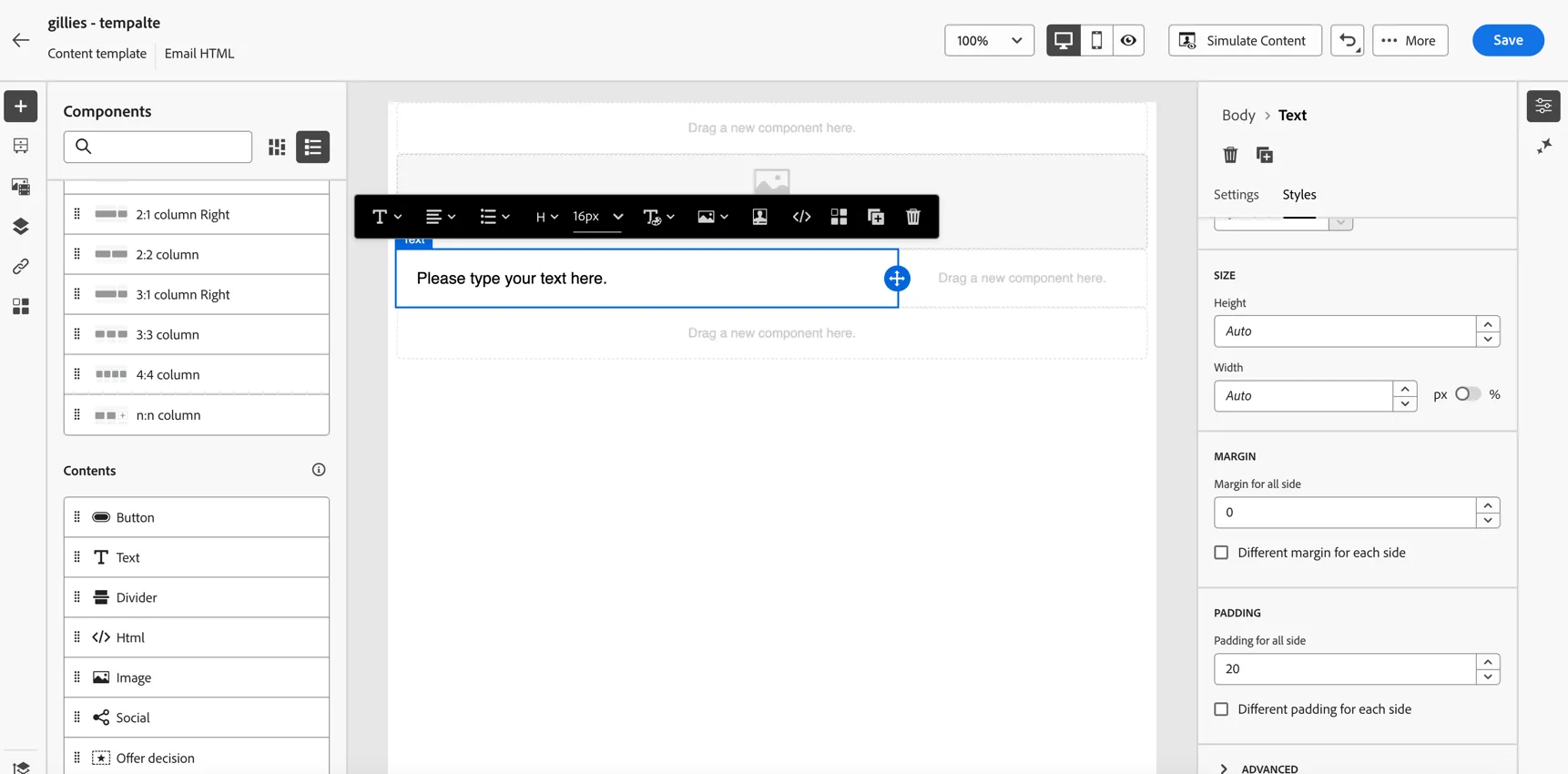
Update the style settings for the text block from the panel on the right hand side. You can update the font size, color and padding as desired.
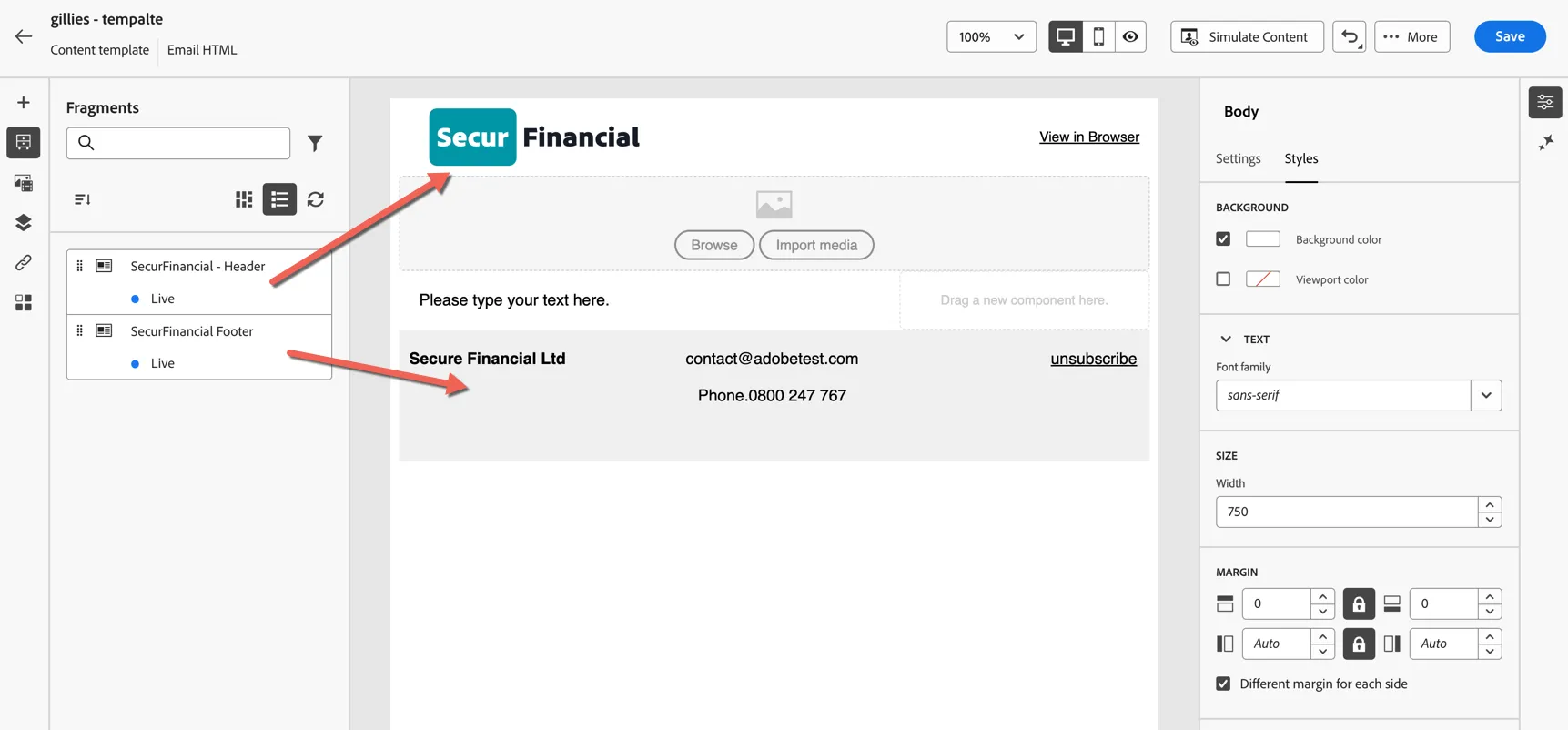
Now let's use some pre-existing fragments to add a view online link and footer to the template. On the left change from the component menu to the fragment menu. Drag the Open in Browser and the SecurFinancial Header and Footer fragments to the top and bottom component slots.
For the image banner, we can select an existing asset from the Asset repository or we can use the native integration with Adobe Firefly to generate an image based on text prompts. Click on the image component and then stars icon to open the AI Assistant.
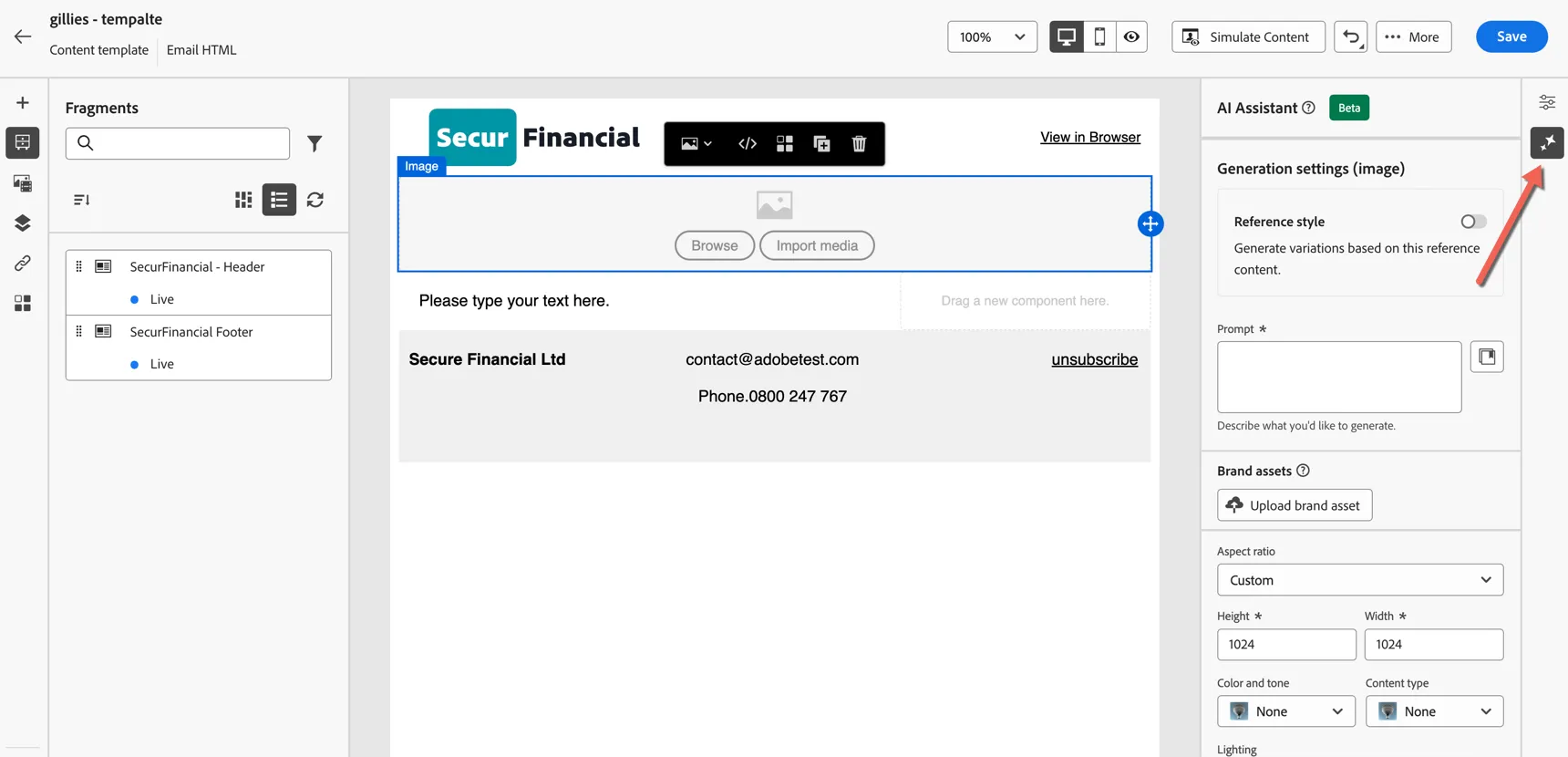
Add a text prompt for your banner and set the parameters for height and width to 200x800 respectively. Set the other options as desired.
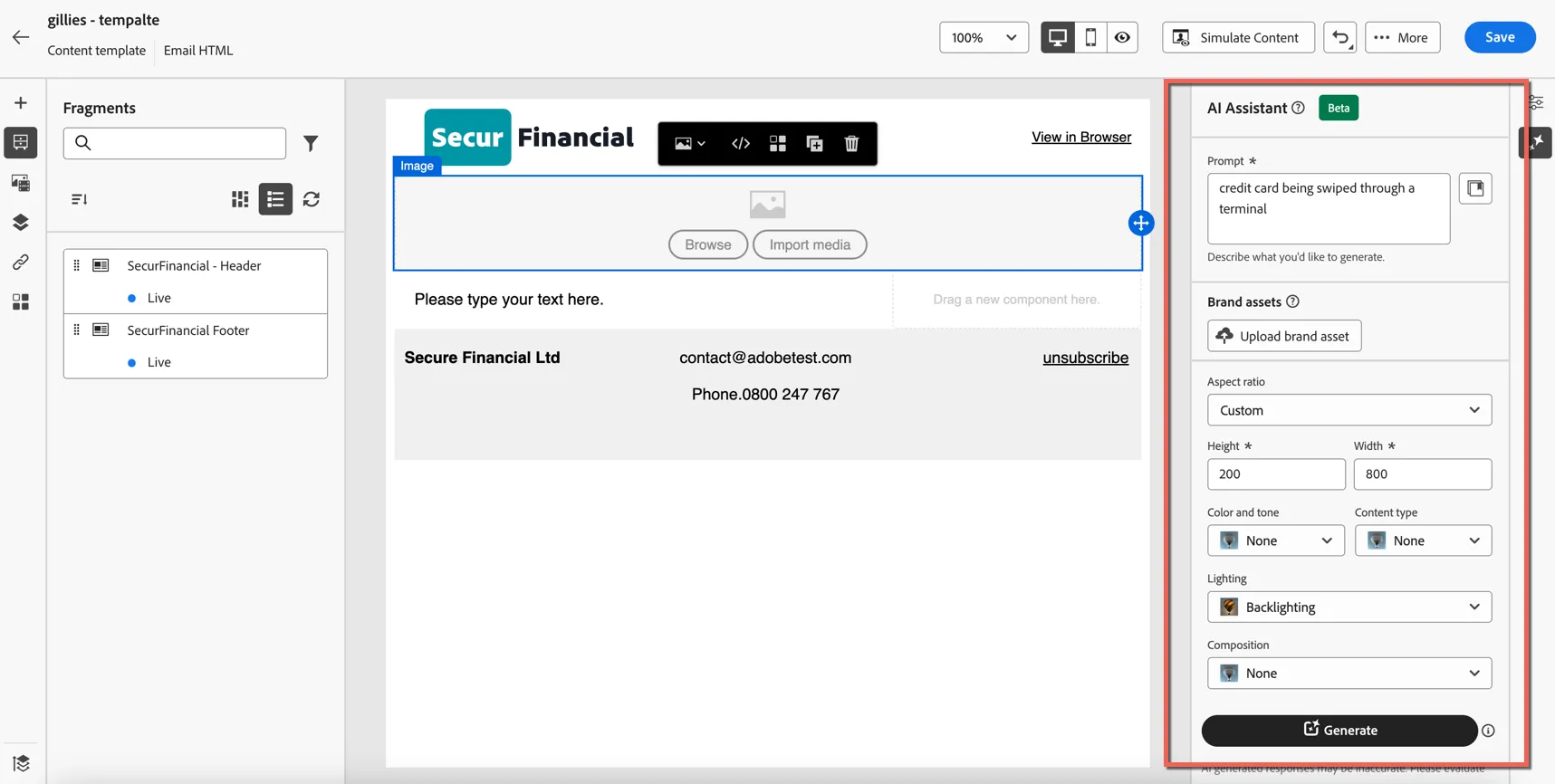
Click Generate. It will take a minute to generate some image options. Click the Preview button to open the viewer.
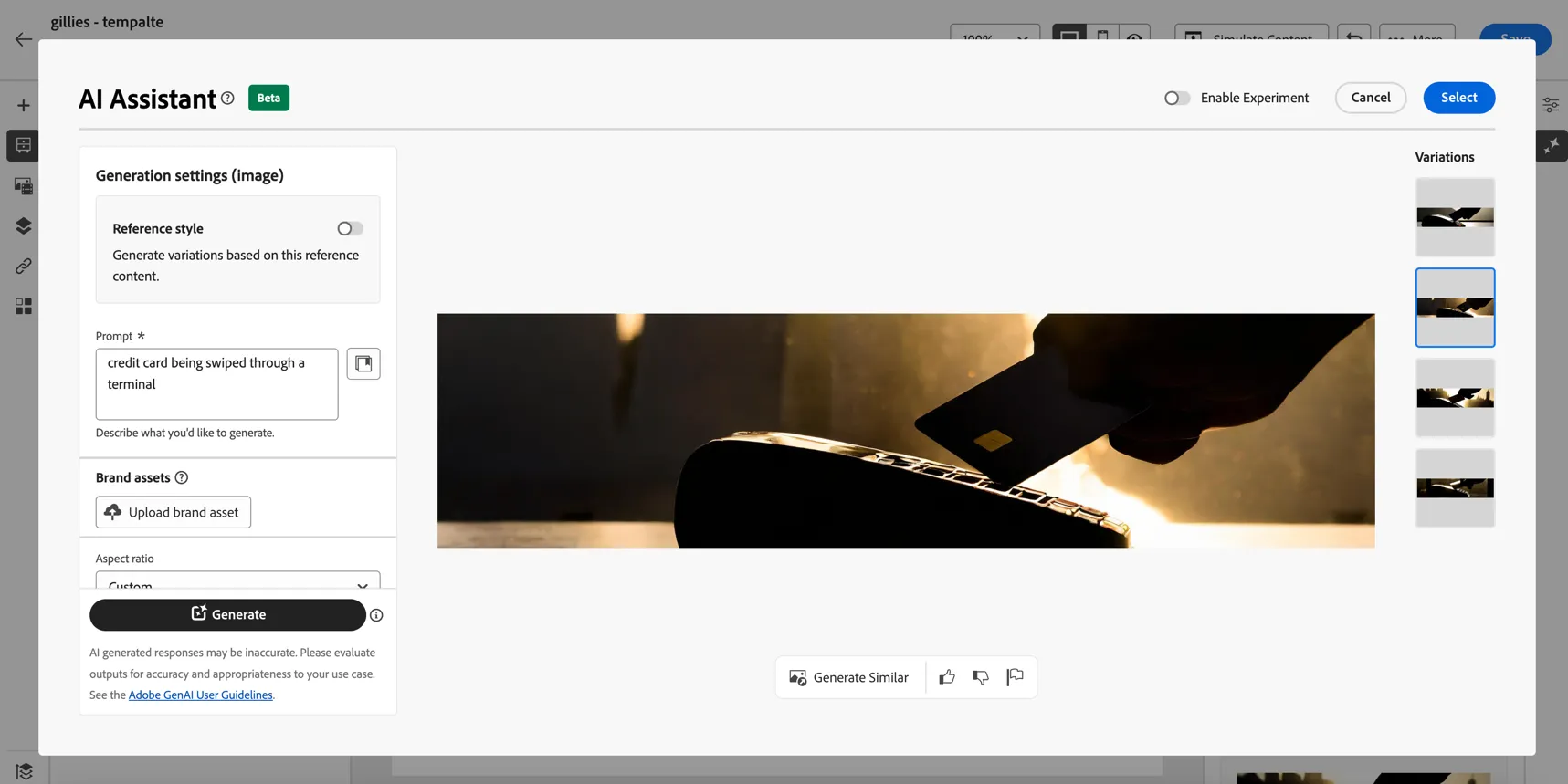
Here you can review the images generated and choose whether to modify the prompt or continue with one of the images selected.
Once you're decided which image to use, click select
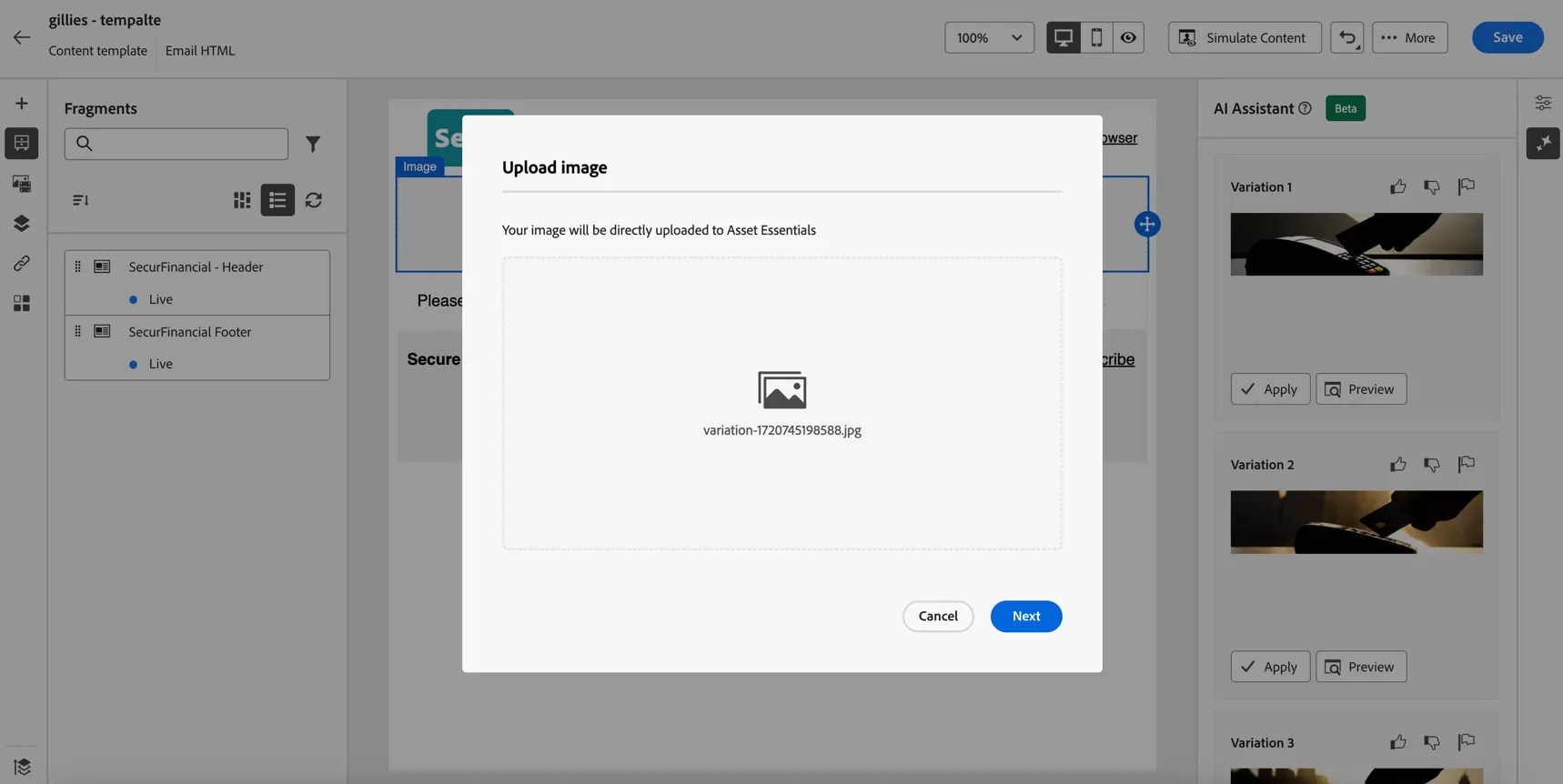
Click Next to upload the image to the asset repository. Select to store the image in the FSI folder.
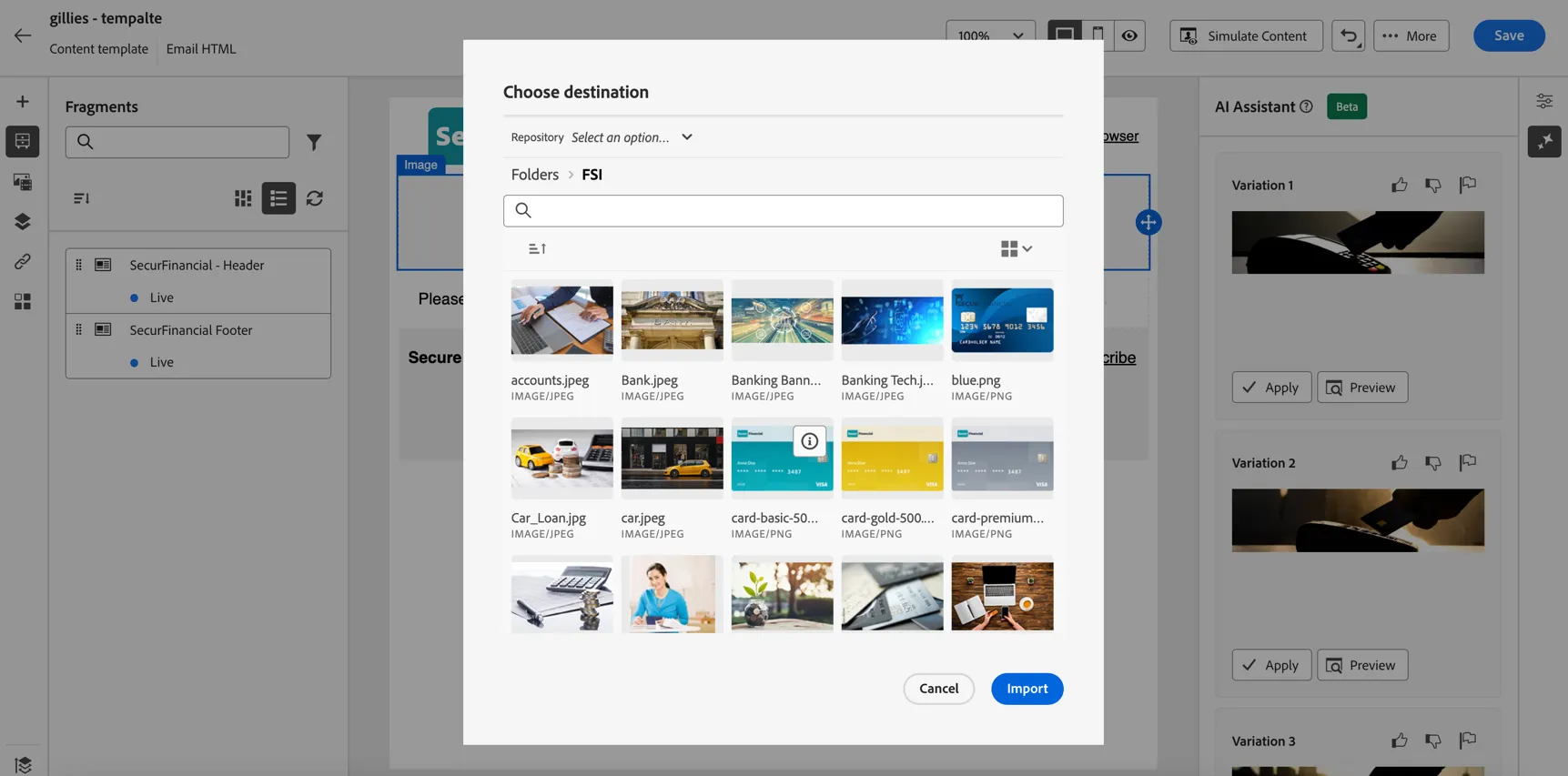
Click Import to add your image to the content.
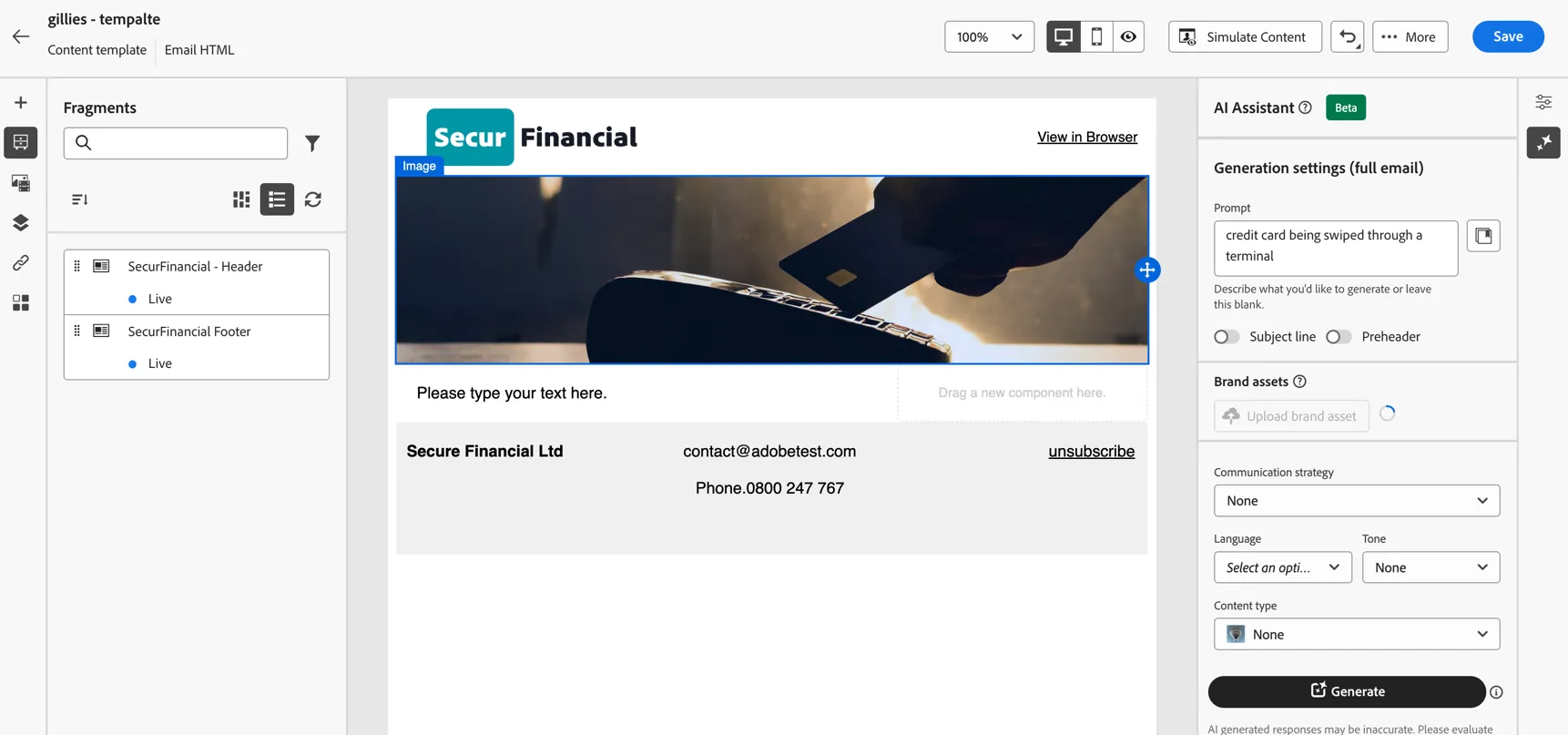
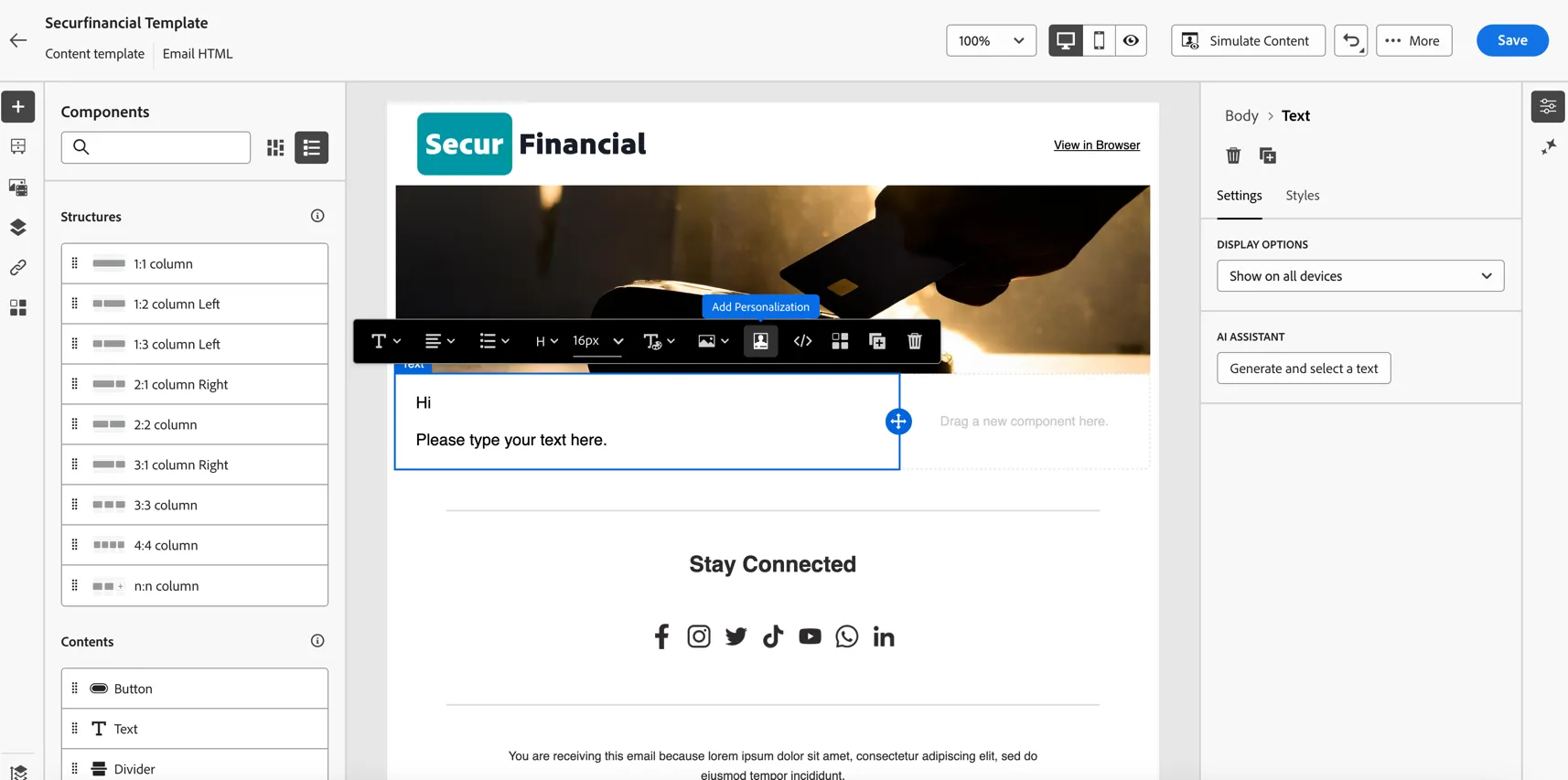
Lastly, let's personalize the content by adding the customer firstname. Click in the text content and select to Add Personalisation.
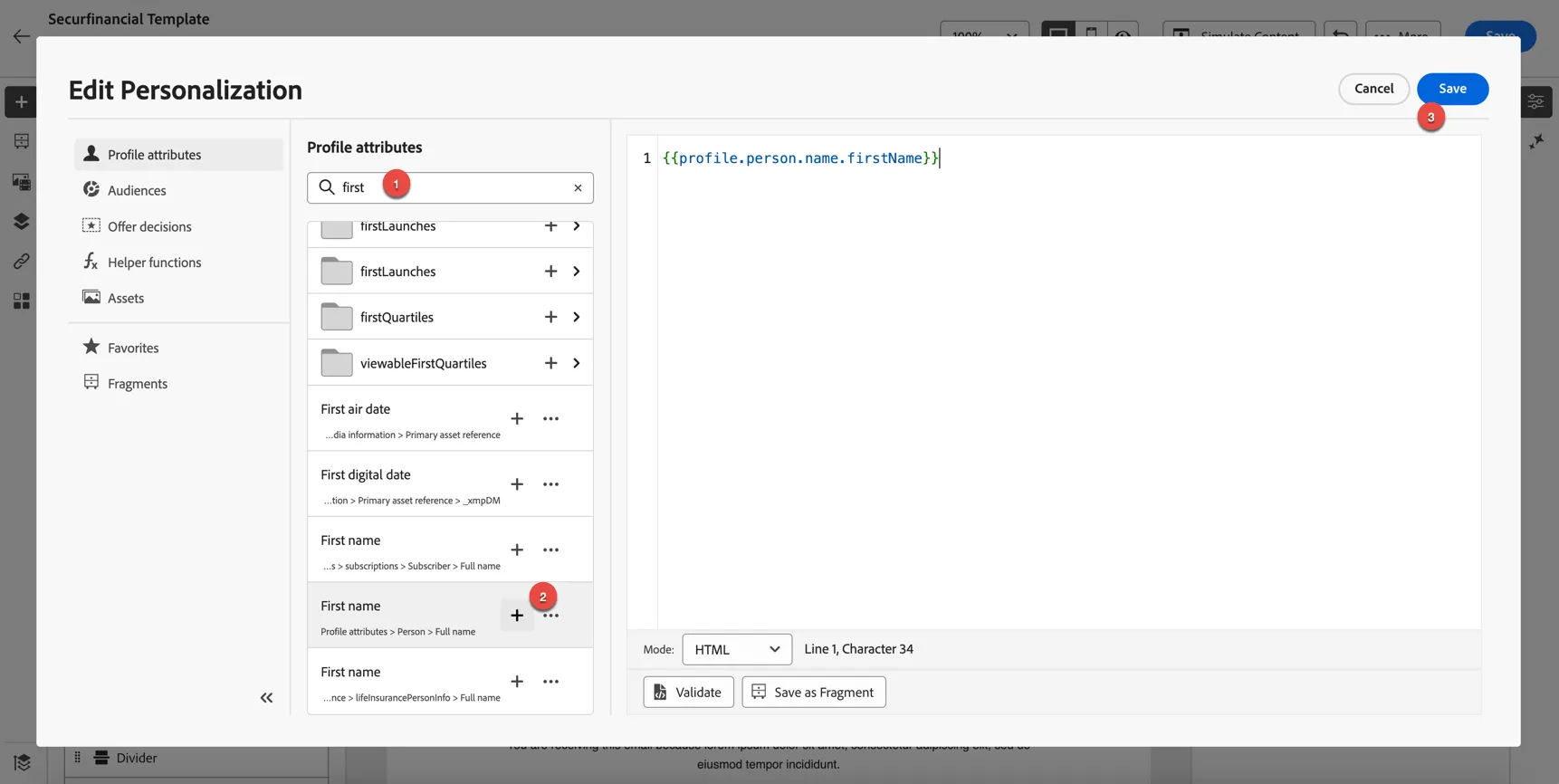
In the personalisation editor, in the Profile Attributes tab, search for first. You'll see a few different first name fields, this is due to the schema design in our sandbox. select the First Name field with Profile Attributes > Person > Full Name underneath. This is the schema field we want to use. Click the + icon to insert the field. Then click Save.
The personalisation field is now inserted into your content.
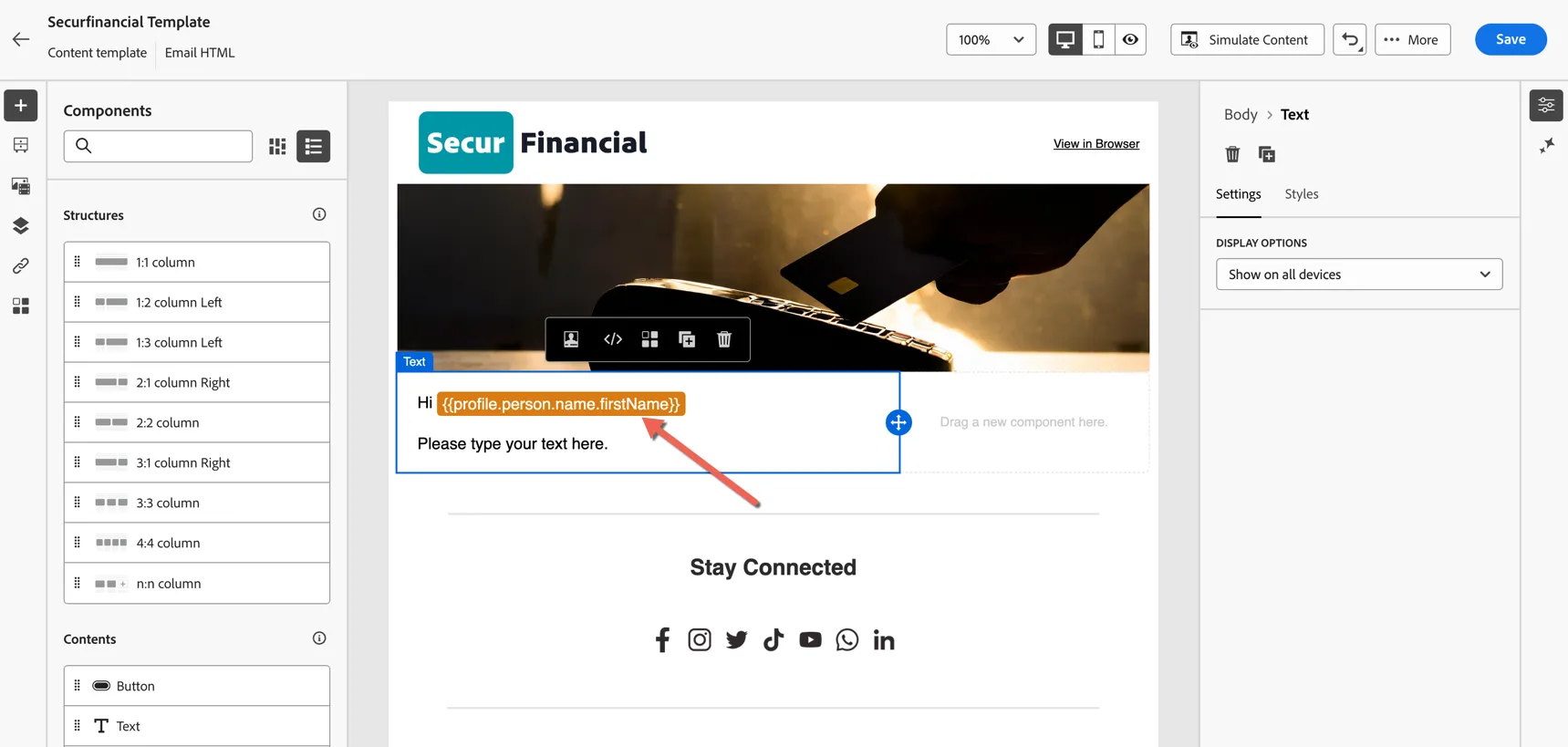
Click to Save your template.
Build a Journey
A journey is used to send the confirmation email when submitting the form. The journey is triggered by the experience event and the message sent can use any of the pre-existing profile attributes or contextual attributes submitted as part of the event for personalisation.
To create a new journey, click on Journeys in the left hand navigation under Journey Management. Click the Create Journey button on the right hand side.
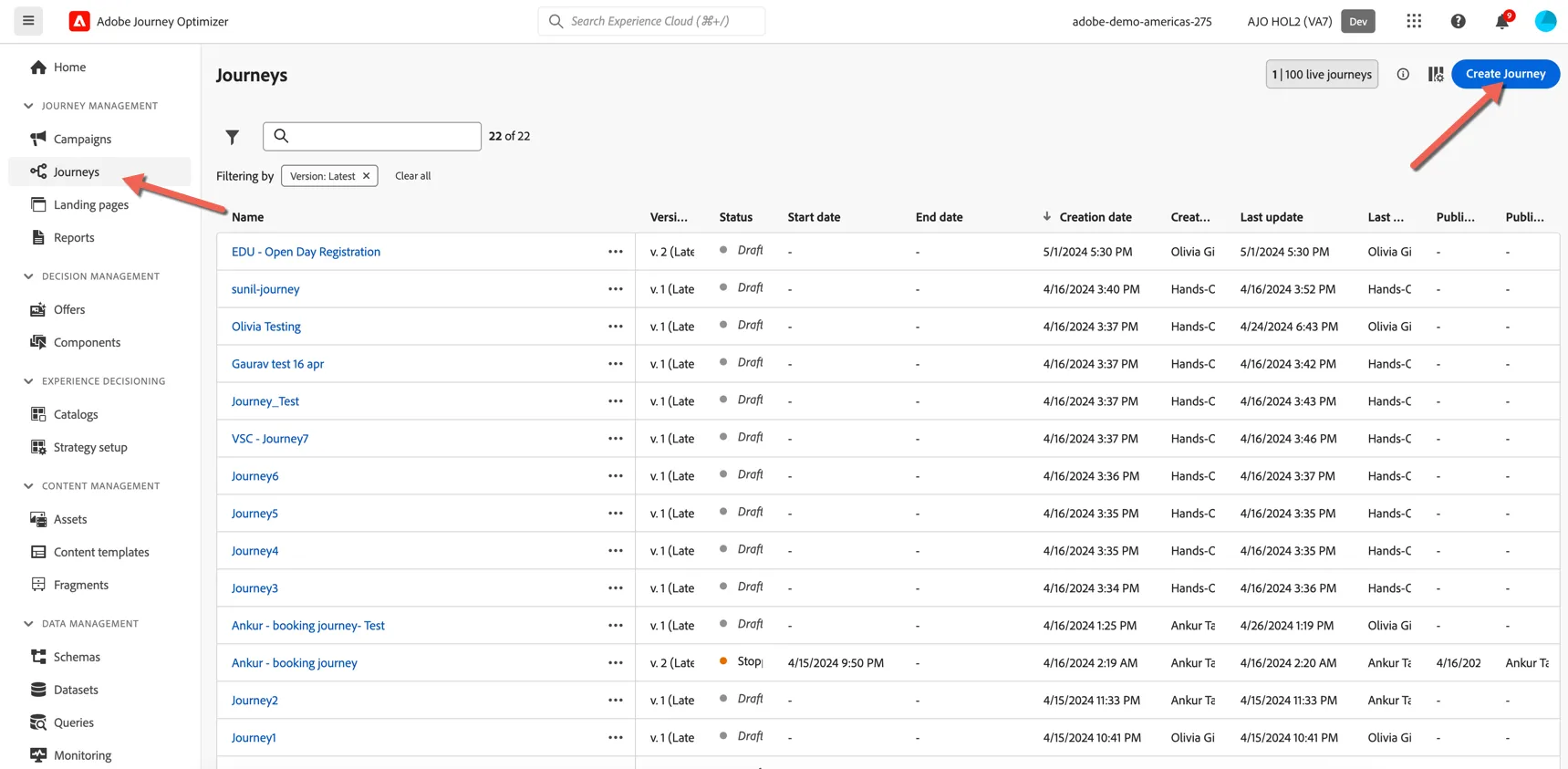
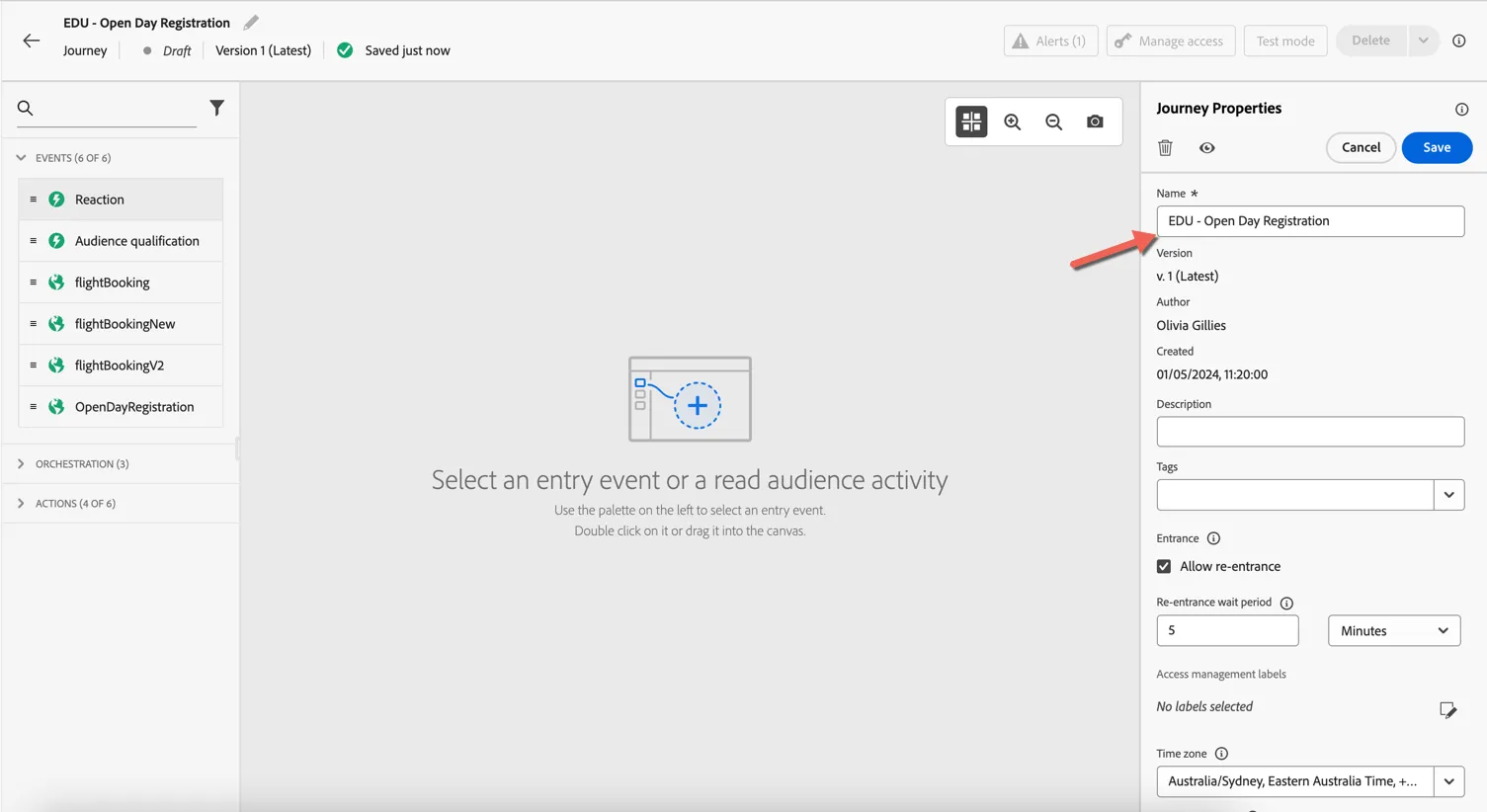
Give your journey a name - something unique so you can distinguish it from your collegues in the class.
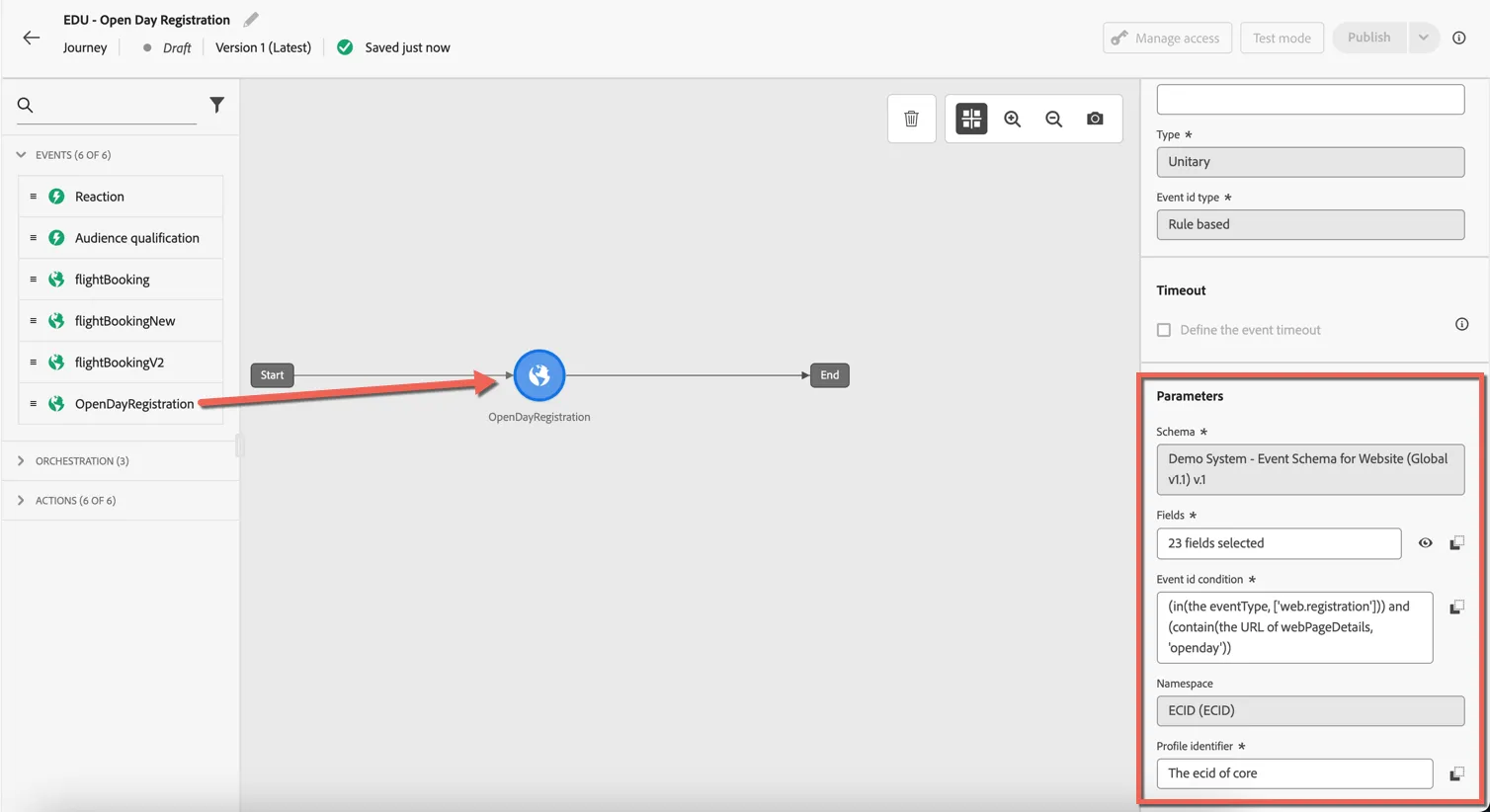
We're going to trigger the journey from an event. Every event that is received via streaming ingestion by Adobe Experience Platform can trigger a journey, but to limit the number of options shown in the journey builder only events that have been defined as journey events will appear. The openDayRegistration journey event has been pre-configured for you. Drag the event into the canvas. You can see how it was defined in the properties on the right hand side.
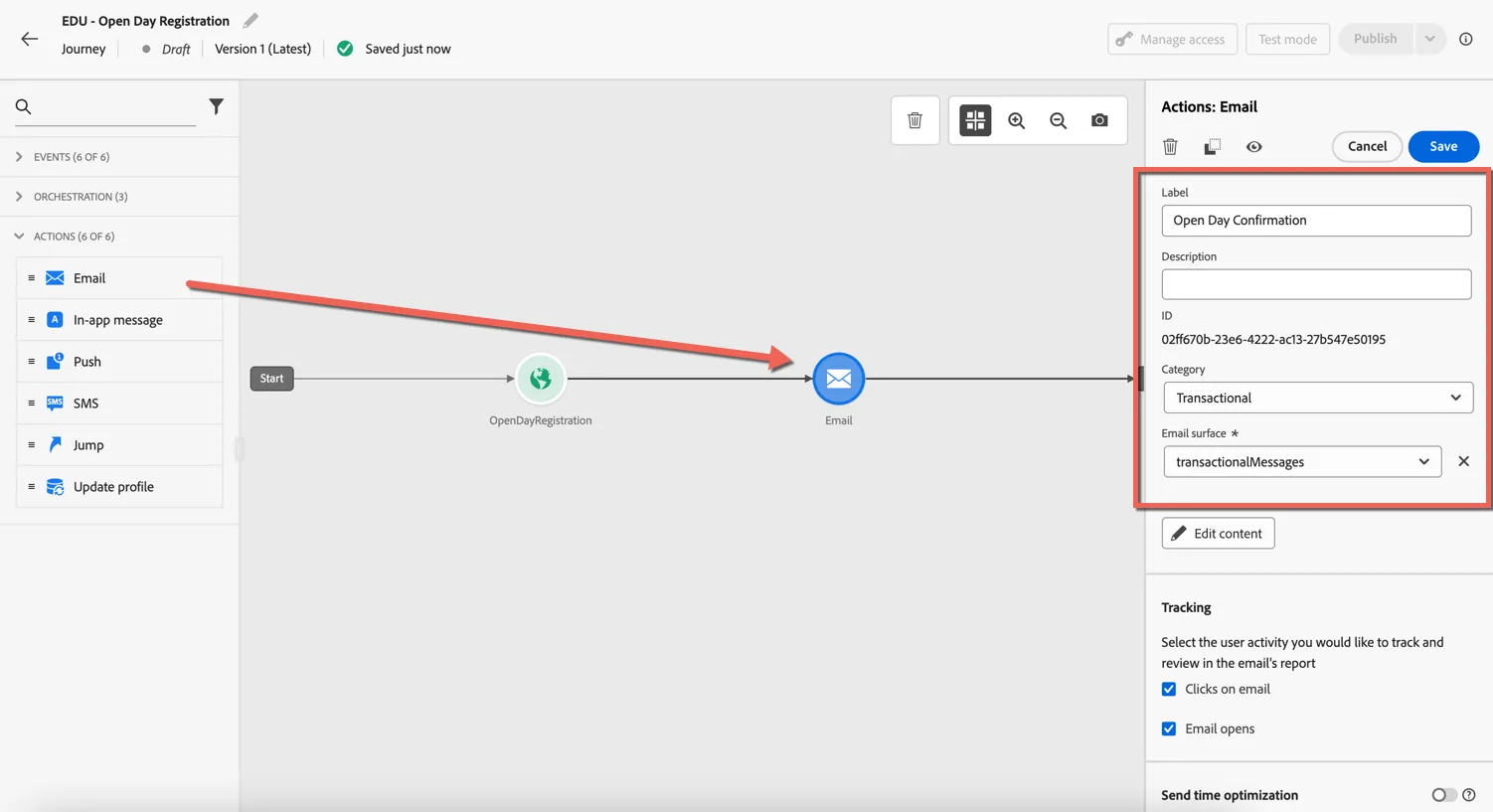
Next we want to add an Email action. Drag it into the canvas and connect it after the event. Set in the Email properties the Category to Transactional and the Email Surface to transactionalMessages.
Then click on Edit Content to update the content of the email.
Add a subject line and click Edit email body to configure the body of the email.
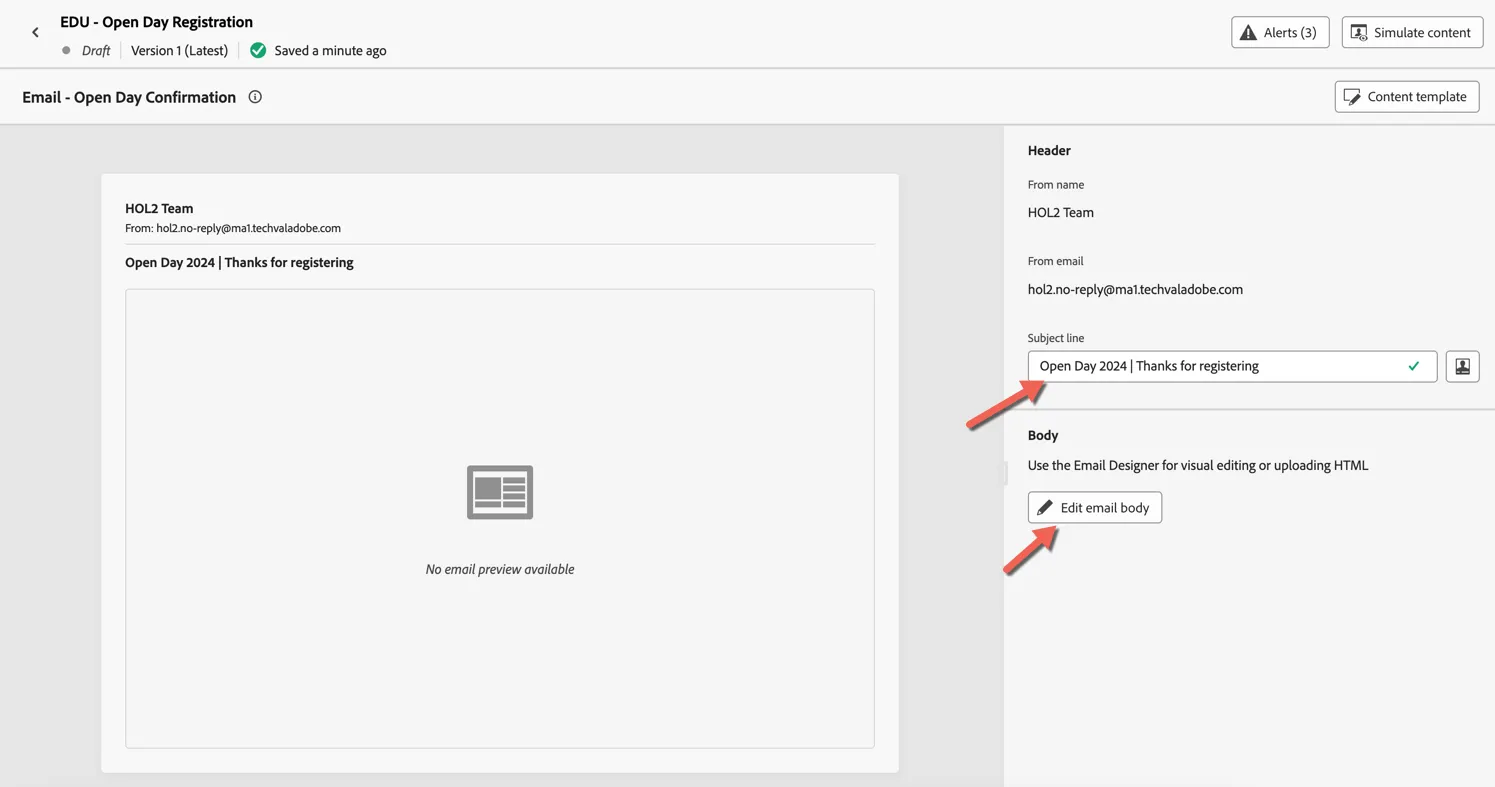
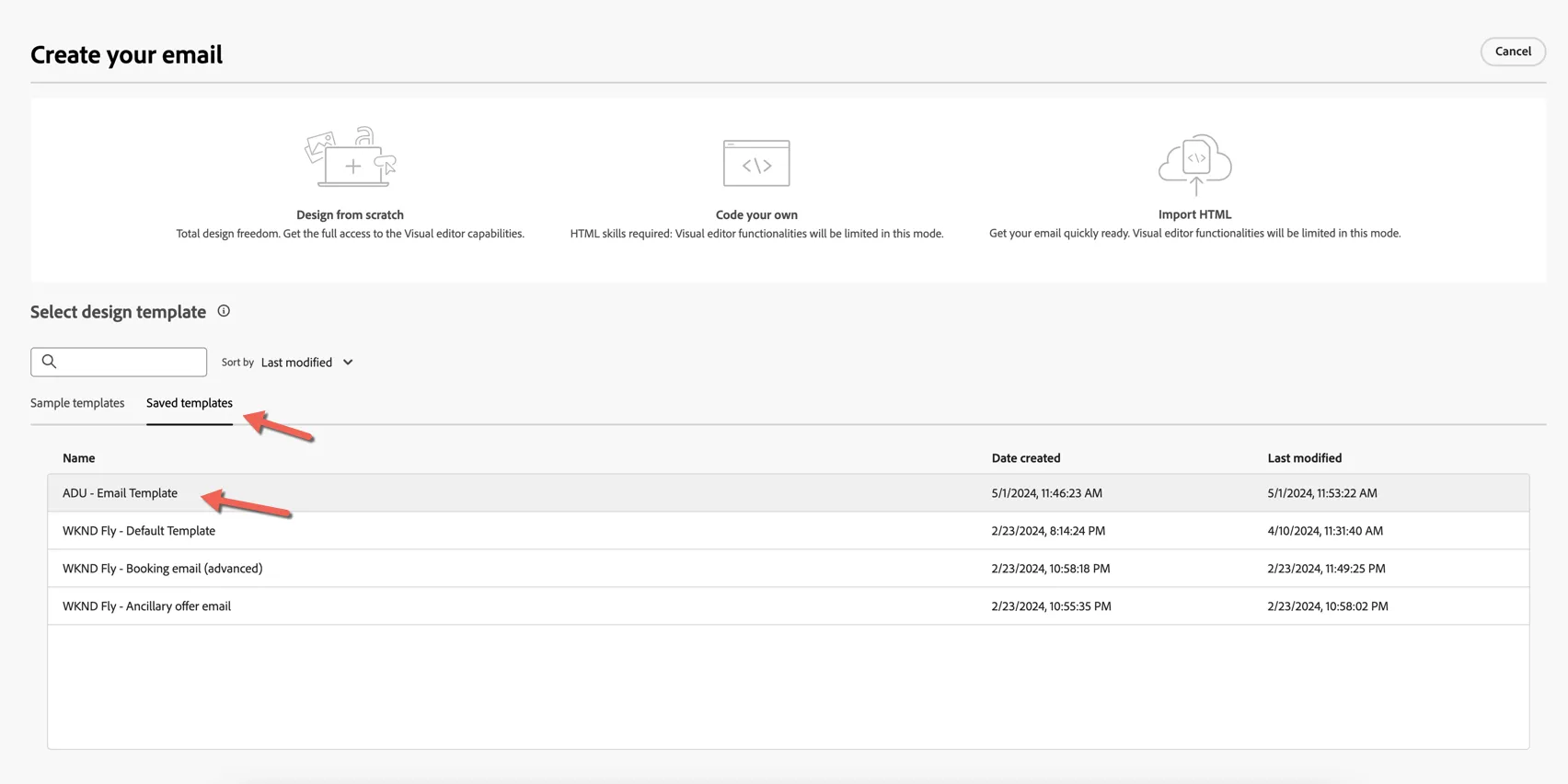
Choose to start from the saved template ADU - Email Template.
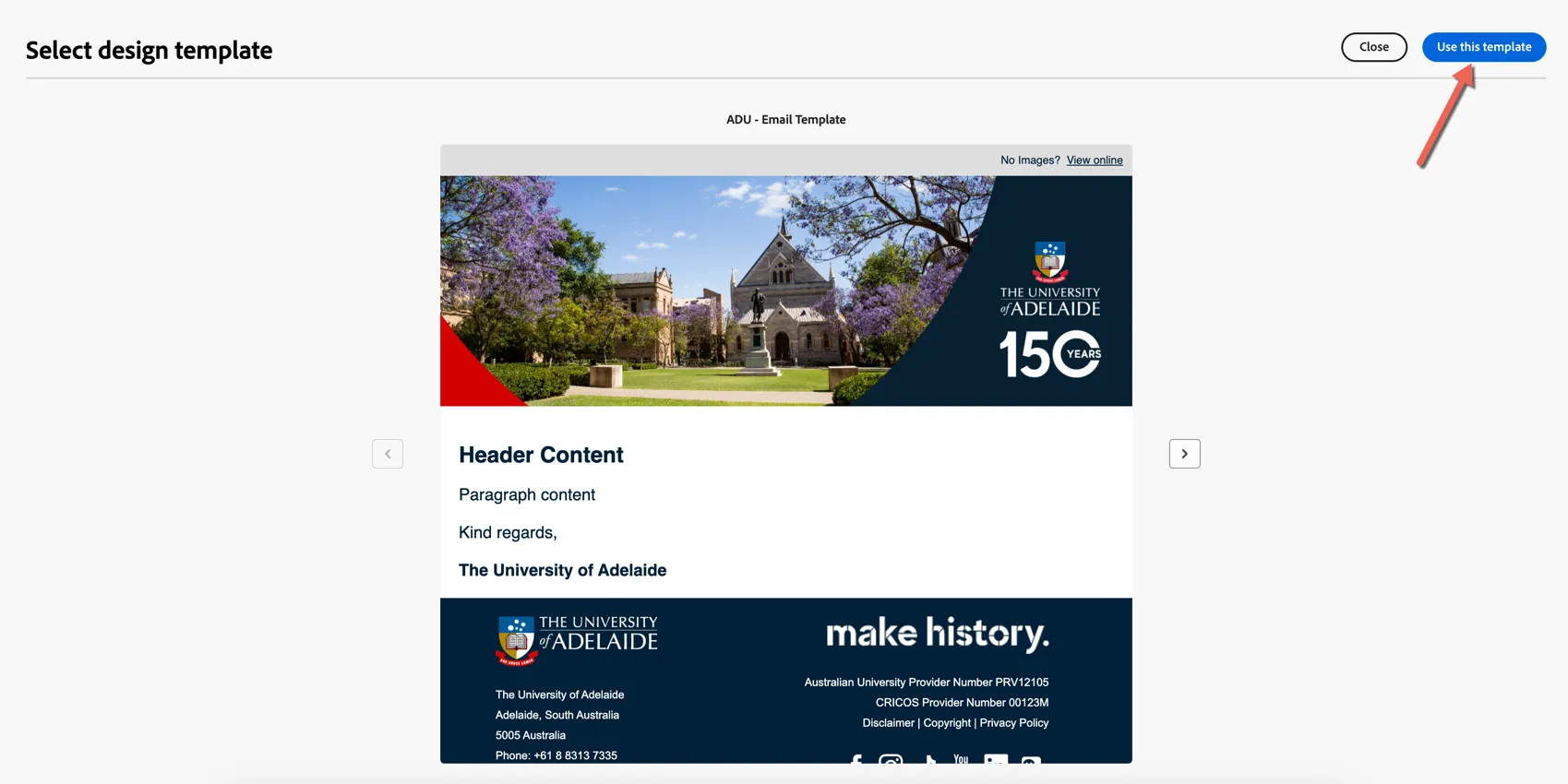
Once the preview has loaded. Select to Use this template.
Update the content of the email as desired. You can add personalisation by clicking the person icon in the style bar.
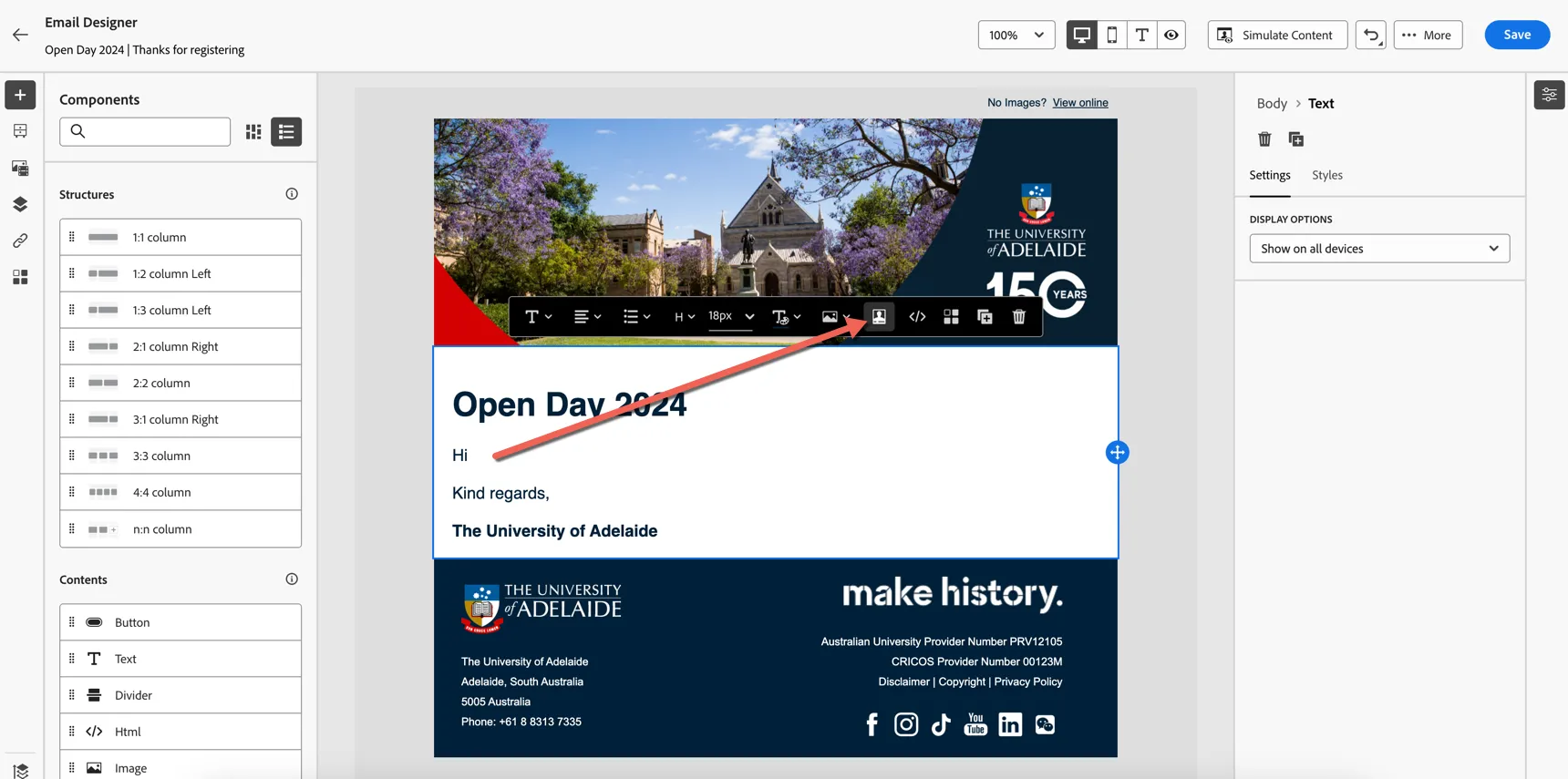
You can add attributes from the profile or from the event (under contextual attributes). To add the firstname, search for "first" under profile attributes and include the person -> name -> firstName attribute.
This is a shared demo instance with many similar attributes defined, a customer instance won't have so many duplicated attributes and will be easier to search for the attribute you are interested in.
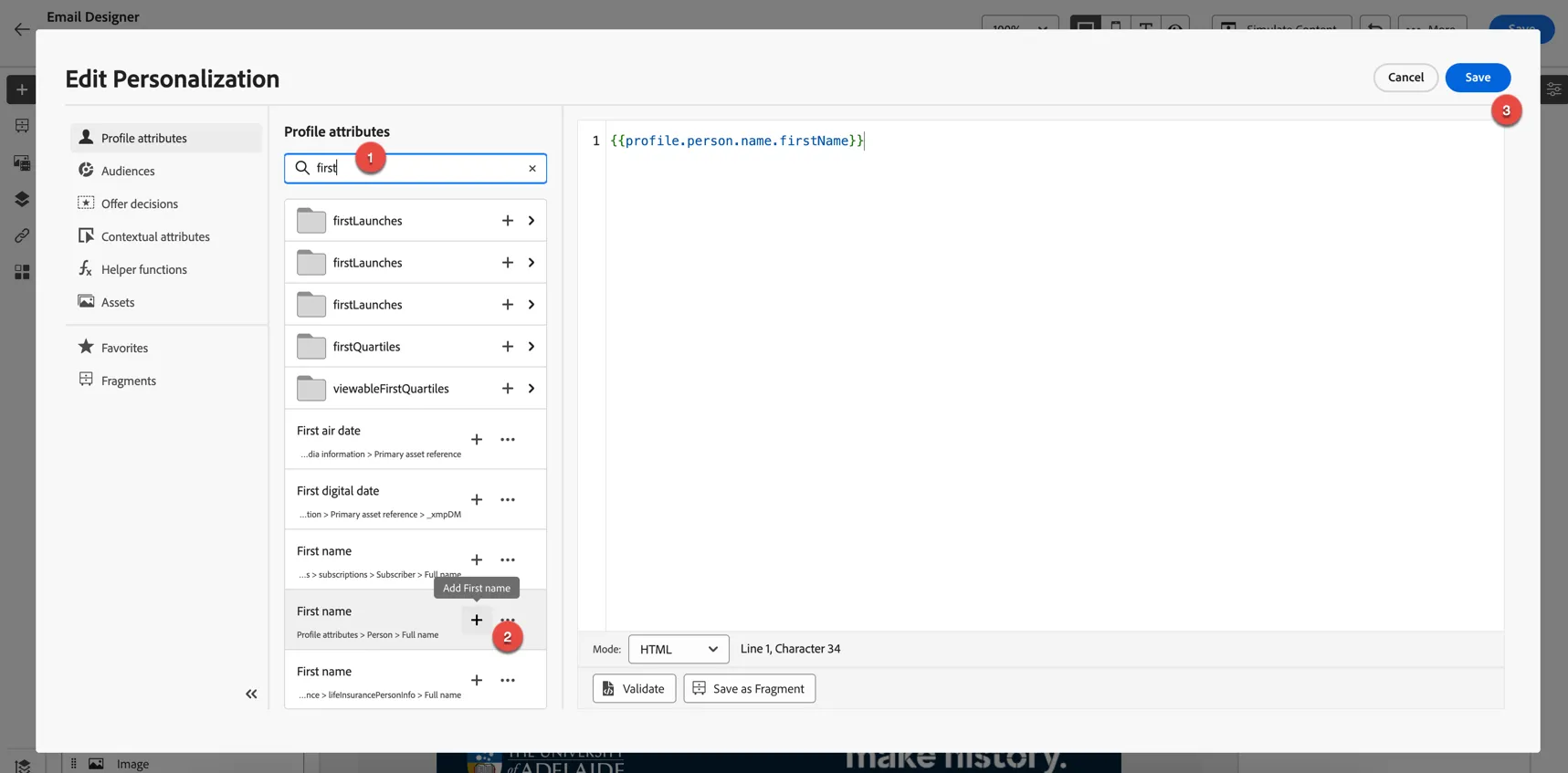
Once you're happy with the content, click Save then return to the journey using the Arrows on the top left.
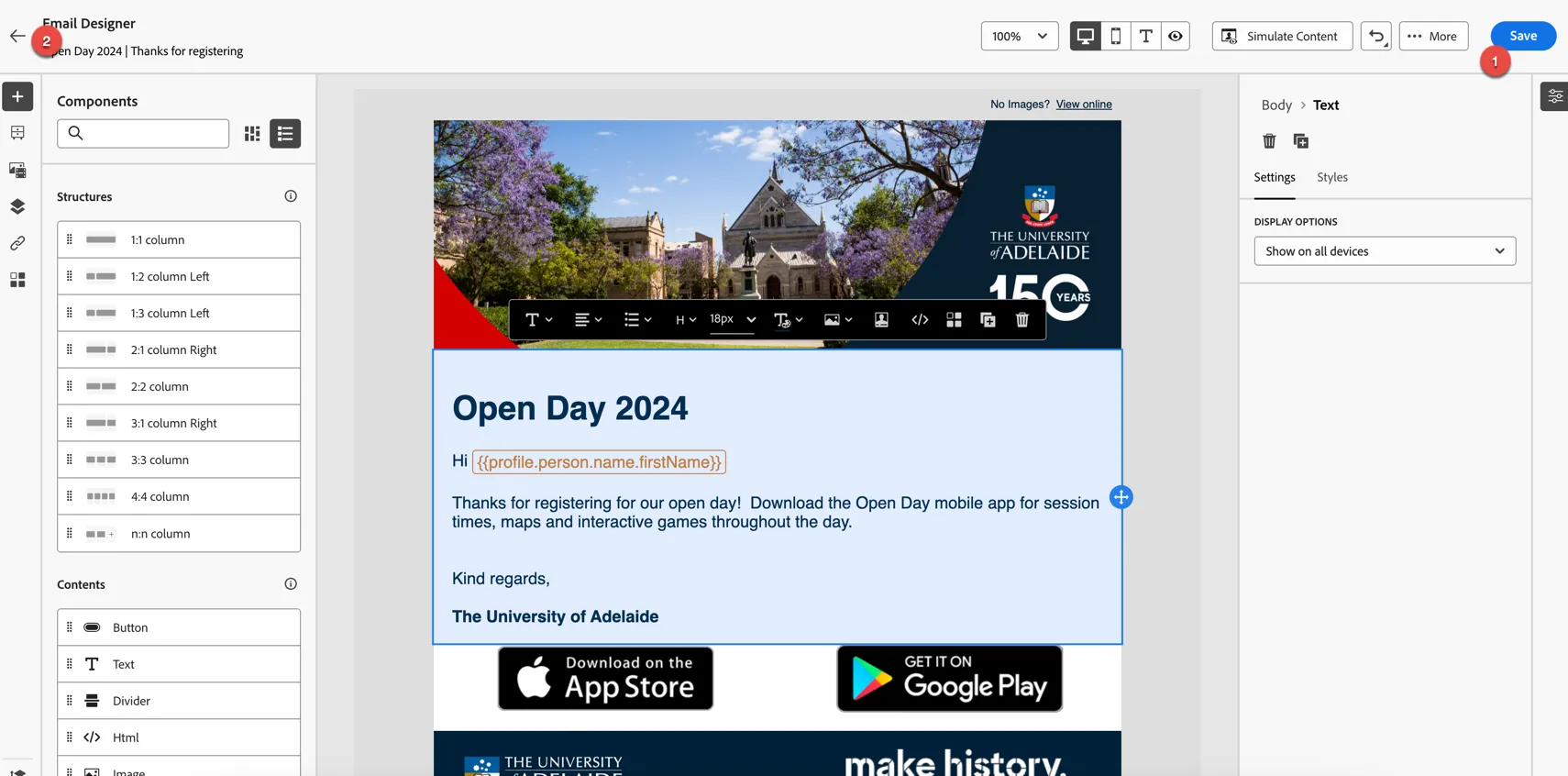
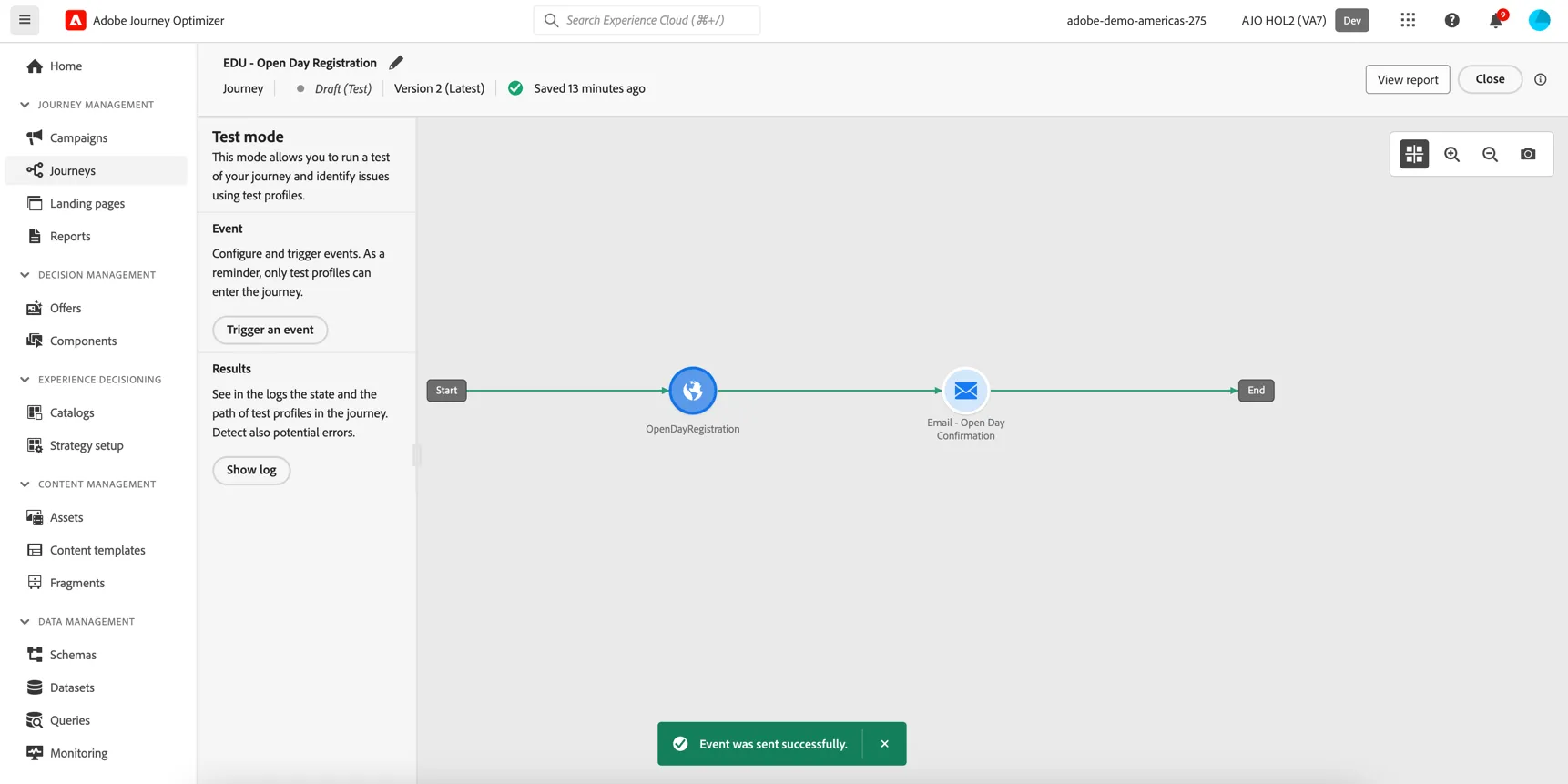
Your journey should look like this:
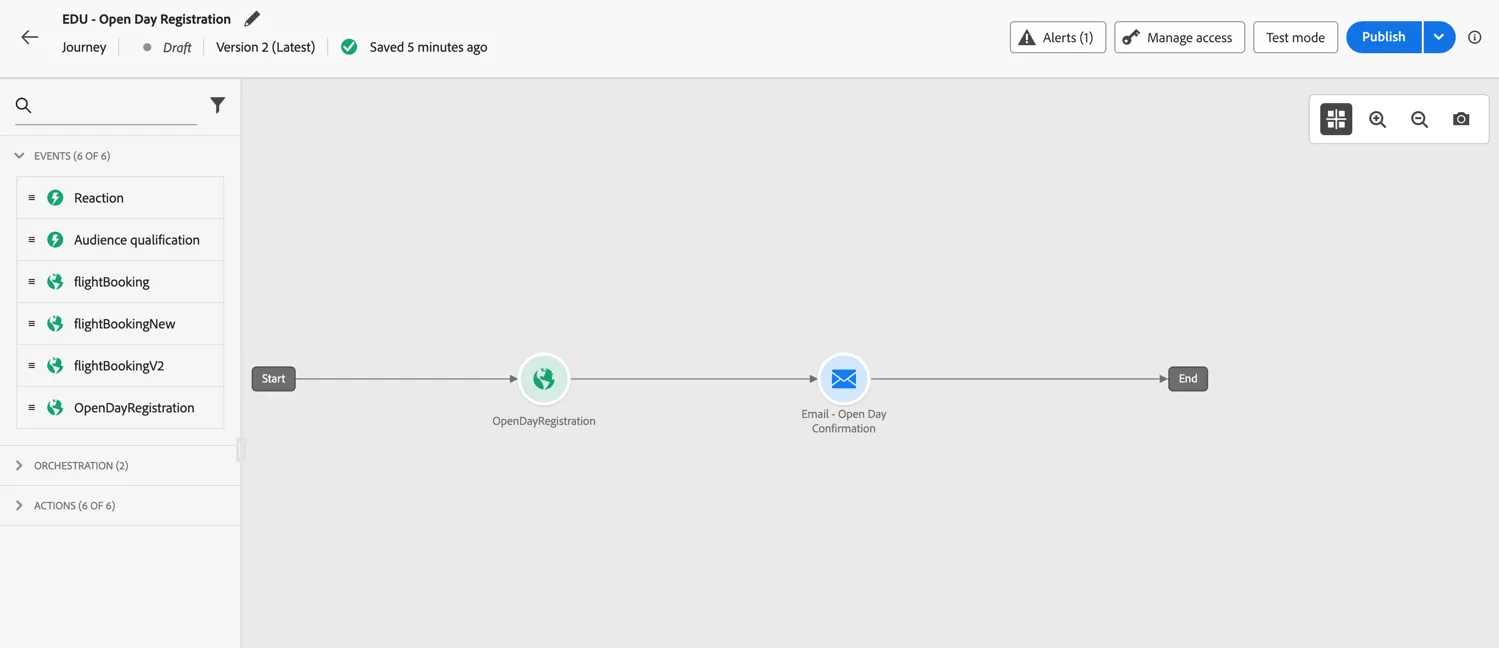
Test your journey
Before setting your journey live you can test it directly through the UI. Click on the button to activate Test mode.
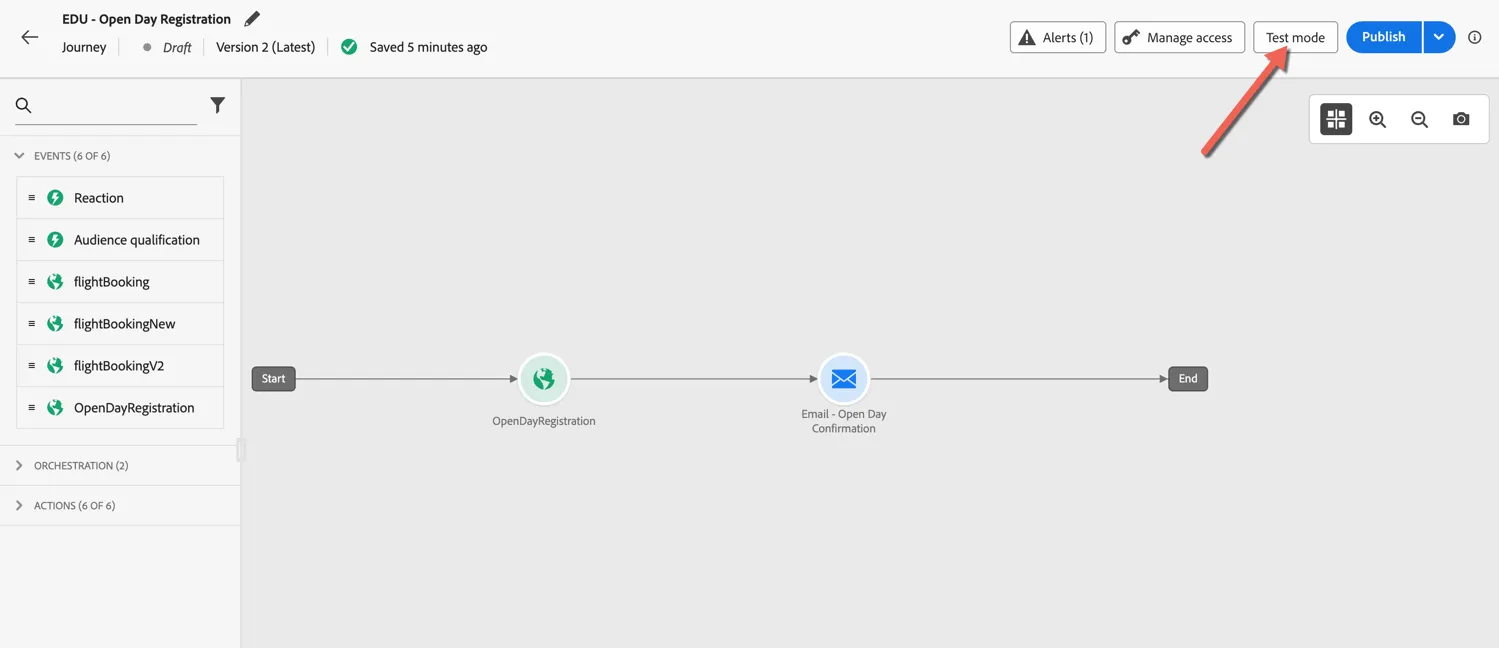
Once in test mode you can simulate an inbound event by clicking on the Trigger an event button.
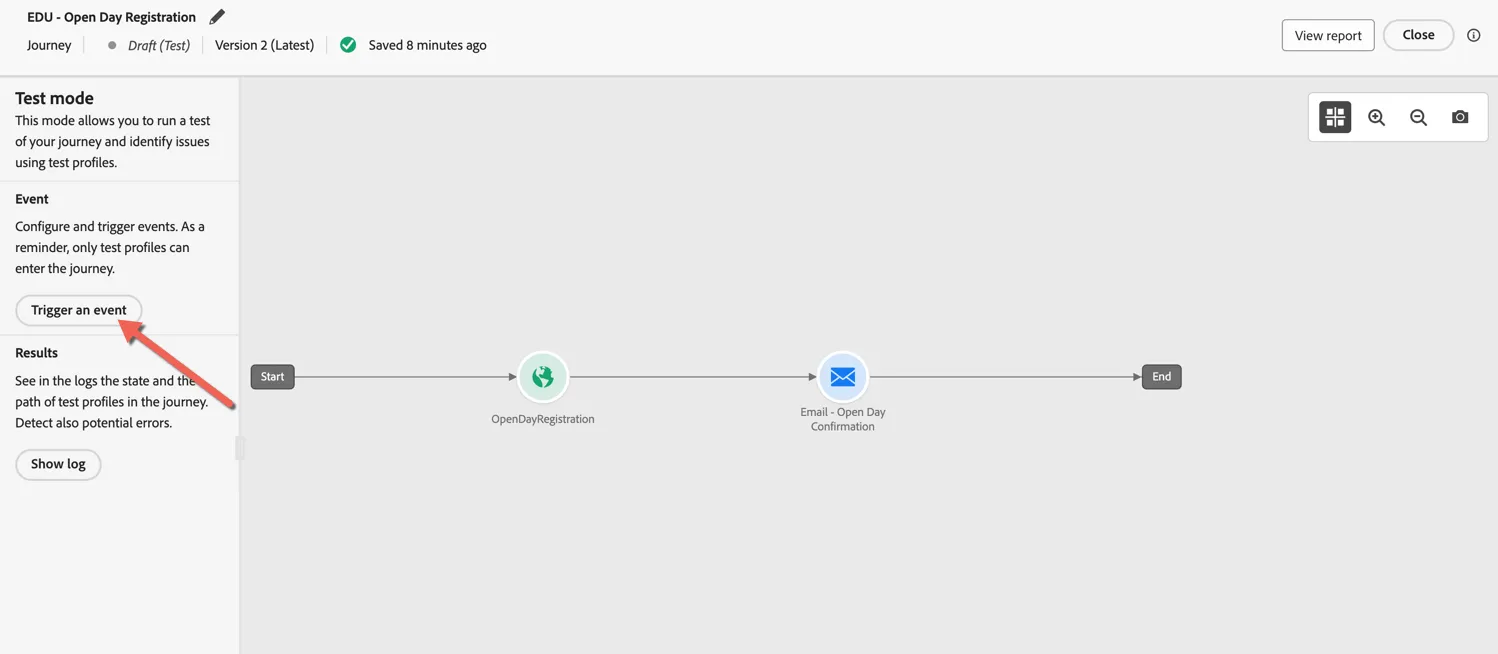
For the event simulation, change to Code view and copy the following event JSON into the window. Swap the ECID and the Email to match those from your profile (use the profile viewer on the website)
{
	"eventType": "web.registration",
	"web": {
		"webPageDetails": {
			"URL": "https://www.adelaide.edu.au/openday/"
		}
	},
	"_adobedemoamericas275": {
		"identification": {
			"core": {
				"ecid": "41180799773650620142859230385925785600",
				"email": "[email protected]"
			}
		}
	}
}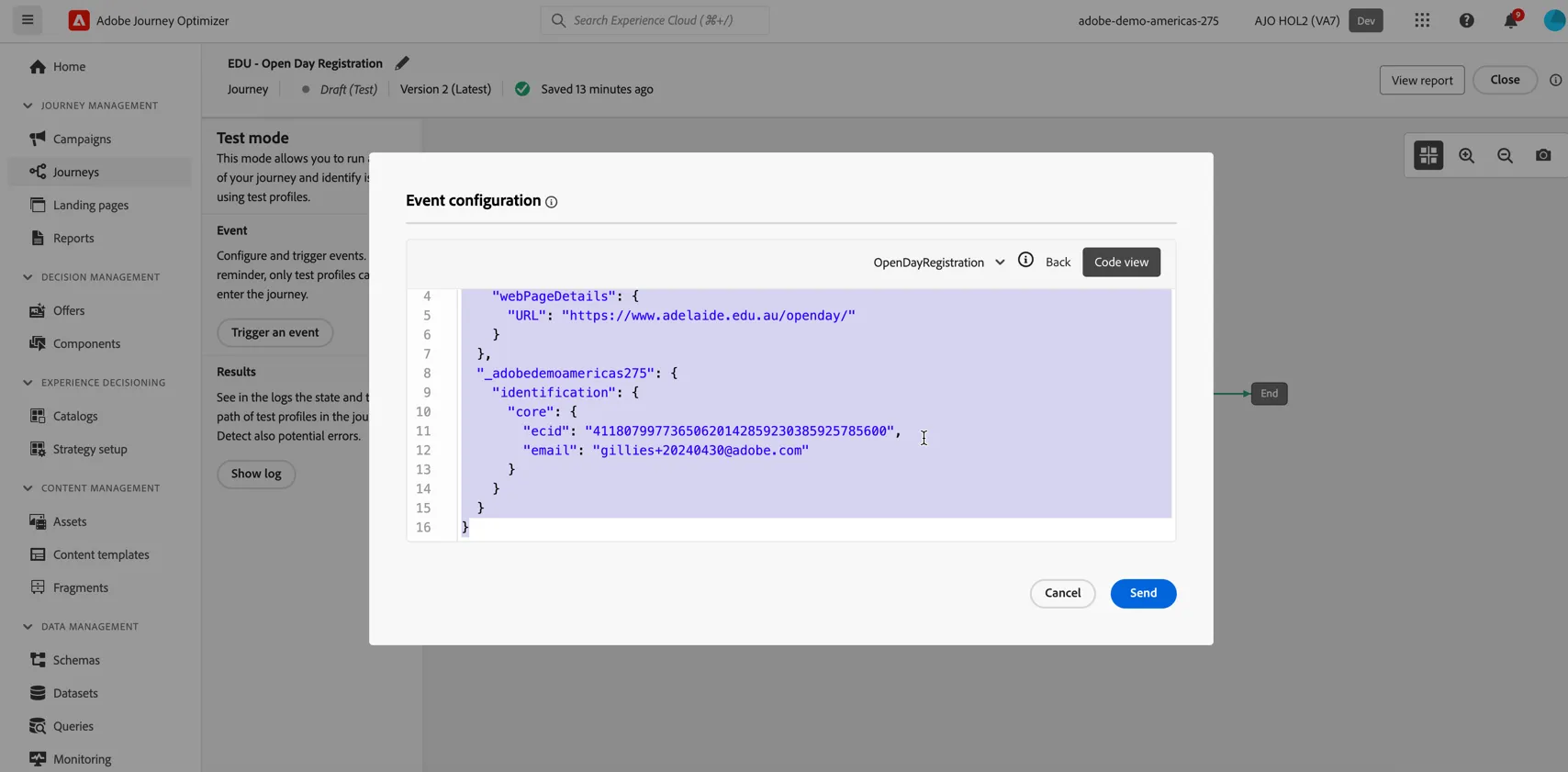
Click Send to trigger the test.
You'll see the line in the journey turn green and you should get a notification saying the event was sent succcessfully.