Build an Email Program
- Navigate to Marketing Activities

2. Go to your respective folder under Hands-on Lab Attendee
Right-click and select New Program

3. Name the new program “Email Program - ##” (Note: replace ## with your attendee number e.g. “01”), Program type as Email and click Create

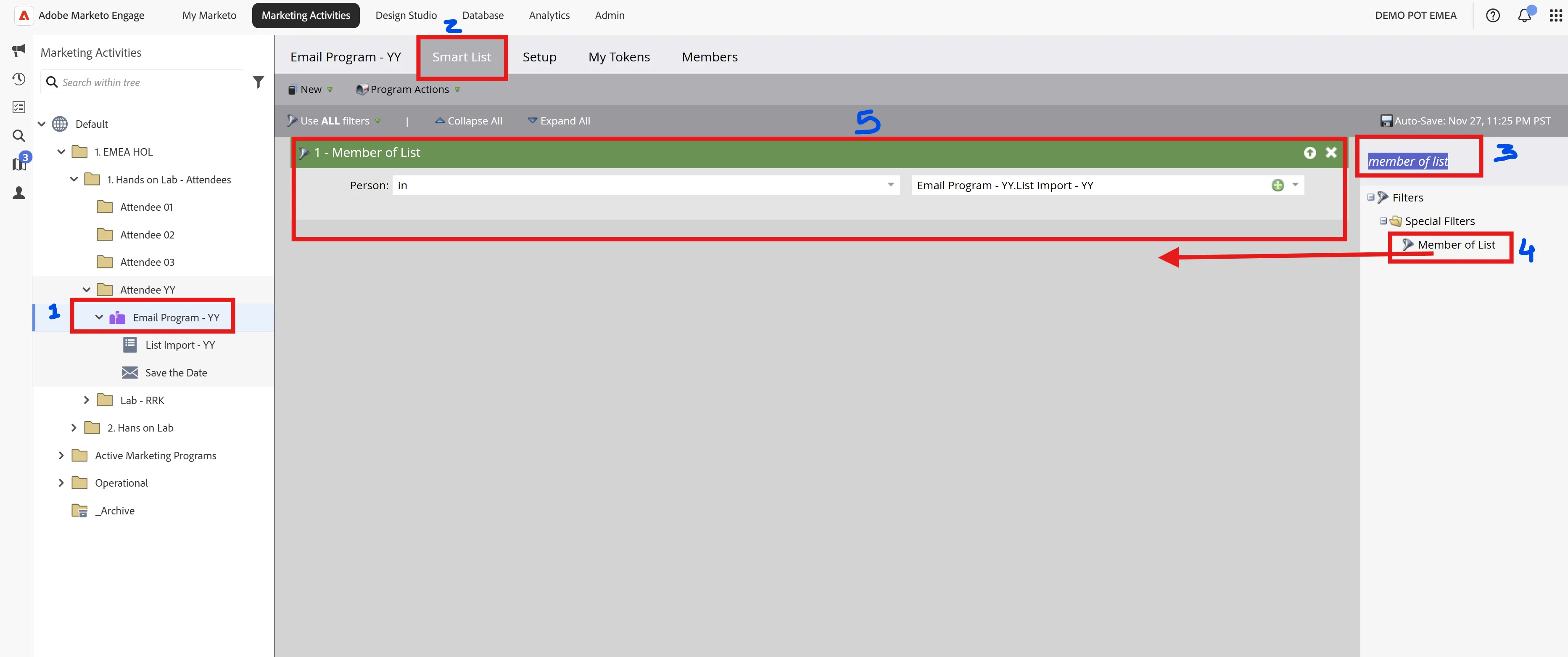
4. Navigate to the newly created email program and then to the smart list.
Type member of list, select the filter, drag and drop (as shown with the arrow). Select the list by typing your program name and choosing it from the drop-down menu.
Note: This is the same list created in the previous activity under the List Upload section.
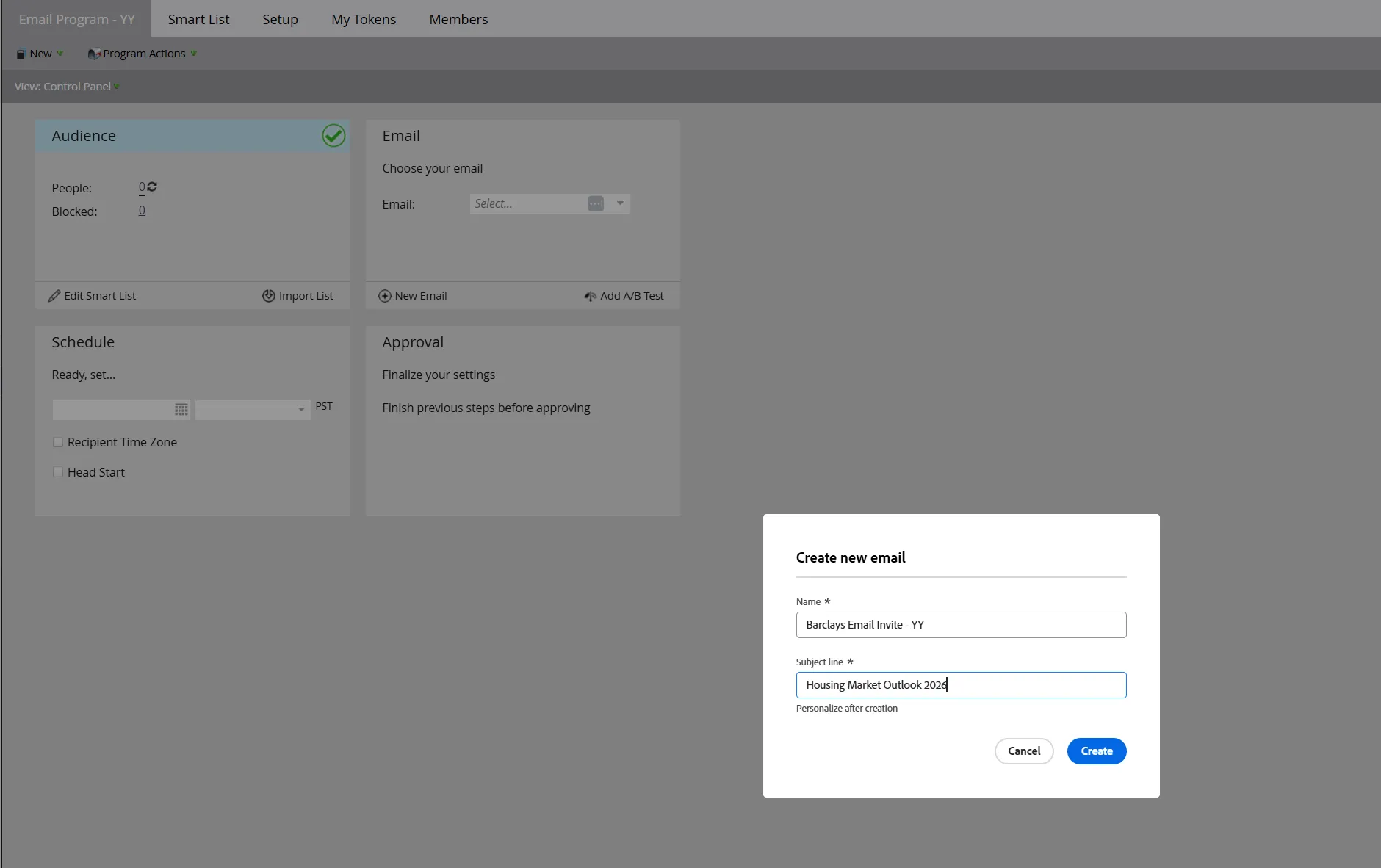
Go to the Email Program - ## tab, click on New Email, Email (New Email Designer) when prompted.

Provide Name (Barclays Email Invite - ##). Provide Subject line (Housing Market Outlook 2026)
Note: replace ## with your attendee number e.g. “01”
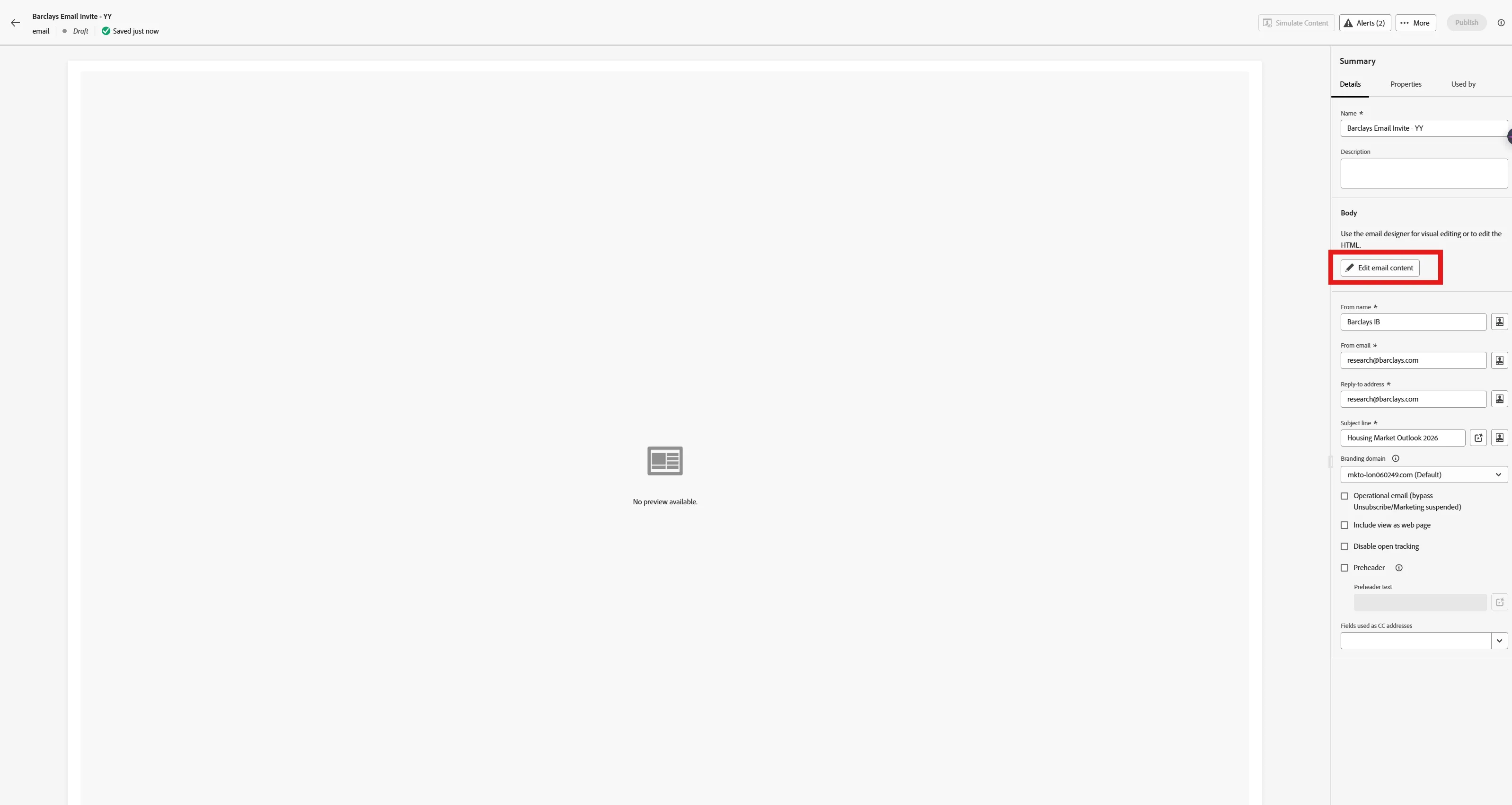
Click on Edit email content
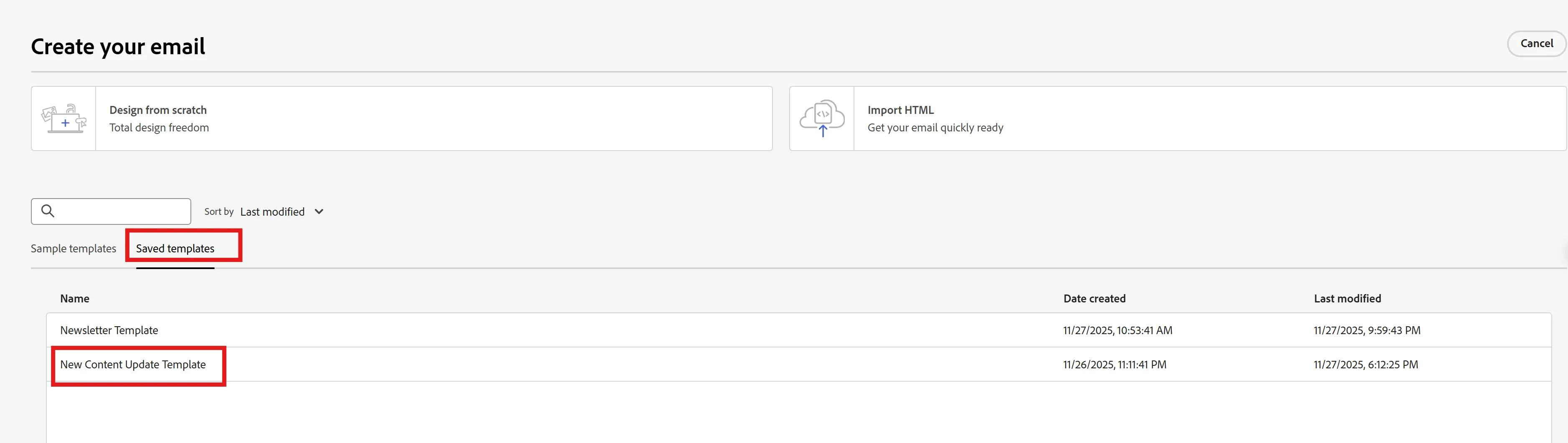
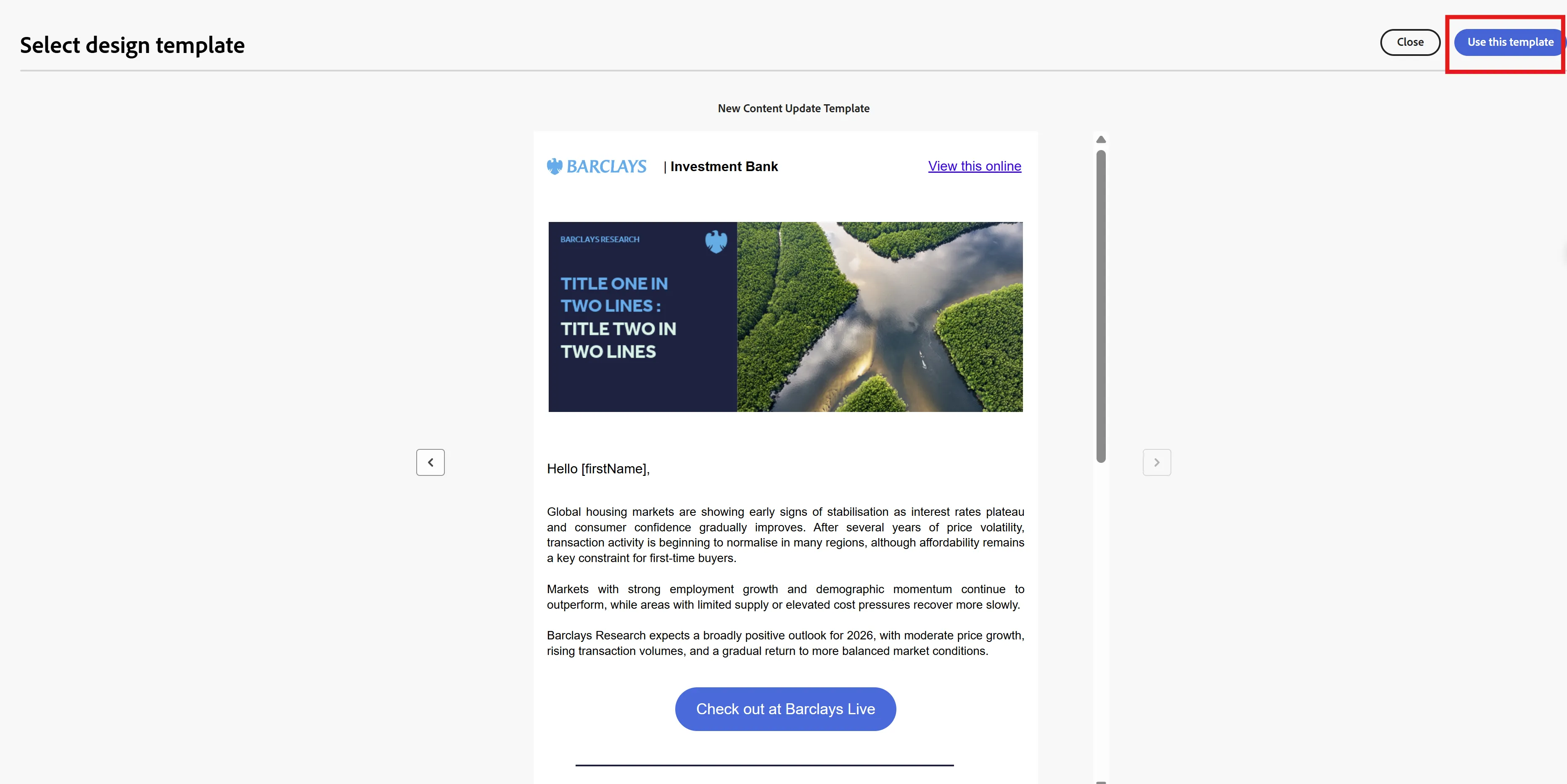
Click on Saved templates and select New Content Update Template
Click on Use this Template
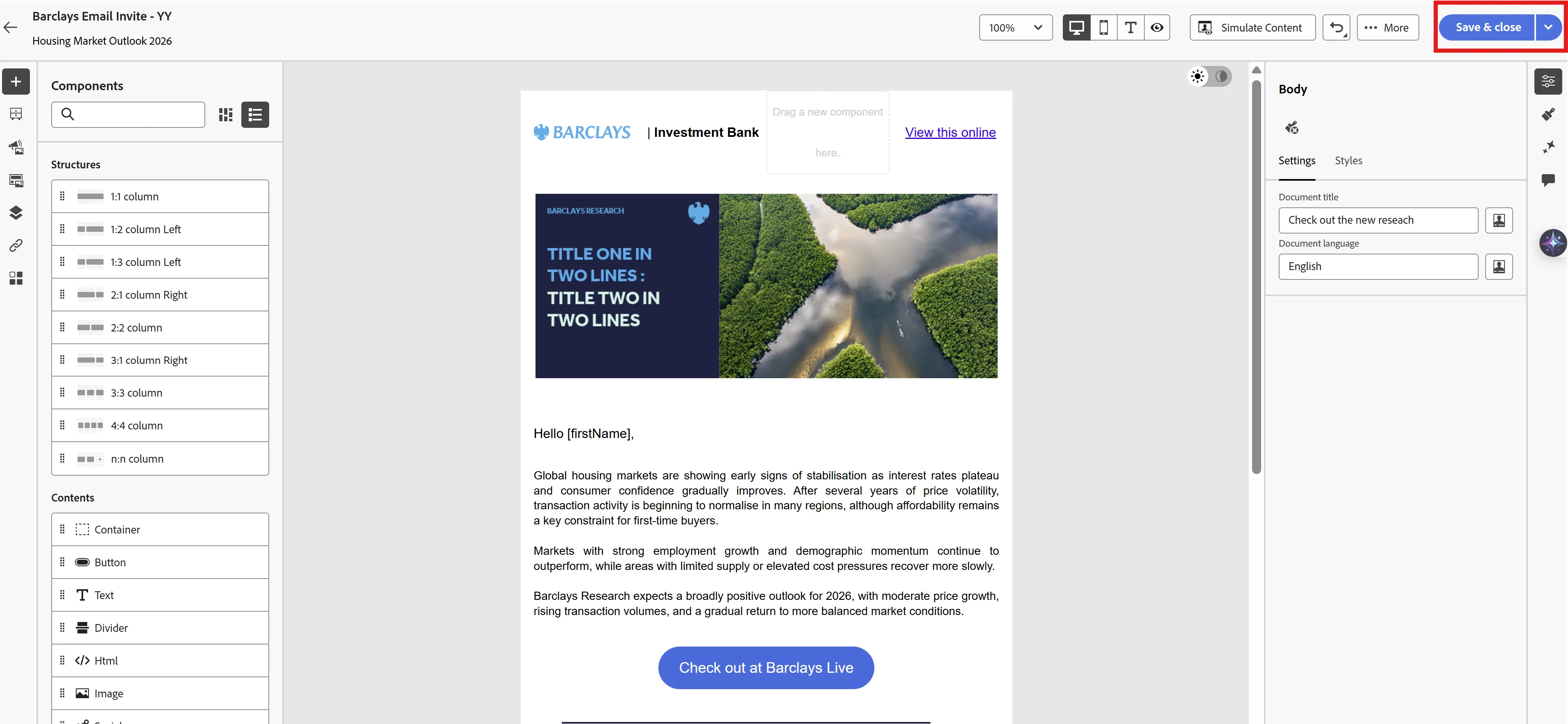
Click Save & close
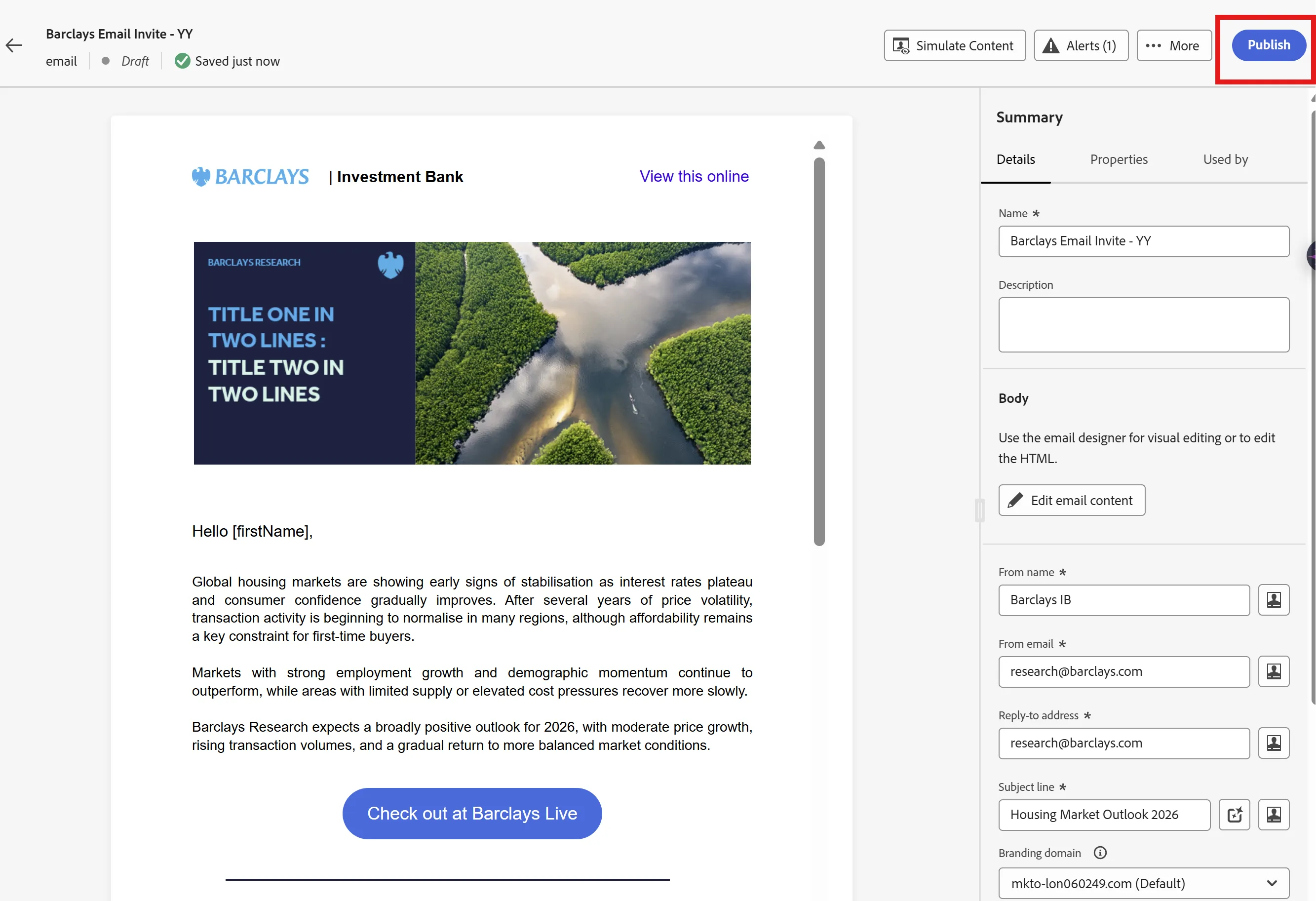
Click on Publish
Click on your Email program and select the email we just created and published.
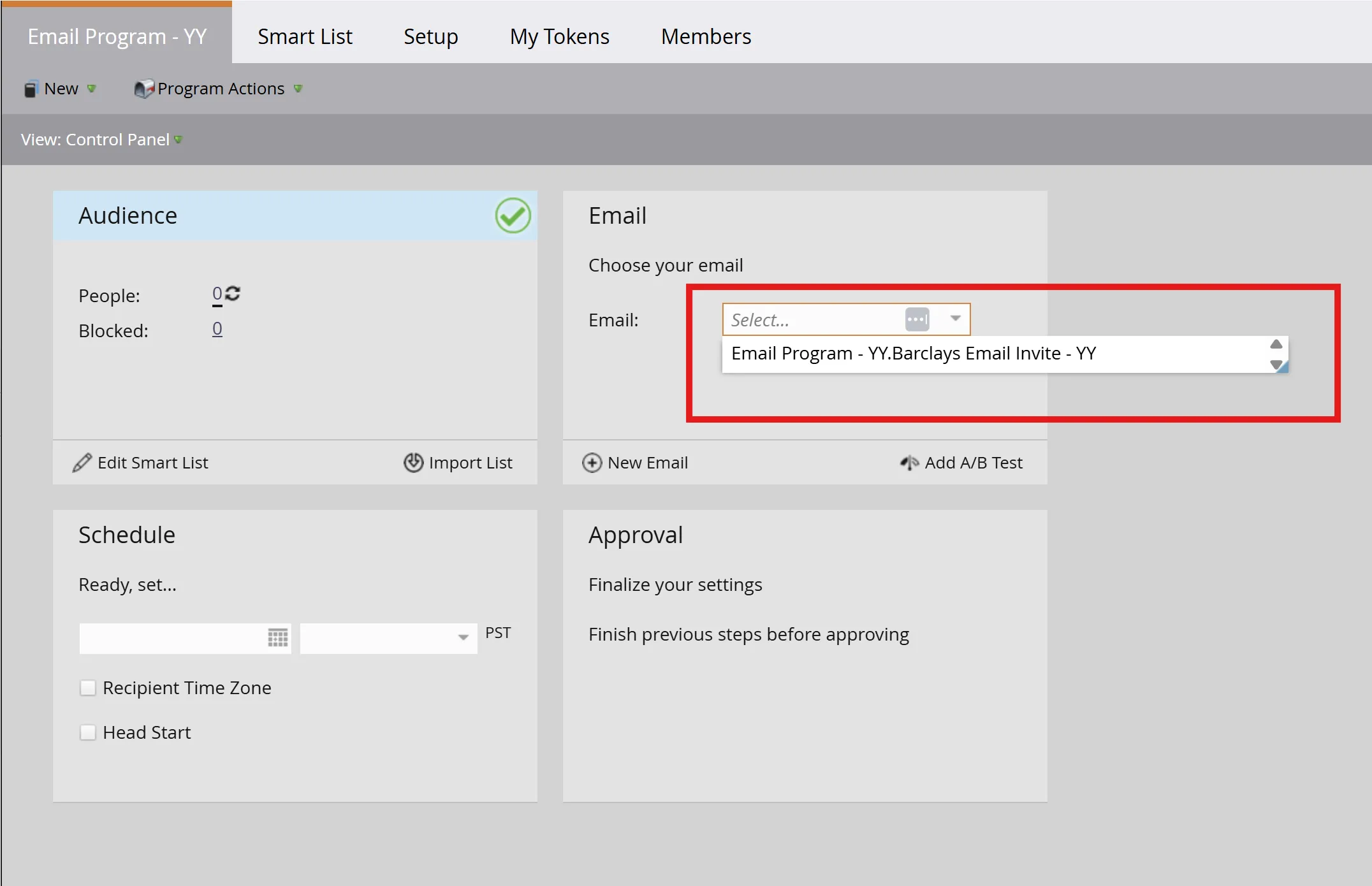
Select the date and time for the deployment, Schedule and Approve Program
