Review & Approval
Introduction
In the original process flow, creative teams will go through content creation, review and approval process via creative tools itself. Since we have skipped the content creation section of the lab, we will be going through the review and approval process using the asset we downloaded from the project.
Requesting a review
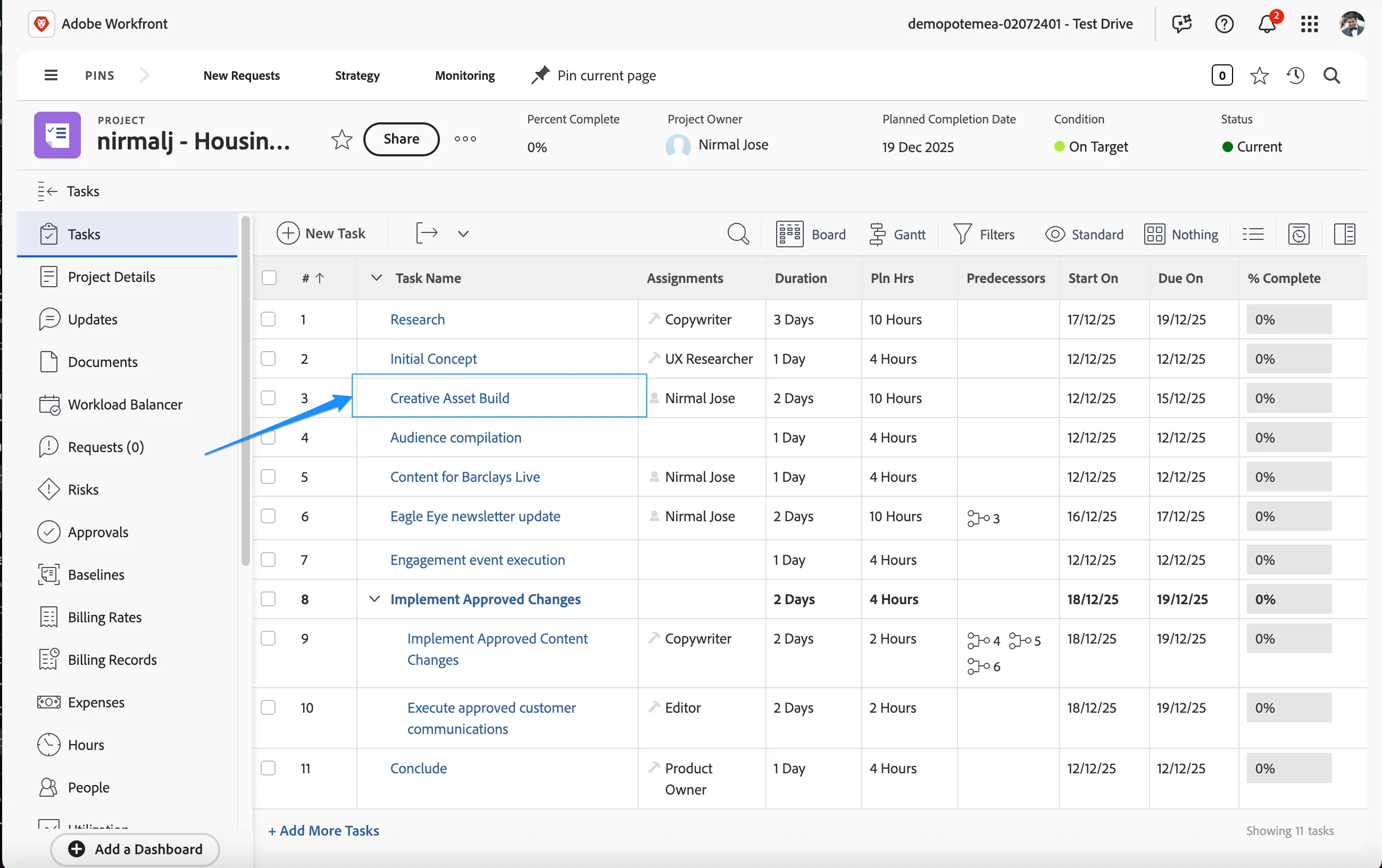
Navigate to Tasks and click on the Creative Asset Build task.
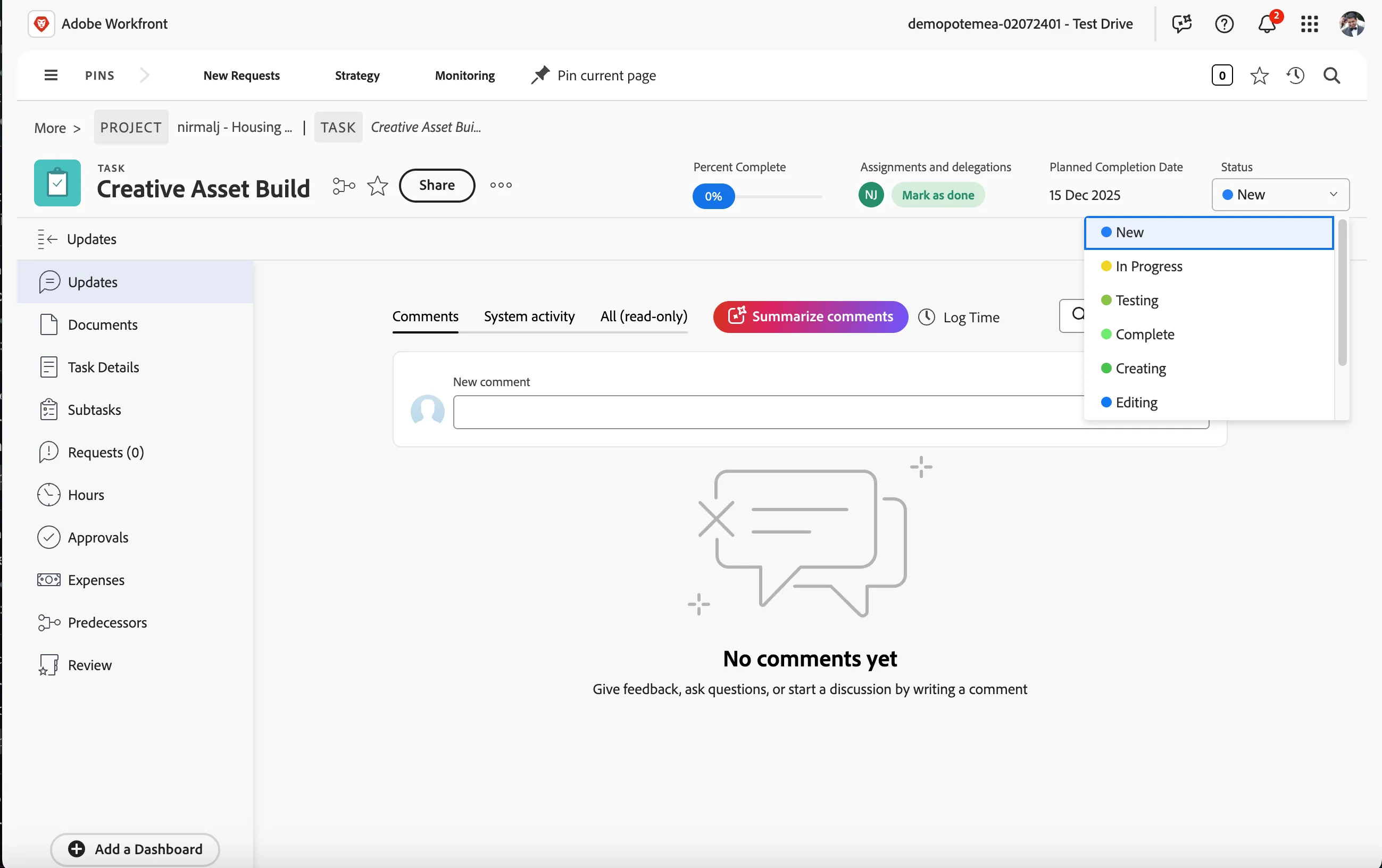
Go into the Task Details and mark the status of the task to In Progress
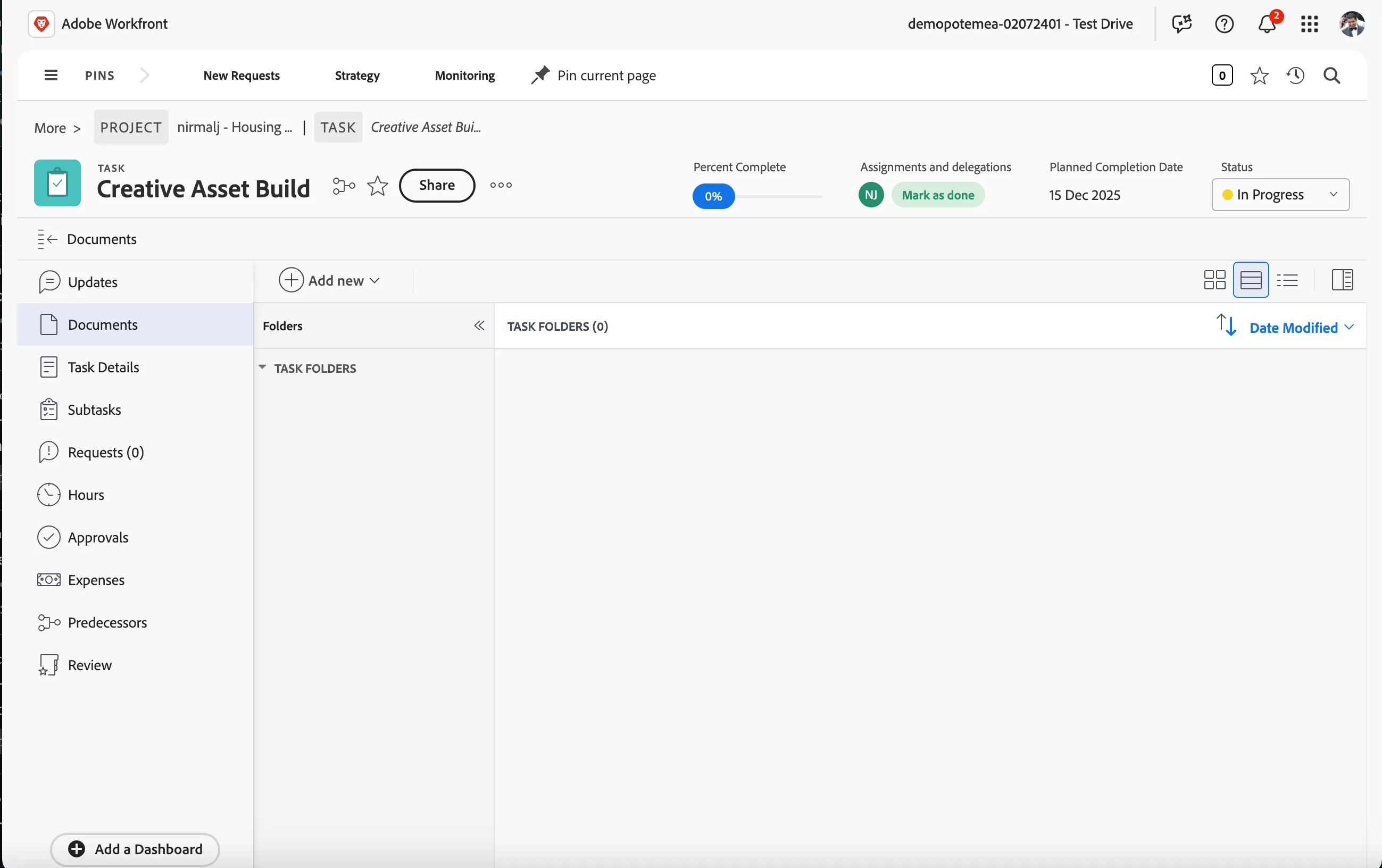
Click on Documents from left side menu.
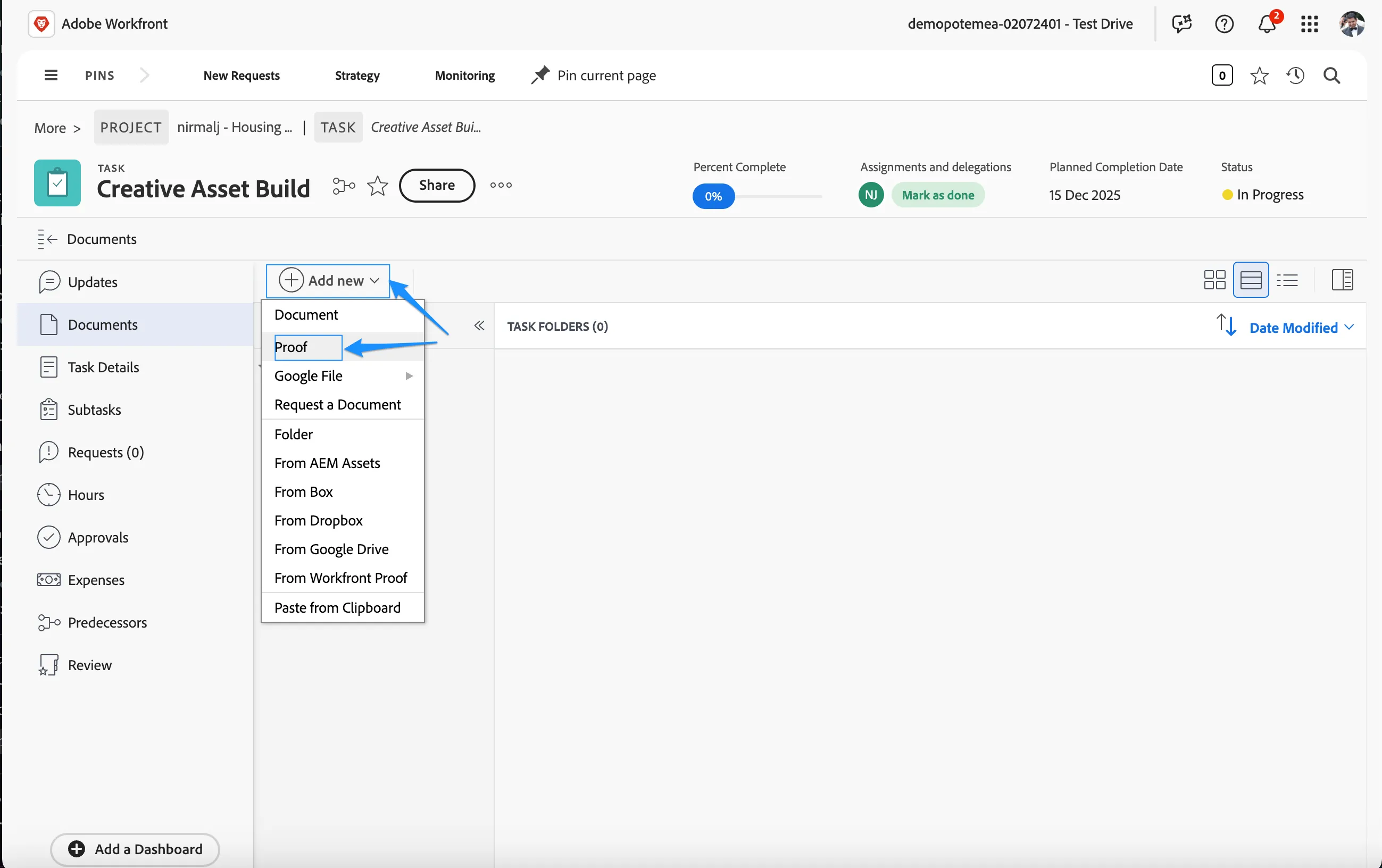
Click on Add new and select Proof.
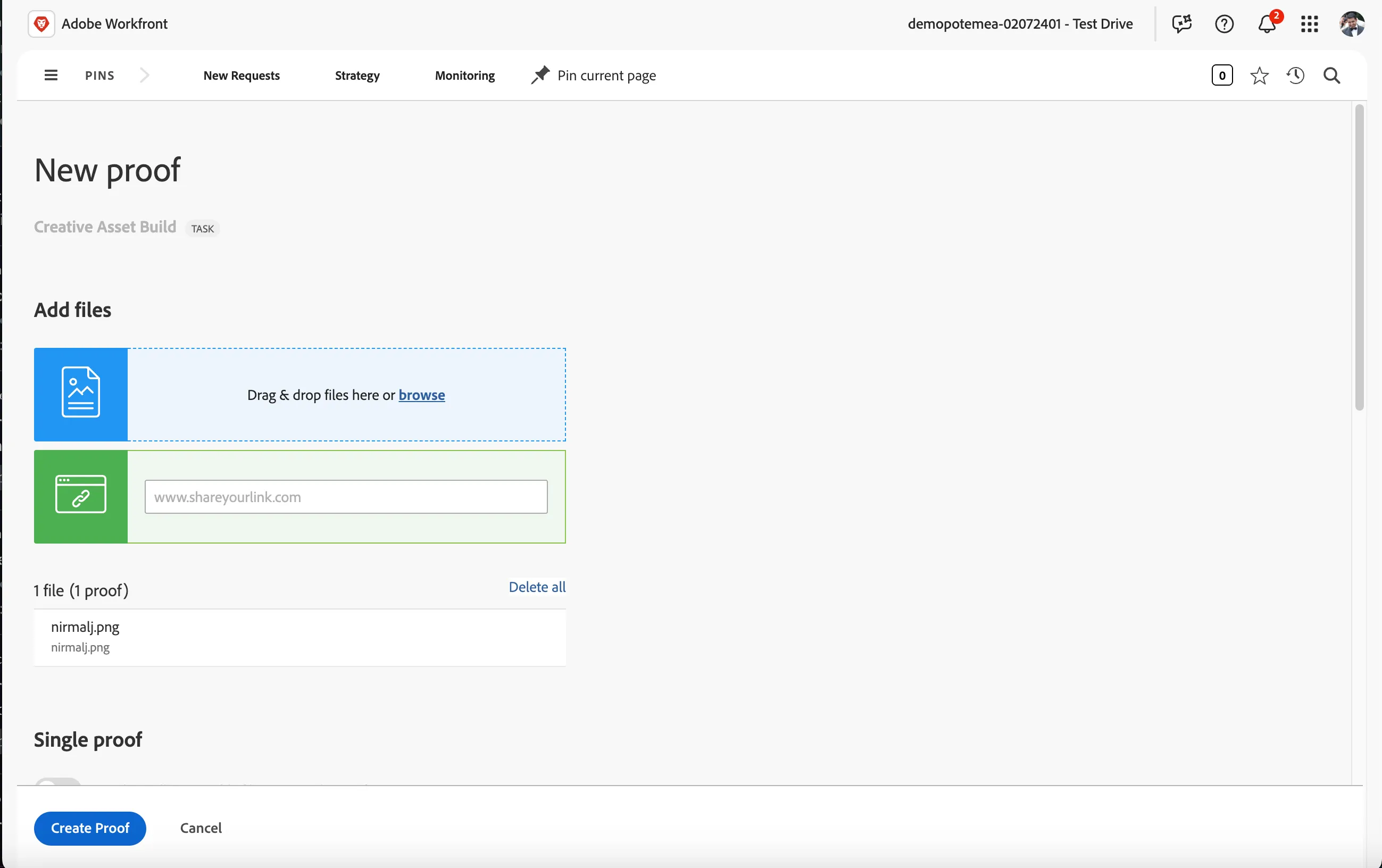
This will open up the New Proof upload page. Add the file we downloaded and renamed in the previews exercise by browsing to your local storage OR drag and drop the file.
Update your Proof role as Read only. This will ensure the proof is approved as soon as the reviewer approves it.
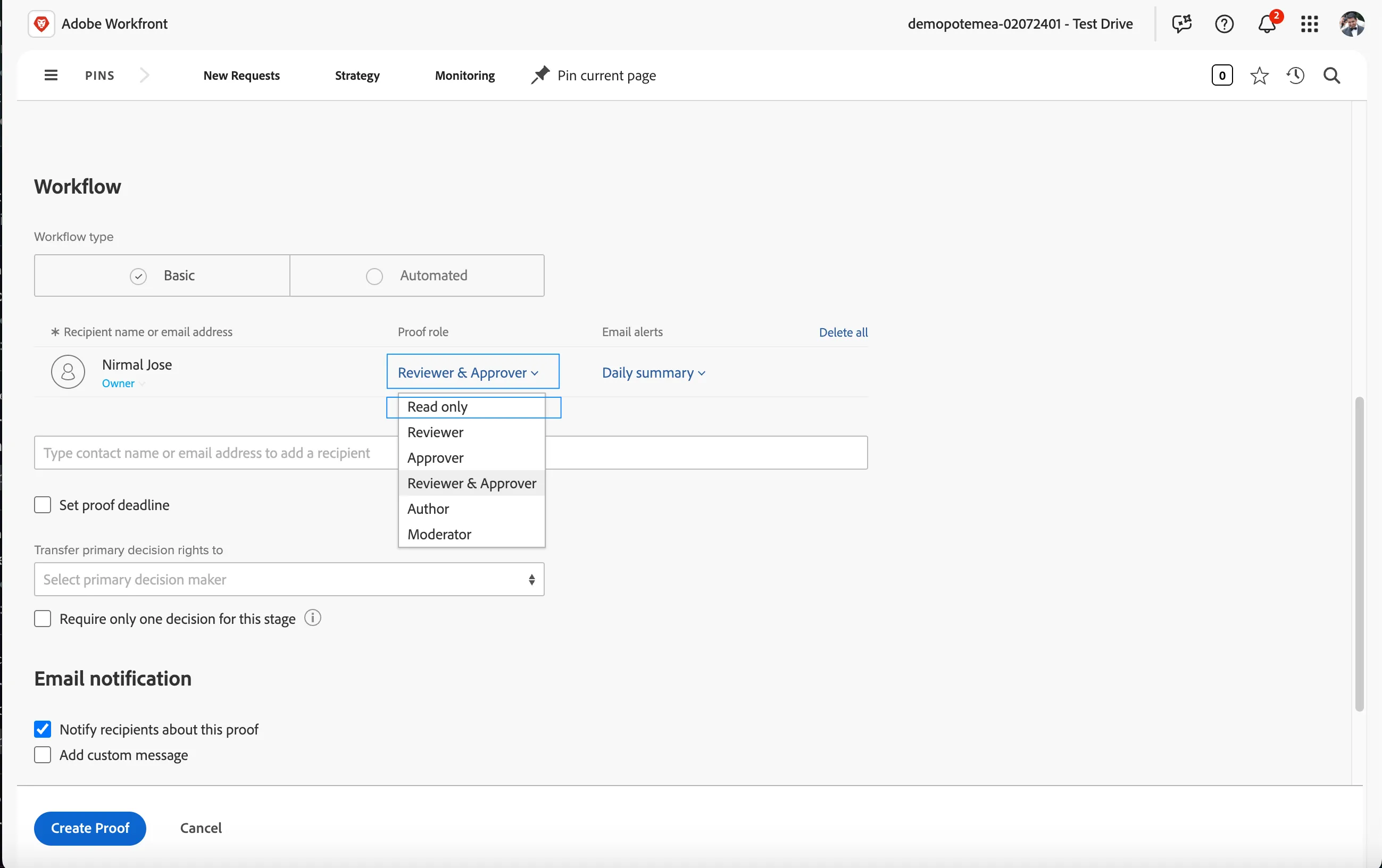
Request your colleague to review your asset. To do this, add your colleague by typing the user login ID (their Barclays ID / Name) and select them from the drop down list. In case you are sitting alone, you can update yourself as Reviewer & Approver.
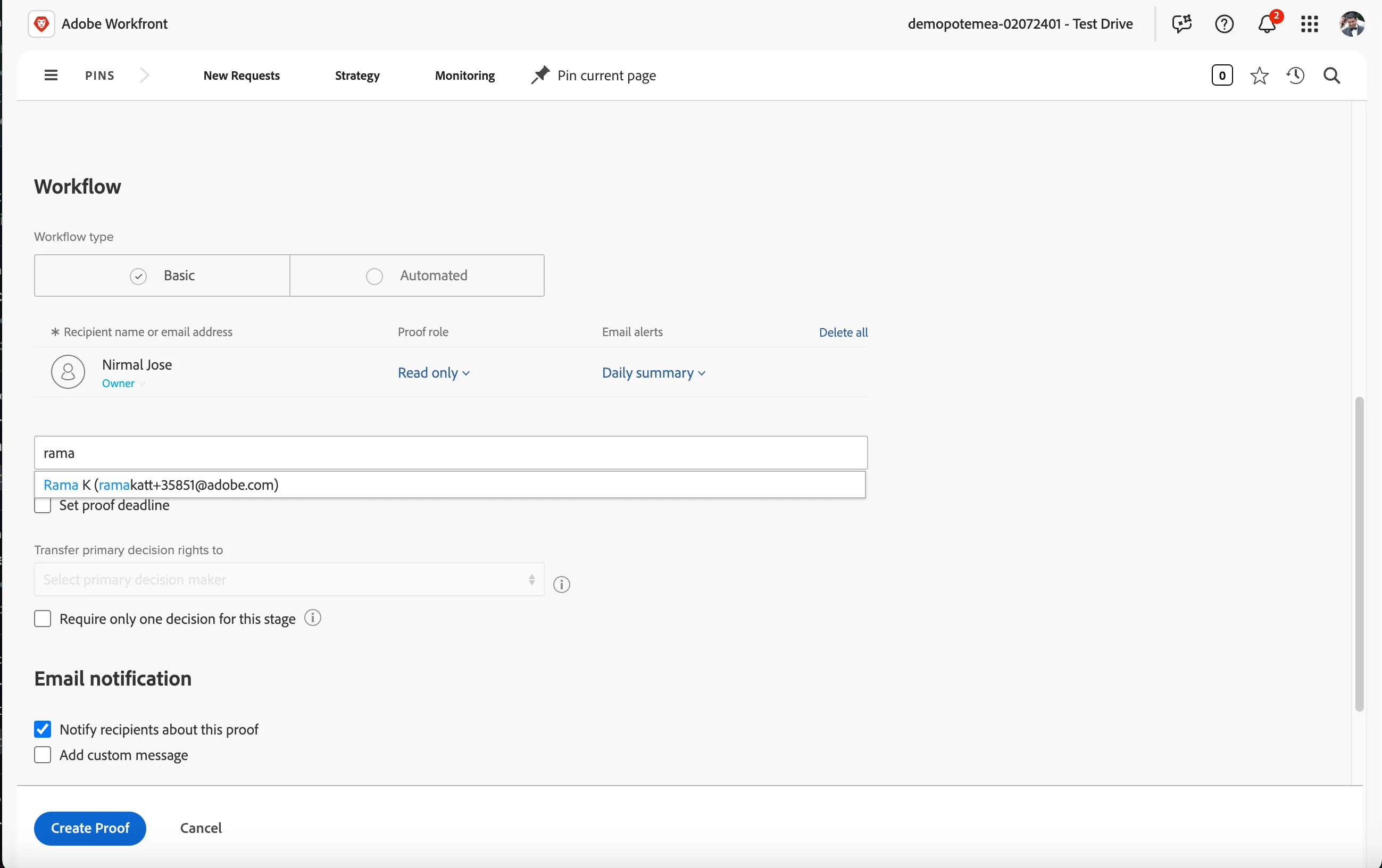
Leave all other fields as the default selections.
Click on Create Proof.
Review and approval
The Workfront Proof Review and Approval Process streamlines the way teams collaborate on and finalize assets. It allows stakeholders to review, comment, and approve creative work in a centralized platform, ensuring faster feedback loops and more efficient decision-making. By using Workfront Proof, teams can track changes, manage versions, and ensure that all feedback is addressed before final approval. This process helps maintain consistency, improve accuracy, and reduce time to market.
Click on Adobe Workfront logo to go to home dashboard.
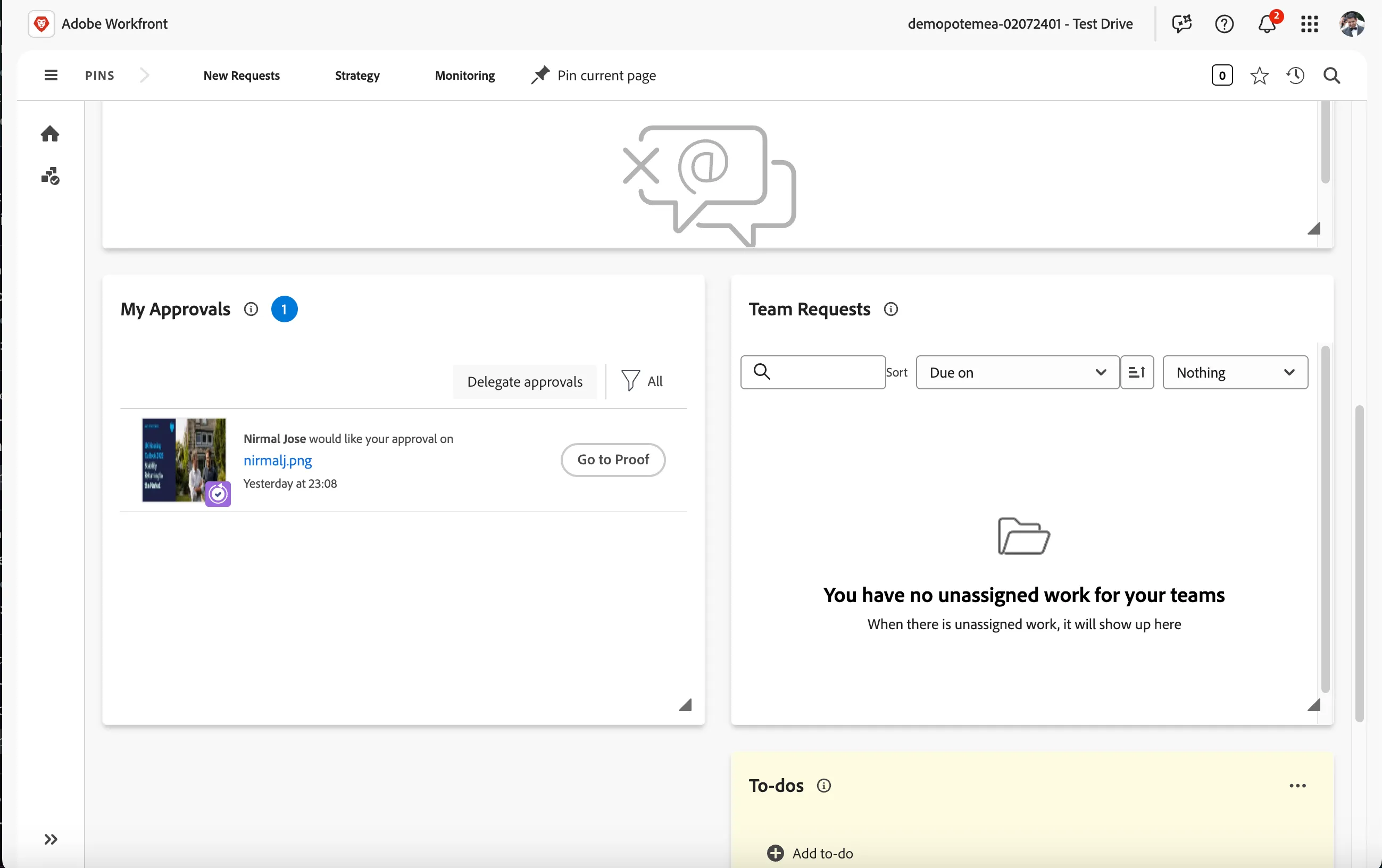
Scroll down to find the item to review on My approvals widget. Click on the Go to Proof to open the proofing viewer.
Click on Add comment where you can comment on the reviewing item.
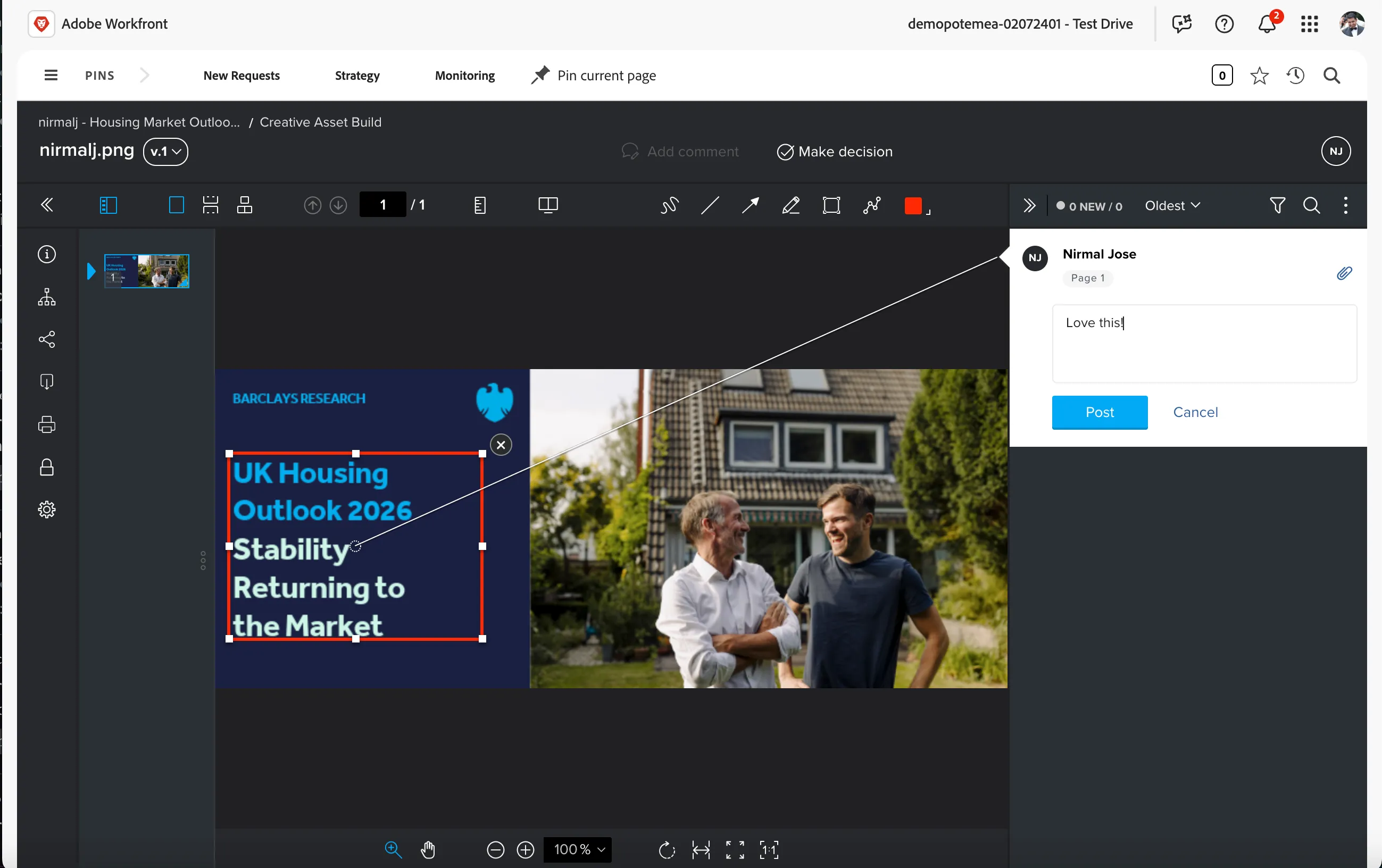
Click on Make decision to show the options and select Approved and click Make decision button on the popup to approve the changes.
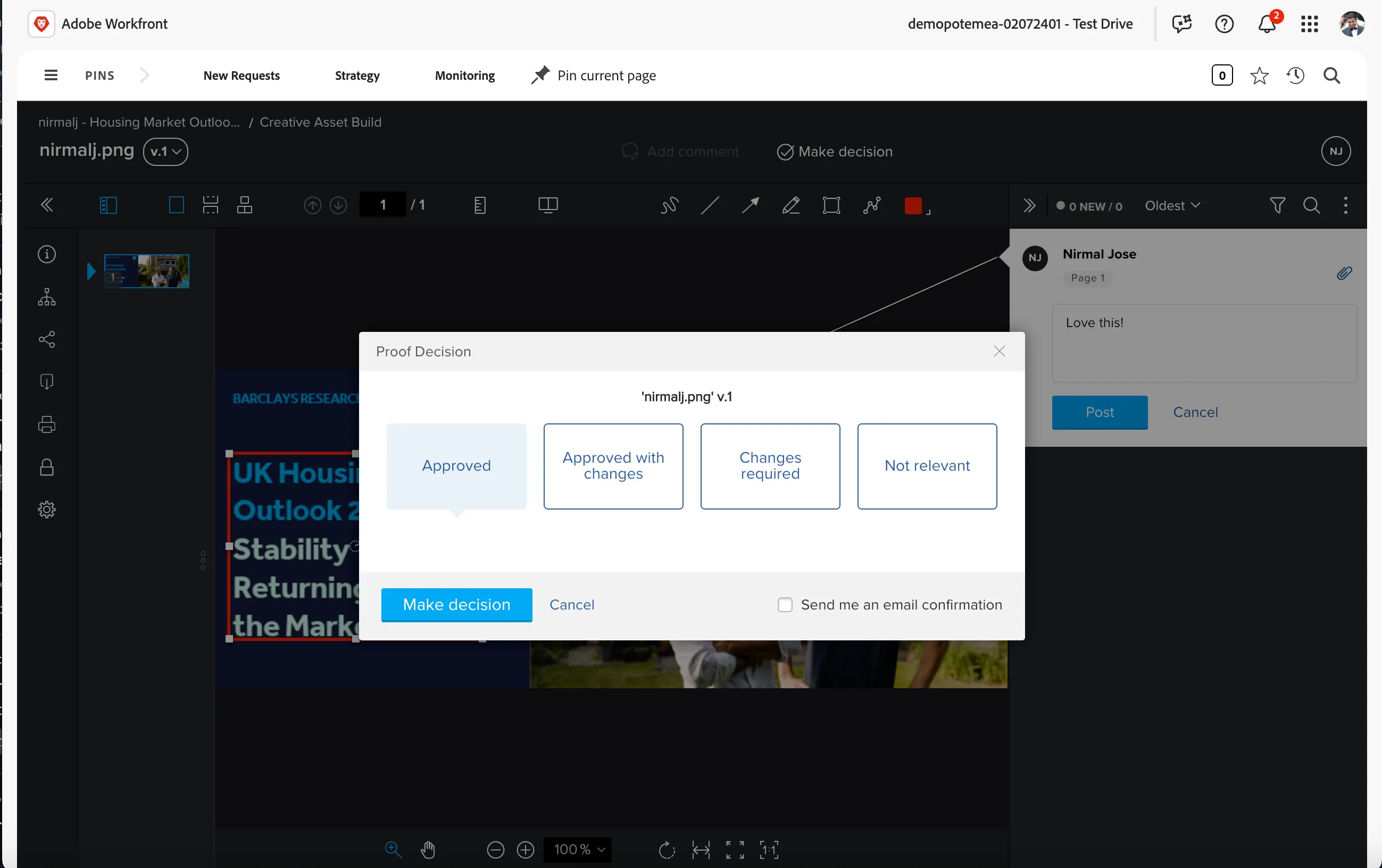
We did a simple manual approval process by assigning it to a colleague and getting it reviewed and approved. We can setup approval workflows and automations to adjust to the organisation policies and processes.
You can close the window once the decision is made by clicking on the Adobe Workfront logo on top left.
Verify document status
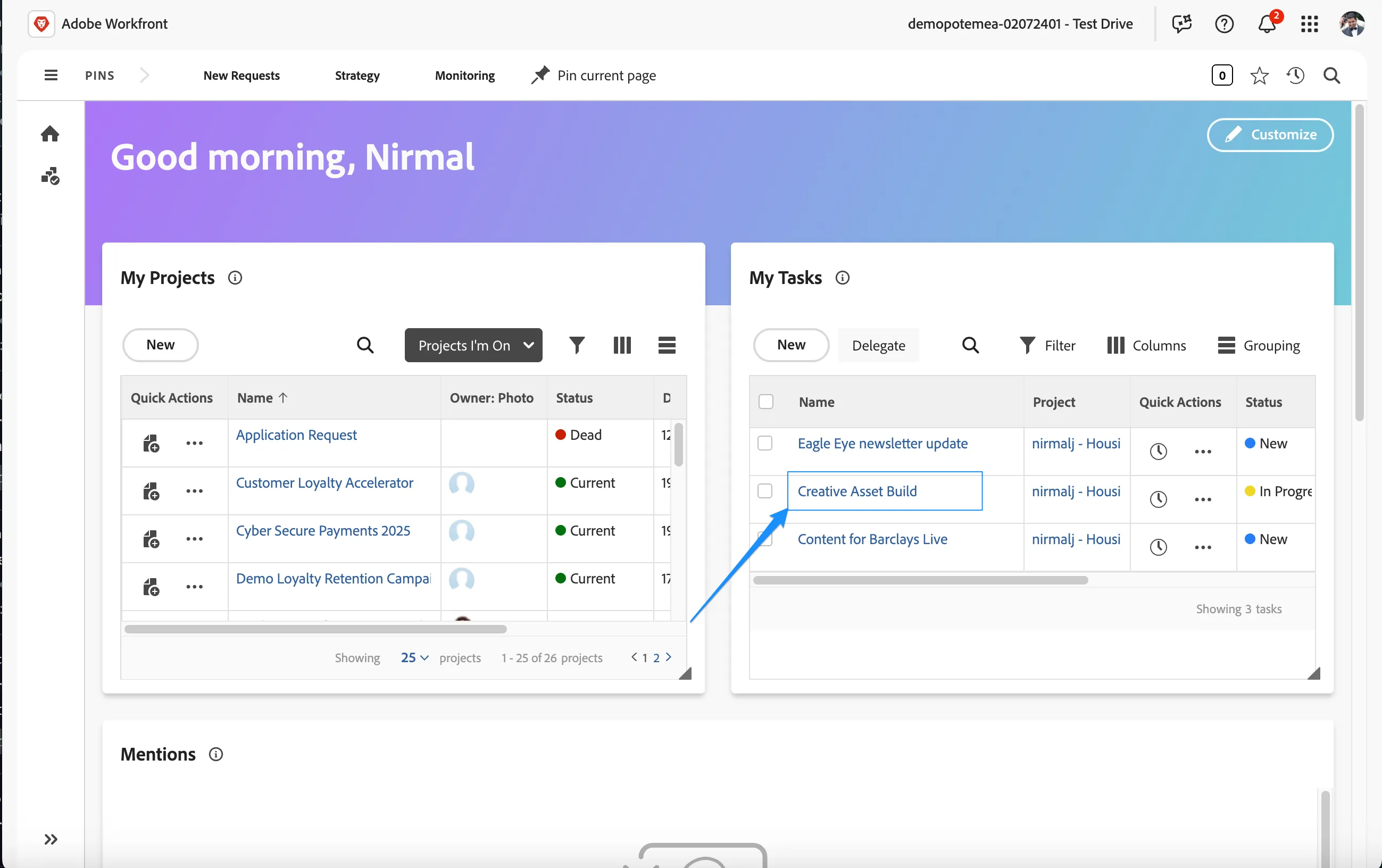
On the homepage, please click on Creative Asset Build task in the My Tasks Widget.
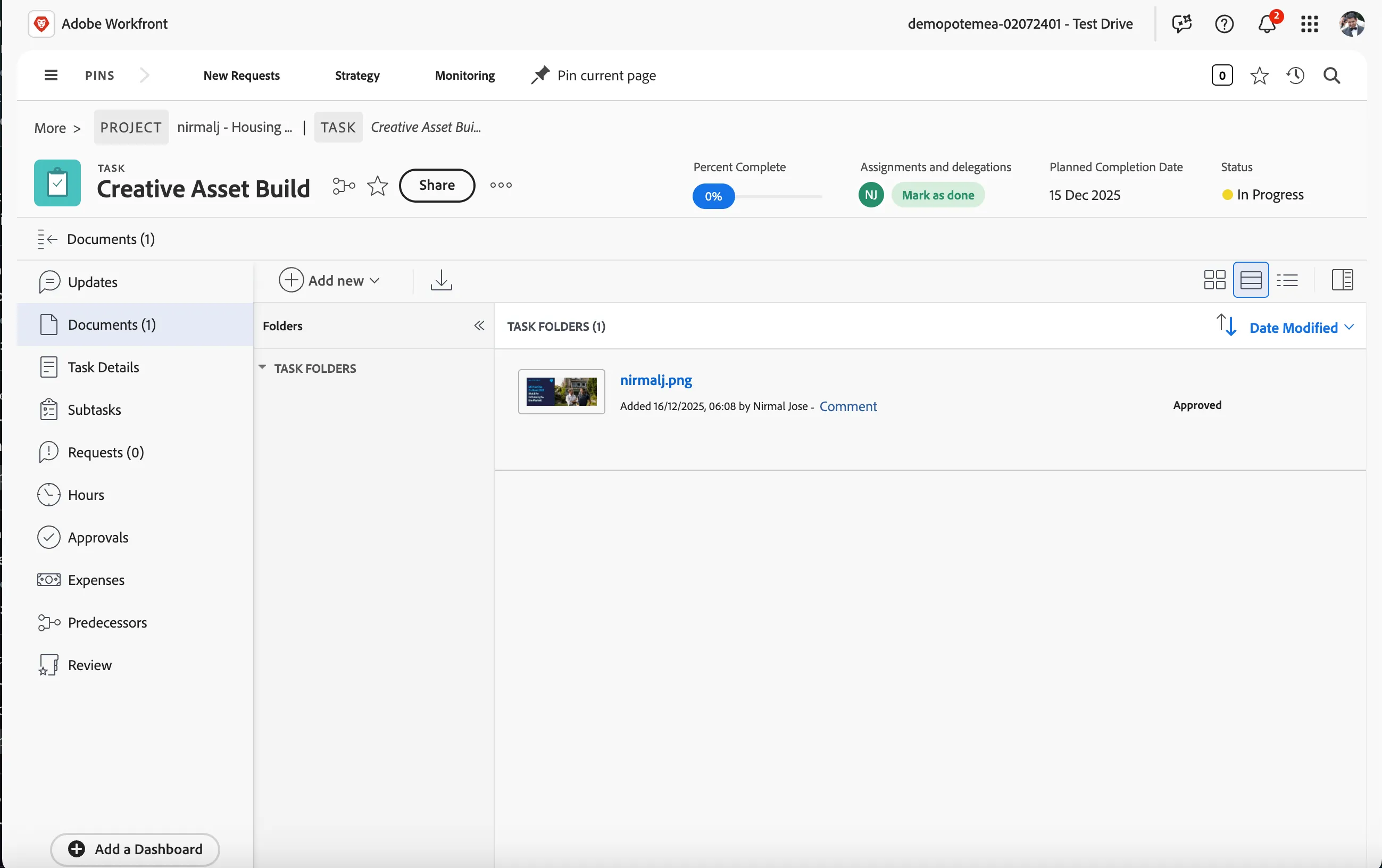
Click on Documents section and click on the approved document tile. As you can see, all the proof status are completed and document is marked as Approved.
Sending approved assets to AEM Assets
Once an asset is approved in Workfront, it can be seamlessly transferred to Adobe Experience Manager (AEM) for use in various digital experiences. This integration ensures that only finalized, high-quality assets are published, maintaining consistency across channels. By automating the transfer process, teams can reduce manual effort, prevent versioning issues, and ensure that the latest approved assets are readily available for content creation and delivery.
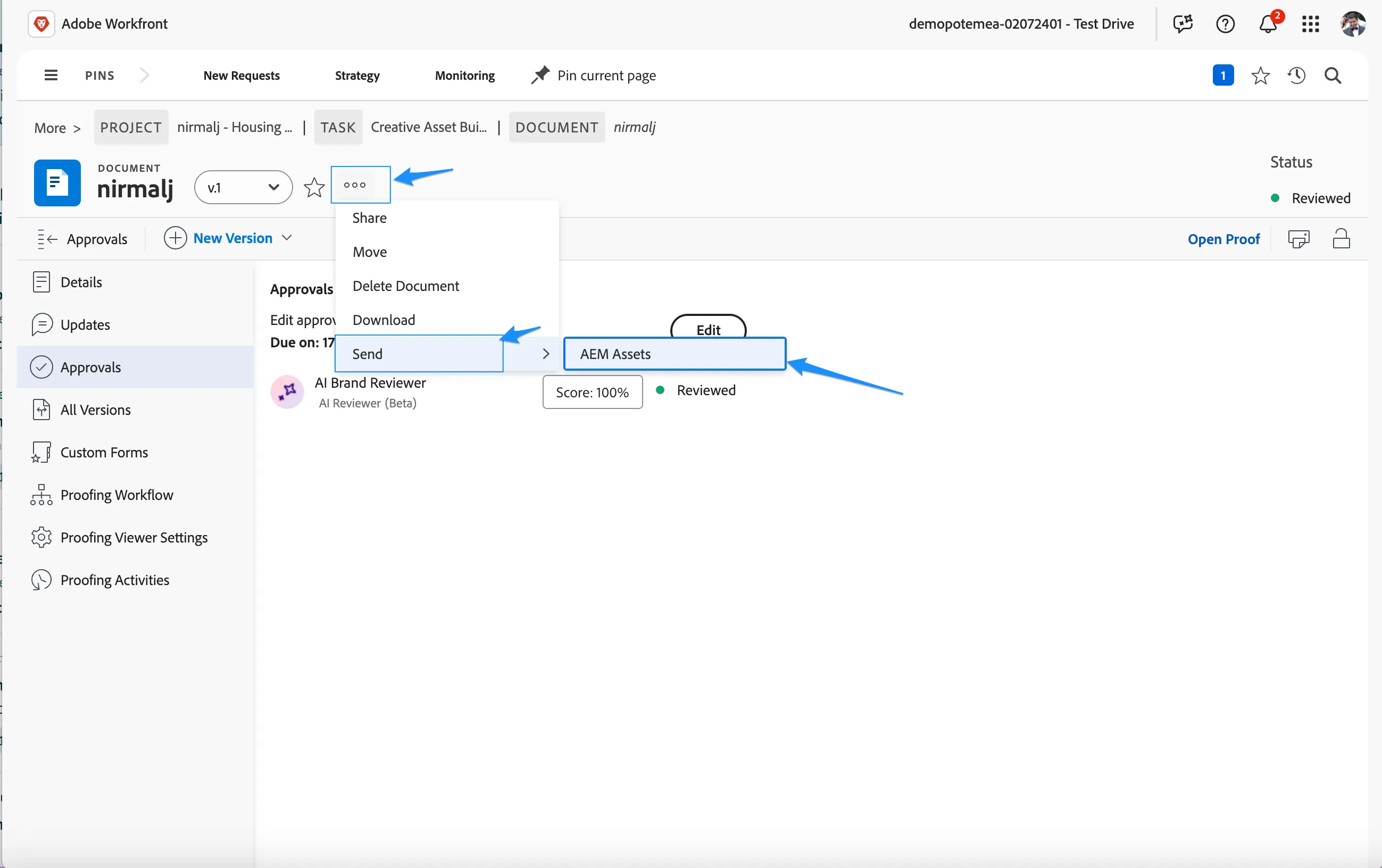
Click on -icon next to the document title, go to Send menu and Select AEM Assets. This opens a new popup window.
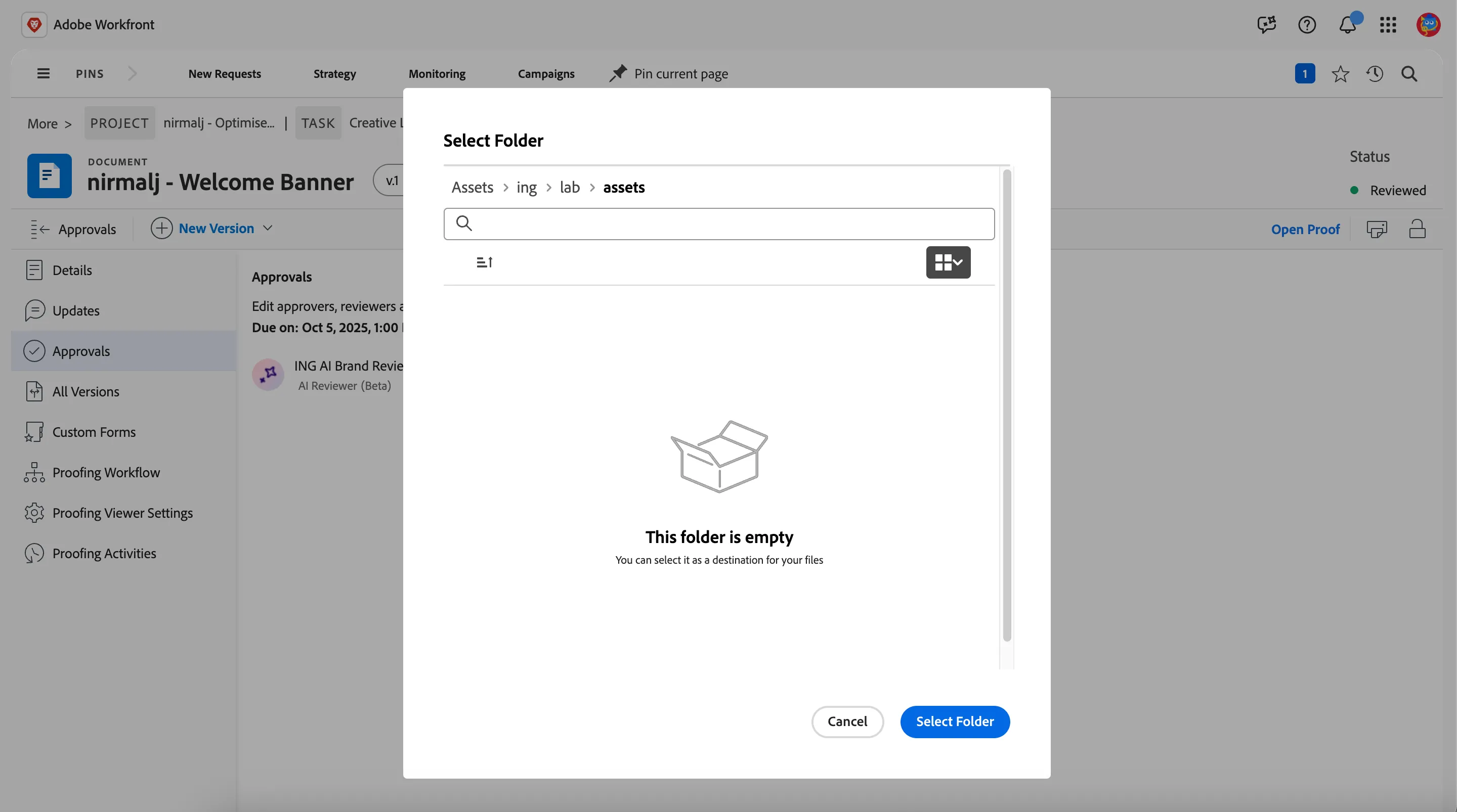
This open the window where we need to select the destination folder in AEM assets. Navigate to barclays > lab folder and click Select Folder.
- This should close the window and will send the asset to AEM Assets. You will get a notification when it is complete.
Mark tasks as complete in workfront
Now that you have completed the work needed in the task, lets mark the Status of the task as complete. This ensures other teams are aware that creative team has completed the task.
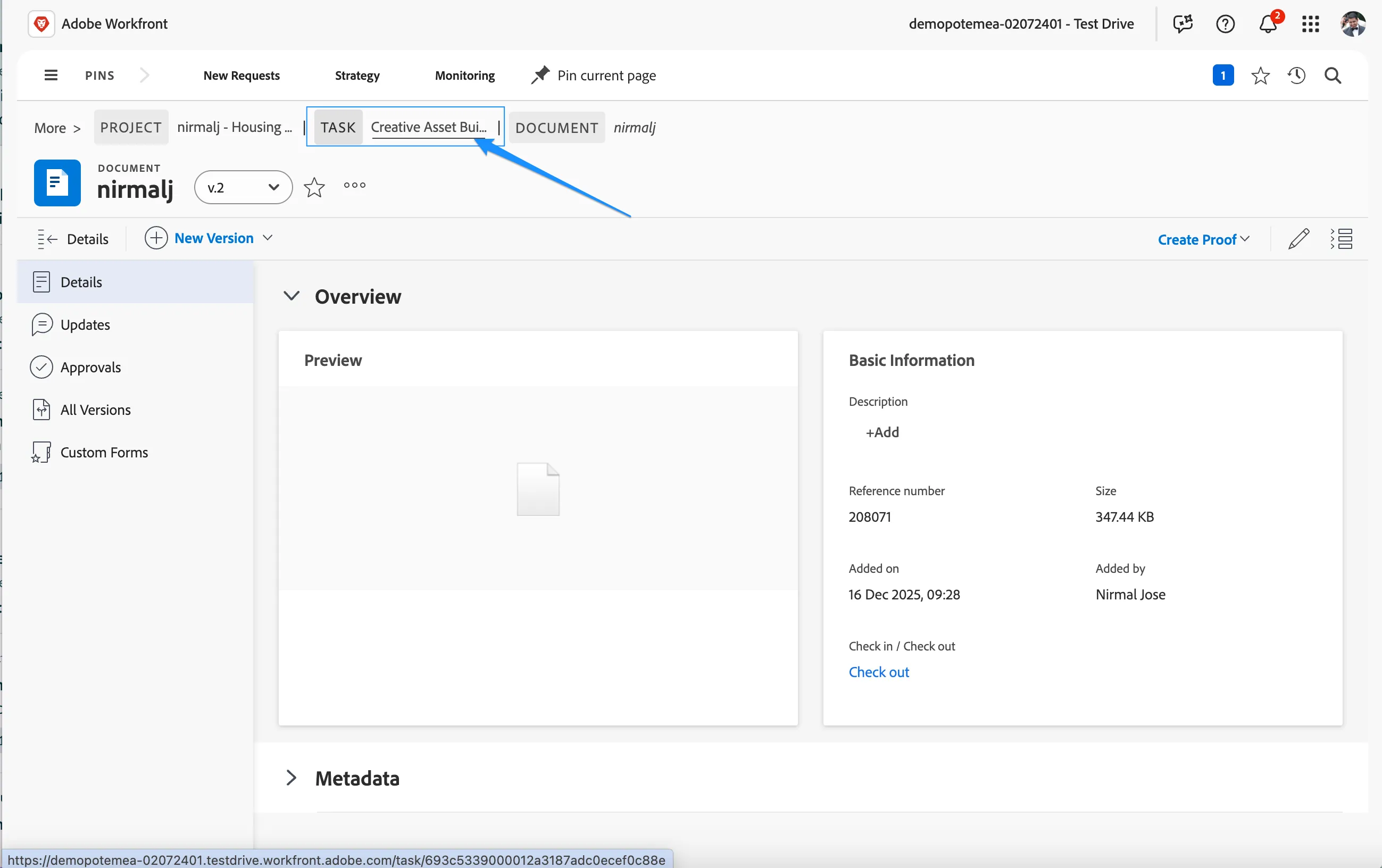
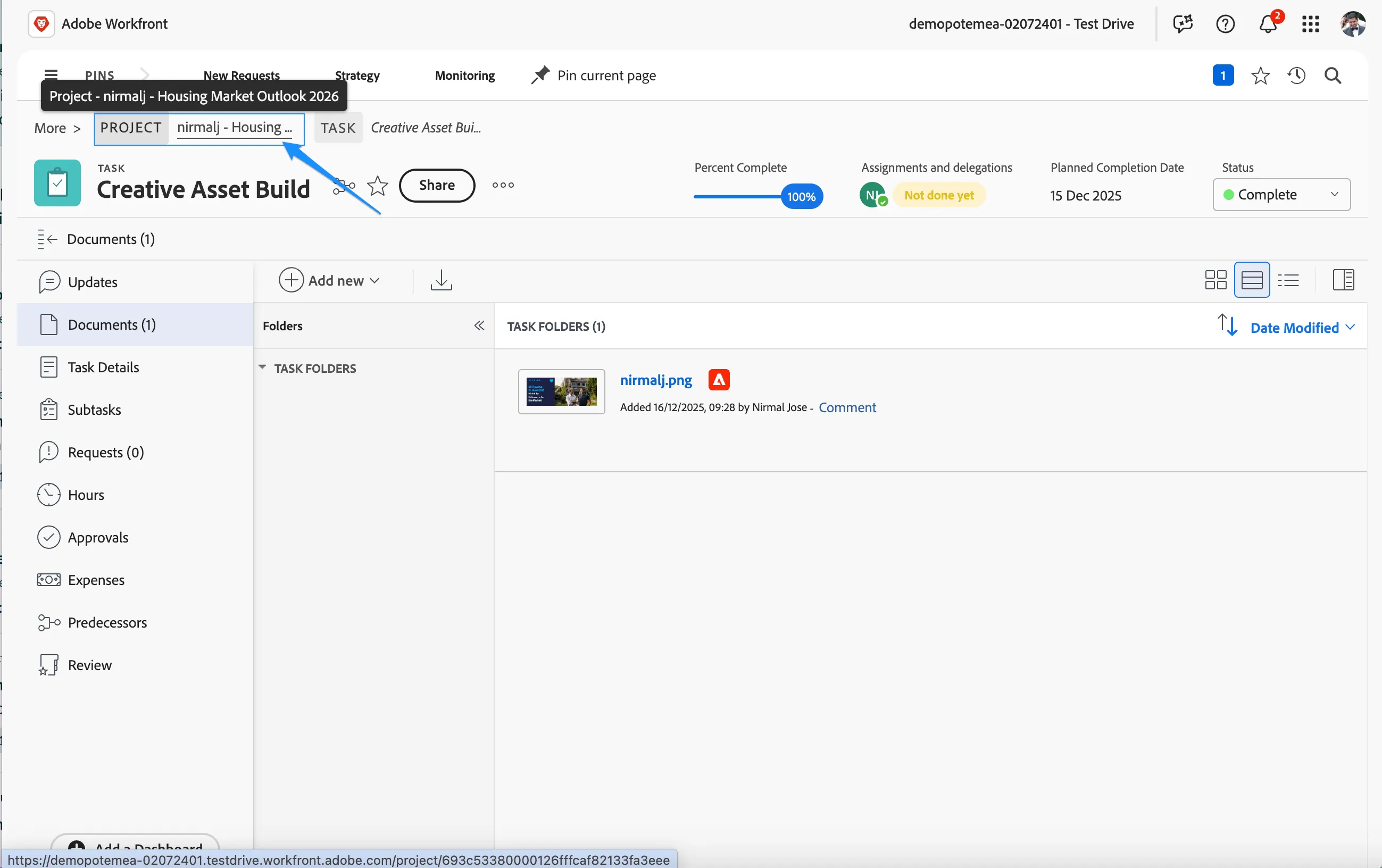
Click on the Task Creative Layout in the breadcrumb ribbon menu to go back to the task.
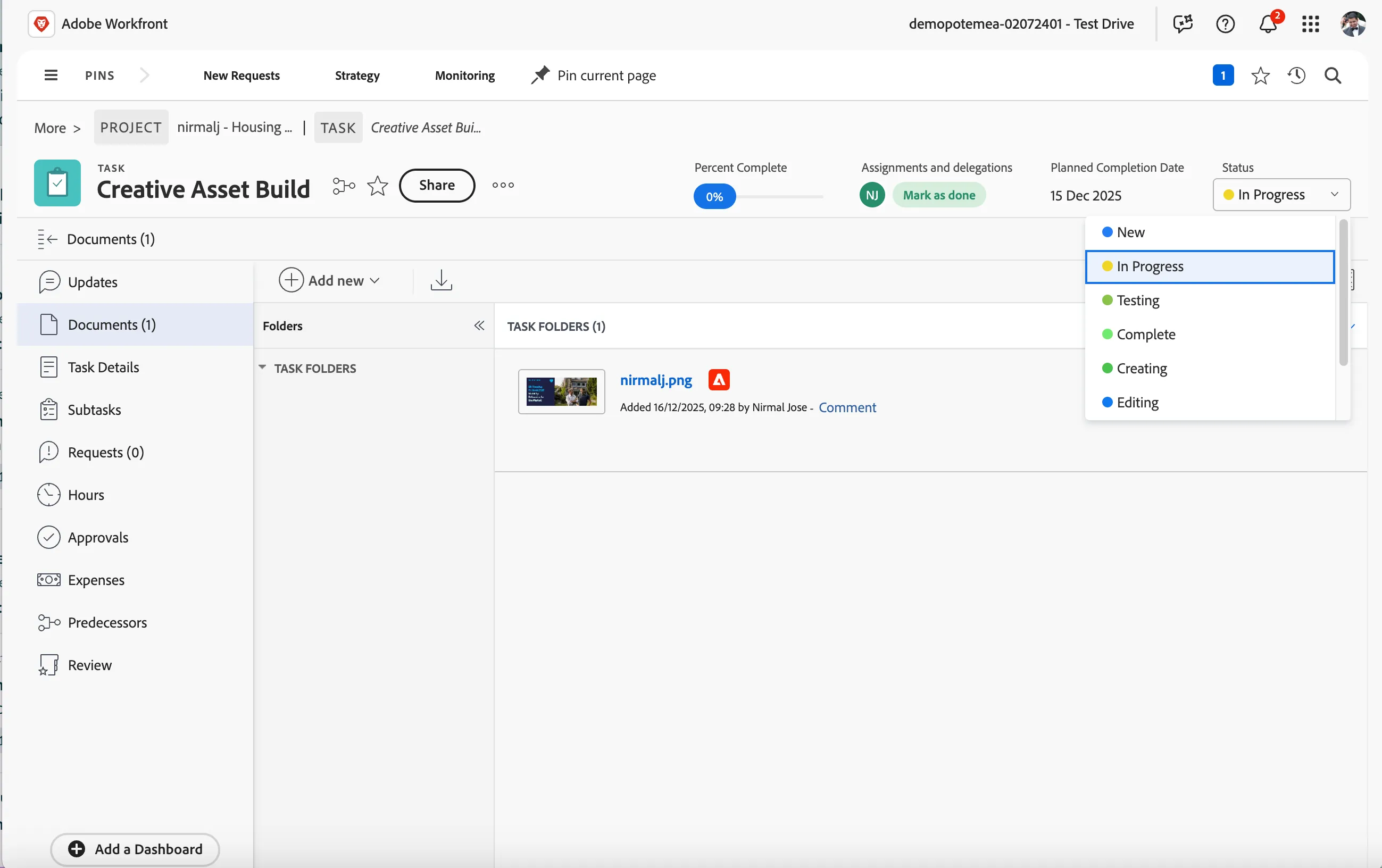
Once we are in the task, click on the Status dropdown and select Complete.
Click on the Project name in the breadcrumb ribbon to go back to the project task list.
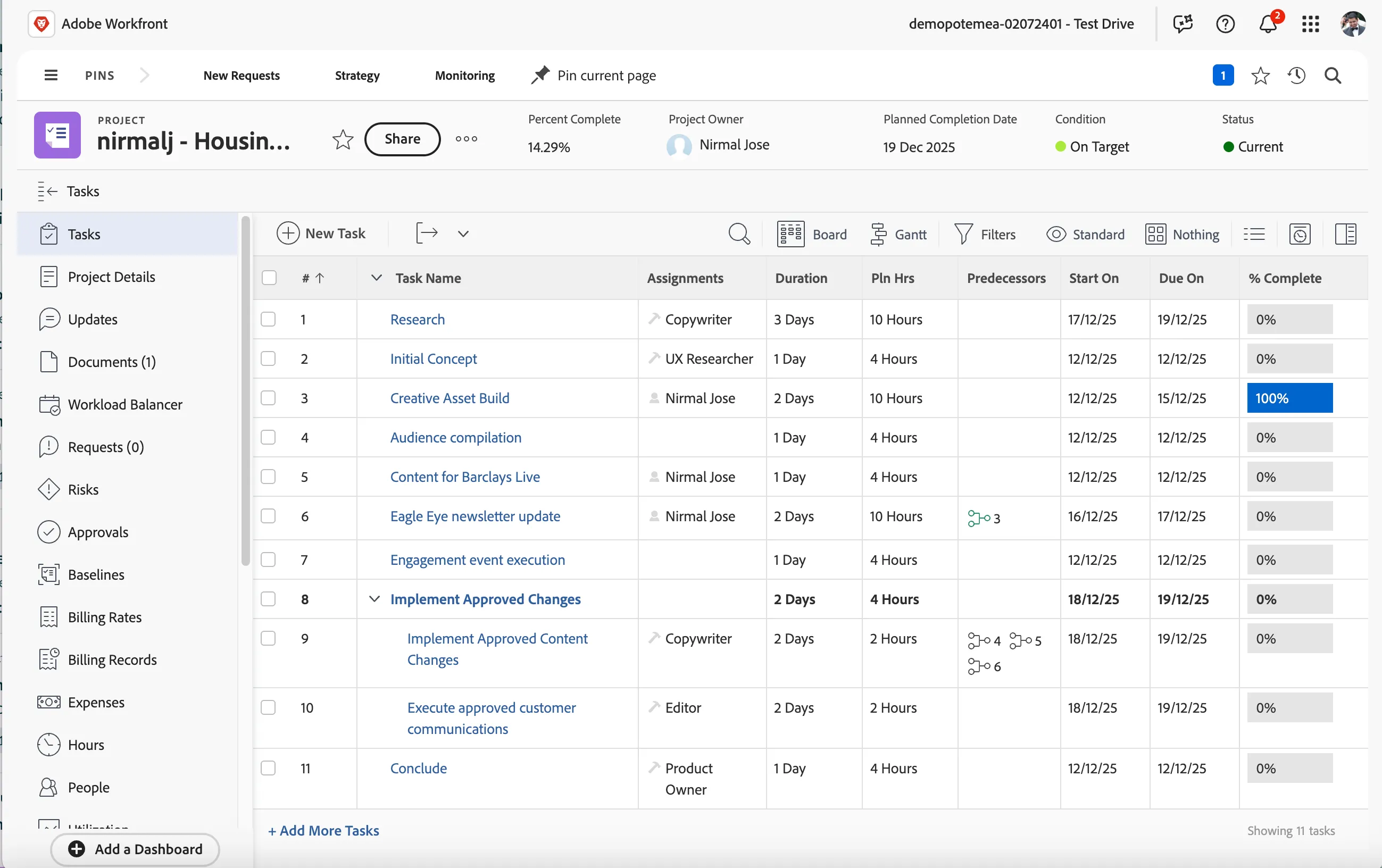
You can now see the Creative Asset Build task is marked as 100% complete.
Since this is a lab instance, we have done the manual review and approval workflow. In production systems, the review and approval workflows are integrated natively to Adobe express or Adobe photoshop so that the creative team can go through content creation, review and approval process via the creative tool itself.
You have now successfully reviewed and approved an asset for the campaign