Data Ingestion
Use your Marketer profile for this exercise. We will learn how to set up a data flow to import CSV files from an S3 bucket.
Connect to Amazon S3
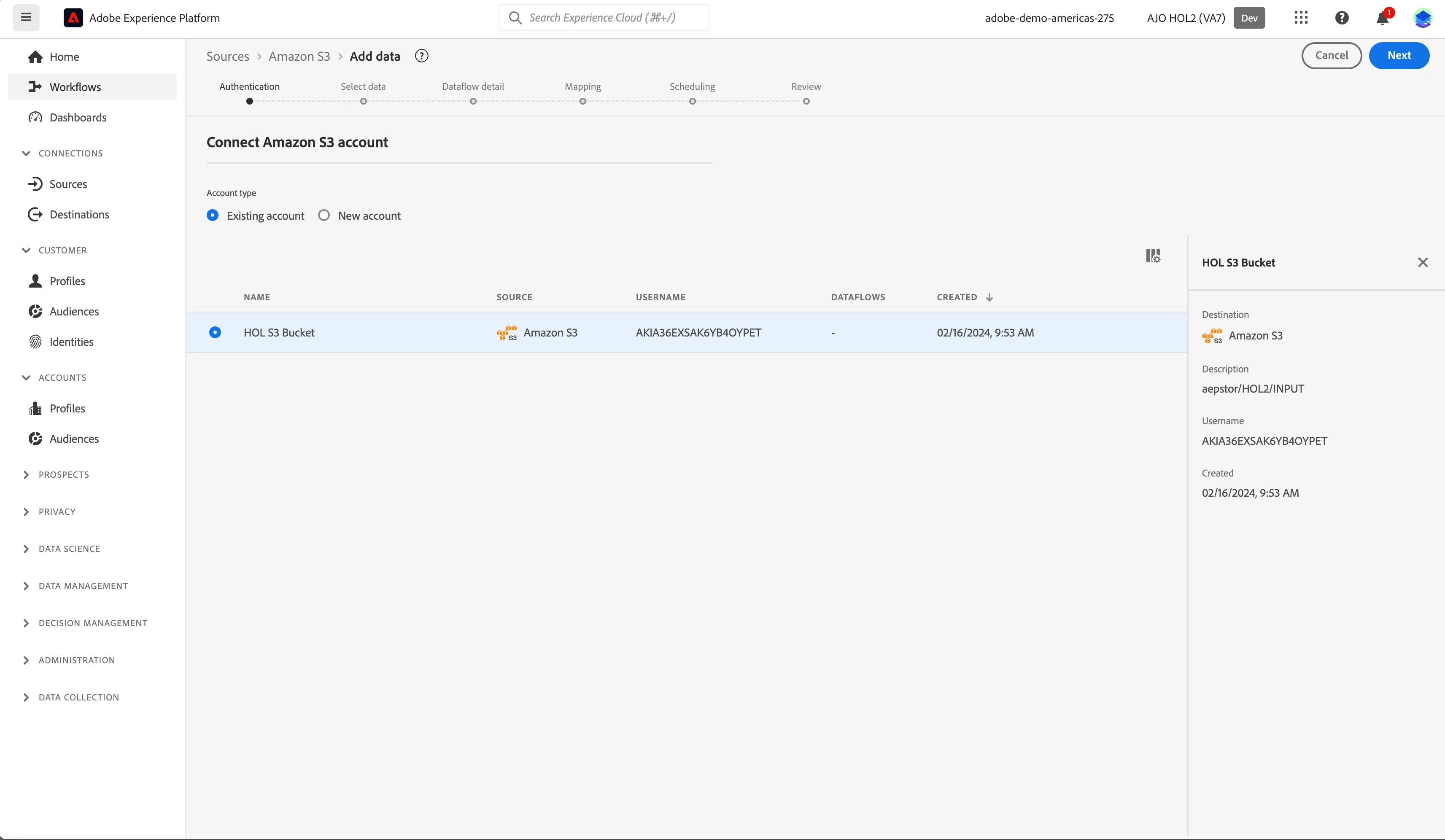
- For this exercise, we'll be using Tech Val S3 Amazon S3 connection. The connection to this bucket has already been configured for you.
Ingest data from Amazon S3
For this exercise, we have uploaded CPF transaction.csv file to Amazon S3 bucket. Follow the steps below to select the file for ingestion.
- In the left rail, click on Connections and choose Sources. You’ll then see the Sources Catalog.
- Under Categories, select Cloud storage, click the Add Data on the Amazon S3 card.
- Click and select the Tech Val S3 Bucket. Click Next.
4. Navigate to CPF > toAEP > Transaction and select the file. Wait a few second to see the preview
Note : If you select a file, AEP will import just this file, if you select a folder, AEP will automatically pick up all the file of this folder.
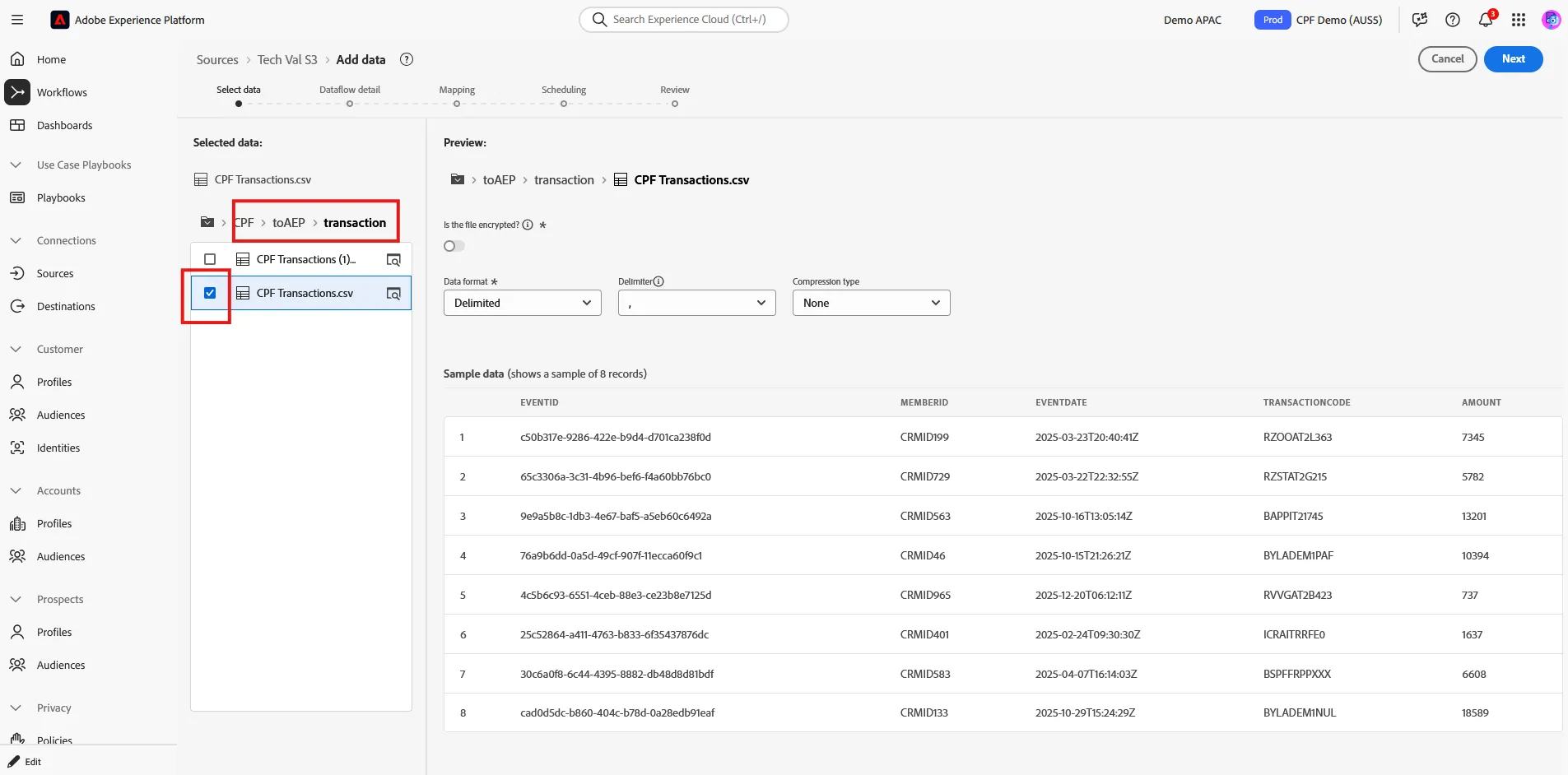
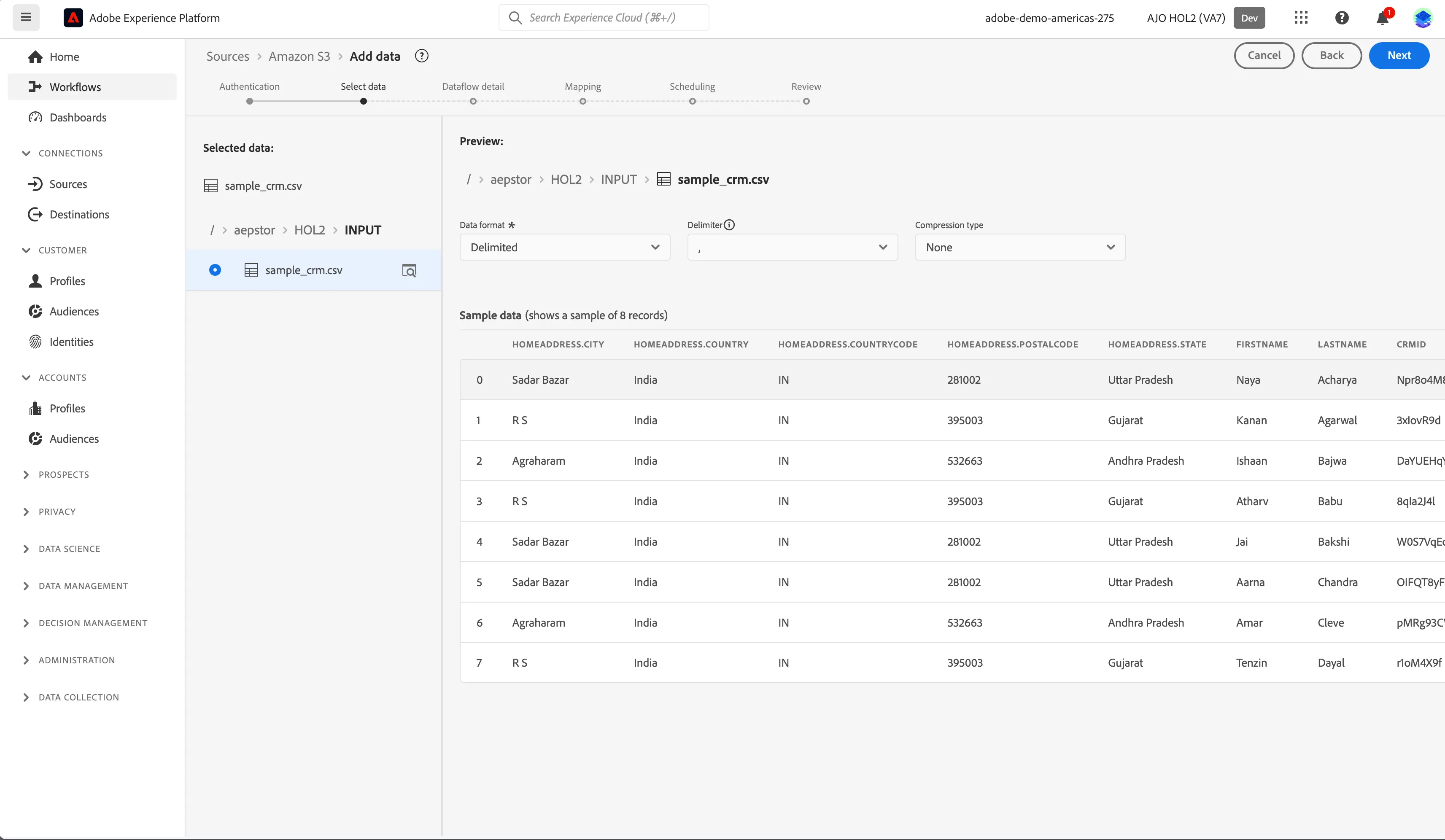
Check that data format is Delimited, the delimiter is , and no compression is selected. Click Next.
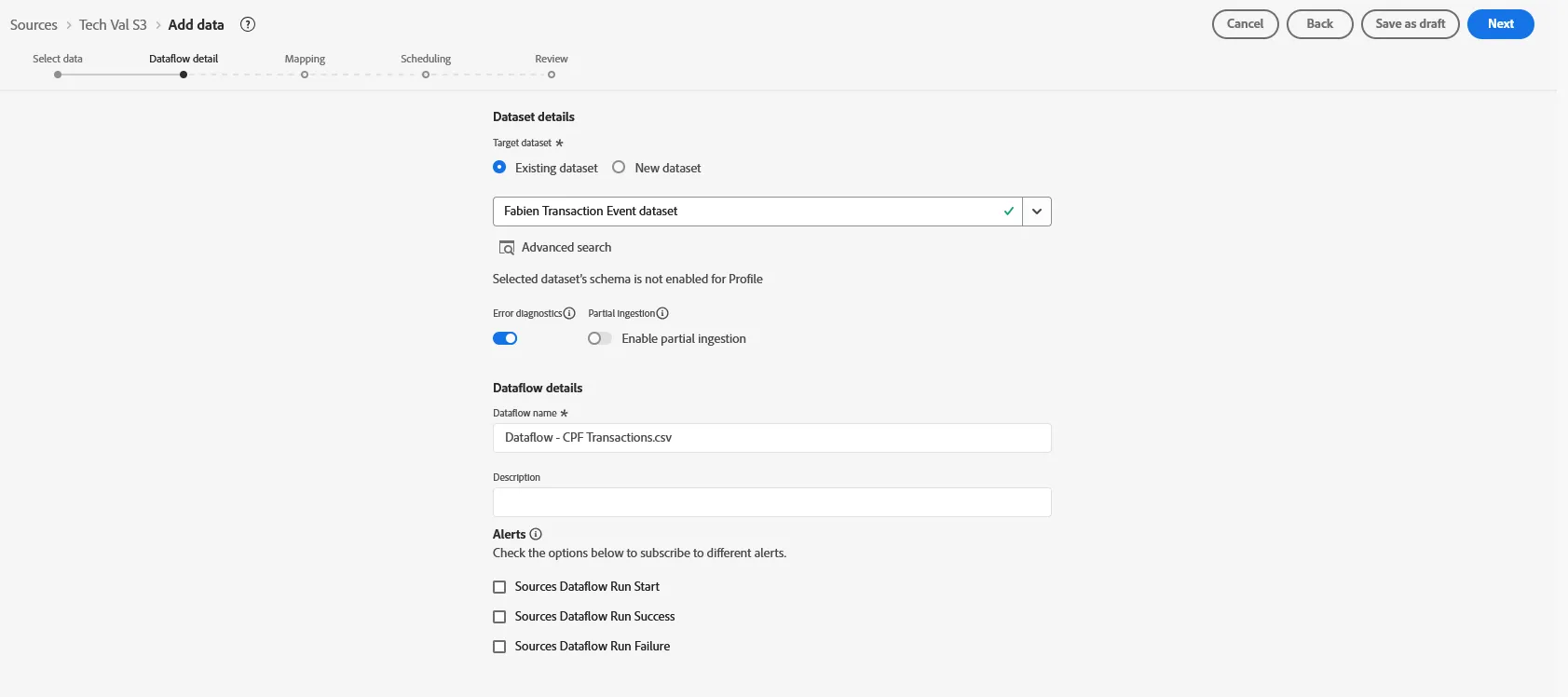
5. Click Existing dataset and select the dataset you've created in previous exercice, It should be [your initials] - Transaction Event Dataset. Set Dataflow name to [your initials] - Transaction Event Dataflow. Click Next.
6. Fields from csv file are automatically mapped to the selected schema using ML algorithms, however it may not always get it right the first time.
For each column, check the mapping is as follow. To change it, select the destination attribute in the second column of the mid panel, then browse on the right side the ttribute available. Select the right one then move to the next one.
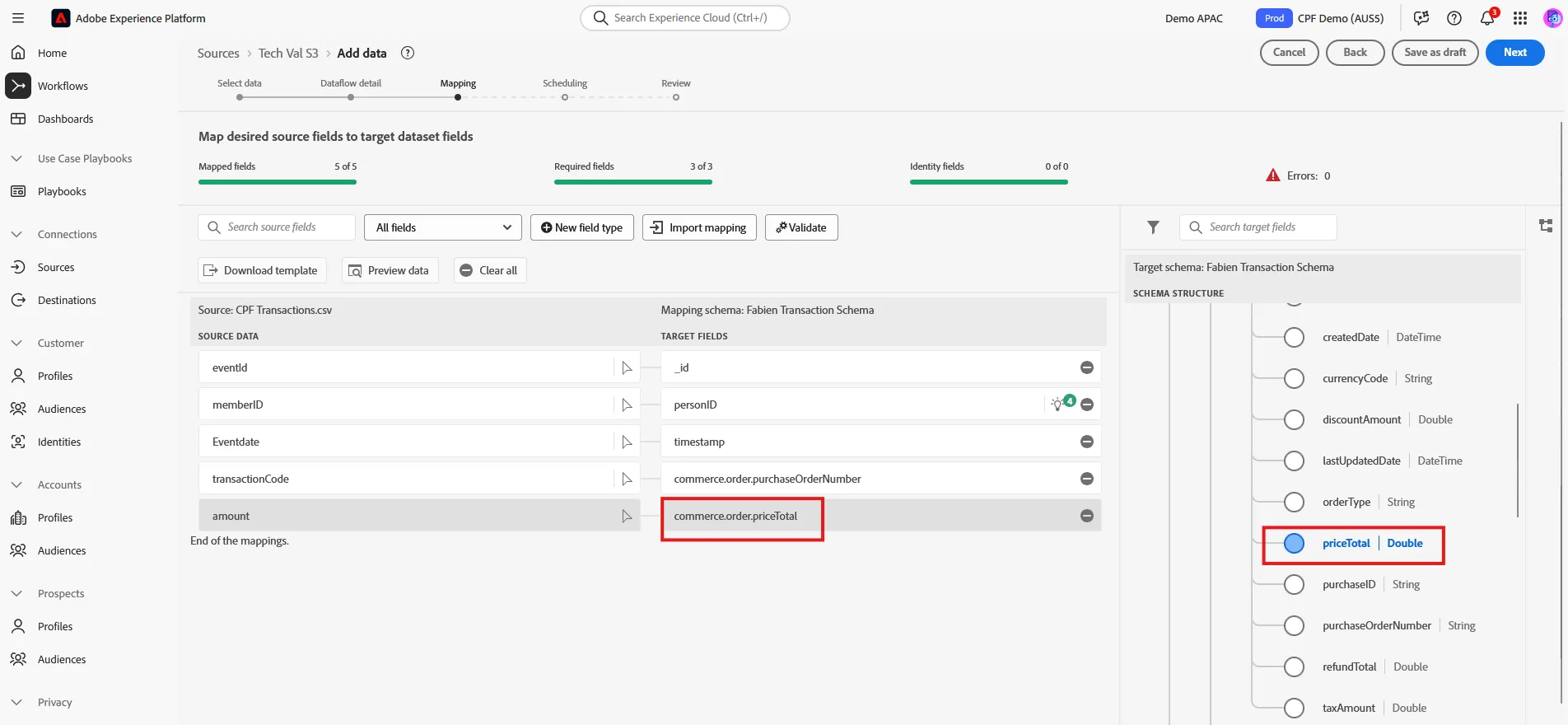
Once done, you can Click on Preview to check the mapping is correct, then click Next.
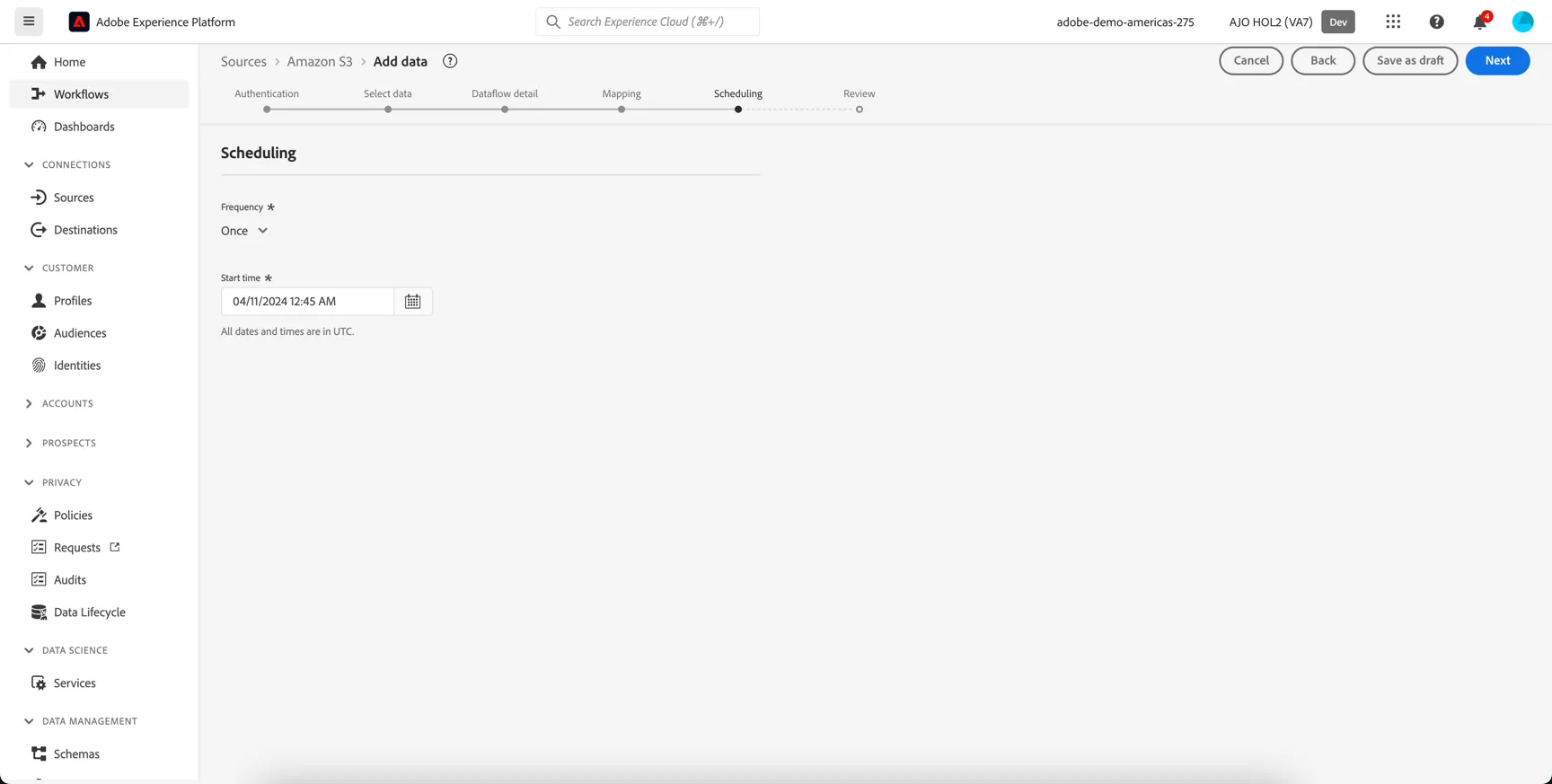
8. The next step is to set up the scheduling. Batch based source connectors can check for new data as frequently as every 15 mins, for this exercise however we'll just set it to run once. Leave the start time as is and click Next.
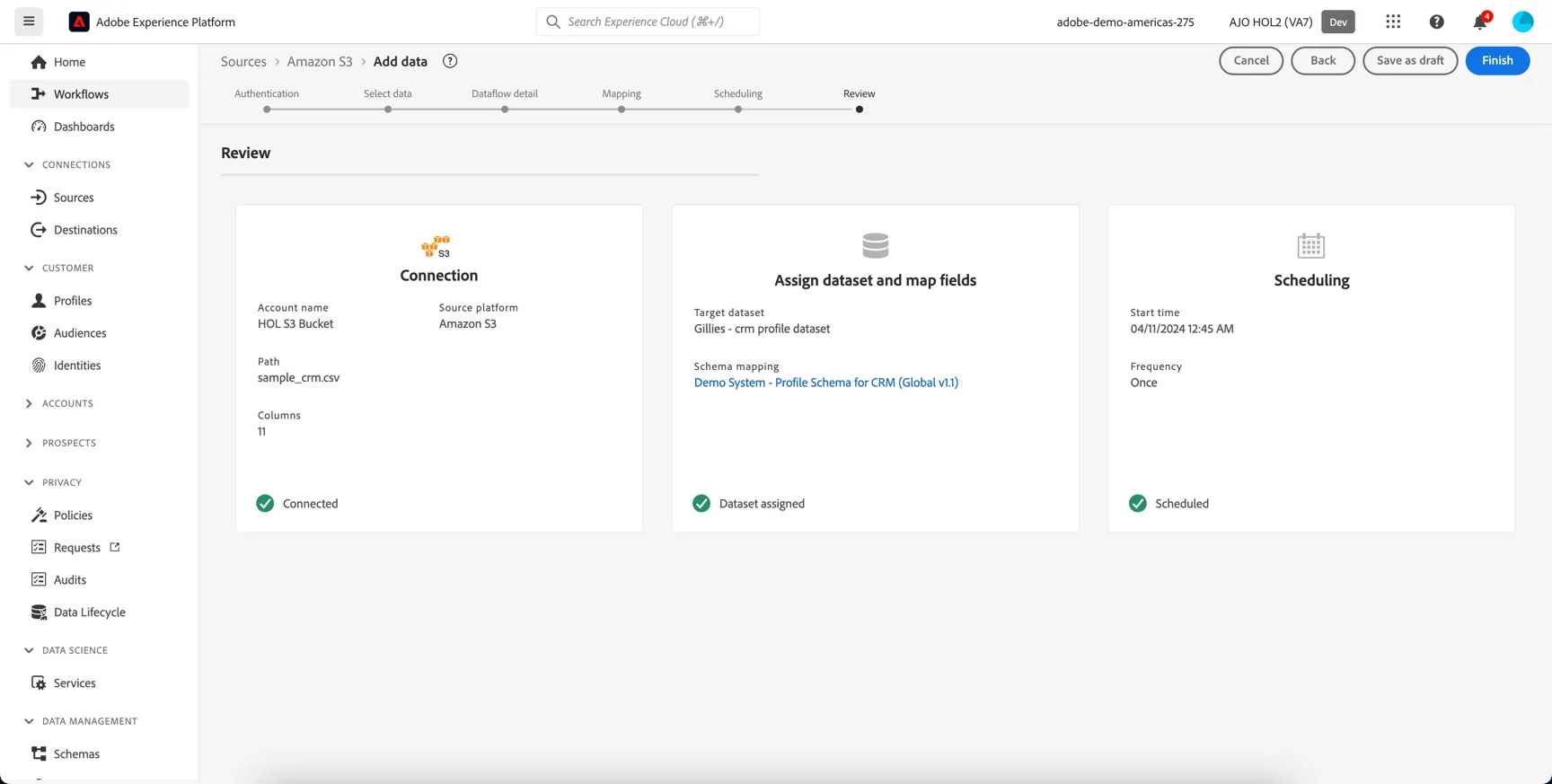
8. Review and click Finish to create your dataflow.
9. The newly configured dataflow will be displayed under the Amazon S3 source connector.
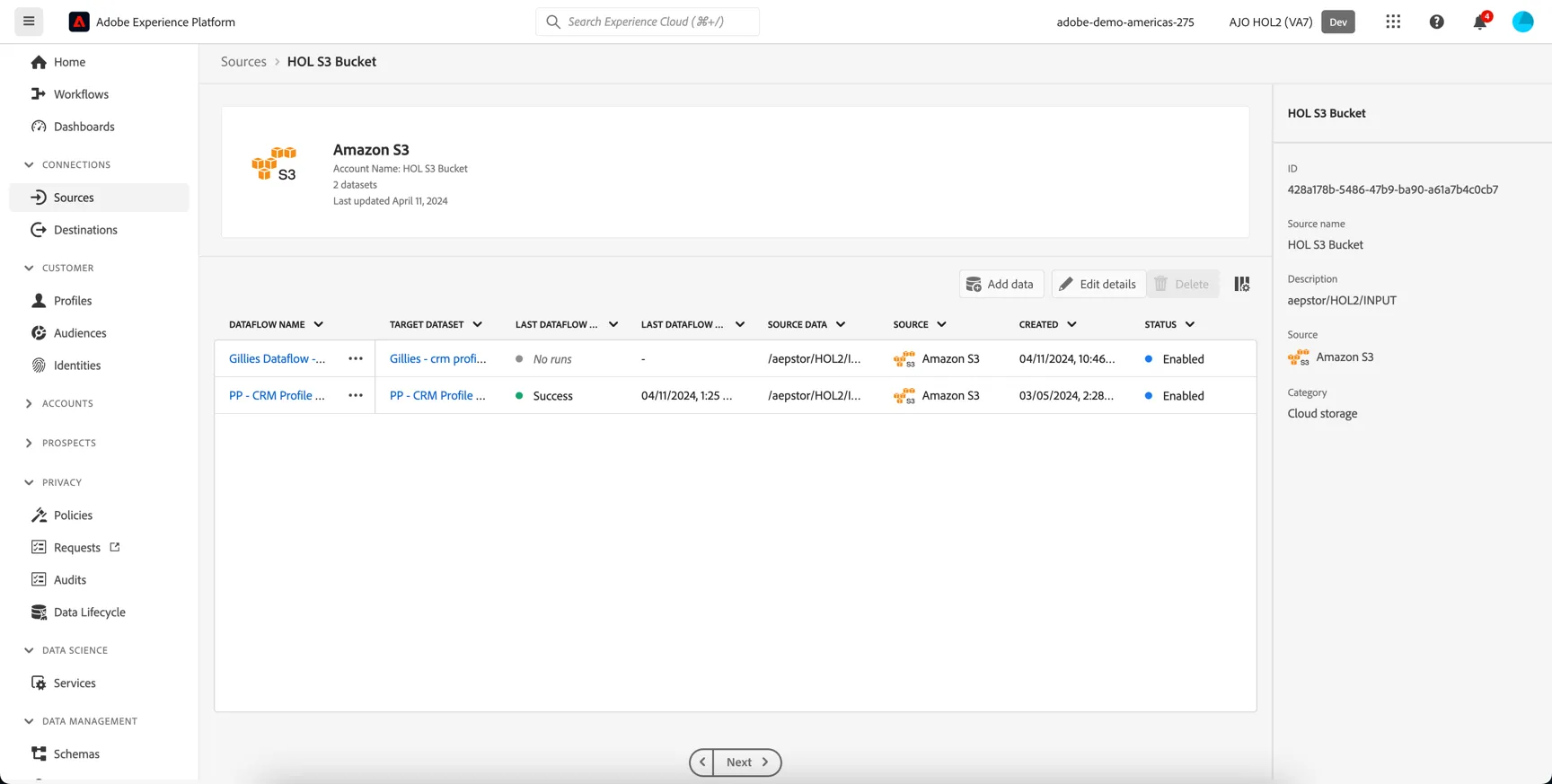
10. Click into the dataflow name to see details of individual executions:
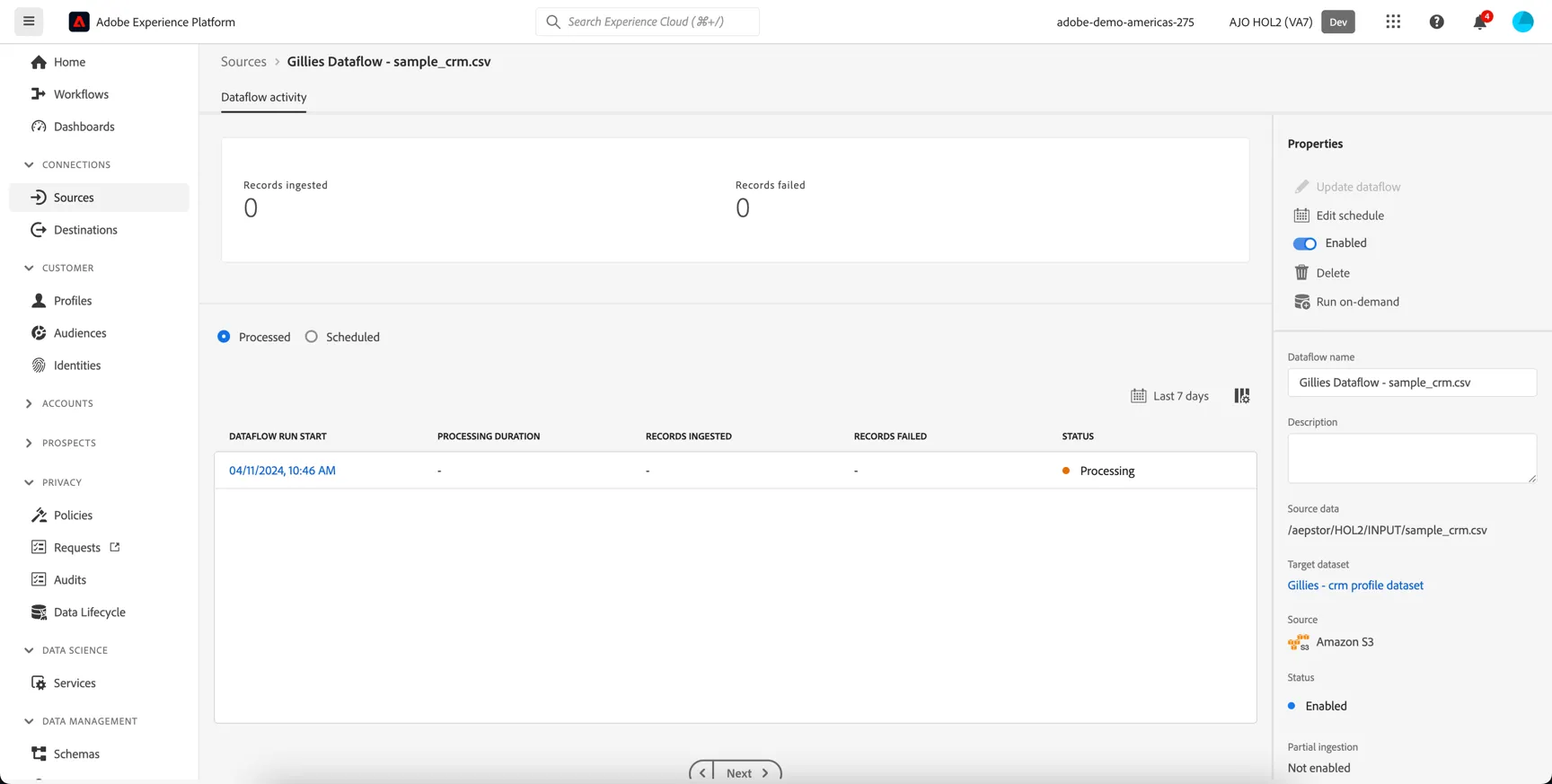
The dataflow will start asynchronously according to the schedule but may take a minute or two to kick off the first execution.
Monitoring Ingestion
Data ingestion can be monitored from the Monitoring menu item under Data Management in the left hand navidation. The Dashboard shows an overview of data ingested over the last 24 hours. You can update this to show up to the last 30 days.
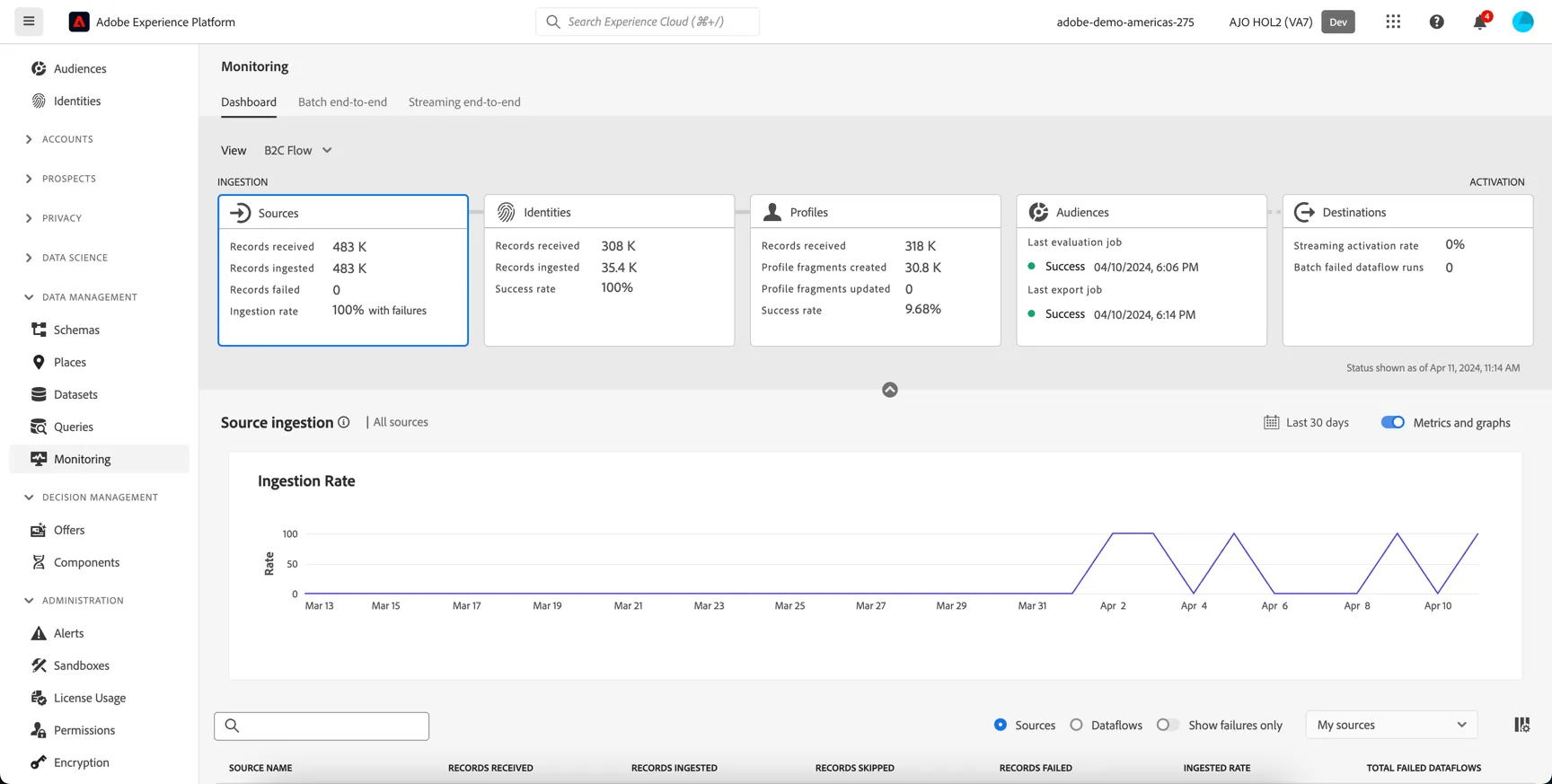
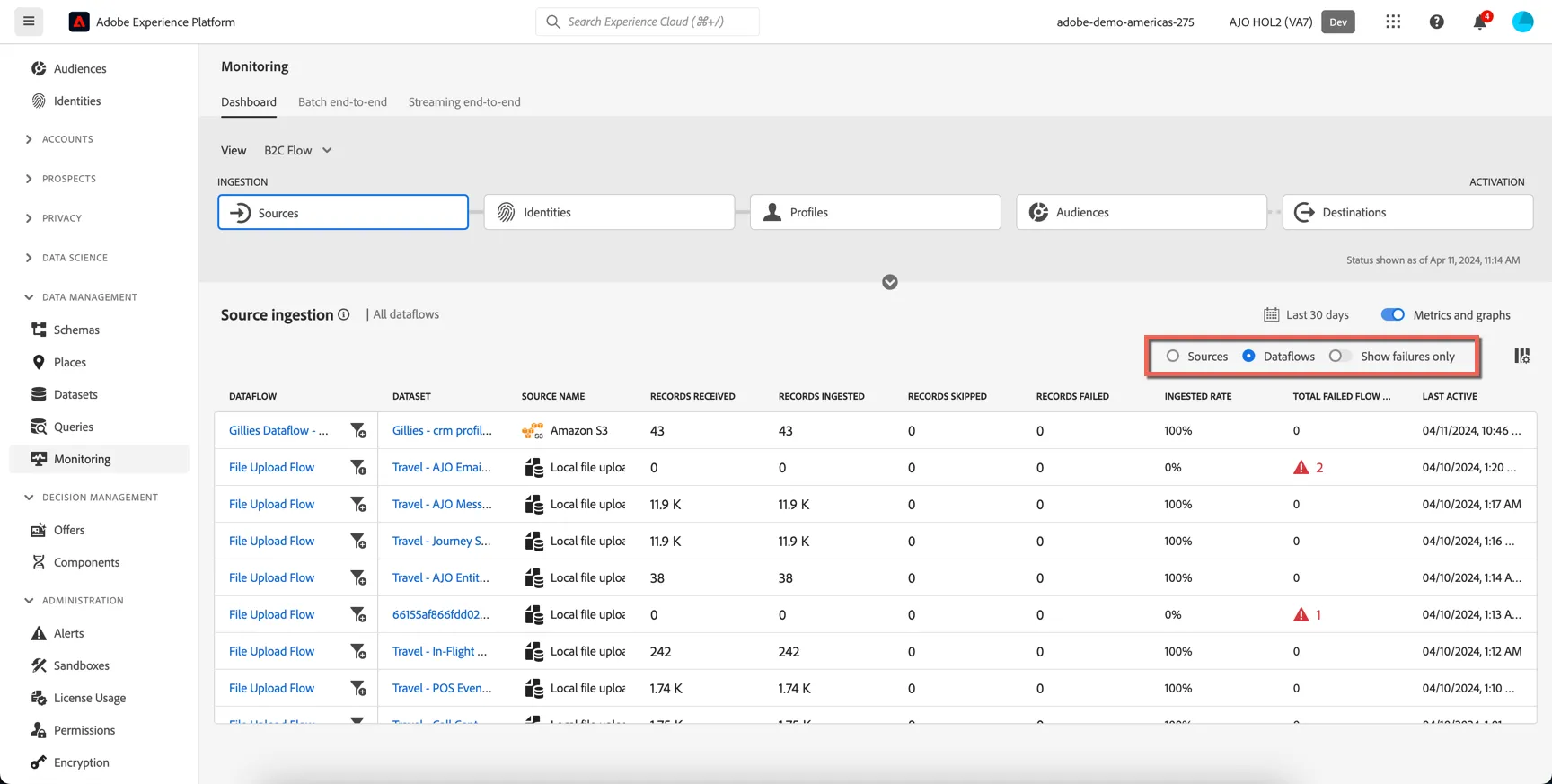
You can see down the bottom details of each source or dataflow and filter to only show failures if desired.
Each batch is listed on the Batch end-to-end tab and from here you can see how many records were successfully ingested as well as how many made it into the profile store and identity graph.
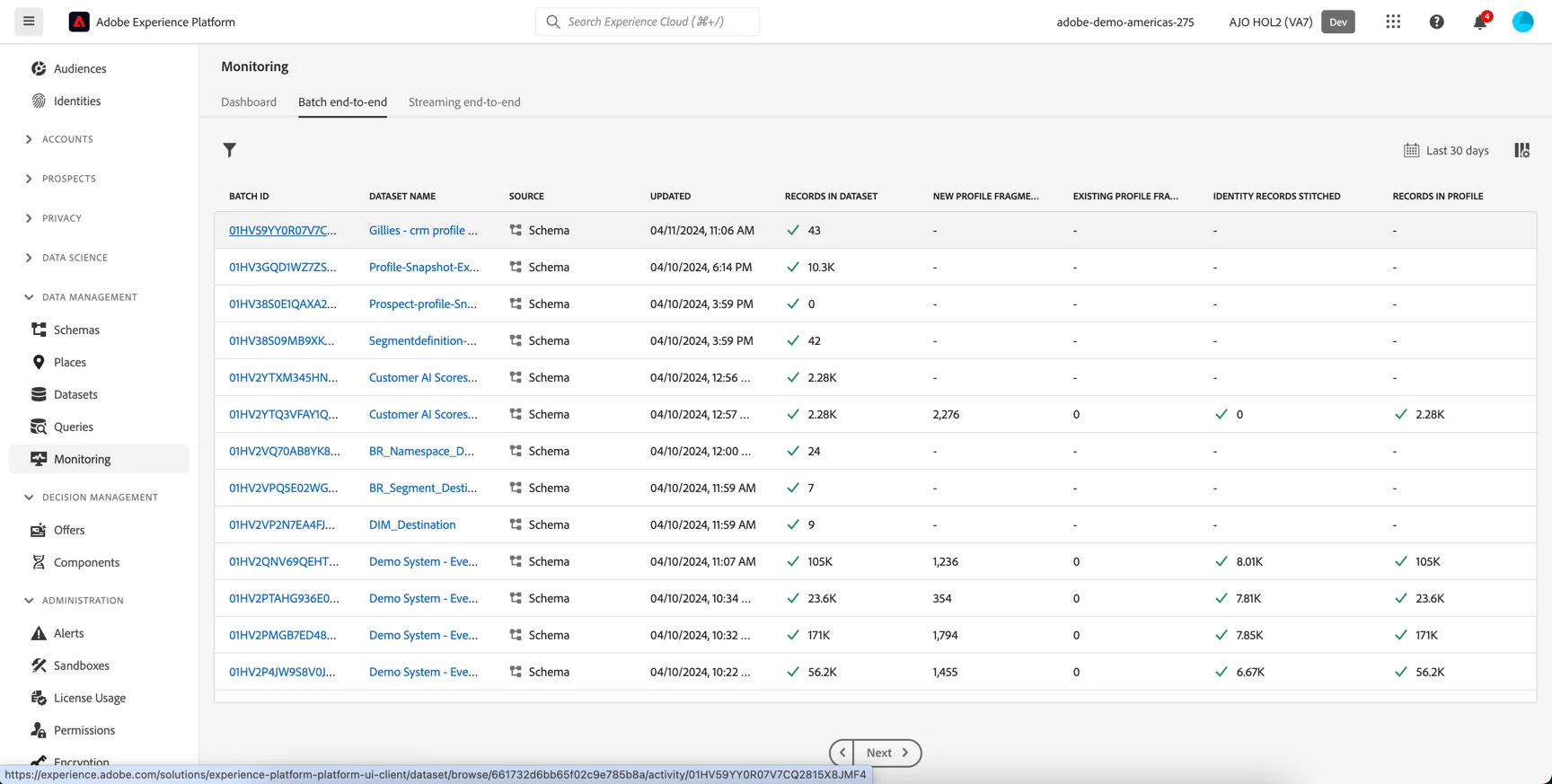
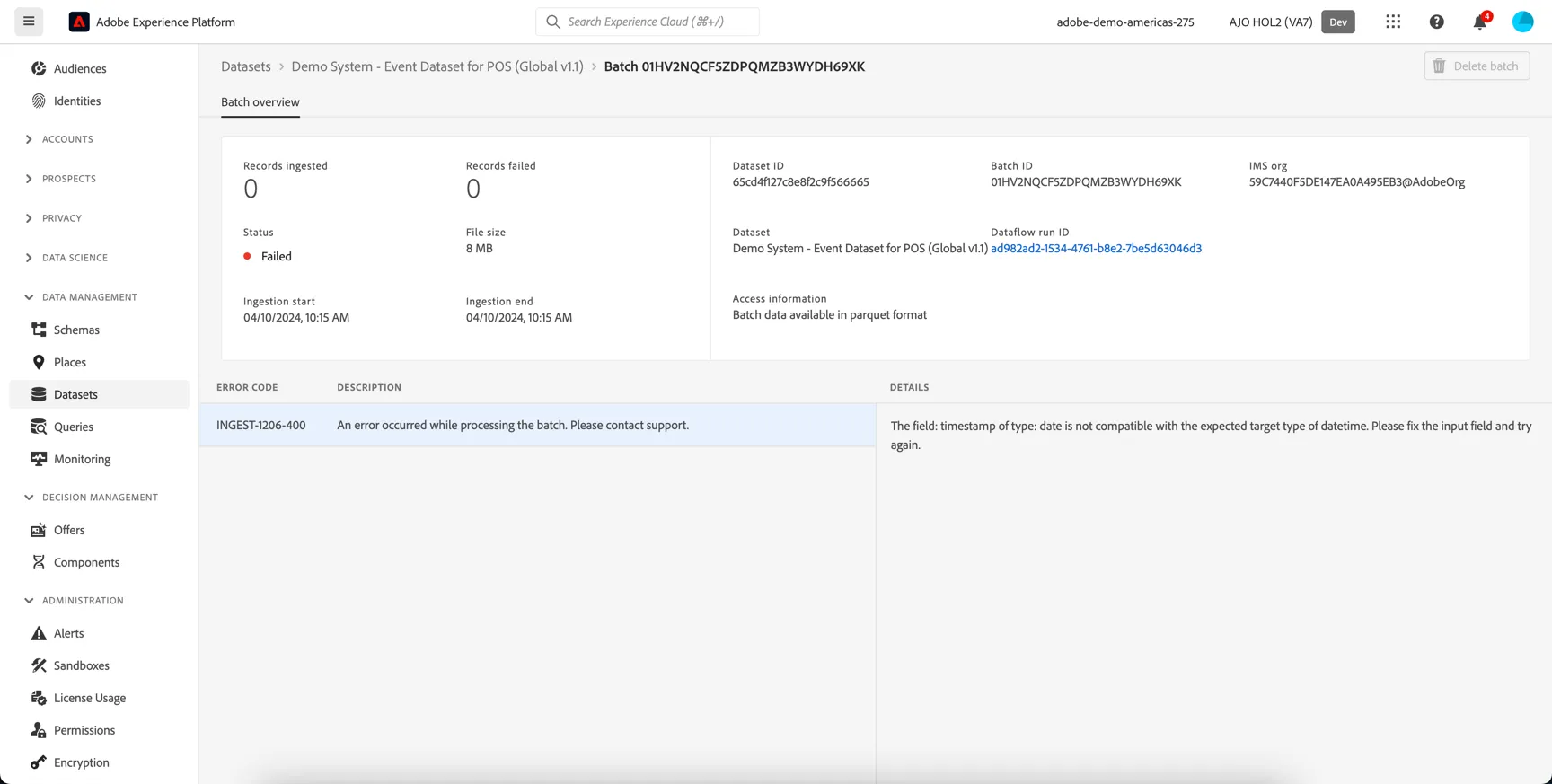
Clicking into the individual batch shows more details as well as the error diagnostic if the batch failed.
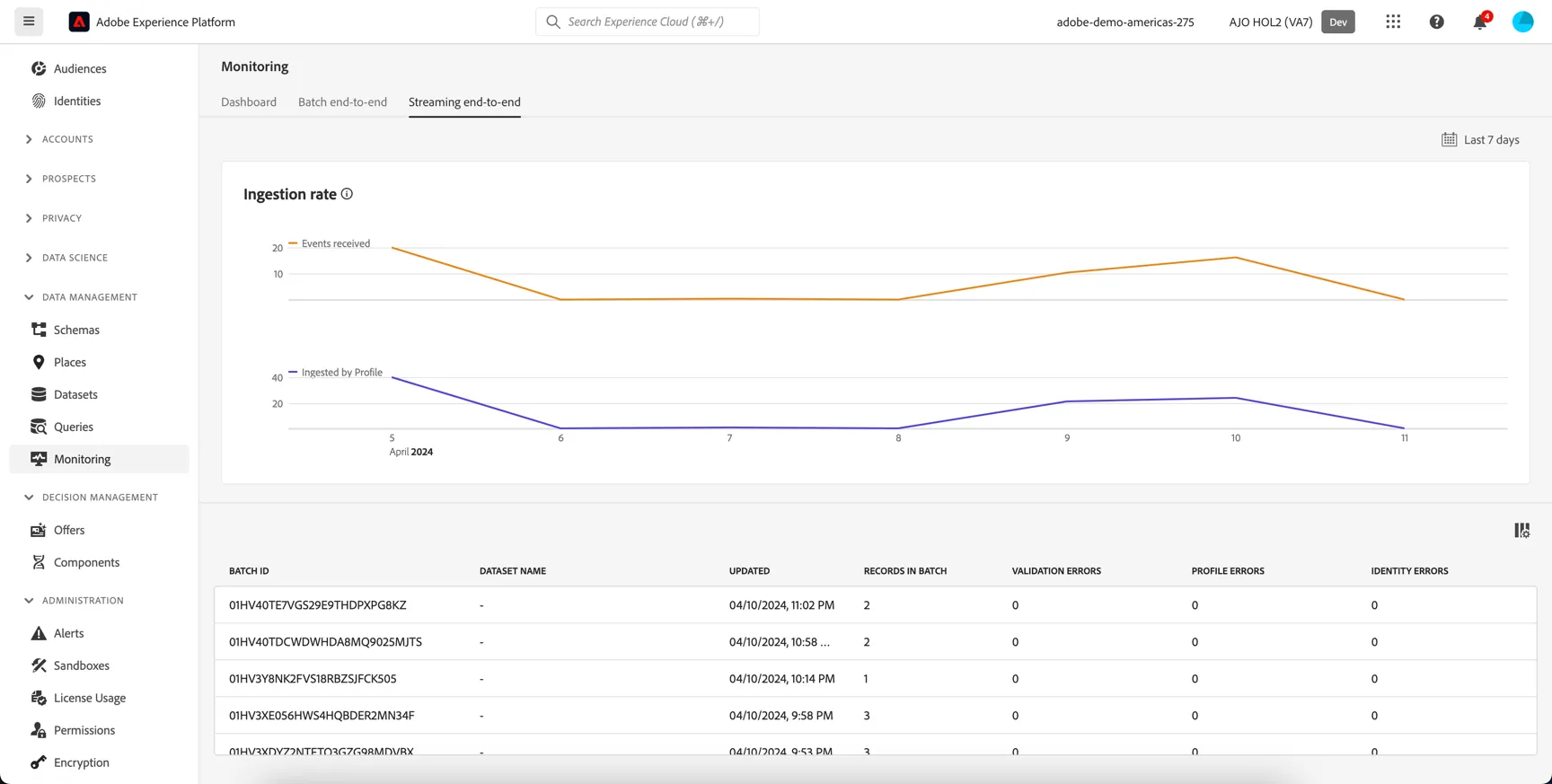
The Streaming end-to-end Monitoring tab shows the ingestion rate for data being ingested via streaming source connectors like Amazon Kinesis and Azure event hubs, or being pushed directly to AEP's HTTP API inlets. Note that this data is streamed and processed into the profile store one record at a time but the monitoring will show it as micro batches.