Basic Journey
4 min
This lab will walk through the steps to create a Basic Email and SMS Journey in Adobe Journey Optimizer.
NOTE: Some exercises may vary during the actual Hands on Lab versus what is listed in the HOL Page, due to industry setup and / or Presenter preferences.
Create a Journey
Navigate to Journeys
Click on “Create Journey”
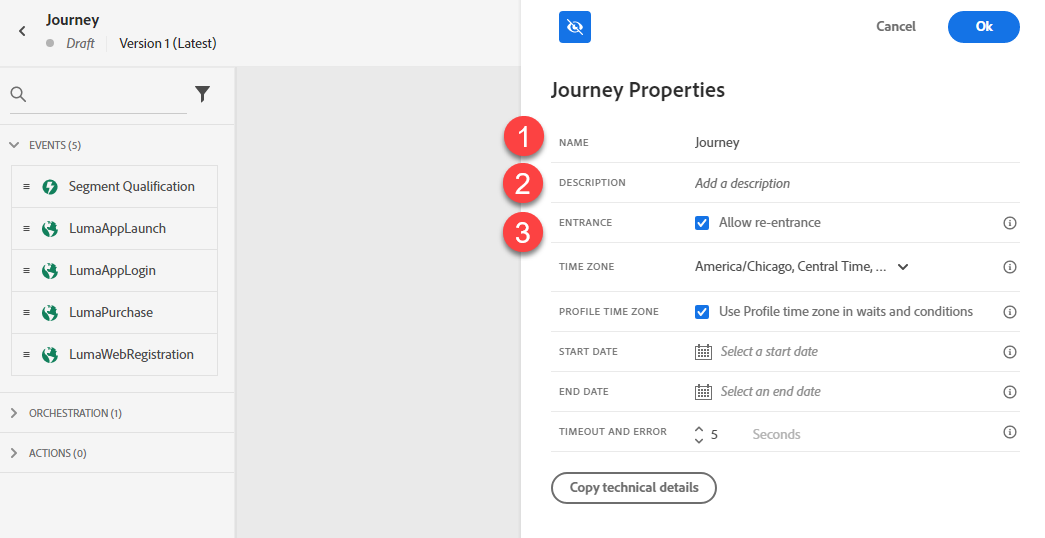
Provide a Name and Description. Unclick “Allow Re-Entrance.” Click Ok.
Define the Audience
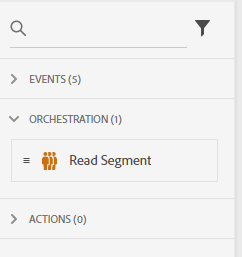
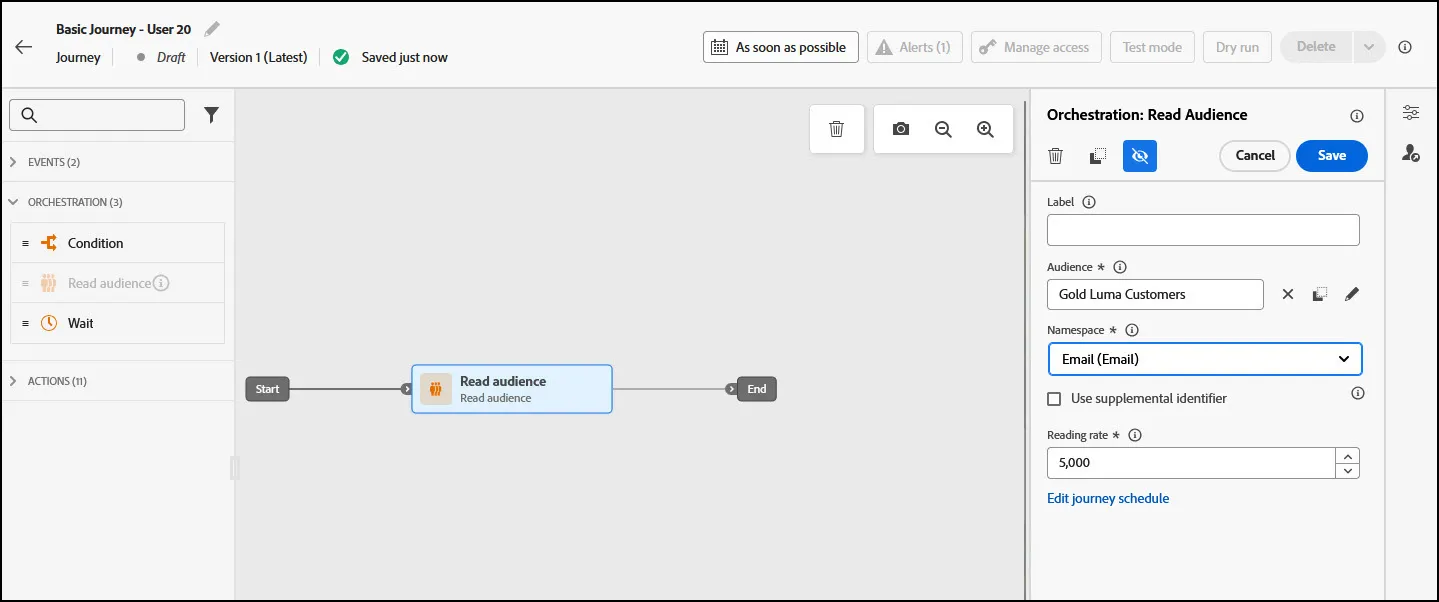
Under Orchestration Node, drag the “Read Segment” onto the Canvas.
- Change the label to “Gold Loyalty Members”. Click on the Audience box to select an Audience to use. Additinoally, click on Namespace and select the "Email" Namespace.
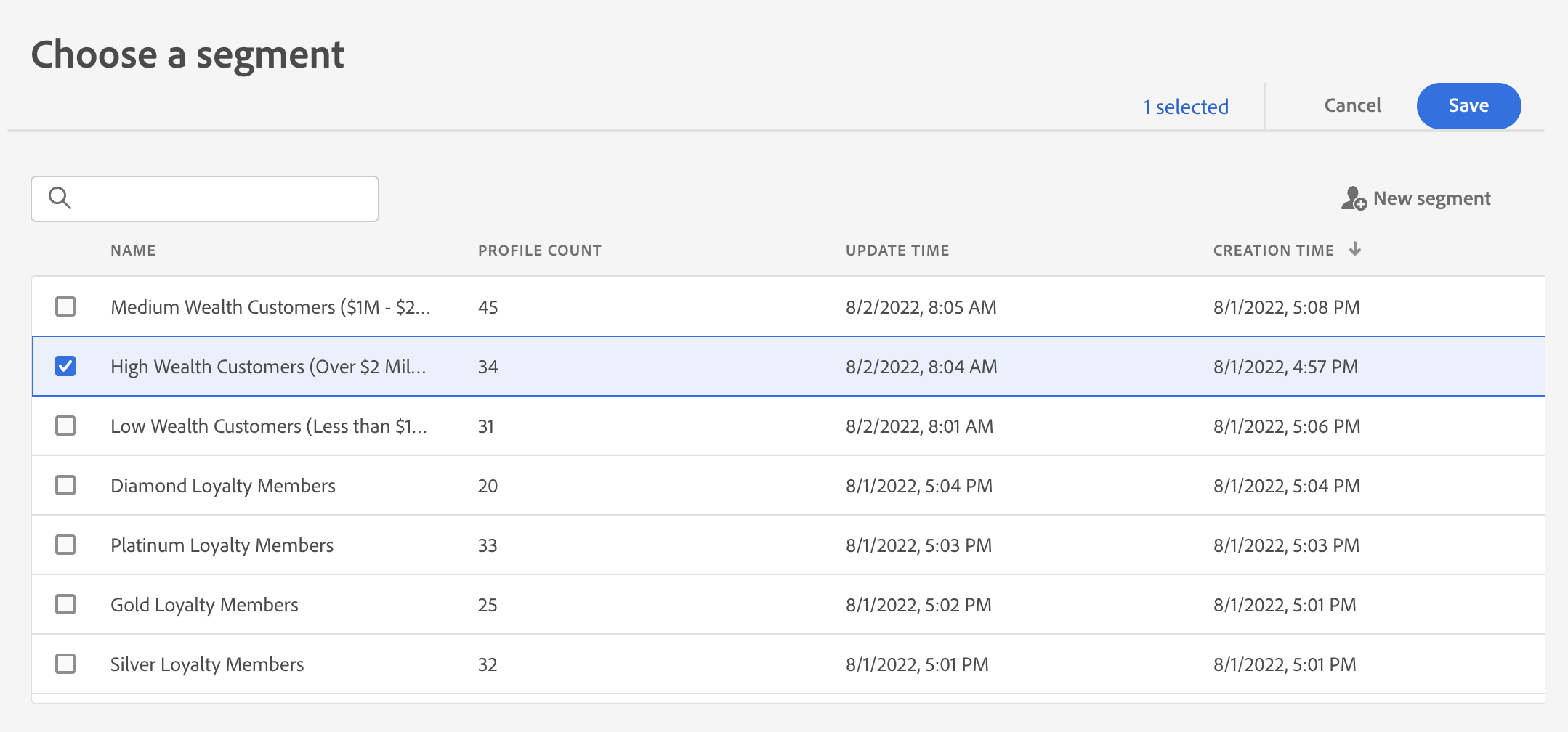
- Select “Gold Loyalty Members”. Click Save.
Setup Branching
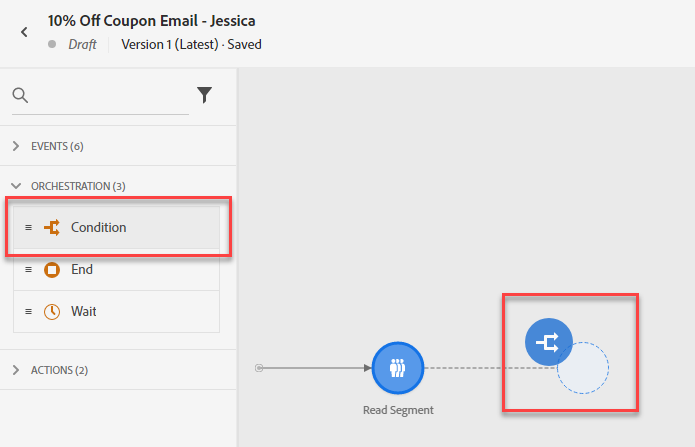
Under Orchestration Node, drag the “Condition” after the Read Segment.
- Add the label “Preferred Channel”. Set Type to “Data Source Condition”. Click on “Add a Path” 2 times.
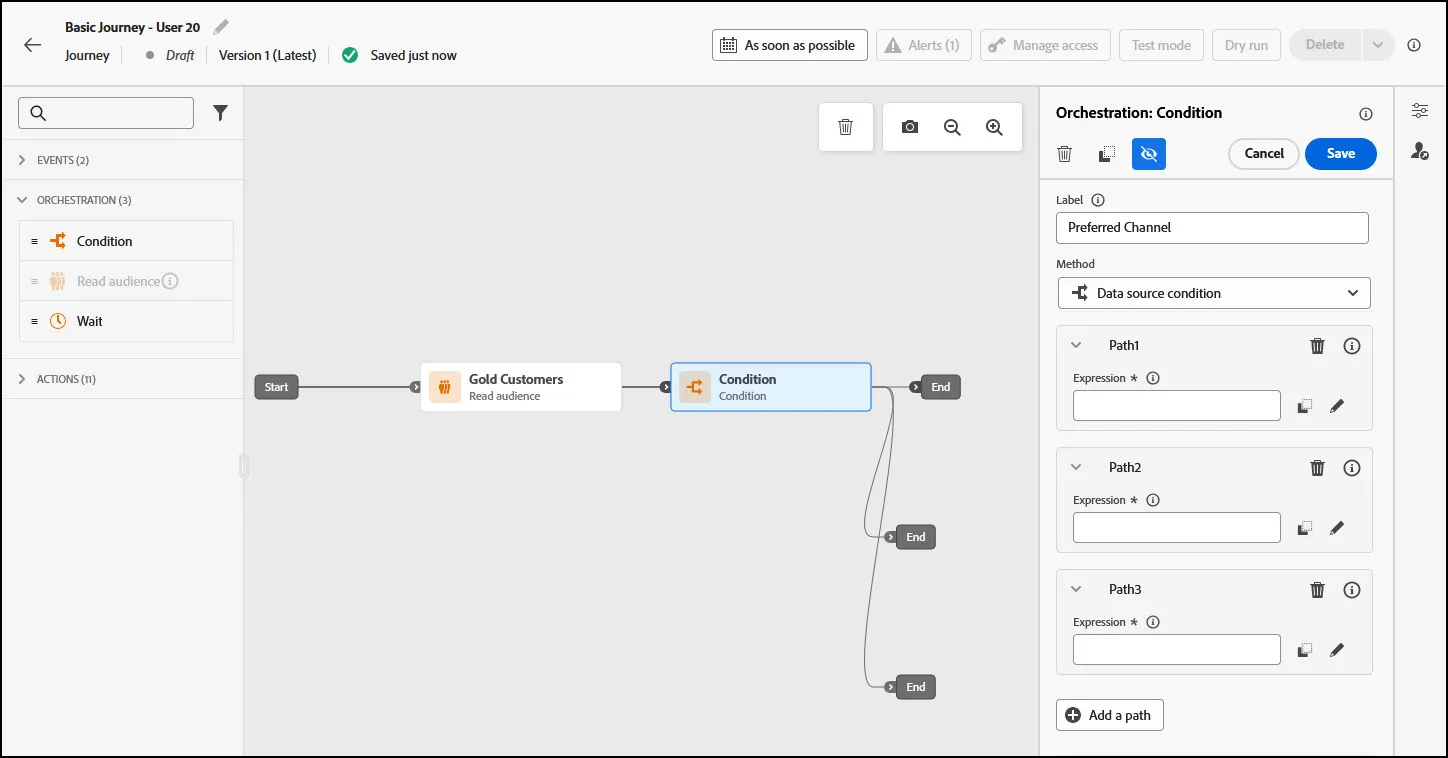
Click Path1 and rename as "Email". Click Path2 and rename as "SMS". Click Path3 and rename Push
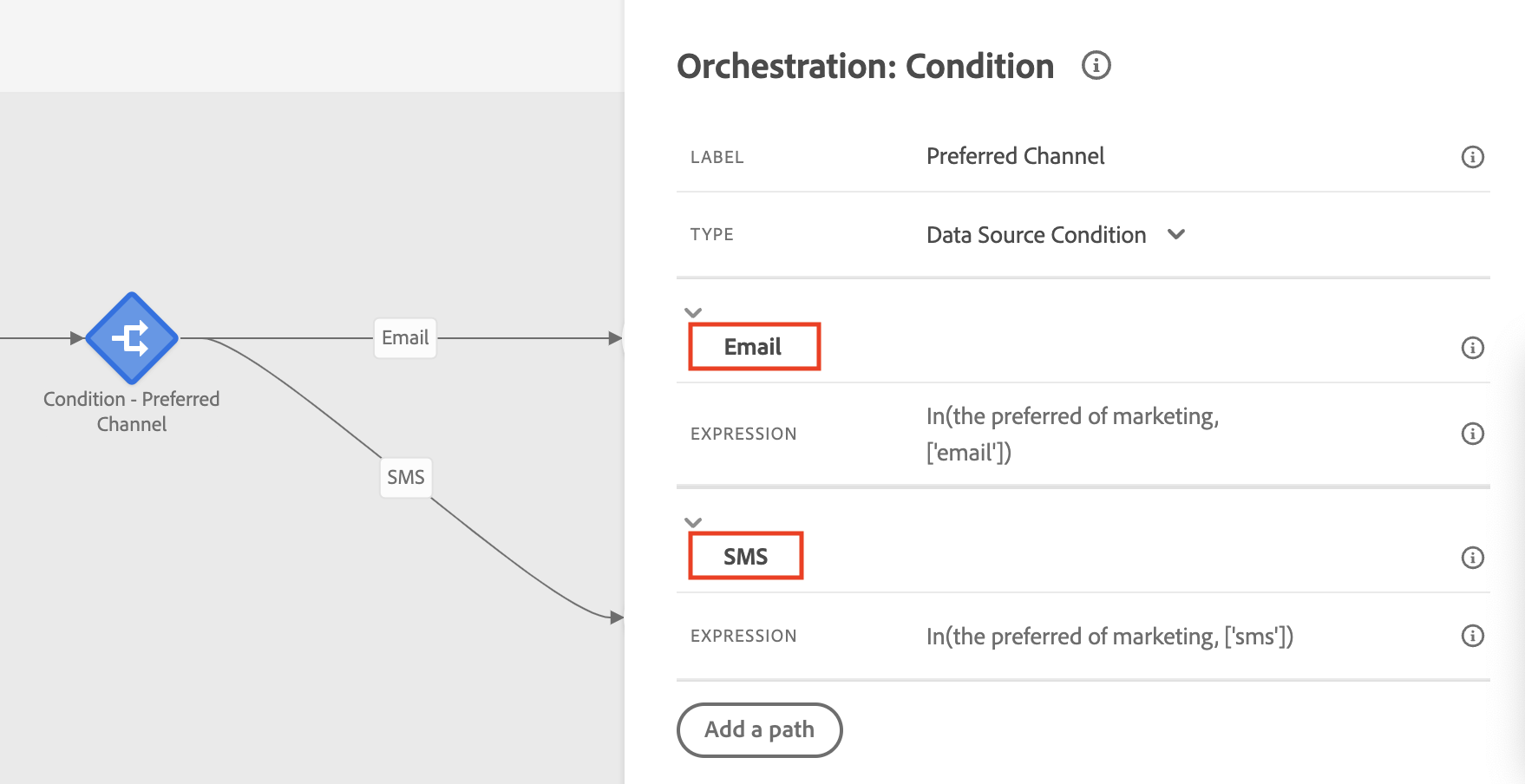
Expand the Email path, and click on the Expression Field. Search for preferred channel, and drag and drop it into the canvas.
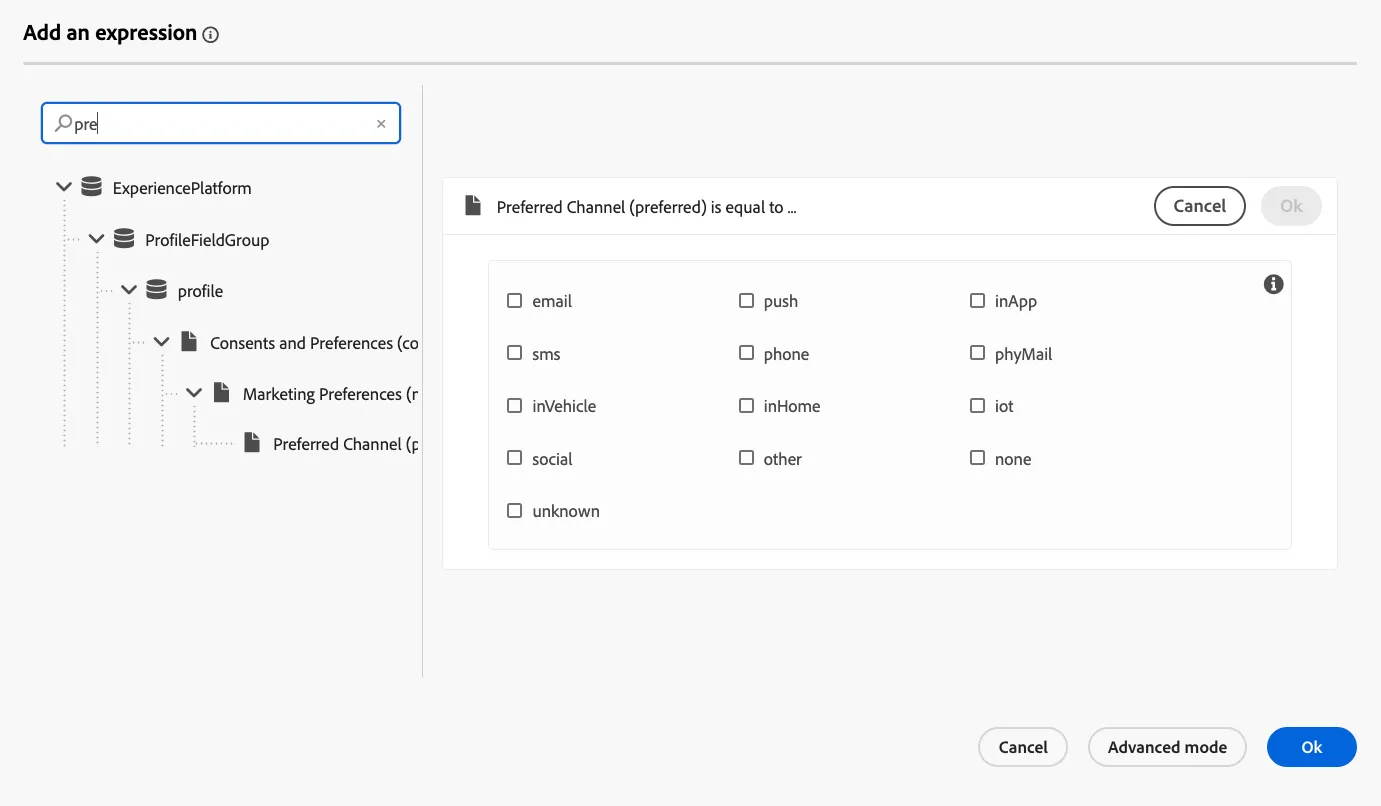
- Select the email channel, click ok and then ok.
- Repeat step 4 and 5 but for SMS and Push.
Add Messages
- Under Actions, drag the Email Action onto the Canvas on Email path, drag SMS Action onto the SMS path, and drag the Push action onto the Push path.
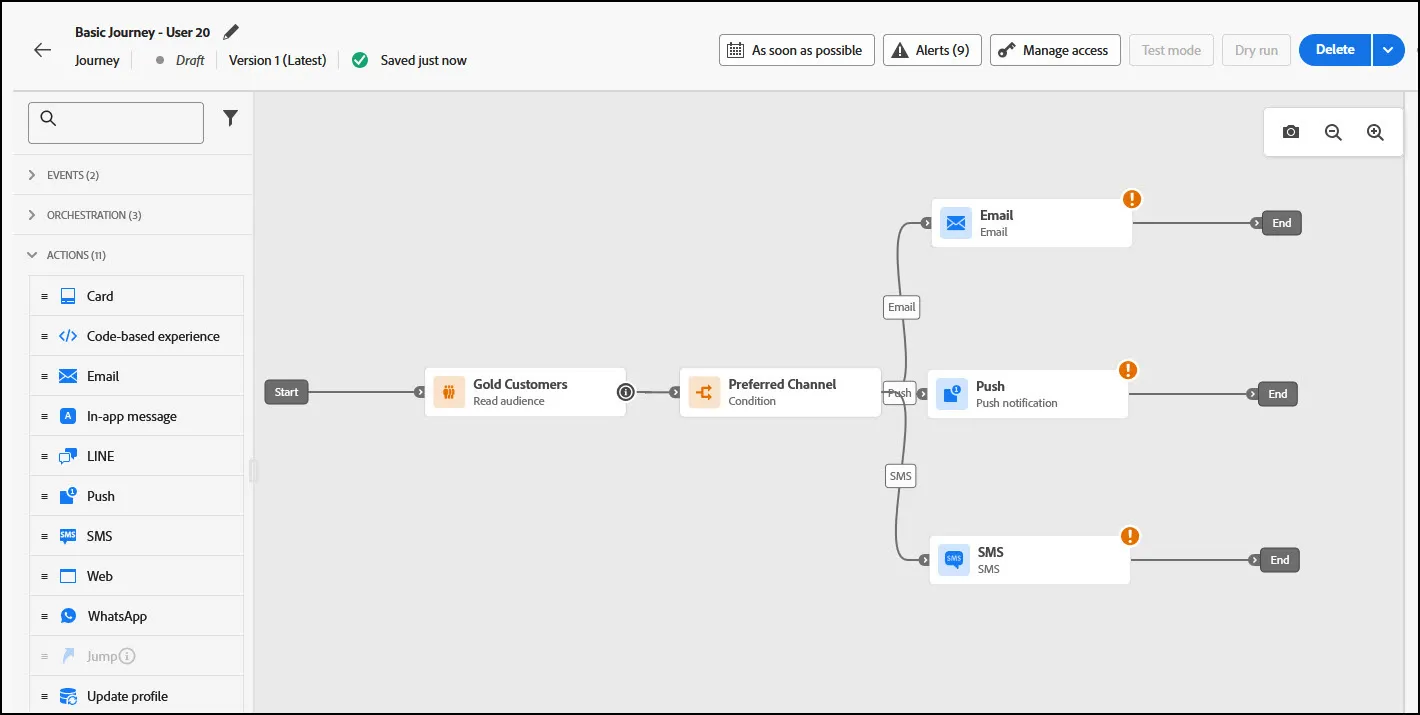
- Next, we will design the Email, SMS messages, and Push designers.