Data warehouse Connection Demo
SecurFinancial is a leading financial services firm that leverages its wealth of customer data across disparate sources to personalize offers and campaigns for a large number of segments.
Use Case
SecurFinancial would like to launch an email campaign to retarget its customers who are prequalified for a loan based on good credit and do not have an active loan in their SecurFinancial portfolio. While they are ingesting online behavioral data in real time, they face challenges in identifying customer prequalification, as they are restricted from ingesting credit information into AEP. To qualify prequalified customers without moving restricted data, they will use Federated Audience Composition to enrich their AEP behavioral audience.
[Hands off keyboard!]
This demo will guide you through the process of using Experience Platform Federated Audience Composition to connect to Snowflake and query an audience.
Prerequisites:
- Adobe Experience Platform account with appropriate permissions.
- Data warehouse account with the necessary database and credentials.
To setup a connection with your database, follow these steps:
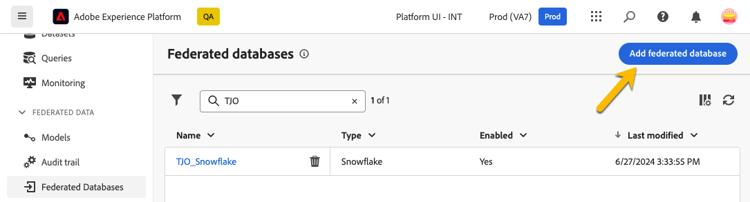
- Browse to FEDERATED DATA section on the left rail.
- In the Federated Databases link, click on Add federated database button.
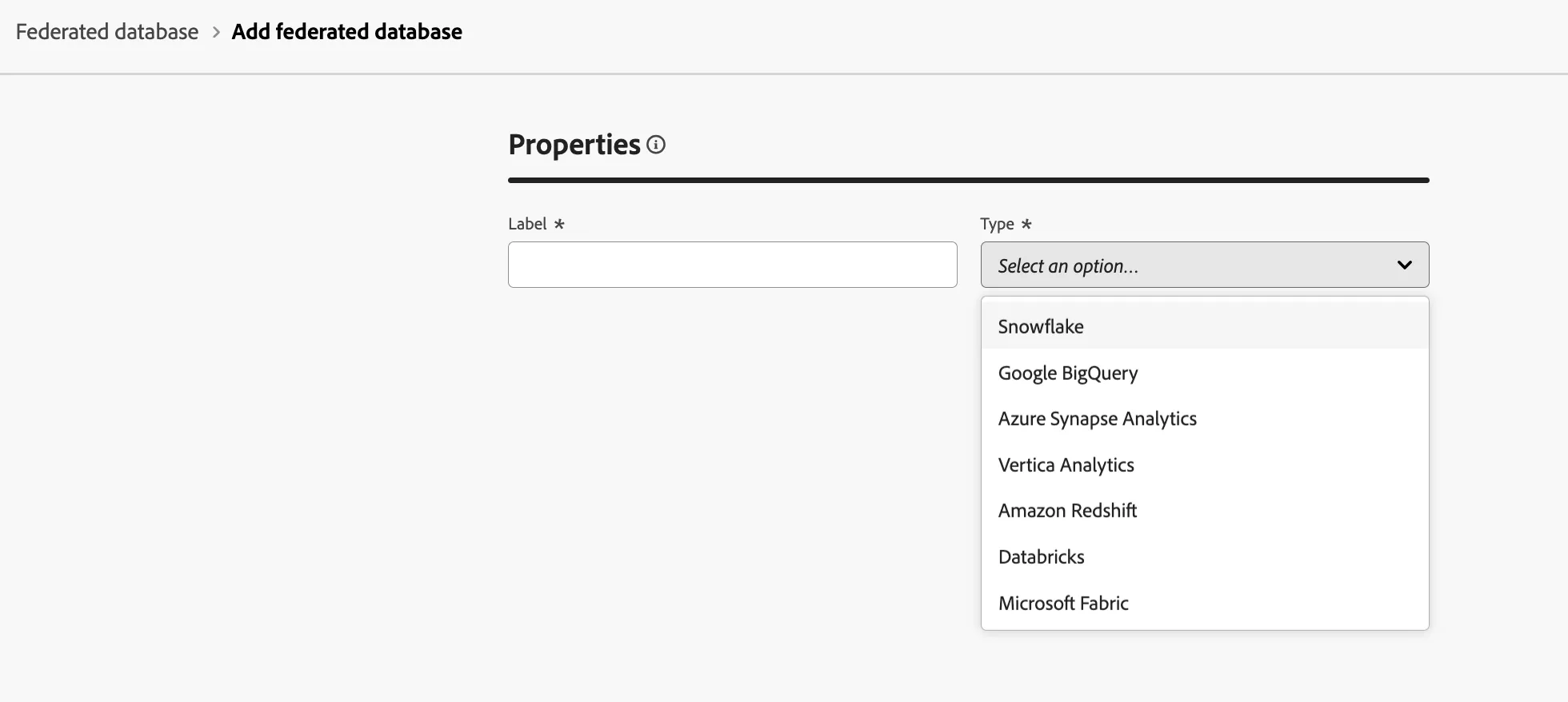
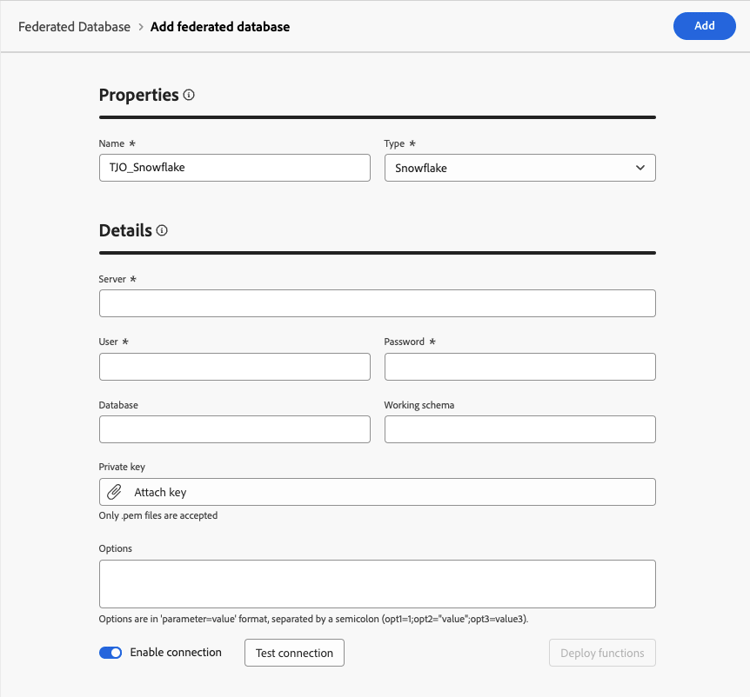
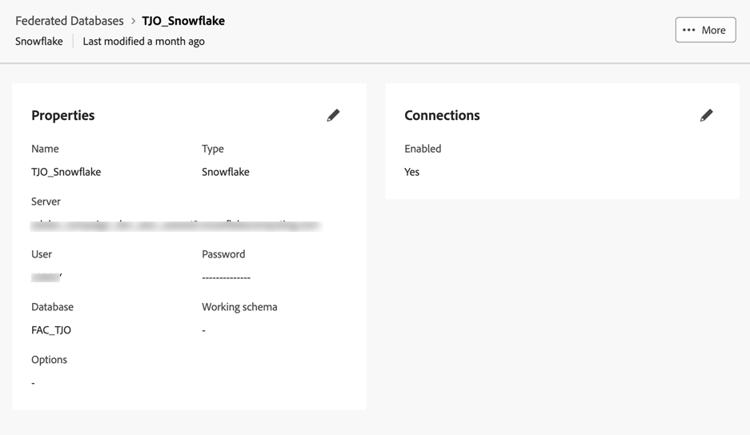
- Add a name and select Snowflake
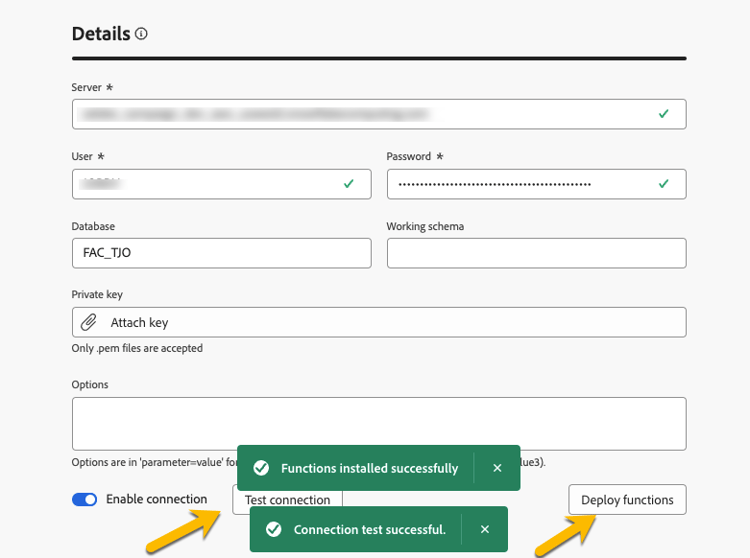
- Fill in the details, click on Test connection button, and on Deploy functions button.
For this lab, we will connect to a Snowflake account. Federated Audience Composition has a growing list of cloud warehouse connections. See link below for an updated list of integrations
Create a schema
To create schemas in Federated Audience Composition, follow the steps below:
- In the FEDERATED DATA section, click Models.
- Browse the Schema tab and click on the Create schema button.
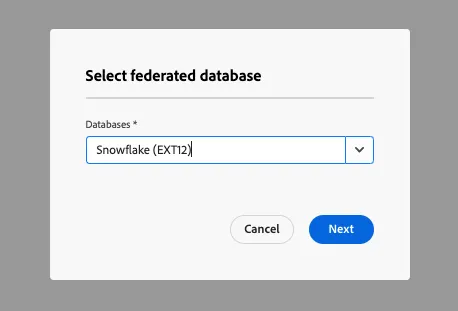
- Select your source database in the list, and click on the Add tables tab.
Select the following tables
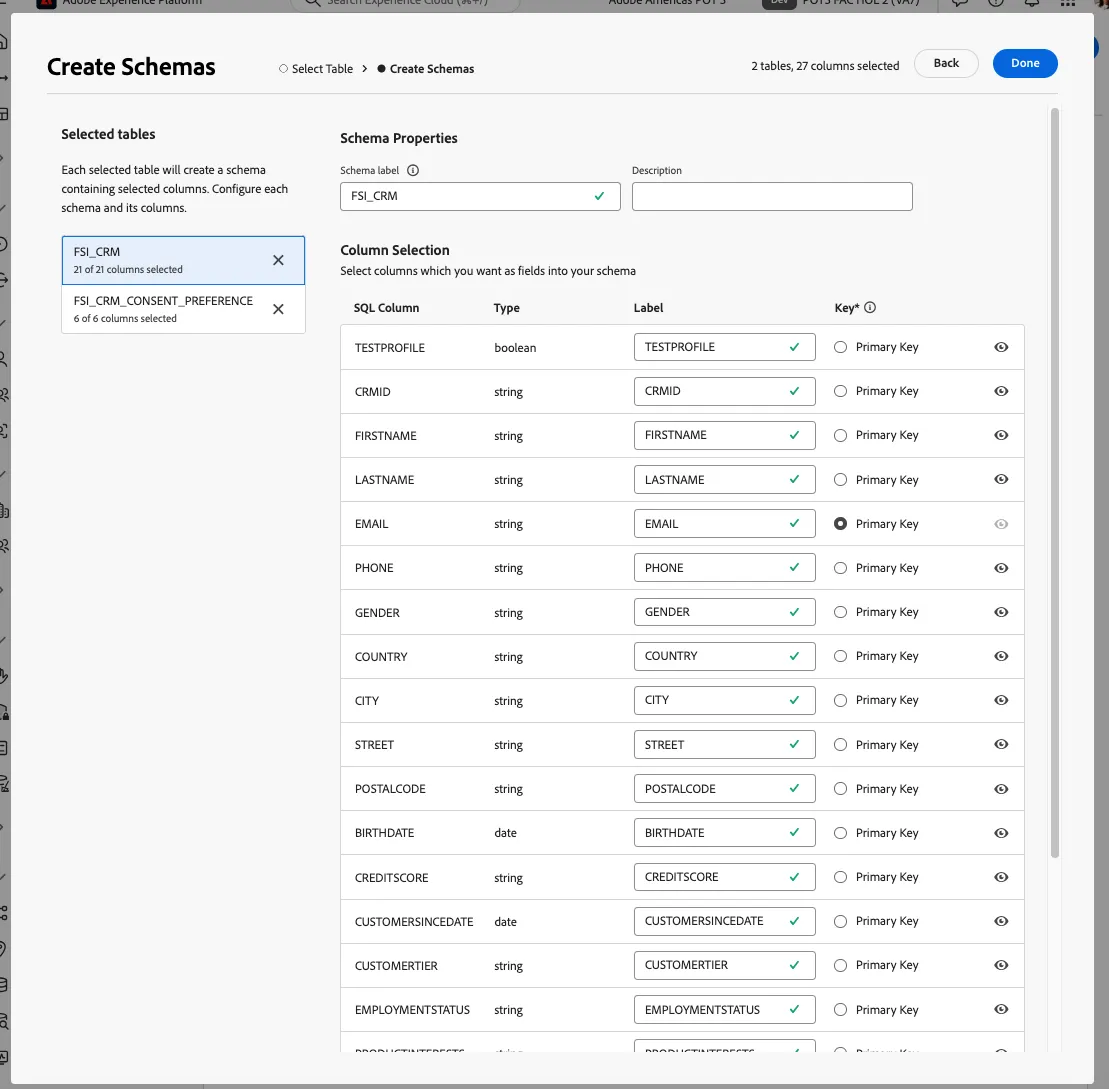
- FSI_CRM
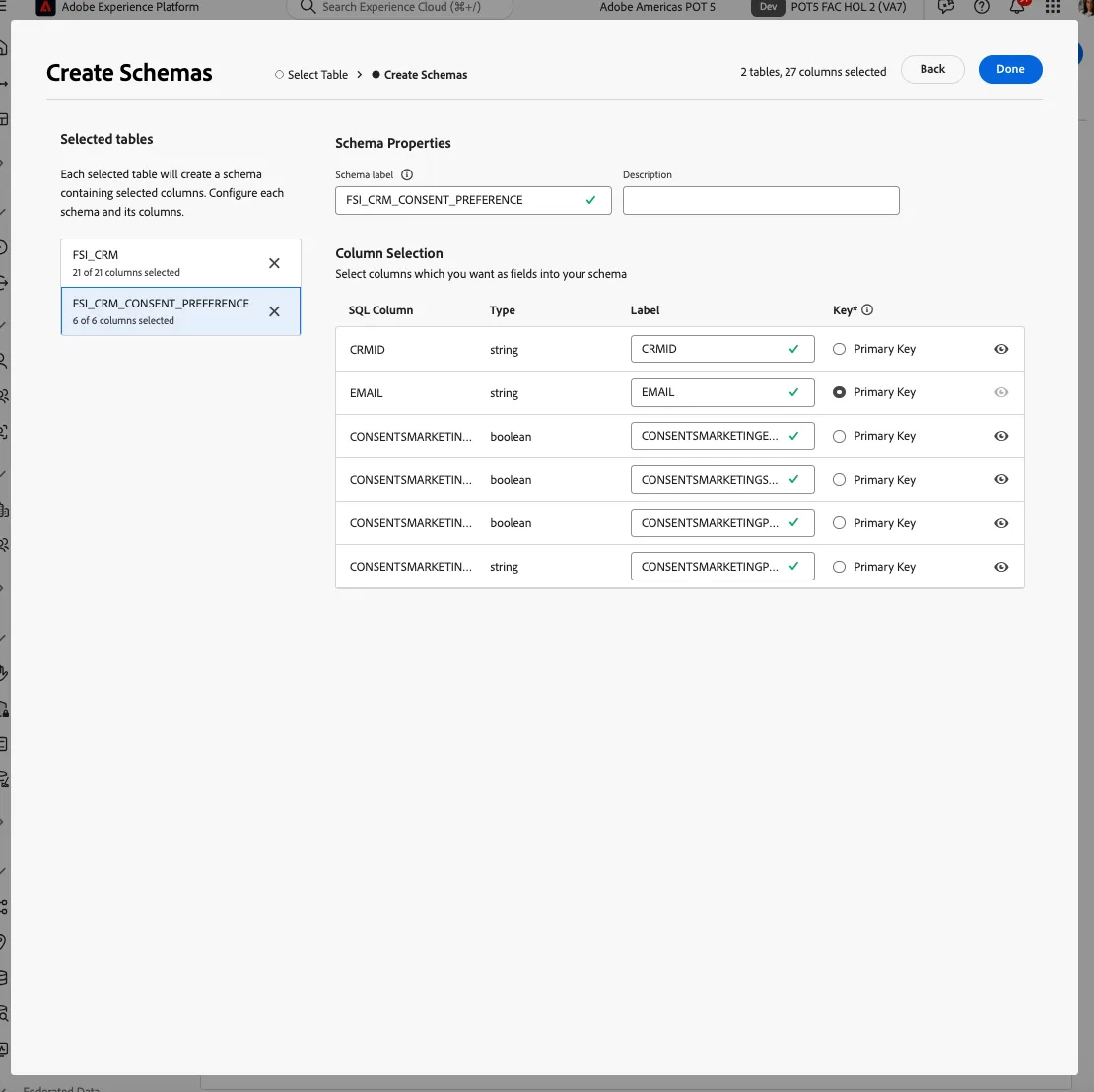
- FSI_CRM_CONSENT_PRFERENCE
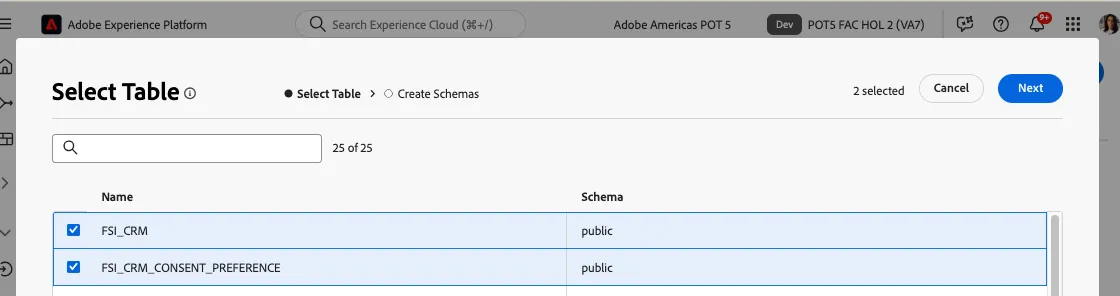
After selecting your tables, you can review the columns of each table then find and select your primary key. For this exercise, we will select EMAIL as primary key in both tables
Preview data in a schema
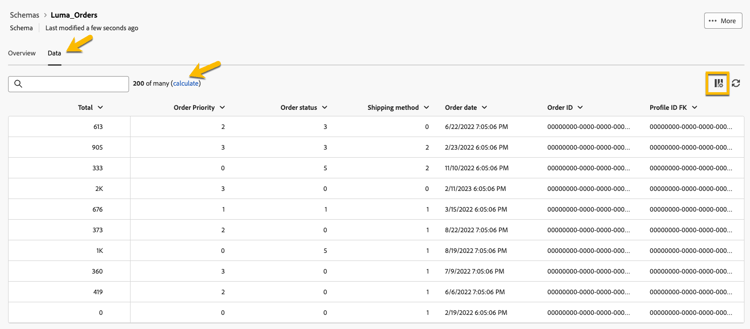
To preview the data in the table represented by your schema, browse to the Data tab as shown below.
Click on the Calculate link to preview the total number of records.
Create a data model
Data models allow you to create a link between tables. The link can be created between tables in the same database such as tables in Snowflake. You can also create a link between tables in different databases such as a link between a table in Snowflake and a table in Amazon Redshift.
To create a data model in Federated Audience Composition, follow the steps below:
- In FEDERATED DATA section, click Models then click Data Model. Click the Create data model button.
- Provide a name for your data model.
- Click on Add schemas and select FSI_CRM and FSI_CRM_CONSENT_PREFERENCE schemas.
- This will now allow you to create a link between these tables, click on Create links.
- When creating a link, choose the applicable cardinality
- 1-N: one occurrence of the source table can have several corresponding occurrences of the target table, but one occurrence of the target table can have at most one corresponding occurrence of the source table.
- N-1: one occurrence of the target table can have several corresponding occurrences of the source table, but one occurrence of the source table can have at most one corresponding occurrence of the target table.
- 1-1: one occurrence of the source table can have at most one corresponding occurrence of the target table.
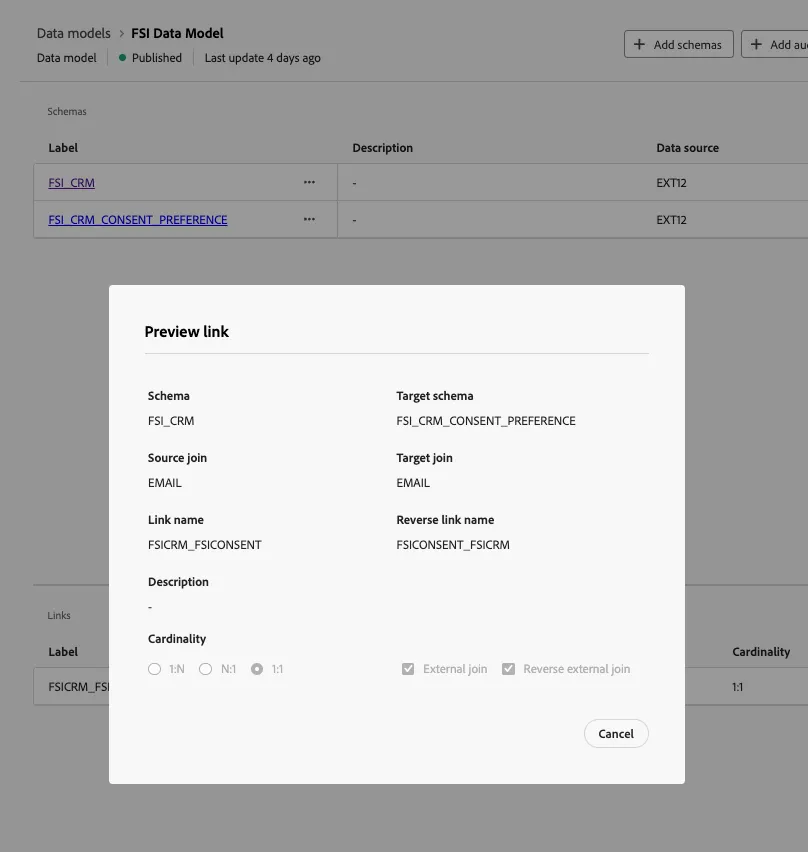
Below is a preview of the link created for the lab exercises. The link enables a join between the CRM and consent tables, using the primary key of EMAIL to perform a join.