Summary Data
What is Summary Data?
Summary data is time-series data that is not tied to an individual person ID. Summary data represents aggregated data at a different level of aggregation, for example campaigns.
This summary data can then be used to present high-level performance indicators or perform analysis. Examples of summary data can be advertising impressions, email opens, advertising spend, cost of good sold, S&P indices, and more. You can also use summary data to upload targets or goals on an hourly or daily basis.
An example of using summary data is combining summarized advertising campaign data with on-site clickstream data for reporting.
Create a Summary Data report for Return on Advertising Spend (ROAS)
Combining the summarized event data and on-site clickstream data enables you to report in Workspace on return on ad spend (ROAS).
- Create a new panel below the last panel we just worked on
- title it Return on Advertising Spend Analysis;
- ensure your date range is Last 3 Full days;
- select the Freeform table visualisation.
You see an empty Freeform panel, consisting of an empty Freeform table.
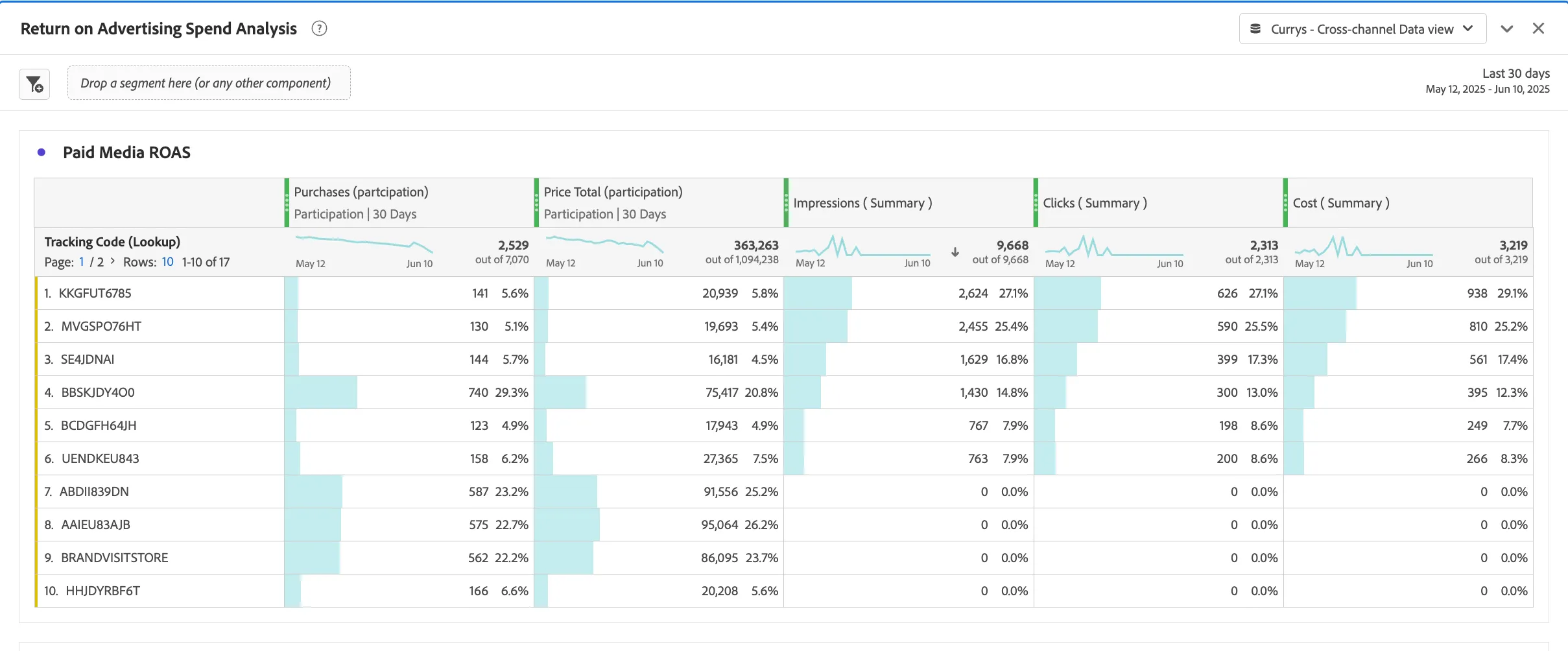
- Drag Tracking Code (Lookup) from Dimensions and drop the dimension onto the empty Freeform table.
- Drag Purchases (participation) from Metrics, and drop the metric onto the Events column to replace that column in the Freeform table.
- Also drag the following metrics into the same Freedom table:
- Price Total (participation),
- Impressions (Summary),
- Clicks (Summary)
- Cost (Summary).
Your panel should look like:
To keep your changes, save your project by going to Project > Save (or press Ctrl+S on Windows, or Command + S on Mac).
You want to use the power of reporting on summary data and report on cost per impression and return on ad spend (ROAS). To report on these metrics, you have to create two calculated metrics:
- Create 2 new calculated metrics:
- Cost per impression Calculated metric:
- Click the + icon near Metrics to create a new calculated metric.
- Specify [Your name] Cost per Impression for the Name.
- Select Currency for Format.
- Specify 4 for Decimal places.
- In the Definition box drag Cost (Summary)
- Drag Impressions (Summary) below Cost (Summary)
- The Summary should be Cost (Summary) ÷ Impressions (Summary)
- Select Save.
- Return on Ad spend Calculated metric:
- Click the + icon near Metrics to create a new calculated metric.
- Specify [Your name] Return on Ad Spend for the Name.
- Select Currency for Format.
- Select 2 for Decimal places.
- In the Definition box drag Price Total (participation)
- Drag Cost (Summary) below Cost (Summary)
- Change the operator from ÷ to -
- The Summary should be Price Total (participation) − Cost (Summary).
- Select Save.
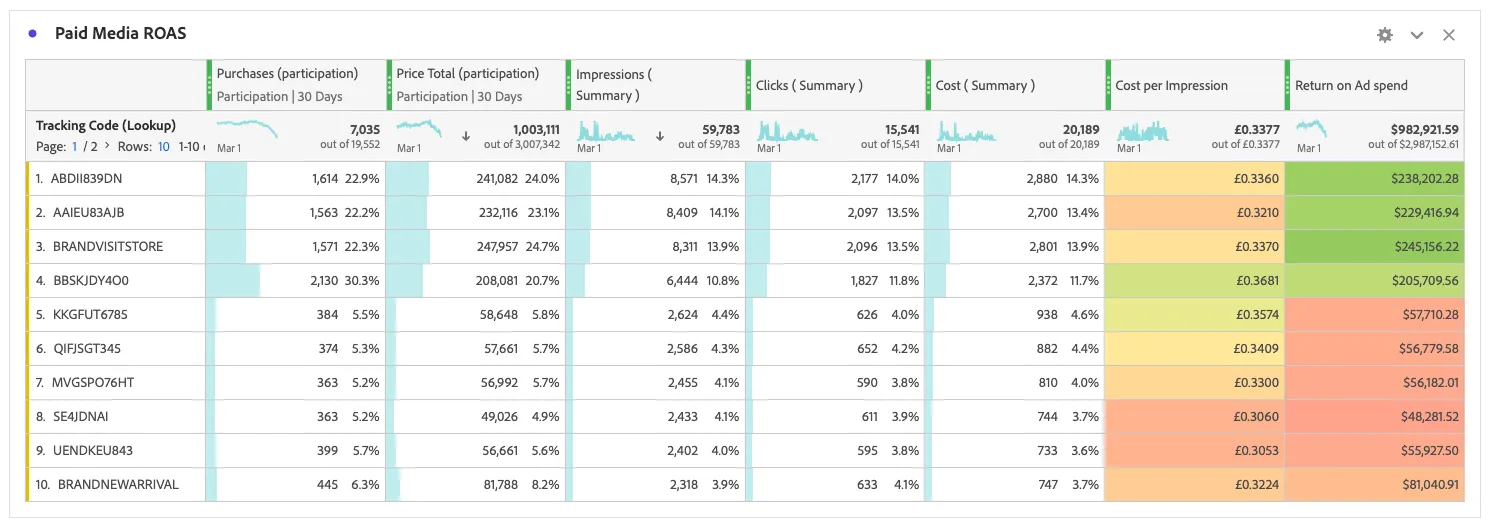
- Add your calculated metrics to your reports. From Metrics, drag and drop the new calculated metrics (Cost per Impression and Return on Ad Spend) as an additional column to the Freeform table.
- Amend the column settings:
- Hover the column Cost per Impression, click on the gear icon.
- Disable Percent checkbox.
- Enable Conditional formatting.
- Select Auto-generated.
- Select a preferred Conditional formatting palette.
- Do the same for Return on Ad Spend.
Your panel should now look like:
To keep your changes, save your project by going to Project > Save (or press Ctrl+S on Windows, or Command + S on Mac).
If you want to report on Campaign Name rather than Tracking Code (Looukp), take the following steps:
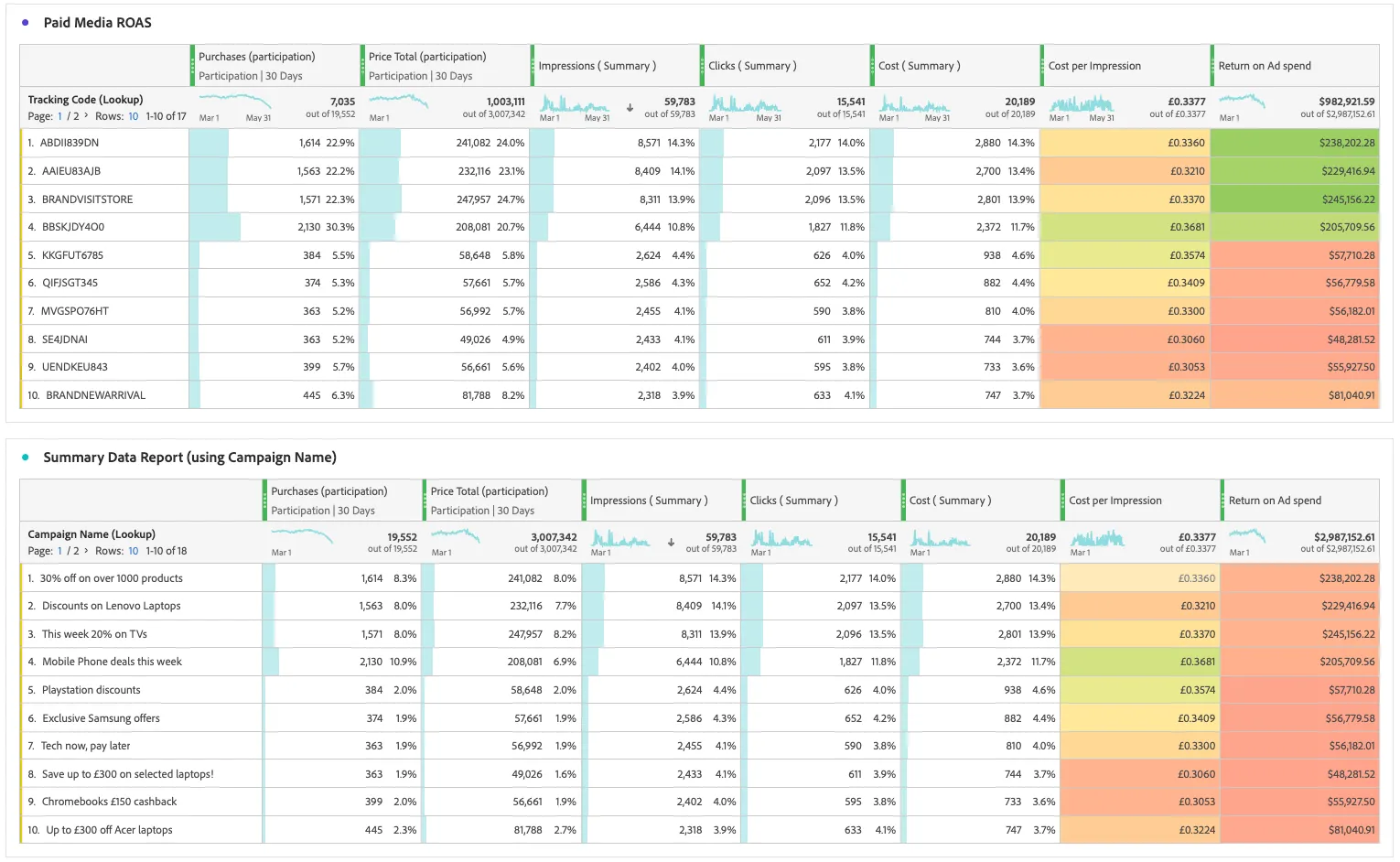
- Duplicate the Return on Advertising Spend Analysis Freeform table visualization.
- Rename the duplicated visualization to Summary Data Report (using Campaign Name).
- Replace the Tracking Code (Lookup) dimension with the Campaign Name (Lookup) dimension.
You can report correctly on Campaign Name (Lookup) because of the derived field pre-created, and the summary data group component configuration for Campaign Name. For more information on this process see the Experience League > Data view steps.
Your final project should look like the one shown below:
To keep your changes, save your project by going to Project > Save (or press Ctrl+S on Windows, or Command + S on Mac).
You've now successfully reported on your Marketing ROAS using Summary data in Customer Journey Analytics!