Fallout
Objective
Understand where customers are getting lost on their way to conversion.
How can we use the Fallout visualisation?
The Fallout visualisation is great for understanding customer paths when there are specific points or events you want to account for. For example, measuring a process on the website.
IMPORTANT: The numbers you'll see in this guide refer to the values reported in the screenshots. They are used to better explain the exercise. Because the time period you're analysing is different, the number you see in your report may be different. This does not affect the exercise.
Creating a Fallout Visualisation
In this lab, we will be building a Fallout that allows us to analyse the customer journey from online to their airport departure, and look at the effectiveness of offers presented in this journey.
- Create a new panel, title it “Fallout Analysis” and ensure your date range is set to the Last 6 Full Months. Select the Fallout Visualisation as the starting point of the panel.
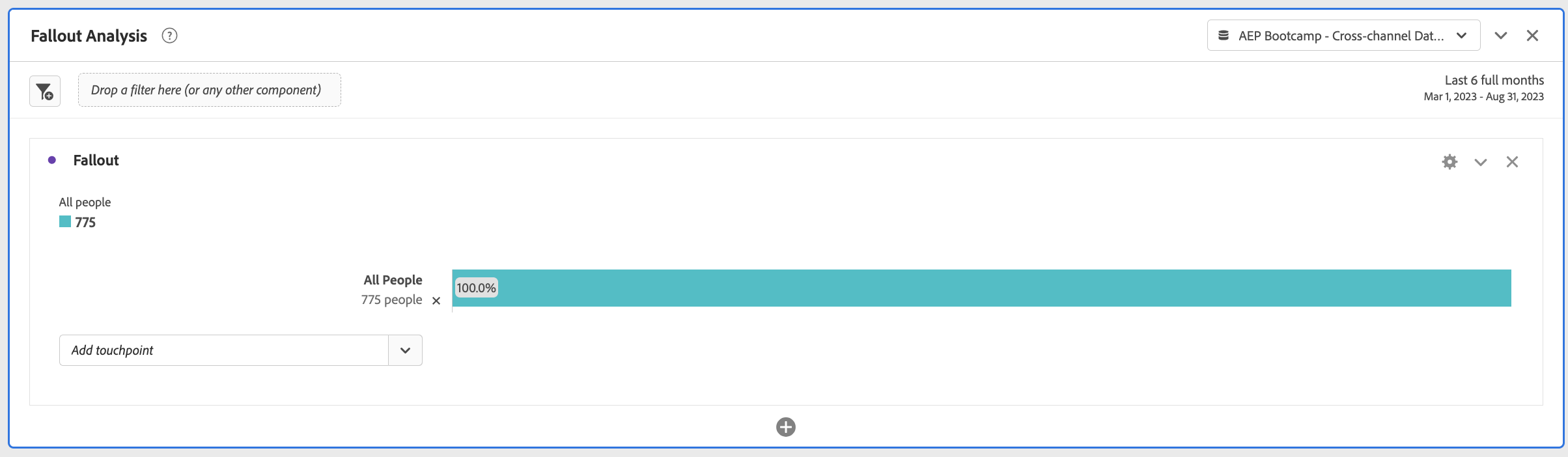
The Fallout visualisation requires touch points in the process you want to measure fall-through as well as fall-out for.
- From the Components menu, search for Event Type.
- Click on the arrow to the right of the dimension.
- Select offer.presented from the list of values and drag it onto the first step of the Fallout.
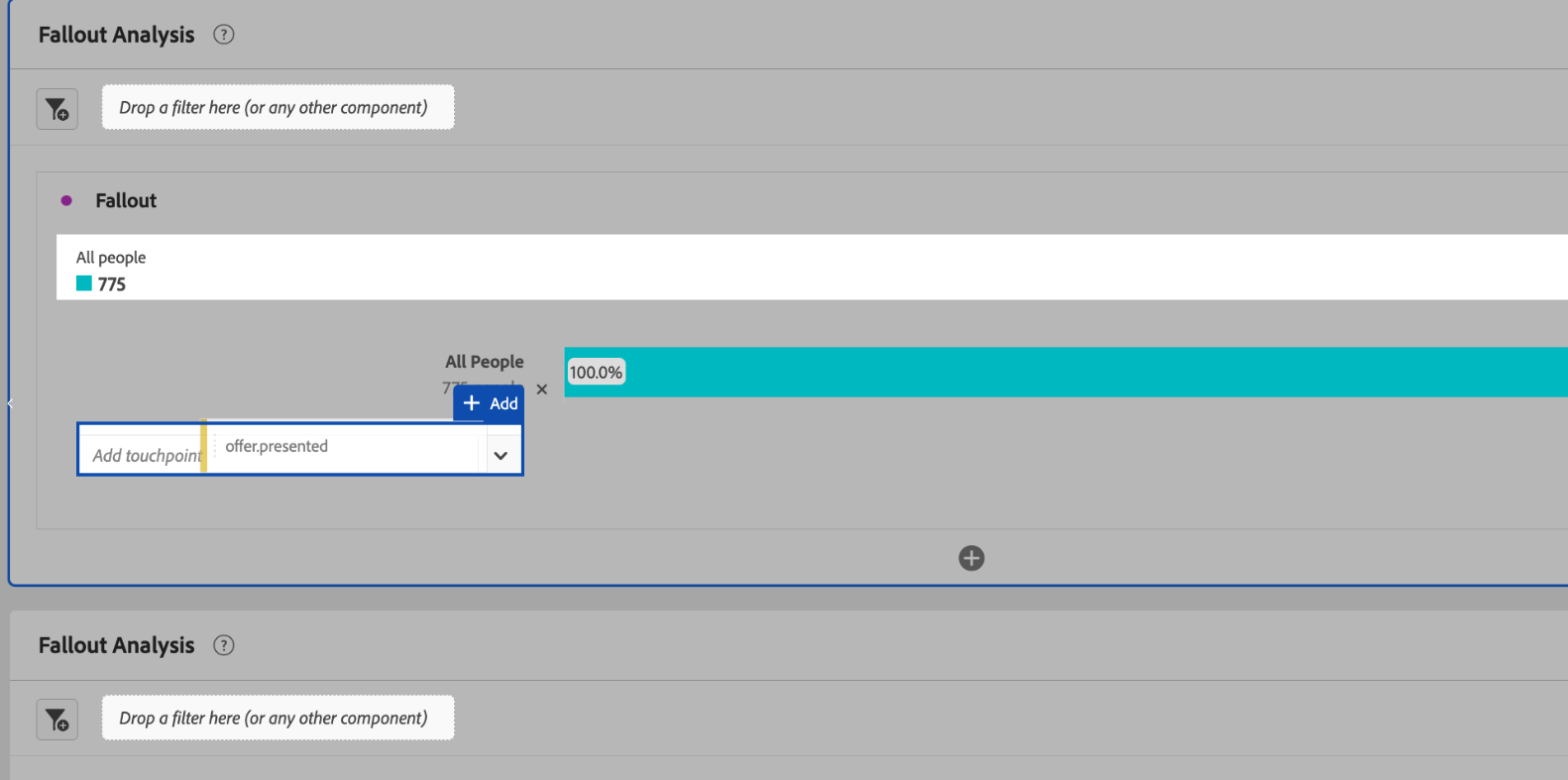
We can see that 742 people have been presented with an offer of some kind in the last 6 months.
- Next, drag commerce.flight.reservations onto the next step of the Fallout.
- Drag commerce.flight.checkins below this.
- We can rename the steps of the Fallout with more descriptive names. I.e. Has been presented an offer, Has booked a flight, has checked in for their flight.
Your Fallout should now look like...
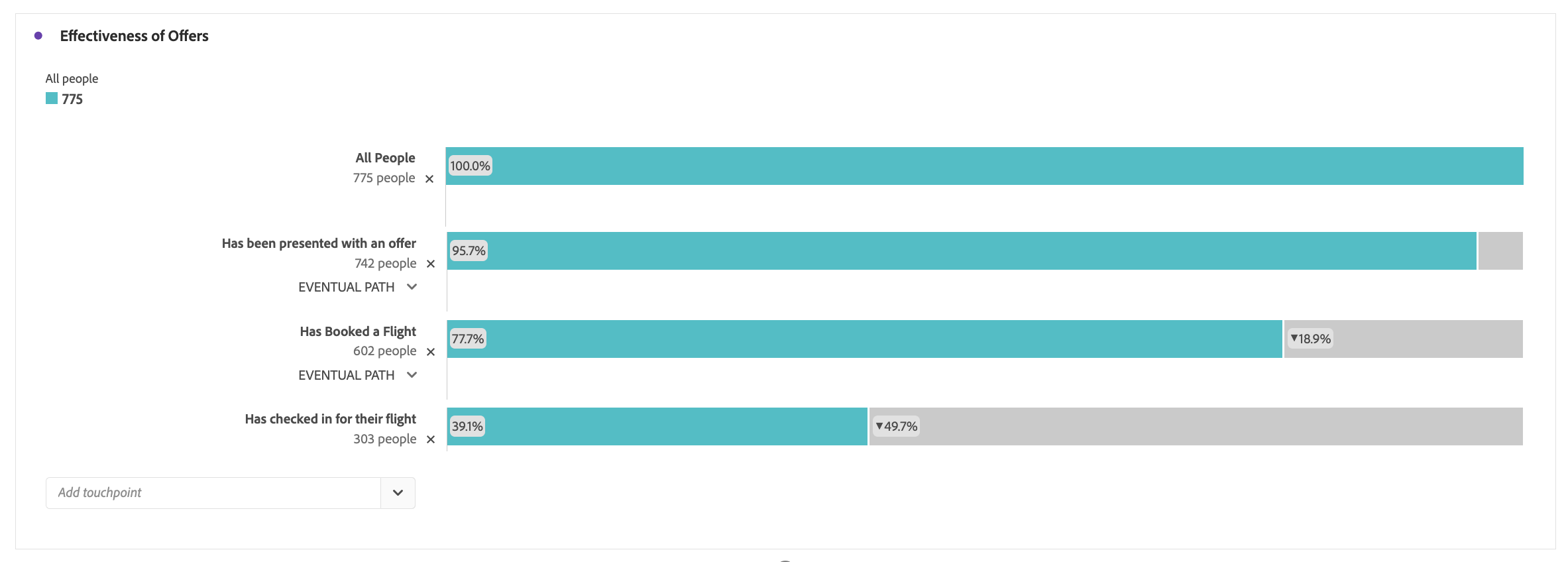
We can see that of the 742 people who were presented with an offer, 303 people made it to the end goal.
More Fallout Analysis...
We'll now dig into this further to help us answer business questions, such as;
- On which routes did offers have the most impact?
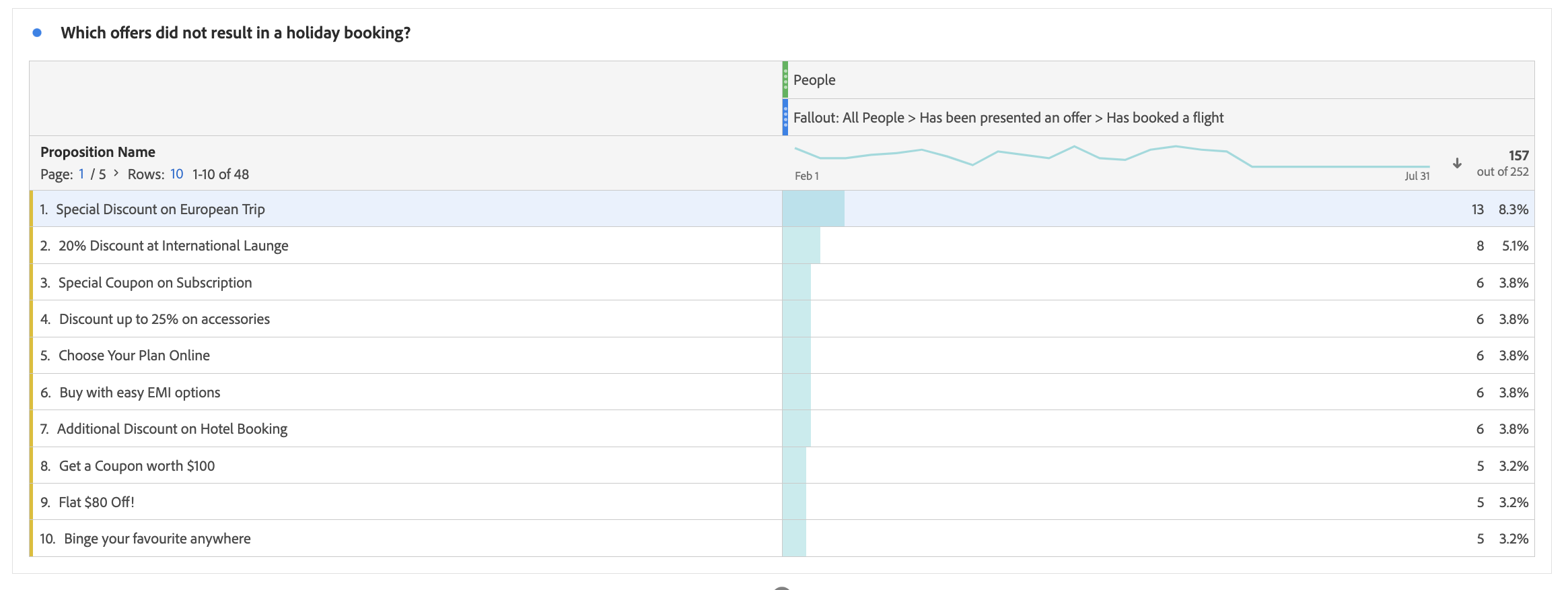
- Of those customers who were presented an offer, but didn't book a flight, what offer did they see?
To answer the first question:
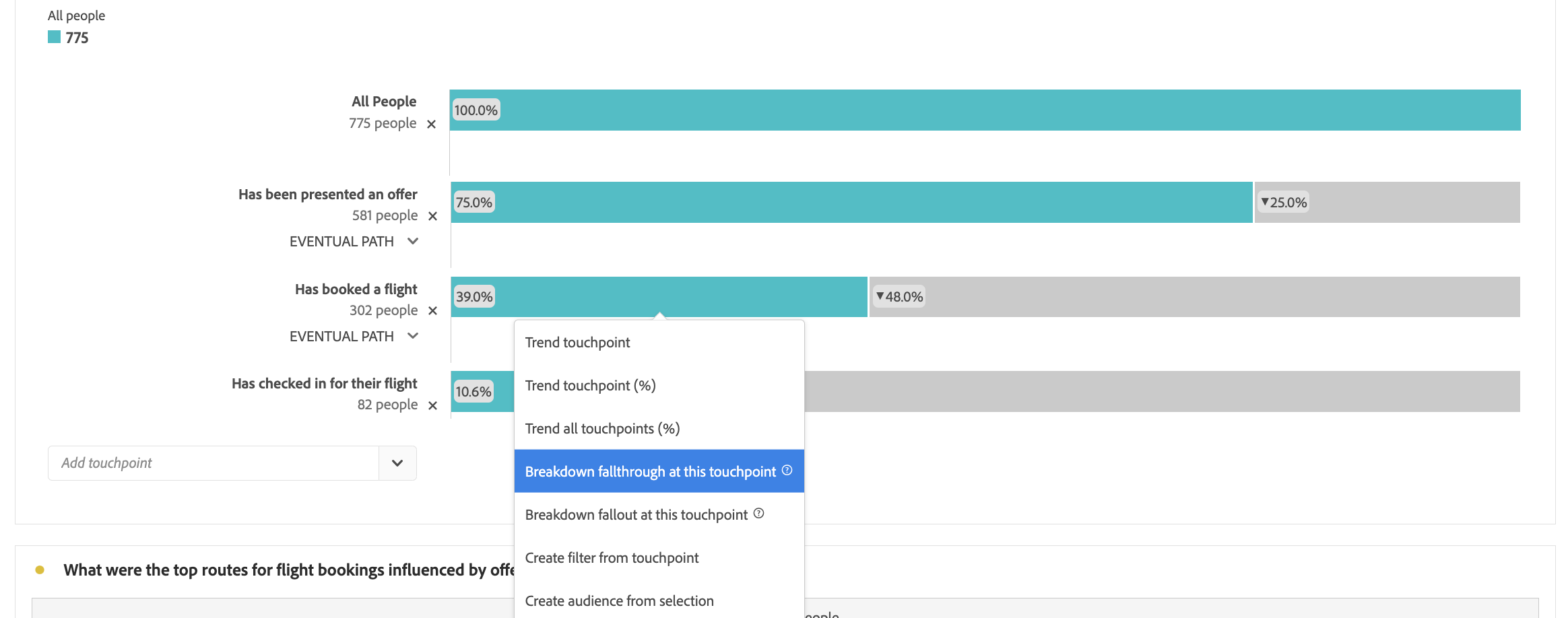
- Breakdown the Fallout, by right-clicking on step 3 "Has booked a flight"
- Select Breakdown by Fallthrough at this touchpoint from the list of options, a new freeform table will be generated with this segment.
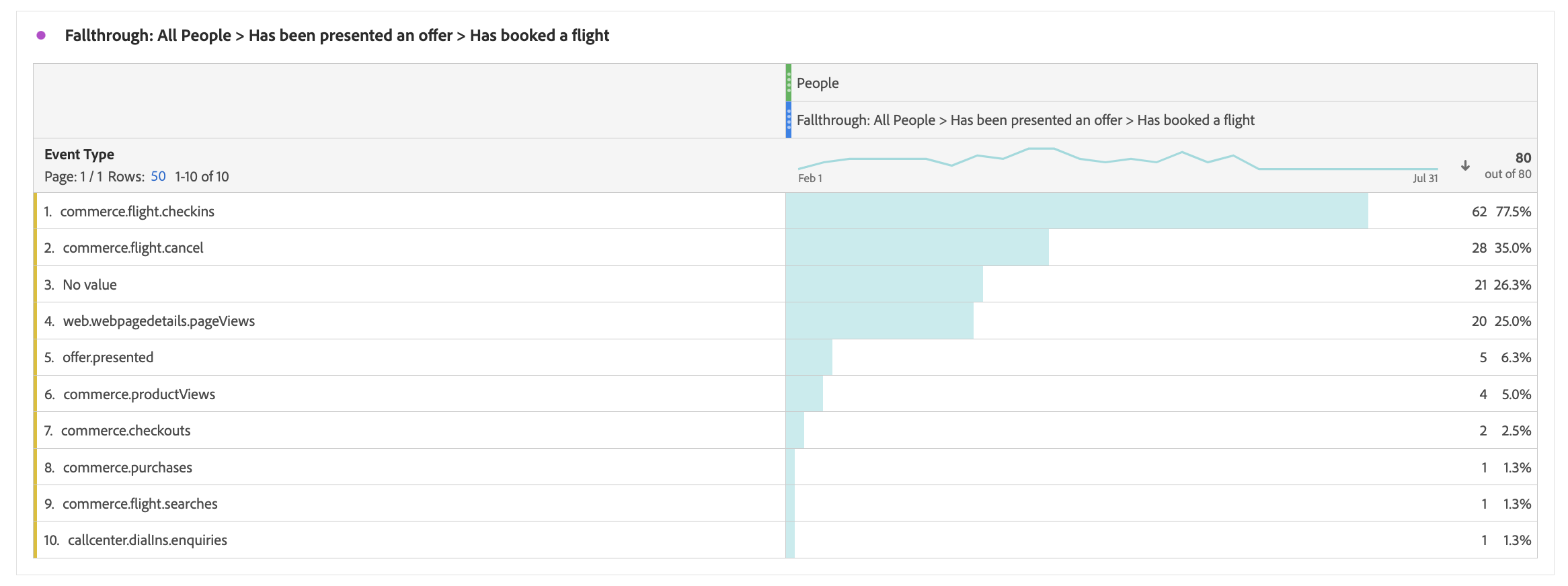
- Search in the Components for the Product Name dimension.
- Drag this dimension onto the Freeform table to replace the Event Type Dimension
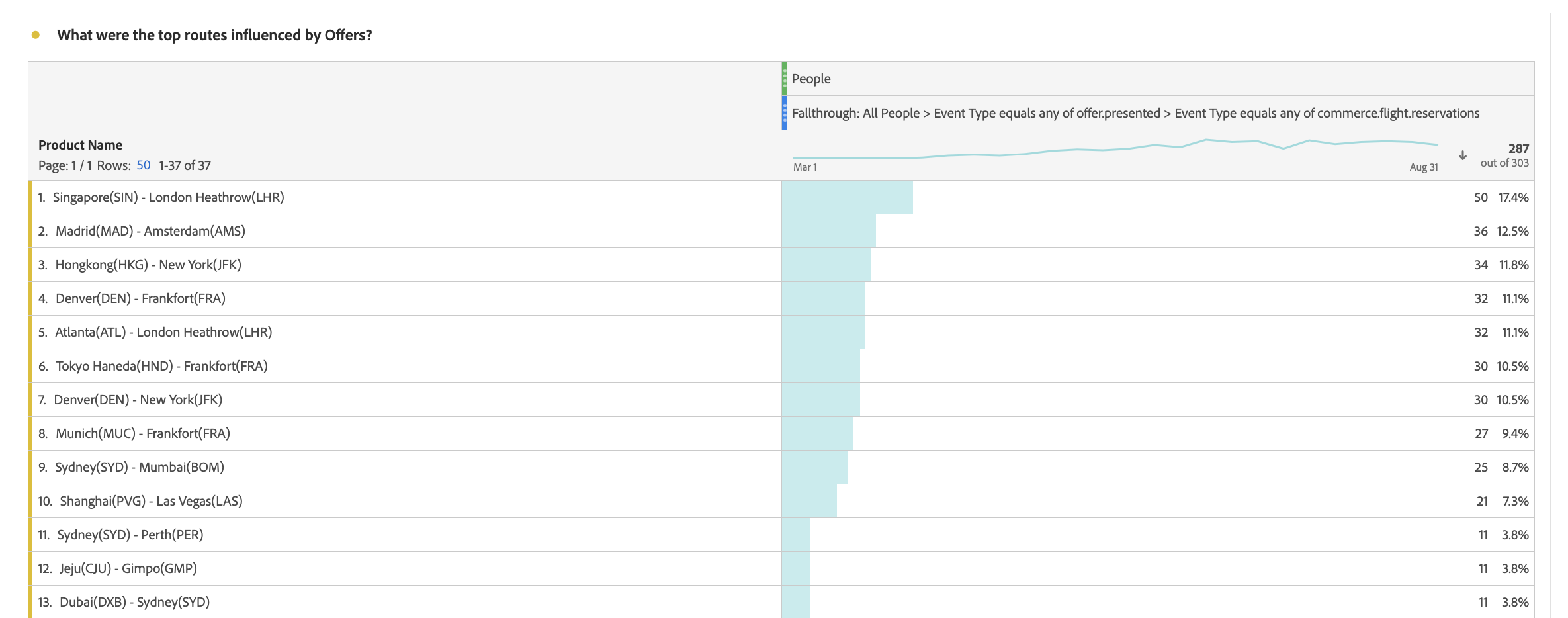
Now you can see the top routes influenced by offers. You can break this down further and add the Proposition (offer) Name dimension to the report to see which offers.
In this case, we've created a table from the people who have booked a flight (fall-through). We can also analyse the journey of those that have not booked (fall-out) to see what might be causing this behaviour.
- Breakdown the Fallout, by right-clicking on step 3 "Has booked a flight"
- Select Breakdown by Fallout at this touchpoint from the list of options, a new freeform table will be generated with this filter.
- Search in the Components for the Proposition Name dimension.
- Drag this dimension onto the Freeform table to replace the Event Type Dimension.
You will now see the Offers proposed to the people who did not go on to book a flight.
We have shown a basic example of Fallout in this exercise, however, the Fallout Visualisation can also be useful for:
- Conversion rates through specific processes on your site (such as a purchase or registration process).
- General, wider-scope traffic flows: Of the people who saw the home page, this flow shows how many went on to perform a search, and then how many of them eventually went on to look at a specific item.
- Correlations between events on your site. Correlations show what percentage of people who looked at your privacy policy went on to purchase a product.
Congratulations, this completes the exercise on Fallouts!