Create a Landing Page
3 min
This lab will walk through the steps to create a Landing Page in Adobe Journey Optimizer.
NOTE: Some exercises may vary during the actual Hands on Lab versus what is listed in the Archbee Page, due to industry setup and / or Presenter preferences.
Access Landing Pages
- To access the landing page list, select Journey Management > Landing pages from the left menu.
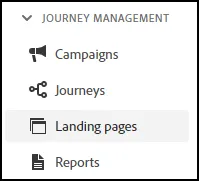
Create a Landing Page
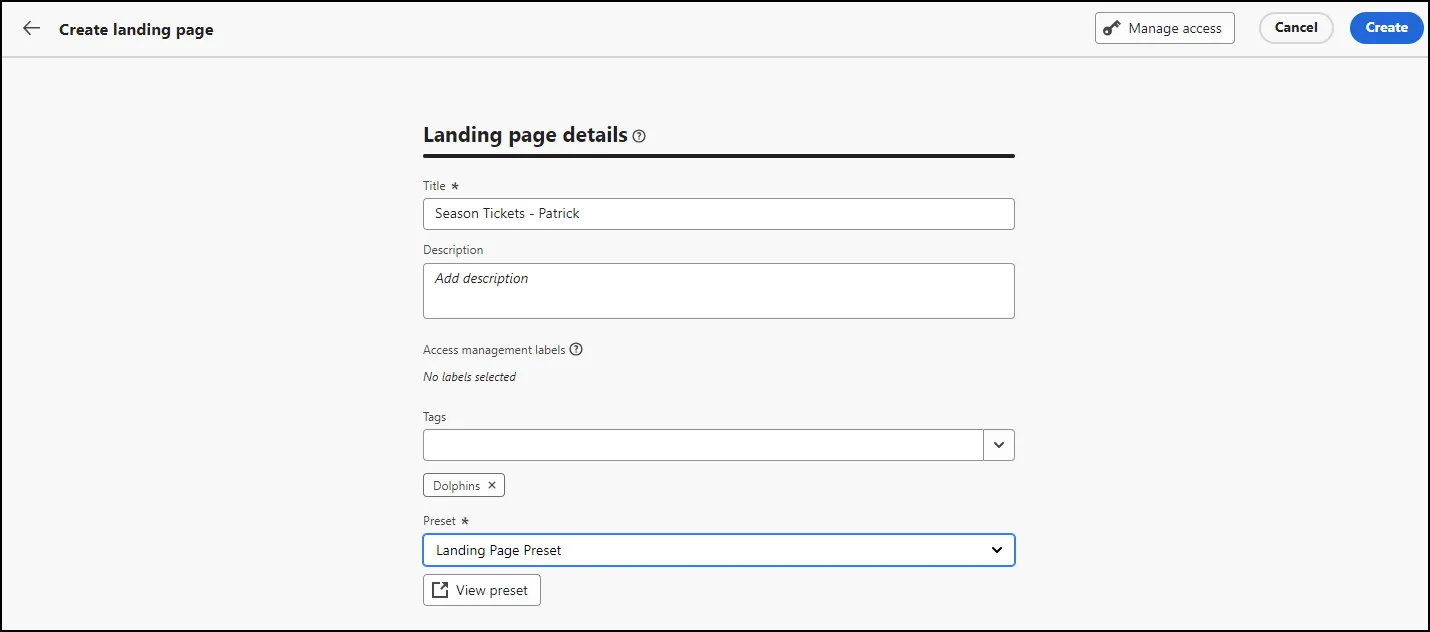
- Click "Create Landing Page" in the top right corner:

- In the Landing Page Details, provide a Title, such as "Season Tickets - YOUR NAME".
- Click on Tags - and select / create a Tag, if wanted.
- Click on the Landing Page Preset from the drop-down.
- When finished, click "Create":
Modify the Landing Page Content
- On the right hand properties window, change the Page Name (if desired), the URL and the Page Expiration:
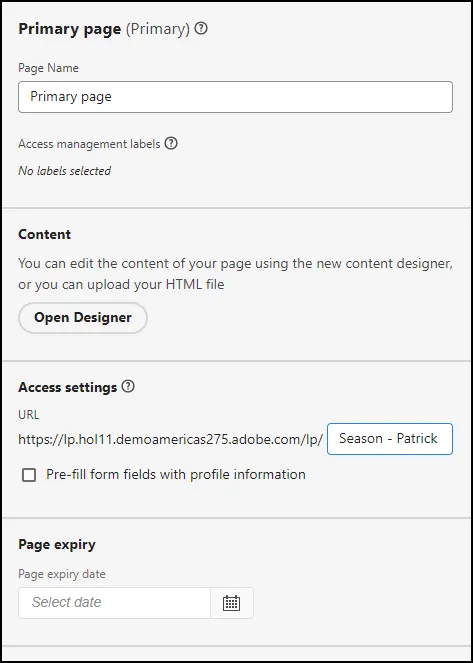
- When complete, click on "Open Designer"
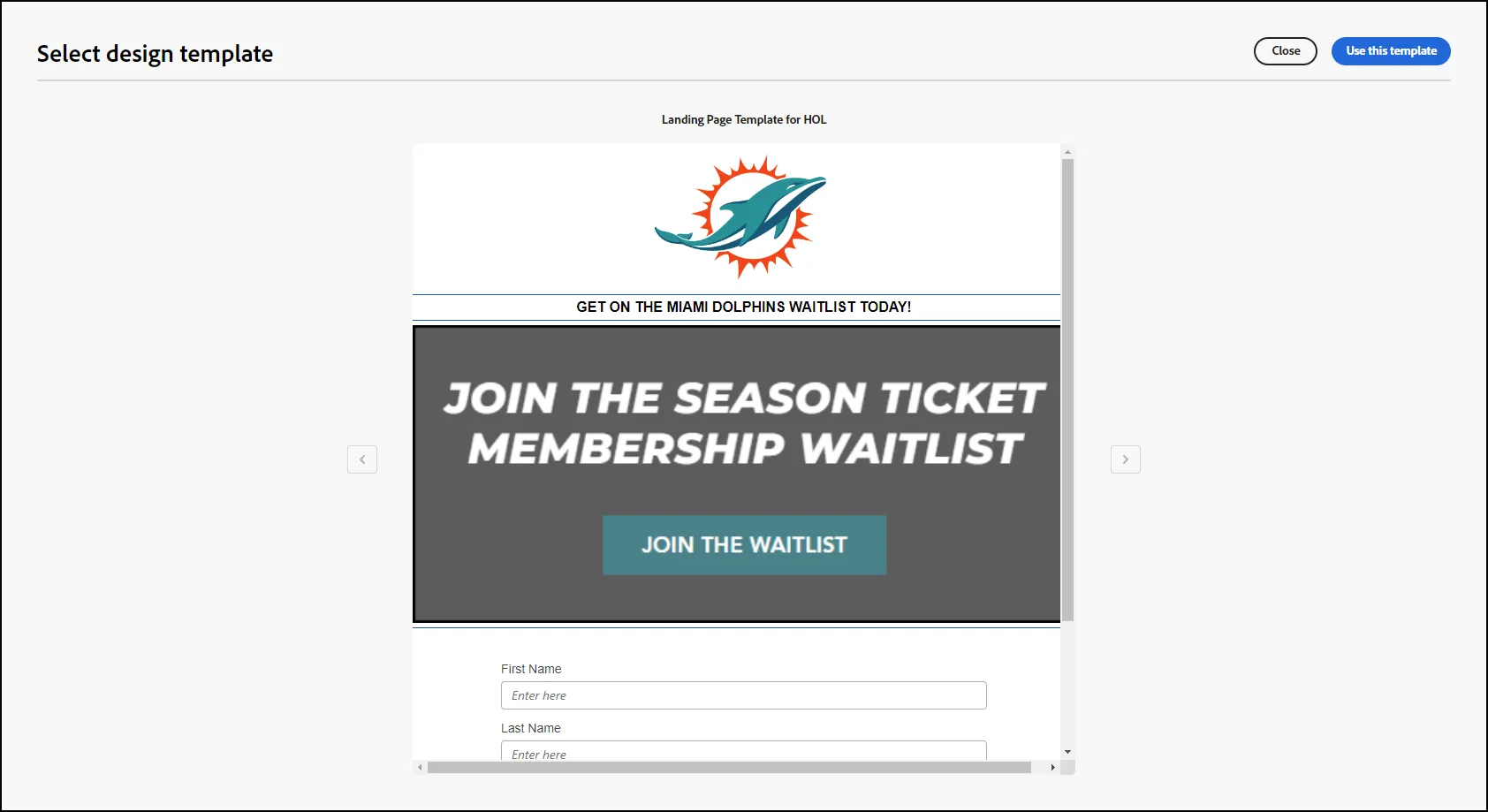
- Click on the "Landing Page Template for HOL":
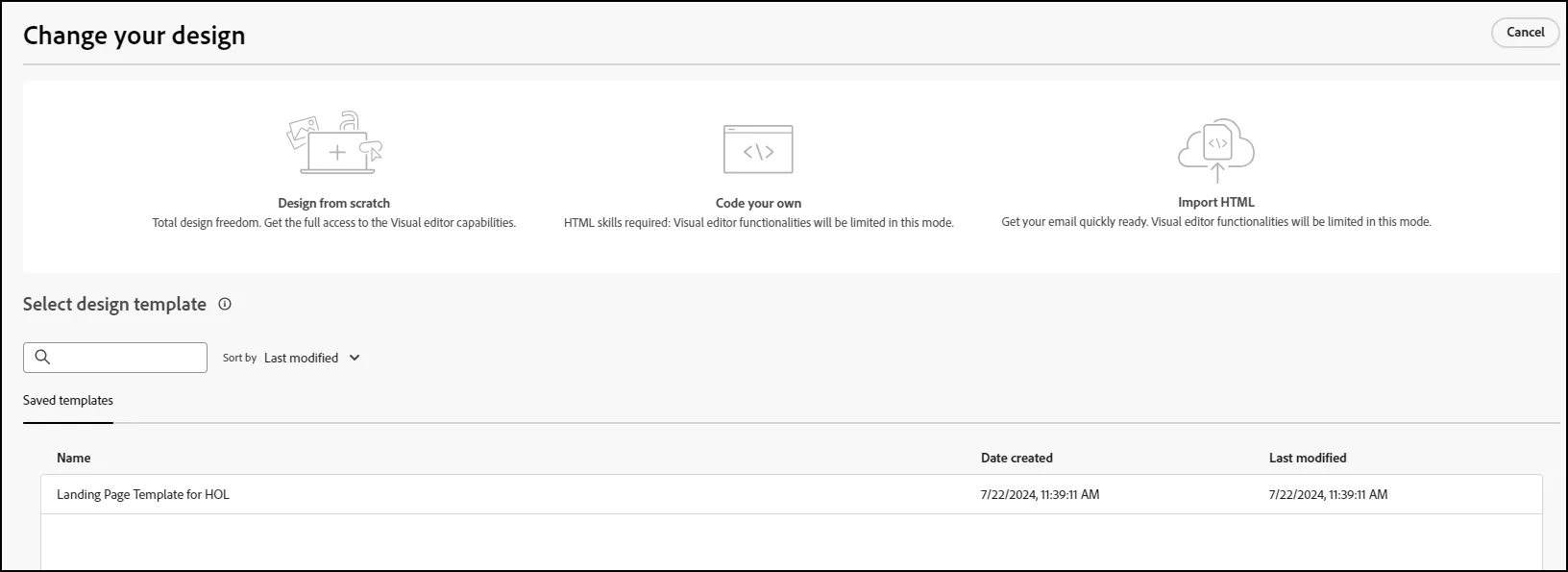
- Click "Use this Template" when prompted:
- Click Save
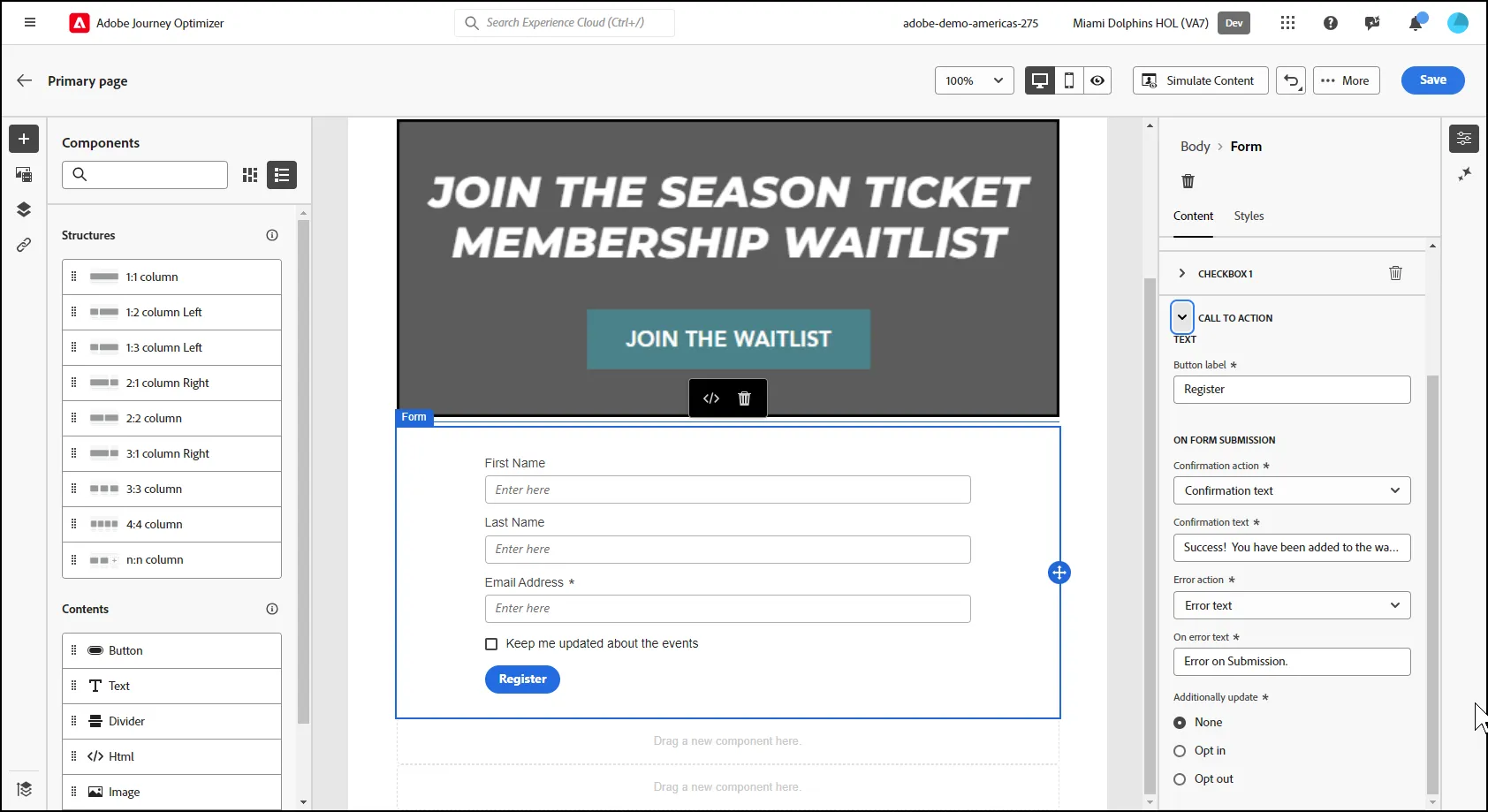
- Click on the Form in the Landing Page.
- Modify the Call to Action for the Submission Action, Submission Text, Error Action and On Error Text, as illustrated below:
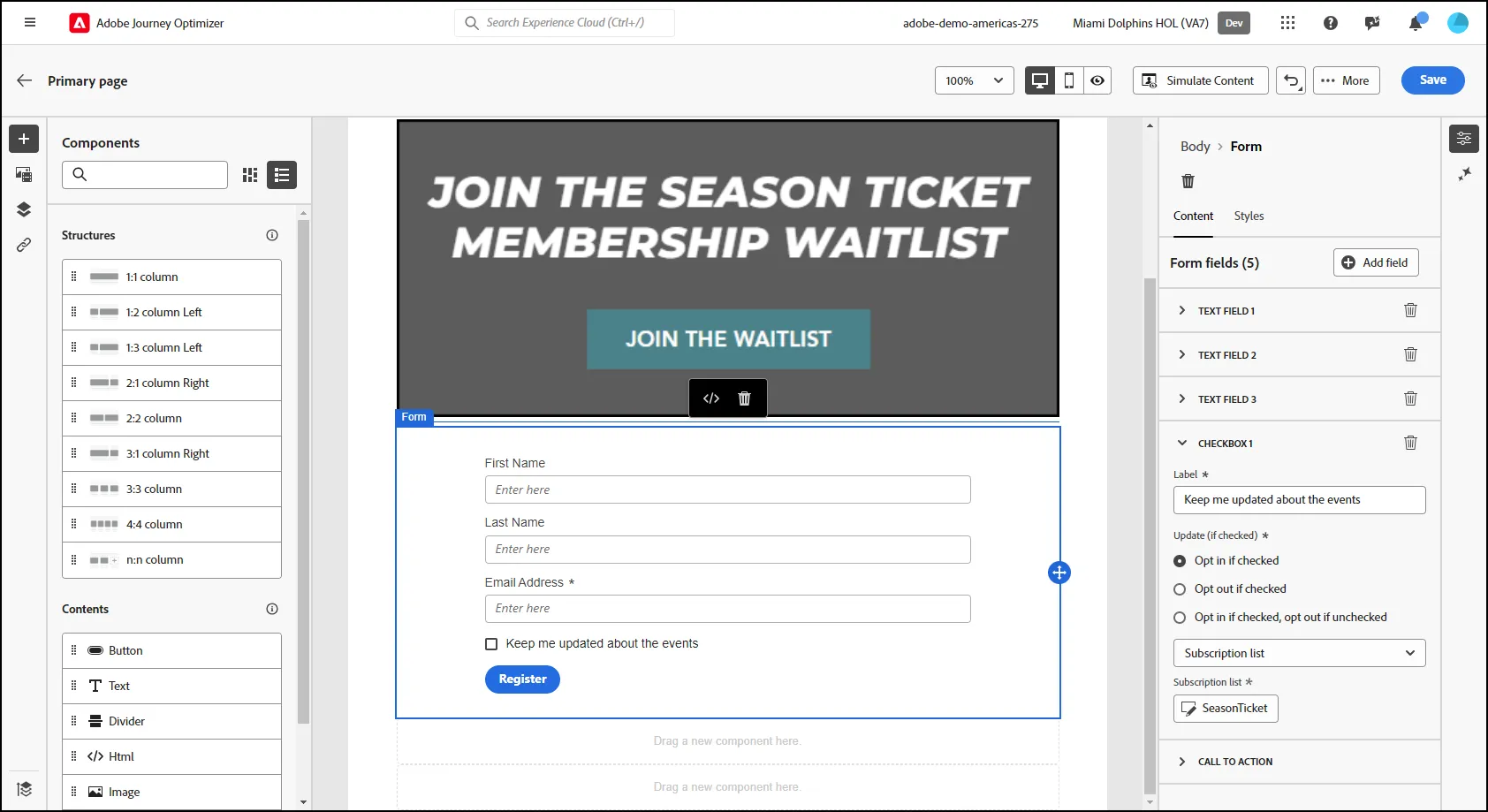
- Click on the "Checkbox 1 to open the options. Click on "Opt in if Checked". Select the "SeasonTicket" Subscription List from the Drop-Down:
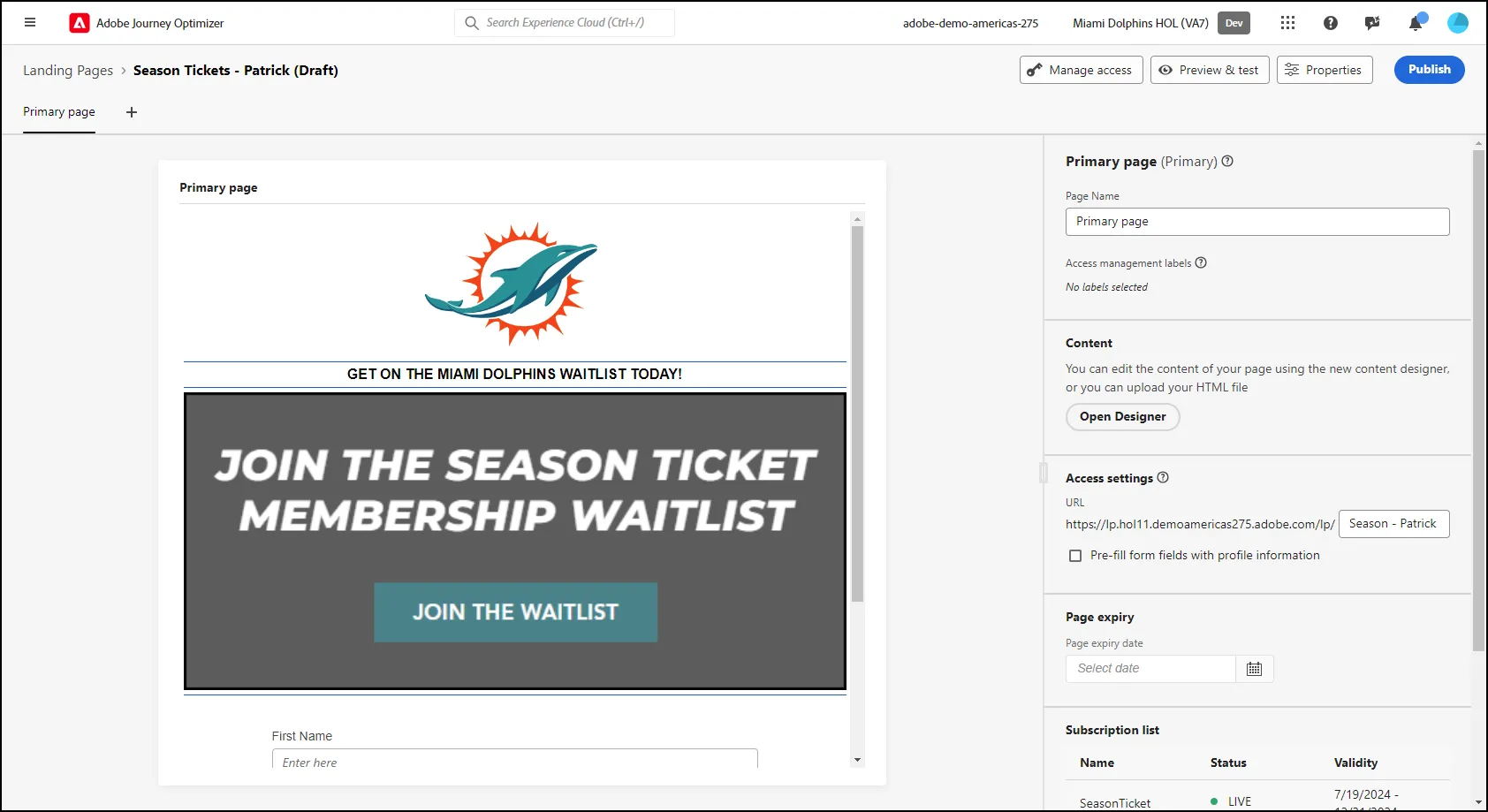
- Click the Back Arrow and then Publish.
- End of Lab