Content Activation Demo
Demo Stories
Credit Cards
Secur Financial Services is excited to announce a new campaign aimed at enhancing the experience of our Basic Card holders through exclusive upgrade offers to our esteemed Gold and Premium card levels. This initiative is designed to recognize and reward our valued customers while providing them with unparalleled benefits and services that cater to their evolving financial needs.
To effectively engage our Basic Card holders, we have tailored our messaging to highlight the advantages of upgrading to a Gold or Premium card. These upgrades come with a host of enhanced features, including increased rewards points on purchases such as travel rewards. By offering these targeted promotions, we aim to encourage our clients to take advantage of the greater opportunities available at higher card tiers.
Our campaign will utilize various communication channels, including email and web, including text and imaging. Each touchpoint will be strategically crafted to communicate the value proposition of upgrading and to illustrate how transitioning to a Gold or Premium card can significantly improve the overall customer experience. We believe that this focused effort will not only promote card upgrades but also strengthen customer loyalty and satisfaction within our financial services community.
Home Lending
Secur Financial Services is proud to introduce our latest home mortgage solution, designed specifically for customers embarking on the journey of purchasing a new home. With a commitment to making homeownership accessible, our mortgage program offers competitive rates and customizable options that cater to the unique financial situations of our clients. Whether you are a first-time buyer or looking to upgrade to your dream home, Secur Financial Services is dedicated to providing you with the support and resources needed to make informed decisions throughout the home-buying process.
Our mortgage offering features a streamlined application process, allowing customers to efficiently navigate the complexities of obtaining financing for their new home. We understand that purchasing a property is one of the most significant investments an individual or family will make, and our experienced team of mortgage specialists is on hand to guide you every step of the way. With personalized consultations, we will help evaluate your financial profile and recommend the best loan products that align with your goals.
In addition to standard fixed-rate and adjustable-rate mortgages, Secur Financial Services also offers unique programs tailored for various customer needs, including options and assistance for those interested in first-time, experienced and investment home financing. We are committed to transparency, ensuring that all terms and conditions are clearly communicated, enabling our clients to feel confident in their financing choices. Choose Secur Financial Services for your home mortgage needs and let us help you turn your homeownership dreams into reality.
Demo Flow Step-by-Step
Step 1 : The Campaign Creative Request

This is a shared environment and requires you to use naming conventions so you don't run into errors or confuse other users. Use your initials or Adobe LDAP where appropriate.
1. Create a new Request.
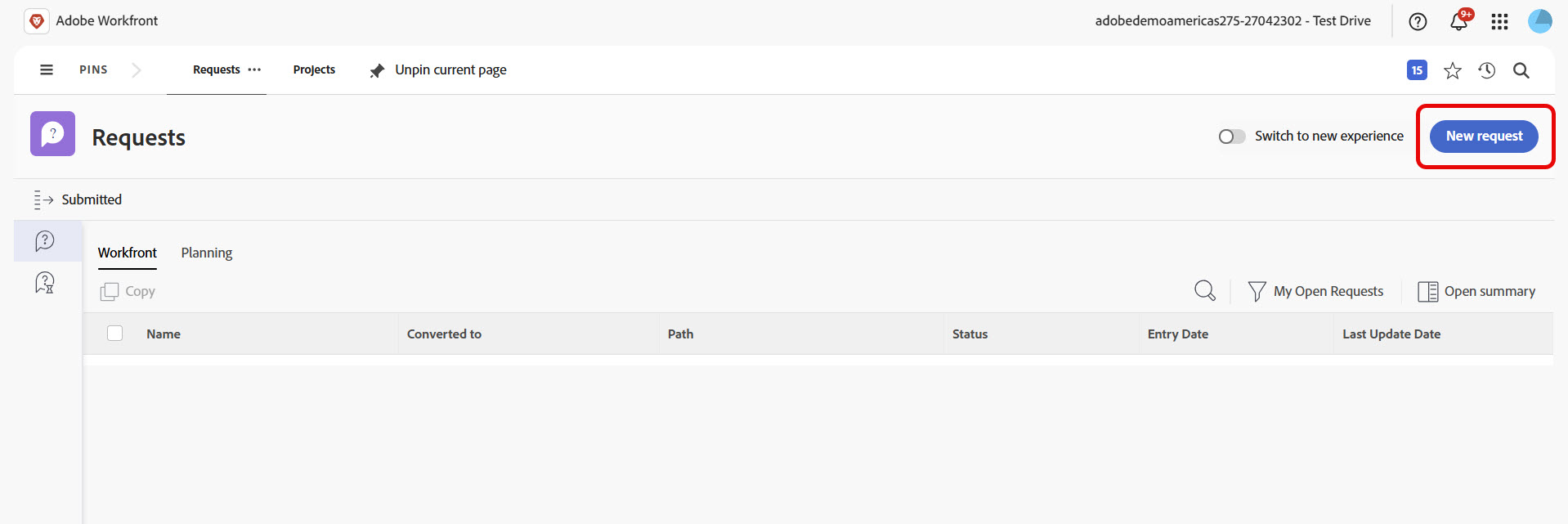
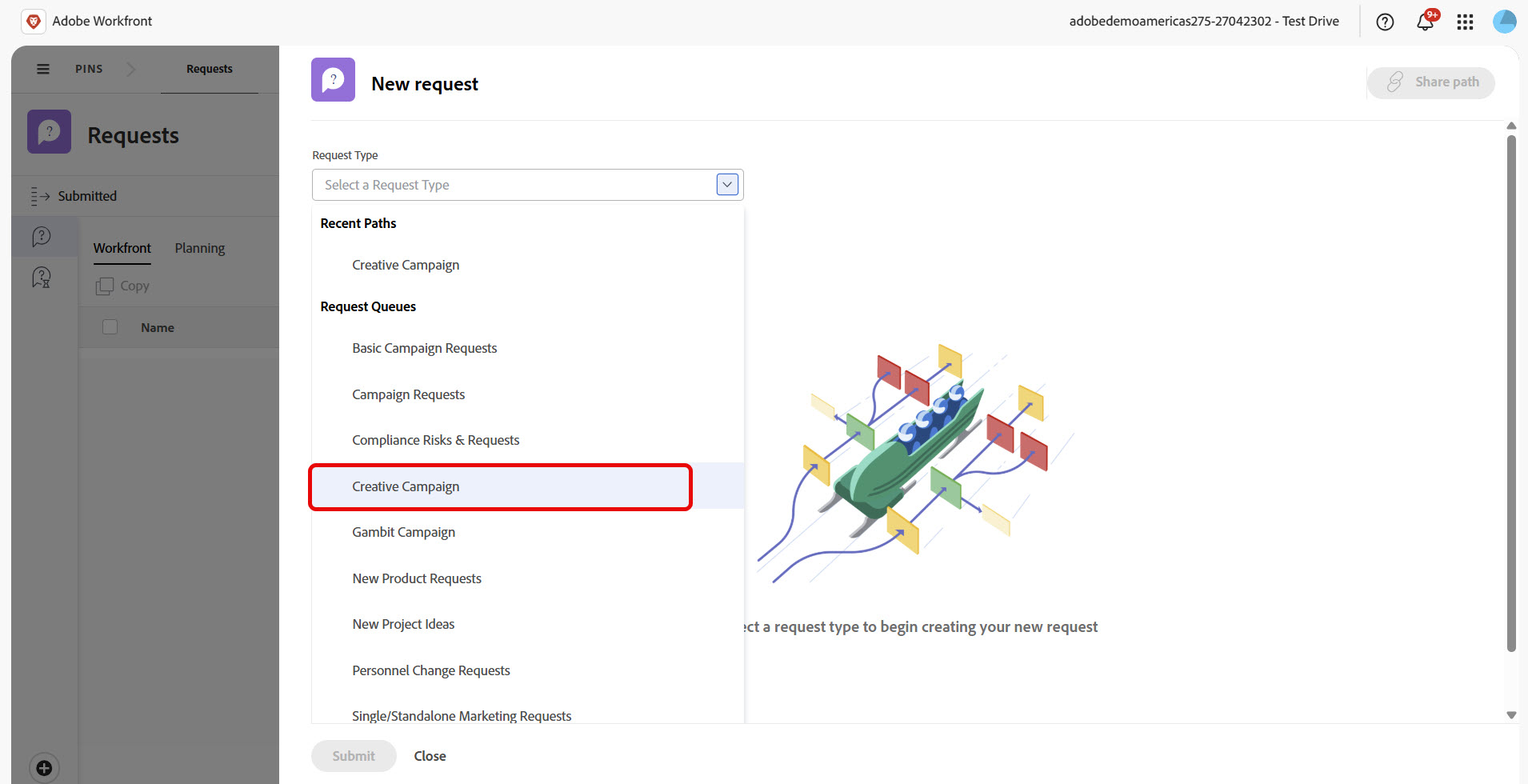
2. For Request Type, select "Creative Campaign".
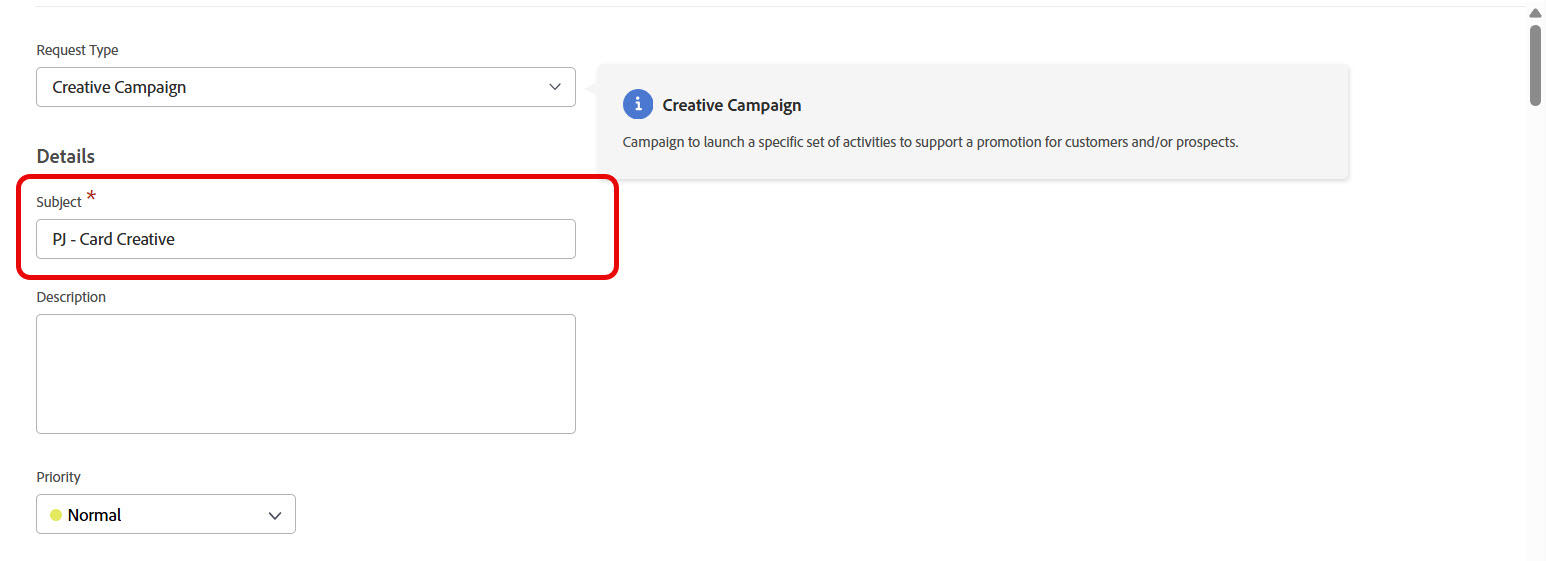
3. For the Subject field, make it recognizable and unique to you, it will be included in the offer names in AJO.
4. Fill out the creatives section.
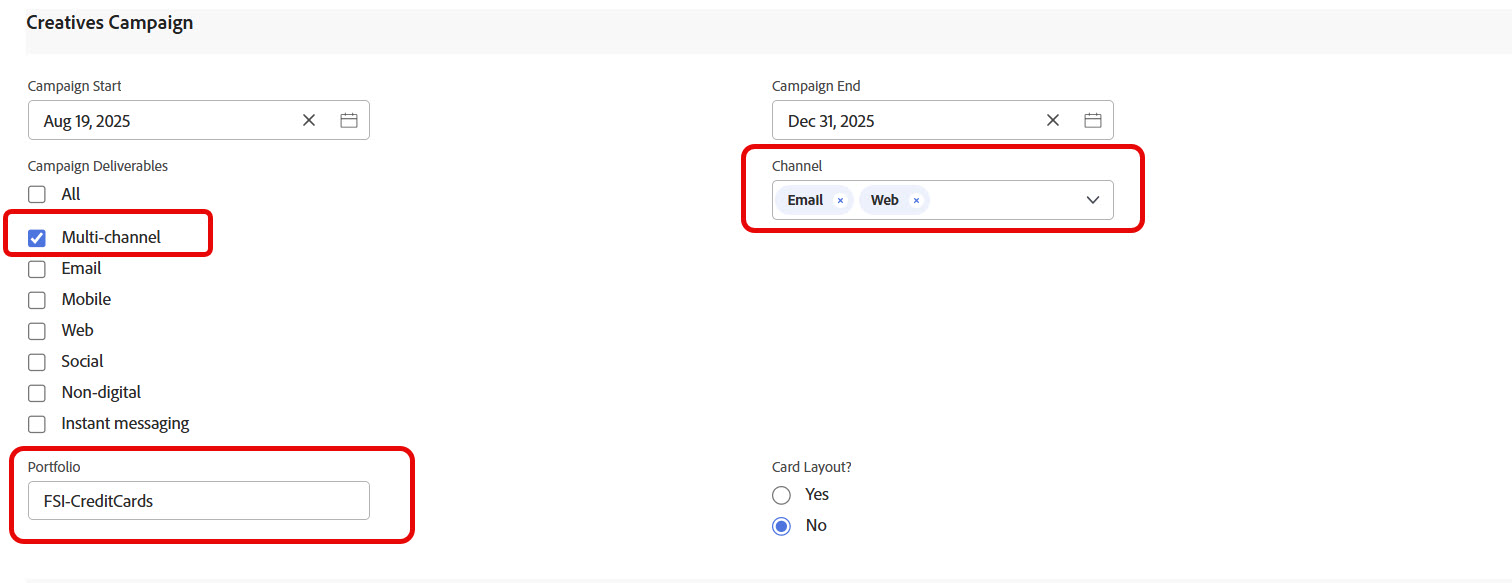
- In the Campaign Deliverables section, the offers are controlled by the "Multi-channel" option. To include other channels in your offer creation, use the Channel option on the right to indicate what channels to use.
- The most important field in this UI is the Portfolio as future sections are based on your choice. For the FSI team we currently have two which are FSI-CreditCards and FSI-Home Mortgage. Please choose on of these.
5. Make your offer Audience and Placement selections.
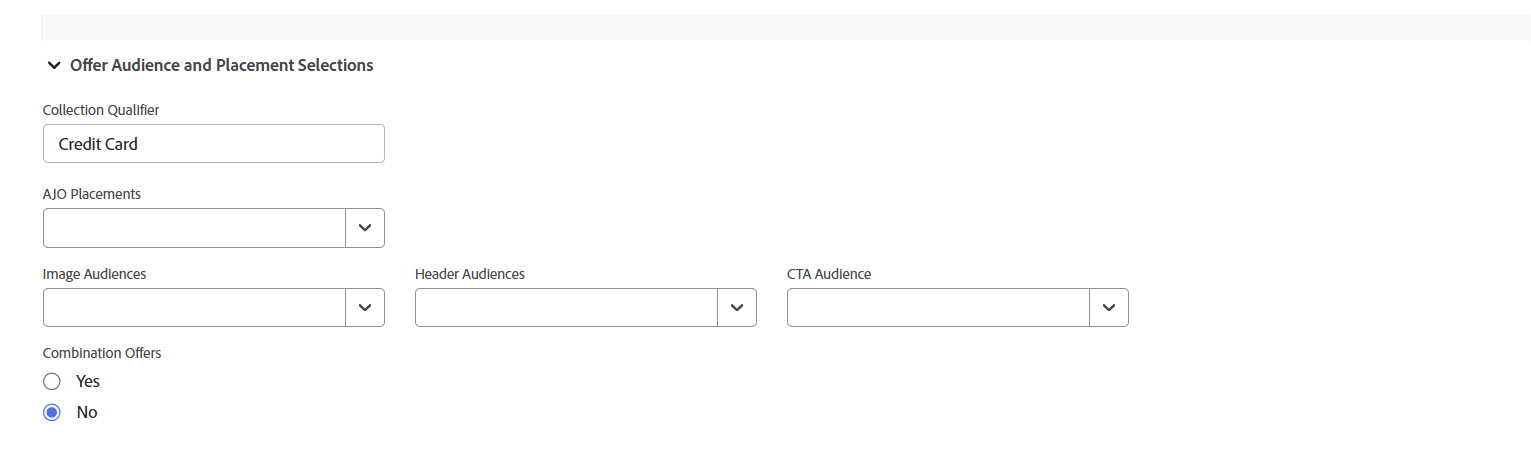
- Select all the placements to create offers based on your channel selections above.
- Make the audience selections to create the offers for each content placement.
6. Submit your request to create the Project in Workfront.
Step 2: Review Your Project
1. Once you submit your request a few things will happen.
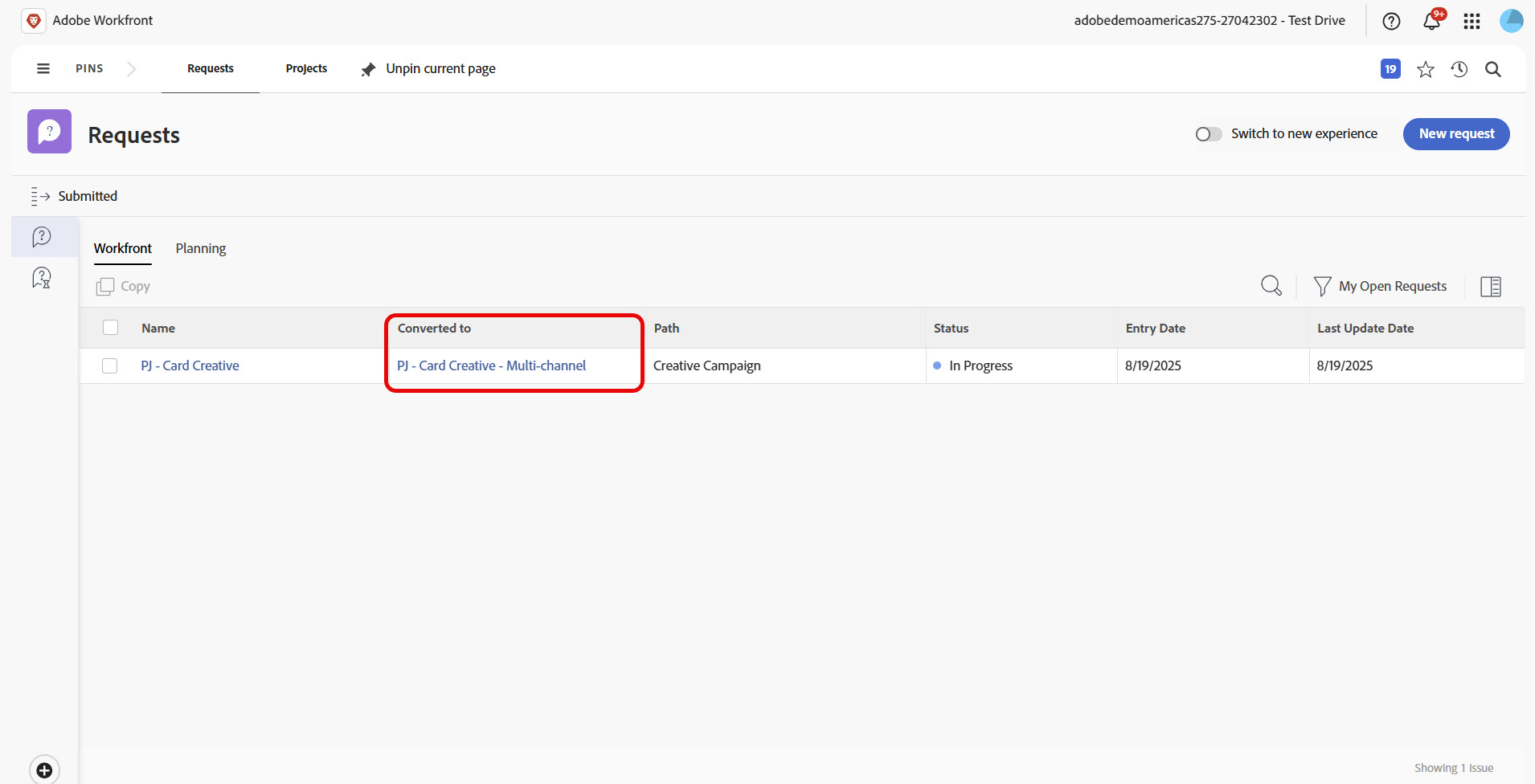
- Your request will be converted to a new project. Click the link in the "Converted To" column to view your project.
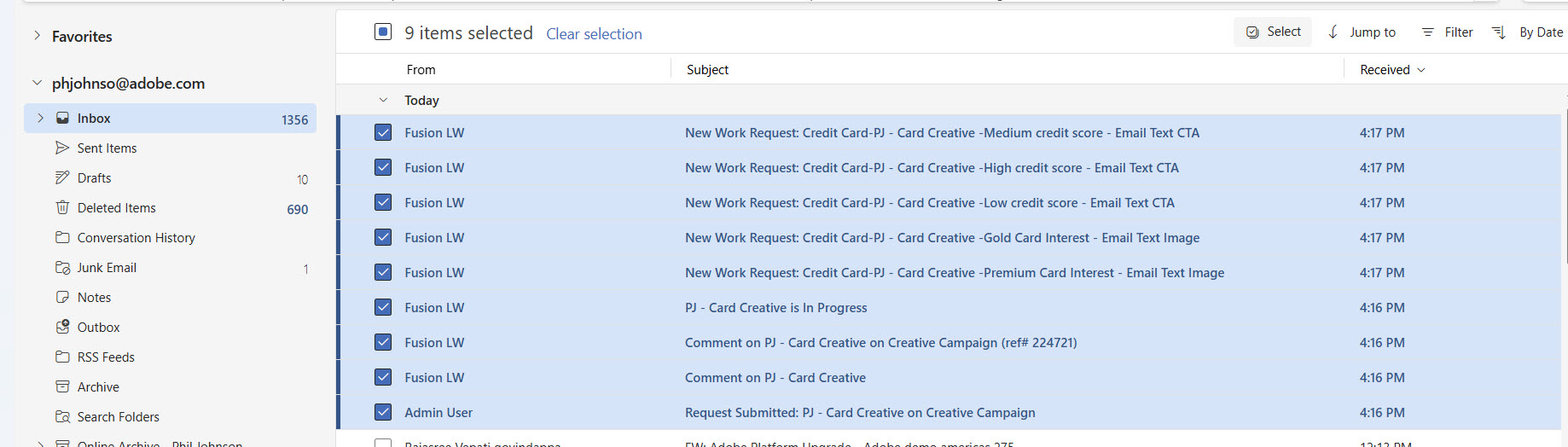
- You'll receive some emails.
- In your new project, you will see a section called "AJO Offer Segments" and the results of your request.
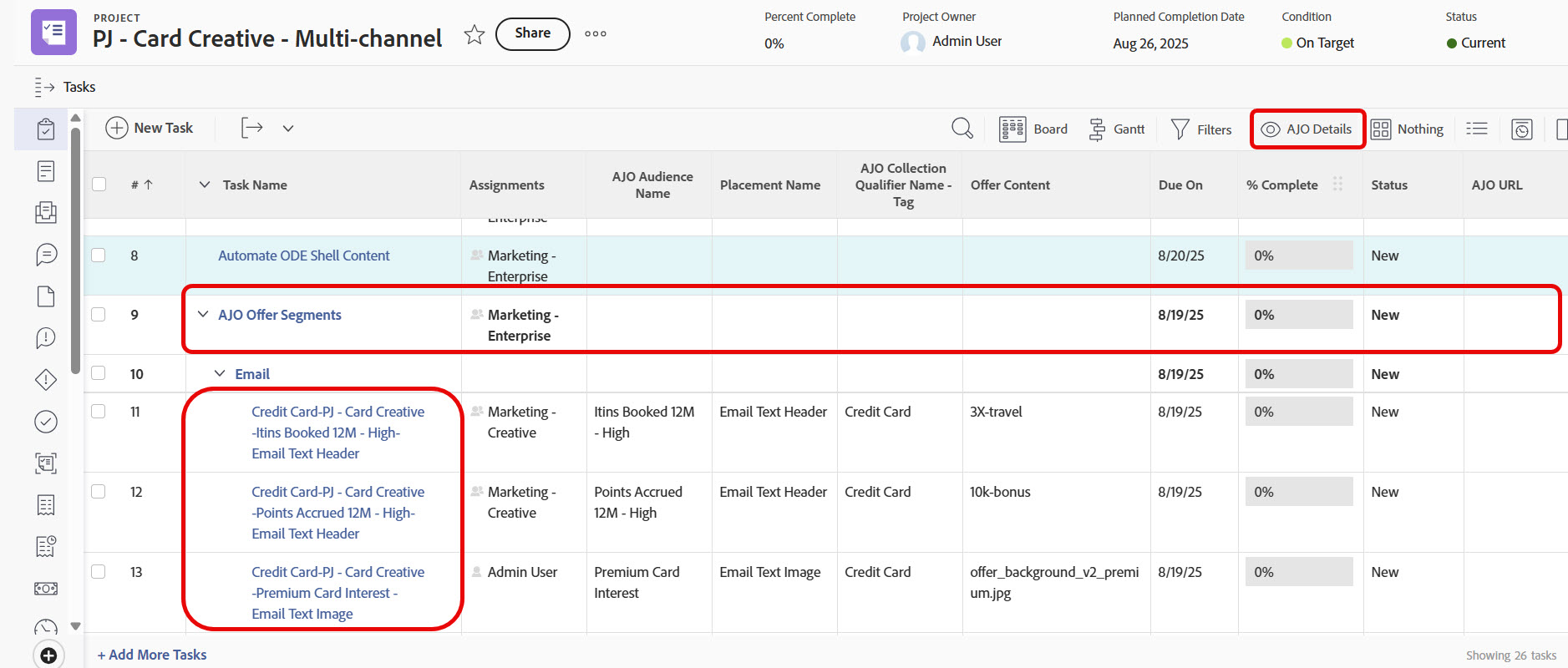
At this point, you are ready to submit your project for automation and create offers in AJO. Note that the working "evergreen" offers are already created in the environment and are working for display purposes. You can choose to continue to create new offers, but some presenters choose to stop here and move on to AJO.
2. Submit your project to the AJO automation cycle to create the offers.
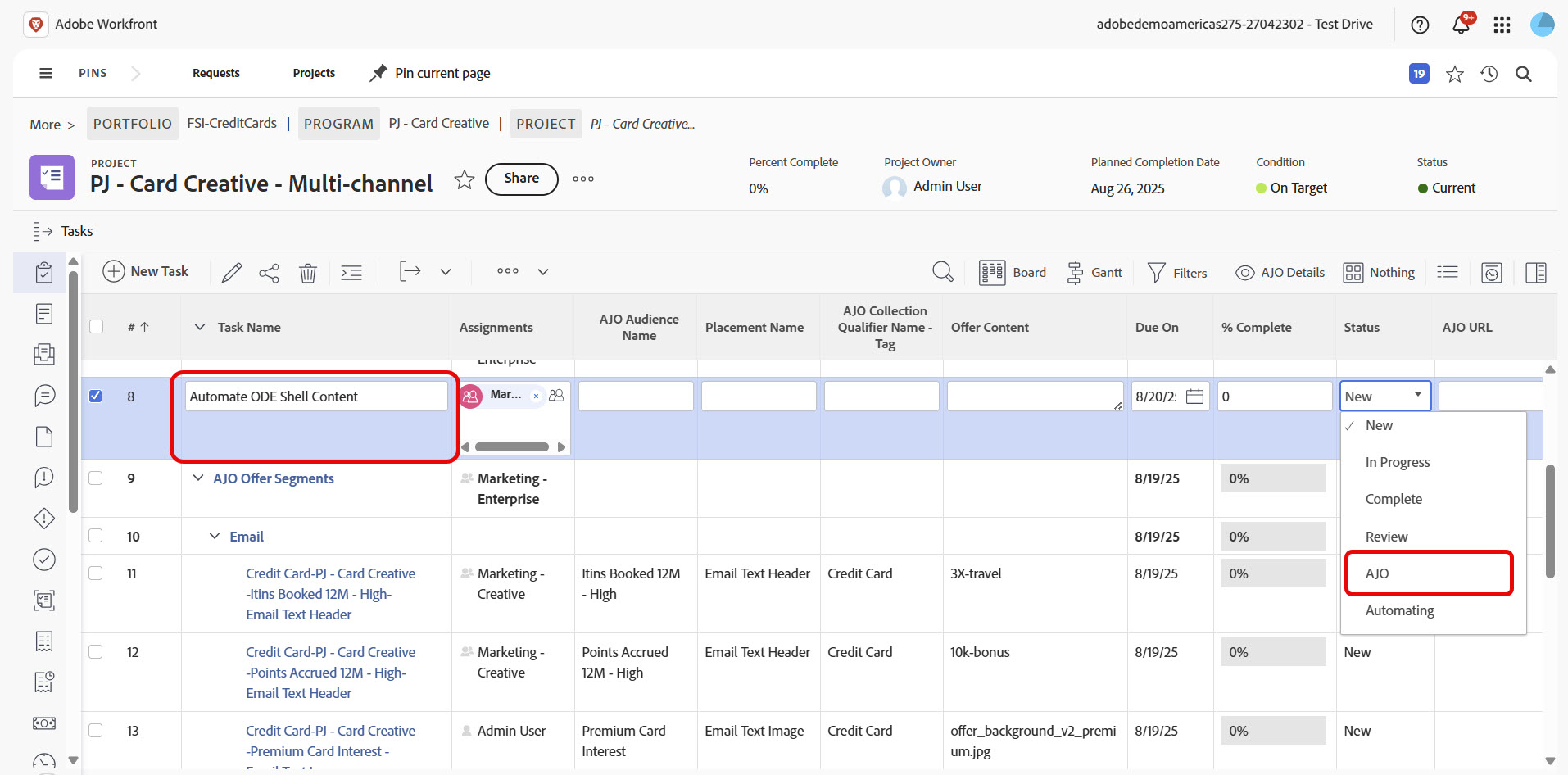
- Find the highlighted Automate ODE Shell Content row and change the status to "AJO".
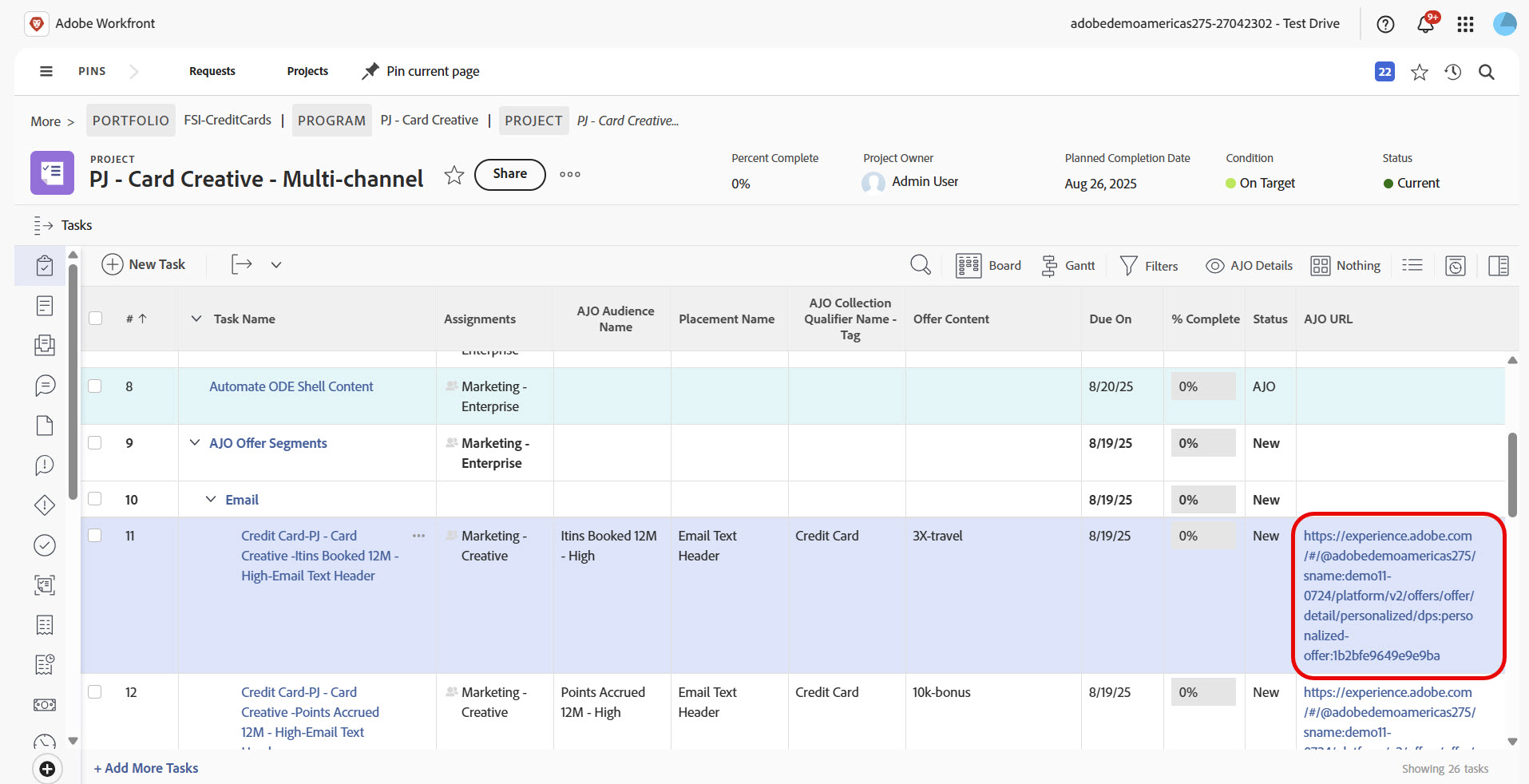
3. Wait for the offers to be created and open one in AJO by clickin the link provided in your project.
Step 3: Review Offers in AJO

The automated offers are created in draft mode intentionally. You should not attempt to use them for actual content display. A set of "evergreen" offers have been created that are mapped to your channel demo surfaces. They are identical to the auto-generated offers, but allow you to skip through the minute details and demo the decisions in action.
View New Offers
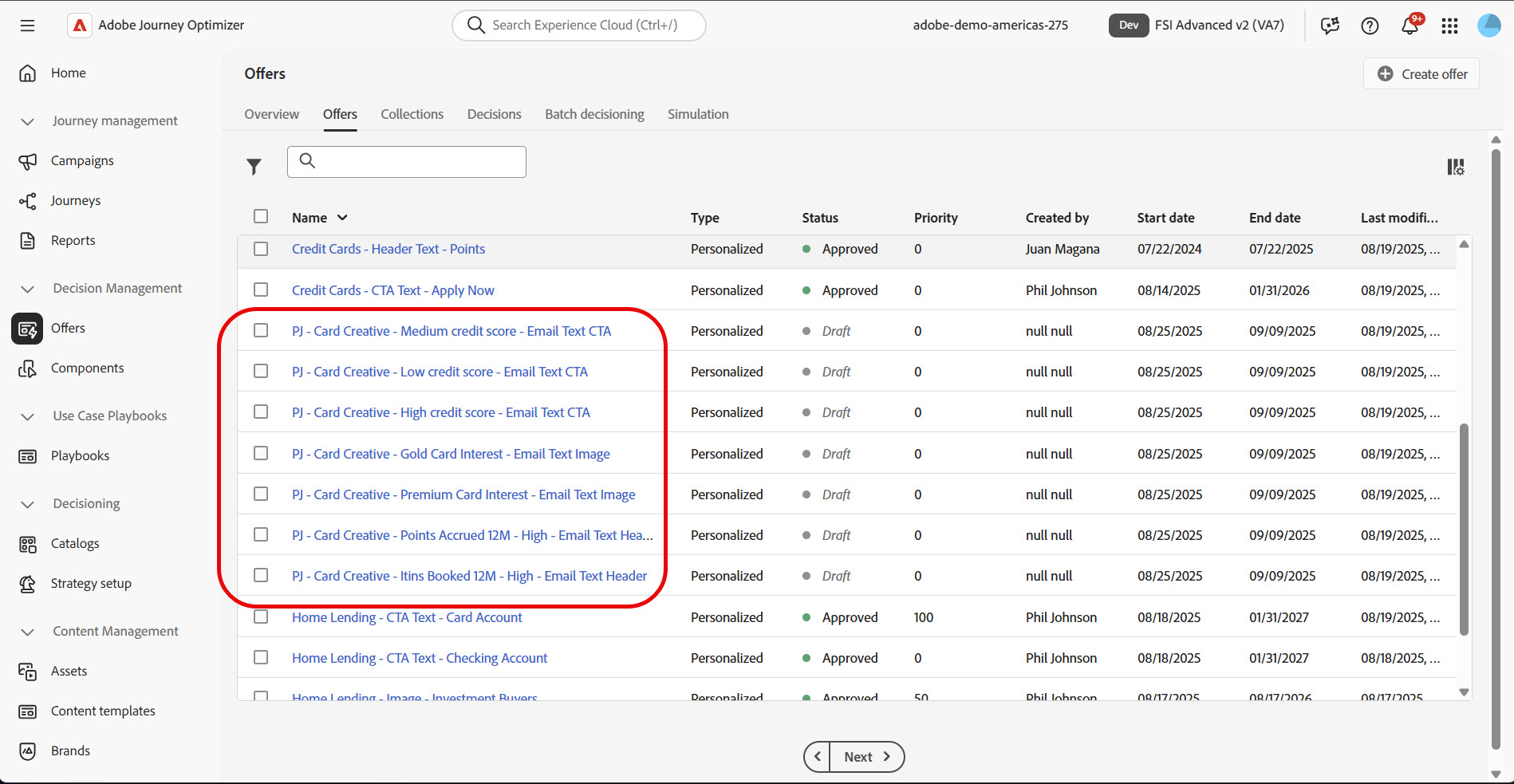
Take a few minutes to walk them through one or two offers, showing them where the options they chose in the Workfront request form created the specific combination of content and display conditions reflected in the offer.
Step 4: Demo Decisioning Results
Using Demo System Next and Data Collection
Demo System Next is the system which we use to demo platform functionality. The documentation can be found here. The Technical Validation team has built assets to support this demo.
The Demo System Next workspace is located here: https://dsn.adobe.com/workspaces/fsi-team-site-SUNG
For Data Collection, there is both a Web Property and a Mobile App Property.
Demo the Credit Card and Home Lending Offers
In each demo scenario, there is three audiences influencing the outcome of the decision. The image that you see is driven in near real time and depends on the pages visited on the Secur Financial website, while the offer and button text reflects audiences based on profile characteristics.
Before The Demo
In each demo scenario, there is three audiences influencing the outcome of the decision. The image that you see is driven in near real time and depends on the pages visited on the Secur Financial website, while the offer and button text reflects audiences based on profile characteristics.
1. Choose a test profile. All profiles present in the sandbox can be used as test profiles. Choose a test profile from one of the audiences you chose intend to choose in your Creative Request.
2. De-hibernate the AEM sandbox if it is not already running. You can access the Developer console and click the Dehibernate button.
3. Make a personalized (to you) copy of the AJO Content Template and/or Journey you are going to use for your demo. Add your test profile to the template by simulating the email.
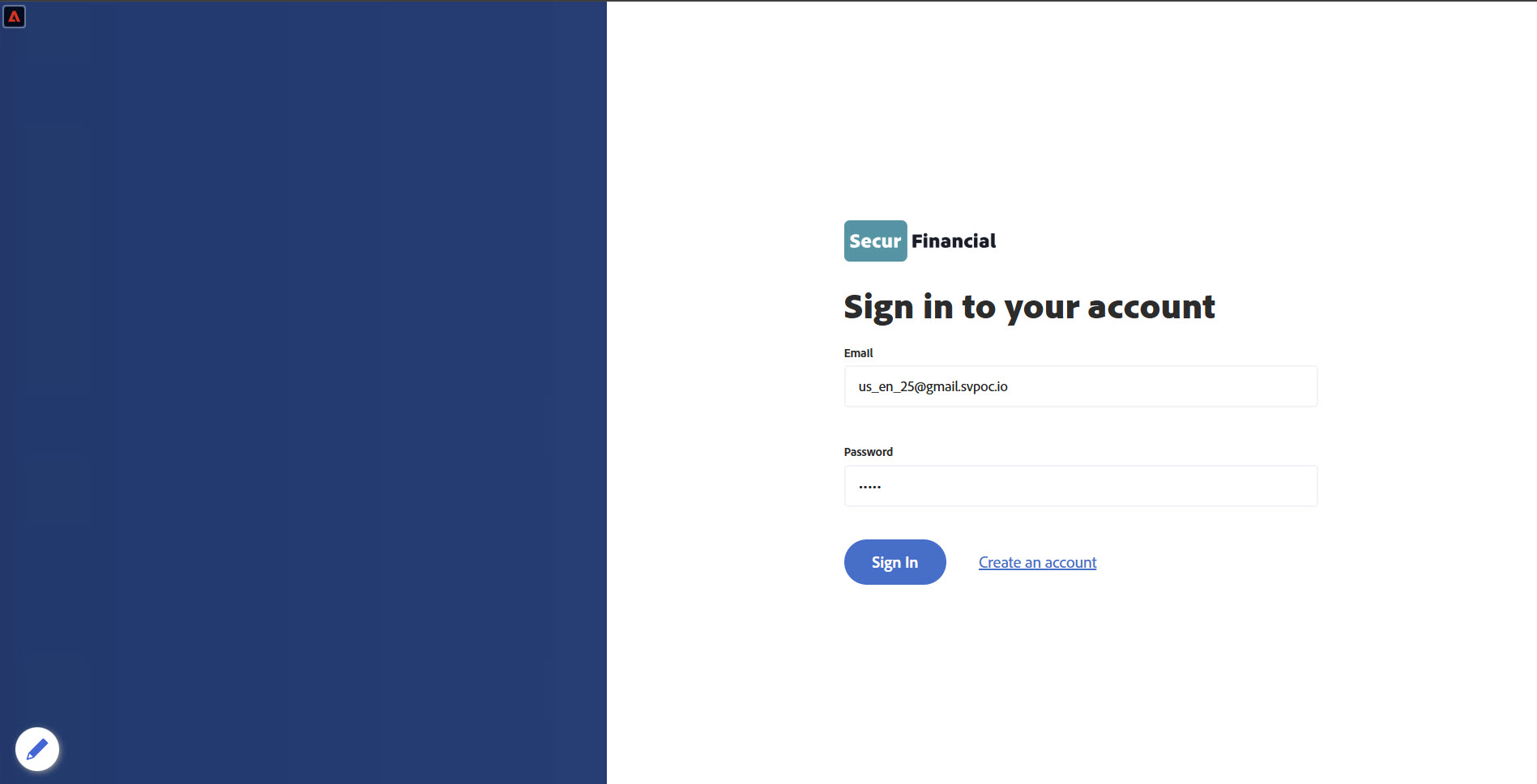
4. Open the login page and login using the profile email address (password doesn't matter.)
5. Wait for the profile stitching to occur. It is important that you wait for the profile stitching to occur prior to beginning your demo. This may take a few minutes. Use the DSN Profile Viewer to check for the profile attributes that indicate that stitiching has occurred.
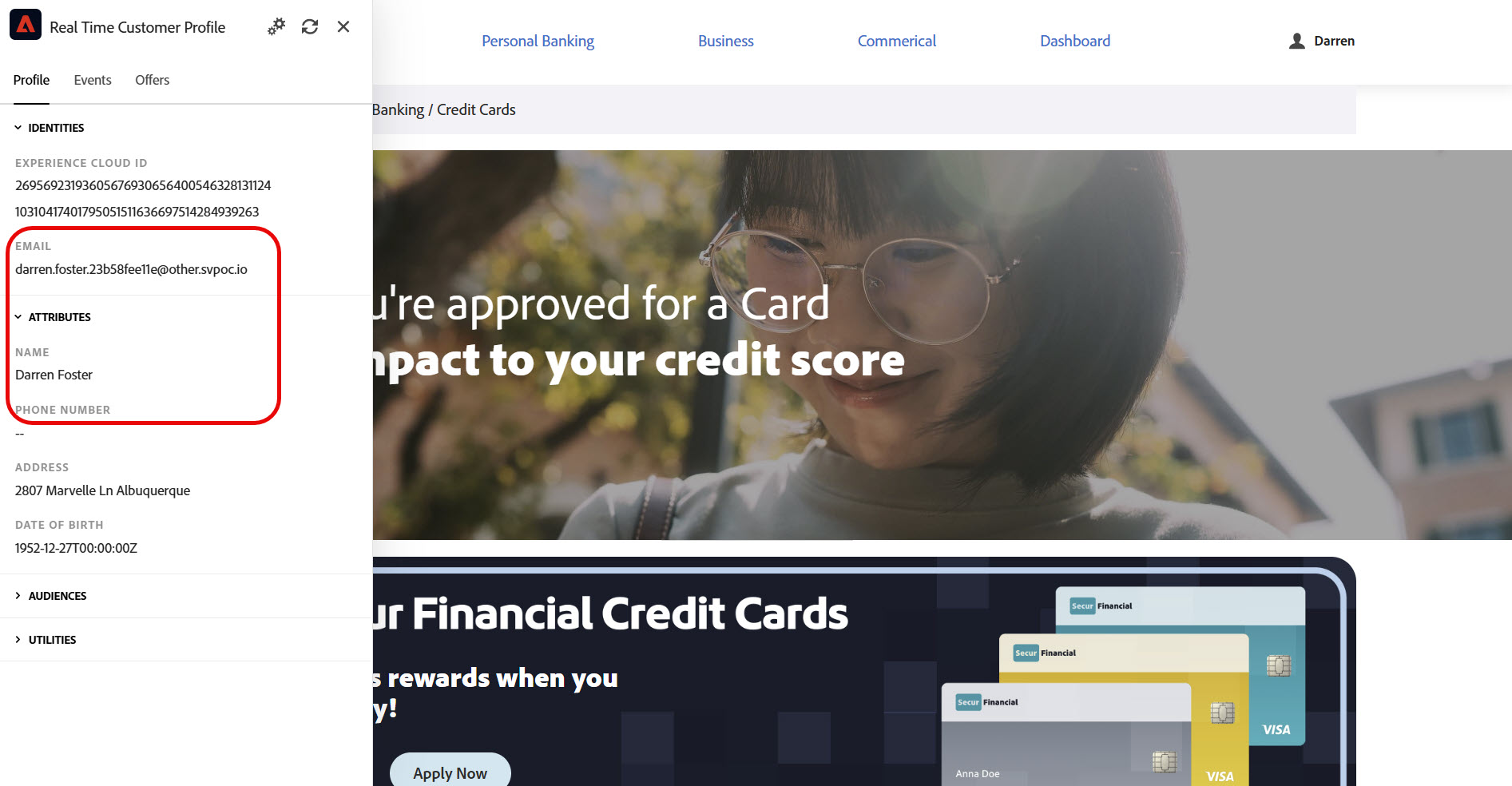
Once the stitiching is complete, you are now ready for your demo.
The success of the demo relies on waiting for both audience stitching and near real-time realization of edge audiences in AEP. Make sure to structure your talk-track to allow time for this to occur.
Web Offer Display
The objective of this demo is to show the image change in near real-time as the profile qualifies for the Credit Card or Home Lending offers. There are many secondary use cases that can be covered as well such as anonymous-to-known, profile stitching, real-time evnet ingestion and AJO Decisioning.
1. Begin your demo from the home page.
Make sure to visit only one of these pages for each of your offers. Use the Profile Viewer to check your audience realization status.
These pages will trigger the offer display on the Credit Card and Home Lending category pages. It may take a few minutes for the offer to change. Adjust your demo talk-track to accomodate for any delay.
Demo | Audience | Product Page |
|---|---|---|
Credit Card | ||
Credit Card | ||
Home Lending | ||
Home Lending | ||
Home Lending |
Edge audience realization will occur at different rates for profiles depending on whether they have qualified for the audience previously or not. Requalifying profiles work a bit faster than a first-time qualifier. Once qualified, the profile will remain in that auidence for 24 hours and then will exit. You can requalify the same profile again after exiting.
2. When the profile has qualified for the offer, refresh the page to show the offer imaging change.
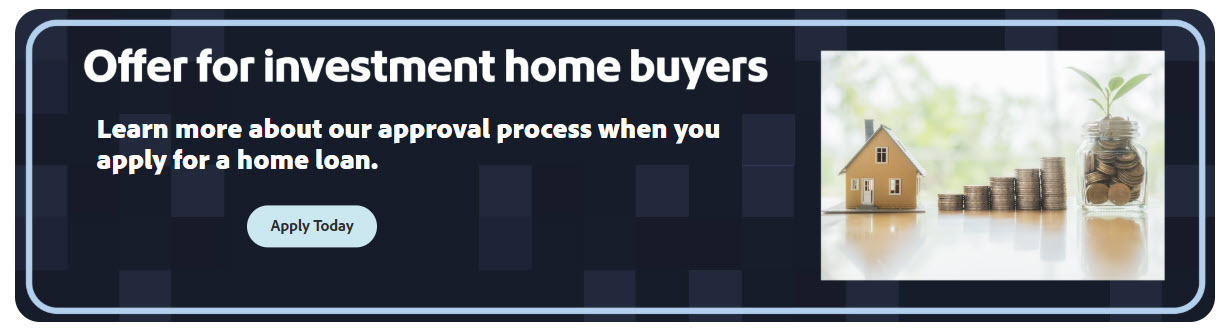
Email Offer Display
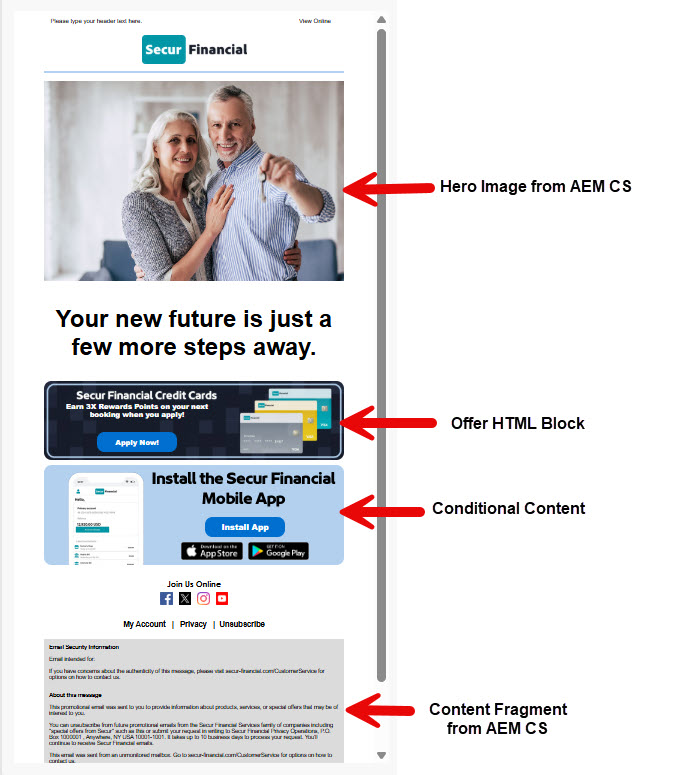
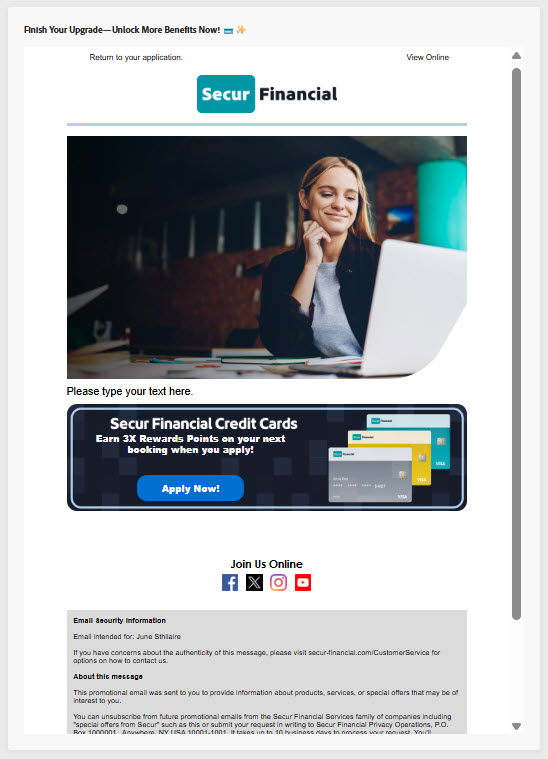
The final objective of this demo is to show how the same offer can display on the email channel that you just displayed on the Web channel. You will also be able to show how that is accomplished.
These demo instructions highlight the application of an offer within an email message, but your also include the out-of-box AEM Assets and Content Fragment (the footer) integrations with AJO.
You can do this from the AJO content template or any email in your journey.
1. Open your personalized template and drag on the fragment for your offer, it can be Credit Card or Home Lending.
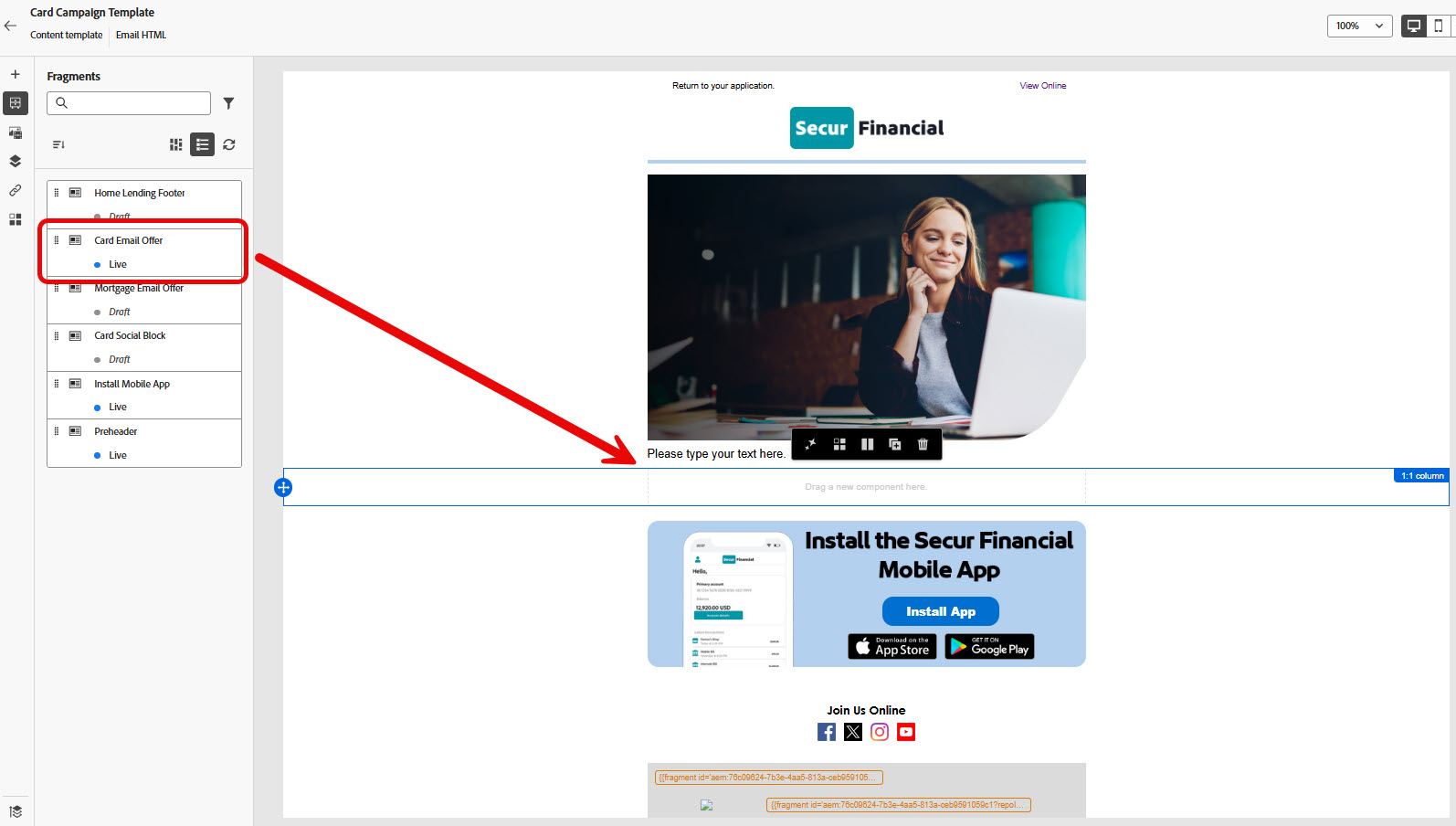
2. Show how the different decision variations will display and simulate the offer with the same test profile logged into the web site.
Step 5: Cleanup
Cleanup is important and should be done within a reasonable time after your demo is complete and documented if necessary. If you need help, reaach out to some on the TV Team.
Please clean up the environment by deleting the offers you created and any other objects such as Content Templates and Journeys.