Creating the journey
In this exercise, you'll be creating and testing a journey using all the components you've created in the previous exercises.
Journey overview
To get an overview of all journeys in Adobe Experience Platform:
- In the menu on the left side, under Journey Management, click on Journeys. You will see a overview with all existing journeys.
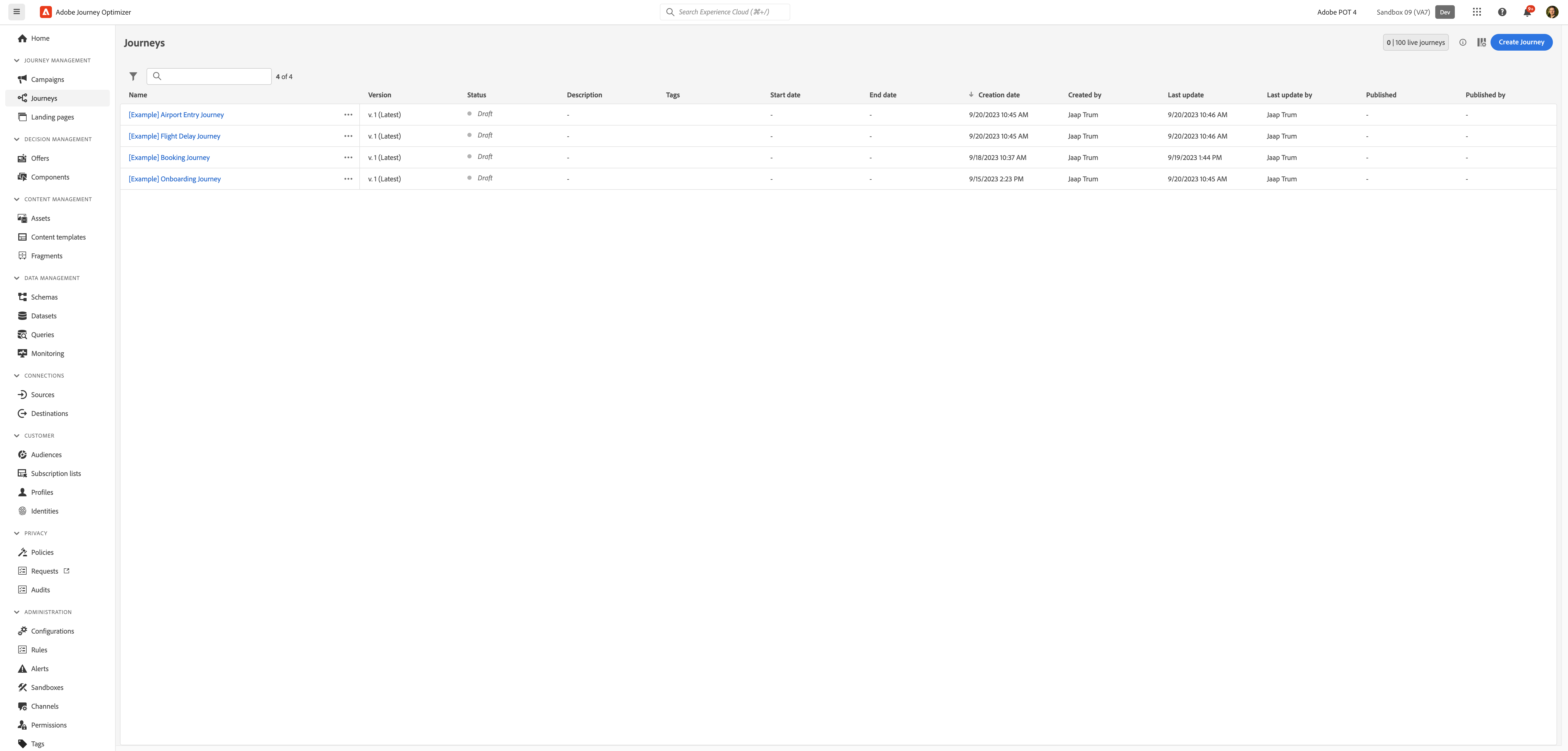
Creating a journey
We'll be creating a journey that will send newsletter to customers who have submitted the enrollment form for either an insurance plan or medicare plan.
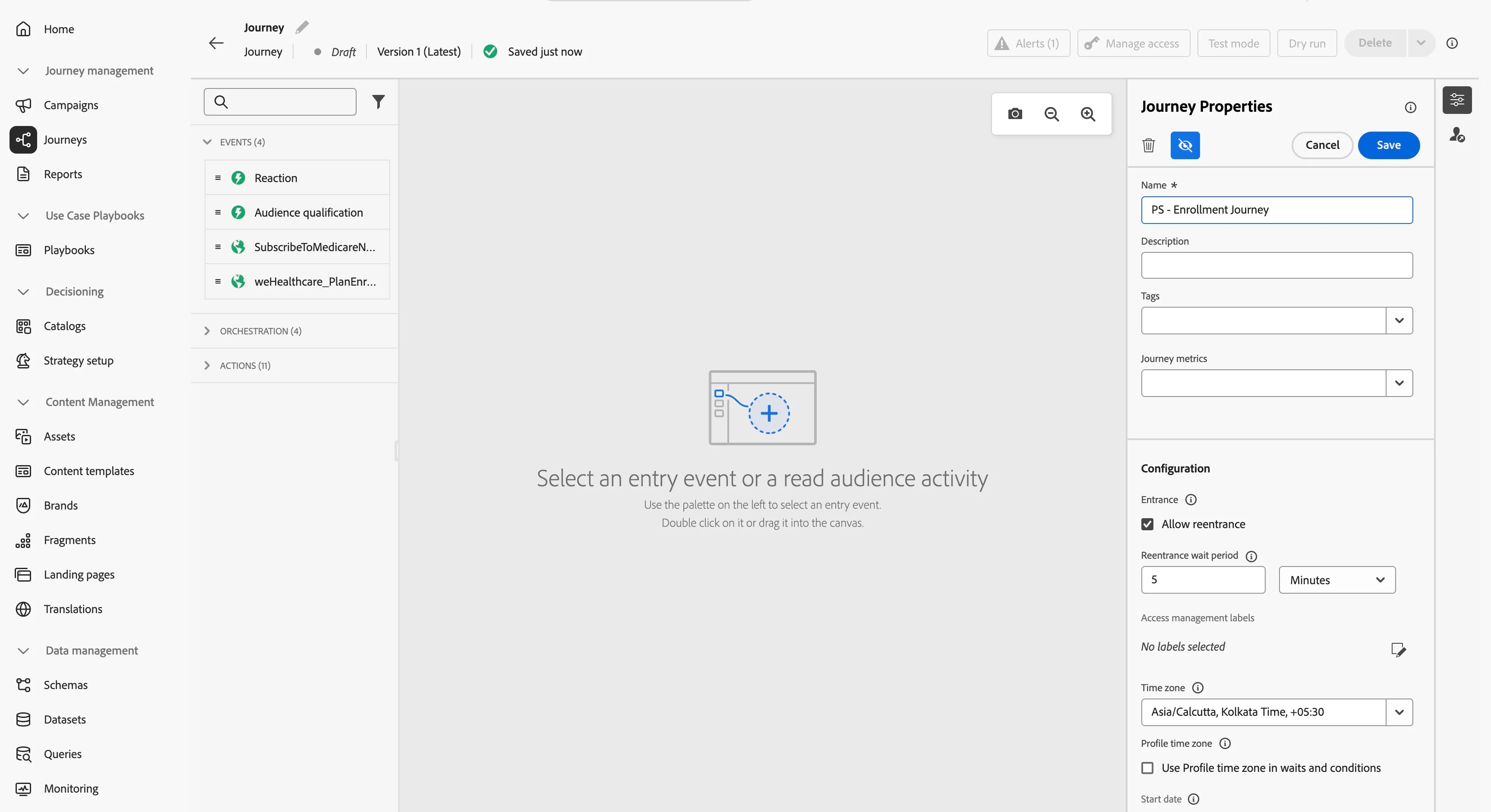
Click on Create Journey. You'll be taken to the Journey canvas with the journey properties opened.
- Set the name to [your initials] - Enrollment Journey.
- For the other properties we'll keep the default values.
- Your screen should look like the image below. Click Save to save and close the properties.
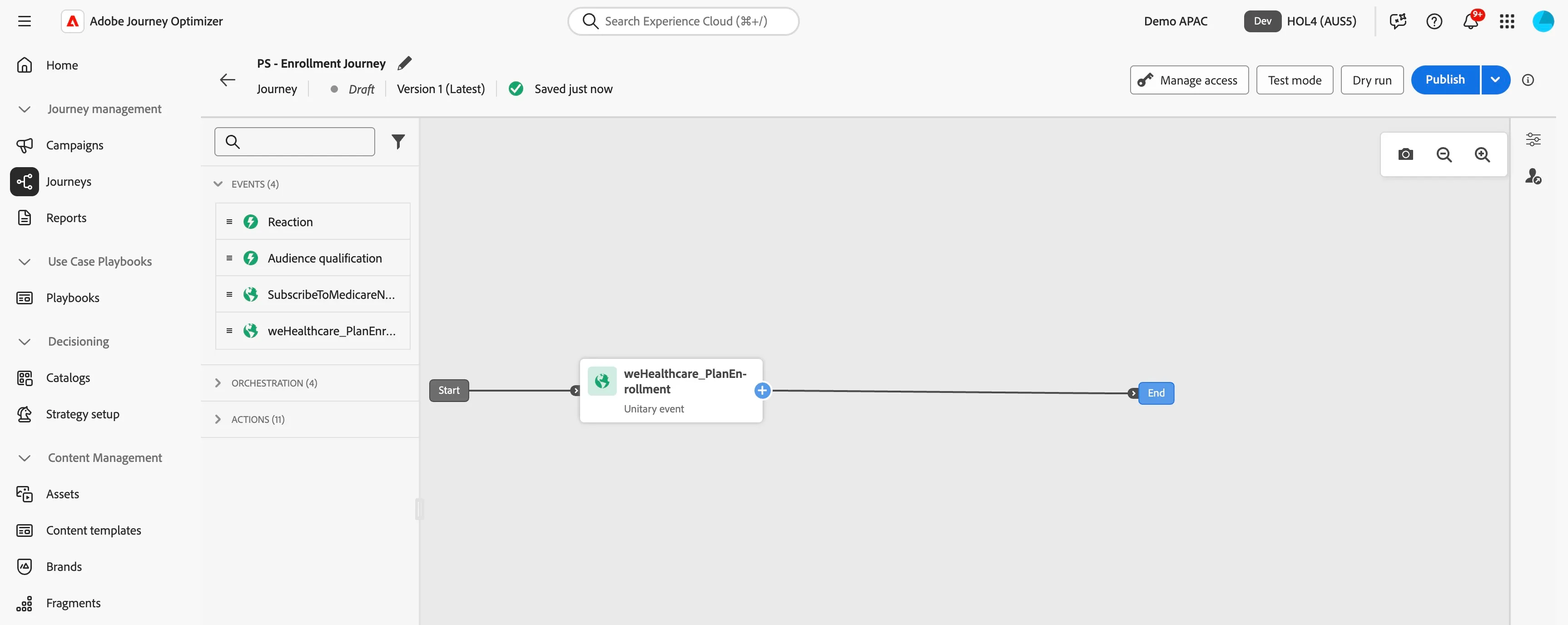
You're now in the journey canvas. This is where you'll be creating your journey's logic. In the left menu you have activities. There's three types of activities:
Events are the triggers that can start or continue your journey.
Orchestration is the logic of your journey. It looks at conditions, audiences, but can also be used to make your workflow wait or end.
Actions are the responses of your journey. This can be messages, profiles updates or API calls.
Event trigger
- We're starting our workflow of with an event trigger. From the events tab, choose event (weHealthcare_PlanEnrollment) and drag it onto the canvas.
- There's nothing we need to configure for this as this was already done when the event was created. Click Save to close the menu.
Condition - Check for Plan Type ?
When the clicks on the "Start Now" button on Choose your plan section of Insurance Plans Page or Medicare Plans Page. The form opens and on submission of this form the plantype either insurance or medicare is also submitted.
- From the orchestration tab, drag Condition onto the journey and place on the plus(+) sign icon. Orchestration: Condition pane opes on the right.
- On Orchestration: Condition pane, perform the following actions:
- Set the label to Check for plan type
- Click on Path1 and change the label to Medicare Plan
- Click on Expression which opens a window.
- Add condition by dragging mainCategory on the right hand side and giving an equals text condition to "Medicare Plan Selection".
- Click ok to save this.
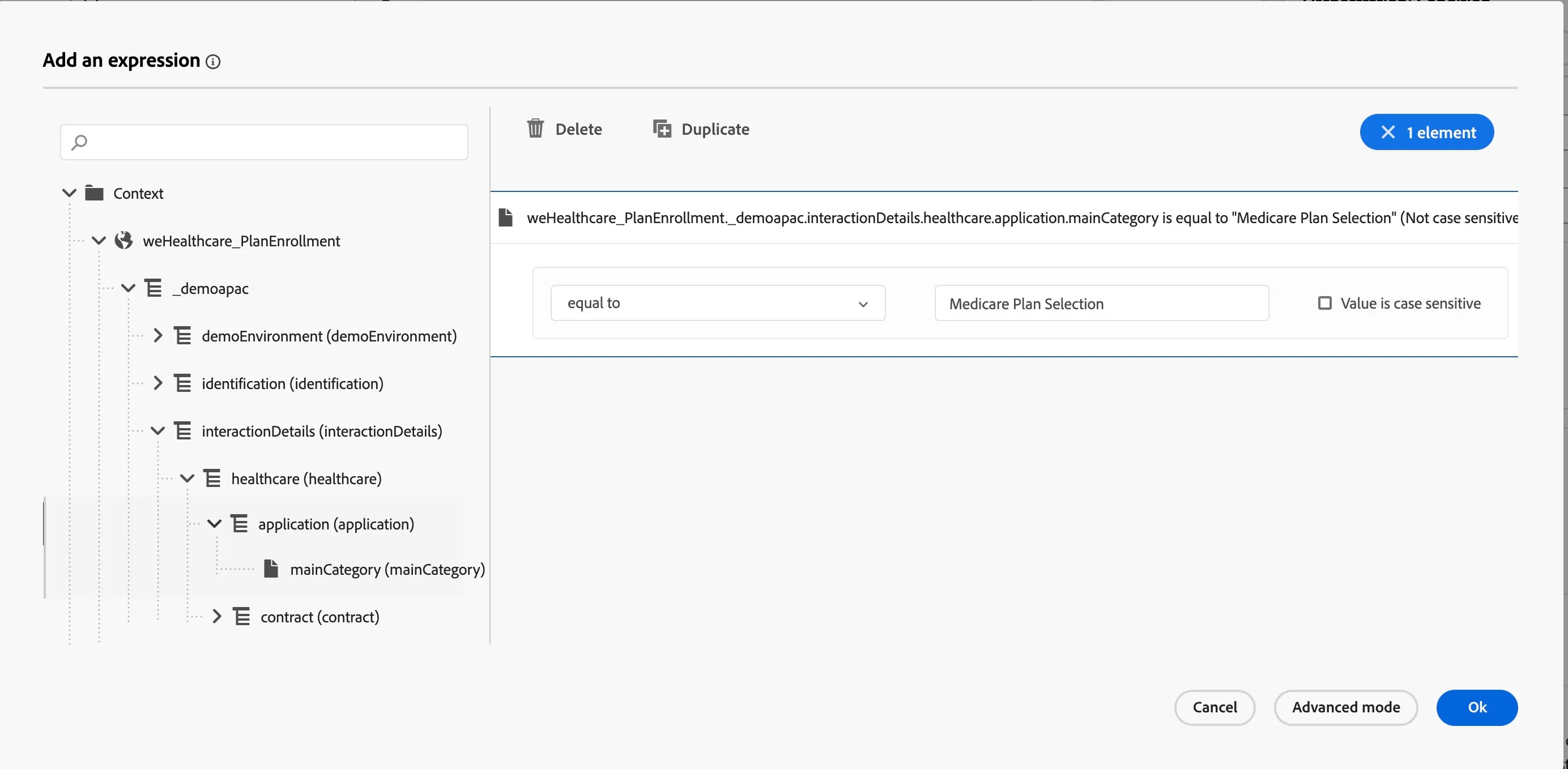
Similar to this, add a new Path for "Insurance Plan Selection".
Click Save.
In our journey we want to focus on sending different Email content for customers completing Insurance Plan and Medicare Plan.
Email #1 - Confirmation (Insurance Plan)
In the next steps you will be building the email for your journey. You'll start from a basic template and adding a few customizations. The exercise will familiarise you with how to build an email using components or use an existing email content from template. We will also look at using the contextual data i.e. data coming in from the event for personalizing the content of email.
- From the Actions on the left, drag and drop the Email step on both the paths originating from our condition step.
- Change the label of Email step accordingly.
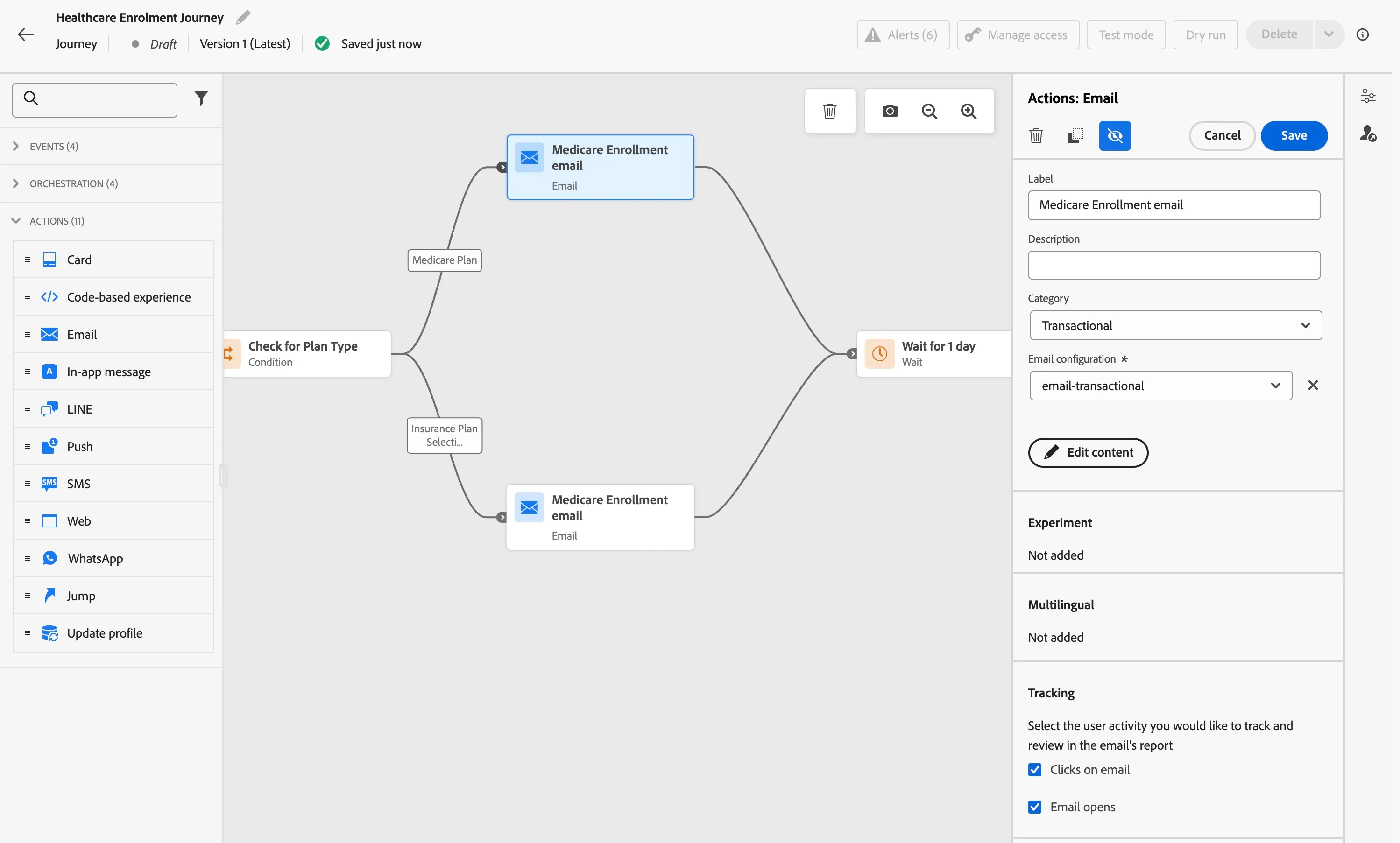
From on the email activity settings.
Click on the Edit Content button and select the Email template which was created earlier.
Provide a subject line.
You can also use AI Assistant to generate an good subject line.
Click on Edit Email Body and select the content template earlier created from the saved template tab.
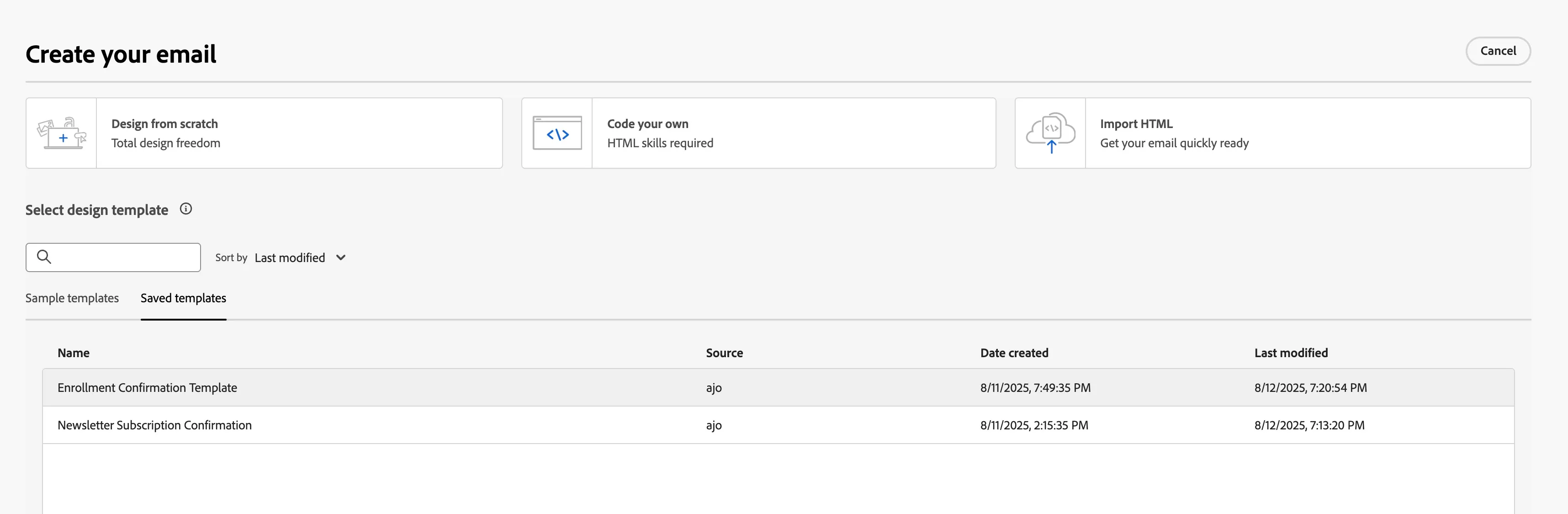
Click on Use this template.
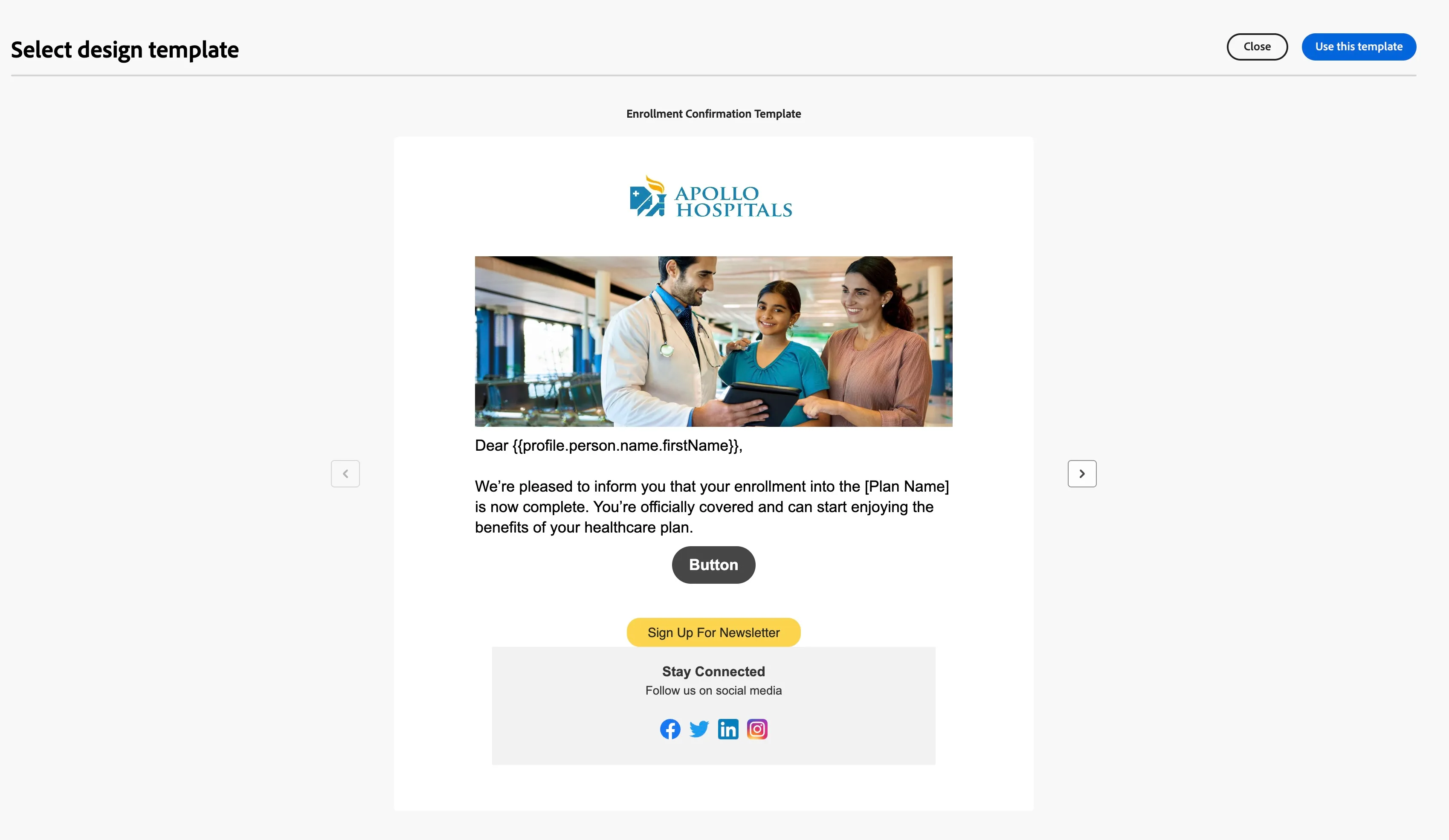
You will now notice the first name is also coming from the profile attribute, however we also want to include the plan name in the email body.
Select the [Plan Name] text from the email content and click on personalization field.
From the left select "Contextual attributes" and navigate till mainCategory which is under Contextual Attributes > Journey Orchestration > Events > weHealthcare_PlanEnrollment > _demoapac > interactionDetails > healthcare > application > mainCategory
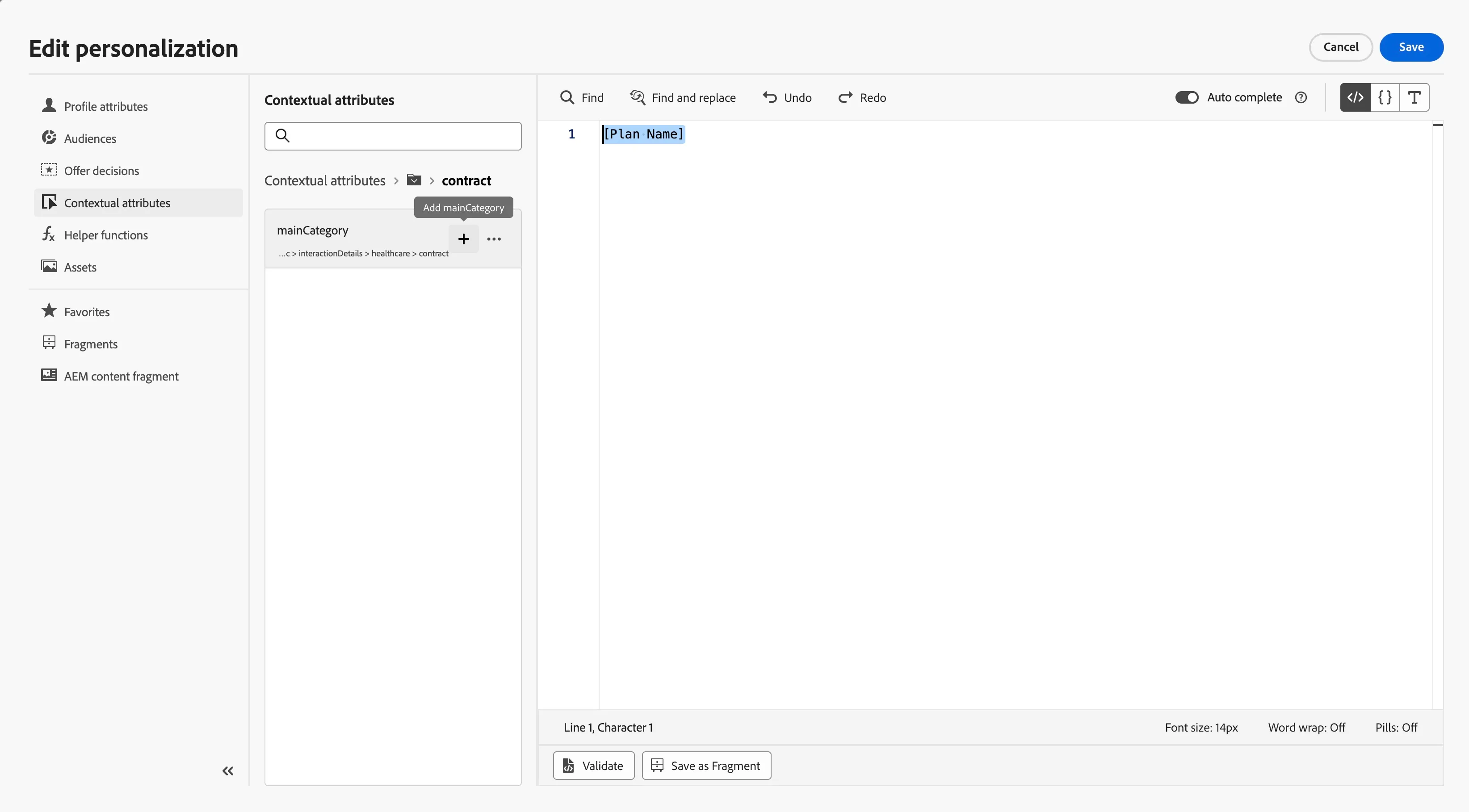
Optionally, you can also add/update any content in the email. This will not impact the email template.
Email #2- Confirmation (Medicare Plan)
You have now successfully created the enrollment journey using the Adobe Journey Optimizer.