New Content - Meta
Description
In this example, you will be guided to generate a branded Meta Ad experience using Create within GenStudio for Performance Marketing. To create an effective Meta experience, the Adobe team has played the role of Brand Manager and added the recommended brand guidelines for WKND, and will provide guidance on the basics of crafting a prompt.
Choose a template
To create a new Meta Ad experience, you will use a template to provide the framework for assembling your content. After you select which channel you want to produce, you can access brand-approved templates for use in content generation. Use templates to jump-start the content creation process and stay aligned with a defined brand identity.
To choose an Meta Ad template:
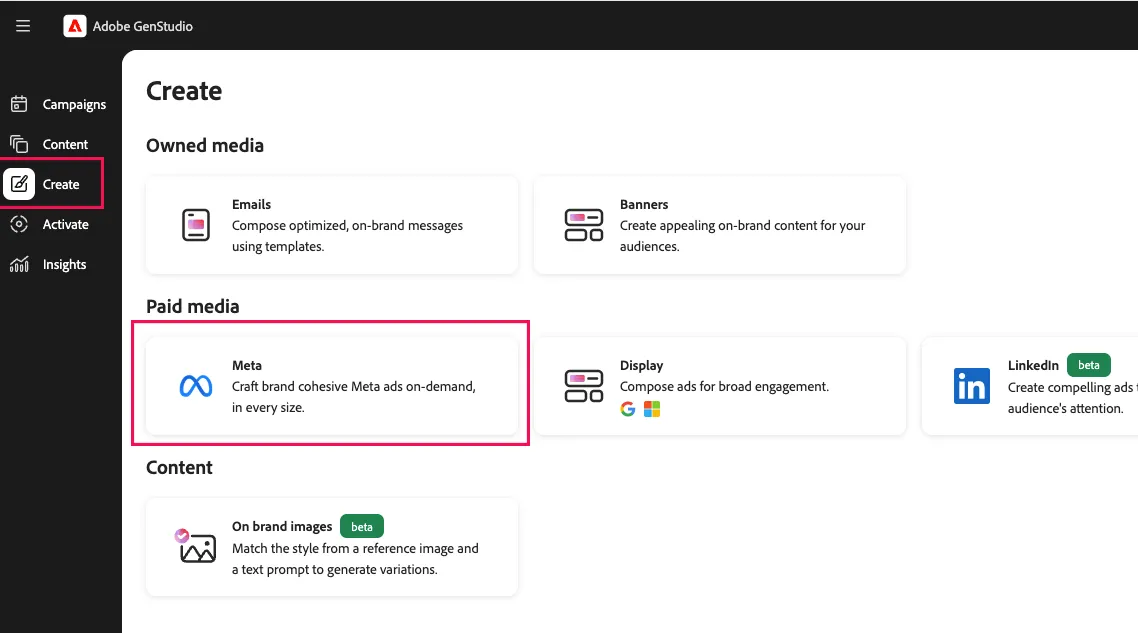
- Click on Create in the left sidebar, and then click the Meta option
- Click to select the WKND Meta Ad template and then click the Use button.
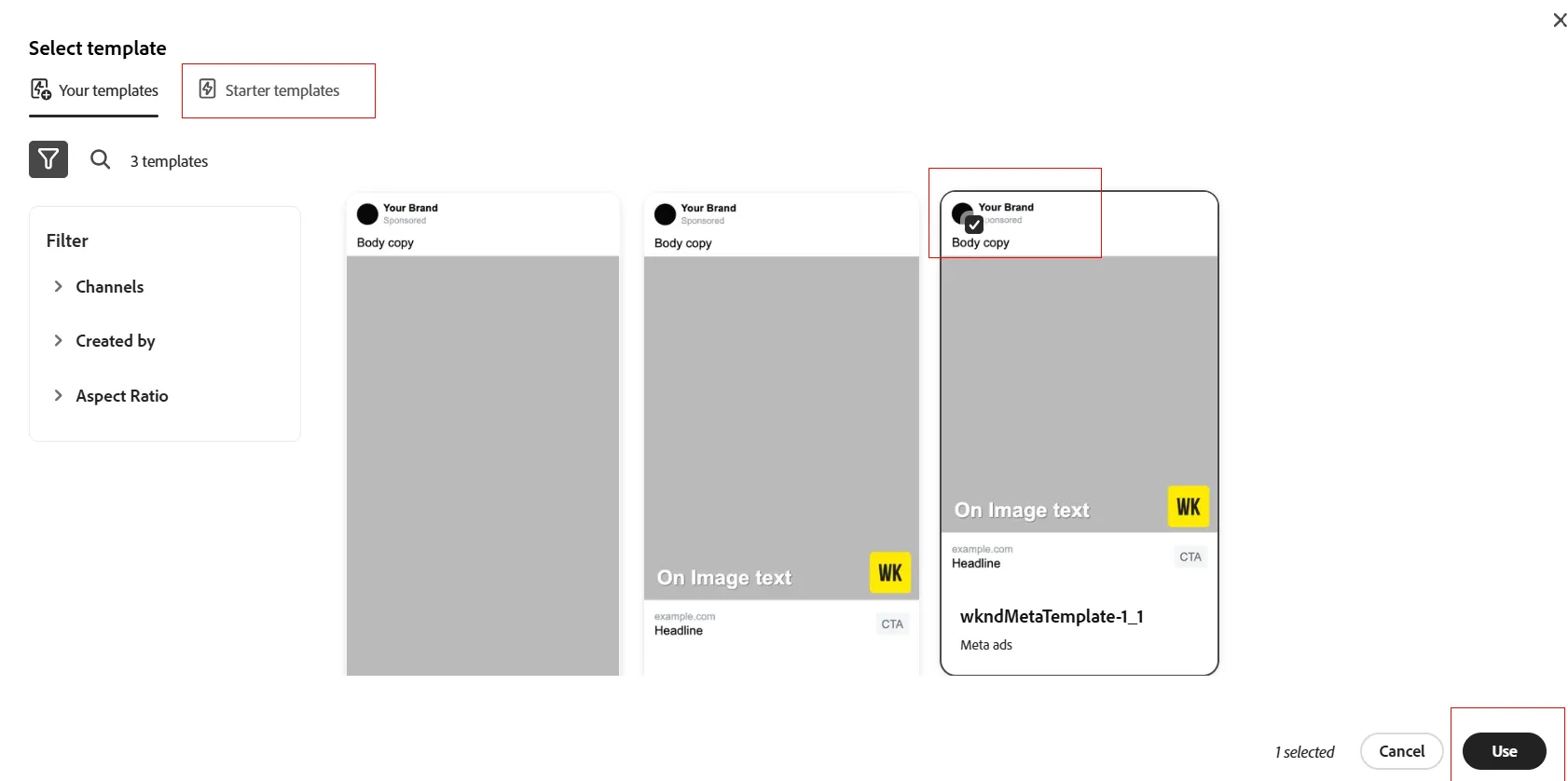
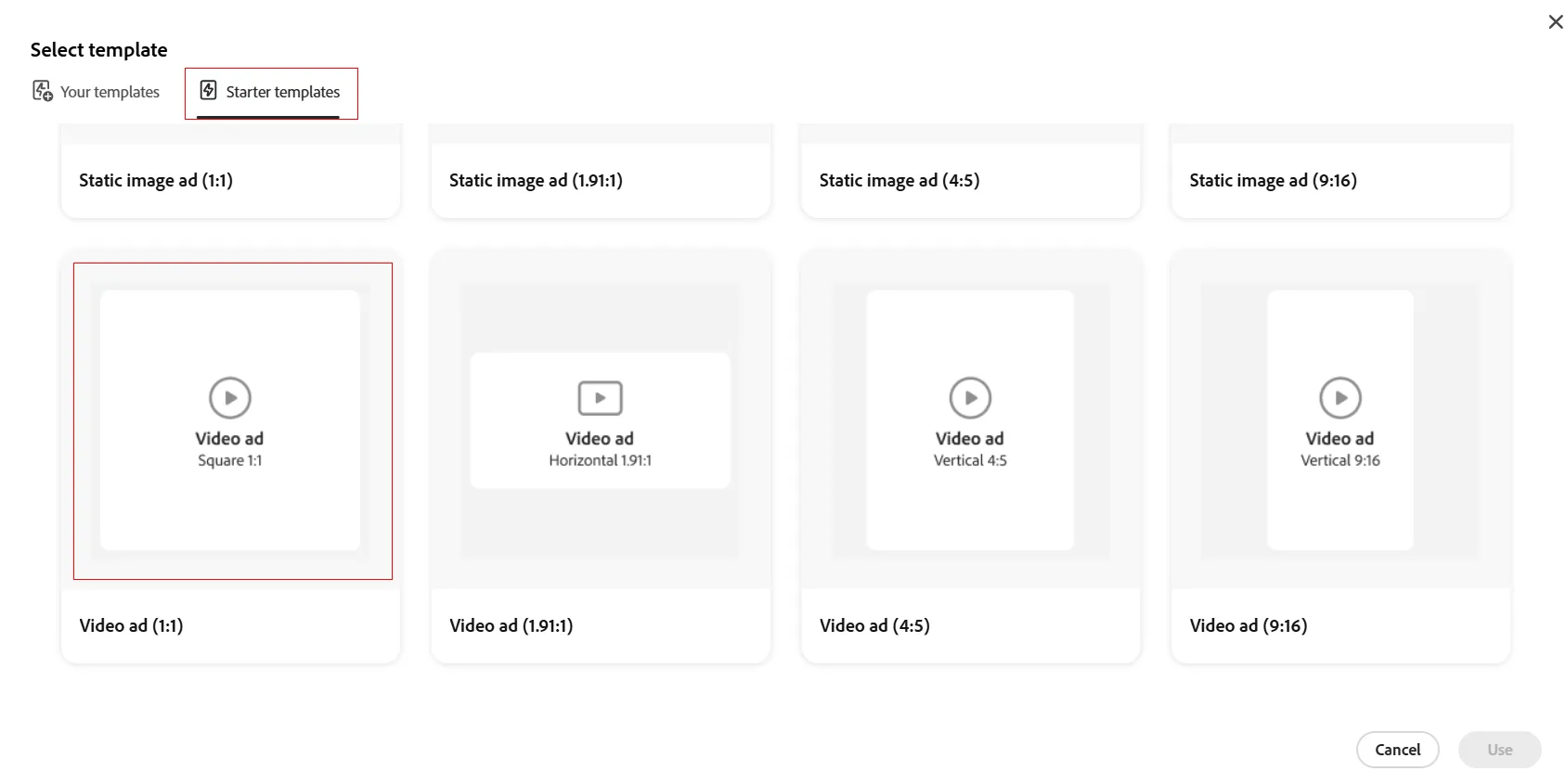
- Note that you also have an option to use Starter templates which are templates provided out of the box.
Add parameters
You have now created a new draft experience, and are presented with options for entering prompt information for generating the experience.
- Click on one of the example prompt descriptions, and see how it populates as a starting point for input
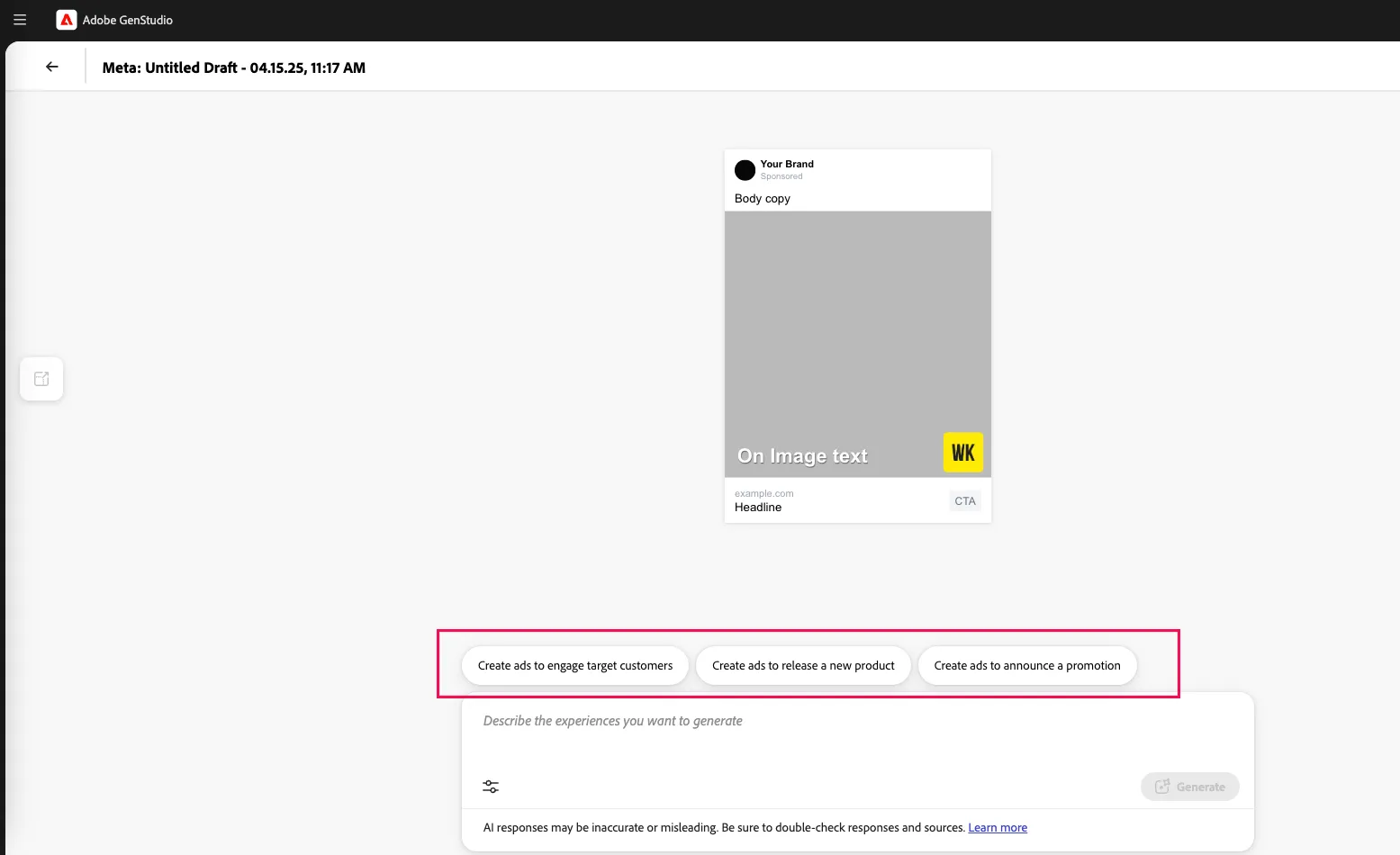
In the prompt area, you can add Parameters such as Brands, Products, Personas (guidelines), and Content (assets) to shape the generated experience.
Parameters inject guidelines and assets into the generation process, ensuring that the content is customized to align with a brand’s comprehensive identity. It is recommended to add guidelines to GenStudio for Performance Marketing first and then use them during the content generation process as an integral preparatory step for generating an email experience.
To add parameters and assets:
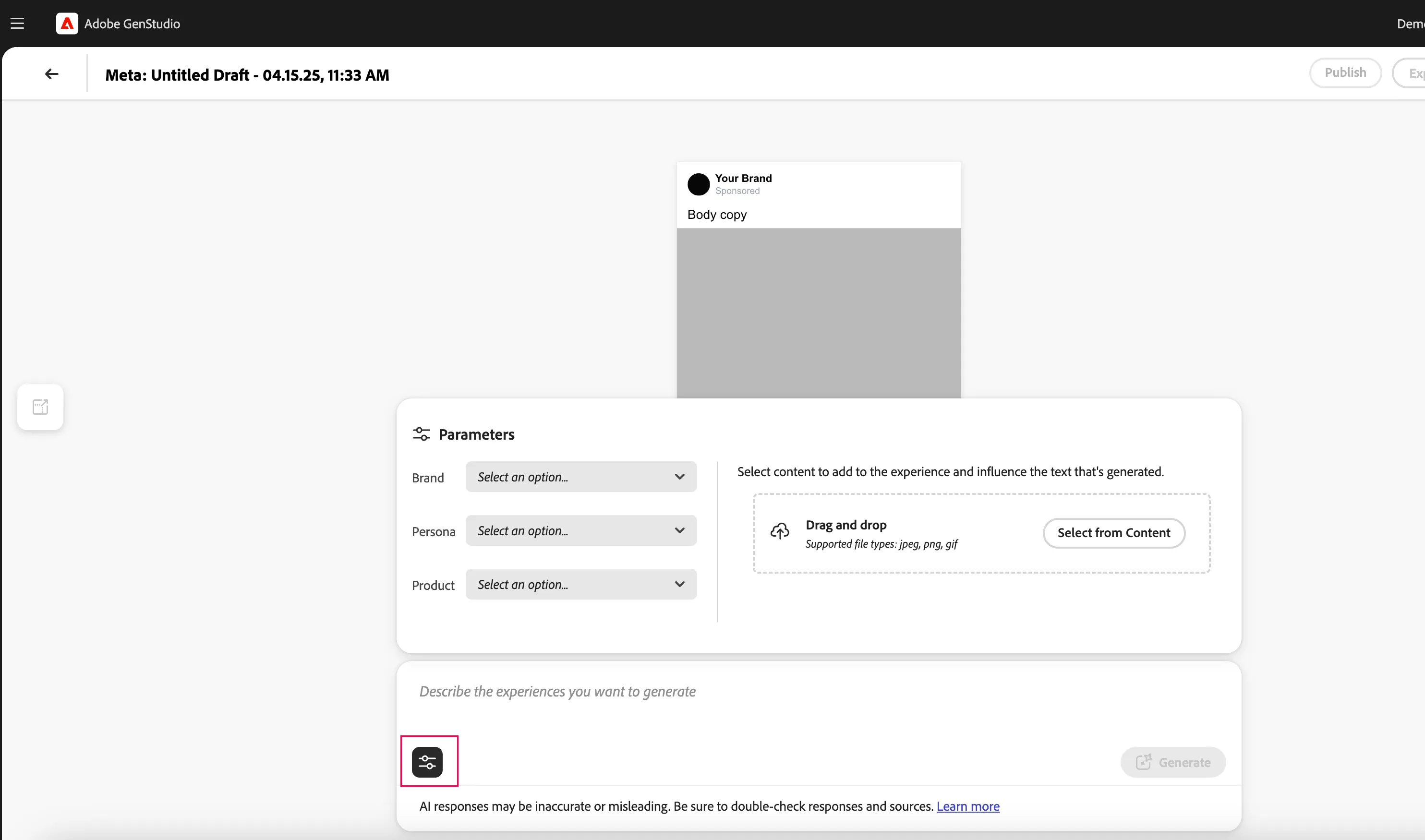
- Click the Parameters icon to expand the prompt area
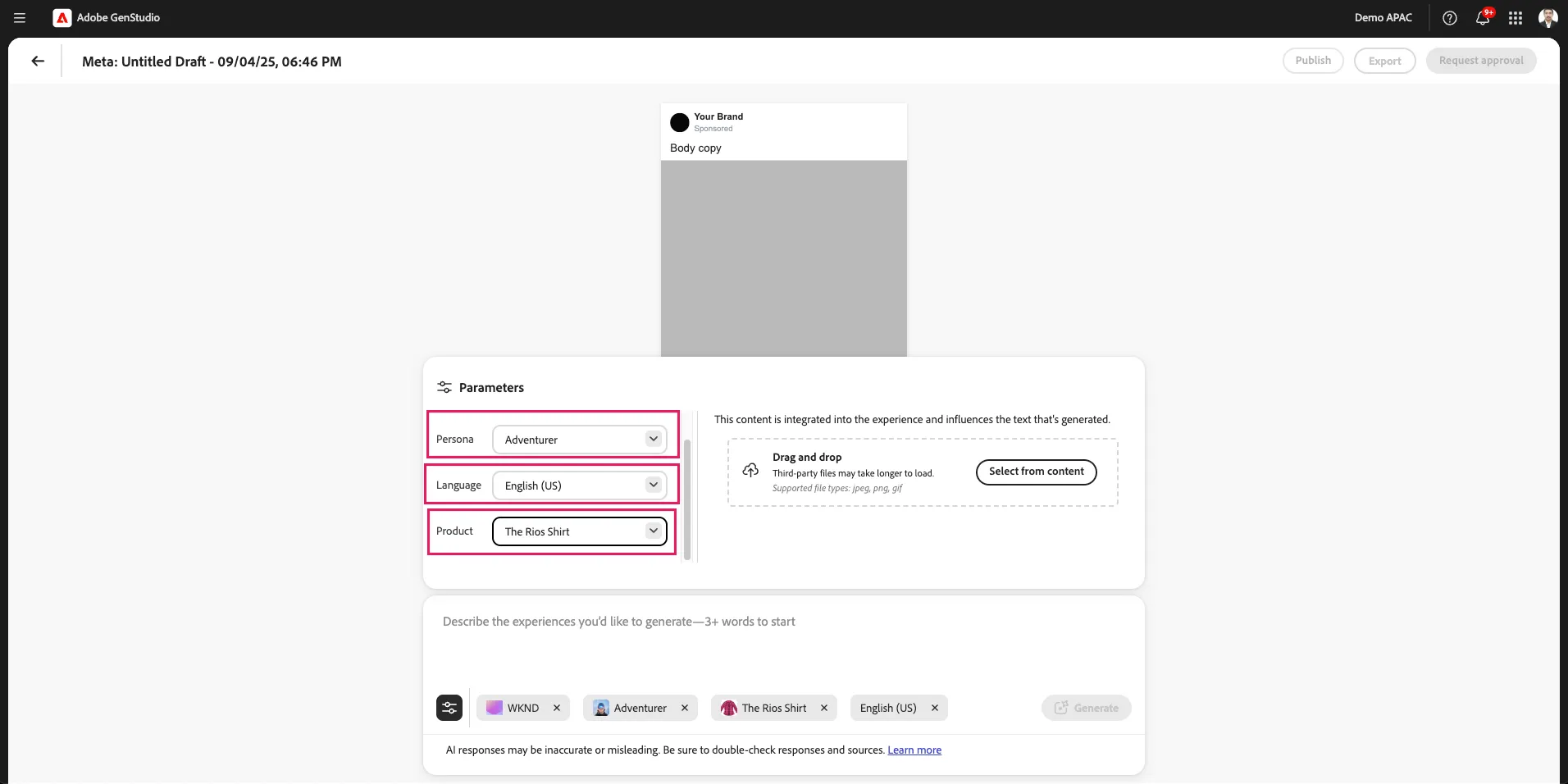
- In the Parameters section, select the Brand, Persona, Language and Product from the dropdowns shown
- WKND
- Adventurer
- English (US)
- The Rios Shirt
- Click the Select from Content button to add content to be used in the experience and to influence content generation
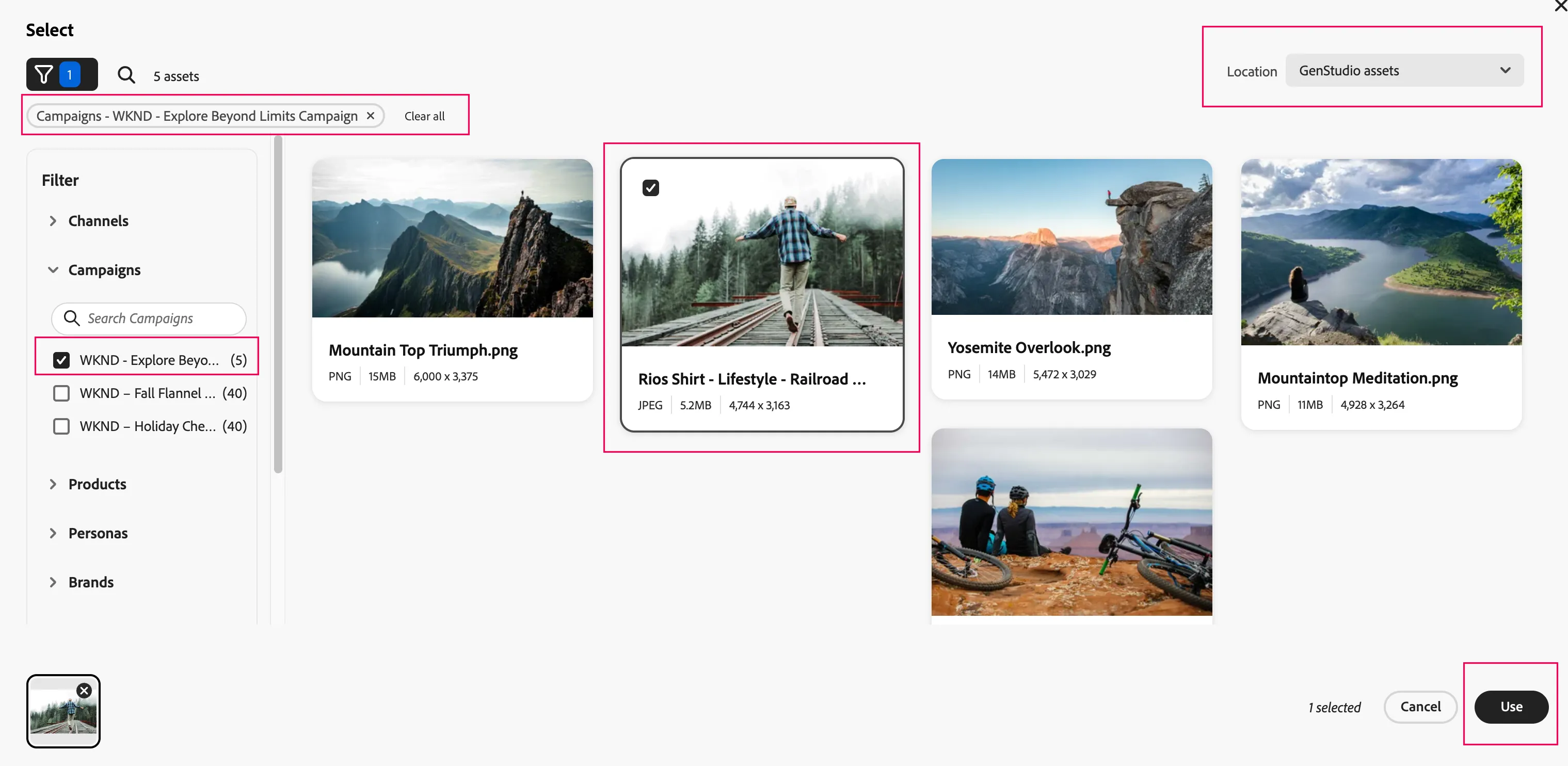
- Select assets from your Content repository by expanding the Campaigns filter on the left sidebar, and selecting the WKND - Explore Beyond Limits campaign
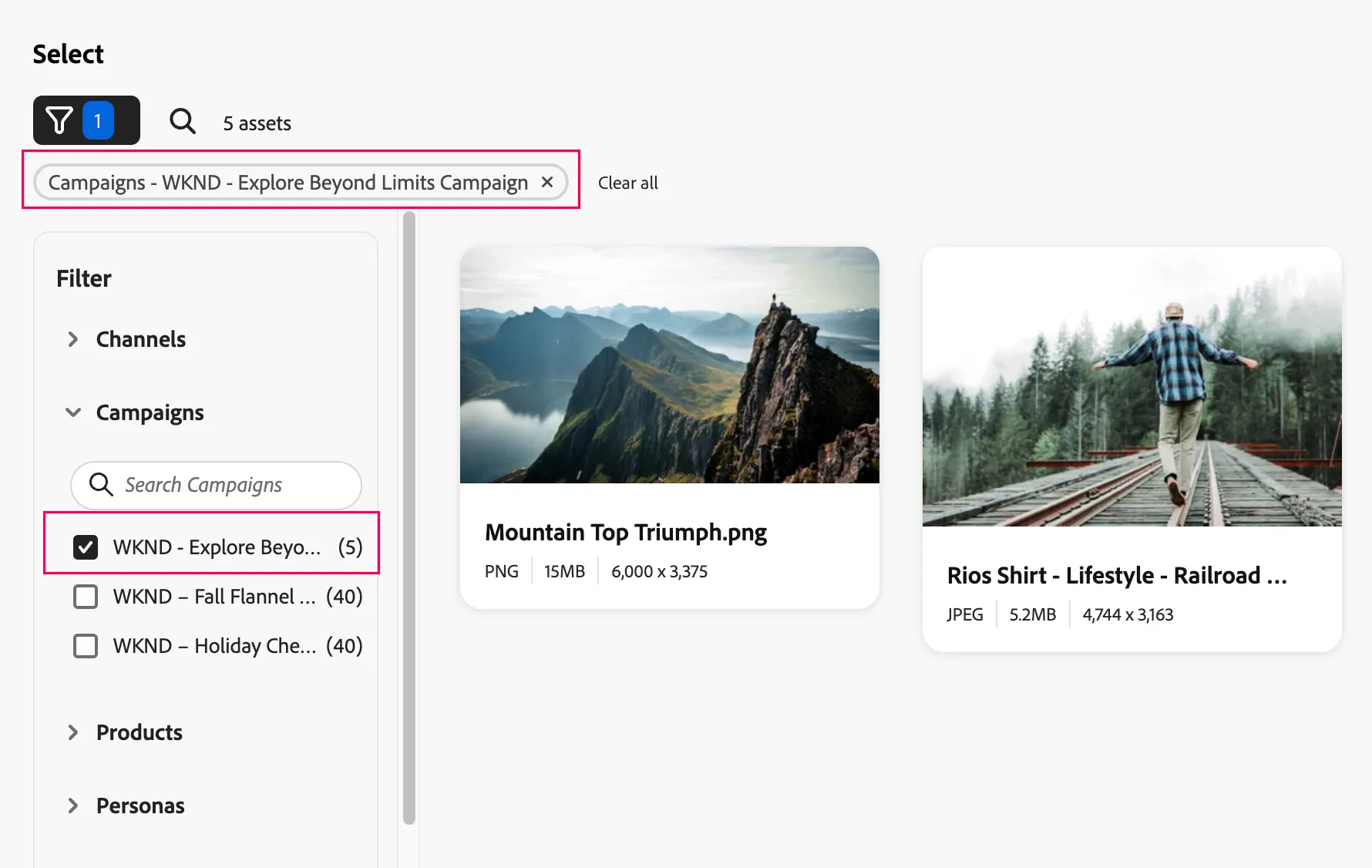
- Select the location “GenStudio assets” and asset showing the man walking on a railroad, and click the Use button
Enter a prompt
Crafting effective prompts is an important part of the generation process in Create.
After guidelines are selected, craft a prompt using natural language to start generating content for your new email experience. Detailed prompts yield higher quality output than vague or indescriptive prompts.
See Write effective prompts to learn more about writing prompts.
To enter a prompt:
- Begin by deleting the pre-created text description
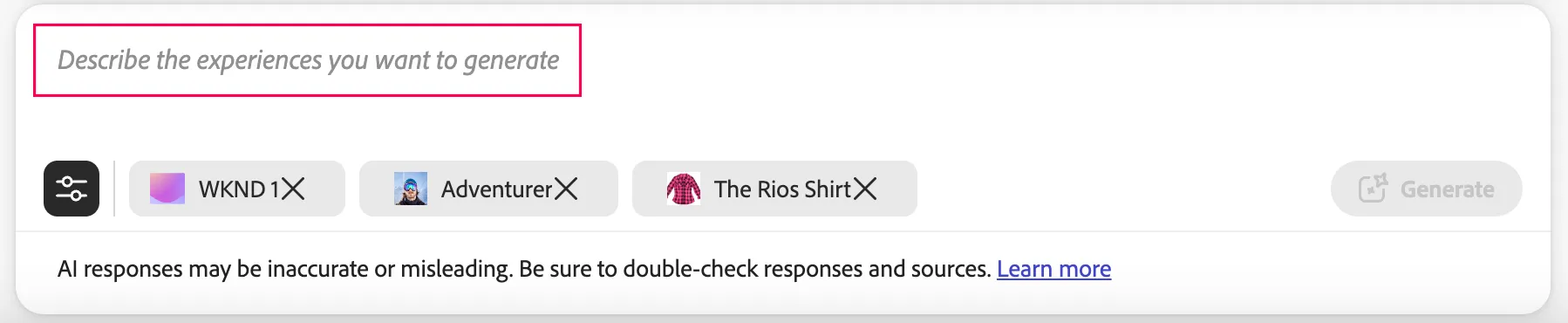
- Enter the text description below, and then click the Generate button
Generate a new compelling Ad campaign for new RIOS shirts targeted towards the young generation, enthusiasts, travelers and adventurers showcasing the versatile nature of these shirts which can be used for all occasions.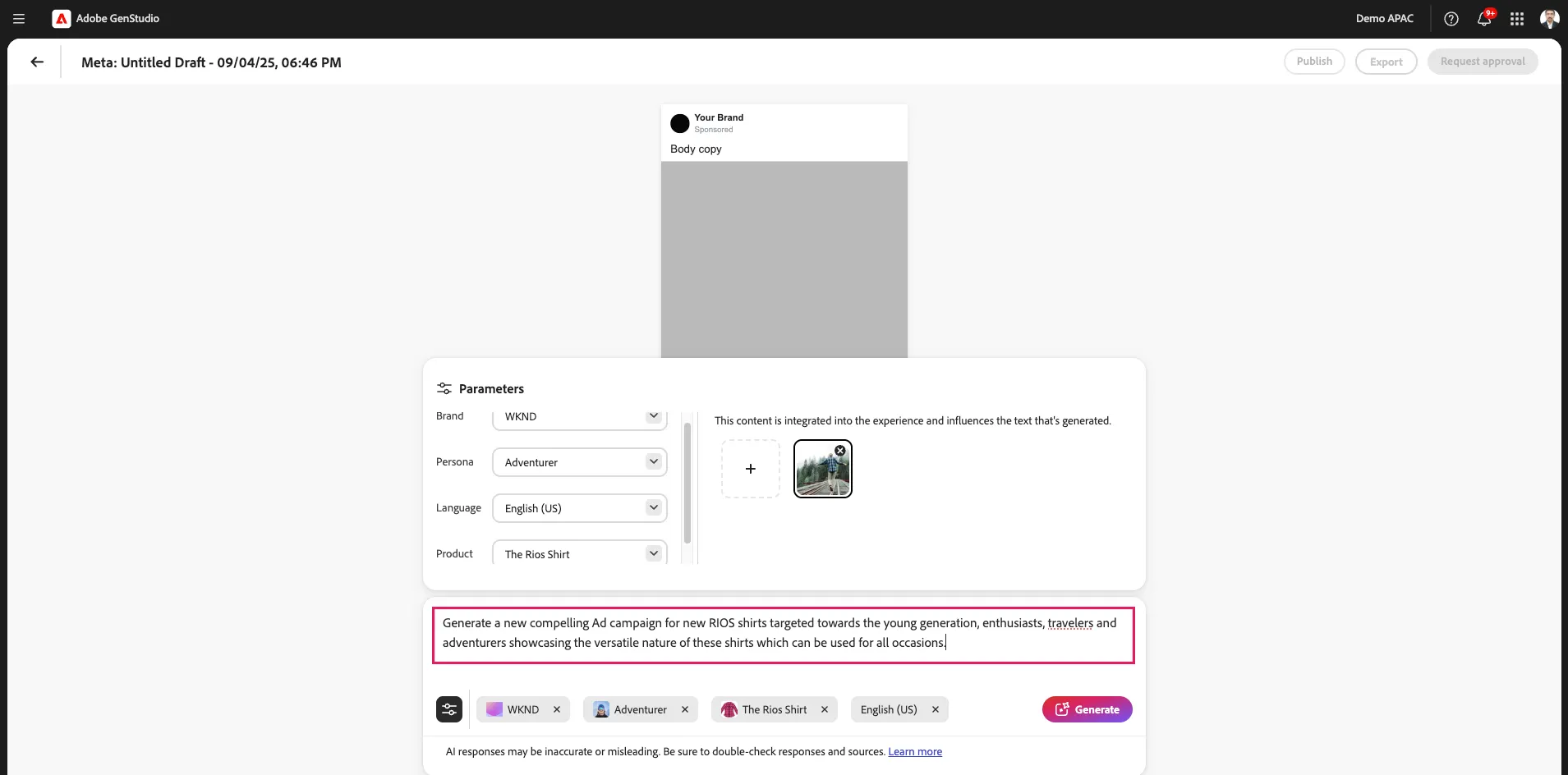
By default, four variations—all fueled by the prompt, guidelines, language and content you added— are generated and shown in the Canvas.
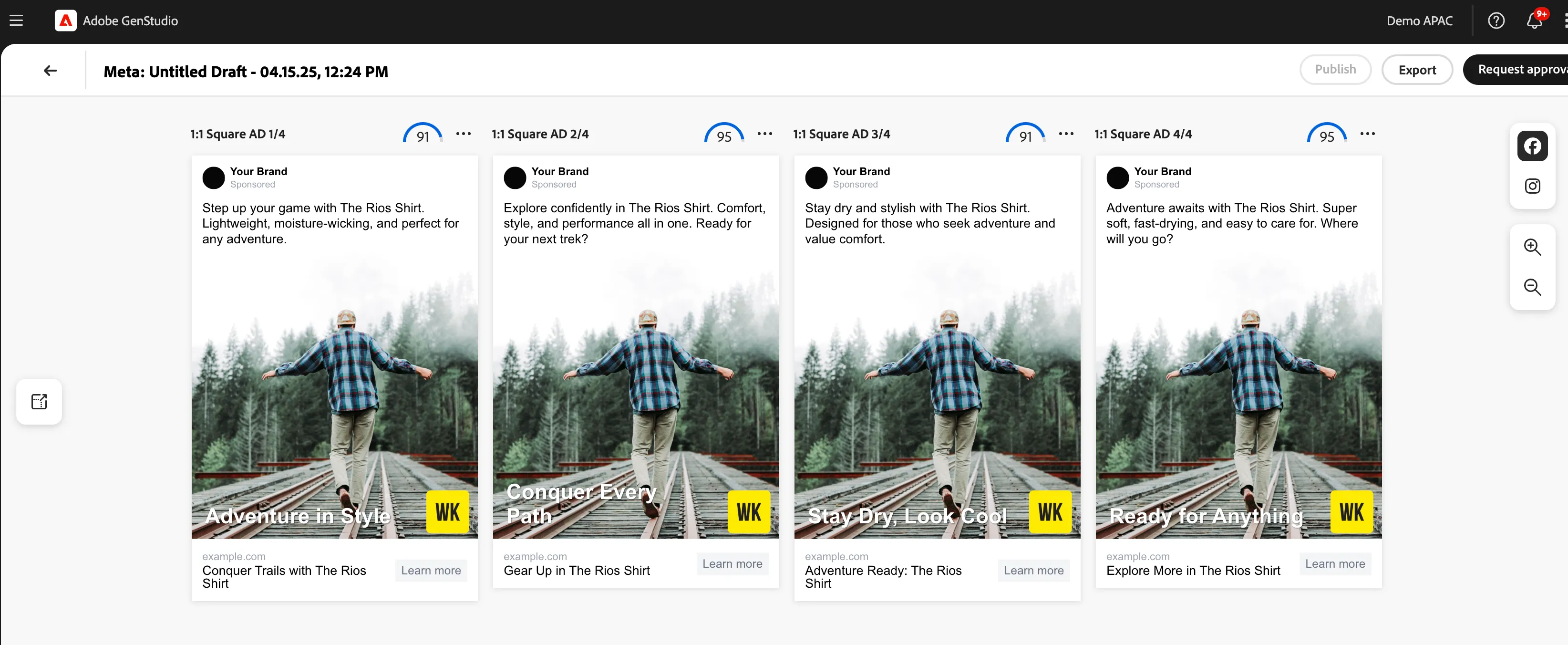
Generated content loads progressively—as each section of the email experiences are generated they appear in the Canvas.
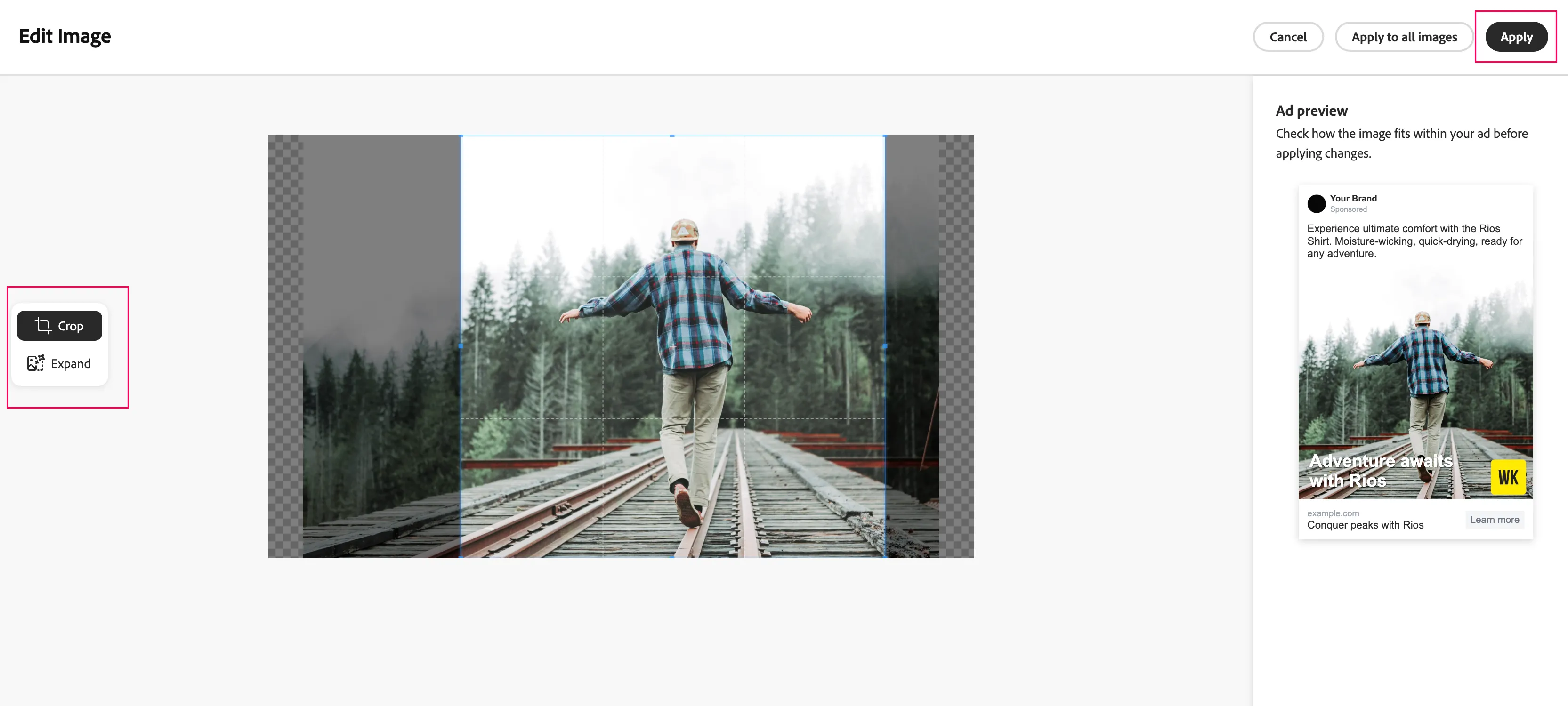
It is also possible to crop/expand the images in any of the variation by clicking on the image and then clicking
- Click on the image in any of the variations and then click on "View Layers"
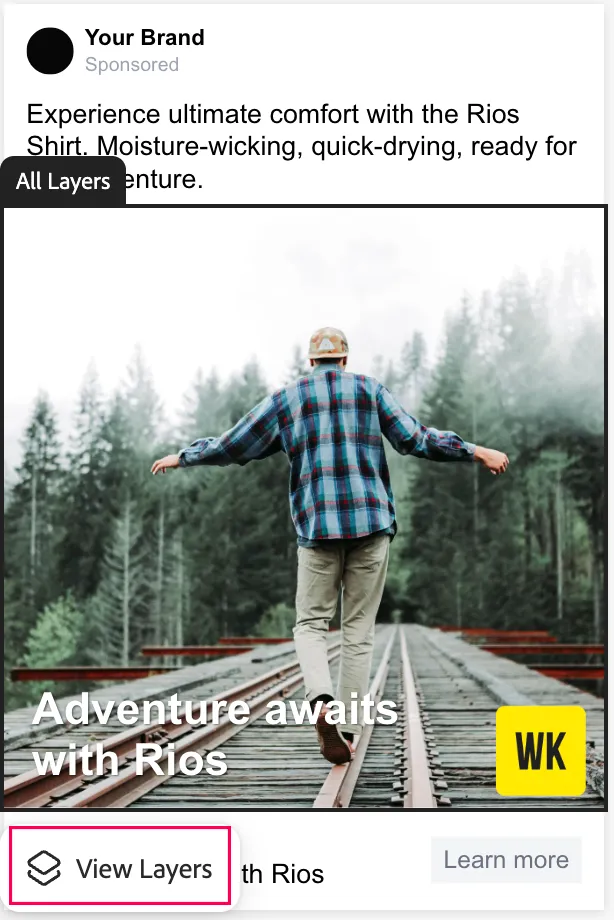
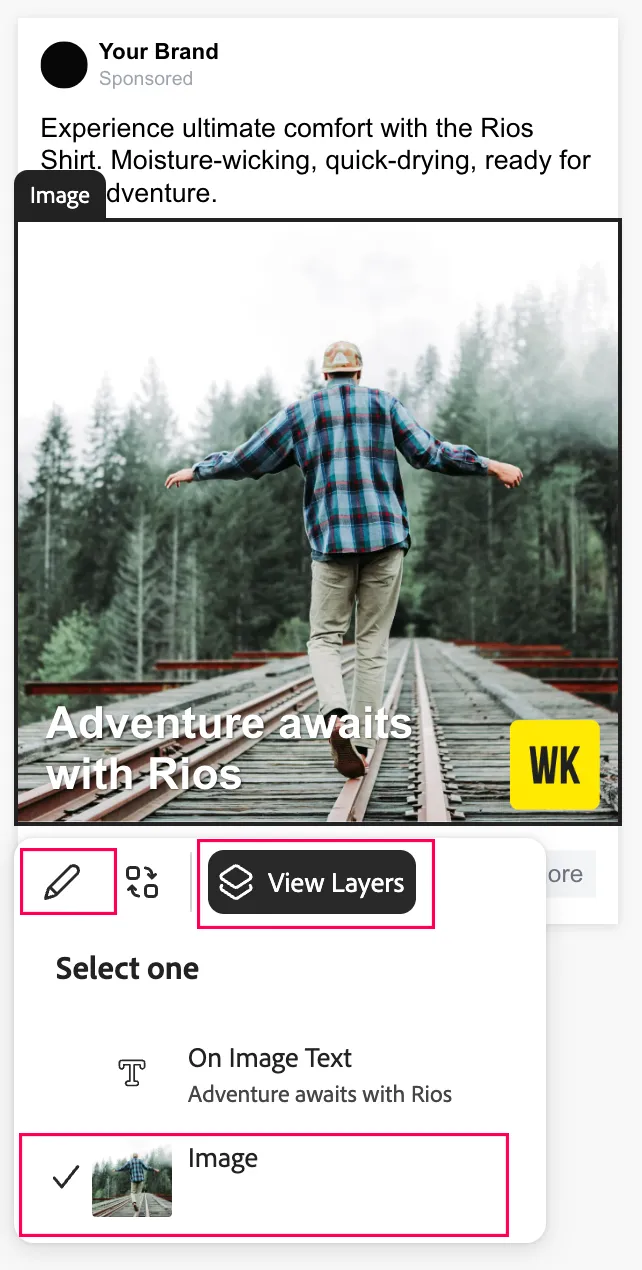
- Click on View Layers will allow one to select the Image option followed by clicking on the Pencil icon
- The canvas for the particular image will be opened up where you should see the option for both Crop and Expand. Please make your changes and then click on Apply which will bring you back to the main panel where all 4 variations are being displayed. Clicking on "Apply to all images" will apply the same crop or expand to all the variations.
- You could also update the text being displayed on the image where you can change its colour where you could choose either Black or White or you could choose from a colour pallette as par brand colours.
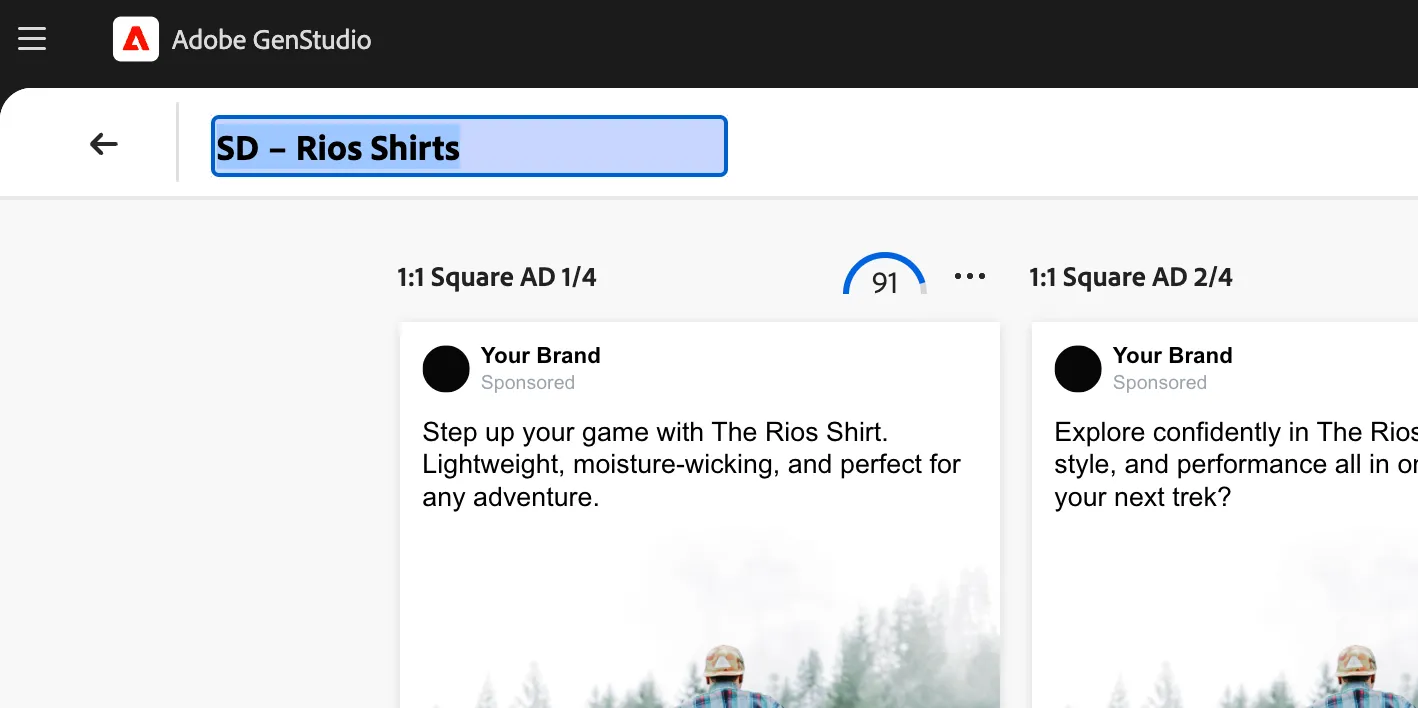
- Note that each variation is given a Brand Validation score

- Click your draft title to name it something memorable like "your initials – Rios Shirts"