New Content - On brand image
Description
In this example, you will be guided to generate On brand images using Create within GenStudio for Performance Marketing. To create an effective on-brand image, the Adobe team has played the role of Brand Manager and added the recommended brand guidelines for WKND, and will provide guidance on the basics of crafting a prompt.
Select Image
To create a new on brand image, you will use an existing and approved image as a reference to generate a new image.
To select an image
- Click on Create in the left sidebar, and then click the On brand images option
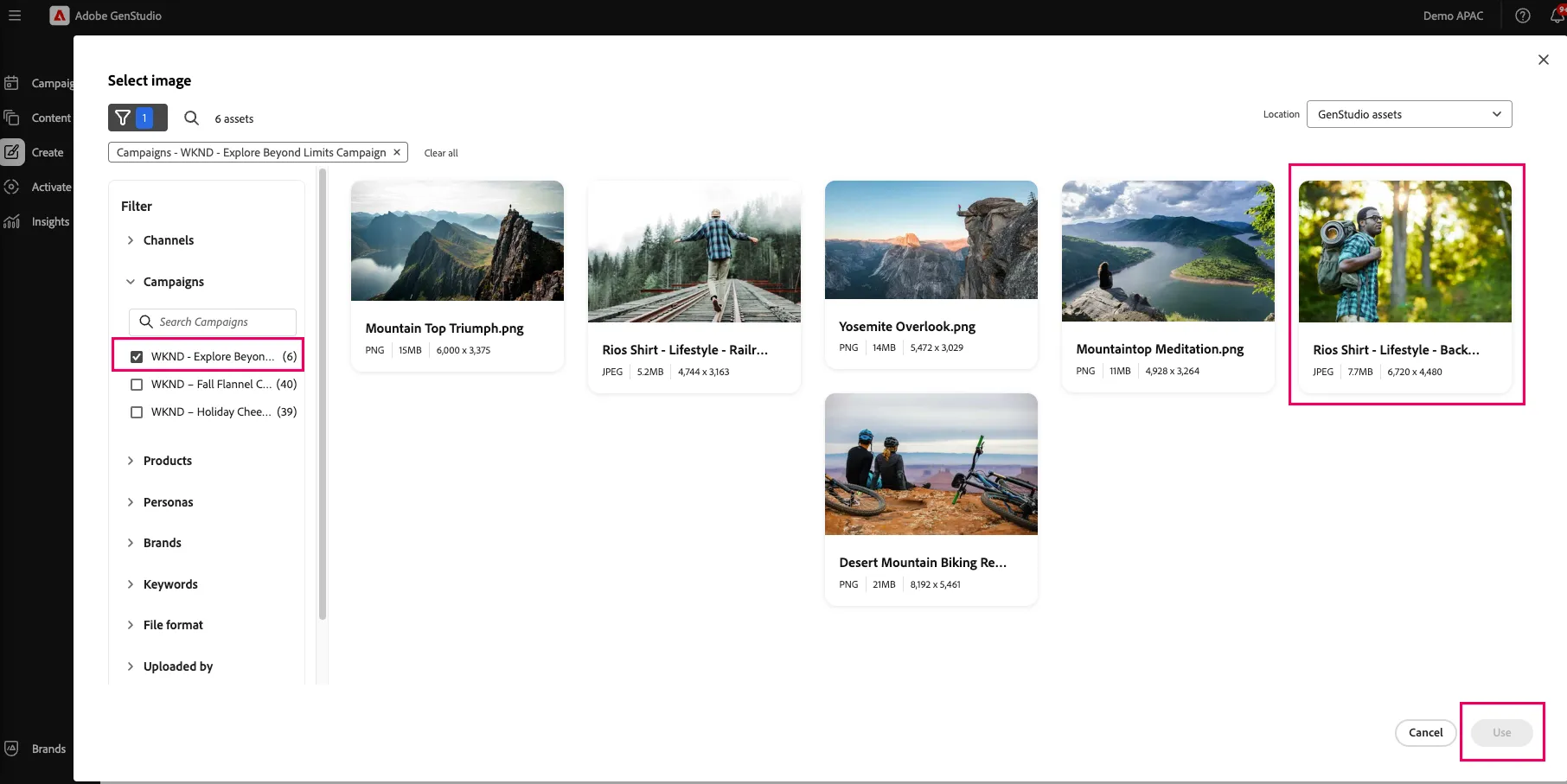
- Select the Campaign as WKND - Explore Beyond Limits Campaign in the filter and select the image "Rios Shirt - Lifestyle Backpacking" and then click on Use.
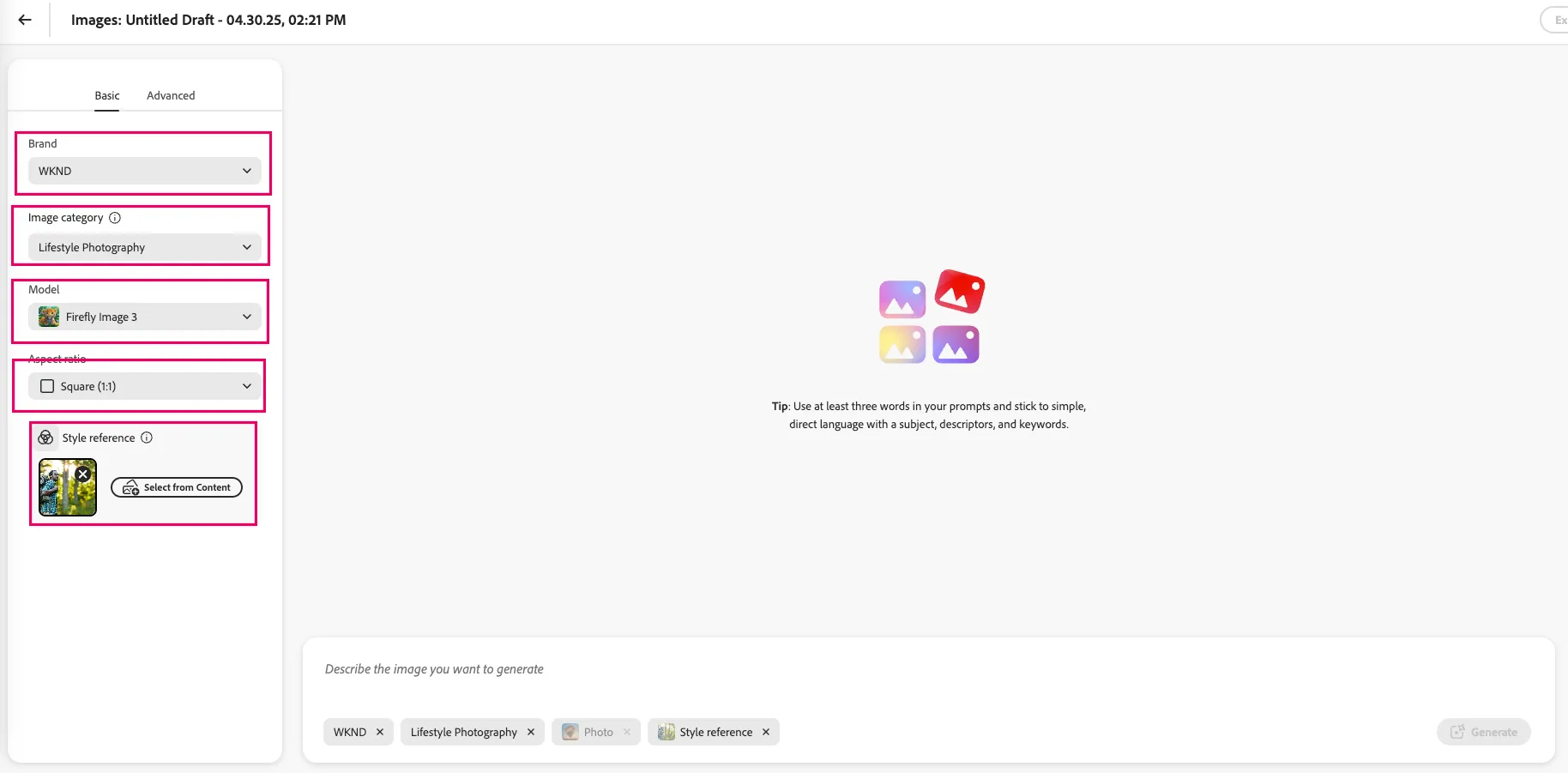
- Clicking on Use button on the above screen brings up a screen where certain paramaters around the brand needs to be selected. The parameters are
- Brand
- Image Category
- Model
- Aspect ratio for the image to be generated
- Style reference
The selected image for style reference can be up to 10MB in size.
Enter a prompt
Crafting effective prompts is an important part of the generation process in Create.
After parameters are selected, craft a prompt using natural language to start generating content for your image. Detailed prompts yield higher quality output than vague or indescriptive prompts.
See Write effective prompts to learn more about writing prompts.
To enter a prompt
- Begin by entering text for the prompt in the highlighted area

- Enter the text description below, and then click the Generate button
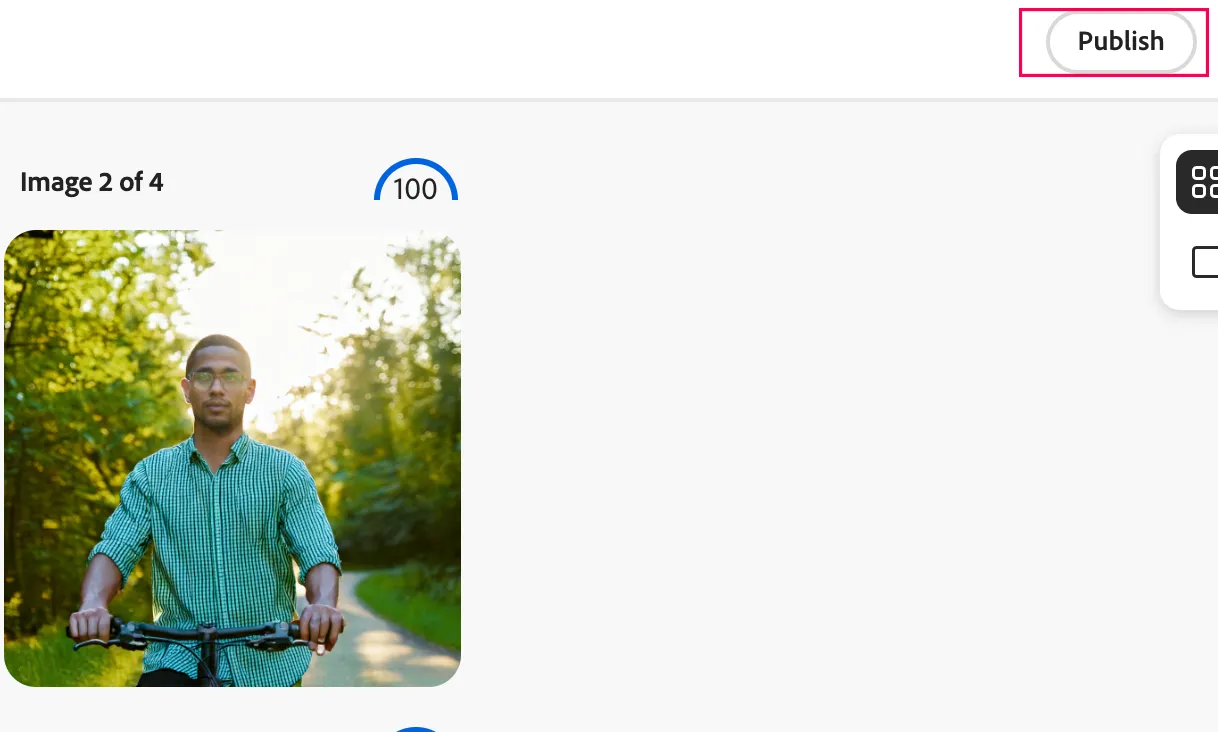
Generate an image showing the person wearing a shirt and riding a bicycle on a country road facing towards you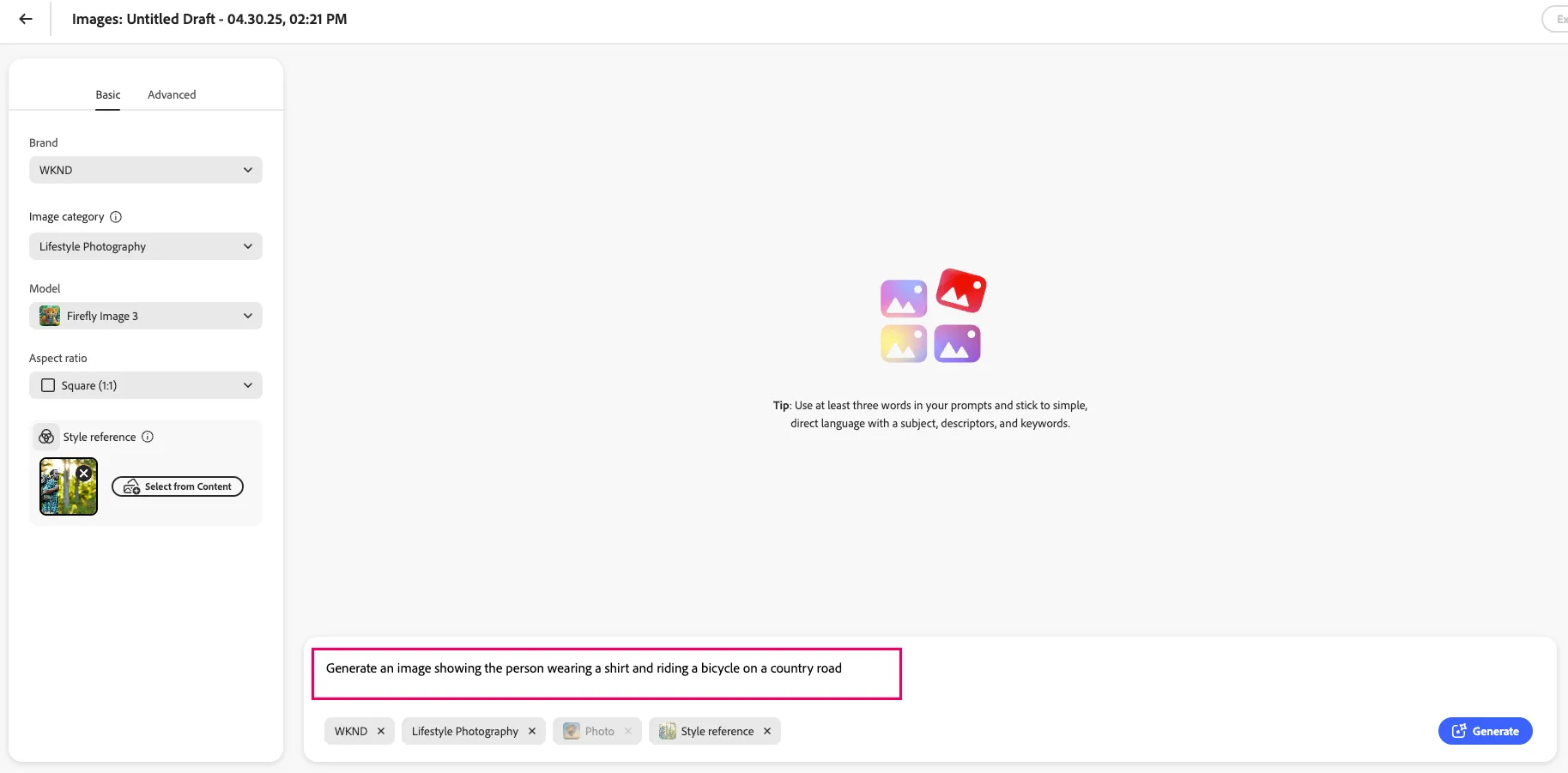
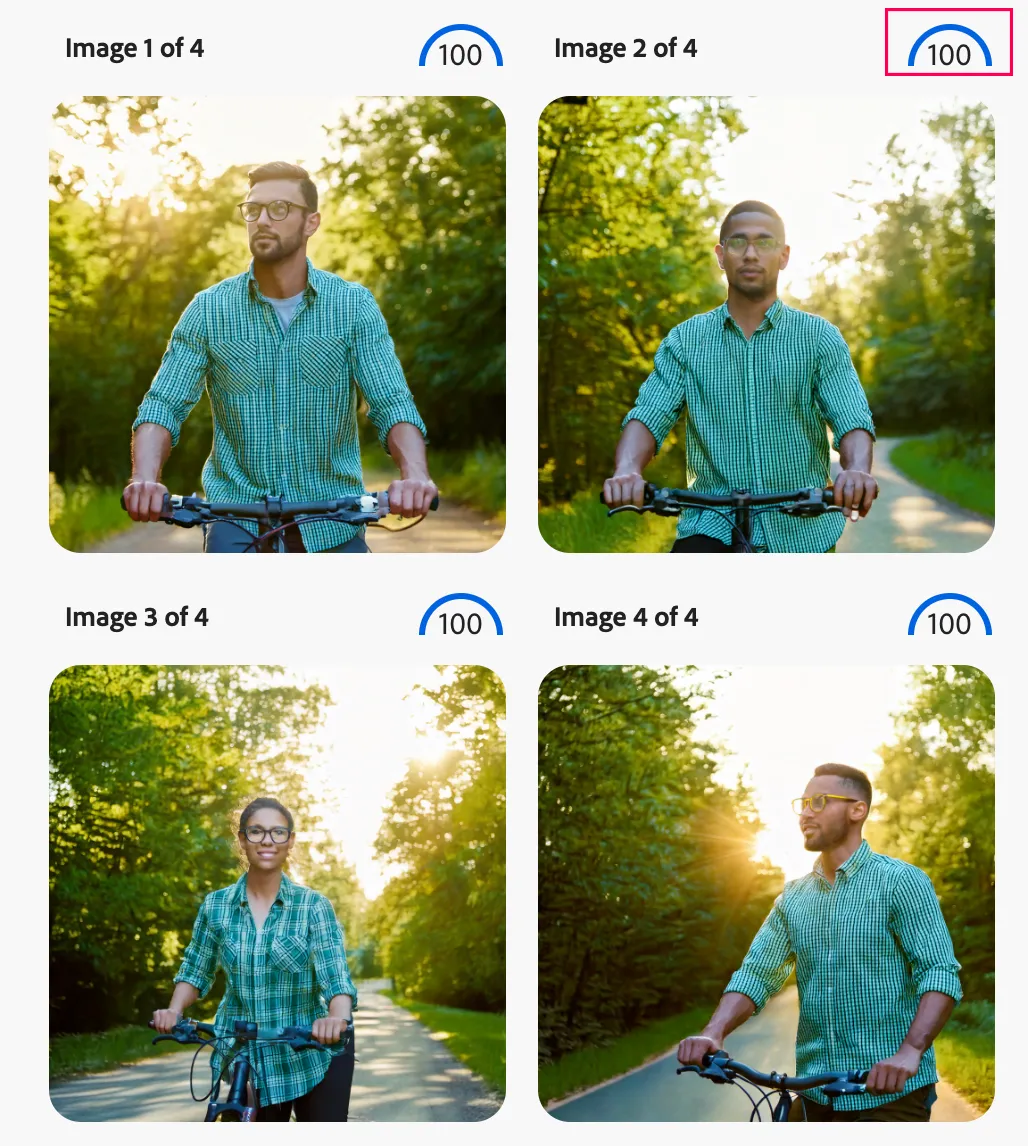
By default, four variations—all fueled by the prompt, guidelines, and content you added—are generated and shown in the Canvas.
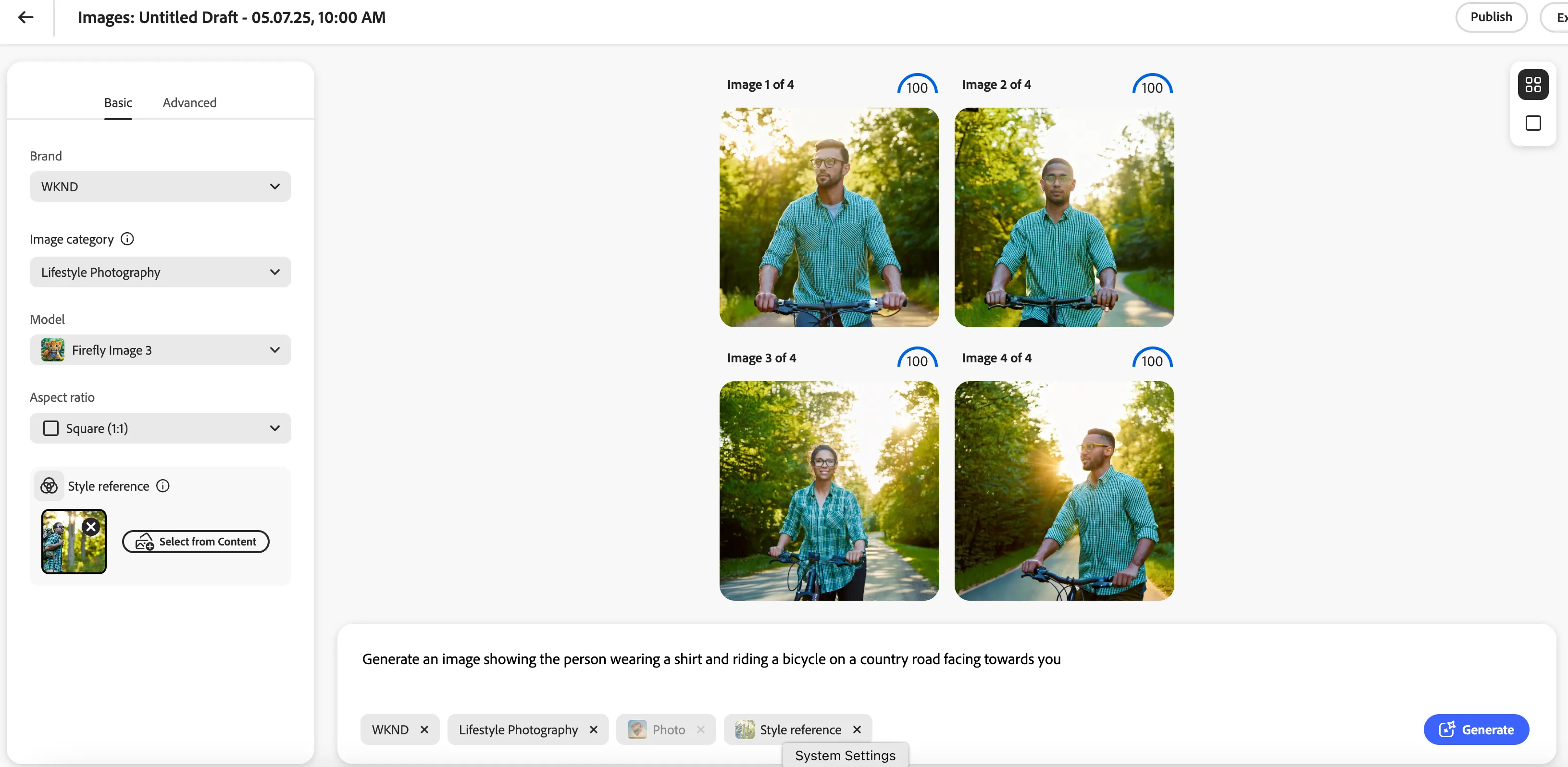
- Note that each variation is given a Brand Validation score
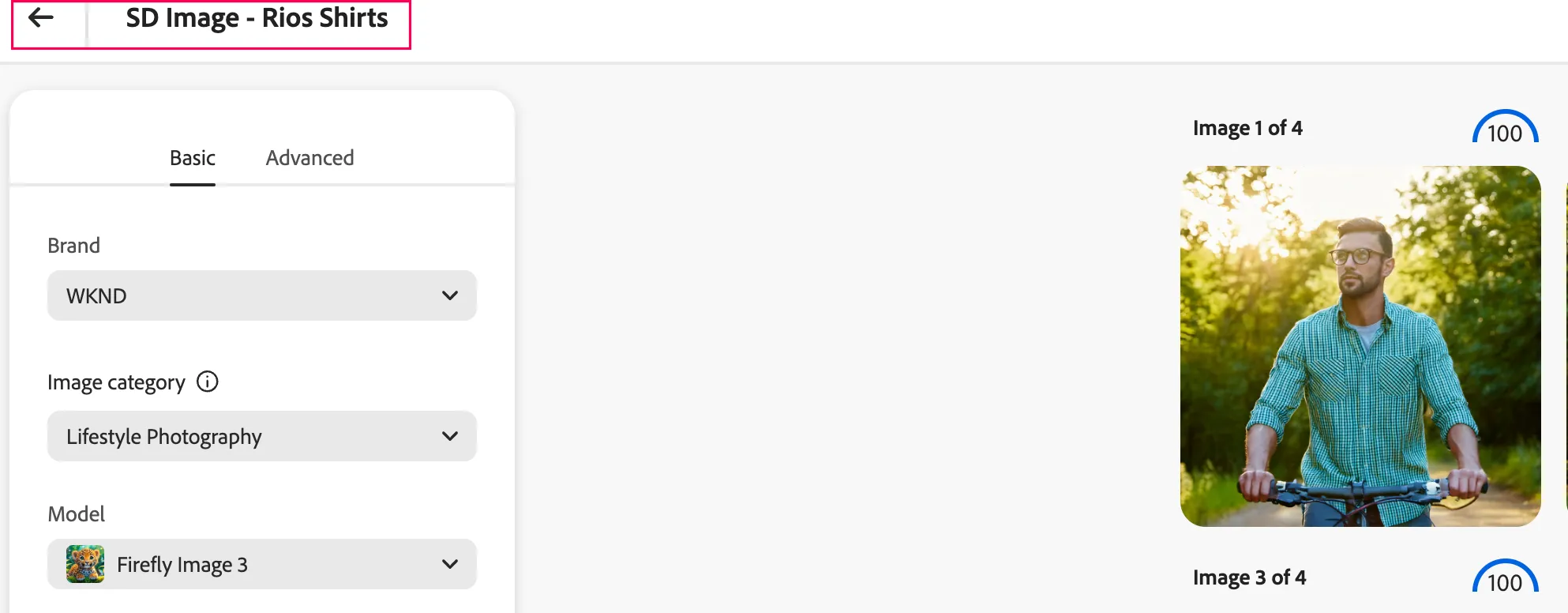
- Click your draft title to name it something memorable like "your initials Image – Rios Shirts".
Publish the Image
- The next step is to publish the image to make it available under Content for all the users.
- Click on Publish.
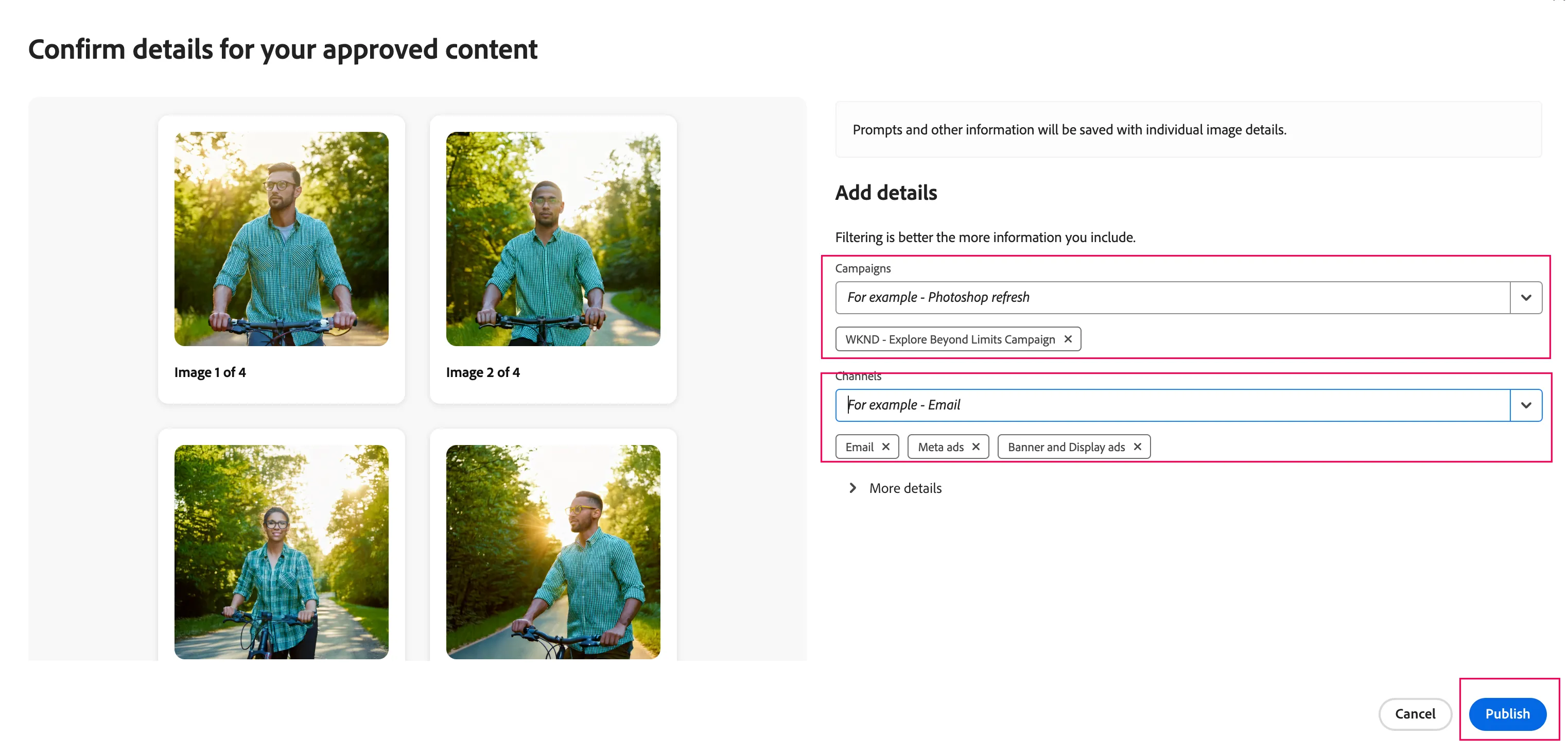
- This brings up a screen where other important information such as Campaigns and Channels needs to be entered.
- Please select WKND - Explore Beyond Limits Campaign and Email, Meta ads and Banner and Display ads for Channel.
- Click on Publish which will make the image available under Content for all the performance marketers.