Lab 2 - Journeys and Content
Learning Objectives
In this exercise you will:
- Understand types of journey triggers
- Design a multi-step journey
- Generate brand aligned content using AI
- Use experimentation to optimise content (A/B Testing)
Scenario
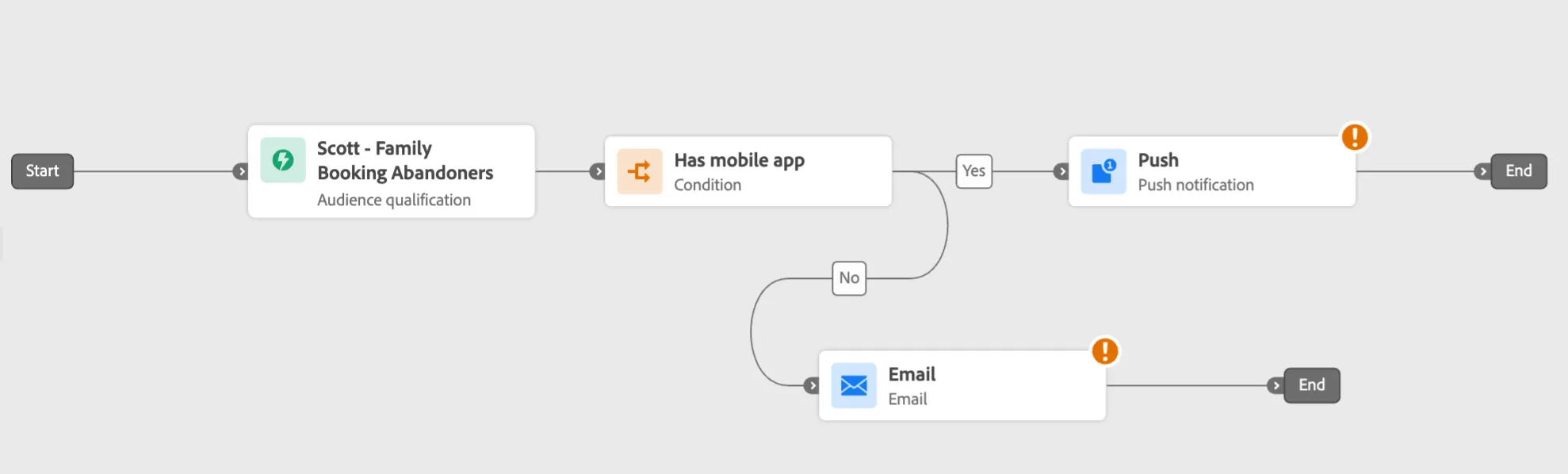
We're going to rebuild the Booking Abandoners journey that was in the live demo, but this time we will use Audience Qualification instead of an Event based trigger.
We will also add in some logic to check if the user has the mobile app. If they have the app, we will send them a push notification. If they don't, we will send them an email.
2.1 Navigation Overview
Let's take a quick look through the menu options on the left hand side.
Journey Management is where you will find your Campaigns, Journeys and global Reporting. Campaigns are single channel bulk or recurring messages, while journeys are multi-step and multi-channel.
Use Case Playbooks provide a catalog of use cases to get you started faster.
Decisioning is where you'll find the next best offer catalog and strategies.
Content Management is where you'll manage all of your content, including your Asset Repository powered by Adobe Experience Manager Assets, re-usable multi-channel Content Templates, HTML and Expression Fragments, Landing pages and Translations for multi-lingual support. You'll also find your Brand guidelines here used to ensure all content is brand aligned (BETA feature).
Data Management, Connections and Customer is where you can access the same shared components as RT-CDP. The Unified Profile and Audience definitions are part of the core Adobe Experience Platform and are shared by both solutions which helps to reduce duplication and create consistent experiences across channels.
Administration is where you will find configuration items for journey triggers, custom actions, channels and business rules to control channel based frequency capping.
2.2 Create Journey
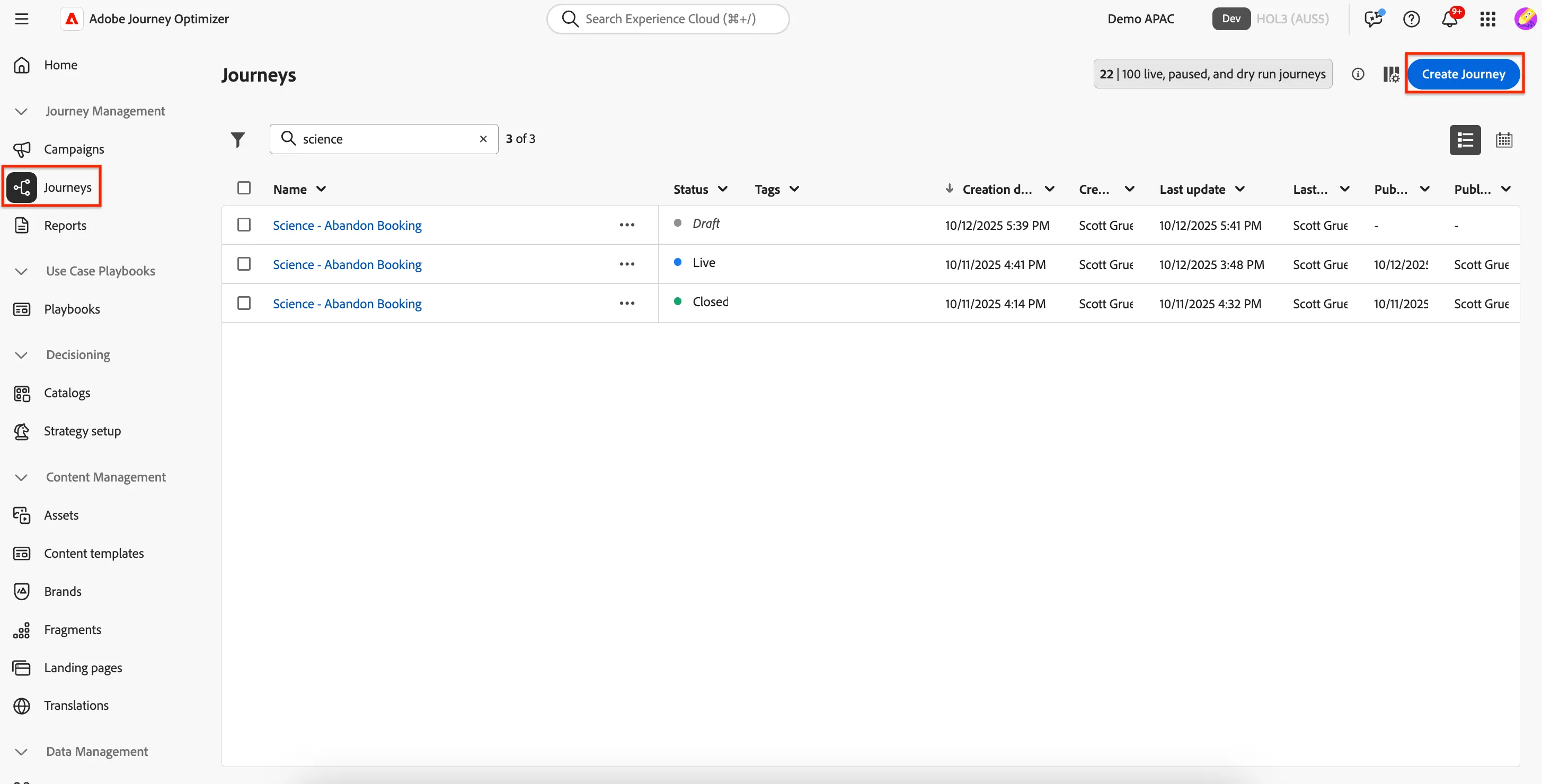
Navigate to Journey Management -> Journeys and click on Create Journey.
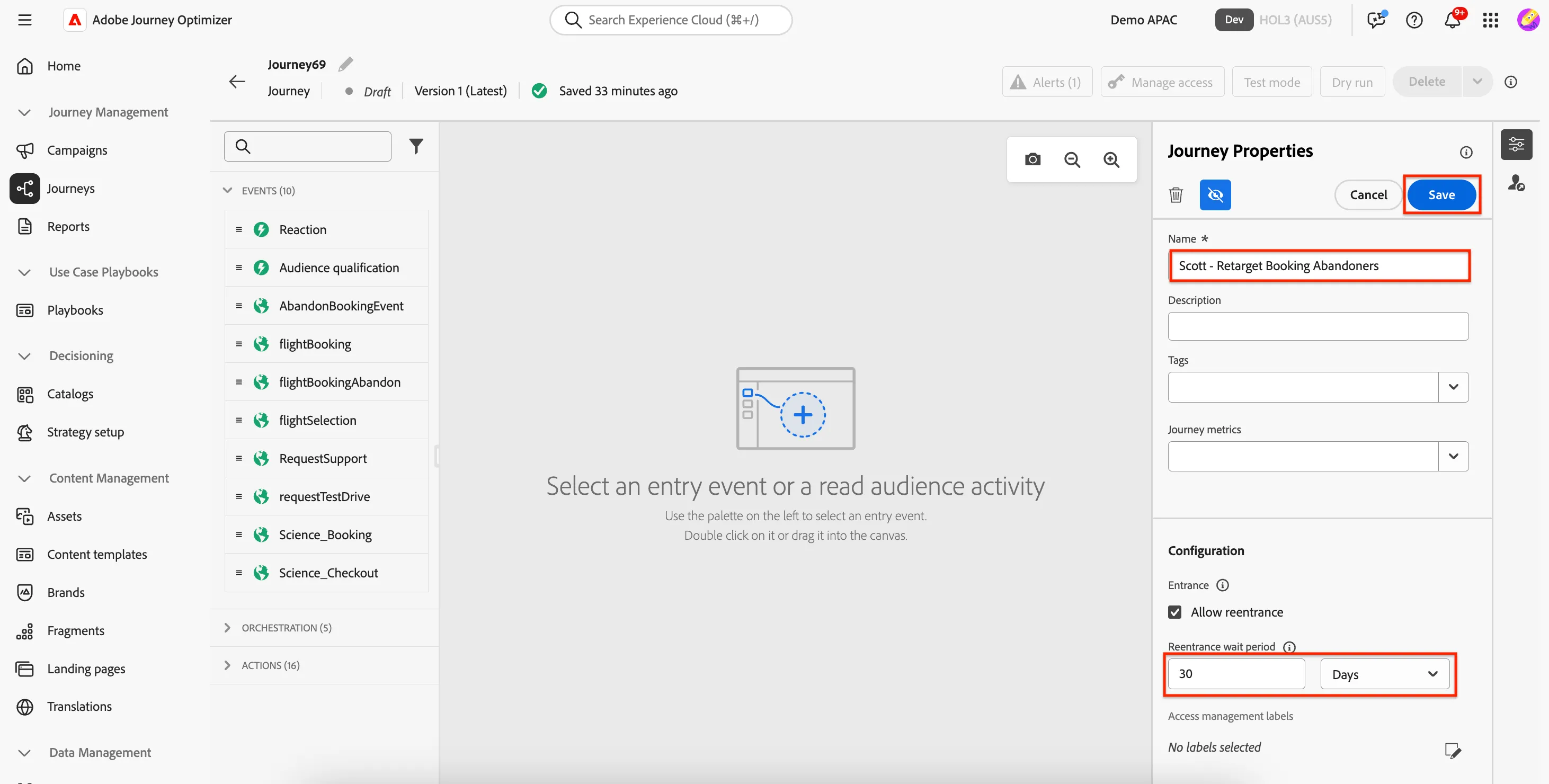
Give your journey a name such as <your name> - Retarget Booking Abandoners. The journey properties are also where you can set up the re-entrance criteria, set re-entry wait period to every 30 days. Click Save.
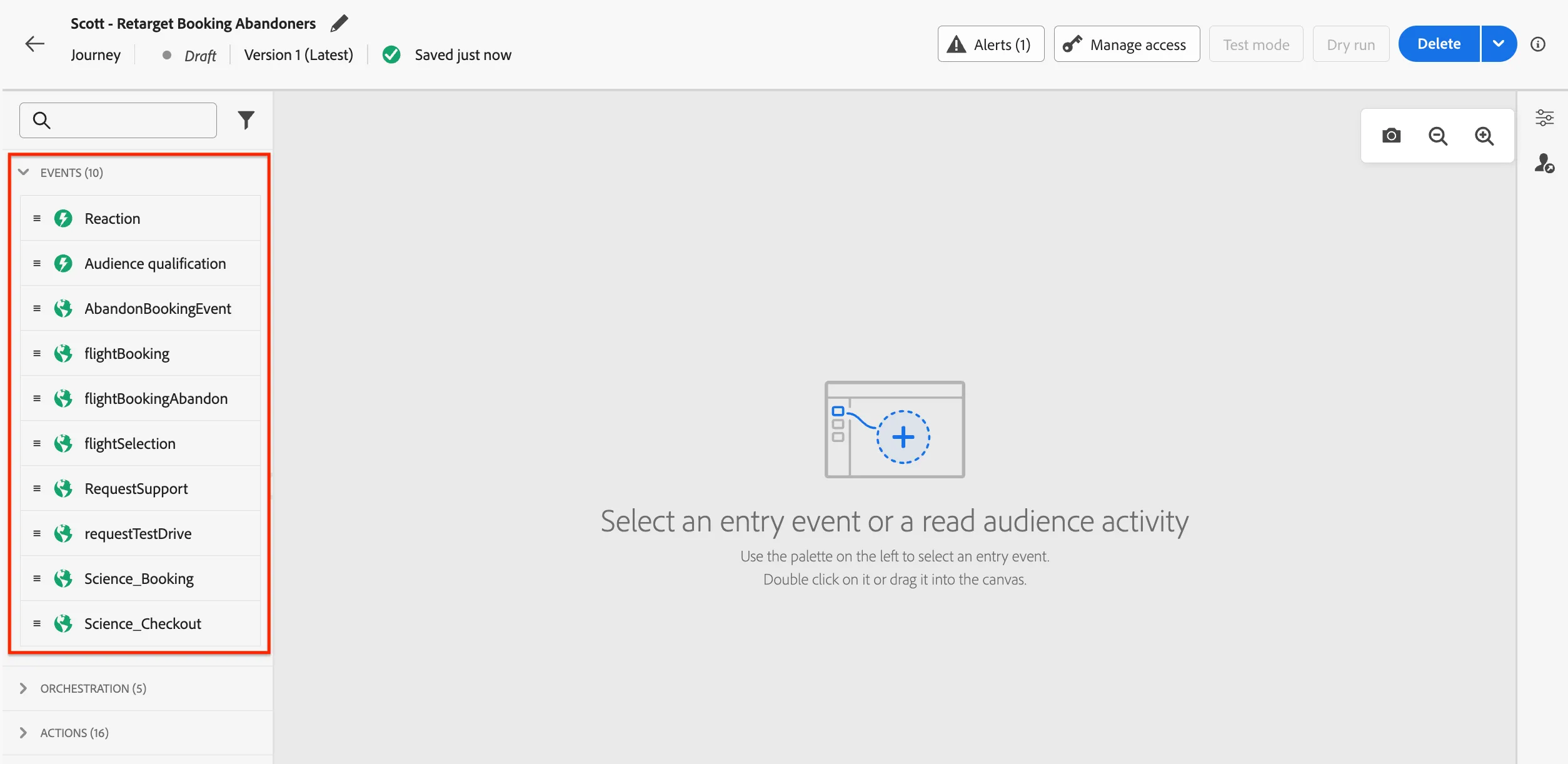
Journeys can be triggered from individual events or when a customer enters or exits a segment. You can see the events that are configured as journey triggers in the left panel - this list is configurable and will depend on your implementation.
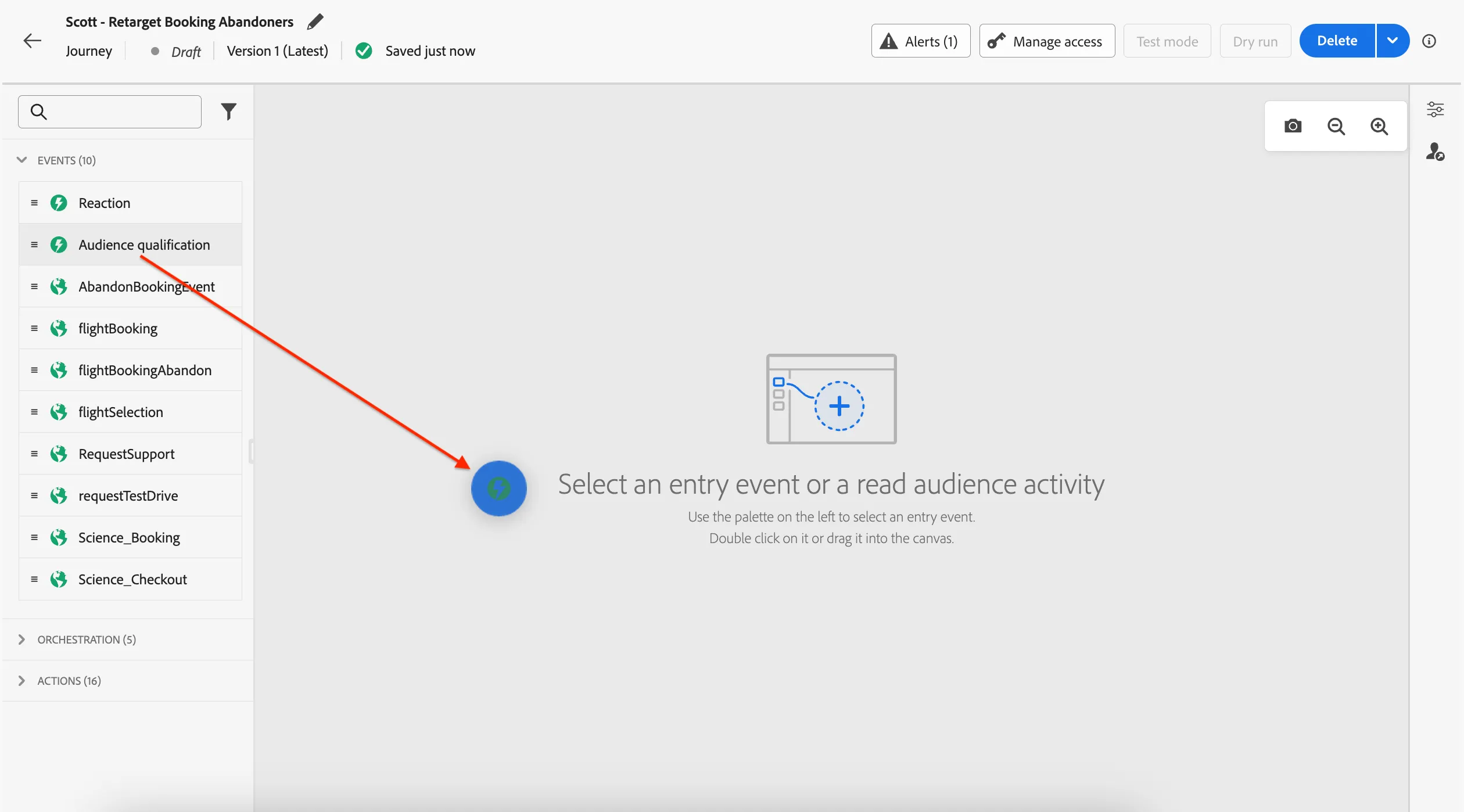
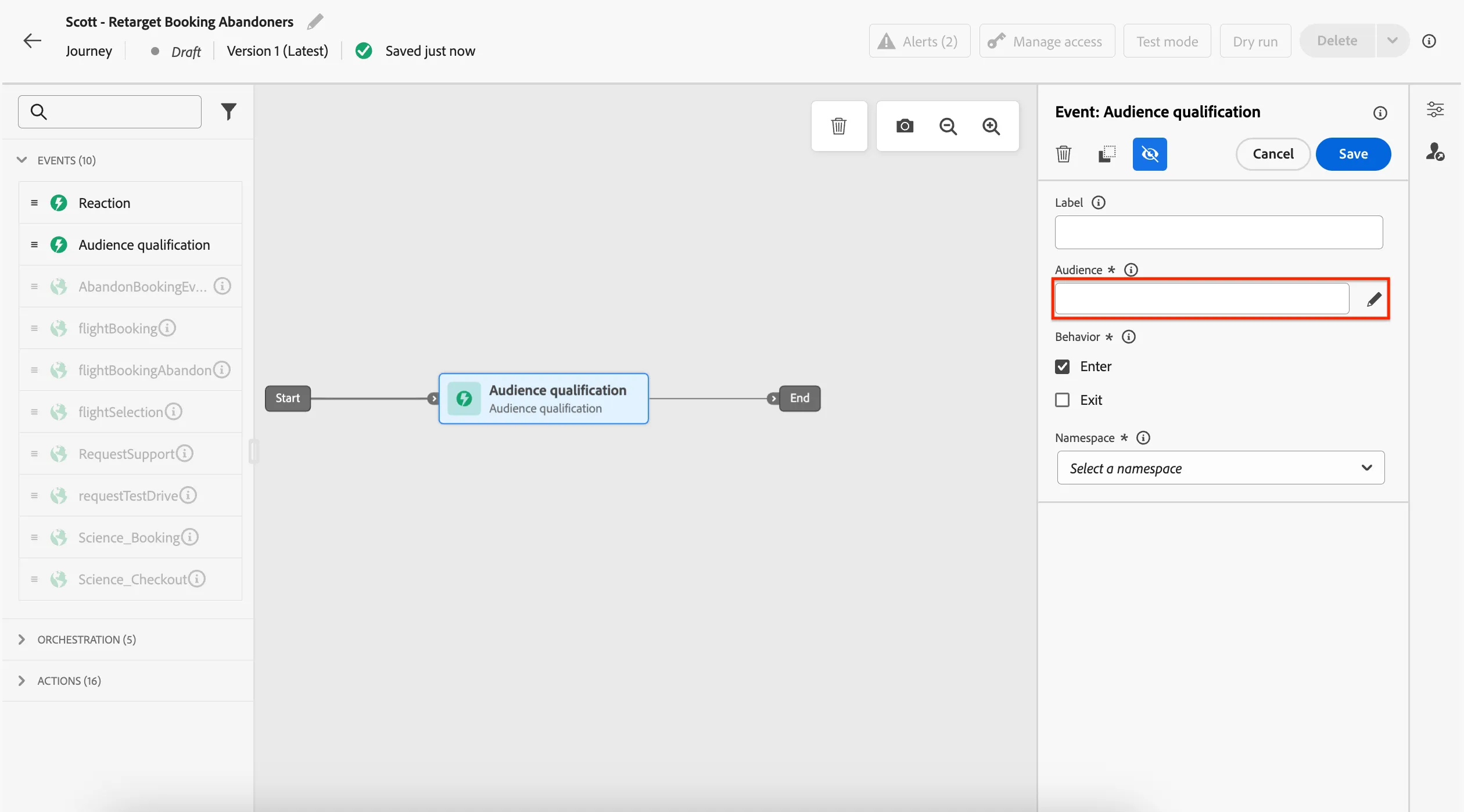
Drag-and-drop Audience qualification into the panel as our journey trigger.
Click on Audience or the pencil icon.
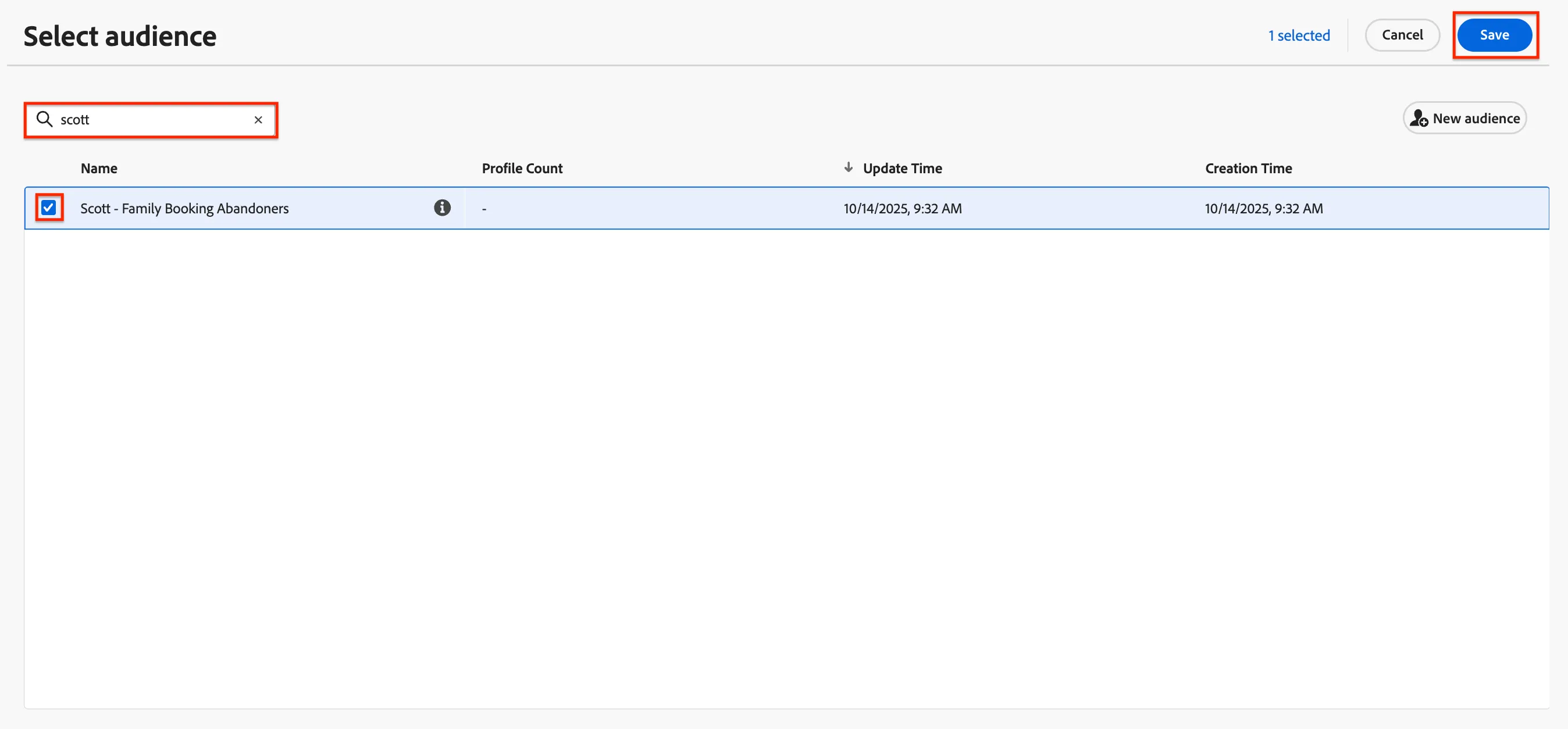
Use the search box to search for the Audience you created in the previous Exercise. Select the audience and then click Save.
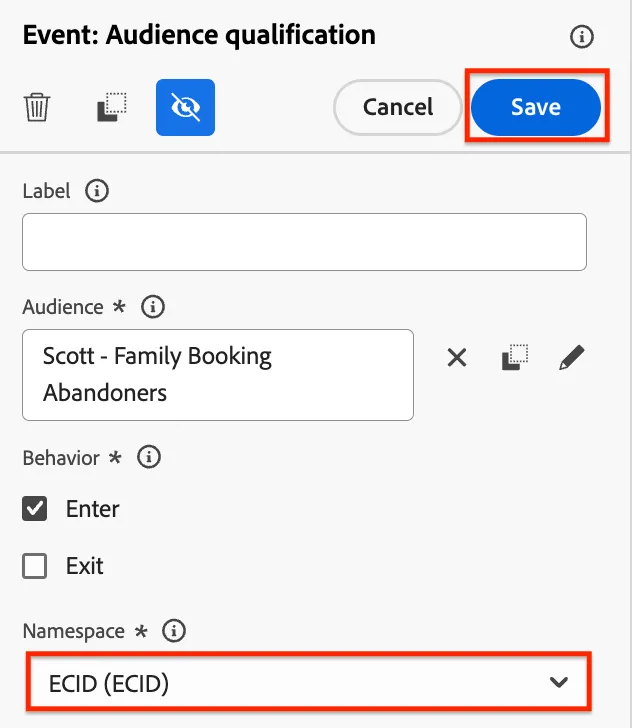
Change the Namespace to ECID and click Save.
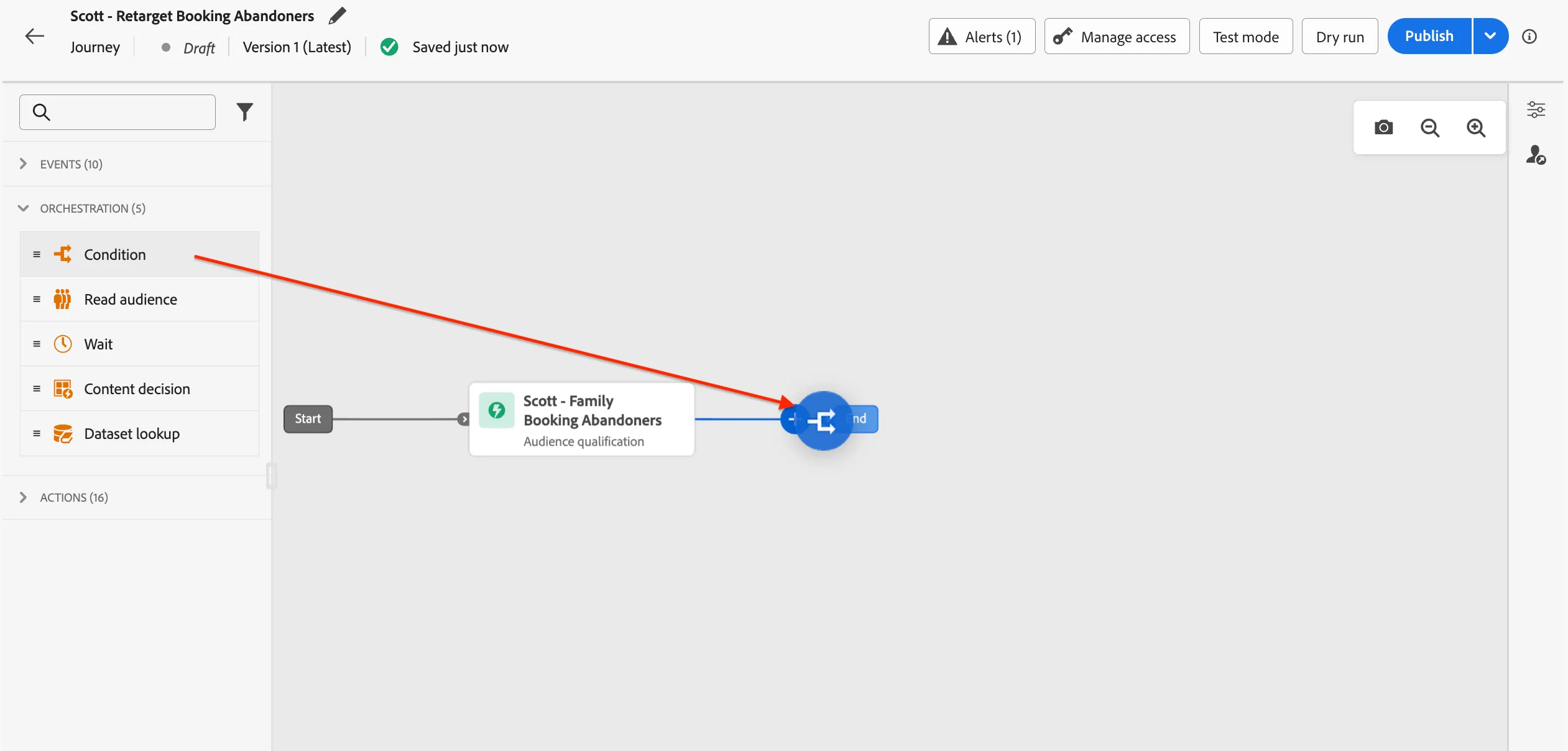
Collapse the Events in the left panel and expand Orchestration. Drag-and-drop Condition to the end of the journey.
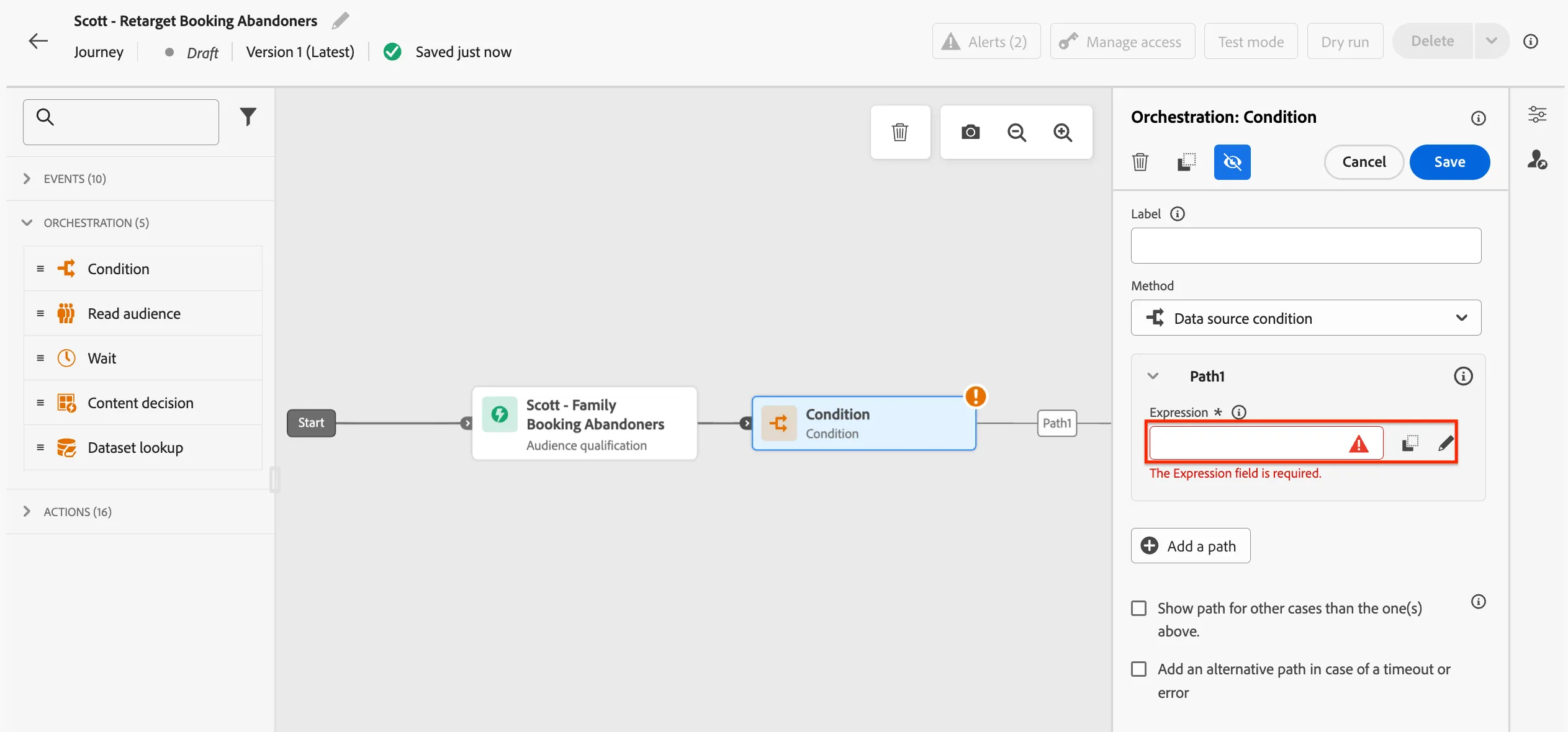
Click on Expression or the pencil icon.
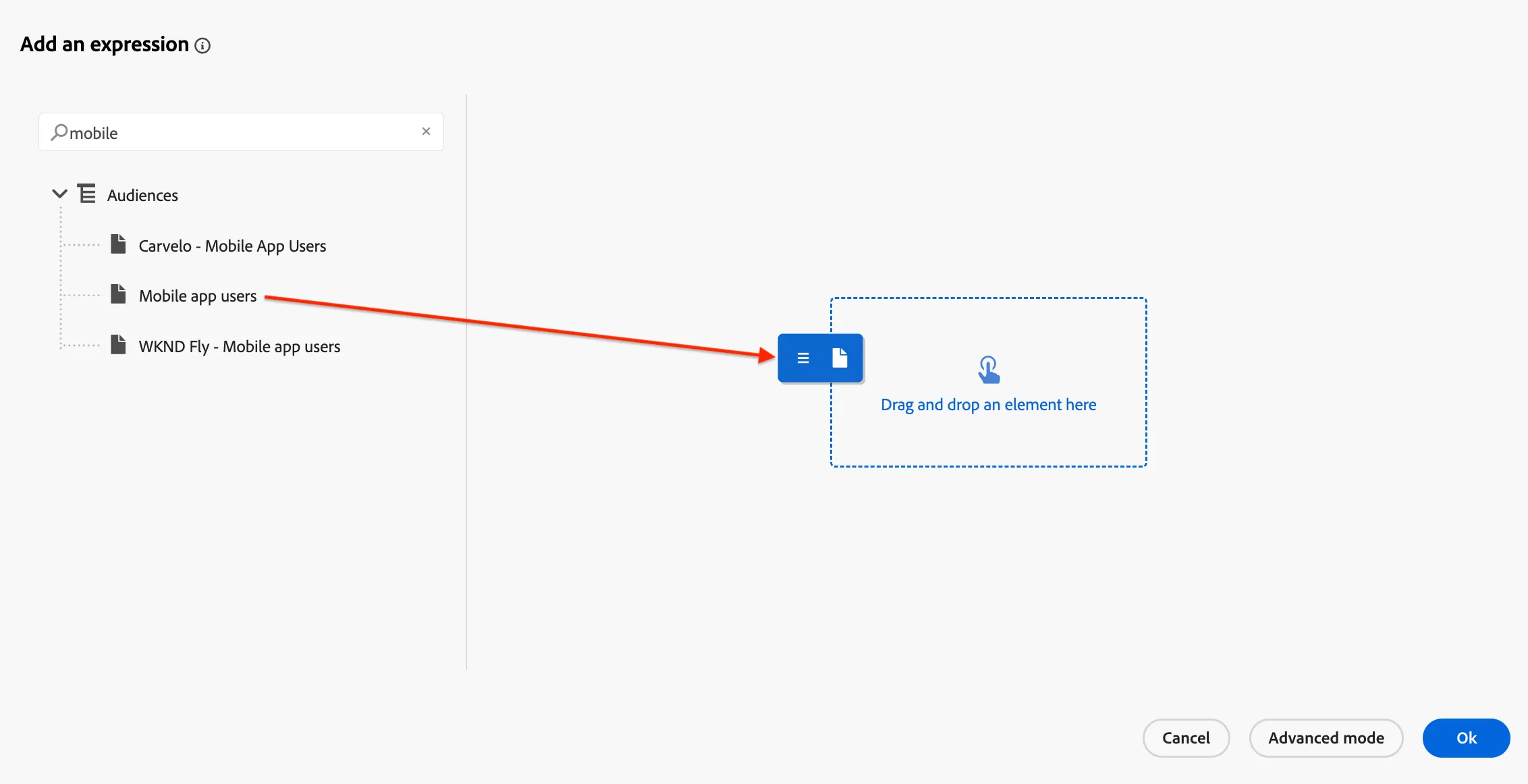
Search for mobile in the expression builder and drag-and-drop the Mobile app users audience to the main panel.
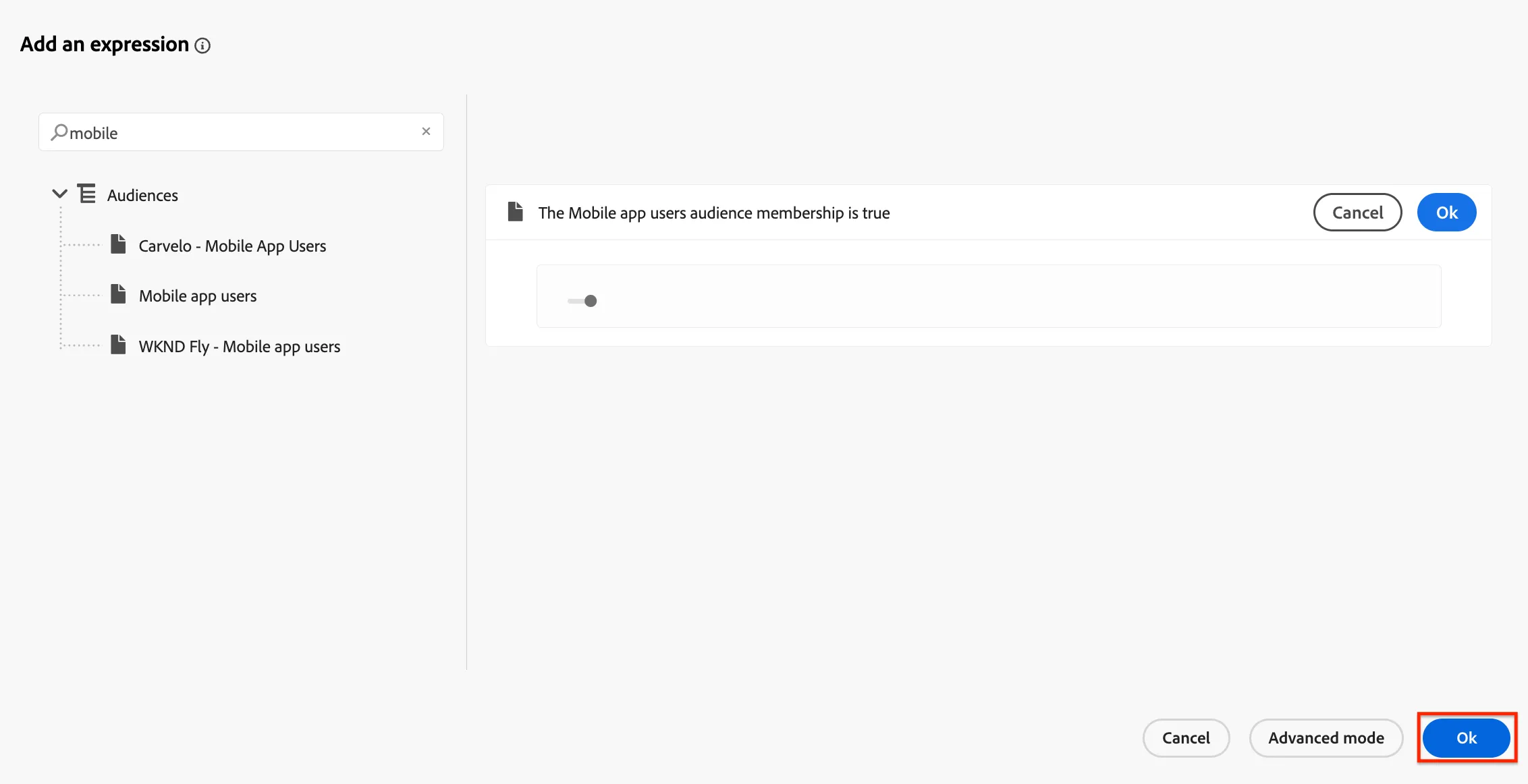
Click the bottom Ok button.
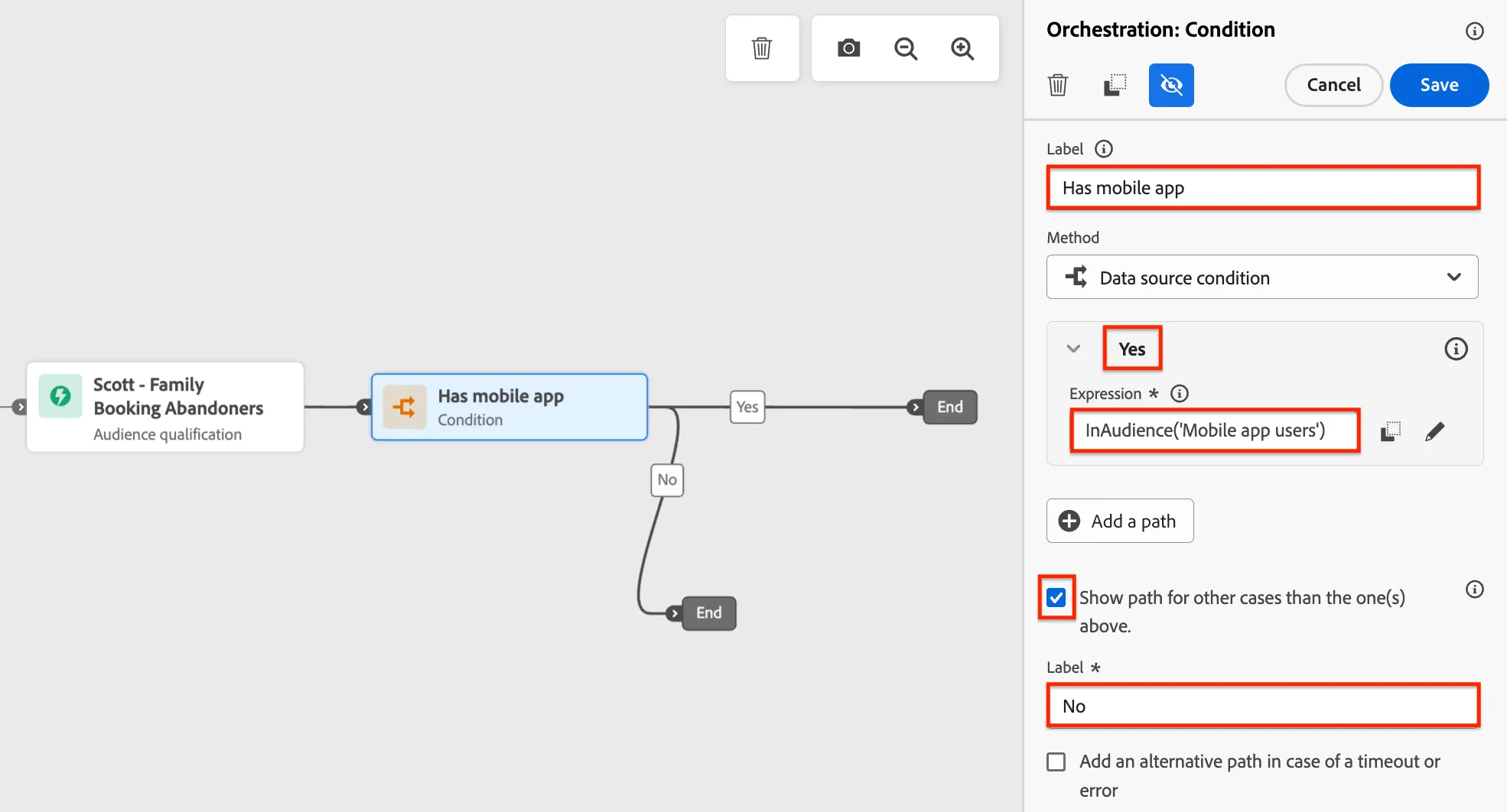
Set the Label to Has mobile app. Check the Show path for other cases other than the one(s) above option and change the bottom path Label from Others to No.
Double click on Path1 and change the name to Yes. Then click Save. It should all look like this:
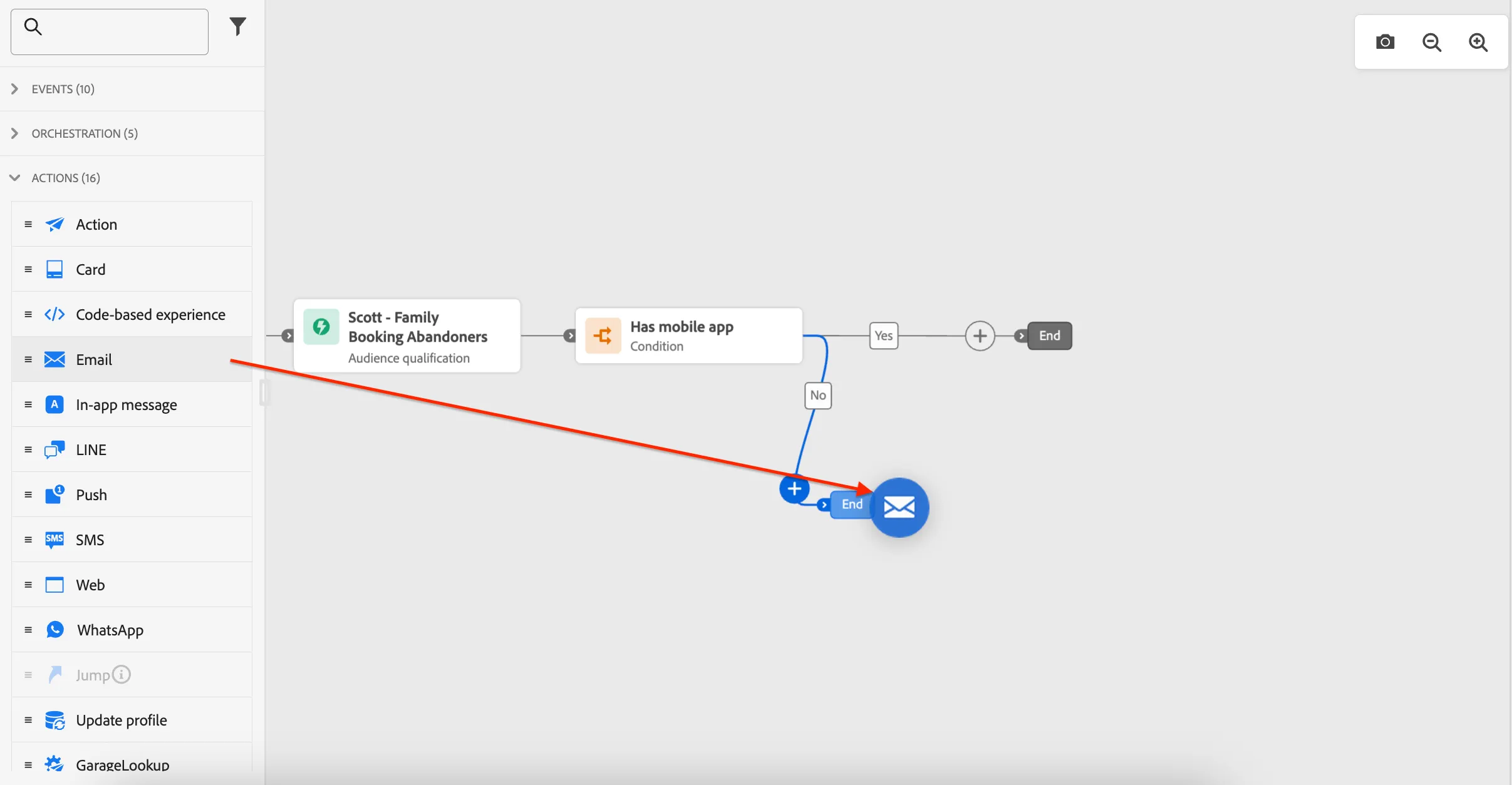
From the left, collapse Orchestration and expand Actions. The Actions panel is where you'll find the native messaging channels as well as any custom channels or actions that have been enabled in the sandbox. Drag an Email action onto the canvas and attach it to the end of the No path.
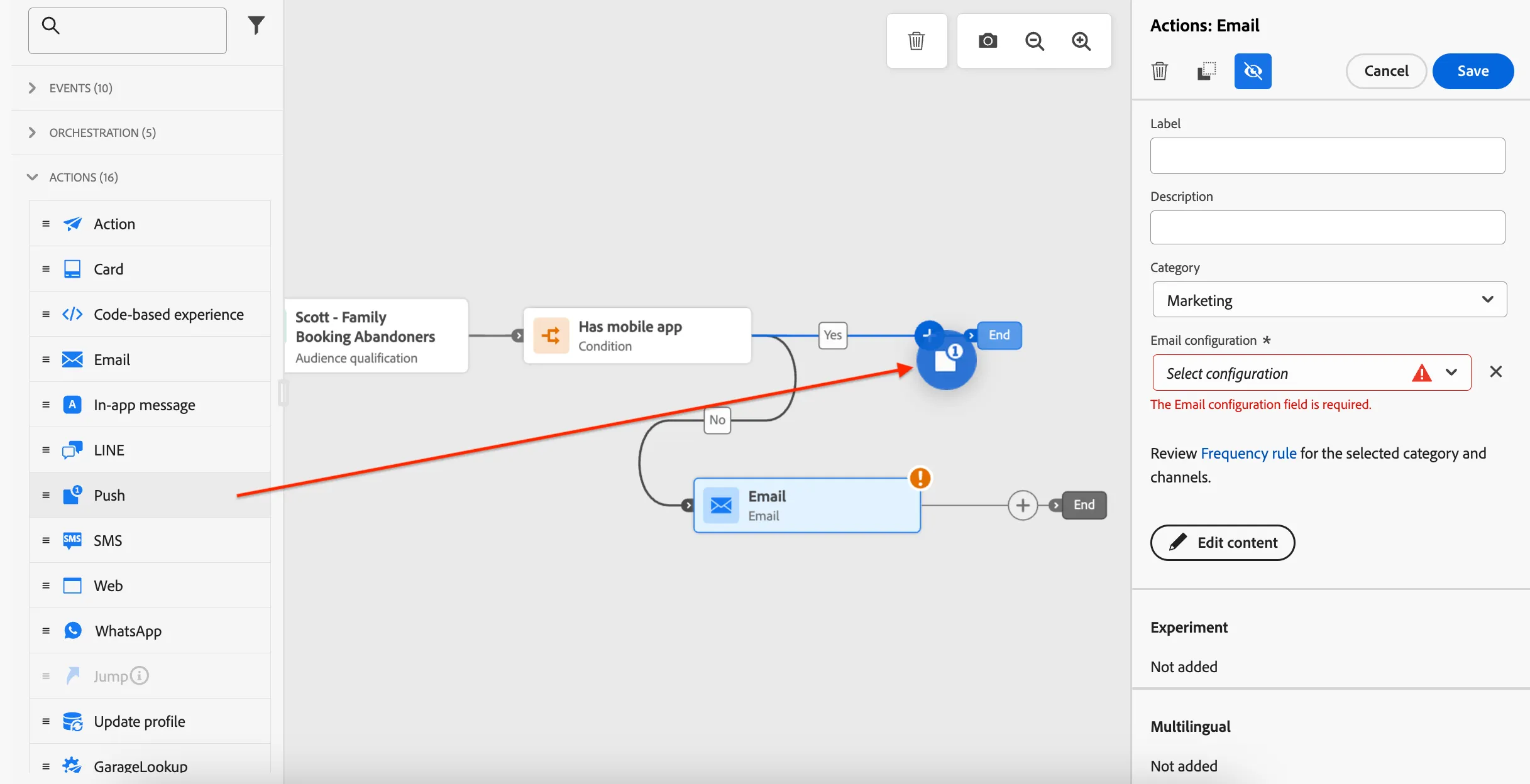
Before we configure the email content we'll finish the journey flow. Drag Push from the events panel and drop it at the end of the Yes path.
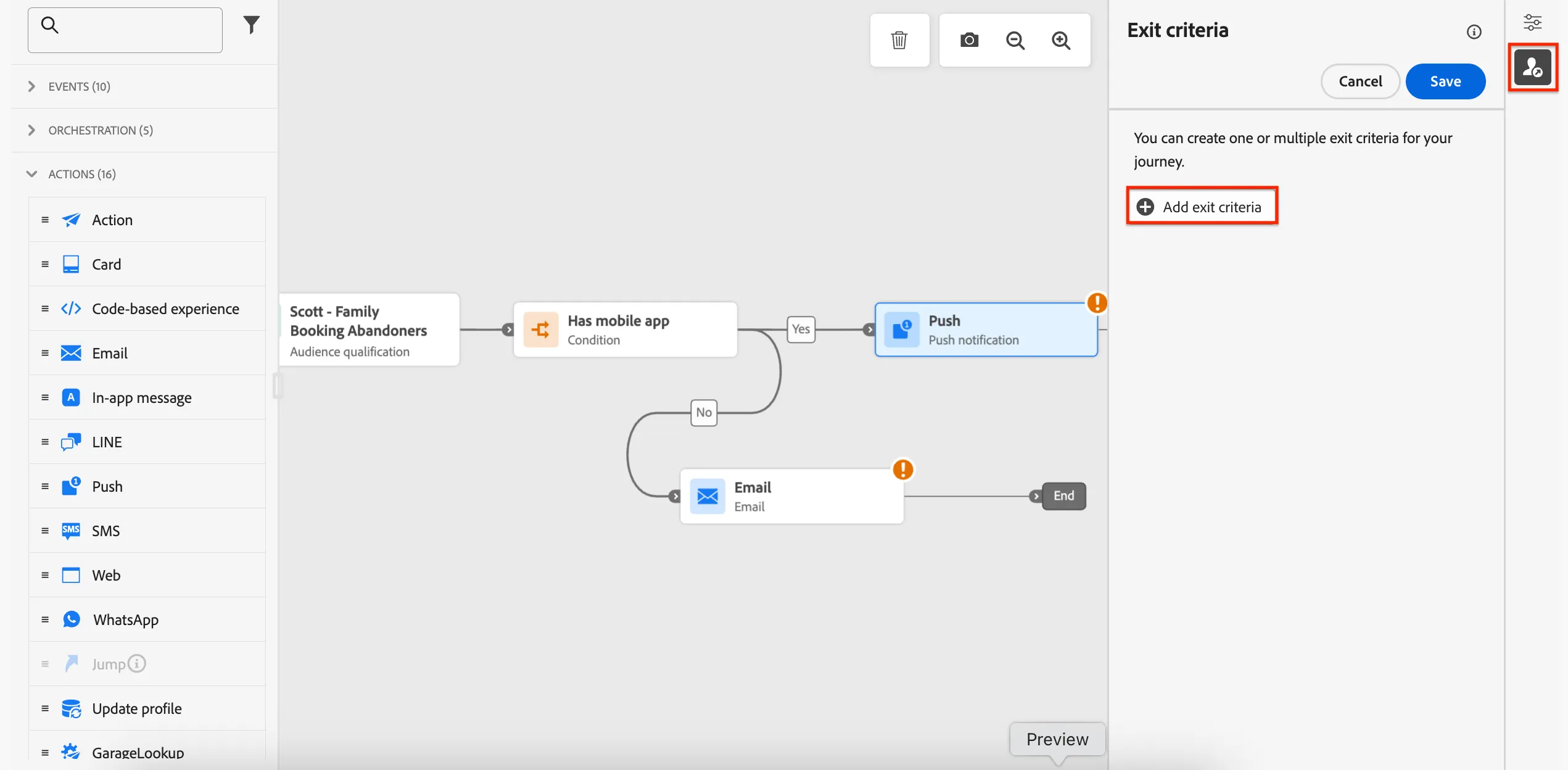
Lastly, we'll add exit criteria to remove profiles from the journey once they complete the desired action, in this case completing their booking. Click on the profile icon to the right of the journey to open the exit criteria panel. Click Add exit criteria.
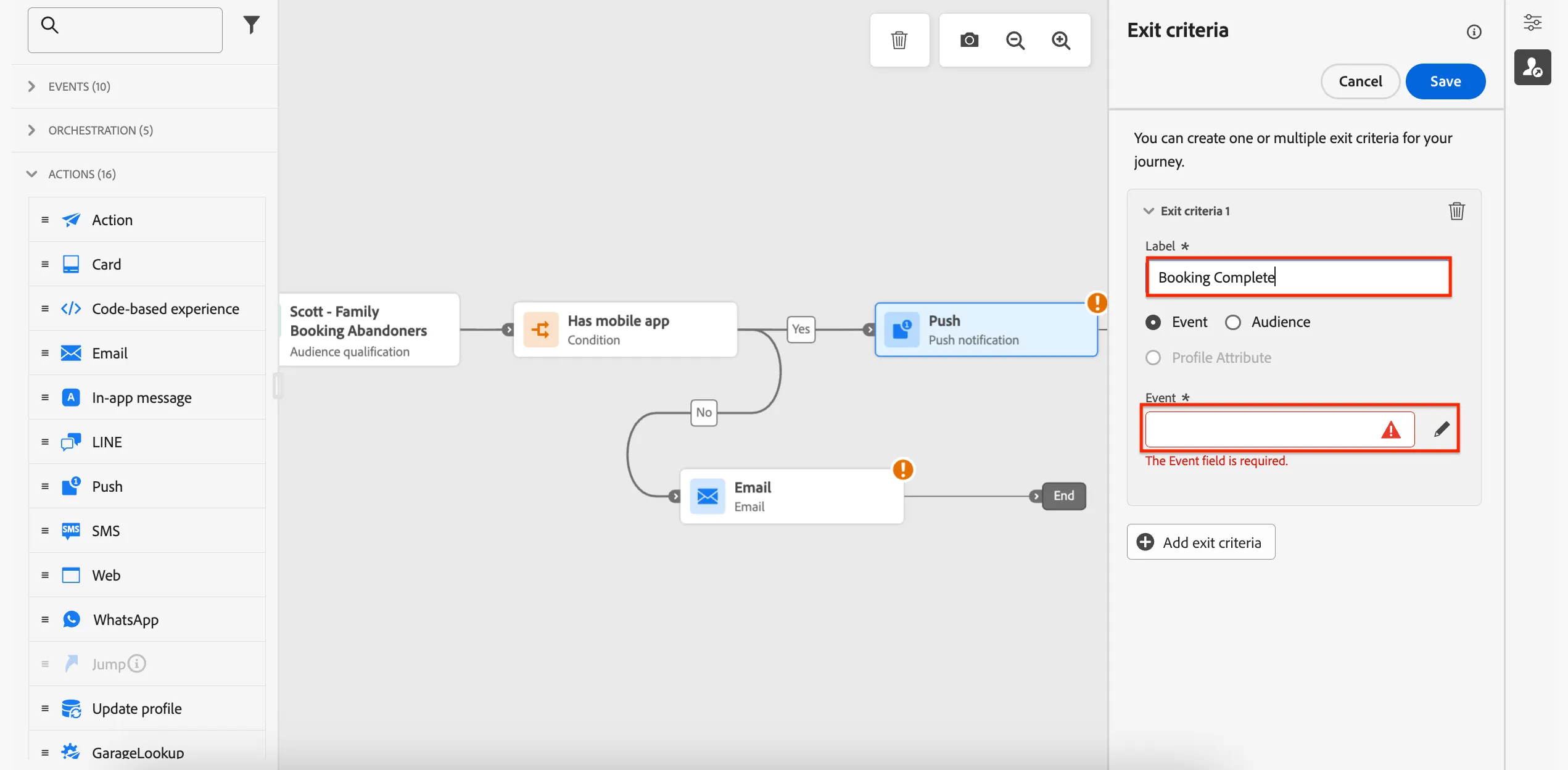
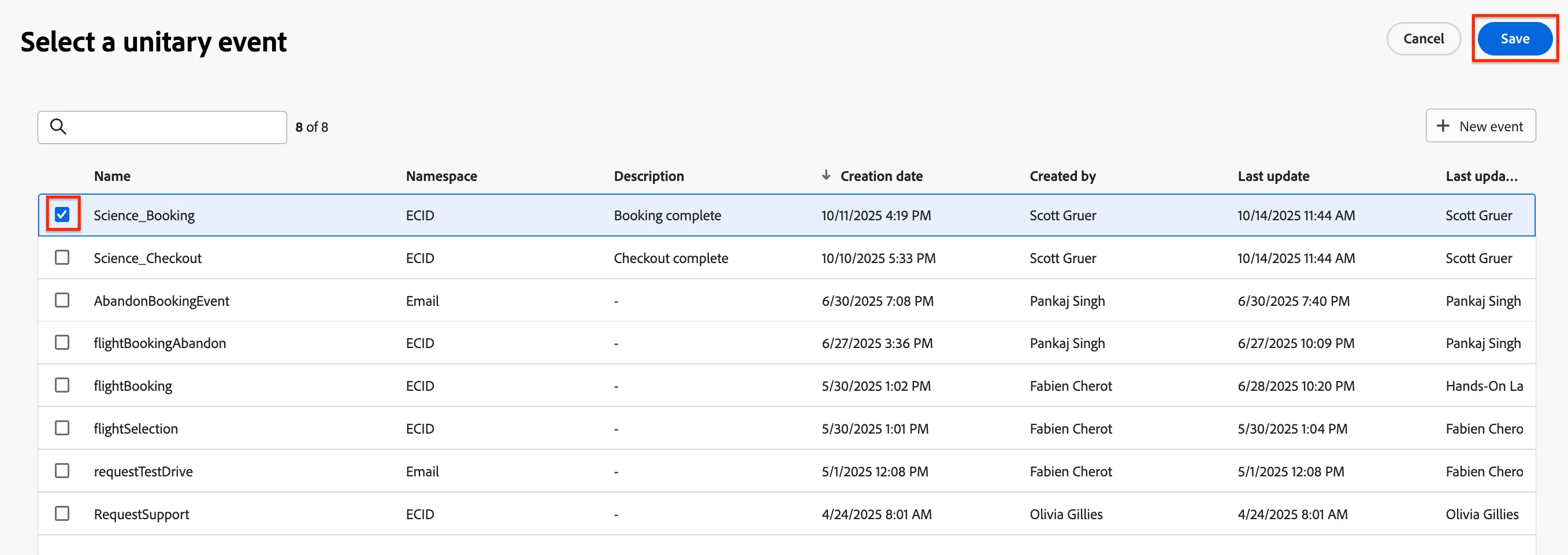
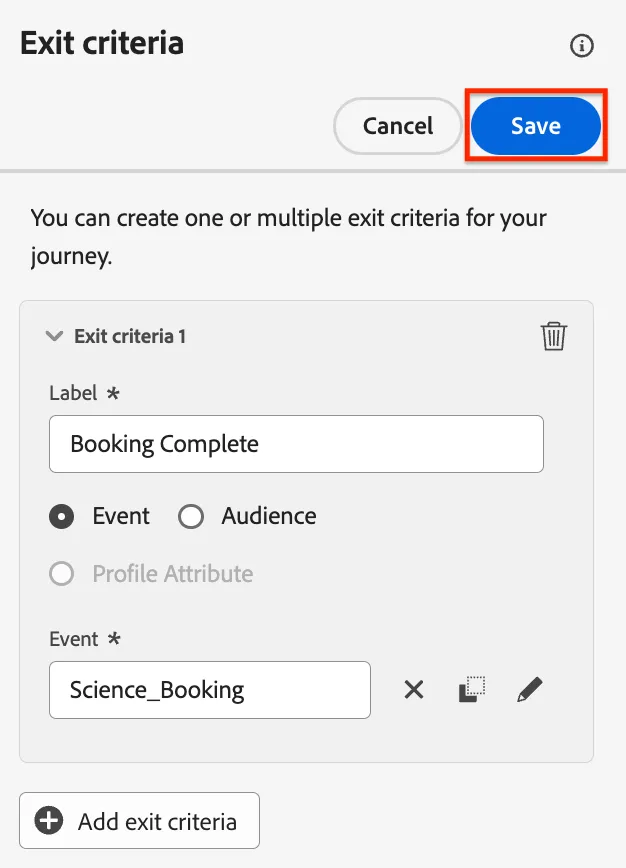
You can use events or audiences as exit criteria, for this example we'll use an event. Set the Label to Booking Complete and click Event / pencil icon to select an event.
Select the Science_Booking event and click Save.
Click to Save the criteria.
Your journey should look like this.
Next we'll add content to our messages.
2.3 Add Email Content
Click on the email activity in your journey, set the Email Configuration to 'email-marketing' and click to Edit Content.
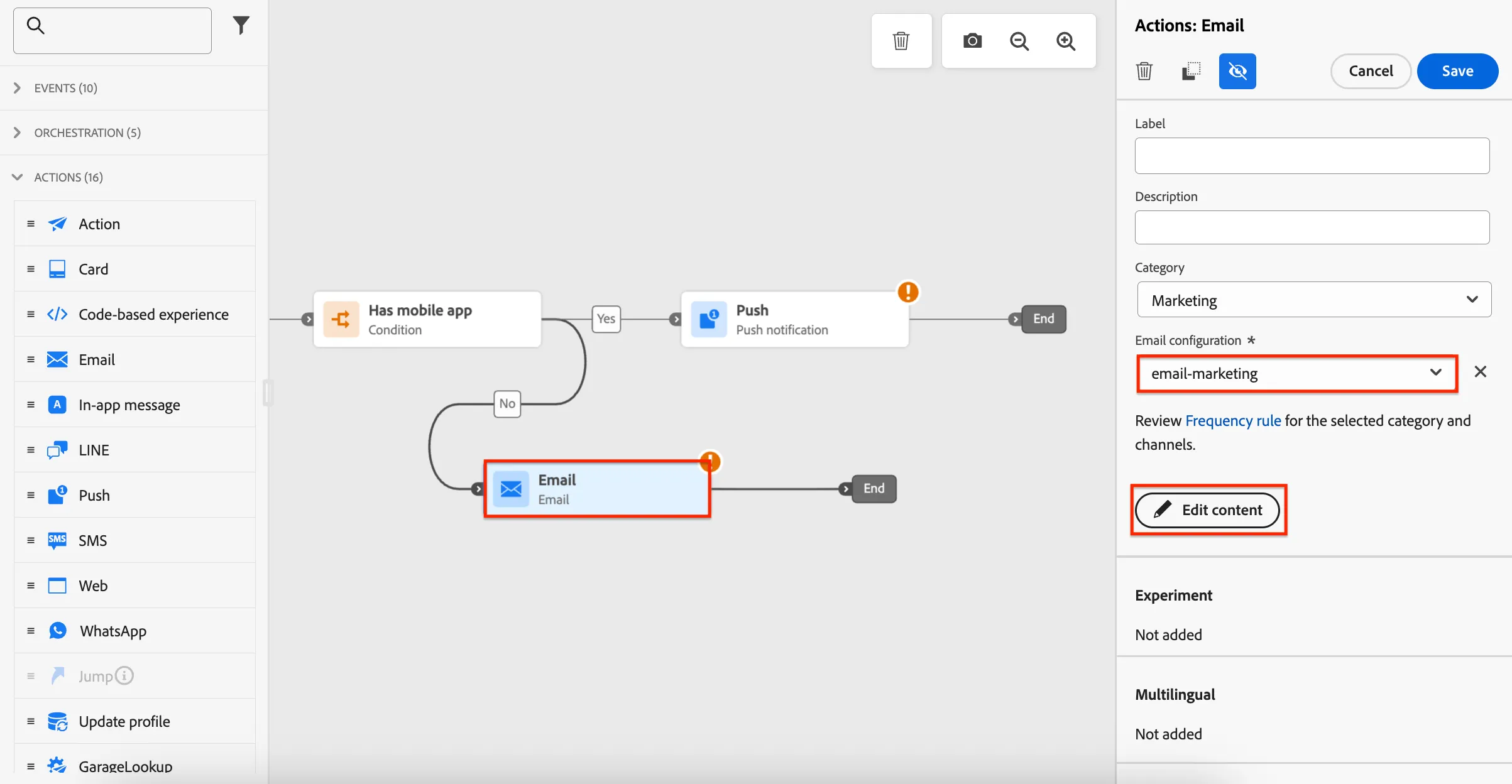
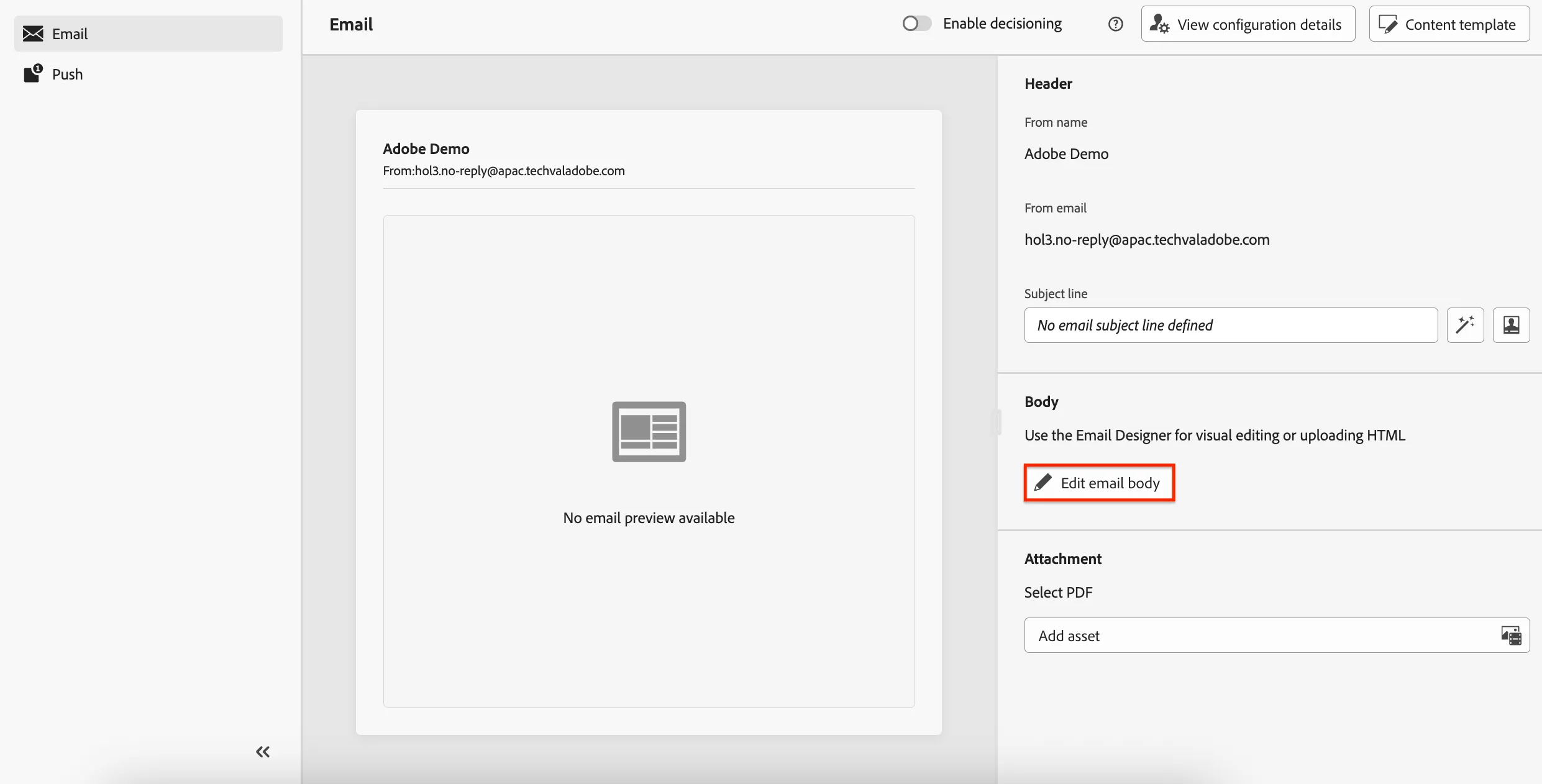
Click to Edit email body
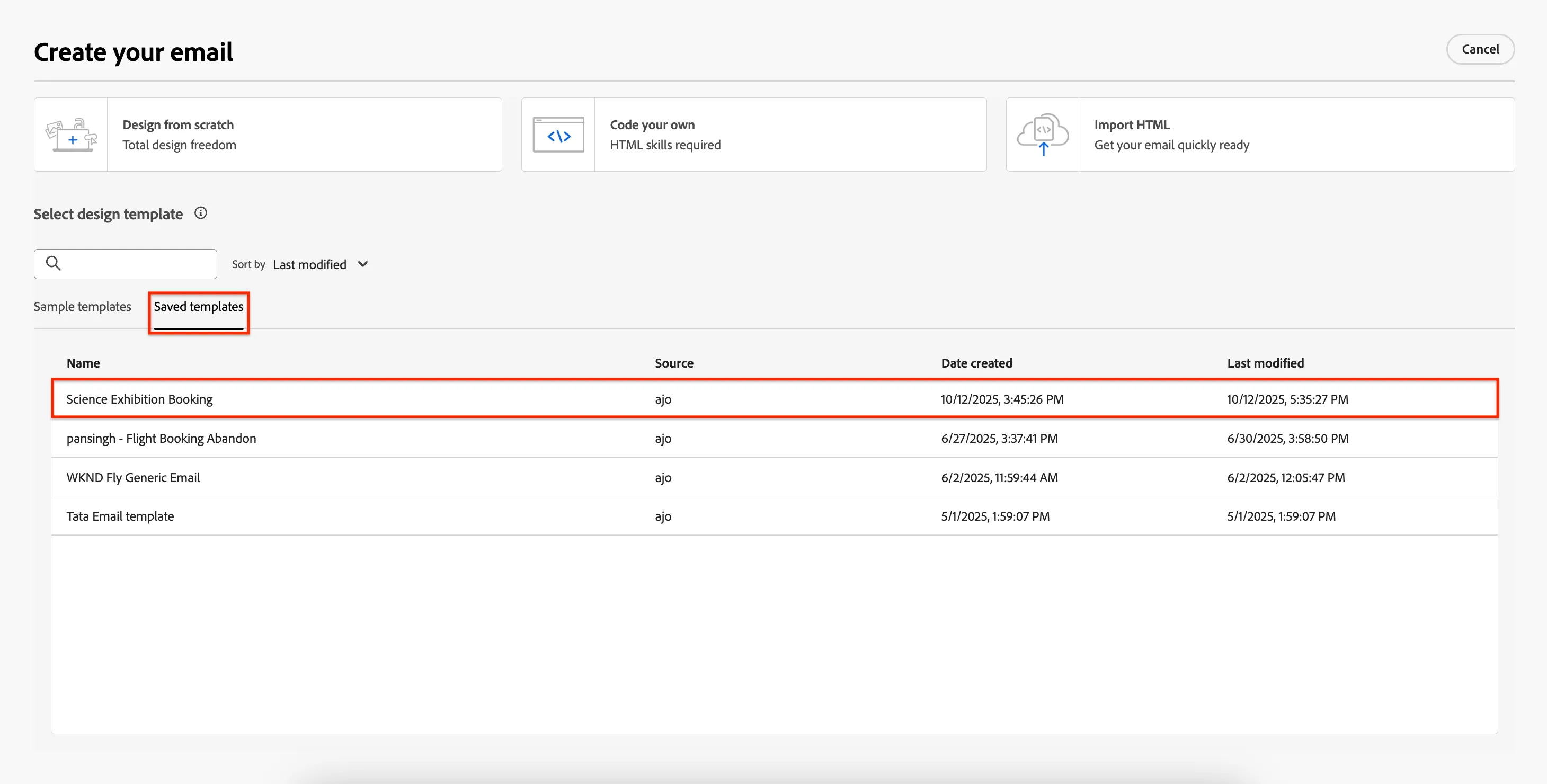
For this exercise we'll start with a pre-defined content template. Open the tab to see the Saved Templates, then select the Science Exhibition Booking.
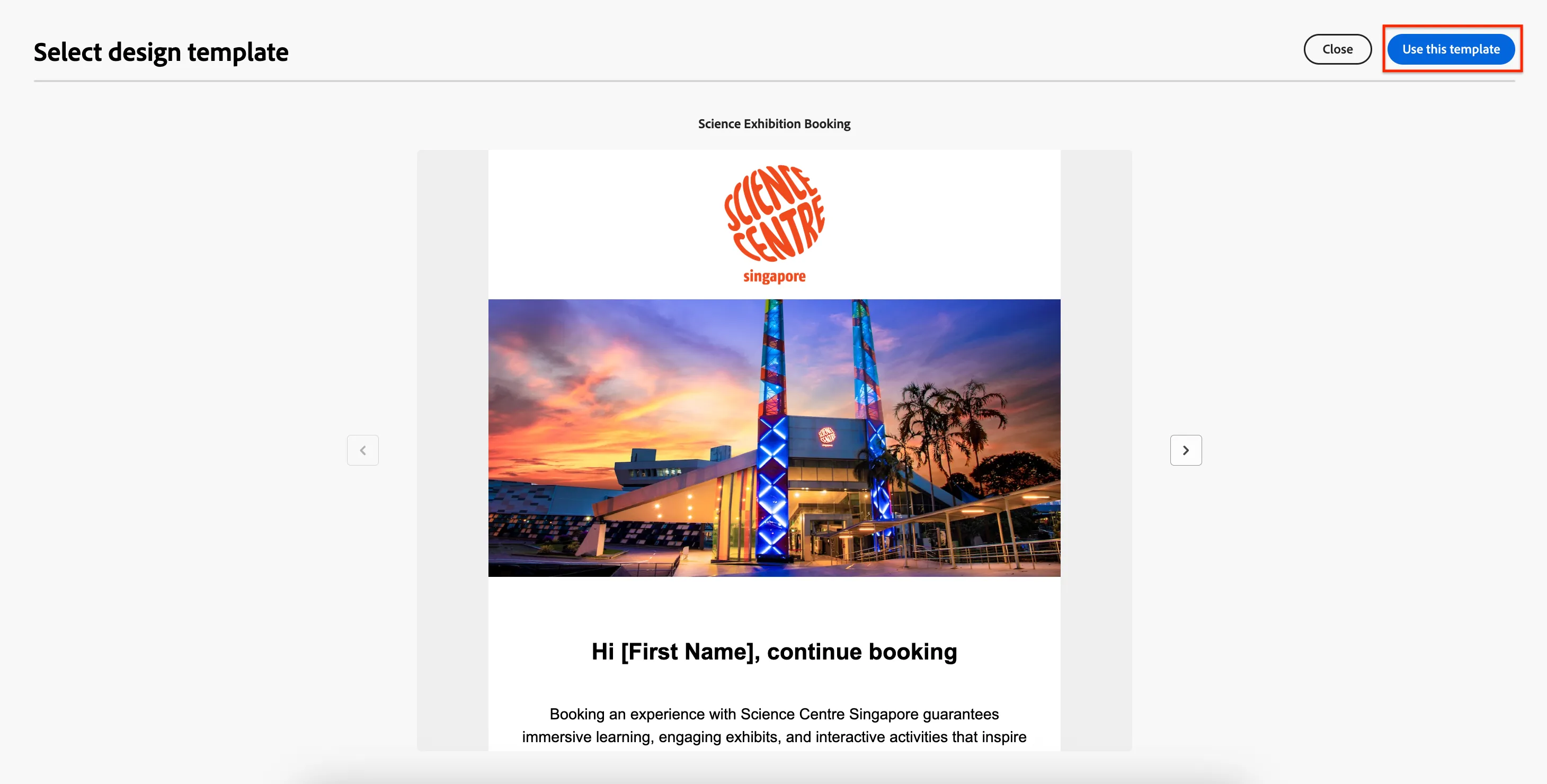
Click to Use this Template
2.4 AI Assistant and Brand alignment
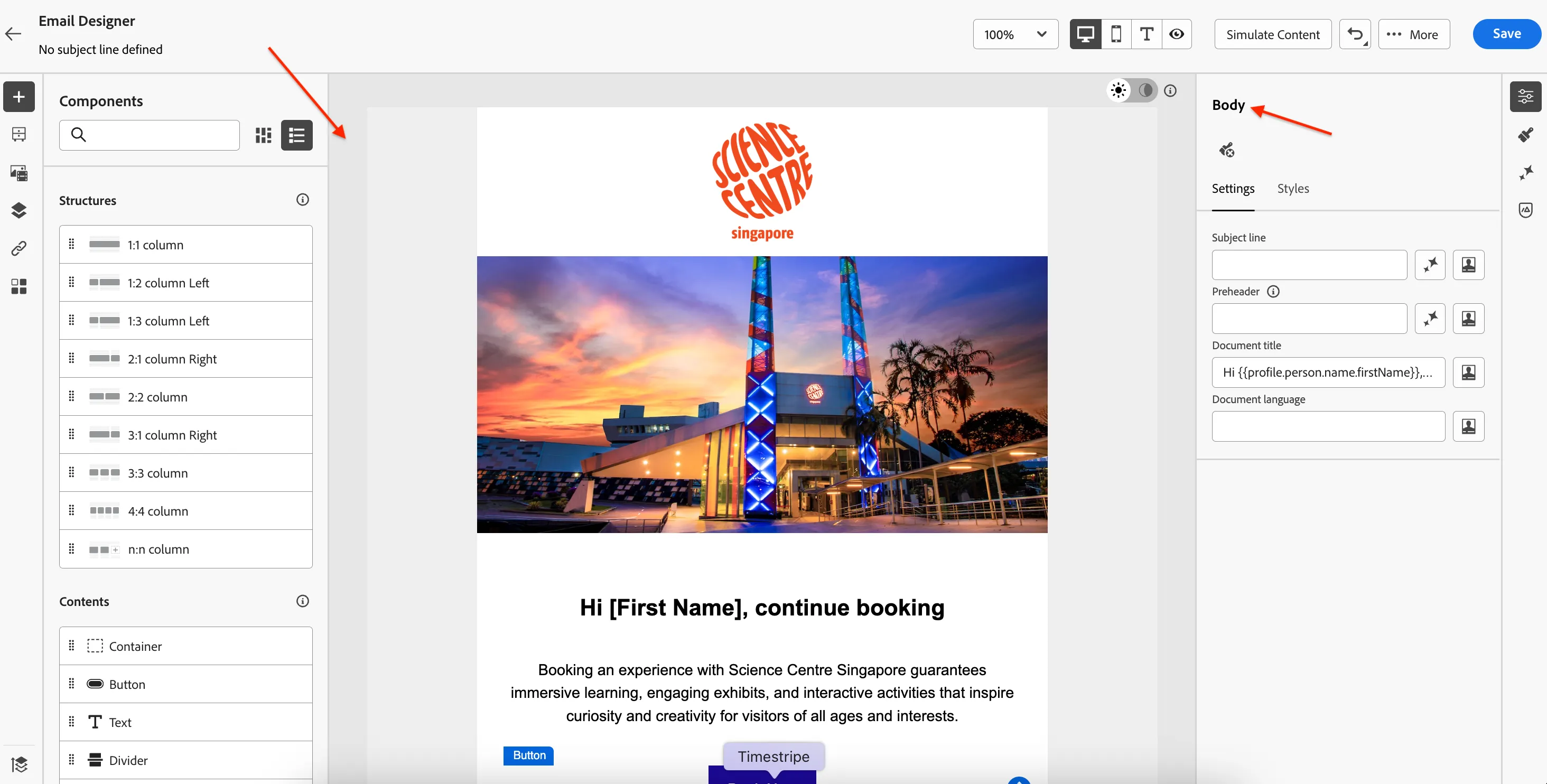
Now we'll use AI Assistant to help us generate variations of this content to use for A/B testing. AI Assistant can be used to generate individual images or text components but in this case we're going to generate new variations of the full email. Make sure you have selected the Body of the email then click to open the AI Assistant.
Top Tip - To select the body click the lighter grey area surrounding the content of the email.
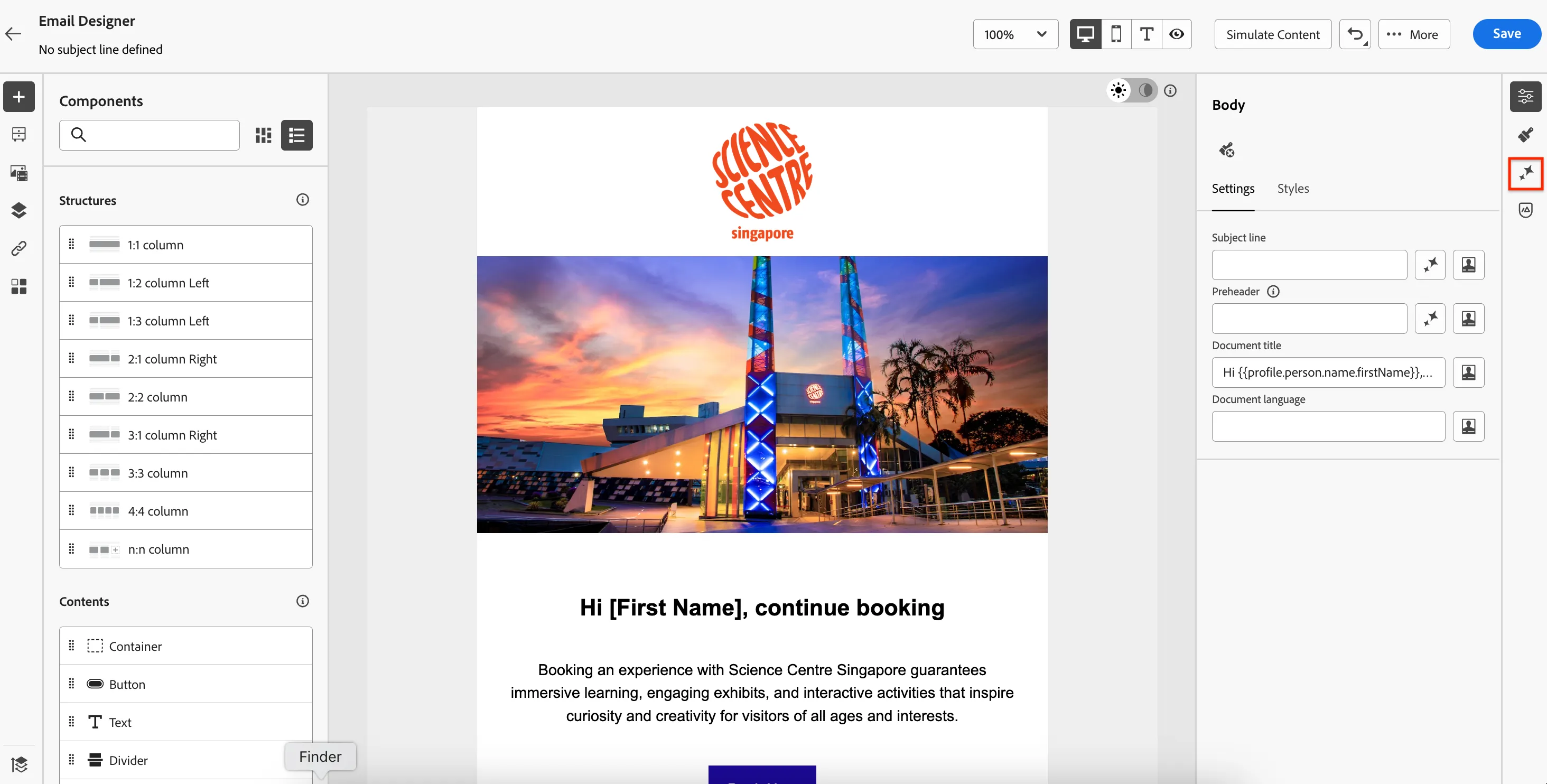
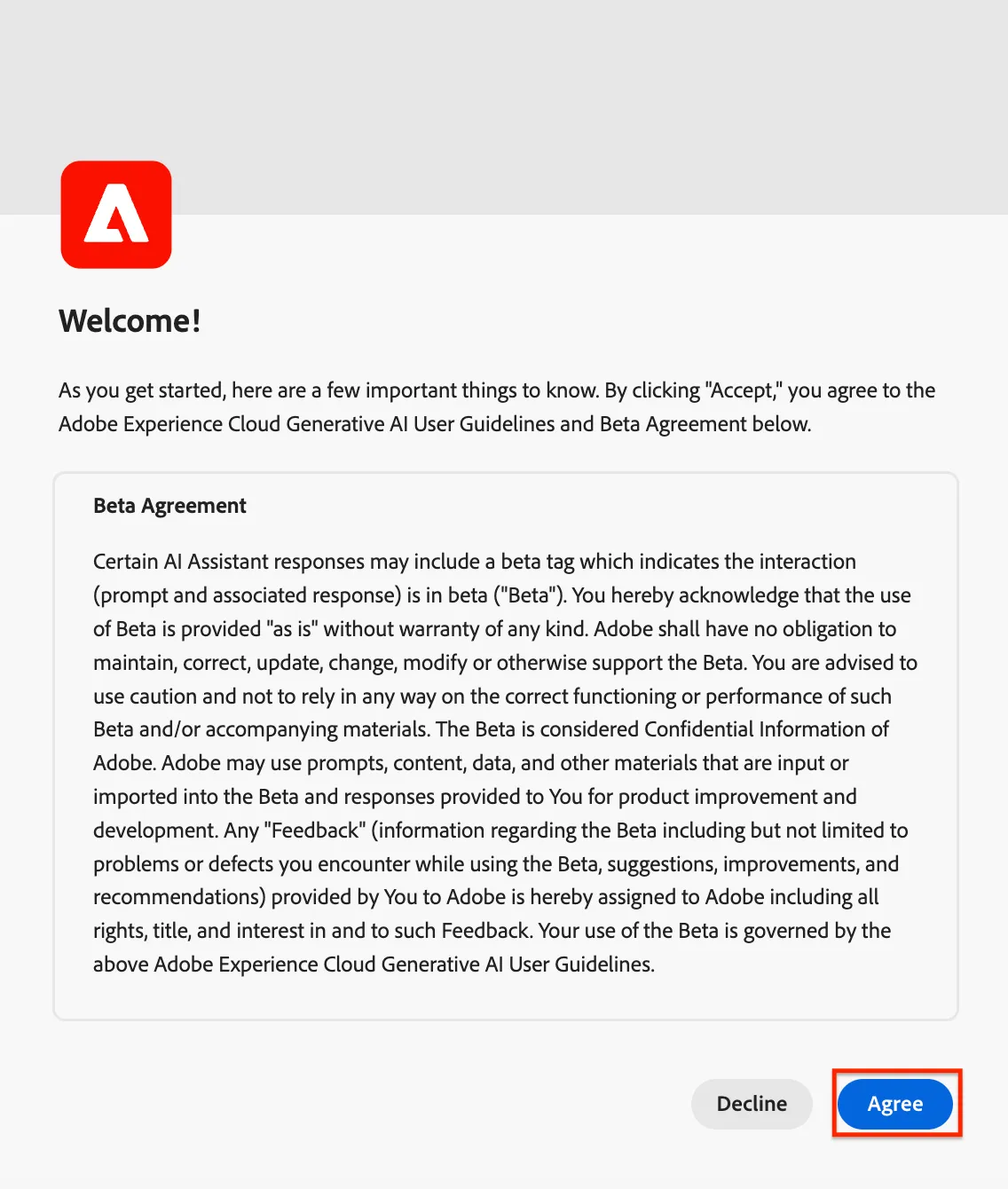
You might see an Agreement popup. If you do, scroll to the bottom and click Agree.
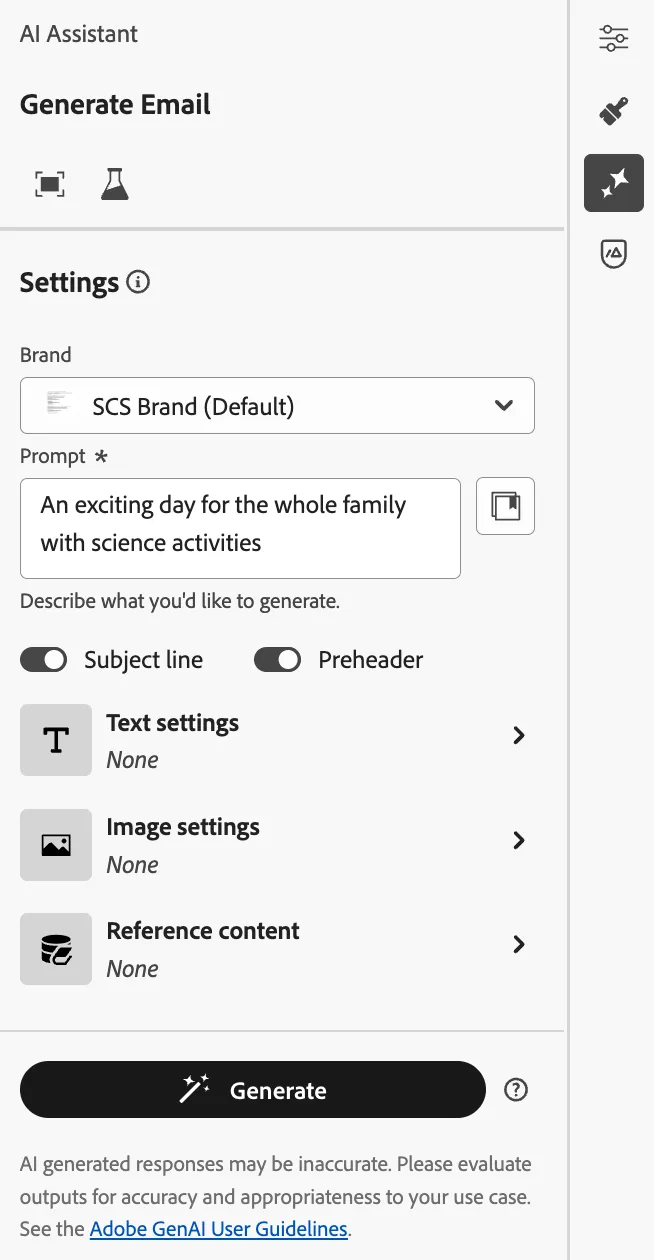
Before generating content we need to select the Brand Guidelines and provide a prompt. Make sure SCS Brand is selected and add a prompt of your choosing. Select to generate subject line and Preheader also.
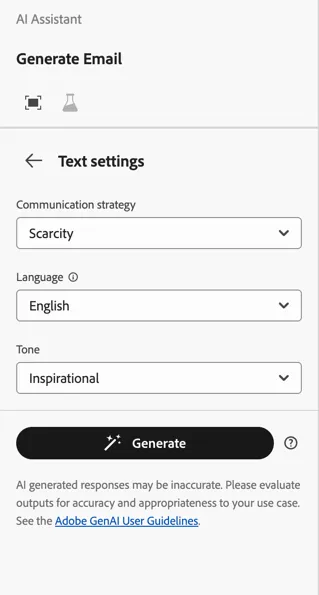
Update the Text settings to select the Tone, Language and Communication Strategy.
Once you're happy with the settings click to Generate. You will see two new variations of the content generated. Here, AI is being used not only to generate the text but also the imagery and other elements like CTAs.
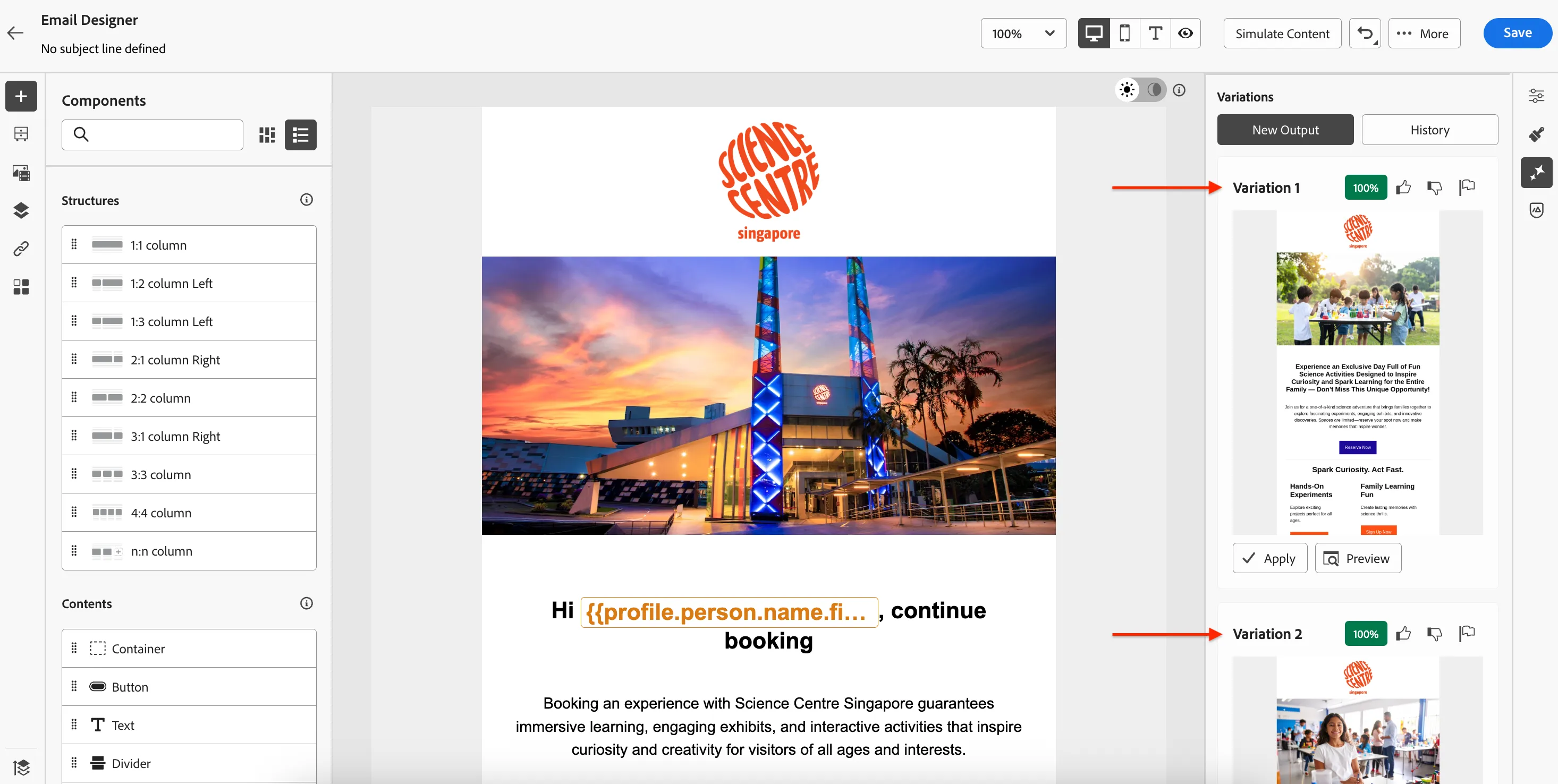
Click to Preview a variation.
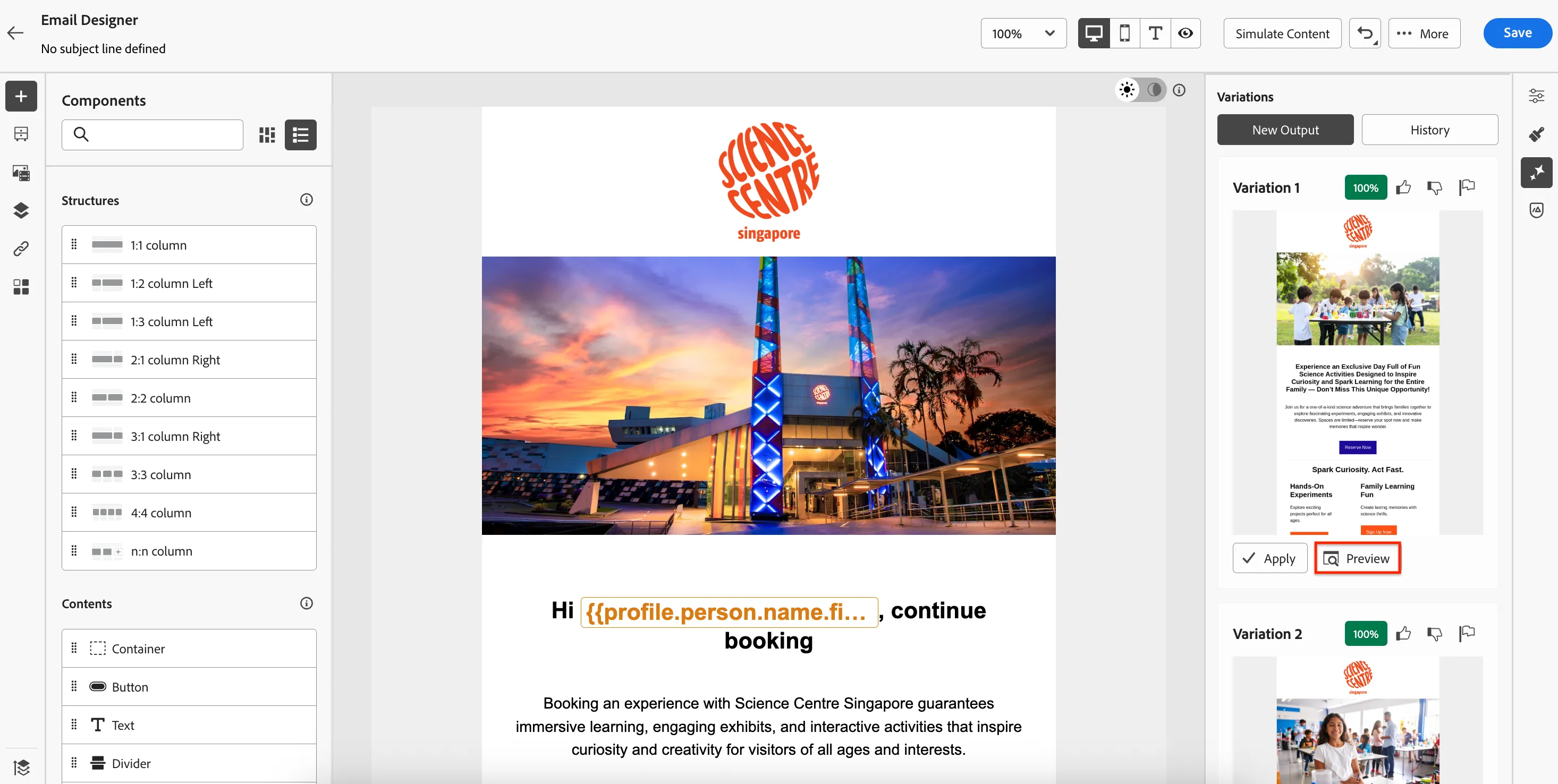
In this view you can review the content in detail, make updates to the prompt and regenerate if needed. It's also where you can review whether or not the content aligns to the Brand guidelines selected. Click on the Brand alignment.
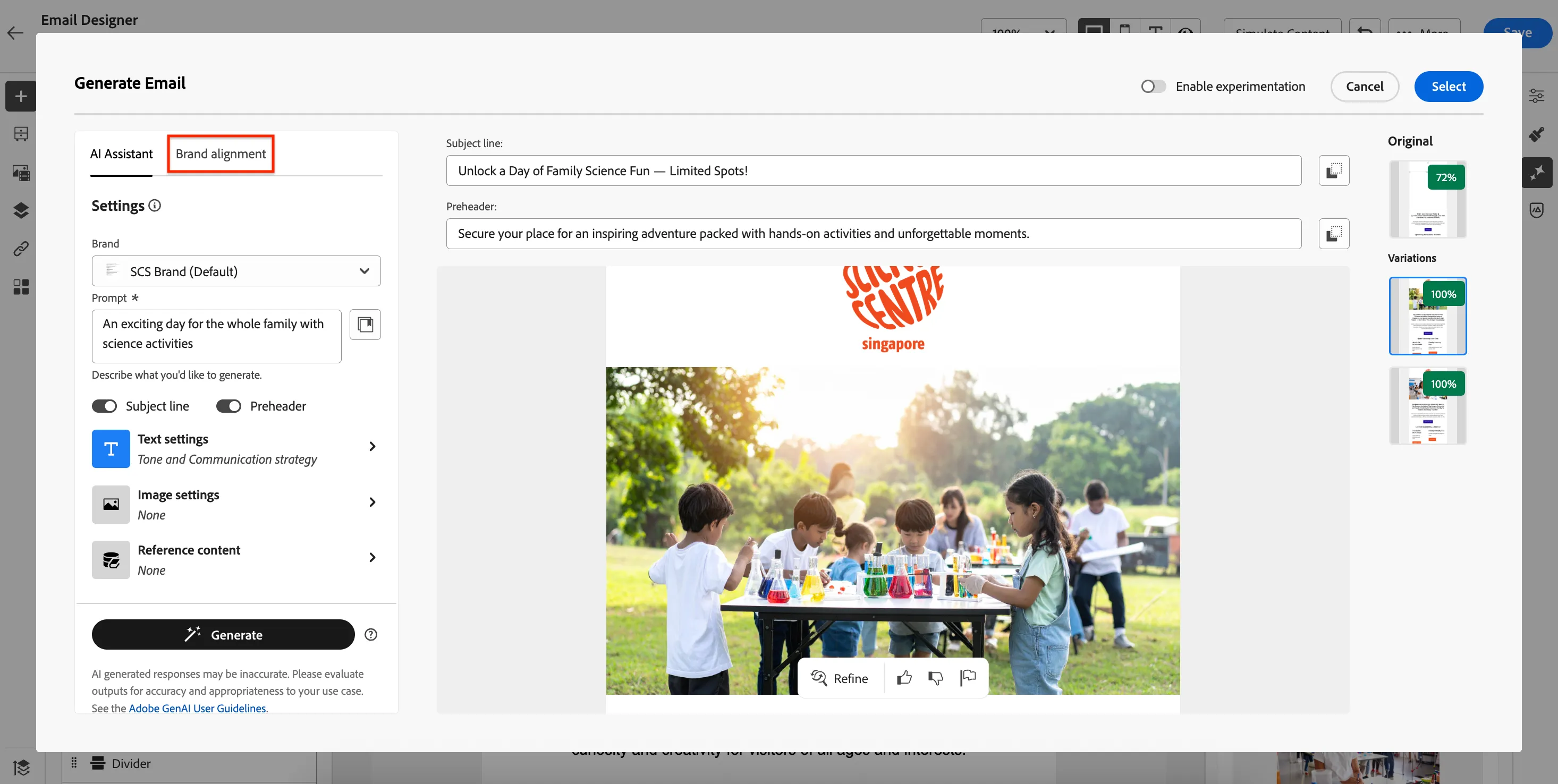
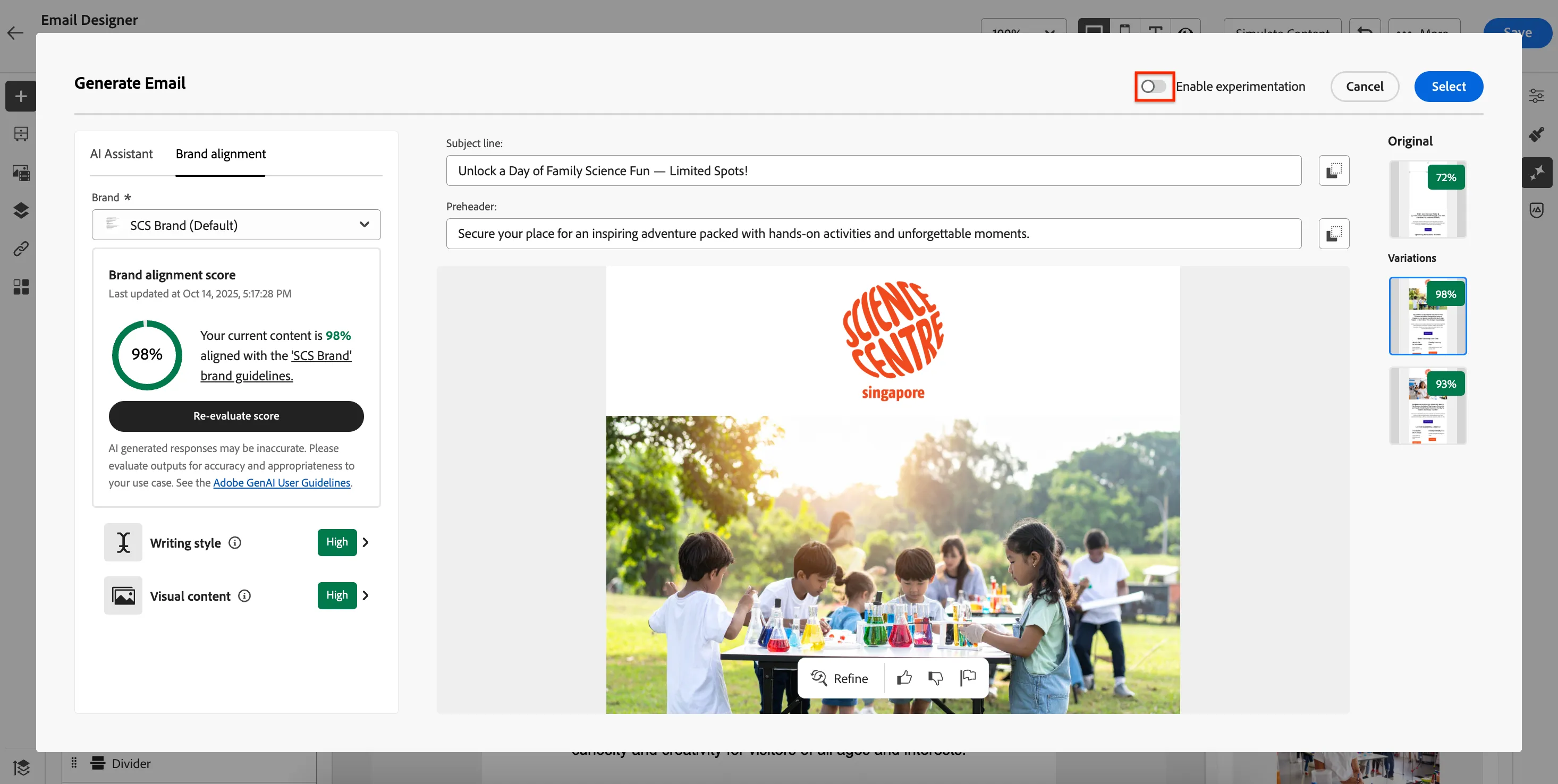
Here you'll see the brand alignment score. If it's below 100% you will be able to click on the brand elements such as Writing style or Visual content to get more detail why the content didn't meet 100%.
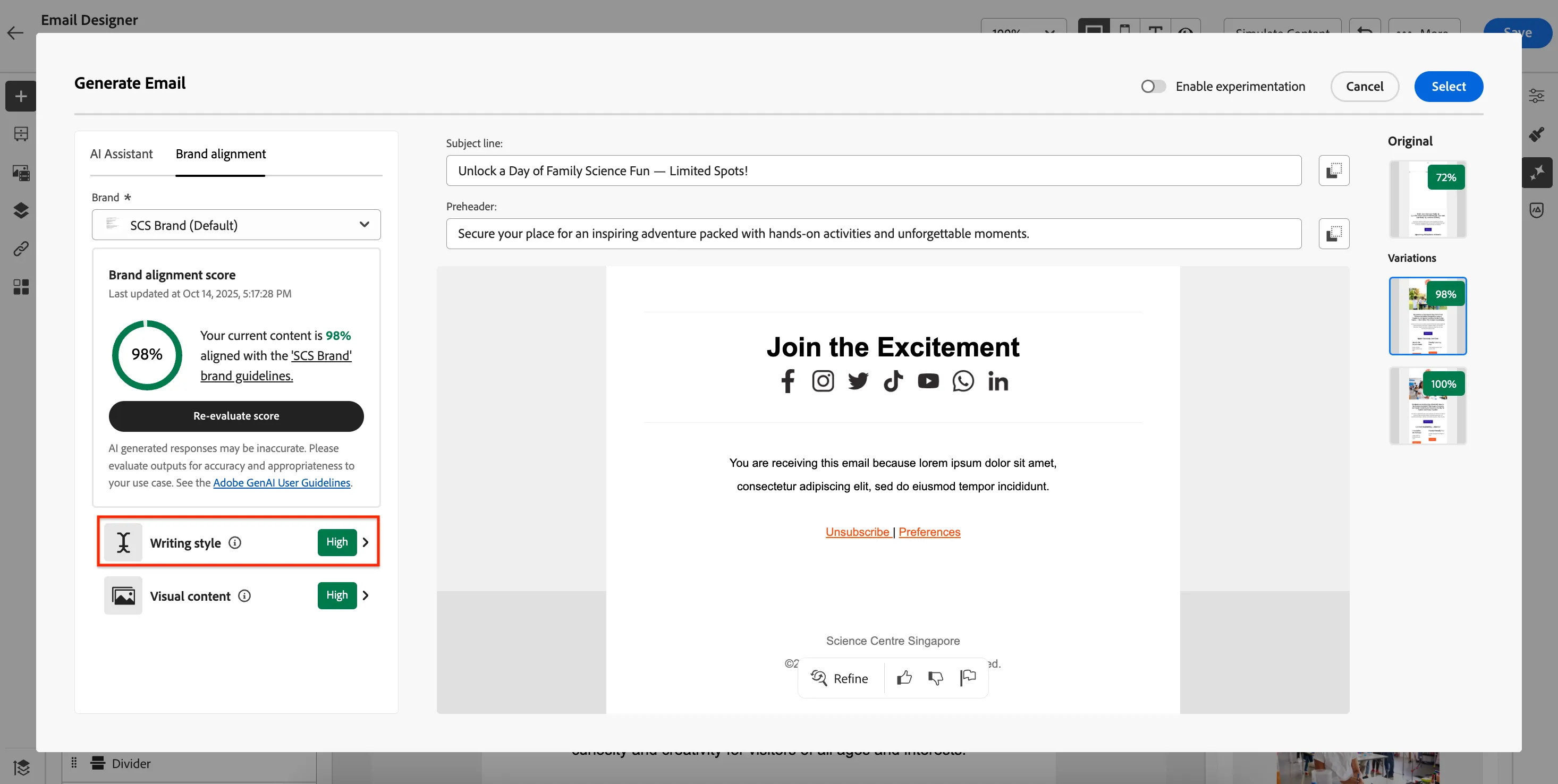
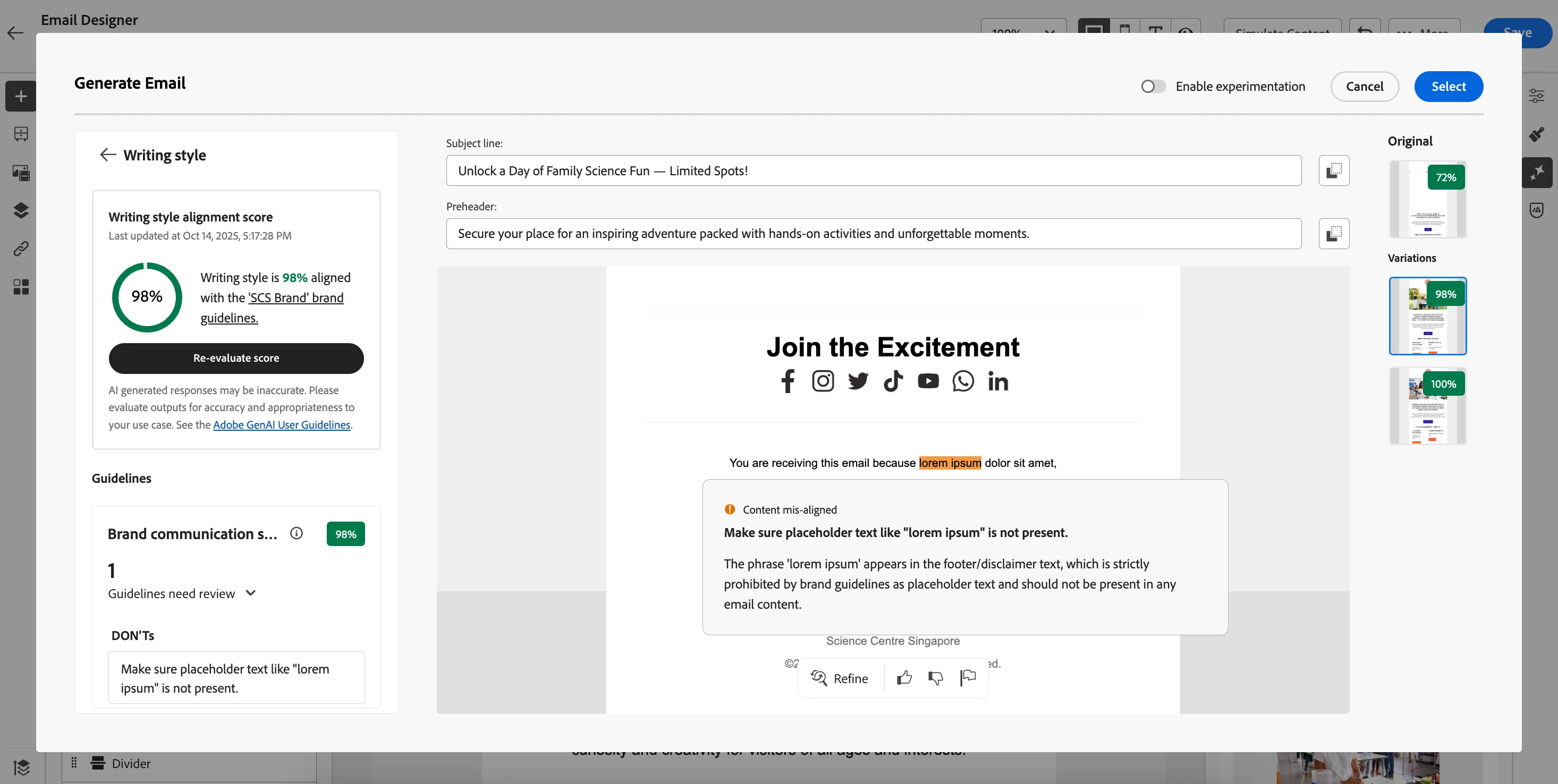
From here you can either select one of the variations to use as your email content or we can create an experiment and add the generated content as variations to test which performs the best. Click the Enable experimentation toggle.
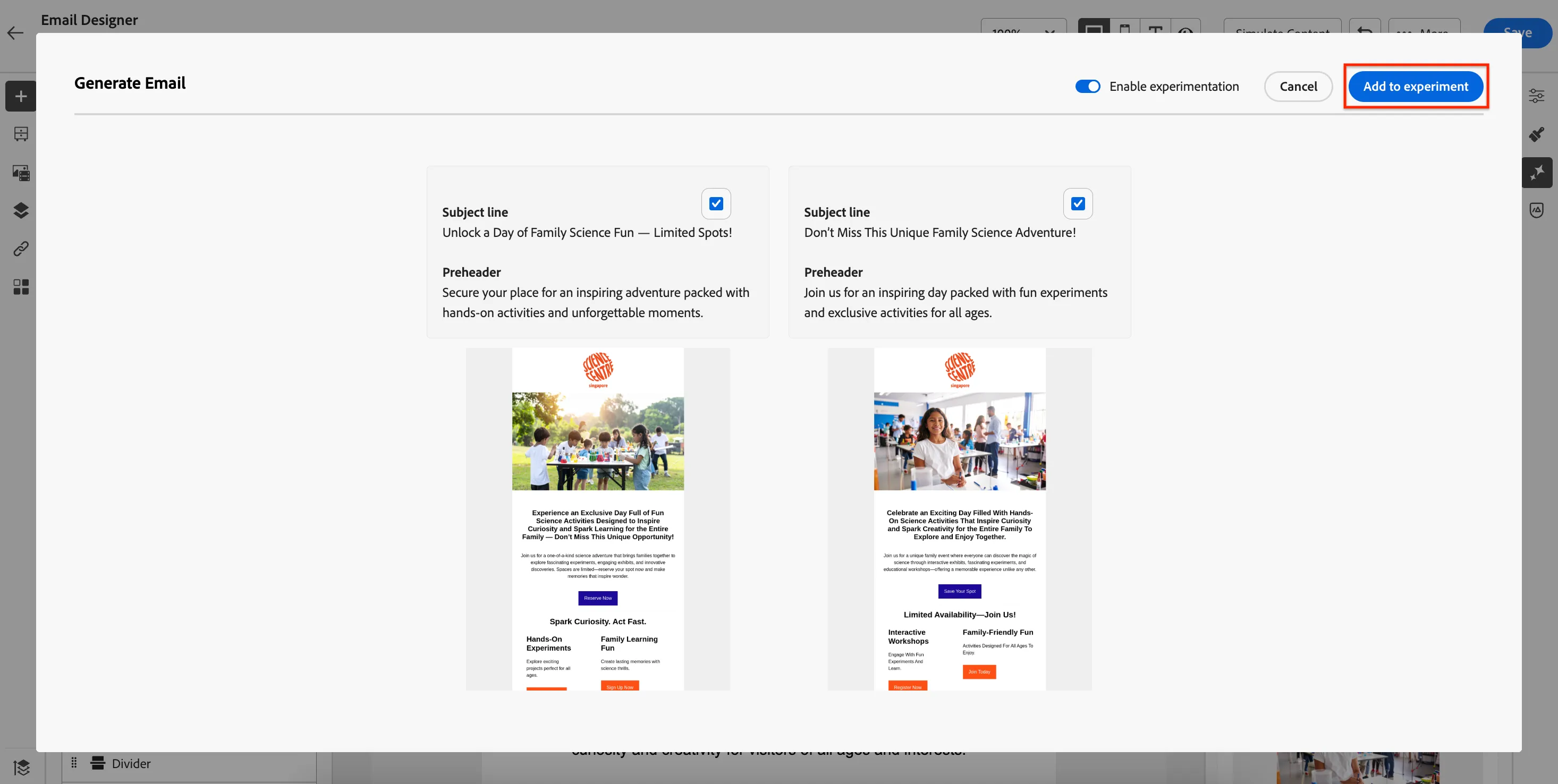
Choose one or both of the variations to Add to Experiment
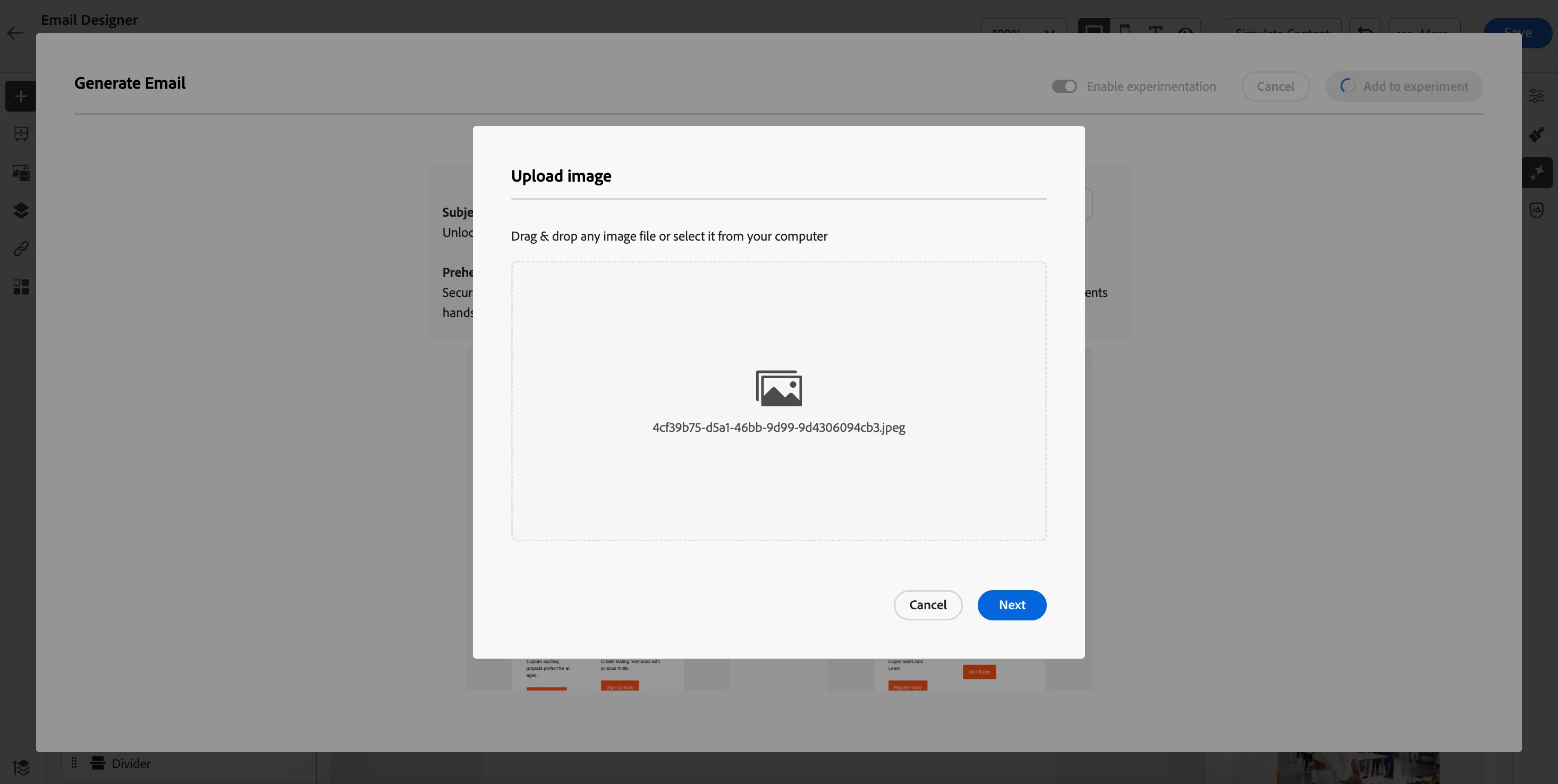
You need to specify where the generated images should go. AJO comes with Adobe Experience Manager Assets Essential which is a a lightweight, cloud-native digital asset management (DAM) solution designed for creative and marketing teams to store, manage, find, and distribute digital assets.
Having an integrated DAM is a differentiator and empowers your teams to scale and get campaigns to market faster. Click Next when the Upload image dialog appears.
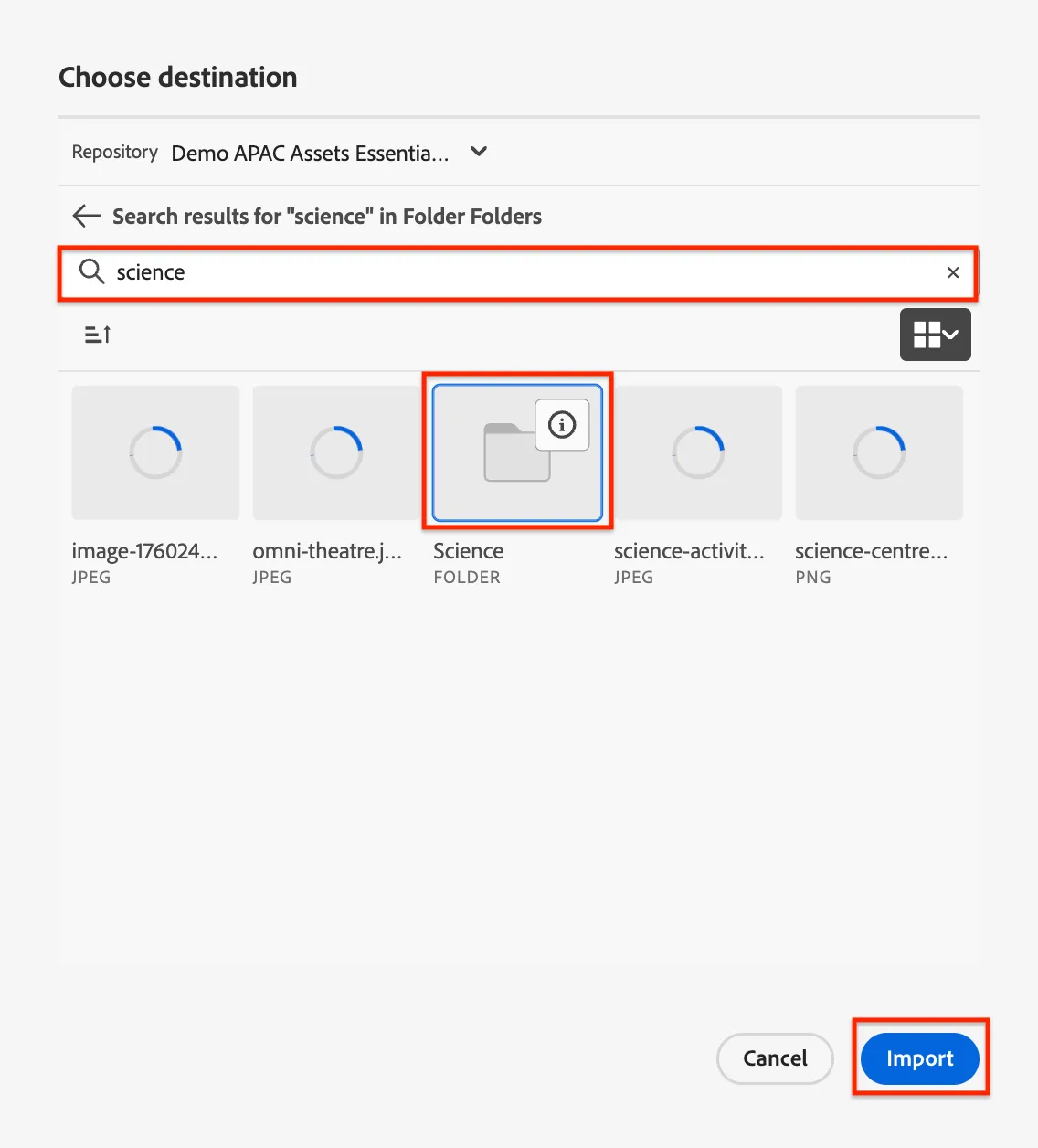
In the search box type science and hit enter. Click on the Science folder and then Import. You don't have to wait for the images to load, you can click through even if the spinners are still spinning. Repeat this process one more time for the 2nd image.
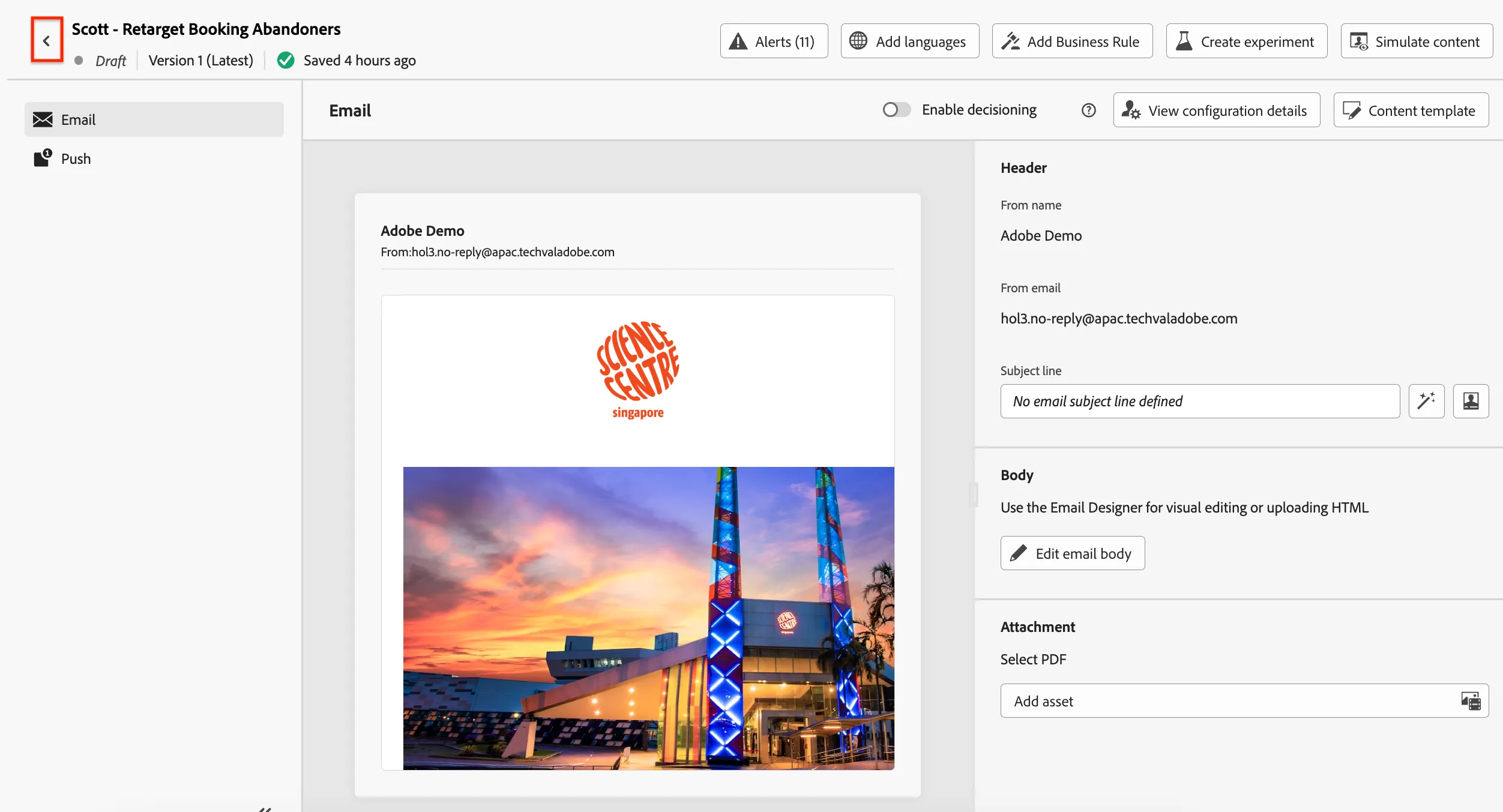
Click the top left arrow to return to the journey.
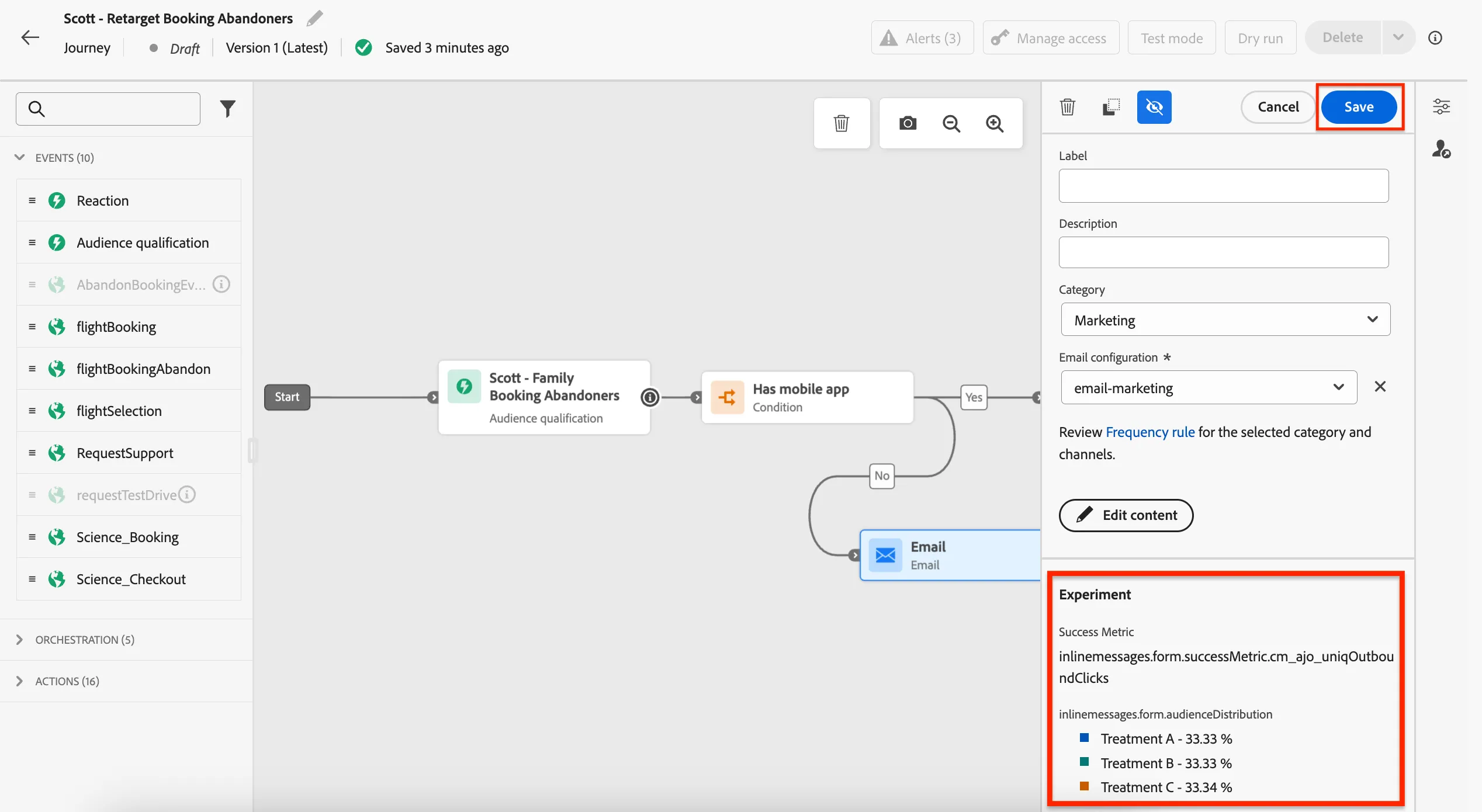
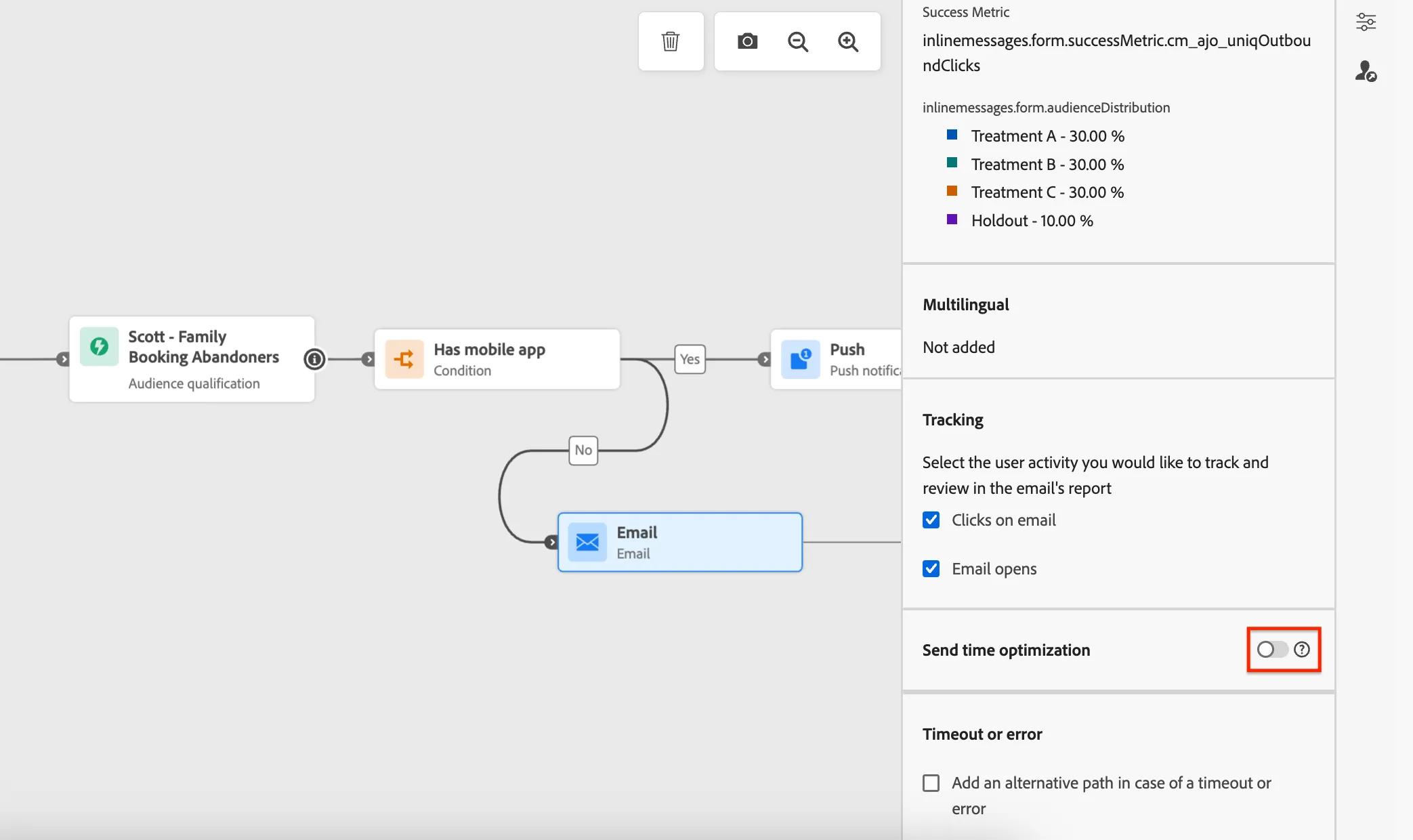
You can see the experiment configuration in the email properties from the journey canvas. Click to Save the email.
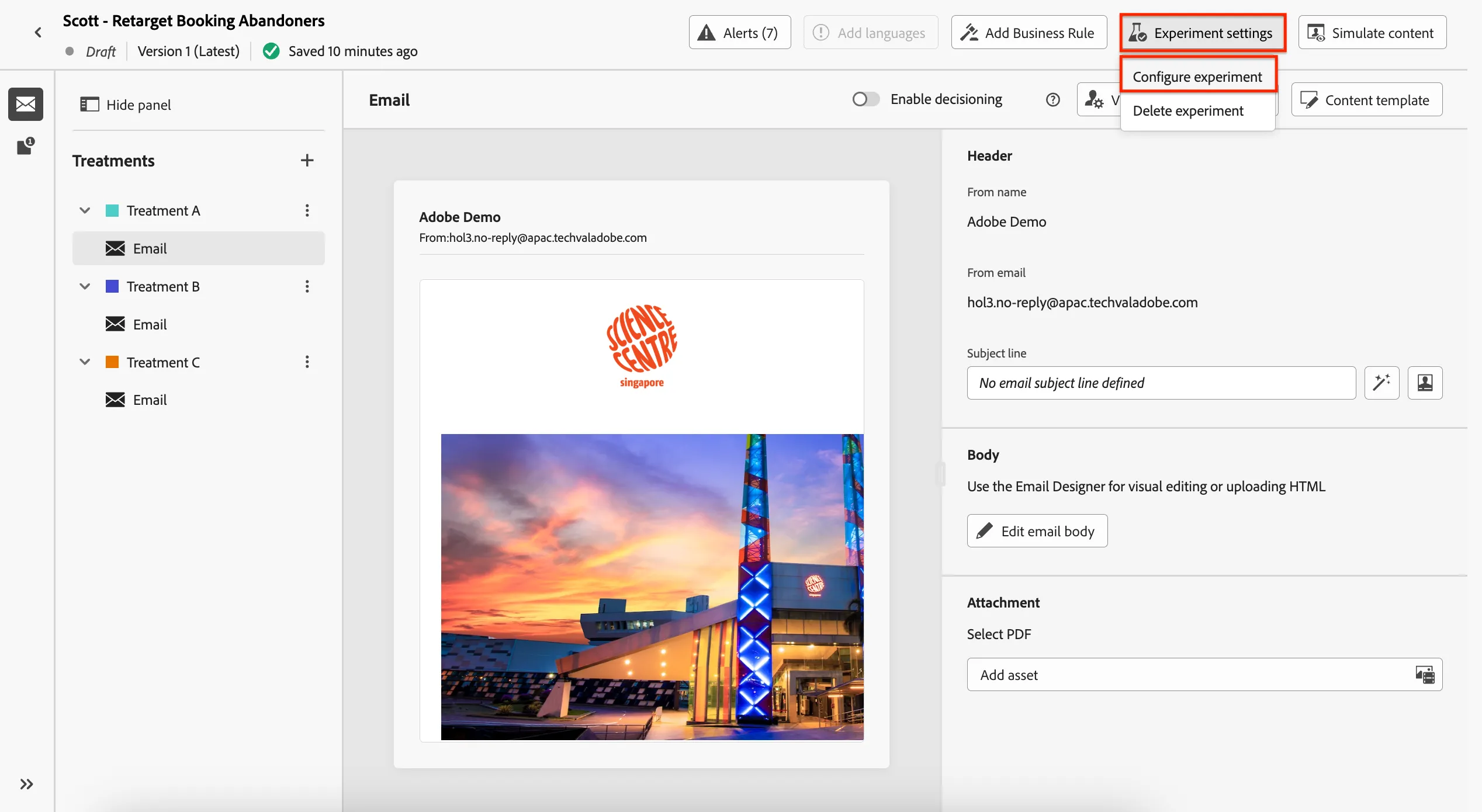
In the journey click on the Email action then Edit content again. Click Experiment settings → Configure Experiment.
Here you can update the success metric that will be used for determining the outcome of the experiment and set a holdout group if desired. Click the toggles to add a 10% holdout and distribute the rest of the target evenly over the variations.
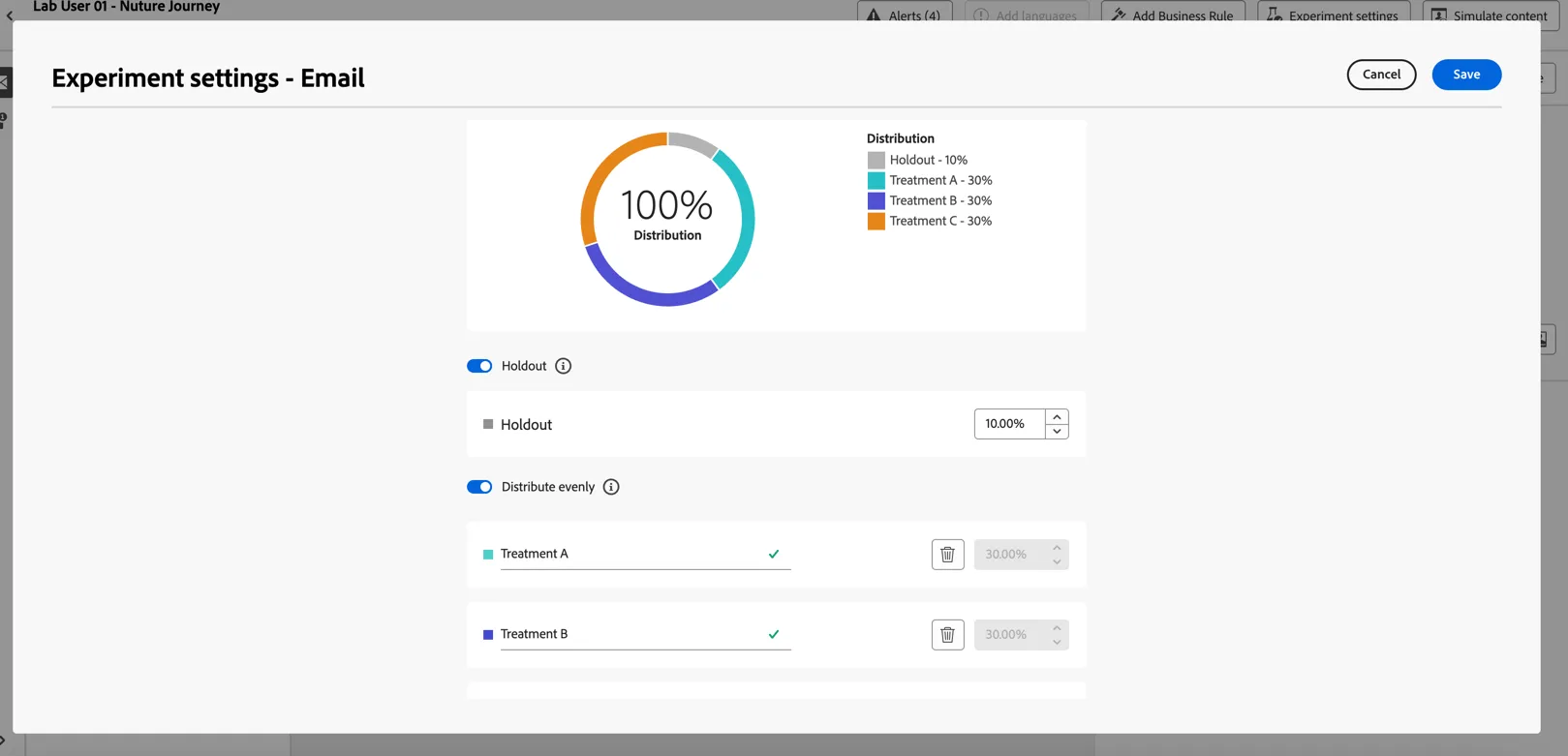
Click to Save, and return back to the journey canvas by clicking the top left arrow.
We can also enable predictive Send time optimization to send the messages at the most appropriate time for each profile that enters the journey based on their historical interactions. You can read more about Adobe's Send Time Optimization here.
2.5 Add Mobile Push Content
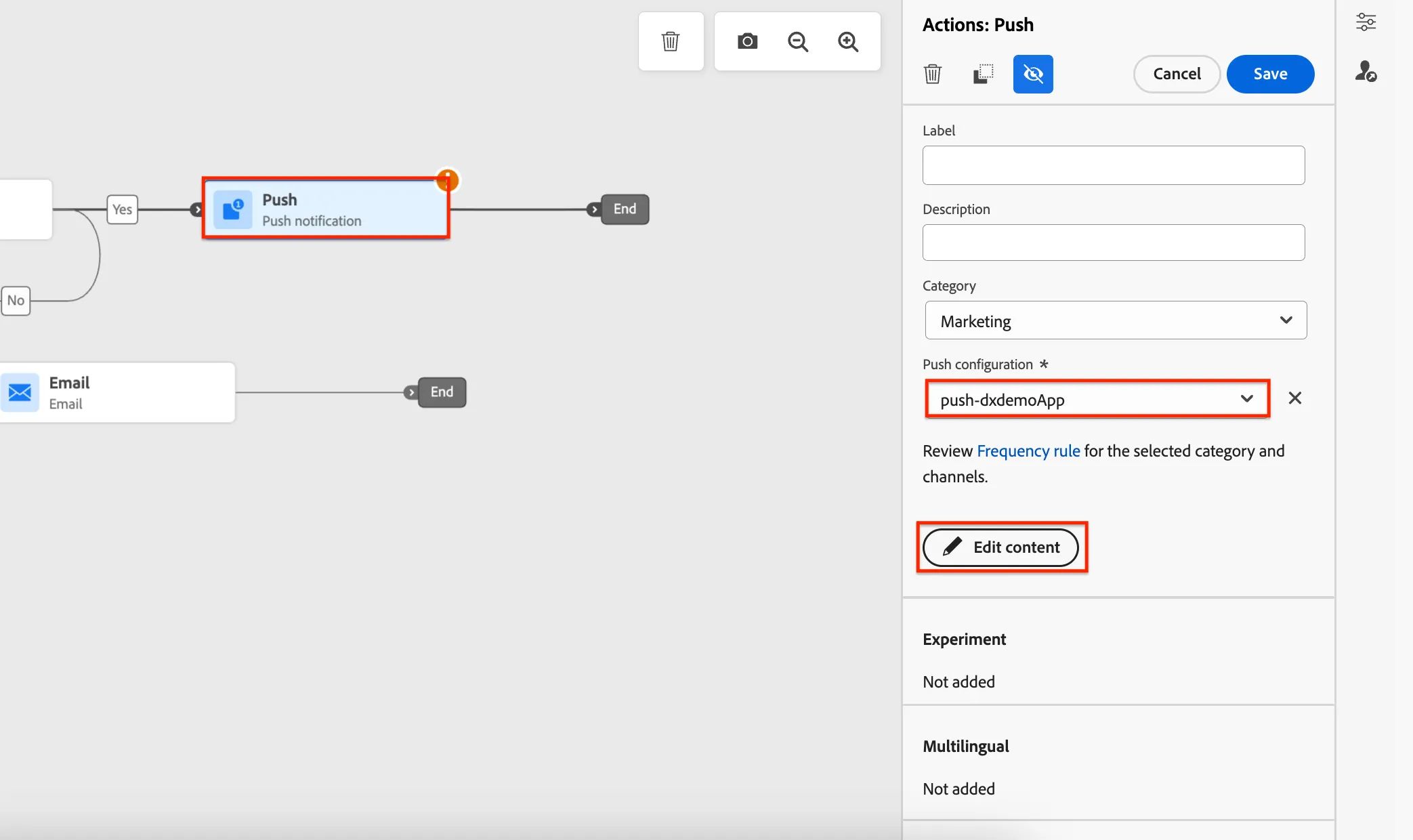
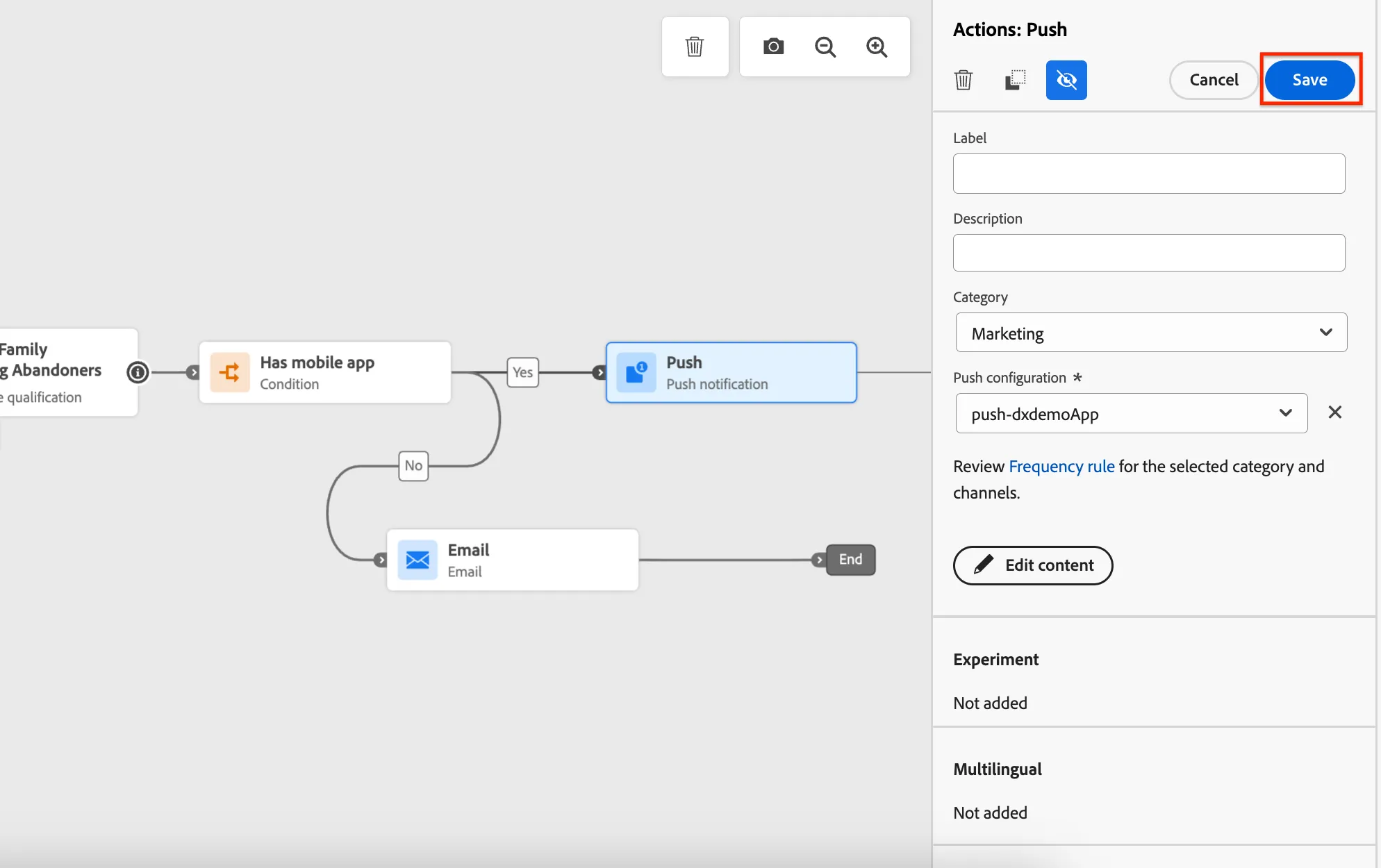
Lastly we'll add some content to our push notification, we can use AI Assistant to help with this as well. Click on the Push notification action in your journey, set the Push configuration to push-dxdemoAppand click to Edit Content.
Open the AI Assistant, add a text prompt and tick the elements you want to generate (title, message and/or image). Click to Generate.
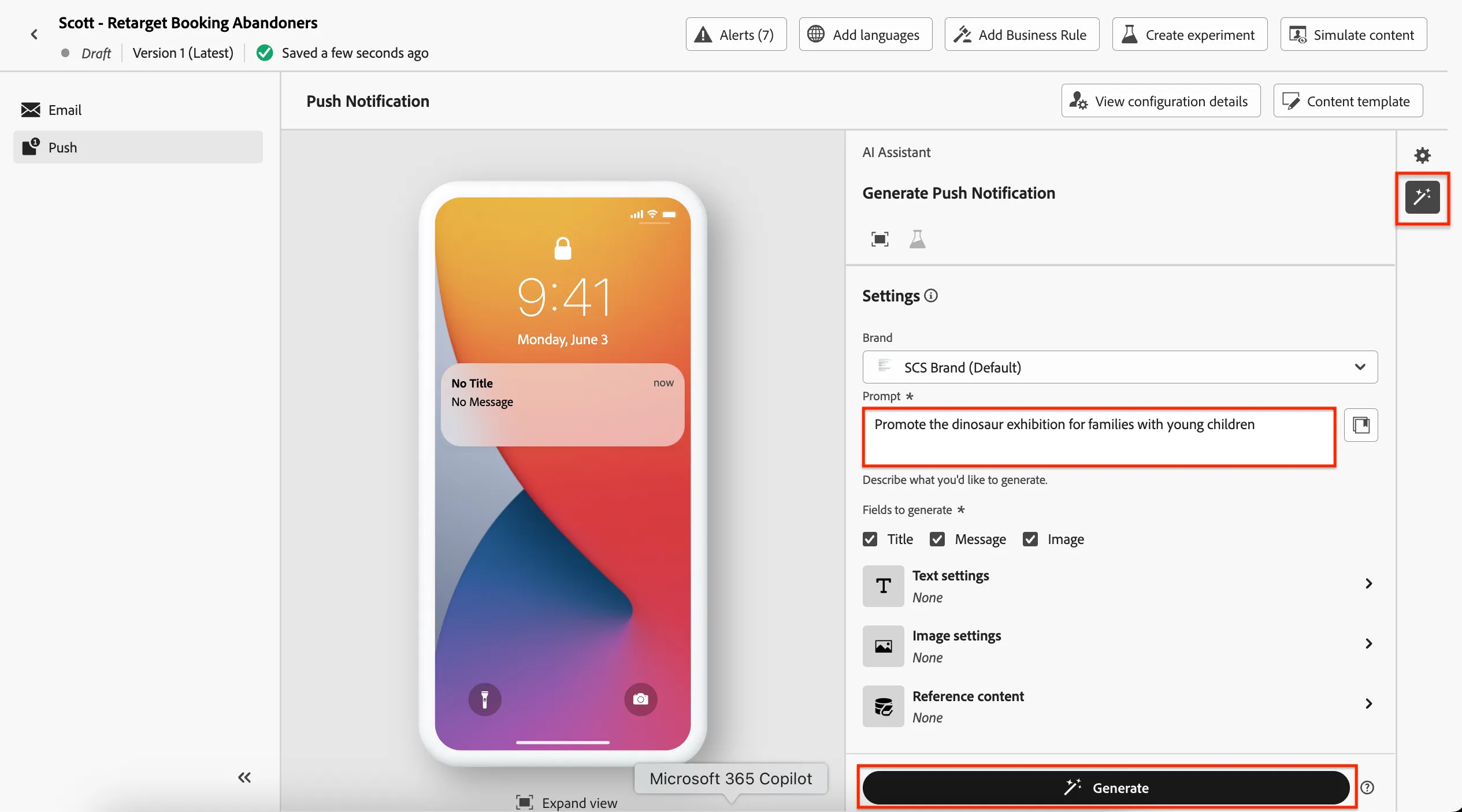
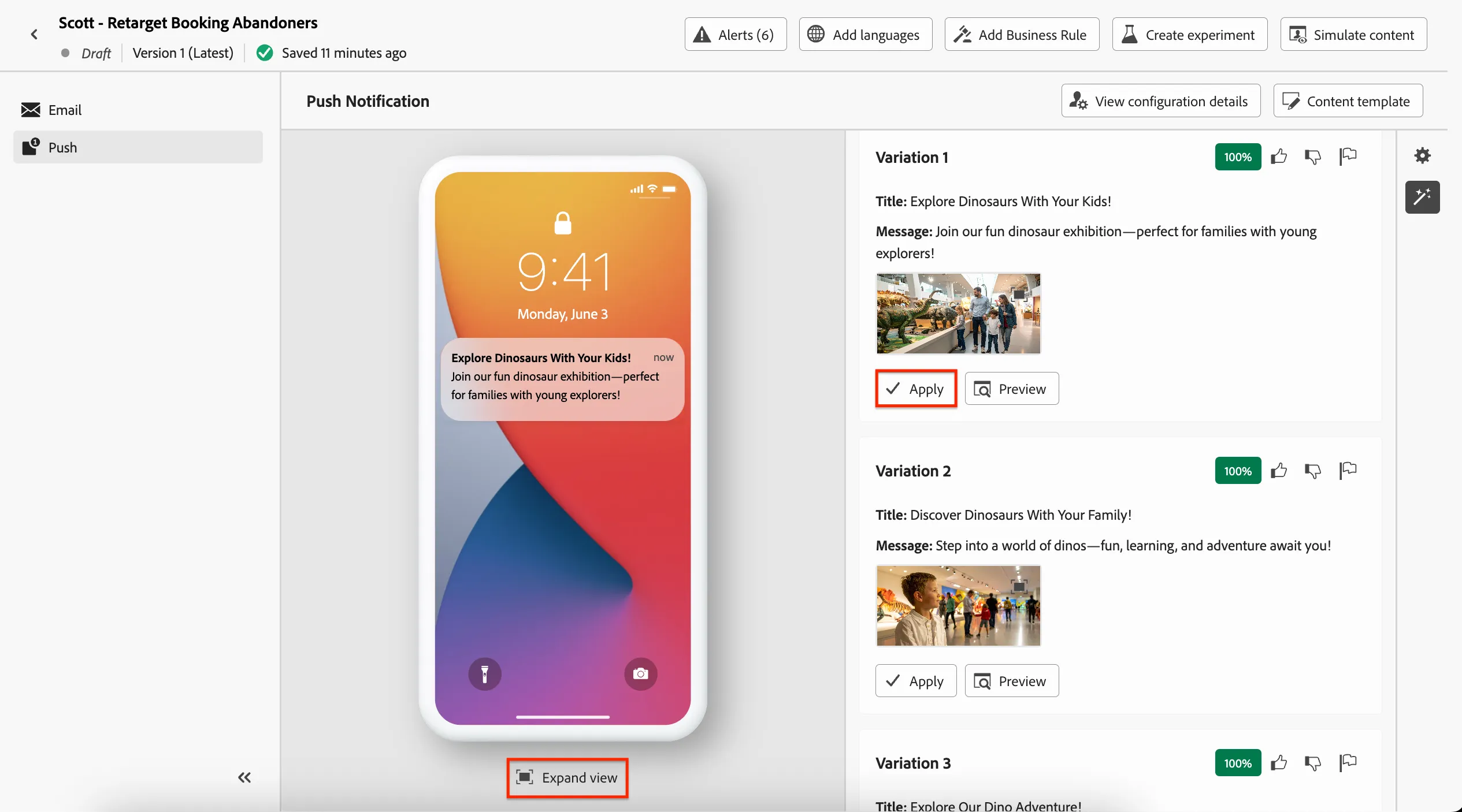
You can see the variations along with their brand alignment score, AI assistant has helped to generate a title a body and an image for the push. Click to Apply your chosen variation.
Note: You may see a message saying "Error converting image to base64" - you can close and ignore this as it's just part of our shared demo environment testing.
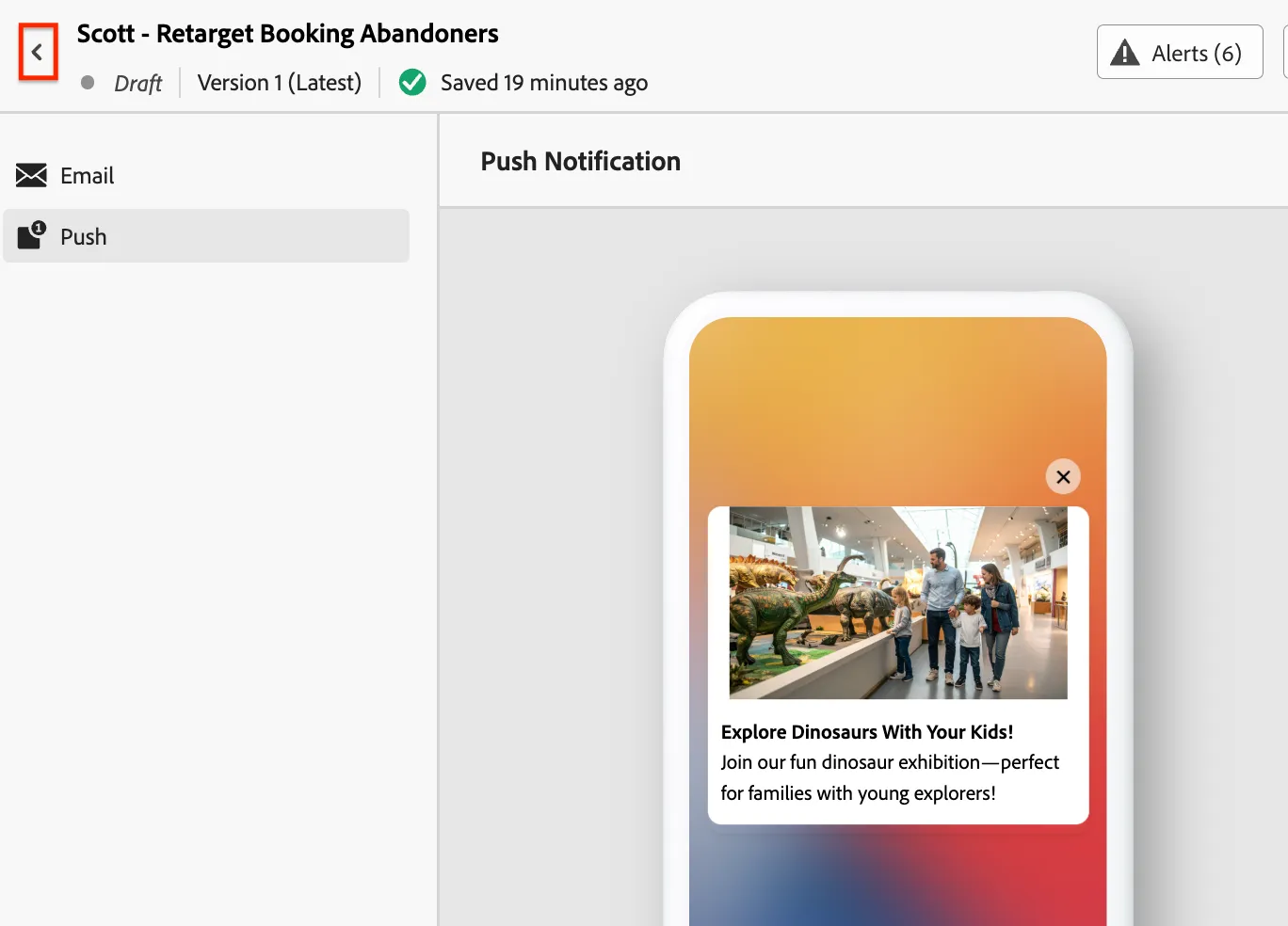
You can also use the Expand View button at the bottom of the editor to show how the message will look when previewed before tapping through.
Click the top left arrow to return to your journey.
Then click to Save the push action.
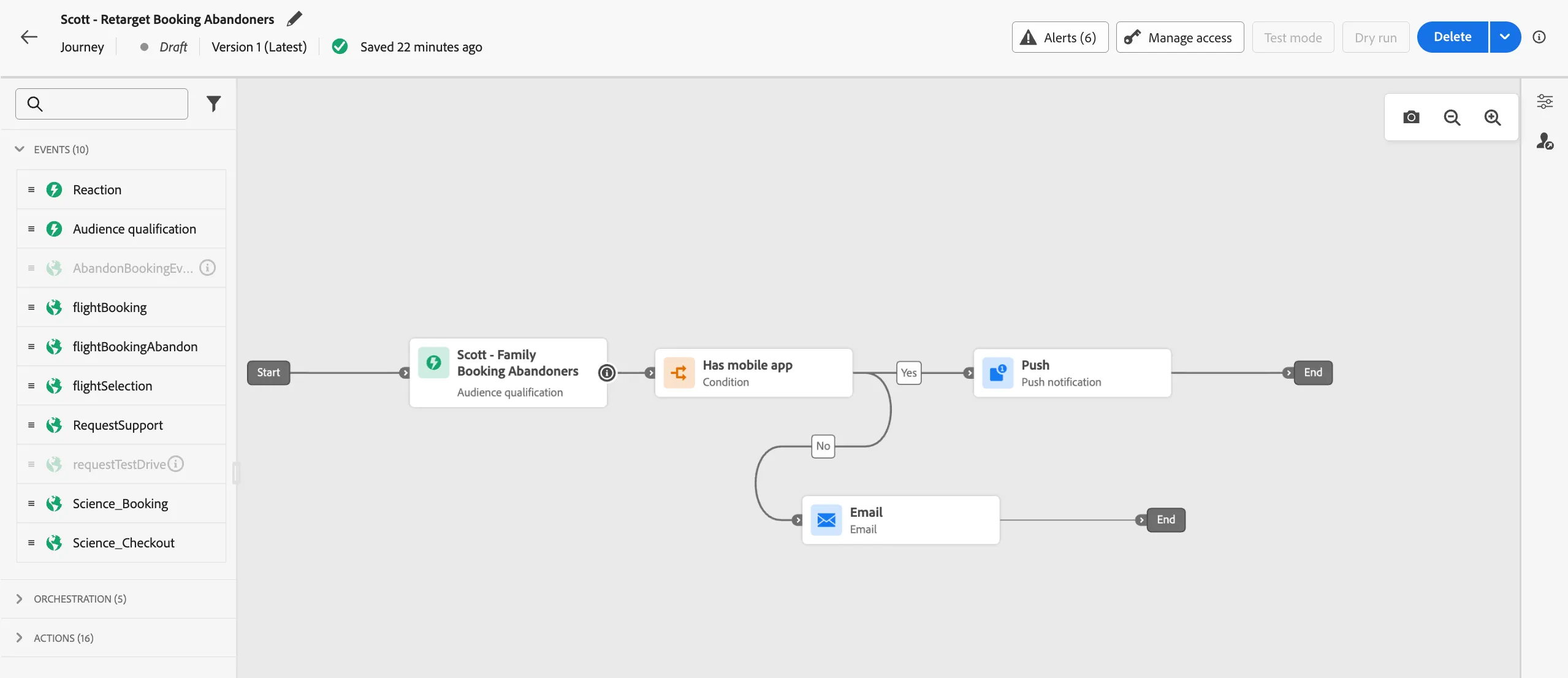
Your journey is now complete!
Summary
Congratulations, you've successfully created a multi-channel journey to retarget customers to drive higher booking rates! You've used AI Assistant to quickly generate variations without compromising on brand integrity.
You've also completed the lab! Well done! 👏🏻 There will be a wrap-up and Q&A after this (time permitting). Thank you so much! 🙇🏼♂️