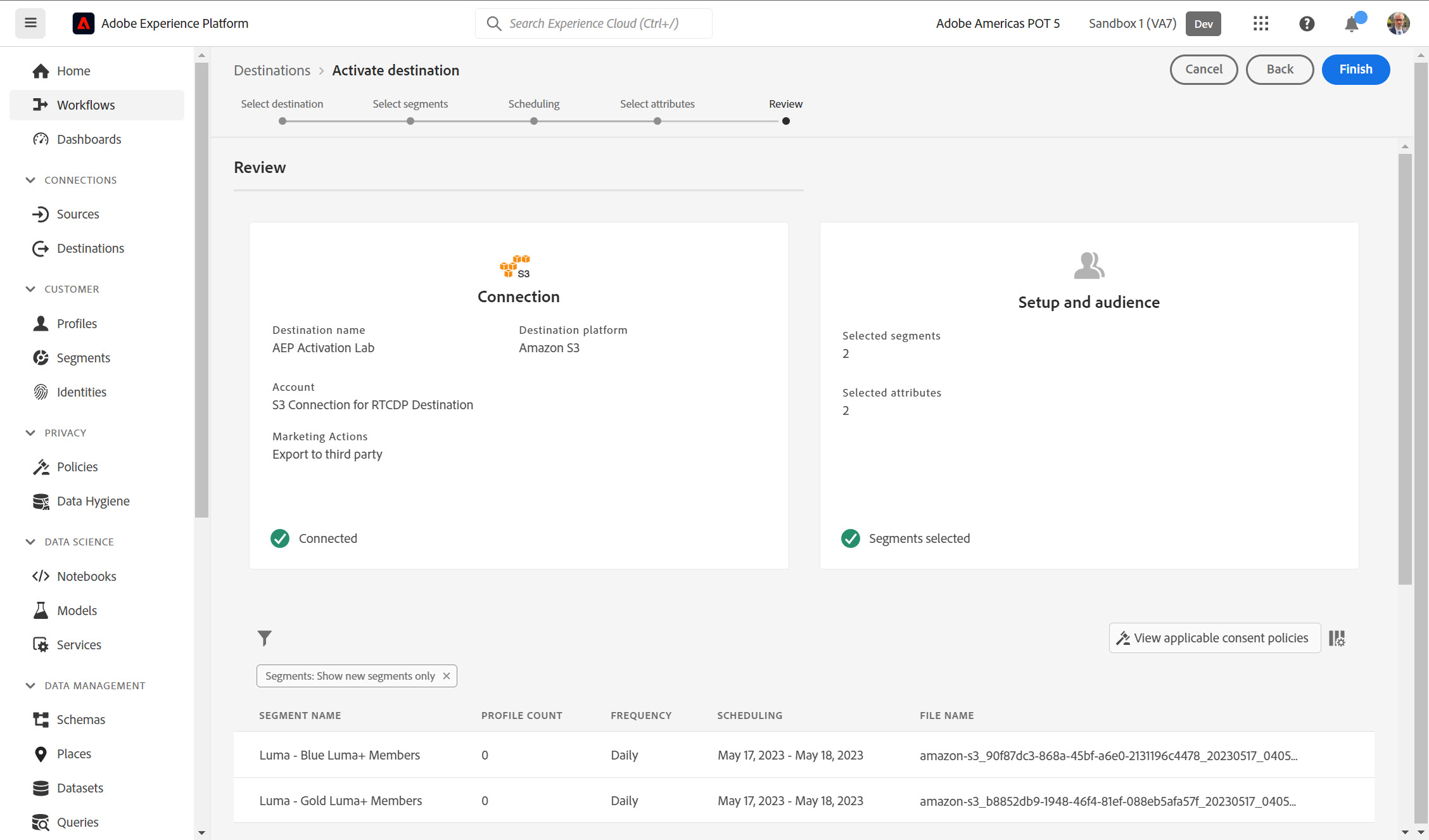
Activation - S3 Destination
Objective: In this exercise, we’ll share segments created in a previous lab with an S3 destination.
1. In the left navigation, select Destinations.
2. Select the My destinations radio button in the Catalog view. Verify you see an Amazon S3 Connection
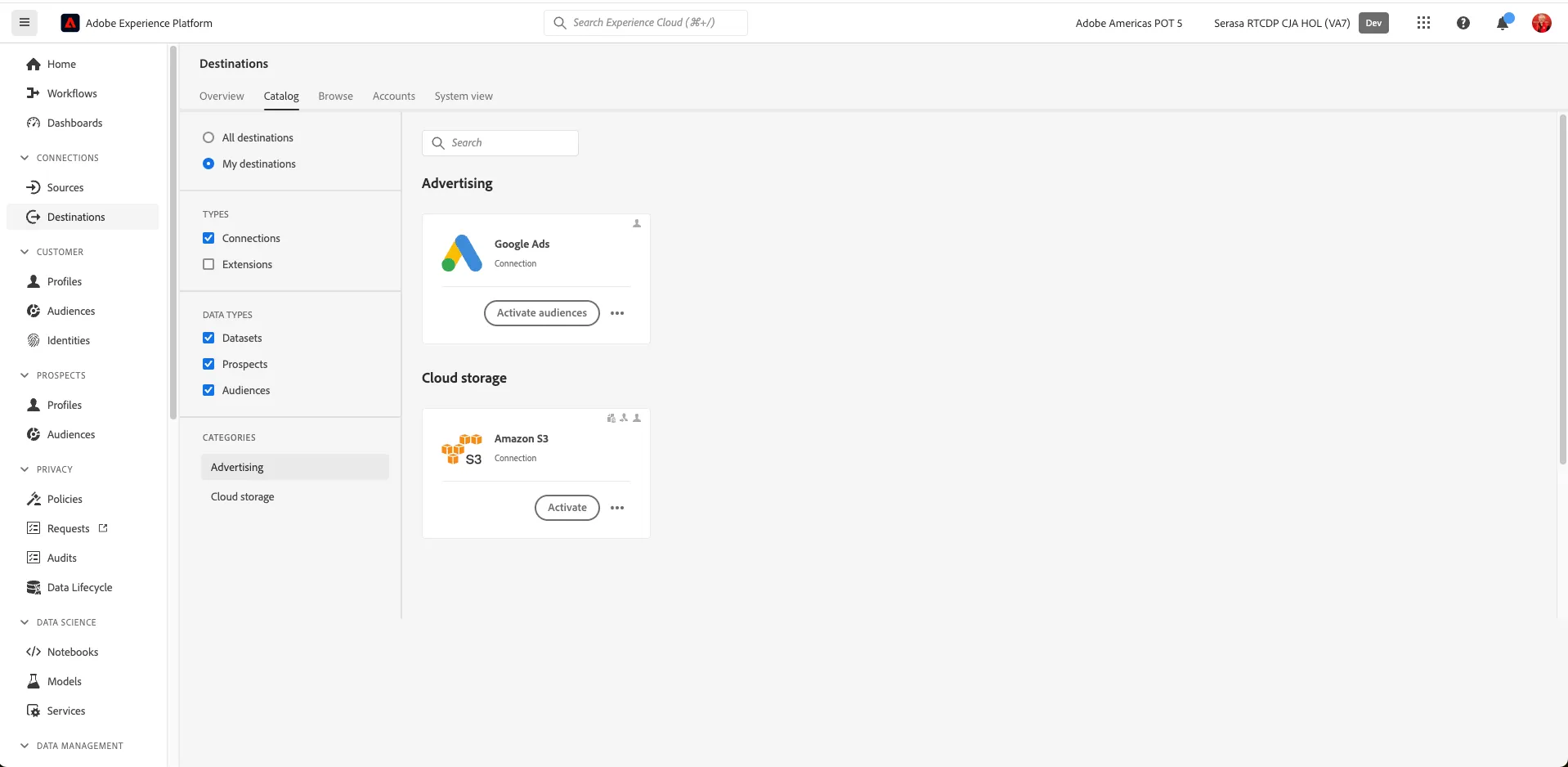
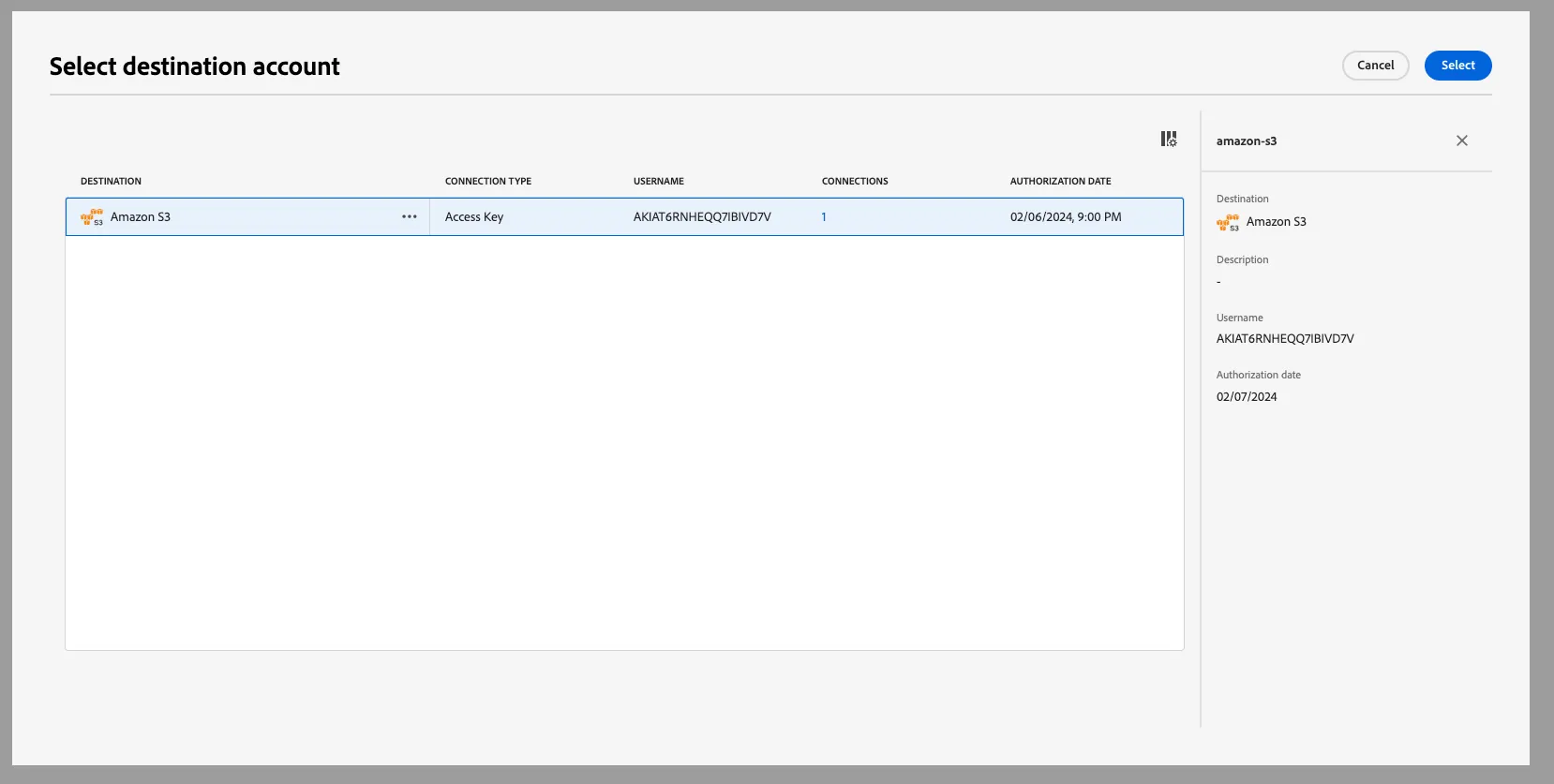
3. Select Amazon S3 and on the right side of the screen choose Configure new destination. You have two choices for Account type: Existing account and New account. Choose Existing account. Click on the icon rigth side of the text box (see below), select Amazon S3 and click in Select.

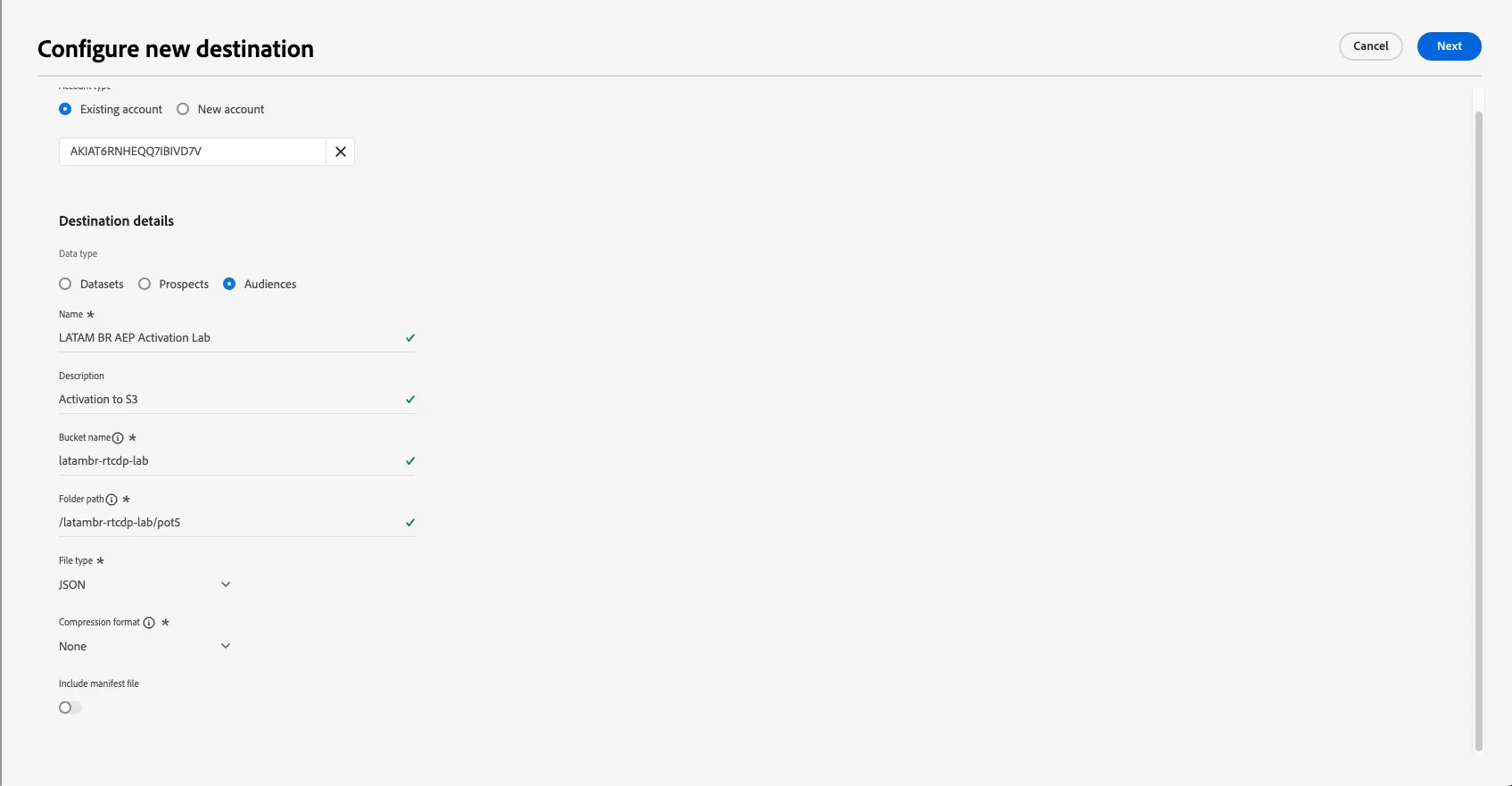
4. In the Configure new destination screen, enter the following values:
- Name: UCX AEP Activation Lab
- Description: Activation to S3
- Buket name: ucx-rtcdp-lab
- Folder-path: /ucx-rtcdp-lab/pot5
5. Select file type : JSON
6. Compression format, select none
5. Select Next in the upper right corner.
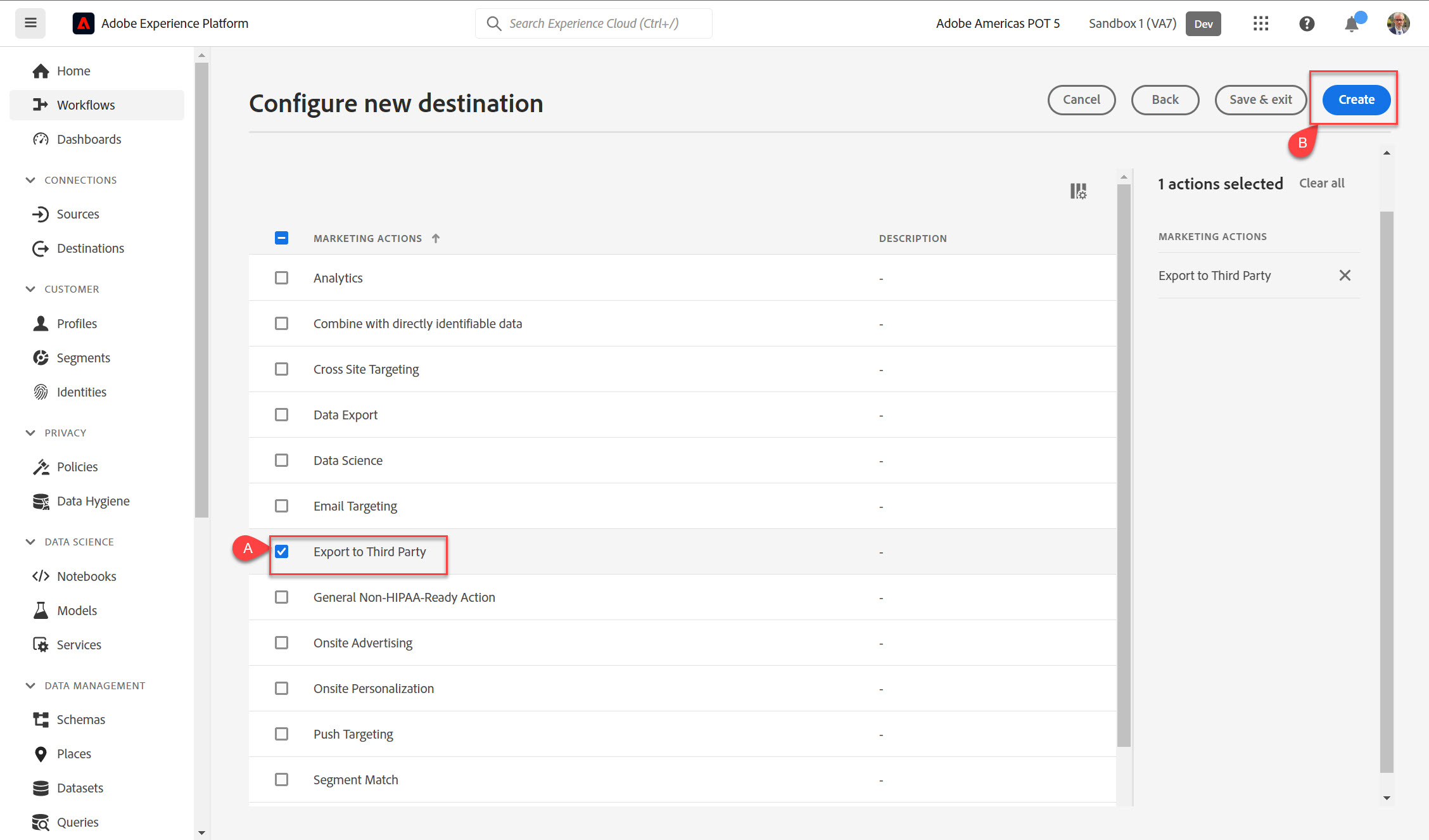
6. On the Configure new destination screen, select the Export to Third Party as the marketing action and click the Create button.
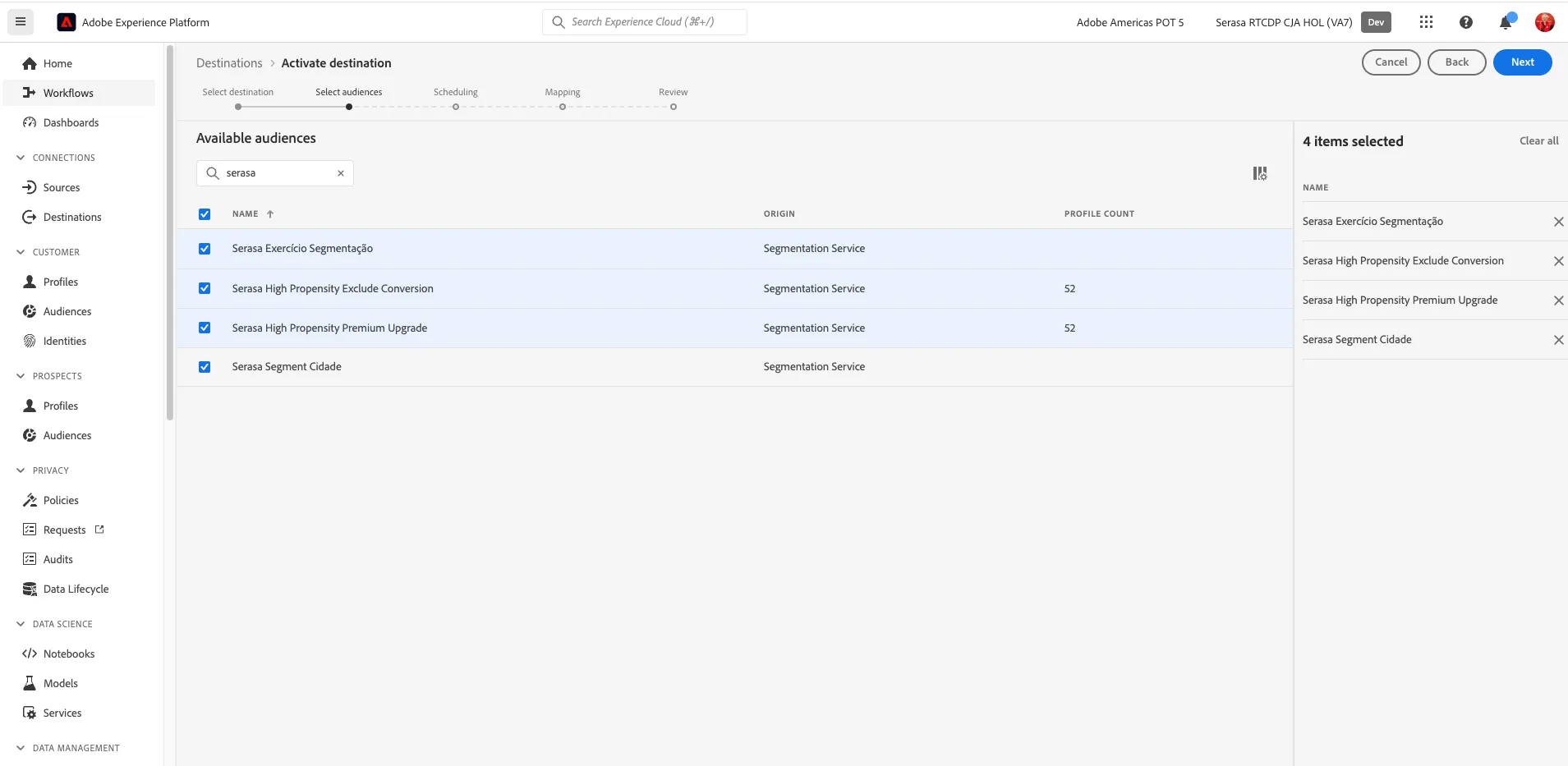
7. Click on Next in the upper right corner of the workflow. This will take you to the Segment selection step. Select the segments that you created in the previous exercise by clicking the checkboxes and then click Next in the upper right.
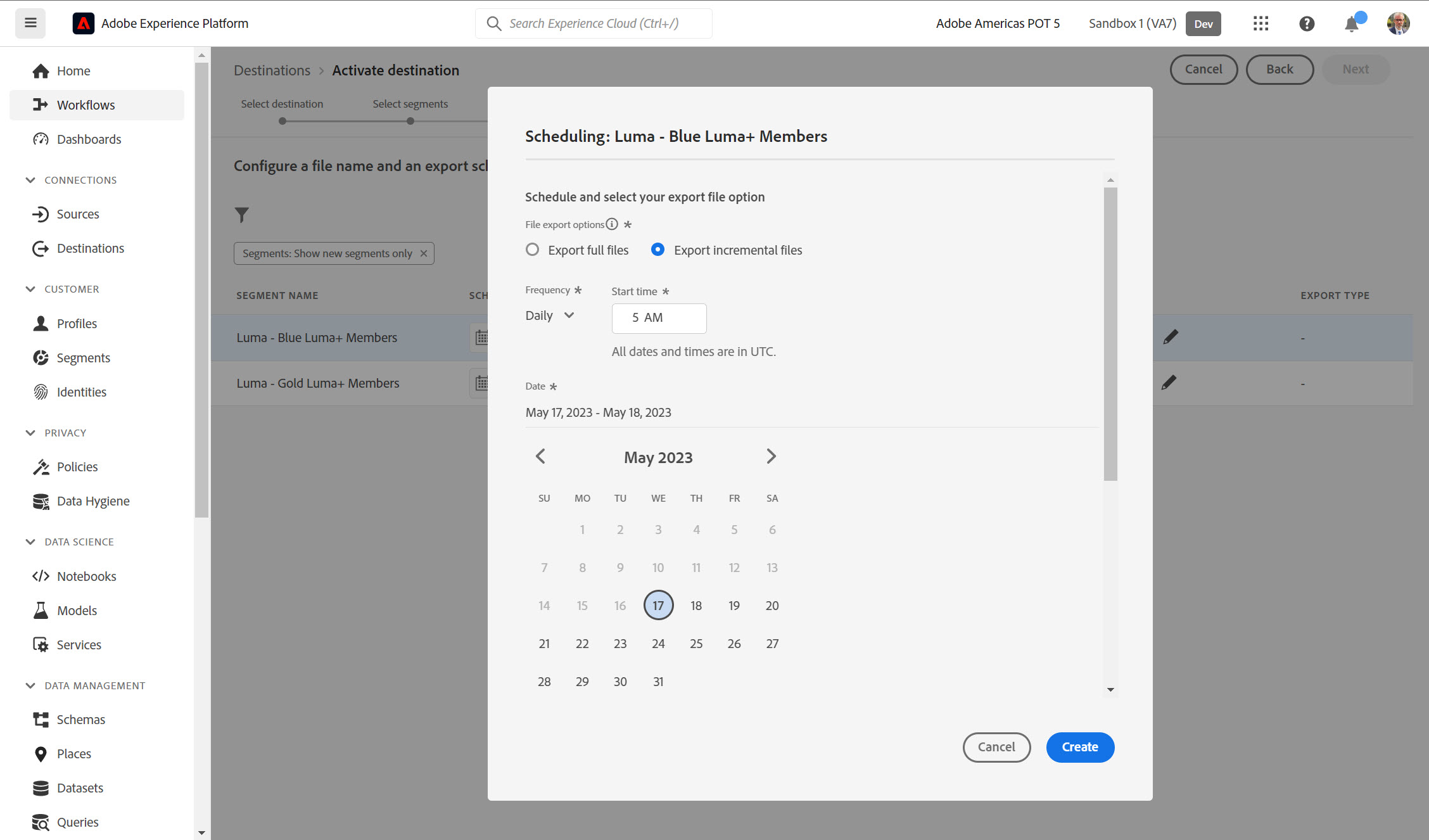
8. Click Create Schedule for each of the segments that you added. Accept the default values of choose your own configuration. Click the Create button and then Next in the upper right after you schedule all your segments.
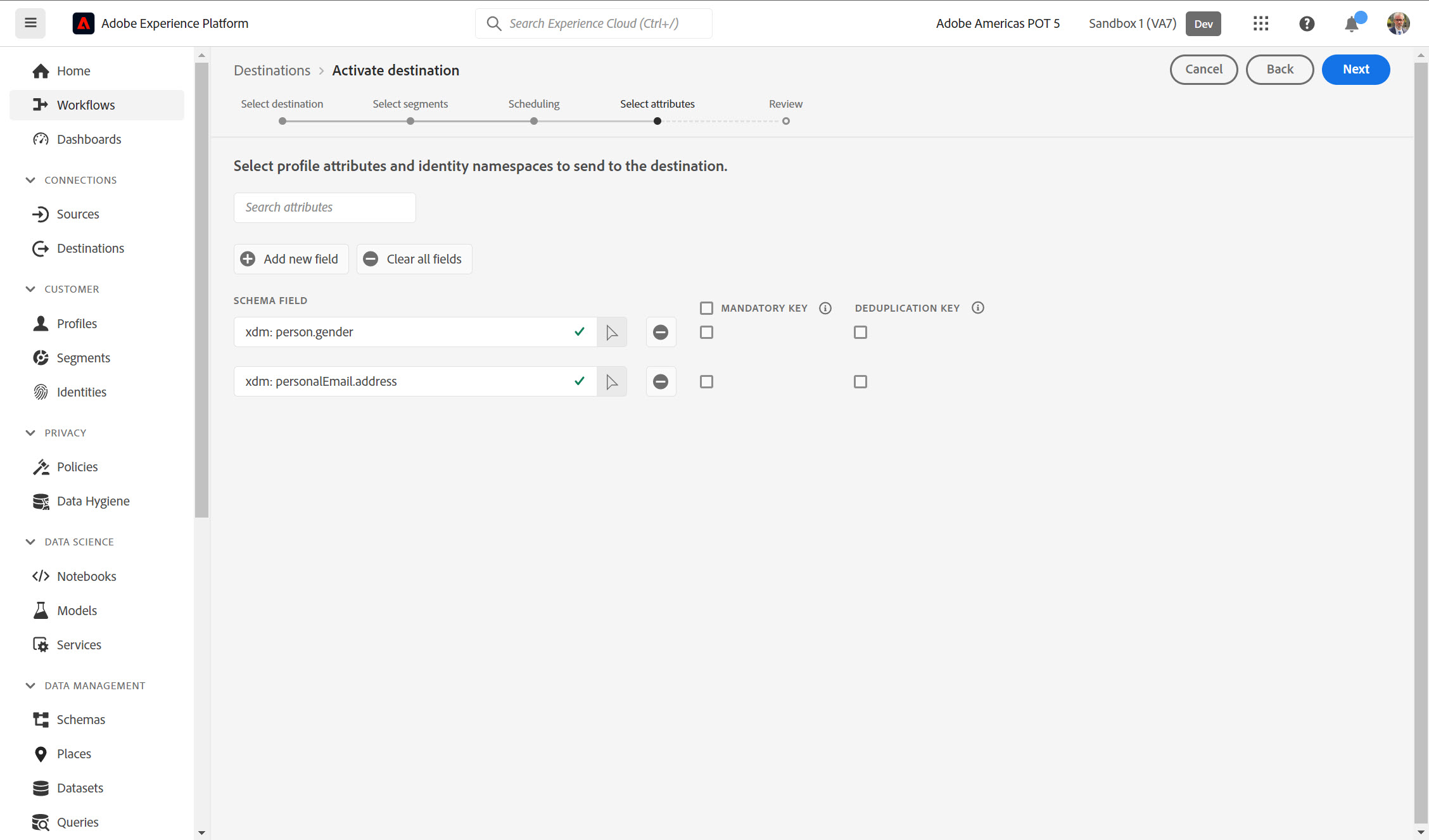
10. In the Select attributes step click the Clear all fields button and then Add new field button. Enter personalEmail.address and then add person.gender. You can also can click the arrow icon to search through the schema.\
11. Click on Next in the upper right corner of the workflow. This will take you to the the Review step. Select Finish to complete the Profile Activation.\