Build a Dynamic Email
3 min
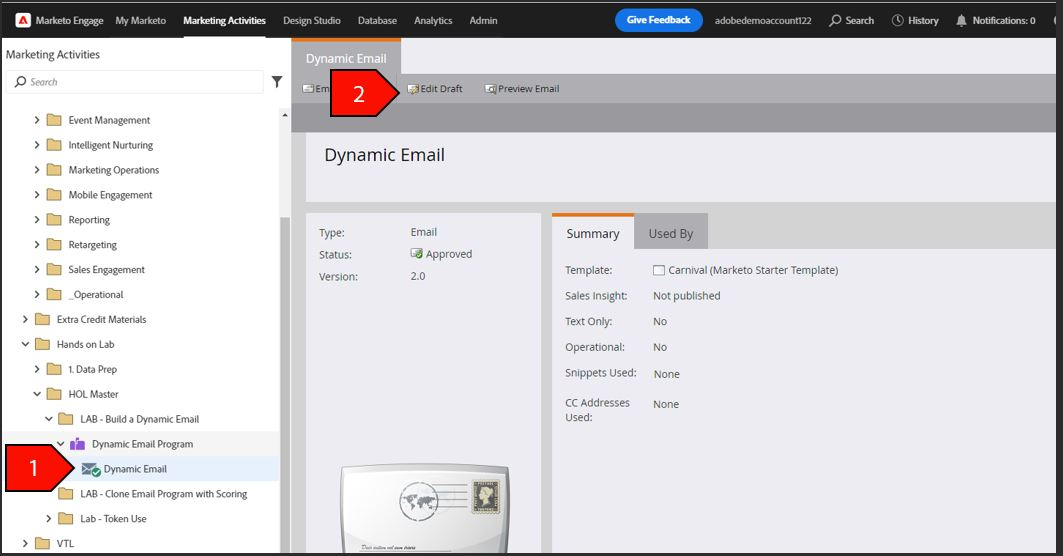
- Select Dynamic Email from the Navigation tree on the left
- Click Edit Draft
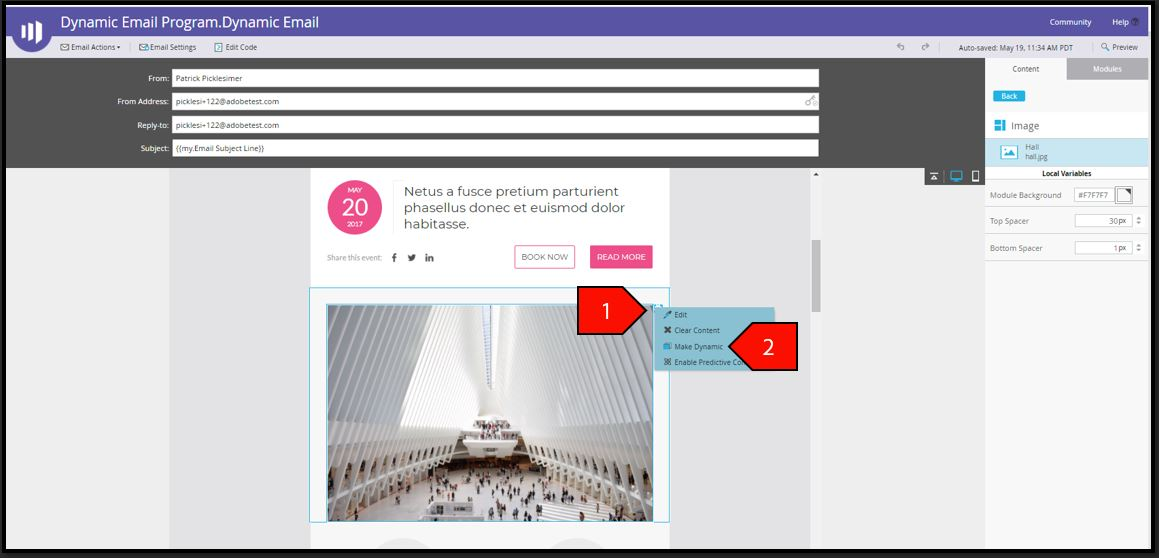
3. In the email editor, scroll down and select the gear on the landscape image
4. Click Make Dynamic
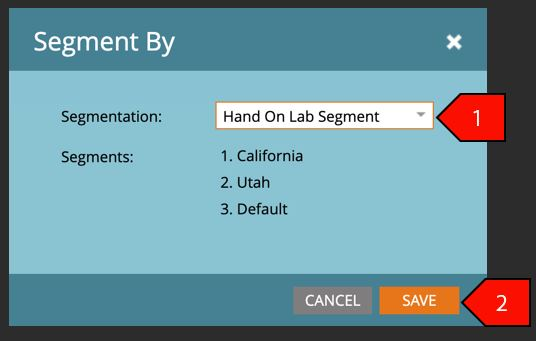
5. Under Segmentation, select Hands on Lab Segment
6. Click Save
NOTE: The segmentation was created earlier in the lab. After we are done, we will show you where you set up your segmentation, an action that has to be done prior to making a dynamic email
7. Select California from the Segmentation menu on the right
8. On the image click the gear on the left and select Edit
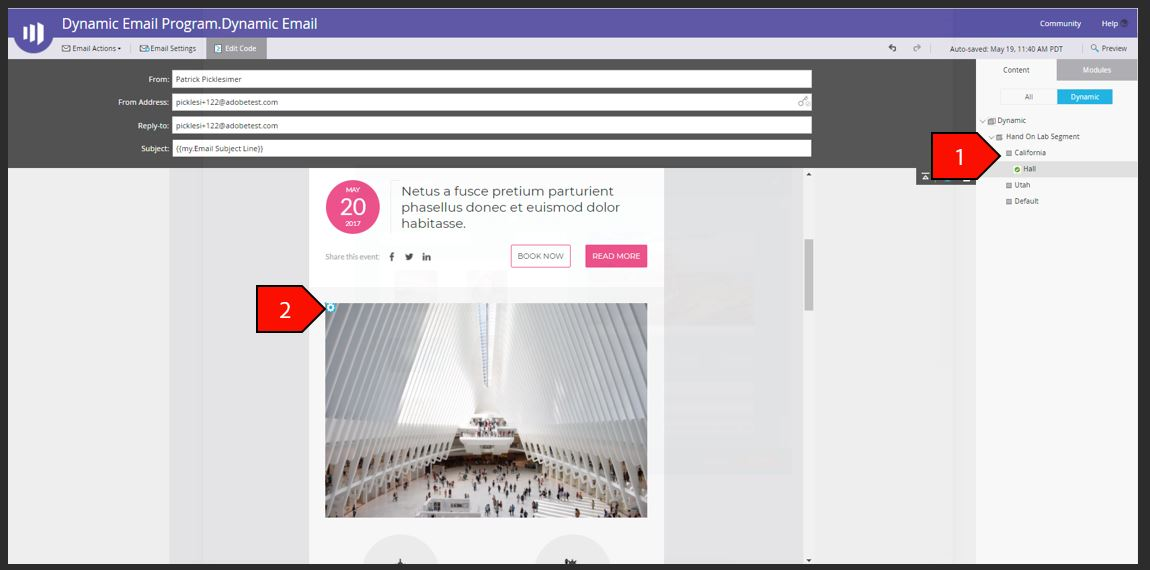
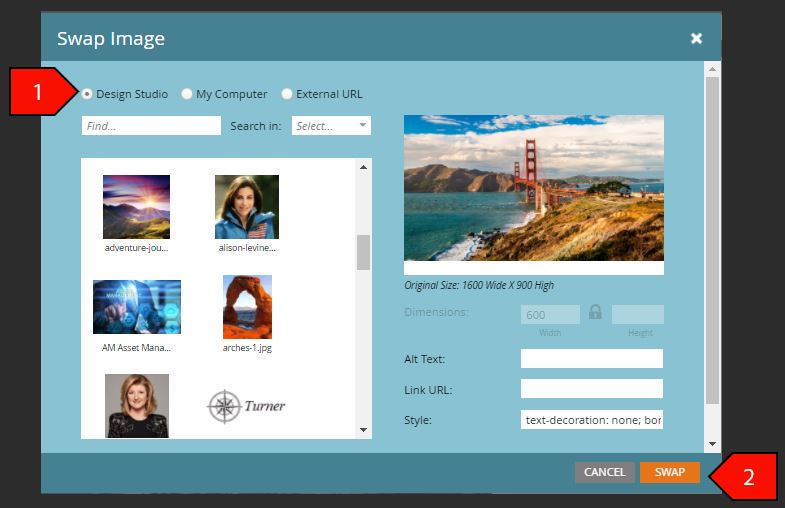
9. Select Design Studio and search for the California Image. and the Utah Image for Utah.
10. Click Swap
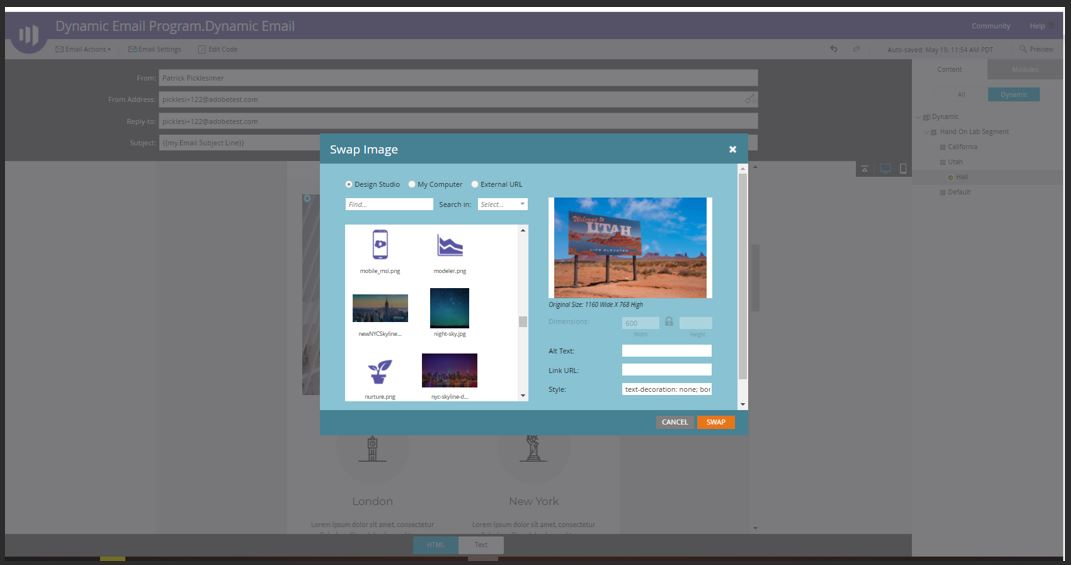
11. Repeat this process for the Utah Segment
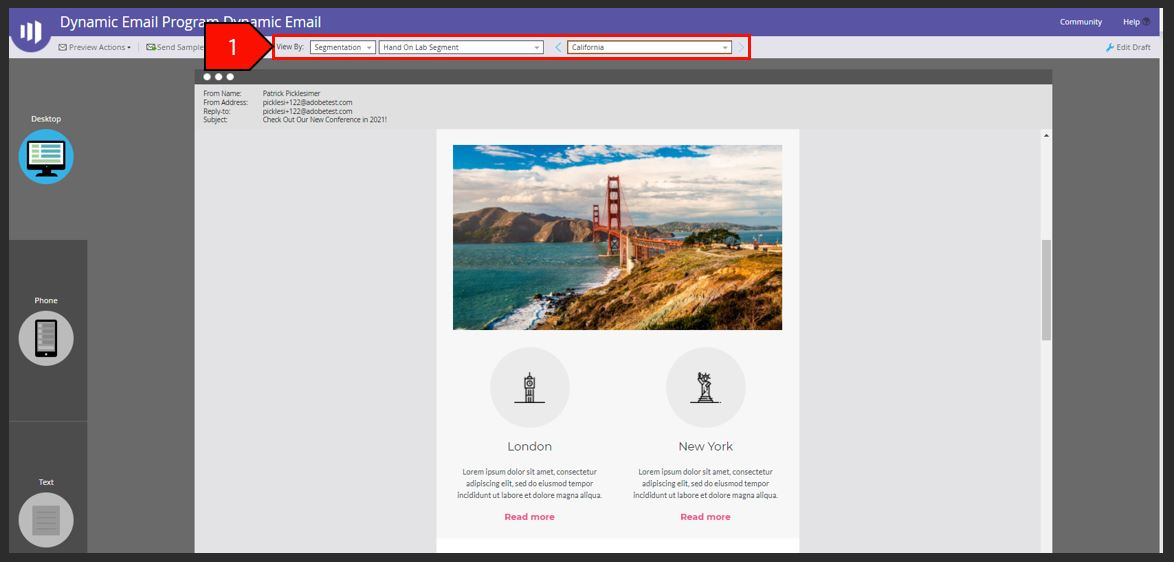
12. At the top of the page Preview your email and view it by Segmentation