Build an Email Program
Create List
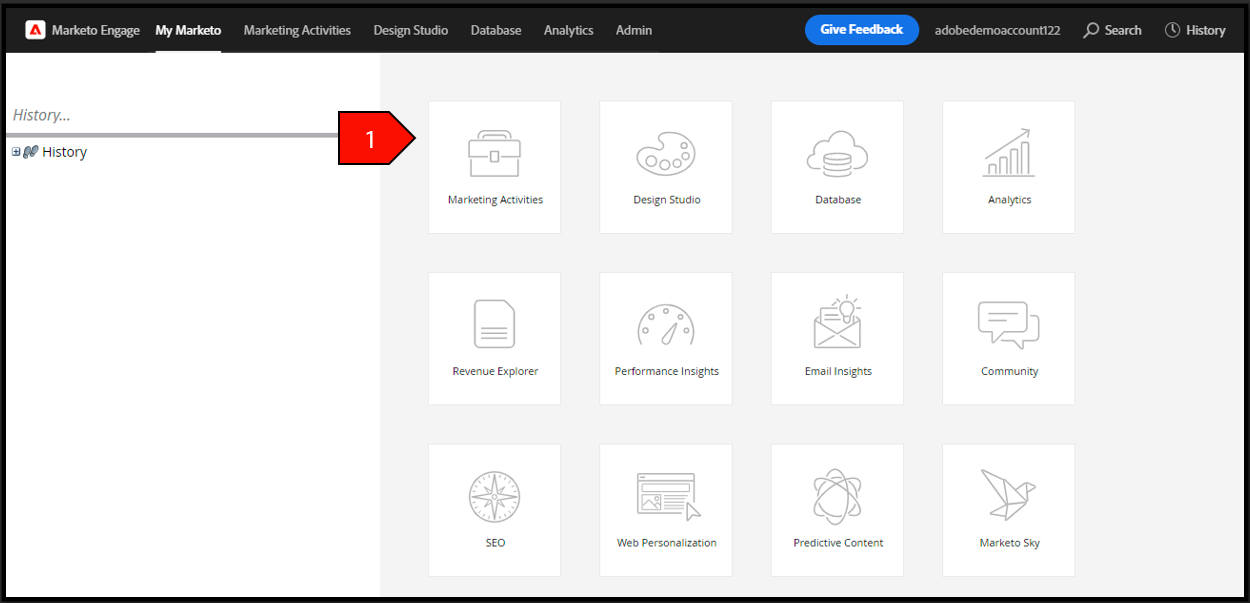
Navigate to Marketing Activities
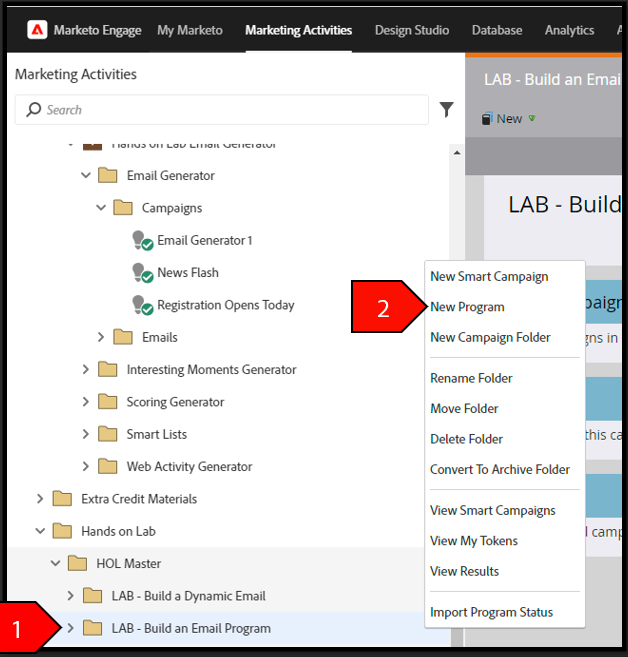
Right click on your student folder, select New Program
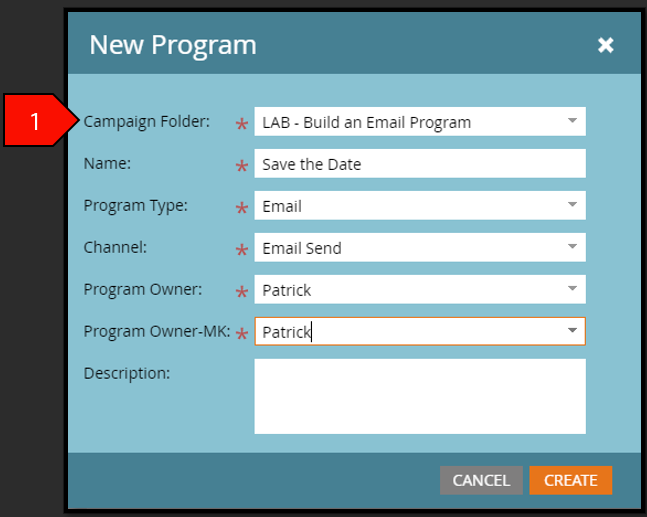
- Click Create after the following fields have been filled out:
- Campaign Folder: Your Attendee Folder Name
- Name: Save The Date – Attendee ##
- Program Type: Email Channel
- Email Send Program Owner: Leave alone
- Program Owner-MK: Leave alone
Description: Leave blank
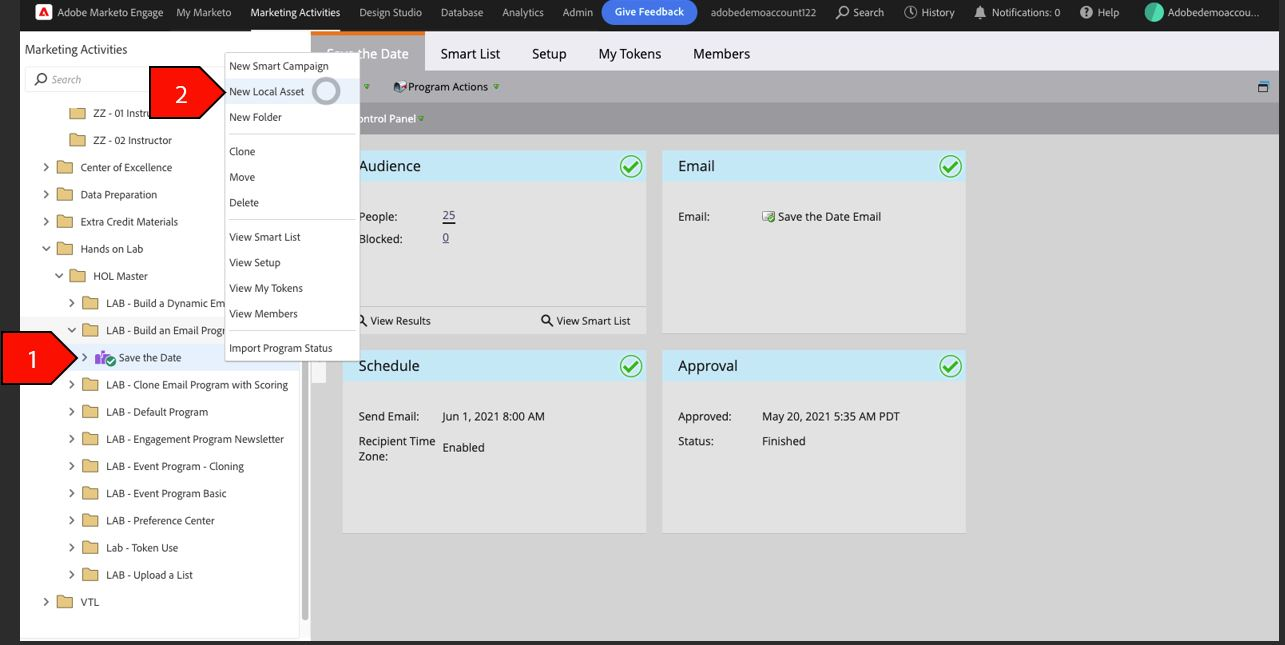
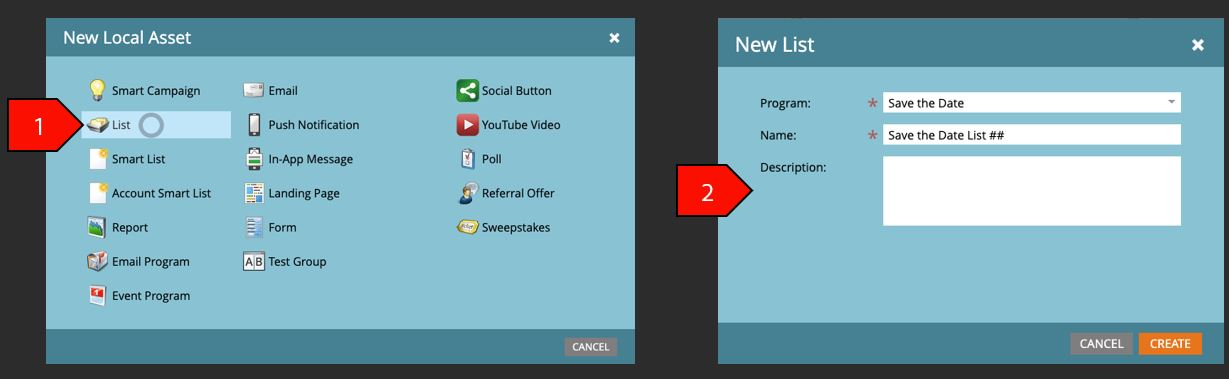
From the navigation tree, right click on your email program. Select New Local Asset
- From the New Local Asset menu, select List
- Select your email program from the drop down
Name your list, click Save
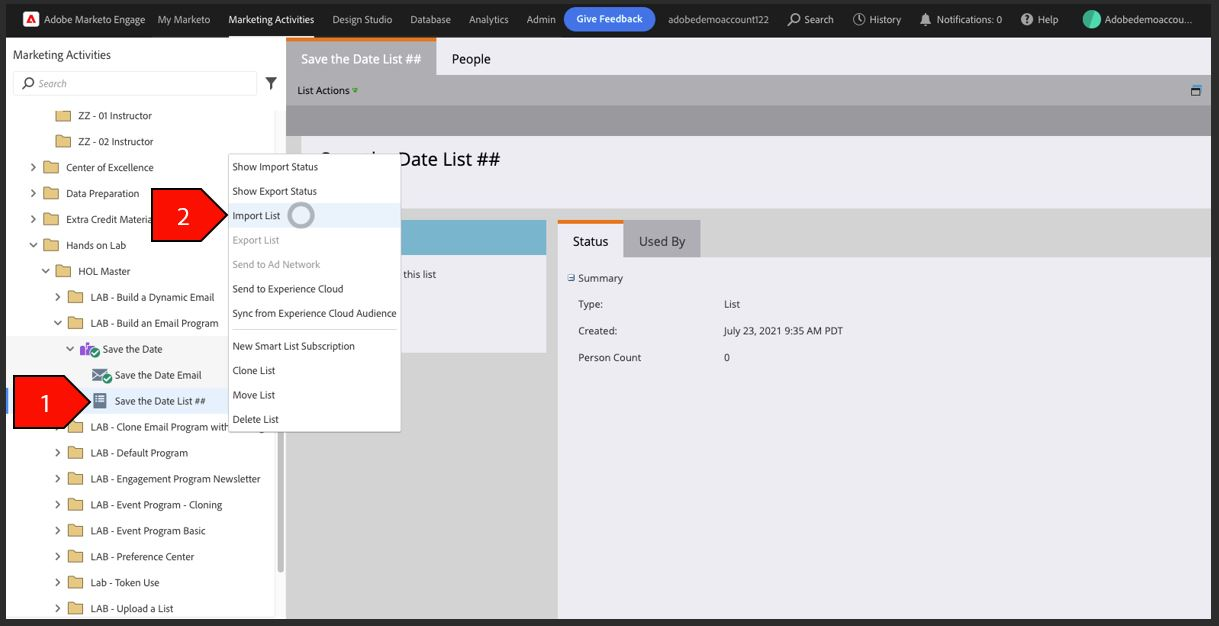
Import Leads to List
From the navigation tree, right click on your list. Select Import List
- Select File. Click Next after completing the following below:
- Import the mkto_hol_import_list.csv file from the lab exercise
- File Format: Auto Detect
List Import Mode: Default
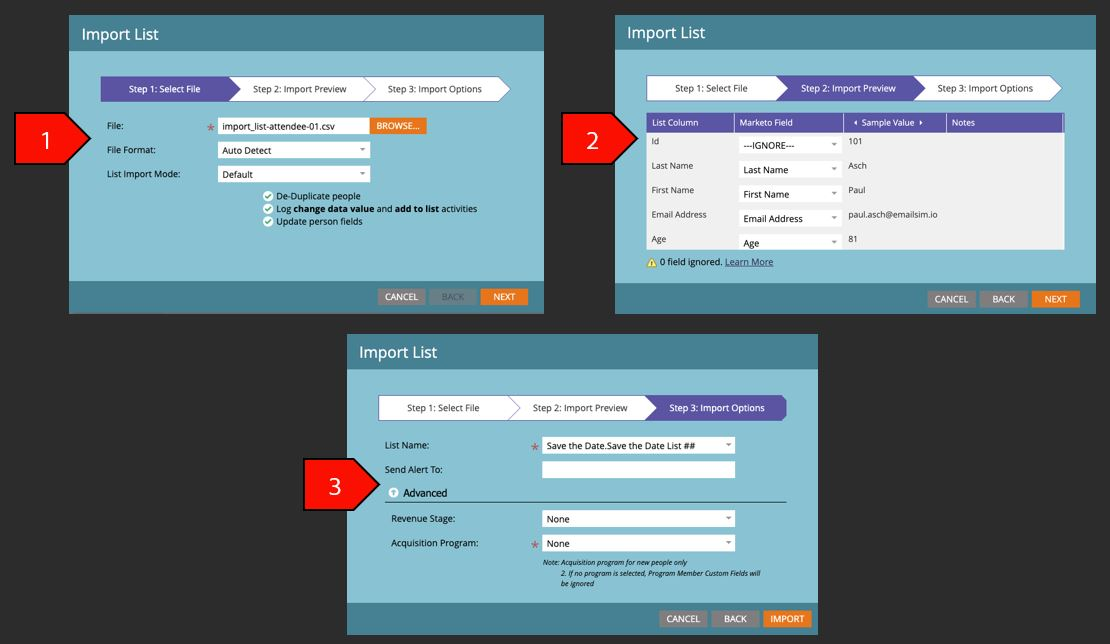
- Import Preview. Click Next after completing the following below:
- Ensure the List Column matches the Marketo field.
- All other fields can be ignored
- Import Options. Click Import after completing the following below:
- List Name: MKTO HOL User ##
- Send Alert To: your email address
- Revenue Stage: None
- Acquisition Program: None
Once your list has been imported you can view the people that have been imported by selecting your list from the navigation tree
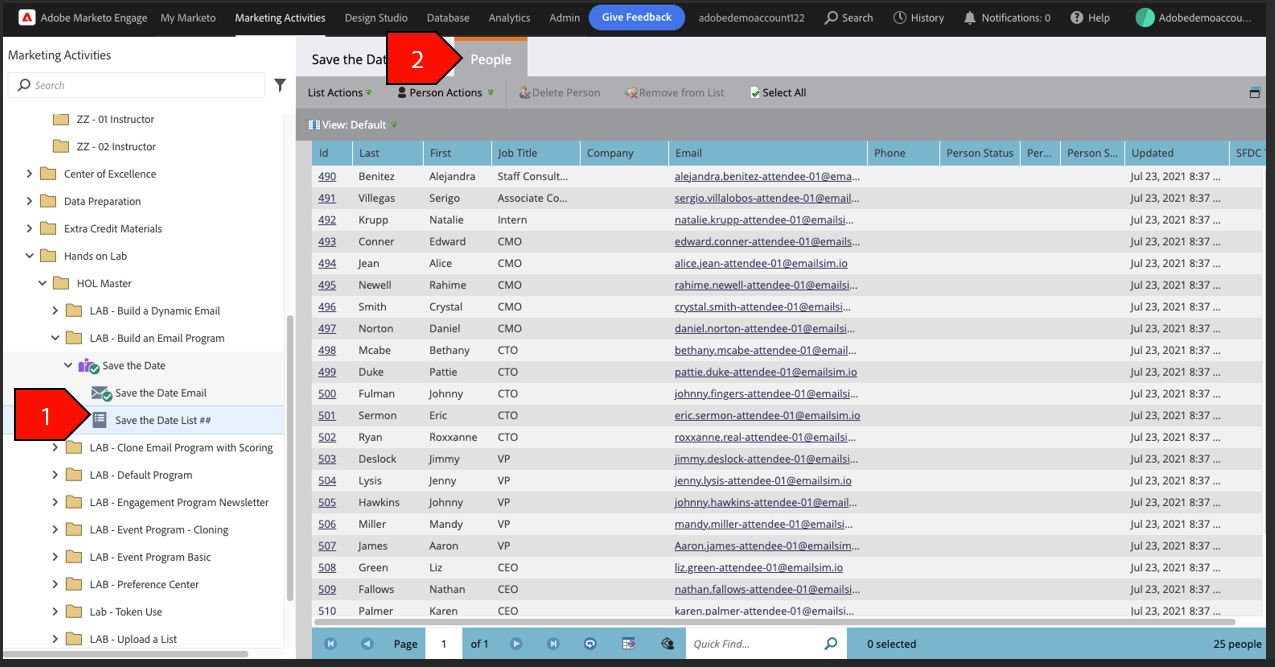
Navigate to the People tab
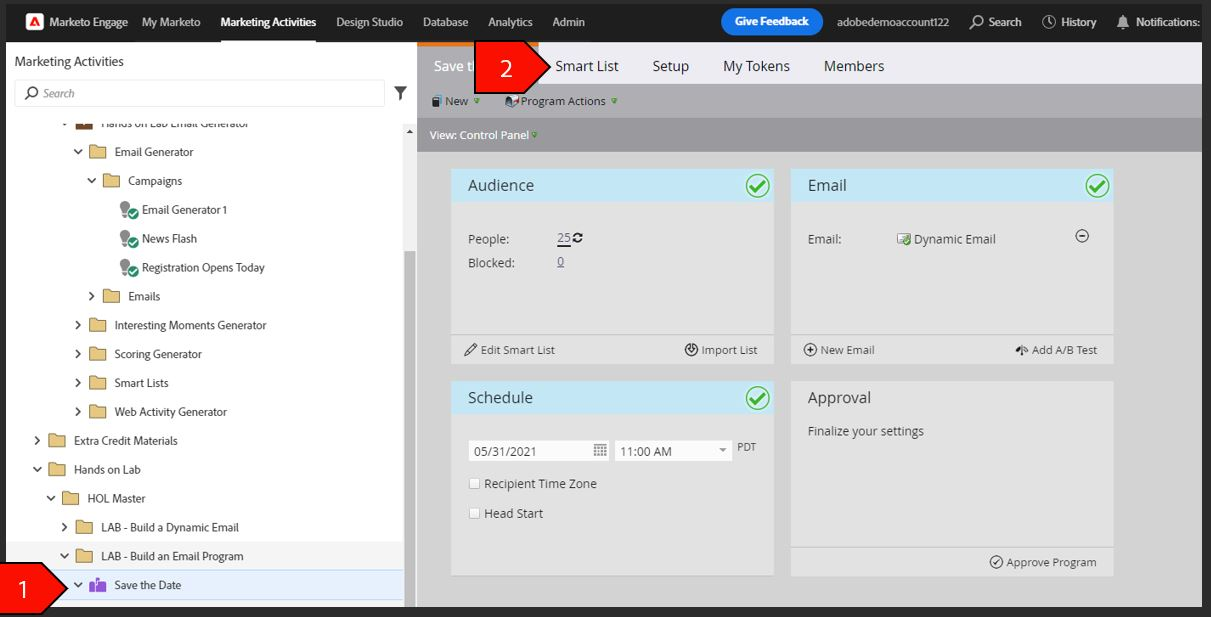
Create Email Program
- Next select your program from the navigation tree
From the Program Menu, click on the Smart List tab
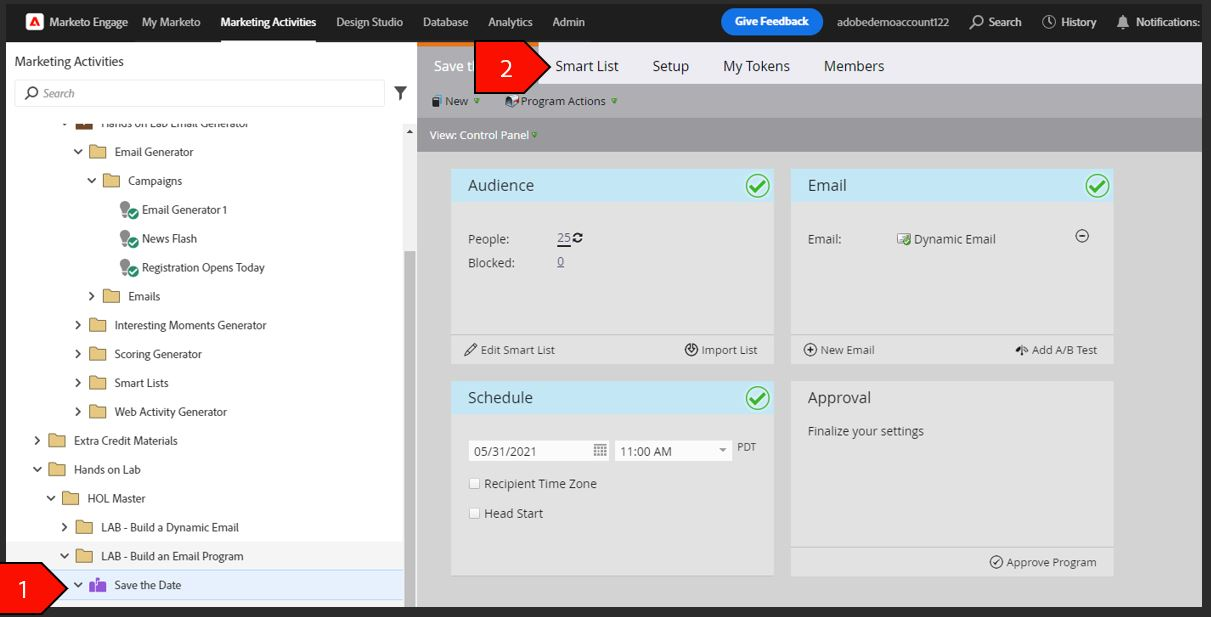
From the Smart List tab, type Member in the search box and drag Member of List onto the canvas
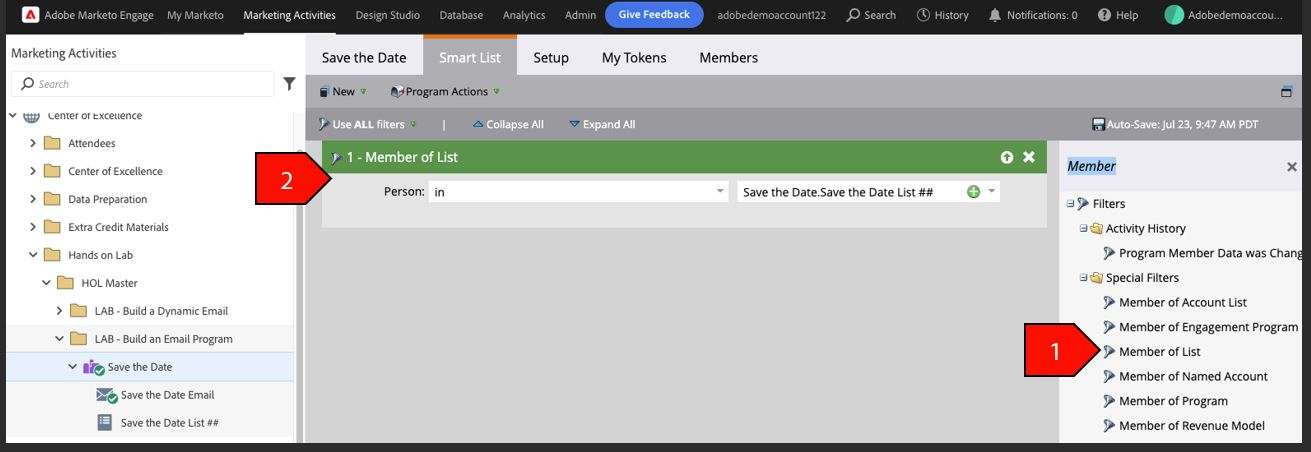
- Select MKTO HOL for the list to use.
From the Control Panel, click on New Email
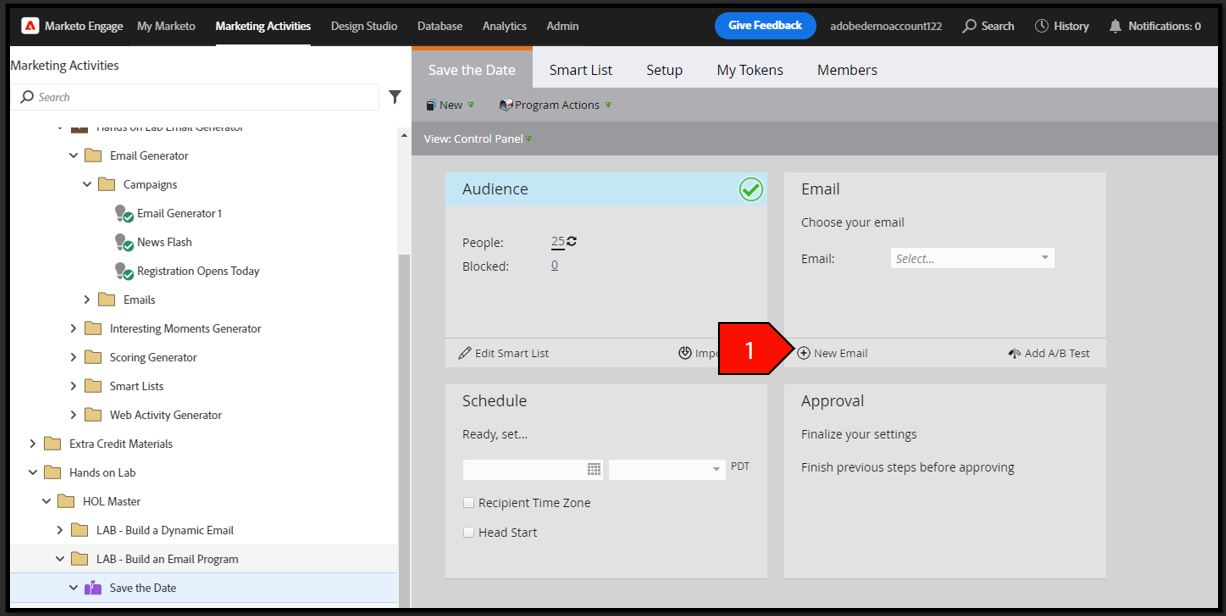
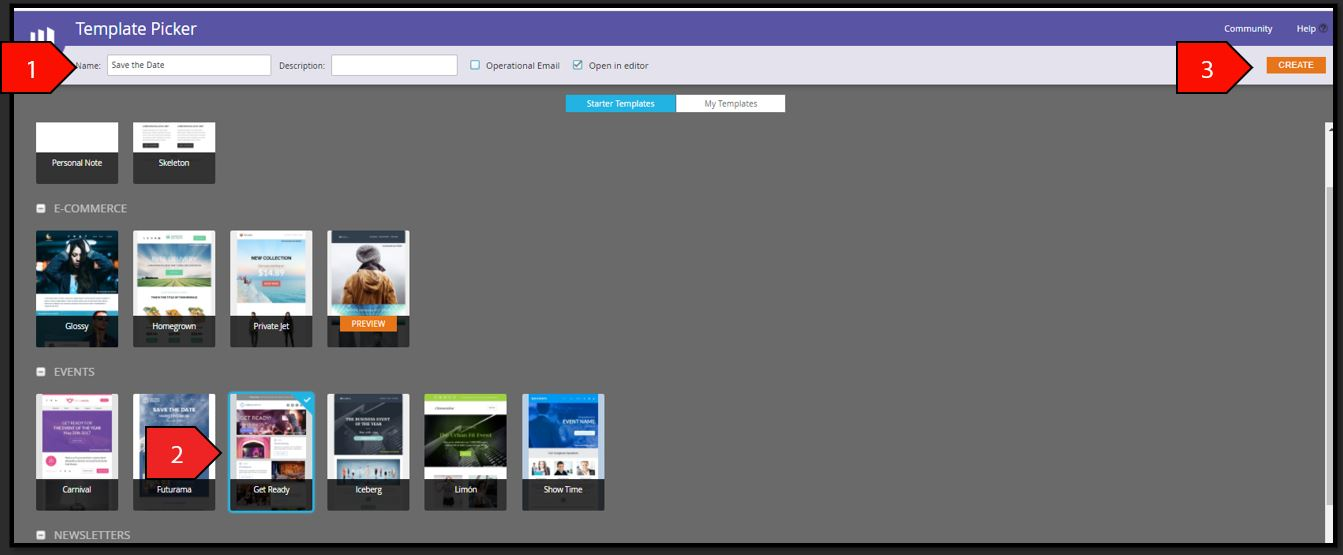
- In the Name, type Save the Date
Click on the Get Ready template. Click Create
In the Subject Line, type Get Ready for Our Next Event!
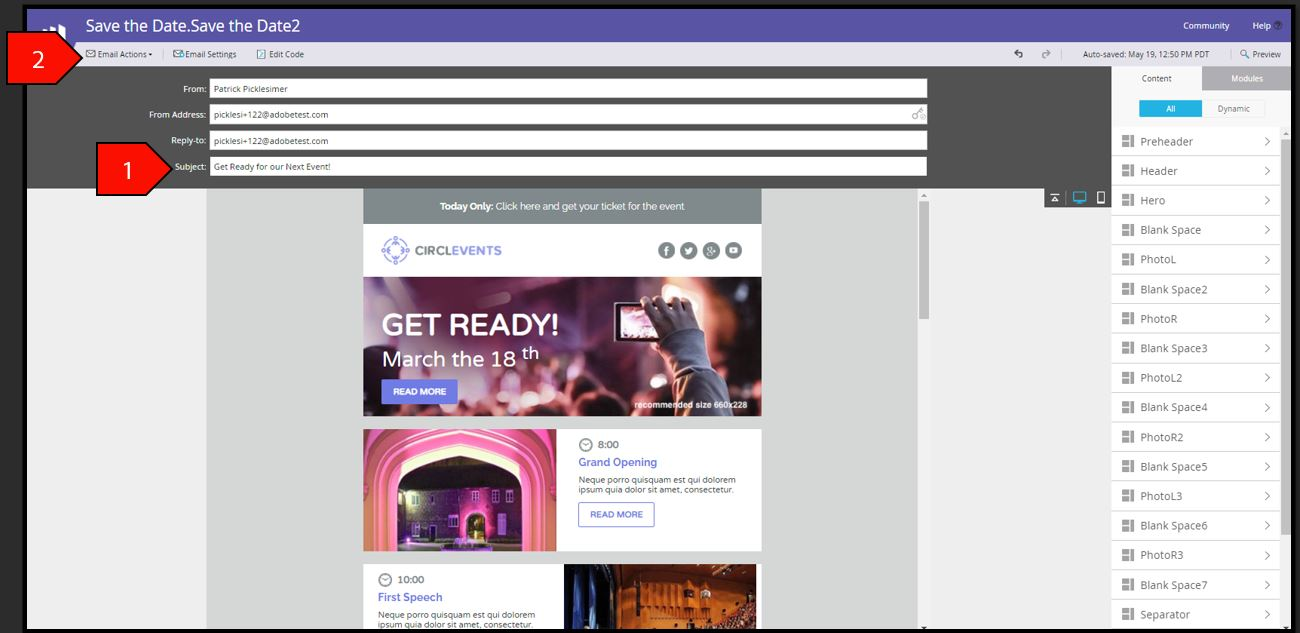
On Email Actions menu, click Close and Approve
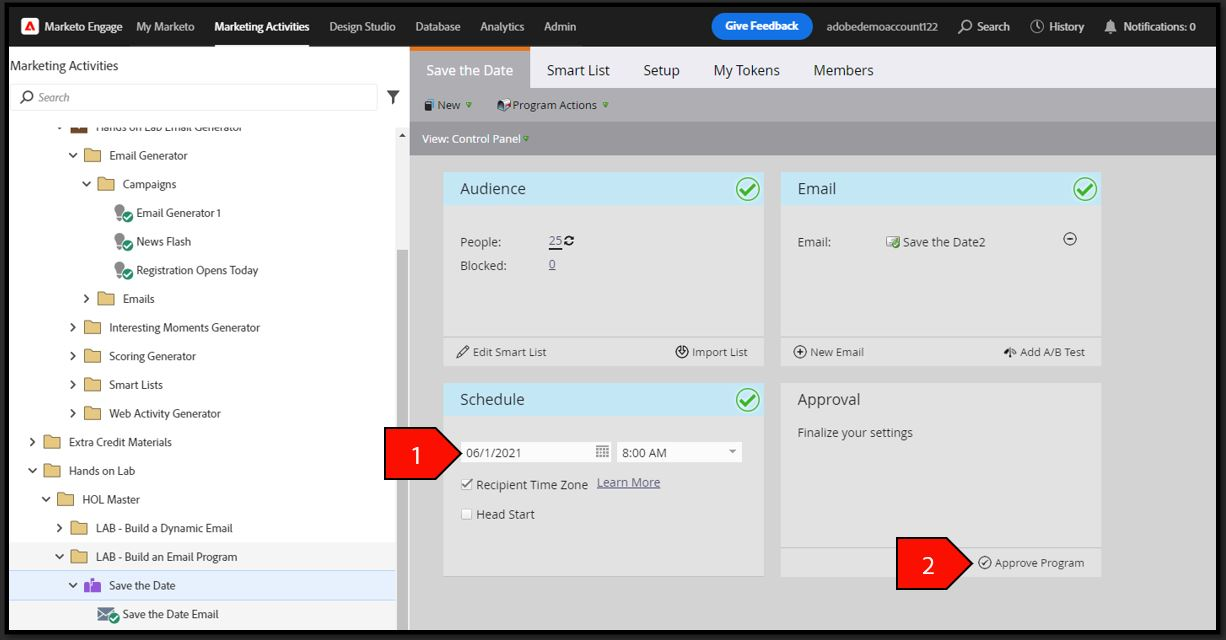
- On the Schedule pane of the Control Panel, select the date and time for the Email Send. Click the Recipient Time Zone check box.
- On the Approval pane of the Control Panel, check on Approve Program