Campaigns
In this section we are creating a campaign for abandoned cart customers in Adobe Journey Optimizer. The campaign will use the In-App channel.
NOTE: Some exercises may vary during the actual Hands on Lab versus what is listed in the Archbee Page, due to industry setup and / or Presenter preferences.
Navigate to Campaigns
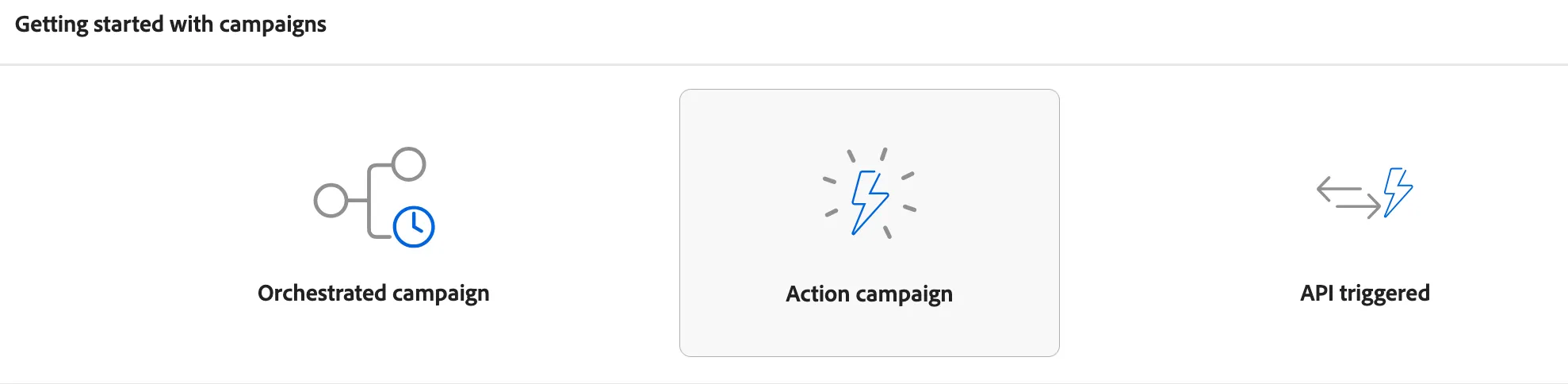
- Select Action Campaign
3. Click in create campaign
4. Select Scheduled Marketing Campaign
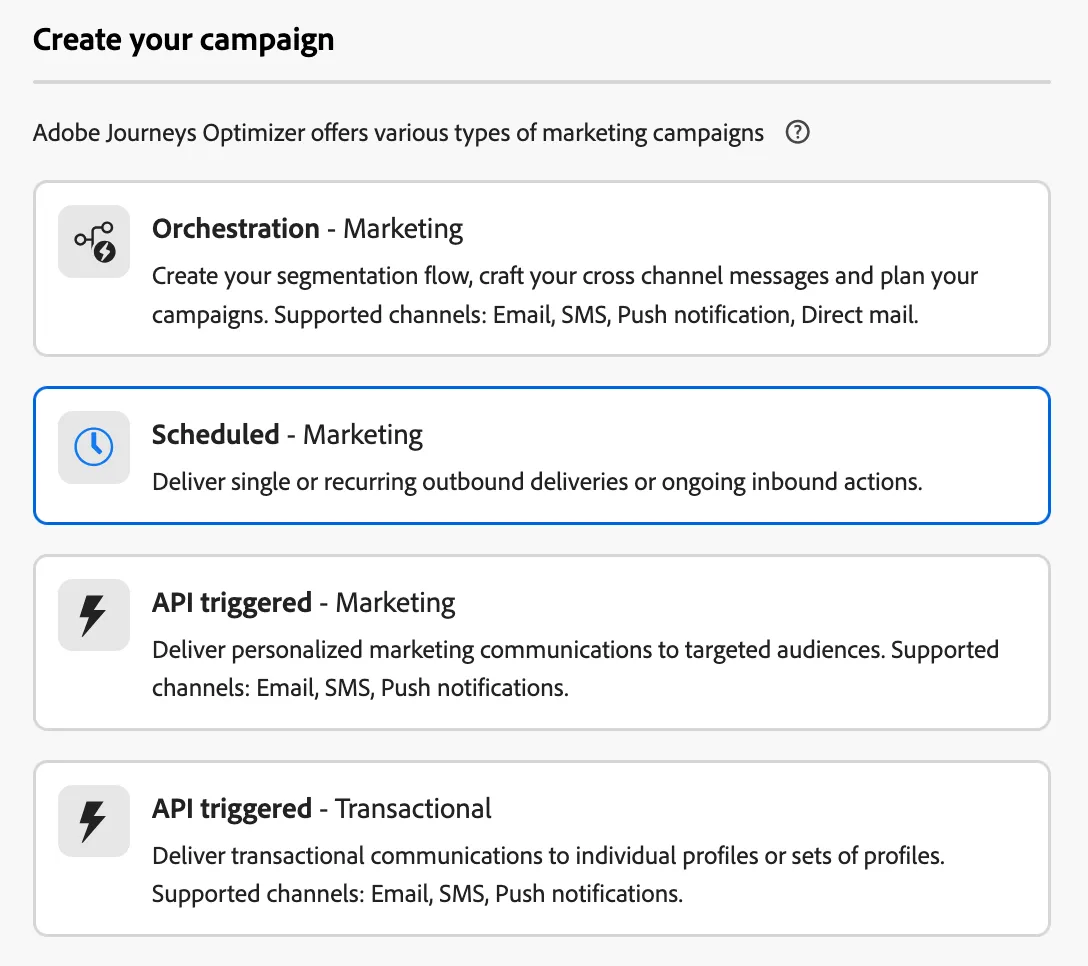
4. Provide a the name "Carrito abandonado - Iniciales" and description. Add your initials at the end of the name
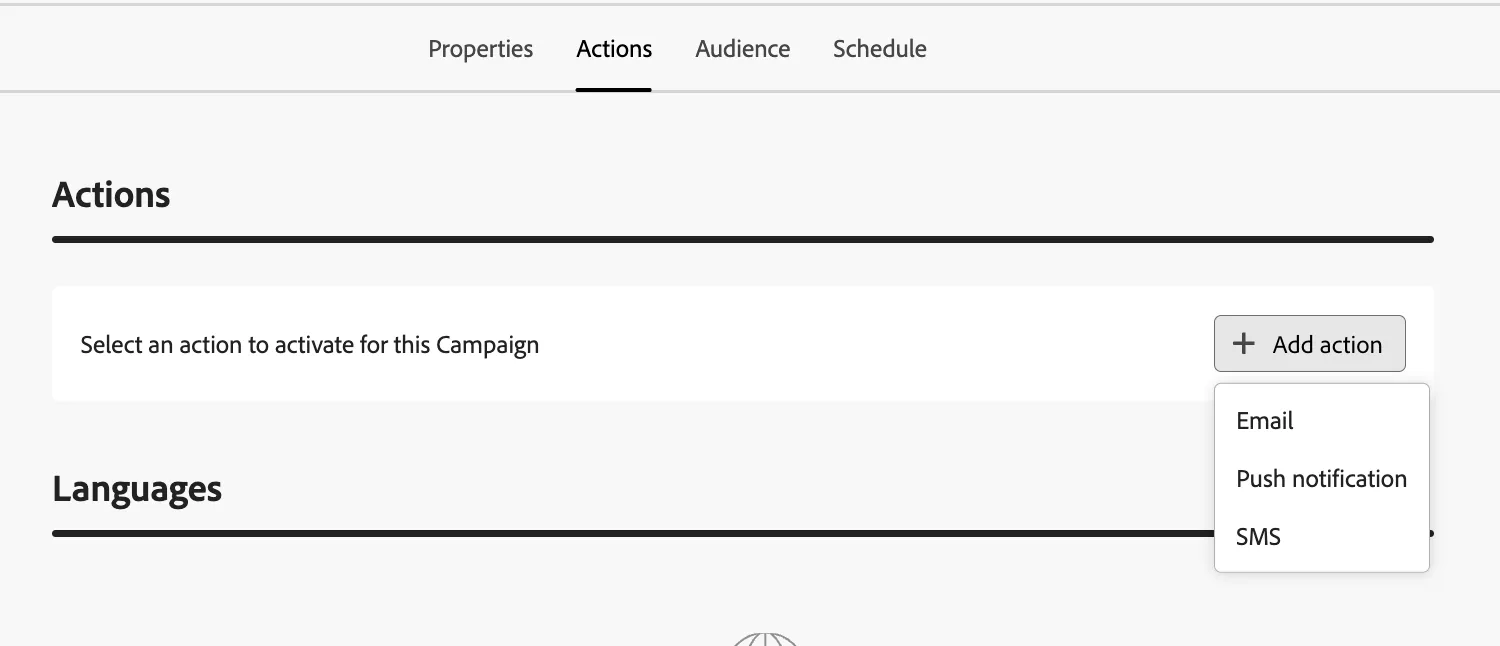
5. Go to actions and select Push Notification
6. En Push Notification Configuration Select PushNotifications
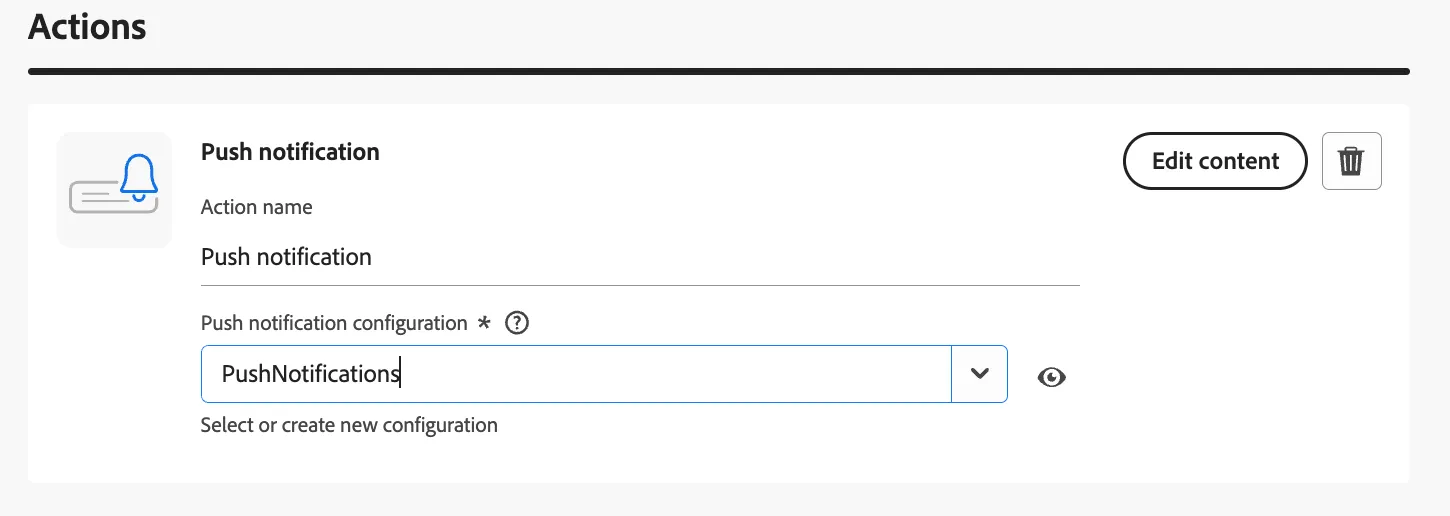
7. Clic en Edit Content
8. Add the title and body and review the composer
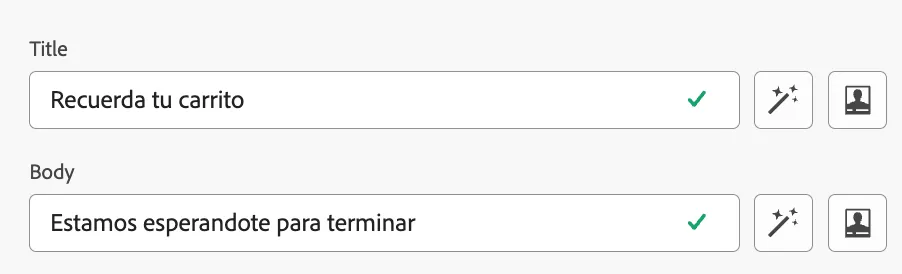
10. Now, let use the content generation capabilities.
11. Clic in Generative AI Icone

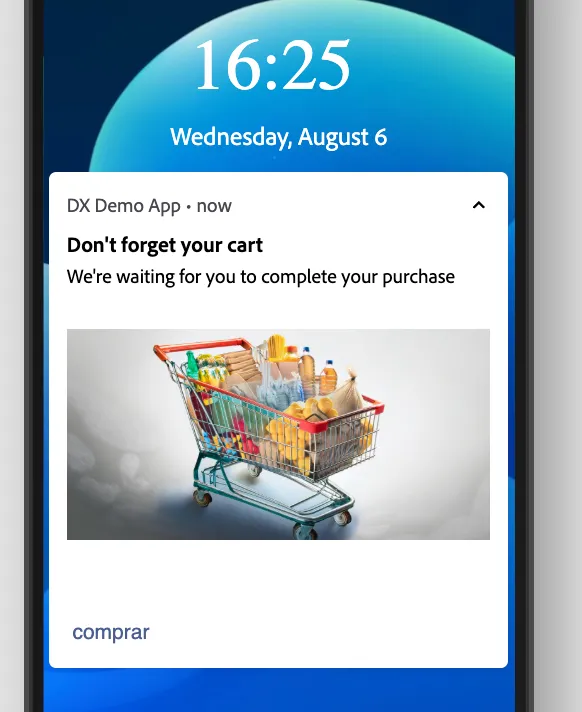
12. Write a promo to create the push notification. For example: "Recuerda terminar tu proceso de compra. Te esperamos", and check Title, Message and Image
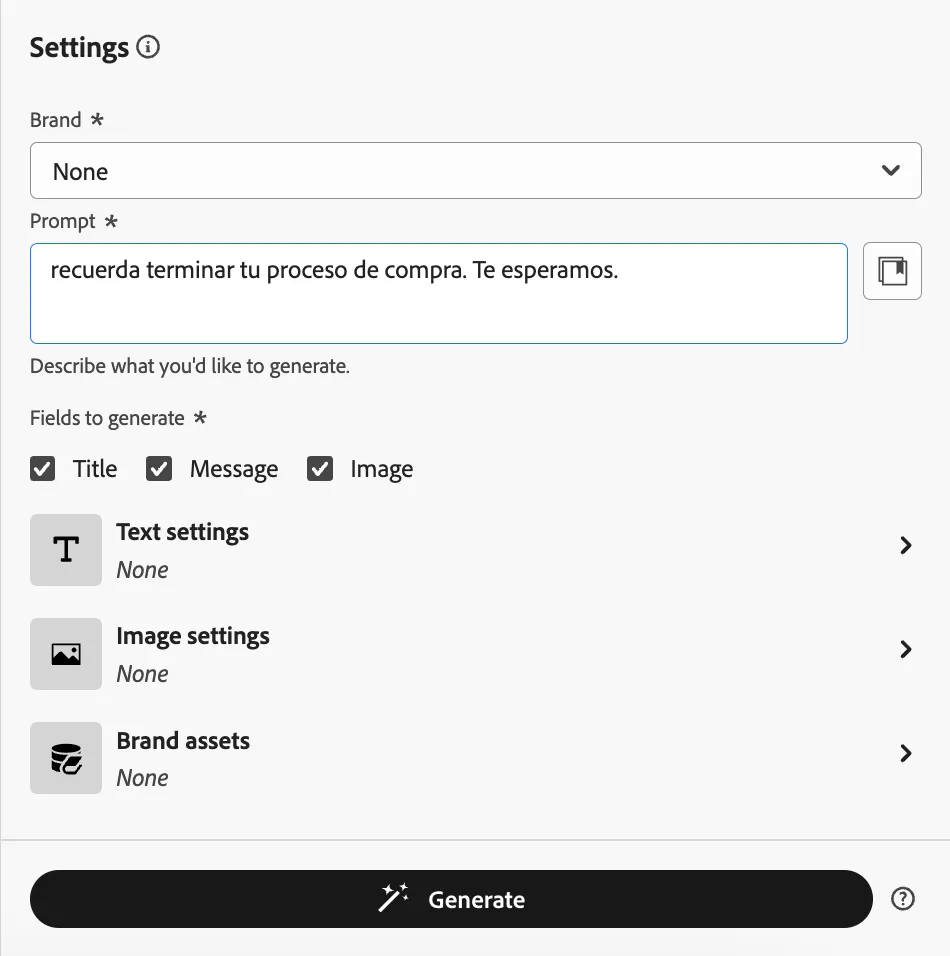
13. clic in Generate
14. Preview any of the options and apply. Maybe the image does not show up due to the type of message
15. Change to Android and add a Botton. Click on the expand button