Data Profiling
4 min
Dataset Profiling
Let's start by creating a high-level dashboard to profile the data we have in the dataview
Freeform
- Add a new panel at the bottom and name it "Data Profile"
- Drag Data Range "CJA HOL Date Range 2023" to the Panel
- Add a Freeform table
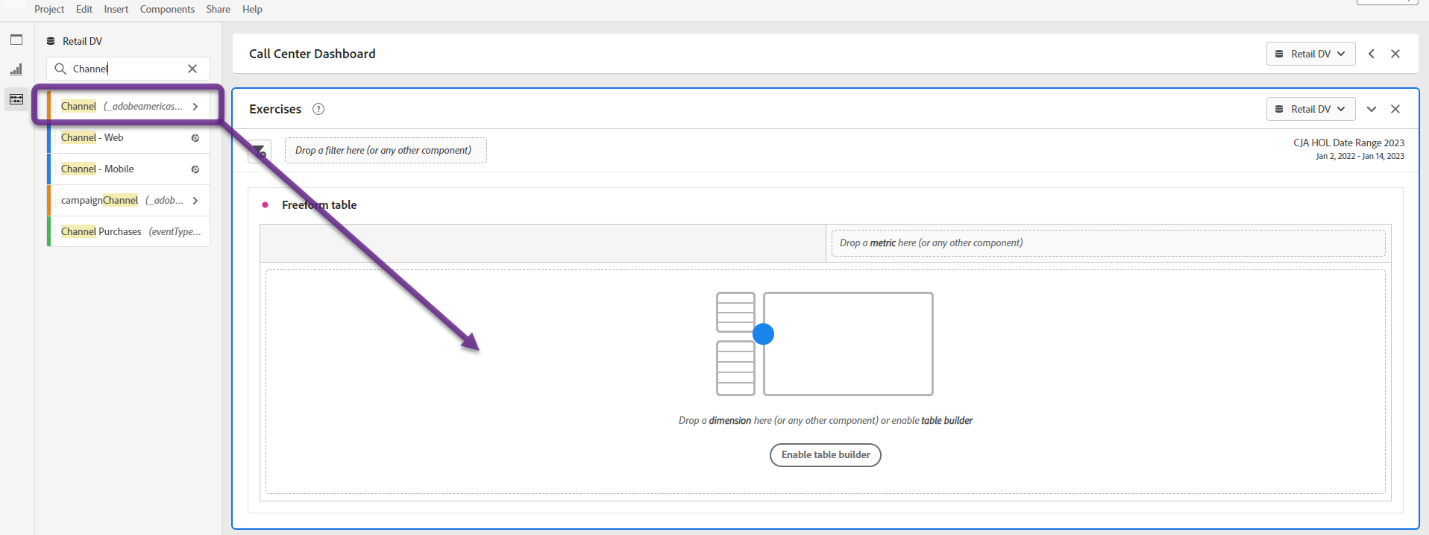
- Search for dimension "Channel"
- Click and drag dimension "Channel"
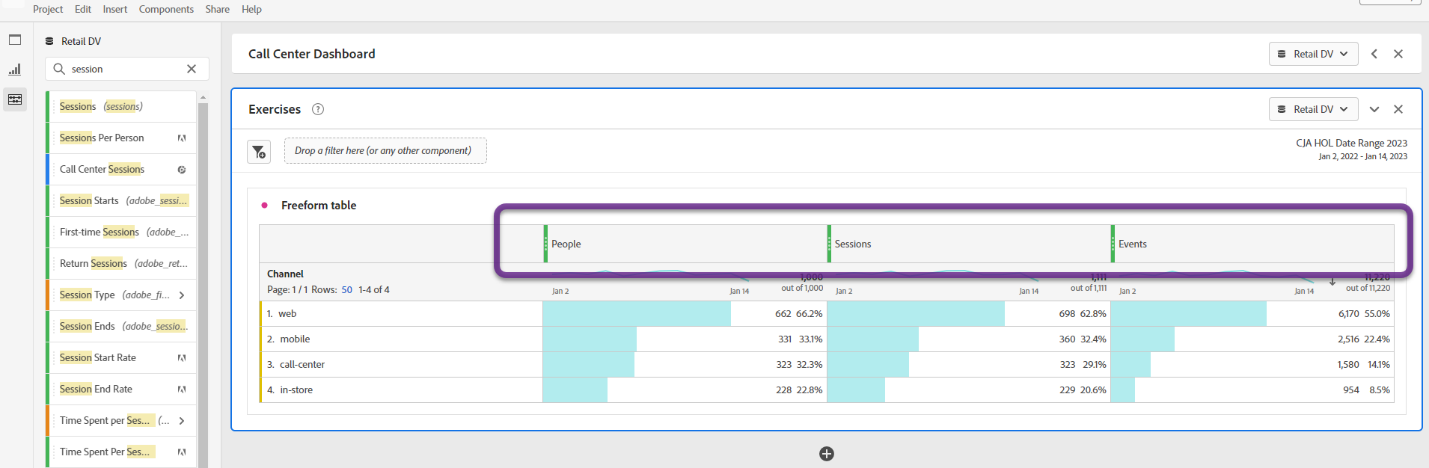
- Add metrics: "People" and "Sessions" to the left of "Events"
Insight
We can see from our top level metrics that we have data for the reporting range
Line
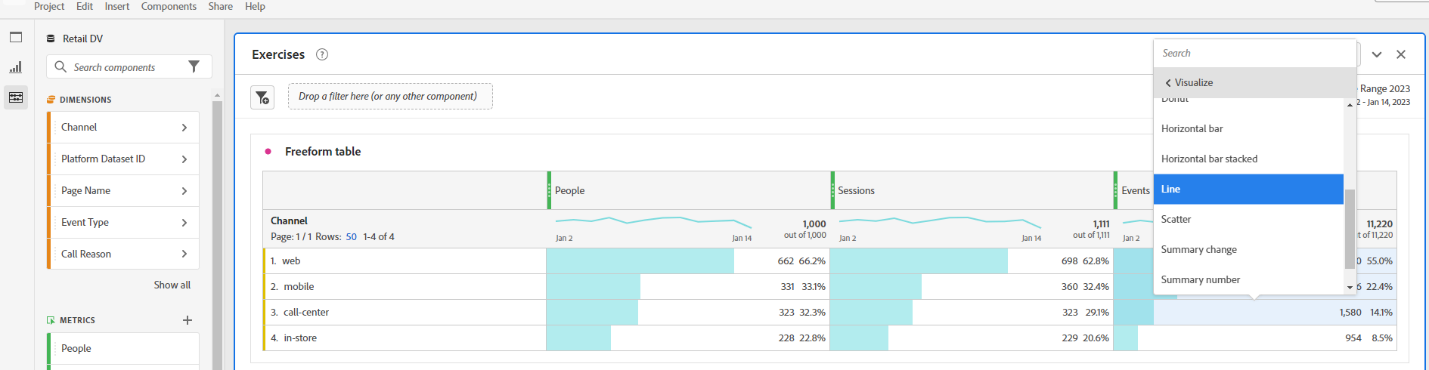
- Ctrl-click and highlight the "Events" metric in the all the rows
- Right-click and choose "Visualize" and then "Line"
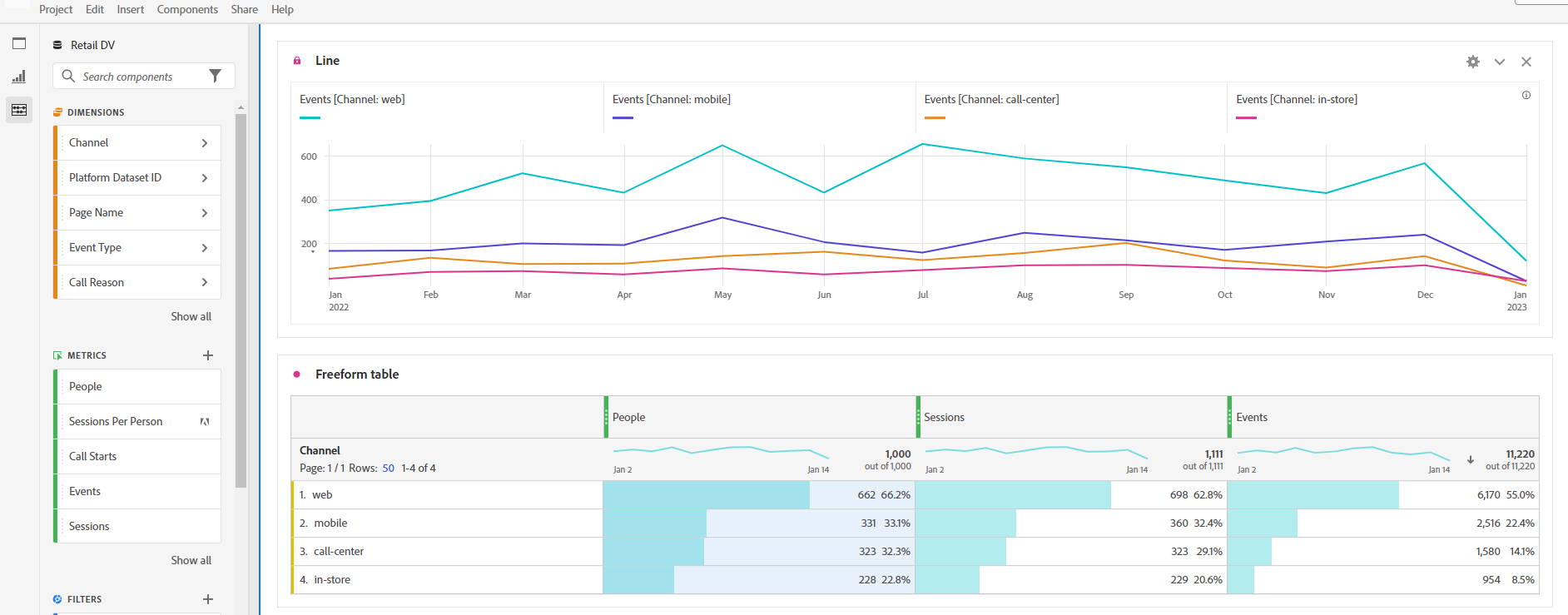
- Click the colored dot next to the title "Line" in the new Line visualization
- Check "Lock selection" and choose "Selected items" to lock this visualization to the "Events" metrics selected
Freeform
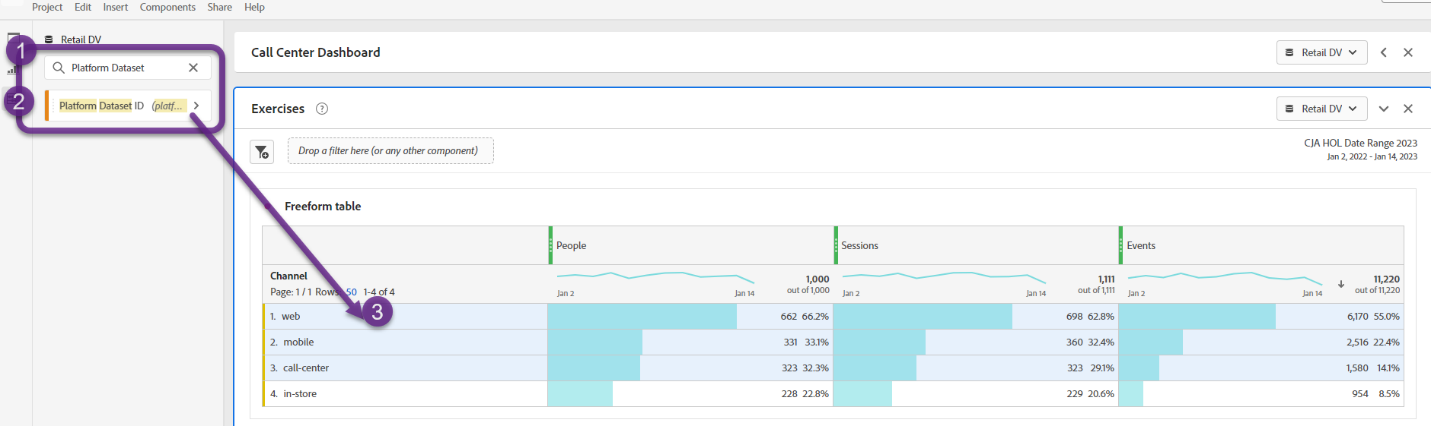
- Ctrl-click to highlight the first three rows
- Search for "Platform Dataset ID"
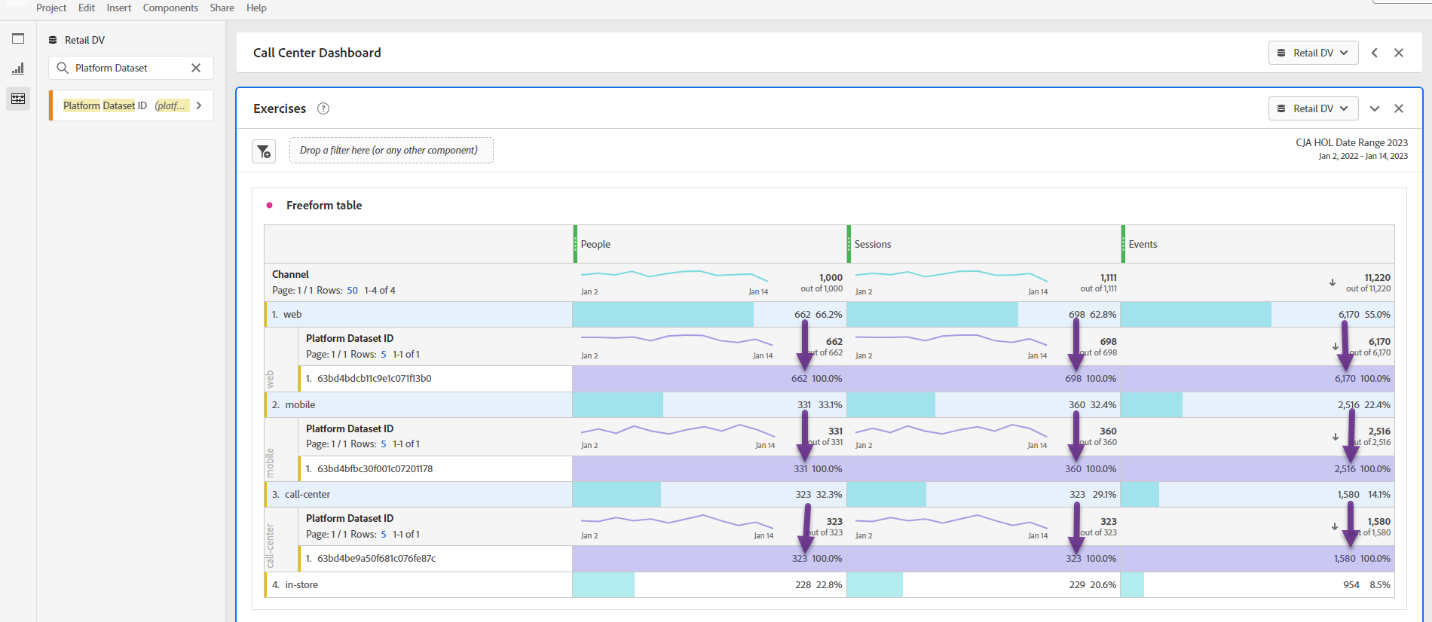
- Click and drag "Platform Dataset ID" to the highlighted row and you should see 'Breakdown" appear
Insight
We can see that 'Platform Dataset ID" dimensional items are 1:1 to "Channel" dimensional items
- Press Ctrl-z to undo the breakdown since we confirmed the datasets are aligned to "Channels"
Venn
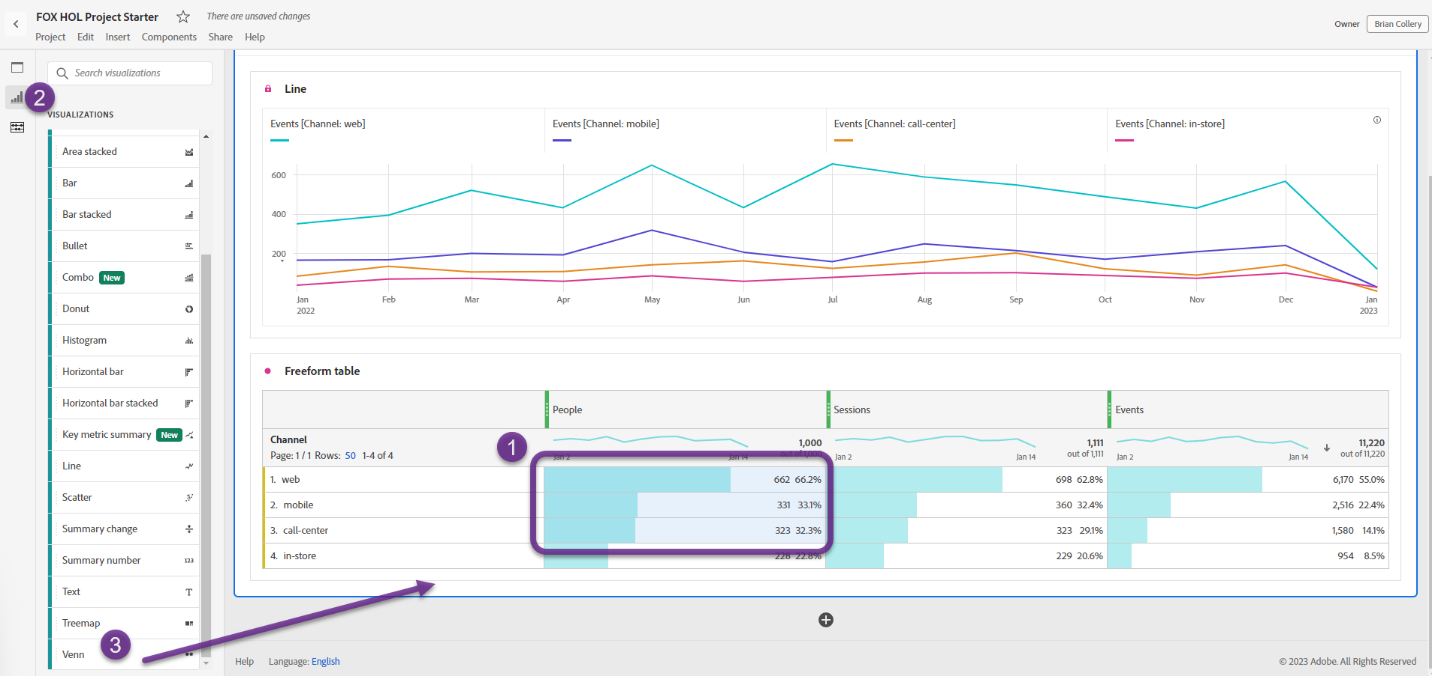
- Ctrl-click to highlight the "People" metric in the first three rows
- Click the Visualization icon on the upper left (second icon - bar chart)
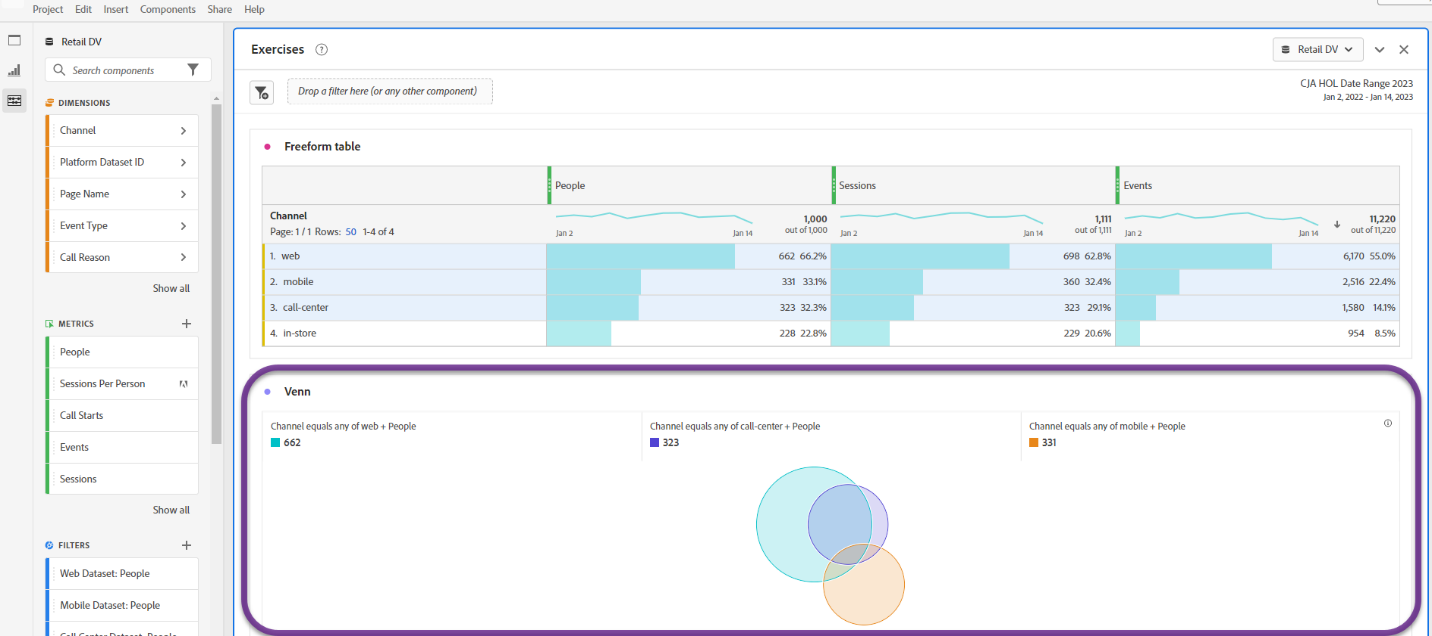
- Click and drag Venn below the Freeform table from above
Insight
We can see there is overlap where some "People" are present in more than one dataset
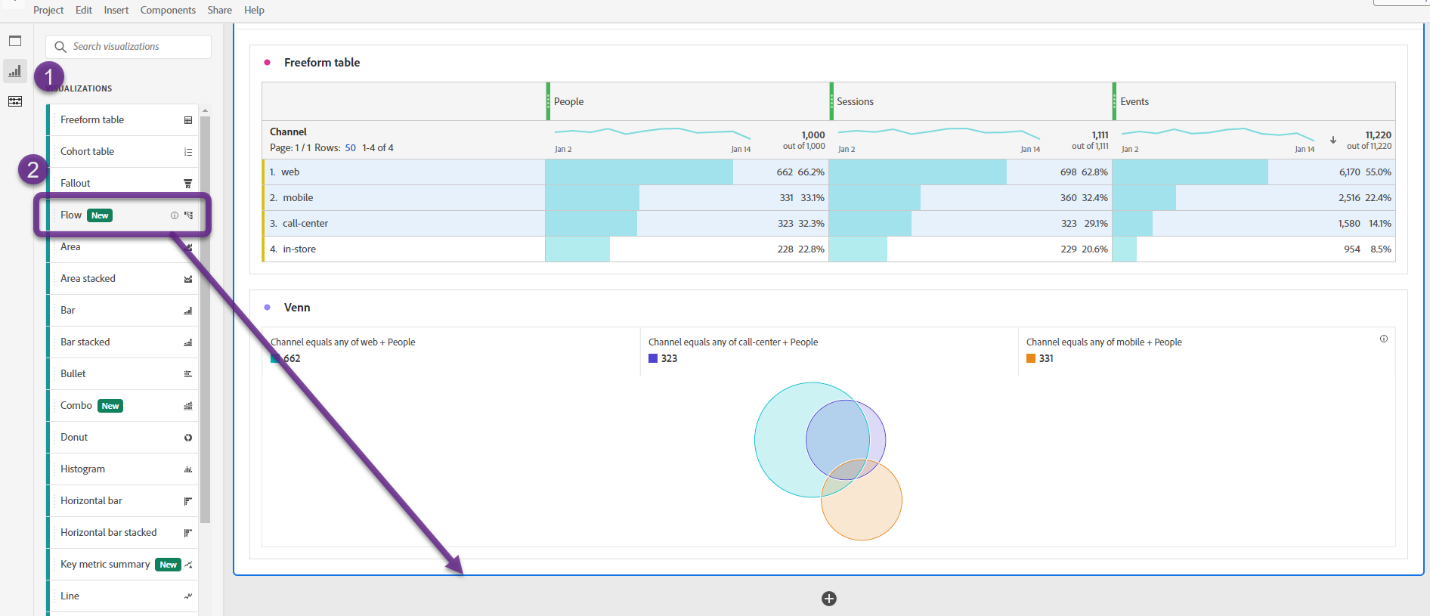
Flow
- Click the Visualization icon on the upper left (second icon - bar chart)
- Click and drag Flow below the Venn from above
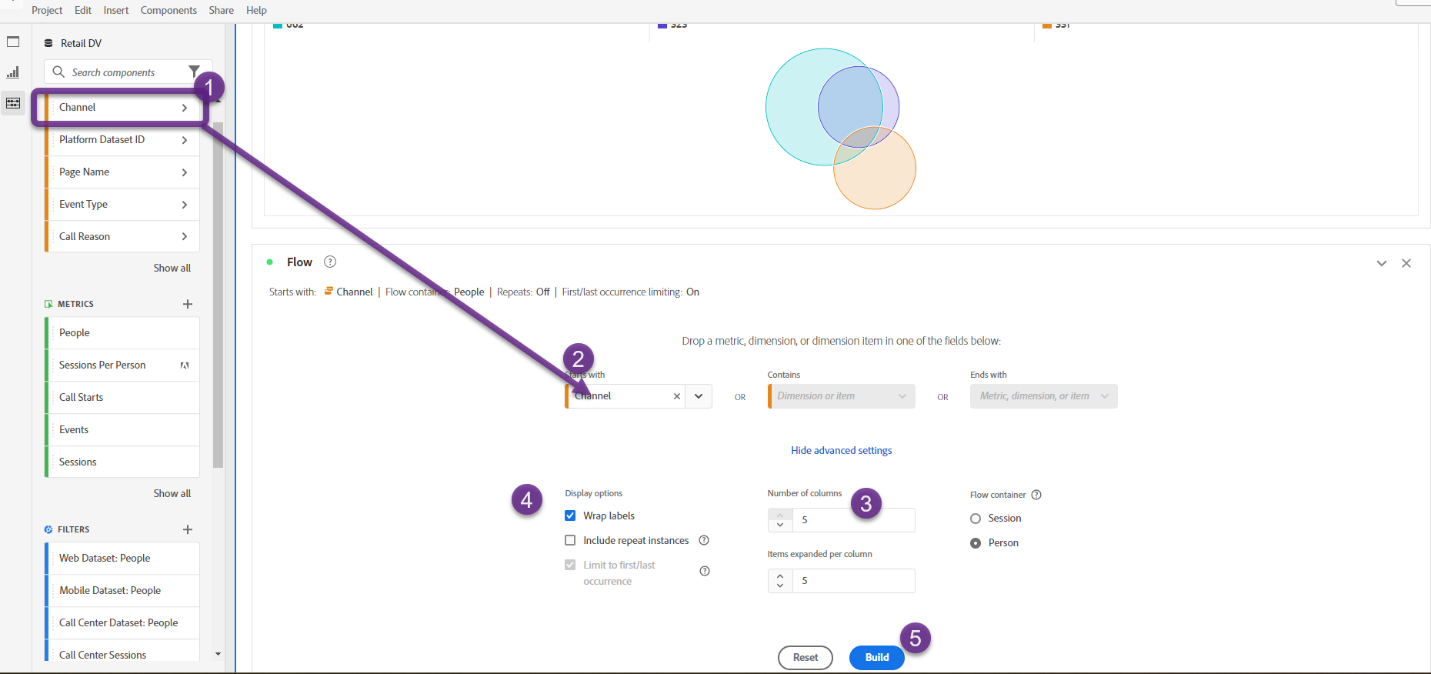
- Click and drag the "Channel" dimension to the "Starts with" box
- Click "Show advance setings" link
- Update the "Number of columns" to 5
- Check "Wrap labels" under "Display options"
- Click the "Build" button
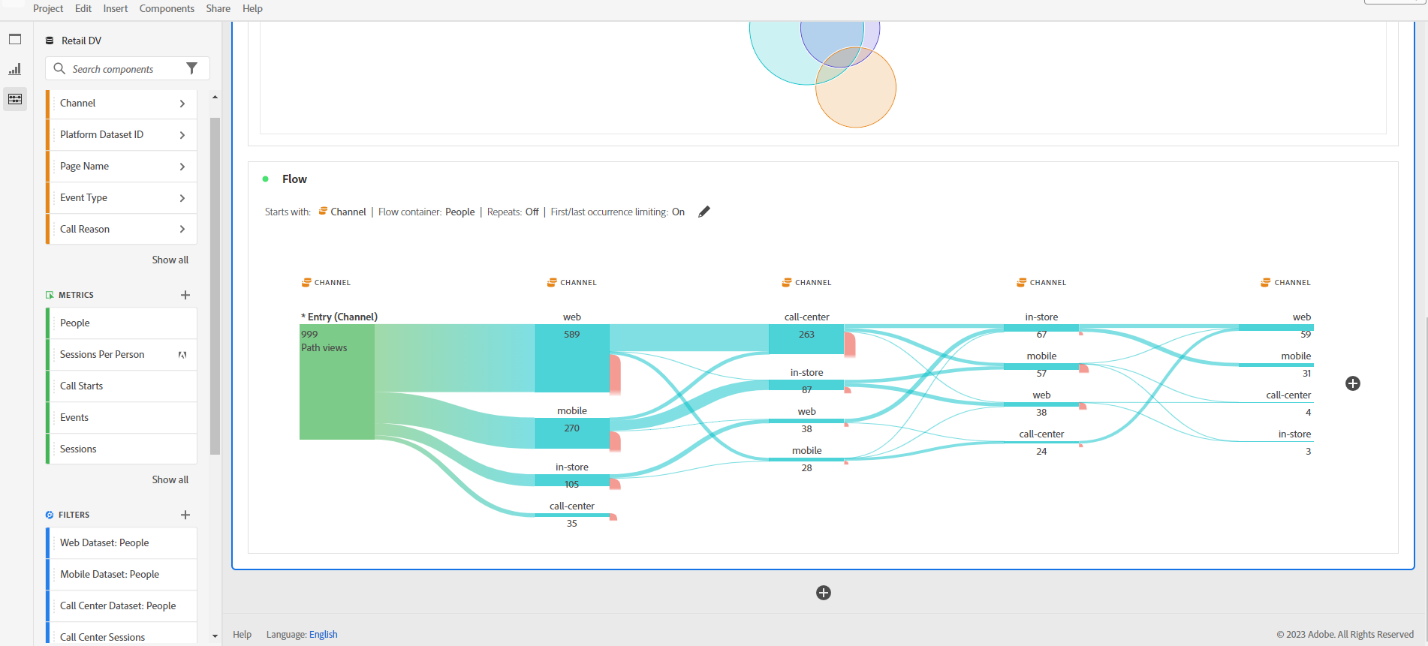
Insight
We can see the interactions as People flow between "Channels"