Creating the journey
In this exercise, you'll be creating and testing a journey using all the components you've created in the previous exercises.
Journey overview
To get an overview of all journeys in Adobe Journey Optimizer:
- In the menu on the left side, under Journey Management, click on Journeys. You will see a overview with all existing journeys.
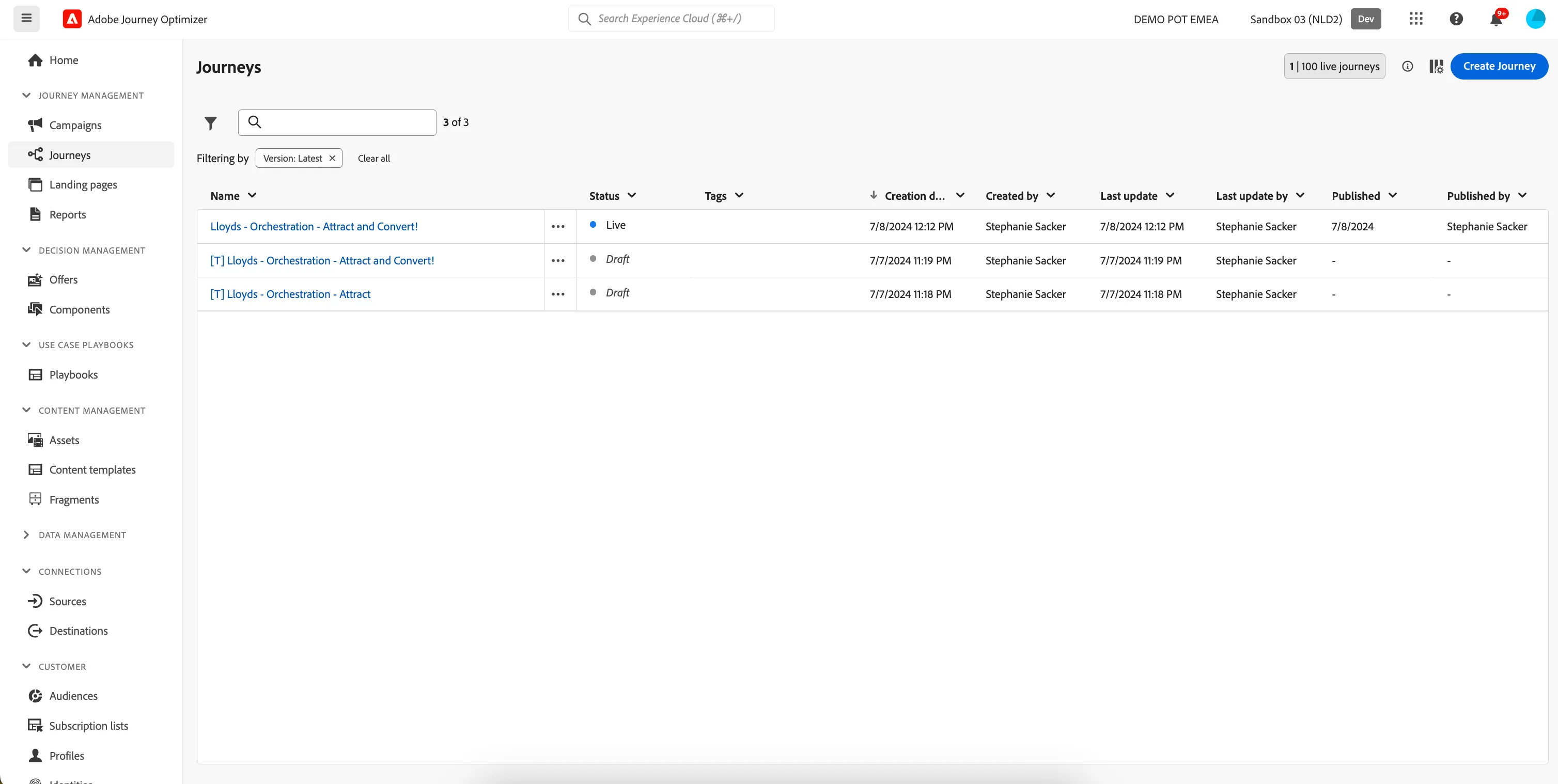
Creating a journey
We'll be creating a journey that will send a push notification to customers when they start the PCA Application, then abandon. We want to remind the customer to complete the application process.
Click on Create Journey. You'll be taken to the Journey canvas with the journey properties opened.
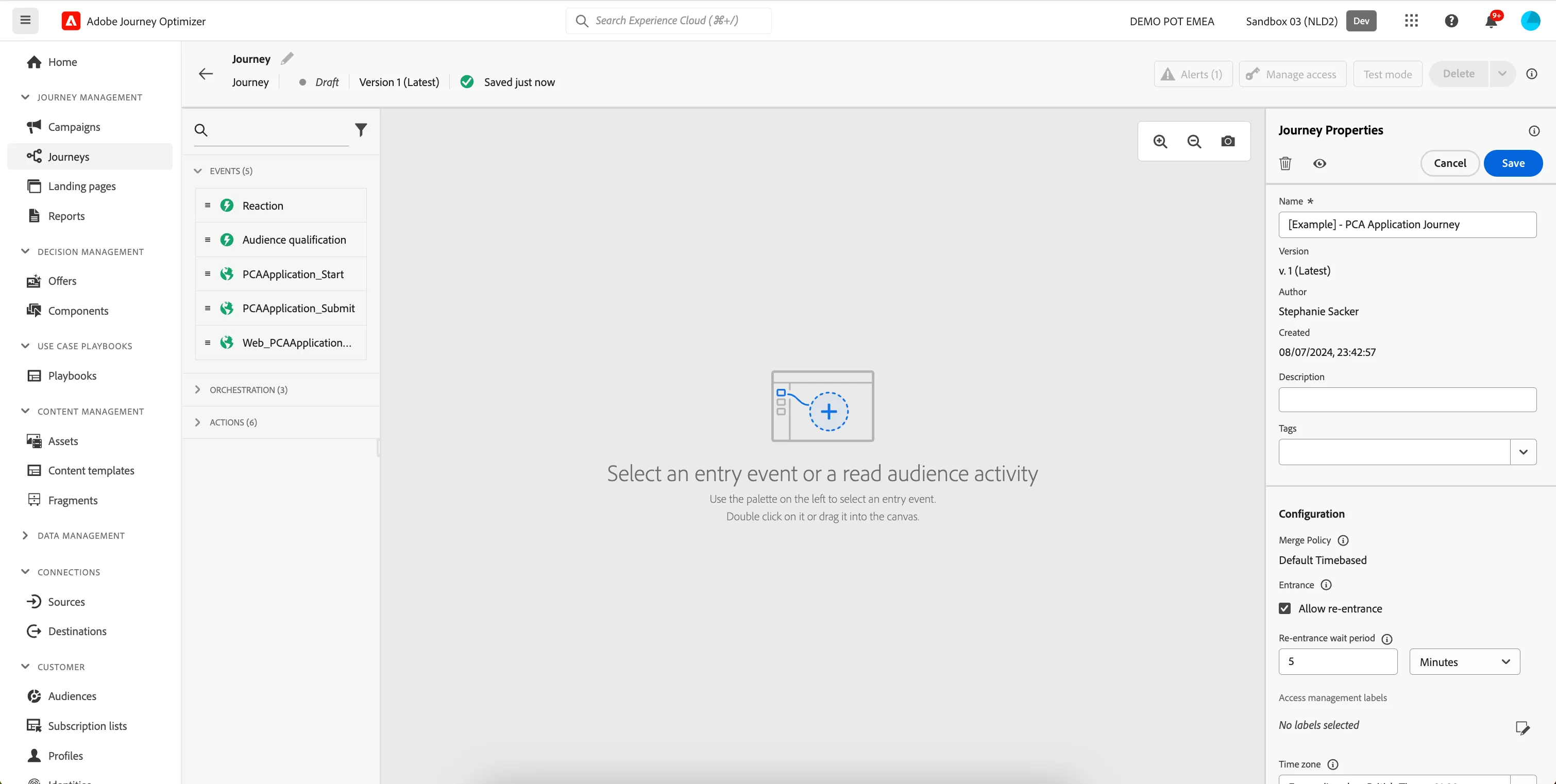
- Set the name to [your name] - PCA Application Journey.
- For the other properties we'll keep the default values.
- Your screen should look like the image below. Click Save to save and close the properties.
You're now in the journey canvas. This is where you'll be creating your journey's logic. In the left menu you have activities. There's three types of activities:
Events are the triggers that can start or continue your journey.
Orchestration is the logic of your journey. It looks at conditions, audiences, but can also be used to make your workflow wait or end.
Actions are the results of your journey. This can be messages, profiles updates or API calls.
Event trigger
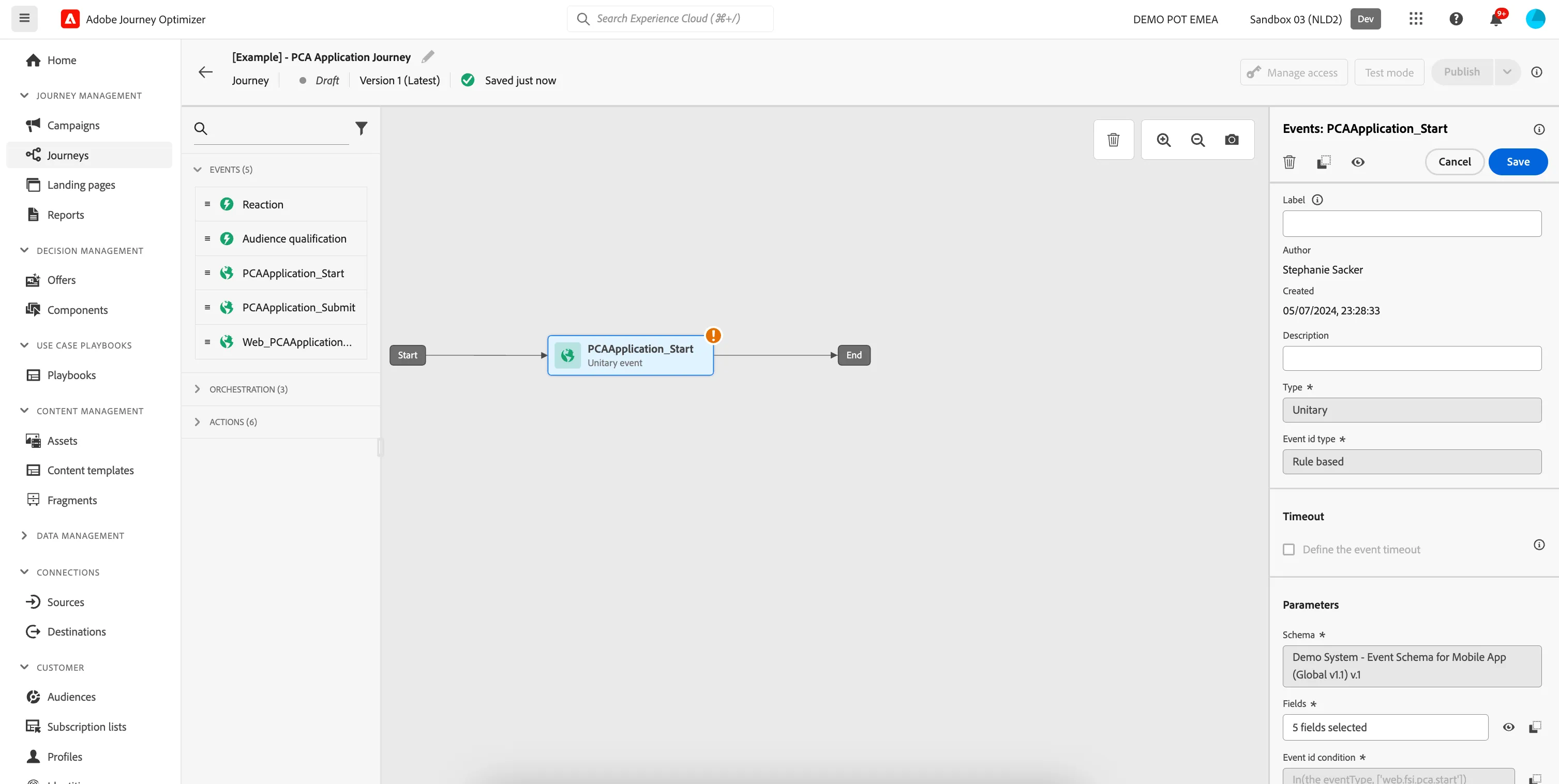
- We're starting our workflow of with an event trigger. From the events tab, choose your created event ([yourName]PCAApplication_Start) and drag it onto the canvas. If you did not create an event, use the PCAApplication_Start event.
- There's nothing we need to configure for this as we have already done this in the Configuring Events section.
- Click Save to close the menu.
Event - Application Submit
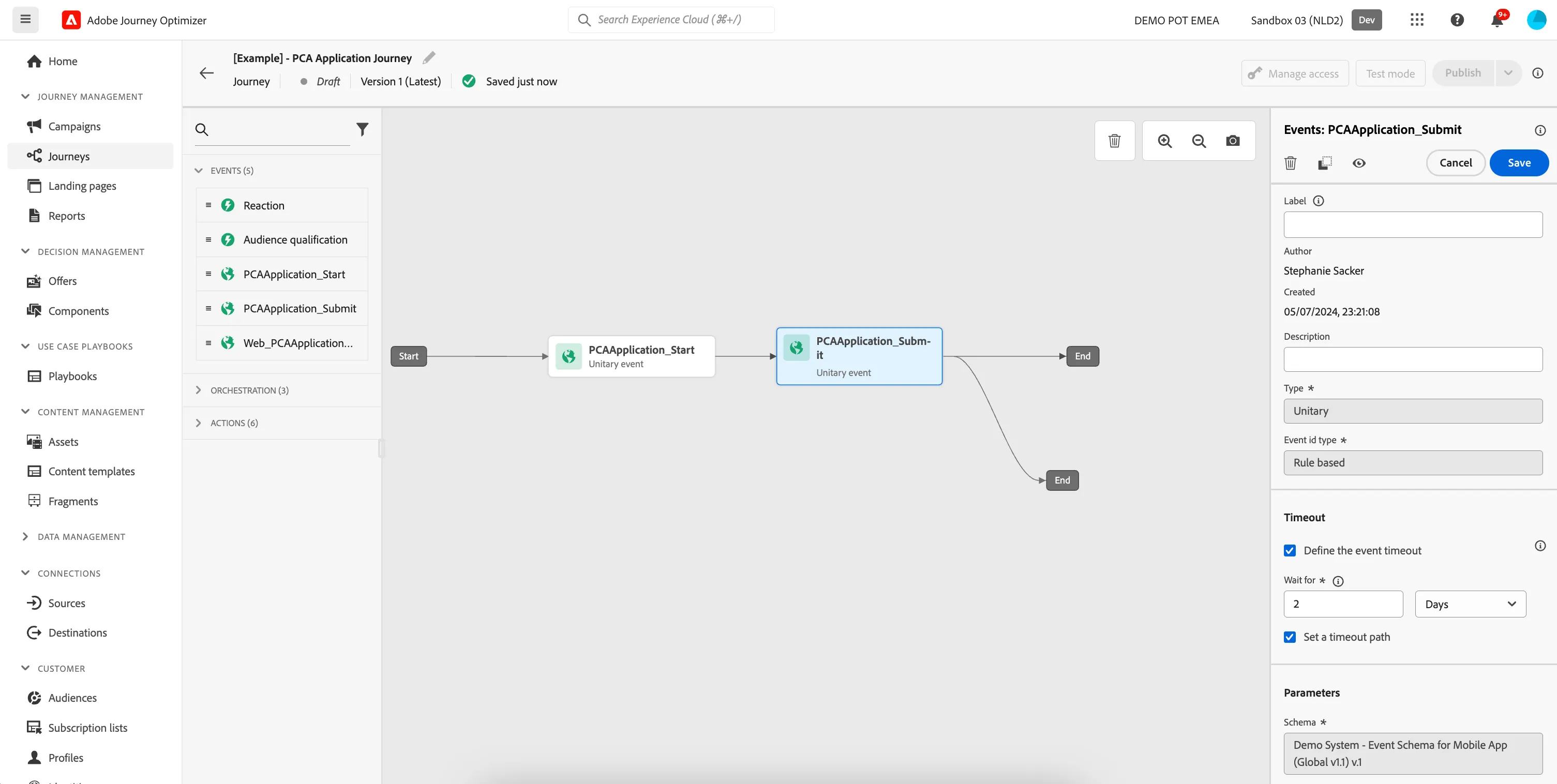
- From the Events tab, choose your created event ([yourName]PCAApplication_Submit) and drag it onto the canvas to the right of the PCAApplication_S event. If you did not create an event, use the PCAApplication_Submit event.
- Check Define the event timeout and set it to wait for 2 days.
- Check the box Set a timeout path.
- Your screen should look like the image below. Click Save.
Condition - Is a mobile app user?
When the customer starts a PCA application but doesn't submit within 2 days, the first thing we want to check is if the customer has the mobile app in order to communicate via the Push channel.
- From the orchestration tab, choose Condition and drag it onto the lower branch on the canvas (2 d timeout).
- Click on the activity to open the detailed view.
- Set the label to Has mobile app?.
- Click on Path1 and change the label to Yes.
- Click on Add an expression to open a window.
- On the left side, open Audiences. Scroll down till you find the audience you created called [your name] - Has mobile app and drag it to the right side. If you didn't create the audience, use Lloyds - Has mobile app.
- By default the statement should be on true, if not click the toggle. Checks if the title reads [your name] - Has mobile app audience membership is true and click Ok.
- Click Ok to save the conditions.
- Check Show path for other cases than one(s) above and set the label to No.
- Your screen should look like the image below. Click Save.
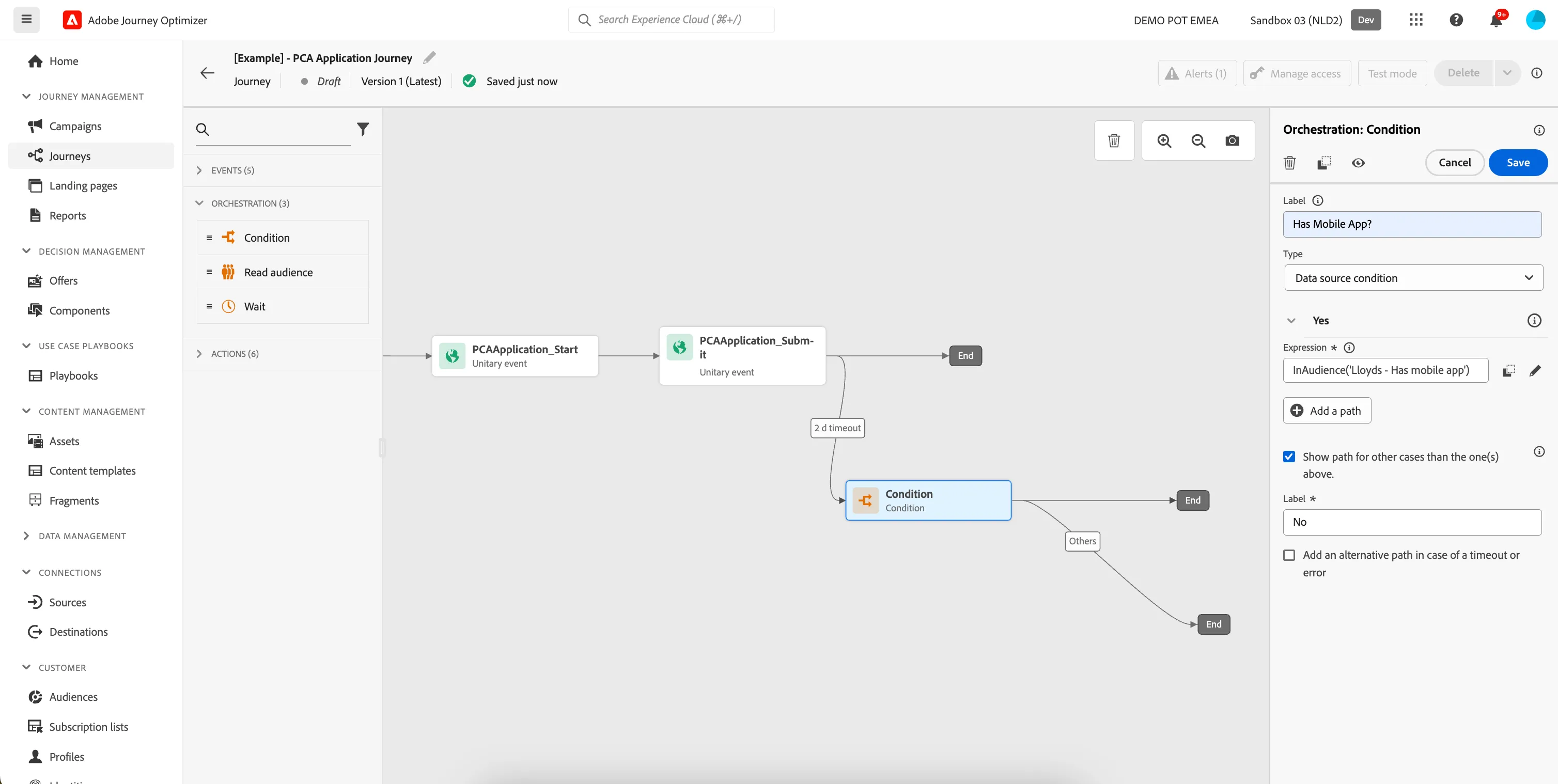
In our journey we want to focus on the customer that do have the mobile app.
Push #1 - Application reminder - continue your PCA Application
- From the actions tab, choose Push and drag it onto the canvas at the Open-path following the Yes branch of the Has mobile app? condition.
- Click on the Push action to open the detailed view.
- Set the Label to PCA Application Reminder.
- Set the Category to Marketing.
- Set the Push surface to marketingMessages.
- Click on Edit content to start designing your email.
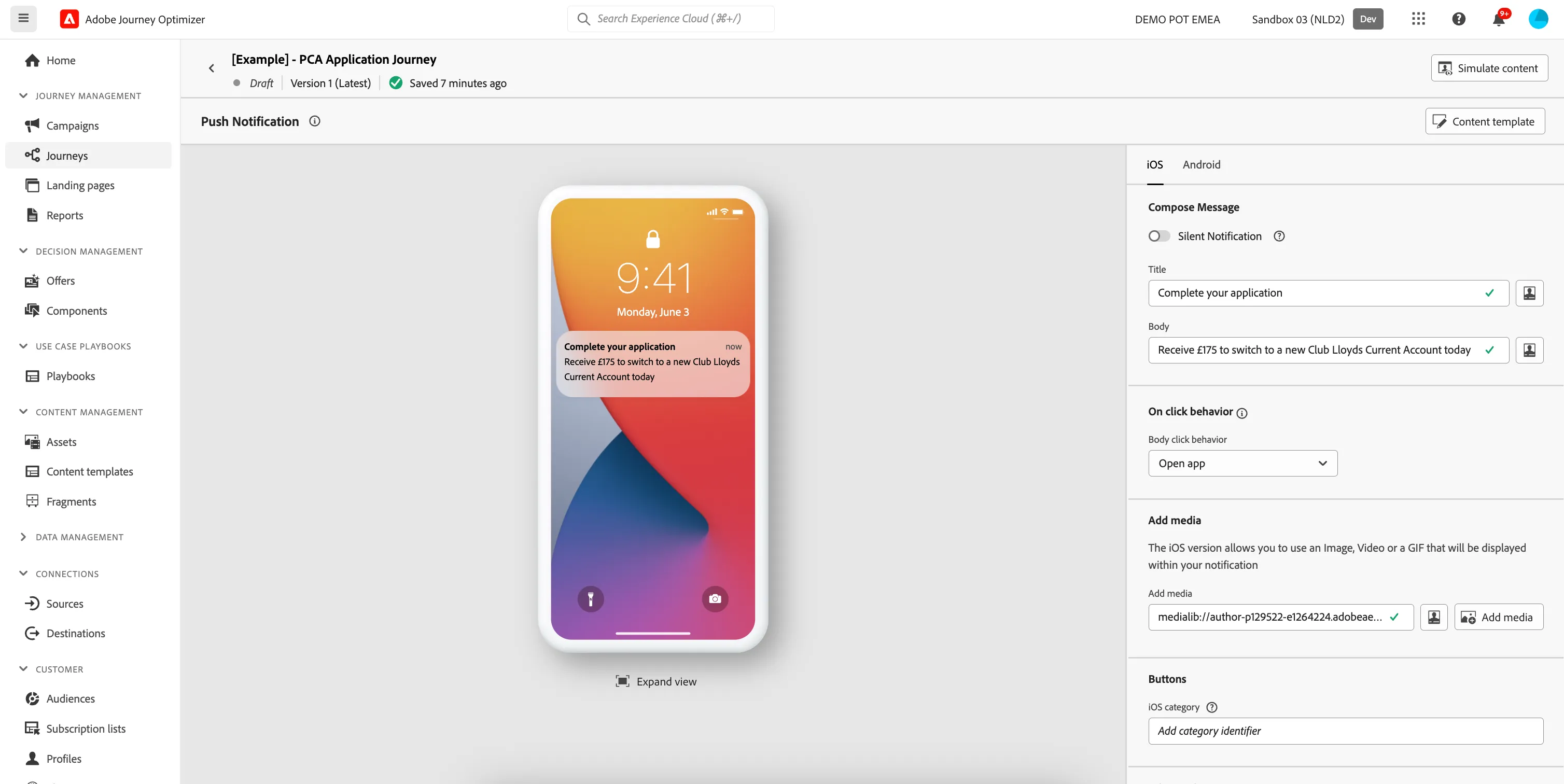
- Set the Title to Complete your application.
- To change the body, click on the personalisation icon (on the right of the field). A window will open allowing you to write advanced expressions. In this lab we will not add any personalisation to the Push notification text, we will explore this in Part 2 of this Lab when we compose an Email.
- Click Cancel to close the expression editor window.
- Set the Body to Receive £175 to switch to a new Club Lloyds Current Account today.
- To add an image, click on Add media. Assets Essentials will open. Navigate to Bootcamp > Lloyds and select the image lloyds-logo-partial.png and click Select in the top right.
- Your screen should look like the image below.
-
- Navigate out of the designer by clicking the arrow on the top left of your screen.
- Your screen should look like the image below. Click Save.
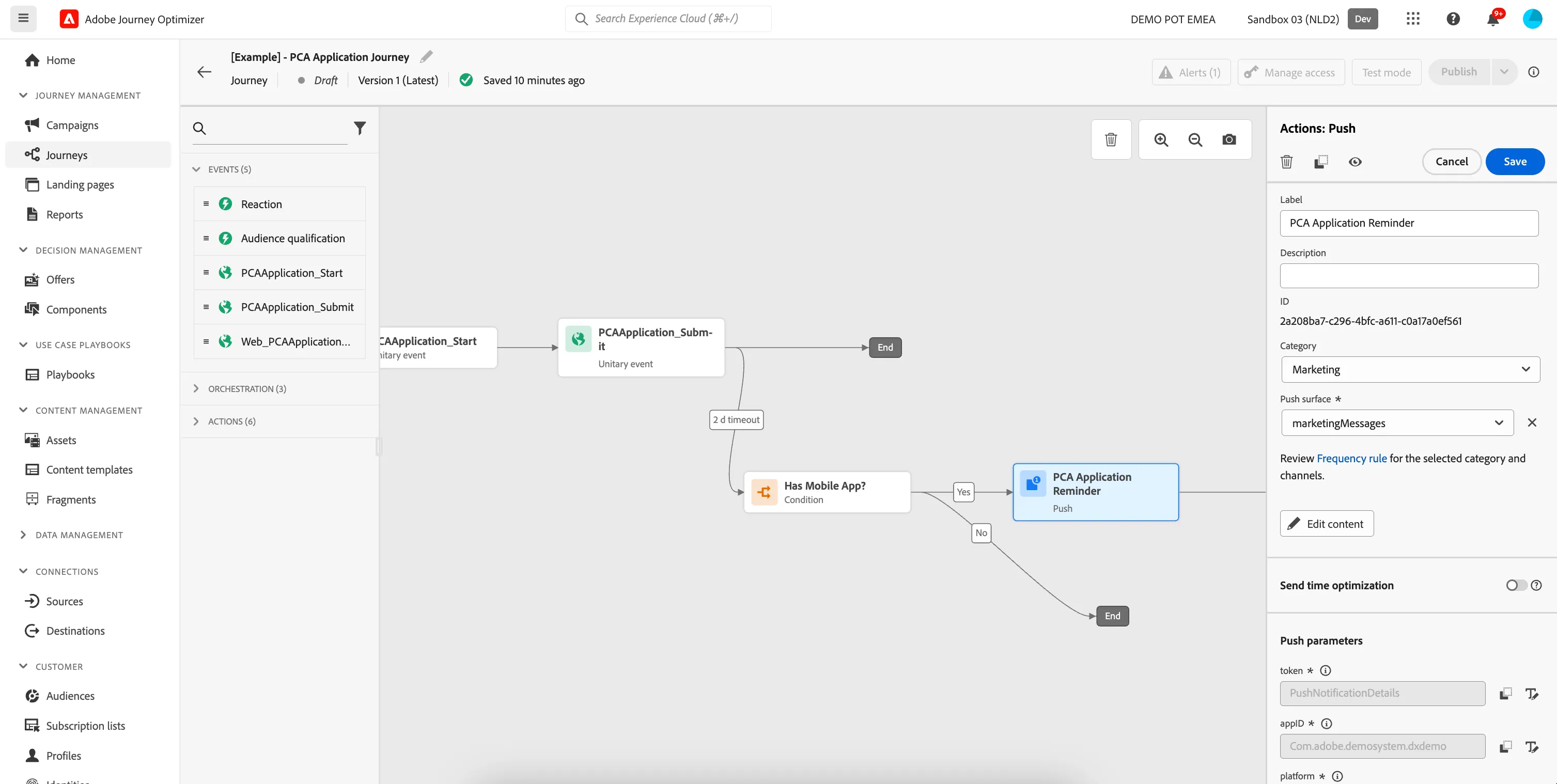
You have now successfully created Part 1 of the PCA Application journey using the Adobe Journey Optimizer. Next, we will create Part 2, snd test our journey using Test Mode.