Creating the journey
In this exercise, you'll be creating adding further to your PCA Application journey, using all the components you've created in the previous exercises.
Didn't complete the Journey in part 1? You can copy the pre-created template journey: [Example] - Part 1 - PCA Application Journey .
Journey overview
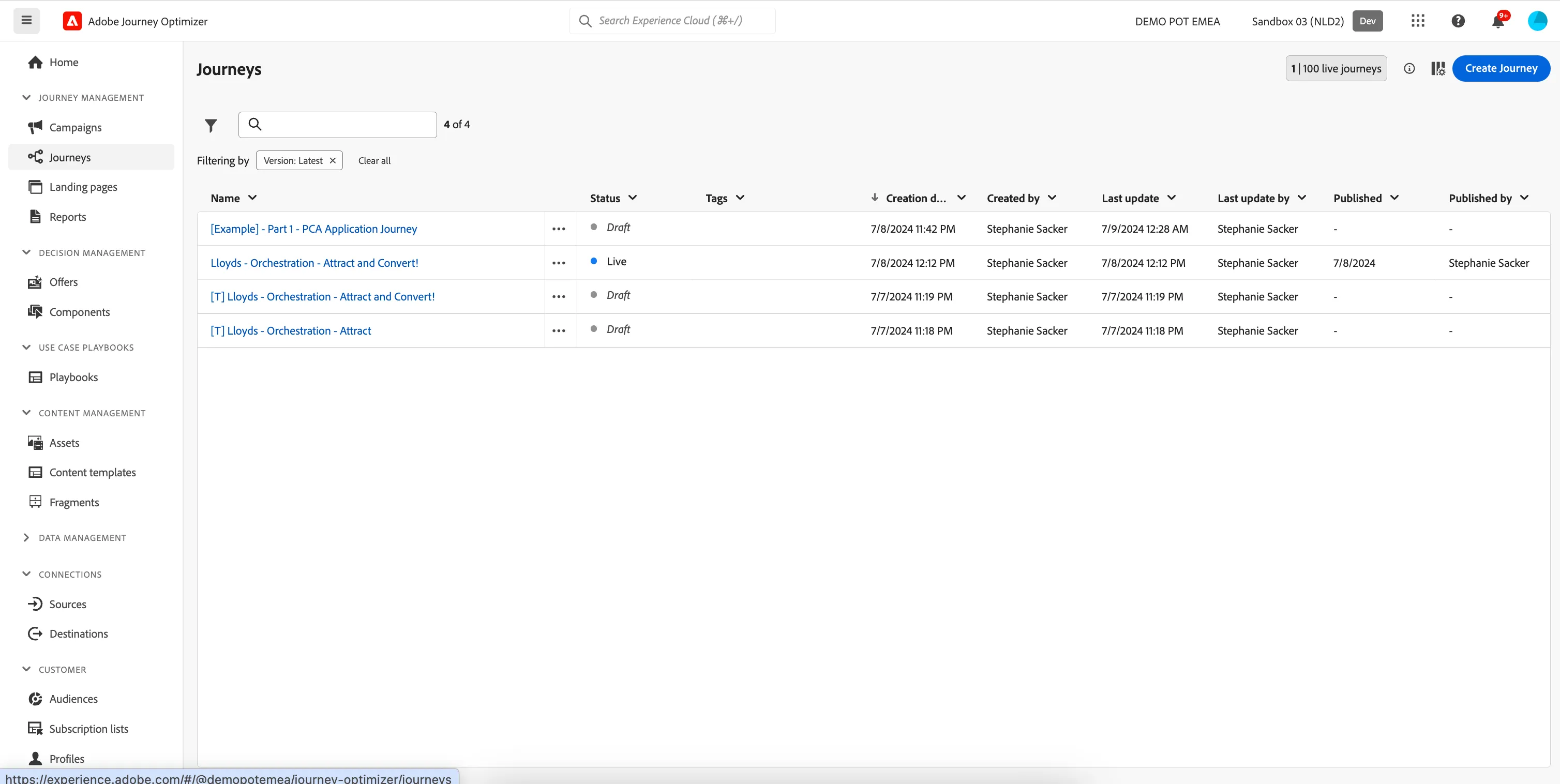
To get an overview of all journeys in Adobe Experience Platform:
- In the menu on the left side, under Journey Management, click on Journeys. You will see a overview with all existing journeys.
Creating a journey
We'll be creating a journey that will send an email or Push message to customers once they submit a PCA Application and give them an offer for a related product, like a credit card. The channel which we send the message will depend on their communication preferences.
Open the journey you created in Part 1. You'll be taken to the Journey canvas.
Didn't complete the Journey in part 1? You can copy the pre-created template journey: [Example] - Part 1 - PCA Application Journey .
- Set the name to [your name] - PCA Application Journey.
- For the other properties we'll keep the default values.
- Your screen should look like the image below. Click Save to save and close the properties.
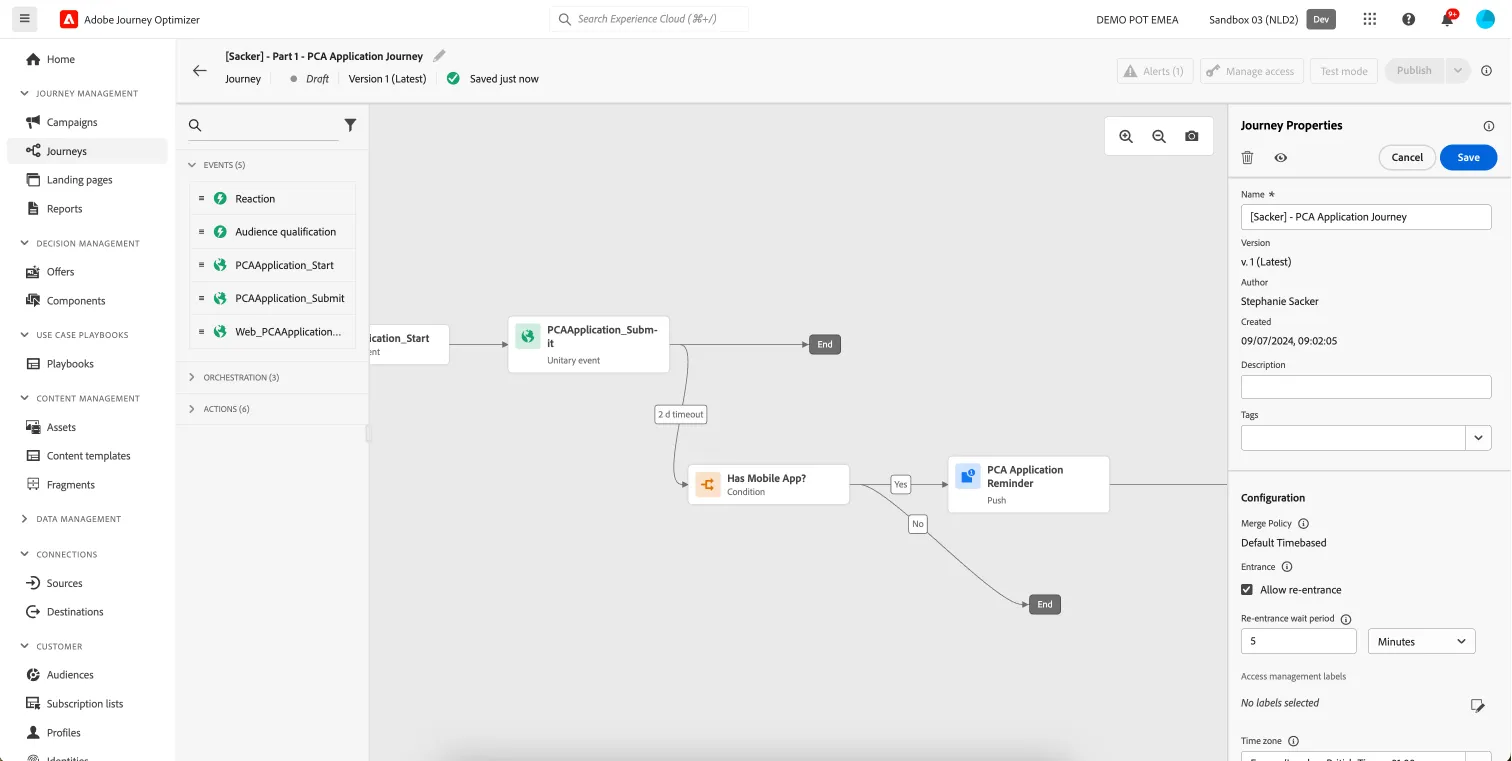
You're now in the journey canvas. This is where you'll be creating your journey's logic. In the left menu you have activities. There's three types of activities:
Events are the triggers that can start or continue your journey.
Orchestration is the logic of your journey. It looks at conditions, audiences, but can also be used to make your workflow wait or end.
Actions are the results of your journey. This can be messages, profiles updates or API calls.
Event trigger - Application Submit
We're continuing our workflow of with an event trigger. After the customer has been sent the Push notification reminder, we want to listen for an Application Submit event.
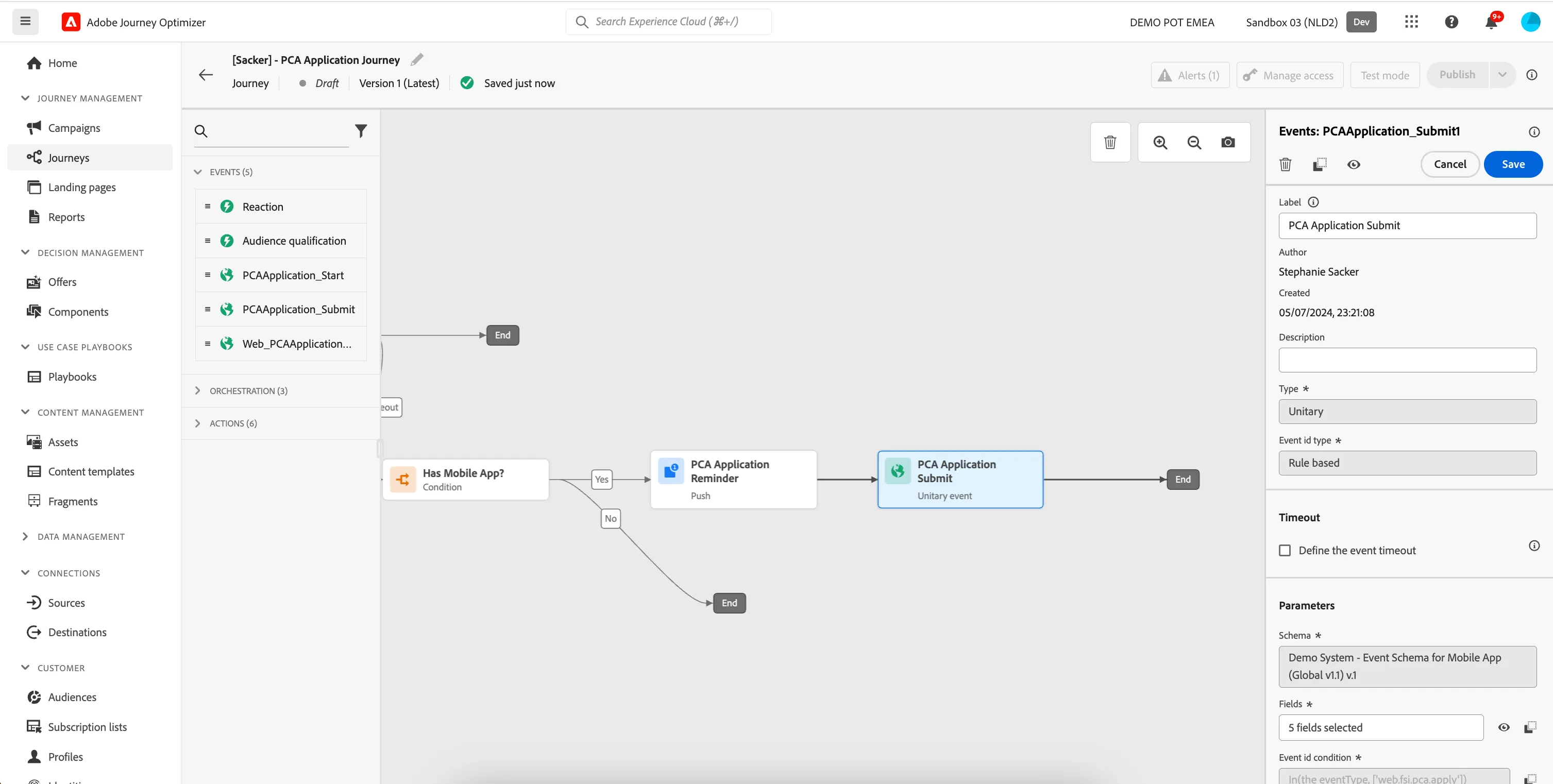
- From the events tab, choose your created event ([yourName]PCAApplication_Submit) and drag it onto the canvas. If you did not create an event, use the PCAApplication_Submit event.
- There's nothing we need to configure for this as we have already done this in the Configuring Events section.
- Click Save to close the menu.
Condition - Push or email?
- From the orchestration tab, choose Condition and drag it onto the journey path following the Application Submit event you added in the previous step.
- Click on the activity to open the detailed view.
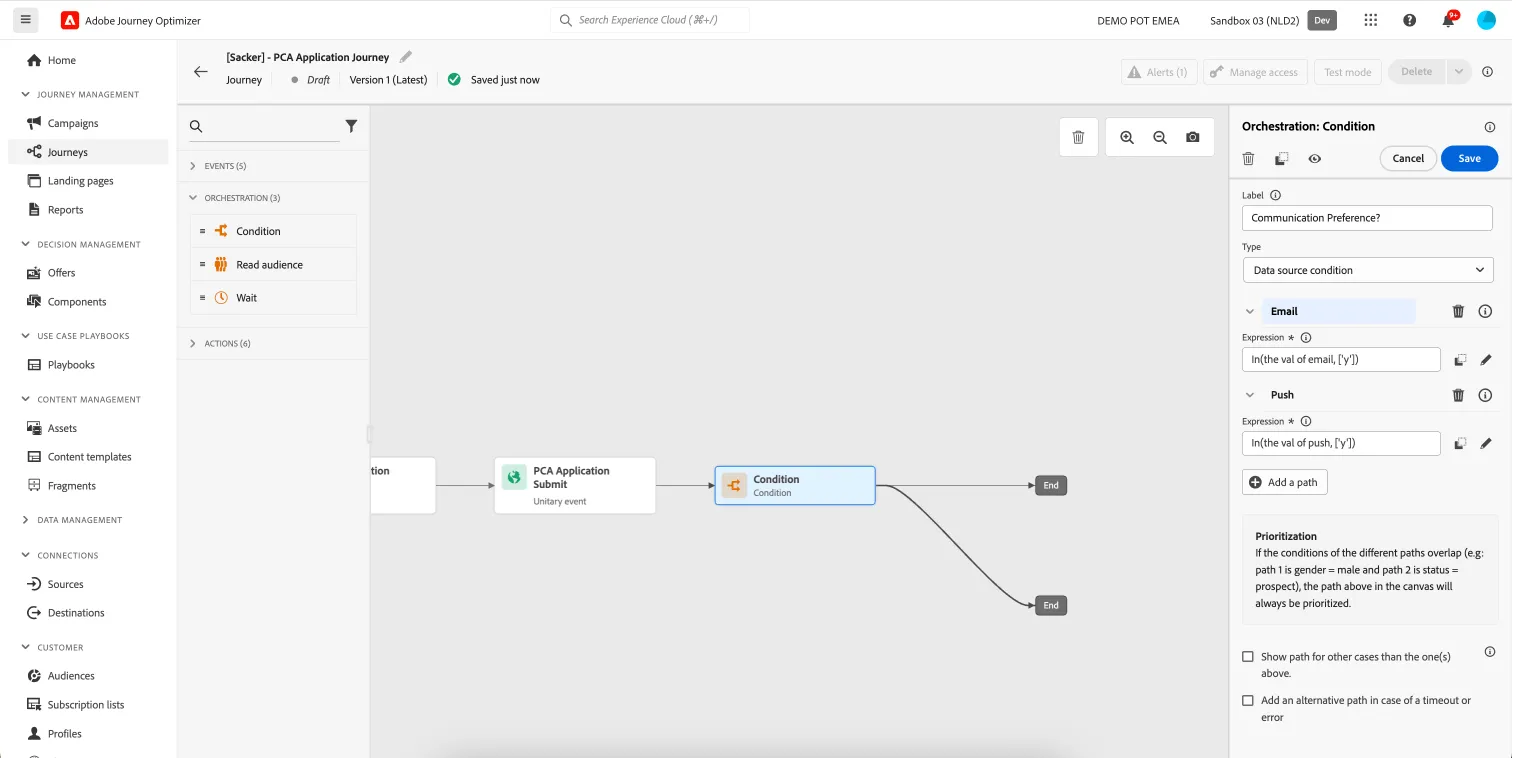
- Set the label to Communication preference?.
- Click on Path1 and change the label to Email.
- Click on Add an expression to open a window.
- On the left side, open ExperiencePlatform. This is the Experience Platform data source that contains all the Profile attributes available in Experience Platform. We can use these in our journeys for conditions and personalisation.
- Expand the tree Consents and Preferences > Marketing Preferences > Receive email > Choice Value. Drag the Choice Value attribute onto the right side.
- Set the Choice Value equal to y and click Ok.
- Click Ok to save the condition.
- Check + Add a path.
- Click on Path2 and change the label to Push.
- Click on Add an expression to open a window.
- On the left side, open ExperiencePlatform. This is the Experience Platform data source that contains all the Profile attributes available in Experience Platform. We can use these in our journeys for conditions and personalisation.
- Expand the tree Consents and Preferences > Marketing Preferences > Receive push notifications > Choice Value. Drag the Choice Value attribute onto the right side.
- Set the Choice Value equal to y and click Ok.
- Click Ok to save the condition.
- Your screen should look like the image below. Click Save.
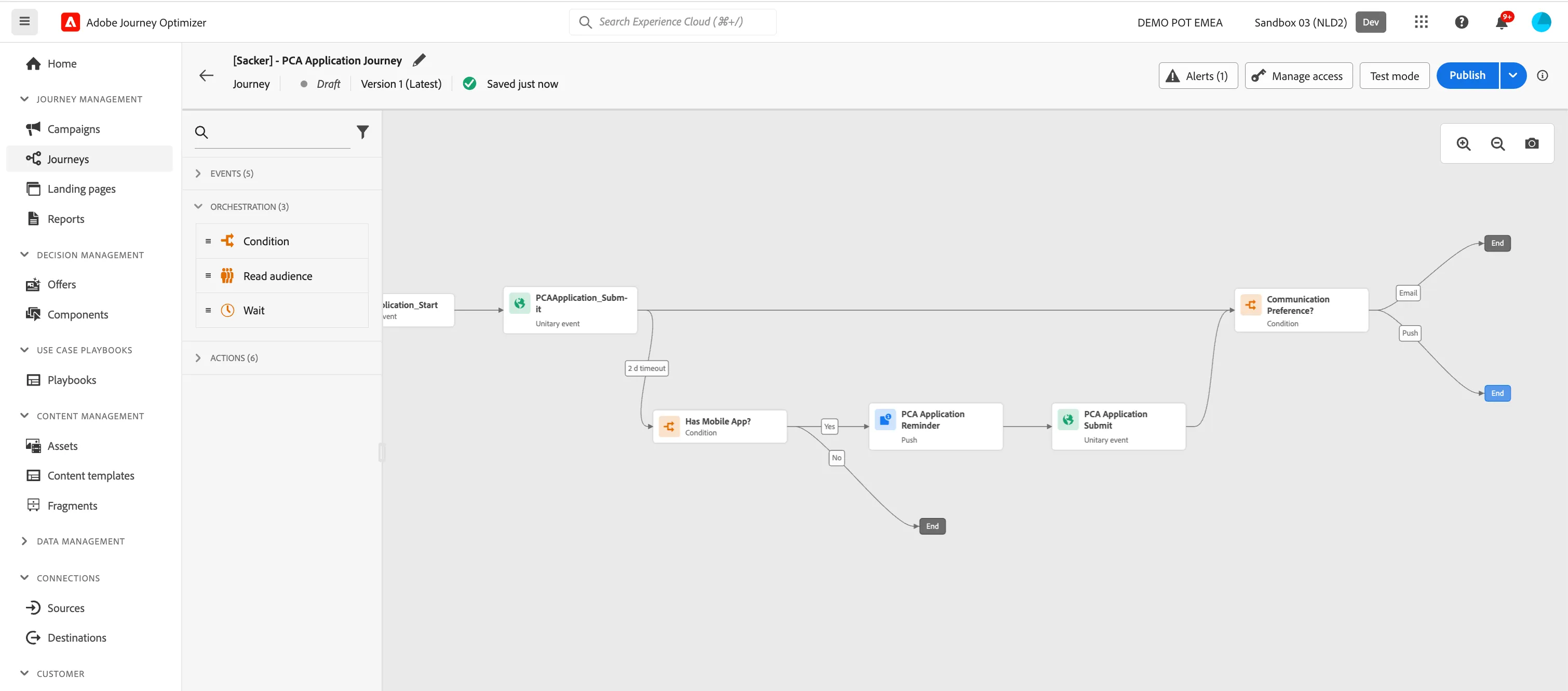
At this point we want the customers that submitted their PCA application within the 2 days timeout condition at the start of the journey to merge in with this population. We need to rearrange the canvas a little bit.
- Drag the Condition - Push or email?-activity on top of the end behind the first Event - PCAApplication_Submit action. This will connect them and merge the customers into this path.
- Now move the Condition - Push or email?-activity to the right so the journey becomes more readable. Additionally you can align both ends to look nicer.
- Your canvas should now look like this :
Email #1 - Application confirmation & cross-sell product Offers
- From the actions tab, choose Email and drag it onto the journey path of the email communication preference.
- Click on the action to open the detailed view.
- Set the label to Application Confirmation.
- Set the category to Marketing.
- Set the email surface to MarketingMessages.
- Click on Edit content to start designing your email.
- Click on the icon to the right of the text box, to create a subject line.
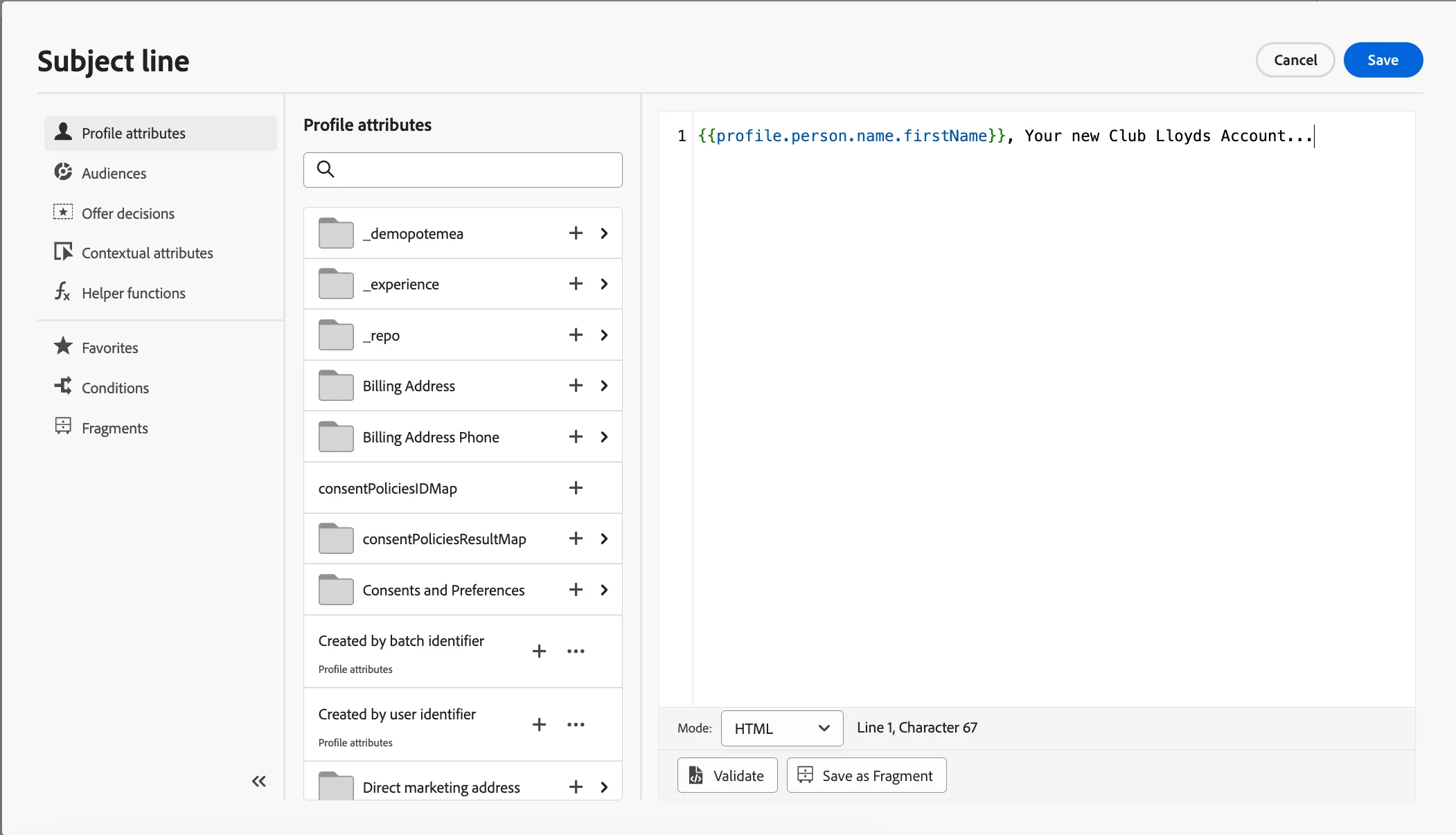
- We're going to add the first name as a personalised field. To do this search for first name in the profile attributes. Click the + icon next to the second option in the list.
- In the expression editor, input the following after the personalised field , your new Club Lloyds Account.
- Click Save.
- Click on Edit email body. Under Saved templates, choose [Template] Lloyds Bootcamp - Email. It will show you a preview of the template. Click on Use this template.
- The email designer will now open. It should look like this:
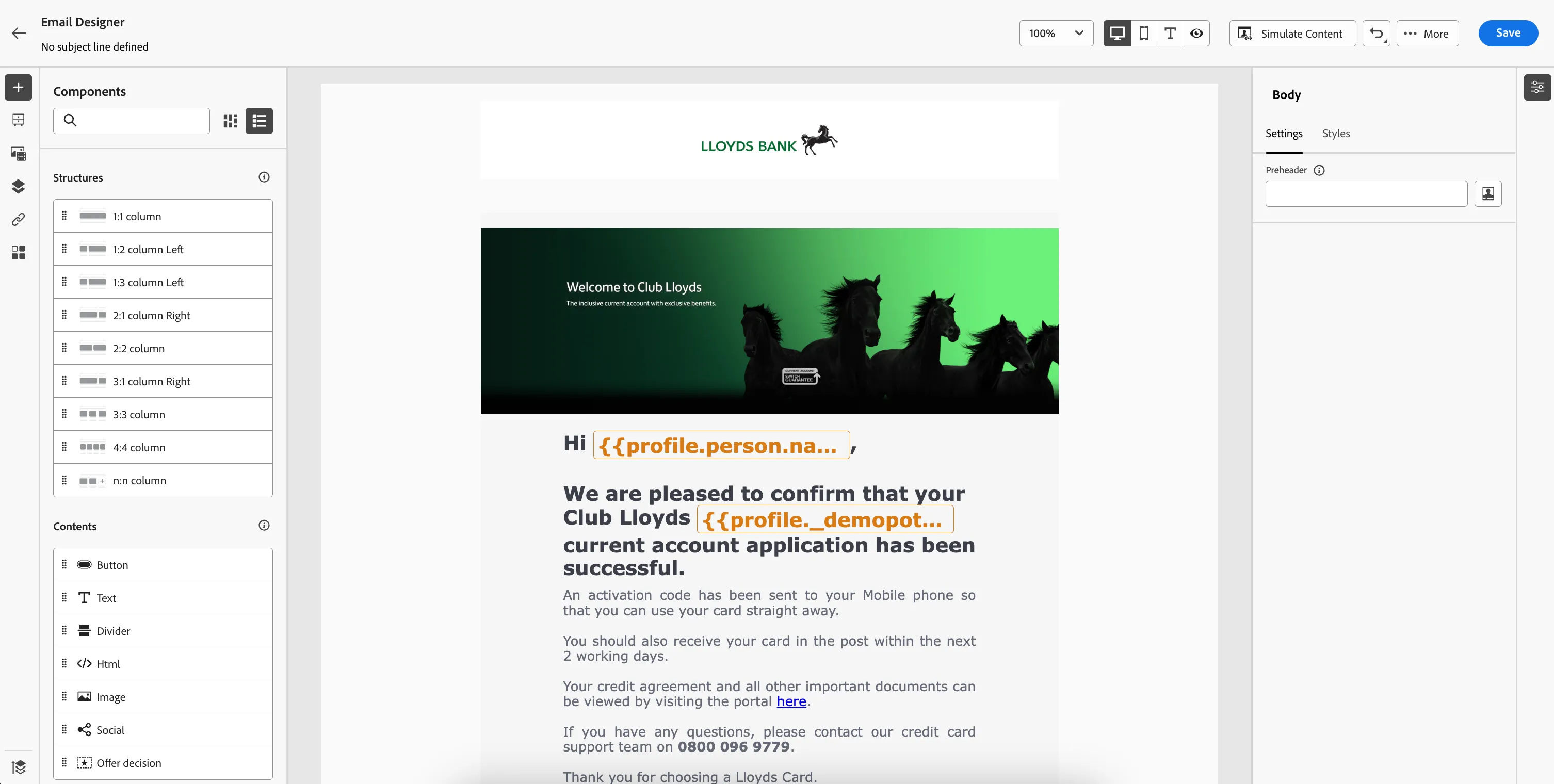
In the left menu you have components.
Structure components are the building blocks of your email, they will determine the layout of your email.
Content components are the different forms of content that you can place inside your structure components, like text, buttons and images.
You'll also notice there are personalised fields added into the email copy. These are references to a customers Profile Attributes and are populated dynamically in the resulting email to each customer that qualifies to receive the Email message.
- Now let's add a personalized offer to the email. Scroll down and you will see the text "Drag a new component here." From the content components drag an Offer decision onto the email, into this empty component.
- Click Add, a pop-up window will open.
- In the top left, click Select Offer decision.
- From the Placements drop down, choose Email - Image
- Check the [your name] - Lloyds Cross-sell Campaign offer decision and click on Add in the top right of the window. If you didn't create the decision, you can use Lloyds Cross-sell Campaign.
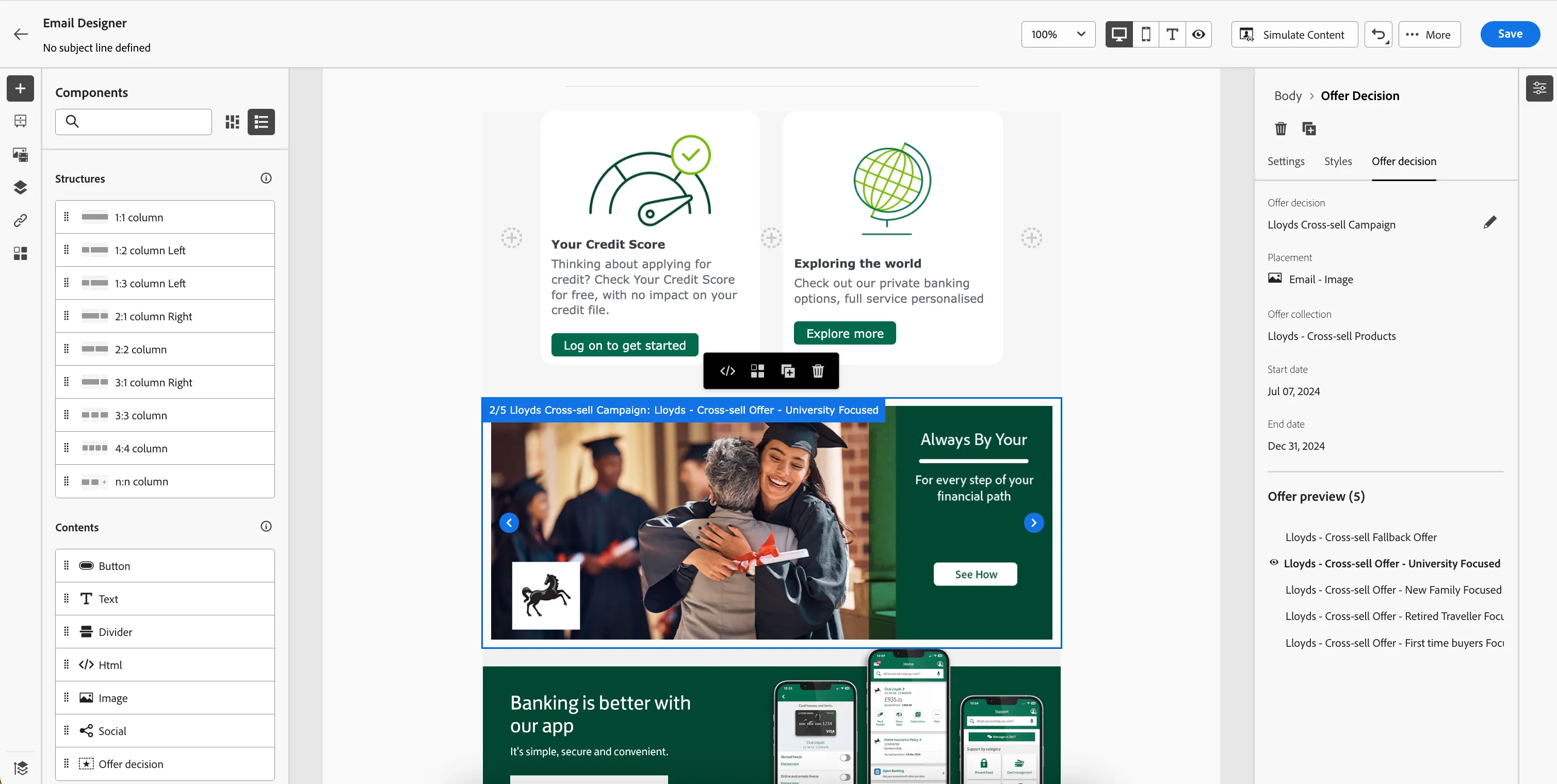
- Under Offer preview, you can see the potential offers customers could receive.
- Your screen should look like the image below:
- Click Save in the top right. Navigate out of the Email designer by clicking the arrow on the top left of your screen. Then navigate out of the email overview by clicking on the arrow on the top left. You will be taken back to the journey canvas.
- Click Save in the Actions:Email panel.
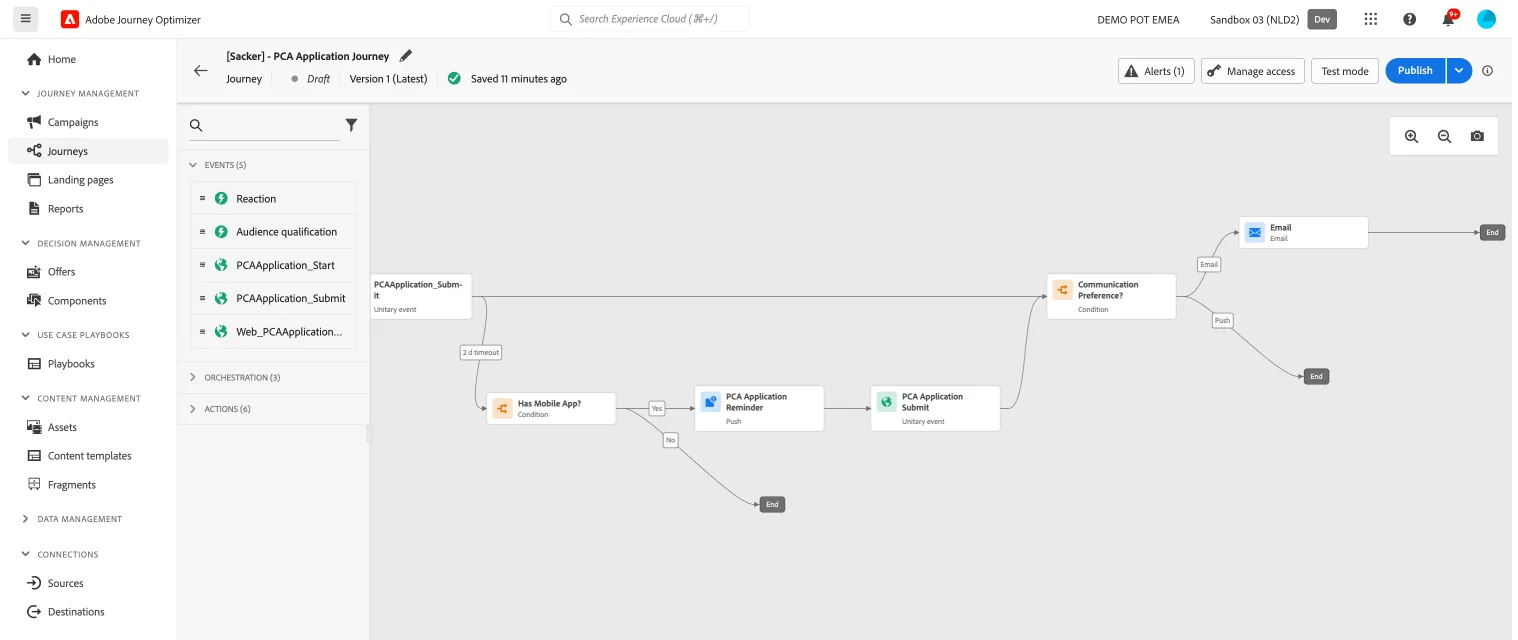
- Your Journey canvas should look like this:
Push #2 - Application confirmation
- From the actions tab, choose Push and drag it onto the journey path of the Push communication preference.
- Click on the action to open the detailed view.
- Set the label to PCA Application Submit.
- Set the category to Transactional.
- Set the push surface to transactionalMessages.
- Click on Edit Content, to start designing your push.
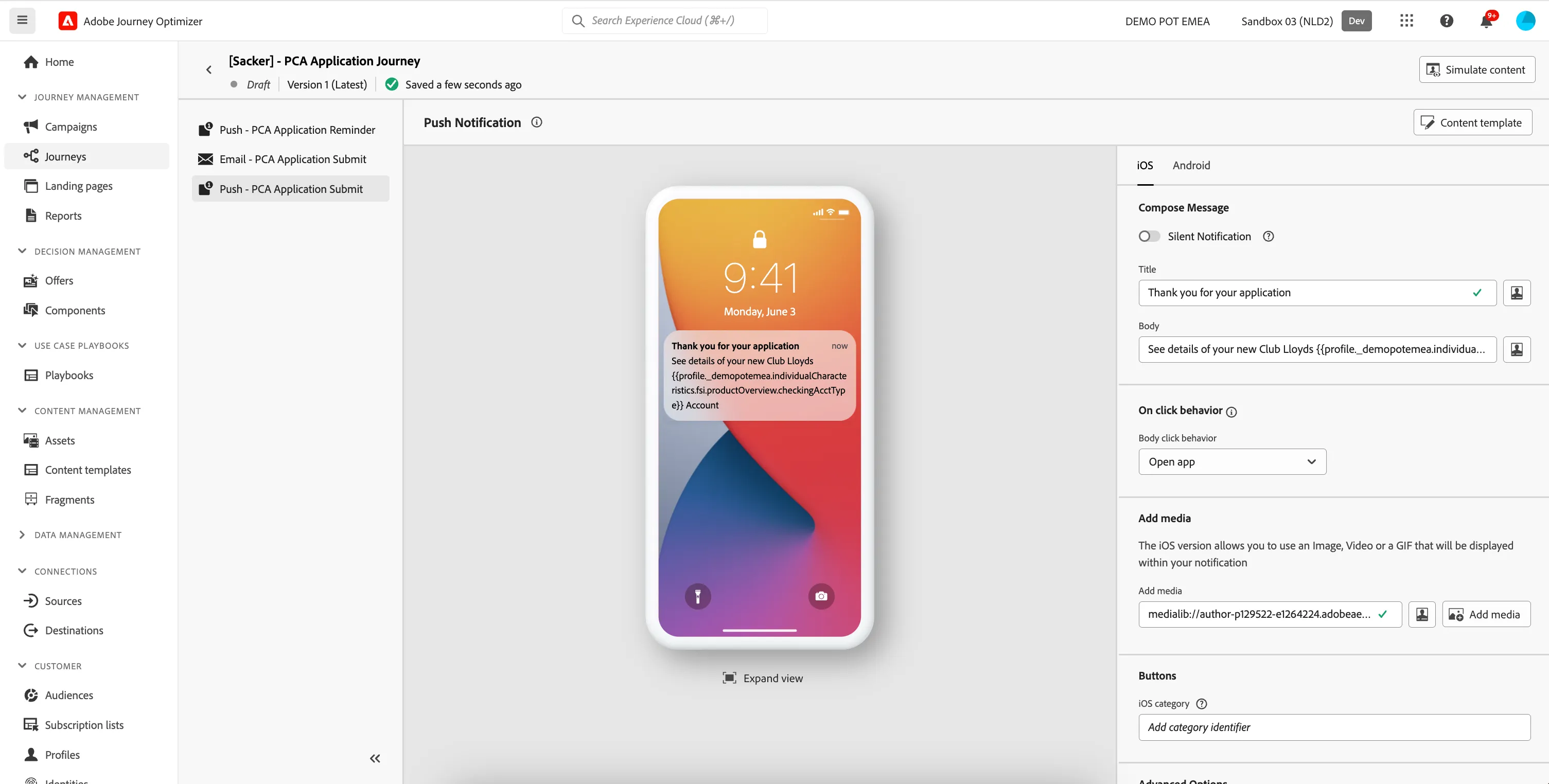
- Set the title to Thank you for your application.
- Select and remove the text ACCOUNT_TYPE.
- In Profile attributes, search for checking account type and click on the icon to add Checking Account Type to your expression. It should read: See details of your new Club Lloyds {{profile._demopotemea.individualCharacteristics.fsi.productOverview.checkingAcctType}} Account
- Click Save.
- To add an image, click on Add media. Assets Essentials will open. Navigate to Bootcamp > Lloyds and select the image lloyds-logo-partial.png and click Select in the top right.
- Your screen should look like the image below:
-
- Navigate out of the designer by clicking the arrow on the top left of your screen.
- Click Save in the Actions:Push panel.
- Your Journey canvas should look like this:
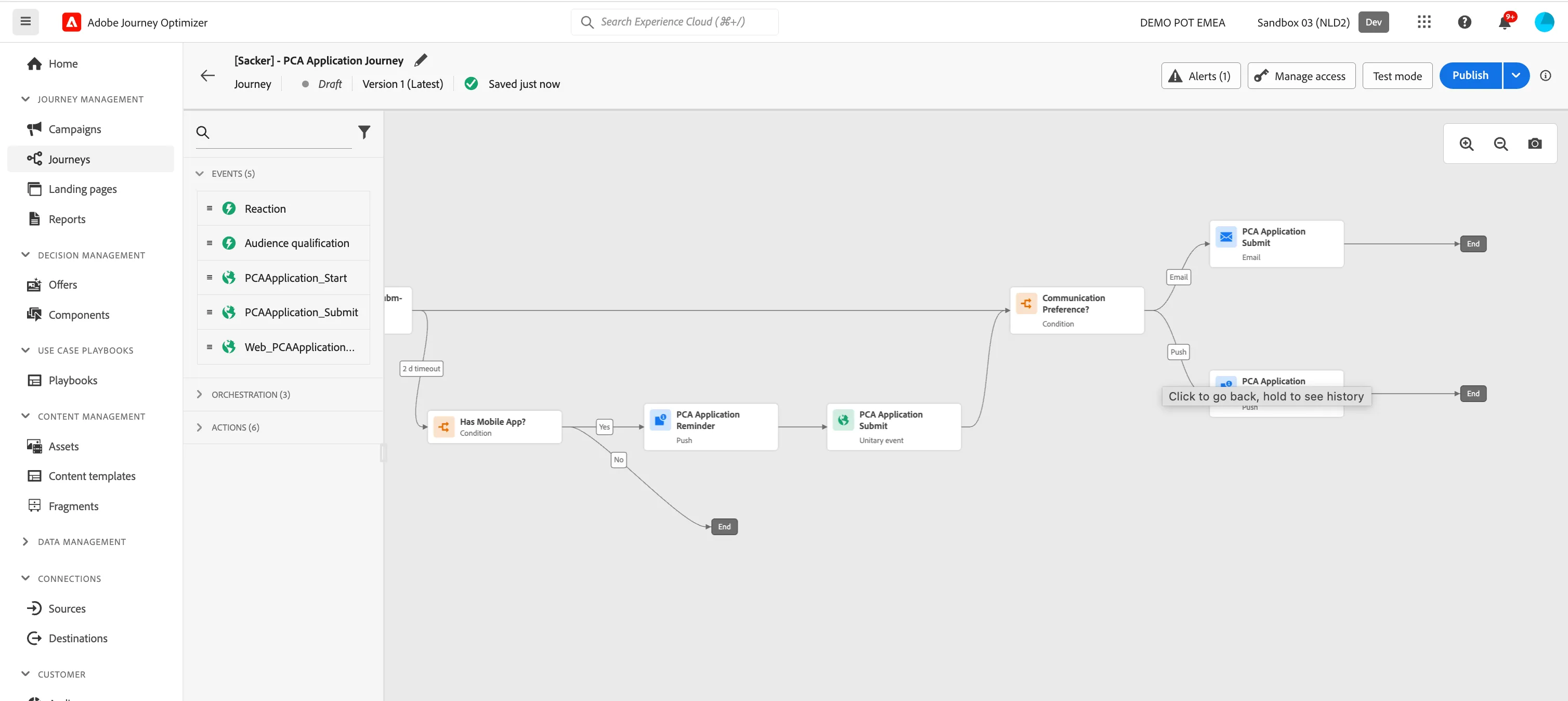
You have now successfully created the application journey using the Adobe Journey Optimizer. Next, we are going to test our journey using Test Mode.