Lab: Journey
This lab will walk through the steps to create a Basic Email and SMS Journey in Adobe Journey Optimizer.
NOTE: Some exercises may vary during the actual Hands on Lab versus what is listed in the Archbee Page, due to industry setup and / or Presenter preferences.
Create a Journey
Navigate to Journeys
Click on “Create Journey”
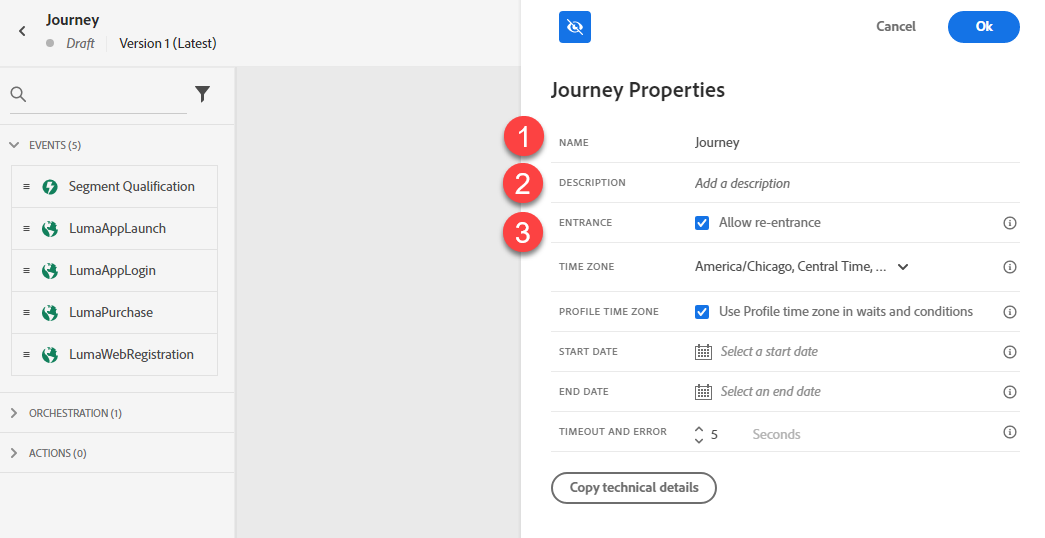
Provide a Name and Description. Unclick “Allow Re-Entrance.” Click Ok.
Define the Audience
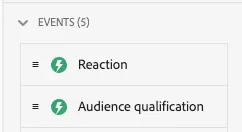
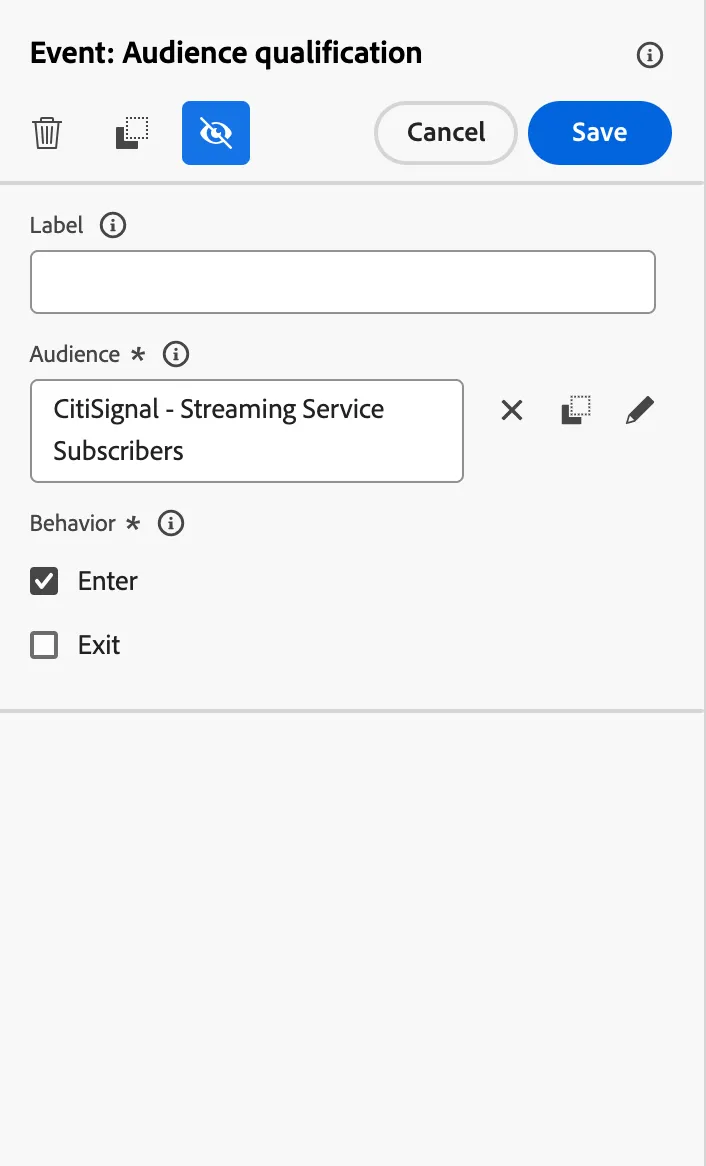
Under Orchestration Node, drag the “Audience Qualification” onto the Canvas.
Select the audience “Streaming Service Subscribers”. We want only users that enter the audience.
Setup Branching
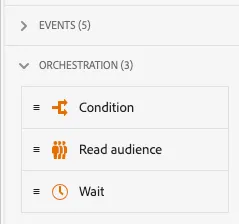
Under Orchestration Node, drag the “Condition” after the Audience Qualification.
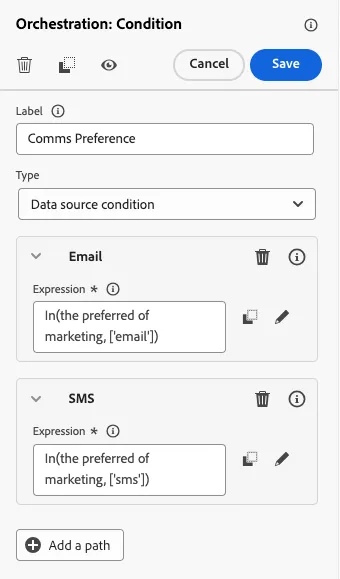
Click Path1 and rename as "Email". Click Path2 and rename as "SMS".
Expand the Email path, and click on the Expression Field. Search for preferred channel, and drag and drop it into the canvas.
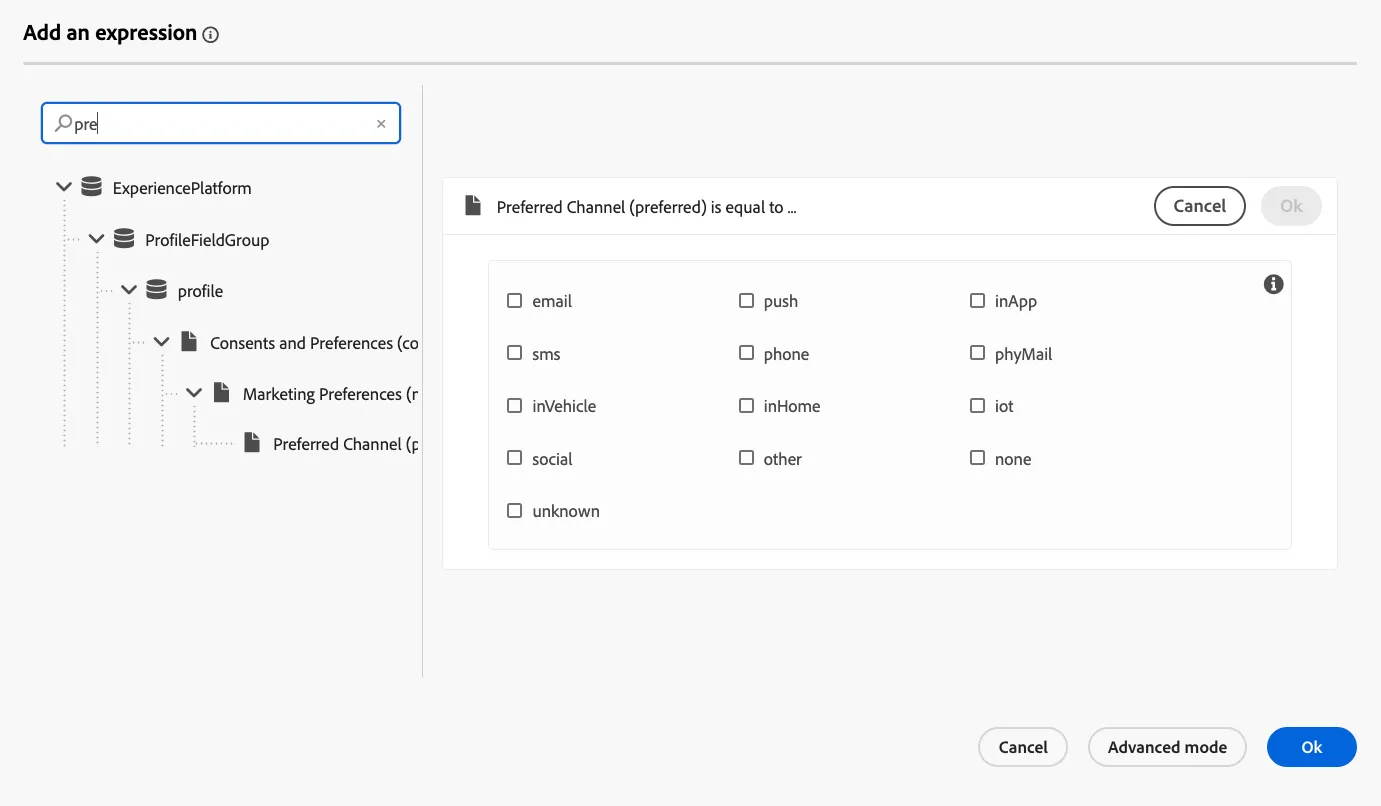
- Select the email channel, click ok and then ok.
- Repeat step 4 and 5 for SMS.
Add Messages
Under Actions, drag the Email Action onto the Canvas on Email path, drag SMS Action onto the SMS path. Label both: New Fiber Offer.
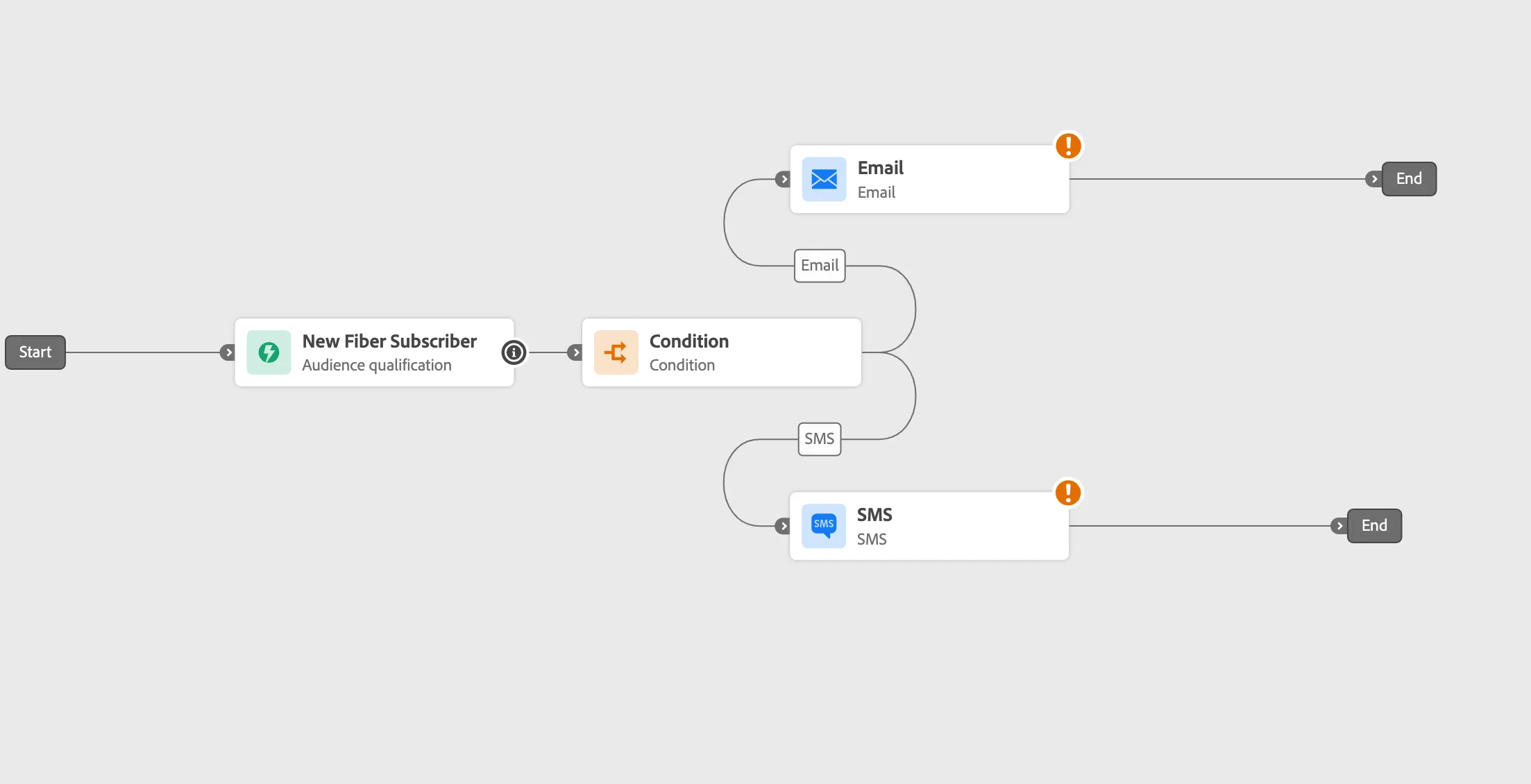
- Next, drag subscriptionEventNamespaced from the events panel and place it ahead of your email message. Then, merge the SMS path into the new event by dragging the event into the SMS path.
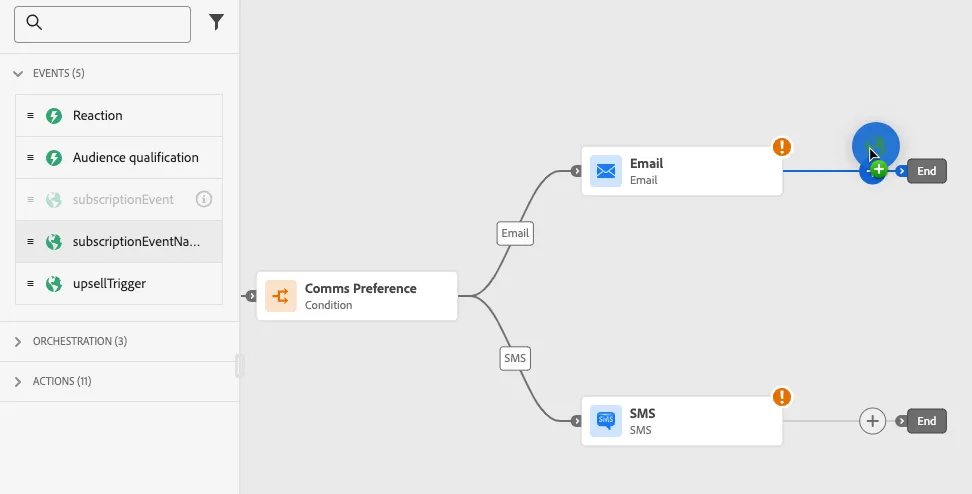
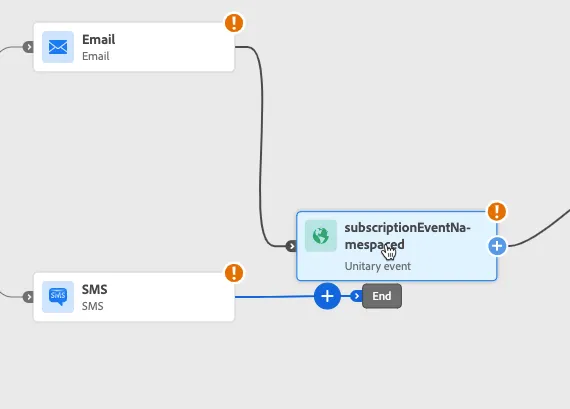
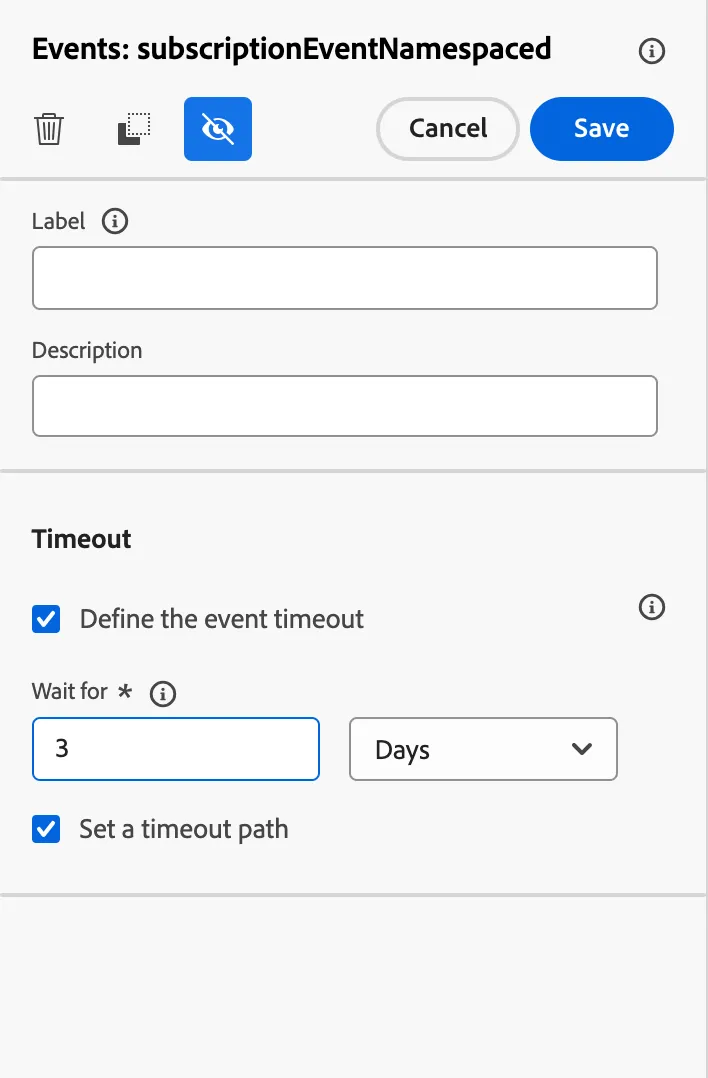
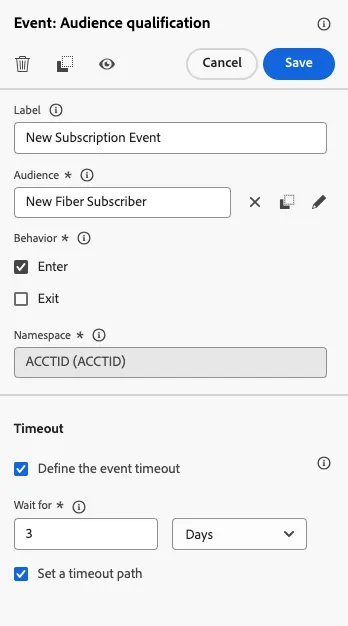
3. Define the event timeout by checking the timeout box and setting the wait to 3 days.
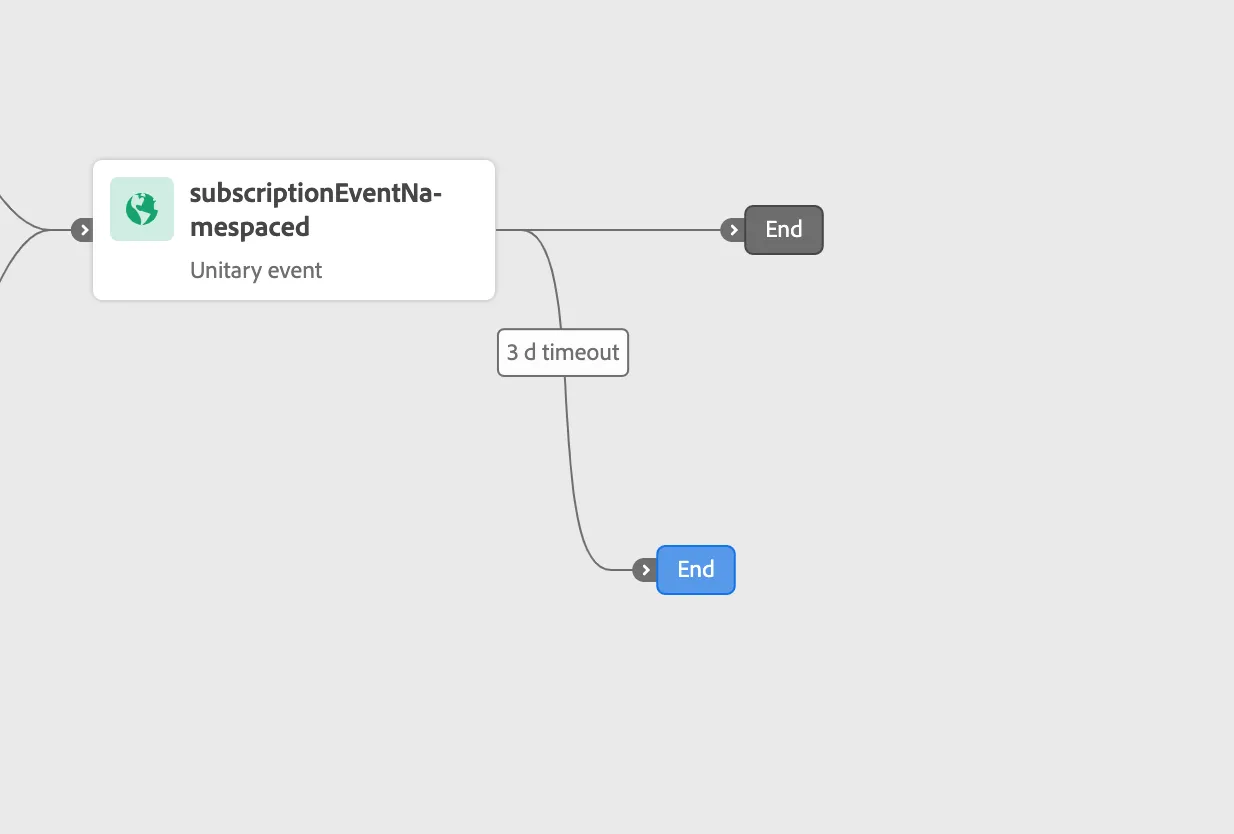
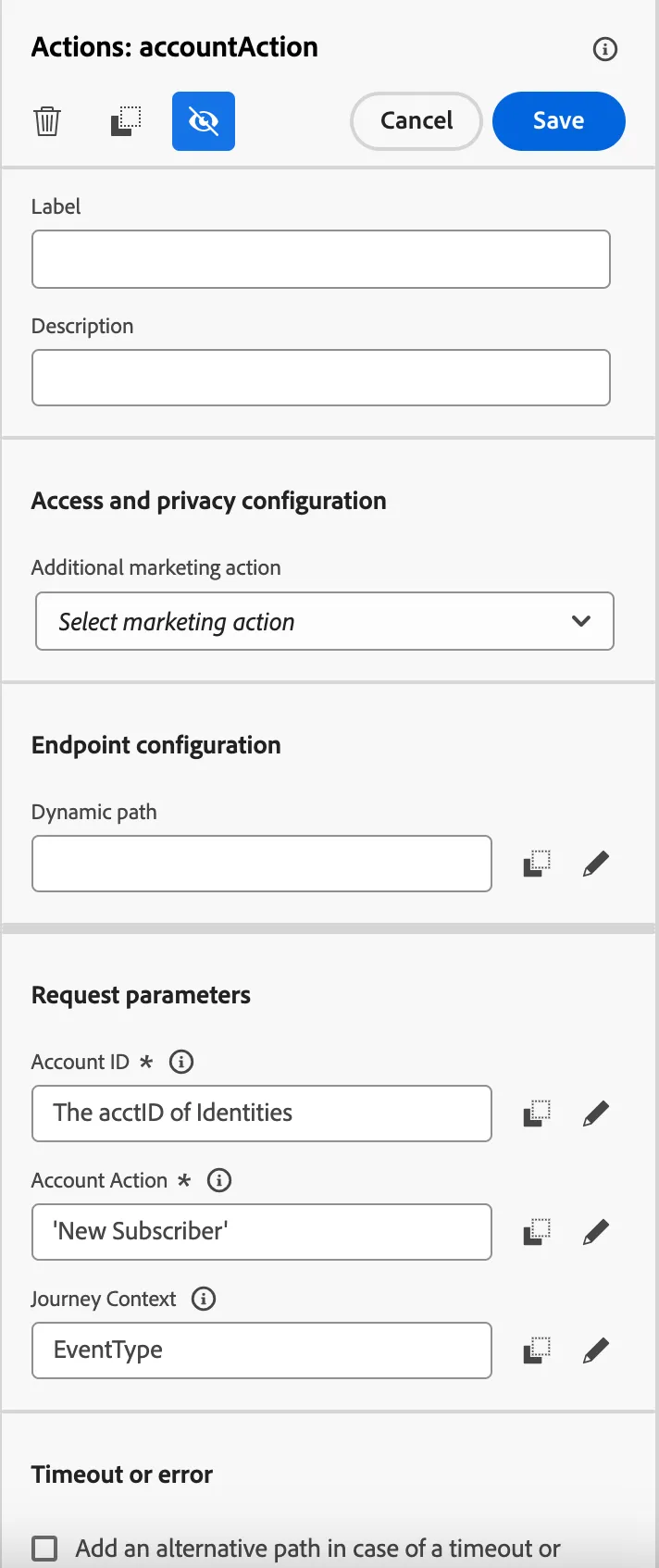
4. Drag "AccountAction" action and drop it on the path positive path (not the 3d timeout). On the configuration pane for the custom action.
5. Click on Account ID, and navigate on the profile to get the AccountID. 6. Click on the Account Action Field, click on advanced mode to open the editor, and open double quotes then type "New Subscriber" the close double quotes. 7. Then, click on Journey Context, expand the "Context" Folder, expand "SubsciptionEventNamespaced" click on the eventType checkbox. Click Ok. 8. Then save the configurations of our custom action.
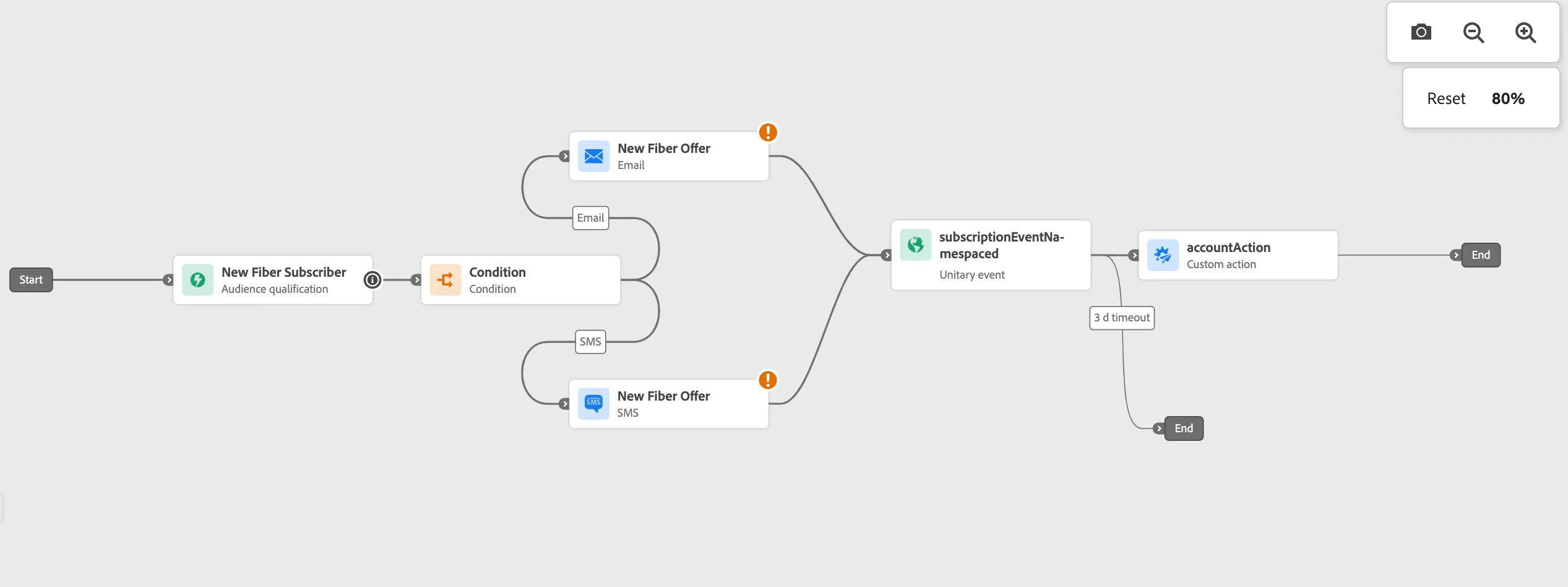
We know there is the Time out path without an action. We will work on our messages and then, we will show you a short cut that can become handy when testing subject lines in an A/B/C type test.