Personalized Offers
3 min
This lab will walk through the steps to create an Offer in Adobe Journey Optimizer.
NOTE: Some exercise steps may differ from lab presentation content.
Creating a personalized offer
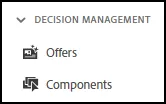
- Navigate Decision Management --> Offers --> Offer Tab
- Click on the top right corner button, "Create Offer"
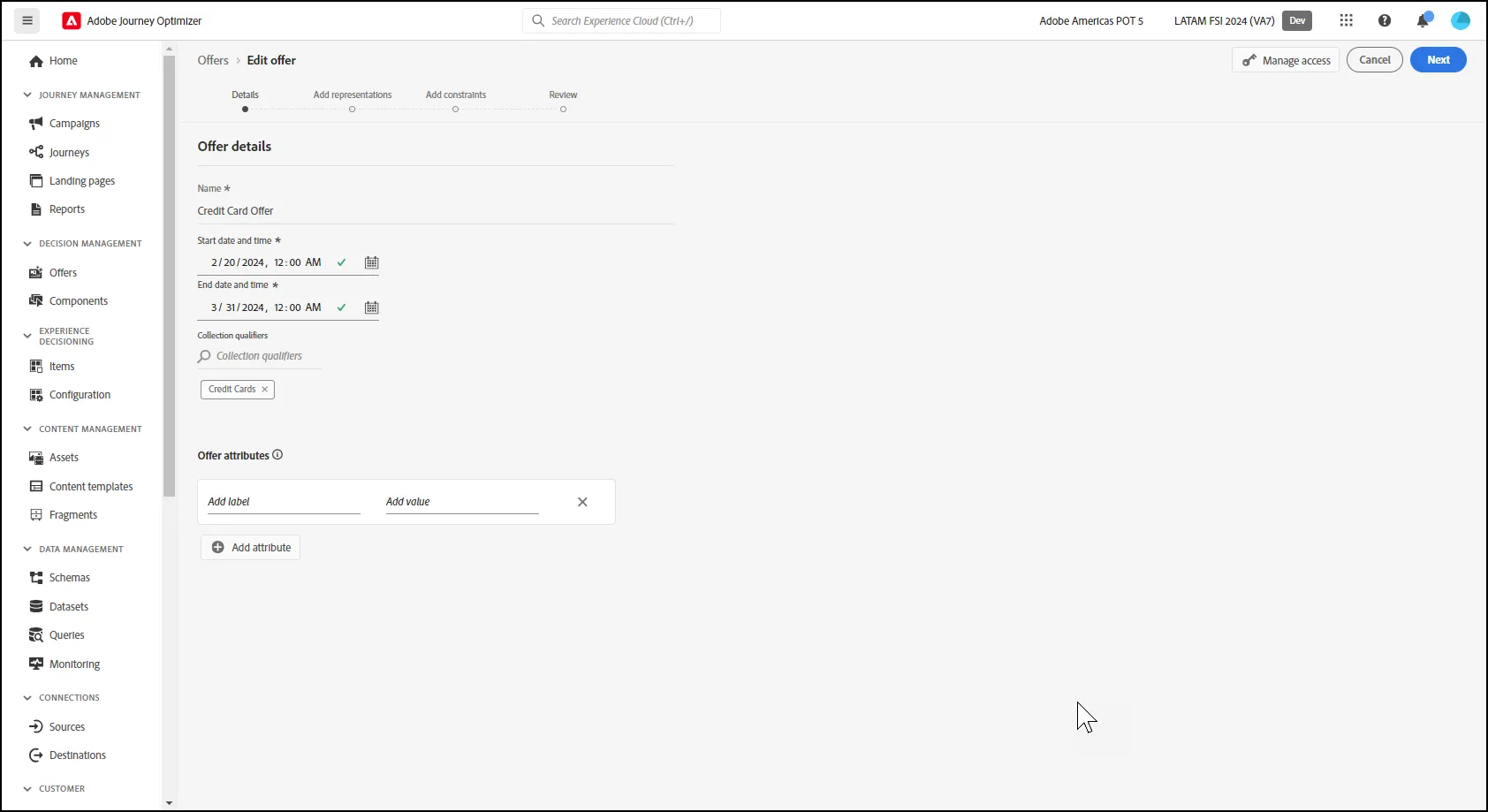
- Give a name such as: "Credit Card Offer - Initials" (Initials - indicates the attendee/participant initials.)
- Give a start and end dates.
- Search for your Initials on the Collection Qualifiers and click on it.
- Click Next
Adding Representations and Content
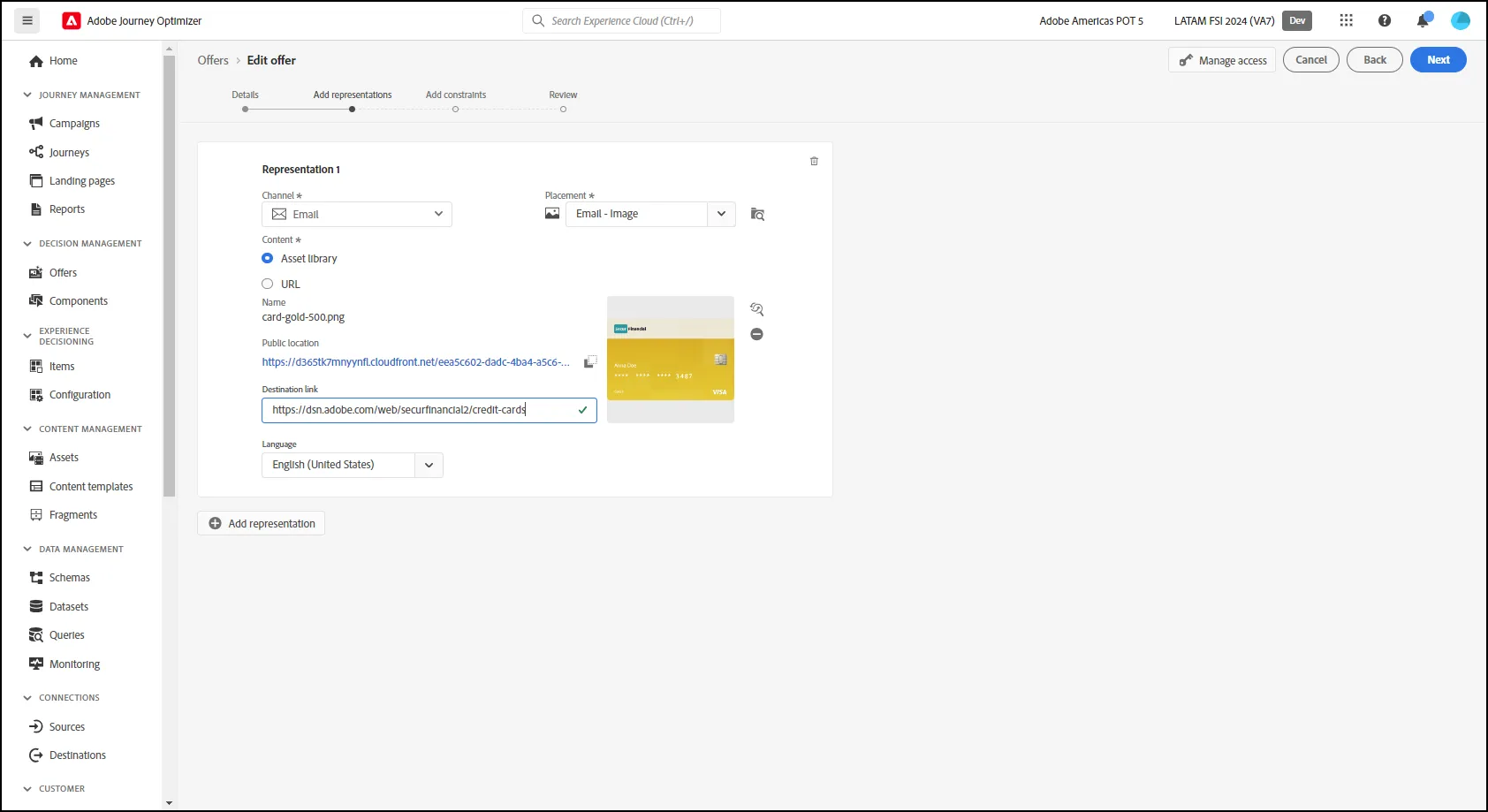
- Select Channel: Email
- Select Placement: Email - Image - Initials
- Select Asset Library Navigate to FSI folder and select the Gold Credit Card Image.
- Click Next.
Configuring Offer Constraints or Eligibility
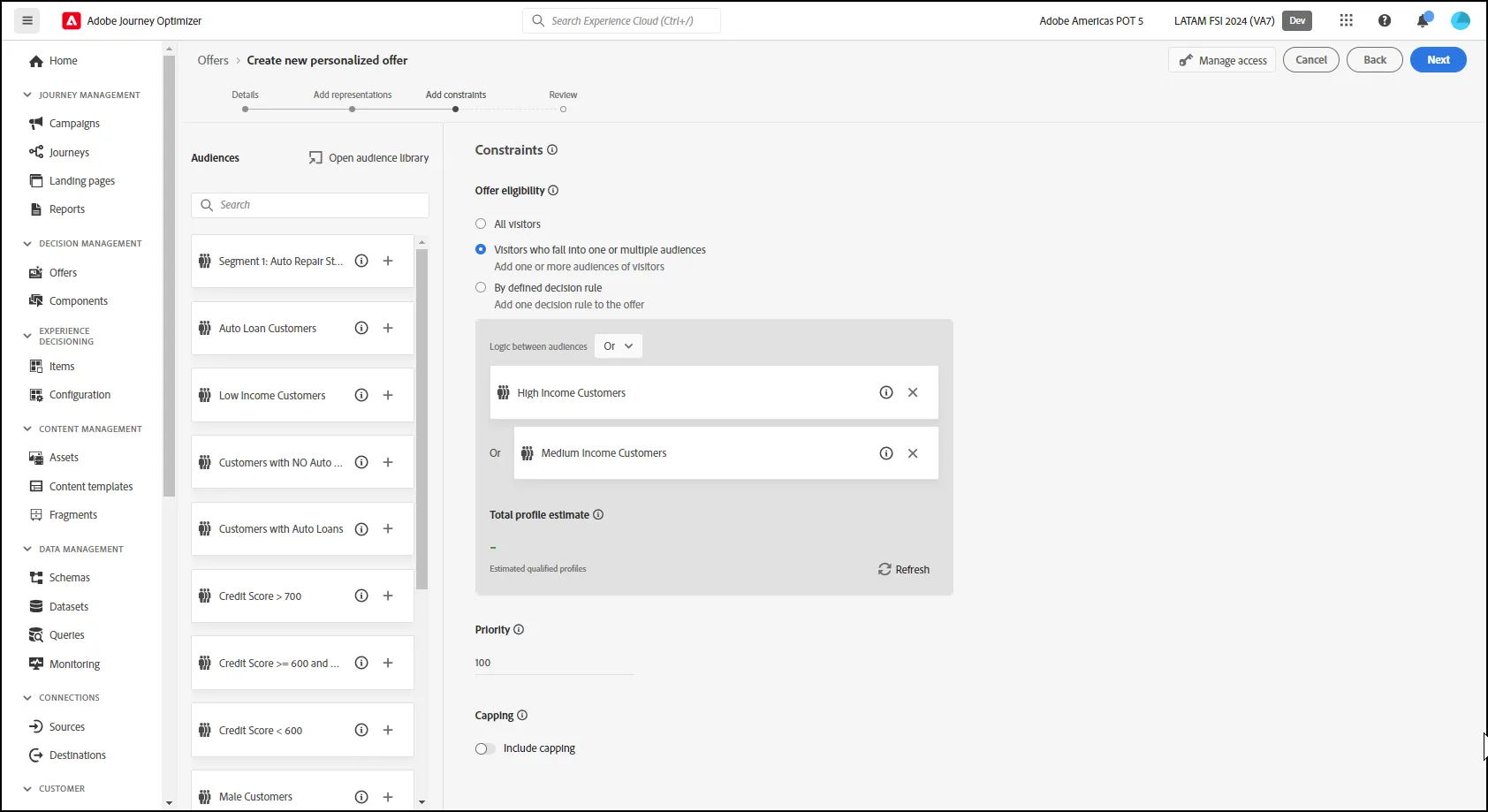
- Select Visitors who fall into one or multiple audiences
- Add the following segments: "High Income Customers" and "Medium Income Customers".
- Leave the Capping toggle off and Priority set as 100
- Click Next
-
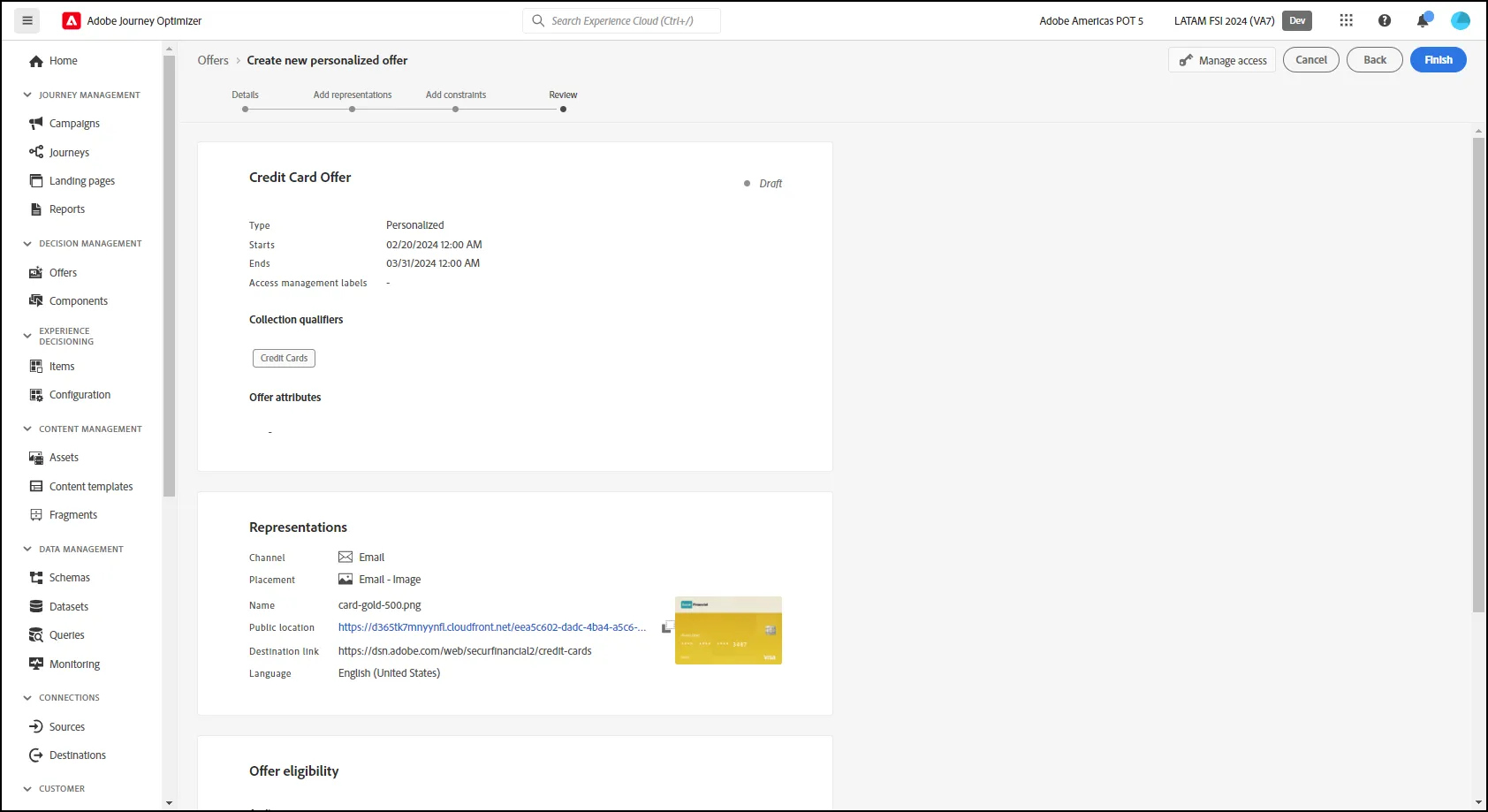
- Review the summary information for your Personalized Offer. When complete, click "Finish" to save your Offer:
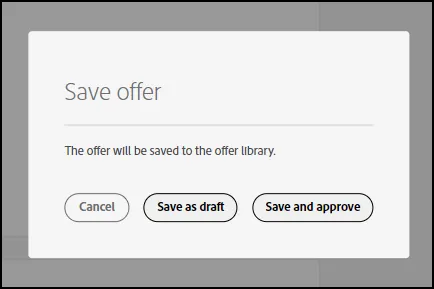
- Click "Save as Draft" or "Save and Approve"
- End of Lab.