Testing the journey
In this exercise we'll test the journey we've build.
If you want to fully experience this journey, make sure to have the WKND Fly demo app installed on your phone and linked to your test profile.
A guide on how to do this can be found under Introduction > Mobile app. Additionally, you'll need to book a flight on the demo website so there is a flight to display in your email. Feel free to pick any flight you like!
In Adobe Journey Optimizer you can run journeys in test mode to test if the outcome of your journeys aligns with your requirements.
To enable test mode, click on Test Mode on the top right of your journey.
While in test mode, you can not make changes to the journey. You'll also notice that the left menu is replaced with the Test mode panel.
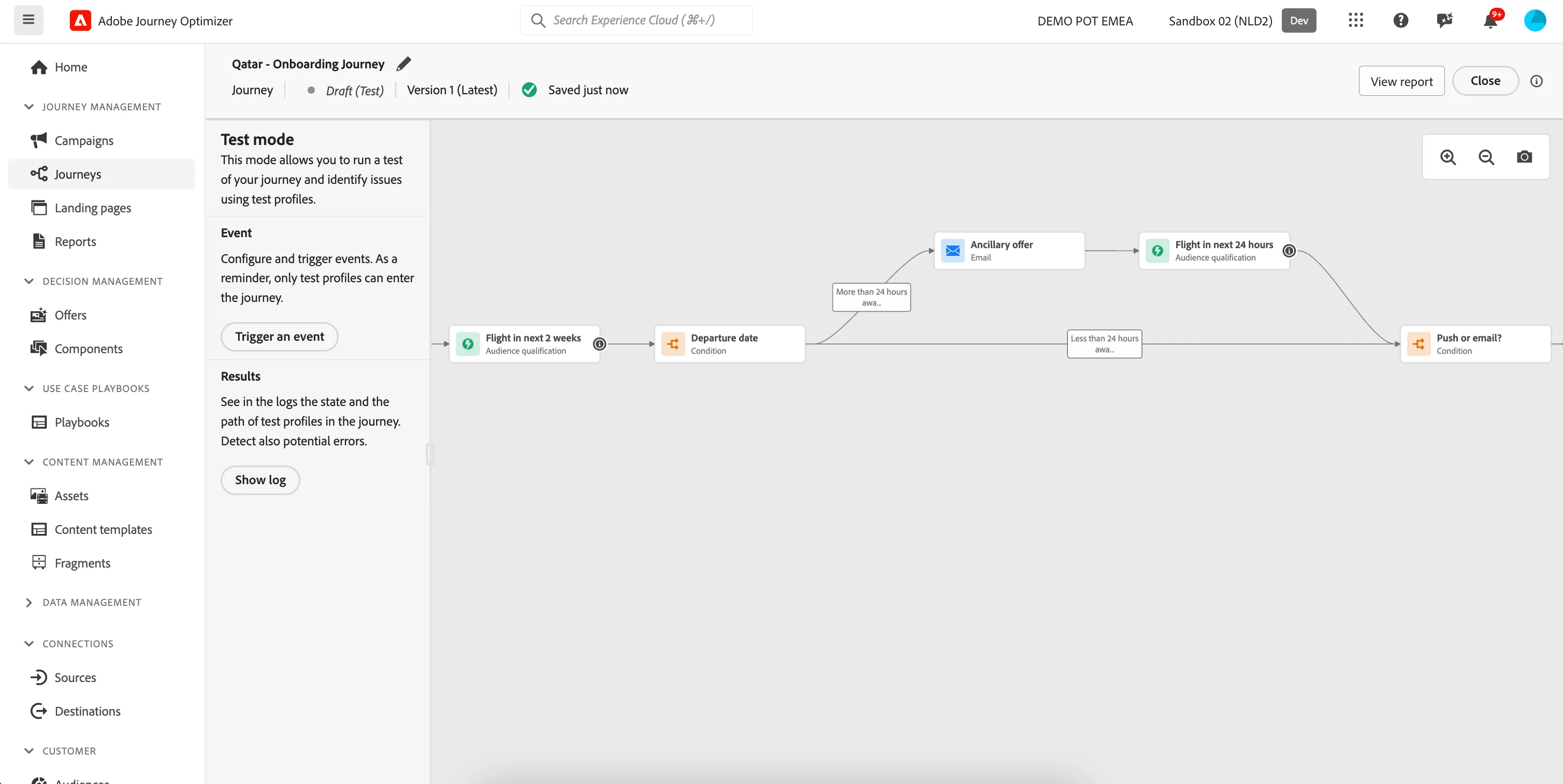
- We can ignore the Wait Time overwrite this time as we do not have any waits and/or timeouts in our journey.
- Click on Trigger an event. This will open a window. In this window you can choose a profile to be in the Audience Qualification - Flight in next 2 weeks activity.
- When we set up the Audience Qualification, we chose EMAIL as the main identifier. Enter your test profile's EMAIL as the profile identifier and click Send to start the test.
- The window will close and the test will now start. In a few moments you'll see the arrows turn green. This is your test profile moving through the journey. You will receive the email in your inbox within the next minute. Your screen should look like this:
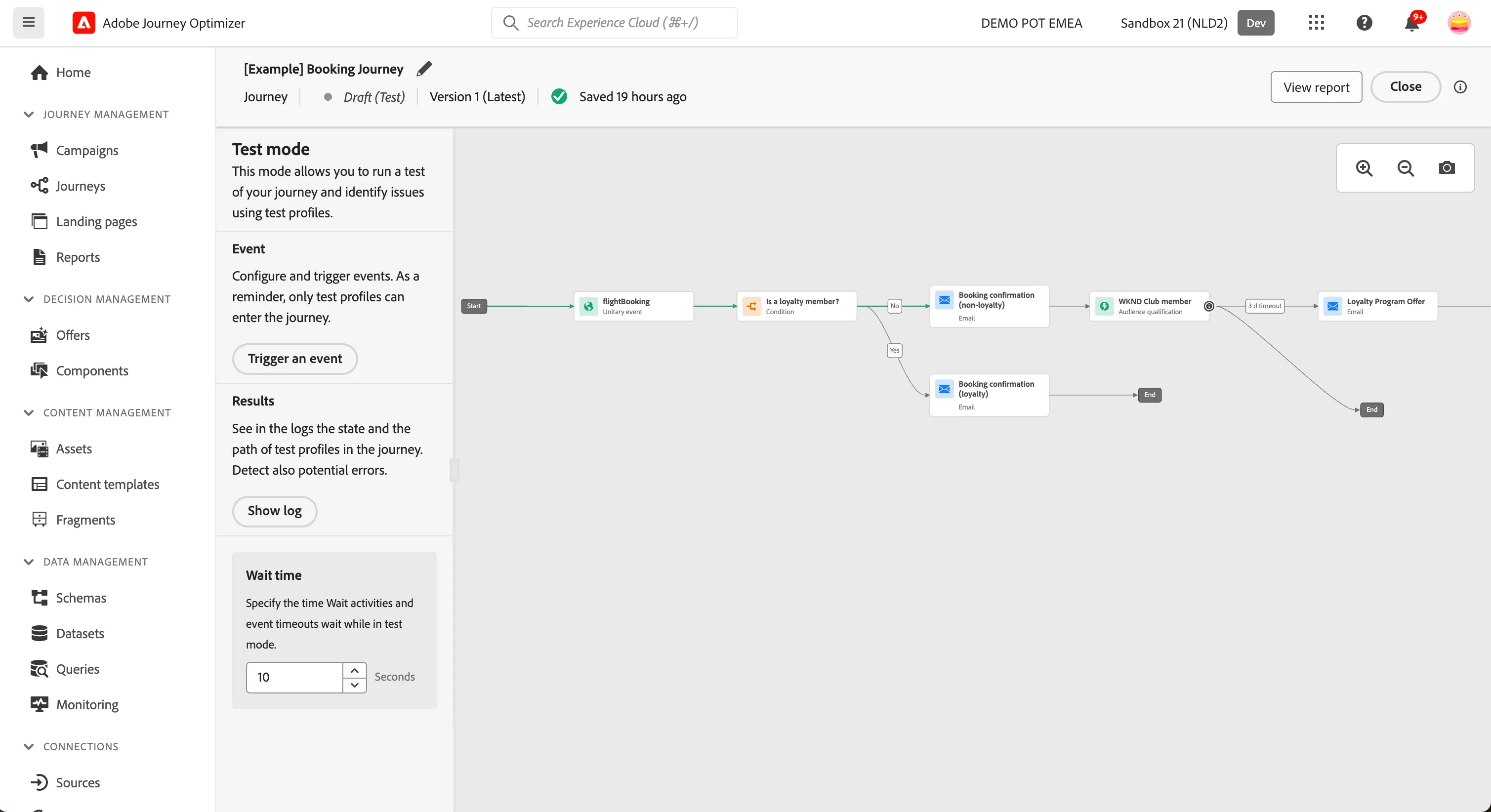
If you booked a flight that was more than 24 hours away, you're profile will go in the top path and will stop at the Audience Qualification 1 - Flight in next 24 hours activity. To continue the journey, you'll need to trigger this Audience Qualification.
- Click on Trigger an event. This will open a window. In this window you can choose a profile to be in the Audience Qualification - Flight in next 24 hours activity.
- Enter your test profile's EMAIL as the profile identifier and click Send to continue the test.
- The window will close and the test will now continue. In a few moments you'll see more arrows turn green. If you linked your profile to the mobile app you'll receive a push notification, otherwise you'll receive the email. Your screen should look like this:
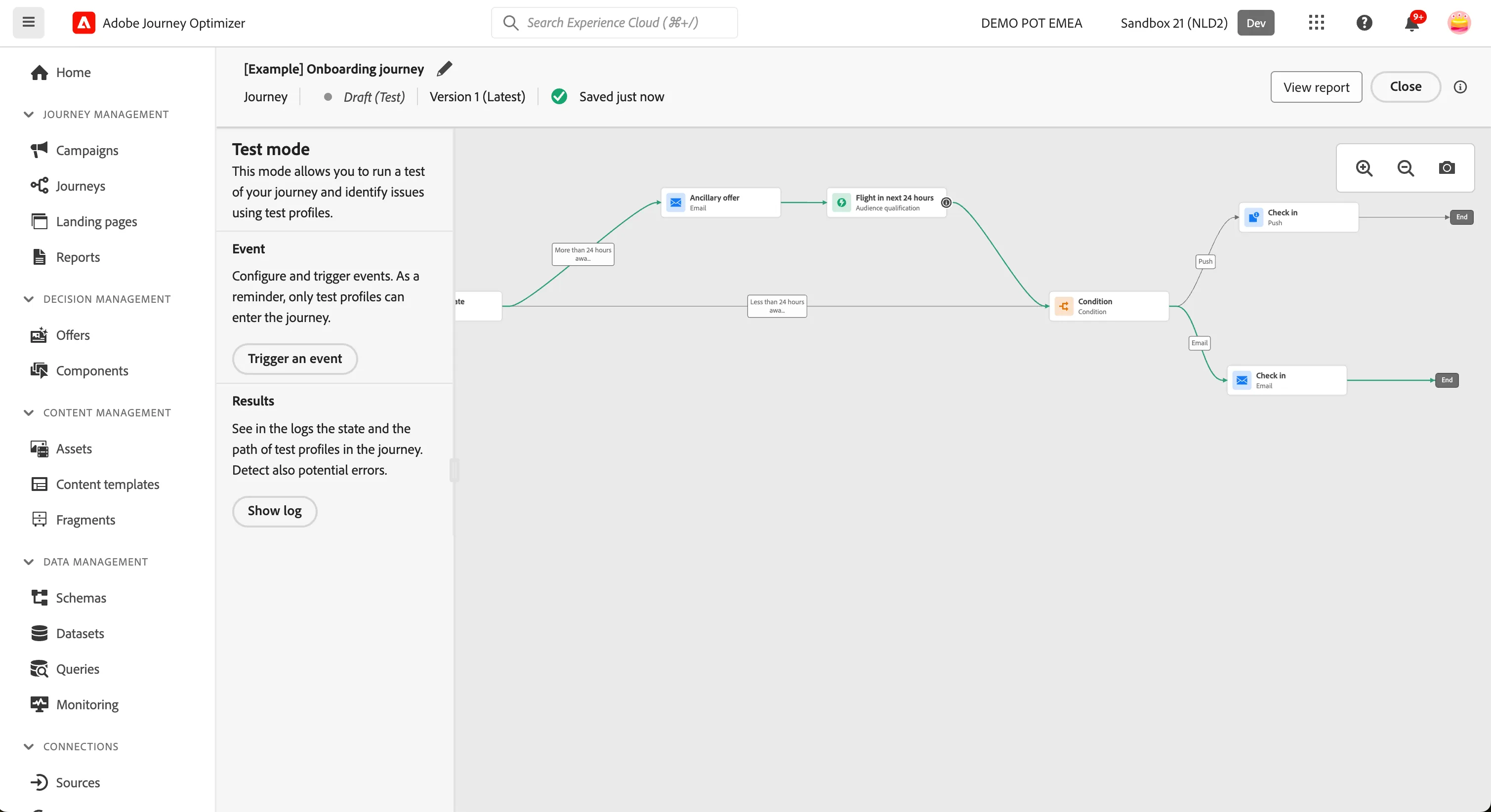
You've now tested your journey.
- Turn off test mode by clicking Close in the top right corner.
- Click the in the top left to navigate back to the Journeys overview.