B2B Profiles, Accounts, and Audiences
Visualise a B2B Profile
In this exercise we will look up a B2B profile, view associated account and opportunities. Traverse to account record, show opportunities and people related to account.
Use the Customer Profile View
To log into the Adobe Experience Platform, check the Introduction Section.
- In the left rail, click on Customer and choose Profiles.
- On the Profiles tab, click on Browse.
- Click the namespace selection button beside Select Identity Namespace.
- In the identity namespace pop up, select Email and then Select.
- Click the Profile ID to open this profile.
You now see an overview of Profile Attributes, Identities and Preferences for your customer profile. The profile detail includes access to Accounts, Opportunities, and Source records tabs in addition to the standard information provided in the customer profile that is has also been enhanced with B2B events and attributes.
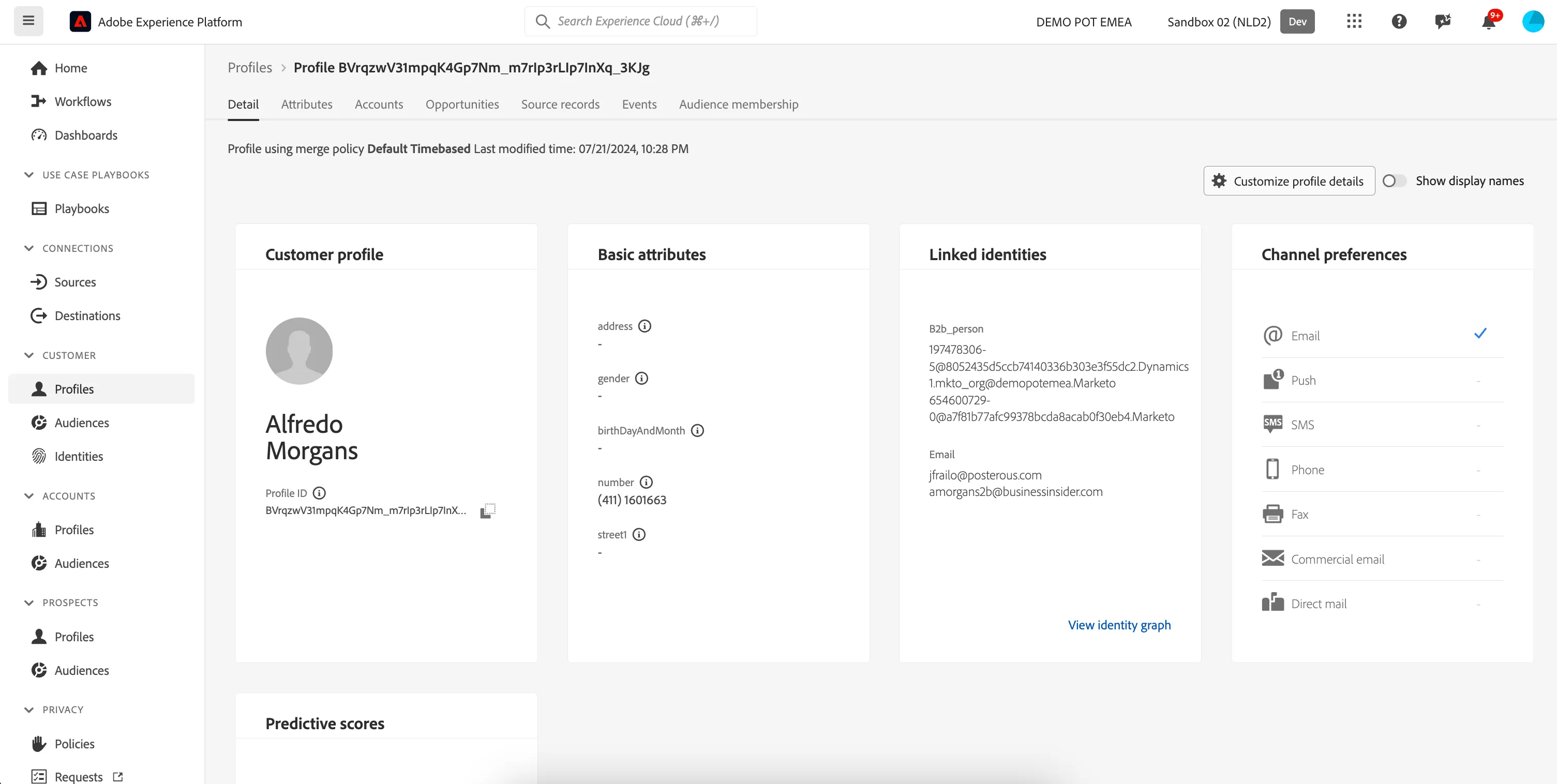
If you’d like to see all available Profile Attributes for your profile,
7. Click on Attributes at the tab bar of overview panel.
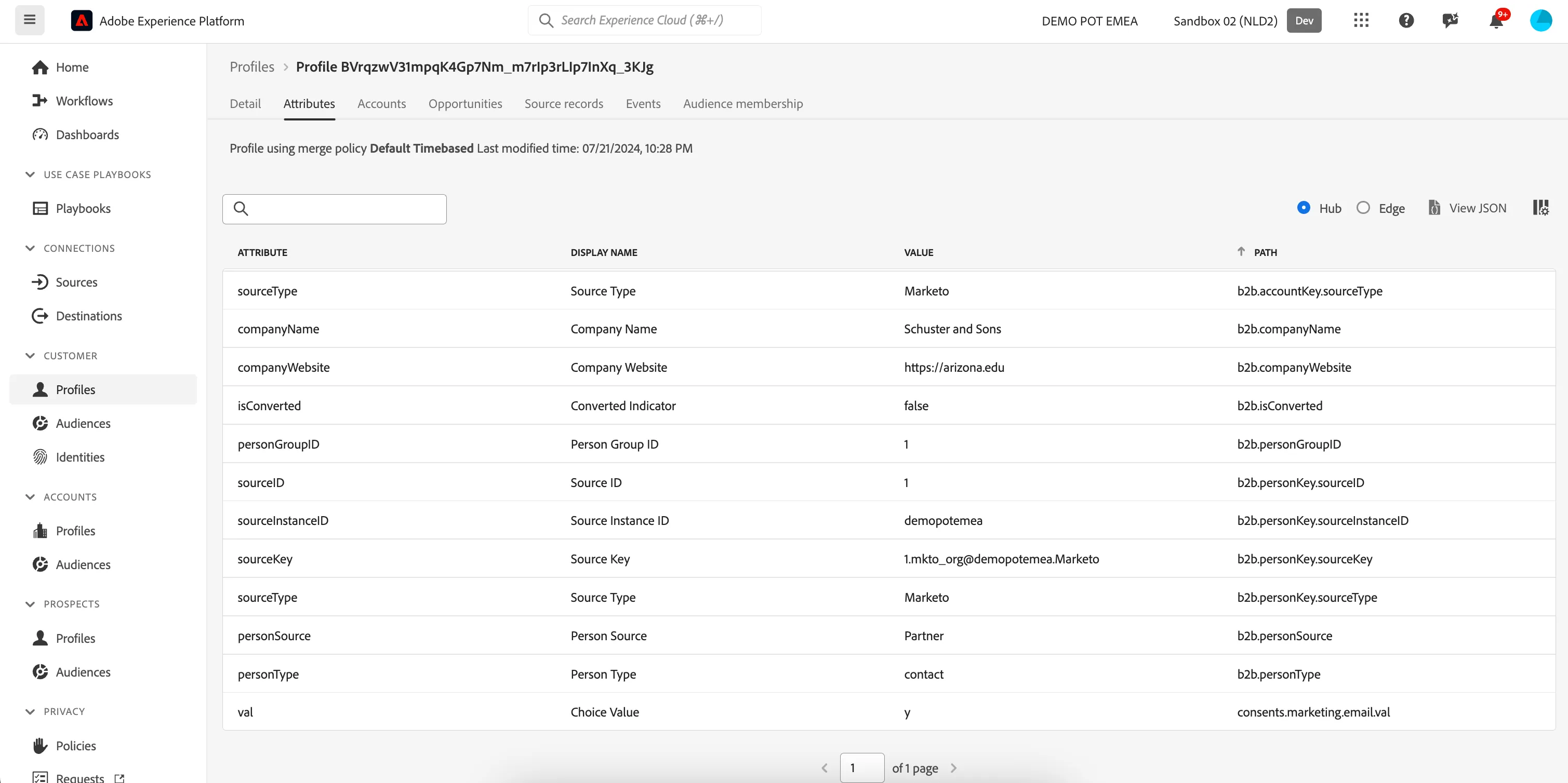
8. Select Accounts to view a list of accounts related to the profile. This list includes basic information from the account profile such as the name, website, and industry of the account, as well as a link to the account profile.
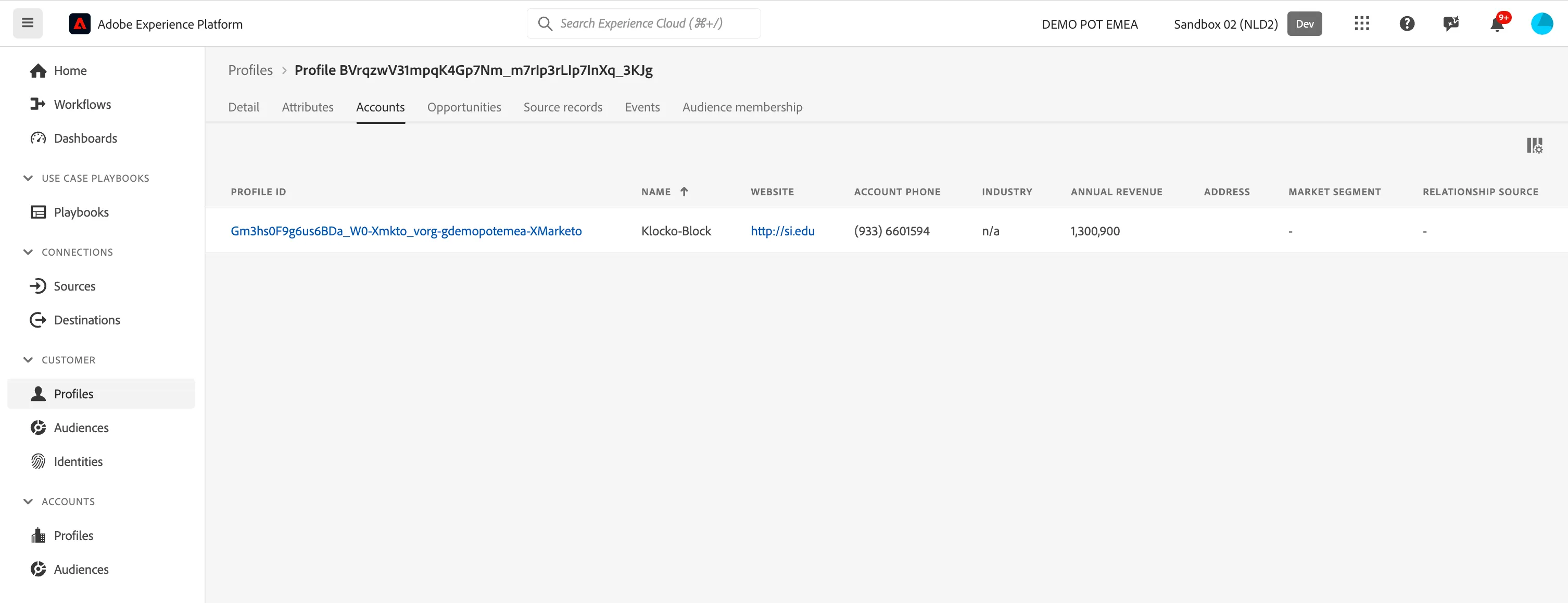
9. Click the Profile ID for the Account to open the Account profile view.
The profile information displayed on the Detail tab has been merged together from multiple profile fragments to form a single view of the individual account. This includes account details such as basic attributes and social media data.
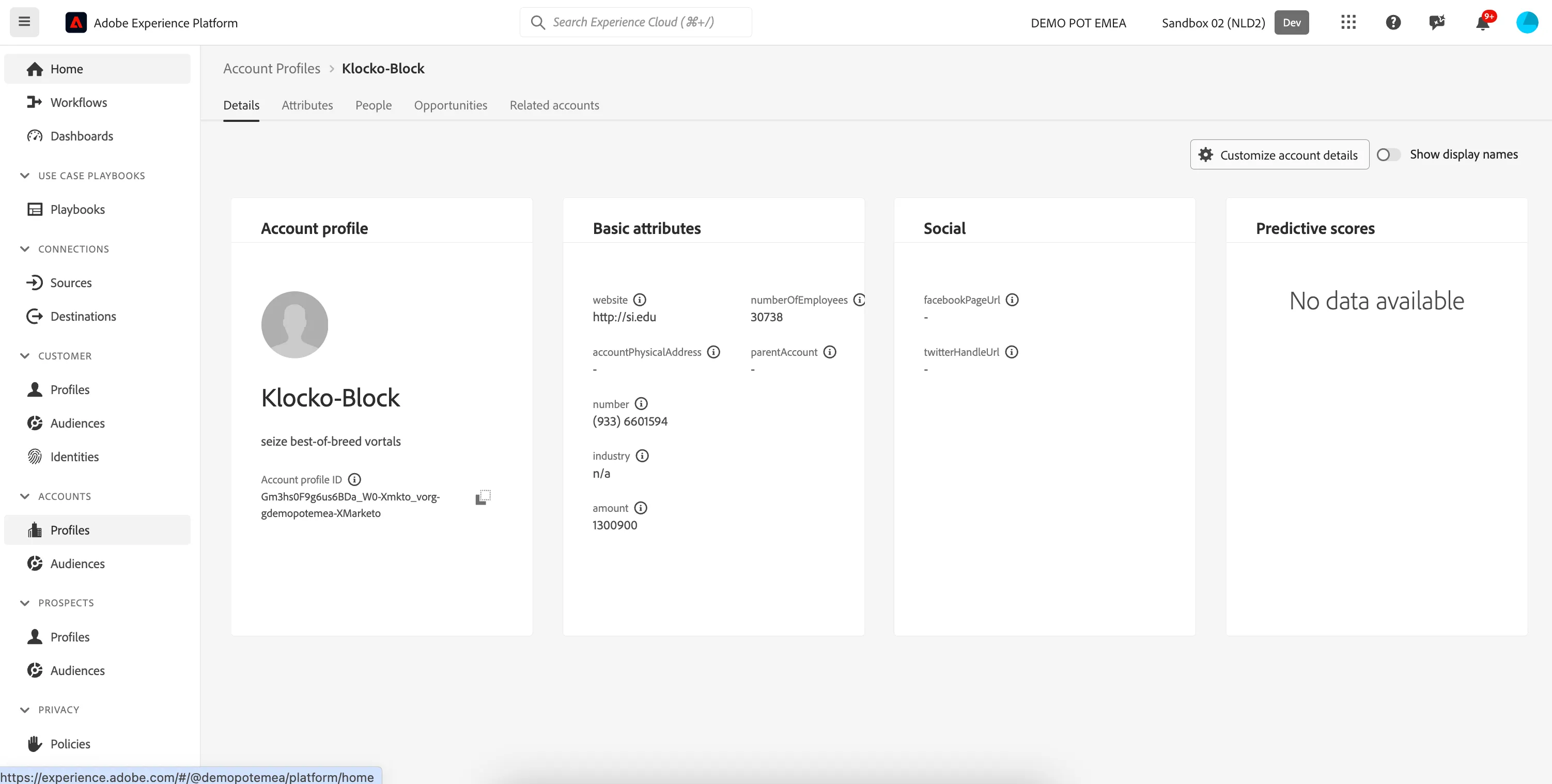
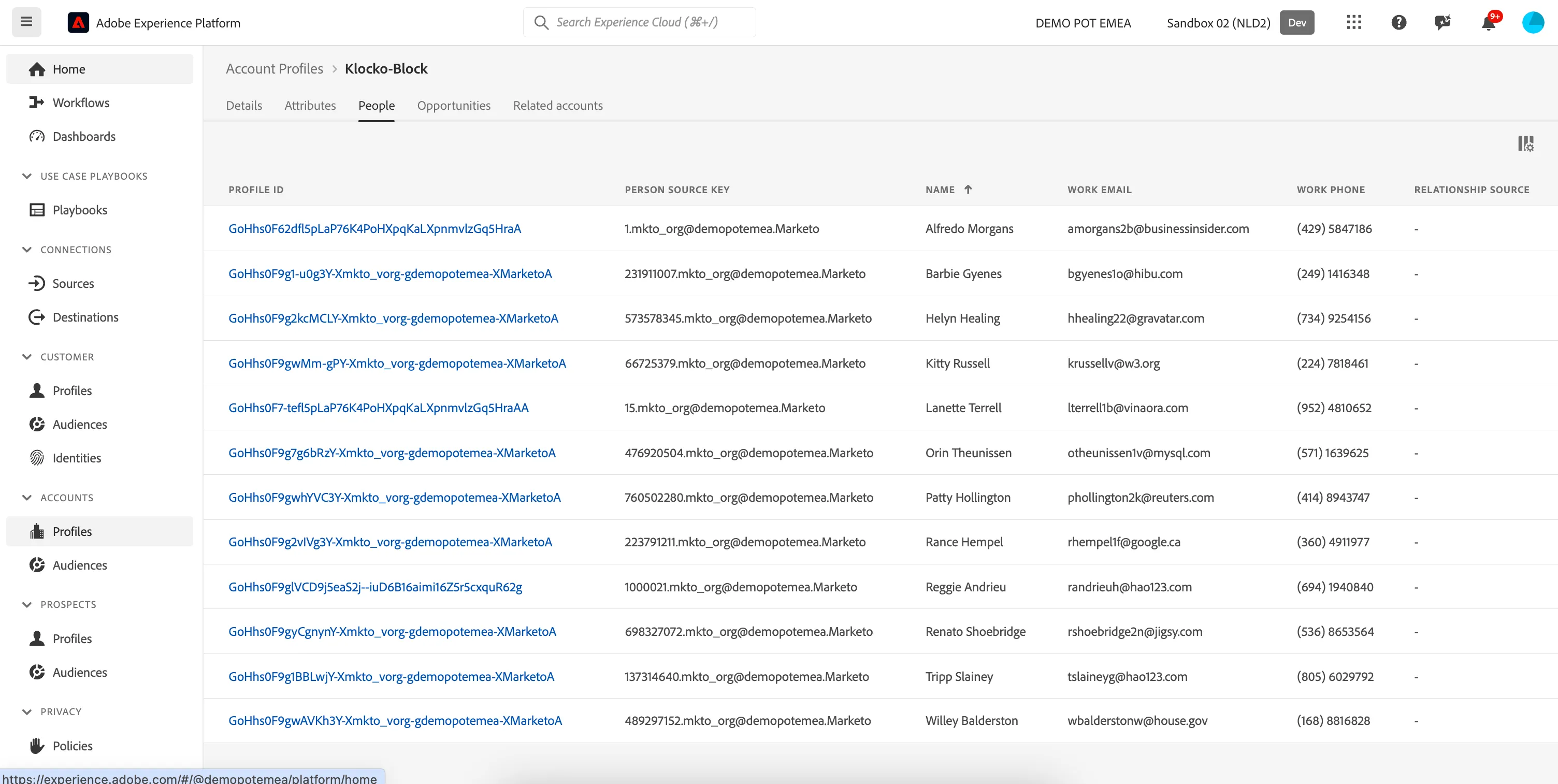
10. Select the People tab to view all people associated with the account.
The People tab provides a list of individual people associated with the account. These people may be contacts and leads from different enterprise systems managed by different teams within your organization, but in Real-Time CDP, B2B Edition they are presented together as a single list enabling you to see a more holistic view of your account contacts.
B2B Segmentation Exercise #1
We want to create an Audience for all contacts who have a position of "VP" who work at account "Klocko-Block" and have an upcoming flight in the next 2 weeks. We want to offer these people an exclusive offer on their upcoming trip.
- In the left rail, click on Customers and choose Audiences.
- Click +Create Audience in the top right.
- Select Attributes and search for Company name
- Drag the Company name field onto the segment builder canvas.
- Set the condition to: Company name equals Klocko-Block
- Return to attributes search, and search for Job title
- Drag the Job title attribute onto the segment builder canvas below the Company name condition.
- Set the condition to: Job title equals VP
Your Audience definition should look like this:
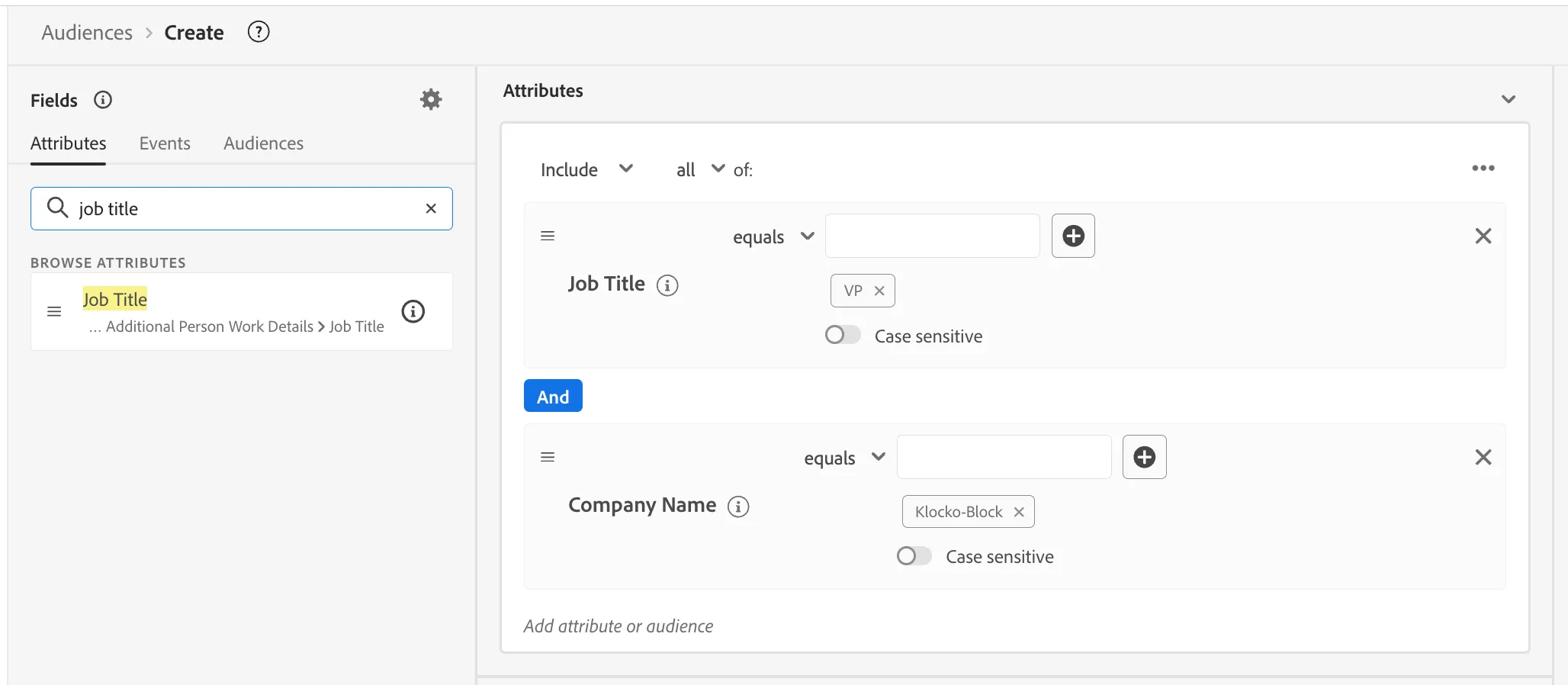
This Audience definition will return all Profiles that hold a VP position at the company "Klocko-Block". We now want to add a rule that will find which of these profiles have an upcoming flight.
- Select the Events tab in the Fields section.
- In the text search field, type flight. You will see a flight booking listed under Event Types.
- Drag the Booking event type onto the canvas where it says Events.
- Click on the Booking event box to open the Event Rule.
- In the left menu navigate to XDM ExperienceEvent > Reservations > Flight Reservations > Departure Date. Drag the Departure Date field onto the Event Rule.
- Set this to Departutre Date In Next 2 Weeks.
Your final segment definition should look like this:
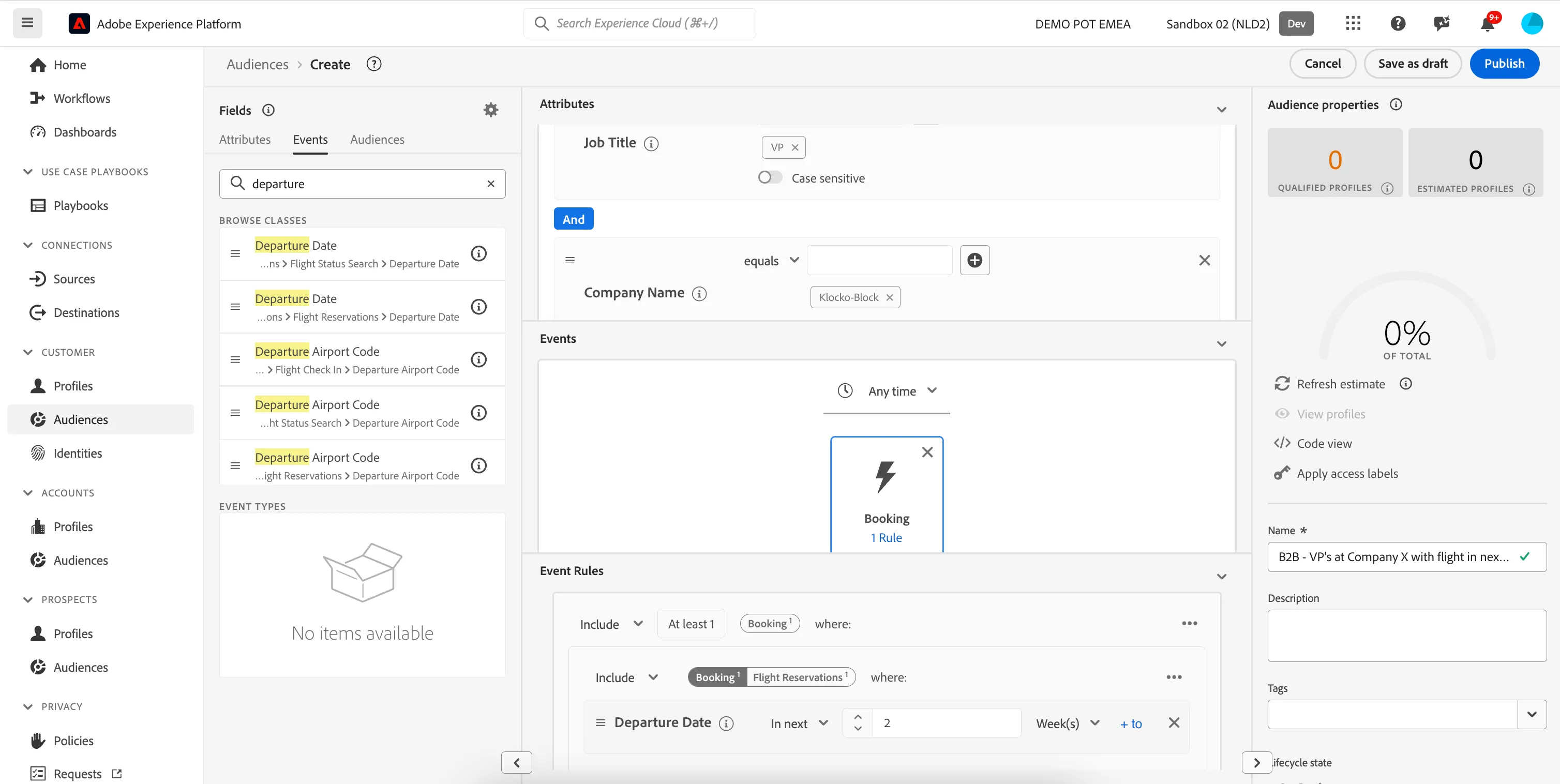
- Enter the Audience name. E.g. [Your name] - VP's with an upcoming flight.
- Click Save in the top right to save the audience.
B2B Segmentation Exercise #2
In the last exercise, we created a B2B Audience that returned Customer Profiles that met certain segment rules. Now we want to be table to target an Audience of Accounts, allowing Qatar Airways to communicate with all Persons that belong to those Accounts in Marketo.
We want to create a segment of all accounts where the company's annual revenue is greater than 1 million.
- In the left rail, click on Accounts and choose Audiences.
- Click +Create Audience in the top right.
- Select Attributes and search for Annual Revenue.
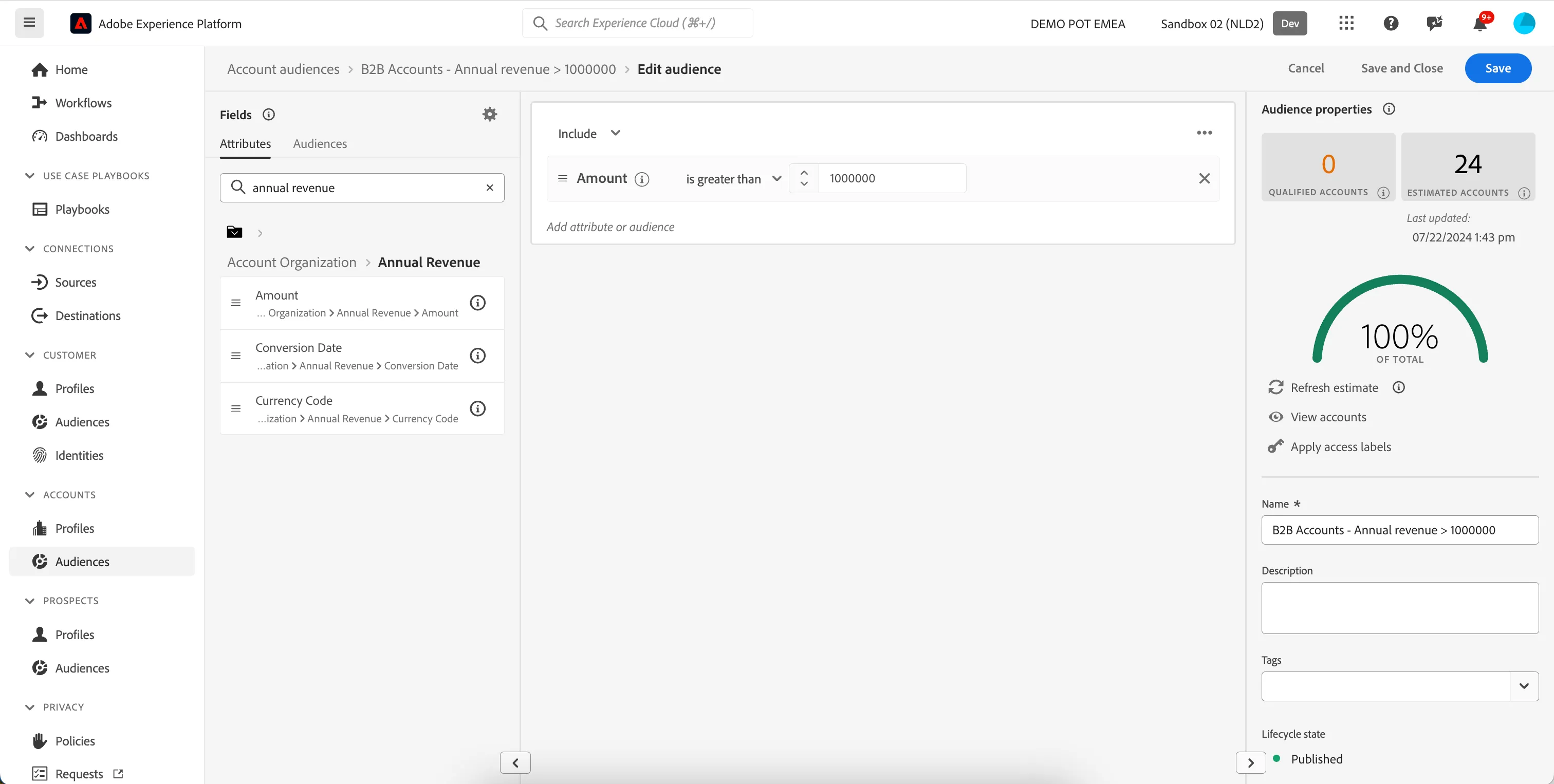
- Expand the Annual Revenue folder, drag the Amount field onto the segment builder canvas.
- Set the condition to: Amount is greater than 1000000
- Enter the Audience name. E.g. [Your name] - Accounts with annual revenue > .
- Click Save in the top right to save the audience.
Your Audience definition should look like this:
[FYI only] Activate a B2B Audience to a Destination
In this lab, we’ll share audiences created in a previous lab with a Marketo Engage destination.
Prerequisites:
- Marketo Engage Destination.
To share an Audience to Marketo:
- In the left navigation, select Destinations.
- Select the My destinations radio button in the Catalog view. Verify you see a Marketo Engage v2 Connection
- Select Activate Audiences.
- Select the Existing Marketo Destination, named Marketo adobedemoaccount150.
- Select Next.
- On the Select audiences screen, select the audience you created in the previous lab. Click Next.
- On the Mapping step, we need to choose which Identity fields will map our B2B Profiles with Persons in Marketo. We recommend you to use the email as the lookup identity.
- Click on Next in the upper right corner of the workflow. This will take you to the the Review step. Select Finish to complete the Profile Activation.
You have now successfully shared your B2B Segment with Marketo!
Export type and frequency
Refer to the table below for information about the destination export type and frequency.
Item | Type | Notes |
|---|---|---|
Export type | Segment export | You are exporting all members of a segment (audience) with the identifiers (email, ECID) used in the Marketo Engage destination. |
Export frequency | Streaming | Streaming destinations are “always on” API-based connections. As soon as a profile is updated in Experience Platform based on segment evaluation, the connector sends the update downstream to the destination platform. Read more about streaming destinations. |