B2B Schemas and Datasets
Adobe Real-Time Customer Data Platform B2B Edition provides several Experience Data Model (XDM) classes that capture fundamental B2B data entities, including accounts, opportunities, campaigns, and more. By building schemas based on these classes and enabling them for use in Real-Time Customer Profile, you can merge data from disparate sources into a unified representation called a union schema.
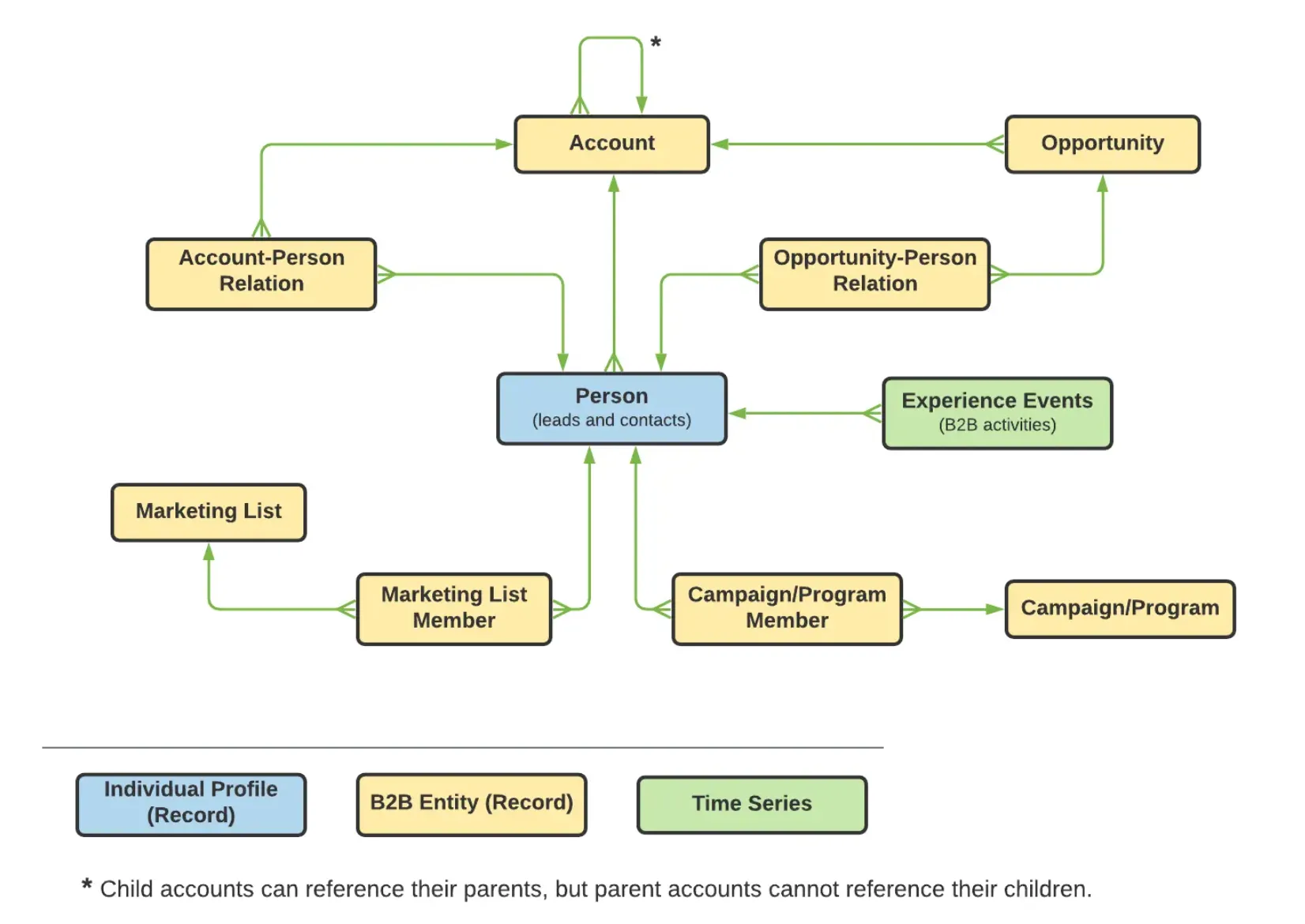
However, union schemas can only contain fields captured by schemas that share the same class. This is where schema relationships come in. By implementing relationships in your B2B schemas, you can describe how these business entities relate to each other and can include attributes from multiple classes in downstream segmentation use cases.
The following diagram provides an example of how the different B2B classes can relate to each other in a basic implementation:
Creating a B2B Account schema
In this exercise, we will explore the B2B Data Model and create a Schema for Business Accounts.
To log into the Adobe Experience Platform, check the Introduction Section.
- Click on Schemas in the menu on the left side of your screen.
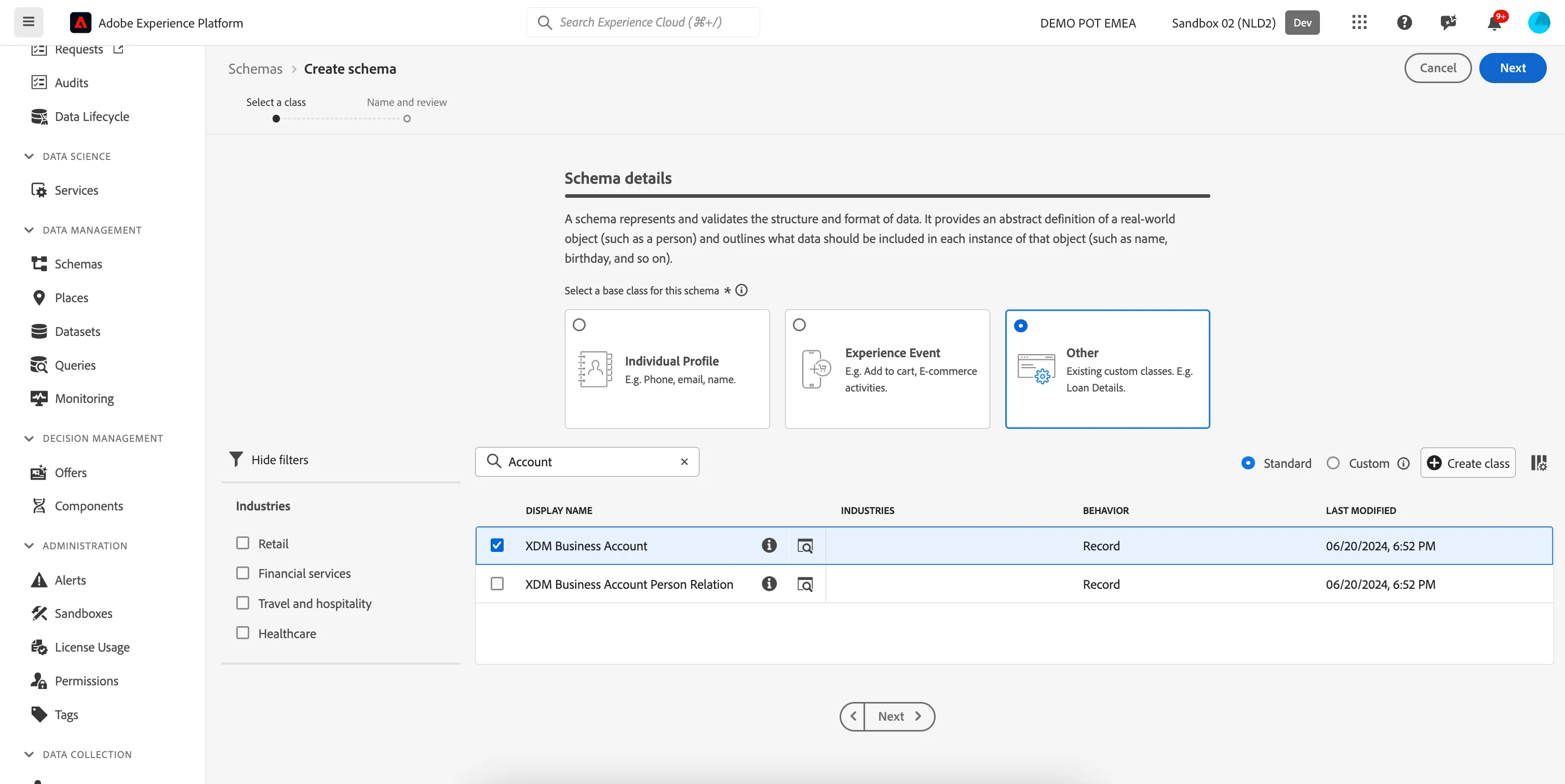
- Click the button to + Create Schema in the top right corner of your screen, and select Other.
- Search for Account, and select the option B2B Business Account.
- Click Next.
5. Give your schema a name, for example: [your name] - Account Details, and select Finish.
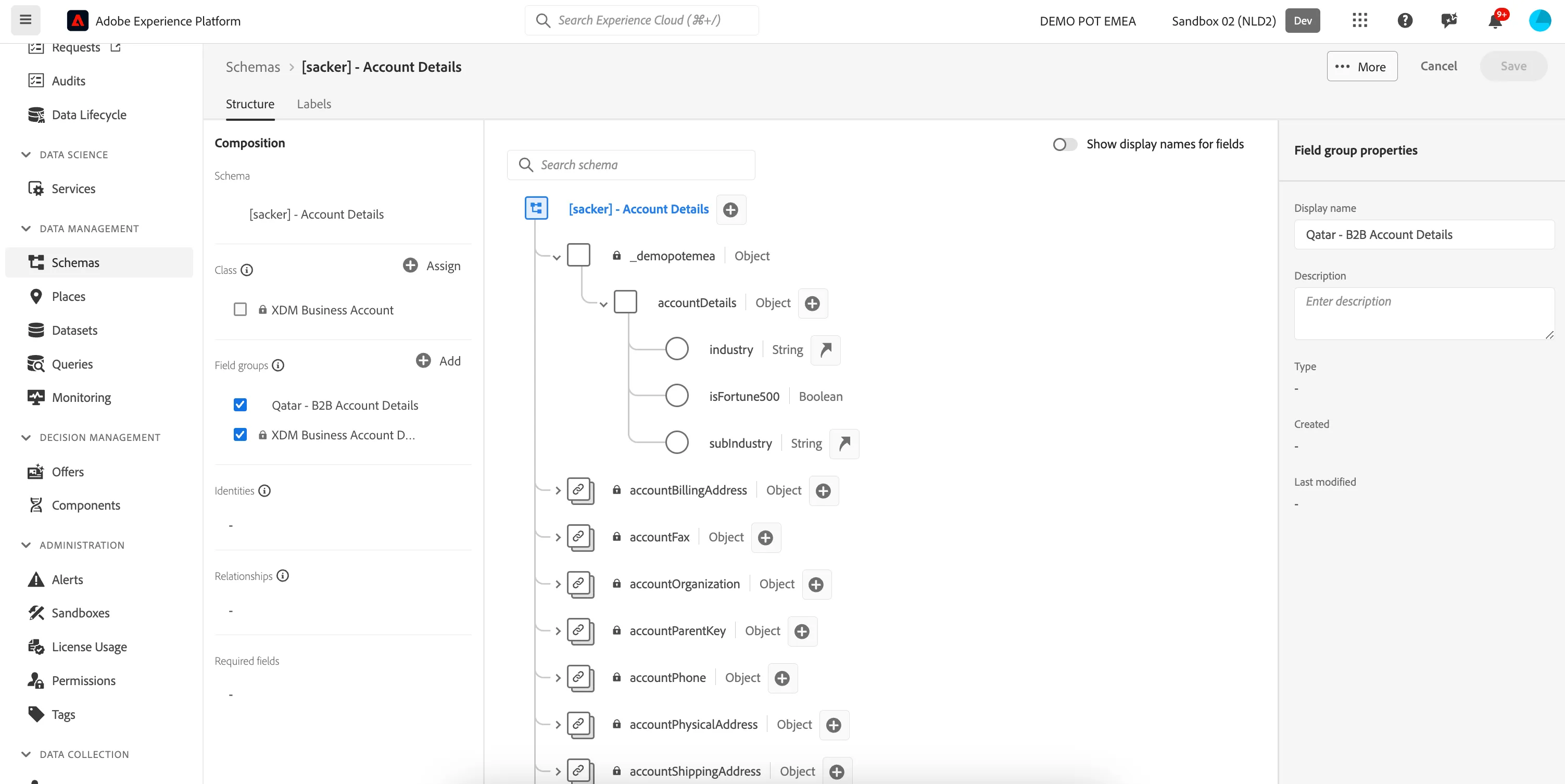
For this exercise, we will add two field groups:
- XDM Business Account Details – This is a pre-built field group which describes a business account.
- Qatar - B2B Account Details – This is a custom field group that will be created to ingest more information about the business which may have been sourced from a 3rd Party.
7. Select Add field groups
8. Search for the XDM Business Account Details field group from the Standard Field Groups. Add this field group to the Schema.
9. Next, search for the Qatar - B2B Account Details field group from the Custom field groups. Add this field group to the Schema.
10. Your Schema should now look like below:
We're not going to add any further fields groups or extend existing field groups in this Lab. The purpose is to simple explore the B2B Classes and Relationships.
Setting the Primary Identity
B2B Source is a standard Experience Data Model (XDM) data type that represents a composite identifier for a B2B entity (such as an account, an opportunity, or a campaign).
When relying solely on string-based identifiers, there can be overlaps between IDs across multiple systems (for example, an opportunity could be given a string ID on one CRM system, but that same ID could refer to a completely different opportunity). This can result in data conflicts when merging data in Real-Time Customer Profile.
The B2B Source data type allows you to to use the original string ID of an entity and combine it with source-specific contextual information to ensure that it remains wholly unique in the Platform system regardless of the source it originated from.
To set the primary identity for our B2B Account Schema
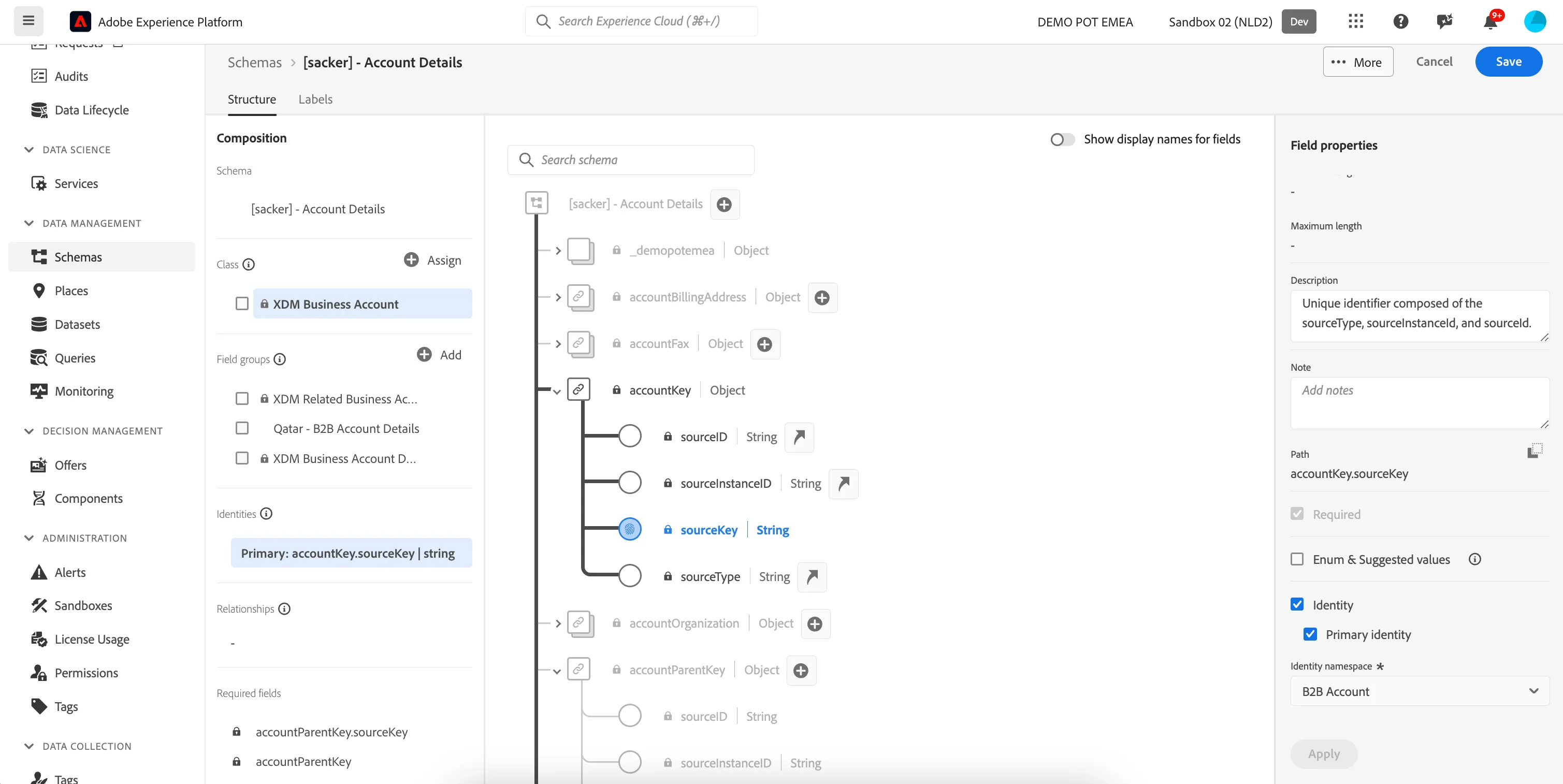
- Click on the Class in the left hand menu to highlight the full schema.
- Expand the accountKey node, and select the sourceKey field.
- Set this as the Primary Identity and Select the namespace, B2B Account from the dropdown
- Click Apply, and Save your Schema.
Congratulations! You have created your first B2B Schema