Creating an audience
In this exercise we'll be creating two audiences that we can use in our journey.
To log into the Adobe Experience Platform, and open Adobe Journey Optimizer, check the Introduction Section.
Audience overview
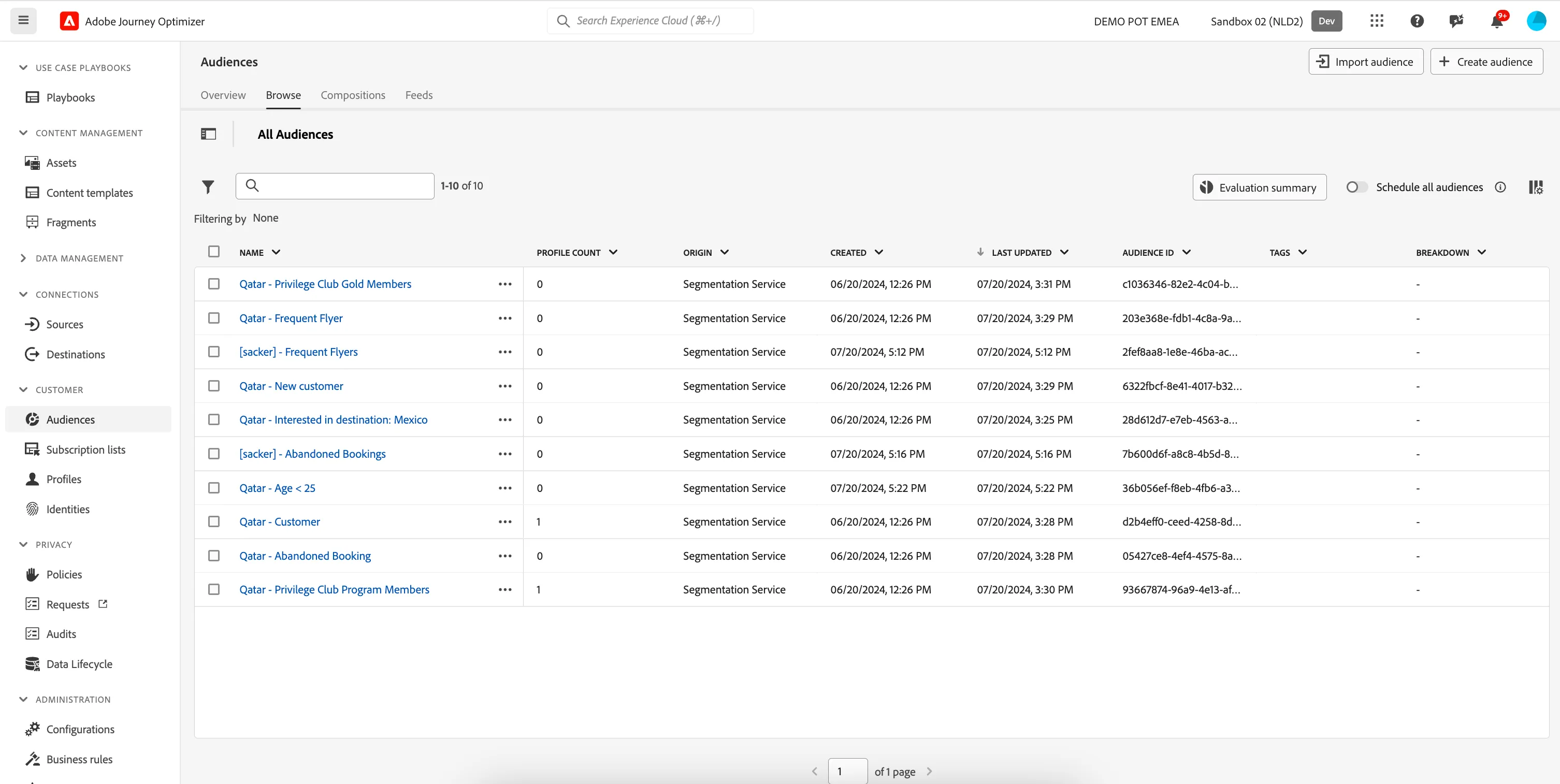
To get an overview of all audiences in Adobe Journey Optimizer:
- In the menu on the left side, under Customer, click on Audiences. You will see a overview with all existing audiences.
Audience #1 - Flight Departure in next 2 weeks
First we'll be creating an audience that contains all customers that have a flight in the next 2 weeks.
- Click on Create audience. A pop-up will open, choose Build rule and click Create.You'll be taken to the Audience builder.
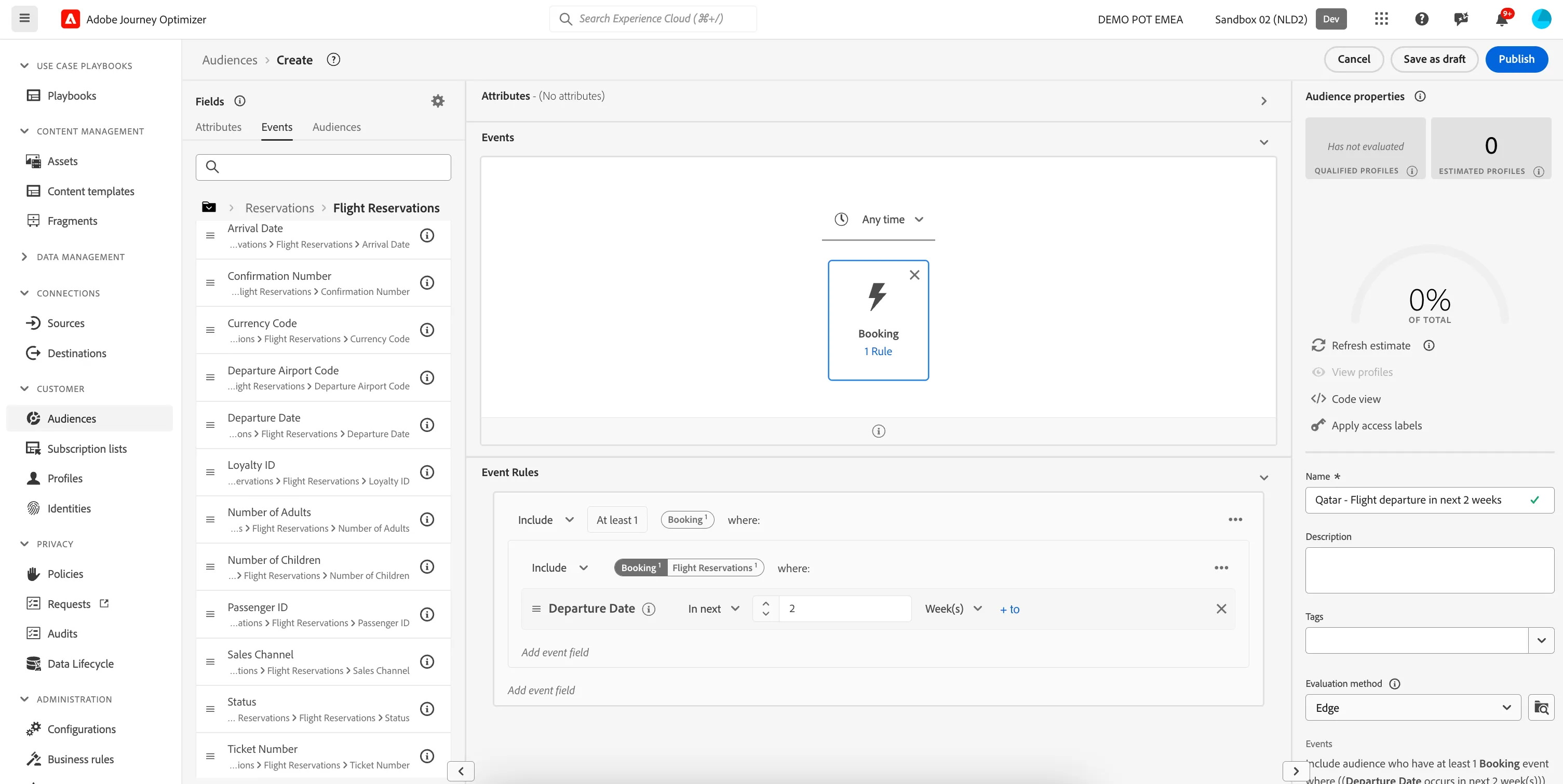
- Set the name to [your name] - Flight Departure in next 2 weeks.
- Set the evaluation method to edge.
- In the Events tab, search for flight. In the bottom a predefined event will appear. Drag the Booking event to the middle of the screen.
- Click on the Booking-event in the middle section to open the Event Rules.
- In the left menu, navigate to XDM ExperienceEvent > Reservations > Flight Reservations and drag the field Departure Date to the event Rules.
- Set the expression for Departure Date to In next 2 weeks.
- Your screen should look like the image below. Click Publish to finish your audience.
Audience #2 - Flight Departure in next 24 hours
Next we'll be creating an audience that contains all customers that have a flight in the next 24 hours.
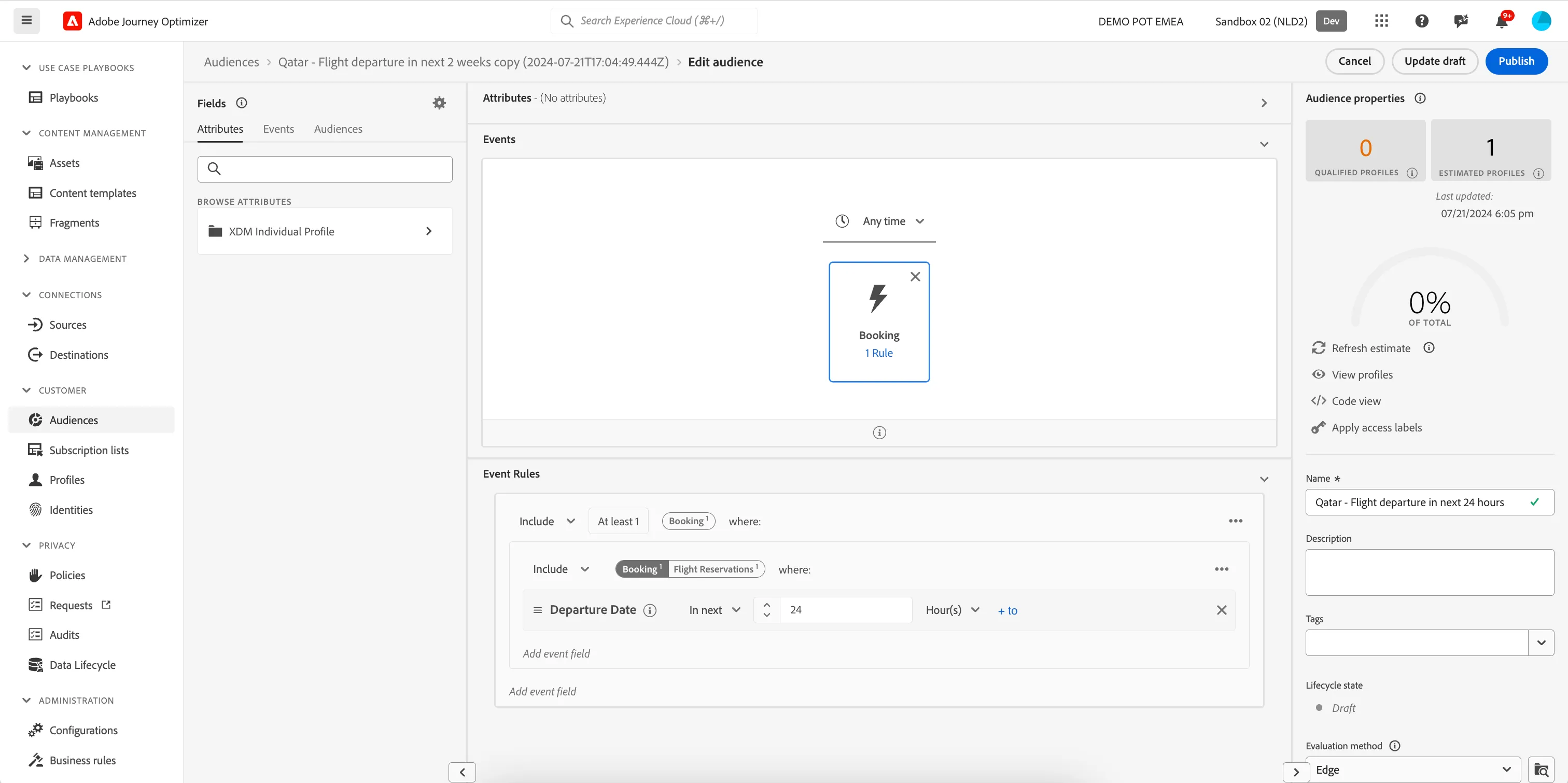
As this audience is very similar to the previous one you can also choose to copy that audience and edit it. You can do this by clicking the icon and choosing Copy.
- Click on Create audience. A window will open, choose Build rule and click Create.You'll be taken to the Audience builder.
- Set the name to [your name] - Flight Departure in next 24 hours.
- Set the evaluation method to edge.
- In the Events tab, search for flight. In the bottom a predefined event will appear. Drag the Booking event to the middle of the screen.
- Click on the Booking-event in the middle section to open the Event Rules.
- In the left menu, navigate to XDM ExperienceEvent > Reservations > Flight Reservations and drag the field Departure Date to the event Rules.
- Set the expression for Departure Date to In next 24 hours.
- Your screen should look like the image below. Click Publish to finish your audience.