Journey Building
1. From the menu, select "Account Journeys" on the left navigation bar and click "Create Account Journey".
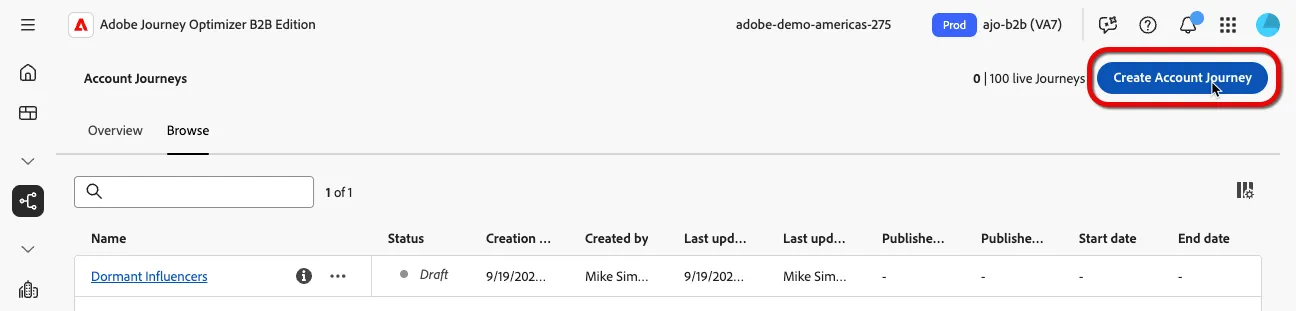
2. Name your journey "Retail Dormant Influencers - <your initials>"
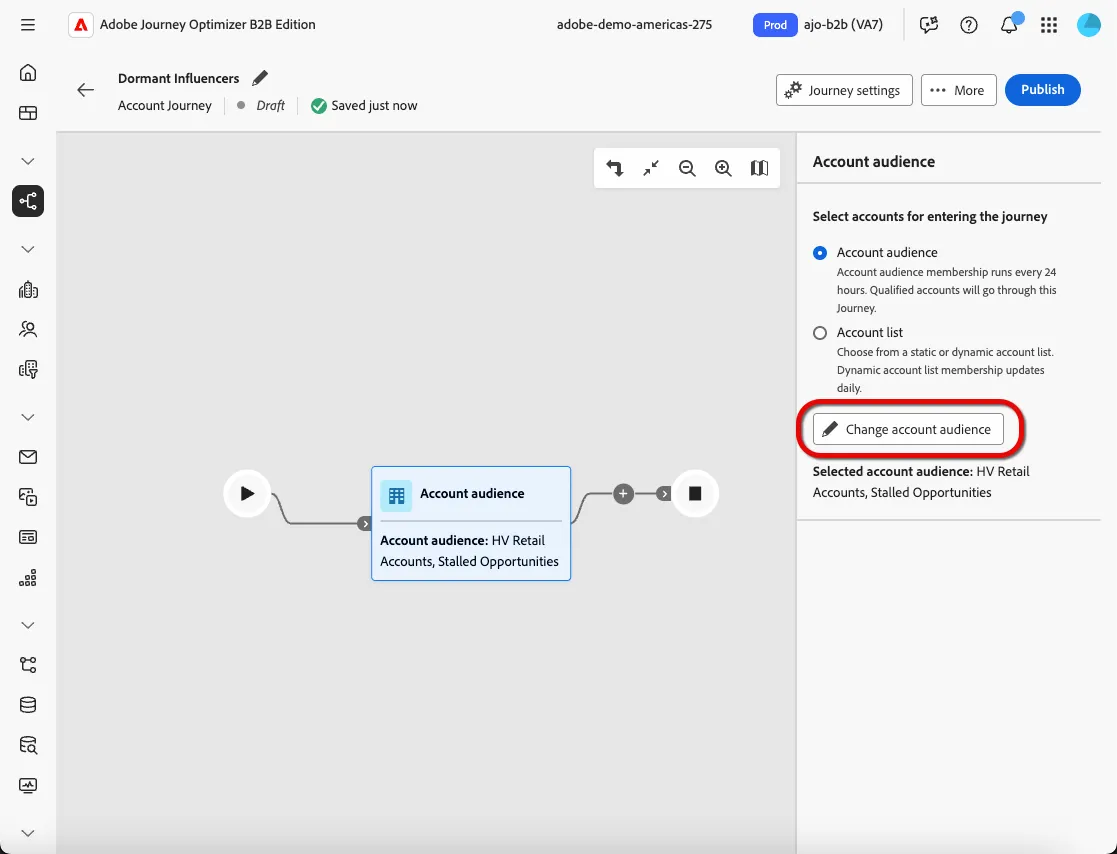
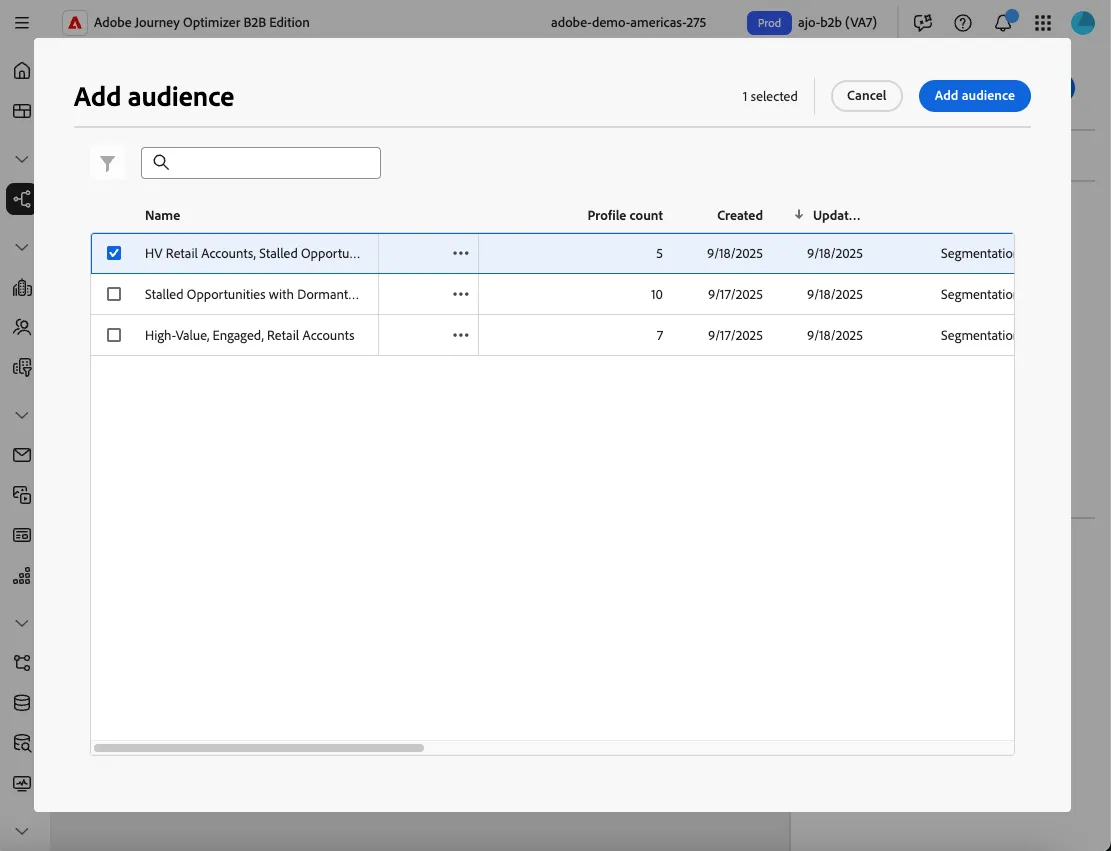
3. Select your account audience to start the journey.
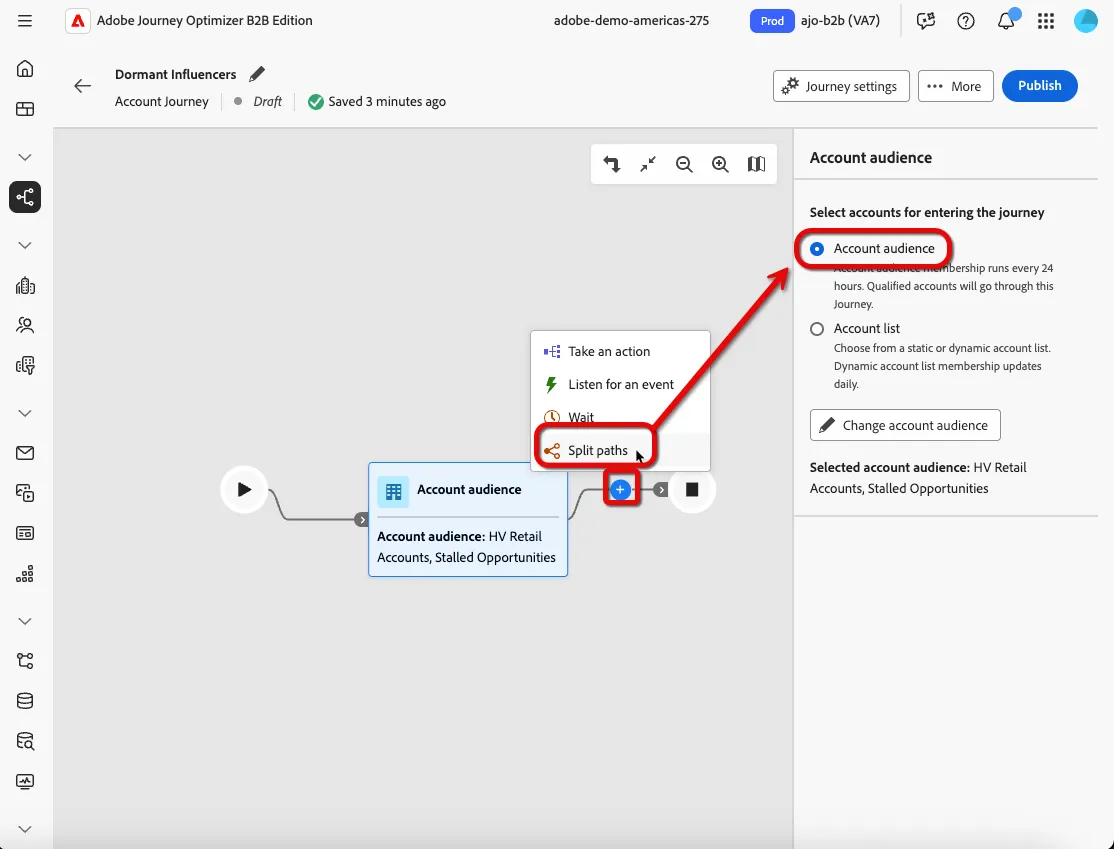
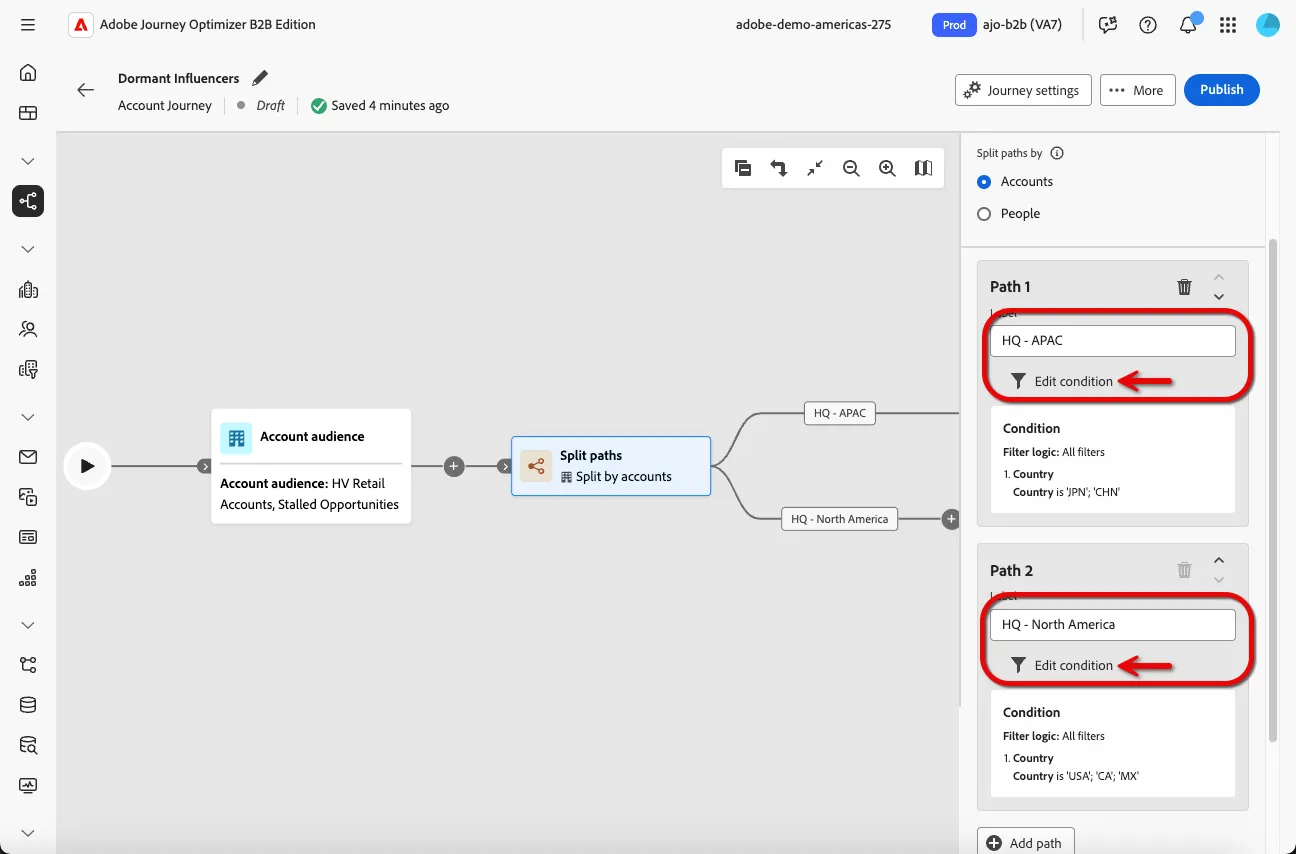
4. Add a Split Paths node and select the Split paths by Accounts radio button
5. Create two paths for different market regions
- North America & EMEA
- Asia Pacific
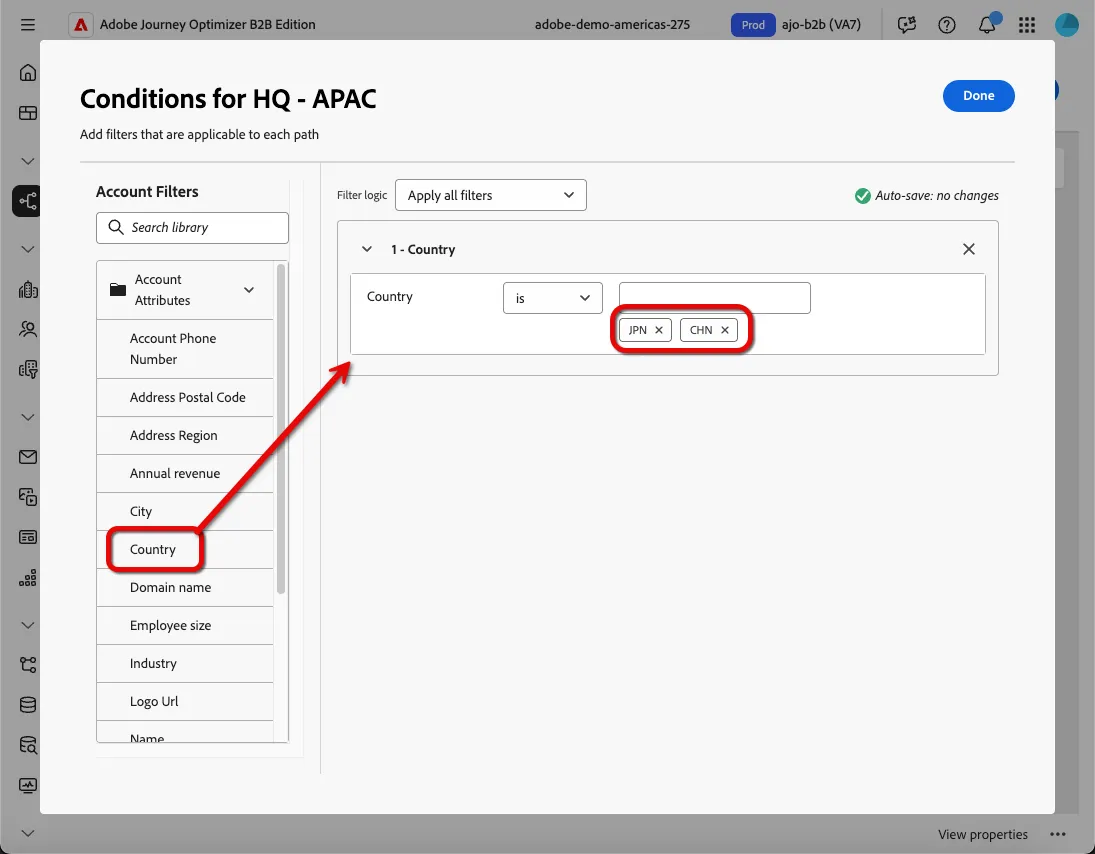
6. Add the filter Country to each path condition and add the following country codes to their corresponding region
APAC
- JPN
- CHN
North America
- USA
- CA
- MX
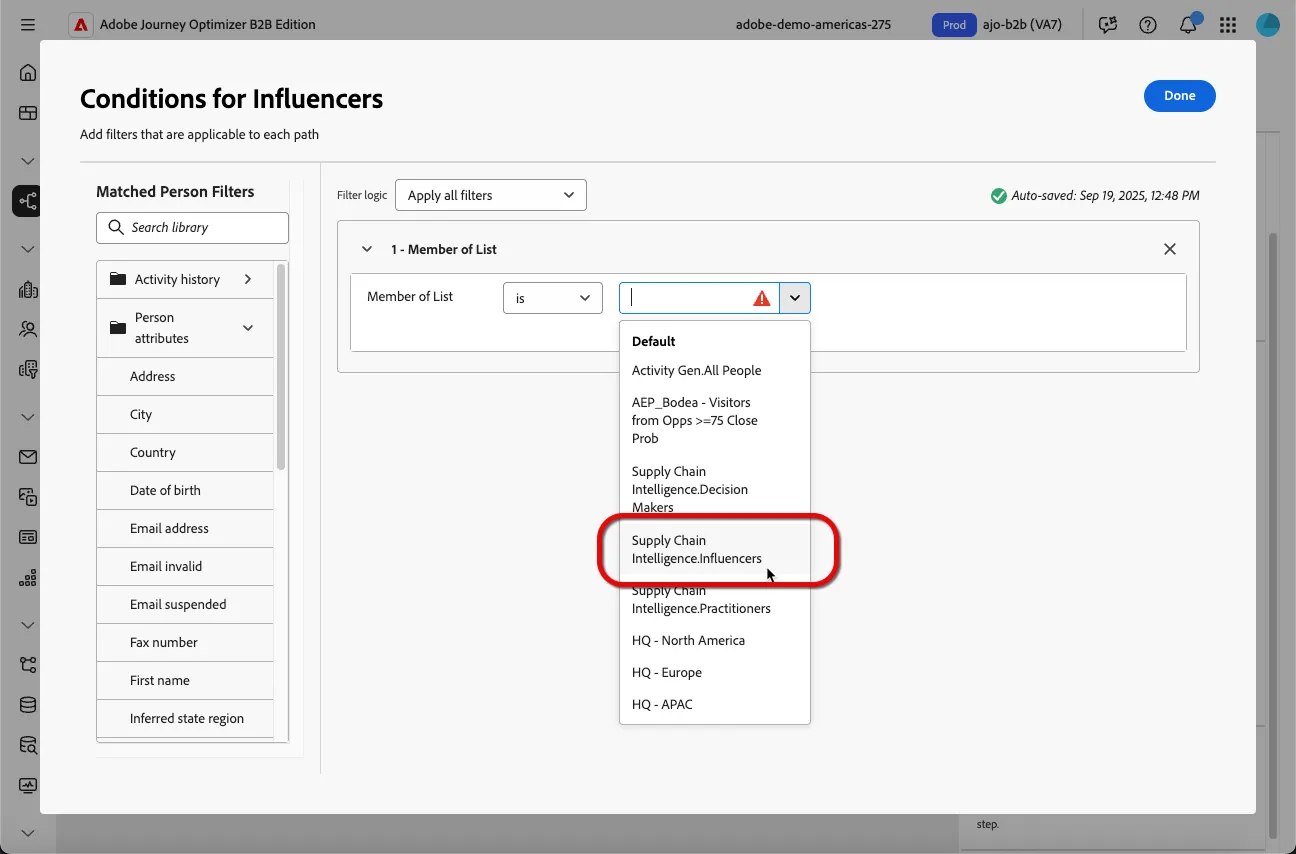
7. Split paths again at both nodes and select the People Audience radio button. Name the first path Influencers and click Edit condition option. Select the filter condition Member of List and select the Influencers list from the dropdown.
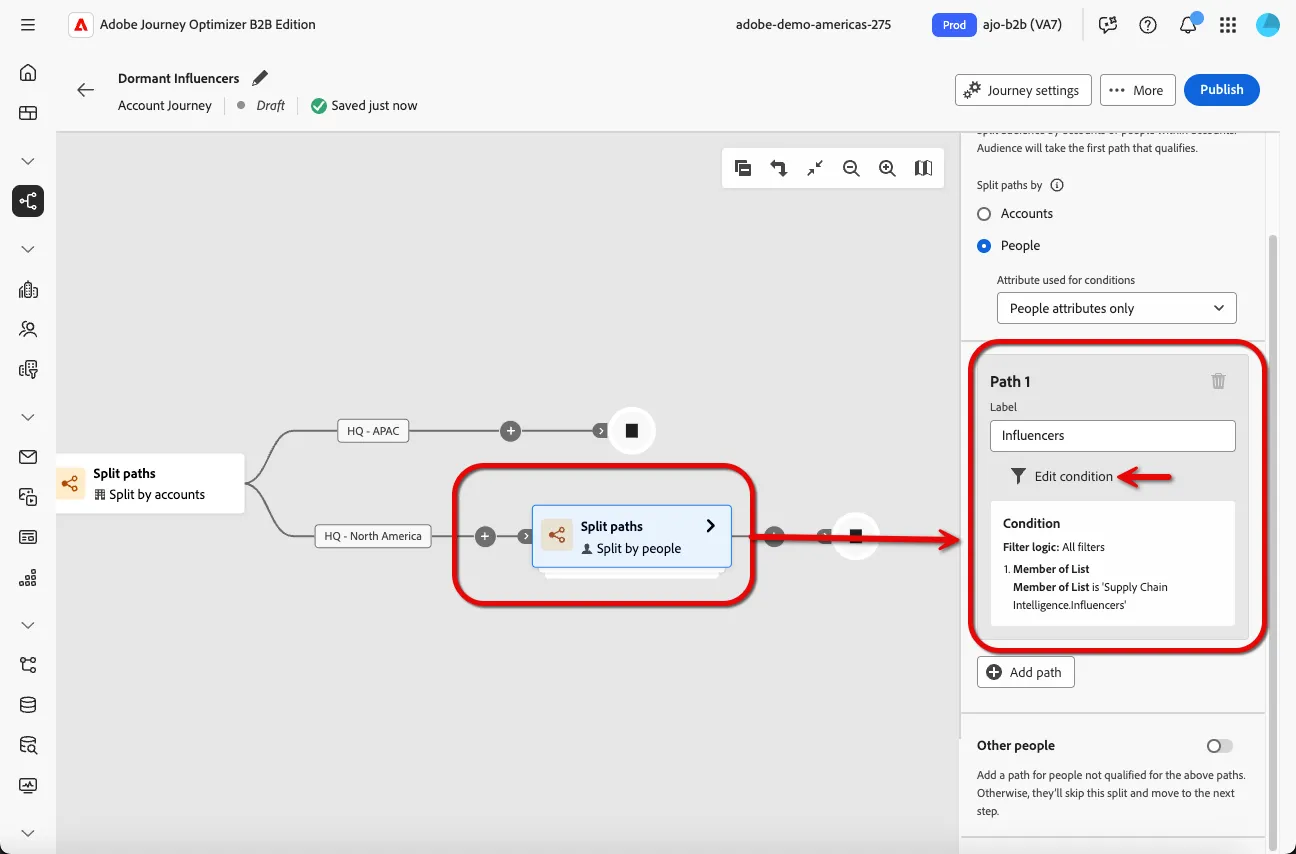
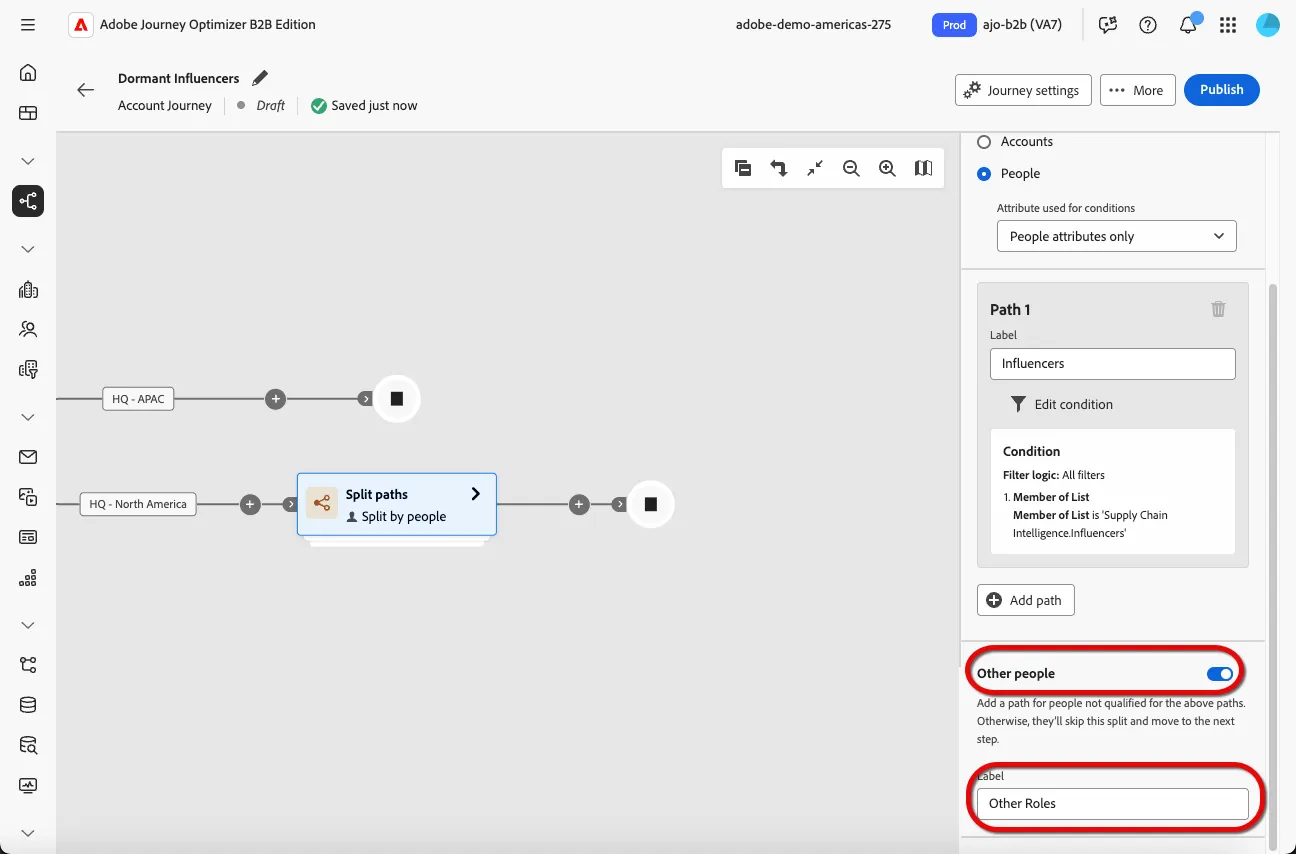
8. Flip the Other people toggle and label the path Other Roles
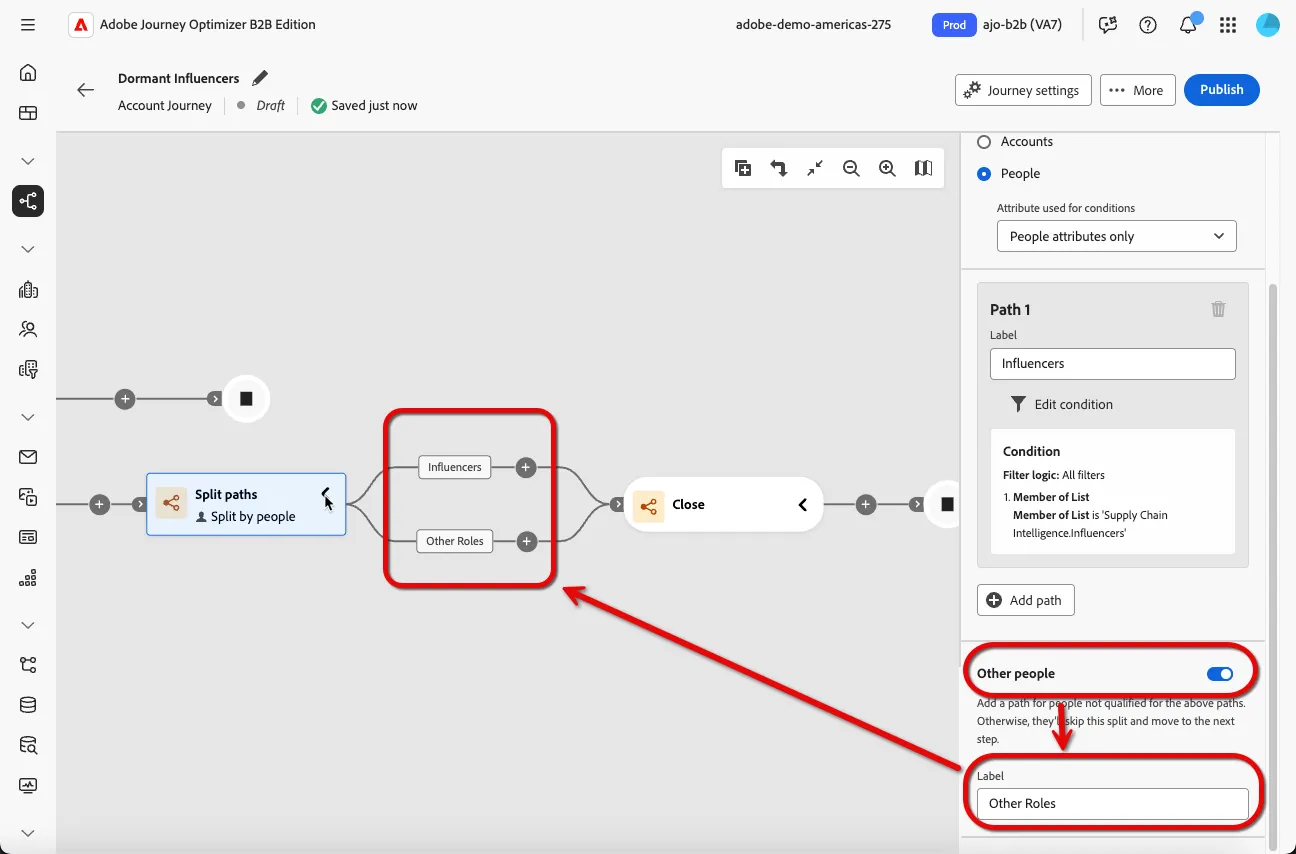
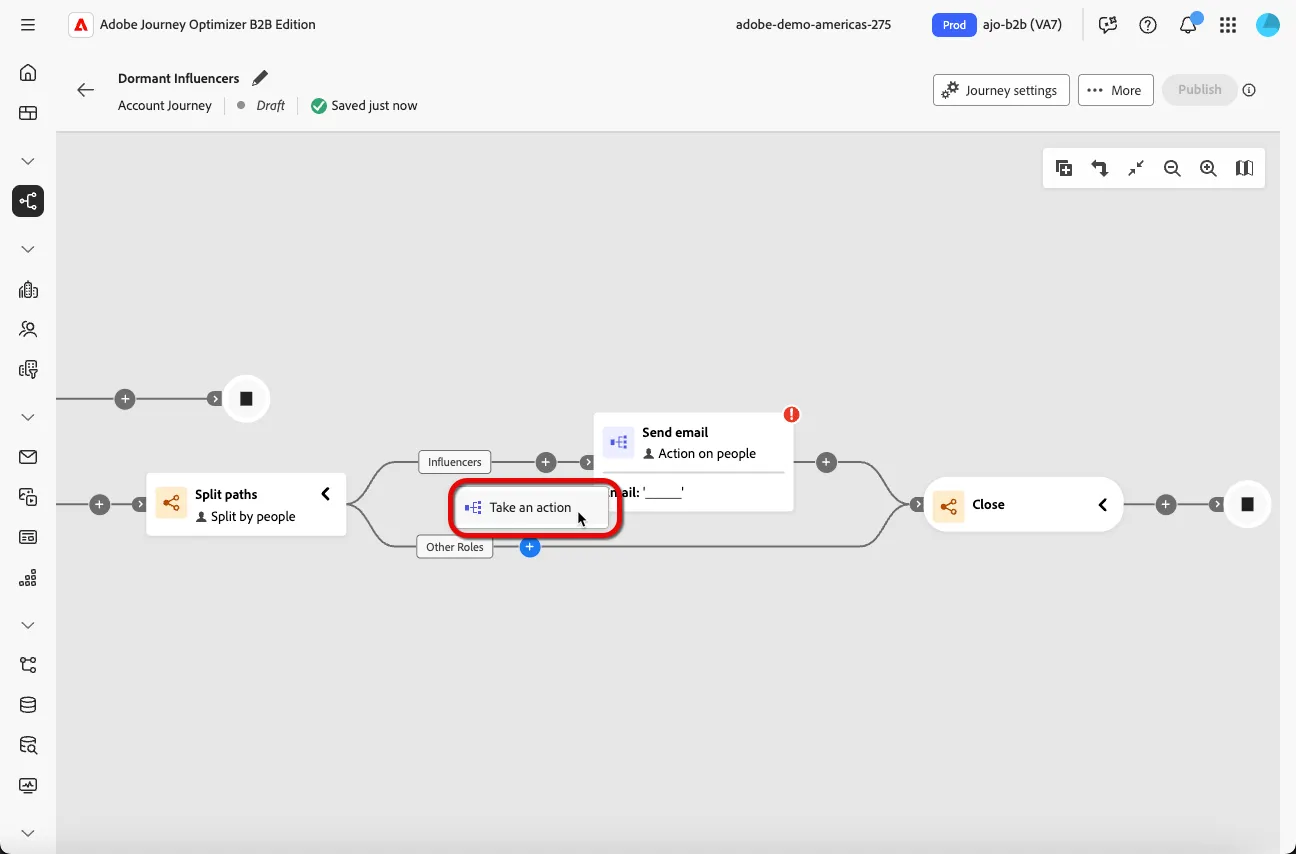
9. Add a Take an Action node to the new Influencers path and to the Other Roles path.
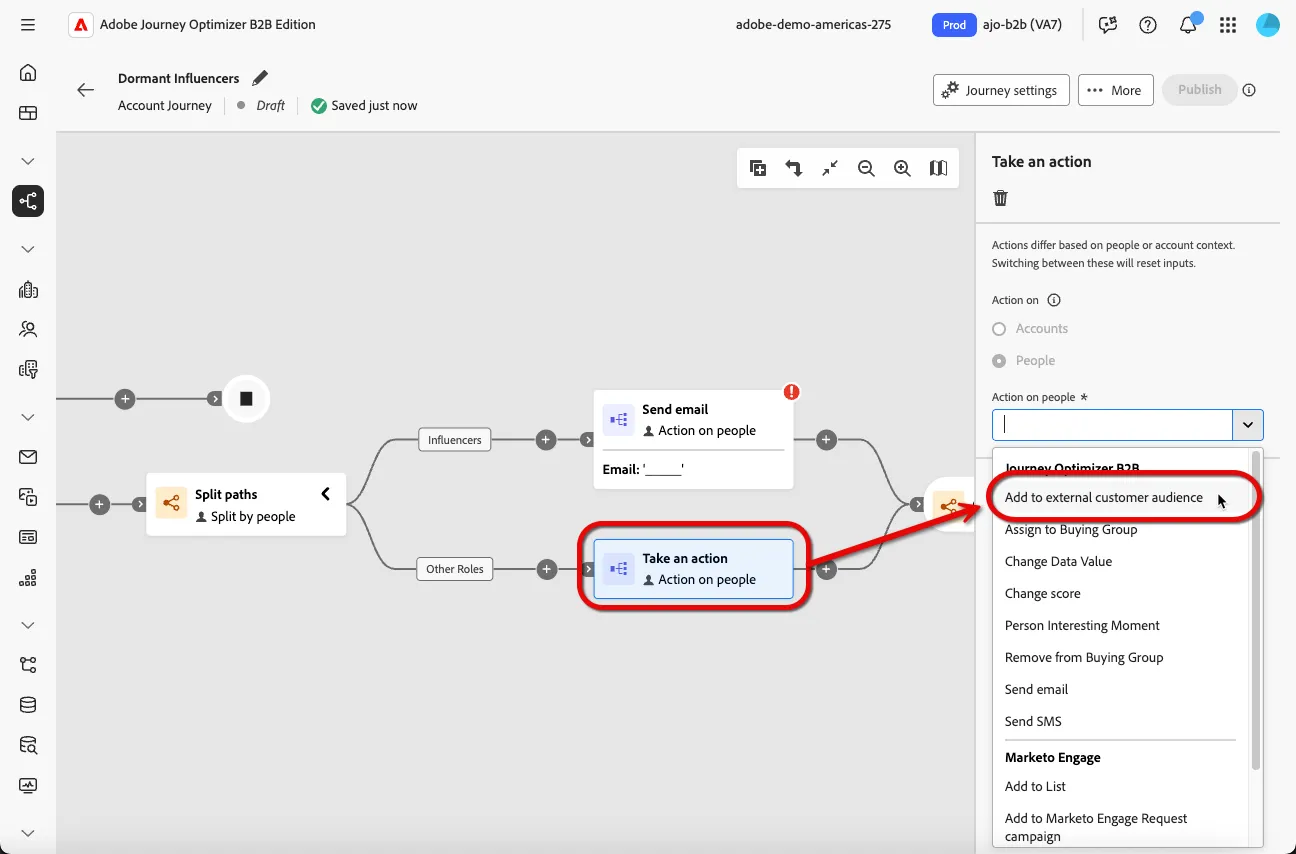
10. Add an Add to external customer audience node to the Other Role path. Create a new external audience and name it Dormant HV Retail Decision Makers and Practitioners - {your initials}.
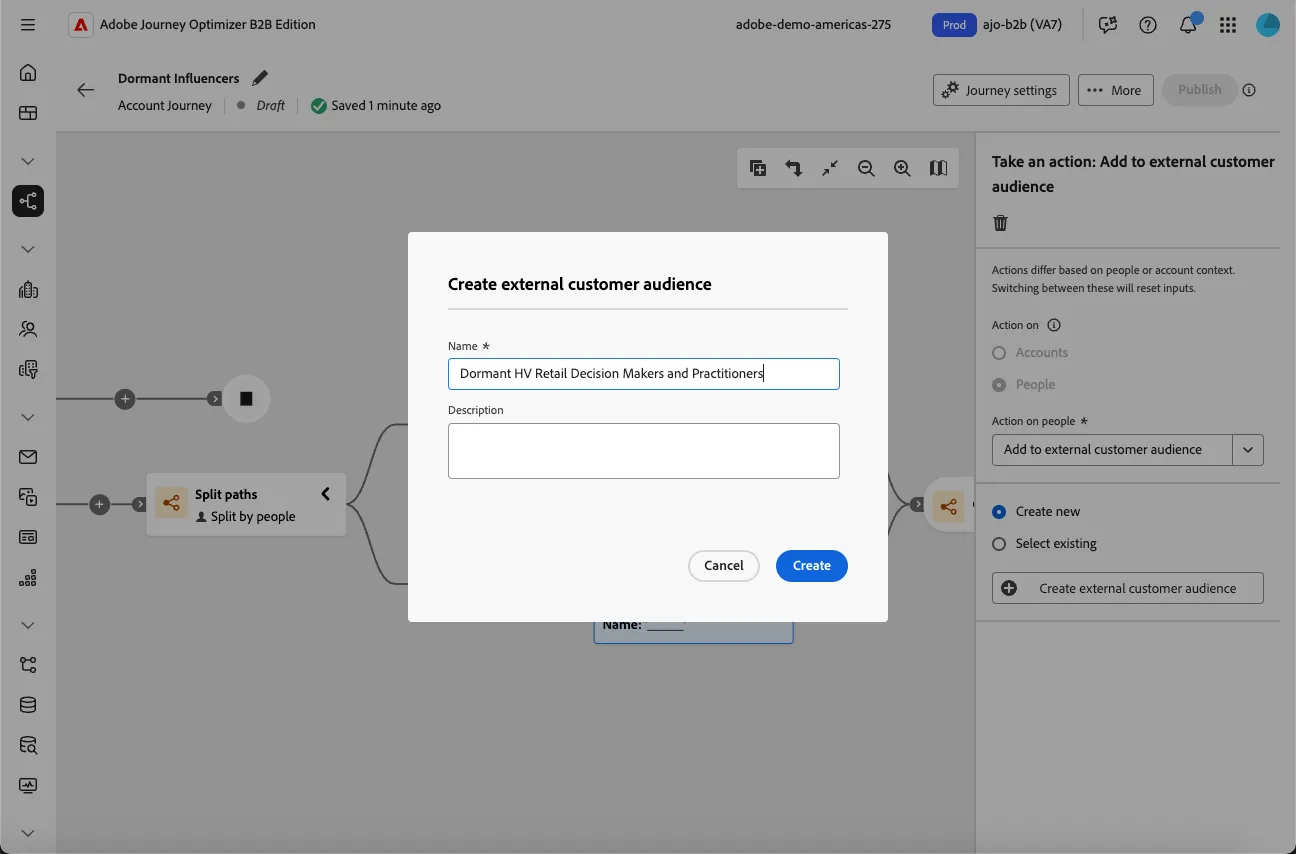
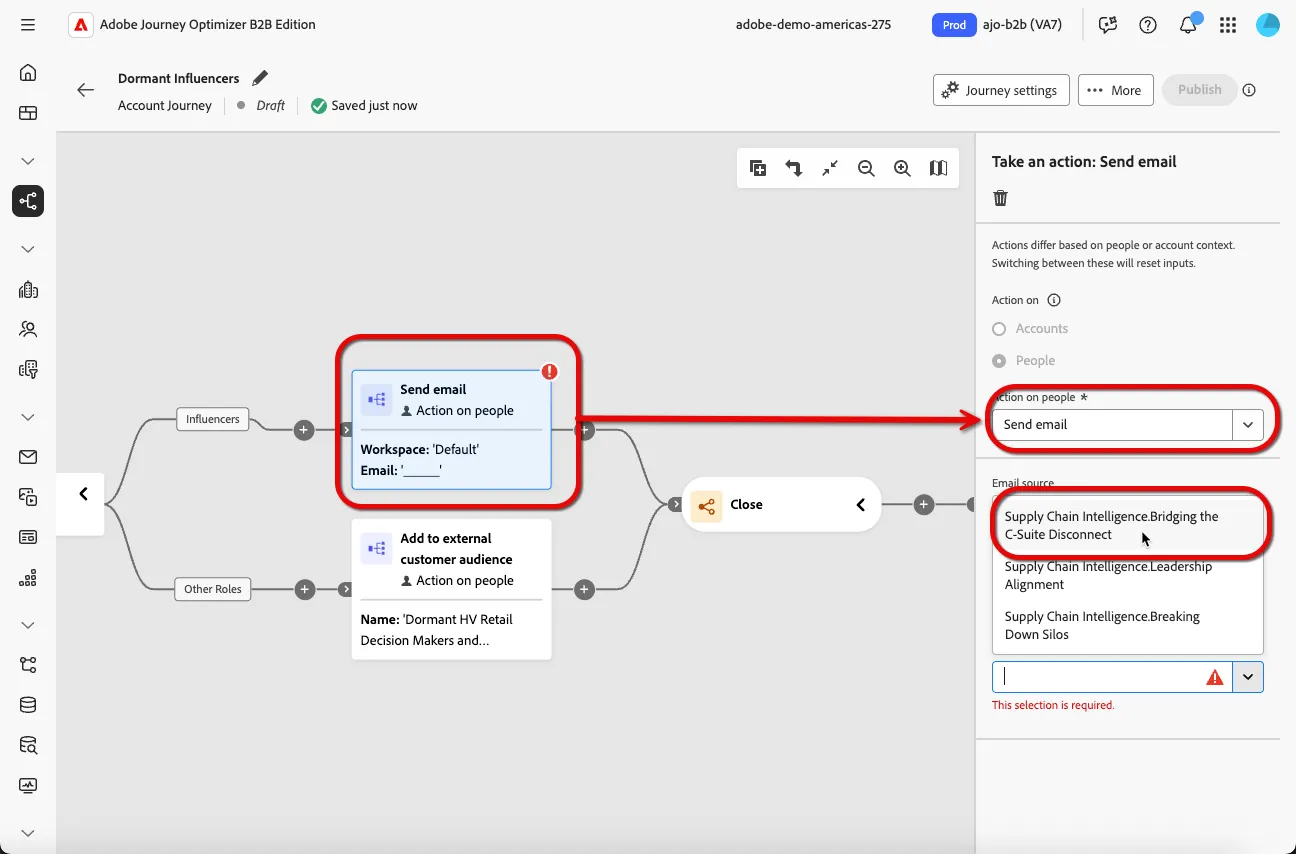
11. Add a Take an Action node to the Influencers path. Select the People radio button in the modal to target individuals, select the Send email action from the Action on People dropdown, and select the Bridging the C-Suite Disconnect email from the Email source dropdown.
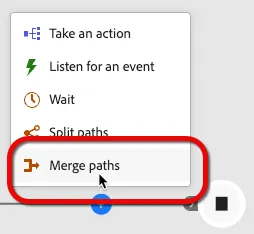
12. Merge the Influencer and Other Roles paths by selecting the Merge Paths option at the end of either path.
13. Add the Listen for an even action to the merged path.
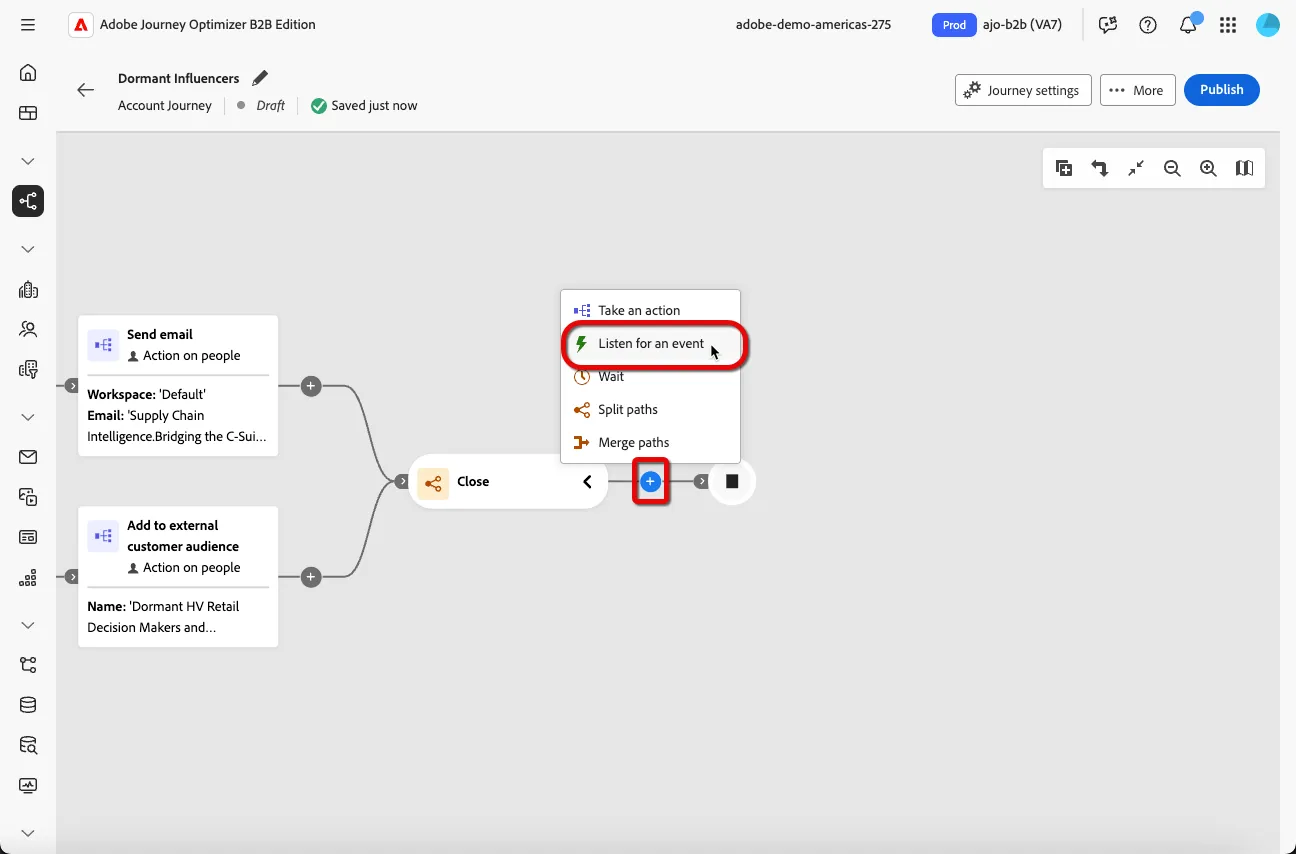
14. Select the People event type radio button and select the Visits Web Page event. Click the Edit event button.
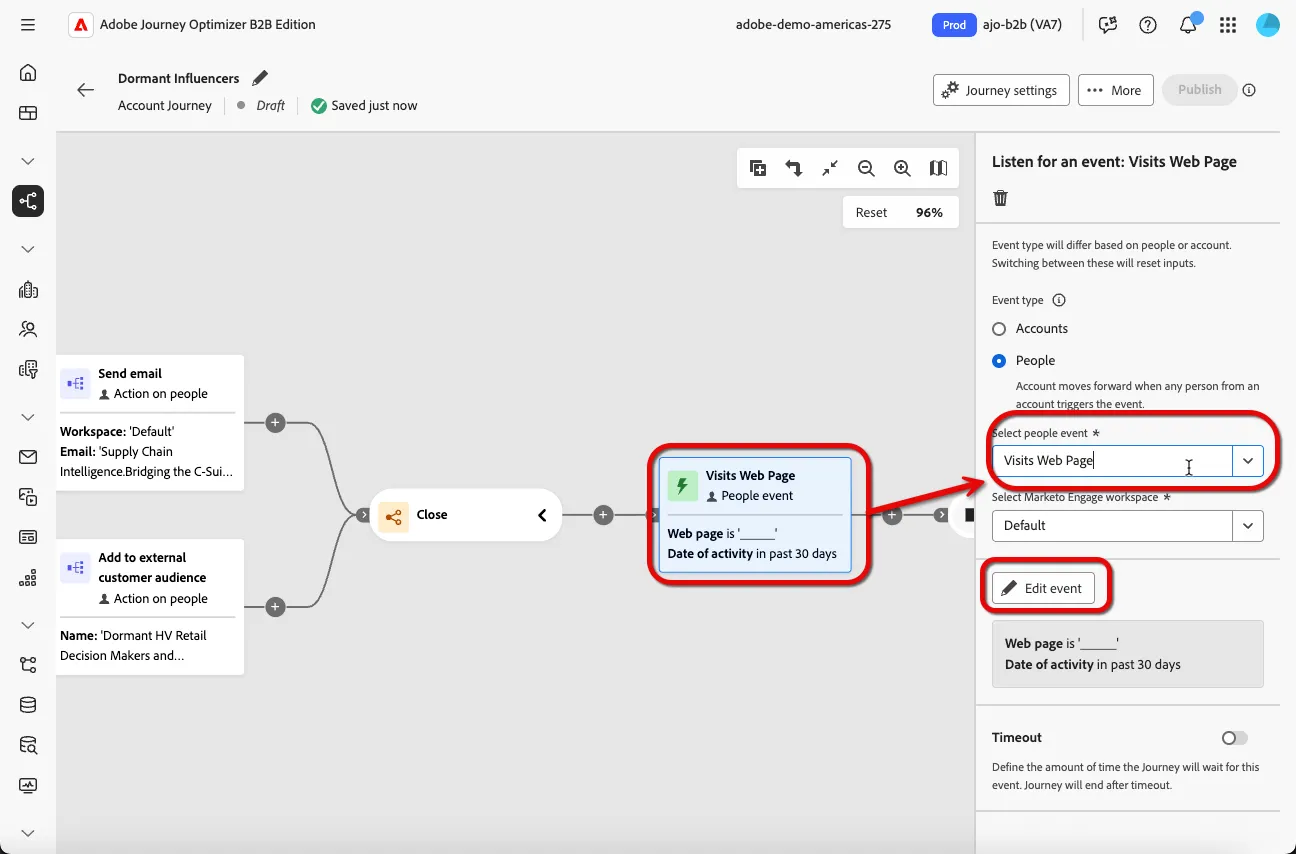
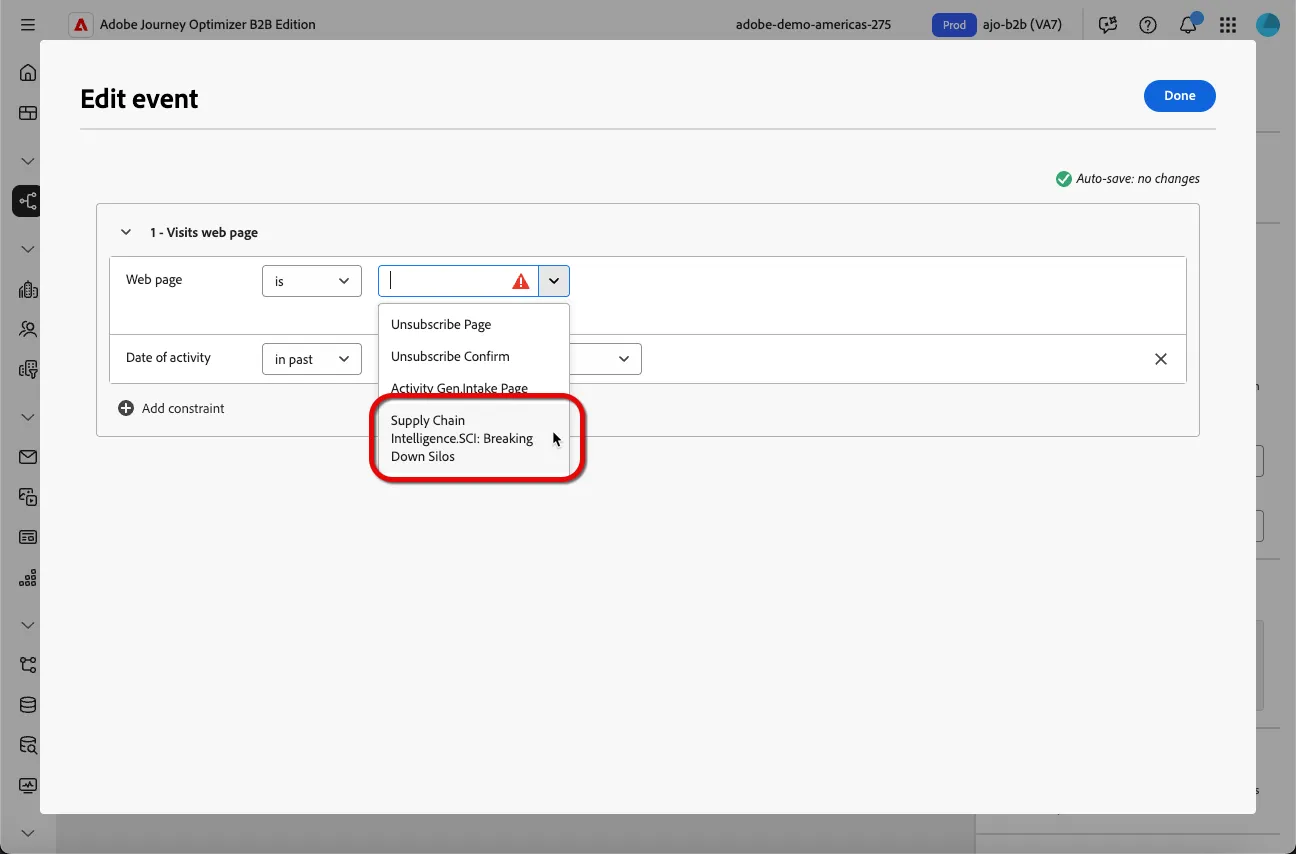
15. Select the SCI: Breaking Down Silos web page and change the Date of activity lookback to 7 days.
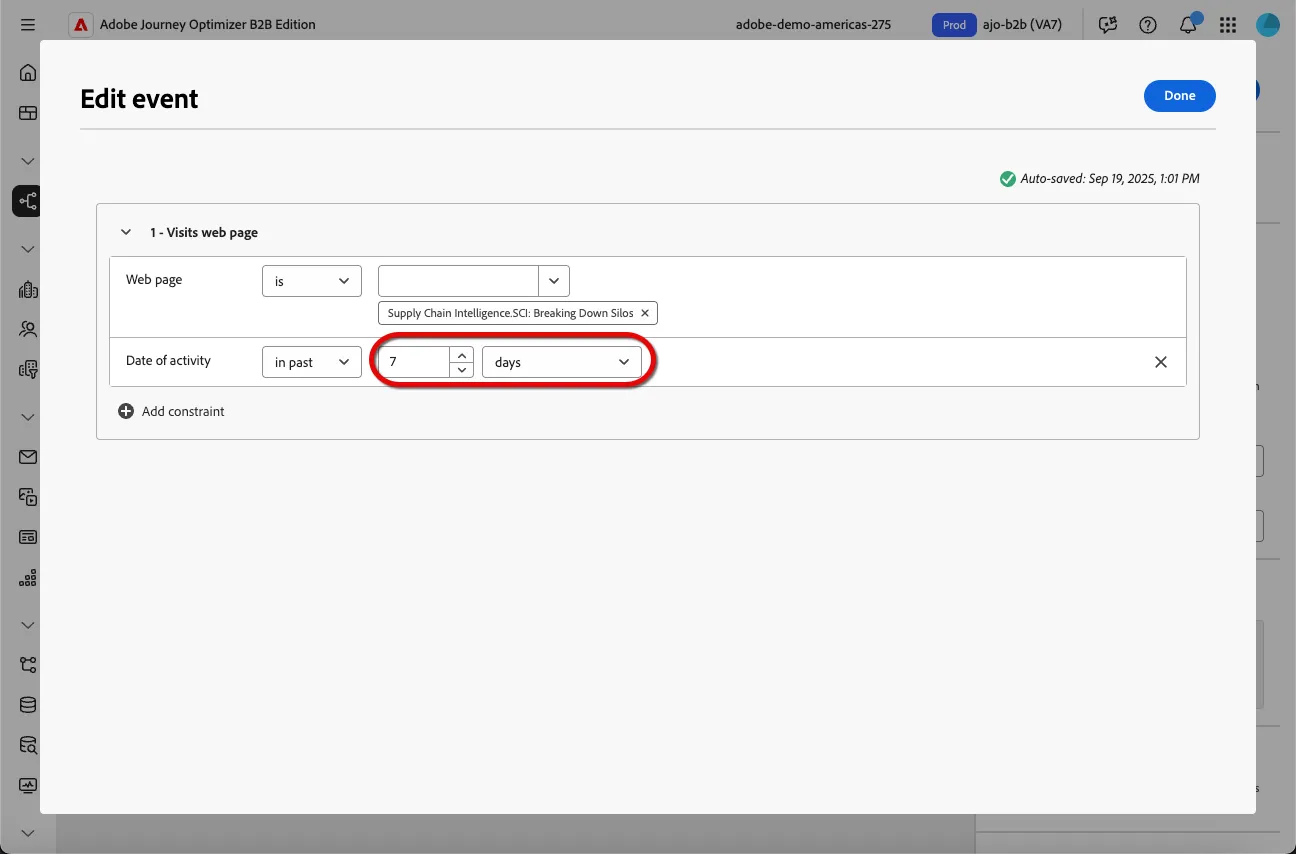
16. Add a timeout of 7 days to the Visits Web Page node.
17. Add a Take an Action node to the Listened to event path. Select the Account radio button and select the Update Buying Group Status action from the dropdown. Select the SupplyIQ solution interest and enter the status Engaged.
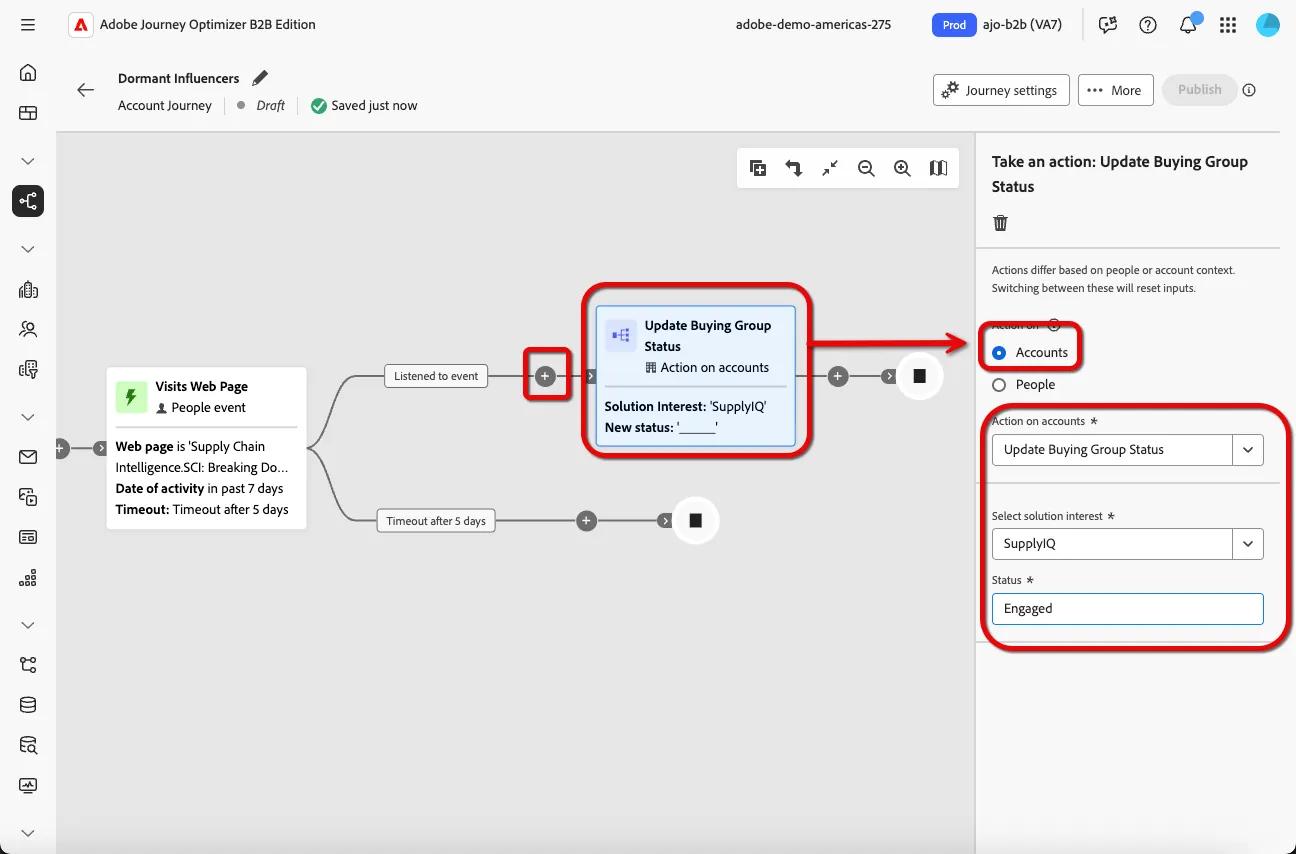
18. Add a Take an Action nore to the Timeout path. Select the People radio button, select the action Add to Marketo Engage Request Campaign, and select the SCI: Retargeting campaign.