Session One
Deploy the Adobe Experience Platform Web SDK and send data to the Adobe Experience Platform Edge Network
Getting started
For this lab, we will be working with a demo site found here: https://luma.enablementadobe.com/. You are welcome to use your own website for the exercises.
Log into the Adobe Experience Cloud, and navigate to Data Collection using the nine-dot picker menu on the right side of the top navigation.

Setup Event Forwarding
- Navigate to Event Forwarding (left nav)
- Create a property with the name: Lab EF
Setup Datastream
- Navigate to Datastreams (you may need to click the hamburger icon in the top left to show the left nav)
- Create a new Datastream with the name: Lab Datastream
- Save (we don't need to select an event schema in our case)
- Open the Lab Datastream
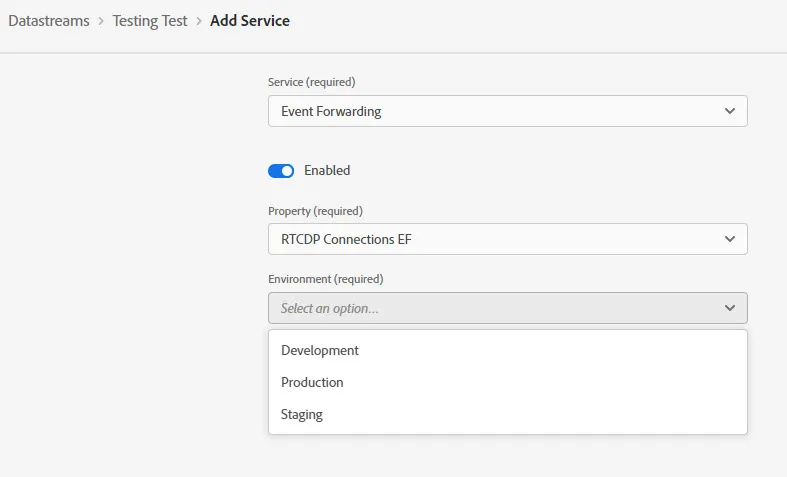
- Click the Add Service button
- Choose Event Forwarding in the service drop-down
- Select the Lab EF event forwarding property created earlier in the property drop-down
- Select Development in the environment drop-down
Setup Tags
- Navigate to Tags (you may need to click the menu icon in the top left to show the left nav)
- Create a property with the name: Lab Tags
- Select Web as platform
- Enter enablementadobe.com in domains field
- Save
Configure Tags Development
Tags is what handles client-side requests on the site. Here we'll add the AEP Web SDK to make a call to the Adobe Experience Edge.
Install the AEP Web SDK
- Select Lab Tags property
- Navigate to Extensions in the left nav
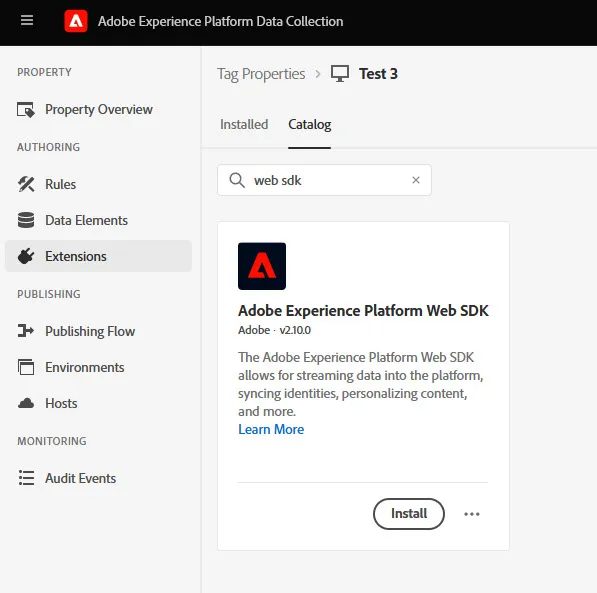
- Click Catalog
- Search for "web sdk"
- Install the Adobe Experience Platform Web SDK extension
Configure the AEP Web SDK extension
The default configuration needs two small adjustments for our setup.
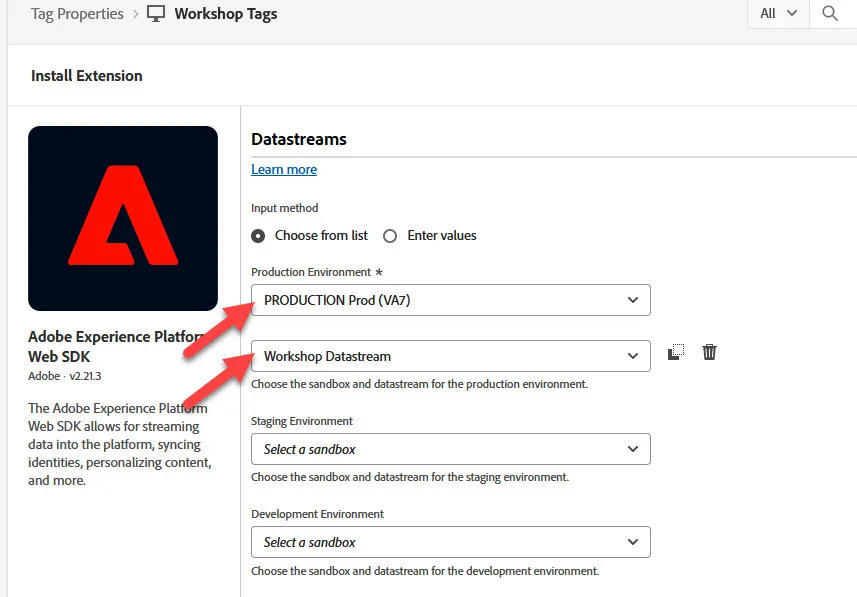
- In the Datastreams section, choose the proper Production Environment (DEVELOPMENT RTCDP Connections Lab if not already be selected for the environment) and then the lab datastream you created earlier.
- Uncheck the "Enable click data collection" setting in the Data Collection section.
- Save
Create a Rule
Now that the Web SDK extension is configured, we'll create a rule to make a request to the Adobe Edge.
- In Tags, navigate to Rules in the left nav.
- Create a new rule and name it Lab All Pages.
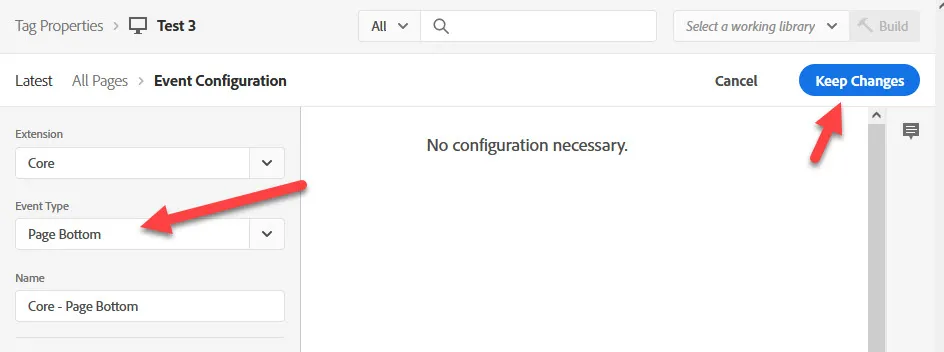
- Add an event and choose Page Bottom in the Event Type drop-down, then click Keep Changes.
- Under the Actions section, click the Add button
- Select Adobe Experience Platform Web SDK in the Extension drop-down
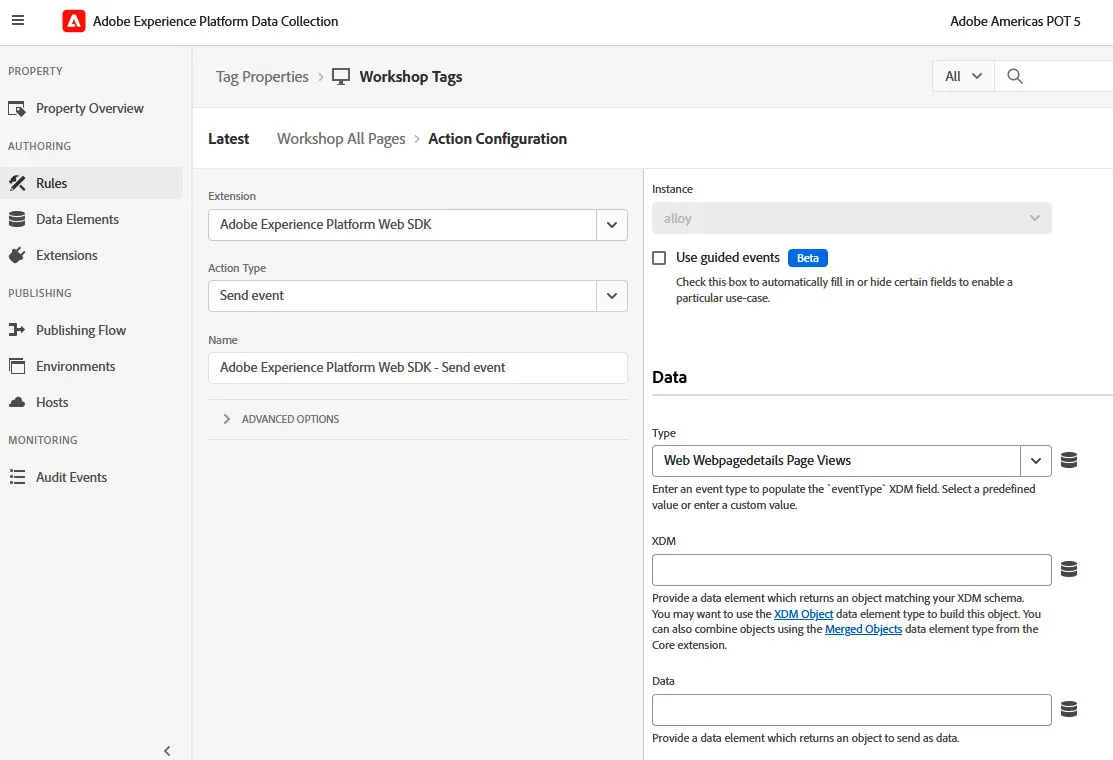
- In the Action Type drop-down select Send event
- When the configuration view opens, change the Type drop-down to: Web Webpagedetails Page Views.
- Click Keep Changes for the action
- Click Save
Publish changes to Tags
Now we have the extension installed and a rule in place to fire a send event on all pages, we need to publish the changes we've made by creating a library in the Publishing Flow.
- Navigate to Publishing Flow in the left nav
- Click Add Library and name it Lab Tags Dev
- Select Development for the Environment drop-down
- Click Add All Changed Resources toward the bottom. After the resources are added, click the Save & Build to Development button.
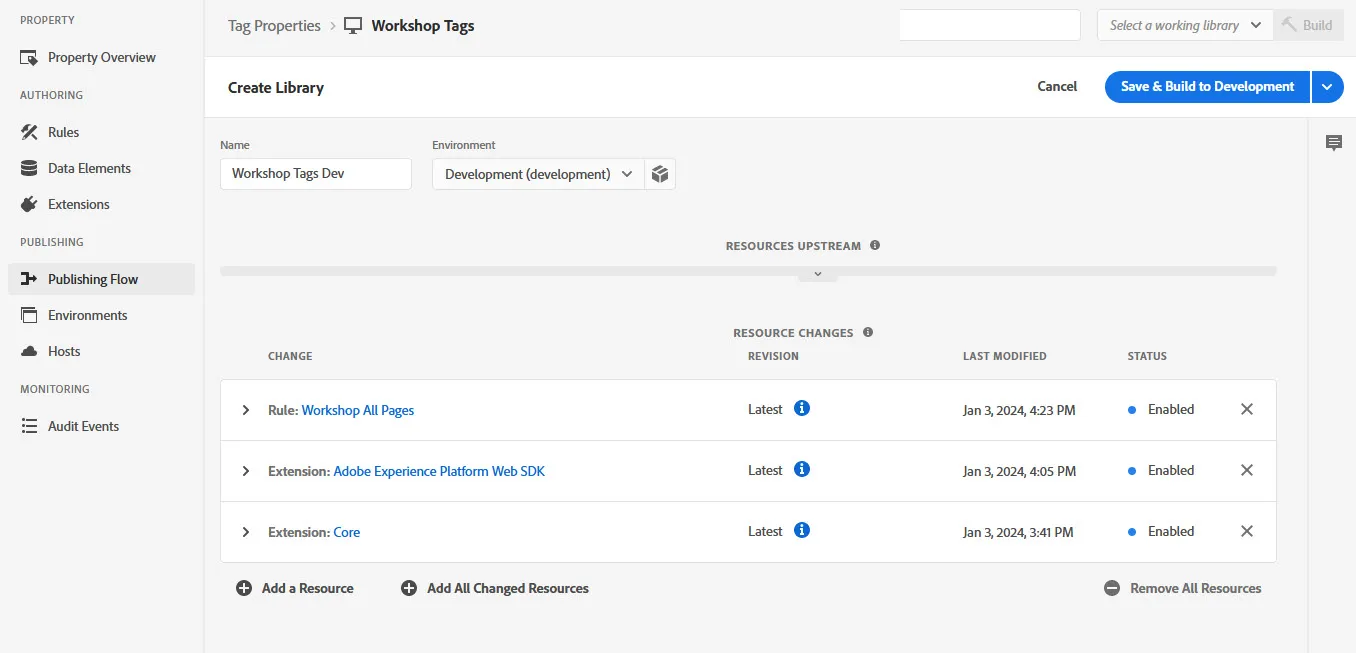
After building successfully, there should be a green dot next to the Lab Tags Dev library name under Development flow. We are now ready to check our Tags deployment on our site.
Validate Tags Deployment
To validate on our Luma site we'll need to get the JavaScript embed code from Tags and then use the Adobe Experience Platform Debugger to swap the existing Tags deployment with our new lab one. Then we can reload the website and see our new Tags deployment and the send event firing.
Deploy Tags code via Adobe Experience Platform Debugger
- In Tags, navigate to Environments in the left nav
- Click the Install icon for Development
- A modal window with web install instructions will appear. Copy the script code to your clipboard. (ex. <script src="https://assets.adobedtm.com/da1a2s3g4e...">)
- In a new browser tab, navigate to https://luma.enablementadobe.com/
- Open the Adobe Experience Platform Debugger
- With the debugger open, reload the Luma website and click the Lock button in the bottom right corner of the debugger. The debugger will detect the Adobe Tags currently on the page.
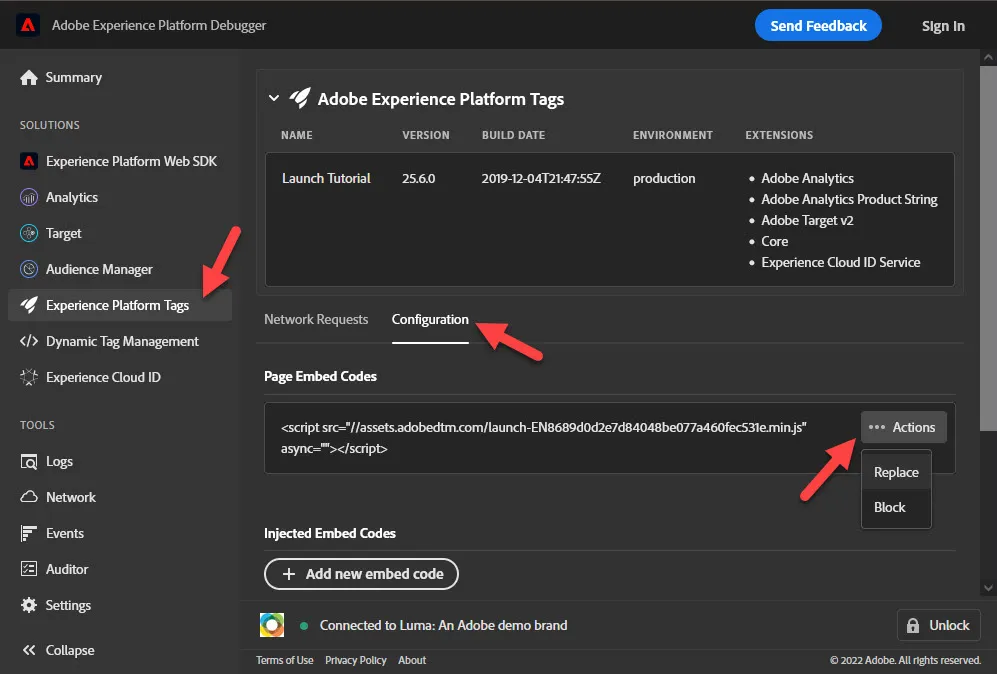
- In the debugger, click Experience Platform Tags in the left nav and select the Configuration tab. Part way down the window you should see Page Embed Codes with a 3-dot Actions label to the right of it. Click the action and choose Replace.
- Paste the Development implementation code previously copied to the clipboard and click Apply.
Inspect the requests
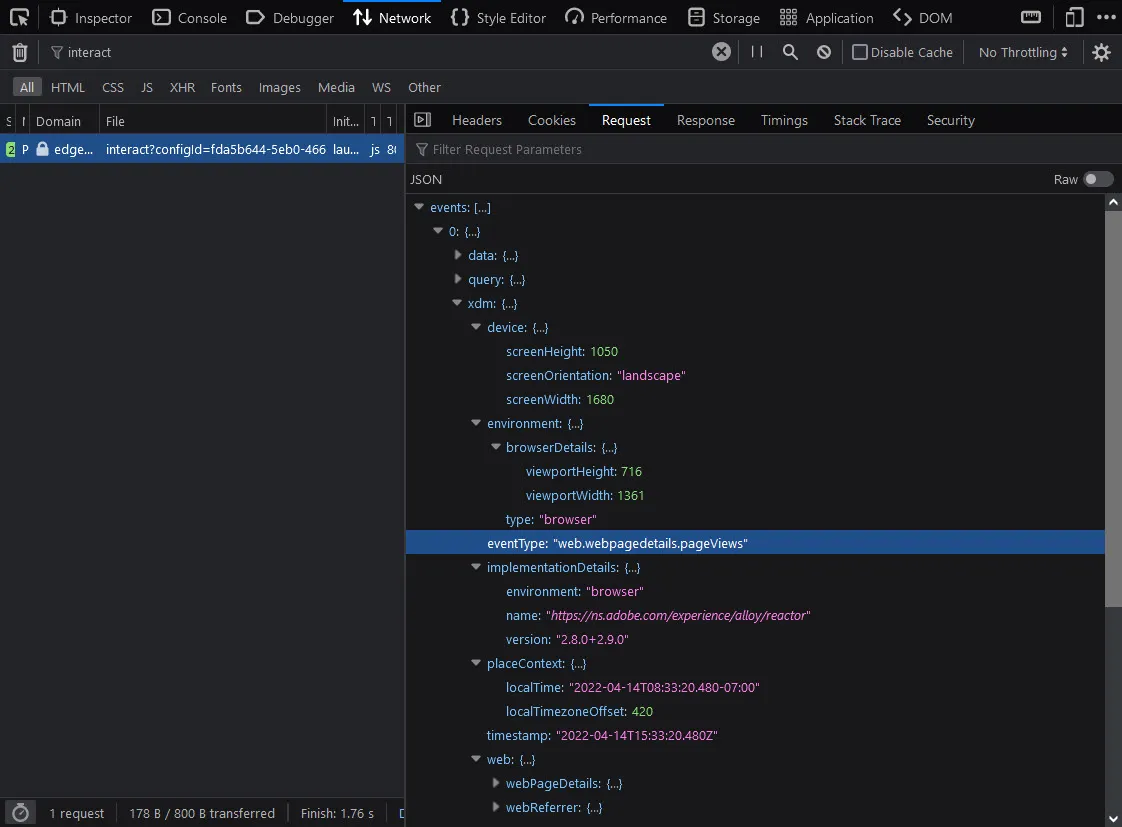
If you reload the website page again we should see our send event call via the AEP Web SDK. In the Debugger you can see these requests by clicking Experience Platform Web SDK. By clicking on the value of the POST Body field in the request, you can confirm what data is sent. Most of the data is just out-of-the-box data. However, you should be able to find the type value we configured within the All Pages rule of web.webpagedetails.pageView.
You can also see the requests by using the browser's Developer Tools: Network tab. Filter the network requests by the word "interact" to see just the requests to the Adobe Experience Edge.
Send your data layer
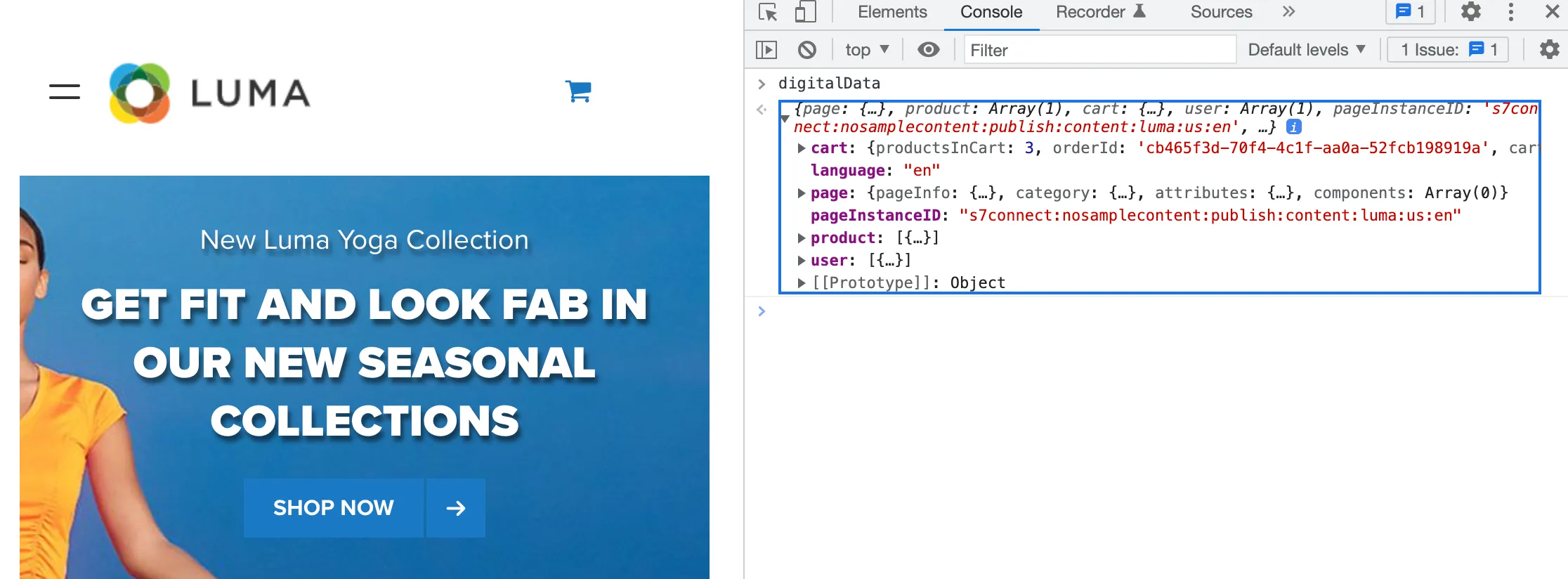
On the Luma site we have a data layer. You may have a similar one on your website. We can see the Luma site data layer by using the Console tab of the browser developer tools by typing: adobeDataLayer. We can capture this data layer in Tags and send it to the Edge for use with Event Forwarding.
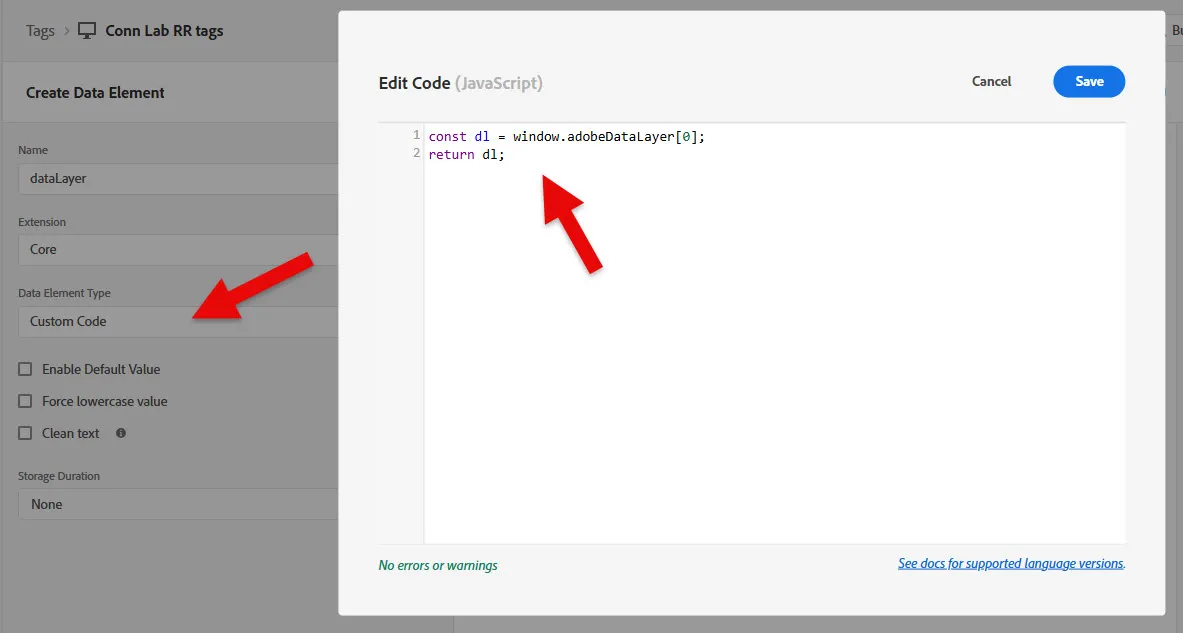
- Go back to your Tags property. Navigate to Data Elements from the left nav. By creating a data element that stores some data from the site we can use that data in a rule.
- Create a new data element
- Name it datalayer
- Leave the extension as Core. Then select Custom Code in the data element type drop-down.
- Click Open Editor and paste the following code:
const dl = window.adobeDataLayer[0];
return dl;- Save
Update the All Pages rule
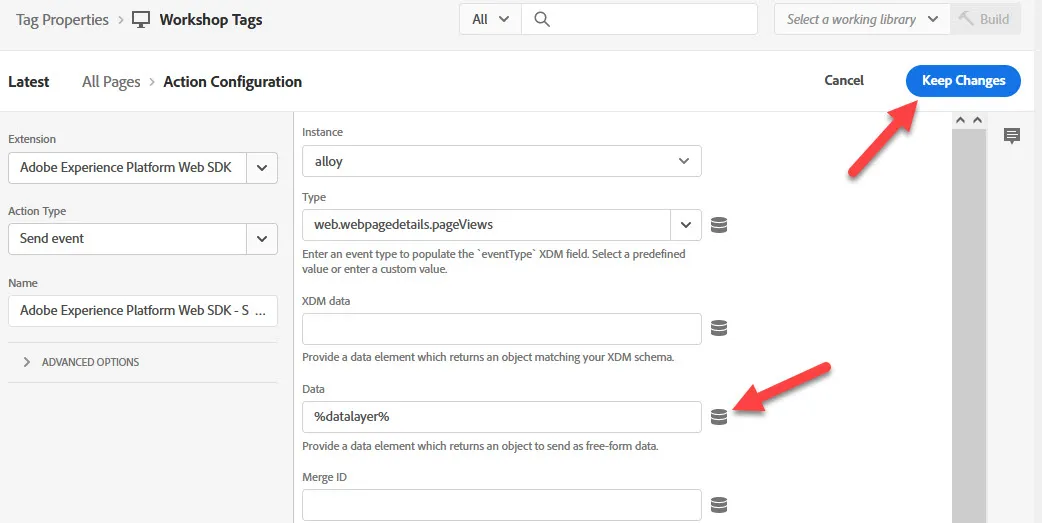
Now we want to edit our All Pages rule to include the data layer when it sends the event data.
- Navigate to Rules
- Select the All Pages rule, under Actions click the send event action
- In the configuration window, click the cylinder icon (this allows us to choose from our Data Elements) next to the Data field
- Select datalayer
- Keep changes and save rule
Publish the changes and validate
Now we've augmented the data we are sending to the Adobe Experience Edge we need to publish and build our Tags property changes and then validate them on our Luma demo site.
- Navigate to Publishing Flow
- Click on your development library
- Add all changed resources to the library
- Click the save and build button
- Now reload your Luma site page in a separate tab of your browser
- Examine the interact call payload to confirm the data layer content is sent to the Edge
Forward Data from AEP Edge Network
Deploy a client-side tag
In the remainder of this session, we'll be working mostly in Event Forwarding to configure data elements and rules that will help us migrate a the client-side tag on the Luma site to the Adobe Experience Edge (server-side). In order to demonstrate this, we are first going to add a sample client-side tag to our Luma site via our Tags property called, Lab Tags.
We are going to create a tag that sends campaign id and path information from the browser to another location/endpoint.
Data Elements
Navigate to your Tags property and then to Data Elements in the left nav. We need to create two data elements. First one will be for the campaign id.
- Click to add a data element
- Name it campaignId
- For the data element type select Query String Parameter from the drop-down
- Enter cid as the query string parameter name
- For the storage duration select Session from the drop-down
- Save the data element
The second data element will be for passing the path from the datalayer on the Luma site.
- Click to add a data element
- Name it path
- For the data element type select Custom Code from the drop-down
- Click Open Editor and enter return adobeDataLayer[0].page.path; as the code
- Save the code
- Save the Data Element
Creating a 3rd party tag rule
With the data elements setup we now need to create a webhook tag id. You can do this by opening a new tab/browser-window and navigating to the Webhook site. Just opening this site will assign you a unique URL that you can use for your tag.
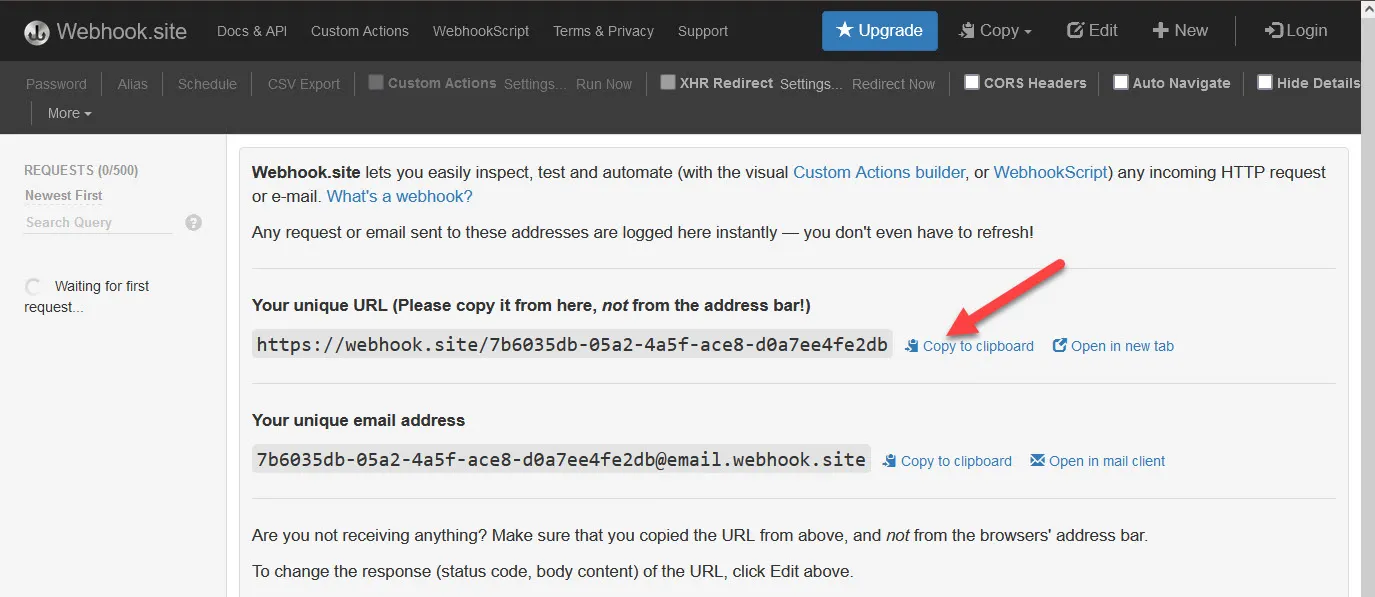
Leave this Webhook site tab open and return to the Tags tab/window. Navigate to Rules in the left nav.
- Click to add a new rule, name it 3rd Party Beacon
- Under Events click add
- From the event type drop-down choose the option Page Bottom
- Click to keep changes
- Under Actions click add
- Leave Extension as Core, choose Custom Code for the action type
- Leave language to JavaScript and open the editor
- Paste in the following code to fire a request to Webhook.site
- fetch('REPLACE_WITH_YOUR_WEBHOOK_URL?campaign_id='+_satellite.getVar("campaignId")+'&path='+_satellite.getVar("path"),{ method: 'GET', mode: 'no-cors' }) .catch(err => { console.error(err); });
- Replace the "REPLACE_WITH..._URL" text in the code above with the Webhook.site url from your Webhook.site tab that is open
- Save the custom code
- Optional: Give the action the name: Fetch to Webhook site
- Click to keep changes
- Click to save the rule
Publish changes and validate
Now navigate to Publishing Flow in Tags left nav. Here we'll open the library we created last time and add all changed resources like we've done before. Then you'll click to save and publish the changes to your library.
Now you should be able to load the Luma site with your property replacing the default Experience Platform Tags deployment (via AEP Debugger) and see the new request firing out to your Webhook.site. You should also see the request landing at your Webhook.site. If you browse to different pages or add a "cid=something" parameter in your URL on Luma it should also be passed along to your Webhook.site.
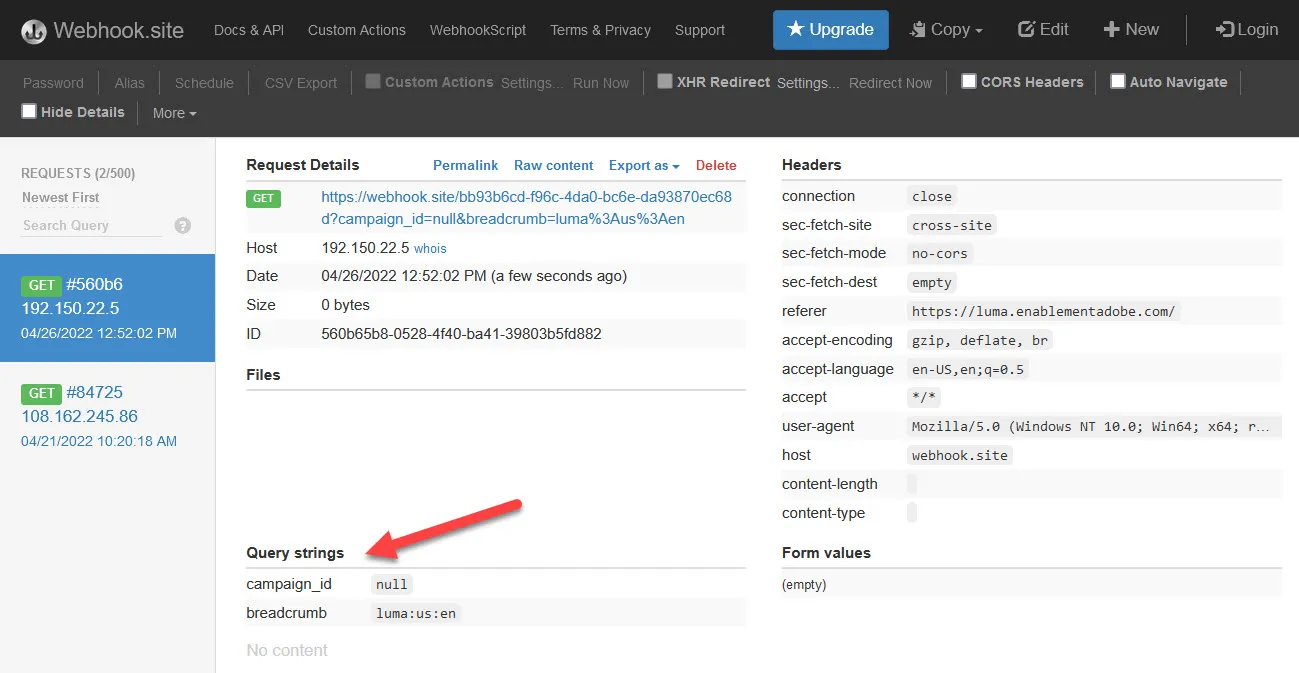
Configure Event Forwarding
Navigate to Event Forwarding (you may need to click the hamburger icon in the top left to show the left nav) and select our property Lab EF. We'll start by adding the needed extensions and then the data elements that will enable us to migrate our client-side tags to the Experience Edge.
Setup extensions
- Navigate to Extensions from the left nav
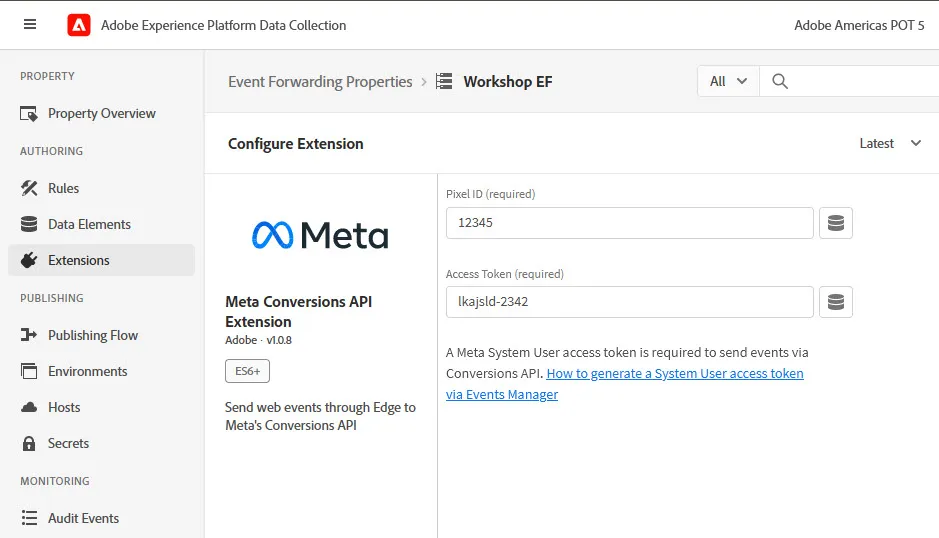
- Select the Catalog tab and install the Adobe Cloud Connector extension
- Return to the Catalog tag and install the Meta Conversions API extension
- For the lab, just use dummy data when prompted for a Pixel ID and Access Token, for example:
- 12345
- N9K633-ABC
- Save the configuration
Migrate the Webhook.site tag
Now we have our Event Forwarding property setup we need to ensure that we are sending all the appropriate data needed for our webhook.site tag to the Experience Edge.
Pass data elements to the Edge
The webhook.site tag collects both campaign id and path data. We can add it to the page's data layer to ensure it get passed in our interact call to the Edge since the data layer is getting forwarded along.
Navigate back to Tags and select the Lab Tags property.
Update the Tags datalayer data element
- Navigate to Data Elements from the left nav
- Select the datalayer Data Element
- Open the editor and add the following code above the return dl; line:
- dl.campaignId = _satellite.getVar("campaignId");
- This code will grab the existing data layer and add the campaignId to it from our campaignId data element we created earlier
- Save the custom code and save the data element
- Add all changes to your library and save and build the updated library
- Now your interact calls from the Luma site should be sending campaignId information along to the Edge
- Path is already part of the data layer so no additional config is needed
Setup data elements in Event Forwarding
On the Event Forwarding side, we'll also need a data element for the campaignId and path to allow us to migrate the rule properly.
- In Event Forwarding navigate to Data Elements
- Click to add a data element
- Name it campaignId
- For the data element type select Path from the drop-down
- Select arc.event.data in the top field
- Enter campaignId as the path field
- Save the data element
The second data element will be for the path.
- Click to add a data element
- Name it path
- For the data element type select Path from the drop-down
- Select arc.event.data in the top field
- Enter page.path as the path field
- Save the data element
Create Webhook rule in Event Forwarding
- In Event Forwarding, navigate to Rules and click to create a new rule
- Name it Webhook 3rd party call
- Click to add an action
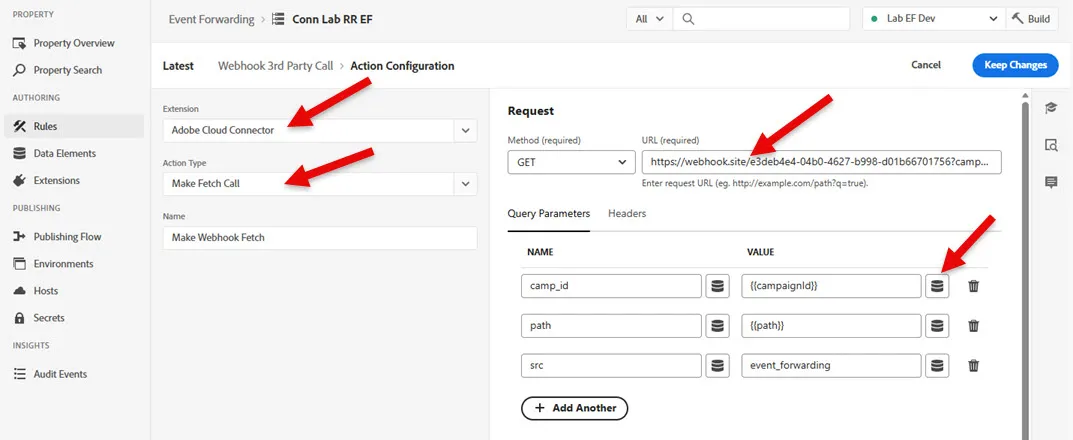
- Select Adobe Cloud Connector as the extension and Make Fetch Call as the action type
- Copy your URL from the webhook.site page
- Paste the URL into the URL field, leave the method as GET
- Add the following query parameters and values (use the data elements we created to populate the value fields
- Name the first one campaign_id, select the campaignId data element for the value
- Name the second one path, select the path data element for the value
- Optionally add a third parameter named src, for the value type in eventForwarding
- Keep changes to the action, and then save the rule
Publish changes and validate
Now we've migrated the webhook.site tag, and setup the Meta Conversion API in Event Forwarding let's publish changes and test them on our Luma demo site.
To publish changes we want to:
- Navigate to Publishing Flow
- Add a library named Lab EF Dev
- Set environment to development
- Click to add all changed resources
- Then click to save and build
See it working
To see our changes lets load the Luma site. Our AEP Debugger should still be loading our lab tags property to the site. Since the Event Forwarding calls happen on the Edge we can't see them in the Network tab of the Developer Console like we could a client-side call. However, we should see our request from the Edge hitting our webhook.site page. After loading a page or two on the Luma site after publishing our changes, open the webhook.site tab and see if any new requests have landed there.
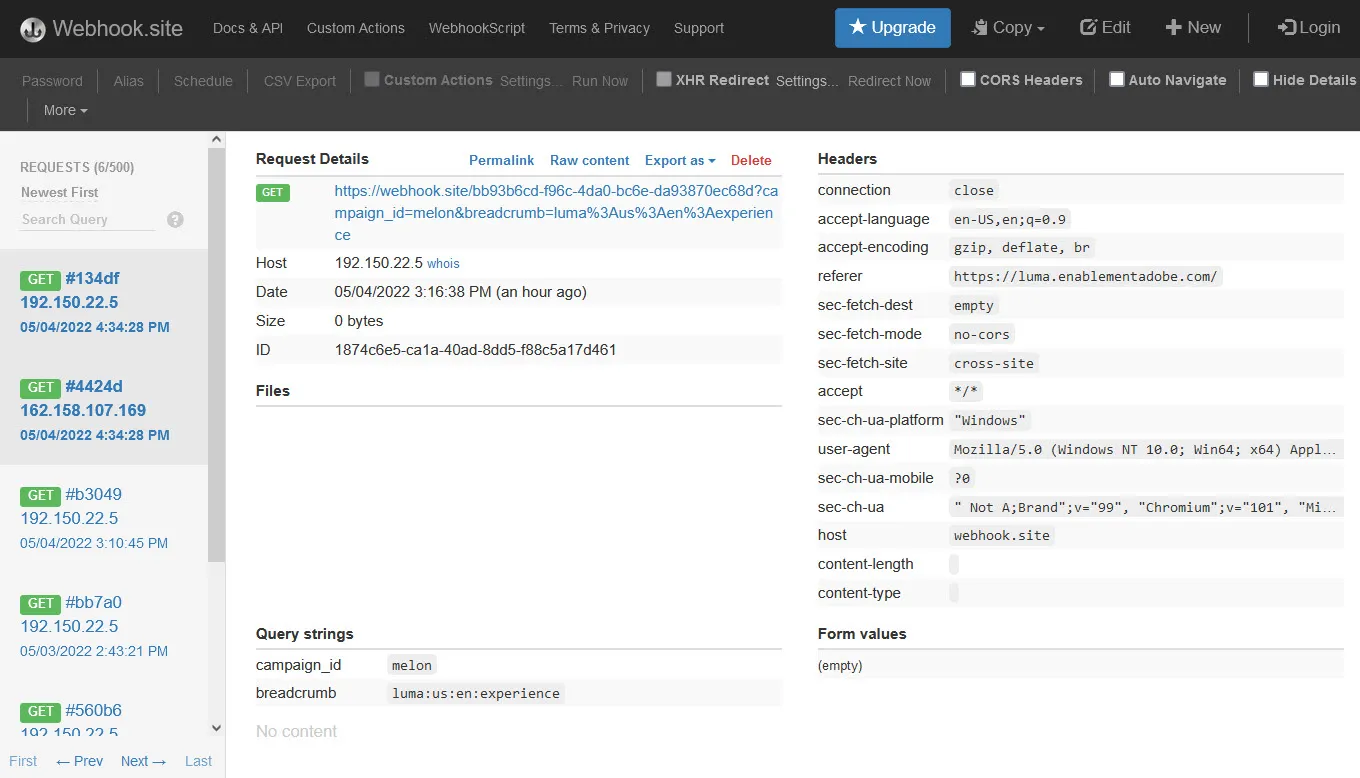
You will likely see two requests for each page view. This is because we have not yet disabled our client-side tag, so both a client-side call and Event Forwarding call is being made on each page. You can disable your your Tags 3rd Party rule to only fire one request. Each request should have the same query parameters (except the "src=eventForwarding" if you added that one). You'll also notice they are from different IP addresses.
Validate with AEP Debugger
You can also validate the Event Forwarding requests when you are logged in to the AEP Debugger. To see these requests do this:
- Open the AEP Debugger
- Click to sign in (upper right corner), it should automatically detect your sign in if you are logged in on the browser.
- Click Logs from the left nav under Tools
- Click the Edge tab
- Click connect to start monitoring the logs on the Edge
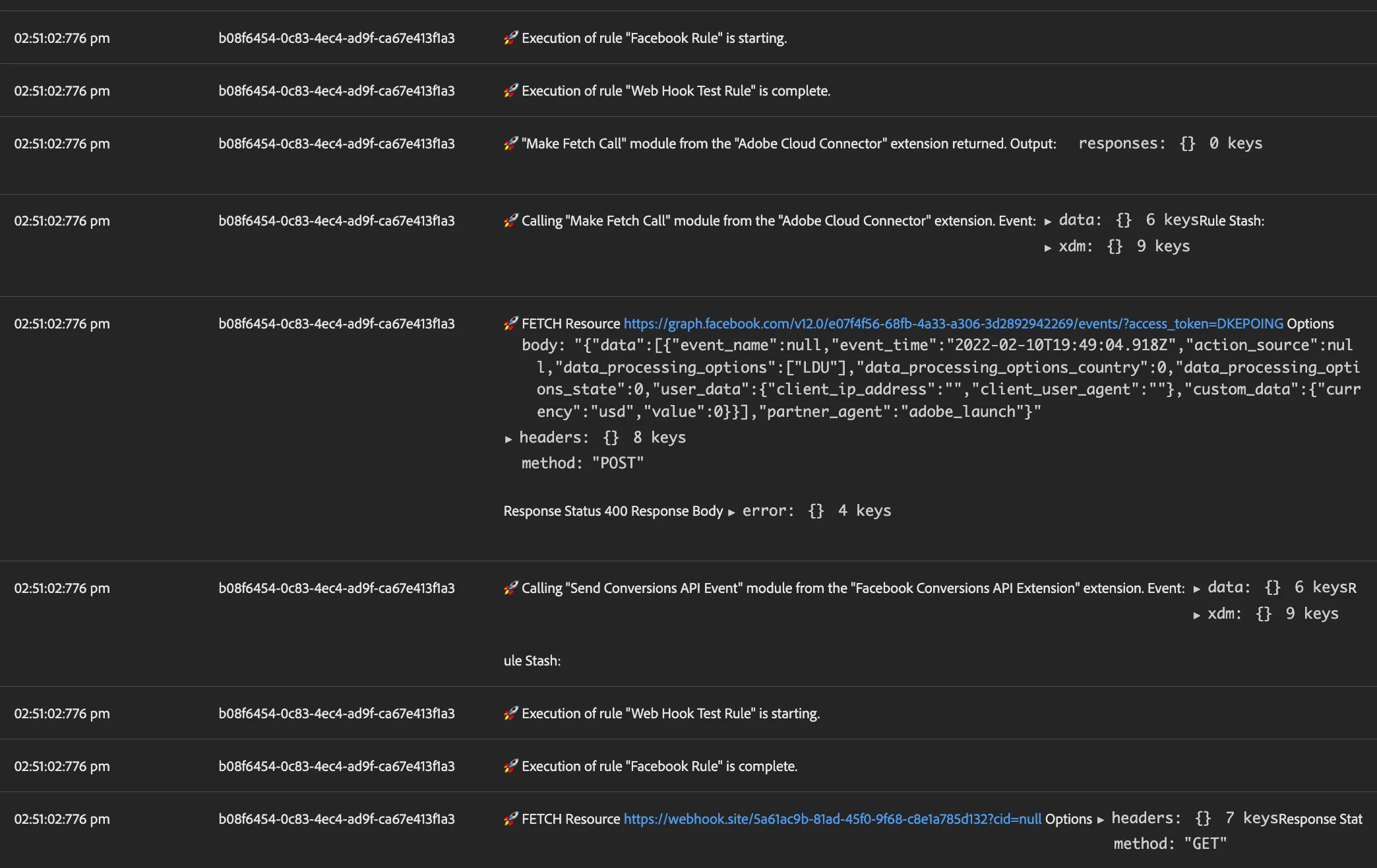
When logs appear if you scan for the blue hyperlink text you can quickly see when Event Forwarding made calls out to other destinations.