Session Two
In this session, we'll also need to use the AEP Debugger to replace the existing Tags (aka Launch) deployment on the Luma demo site with the Tags property we created in Session 1. Jump to the instructions from Session 1 on how to do this if needed.
Last time we setup the WebSDK and began sending data to the Adobe Edge. We also migrated a third party tag from a client-side deployment to a server-side (via Event Forwarding) deployment. We used the Webhook.site tag for that exercise. In this session, we'll:
- Simulate migrating another tag but instead of relying on the Adobe Cloud Connector extension to enable this we'll use a partner's own Event Forwarding extension.
- Setup an enrichment use case where Event Forwarding receives a response from one end point with additional information before delivering the enriched data to the final end point.
Create Meta rule in Event Forwarding
Add data elements for Meta Conversion API
The Meta Conversion API (Meta documentation) needs certain data passed to effectively track clicks and events. Setup up the necessary data elements in Event Forwarding will enable us to fire events to Meta properly. Ultimately, several data elements are needed but to save time on redundant work we'll only setup a couple of the data element and then hard-code dummy values for the remaining items. In a production implementation all values will need to passed dynamically as data elements.
eventTime
- Click to add a data element, name it eventTime
- Choose Custom Code for the data element type
- Enter the following code: return Math.floor(Date.now() / 1000);
- This will return the Unix timestamp in UTC as required by Meta
eventSourceURL
- Click to add a data element, name it eventSourceURL
- Choose Path for the data element type
- Enter the path value of arc.event.xdm and web.webPageDetails.URL
eventID
- Click to add a data element, name it eventID
- Choose Path for the data element type
- Enter the path value of arc.event.xdm and _id
userAgent
- Click to add a data element, name it userAgent
- Choose Path for the data element type
- Enter the path value of arc.event.xdm and environment.browserDetails.userAgent
There are other important fields for the Meta Conversions API such as Browser ID (stored in the cookie _fbp with a value like fb.1.1644871472023.1807854812) and Click ID (stored in the cookie _fbc with a value like fb.1.1644877140422.l2k4ouf98s7e...) that your existing client-side tags will be using. To ensure seamless migration of the Meta pixel/tag you'll want to make sure these ids are getting passed to the Experience Edge so you can capture them in data elements and pass them appropriately. We will just use static values for any remaining fields the lab. Though here are Meta docs on all parameters for reference.
Setup the rule
- Name it Meta CAPI call
- Click to add an action
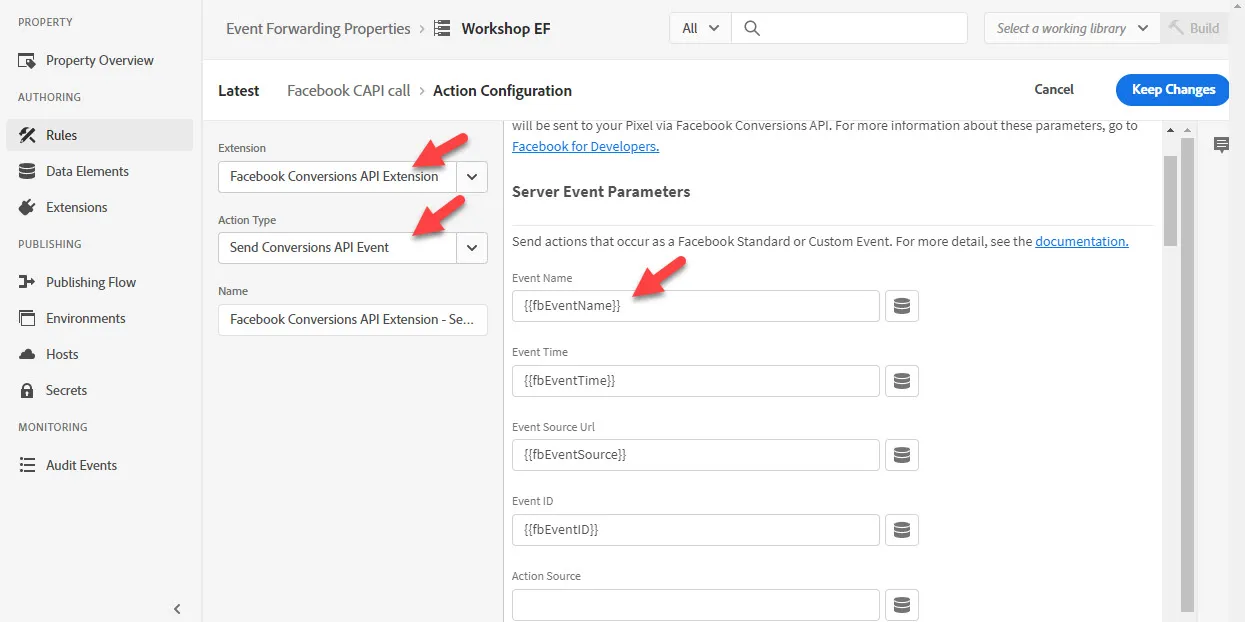
- Select Meta Conversions API Extension as the extension and Send Conversions API Event as the action type
- In the Action Source field pick website from the drop-down
- Add the other data elements to the appropriate fields
- Finally, click to keep changes to the action and save the rule
Publish changes and validate
Now we've setup the Meta Conversion API in Event Forwarding let's publish changes and test them on our Luma demo site.
To publish changes we want to:
- Navigate to Publishing Flow
- Add a library named Lab EF Dev
- Set environment to development
- Click to add all changed resources
- Then click to save and build
See it working
To see our changes lets load the Luma site. Our AEP Debugger should still be loading our lab tags property to the site. Since the Event Forwarding calls happen on the Edge we can't see them in the Network tab of the Developer Console like we could a client-side call.
Validate with AEP Debugger
You can validate the Event Forwarding requests when you are logged in to the AEP Debugger. To see these requests do this:
- Open the AEP Debugger
- Click to sign in (upper right corner), it should automatically detect your sign in if you are logged in on the browser.
- Click Logs from the left nav under Tools
- Click the Edge tab
- Click connect to start monitoring the logs on the Edge
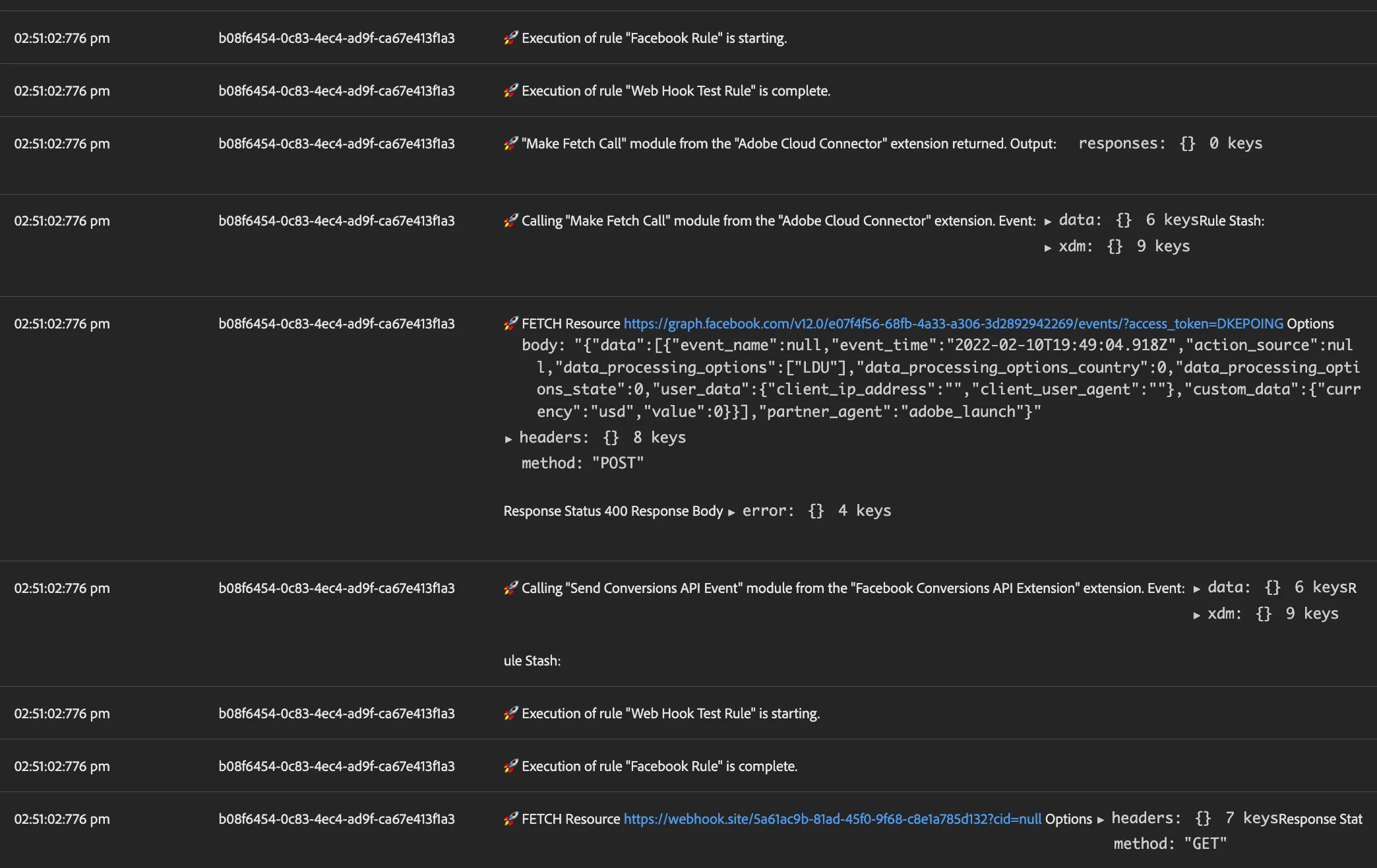
When logs appear if you scan for the blue hyperlink text you can quickly see when Event Forwarding made calls out to other destinations.
Enrichment use case explainer
The use case we'll be focusing on is one where client-side we have a single piece of information about a visitor (e.g., a profile id), but we need additional information about that profile to go to our final end point (e.g., webhook.site, analytics system, partner). To get the additional information, we'll need to hit a another API. Event Forwarding allows us to do this from the Adobe Experience Edge rather than relying on the visitor's browser to handle the requests.
Components to execute the use case
- an ID for the visitor that is available client-side
- an API that can provide the additional information for that ID
- Event Forwarding to make the requests and capture the response of the API for other requests
Client-side setup
Data elements
- Navigate to Tags and open your Lab Tags property
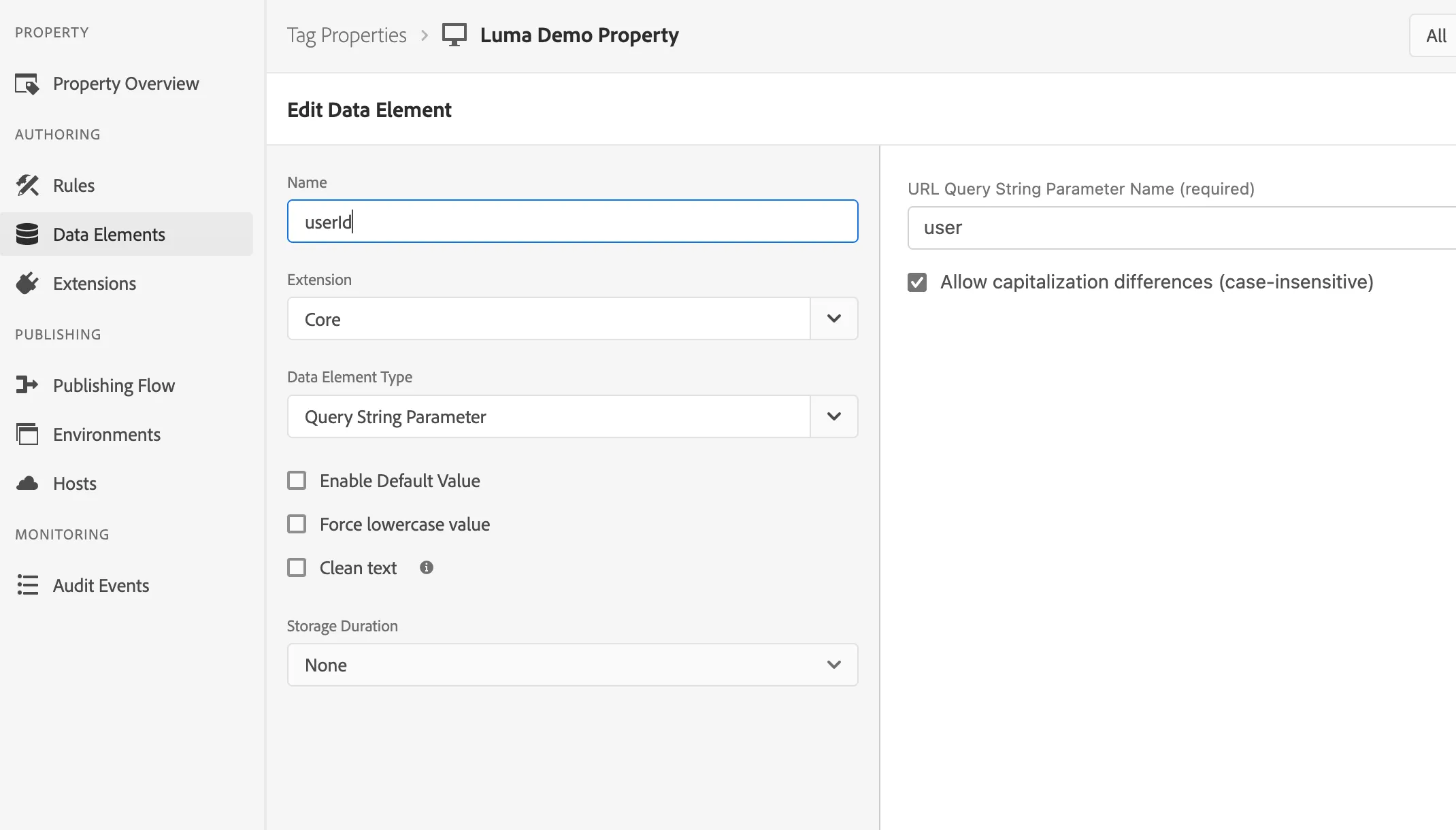
- Navigate to Data Elements and create a new element named userId
- Choose the query parameter as the type
- Enter user as the query parameter
For demo purposes a query parameter makes it easy for us to demonstrate different visitors. In the real world, this could be populated from a cookie or local storage item - anything available on the page.
Now we want to make sure the date element userId is available on the Experience Edge. This can be done by including it into the data layer which gets passed to the Edge by the AEP Web SDK send event.
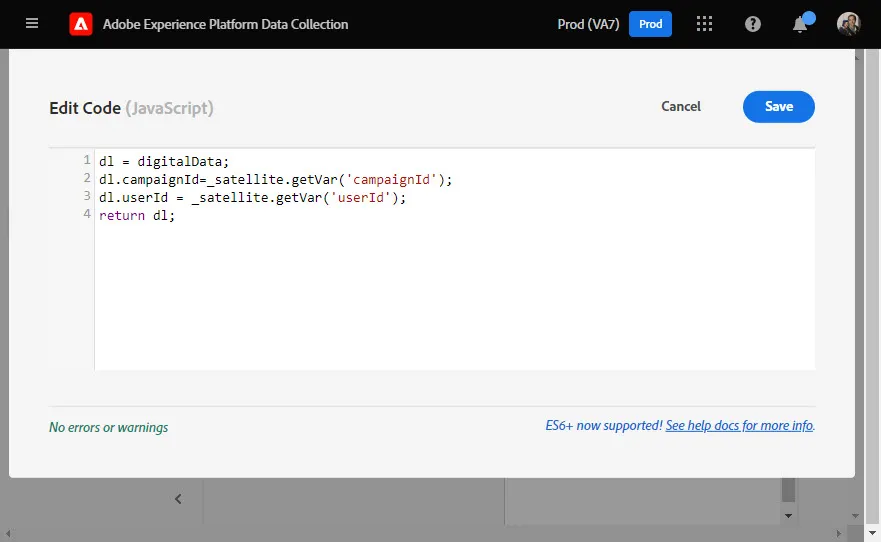
- Edit the datalayer data element
- Open the editor
- Add the line dl.userId = _satellite.getVar('userId');
- This should go before the last line of code
Save changes, then add all changes to the library and save and build to publish the updates.
Validate changes
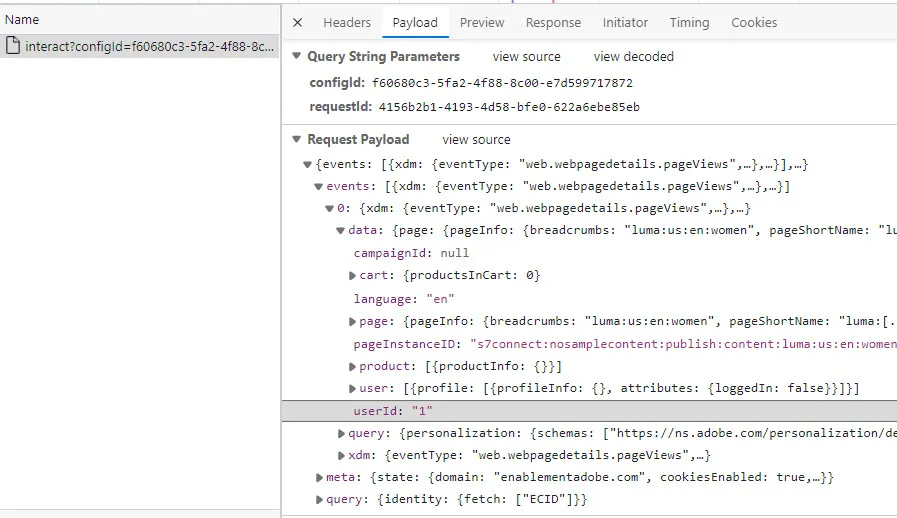
Once the data element changes have been saved and published we can validate them. Open the Luma site (ensure the AEP Debugger is replacing the on page tag with your Lab Tags property development tag). On one of the pages add ?user=u01 to the URL. Then verify that is passed in the interact call to the Edge. It should show up within the data object.
Event Forwarding setup
We also need to capture the user id in a data element on the event forwarding side so that we can make a call to the 53rd.in Demo Enrichment API (e.g., our enrichment end point).
Capture userId
- Navigate to Event Forwarding and select the Lab EF property we created previously
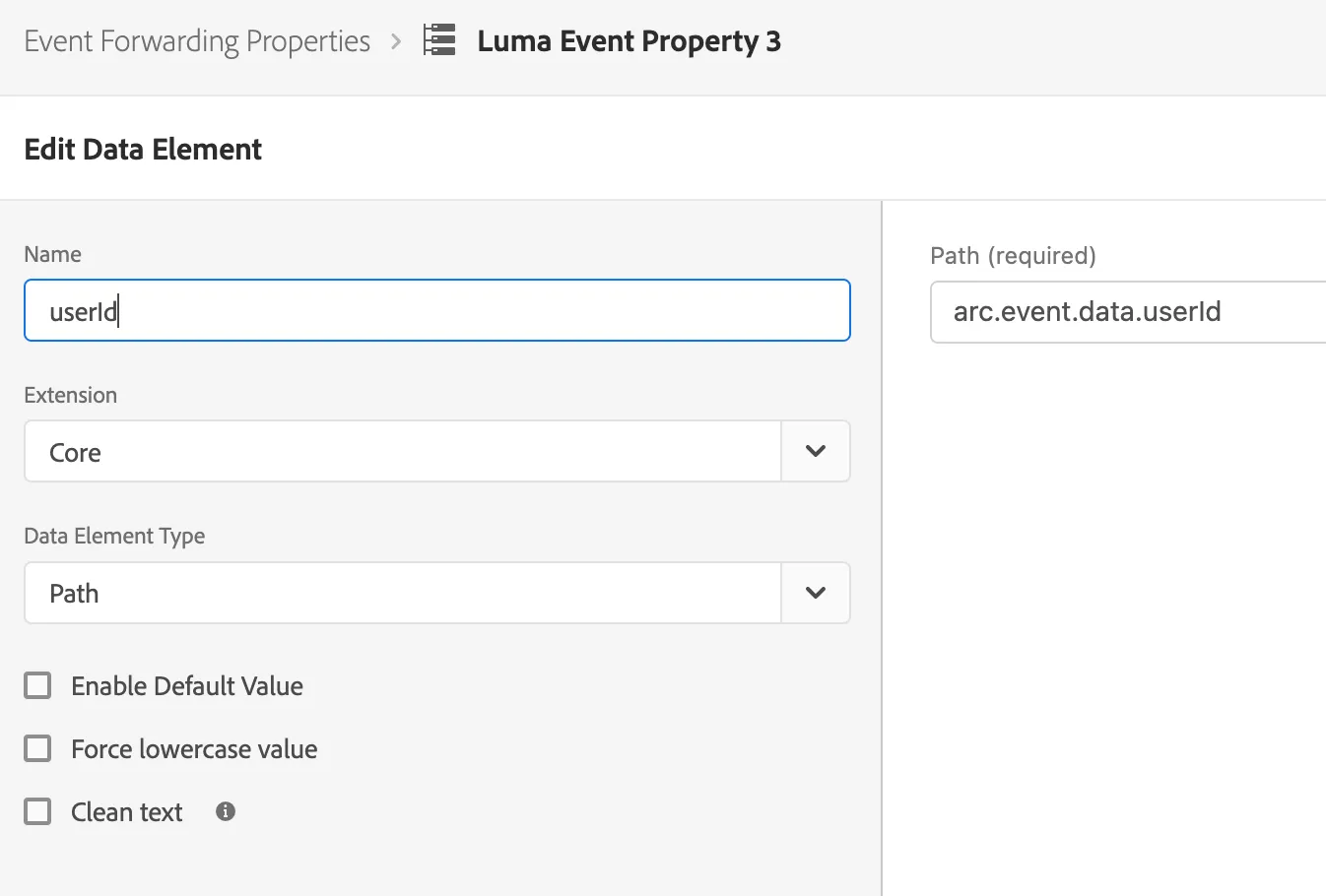
- Navigate to Data Elements and create a new element named userId
- Leave extension to Core
- Choose Path as the element type
- Select arc.event.data in the top field
- Enter userId as the path field
- You can confirm this path by checking the body of the interact call from the Luma site
- Save the data element
Create new rule
We will use our existing Webhook 3rd party call rule to save a few steps when creating are new rule. Then add some modifications to handle our profile enrichment use case.
- Navigate to Rules
- Select the check box next to Webhook 3rd party call rule
- Click the copy action/button above the rules
- Keep the destination property as Lab EF and click copy
- Click the new copied rule name Webhook 3rd party call copy to edit it
- Rename it Webhook 3rd party enriched call
- Click to add a condition
- We only want to execute this rule when a userId is present, otherwise we unnecessarily hit the enrichment end point
- Select Value Comparison as the condition type
- Use the data element icon to pick userId as the left operand
- Change the operator to Is Truthy
- This means the userId is present
- Optionally name the condition userId exists
- Keep changes
- Click to add an action (note there is already one action will be adding a second)
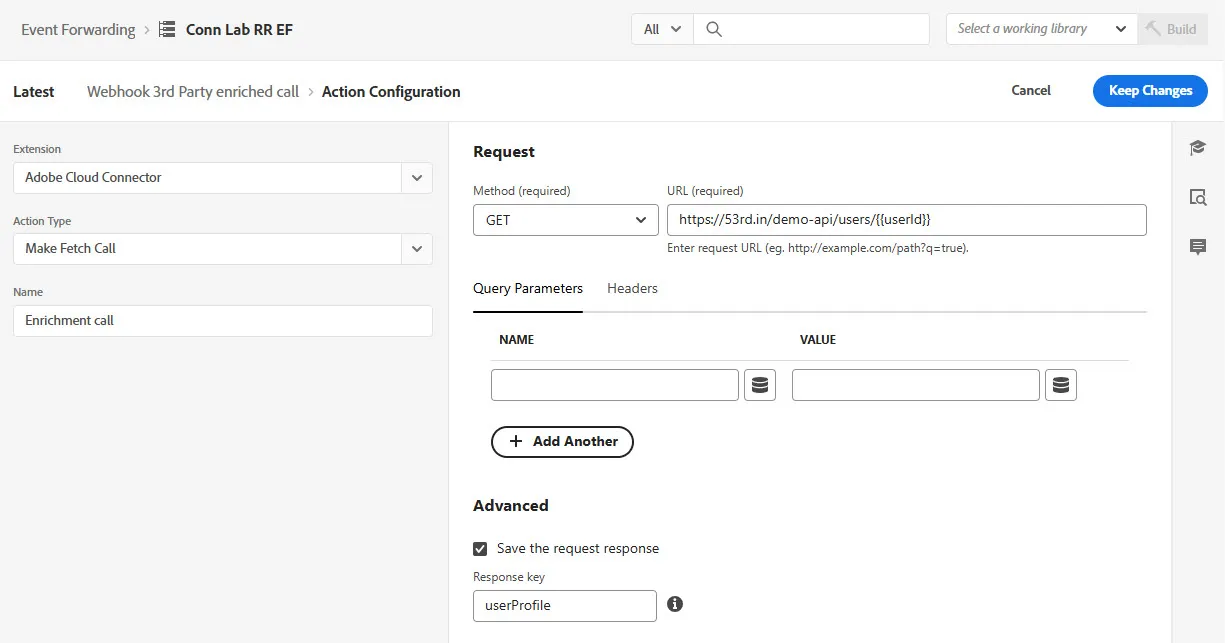
- Change the extension to Adobe Cloud Connector
- Set action type to Make Fetch Call
- Leave method to GET
- Enter the URL: https://53rd.in/demo-api/users/u01
- This can be found at Demo API Docs
- The dynamically populates the userId in the request
- Under Advanced check the box to save the response
- Set userProfile as the response key
- Change the name to enrichment call
- Keep changes to the action
- Drag the enrichment call action to be the left-most action
- Save the rule
Setup enrichment data elements
Now we will create data elements based on the response key userProfile to parse additional information about the user received in the response. We'll create and use two different versions. The first will capture the entire response key object. The second will grab a specific part of the object. Either method can be useful so we wanted to show both.
Capture the whole object
- Navigate to date element and click to create a new Data Element
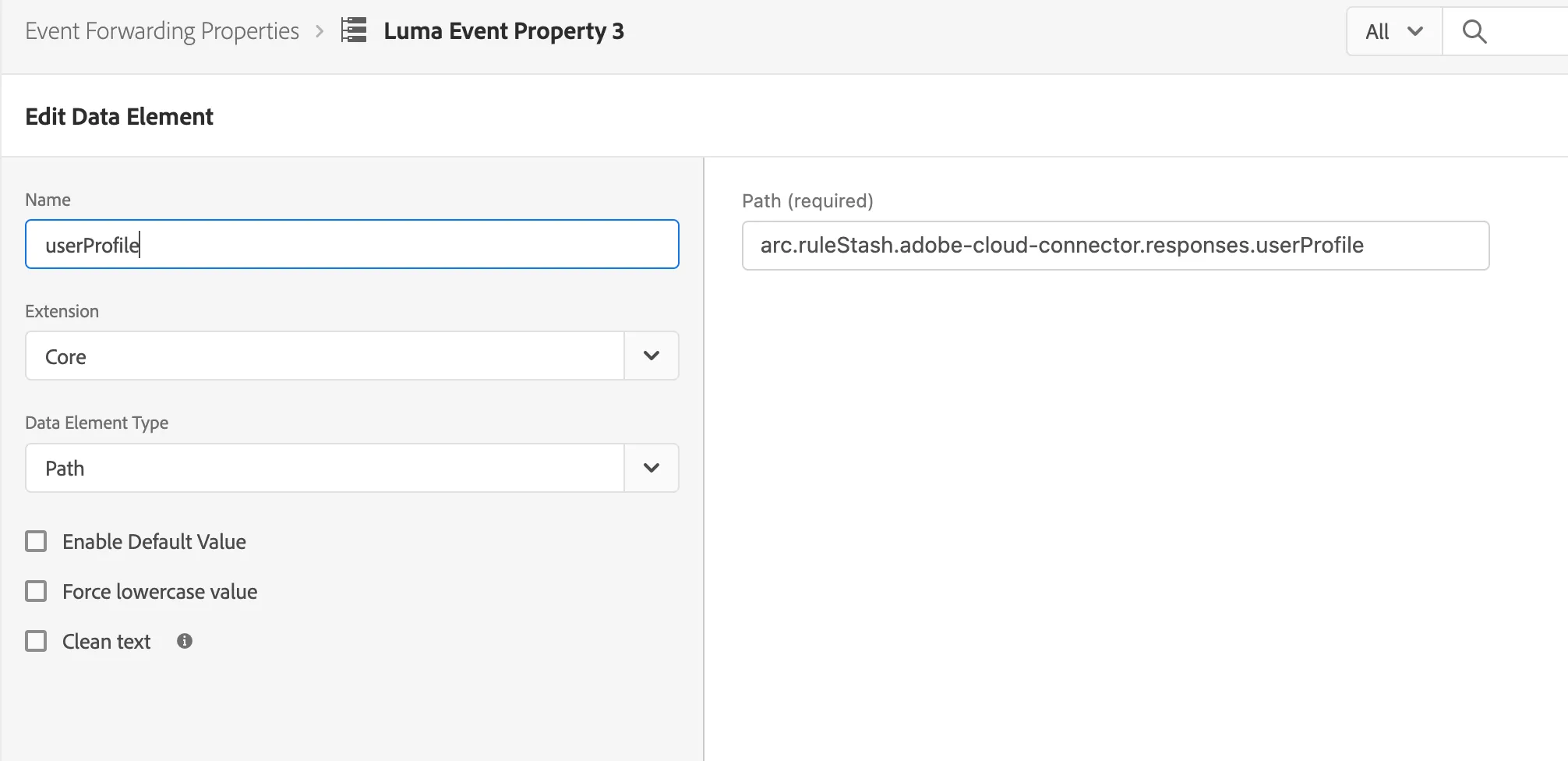
- Name it enrich userProfile
- Adding the enrich prefix will help us remember the context for this data element later on
- Change the type to Path
- Enter the path:
- arc.ruleStash.adobe-cloud-connector.responses.userProfile
- userProfile is the name we gave the response key, this dot-notation is how we reference that response key in a data element path
- Save the data element
Capture just the email
- Create another data element
- Name it enrich userEmail
- Set the type to custom code
- Open editor and add the following code snippet: return(JSON.parse(arc.ruleStash['adobe-cloud-connector'].responses.userProfile).data.email);
- This code parses the response key object and returns the data.email part
Modify the enriched call rule
With our data elements handling the response from our enrichment call or profile look up to the demo API, we can now utilized that information and send it to another end point or destination.
- Navigate to rules and open the enriched call rule
- Click the webhook call action to edit it
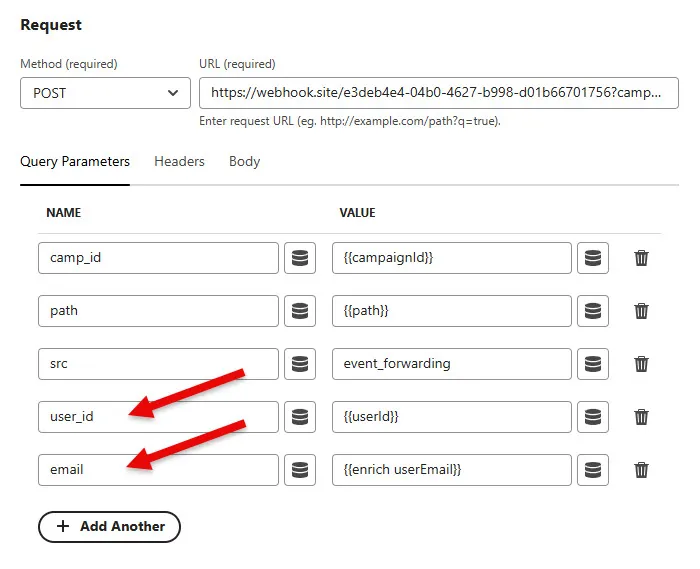
- Add a query parameter of user_id and set the value to the userId data element
- This is from the client-side data layer
- Add a query parameter of email and set the value to the enrich userEmail data element
- This is from the response key from the Demo Enrichment API
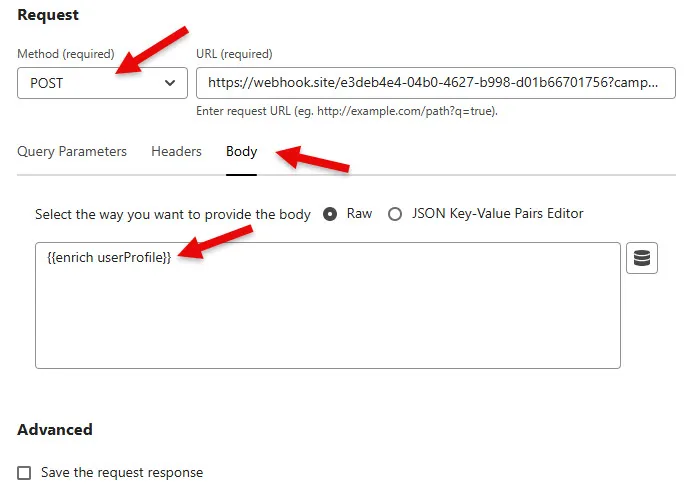
- Change the method to POST
- Navigate to the Body tab (instead of the Query Params tab)
- Choose Raw as the body format and set the value to the enrich userProfile
- Keep changes to the action and save your rule
Publish/build and validate changes
Now lets see this working. First we need to navigate to the publishing flow, add all changed resources, and then save and build those to our library.
To see the use case in action load the Luma site. Then in the URL add ?user=u01 and load the this URL. If we check the interact call going out from our browser we should see userId = u01 within the data object, like we did before. If we open our webhook.site page we should see a new request that is the POST type. It should include values for userid, email and the body.
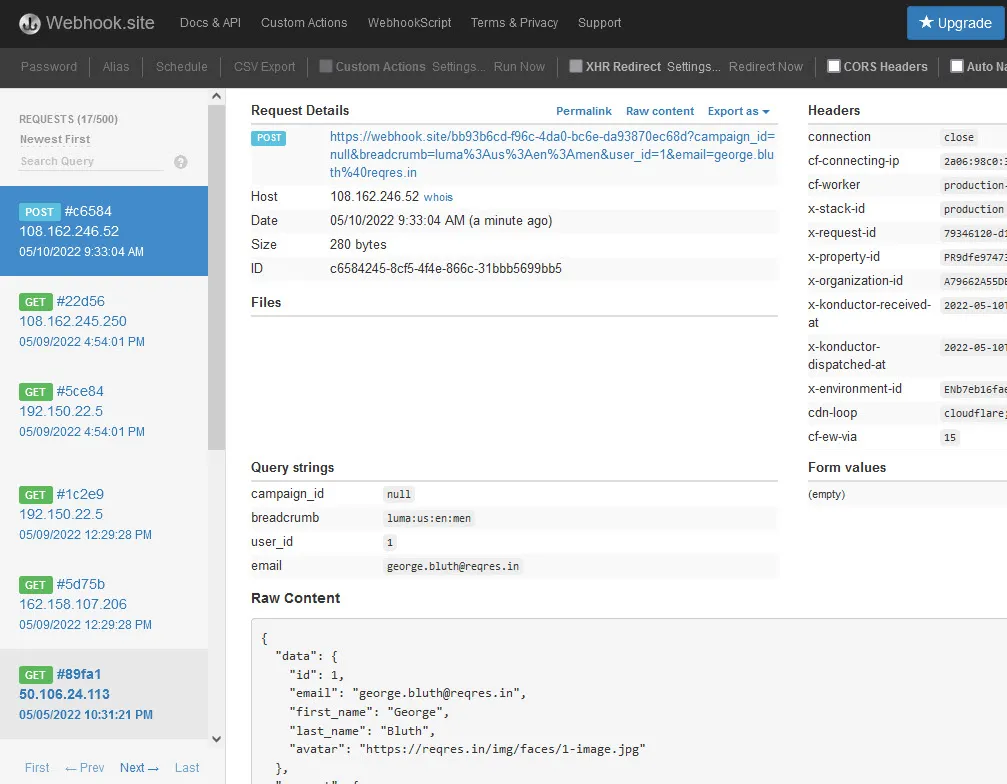
You might notice that we have to calls hitting our webhook.site page now when the user=u## parameter is in the URL of our Luma site. This is because we copied the original webhook call rule. If we only want to fire one per page load we can modify the condition of the original rule. The enriched rule only fires if the userId data element is present. So we could add an inverse rule to the original webhook call so only one or the other fires depending on if the userId is present.
Modify the original webhook call rule
- Navigate to rules in Event Forwarding
- Open the original webhook 3rd party call
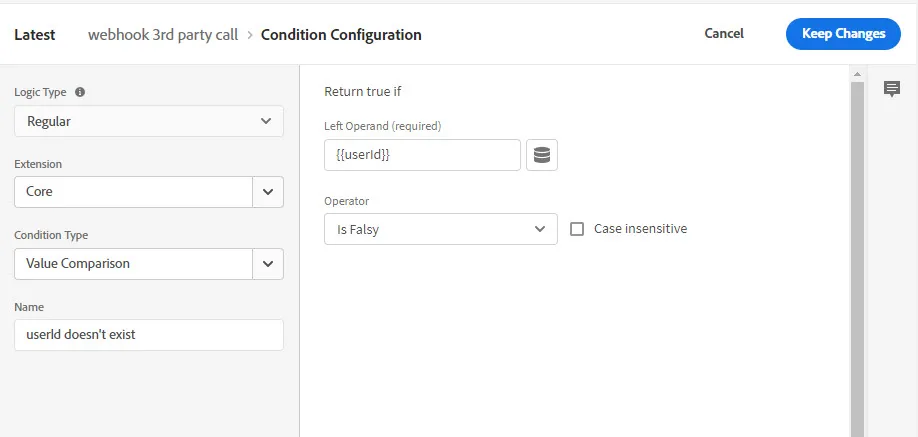
- Click to add a condition
- Choose value comparison as the condition type
- Select the data element userId as the Left Operand
- Set the operator to is Falsey
- Meaning that the userId is not present or doesn't exist
- This is the exact opposite of the enrichment call rule
- Name it userId doesn't exist
- Naming conditions helps later on when you are debugging rules
- Keep changes to the condition, save the rule
- Publish and build the changes and reload the Luma page to verify
Congratulations you've done it!