Bonus: Reusing CF Across Web and Mobile
In this lab, you’ll create a Content Fragment in AEM, retrieve it with GraphQL, add it to a Saga webpage, and verify that the same content appears in the mobile app.
Learning objectives
By the end of this lab, you will be able to:
- Create and publish a Content Fragment in AEM.
- Retrieve a Content Fragment using the AEM GraphQL editor.
- Reuse structured content across web and mobile channels.
- Verify that the website and mobile app display the same authored content.
Step 1 — Create a Content Fragment
- In AEM, navigate to Assets > Saga XWalk > Content Fragments.
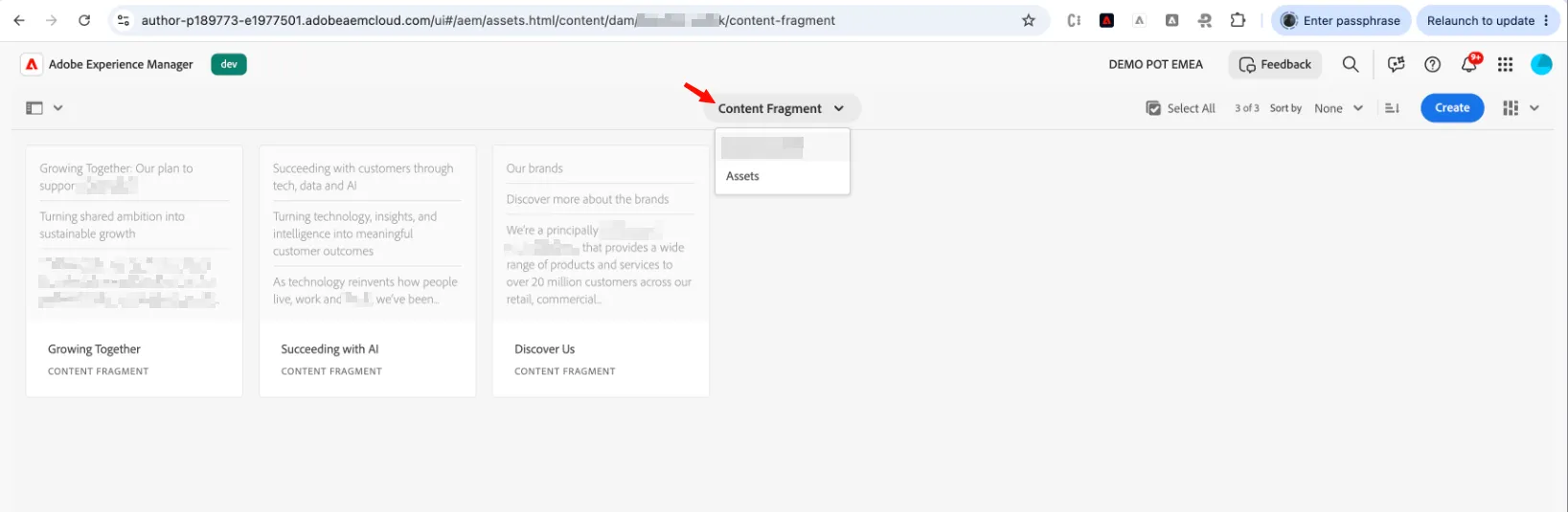
- Select Create, then choose the CTA Content Fragment Model.
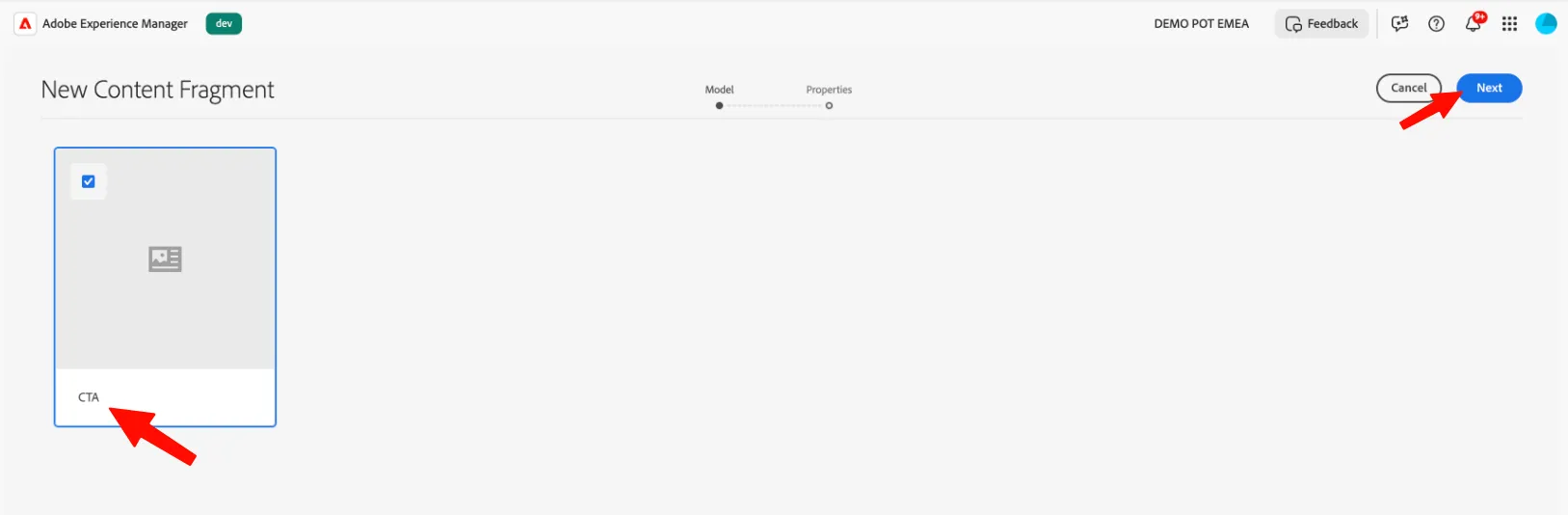
- Select Next and enter a title. Include your initials so you can distinguish your fragment from other participants’ entries.
- Select Done, then open the new Content Fragment.
- Complete the fields. The Content Fragment Model defines the fields and structure available in the fragment.
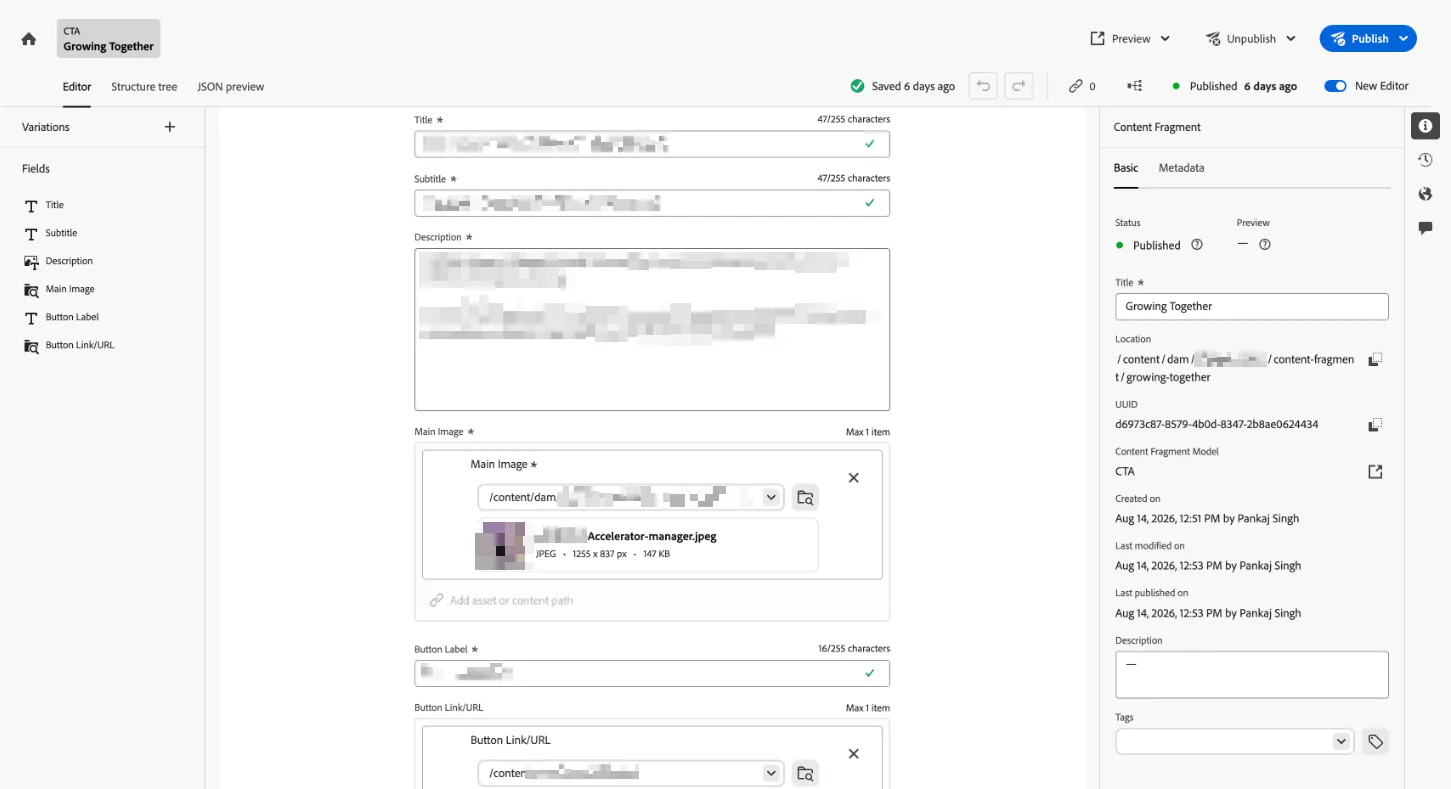
- Save and publish the fragment, if publishing is available in your lab environment.
Step 2 — Retrieve the fragment with GraphQL
Content Fragments can be delivered as structured content through AEM GraphQL. This lets applications request content from an AEM endpoint.
- Open the AEM menu and select Tools (the hammer icon). Open GraphQL Editor.
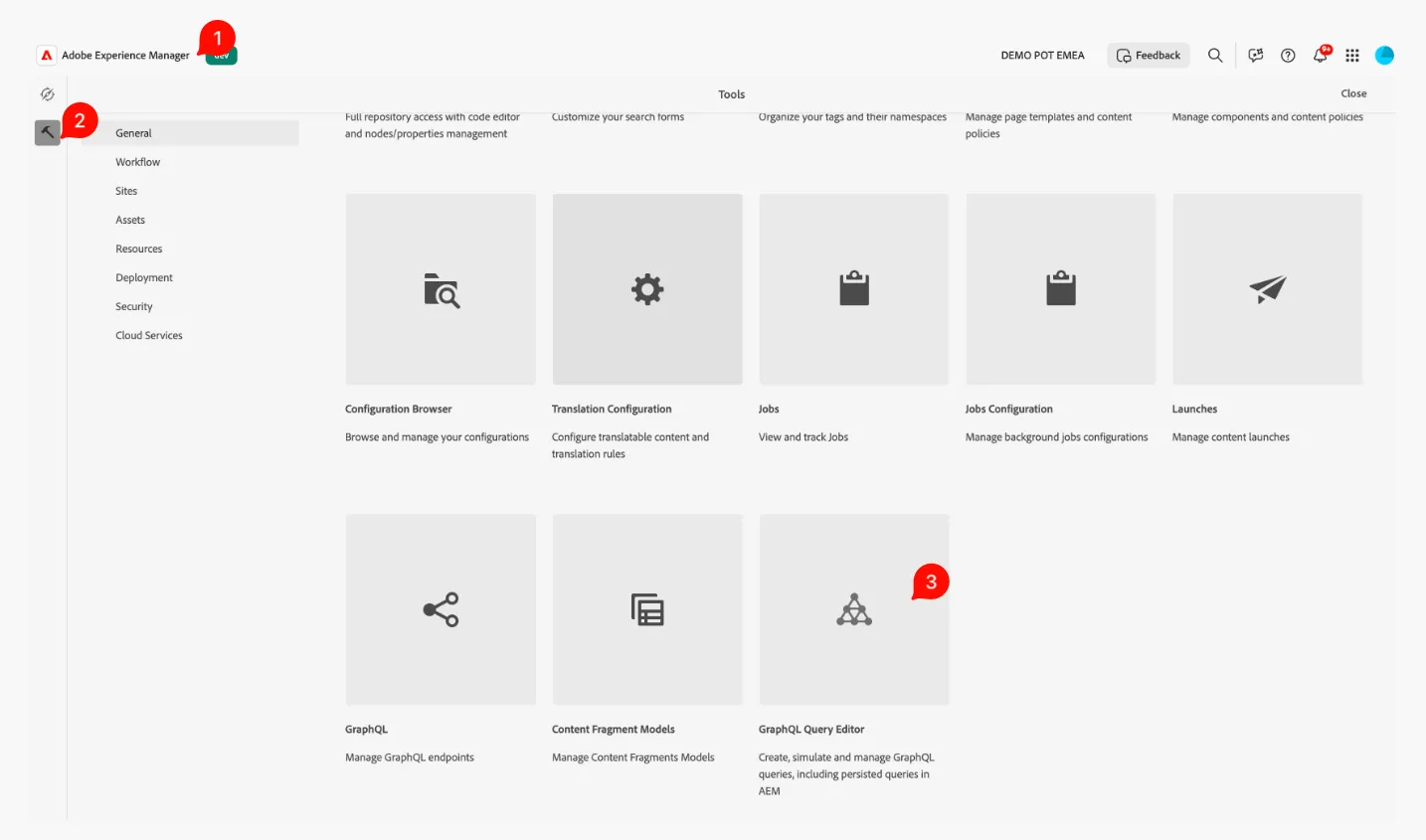
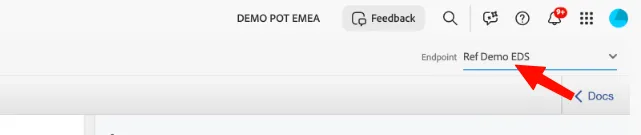
- In the endpoint selector, choose Ref Demo EDS if it is the endpoint configured for the Saga lab. Otherwise, select the Saga endpoint specified for your environment.
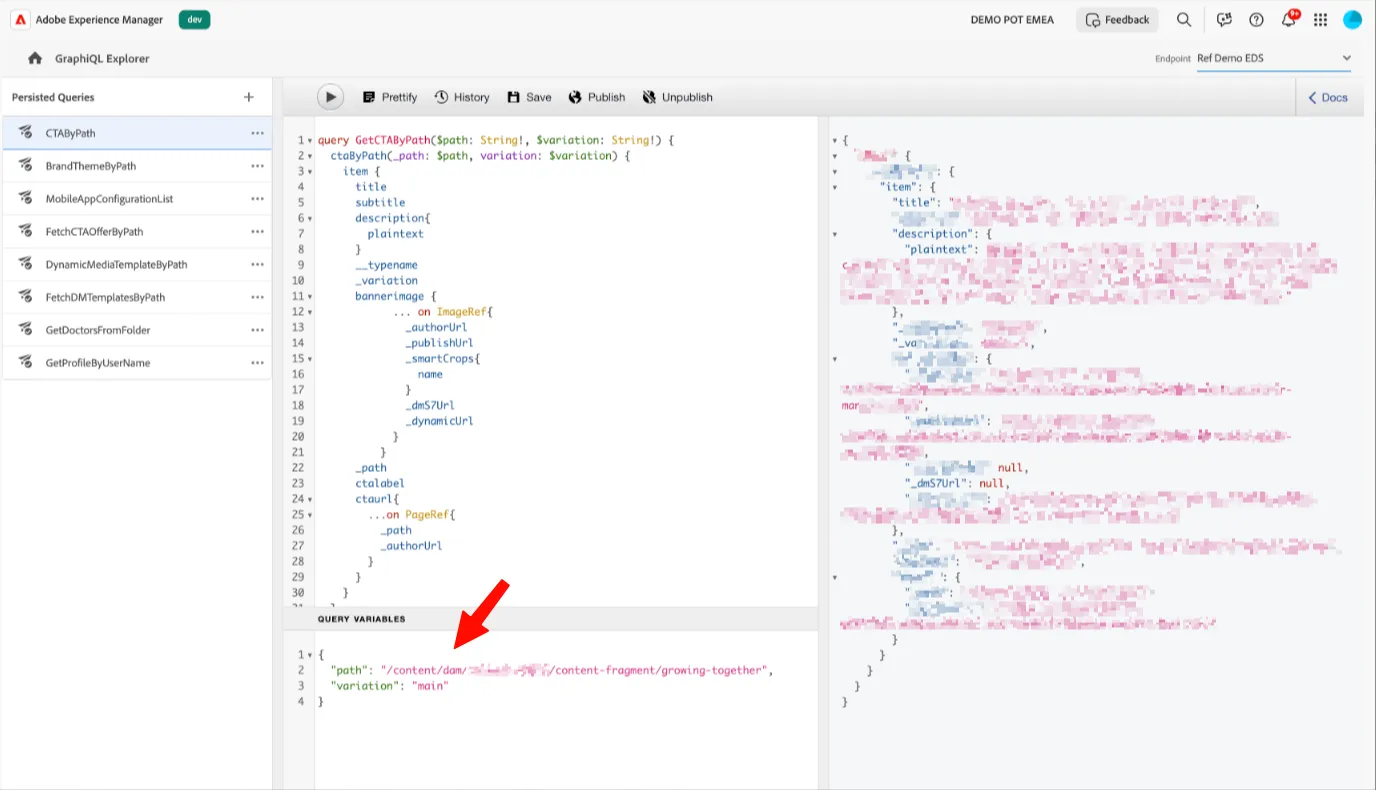
- Select the query that retrieves a Content Fragment by its path.
- In the Query Variables panel, replace the example path with the path of the fragment you created:
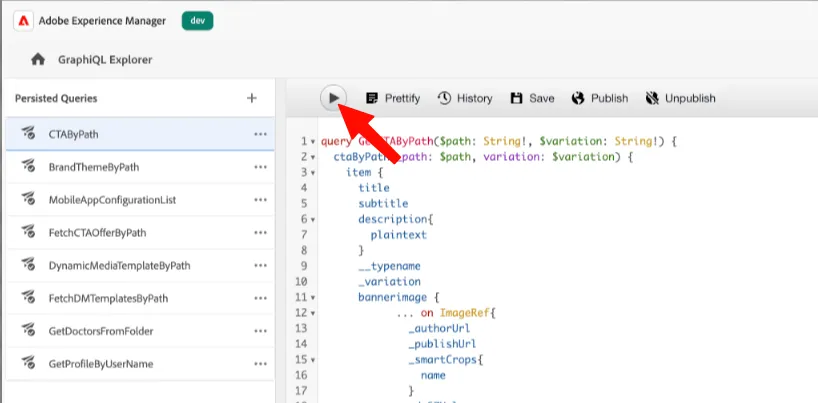
- Select Run (or the play button).
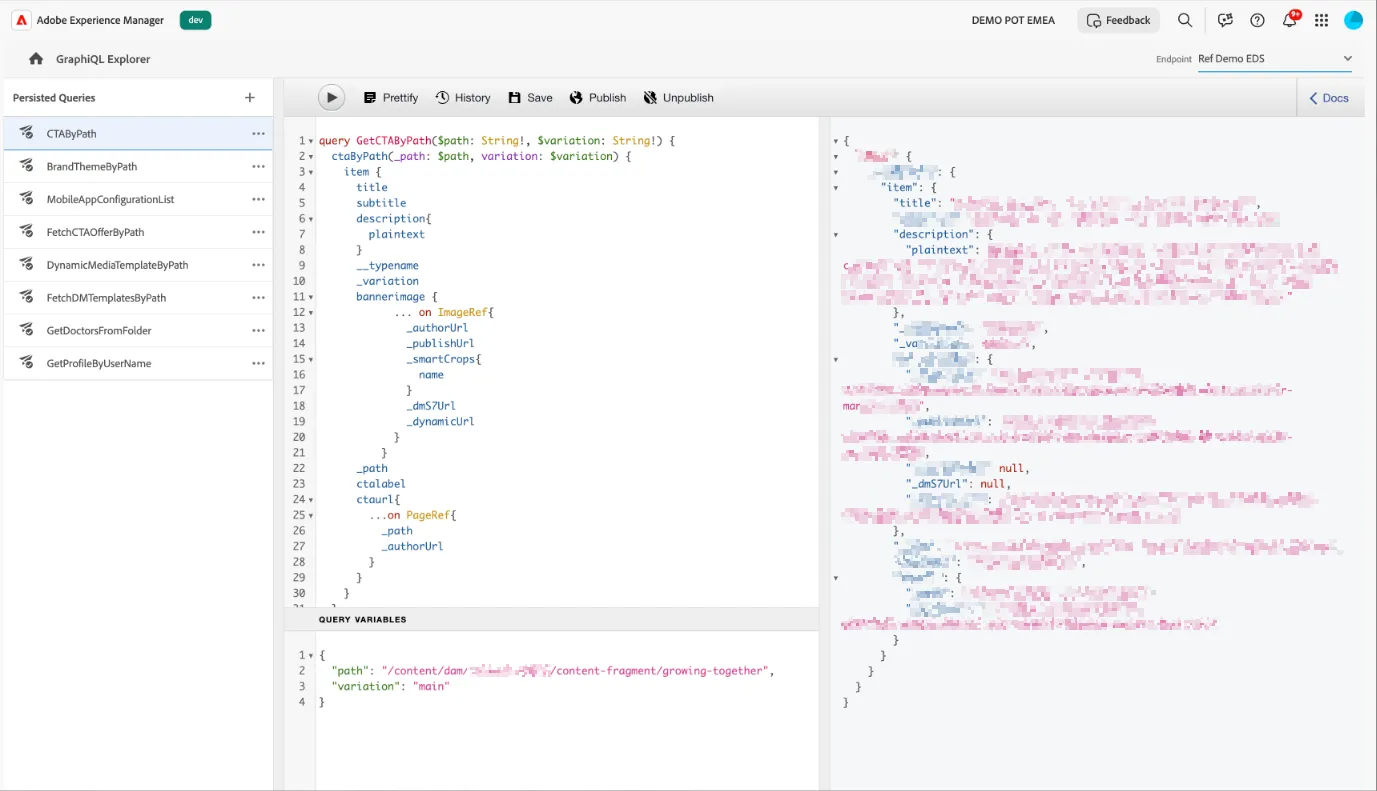
- Check that the response contains the values you entered in the Content Fragment.
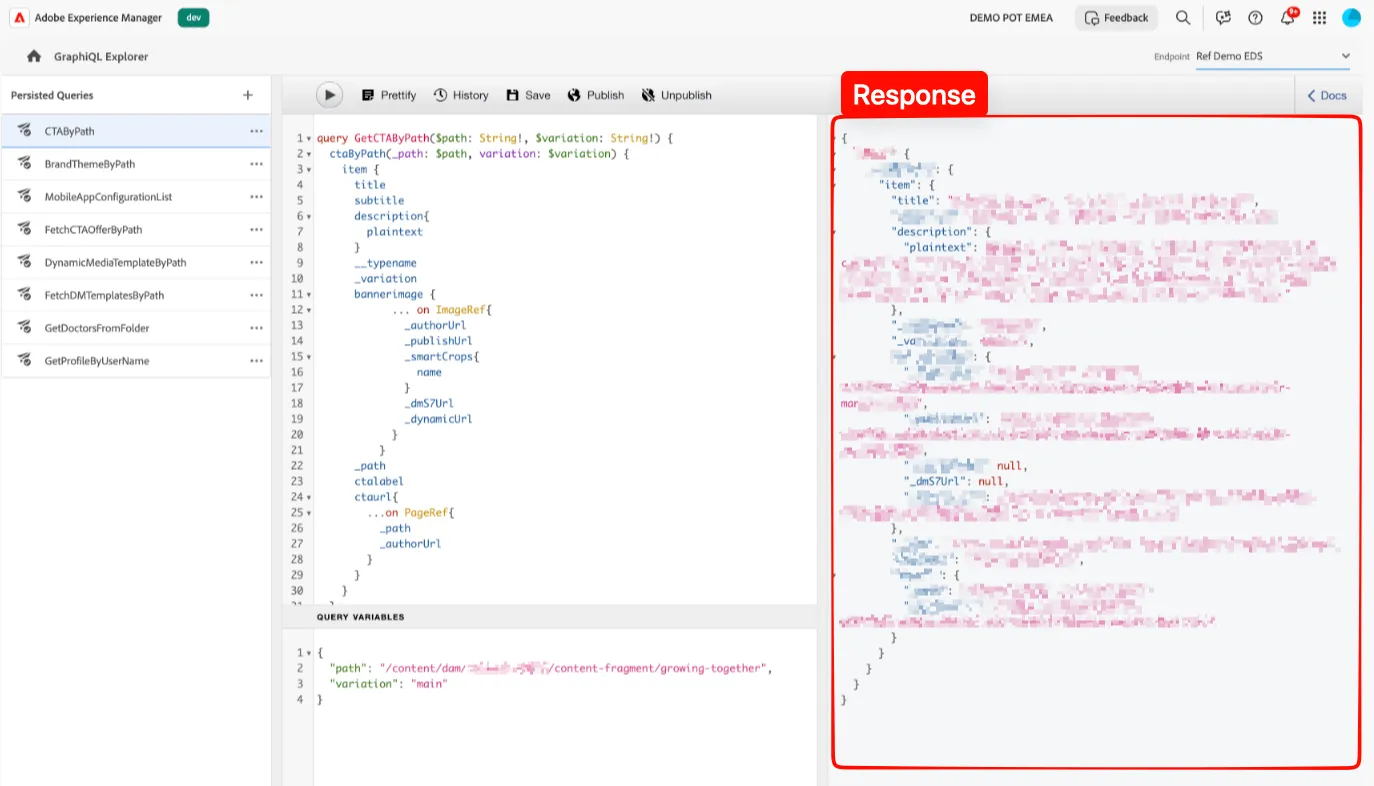
Tip: Use the fragment’s actual AEM path. If the response is empty, check the path, variation, endpoint, and publication status.
Running the query confirms that the fragment can be retrieved through GraphQL. It does not, by itself, configure the webpage or mobile app to use that content.
Step 3 — Add the fragment to a Saga webpage
- Open a Saga webpage in the authoring workflow used for this lab.
- Add a Content Fragment block to the page, preferably in a new section.
- Configure the block to use the fragment you created.
- Preview the page and confirm that the fragment’s content appears.
- Publish the page if required by your lab workflow.
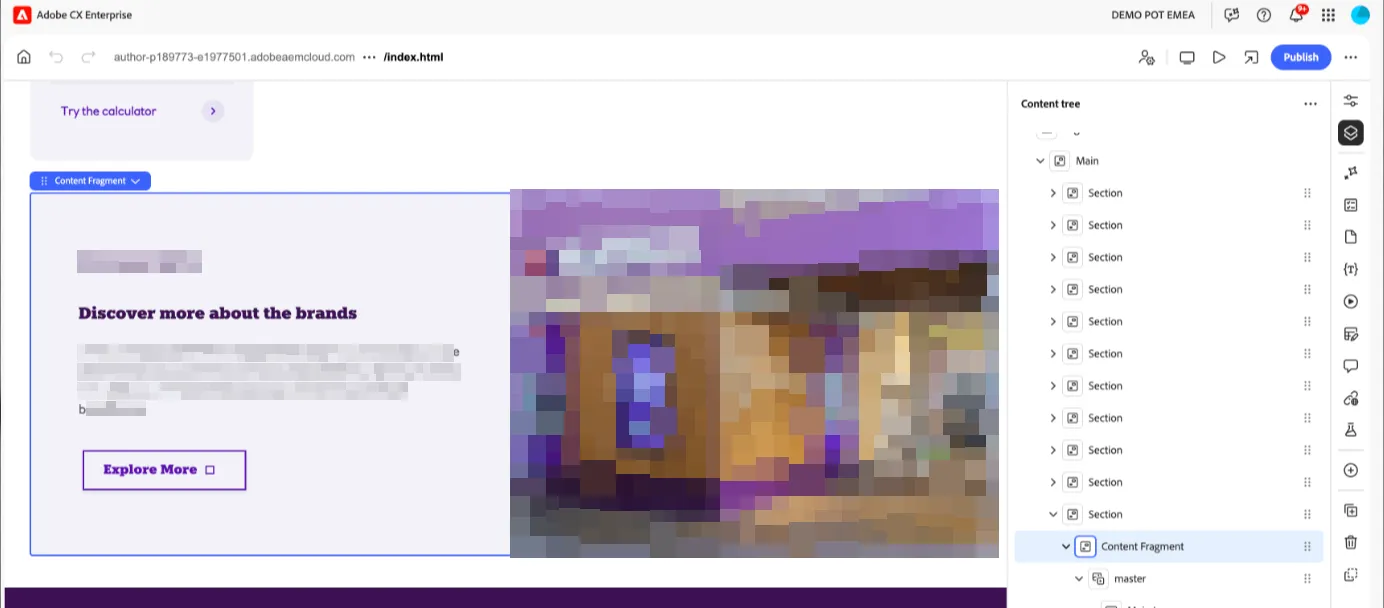
You can experiment with the available presentation or styling options without changing the source content in the fragment.
Step 4 — Verify the content in the mobile app
- Install and open the mobile app used for the lab.

- Open the app’s Settings screen.
- Enter the Saga Program ID and Environment ID assigned to your lab.
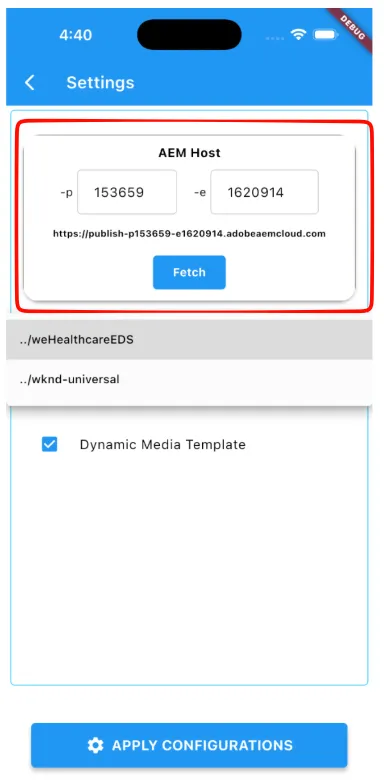
- Select Fetch.
- In the brand dropdown, select saga-xwalk or the equivalent Saga brand configured in your environment.
- Select Apply Configurations.
- Go to the app’s Home screen and locate the Content Fragment. Scroll down if needed.
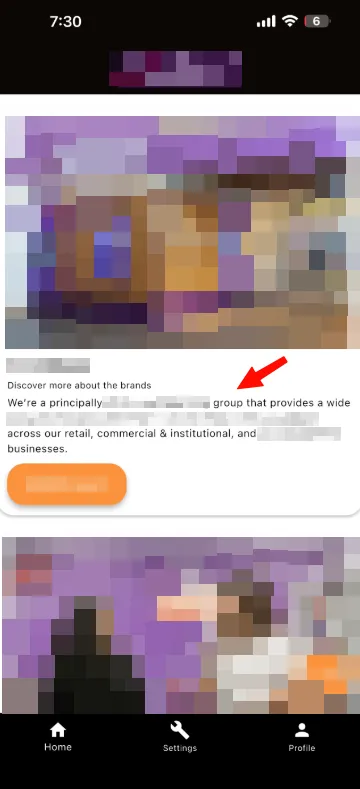
Confirm that the mobile app displays the content you authored in AEM.
If the fragment does not appear: Confirm that the program, environment, and brand are correct; that the app is using the Saga environment; and that the fragment has been published.
Next steps
You can now go ahead and make changes in the CF i.e. in AEM CF editor UI and notice your changes in CF being propagated to your Web Page as well as Mobile App.
Here we have only 2 channels but in reality there could be n number of channels consuming the CF content originating from AEM.