Ex1: Create a Page
In this section, we will create a new Page using AEM Sites.
Business Context
Your Content team regularly needs to publish new articles on their site without depending on developers for every page.
AEM Sites gives them that independence — using templates and reusable Blocks, an author can create a new article, populate it with content, and get it live in minutes.
In this exercise, you'll create a new article yourself, using the same page-creation workflow a NatWest content author would use to publish real content.
Saga demo Site - Overview
In this exercise, we will create a new Article Page in AEM. Your HoL team has prepared a demo Saga website on EDS with Universal Editor authoring for you. Take a look at the Saga Demo Site preview here: Saga Demo Site Preview
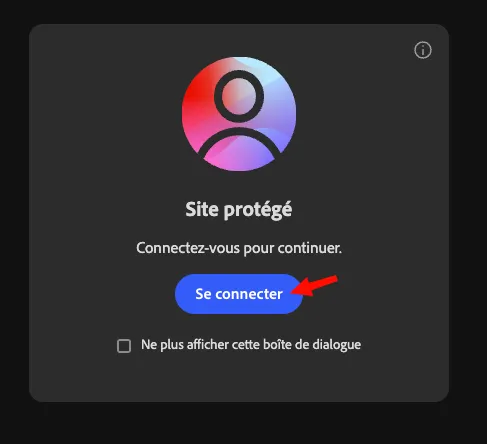
The site is protected by authentication; you will need to connect to see the content:
Article Page - Overview
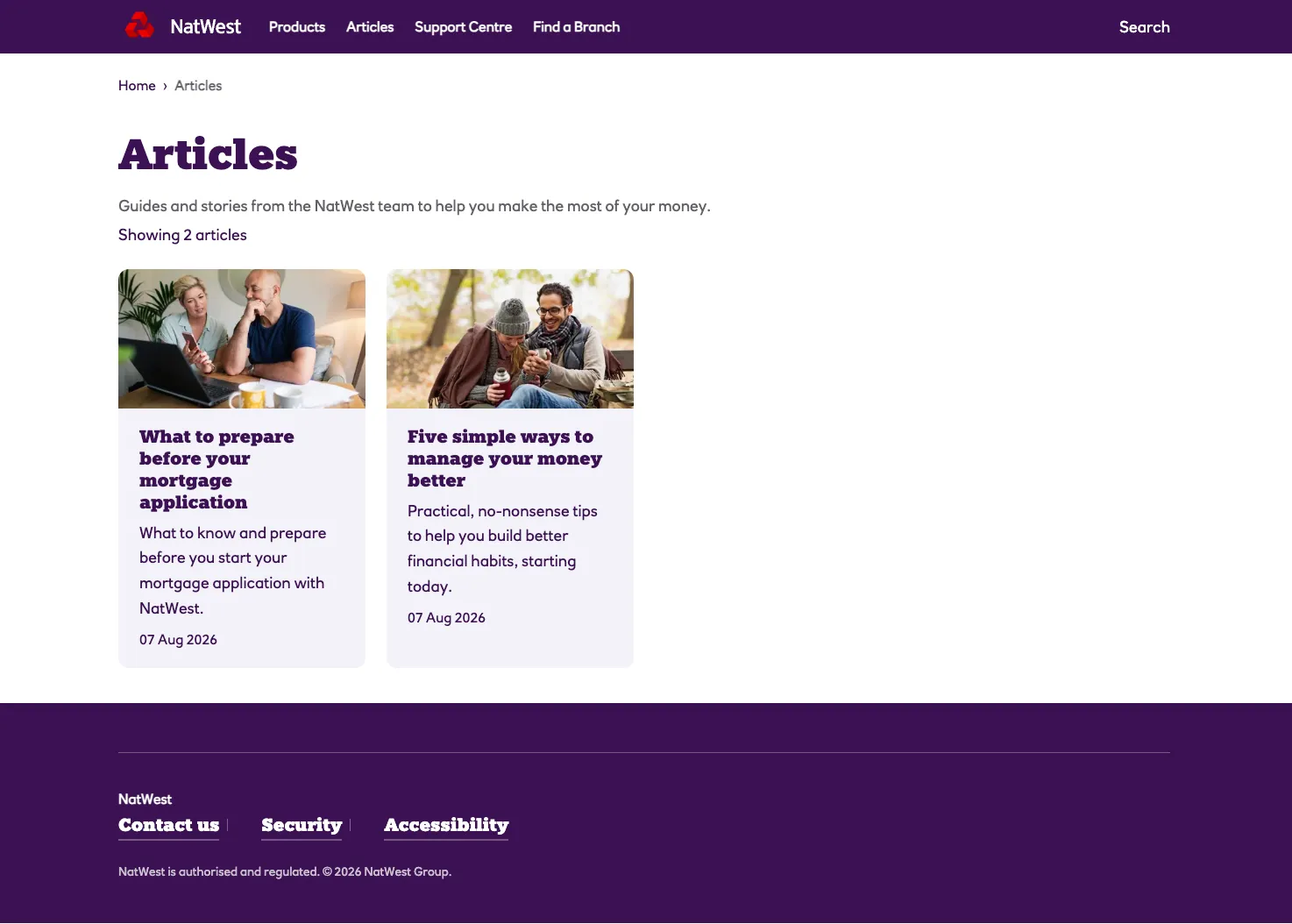
In the demo Site, your HoL team has prepared a specific /articles and /article page. Take a look there and click on any of the articles to have an overview of what you will create today:
→Article Page: https://main--natwest-xwalk--skiper76.aem.live/index/articles
Your turn! Create your Article page
- Go to the AEM as a Cloud Service sandbox here: Adobe Experience Manager
- From the AEM Navigation Menu, select Sites.

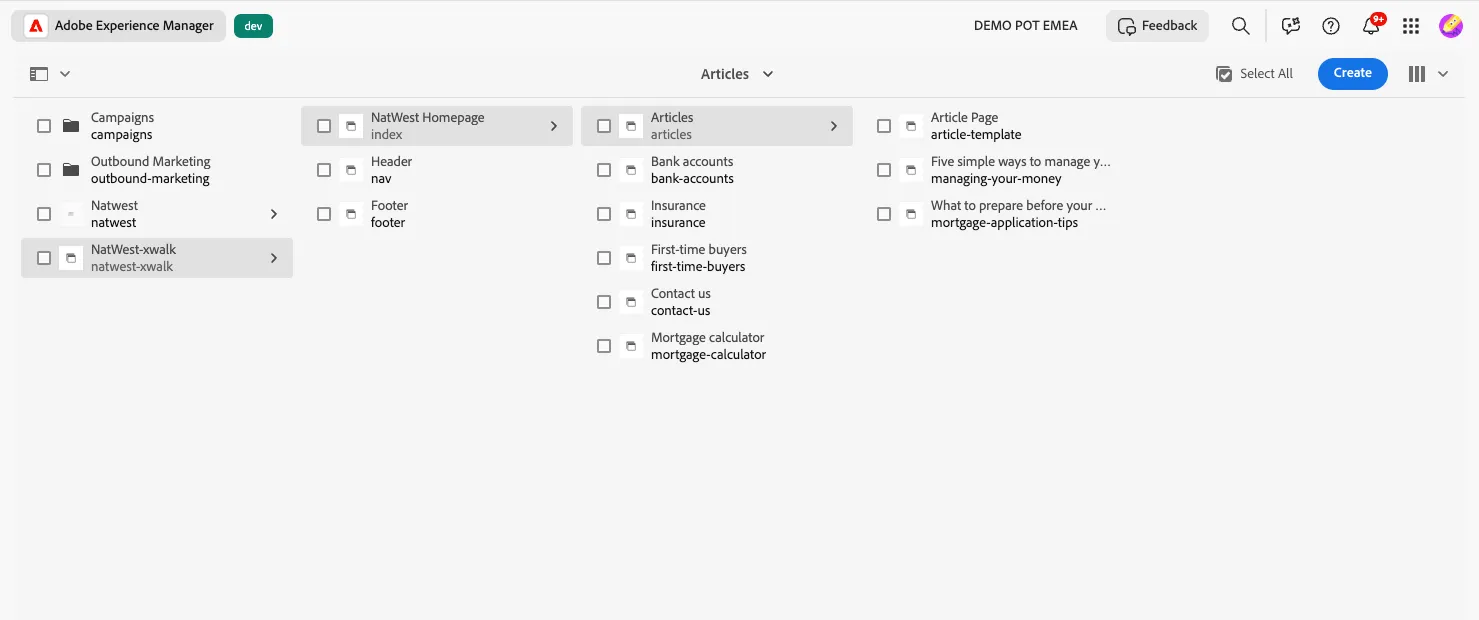
- We want to navigate the existing tree structure to the location where we want to create a Page. In our case, navigate to saga-xwalk > index > magazine.
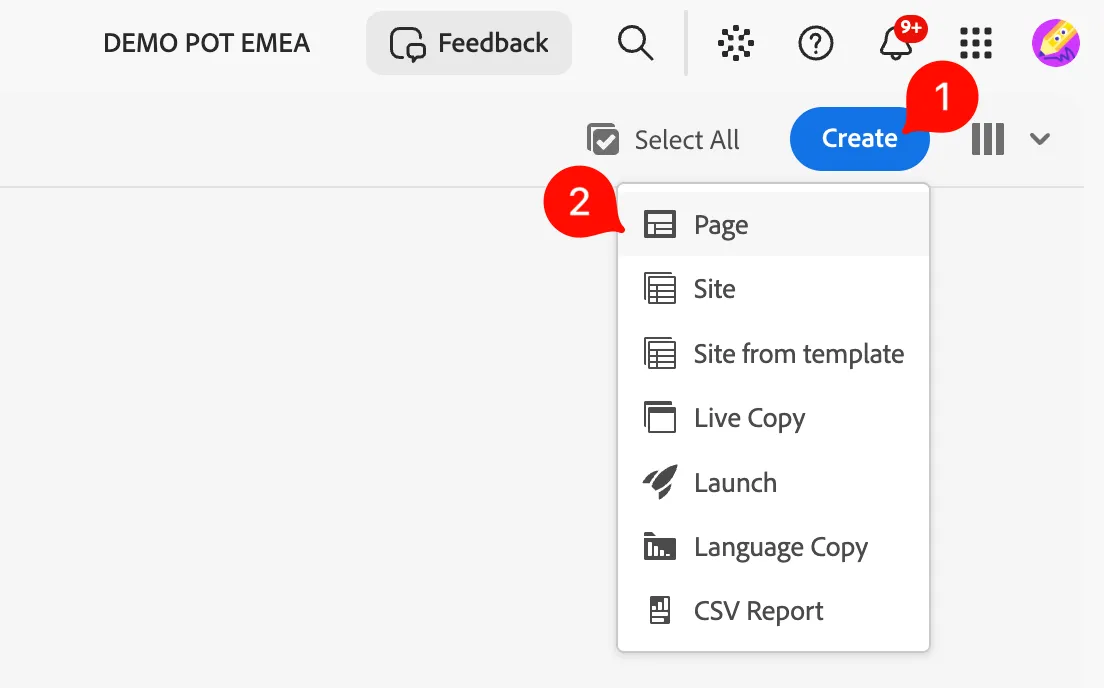
- To create a new page under Articles, click the Create button and select Page from the menu that pops up.
- Select the template named Article Page, then click Next to continue.
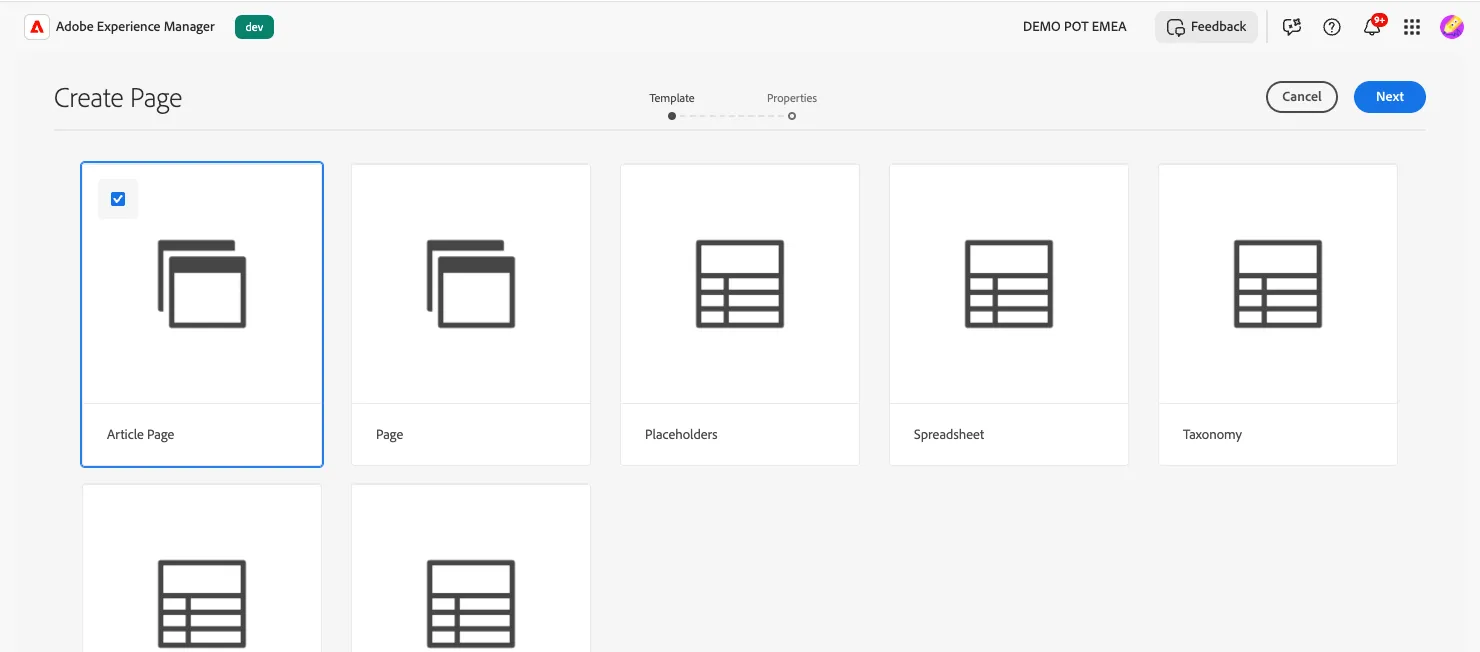
Page templates in AEM define the structure of a page and which content can be used on it.
- Name your Article Title to: {{CUSTOMER_NAME}}-{{USER_NUMBER}}-article
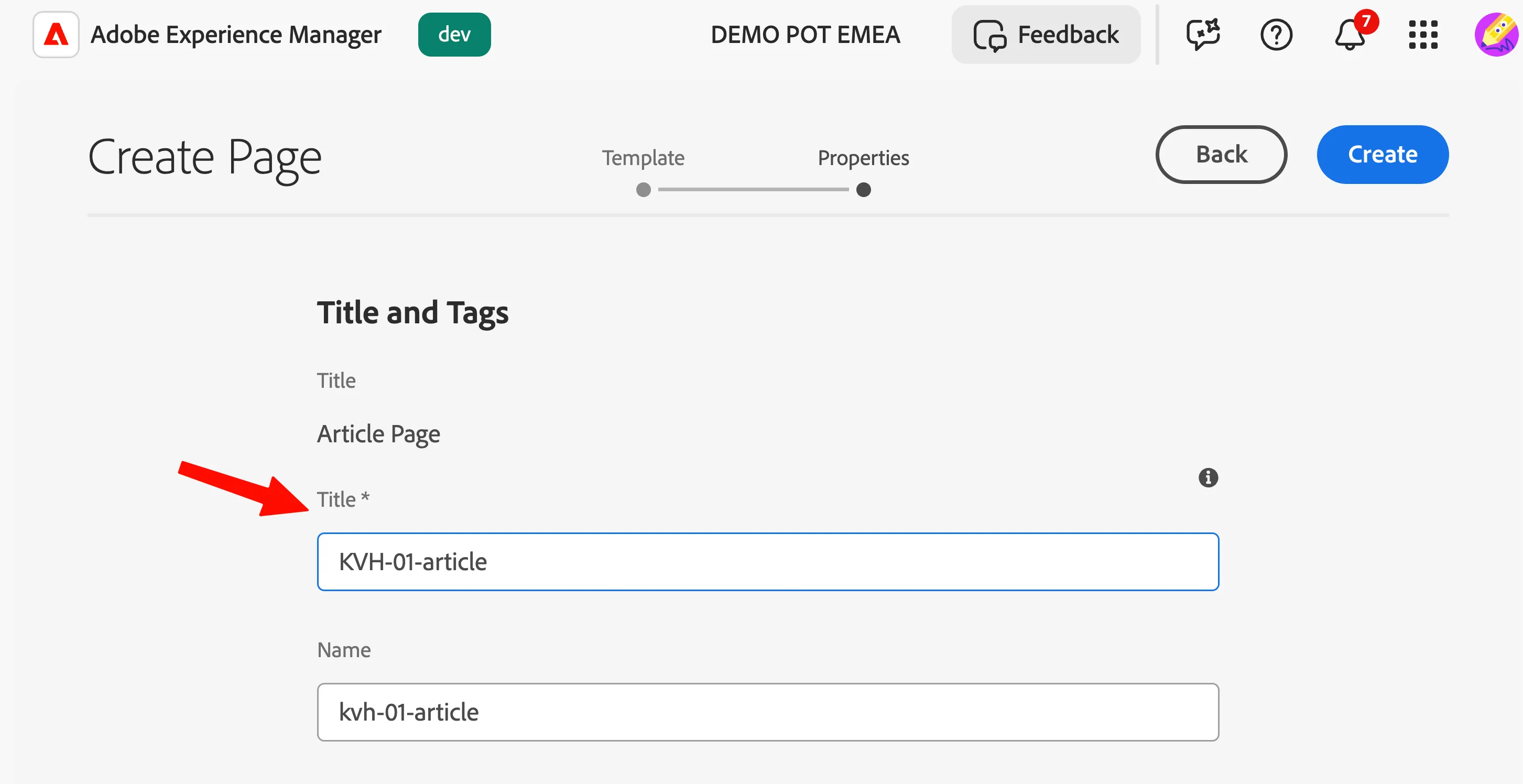
- Click Create.
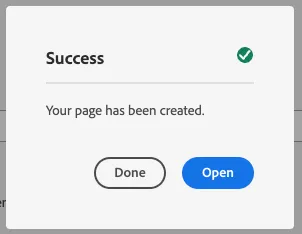
- AEM will create your page. Click Done.
- This will take you back to our website tree structure. You can find your article under /articles :
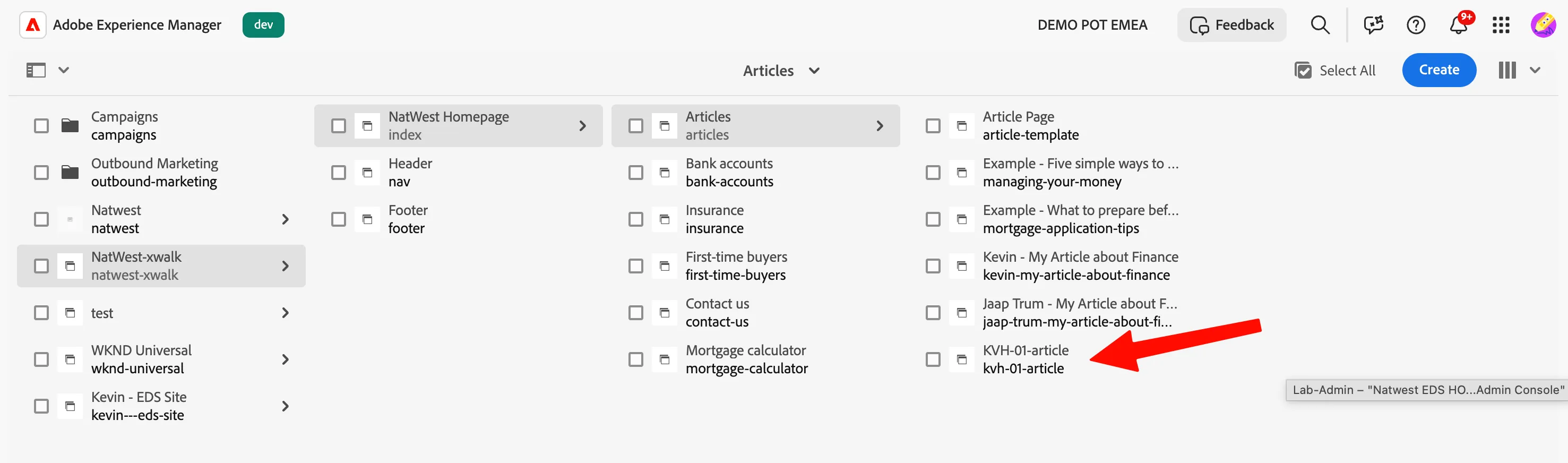
- Toggle your Article, and then click on Edit:
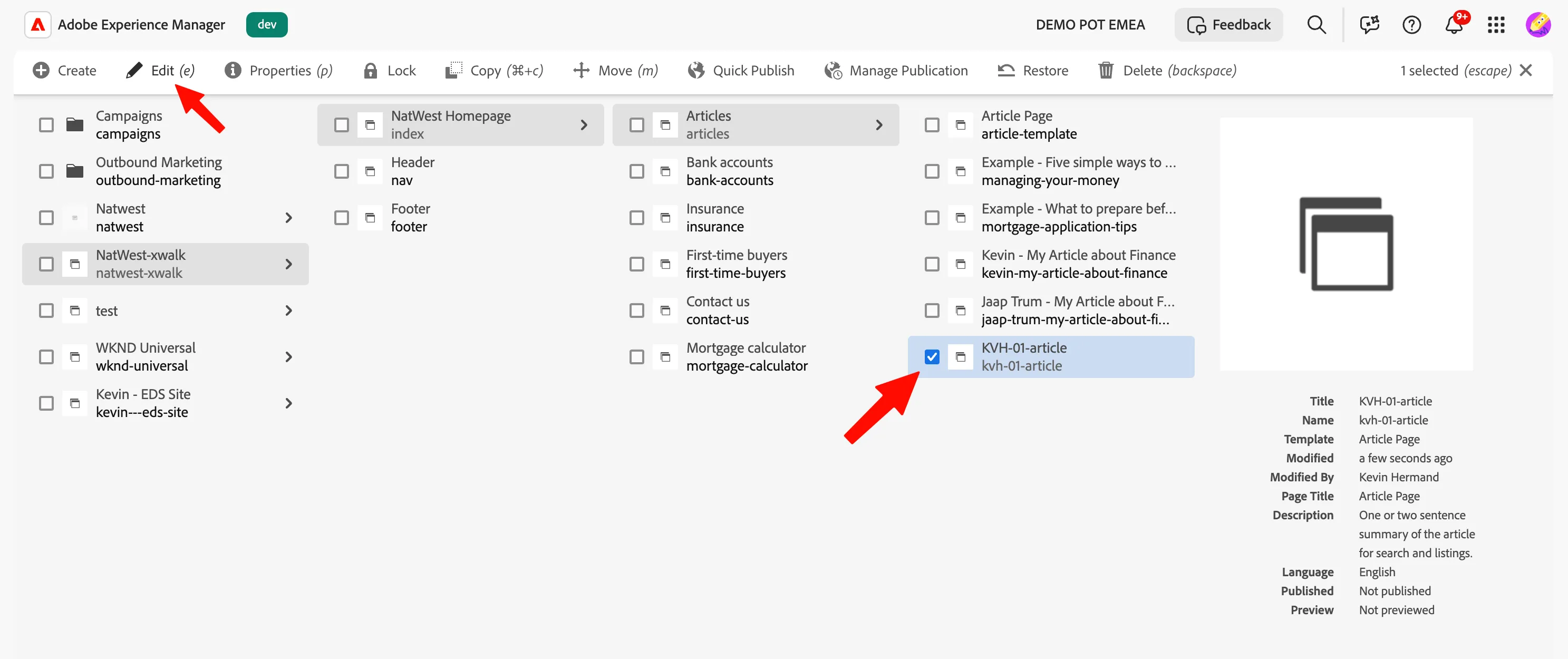
- This will take you to the Universal Editor, a WYSIWYG editor ("what you see is what you get") for building your page using new and reusable elements called Blocks.
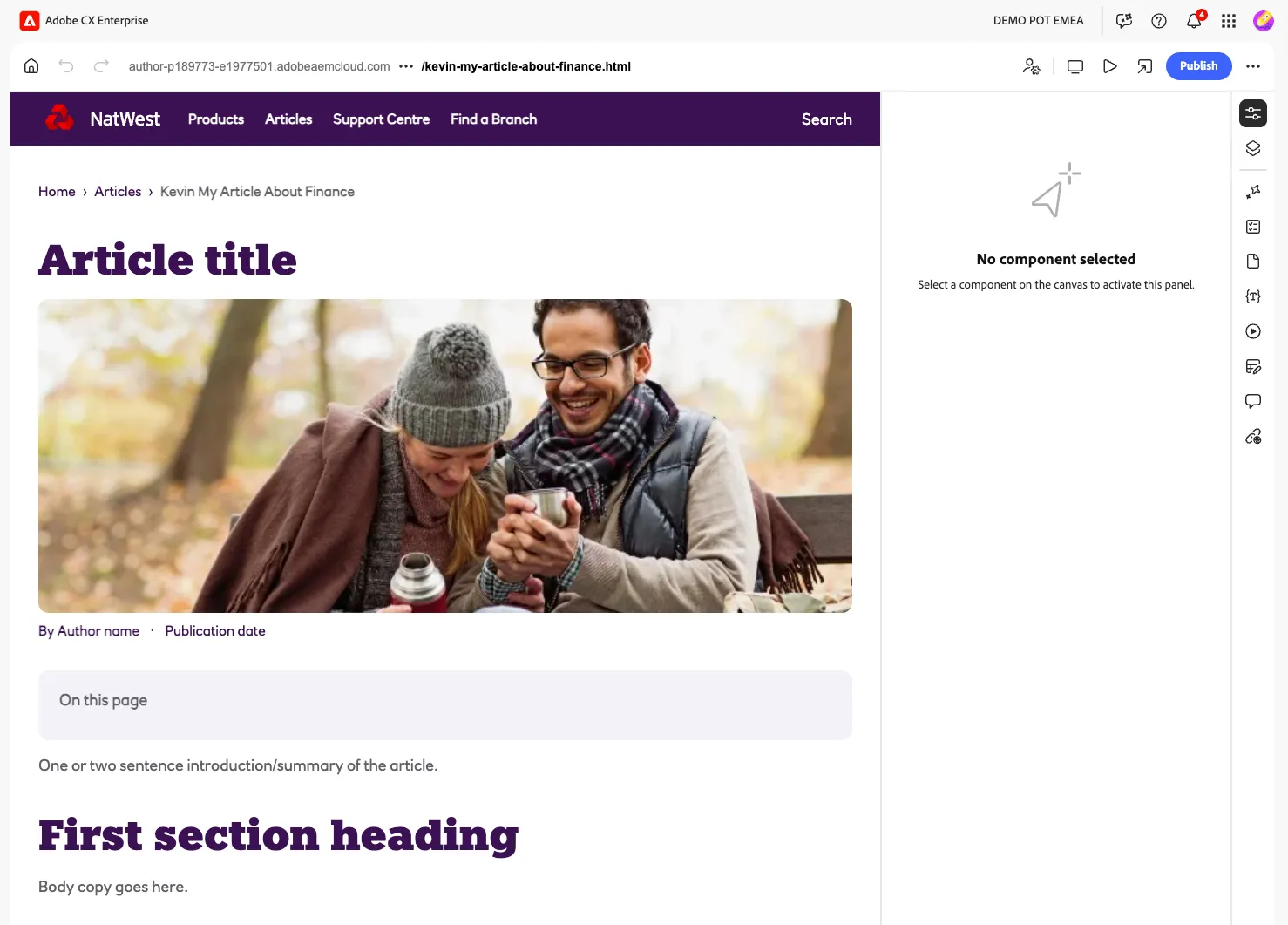
- Here is a Navigation Overview:

- Left-hand side: the container — the area where you add content.
- Right-hand side: the side panel, containing a content tree (for adding Blocks) and access to each Block's properties.
What You Learned
In this section, you created a new Article page in AEM Sites — navigating the content tree, selecting a page template, and naming your page. You then opened it in the Universal Editor and got a first look at its layout: the container on the left for your content, and the side panel on the right for adding and configuring Blocks.
In the next exercise, you'll put that editor to use by populating your article with real content, using blocks like Title, Image, and custom-built ones.
Do not close the AEM tab, as we will need it in the next exercise.