Ex3: Create a Block Definition
In this lab, you will create a custom Quote block for an AEM Edge Delivery Services project. You will define the block, add it to an AEM page using the Universal Editor, style it with JavaScript and CSS, and publish the result.
What You’ll Learn
By the end of this lab, you will be able to:
- Define a custom block in an AEM EDS project.
- Add the block to an existing page using the Universal Editor.
- Decorate the block with JavaScript.
- Style the block with CSS.
- Commit and publish your changes.
Part 1 — Clone Your GitHub Project locally
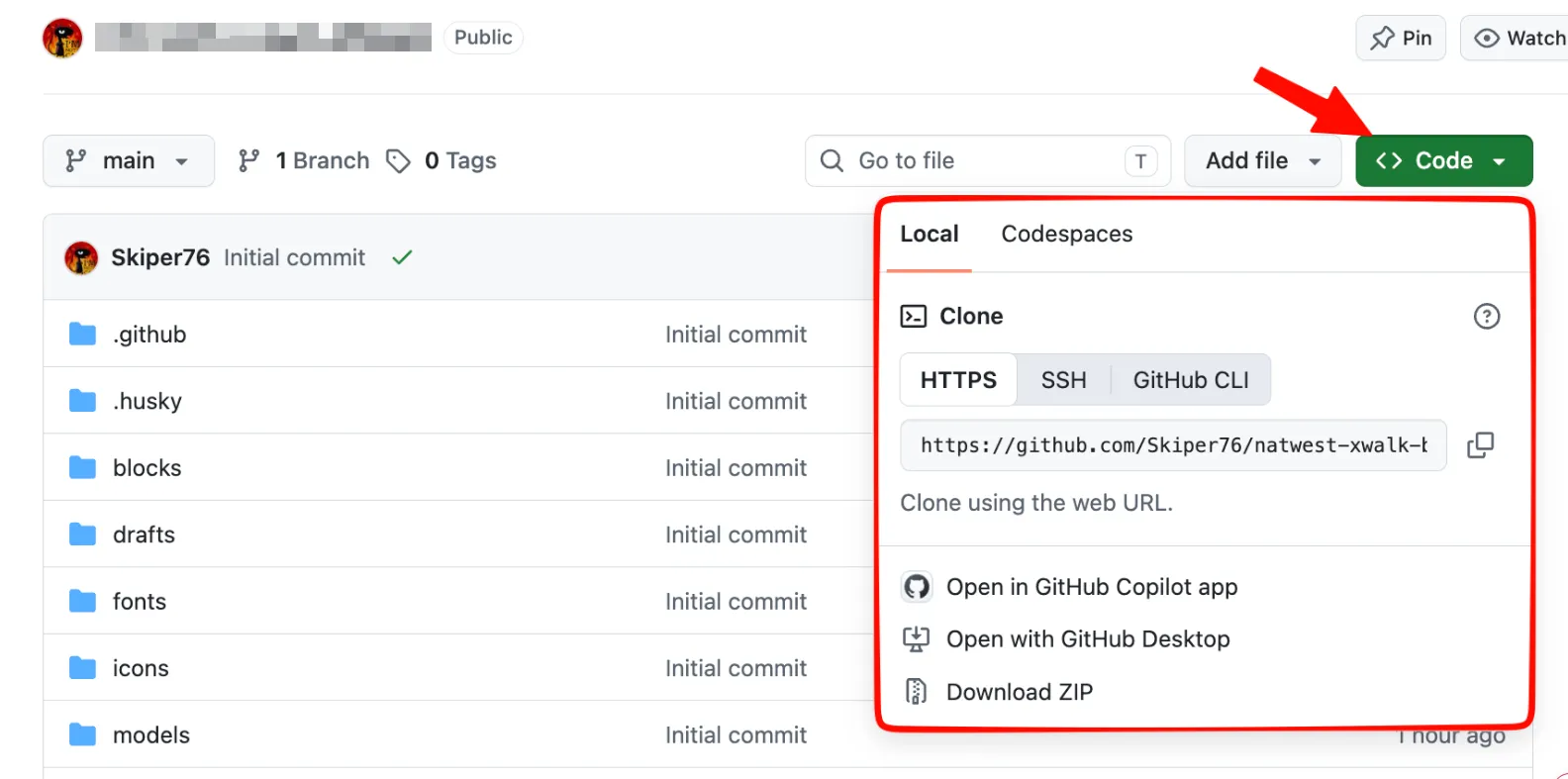
Clone the project repository to your local system. Working locally makes it easier to edit files, test changes, and commit your work. Here we will be using VSCode, but you can use any familiar IDE.
- Clone your repository locally with your preferred method :
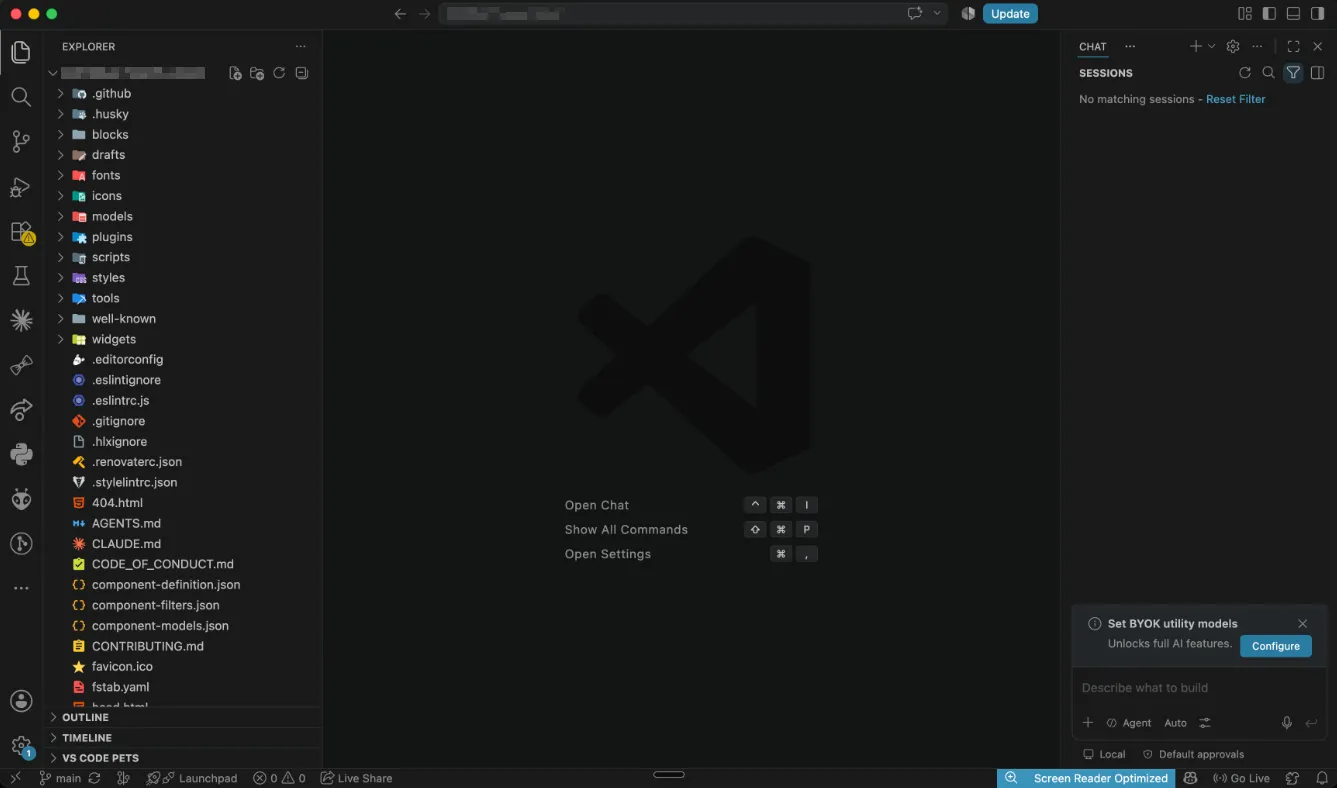
- Open the project folder in your IDE, here we will use VSCode:
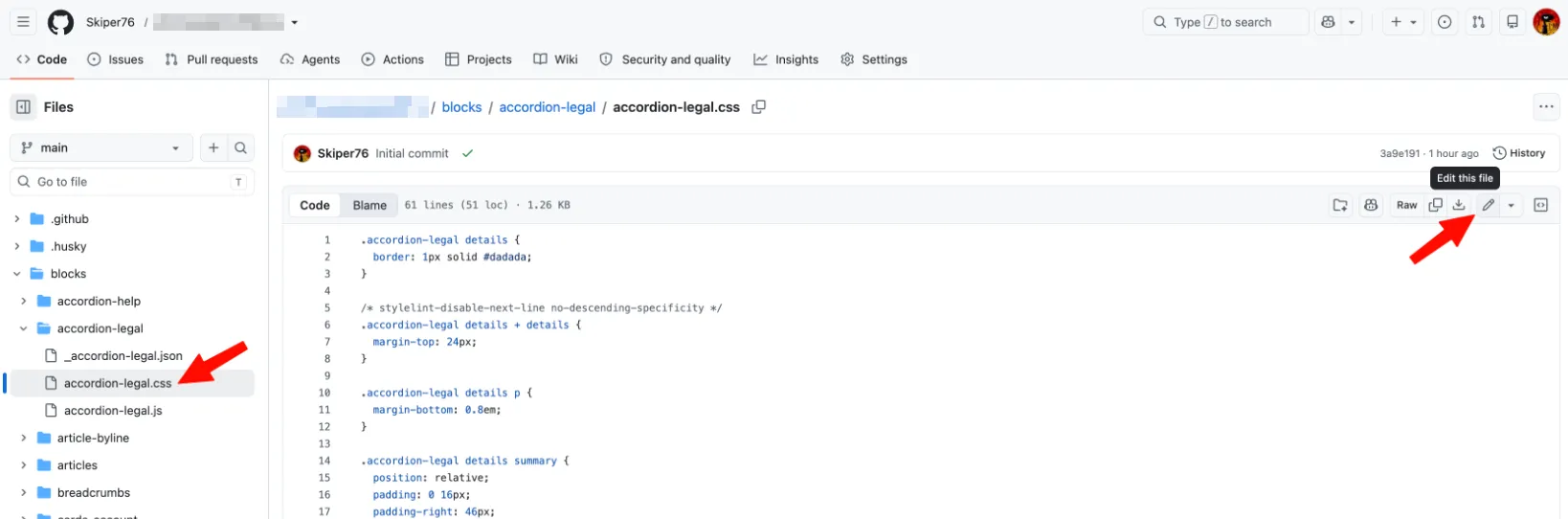
You can also edit the repository directly in GitHub:
- Open the file you want to edit.
- Select the Edit pencil icon.
- Make your changes.
- Commit the changes directly to the repository.
Part 2 — How the project is structured
The repository contains many folders, but this lab only uses a few of them. The most important one will be Blocks which contains all Blocks definitions.
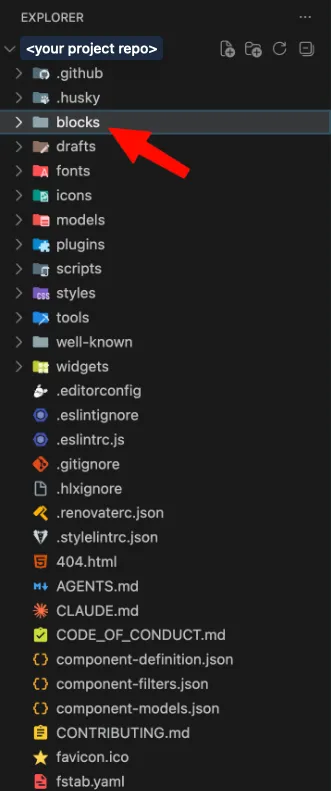
Here is the simplified architecture:
Important folders and files
Location | Purpose |
|---|---|
blocks/ | Contains the code and authoring definition for each block. |
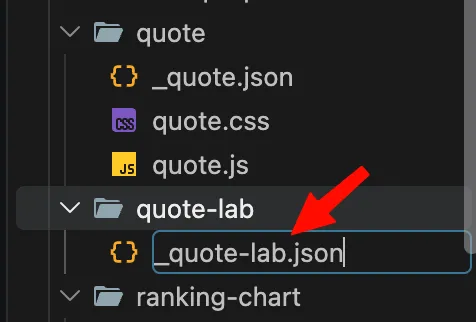
blocks/quote-lab/_quote-lab.json | Defines the block, its fields, and its default content. |
blocks/quote-lab/quote-lab.js | Converts the authored content into the final HTML structure. |
blocks/quote-lab/quote-lab.css | Controls the visual appearance of the block. |
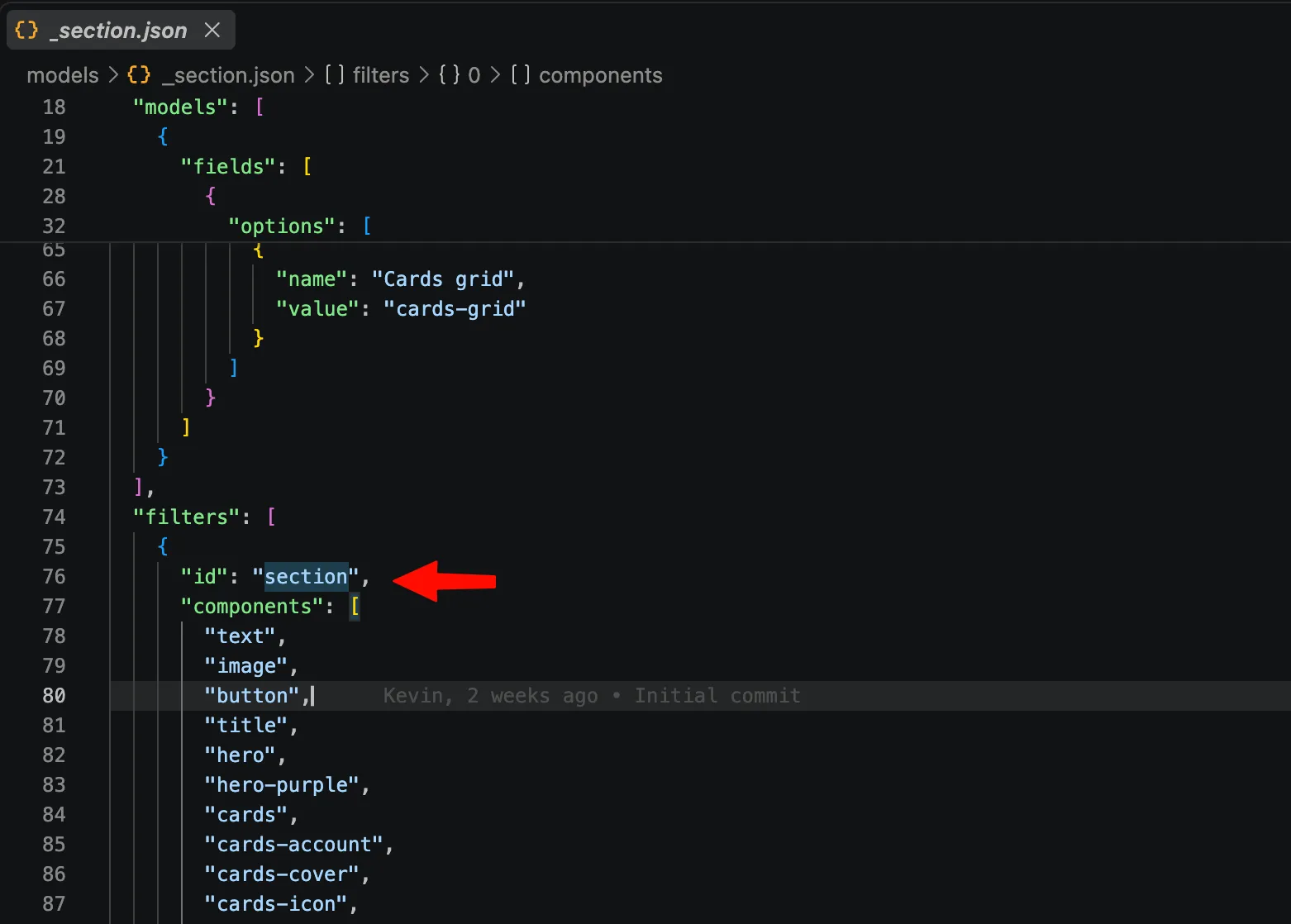
models/_section.json | Controls which blocks can be added inside a section. |
styles/ | Contains global styles and design variables used by the site. |
component-*.json | Generated files. Do not edit these files manually. |
package.json | Contains project commands such as npm run build:json. |
Part 3 — Define the Block
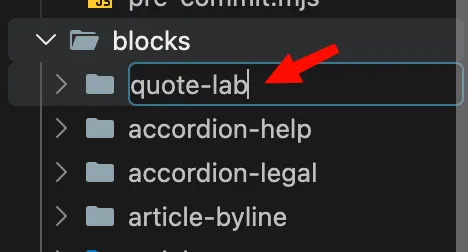
- Create the block folder named quote-lab, in/blocks:
- Create the block configuration file in this folder, named _quote-lab.json:
- And paste this content in _quote-lab.json:
{
  "definitions": [
    {
      "title": "Quote Lab",
      "id": "quote-lab",
      "plugins": {
        "xwalk": {
          "page": {
            "resourceType": "core/franklin/components/block/v1/block",
            "template": {
              "name": "Quote Lab",
              "model": "quote-lab",
              "quote": "<p>Great digital experiences should feel simple, clear, and human.</p>",
              "author": "NatWest Digital Experience Team"
            }
          }
        }
      }
    }
  ],
  "models": [
    {
      "id": "quote-lab",
      "fields": [
        {
          "component": "richtext",
          "name": "quote",
          "value": "",
          "label": "Quote",
          "valueType": "string"
        },
        {
          "component": "text",
          "name": "author",
          "label": "Author",
          "value": "",
          "valueType": "string"
        }
      ]
    }
  ],
  "filters": []
}
What does this file do?
The file contains the complete Universal Editor configuration for the block.
Definitions
The definition registers the block:
- title is the name displayed to authors.
- id is the technical identifier used by the project.
- The id must be unique. This is why we use quote-lab instead of quote.
The template provides sample content that can be used when the block is first inserted:
Models
The model defines the fields displayed in Universal Editor:
This creates an editable rich-text field named quote.
The second field creates a simple text input for the author:
The field names are important. The JavaScript implementation will also refer to the first row as the quote and the second row as the author.
Filters
The block is not a container, so it does not need to define its own filter:
The section filter will be updated separately to allow this block to be inserted into a section.
Part 4 — Add the block to the section filter
- Open models/_section.jsonand find the existing components array. It look similar to this:
- Add quote-lab to this components array:
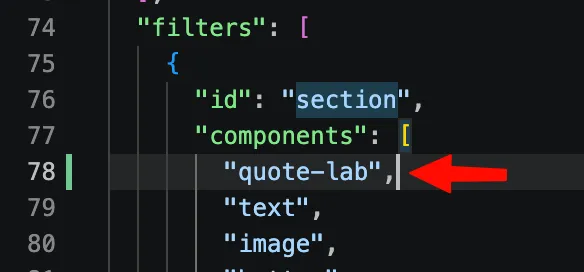
Keep the other existing components. Do not replace the entire file.
Why is this file different?
The block JSON registers quote-lab, but the section filter controls whether the block is available inside a section.
In other words:
- _quote-lab.json says: “This block exists.”
- _section.json says: “This block may be added inside a section.”
Part 5 — Build and publish the block definition
- Install the project dependencies, in the terminal, run : npm install
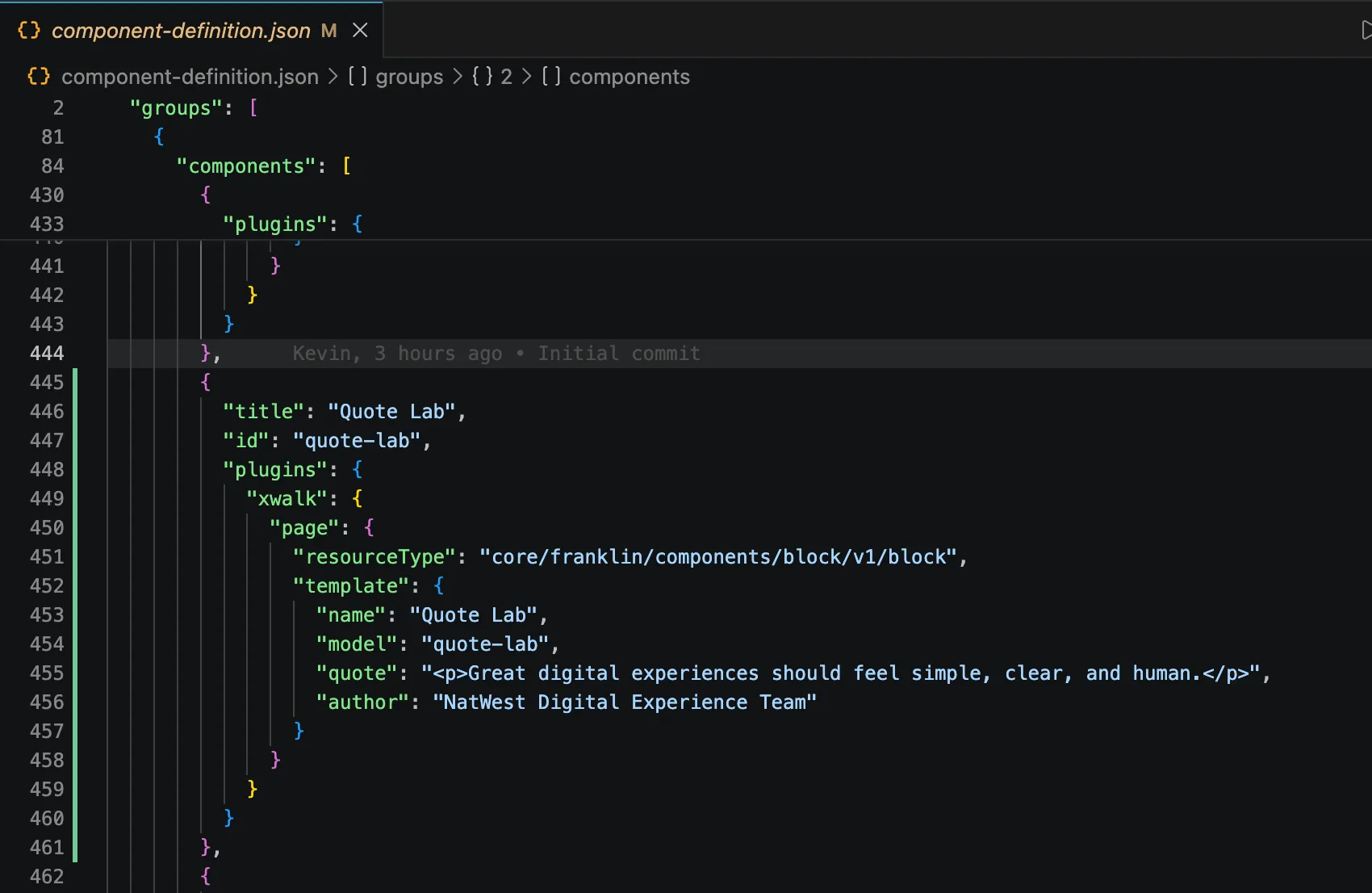
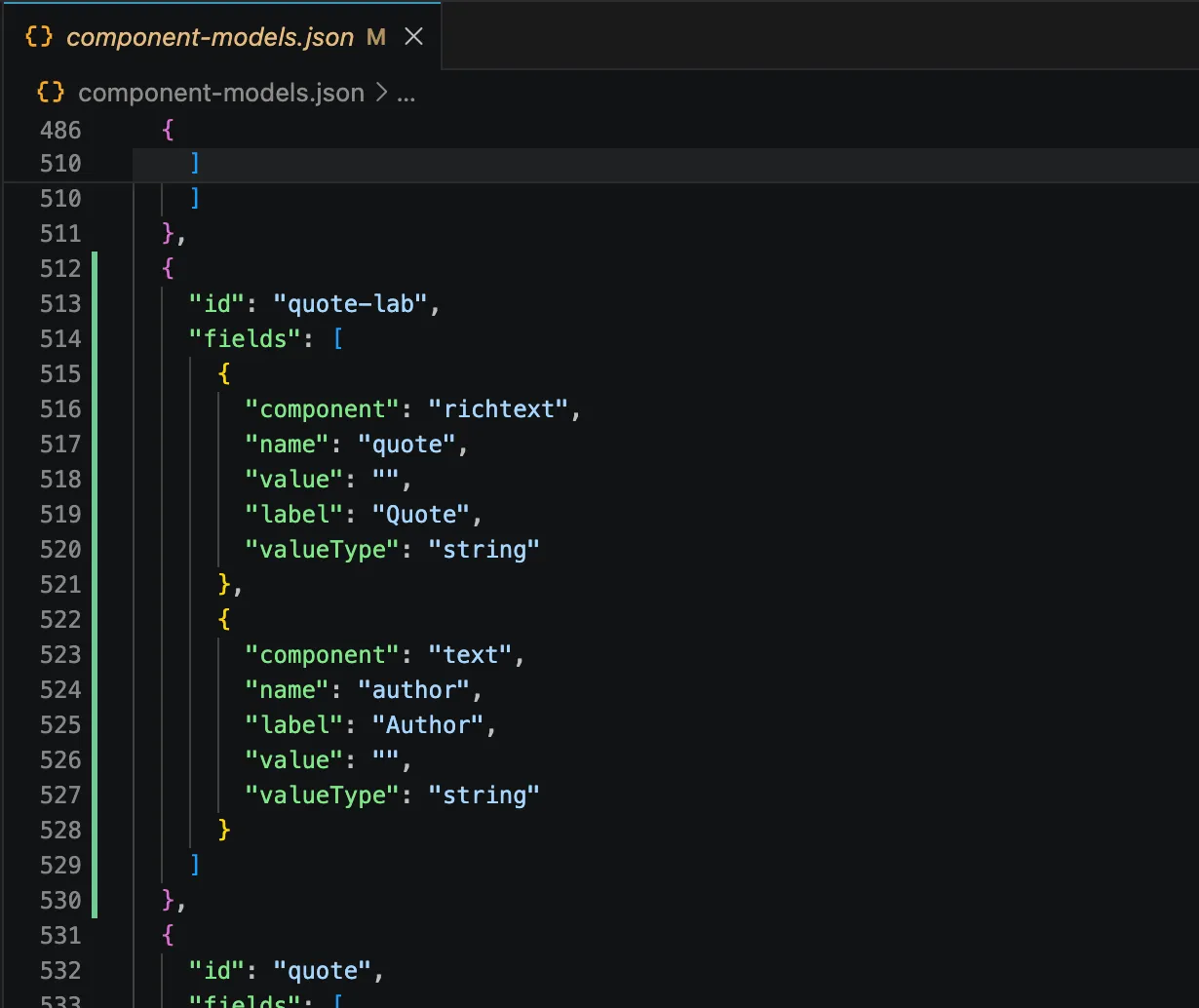
- Generate the aggregate JSON files, by running: npm run build:json
This command reads the source JSON fragments and regenerates the aggregate files used by the project, such as:
 |  |
|---|
Why are we doing this? The root JSON files are generated artifacts. They allow the project to expose all block definitions, models, and filters in the format expected by Universal Editor.
Part 6 — Validate the changes and commit
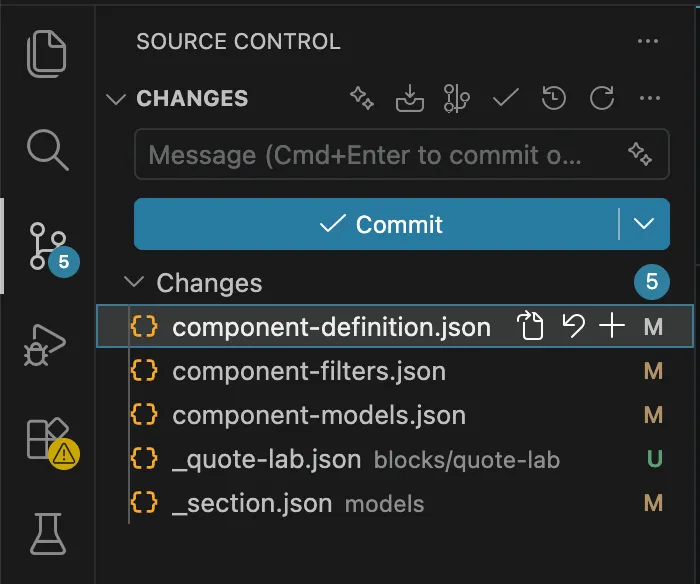
- Check the working tree with : git status and git diff. Or verify direclty in IDE that:
- These 5 files are modified.
- blocks/quote-lab/_quote-lab.json exists.
- There are no accidental changes to unrelated files.
- Add the source and generated files:
git add blocks/quote-lab/_quote-lab.json
git add models/_section.json
git add component-definition.json
git add component-models.json
git add component-filters.json- And commit the changes:
git commit -m "Add NatWest quote lab block definition"- Push the changes to main:
git push -u origin mainWhy must the changes be pushed?
Universal Editor uses the project configuration available in the GitHub branch connected to AEM.
When you push your changes, AEM Code Sync automatically synchronizes the updated files with AEM. Once the synchronization is complete, the new block definition becomes available in Universal Editor.
The workflow is:
- Create or update the block files locally.
- Run the required build command, if applicable.
- Commit and push the changes to GitHub.
- Wait for AEM Code Sync to process the changes.
- Open or refresh Universal Editor and select the new block.
This also allows you to test the block from your development branch before merging it into the production branch.