Ex3: Publish your Page on EDS
Objective
In this exercise, you will prepare your page for publication by using the Preflight extension in Universal Editor. Then publish the page to Edge Delivery Services, verify the result, and deploy it to the live environment.
Part 1: Run a Preflight audit
Preflight analyzes the current page and identifies opportunities to improve its quality before publication. Depending on the page, the audit may include categories such as SEO, Accessibility, and content structure.
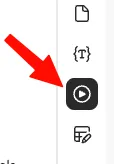
- In Universal Editor, locate the Preflight icon in the right side rail:
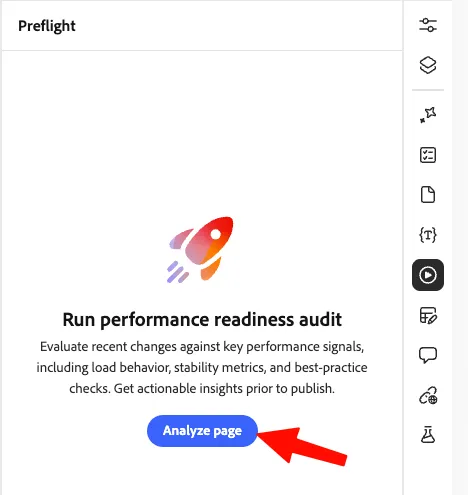
- Select Analyze page.
- Wait for the audit to complete.
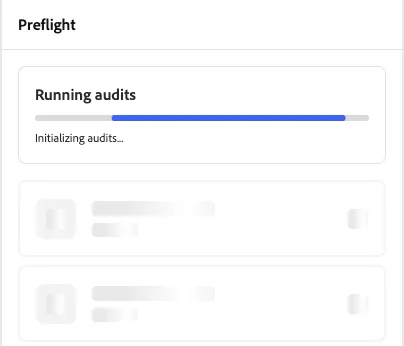
During this step, Preflight analyzes the page and checks:
- Content quality and completeness
- Page structure and headings
- Accessibility recommendations
- SEO-related elements
- Potential issues that should be addressed before publishing
- Review the results:
- Review the page readiness score, if displayed.
- Expand the available audit categories.
- Read each recommendation.
- Identify issues that can be corrected directly in Universal Editor.
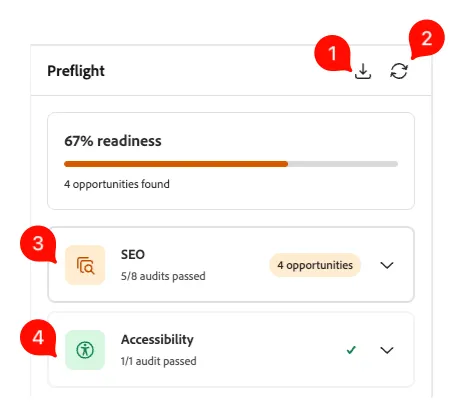
Understanding the Preflight Results
- Readiness score: Shows the overall quality of the page based on the completed audits.
- Opportunities found: Indicates the number of recommendations that may improve the page.
- Download icon (1): Downloads or exports the audit results for later review.
- Refresh icon (2): Runs the audit again after page updates.
- SEO (3): Checks elements that help search engines understand and rank the page, such as titles, metadata, links, and canonical URLs.
- Accessibility (4): Checks whether the page is usable by people with disabilities, including structure, labels, and readability.
A green check mark indicates that all checks in a category have passed. An "opportunities" message indicates that improvements are available, but the page can still be previewed or published.
- For our demo site, the score is fine, so let's publish in next part.
Part 2: Publish the page to EDS Preview
Publishing to Preview allows you to validate the page in the Edge Delivery Services environment before making it available to site visitors.
- In your Article Page, in the Universal Editor toolbar, select the Publish icon.

- Select Publish Destination as Preview, and ensure that 1 item is selected (if not, select it). And click on publish.
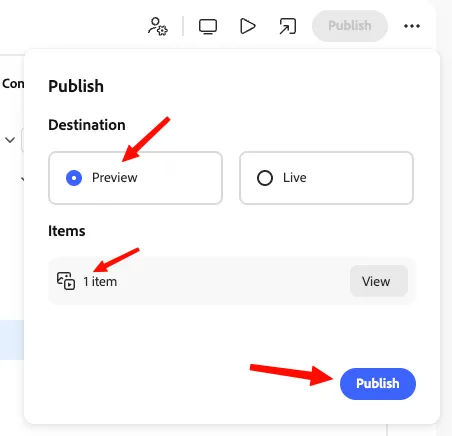
Universal Editor sends the publication request through the AEM and Edge Delivery Services publishing flow. Edge Delivery Services then retrieves and ingests the page content for the selected environment.
Part 3: Verify the Preview page
- Open your article on the EDS Preview URL: Your Article Preview Page
- Verify the following on your Article Page:
- The page loads successfully.
- The updated title and content are visible.
- Images and other assets render correctly.
- Links point to the expected destinations.
- The page layout is correct.
- No placeholder content remains.
- The page behaves correctly at different viewport sizes.

- Compare the Preview page with the page shown in Universal Editor.
- If you find an issue:
- Return to Universal Editor.
- Correct the content.
- Run Preflight again.
- Publish the updated page to Preview.
- Refresh the Preview URL and verify the change.
Part 4: Publish the page to production
Once the Preview page has been validated, publish the approved version to the live EDS environment.
- Use the Sidekick plugin, click on "update" to sync all content with AEM.
- Then click on "Publish" to publish the site to Live.
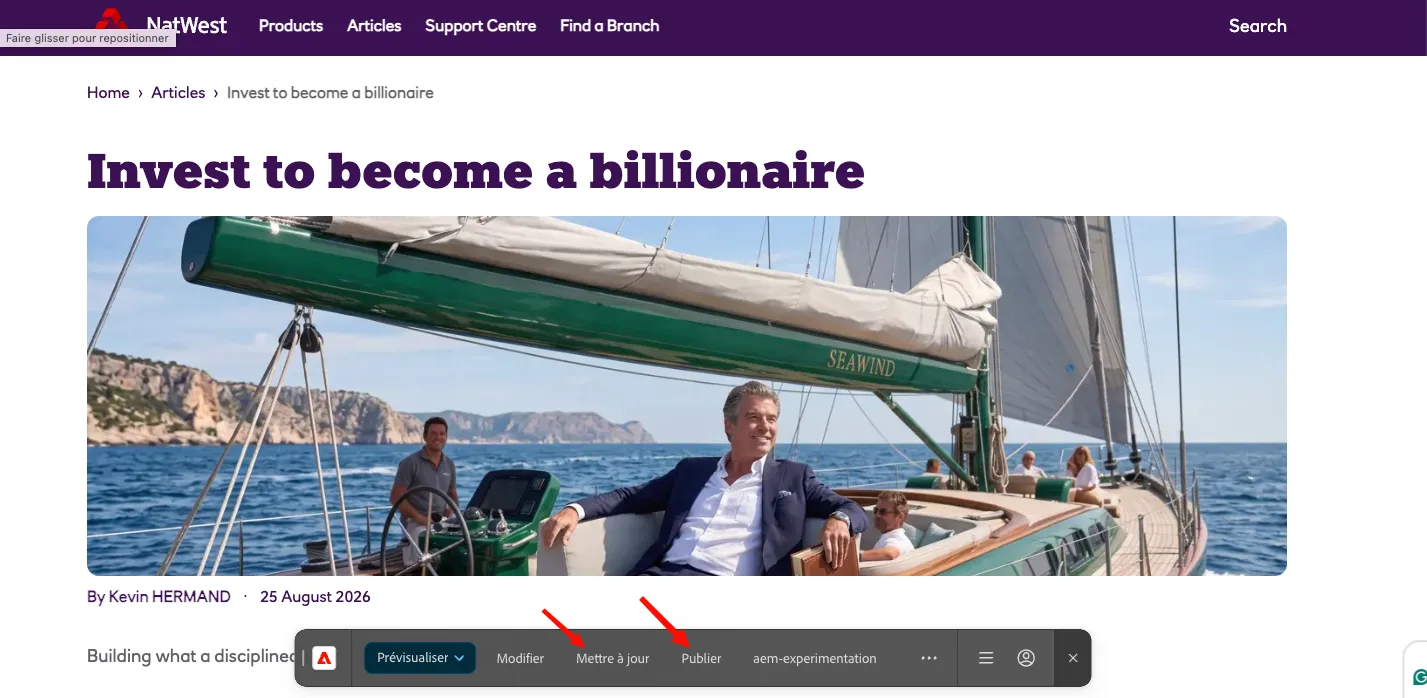
- Once published, it will open the page to the production URL in .live

Congrats!
You have now:
- Used the Preflight extension in Universal Editor.
- Reviewed page-quality recommendations.
- Published the page to EDS Preview.
- Published the approved page to the live EDS environment.
Key takeaway
The recommended authoring workflow is: