Ex4: Author Headless site with CF
For the Business branch of NatWest, we built a Headless NatWest Site (a single-page application built on React), with content coming from Content Fragments (CF).
In this lab, your task is to update this content as a headless Content Fragment using the Universal Editor.
Step 1 — Take a look at the SPA Site
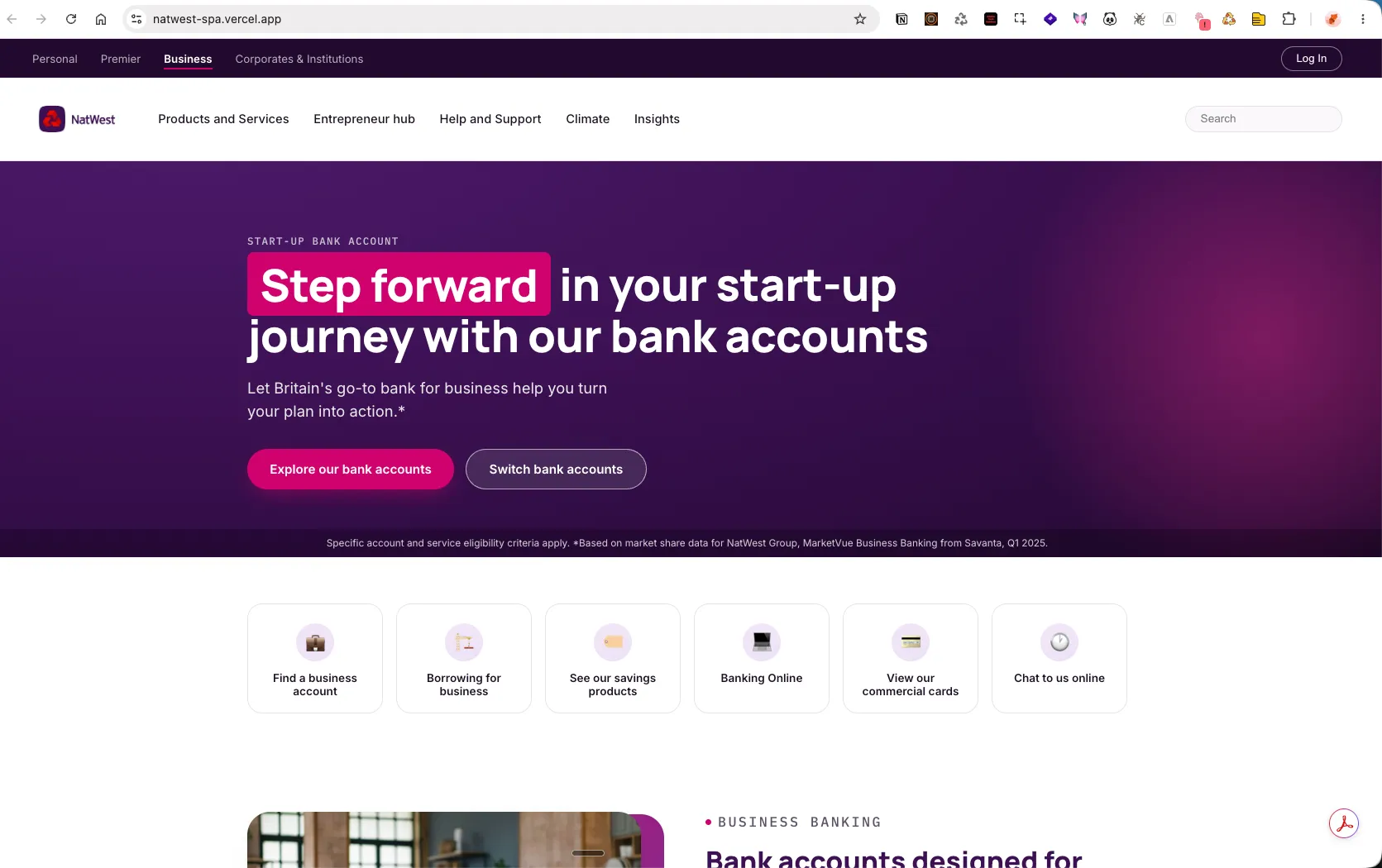
This is the NatWest demo site we created in React.
- Take a moment to walk through the page. (fyi: links do not work, as we didn't build other pages)
- Now let's take a look at the content in Universal Editor: click here.
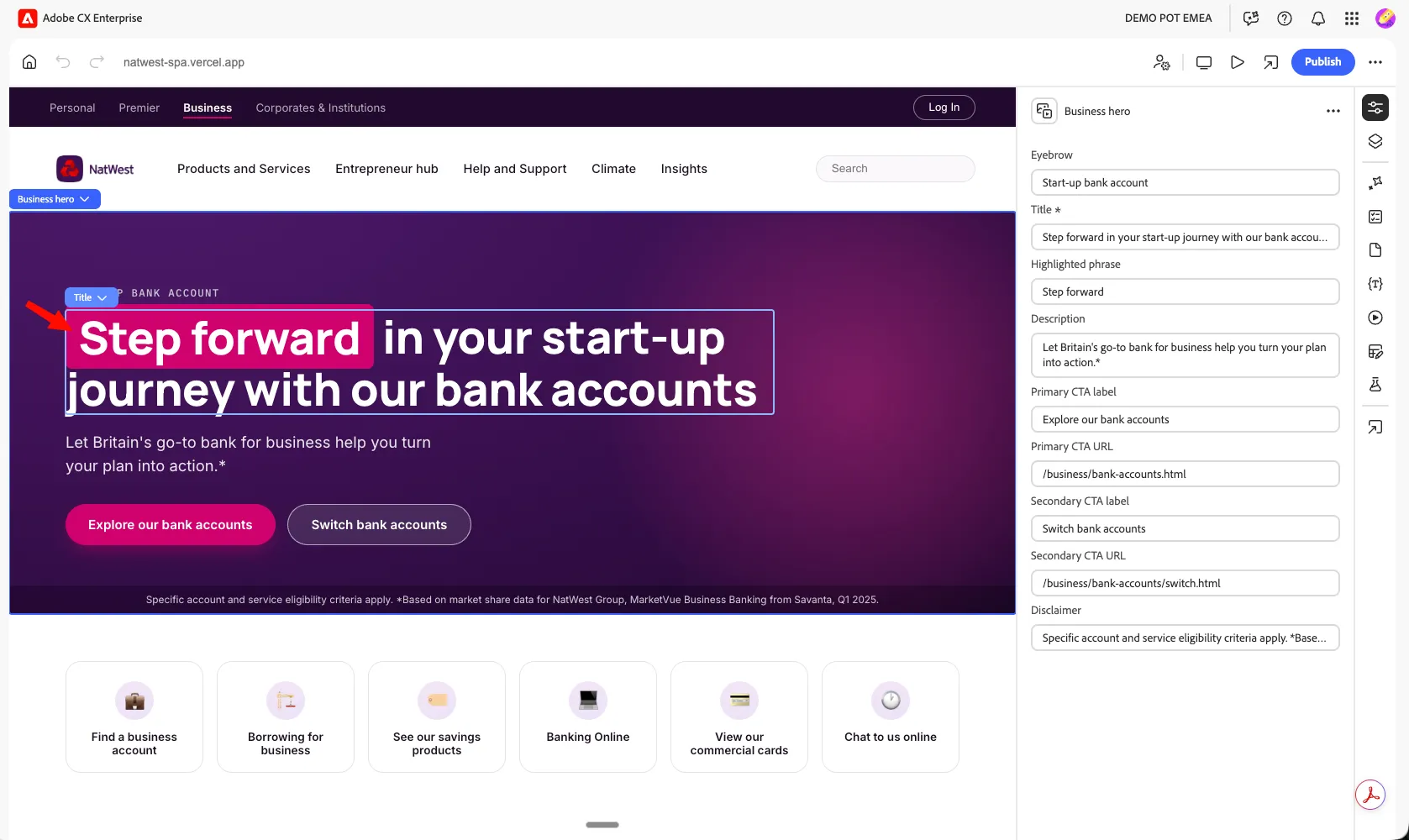
Walk through the page in UE. Notice that hovering over content lets you select and edit it.
All those contents are served through Content Fragments.
- Click on the Business Hero, this will load the content on the right, that you can modify.
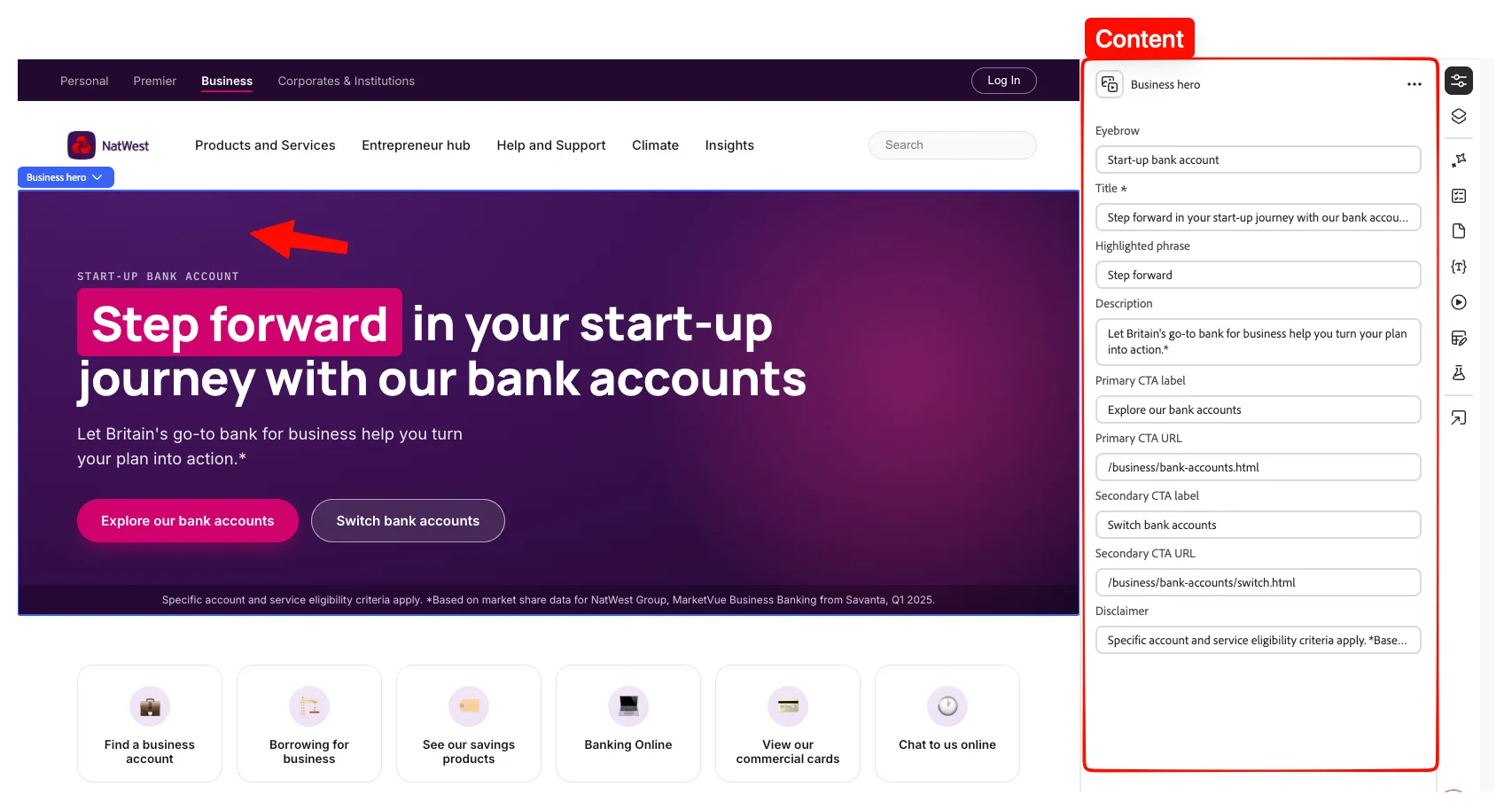
- Let's look at where this content comes from, click on here:
- This will open the Content Fragment that is serving the Business Hero of our Website:
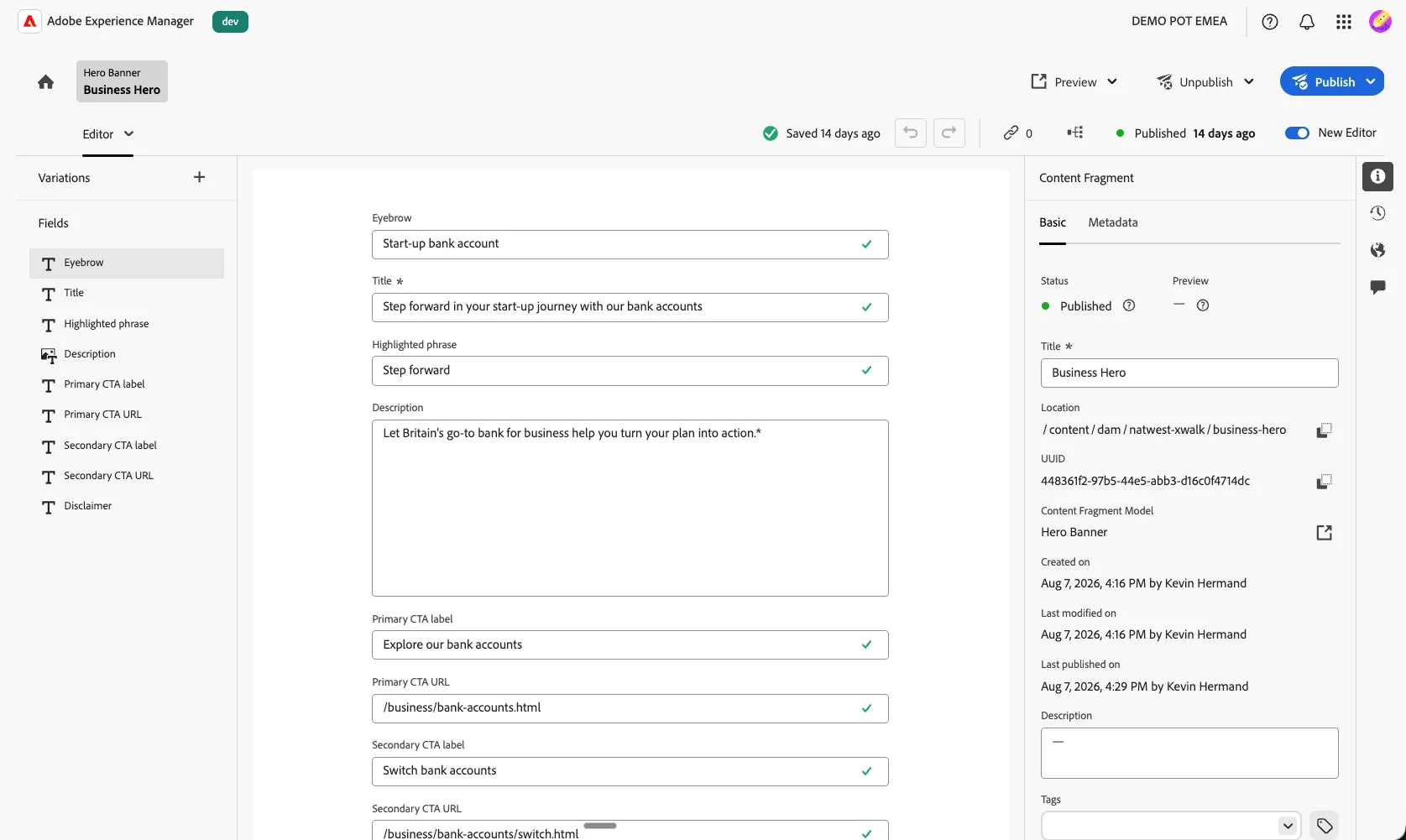
Step 2 — Understand Content Fragments
A Content Fragment is a structured piece of content that is stored independently from a page design.
Instead of storing the content directly inside a page component, AEM stores it as a reusable content asset. The content can then be displayed by different applications or channels, such as:
- A web application
- A mobile application
- A single-page application
- A voice or conversational experience
- Another website or digital channel
For headless delivery, the application retrieves the structured content from AEM, commonly as JSON through an API. This means that the application controls the presentation, while AEM manages the content.
- Get an overview of the UI:
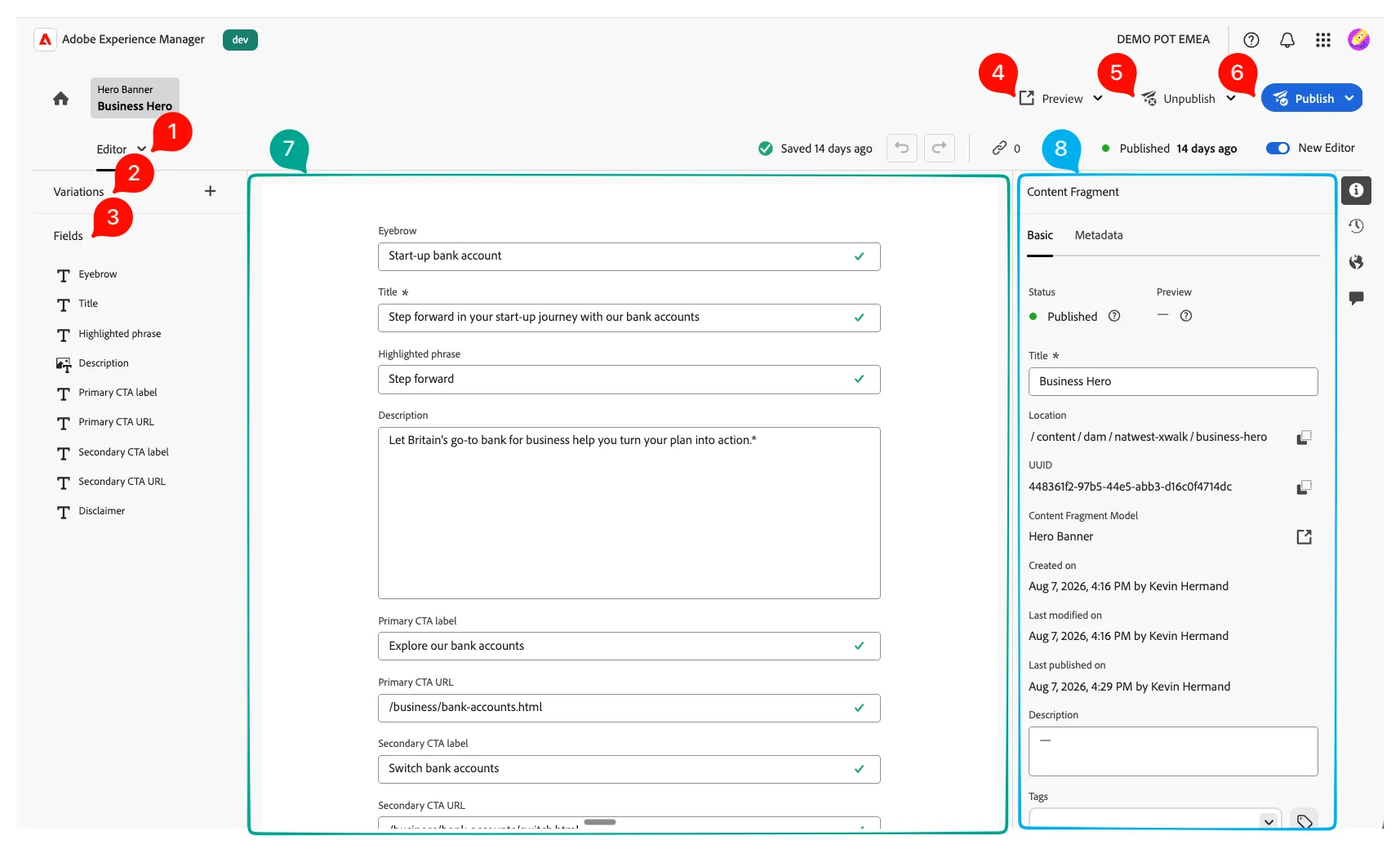
n° | UI element | Explanation |
|---|---|---|
1 | Editor menu | Switch between Editor, Structure Tree, and JSON Preview. |
2 | Variations | Displays alternate versions of the fragment content, when configured |
3 | Fields | Lists the fields defined by the Content Fragment Model |
4 | Preview | Opens a preview of the current content (if prebuilt) |
5 | Unpublish | Removes the currently published version from the delivery environment |
6 | Publish | Makes the current fragment available to the configured delivery environment |
7 | Main editing area | Shows the fields and values of the selected Content Fragment |
8 | Information panel | Displays properties and metadata for the selected fragment |
- Understand how the CF is used in our application. The publishing flow is:
Step 3 — Understand the Product Card Content Fragment
We want to create our own Product Card using the Product Card Content Fragment Model.
- Go to the bottom of the page.
- Take a look and click to select the Product cards section:
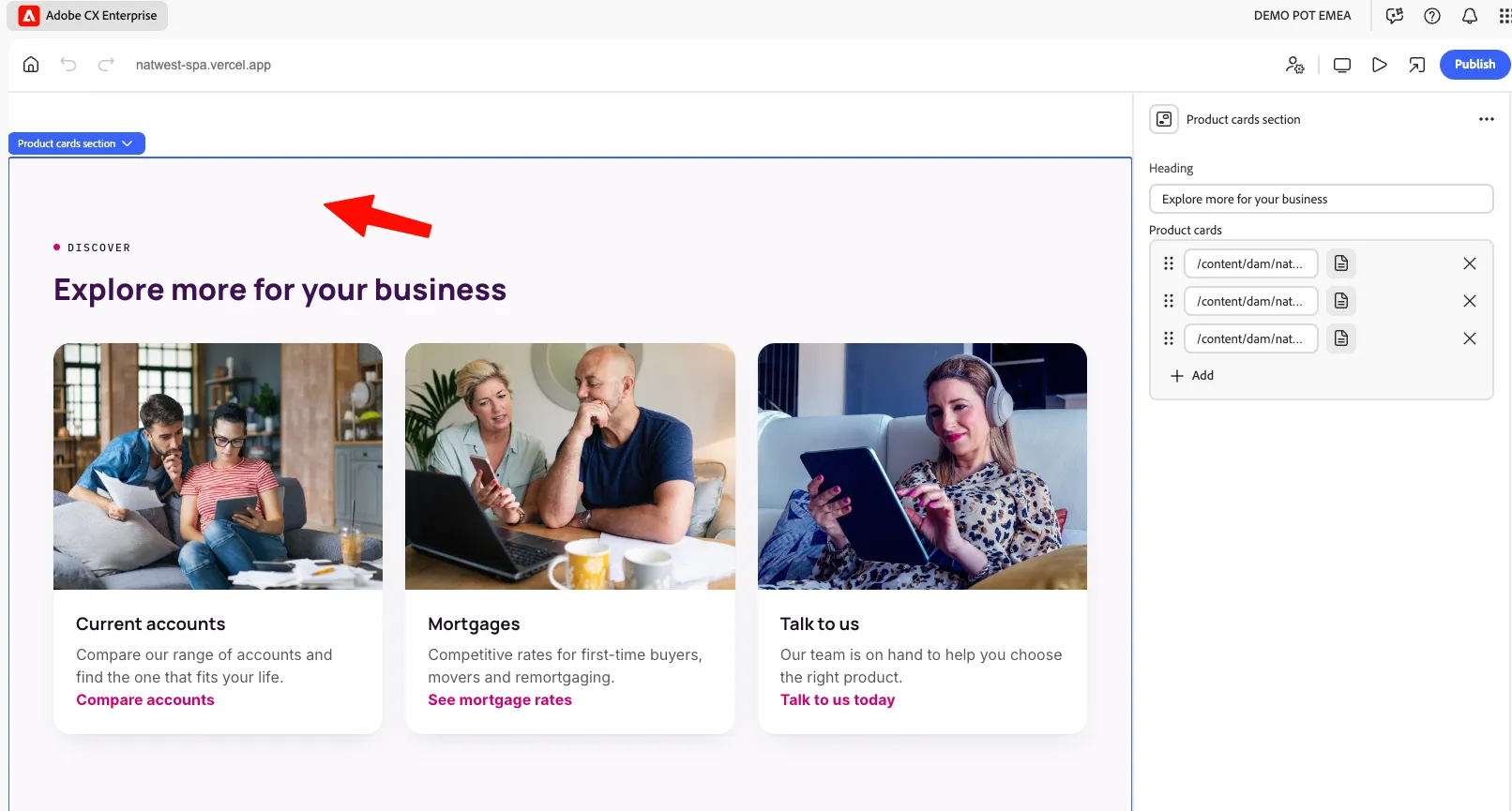
You can see the 3 content fragments that are selected to populate the cards' content.
- Click on one of the cards:
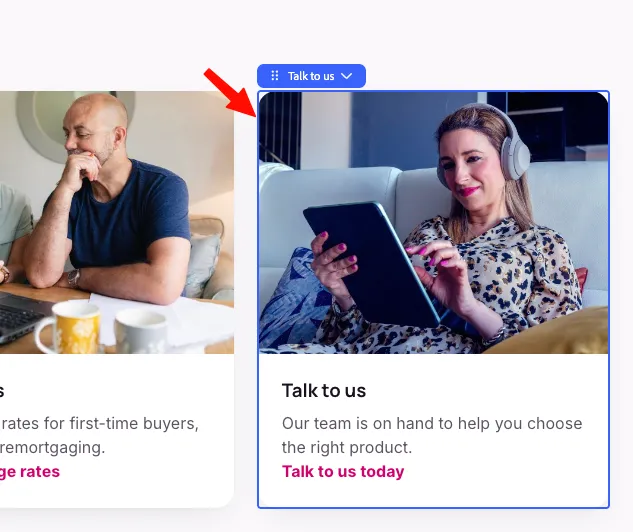
- This will display the content fragment content. Click on (1) to open this content fragment:
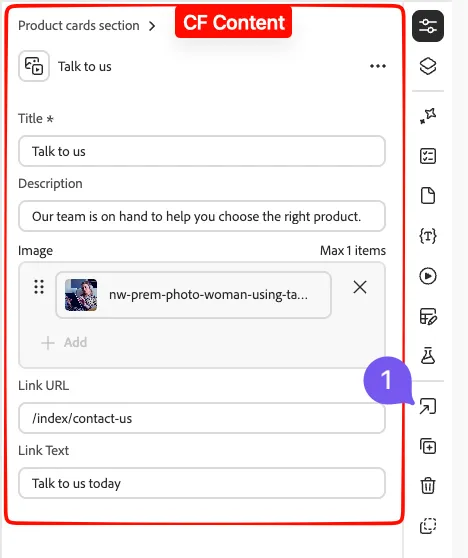
- Take a look at how the Product Content Fragment is built; it has:
- a title
- a description
- an image
- a link
- and link text.
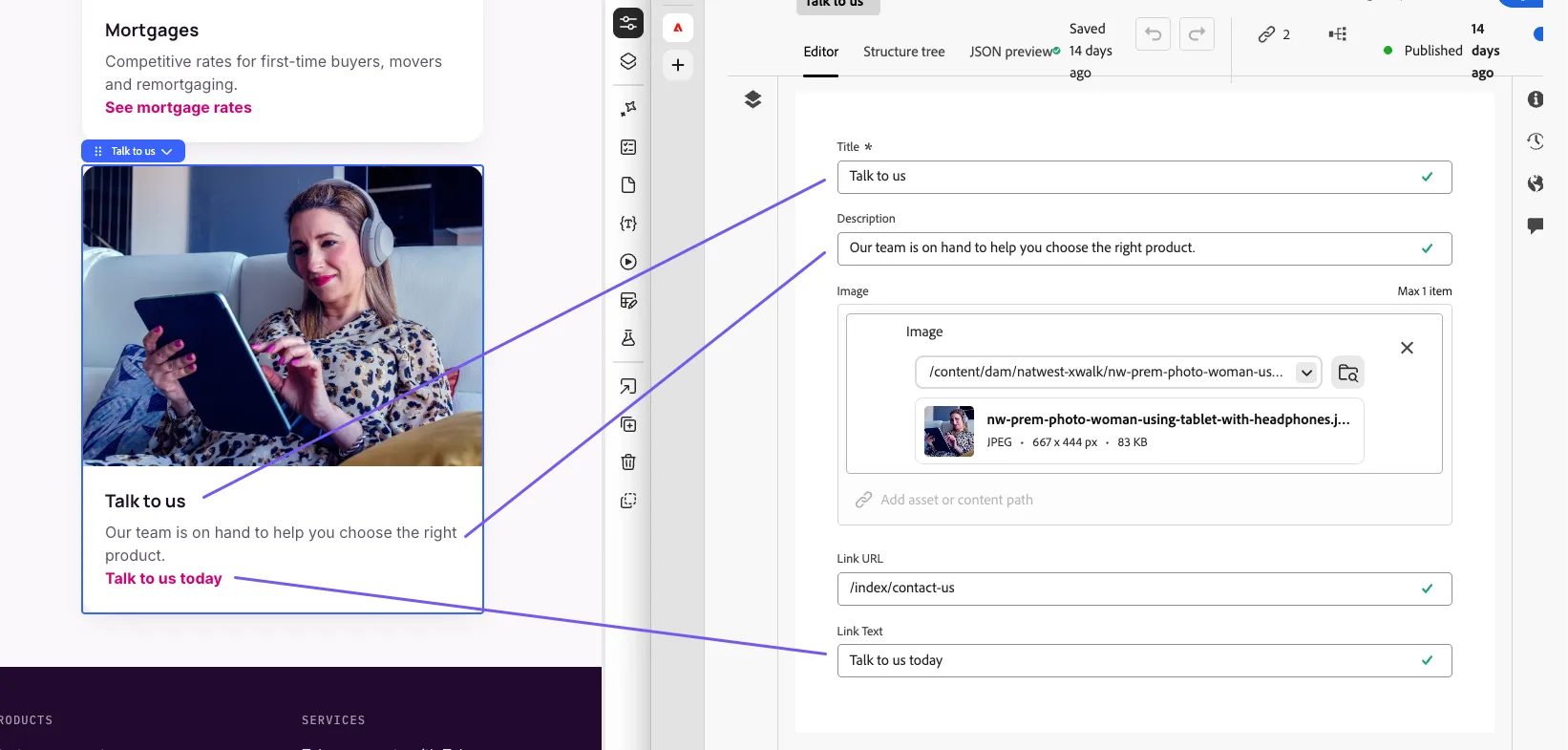
- If we put the Universal editor and the CF editor side by side, we can see the matching content:
Step 4 — Create your Product CF
In this step, you will create your own product card content fragment.
- Go to AEM CF.
- This will take you to where all Content Fragments are stored in AEM:
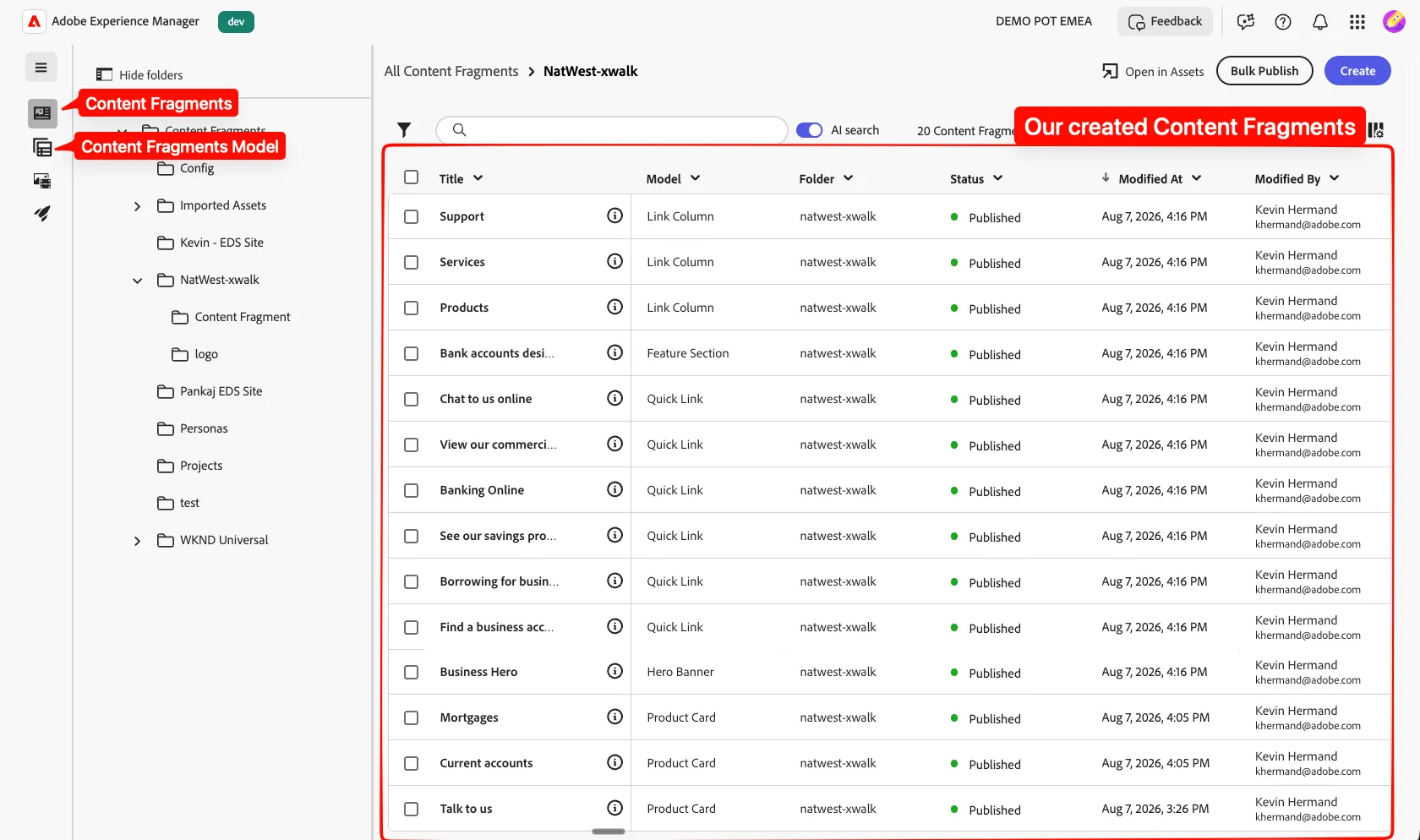
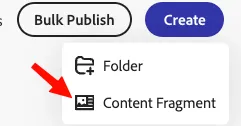
- At the top, click Create:
- Click Content Fragment:
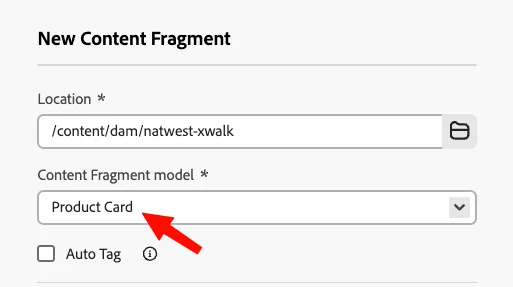
- Add Product Card Content Fragment model:
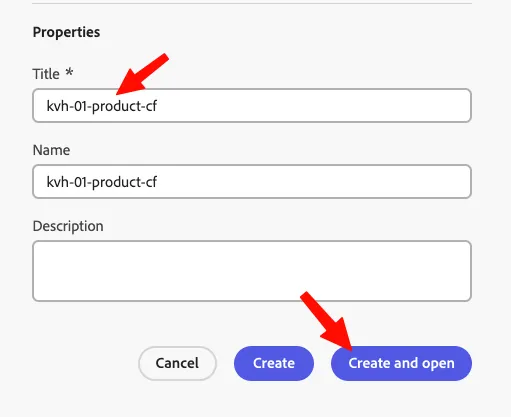
- Enter as title: {{CUSTOMER_NAME}}-{{USER_NUMBER}}-product-cf And click Create and Open:
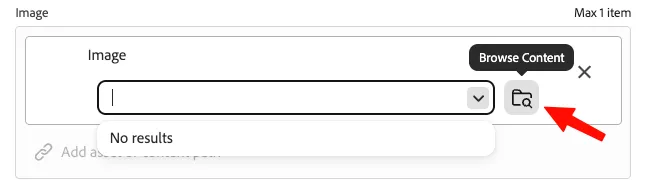
- Give your Product Card a meaningful Title, description, image, and Link Text. Choose different ones.
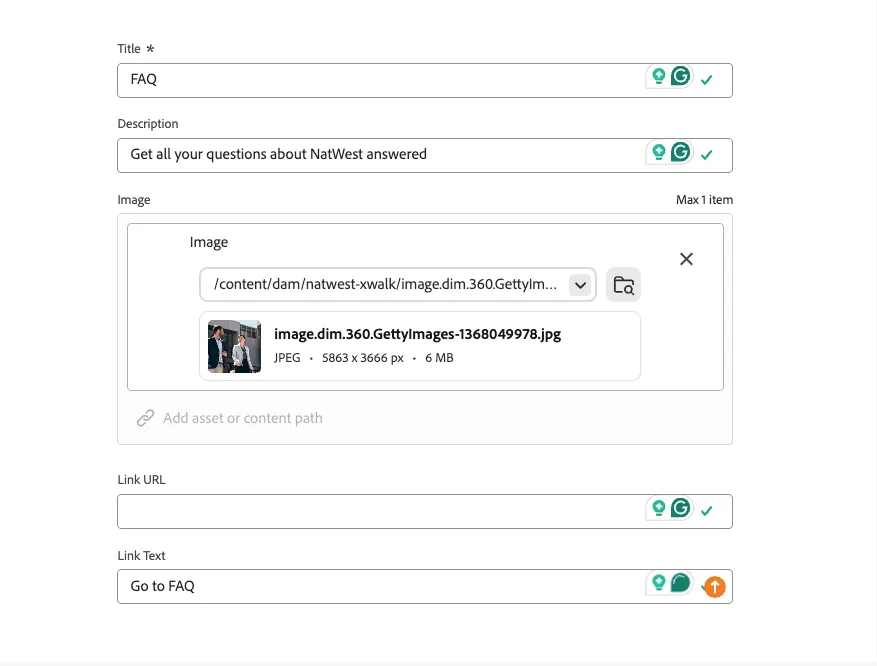
To add an image click on browse content:
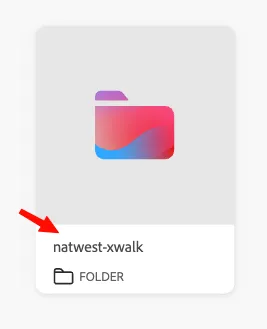
And go to the natwest-xwalk folder:
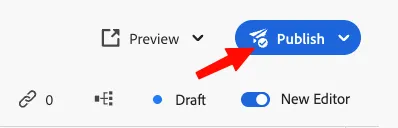
- When done, click Publish, and now:
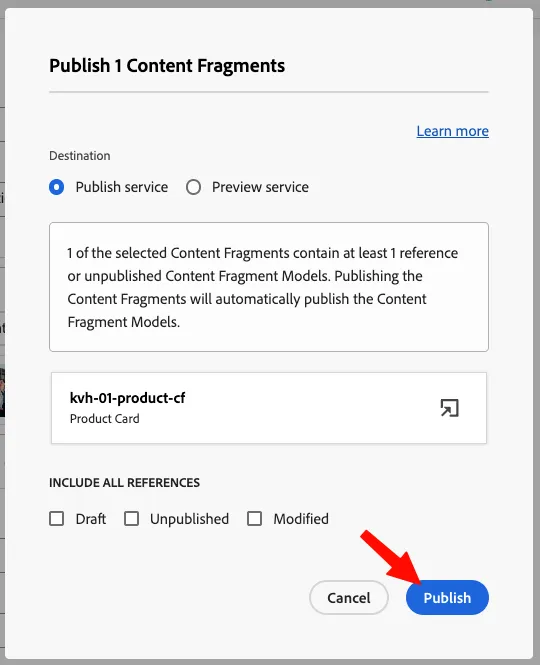
- And Publish:
Optional — Add the CF to the Homepage
In this step, we add the content fragment we just created inside our index page.
- Go to Universal Editor.
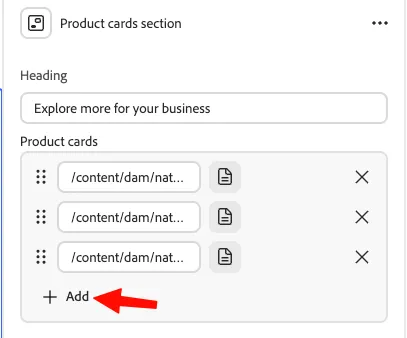
- Scroll to the bottom and click to select the Product cards section:
- On the right panel, click on Add:
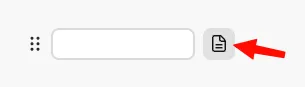
- Click on the file icon to browse our content:
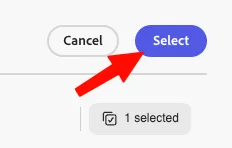
- Search and select your created Content Fragment:

- In the top right, click Select:
- The page then needs to be published to see the changes reflected.
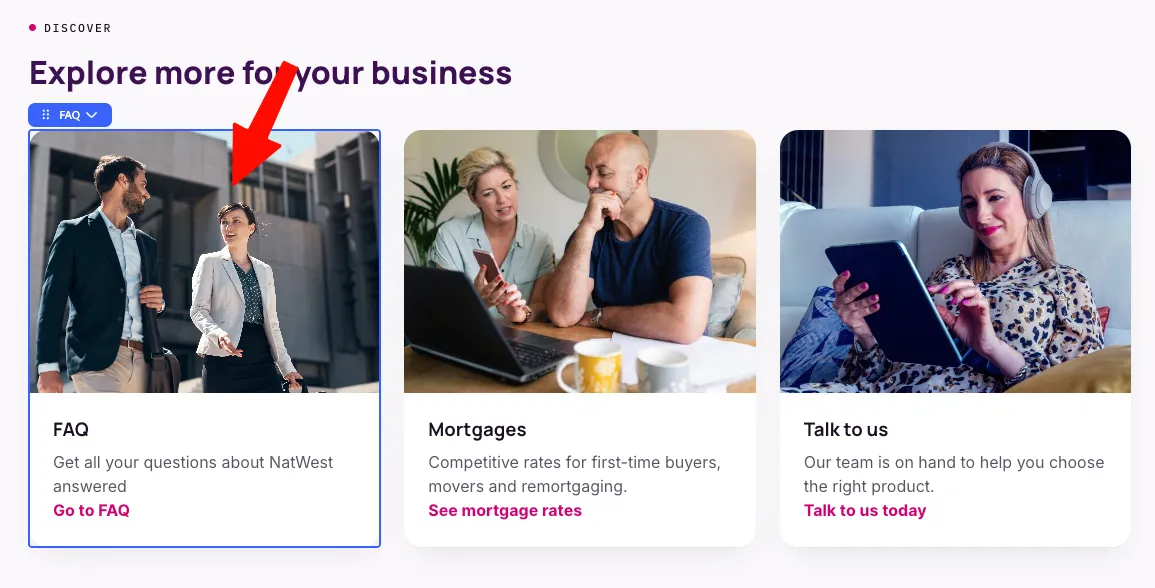
Congrats! This lab demonstrated how to author a structured Content Fragment in AEM and manage it through the Universal Editor for the NatWest headless application. Content is separated from presentation, making it reusable, centrally managed, and editable without code.