Ex4: Figma Design Updates
To tie into your design workflow, you can also use the agent to import design from Figma and style blocks to match the design spec, without any manual translation.
In this chapter, you'll give it a Figma URL and let it style the accordion block to match the design spec.
This is how the design looks in the Figma file – on the left is the normal state (folded and unfolded) and on the right the state on mouse hover:

Notice the differences with the current accordion of the WKND site:
- In the current implementation, the accordion has a white background by default, while the designer wants it to be always with a background.
- On hover, our designer wants to use the strong orange accent color, while the current implementation is using a softer color.
Step 1 — Quick Figma setup
- Go to the top-left configuration:
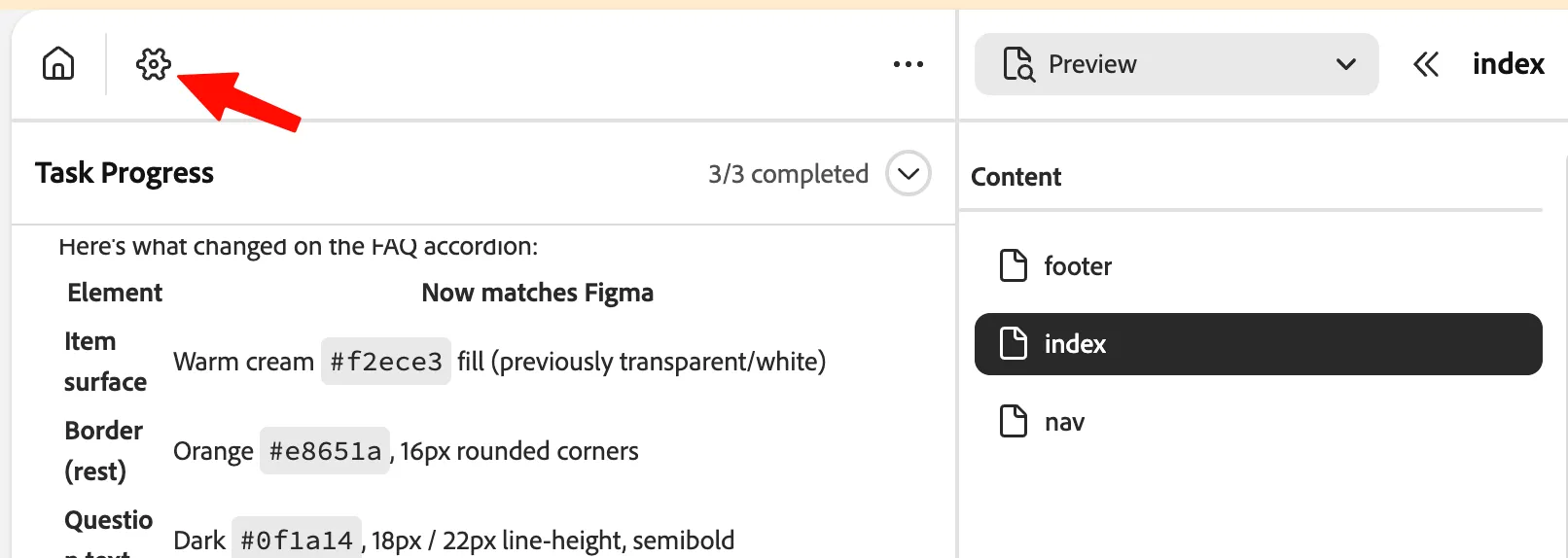
- Scroll down to the configuration called Credentials, and add the following Figma personal access token: figd_xUVY-ztEmsDYPUbc07xRqQODbeAqVzxUT1nSUbVR

- Click Save.
Step 2 — Send the prompt
Let's start by pointing the agent to the accordion block and giving it the Figma URL.
- Make sure you're in Content Preview:
- If you haven't already, go back to the aemcoder.adobe.io tab.
- And make sure you are in Preview:
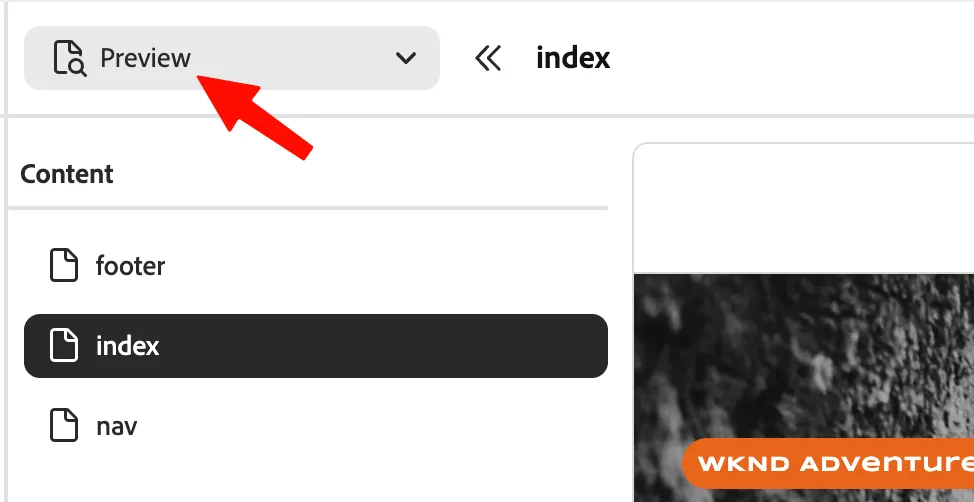
- Scroll down our page and take a look at the actual accordion block:
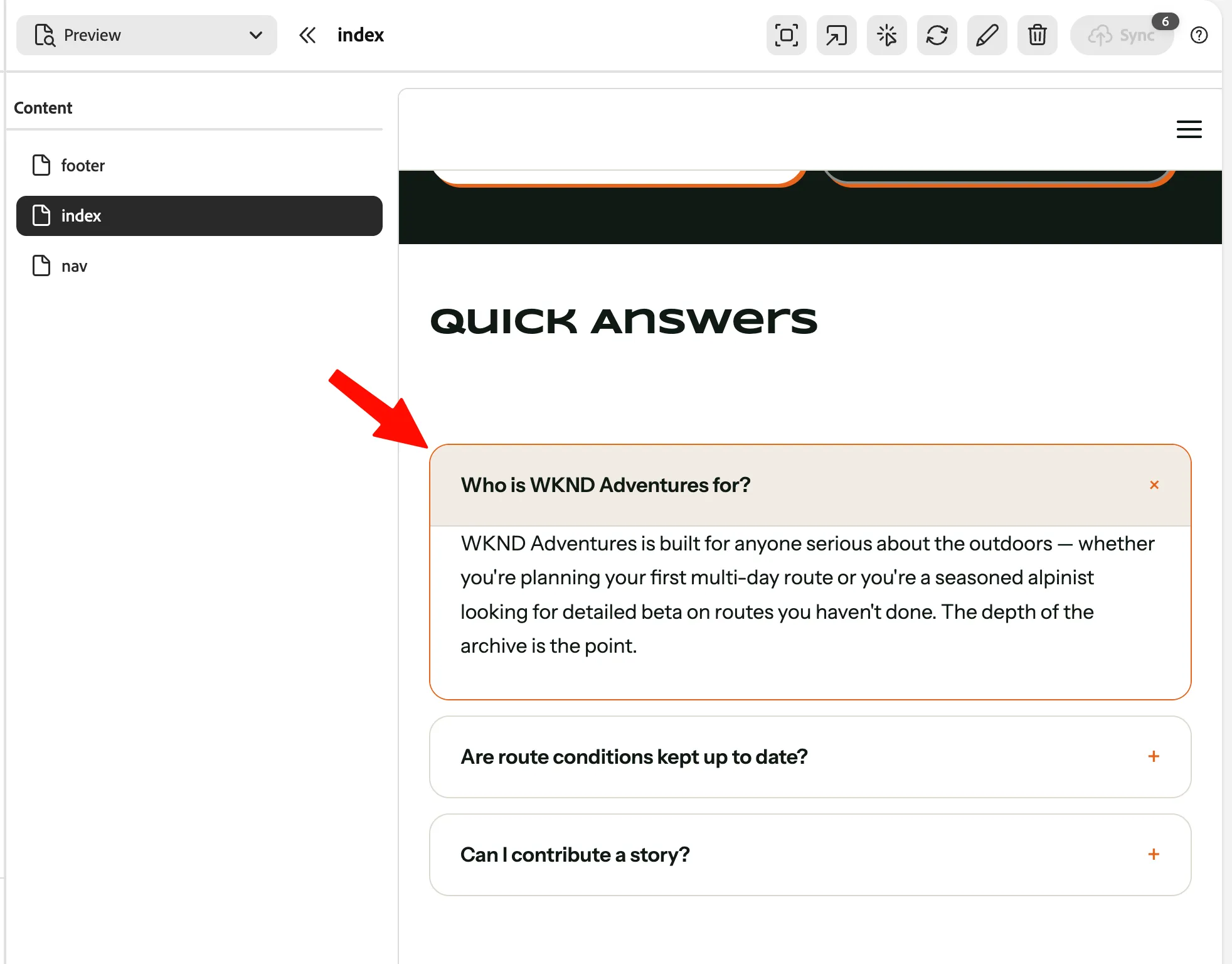
- Select the Element Inspector,
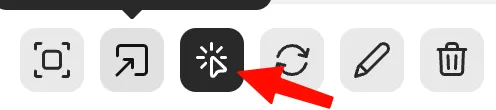
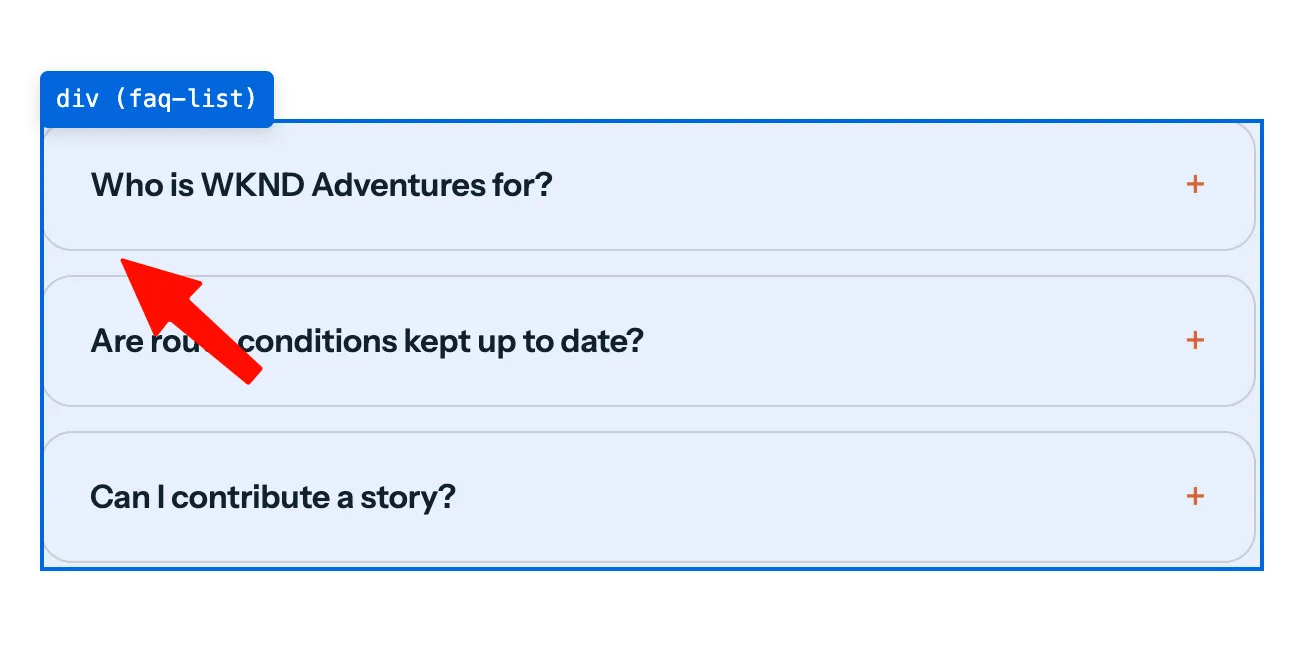
- and select our div faq-list:
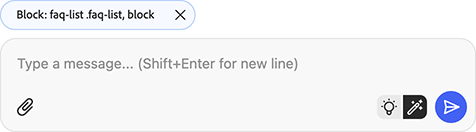
- Above the chat text area, you should see a context bubble with the label "Block: faq-list .faq-list, block":
- Copy and paste this prompt:Style the accordion as in the Figma design: https://www.figma.com/proto/eGmcjJEw2XHyjkk04Hdv9r/WKND---Accordion?node-id=0-1&t=ar16J8H5oVEhLGi6-1
If prompted Figma integration required, Enable it:
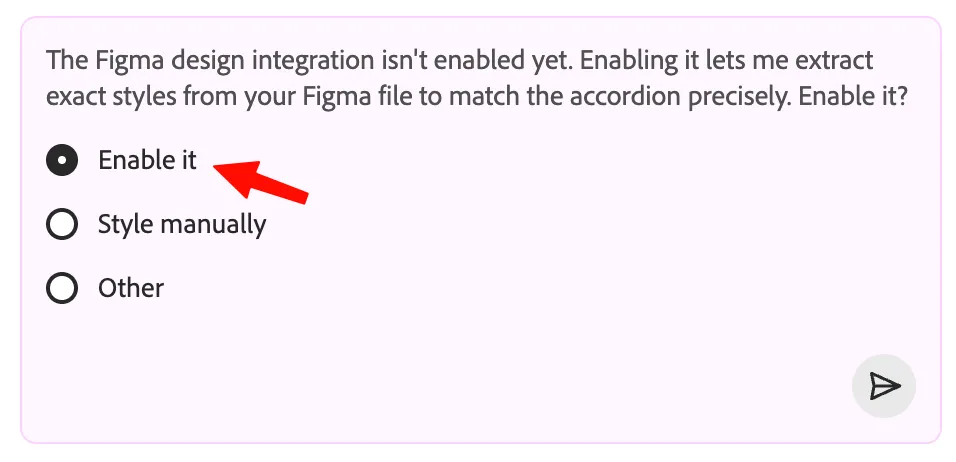
If you had a Figma license, you could have copied this URL that we're using in the prompt by selecting the component in the file and choosing "Copy link to selection" from the contextual menu.
- Submit it, and wait 2–5 minutes for the agent to read the Figma file and generate the CSS to match the design.
Success
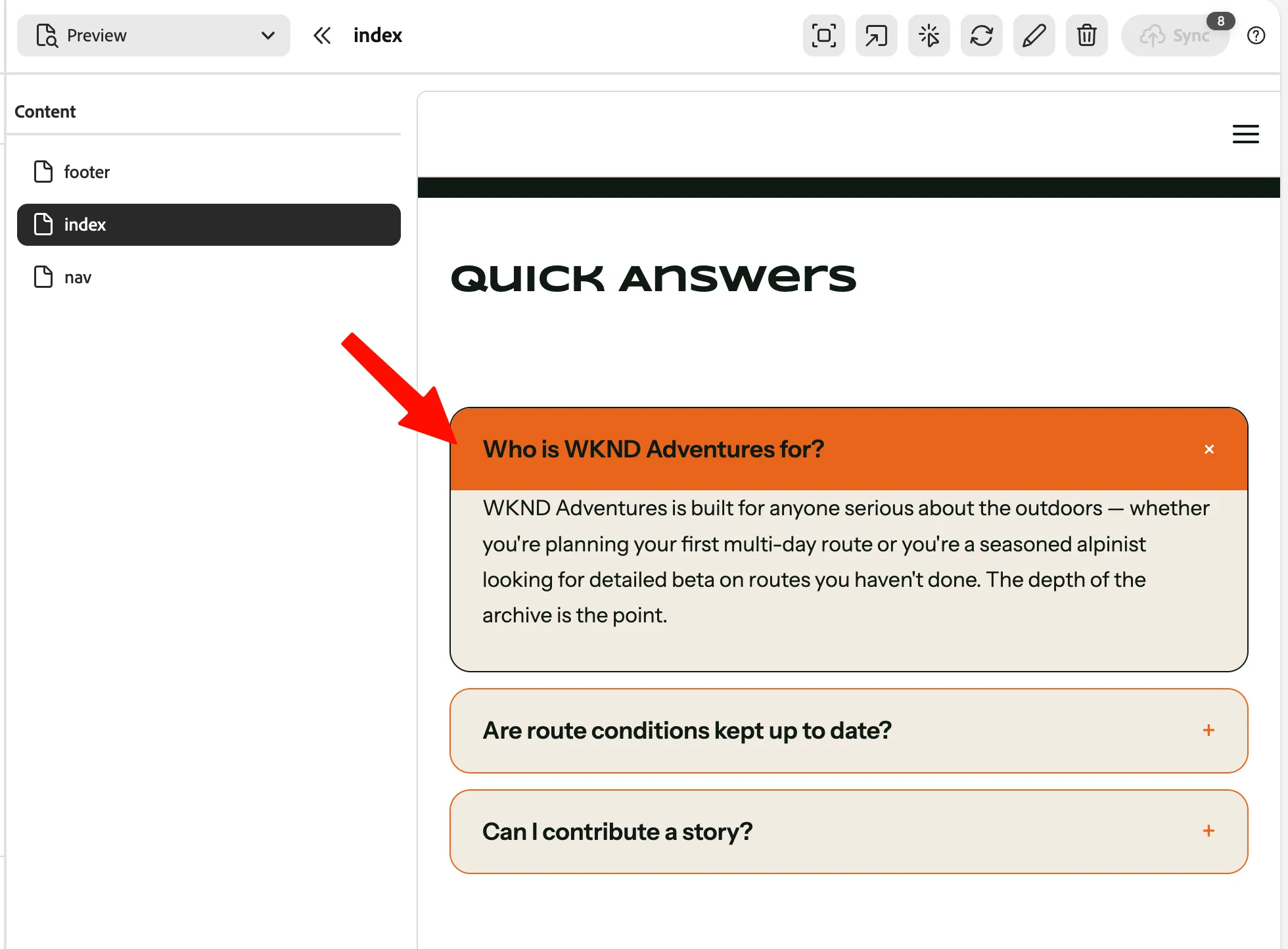
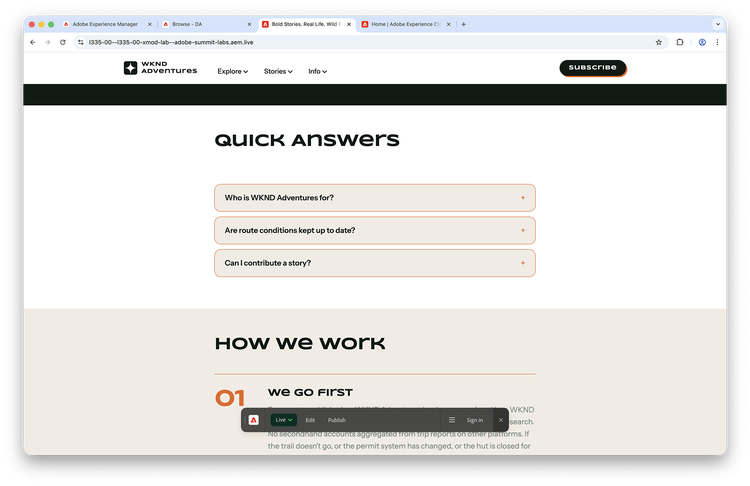
You should see the updated accordion matching the Figma design in the preview.
Step 3 — Review and deploy your design changes
You know the music: review the changes and push them to production.
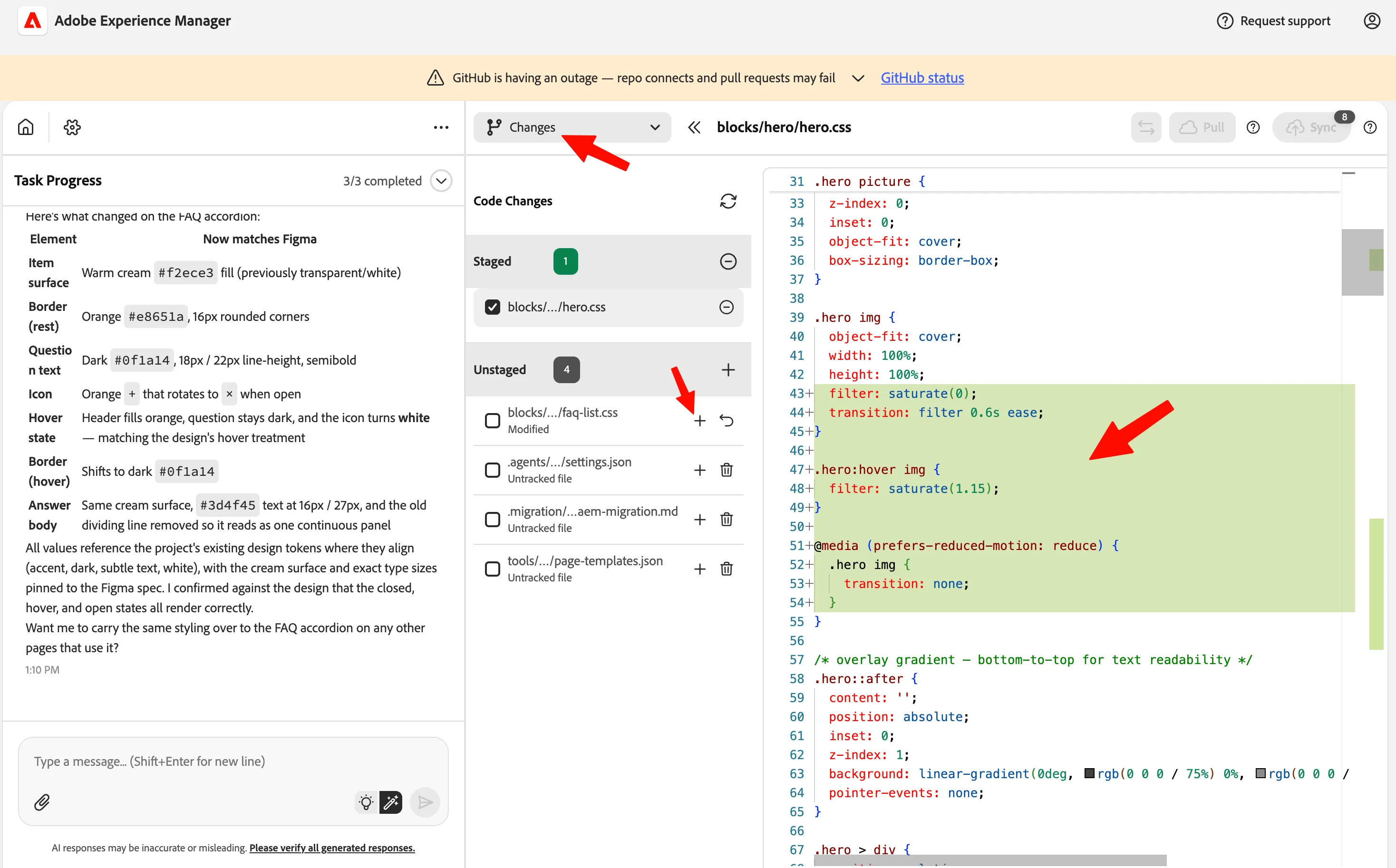
- Switch to Changes, review code change, and stage it:
Learnings
What you experienced: You gave the agent a Figma URL and a target block. It read the design file directly, extracted colors, typography, spacing, and layout, and wrote the CSS. No manual translation needed, no screenshot comparison, no handoff document.
Design systems and codebases drift apart whenever someone manually translates a Figma file into CSS. With the agent, the design file is the source of truth. Any time a designer updates a component, you can re-run the prompt and the code catches up in minutes.
Questions? Now is a good time to ask the instructor before we move on.
Success You know how to import design from Figma and style blocks to match the design spec.